BR 604 - Router TOPCOM - Free user manual and instructions
Find the device manual for free BR 604 TOPCOM in PDF.



User questions about BR 604 TOPCOM
0 question about this device. Answer the ones you know or ask your own.
Ask a new question about this device
Download the instructions for your Router in PDF format for free! Find your manual BR 604 - TOPCOM and take your electronic device back in hand. On this page are published all the documents necessary for the use of your device. BR 604 by TOPCOM.
USER MANUAL BR 604 TOPCOM
SNABBINSTALLATIONSGUIDE
HURTIG INSTALLATIONSGUIDE
HURTIGINSTALLASJON
PIKA-ASENNUSOHJEET
MANUAL DE USUARIO
MANUAL DO UTILIZADOR
- THE CONNECTION PANEL 3
- CONFIGURING THE PC TO CONNECT TO THE CABLE/DSL ROUTER 3
- VERIFY YOUR PC'S IP CONFIGURATION 4
- SETUP THE BROADBAND ROUTER 5
- CONNECTION STATUS 9
- ROUTER ADVANCED SETTINGS 10
- FIRMWARE UPDATE 10
- WARRANTY 11
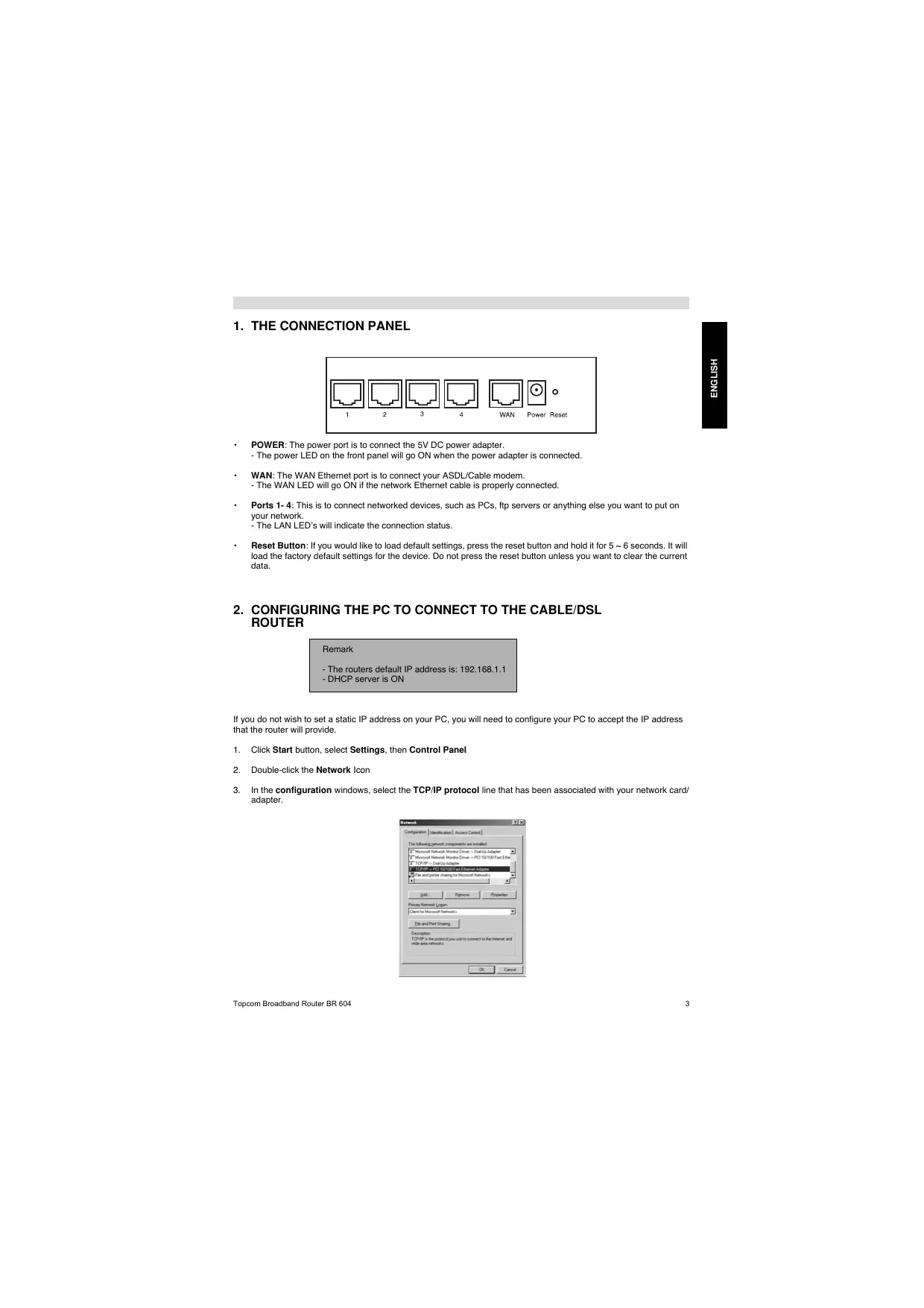
1. THE CONNECTION PANEL
text_image
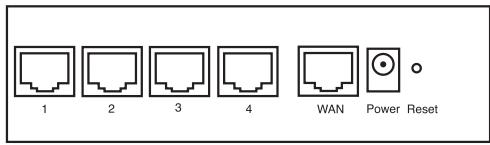
1 2 3 4 WAN Power Reset• POWER: The power port is to connect the 5V DC power adapter.
- The power LED on the front panel will go ON when the power adapter is connected.
• WAN: The WAN Ethernet port is to connect your ASDL/Cable modem.
- The WAN LED will go ON if the network Ethernet cable is properly connected.
- Ports 1-4: This is to connect networked devices, such as PCs, ftp servers or anything else you want to put on your network.
- The LAN LED's will indicate the connection status.
- Reset Button: If you would like to load default settings, press the reset button and hold it for 5 \~ 6 seconds. It will load the factory default settings for the device. Do not press the reset button unless you want to clear the current data.
2. CONFIGURING THE PC TO CONNECT TO THE CABLE/DSL ROUTER
Remark
- The routers default IP address is: 192.168.1.1
- DHCP server is ON
If you do not wish to set a static IP address on your PC, you will need to configure your PC to accept the IP address that the router will provide.
- Click Start button, select Settings, then Control Panel
- Double-click the Network Icon
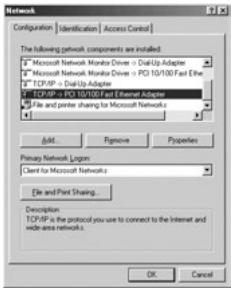
- In the configuration windows, select the TCP/IP protocol line that has been associated with your network card/adapter.
text_image
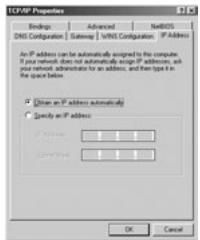
Network Configuration Identification Access Control The following network components are installed: • Microsoft Network Monitor Driver - DialUp Adapte • Microsoft Network Monitor Driver - PD 10/100 Fast Ebit • TCP/IP - DialUp Adapte • TCP/IP - PD 10/100 Fast Ethernet Adapter • File and printer sharing to Microsoft Networks Add Remove Properties Primary Network Logos Client to Microsoft Networks Use and Print Sharing... Description TCP/IP is the protocol you use to connect to the Internet and wide-area networks. OK Cancel- Click the Properties button, then choose the IP ADDRESS tab. Select Obtain an IP address automatically.
text_image
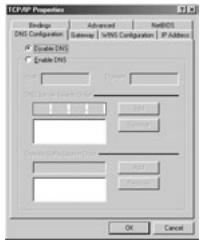
TCP/IP Properties Bindings Advanced NetBIOS DNS Configuration Satellite VMNS Configuration IP Address An IP address can be automatically assigned to the computer. If your network does not automatically assign IP addresses, ask your network administrator to an address, and then type in the space below. Obtain an IP address automatically Specify an IP address OK Cancel- Then select DNS configuration tab to add DNS IP address. Select Disable DNS function. Press OK. You have completed the client settings.
- After clicking OK, windows will ask you to restart the PC. Click Yes.
text_image
TCP/IP Properties Binding Advanced NetBIOS DNS Configuration Gateway NetBIOS Configuration IP Address Enable DNS Enable DNS OK Cancel3. VERIFY YOUR PC'S IP CONFIGURATION
There are some tools which are great for finding out a computer's IP configuration: MAC address and default gateway.
• WINIPCFG (for windows 95/98)
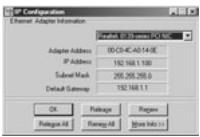
Inside the windows 95/98/ME Start button, select Run and type winipcfg. In the example below this computer has a IP address of 192.168.1.100 and the default gateway is 192.168.1.1. The default gateway should be the broadband router IP address. The MAC address in windows 95/98 is called the Adapter Address.
NOTE: You can also type winipcfg in the DOS command.
• IPCONFIG (for windows 2000/NT)
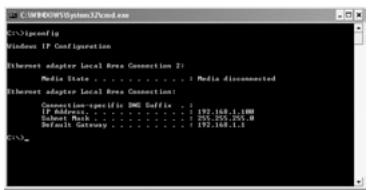
In the DOS command type IPCONFIG and press Enter. Your PC IP information will be displayed as shown below.
text_image
C:\WINDOWS\System31\cmd.com Windows IP Configuration Internet adapter Local Area Connection 2: Media State . . . . . . . . . . : Media disconnected Internet adapter Local Area Connection: Connection-specific IMG Supply . . . . . . . . . . . . . . . . . . . . . . . . . . . . . . . . . . . . . . . . . . . . . . . . . . . . . . . . . . . . . . . . . . . . . . . . . . . IP Address. . . . . . . . . . . . . . . . . . . . . . . . . . . . . . . . . . . . . . . . . . . . . . . . . . Subset Mask. . . . . . . . . . . . . . . . . . . . . . . . . . . . . . . . . . . . . . . Default Gateway. . . . . . . . . . . . . . . . . . . . . . . . . 192.168.1.4M C:\>- IPCONFIG / RENEW will renew the IP address, gateway and DNS.
- Windows XP
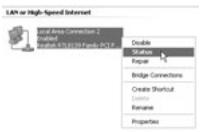
Click the right mouse key on your network adapter and select Status
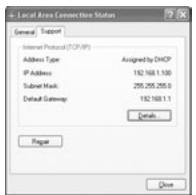
The support screen will display the IP information.
4. SETUP THE BROADBAND ROUTER
When your PC has a valid IP address, you should be able to go to the router setup web page.
Open Internet Explorer or Netscape Navigator and goto address: 192.168.1.1
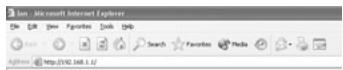
Now the login screen will appear.
• Enter the username and password.
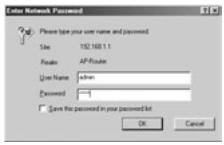
- By default the username is admin and the password is admin.
Now you enter the web management of your Broadband Router.
• The setup wizard will automatically appear:

- Click Next to proceed
• In next screen you can change the login password (admin) to your own password.
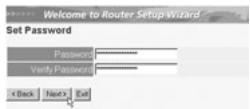
- Click Next to proceed
• In next screen you can select your Time Zone
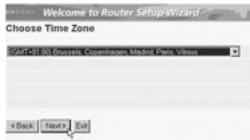
- Click Next to proceed
• Now you can change the LAN settings:
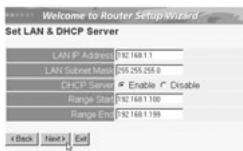
- The LAN IP address and Subnet mask can be changed.
- The router DHCP server can be Disabled / Enabled
- The DHCP range can be set.
- Click Next to proceed
• Now the BR604 will try to detect your broadband connection type
- Depending on your connection type next screen will appear: (for PPPoE, this screen will not appear if the auto detection has been successful)
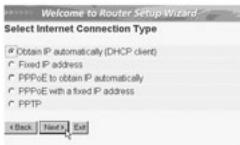
- Select your Connection Type
-
Click Next to proceed
-
Obtain IP automatilally (DHCP client): this connection is mostly used for connecting the BR604 to a cable modem.
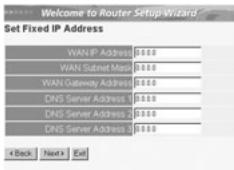
- Fixed IP address: for connections with fixed WAN IP address.
text_image
Welcome to Router Setup Wizard Set Fixed IP Address WAN IP Address 8:00 WAN Subnet Mask 8:00 WAN Gateway Address 8:00 DNS Server Address 1 8:00 DNS Server Address 2 8:00 DNS Server Address 3 8:00 < Back Next> Exit- enter the WAN IP, Subnet Mask, Gateway and DNS addresses.
- Click Next to proceed.
- PPPoE to obtain IP automatically: mostly used for connecting the BR604 to an ADSL-Ethernet Bridge with PPPoE dial up.
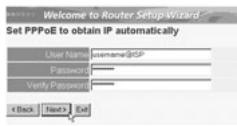
- enter username and password (twice) - Click Next to proceed.
- PPPoE with a fixed IP address: PPPoE connection with fixed WAN IP address.
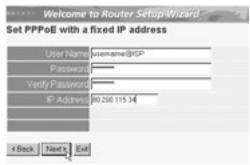
text_image
Welcome to Router Setup Wizard Set PPPoB with a fixed IP address User Name: username@GIP Password: Verify Password: IP Address: 80.200.115.34 < Back Next > Exit- enter username, password (twice) and WAN IP address - Click Next to proceed.
- PPTP: for setting up a VPN connection: in this case the BR604 WAN port is connected at the LAN site of another existing network!
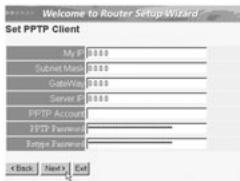
text_image
Welcome to Router Setup Wizard Set PPTP Client My IP 0.000 Subnet Mask 0.000 Gateway 0.000 Server IP 0.000 PPTP Account PPTP Password Ethernet Password < Back Next > Exit- enter the VPN IP address, Subnet Mask and Gateway. - enter the VPN Server IP address, PPTP Account and Password (twice). - Click Next to proceed.
• Now the setup is complete
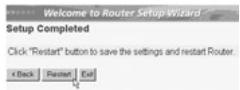
- Click Restart to save and restart the router.
- When all settings are saved a new screen will pop up:
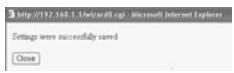
- Click Close
• The Setup Wizard is completed!
Remark:
• Next time you go to the router Web page the Setup Wizard will appear again. This can be disabled:
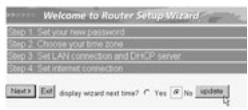
- select No and click update
- now the wizard will not appear again when you access the router Web page.
5. CONNECTION STATUS
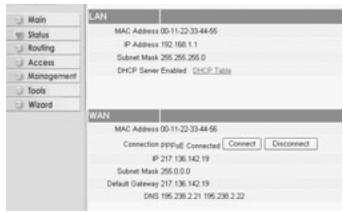
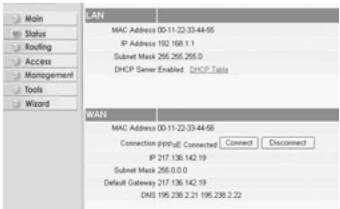
The WAN connection can be checked in the Status screen on the router Web page.
For PPPoE connection:
text_image
LAN MAC Address 00:11-22:33:44:56 IP Address 192.168.1.1 Submit Mask 255.255.255.0 DHCP Sener Enabled DHCP Table WAN MAC Address 00:11-22:33:44:56 Connection (PPFid), Connected Connect Disconnect IP 217.136.142.19 Submit Mask 255.0.0.0 Default Gateway 217.136.142.19 DNS 195.238.2.21 195.238.2.22- The connection can be disconnected by clicking Disconnect. You can connect by clicking the Connect key
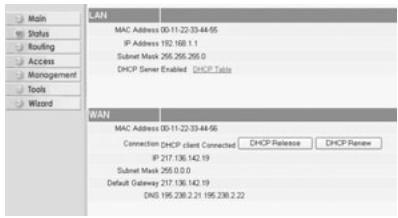
For DHCP client:
text_image
Main Status Routing Access Management Tools Wizard LAN MAC Address 00-11-22-33-44-55 IP Address 192.168.1.1 Submit Mask 255.255.255.0 DHCP Server Enabled DHCP Tools WAN MAC Address 00-11-22-33-44-56 Connection DHCP client Connected DHCP Release DHCP Review IP 217.136.142.19 Submit Mask 255.0.0.0 Default Gateway 217.136.142.19 DNS 195.238.2.21 195.238.2.22- The WAN IP address can be released by clicking the DHCP Release key. DHCP Renew will renew the IP address.
Remark:
• After each action, the router will jump to following screen:
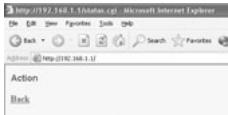
- The action will be shown. - please click Back to return to menu.
6. ROUTER ADVANCED SETTINGS
You can enter the menu for advanced settings. Please refer to the full user guide on the provided CD for more details.
7. FIRMWARE UPDATE
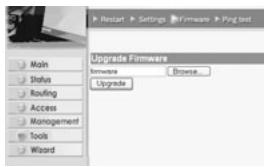
When a new firmware is released, it will be published on the Topcom website (www.topcom.net) in the support -> downloads section. Please download the image and go to Tools in the router menu. Now select the Firmware page
text_image
Main Status Routing Access Management Tools Wizard Restart Settings Firmware Ping list Upgrade Firmware Software Browse Upgrade- click Browse to select the downloaded firmware image and click the Upgrade key.
8. WARRANTY
- This equipment comes with a 24-month warranty. The warranty will be honoured on presentation of the original bill or receipt, provided the date of purchase and the unit type are indicated.
- During the time of the warranty Topcom will repair free of charge any defects caused by material or manufacturing faults. Topcom will at its own discretion fulfil its warranty obligations by either repairing or exchanging the faulty equipment.
• Any warranty claims will be invalidated as a result of intervention by the buyer or unqualified third parties. - Damage caused by inexpert treatment or operation, and damage resulting from the use of non-original parts or accessories not recommended by Topcom is not covered by the warranty.
- The warranty does not cover damage caused by outside factors, such as lightning, water and fire, nor does it apply if the unit numbers on the equipment have been changed, removed or rendered illegible.
Note: Please do not forget to enclose your receipt if you return the equipment.
- HET VERBINDINGSPANEEL 13
- DE PC CONFIGUREREN OM DE KABEL/DSL-ROUTER AAN TE SLUITEN 13
- CONTROLEER DE IP-CONFIGURATIE VAN UW PC 14
- SETUP VAN DE BROADBAND ROUTER 16
- VERBINDINGSSTATUS 19
- GEAVANCEERDE ROUTERINSTELLINGEN 20
- FIRMWARE UPDATE 21
- GARANTIE 21
text_image
Network Configuration | Identification | Access Control | The following network components are installed: * Microsoft Network Manitoba Driver - Dial Up Adapte * Microsoft Network Manitoba Driver - PCI 10/100 Fast Ether TCP/IP - Dial Up Adapte TCP/IP - Dial Up Fast Internet Adapter File and printer sharing to Microsoft Networks Add Remove Properties Primary Network Logos: Client for Microsoft Networks File and Post Sharing Description: TCP/IP is the protocol you use to connect to the Internet and wide area networks. OK Canceltext_image
TCP/IP Properties Bindings Advanced NelBOS DNS Configuration Satency VMBS Configuration IP Address An IP address can be automatically assigned to the computer. If your network does not automatically assign IP addresses, ask your network administrator for an address, and then type in the space below. Obtain an IP address automatically Specify IP address OK Canceltext_image
TCP/IP Properties Settings Advanced NetBIOS DNS Configuration Satency VMOS Configuration IP Address ○ Enable DNS ● Enable DNS OK Cancel3. CONTROLEER DE IP-CONFIGURATIE VAN UW PC
text_image
Welcome to Router Setup Wizard Set Fixed IP Address WAN IP Address 8:00 WAN Subnet Mask 8:00 WAN Gateway Address 8:00 DNS Server Address 1 8:00 DNS Server Address 2 8:00 DNS Server Address 3 8:00 < Back Next Exittext_image
Welcome to Router Setup Wizard Set PPPoB with a fixed IP address User Name: username@GP Password: Verify Password: IP Address: 80.200.115.34 < Back Next > Exittext_image
Welcome to Router Setup Wizard Set PPTP Client My P: $0.00 Subnet Mask: $0.00 Gateway: $0.00 Server P: $0.00 PPTP Account PPTP Password: Entry Password: < Back Next > Exittext_image
Main Status Routing Access Management Tools Wizard Restart Settings Firmware Ping list Upgrade Firmware Forward Browse Upgradetext_image
Network Configuration | Identification | Access Control The following network components are installed: * Microsoft Network Monitor Driver > DialUp-Adapter * Microsoft Network Monitor Driver > PCI 10/100 Fast Ethernet * TCP/IP > DialUp-Adapter * TCP/IP > PCI 10/100 Fast Ethernet Adapter * File and printer sharing for Microsoft Networks Add... Remove Properties Primary Network Logon: Client for Microsoft Networks File and Print Sharing Description TCP/IP is the protocol you use to connect to the Internet and write areas networks. OK Canceltext_image
TCP/IP Properties Bindings Advanced NetsBIOS DNS Configuration Gateway WINS Configuration IP Address An IP address can be automatically assigned to this computer. If your network does not automatically assign IP addresses, ask your network administrator for an address, and then type it in the space below. Obtain an IP address automatically Specify an IP address: IP Address: 1 1 1 Subnet Mask: 1 1 1 OK Canceltext_image
TCP/IP Properties Bindings Advanced NetBIOS DNS Configuration Gateway WINS Configuration.IP Address Disable DNS Enable DNS Hoc Domain DNS Server Search Order Add Browse Domain Suffix Search Order Add Browse OK CancelFRANCIALS
3. VÉRIFIEZ LA CONFIGURATION IP DE VOTRE PC
text_image
LAN or High-Speed Internet Local Area Connection 2 Enabled Reabel RTL8139 Family PCT F... Disable Status Repair Bridge Connections Create Shortcut Delete Rename Propertiestext_image
Local Area Connection Status General Support Internet Protocol (TCP/IP) Address Type: Assigned by DHCP IP Address: 192.168.1.100 Subnet Mask: 255.255.255.0 Default Gateway: 192.168.1.1 Details... Regui Close4. PARAMÉTRER LE ROUTEUR À BANDE LARGE
text_image
Welcome to Router Setup Wizard Set Fixed IP Address WAN IP Address 8:00 WAN Subnet Mask 8:00 WAN Gateway Address 8:00 DNS Server Address 1 8:00 DNS Server Address 2 8:00 DNS Server Address 3 8:00 < Back Next > Exittext_image
Welcome to Router Setup Wizard Set PPPoB with a fixed IP address User Name username@GP Password Verify Password IP Address 80.200.115.34 < Back Next > Exittext_image
Main Status Routing Access Management Tools Wizard Restart Settings Firmware Ping list Upgrade Firmware Software Browse Upgradetext_image
Network Configuration | Identification | Access Control | The following network components are installed: □ Microsoft Network Monitor Driver > DialUp Adapter □ Microsoft Network Monitor Driver > PCI 10/100 Fast Edge □ TCP/IP > DialUp Adapter □ TCP/IP > PCI 10/100 Fast Ethernet Adapter □ File and printer sharing to Microsoft Networks Add... Remove Properties Primary Network Logins Client for Microsoft Networks File and Print Sharing... Description TCP/IP is the protocol you use to connect to the Internet and wide-area networks. OK Canceltext_image
TCP/IP Properties Bindings Advanced NelBIOS DNS Configuration Gateway WINS Configuration IP Address An IP address can be automatically assigned to this computer. If your network does not automatically assign IP addresses, ask your network administrator for an address, and then type R in the space below. Obtain an IP address automatically Specify an IP address: IP Address: 1 1 1 Cyber Mask: 1 1 1 OK Canceltext_image
TCP/IP Properties Bindings Advanced NetBIOS DNS Configuration Gateway WINS Configuration IP Address Disable DNS Enable DNS Hoc Domain DNS Server Search Order Add Receive Domain Server Search Order Add Receive OK Cancel3. DIE IP-KONFIGURATION IHRES PCS ÜBERPRÜFEN
text_image
LAN or High-Speed Internet Local Area Connection 2 Enabled Rebuild RTL8130 Family ECTS.F. Disable Status Repair % Bridge Connections Create Shortcut Delete Rename Propertiestext_image
Local Area Connection Status General Support Internet Protocol (TCP/IP) Address Type: Assigned by DHCP IP Address: 192.168.1.100 Subnet Mask: 255.255.255.0 Default Gateway: 192.168.1.1 Details... Regui Close4. DEN BROADBAND ROUTER EINSTELLEN
text_image
Welcome to Router Setup Wizard Set Fixed IP Address WAN IP Address 8:00 WAN Subnet Mask 8:00 WAN Gateway Address 8:00 DNS Server Address 1 8:00 DNS Server Address 2 8:00 DNS Server Address 3 8:00 < Back Next Exittext_image
Welcome to Router Setup Wizard Set PPPoB with a fixed IP address User Name: username@GIP Password: Verify Password: IP Address: 80.200.115.34 < Back Next > Exittext_image
Main Status Routing Access Management Tools Wizard Restart Settings Firmware Ping list Upgrade Firmware Network Browse... Upgradetext_image
Network Configuration | Identification | Access Control | The following network components are installed: Microsoft Network Monitor Driver > DialUp Adapter Microsoft Network Monitor Driver > PCI 10/100 Fast Ethernet TCP/IP > DialUp Adapter TCP/IP > PCI 10/100 Fast Ethernet Adapter File and printer sharing to Microsoft Networks Add Remove Properties Primary Network Logon Client for Microsoft Networks File and Print Sharing... Description TCP/IP is the protocol you use to connect to the Internet and wide-area networks. OK Canceltext_image
TCP/IP Properties Bindings Advanced NelBIOS DNS Configuration Gateway WINS Configuration IP Address An IP address can be automatically assigned to this computer. If your network does not automatically assign IP addresses, ask your network administrator for an address, and then type R in the space below. Obtain an IP address automatically Specify an IP address: IP Address: 1 1 1 Cyber Mask: 1 1 1 OK Canceltext_image
TCP/IP Properties Bindings Advanced NetBIOS DNS Configuration Gateway WINS Configuration.IP Address Disable DNS Enable DNS Hoc Domain DNS Server Search Order Add Browse Domain Subx Search Order Add Browse OK Cancel3. KONTROLLERA DATORNS IP-KONFIGURATION
text_image
LAN or High-Speed Internet Local Area Connection 2 Enabled Rebuild RTL8139 Family PCT F... Disable Status Repair % Bridge Connections Create Shortcut Delete Rename Propertiestext_image
Local Area Connection Status General Support Internet Protocol (TCP/IP) Address Type: Assigned by DHCP IP Address: 192.168.1.100 Subnet Mask: 255.255.255.0 Default Gateway: 192.168.1.1 Details... Regui Close4. INSTALLERA BREDBANDSROUTERN
text_image
Welcome to Router Setup Wizard Set Fixed IP Address WAN IP Address 8:00 WAN Subnet Mask 8:00 WAN Gateway Address 8:00 DNS Server Address 1 8:00 DNS Server Address 2 8:00 DNS Server Address 3 8:00 < Back Next Exittext_image
Welcome to Router Setup Wizard Set PPPoB with a fixed IP address User Name: username@BGP Password: Verify Password: IP Address: 80.200.115.34 < Back Next > Exittext_image
Main Status Routing Access Management Tools Wizard Restart Settings Firmware Ping list Upgrade Firmware Software Browse... Upgradetext_image
Network Configuration | Identification | Access Control | The following network components are installed: Microsoft Network Monitor Driver > DialUp Adapter Microsoft Network Monitor Driver > PCI 10/100 Fast Ethernet TCP/IP > DialUp Adapter TCP/IP to PCI 10/100 Fast Internet Adapter File and printer sharing to Microsoft Networks Add Remove Properties Primary Network Logon Client for Microsoft Networks File and Print Sharing... Description TCP/IP is the protocol you use to connect to the Internet and wide area networks. OK Canceltext_image
TCP/IP Properties Bindings Advanced NelBIOS DNS Configuration Gateway WINS Configuration IP Address An IP address can be automatically assigned to this computer. If your network does not automatically assign IP addresses, ask your network administrator for an address, and then type it in the space below. Obtain an IP address automatically Specify an IP address: IP Address: 1 1 1 Subnet Mask: 1 1 1 OK Canceltext_image
TCP/IP Properties Bindings Advanced NetBIOS DNS Configuration Gateway WINS Configuration IP Address ● Enable DNS ● Enable DNS Dom Domain DNS Server Search Order Add Benovo Domain (Sub) Search Order Add Remove OK Cancel3. KONTROLLÉR COMPUTERENS IP-KONFIGURATION
text_image
LAN or High-Speed Internet Local Area Connection 2 Enabled Rebuild RTL8139 Family PCT F Disable Status Repair Bridge Connections Create Shortcut Delete Rename Propertiestext_image
Local Area Connection Status General Support Internet Protocol (TCP/IP) Address Type: Assigned by DHCP IP Address: 192.168.1.100 Subnet Mask: 255.255.255.0 Default Gateway: 192.168.1.1 Details... Regui Close4. OPSÆTNING AF BREDBÅNDSROUTEREN
text_image
Welcome to Router Setup Wizard Set PPPoB with a fixed IP address User Name: username@GP Password: Verify Password: IP Address: 80.206.115.34 < Back Next > Exittext_image
Welcome to Router Setup Wizard Set PPPT Client My IP 0.00 Subnet Mask 0.00 Gateway 0.00 Server IP 0.00 PPTP Account PPTP Password Update Password < Back Next > Next- indtast VPN IP-adressen, undernetmaske og gateway. - indtast VPN-serverens IP-adresse, PPTP-konto og password (to gange). - Klik på Next for at fortsætte.
text_image
Main Status Routing Access Management Tools Wizard Upgrade Firmware Software Browse... Upgradetext_image
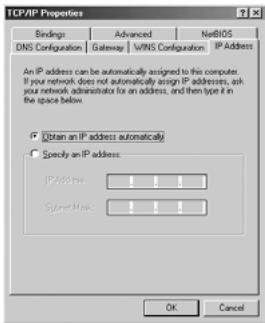
Network Configuration | Identification | Access Control The following network components are installed: Microsoft Network Monitor Driver -> DialUp-Adapter Microsoft Network Monitor Driver -> PCI 10/100 Fast Ethernet TCP/IP -> DialUp-Adapter TCP/IP to 10/100 Fast Ethernet Adapter File and printer sharing for Microsoft Networks Add Remove Properties Primary Network Logon: Client for Microsoft Networks File and Print Sharing Description TCP/IP is the protocol you use to connect to the Internet and video areas networks. OK Cancel- Trykk Properties-tasten, velg kategorien IP ADDRESS. Velg Obtain an IP address automatically.
text_image
TCP/IP Properties Bindings Advanced NelBIOS DNS Configuration Gateway WINS Configuration IP Address An IP address can be automatically assigned to this computer. If your network does not automatically assign IP addresses, ask your network administrator for an address, and then type it in the space below. Obtain an IP address automatically Specify an IP address: IP Address: 1 1 1 Subnet Mask: 1 1 1 OK Canceltext_image
TCP/IP Properties Bindings Advanced NetBIOS DNS Configuration Gateway WINS Configuration IP Address ● Enable DNS ● Enable DNS Dom Domain DNS Server Search Order Add Benovo Domain Surbit Search Order Add Benovo OK Cancel3. VERIFISER PC-ENS IP-KONFIGURERING
text_image
LAN or High-Speed Internet Local Area Connection 2 Enabled Revised RTL8139 Family PCT F... Disable Status Repair Bridge Connections Create Shortcut Delete Rename Propertiestext_image
Local Area Connection Status General Support Internet Protocol (TCP/IP) Address Type: Assigned by DHCP IP Address: 192.168.1.100 Subnet Mask: 255.255.255.0 Default Gateway: 192.168.1.1 Details... Repair Close4. OPPSETT AV BREDBÅNDSROUTEREN.
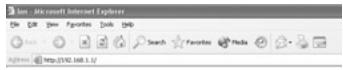
Når PC-en har en gyldig IP-adresse, skal du kunne gå til routerens oppsettwebsite.
Åpne Internet Explorer eller Netscape Navigator og gå til adressen: 192.168.1.1
text_image
Welcome to Router Setup Wizard Set Fixed IP Address WAN IP Address 8.00 WAN Subnet Mask 8.00 WAN Gateway Address 8.00 DNS Server Address 8.00 DNS Server Address 8.00 < Back Next Exittext_image
Welcome to Router Setup Wizard Set PPPoB with a fixed IP address User Name: username@GIP Password: Verify Password: IP Address: 80.200.115.34 < Back Next > ExitFor PPPoE-tilkobling:
text_image
LAN MAC Address 00.11-22:33:44:55 IP 192.168.1.1 Submit Mask 256.256.256.0 DHCP Sener Enabled DHCP Parts WAN MAC Address 00.11-22:33:44:56 Connection pppf(e) Connected Connect Disconnect IP 217.136.142.19 Submit Mask 256.0.0.0 Default Gateway 217.136.142.19 DNS 195.238.2.21 195.238.2.22text_image
Main Status Routing Access Management Tools Wizard Restart Settings Firmware Ping text Upgrade Firmware Network Browse Upgradetext_image
Network Configuration | Identification | Access Control | The following network components are installed: * Microsoft Network Master Driver - Dial Up Adapte * Microsoft Network Master Driver - PCI 10/100 Fast Ebit * TCP/IP - Dial Up Adapte * TCP/IP - PCI 10/100 Fast Internet Adapter * File and printer sharing to Microsoft Networks Add Remove Properties Primary Network Logon Client for Microsoft Networks File and Print Sharing Description TCP/IP is the protocol you use to connect to the Internet and wide area networks. OK Canceltext_image
TCP/IP Properties Bindings Advanced NetBIOS DNS Configuration Satellite InDNS Configuration IP Address An IP address can be automatically assigned to the computer. If your network does not automatically assign IP addresses, ask your network administrator for an address, and then type in the space below. Obtain an IP address automatically Specify an IP address OK Canceltext_image
TCP/IP Properties Binding Advanced NetBIOS DNS Configuration Gateway NetBIOS Configuration IP Address Enable DNS Enable DNS OK CancelIWONS
3. TIETOKONEEN IP-ASETUSTEN TARKISTUS
text_image
Welcome to Router Setup Wizard Set Fixed IP Address WAN IP Address 0.00 WAN Subnet Mask 0.00 WAN Gateway Address 0.00 DNS Server Address 1 0.00 DNS Server Address 2 0.00 DNS Server Address 3 0.00 < Back Next> Exittext_image
Welcome to Router Setup Wizard Set PPPoB with a fixed IP address User Name: username@GIP Password: Verify Password: IP Address: 80.200.115.34 < Back Next > Exittext_image
Main Status Routing Access Management Tools Wizard Restart Settings Firmware Ping list Upgrade Firmware Software Browse... Upgradetext_image
Network Configuration | Identification | Access Control | The following network components are installed: □ Microsoft Network Monitor Driver > DialUp Adapter □ Microsoft Network Monitor Driver > PCI 10/100 Fast Edge □ TCP/IP > DialUp Adapter □ TCP/IP > PCI 10/100 Fast Internet Adapter □ File and Print sharing for Microsoft Networks Add... Remove Properties Primary Network Logins: Client for Microsoft Networks File and Print Sharing... Description: TCP/IP is the protocol you use to connect to the Internet and wide-area networks. OK Canceltext_image
TCP/IP Properties Bindings Advanced NetBIOS DNS Configuration Satellite InDNS Configuration IP Address An IP address can be automatically assigned to the computer. If your network does not automatically assign IP addresses, ask your network administrator for an address, and then type in the space below. Obtain an IP address automatically Specify an IP address OK Canceltext_image
TCP/IP Properties Binding Advanced NetBIOS DNS Configuration Gateway NetBIOS Configuration IP Address Enable DNS Enable DNS OK Cancel
text_image
Welcome to Router Setup Wizard Set PPPoB with a fixed IP address User Name: username@GP Password: Verify Password: IP Address: 80.206.115.34 < Back Next > Exittext_image
Main Status Routing Access Management Tools Wizard Restart Settings Firmware Ping list Upgrade Firmware Forward Browse Upgradetext_image
Network Configuration | Identification | Access Control The following network components are installed: Microsoft Network Monitor Driver > DualUp Adapter Microsoft Network Monitor Driver > PCI 10/100 Fast Ebit TCP/IP > DualUp Adapter TCP/IP > PCI 10/100 Fast Ethernet Adapter File and printer sharing to Microsoft Networks Add Remove Properties Primary Network Logon Client to Microsoft Networks File and Print Sharing... Description: TCP/IP is the protocol you use to connect to the Internet and wide-area networks. OK Canceltext_image
TCP/IP Properties Bindings Advanced NetBIOS DNS Configuration Satellite VMNS Configuration IP Address An IP address can be automatically assigned to the computer. If your network does not automatically assign IP addresses, ask your network administrator to an address, and then type in the space below. Obtain an IP address automatically Specify an IP address OK Canceltext_image
TCP/IP Properties Backup Advanced NetBIOS DNS Configuration Satency NetBIOS Configuration IP Address Enable DNS Enable DNS OK Canceltext_image
Welcome to Router Setup Wizard Set Fixed IP Address WAN IP Address 8:00 WAN Subnet Mask 8:00 WAN Gateway Address 8:00 DNS Server Address 1 8:00 DNS Server Address 2 8:00 DNS Server Address 3 8:00 < Back Next Exittext_image
Welcome to Router Setup Wizard Set PPPoE with a fixed IP address User Name: username@GP Password: Verify Password: IP Address: 80.200.115.34 < Back Next > Exittext_image
Main Status Routing Access Management Tools Wizard Restart Settings Firmware Ping list Upgrade Firmware Network Browse... UpgradeThis product is in compliance with the essential requirements and other relevant provisions of the R&TTE directive 1999/5/EC. The Declaration of conformity can be found on :
http://www.topcom.net/support/declarations/