Skyr@cer WBR 354G - Router TOPCOM - Free user manual and instructions
Find the device manual for free Skyr@cer WBR 354G TOPCOM in PDF.



User questions about Skyr@cer WBR 354G TOPCOM
0 question about this device. Answer the ones you know or ask your own.
Ask a new question about this device
Download the instructions for your Router in PDF format for free! Find your manual Skyr@cer WBR 354G - TOPCOM and take your electronic device back in hand. On this page are published all the documents necessary for the use of your device. Skyr@cer WBR 354G by TOPCOM.
USER MANUAL Skyr@cer WBR 354G TOPCOM
natural_image
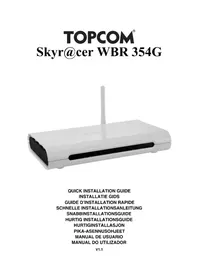
White electronic device with a white antenna and black ventilation slots (no visible text or symbols)QUICK INSTALLATION GUIDE
INSTALLATIE GIDS
GUIDE D'INSTALLATION RAPIDE
SNABBINSTALLATIONSGUIDE
HURTIG INSTALLATIONSGUIDE
HURTIGINSTALLASJON
PIKA-ASENNUSOHJEET
MANUAL DE USUARIO
MANUAL DO UTILIZADOR
GB The features described in this manual are published with reservation to modifications.
This product is in compliance with the essential requirements and other relevant provisions of the R&TTE directive 1999/5/EC.
The Declaration of conformity can be found on :
http://www.topcom.net/support/declarations/
- The connection panel 5
- Verify your PC's IP configuration 6
- Setup the Broadband Router 7
- Connection Status 11
- Router advanced settings 12
- Firmware update 12
-
Topcom warranty 13
-
Configuring the PC to connect to the Cable/DSL router 5
Disposal of the device (environment)
At the end of the product lifecycle, you should not throw this product into the normal household garbage but bring the product to a collection point for the recycling of electrical and electronic equipments. The symbol on the product, user guide and/or box indicate this.
Some of the product materials can be re-used if you bring them to a recycling point. By re-using some parts or raw materials from used products you make an important contribution to the protection of the environment.
Please contact your local authorities in case you need more information on the collection points in your area.

SECURITY WARNING
To avoid that uninvited users will access your wireless network it is strongly recommended to activate WEP (or WPA if available) encryption of your wireless network.
1. THE CONNECTION PANEL
text_image
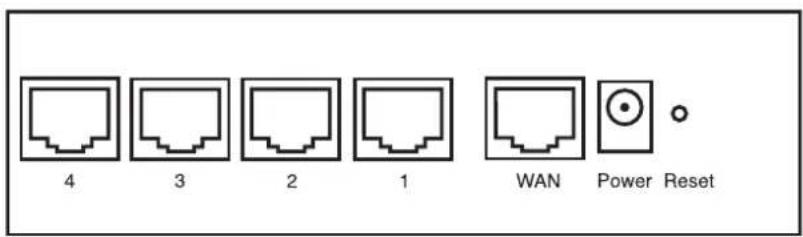
4 3 2 1 WAN Power Reset- POWER: The power port is to connect the 5V DC power adapter.
- The power LED on the front panel will go ON when the power adapter is connected.
• WAN: The WAN Ethernet port is to connect your ASDL/Cable modem.
- The WAN LED will go ON if the network Ethernet cable is properly connected.
- Ports 1-4: This is to connect networked devices, such as PCs, ftp servers or anything else you want to put on your network.
- The LAN LED's will indicate the connection status.
- Reset Button: If you would like to load default settings, press the reset button and hold it for 5 \~ 6 seconds. It will load the factory default settings for the device. Do not press the reset button unless you want to clear the current data.
2. CONFIGURING THE PC TO CONNECT TO THE CABLE/DSL ROUTER
Remark
- The routers default IP address is: 192.168.1.1
- DHCP server is ON
If you do not wish to set a static IP address on your PC, you will need to configure your PC to accept the IP address that the router will provide.
- Click Start button, select Settings, then Control Panel
- Double-click the Network Icon
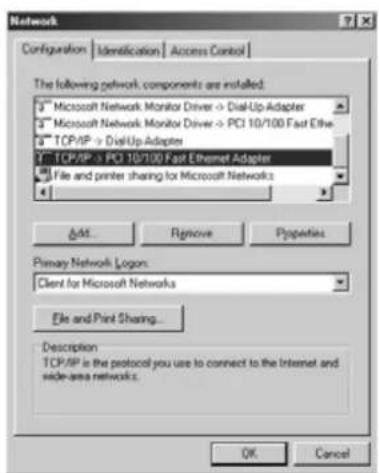
- In the configuration windows, select the TCP/IP protocol line that has been associated with your network card/adapter.
text_image
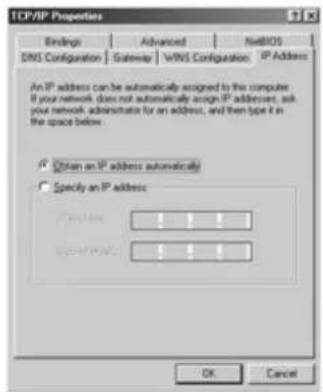
Network Configuration | Identification | Access Control | The following network components are installed: ■ Microsoft Network Monitor Driver -> Dial-Up Adapter ■ Microsoft Network Monitor Driver -> PCI 10/100 Fast Ethernet ■ TCP/IP -> Dial-Up Adapter ■ TCP/IP -> PCI 10/100 Fast Ethernet Adapter ■ File and printer sharing for Microsoft Networks Edit... Rename Properties Primary Network Logon: Client for Microsoft Networks File and Print Sharing... Description TCP/IP is the protocol you use to connect to the Internet and wide-area networks. OK Cancel- Click the Properties button, then choose the IP ADDRESS tab. Select Obtain an IP address automatically.
text_image
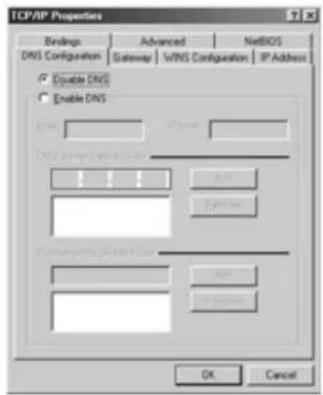
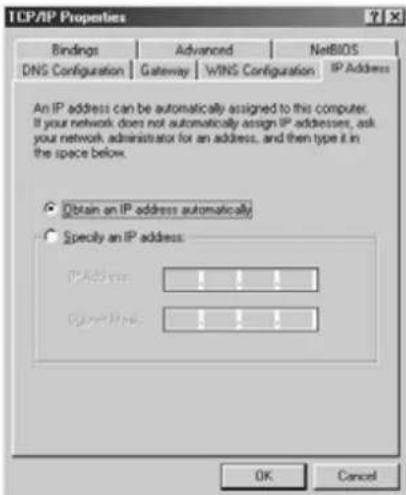
TCP/IP Properties Bindings Advanced NatiROS DNS Configuration Gateway VWNS Configuration IP Address An IP address can be automatically assigned to this computer. If your network does not automatically assign IP addresses, ask your network administrator for an address, and then type it in the space below. Obtain an IP address automatically Specify an IP address OK Cancel- Then select DNS configuration tab to add DNS IP address. Select Disable DNS function. Press OK. You have completed the client settings.
- After clicking OK, windows will ask you to restart the PC. Click Yes.
text_image
TCP/IP Properties Bindings Advanced NEDIOS DNS Configuration Gateway WINS Configuration IP Address □ Double DNS □ Enable DNS OK Cancel3. VERIFY YOUR PC'S IP CONFIGURATION
There are some tools which are great for finding out a computer's IP configuration: MAC address and default gateway.
• WINIPCFG (for windows 95/98)
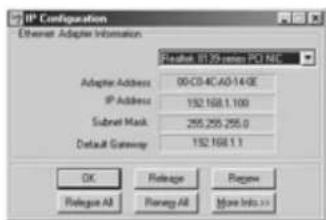
Inside the windows 95/98/ME Start button, select Run and type winipcfg. In the example below this computer has a IP address of 192.168.1.100 and the default gateway is 192.168.1.1. The default gateway should be the broadband router IP address. The MAC address in windows 95/98 is called the Adapter Address.
NOTE: You can also type winipcfg in the DOS command.
text_image
IP Configuration Ethernet Adapter Information Adapter IP 39 remote PCI MAC Adapter Address 00-C0 4C-A0-14 GE IP Address 152 168.1.100 Subnet Mask 255.255.255.0 Default Gateway 152 168.1.1 OK Release Remove Rename All Rename All Move Info >>- IPCONFIG (for windows 2000/NT)
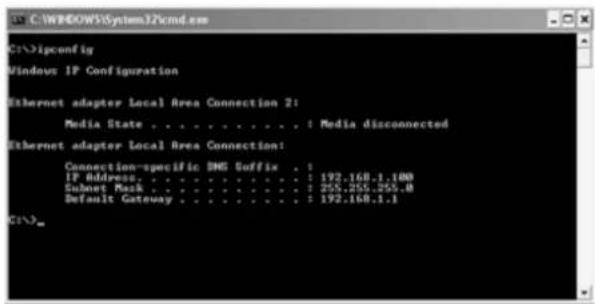
In the DOS command type IPCONFIG and press Enter. Your PC IP information will be displayed as shown below.
text_image
C:\>igconfig Windows IP Configuration Ethernet adapter Local Area Connection 2: Media State . . . . . . . . . . : Media disconnected Ethernet adapter Local Area Connection: Connection-specific DMS Suffix . : IP Address. . . . . . . . . . . . : 192.168.1.100 Subnet Mask . . . . . . . . . . . : 255.255.255.8 Default Gateway . . . . . . . . . : 192.168.1.1 C:\>- IPCONFIG / RENEW will renew the IP address, gateway and DNS.
- Windows XP
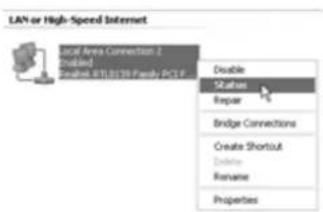
Click the right mouse key on your network adapter and select Status
text_image
LAN or High-Speed Internet Local Area Connection 2 Disabled Status: 67103199 Family PCF Double Status Repair Bridge Connections Create Shortcut Rename PropertiesThe support screen will display the IP information.
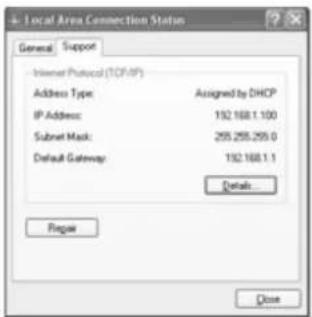
text_image
Local Area Connection Status General Support Internet Protocol (TCP/IP) Address Type: Assigned by DHCP IP Address: 192.168.1.100 Subset Mask: 255.255.255.0 Default Gateway: 192.168.1.1 Details... Regay Close4. SETUP THE BROADBAND ROUTER
When your PC has a valid IP address, you should be able to go to the router setup web page.
Open Internet Explorer or Netscape Navigator and goto address: 192.168.1.1
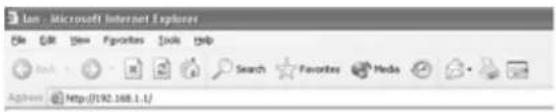
text_image
Ian : Microsoft Internet Explorer File Edit View Favorites Tools Help Search Favorites Media Address http://192.168.1.1/Now the login screen will appear.
- Enter the username and password.
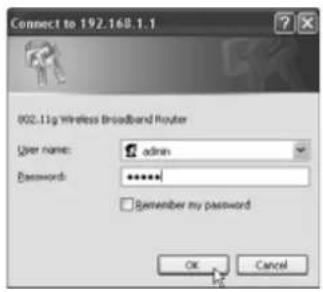
text_image
Connect to 192.168.1.1 802.11g Wireless Broadband Router User Name: admin Password: ****** Remember my password OK Cancel- By default the username is admin and the password is admin.
Now you enter the web management of your Broadband Router.
- The setup wizard will automatically appear:
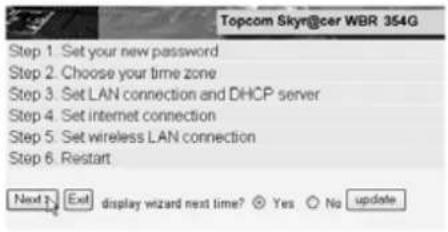
text_image
Topcom Skyr@cer WBR 354G Step 1. Set your new password Step 2. Choose your time zone Step 3. Set LAN connection and DHCP server Step 4. Set internet connection Step 5. Set wireless LAN connection Step 6. Restart Next Next display wizard next time? Yes No update- Click Next to proceed
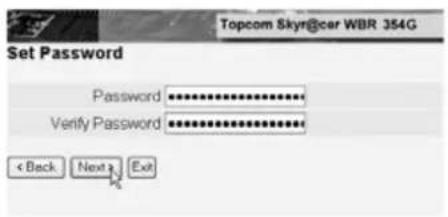
- In next screen you can change the login password (admin) to your own password.
text_image
Topcom Skyr@car WBR 354G Set Password Password ************ Verify Password ************ < Back Next a Exit- Click Next to proceed
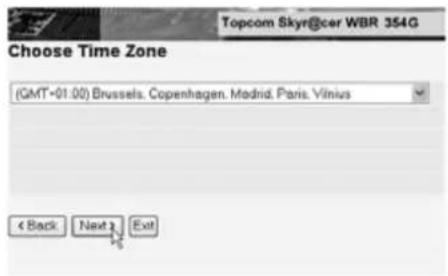
• In next screen you can select your Time Zone
text_image
Topcom Skyr@cer WBR 354G Choose Time Zone (GMT-01:00) Brussels, Copenhagen, Madrid, Paris, Vilnius < Back Next > Exit- Click Next to proceed
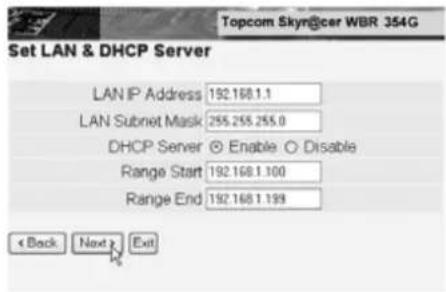
- Now you can change the LAN settings:
text_image
Topcom Skyn@cer WBR 354G Set LAN & DHCP Server LAN IP Address 192.168.1.1 LAN Subnet Mask 255.255.255.0 DHCP Server ☑ Enable ○ Disable Range Start 192.168.1.100 Range End 192.168.1.199 < Back Next Exit- The LAN IP address and Subnet mask can be changed.
- The router DHCP server can be Disabled / Enabled
- The DHCP range can be set.
- Click Next to proceed
text_image
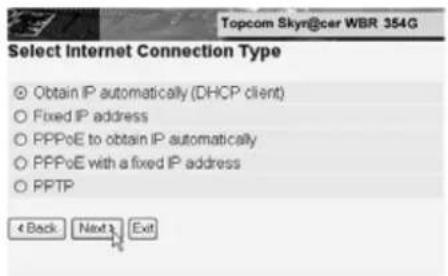
Topcom Skyr@cer WBR 354G Select Internet Connection Type Obtain IP automatically (DHCP client) Fixed IP address PPPoE to obtain IP automatically PPPoE with a fixed IP address PPTP 4 Back Next 3 Exit- Select your Connection Type
-
Click Next to proceed
-
Obtain IP automatilally (DHCP client): this connection is mostly used for connecting the WBR 354G to a cable modem.
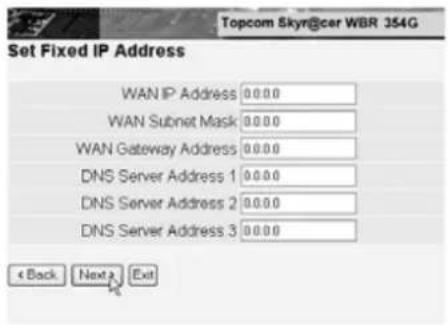
- Fixed IP address: for connections with fixed WAN IP address.
text_image
Topcom Skyr@cer WBR 354G Set Fixed IP Address WAN IP Address 0.0.0.0 WAN Subnet Mask 0.0.0.0 WAN Gateway Address 0.0.0.0 DNS Server Address 1 0.0.0.0 DNS Server Address 2 0.0.0.0 DNS Server Address 3 0.0.0.0 < Back Next > Exit- enter the WAN IP, Subnet Mask, Gateway and DNS addresses.
- Click Next to proceed.
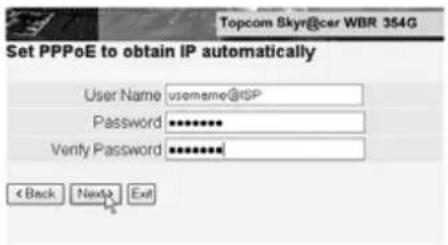
- PPPoE to obtain IP automatically: mostly used for connecting the WBR 354G to an ADSL-Ethernet Bridge with PPPoE dial up.
text_image
Topcom Skyr@cer WBR 354G Set PPPoE to obtain IP automatically User Name usomeame@tSP Password ••••••••• Venty Password ••••••••• < Back Next> Exit- enter username and password (twice)
- Click Next to proceed.
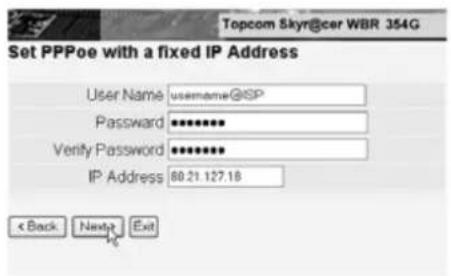
- PPPoE with a fixed IP address: PPPoE connection with fixed WAN IP address.
text_image
Topcom Skyr@cer WBR 354G Set PPPoe with a fixed IP Address User Name username@ISP Password ••••••••• Verify Password ••••••••• IP Address 80.21.127.18 < Back Next Exit- enter username, password (twice) and WAN IP address
- Click Next to proceed.
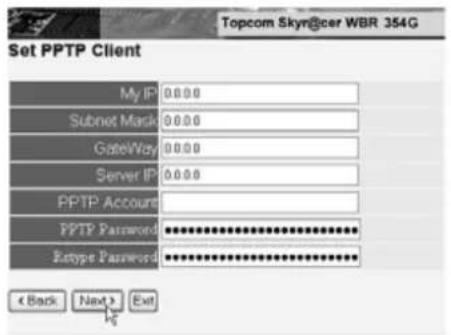
- PPTP: for setting up a VPN connection: in this case the WBR 354G WAN port is connected at the LAN site of another existing network!
text_image
Topcom Skyn@cer WBR 354G Set PPTP Client My IP: 0.0.00 Subnet Mask: 0.0.00 GateWay: 0.0.00 Server IP: 0.0.00 PPTP Account: PPTP Password ********** Etype Password ********** < Back Next > Exit- enter the VPN IP address, Subnet Mask and Gateway.
- enter the VPN Server IP address, PPTP Account and Password (twice).
- Click Next to proceed.
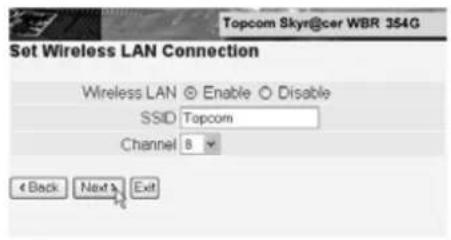
- Now you can setup the basic settings for the Wireless part.
text_image
Topcom Skyr@cer WBR 354G Set Wireless LAN Connection Wireless LAN ○ Enable ○ Disable SSID Topcom Channel 8 < Back Next > Exit- Select Enable to enable the Wireless LAN
- Choose an SSID and a Channel for your wireless network. Please make sure that the wireless clients will operate on the same SSID and the same channel to make wireless data communication possible.
- Click Next to proceed.
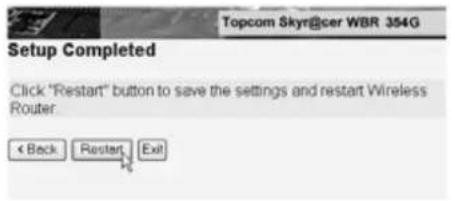
- Now the setup is complete
text_image
Setup Completed Click "Restart" button to save the settings and restart Wireless Router < Back Restart Exit- Click Restart to save and restart the router.
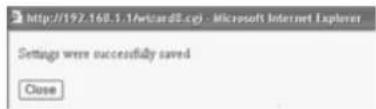
- When all settings are saved a new screen will pop up:
text_image
http://197.160.5.1/wtcard3.cgi - Microsoft Internet Explorer Settings were successfully saved Close- Click Close
• The Setup Wizard is completed!
Remark:
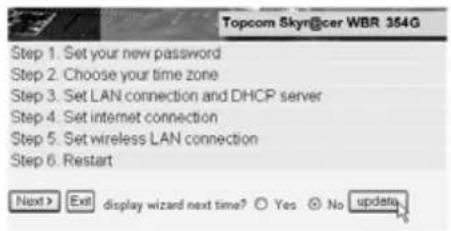
- Next time you go to the router Web page the Setup Wizard will appear again. This can be disabled:
text_image
Topcom Skyr@cer WBR 354G Step 1. Set your new password Step 2. Choose your time zone Step 3. Set LAN connection and DHCP server Step 4. Set internet connection Step 5. Set wireless LAN connection Step 6. Restart Next > Exit display wizard next time? Yes No update- select No and click update
- now the wizard will not appear again when you access the router Web page.
5. CONNECTION STATUS
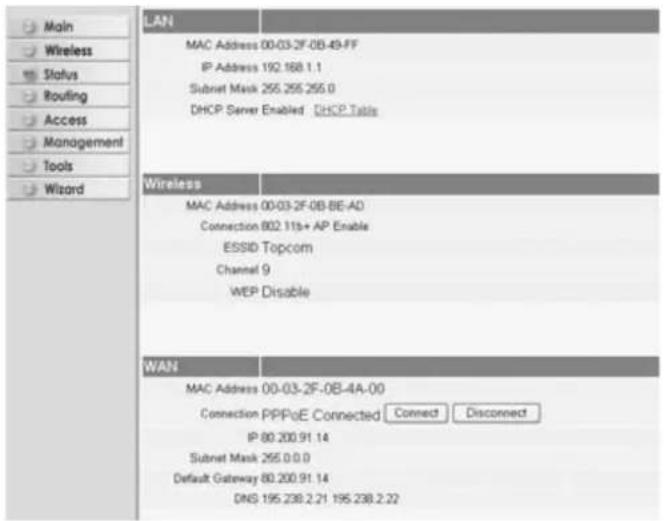
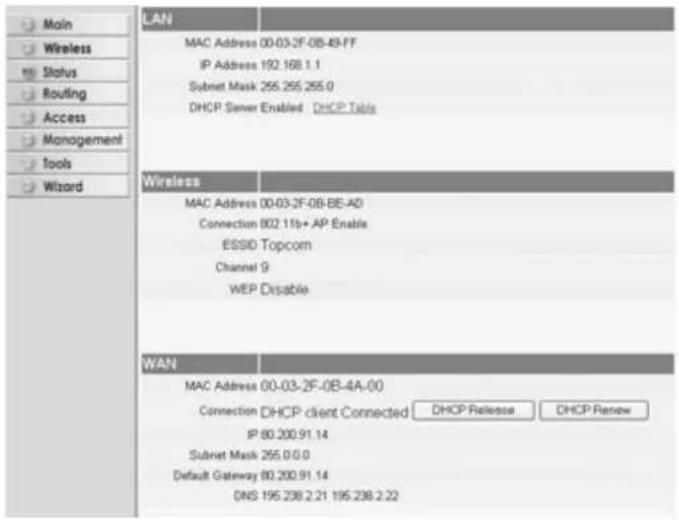
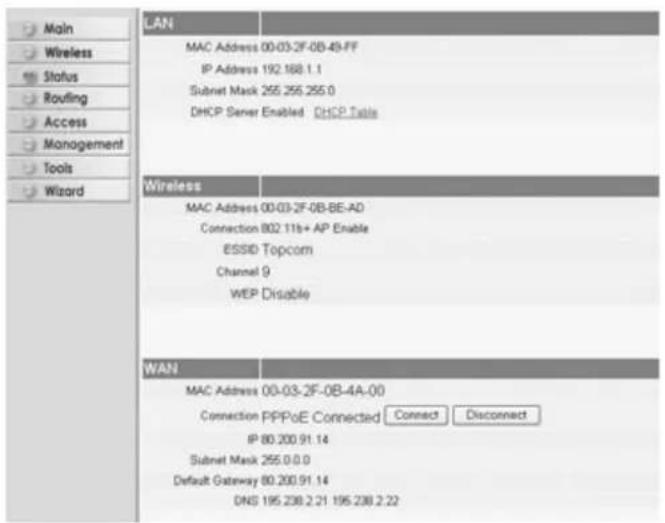
The WAN connection can be checked in the Status screen on the router Web page.
For PPPoE connection:
text_image
LAN MAC Address 00-03-2F-0B-49-FF IP Address 192.168.1.1 Subnet Mask 255.255.255.0 DHCP Server Enabled DHCP Table Wireless MAC Address 00-03-2F-0B-BE-A0 Connection 802.119+ AP Enable ESSID Topcom Channel 9 WEP Disable WAN MAC Address 00-03-2F-0B-4A-00 Connection PPPoE Connected Connect Disconnect IP 80.200.91.14 Subnet Mask 255.0.0.0 Default Gateway 80.200.91.14 DNS 195.238.2.21 195.238.2.22- The connection can be disconnected by clicking Disconnect. You can connect by clicking the Connect key
For DHCP client:
text_image
LAN MAC Address 00-03-2F-0B-49-FF IP Address 192.168.1.1 Subset Mask 255.255.255.0 DHCP Server Enabled DHCP Tabs Wireless MAC Address 00-03-2F-0B-BE-A0 Connection 802.11b+ AP Enable ESSIO Topcom Channel 9 WEP Disable WAN MAC Address 00-03-2F-0B-4A-00 Connection DHCP client Connected DHCP Release DHCP Renew IP 80.200.91.14 Subset Mask 255.0.0.0 Default Gateway 80.200.91.14 DNS 195.238.2.21 195.238.2.22- The WAN IP address can be released by clicking the DHCP Release key. DHCP Renew will renew the IP address.
Remark:
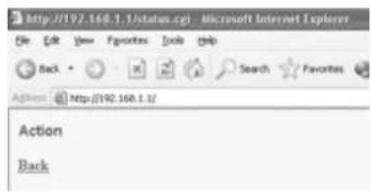
• After each action, the router will jump to following screen:
text_image
Action Back- The action will be shown.
- please click Back to return to menu.
6. ROUTER ADVANCED SETTINGS
You can enter the menu for advanced settings. Please refer to the full user guide on the provided CD for more details.
7. FIRMWARE UPDATE
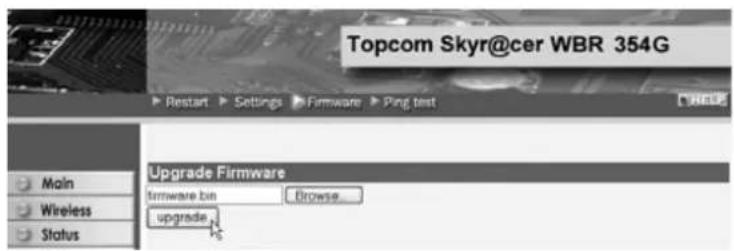
When a new firmware is released, it will be published on the Topcom website (www.topcom.net) in the support -> downloads section. Please download the image and go to Tools in the router menu. Now select the Firmware page
text_image
Topcom Skyr@cer WBR 354G Main Wireless Status Upgrade Firmware firmware bin Browse... upgrade- click Browse to select the downloaded firmware image and click the Upgrade key.
8. TOPCOM WARRANTY
1. WARRANTY PERIOD
The Topcom units have a 24-month warranty period. The warranty period starts on the day the new unit is purchased. The warranty on batteries is limited to 6 months after purchase. Consumables or defects causing a negligible effect on operation or value of the equipment are not covered.
The warranty has to be proven by presentation of the original purchase receipt, on which the date of purchase and the unit-model are indicated.
2. WARRANTY HANDLING
A faulty unit needs to be returned to a Topcom service centre including a valid purchase note.
If the unit develops a fault during the warranty period, Topcom or its officially appointed service centre will repair any defects caused by material or manufacturing faults free of charge.
Topcom will at its discretion fulfil its warranty obligations by either repairing or exchanging the faulty units or parts of the faulty units. In case of replacement, colour and model can be different from the original purchased unit.
The initial purchase date shall determine the start of the warranty period. The warranty period is not extended if the unit is exchanged or repaired by Topcom or its appointed service centres.
3. WARRANTY EXCLUSIONS
Damage or defects caused by incorrect treatment or operation and damage resulting from use of non-original parts or accessories not recommended by Topcom are not covered by the warranty.
Topcom cordless phones are designed to work with rechargeable batteries only. The damage caused by the use of non-rechargeable batteries is not covered under warranty.
The warranty does not cover damage caused by outside factors, such as lightning, water and fire, nor any damage caused during transportation.
No warranty can be claimed if the serial number on the units has been changed, removed or rendered illegible.
Any warranty claims will be invalid if the unit has been repaired, altered or modified by the buyer or by unqualified, non-officially appointed Topcom service centres.
The CE symbol indicates that the unit complies with the essential requirements of the R&TTE directive.
VEILIGHEIDSWAARSCHUWING
text_image
Network Configuration | Identification | Access Control | The following network components are installed: * Microsoft Network Monitor Driver > DialUp Adapter * Microsoft Network Monitor Driver > PCI 10/100 Fast Ethernet * TCP/IP > DialUp Adapter * TCP/IP > PCI 10/100 Fast Ethernet Adapter * File and printer sharing for Microsoft Networks Add... Remove Properties Primary Network Logos: Client for Microsoft Networks File and Print Sharing. Description: TCP/IP is the protocol you use to connect to the Internet and wide-area networks. OK Canceltext_image
TCP/IP Properties Bindings Advanced NetsBIOS DNS Configuration Gateway VNTS Configuration IP Address An IP address can be automatically assigned to this computer If your network does not automatically assign IP addresses, ask your network administrator for an address, and then type it in the space below. Obtain an IP address automatically Specify an IP address Address 1 1 1 Sendkey 1 1 1 OK Canceltext_image
TCP/IP Properties Bindings Advanced NatiOS DNS Configuration Gateway VINS Configuration IP Address □ Enable DNS □ Enable DNS DNS Configuration: 100% OK Cancel3. CONTROLEER DE IP-CONFIGURATIE VAN UW PC
text_image
LAN or High-Speed Internet Local Area Connection 2 Enabled Readout 01.01.76 Family PC1.1 F Double Status Repair Bridge Connections Create Shortcut Delete Rename Propertiestext_image
Local Area Connection Status General Support Internet Protocol (TCP/IP) Address Type: Assigned by DHCP IP Address: 132.168.1.100 Subset Mask: 255.255.255.0 Default Gateway: 132.168.1.1 Details... Regar Close4. SETUP VAN DE BROADBAND ROUTER
text_image
Connect to 192.168.1.1 802.11g Wireless Broadband Router User name: admin Password: ****** Remember my password OK Canceltext_image
Topcom Skyr@cer WBR 354G Step 1. Set your new password Step 2. Choose your time zone Step 3. Set LAN connection and DHCP server Step 4. Set internet connection Step 5. Set wireless LAN connection Step 6. Restart Next > Exit display wizard next time? Yes No updatetext_image
Topcom Skyn@cer WBR 354G Set Password Password ************ Verify Password ************ < Back Next Exittext_image
Topcom Skyn@cer WBR 354G Select Internet Connection Type Obtain IP automatically (DHCP client) Fixed IP address PPPoE to obtain IP automatically PPPoE with a fixed IP address PPTP < Back Next > Exittext_image
Topcom Skyr@cer WBR 354G Set Wireless LAN Connection Wireless LAN ○ Enable ○ Disable SSID Topcom Channel 8 < Back Next > Exittext_image
Setup Completed Click "Restart" button to save the settings and restart Wireless Router < Back Restart Exit- Klik Restart om de instellingen te bewaren en de router te herstarten.
text_image
http://192.160.1.1/Awcard8.cgi - Microsoft Internet Explorer Settings were successfully saved Close- Klik Close
text_image
Topcom Skyr@cer WBR 354G Step 1. Set your new password Step 2. Choose your time zone Step 3. Set LAN connection and DHCP server Step 4. Set internet connection Step 5. Set wireless LAN connection Step 6. Restart Next > Exit display wizard next time? Yes No updatetext_image
Topcom Skyr@cer WBR 354G Restart Settings Firmware Pingtest Main Wireless Status Upgrade Firmware firmware bin Browse... upgradetext_image
Network Configuration | Identification | Access Control | The following network components are installed: Microsoft Network Monitor Driver → Dial-Up Adapter Microsoft Network Monitor Driver → PCI 10/100 Fast Ethernet TCP/IP → Dial-Up Adapter TCP/IP → PCI 10/100 Fast Ethernet Adapters File and printer sharing for Microsoft Networks Add... Remove Properties Primary Network Logon: Client for Microsoft Networks File and Print Sharing... Description TCP/IP is the protocol you use to connect to the Internet and made-area networks. OK Canceltext_image
TCP/IP Properties Bindings Advanced NetBIOS DNS Configuration Gateway WINS Configuration IP Address An IP address can be automatically assigned to this computer. If your network does not automatically assign IP addresses, ask your network administrator for an address, and then type it in the space below. Obtain an IP address automatically Specify an IP address. Find 1 1 1 Stop 1 1 1 OK Canceltext_image
TCP/IP Properties Bindings Advanced NetsBIOS DNS Configuration Gateway WINS Configuration IP Address ● Enable DNS ○ Enable DNS Open Open DNS Server Distribution OK Cancel Open Open Options Open Open OK Cancel3. VÉRIFIEZ LA CONFIGURATION IP DE VOTRE PC
text_image
LAN or High-Speed Internet Local Area Connection 2 Enabled Realtink RTI 8130 Family PCI P Disable Status Repair Bridge Connections Create Shortcut Delete Rename Propertiestext_image
Local Area Connection Status General Support Internet Protocol (TCP/IP) Address Type: Assigned by DHCP IP Address: 192.168.1.100 Subnet Mask: 255.255.255.0 Default Gateway: 192.168.1.1 Details... Repair Close4. PARAMÉTRER LE ROUTEUR À BANDE LARGE
text_image
Connect to 192.168.1.1 902.13g Wireless Broadband Router User name: admin Password: ****** Remember my password OK Canceltext_image
Topcom Skyr@cer WBR 354G Step 1. Set your new password Step 2. Choose your time zone Step 3. Set LAN connection and DHCP server Step 4. Set internet connection Step 5. Set wireless LAN connection Step 6. Restart Next Next display wizard next time? Yes No updatetext_image
Set Password Password ************ Verify Password ************ < Back Next Exit Topcom Skyr@car WBR 354Gtext_image
Topcom Skyr@cer WBR 354G Select Internet Connection Type Obtain IP automatically (DHCP client) Fixed IP address PPPoE to obtain IP automatically PPPoE with a fixed IP address PPTP < Back Next > Exittext_image
Set PPPoe with a fixed IP Address User Name: username@ISP Password: ********** Verify Password: ********** IP Address: 80.21.127.18 < Back Next> Exittext_image
Topcom Skyr@cer WBR 354G Set Wireless LAN Connection Wireless LAN ○ Enable ○ Disable SSID Topcom Channel 8 < Back Next > Exittext_image
Topcom Skyr@cer WBR 354G Setup Completed Click "Restart" button to save the settings and restart Wireless Router < Back Restart Exittext_image
http://197.160.1.1/wt2a38.cgi - Microsoft Internet Explorer Settings were successfully saved Close- Cliquez sur Close
text_image
Topcom Skyr@cer WBR 354G Step 1. Set your new password Step 2. Choose your time zone Step 3. Set LAN connection and DHCP server Step 4. Set internet connection Step 5. Set wireless LAN connection Step 6. Restart Next > Exit display wizard next time? Yes No updatetext_image
Topcom Skyr@cer WBR 354G Restart Settings Firmware Ping test Main Wireless Status Upgrade Firmware firmware.bin Browse... upgradetext_image
Network Configuration | Identification | Access Control | The following network components are installed: * Microsoft Network Monitor Driver -> Dial-Up Adapter * Microsoft Network Monitor Driver -> PCI 10/100 Fast Ethernet * TCP/IP -> Dial-Up Adapter * TCP/IP -> PCI 10/100 Fast Ethernet Adapter * File and printer sharing for Microsoft Networks Add Remove Properties Primary Network Login: Client for Microsoft Networks File and Print Sharing. Description TCP/IP is the protocol you use to connect to the Internet and wide-area networks. OK Canceltext_image
TCP/IP Properties Bindings Advanced NetBIOS DNS Configuration Gateway WINS Configuration IP Address An IP address can be automatically assigned to this computer. If your network does not automatically assign IP addresses, ask your network administrator for an address, and then type it in the space below. Obtain an IP address automatically Specify an IP address: IP Address C:\bin\Mids OK Canceltext_image
TCP/IP Properties Bindings Advanced NetBIOS DNS Configuration Gateway WINS Configuration IP Address Disable DNS Enable DNS Blue Downs: DNS Server Energy Grid Edit Remove Lower DNA Search Order Add Remove OK Cancel3. DIE IP-KONFIGURATION IHRES PCS ÜBERPRÜFEN
text_image
LAN or High-Speed Internet Local Area Connection 2 Enabled Brochets BTL 0130 Family ECT P Disable Status Repair Bridge Connections Create Shortcut Delete Rename Propertiestext_image
Local Area Connection Status General Support Internet Protocol (TCP/IP) Address Type: Assigned by DHCP IP Address: 192.168.1.100 Subnet Mask: 255.255.255.0 Default Gateway 192.168.1.1 Details... Repair Close4. DEN BROADBAND ROUTER EINSTELLEN
text_image
Connect to 192.168.1.1 802.11g Wireless Broadband Router User name: admin Password: ****** Remember my password OK Canceltext_image
Topcom Skyr@cer WBR 354G Step 1. Set your new password Step 2. Choose your time zone Step 3. Set LAN connection and DHCP server Step 4. Set internet connection Step 5. Set wireless LAN connection Step 6. Restart Next Next display wizard next time? Yes No updatetext_image
Topcom Skyr@car WBR 354G Set Password Password ********** Verify Password ********** < Back Next Exittext_image
Topcom Skyr@car WBR 354G Select Internet Connection Type Obtain IP automatically (DHCP client) Fixed IP address PPPoE to obtain IP automatically PPPoE with a fixed IP address PPTP 4 Back Next 3 Exittext_image
Set PPPoe with a fixed IP Address User Name: username@ISP Password: ********** Verify Password: ********** IP Address: 80.21.127.18 < Back Next > Exittext_image
Topcom Skyr@cer WBR 354G Set Wireless LAN Connection Wireless LAN ○ Enable ○ Disable SSID Topcom Channel 8 < Back Next Exittext_image
Setup Completed Click "Restart" button to save the settings and restart Wireless Router. < Back Restart Exittext_image
http://197.160.1.1/wcard8.cgi - Microsoft Internet Explorer Settings were successfully saved Closetext_image
Topcom 8kyr@cer WBR 354G Step 1. Set your new password Step 2. Choose your time zone Step 3. Set LAN connection and DHCP server Step 4. Set internet connection Step 5. Set wireless LAN connection Step 6. Restart Next > Exit display wizard next time? Yes No updatetext_image
Topcom Skyr@cer WBR 354G Main Wireless Status Upgrade Firmware firmware bin Browse... upgradetext_image
Network Configuration | Identification | Access Control | The following network components are installed: ■ Microsoft Network Monitor Driver → Dial-Up Adapters ■ Microsoft Network Monitor Driver → PCI 10/100 Fast Ethernet ■ TCP/IP → Dial-Up Adapter ■ TCP/IP → PCI 10/100 Fast Ethernet Adapters ■ File and printer sharing for Microsoft Networks. Add Remove Properties Primary Network Logos: Client for Microsoft Networks File and Print Sharing. Description TCP/IP is the protocol you use to connect to the Internet and wide-area networks. OK Canceltext_image
TCP/IP Properties Bindings Advanced NetsBIOS DNS Configuration Gateway WINS Configuration IP Address An IP address can be automatically assigned to this computer. If your network does not automatically assign IP addresses, ask your network administrator for an address, and then type it in the space below. Obtain an IP address automatically Specify an IP address: IP Address System Type OK Canceltext_image
TCP/IP Properties Bindings Advanced NetsBIOS DNS Configuration Gateway WINS Configuration IP Address ● Enable DNS ○ Enable DNS Host Organis DNS Command Search Order ASP Browse Dimen SP/Min Search Order ASP Browse OK Cancel3. KONTROLLERA DATORNS IP-KONFIGURATION
text_image
LAN or High-Speed Internet Local Area Connection 2 Enabled Rebuilds BTL 61.30 Family ECT P... Disable Status Repair Bridge Connections Create Shortcut Delete Rename Propertiestext_image
Local Area Connection Status General Support Internet Protocol (TCP/IP) Address Type: Assigned by DHCP IP Address: 192.168.1.100 Subnet Mask: 255.255.255.0 Default Gateway 192.168.1.1 Details... Failpair Close4. INSTALLERA BREDBANDSROUTERN
text_image
Connect to 192.168.1.1 802.11g Wireless Broadband Router User name: admin Password: ****** Remember my password OK Canceltext_image
Topcom Skyr@cer WBR 354G Step 1. Set your new password Step 2. Choose your time zone Step 3. Set LAN connection and DHCP server Step 4. Set internet connection Step 5. Set wireless LAN connection Step 6. Restart Next? Exit display wizard next time? Yes No updatetext_image
Topcom Skyr@cer WBR 354G Set Password Password ************ Verify Password ************ < Back Next Exittext_image
Topcom Skyr@cer WBR 354G Select Internet Connection Type Obtain IP automatically (DHCP client) Fixed IP address PPPoE to obtain IP automatically PPPoE with a fixed IP address PPTP 4 Back Next > Exittext_image
Set PPPoe with a fixed IP Address User Name: username@ISP Password: ********** Verify Password: ********** IP Address: 80.21.127.18 < Back Next> Exittext_image
Setup Completed Click "Restart" button to save the settings and restart Wireless Router < Back Restart Exittext_image
http://197.160.1.1/netcard8.cgi - Microsoft Internet Explorer Settings were successfully saved Closetext_image
Topcom Skyr@cer WBR 364G Step 1. Set your new password Step 2. Choose your time zone Step 3. Set LAN connection and DHCP server Step 4. Set internet connection Step 5. Set wireless LAN connection Step 6. Restart Next > Exit display wizard next time? Yes No updatetext_image
Topcom Skyr@cer WBR 354G Restart Settings Firmware Ping test Main Wireless Status Upgrade Firmware firmware bin Browse... upgradetext_image
Network Configuration | Identification | Access Control | The following network components are installed: * Microsoft Network Monitor Driver > Dial-Up Adapters * Microsoft Network Monitor Driver > PCI 10/100 Fast Ethre * TCP/IP > Dial-Up Adapter * TCP/IP > PCI 10/100 Fast Ethernet Adapters * File and printer sharing for Microsoft Networks Add... Remove Properties Primary Network Logon: Client for Microsoft Networks File and Print Sharing Description: TCP/IP is the protocol you use to connect to the Internet and wide-area networks. OK Canceltext_image
TCP/IP Properties Bindings Advanced NetsBIOS DNS Configuration Gateway WINS Configuration IP Address An IP address can be automatically assigned to this computer. If your network does not automatically assign IP addresses, ask your network administrator for an address, and then type it in the space below. • Obtain an IP address automatically Specify an IP address: IP Address Subnet Mask OK Canceltext_image
TCP/IP Properties Bindings Advanced NetsBIDS DNS Configuration Gateway WINS Configuration IP Address ● Disable DNS ○ Enable DNS Host Domain DNS Serve Search Order Add Remove Domain Suffix Search Order Edit Remove OK Cancel3. KONTROLLÉR COMPUTERENS IP-KONFIGURATION
text_image
LAN or High-Speed Internet Local Area Connection 2 Enabled Control RTI A130 Family BCT E Disable Status Repair Bridge Connections Create Shortcut Delete Rename Propertiestext_image
Local Area Connection Status General Support Internet Protocol (TCP/IP) Address Type: Assigned by DHCP IP Address: 192.168.1.100 Subnet Mask: 255.255.255.0 Default Gateway: 192.168.1.1 Details... Repair Close4. OPSÄETNING AF BREDBÅNDSROUTEREN
text_image
Connect to 192.168.1.1 802.11g Wireless Broadband Router User name: admin Password: ****** Remember my password OK Canceltext_image
Topcom Skyr@cer WBR 354G Step 1. Set your new password Step 2. Choose your time zone Step 3. Set LAN connection and DHCP server Step 4. Set internet connection Step 5. Set wireless LAN connection Step 6. Restart Next > Exit display wizard next time? Yes No updatetext_image
Topcom Skyr@car WBR 354G Set Password Password ********** Verify Password ********** < Back Next > Exittext_image
Topcom Skyr@cer WBR 354G Select Internet Connection Type Obtain IP automatically (DHCP client) Fixed IP address PPPoE to obtain IP automatically PPPoE with a fixed IP address PPTP < Back Next > Exittext_image
Set PPPoe with a fixed IP Address User Name: username@ISP Password: ********** Verify Password: ********** IP Address: 80.21.127.18 < Back Next> Exittext_image
Topcom Skyr@cer WBR 354G Set Wireless LAN Connection Wireless LAN ○ Enable ○ Disable SSID Topcom Channel 8 < Back Next Exittext_image
Setup Completed Click "Restart" button to save the settings and restart Wireless Router < Back Restart Exittext_image
http://197.168.3.1/netcard8.cgi - microsoft Internet Explorer Settings were successfully saved Close- Klik på Close
text_image
Topcom Skyn@cer WBR 354G Step 1. Set your new password Step 2. Choose your time zone Step 3. Set LAN connection and DHCP server Step 4. Set internet connection Step 5. Set wireless LAN connection Step 6. Restart Next > Exit display wizard next time? Yes No updatetext_image
Topcom Skyr@cer WBR 354G Restart Settings Firmware Ping test Main Wireless Status Upgrade Firmware firmware bin Browse upgradetext_image
Network Configuration | Identification | Access Control | The following network components are installed: Microsoft Network Monitor Driver → Dial-Up Adapter Microsoft Network Monitor Driver → PCI 10/100 Fast Ethernet TCP/IP → Dial-Up Adapter TCP/IP → PCI 10/100 Fast Ethernet Adapter File and printer sharing for Microsoft Networks Add... Remove Properties Primary Network Logon: Client for Microsoft Networks File and Print Sharing... Description TCP/IP is the protocol you use to connect to the Internet and wide-area networks. OK Cancel- Trykk Properties-tasten, velg kategorien IP ADDRESS. Velg Obtain an IP address automatically.
text_image
TCP/IP Properties Bindings Advanced NetBIOS DNG Configuration Gateway WINS Configuration IP Address An IP address can be automatically assigned to this computer. If your network does not automatically assign IP addresses, ask your network administrator for an address, and then type it in the space below. Obtain an IP address automatically Specify an IP address: PAD system GInit HN OK Canceltext_image
TCP/IP Properties Bindings Advanced NetsBIOS DNS Configuration Gateway WINS Configuration IP Address Disable DNS Enable DNS Blue Dummy DNS Server Search Order OK Cancel3. VERIFISER PC-ENS IP-KONFIGURERING
text_image
LAN or High-Speed Internet Local Area Connection 2 Enabled Positive BTL 8130 Family BCT F Disable Status Repair Bridge Connections Create Shortcut Delete Rename Propertiestext_image
Local Area Connection Status General Support Internet Protocol (TCP/IP) Address Type: Assigned by DHCP IP Address: 192.168.1.100 Subnet Mask: 255.255.255.0 Default Gateway: 192.168.1.1 Details... Repair Close4. OPPSETT AV BREDBÅNDSROUTEREN.
text_image
Connect to 192.168.1.1 902.11g Wireless Broadband Router User name: admin Password: ****** Remember my password OK Canceltext_image
Topcom Skyr@cer WBR 354G Step 1. Set your new password Step 2. Choose your time zone Step 3. Set LAN connection and DHCP server Step 4. Set internet connection Step 5. Set wireless LAN connection Step 6. Restart Next Next display wizard next time? Yes No updatetext_image
Topcom Skyr@car WBR 354G Set Password Password ********** Verify Password ********** < Back Next > Exittext_image
Topcom Skyr@cer WBR 354G Select Internet Connection Type Obtain IP automatically (DHCP client) Fixed IP address PPPoE to obtain IP automatically PPPoE with a fixed IP address PPTP < Back Next Exittext_image
Topcom Skyr@cer WBR 354G Set Wireless LAN Connection Wireless LAN ○ Enable ○ Disable SSID Topcom Channel 8 < Back Next > Exittext_image
Topcom Skyr@cer WBR 354G Setup Completed Click "Restart" button to save the settings and restart Wireless Router. < Back Restart Exittext_image
http://197.168.1:/net/card3.cgi - Microsoft Internet Explorer Settings were successfully saved Closetext_image
Topcom Skyr@cer WBR 354G Step 1. Set your new password Step 2. Choose your time zone Step 3. Set LAN connection and DHCP server Step 4. Set internet connection Step 5. Set wireless LAN connection Step 6. Restart Next > Exit display wizard next time? Yes No updateFor PPPoE-tilkobling:
text_image
LAN MAC Address 00-03-2F-0B-49-FF IP Address 192.168.1.1 Subnet Mask 255.255.255.0 DHCP Server Enabled DHCP Table Wireless MAC Address 00-03-2F-0B-BE-AD Connection 802.11b+ AP Enable ESSID Topcom Channel 9 WEP Disable WAN MAC Address 00-03-2F-0B-4A-00 Connection PPPoE Connected Connect Disconnect IP 80.200.91.14 Subnet Mask 255.0.0.0 Default Gateway 80.200.91.14 DNS 195.238.2.21 196.238.2.22text_image
Topcom Skyr@cer WBR 354G Restart Settings Firmware Ping test Main Wireless Status Upgrade Firmware firmware bin Browse upgradetext_image
Network Configuration | Identification | Access Control | The following network components are installed: Microsoft Network Monitor Driver > DiskUp Adapter Microsoft Network Monitor Driver > PCI 15/100 Fast Ethernet TCP/IP > DiskUp Adapter TCP/IP > PCI 15/100 Fast Ethernet Adapter File and printer sharing to Microsoft Networks Add... Remove Properties Proxy Network Logos: Client by Microsoft Networks File and Print Sharing... Description: TCP/IP is the protocol you use to connect to the Internet and wide-area networks. OK Canceltext_image
TCP/IP Properties Bindings Advanced NatiOS DNS Configuration Gateway HNS Configuration IP Address An IP address can be automatically assigned to this computer. If your network does not automatically assign IP addresses, ask your network administrator for an address, and then type 4 in the space below. ○ Obtain an IP address automatically ○ Specify an IP address: IP Address Normal Normal OK Canceltext_image
TCP/IP Properties Bindings DNS Configuration Advanced Gateway NetBIOS VINS Configuration IP Address Enable DNS Enable DNS OK Cancel3. TIETOKONEEN IP-ASETUSTEN TARKISTUS
text_image
LAN or High-Speed Internet Local Area Connection 2 Enabled Bridge BTL/10.75 Panels (V1F) Double Status Repair Bridge Connections Create Shortcut Rename Propertiestext_image
Local Area Connection Status General Support Internal Protocol (TCP/IP) Address Type Assigned by DHCP IP Address 192.168.1.100 Subset Mask 255.255.255.0 Default Gateway 192.168.1.1 Details Registrar Close4. LAAJAKAISTAREITITTIMEN ASETUS
text_image
Connect to 192.168.1.1 002.11g Wireless Broadband Router User name: admin Password: ****** Remember my password OK Canceltext_image
Topcom Skyr@cer WBR 354G Step 1. Set your new password Step 2. Choose your time zone Step 3. Set LAN connection and DHCP server Step 4. Set internet connection Step 5. Set wireless LAN connection Step 6. Restart Next Exit display wizard next time? Yes No updatetext_image
Topcom Skyn@cer WBR 354G Select Internet Connection Type Obtain IP automatically (DHCP client) Fixed IP address PPPoE to obtain IP automatically PPPoE with a fixed IP address PPTP < Back Next > Exittext_image
Set PPPoe with a fixed IP Address User Name username@ISP Password ********** Verify Password ********** IP Address 80.21.127.18 < Back Next> Exittext_image
Topcom Skyr@cer WBR 354G Setup Completed Click "Restart" button to save the settings and restart Wireless Router < Back Restart Exittext_image
Settings were successfully saved Close- Valitse Close
text_image
Topcom 5kyr@cer WBR 354G Step 1. Set your new password Step 2. Choose your time zone Step 3. Set LAN connection and DHCP server Step 4. Set internet connection Step 5. Set wireless LAN connection Step 6. Restart Next > Exit display wizard next time? Yes No updatetext_image
Main Wireless Status Routing Access Management Tools Wizard Upgrade Firmware Browse... upgradetext_image
Network Configuration | Identification | Access Control | The following network components are installed: Microsoft Network Monitor Driver → Dial-Up Adapter Microsoft Network Monitor Driver → PCI 10/100 Fast Ethernet TCP/IP → Dial-Up Adapter TCP/IP → PCI 10/100 Fast Ethernet Adapter File and printer sharing for Microsoft Networks Add Remove Properties Primary Network Logos: Client for Microsoft Networks File and Print Sharing... Description TCP/IP is the protocol you use to connect to the Internet and wide-area networks. OK Canceltext_image
TCP/IP Properties Bindings Advanced NetsBOS DNS Configuration Sitekey WINS Configuration IP Address An IP address can be automatically assigned to this computer. If you network does not automatically assign IP addresses, ask your network administrator for an address, and then type II in the space below. Obtain an IP address automatically Specify an IP address IP Address: OK Canceltext_image
TCP/IP Properties Bindings Advanced Nets/OS DNS Configuration Gateway NINS Configuration IP Address Enable DNS Enable DNS OK Canceltext_image
LAN or High-Speed Internet Local Area Connection 2 Disabled Status INTL0179 Family-DCI P Double Status Repair Bridge Connections Create Shortcut Delete Rename Propertiestext_image
Local Area Connection Status General Support Internet Protocol (TCP/IP) Address Type Assigned by DHCP IP Address 192.168.1.100 Subset Mask: 255.255.255.0 Default Gateway 192.168.1.1 Details... Regar Close4. INSTALAR EL BROADBAND ROUTER
text_image
Connect to 192.168.1.1 802.11g Wireless Broadband Router User name: admin Password: ****** Remember my password OK Canceltext_image
Topcom Skyr@cer WBR 354G Step 1. Set your new password Step 2. Choose your time zone Step 3. Set LAN connection and DHCP server Step 4. Set internet connection Step 5. Set wireless LAN connection Step 6. Restart Next Next display wizard next time? Yes No updatetext_image
Topcom Skyn@cer WBR 354G Set Password Password ************ Verify Password ************ < Back Next Exittext_image
Topcom Skyn@cer WBR 354G Select Internet Connection Type Obtain IP automatically (DHCP client) Fixed IP address PPPoE to obtain IP automatically PPPoE with a fixed IP address PPTP < Back Next > Exittext_image
Topcom Skyr@cer WBR 354G Set Wireless LAN Connection Wireless LAN ○ Enable ○ Disable SSID Topcom Channel 8 < Back Next Exittext_image
Setup Completed Click "Restart" button to save the settings and restart Wireless Router. < Back Restart Exittext_image
Settings were successfully saved Close- Haga click en Close (Cerrar)