T7 - Loudspeaker B&W - Free user manual and instructions
Find the device manual for free T7 B&W in PDF.



| Product type | Portable wireless speaker |
| Brand | B&W (Bowers & Wilkins) |
| Model | T7 |
| Dimensions (H x W x D) | 114 x 210 x 54 mm |
| Weight | 940 g |
| Power supply | 100-240 V AC, 50/60 Hz, output 15 V DC 2.0 A (power adapter included) |
| Battery | Rechargeable lithium-ion, battery life up to 18 hours |
| Charging time | Approximately 4 hours for a full charge |
| Frequency response | 59 Hz - 19 kHz ±3 dB |
| Amplifier | Class D, 2 x 12 W |
| Auxiliary bass radiators (ABR) | 2 |
| Wireless connectivity | Bluetooth (up to 8 paired devices) |
| Wired audio input | 3.5 mm stereo mini-jack (Aux) |
| Service port | Micro USB (for firmware updates) |
| Enclosure material | Polycarbonate |
| Power consumption (idle) | 0.317 W |
| Standby power consumption | 0.141 W |
| Operating temperature | Below 45 °C |
| Maintenance and cleaning | Wipe with a soft, lint-free cloth |
| Safety | Do not use in humid environments (bathroom, pool, sauna) |
| Spare parts and repairability | Regional adapters and power supply included; restart possible via dedicated button |
Frequently Asked Questions - T7 B&W
User questions about T7 B&W
0 question about this device. Answer the ones you know or ask your own.
Ask a new question about this device
Download the instructions for your Loudspeaker in PDF format for free! Find your manual T7 - B&W and take your electronic device back in hand. On this page are published all the documents necessary for the use of your device. T7 by B&W.
USER MANUAL T7 B&W
Welcome to Bowers & Wilkins and T7
Thank you for choosing Bowers & Wilkins. When John Bowers first established our company he did so in the belief that imaginative design, innovative engineering and advanced technology were keys that could unlock the enjoyment of audio in the home. His belief is one that we continue to share and it inspires every product we design.
T7 can be used to:
- Play music streamed from your mobile phone, tablet or computer using Bluetooth wireless technology.
- Play music using a wired connection from any device incorporating an analogue audio output.
T7 is powered by a lithium-ion rechargeable battery pack, able when fully charged, to provide up to 18 hours playback time at average volume levels.
This manual will tell you everything you need to know to get the most from T7. It begins by describing the contents of T7 carton.
Note: Before using T7 ensure you have read and understood the safety instructions included with the product.
1. T7 Carton Contents
T7 speaker.
T7 power supply.
Regional plugs adapters.
Literature pack
Environmental Information
This product complies with international directives, including but not limited to the Restriction of Hazardous Substances (RoHS) in electrical and electronic equipment, the Registration, Evaluation, Authorisation and restriction of Chemicals (REACH) and the disposal of Waste Electrical and Electronic Equipment (WEEE). Consult your local waste disposal authority for guidance on how properly to recycle or dispose of this product.
Note: T7 is not waterproof and is not intended for use in high humidity environments such as bathrooms, swimming pools and saunas.
2. Getting to know T7
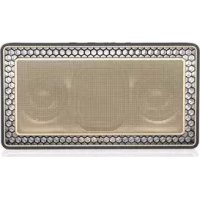
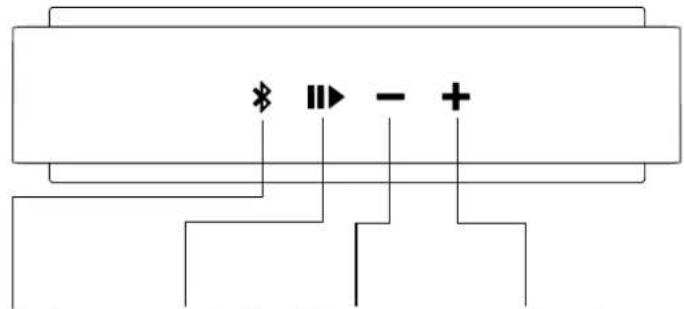
T7 is a Hi-Fi speaker built with maximum portability in mind. Once switched on via the Power button on its right hand side, it is controlled via Bluetooth, Play/Pause, Volume + and Volume - buttons on its top panel. A blue indicator adjacent to the Bluetooth button displays Bluetooth connection state and a column of white indicators above the Power button displays battery charge level. T7 also provides audible feedback for some control commands and events.
Connections on the back of T7 include a power supply input, auxiliary input (3.5mm stereo jack), and service port used for firmware updates only (microUSB). A pin-hole Reboot button is also located on the back of T7.
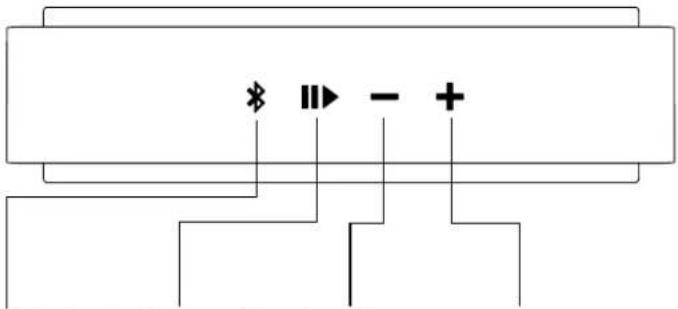
Bluetooth pairing Play/Pause Volume down Volume up
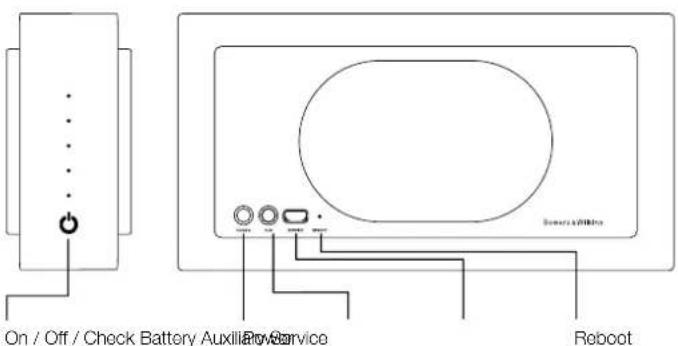
(Firmware update only)
Diagram 1
Buttons and connection sockets.
3. Battery charging
T7 will be partially charged when you first unpack it.
To charge T7 follow the steps described below.
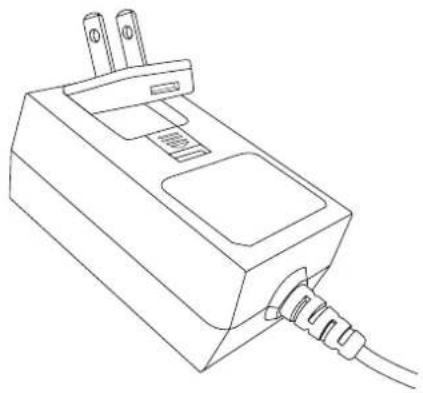
- Select the appropriate regional plug adapter for the mains outlet socket in your territory and clip it to the power supply body as illustrated in Diagram 2.
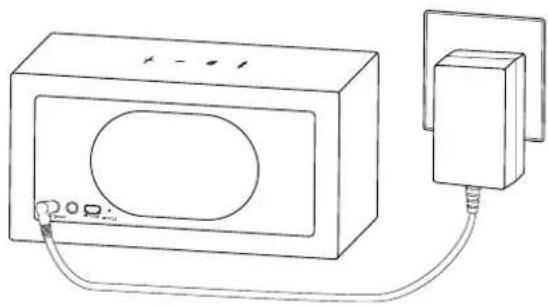
- Plug the T7 power supply into a mains outlet socket and connect its output cable to T7 power input socket. This is illustrated in Diagram 3. If the mains outlet socket incorporates an isolator, switch it on.
Once T7 is connected to power, its battery will begin to charge. A full charge from a fully discharged state will take approximately 4 hours. It is best initially to leave T7 connected until it is fully charged although it can be used while it is charging.
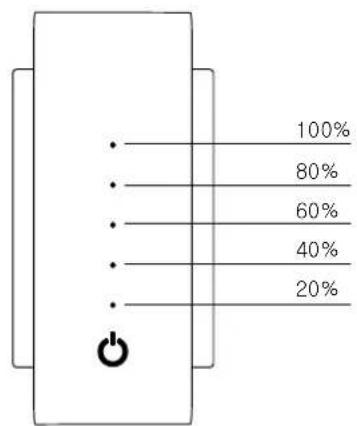
When the Power button is briefly pressed and released the column of five indicators on the right-hand side of T7 will illuminate for short period to indicate the state of battery charge. The indicator illumination depends on the level of charge as shown in diagram 4.
Note: You can charge T7 at anytime independent of battery level.
4. Switching on and off
To switch T7 on or off press and hold the Power button for 2 seconds. T7 will provide audible feedback as it switches on.
Note: If T7 is unused for more than 10 minutes it will automatically enter sleep mode. Wake T7 by starting a Bluetooth audio stream from a paired device. T7 will also wake from sleep mode if either the Bluetooth or power button is pressed. If T7 is unused for more than 20 minutes it will switch off automatically.
If T7 has not been previously used or it is not within range of previously connected Bluetooth devices when first switched on, only its auxiliary input will be operational. See the following section of this manual for information on connecting to Bluetooth devices.
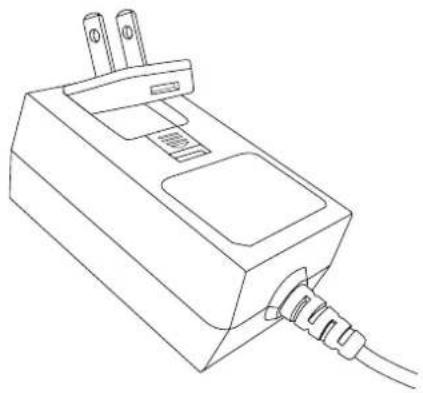
Diagram 2 Selecting the appropriate adapter
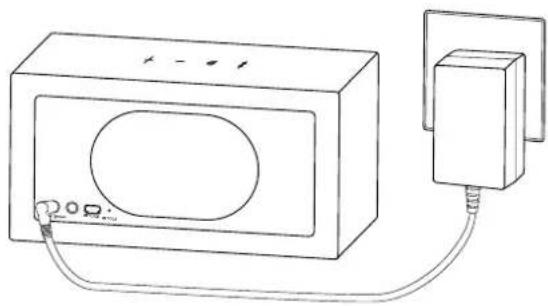
Diagram 3 Connecting T7 into the mains outlet
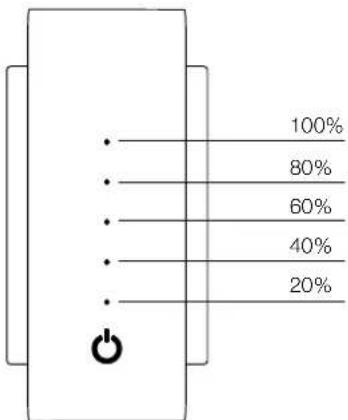
Diagram 4 Battery life indicator
5. T7 audio inputs
T7 can play audio either wirelessly from a compatible Bluetooth device or through a wired connection from a device with an analogue output.
T7 will select between its Bluetooth and wired inputs automatically although the Bluetooth input has priority. The following input selection rules apply:
- If T7 is connected via Bluetooth and a plug is inserted in the Auxiliary input socket, T7 will switch to the Auxiliary input.
- If T7 is playing audio through its Auxiliary input and a Bluetooth stream is received or the Bluetooth button is pressed, T7 will switch to the Bluetooth input.
- If T7 is playing audio through its Auxiliary input and the cable is disconnected T7 will switch to the Bluetooth input and attempt to connect to the primary paired source device.
Note: If T7 is connected via Bluetooth while an Auxiliary input cable is also connected, a new analogue audio signal will not automatically switch T7 to its Auxiliary input.
5.1 Bluetooth connection
To connect T7 to a Bluetooth enabled audio device i must first be "paired" with the device. Once paired, a Bluetooth device and T7 will remember each other and be able to connect when within range.
T7 will remember up to eight paired Bluetooth devices. The first paired device will be designated as the "primary" device, additional devices will be designated as "secondary" devices.
The primary device will be connected when within range, and the T7 Bluetooth button is pressed. Secondary devices will not connect automatically when in range but must be connected via their Bluetooth settings.
It is possible for two paired devices to be connected to T7. However, audio will only be heard from one device at any one time. When two devices are connected the other device can override the active stream.
To pair a Bluetooth device with T7 follow the steps described below.
- With T7 switched on, press and hold the Bluetooth button for 2 seconds. The indicator will flash and T7 will provide audible feedback when it enters "pairing" mode.
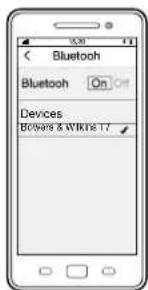
Note: T7 will automatically exit from Bluetooth pairing mode if no device is paired within 5 minutes. - Open the Bluetooth settings on the source device and ensure Bluetooth is switched on. Once discovered, Bowers & Wilkins T7 will appear as an available Bluetooth device. Select T7 and close the Bluetooth settings. T7 Bluetooth indicator will flash as pairing is underway and illuminate fully when pairing is established. T7 will also provide audible feedback when pairing is established.
Note: If your Bluetooth audio source device does not support "simple" pairing and requests a four digit code, enter '0000'.
Once a connection has been established, ensure that T7 is selected as the speaker output. Audio will now be heard through T7.
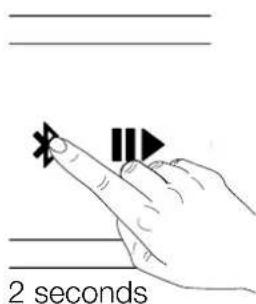

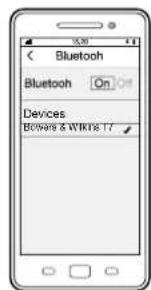

Diagram 5 Bluetooth setup
The paired device memory can be cleared by press and hold Volume - and Bluetooth button for 2 seconds. The Bluetooth indicator will flash and T7 will restart once the memory has been cleared.
To disconnect a Bluetooth source device from T7 press the T7 Bluetooth button twice in quick succession. This will disconnect all Bluetooth connected devices. T7 will provide audible feedback when Bluetooth is disconnected.
5.2 Wired connection
Connect to the Auxiliary input using an appropriate cable. T7 will select its Auxiliary input automatically when a plug is inserted. If the analogue audio source has an output volume control, set it initially to around half volume. Use the T7 buttons to control volume rather than the source device volume controls. Only increase the source volume if T7 maximum volume is inadequate.
Note: T7 will always switch automatically to its Bluetooth input if an audio stream is received from a connected Bluetooth source device.
6. Operating T7
Once paired with a Bluetooth source or connected to a wired analogue audio source, operation of T7 is simple.
To increase or decrease volume press the Volume + or Volume - buttons respectively.
To play or pause Bluetooth streamed audio use the T7 Play/Pause button. To skip to the next track press the Play/Pause button twice in quick succession. To skip to the previous track press the Play/Pause button three times in quick succession.
Note: The play/pause button will not control audio from T7 Auxiliary input.
To connect to the primary Bluetooth source press the Bluetooth button.
To disconnect from the currently connected Bluetooth source press the Bluetooth button twice in quick succession. If two Bluetooth devices are connected to T7, both devices will be disconnected. T7 will provide audible feedback of Bluetooth disconnection and switch to the auxiliary input.
To select T7 analogue wired input insert a connection plug or disconnect from the connected Bluetooth source.
To check T7 battery charge press the Power button.
To switch T7 off press and hold the Power button.
7. T7 Indicators and Audio cues
| Blue flashing T7 | is in discoverable mode |
| Blue solid T7 is | successfully paired with a Bluetooth device |
| Blue blinking (fast flashing) | Pairing has failed |
The LEDs on the side of the product give an indication of battery life as described in Diagram 4.
Audio cues are heard for the following actions -
Power on
Power off
Bluetooth discoverable mode entered
Bluetooth device connected
Bluetooth devices disconnected
Battery charging initiated
Battery charge low
Battery charge critical
Note: It is possible to toggle the audio cues on and off by press and releasing 'Play/Pause' and ^+
8. T7 Firmware Update
Updated T7 firmware may from time to time be made available for download from the T7 support section of the Bowers & Wilkins website.
9. Reboot
To perform a reboot use a straightened paper-clip to press and hold the Reboot button for two seconds. T7 will turn off, press Power on and reboot will be complete.
Note: Performing a reboot will not clear the paired device memory.
10. Cleaning T7
Wipe surfaces with a dry clean lint-free cloth.
11. Troubleshooting
If you need help troubleshooting a specific problem, or have a question you'd like answered, please consult the T7 support section of the Bowers & Wilkins website: www.bowers-wilkins.com
Technical Specifications
Model T7
Description Wireless Portable Speaker
Technical features Bluetooth
Digital Signal Processing (DSP)
High Quality Class D amplifiers
Rechargeable lithium ion battery
Drive units 2x 50mm (2.0 in) Full range
2 x Auxiliary Bass Radiators (ABR)
Frequency response 58Hz - 19kHz +/-3dB
Frequency range -6dB@ 50Hz to 21kHz
Amplifier power output 2 x 12W
Power supply voltage Input: 100-240Vac, 50/60Hz, 1.0A, (Power supply)
Output: 15Vdc, 2.0A
Power consumption Standby: 0.141W
Sleep: 0.317W
Operating temperature This product is only designed to work at an ambient
temperature of up to 45^
Inputs Auxiliary - analogue (stereo 3.5mm jack)
Service - firmware updates only (micro USB)
Height 114mm
Width 210mm
Depth 54mm
Net weight 940g
Enclosure Polycarbonate
Jumelage Bluetooth
Lecture/Pause Diminuer Volume
Augmenter Volume
Batterie rechargeable Lithium Ion
Haut-parleurs 2x50mm large bande
Digital Signal Processing (DSP)
2 x Auxiliary Bass Radiator (ABR)
Frequenzgang 58 Hz -19 kHz +/-3 dB
2 x Auxiliary Bass Radiators (ABR) 2 x Auxiliary Bass Radiators (ABR)
Frequentriespons 58 Hz -19 kHz +/-3 dB
Frequenbleerik -6dBbij50Hztot21kHz
Versterkervermogen 2 × 12 W
Kaawc npthetaov Bowers & Wilkins kai to T7
EuXapioToou nou euiEeatae Tnv Bowers & Wilkins. O'Tav o John Bowers iDpuoe Tnv staiia mac, to ekave niotevovtac πως η εuφavtaoTn oxδiaon, oi eupnmaTikεc λoεic σε τexvika npβλημata kai nponyμevn TEXVOIA εiva t a kλεiδiγia Tnv anolauon tou nxou oTO oNTI. Autn Tny niotn Tou ouvexizoume va moipaζóμaTe kai autn εμπvεi kaθε πpoiov nou oxδiaζouε.
To T7 npoei va xnpoiunoi i ia ta eEns:
Avanapaywyn po ncs mouikns ano kivnto tnlambda ovo, tablet n unoloyoiotn xpnaiomoiwvtac texvoiayia aupmaTnc ouvdeonc Bluetooth.
Avanapaywyn mouokns xpnoiopoivvtae voupuatn ouv0 ano onoiadnoTe ouokun diae t e avaoyikn Edo noou.
To T7 trophiobotietai ano mia e navafoptizouevn
muatapia ovtwv lioiu, n onoi a npoei va napexixxpovo
avanapaywync ewc kal 18 wpcsc eoen evtaon hxou, otav
eivai nnpwc foortiouevn.
PnmeaHHe: EcnBaw Bluetooth ayHNO nCTOHN He noepJxNBAeT PnOToH pexm cnpjXeHn Tpe6yet 4-pa3pndhny napOnb, BBeDIne '0000'.
Pocne toro kak coedHHe nye ctaHOBnEHO, y6eHntecb, TcT T7 BbIpaH bKaeeCTBe bXIOHOJ AkyCTUeCKN CNTEmb. Tepeb MoxHO 6ydtCnywath 3Byk Chepe3 T7.
PamrBb cponpexeHHbx yctpoiCTB MOxHO OHCTMTh, Haxab u yedePxAB OHOBPemHo KhoKn Volume n Bluetooth B TceHne 2 cekyHd. Ndkatop Bluetooth MmHET n T7 nepe3anyCTnTcnoe OChCTkn PAMrN.
YtobbOTcoeHNHTb Bluetooth yctpoCTBO - HcTOHMK OT T7, haxMITE DbAXDb 6bCTPO HA KhoNky Bluetooth Ha T7. 3To pa30pBet coeINHeHH Co BCMM IOKIIIOueHbIMn Bluetooth yctpoCTBAMN. T7 bIaT TaKBe 3yKOBoB CNTHAN, KOrDa Bluetooth 6yET OTOeINHeHO.
5.2PpOboDHOe coeHHeHne
IpoCoeHNHTEcb K BXOy AuX c NOMOsbIO
noxdoJero KaBEn. T7 Bb6epT Bxod
Aua ABOTMaTHueckn npuNoCeoHeHH
WteKepe.Acnn aHaIorOBbl nCTOHTNH IMeET
perynipOBky rPOMKoTH, yCTaHOBtE ee Chauana
npbIbn3ntelbNO nocpeJeH. Lyuwe nCnONb3yIte
KhONIK T7 dNp perynipOBKn rPOMKoTH, a He
opraHbI ynpabNeHH Ha yctPoCTBe - nCTOHTNHke.
PiobIIwai Te rPOMKoCTb B nCTOHTNH Ke ToIbKO
TOrda, KorDa MAKcIMmaJIbHaR rPOMKoCTb T7 dNp BaC
HeNDcTaTOHCA.
ПиMuEaHHe: T7 BcERda 6yET nepeKlnuObTaBcA bYOMATnueChk HxOxD Bluetooth npnONyUeHN aYIO nOTOKa C noDcoeINHEnHOro Bluetooth yctpoIcTba -NtOToHka.
6.Испоььованe T7
Iocne toro kak T7 cnpjxkeHa c Bluetooth nCTOyHnKOM NIN NOcOeMHe Ka6eneM K aHaNoRbOMy ayDIO nCTOCHNY, ynpabTb eo npocto.
YtobIyBENHHTbNIMYMeHbNTbTpOMKoCTb. hAKMMAte KONKnVolume+NNVolume-
Jn3nycka Bocnpo3BeHn Hn nay3bI
notokoboro ayno Hepe3 Bluteoth nnonb3yTe
Khonky Play/Pause Ha T7. Nn nponycka
CneDyioero TpeKa hXnMaTe 6bICTPO
DaBakDa HKnOky Play/Pause. Dn Bo3BaPaTa K
PpeBdIyUeMy TpeKy hXnMaTe 6bICTPO TpIXkDbI
Ha KNOKy Play/Pause.
PnmeHHe:Knona Play/Pause He ynpabnT Bocpon3BedeHem ayno C BXOa AUX.
YtobcoeHnHbC nepBnHbIM Bluetooth nctouHkOM, hKmTe Ha KhoNky Bluetooth.
YtobbOTcoeHNITcBcOTekyuero Bluetooth nCTOHHKOM,6bIcPO HaxMNTe DbaXdbHa KhoNky Bluetooth. EcnDb BA Bluetooth yctpoCTBa noCoeHHeK T7,06a 6yUT OTcoeHNHeB. T7 bIdact 3BykoOBmCnHn npaPbBe C83nNo Bluetooth n nepeKnIOHTcRa BaXd AUX.
Yro6bbl6paTb ahanorobBbXoD T7, BCTaBBTe 8teKep B p3beM nJx xeOTcoeMHITecb OT Bluetooth vctOHHKA.
ДяnpоверкзардаakkymyntopaT7-HaKMITEKONkyPower.
IINBbIKIOHHeHnT7-HaXMMTe n yepxnte KhoNky Power.
7.Индикаторы T7и 3BykoBbie cnHnAbli
3ByKOBbIe CnHbI BbIdHOrB CJIeNyOuNX cnYyax -
BkHIOueHne
BbIKIOeHne
BxOaB pexm o6hApyKeHn Bluteoth
Coennene c Bluetooth vctpoenCTBOM
Pa3pbB COeINHeHnC Bluetooth yCTpOCTBOM
Haayalacb 3apRkaakymyIaTopa
Hn3KynyOBeHb3apraaakkyMnyrTopa
Kpntuueckn ypoBeH 3apJa aAkyMnyTopa
PpHMeueaHHe:3ByKOBbIe CmHaJIb MoXHO OTKNIOHTb WIM BKLIOHTb, HxJAB OHOBPeMeHHo Ha KONKn Play/Pause n +'n Cp3y OTNCTNB WX.
8.06HOBLeHne npoWNbKn IO T7
OBHJHEHn pOoiBKn IIO dIa T7 MoryT BpEMe Ot BpeMeHb BVklaDbBaTc DnI cKaUBAHmB aPa3deNoedepKxN T7 caTaBowers &Wilkins.
9. Npe3anyck - Reboot
ДлnepezeanayckaT7нспьзуITEpa0rHyTuO cskpenK,чтбынхаТи KaTnKReBooI yedpkaTbe eTeHeme2CeknyI.Пocne toro kaT K7БblKnITCTA,нжмСТeKhONky Power n nepezarpy3ka 6ydet 3aBepseHa.
PnmuueaHHe:pe3aynck He cTpaET HOpmauIO COpnjKeHHbYyCTPOIcTBAX N3 parnr.
10. OvncKa T7
IpoTnpaTe NOBepxHocTb YnCToN cyXo TkaHbO 6e3 Bopca.
11.Bo3MOxHbIe HEnCnPaBHOCTN
EcnBAM Tpe6yETcN NOMOuB B peueHn KaKoHnHybI np6bEmbl, HmYBaC Bo3HK Bonpoc, noXayncta, ObaPaaTecb B pa3den noDepjkn T7 hcaTe Bowers & Wilkins: www.bowerswilkins.com
Texnueckne xapaKtepncTKN
MoDJIb T7
Onncnne BecnpoBnHa npTaTHBaH KOHOHa
DcTOMHCTBa Bluetooth
LHpOBoW npoecoc ciHAnOB (DSP)
BbICOKOKaueCTBeHHbIe yCunntTeIN BKnace D
Ipe3apjkaemblnHTNEBO-HOHbIaKKMyrTOp
HnHAMK2x50MM(2.0in)nonHOaana3OHbHe
Digital Signal Processing (DSP)
2 x Auxiliary Bass Radiators (ABR)
注意:Bluetooth接號的才一元一元一元一元一元一元一元一元一元一元一元一元一元一元一元一元一元一元一元一元一元一元一元一元一
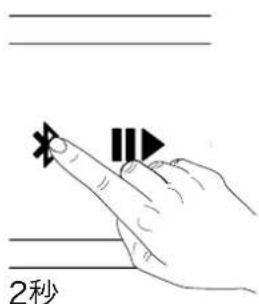

图5
Bluetoothの設定

早早早早早早早早早早早早早早早早早早早早早早早早早早早早早早早早早早早早早早早早早早早早早早早早早早早早
2
第3
4
5.T70
T7是海电电电电电电电电电电电电电电电电电电电电电电电电电电电电电电电电电电电电电电电电电电电电电电电电电电电电电电电电电电电电电电电电电电电电电电电电电电电电电电电电电电电电电电电电电电电电电电
T7是普早主与京朝自
VolumeBHTandBluetoothBHT2
单连网不联T7M0R5A0R5A0R5A0R5A0R5A0R5A0R5A0R5A0R5A0R5A0R5A0R5A0R5A0R5A0R5A0R5A0R5A0R5A0R5A0R5A0R5A0R5A0R5A0R5A0R5A0R5
2 x Auxiliary Bass Radiator (ABR)
孕四 出 58Hz-19kHz+/-3dB
孕卡步步步-6dB@50Hz~21kHz
甲 2x12W
100-240Vac,50/60Hz.(前页A
香:15Vdc,2.0A
名01
合口:0.317W
云云 45


- Welcome to Bowers & Wilkins and T7
- T7 Carton Contents
- Environmental Information
- Getting to know T7
- Battery charging
- Switching on and off
- T7 audio inputs
- Bluetooth connection
- Wired connection
- Operating T7
- T7 Indicators and Audio cues
- T7 Firmware Update
- Reboot
- Cleaning T7
- Troubleshooting
- Technical Specifications
- Kaawc npthetaov Bowers & Wilkins kai to T7
- 5.2PpOboDHOe coeHHeHne
- 6.Испоььованe T7
- 7.Индикаторы T7и 3BykoBbie cnHnAbli
- 8.06HOBLeHne npoWNbKn IO T7
- Npe3anyck - Reboot
- OvncKa T7
- 11.Bo3MOxHbIe HEnCnPaBHOCTN
- Texnueckne xapaKtepncTKN
- 5.T70
Brand : B&W
Model : T7
Category : Loudspeaker