Roadrunner 519 - Dashcam PRESTIGIO - Free user manual and instructions
Find the device manual for free Roadrunner 519 PRESTIGIO in PDF.



| Product Type | Dashboard Camera |
| Brand | Prestigio |
| Model | Roadrunner 519 |
| Maximum Video Resolution | 1920x1080 (30 fps) |
| Other Video Resolutions | 1280x720 (60 fps), 1280x720 (30 fps), 640x480 (30 fps) |
| Video Format | AVI |
| Photo Format | JPG |
| Photo Capture | Yes, resolutions up to 14 MP |
| Power Supply | Rechargeable battery + car charger |
| Interface | USB, SD card slot (max 32 GB, SDHC recommended) |
| Built-in Microphone | Yes |
| Built-in Speaker | Yes |
| Screen | Built-in LCD |
| Mounting | Suction cup and 3M adhesive |
| Motion Detection | Yes, adjustable (5s, 10s, 30s, 1min) |
| Loop Recording | Yes, adjustable duration (1min, 3min, 5min) |
| File Locking | Yes, via Mode button |
| Operating Temperature | 0°C to 45°C |
| Package Contents | Camera, USB cable, suction cup mount, 3M mount, car charger, quick guide, warranty card |
| Maintenance | Clean with a soft dry cloth. Do not use chemicals. |
| Safety | Do not expose to water, do not disassemble, avoid strong magnetic fields, do not expose to heat. |
Frequently Asked Questions - Roadrunner 519 PRESTIGIO
User questions about Roadrunner 519 PRESTIGIO
0 question about this device. Answer the ones you know or ask your own.
Ask a new question about this device
Download the instructions for your Dashcam in PDF format for free! Find your manual Roadrunner 519 - PRESTIGIO and take your electronic device back in hand. On this page are published all the documents necessary for the use of your device. Roadrunner 519 by PRESTIGIO.
USER MANUAL Roadrunner 519 PRESTIGIO
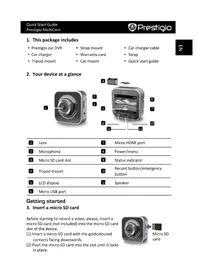
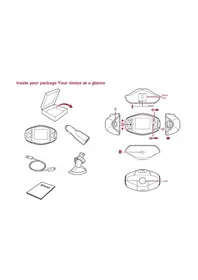
Prestigio car DVR, USB cable, Suction mount, 3M mount, Car charger, Quick start guide, Warranty card
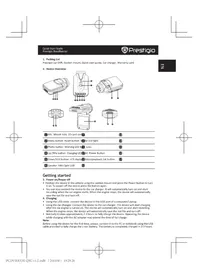
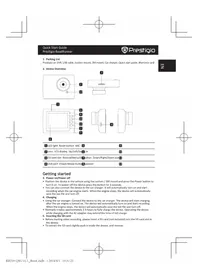
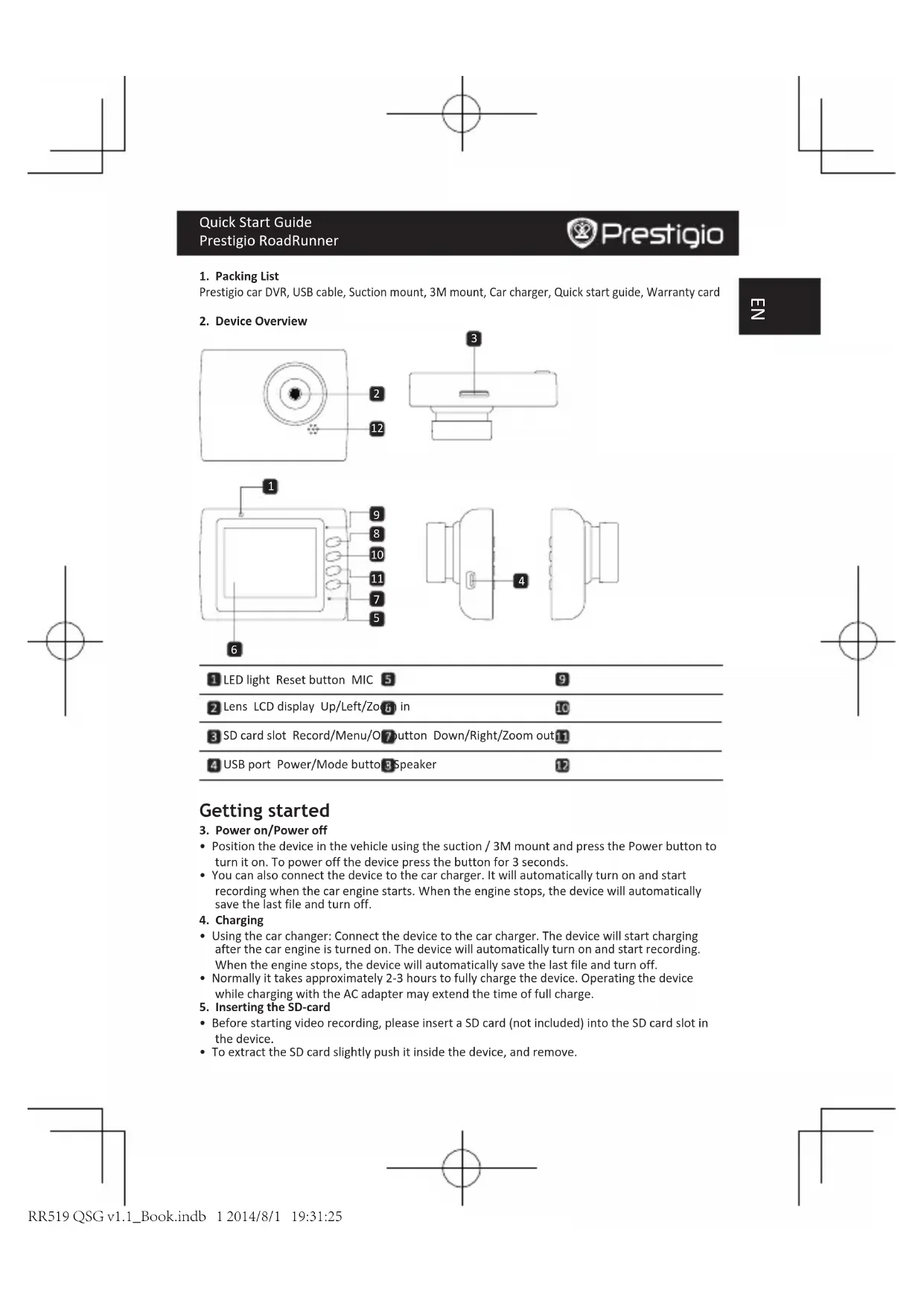
2. Device Overview
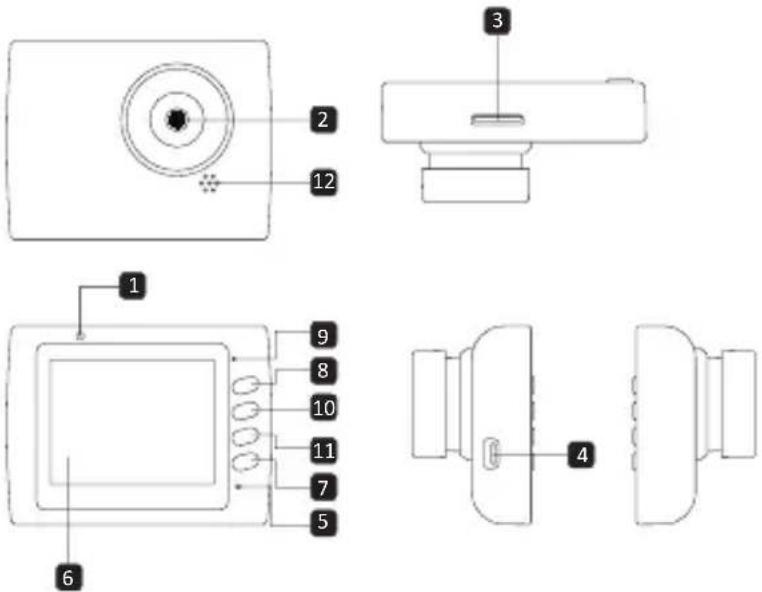
| 1 LED light Reset button MIC 5 | 9 |
| 2 Lens LCD display Up/Left/Zoom in | 10 |
| 3 SD card slot Record/Menu/O button Down/Right/Zoom out | 11 |
| 4 USB port Power/Mode button Speaker | 12 |
Getting started
3. Power on/Power off
- Position the device in the vehicle using the suction / 3M mount and press the Power button to turn it on. To power off the device press the button for 3 seconds.
- You can also connect the device to the car charger. It will automatically turn on and start recording when the car engine starts. When the engine stops, the device will automatically save the last file and turn off.
4. Charging
- Using the car changer: Connect the device to the car charger. The device will start charging after the car engine is turned on. The device will automatically turn on and start recording. When the engine stops, the device will automatically save the last file and turn off.
- Normally it takes approximately 2-3 hours to fully charge the device. Operating the device while charging with the AC adapter may extend the time of full charge.
5. Inserting the SD-card
- Before starting video recording, please insert a SD card (not included) into the SD card slot in the device.
• To extract the SD card slightly push it inside the device, and remove.
natural_image
Simple geometric diagram with a circle intersected by two perpendicular lines (no text or symbols)
Prestigio
Quick Start Guide
Prestigio RoadRunner
E
Note:
After inserting the SD card the device will automatically recognize it as default storage and all the data will be saved on this card.
6. Recording
- To start recording make sure the Video Mode is selected. Press the Record button to start recording. The recorded files are saved on SD Card. To stop recording, press Record button again or stop the car engine if the device is connected to the car charger.
- With car charger connected the device will automatically turn on and start recording.
Note:
Press Mode button to lock current file during recording and the locked file won't be replace until a manual unlock.
7. Taking pictures
- To take a picture make sure the Picture Mode is selected. Press the Record button to take a photo. Taken photos are saved on SD Card.
• To zoom in/out press button up/down.
Settings
8. Video Menu settings
Turn on the device and make sure the Video mode is selected.
Note:
To select Video or Picture Mode press the Mode button. The appropriate symbol will be displayed in the top right corner of the screen.
- Press and hold Menu button to enter Settings. Press up/down button to select the option and press Record button to enter the select mode, press up/down button to select and press Record button again to set the value.
- Press and hold Menu button to enter Settings. Press the navigational button left/right to select which menu you want to set.
The following options list is available in the Video menu:
- Movie Mode: Select the video image size from 1920x1080 (30 fps), 1280x720 (60 fps), 1280x720 (30 fps), 640x480 (30 fps).
• Movie Quality: Select the video quality.
• Movie Clip Time: Select one of the values to set the video duration. - Movie off time : 0min, 5sec, 1min. Select the time of power off delay. The default setting is 5sec.
- Motion event REC: 5sec, 10sec, 30sec, 1min. Select the recording time when motion detection event is on. The default setting is 5sec.
• Sound Record: Select to turn the microphone on or off. - MICSensitivity: Select the sensitive of the Mic.
- Scene: Select the video mode (such as sports, portrait, landscape or beach etc).
- Exposure: Select the exposure compensation (when the device fails to identify the correct exposure automatically).
- White Balance: Select the correct white balance according to the lighting conditions.
• ISO Sensitivity: Set the ISO.
9. Picture Menu settings
Turn on the device and make sure the Picture mode is selected.
- Still Image Size: Select the image size from 14M, 12M, 8M, 5M, 3M, 2M, 1.2M and VGA.
• Still Quality: Select the picture quality.
- Scene: Select the video mode (such as auto, sports, portrait, landscape or beach etc).
- Exposure: Select the exposure compensation (when the device fails to identify the correct
Quick Start Guide
Prestigio RoadRunner

Prestigio
exposure automatically).
- White Balance: Select the correct white balance according to the lighting conditions.
• ISO Sensitivity: Set the ISO.
• Color: Select the special color to apply to the image.
• Effect: Select the special effect to apply to the image.
10. Playback settings
The following settings are available:
• Volume: Select the playback volume and tone volume on key press.
- Delete: To select the file you want to delete.
- Protect: To protect or unprotect files.
11. Media Tool
The following settings are available:
- Format SD-card: Select to format the SD card.
Important note:
Once you select YES and press the Record button the card will be formatted without warning. All data on it will be erased.
• SD-Card INFO: SD-Card storage status.
12. General settings
- Beep: Select the Beep Sound on or off.
- Power Off: Select the time of automatic power off when the device is not in use.
- Clock Settings: Install the current time.
- Date Format: Install the date format.
- Stamp: Install the information show on the recordings or pictures.
• Language: Select the desired language from the list. - Flicker: Change frequency to remove the blinking effect when recording under artificial lighting.
- LCD Rotate: The device can record video in 2 different positions – when the camera is on the top (like on the scheme in section 2) and when it is in upside down position. To make sure the video file is not played upside down, select LCD Rotate – On.
- LCD Power Save: Select the time for LCD turn off automatically during recording to save power.
- Motion Detection: Select to set the sensitive of Motion Detection.
- Reset Setup: Select to restore default system settings.
- FW Version: Displays the current system version.
13. USB connection
To download registered files on your PC/notebook, please, connect the device to the PC or notebook via USB-cable provided. After connecting the device to the PC, the device will appear in "My computer" as the removable disk. All registered files are stored in DCIM folder, videos are stored in AVI format, and the pictures are stored in JPG format. You can now download the files from the device.

Prestigio
Quick Start Guide
Prestigio RoadRunner
E Z
Safety precautions
Please observe all safety precautions before using Prestigio Roadrunner 519. Please follow all procedures outlined in this manual to correctly operate the device.
- Do not attempt to disassemble or alter any part of the device that is not described in this guide.
- Do not place the device in contact with water or any other liquids. The device is NOT designed to be liquid proof of any sort.
- In the event of liquid entry into interior of device, immediately disconnect the device from the computer. Continuing use of the device may result in fire or electrical shock. Please consult your product distributor or the closest support center.
• To avoid risk of electrical shock, do not connect or disconnect the device with wet hands. - Do not place the device near a heat source or directly expose it to flame or heat.
- Never place the device in vicinity of equipments generating strong electromagnetic fields. Exposure to strong magnetic fields may cause malfunctions or data corruption and loss.
Technical Specifications
| Recording resolution | 1920x1080 (30 fps), 1280x720(60 fps), 1280x720(30 fps), 640x480 pixels(30 fps) |
| Video format AVI | |
| Picture format JPG | |
| Power source Rechargeable battery and car charger | |
| Interfaces | USB, SD card (Supports max 32GB, high-speed SD card recommended. |
| Microphone Built-in | |
| Operating temperature 0°~ 45°C | |
Disclaimer

As the Prestigio products are constantly updated and improved, your device's software and hardware may have a slightly different appearance or modified functionality than presented in this Quick Start Guide.
Prestigio hereby states that this Roadrunner complies to basic requirements and another relevant regulations given by the EU directive1999/5/EC. Full version of the declaration of conformity is available on: www.prestigio.com/certificates.
natural_image
Simple geometric diagram with a circle intersected by two perpendicular lines (no text or symbols)
natural_image
Simple geometric diagram with a circle intersected by two perpendicular lines (no text or symbols)
natural_image
Simple geometric diagram with a circle intersected by two perpendicular lines (no text or symbols)
Prestigio
Kratko uputstvo
Prestigio RoadRunner
BA
5. Ubacivanje SD memorijske kartice
- Prije nego što počnete sa snimanjem, molimo Vas da ubacite SD karticu (nije isporučena uz uređaj) u odgovarajući prostor na uređaju.
- Kako biste izvadili SD karticu, lagano je pritisnite ka unutra, a potom izvadite.
Napomena:
Nakon što ubacite SD karticu, uređaj će je automatski prepoznati kao primarni prostor za smiještanje podataka i svi podaci biće sačuvani na tu karticu.
6. Snimanje
- Kako biste počeli sa snimanje, provjerite da li je izabran Video način rada. Pritisnite dugme za snimanje kako biste počeli sa snimanjem. Snimljeni dokumenti biće sačuvani na SD kartici. Da prekinete snimanje, ponovo pritisnite dugme za snimanje ili ugasite motor ukoliko je uređaj spojen preko punjača za vozilo. Lampica će se ugasiti.
- Kada je uređaj spojen preko punjača za vozilo, uređaj će se automatski upaliti i početi sa snimanjem.
Napomena:
natural_image
Simple geometric diagram with a circle intersected by two perpendicular lines (no text or symbols)
natural_image
Simple geometric diagram with a circle intersected by two perpendicular lines (no text or labels)
Prestigio
Kratko uputstvo
Prestigio RoadRunner
BA
pojaviti u folderu "My computer" kao prenosivi disk. Svi snimljeni dokumenti sačuvani su u folderu DCIM, video dokumenti se čuvaju u formatu AVI, a fotografije u formatu JPG. Sada možete prenijeti dokumenta sa uređaja.
natural_image
Simple geometric diagram with a circle intersected by two perpendicular lines (no text or symbols)
natural_image
Simple geometric diagram with a circle intersected by two perpendicular lines (no text or symbols)
natural_image
Simple geometric diagram with a circle intersected by two perpendicular lines (no text or symbols)
Prestigio
Кратко ръководство
Prestigio RoadRunner
BG
natural_image
Simple geometric diagram with a circle intersected by two perpendicular lines (no text or symbols)
natural_image
Simple geometric diagram with a circle intersected by two perpendicular lines (no text or labels)
natural_image
Simple geometric diagram with a circle intersected by two perpendicular lines (no text or symbols)
Prestigio
Кратко ръководство
Prestigio RoadRunner
BG
natural_image
Simple geometric diagram with a circle intersected by two perpendicular lines (no text or symbols)
Prestigio
Kiirkasutusjuhend
Prestigio RoadRunner
品
natural_image
Simple geometric diagram with a circle intersected by two perpendicular lines (no text or symbols)
natural_image
Simple geometric diagram with a circle intersected by two perpendicular lines (no text or labels)
Prestigio
Kiirkasutusjuhend
Prestigio RoadRunner
品
Ettevaatusabinõud
natural_image
Simple geometric diagram with a circle centered at the intersection of two perpendicular lines (no text or labels)
natural_image
Simple geometric diagram with a circle intersected by two perpendicular lines (no text or symbols)
natural_image
Simple geometric diagram with a circle intersected by two perpendicular lines (no text or symbols)
Prestigio
natural_image
Simple geometric diagram with a circle intersected by two perpendicular lines (no text or symbols)
natural_image
Simple geometric diagram with a circle intersected by two perpendicular lines (no text or labels)
Prestigio
3. Allumage/Extinction
natural_image
Simple geometric diagram with a circle intersected by two perpendicular lines (no text or symbols)
natural_image
Simple geometric diagram with a circle intersected by two perpendicular lines (no text or symbols)
natural_image
Simple geometric diagram with a circle intersected by two perpendicular lines (no text or symbols)
Prestigio
natural_image
Simple geometric diagram with a circle intersected by two perpendicular lines (no text or symbols)
natural_image
Simple geometric diagram with a circle intersected by two perpendicular lines (no text or labels)
Prestigio
natural_image
Simple geometric diagram with a circle intersected by two perpendicular lines (no text or symbols)
Prestigio
natural_image
Simple geometric diagram with a circle centered at the intersection of two perpendicular lines (no text or labels)
natural_image
Simple geometric diagram with a circle intersected by two perpendicular lines (no text or labels)
Prestigio
natural_image
Simple geometric diagram with a circle intersected by two perpendicular lines (no text or symbols)
natural_image
Simple geometric diagram with a circle intersected by two perpendicular lines (no text or symbols)
Prestigio
Trumpas vadovas
Prestigio RoadRunner
5
Atsargumo priemonės
natural_image
Simple geometric diagram with a circle intersected by two perpendicular lines (no text or symbols)
natural_image
Simple geometric diagram with a circle intersected by two perpendicular lines (no text or symbols)
Prestigio
Īsā pamācība
Prestigio RoadRunner
<
Drošības pasākumi
2 Lens LCD scherm Omhoeg/Links/Inzoomen
10
natural_image
Simple geometric diagram with a circle intersected by two perpendicular lines (no text or symbols)
Prestigio
Snelstartgids
Prestigio RoadRunner
Z
- "Movie Mode (Film modus)": Selecteer de video resolutie, 1920x1080 (30 fps), 1280x720 (60 fps), 1280x720 (30 fps), 640x480 (30 fps).
natural_image
Simple geometric diagram with a circle centered at the intersection of two perpendicular lines (no text or labels)
natural_image
Simple geometric diagram with a circle intersected by two perpendicular lines (no text or symbols)
natural_image
Simple geometric diagram with a circle intersected by two perpendicular lines (no text or symbols)
Prestigio
Podręcznik skrócony
Prestigio RoadRunner
P
natural_image
Simple geometric diagram with a circle intersected by two perpendicular lines (no text or symbols)
natural_image
Simple geometric diagram with a circle intersected by two perpendicular lines (no text or labels)
Prestigio
Podręcznik skrócony
Prestigio RoadRunner
P
Środki ostrożności
natural_image
Simple geometric diagram with a circle intersected by two perpendicular lines (no text or symbols)
Prestigio
Guia de introdução
Prestigio RoadRunner
PCT
natural_image
Simple geometric diagram with a circle intersected by two perpendicular lines (no text or symbols)
natural_image
Simple geometric diagram with a circle intersected by two perpendicular lines (no text or symbols)
Prestigio
Guia de introdução
Prestigio RoadRunner
PCT
natural_image
Simple geometric diagram with a circle intersected by two perpendicular lines (no text or symbols)
natural_image
Simple geometric diagram with a circle intersected by two perpendicular lines (no text or symbols)
natural_image
Simple geometric diagram with a circle intersected by two perpendicular lines (no text or symbols)
Prestigio
natural_image
Simple geometric diagram with a circle intersected by two perpendicular lines (no text or symbols)
natural_image
Simple geometric diagram with a circle intersected by two perpendicular lines (no text or labels)
Prestigio
natural_image
Simple geometric diagram with a circle centered at the intersection of two perpendicular lines (no text or labels)
natural_image
Simple geometric diagram with a circle intersected by two perpendicular lines (no text or symbols)
natural_image
Simple geometric diagram with a circle intersected by two perpendicular lines (no text or symbols)