Wireless Speaker 18693 - Loudspeaker TRUST - Free user manual and instructions
Find the device manual for free Wireless Speaker 18693 TRUST in PDF.



| Product type | Bluetooth speaker |
| Brand | Trust |
| Model | Wireless Speaker 18693 |
| Category | Speaker |
| Power supply | Rechargeable battery via USB (5V) |
| Charging time | 3 hours |
| Wireless connectivity | Bluetooth |
| Bluetooth range | 10 meters (ideal conditions) |
| Audio input | 3.5 mm jack |
| Charging port | Micro USB |
| Controls | On/off, volume +/-, play/pause, Bluetooth pairing |
| LED indicator | Fast flashing blue (pairing), slow flashing blue (Bluetooth), solid green (audio input) |
| Hands-free function | Yes (via play/pause button) |
| Compatibility | iOS, Android, Windows, Mac |
| Maintenance | Clean with a soft, dry cloth |
| Safety | Do not expose to water or moisture |
Frequently Asked Questions - Wireless Speaker 18693 TRUST
User questions about Wireless Speaker 18693 TRUST
0 question about this device. Answer the ones you know or ask your own.
Ask a new question about this device
Download the instructions for your Loudspeaker in PDF format for free! Find your manual Wireless Speaker 18693 - TRUST and take your electronic device back in hand. On this page are published all the documents necessary for the use of your device. Wireless Speaker 18693 by TRUST.
USER MANUAL Wireless Speaker 18693 TRUST
www.trust.com/18693/faq
Trust
Quick Installation Guide
Wireless Speaker
18693
Installation
Trust
Bluetooth Audio Speaker - USER'S MANUAL
| Index | ||
| Language | page | |
| English | 2 | |
| Deutsch | 6 | |
| Français | 10 | |
| Itallano | 14 | |
| Espanol | 18 | |
| Portugues | 22 | |
| Nederlands | 26 | |
| Dansk | 30 | |
| Suomi | 34 | |
| Norsk | 38 | |
| Svenska | 42 | |
| Polski | 46 | |
| Česky | 50 | |
| Slovenčina | 54 | |
| Magyar | 58 | |
| Romänia | 62 | |
| Бulgariatskii | 66 | |
| Руccskii | 70 | |
| Ельникovi | 74 | |
| Тürkste | 78 | |
| Hrvatski | 82 | |
| Slovenski | 86 | |
| С риски | 90 | |
Bluetooth Audio Speaker - USER'S MANUAL
Trust
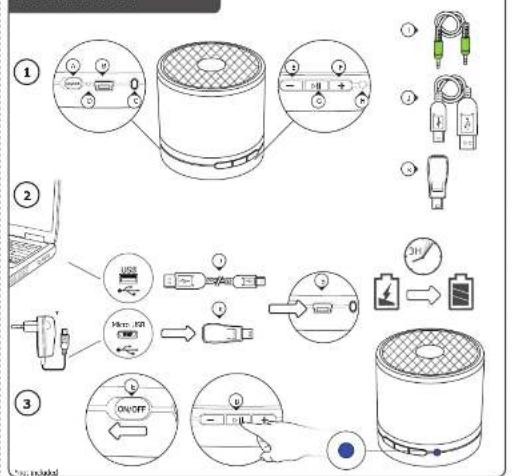
Installation
A On/Off switch
B USB power input
C 3.5mm Audio input
D LED indicator: Blue flashing fast Pairing mode Blue flashing slow Bluetooth mode Green con tan Audio input mode E Volume - FVolume + G Play, Pause/Bluetooth pairing H Charge LED I 3.5mm Audio cable J USB Charge cable K Min Max USB adapter
-
Connect the USB charge cable to the USB port of your laptop or use your own micro usb power adapter and 'K' to charge the speaker.
-
Connect the USB charge cable to the USB power input 'B'.
-
Charge the battery for 3 hours
-
Power on the speaker by switching the power switch 'A' on the rear of the speaker.
-
Press and hold the standby button 'J' for 3 seconds
-
The LED indicator 'D' will start flashing Blue (paring mode).
If the LED indicator is not flashing blue, Press and hold the play/pause button for 5sec.
If a passcode is requested during the configuration of the device Use '0000'.
Bluetooth Audio Speaker - USER'S MANUAL
Trust
Standard Configuration
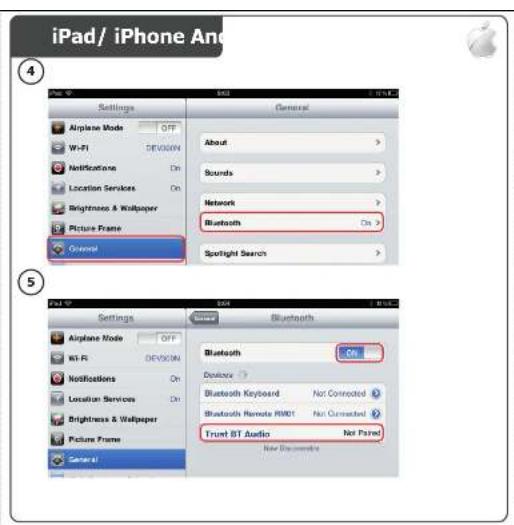
iPad/ iPhone
4 -Go to 'Settings'. -Go to the General'se
- Go to 'Bluetooth'.
- Make sure that Bluetooth is on.
- Select 'Trust BT Audio' in the list of Bluetooth devices. (make sure the speaker is in pairing mode) When the device status is 'paired', your device is ready to use.
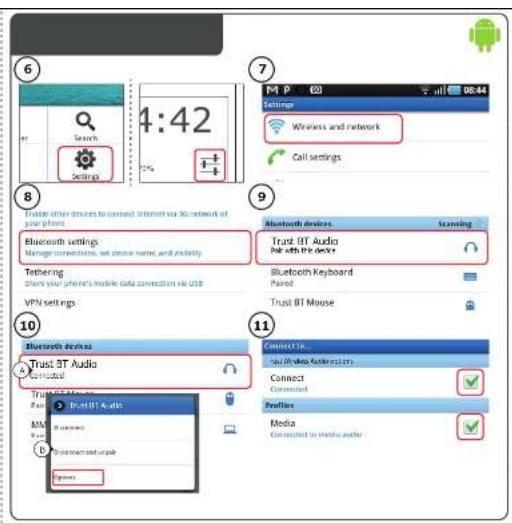
Android
6 Go to Settings
For Android 4.0 systems the settings button can be found under the clock.
Go to 'Wireless and network'.
Go to 'Bluetooth settings' and press 'search for devices' if needed.
Select Trust BT Audio' in the list of Bluetooth devices (make sure the speaker is in pairing mode).
Press and hold 'Trust BT Audio' to go to the options menu of the wireless audio device.
Make sure that the device is 'Connected' and the 'Media' profile is selected. Your device is ready to use.
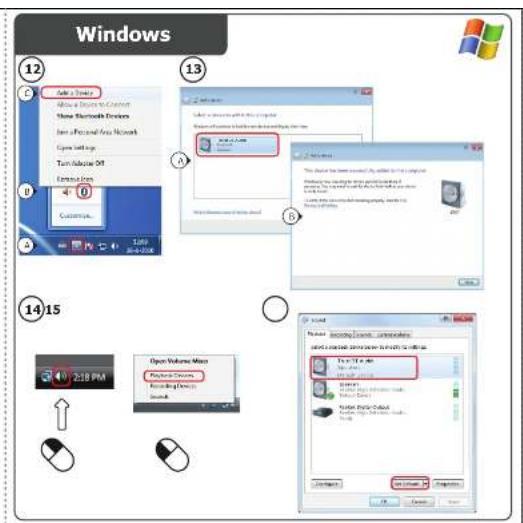
Windows
12A.Open the taskbar Icons.
B. Click on the Bluetooth icon.
C. Click on 'Add a device'.
- Select 'Trust BT Audio' in the list of Bluetooth devices (make sure the speaker is in pairing mode). When the device is successfully added, your device is ready to use.
14 - Right click the speaker icon in the taskbar.
- Open the 'Playback devices'.
- Set the 'Trust BT Audio' device as your default device.
Bluetooth Audio Speaker - USER'S MANUAL
Trust
Configuration on a Mac system
- Click on the Bluetooth icon in the taskbar.
- Make sure Bluetooth is on.
- Go to 'set up Bluetooth device...'.
- Select 'Trust BT Audio' in the list of Bluetooth devices (make sure the device is in pairing mode).
- Click on 'Continue'
- If the pairing attempt was unsuccessful, Go to 'Passcode options'.
- Select 'Use a specific passcode'.
The passcode to use is '0000'.
Click on 'ok' - Click on 'Continue'.
Your device is now ready to use.
Advanced Controls
Play, Pause/ Bluetooth pairing (G)
Press the play/pause button. To pause or play music.
When receiving a phone call press this button to answer the call.
Volume control (E,F)
Press the volume +/- to regulate the volume.
Trouble shooting
| Problem | Solution |
| Can't connect the BT speaker to my device | - Make sure that the BT speaker is powered on and not in standby mode. See step 3.- Make sure that the BT speaker is in paring mode. Press and hold the play/pause button for 5 sec. to activate the pairing mode.- Move the BT speaker closer to your audio source (maximum distance 10m under ideal circumstances)- Repeat the standard configuration steps for your device (iPod/iPhone, Android, Windows, Mac).- The speaker can only be paired with one device simultaneously.- If a passcode is requested. Use '0000'. |
| No Sound | - Make sure that Bluetooth is enabled on your device.- When using Bluetooth, make sure that there is no audio cable connected to the 3.5mm audio input.- Repeat the standard configuration steps for your device.(iPod/iPhone, Android, Windows, Mac) |
| Distorted Sound | - Your BT speaker is too far from your device (maximum distance 10m under ideal circumstances).- Charge the speaker- If you are using the product around large metal surfaces, remove the metal surface or move you product away from the metal surface.- Walls and Floors drastically reduce the range of the product. Move the BT speaker closer to your audio source.- Move the BT speaker away from other wireless devices (like Wireless network routers, mouse and keyboard). |
| Sound volume is low | - Check the volume setting of your device. (Tablet, Smartphone, PC) |
If your problem is not solved, please contact the helpdesk at www.trust.com/18693/faq
Bluetooth Audio Speaker - USER'S MANUAL
Trust
Installation
G Lecture, Pause/ Appariment Biotothin (Bluetooth unqulement)
HChargement LED
I Cable audio 3.5 mm
- Cable de chargement USB
Configuration standard iPad/iPhone
7 Gaaar 'Wireless and network' [Draadloos & netwerk]
Ga narr 'Bluetooth settings' [Bluetooth-installingen] en druk indien nodig op 'find nearby devices
[apparaten in de buurt vinden].
A Vypinae B. Yshtun USR
C. 3.5mmystunzuku
Odstranovani problem
C. Leitner, Smit, (Bluetooth piers) (see Bluetooth control)
G Lejatszas, Szunelyi Bluteooh parositasasa (Csak Bluteooh eseren)
H tolto LED jelzofeny
7 Mergei la "Wireless and network" [Fara fir si reeta".
Mergeti la "Bluetooth settings" [,Setari Bluetooth"] si apasati pe,find nearby devices"[gaseste
Configurare in system Mac
YnpaBneHnE Cnata Ha 3Byka (E,F)
HaTnCHeTe Cnna Ha 3Byka + / - , 3a Da perynpaTe Cnata Ha 3Byka.
OTcPaHrBaHe Ha HeH3nPaBHOCTN
| Побlems Peшени | |
| He moraда CBvpka BT BHCOKOROBOPHTERA KMн Коету устрильно | -Уberete ce,ce BT BWCOKOROBOPHTERA EВ реким Ha CBVBOBAHа.Натисные Naazдьхte 6byToHa BvIprOIN3BcKdAne/na7a 35ocK,,3aда akTINBIPATE pexIMma Ha CBVBOAbe.(СИн CBETODIOД МГАЯ Hab BCINA cekyHda) -П配电�е TE BT BWCOKOROBOPHTERA NO-6bIIN3Odo CBYDAIO aYdINO nI3OTUHNK.(MAKCHMAMINOto pazCTOHmne Prn iNeaIIHN YCIOBnE e 10 M) -ИЗТРIMBAHа NBtPeeHATA namET HA BWCOKOROBOPHTERA.(Натисные Naazдьхte 6byToHa BvIprOIN3BcKdAne/na7a 3a 5ocK,) Повторе CTынКITE CTaIaDAPTHa KOHФИypaUNa 3a BaWeto uztproCTBO.(iPad/iPhone,Android,Windows,Mac) -ВискOROBOPHTERМожde DA bIe CDBOEN edHOBpeMeHNO caMo cEdINO yctproCTBO. -Уberete ce,ce BT BWCOKOROBOPHTERA E BKIQUHEN I He e B PEXIMHa rotobHoct. ВИХ CTынka 3. |
| NamahузуКССуMuSEня в 3БУКа | -Уberete ce,ce Bluetooth akTNBIPAN Ha BAweto UcTPOCTBO. -Korato ИЗралstBaTE Bluetooth ce уberete,ce НЯма CBvp3an AHdINO Ka6en KBm 3,5 MM aydINO BXoI. -Повторе CTынКITE 3a CTaIaDAPTHa KOHФИypaUNa 3a BAweto uztproCTBO.(iPad/iPhone,Android,Windows,Mac) -ВашиRT BT BWCOKOROBOPHTERA eppekaleno Daneue OT uZTproCTBTOВи.(MAKCHMAMHOto pazCTOHmne Prn iNeaIIHN YCIOBnE e 10 M) -Ако IЗралstBaTE prOdYkTA OKOLO rOeMeNIM MetaIaIIHN NobpBXHOCTH,OTCTPahETeMetaIIHNTe NOBpXHOCTHI ИлпреметeteПрodyktaDaneue OT TXA. -СтЕнITE IITN CTaXHITe ДраCTINHO HAMALIBAT o6XBATAHa npodykTA. П配电�е TE BT BWCOKOROBOPHTERA NO-6bIIN3Odo CBOWayIOI IN3OTUHNK. -П配电�е TE BT BWCOKOROBOPHTERA NO-DaIeue OT 6b3KUnHIn YCtproCTBA.(KAto 6b3KUnHIn MaIpyUTNAtotrop,МИshki N KlaBamTурИ). |
| СиLuATA на 3БУКа e ИNVСKa | -П配电�е НASTPoiKaTa 3a сиLuа на 3БУКа на uZTproCTBOTO с. |
Ako npo6nembT Bn He e pa3peuhen, Mo7a CbpxkTe ce c cnky6ata 3a noDpBxka Ha
www.trust.com/18693/faq
Bluetooth Audio Speaker - USER'S MANUAL
Trust
YCTaHOBKa
| 1 | A Bыклар aTeь. |
| 2 | B CINOBОВ BXOD USB |
| 3 | C 3,5-MM 3byykoobO Bxod |
| 4 | D CBeTodNOdHbI INHdkatop: CINHIM MInraet 6bICTPO PEXHM NOckLIOueHMA |
| CINHIM MInraet MedJeHNO PEXHM Bluetooth | |
| 3eHEnb I ropt HnepepbIBHO PEXHM ayDIOBxAODa | |
| E | F RomKocTB - |
| F | F RomKocTB + |
| G | GocnpoK3BcENHeMe, nayza /nockNochEnHe Bluteoth (ToIbKO Bluetooth) |
| H | H 3apRdHb CBeTodNOdHb INHdkatop |
| I | I 3,5-MM 3byykoobO Ka6eIb |
| J | J 3apRdHb USB-Kab6eIb |
| K | K Mini/Micro USB-nerceXoDHNK. |
| 2 | - POKKIOCHTE 3apRdHb USB-Kab6eIb K nopty USB HOyt6yka mH NBOcPbIb3yIteCb BaWIM Micro USB-adaTepOM PnITAHNIA INepeXoDHNKOM «K» dIa 3apRdHb DnHAMINA. |
| 3 | - POKKIOCHTE 3apRdHb USB-Kab6eIb K CINOBOMY USB-BxOyD «B». |
| 4 | - 3apRdHb 8batape B TeueHNE 3 cauOB. |
| 5 | BkNIOCHTE DnHAMIK, Haxab nepeKIOCHOTelb PnITAHNIA «A» Ha 3adHb naneHII. |
| 6 | - HaxMmTE n UydepKBaIbe KNHpy JByduyero pexHMA «J» B TeueHNE 3 cekYHd. |
| 7 | - CBeTodNOdHb INHdkatop «D» NaHET MRATiB CINHIM (PEKHM NOckLIOueHNA). |
| 8 | EcnS CBeTodNOdHb INHdkatop HE MRAIaET nonepeMeHNO CINHIM. HaxMmTE n UydepKBaIbe T BeueHNE 5 cekYHd KONHly «BocPnO3BcEHEMe/Nay3a. |
| 9 | EcnS BO BvEma KOnHpIgUpaIyauu yctroIcbTa zanpaIbMaBcTa napoi, BBeHNT «0000». |
Bluetooth Audio Speaker - USER'S MANUAL
Trust
CTaHapTHa KOnHrpypaun
iPad/iPhone
Ecnnpo6nema He yctpaHe, 06paauHTeB CnpaBOHyO cyk6y www.trust.com/18693/fag
EykaTaOaon
Avanapaywn/ Naoy/Zeul5n Bluetooth (G)
Tnntote to nAkhtpo avanapaywn/naoun. Ia npoaovni diakonn avanapaywn ouaiikrc.
Kata n hyn evoc thaeuvtacn ato nktpo yia va anvthote otyn knon.
EAEYXOC EVTaONc HxOu (E,F)
Pnnte Ta nAektpa Evtaang hyou + / - yia va puuioeTe tv Evtaon.
AvTetOni npoBAnudTw
| Пирьлma | Аиоу |
| Дev unipov va ouvбeоу to ngio BT otn ouvkeun mou | - Bebaiwθeite ont to ngio BT βρioketai σе katàtaoan ζενης, nla va eveyponoiiaete tvn katàtaoan ζενης, kpatànte natmjevo to nληκτον anapayayng/naujanc yia 5 deutepoλeNTA. (η ενδειη LED avaβαβγeivε μe μinλe xριμa kαβe δeutepoλeNTO) - Beaiwθeite ont to eniλeate tn σωattη eloδo. - Eav Ιπηβel κωδικο, nροδαασκ, xρημοιοηiote to '0000' - Metakviñote to ngio BT nio kovτa στην nπην hóu. (unò iδavikiεc ouvθηκε, n μεγιοιn anοτααη εival 10 μ.)- To ngio exei duvatotieta ζενης mνον μe lla σουkeun kαβe φορá. - Beaiwθeite ont to ngio BT βρioketai σe λεitoupyia kai χι σe kατασαον auvoviç, Δeite to bγμa 3. |
| Дev akovetyai hyoc | - Beaiwθeite ont evai eveyponoiuενη n enikoovvvia Bluetooth ση ouakeun oac. - Otv xρημοιoiaeite enikovvvia Bluetooth, βεaiwθeite ont δεν éival αuovdεδεμεν ova kαδδo nyou otn v οeδo θyou 3,5 υλ. - EnavaláβeTE ta βημata tuničic diαiδρφωνια γia tn ouakeun oac. (IPad/Phone, Android, Windows, Mac) |
| Πapouρρμενος hyoc | - To ngio BT βρioketai nalu μακρia ano tn ouakeun oac. (unò iδavikiεc ouvθηκε, n μεγιοιn anοτααη εival 10 μ.) - Eav xρημοιoiaeite to npoiδov kovτa σκαίοia μεγαλη μεταλικη enipäνεia, apαipαετate tn μεταλικη επipäνεia η anoμακpùvēte to npoiδov ano autiyv. - Oi tolyoi kai to dāne do μεiwovv δρασικί την ευβελεia tou npoiδovτο, Metakviñote to ngio BT nio kovτa στην nπhoy. (unò Anouακpùvēte to ngio BT and αλλες αωμμatec ouakeuεc. (ɔnικ. ααμμatouc δραραλογητε, δiktuaŋont, noviki kai nληκτρολoγι) |
| H εντaŋ tou nqou evai xαμηλ | - ElæγeTE tn púθian εντaŋc, nqou σηι σαukeu iαoc. (Tajnlétra, Smartphone, PC) |
Eav dev luee to npoBnua oac, enkoivwovote me tvy unnpoeia boiac otn dieuovan www.trust.com/18693/faq
Bluetooth Audio Speaker - USER'S MANUAL
Trust
Kurulum



- Trust
- Quick Installation Guide
- Bluetooth Audio Speaker - USER'S MANUAL
- Installation
- Standard Configuration
- iPad/ iPhone
- Android
- Windows
- Configuration on a Mac system
- Advanced Controls
- Configuration standard iPad/iPhone
- Configurare in system Mac
- YCTaHOBKa
- CTaHapTHa KOnHrpypaun
- iPad/iPhone
- EykaTaOaon
- Kurulum
Brand : TRUST
Model : Wireless Speaker 18693
Category : Loudspeaker