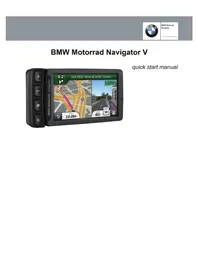
Navigator V - Browser BMW - Free user manual and instructions
Find the device manual for free Navigator V BMW in PDF.



| Product Type | GPS navigator for motorcycle |
| Brand | BMW |
| Model | Navigator V |
| Power Supply | Built-in rechargeable lithium-ion battery |
| Battery Life | Up to 4 hours in normal use |
| Screen | Color resistive touchscreen |
| Connectivity | Bluetooth, Smartphone Link, microSD card slot |
| Navigation Features | Voice guidance, 2D/3D maps, points of interest search, Garmin Live Services |
| Hands-free Functions | Hands-free calls via Bluetooth, wireless headset pairing |
| BMW Dealer Search | Integrated in Where to? menu > BMW Motorrad |
| Map Updates | Lifetime maps via Garmin Express |
| Mounting Support | Dedicated motorcycle mount with control keys |
| Storage | Optional microSD card for additional storage |
| Maintenance | Clean with a soft, non-abrasive cloth |
| Safety | Use only the BMW original mounting support and accessory |
| Spare Parts and Repairability | Contact an authorized BMW Motorrad dealer |
| General Information | User manual available in multiple languages, quick start guide included |
Frequently Asked Questions - Navigator V BMW
User questions about Navigator V BMW
0 question about this device. Answer the ones you know or ask your own.
Ask a new question about this device
Download the instructions for your Browser in PDF format for free! Find your manual Navigator V - BMW and take your electronic device back in hand. On this page are published all the documents necessary for the use of your device. Navigator V by BMW.
USER MANUAL Navigator V BMW
Installing the Battery. 5
Turning On the Device 5
Turning Off the Device 5
Removing the Battery. 5
Installing Your Device in the Motorcycle Mount 5
Entering Sleep Mode 6
Exiting Sleep Mode 6
About the Motorcycle Mount 6
Adjusting the Volume. 6
Finding Locations 6
Finding BMW Dealers 6
Finding a Location by Category 6
Finding a Location Using the Search Bar. 6
Saving a Home Location 6
Using the Navigation Map. 7
About Exit Services 7
Garmin Live Services 7
Smartphone Link. 7
About Hands-Free Features 7
Enabling Bluetooth Wireless Technology 7
About Wireless Headsets 7
Pairing a Wireless Headset 7
Support and Updates 7
Setting Up Garmin Express. 7
Activating Lifetime Maps 8
Using Help. 8
Handsfree-functions 31
Draadloze Bluetooth technologie inschakelen 31
Draadlozeheadsets 31
Sogning after positioner 34
Søgning after BMW forhandlere 34
Søgning after en position after kategori 34
BMW Nav V KpaTkoe pyKoBOdCTBO no
3KcnnyaTaunn 65
Hauano pa6oTbI 65
KoHTaKTHa INΦOpMaζη. 65
UctaHOBka 6atapen. 65
BkIIOUeHne yCToPoiCTBa 65
BbIKIOueHne yCTpoiCTBa. 65
N3BneHnne aKkyMnyTopa. 65
UcTaHOBKa yCtPoIcTbA B MOTOuKJIeTHoe KpeNneHne. 66
PepexoBpekimOxndnna 66
BbIXoN 3peKIMa OxuandaHn.. 66
MotozukneTHeKpennnne. 66
PerynipOBKa rpoMkoCTn 66
Ponck MeCTOnOJIOXeHn 66
Поск диеров BMW 66
Ponck MeCToIPOJIOKeHnI NO KATEOpHnI 66
Ponck MeCToOnoLoXeHnI C nOmoUb CTpOKn PONCKa. 67
CoxpaHHeHne MeCTOnOJIOXeHnA "Dom" 67
HabiratinoHHa Kapta. 67
O6cnyXnBaHne Ha cbe3de.. 67
INThepaKTHBbIe cnyk6bI Garmin. 67
Smartphone Link 67
Icnpb30BaHne CnpaBKn 68
BMW Nav V Eyxepidio ypinyopns Ekkivnoans 69
Evapxnpns 69
II npoopopiec eTkoivwiaac 69
ToTROEtnon Tns mntapiaac 69
EvepyoioiOn Tns ouokueu6 69
Antevepyooinan tsoukeuhs 69
Apaipexon ts μntatapiac 69
Eykaataaon tns ouakeuns oac otn baon motoouklambdae..70
MeTaeBaon otnv kataoTaon aavaToaIc IeIToupyiaC. 70
Eeoboc ano tny kataoana avoaotoaic 5eitoupyiac. 70
IIInpopopiec yia tnaaon motooukAetac. 70
Ppocapoyn ngs evtaons nxou 70
Eupoeon 0e0ewv. 70
Eupeon avntipooaw BMW 70
Eupoan 0eans baoei karyopias. 70
Eupoan theos poeow ts ypauncs avahtnons. 71
Antothekeuon theans oikias 71
XpOgTou XApTn PAnHyynons. 71
IaonpoopoeiC yiaouc Taaouc Euaenpntnns
AUTOKIVNIOV (Z.E.A.) 71
Live uTnpeoiicGarmin 71
Smartphone Link 71
See the Important Safety and Product Information guide in the product box for product warnings and other important information.
Contact Information
If you encounter any difficulty while using your BMW Navigator V, or if you have any questions, contact your BMW Motorrad dealer.
Installing the Battery
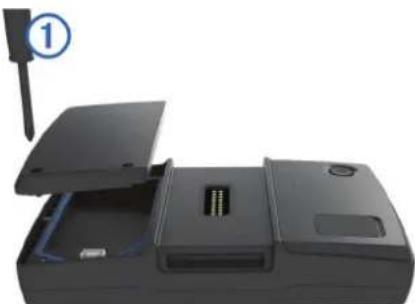
1 Locate the screwdriver ① that came in the product box.
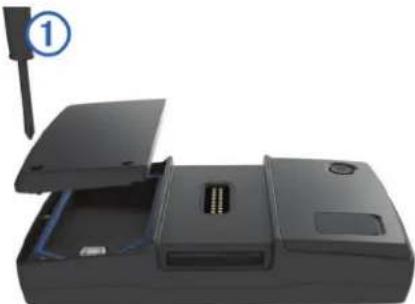
2 Locate the lithium-ion battery in the product box.
3 Loosen the screws and remove the battery compartment cover.
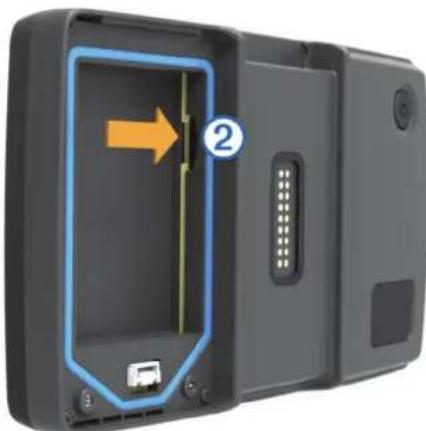
4 If necessary, insert a microSDTM card into the device.
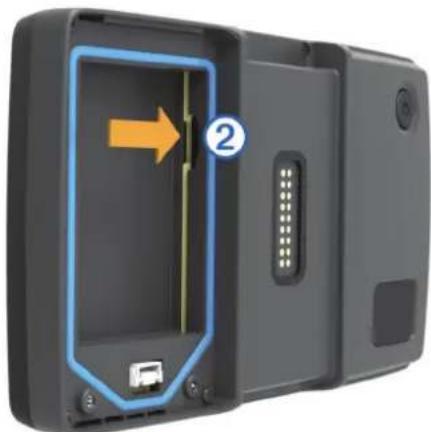
5 Insert the battery with its cable on top.
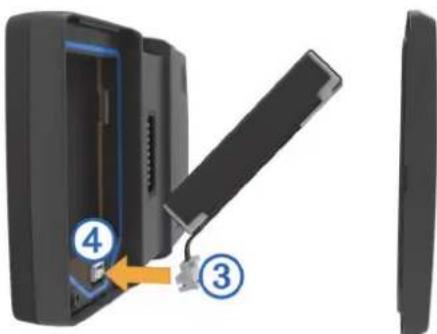
6 Insert the battery connector ③ into the battery port ④.
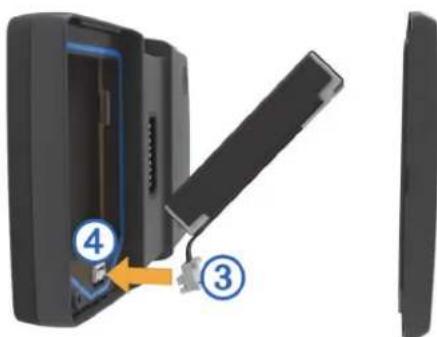
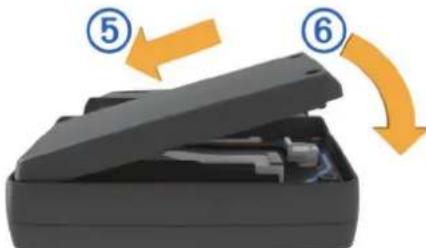
7 Insert the battery cover, top side first ⑤.
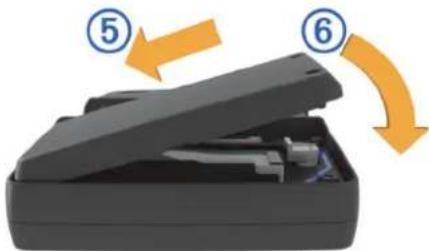
8 Close the battery cover ⑥ and tighten the screws.
NOTE: Do not over-tighten the screws.
Turning On the Device
NOTE: The device turns on automatically if it is in the optional motorcycle or automotive mount and external power is connected and turned on.
Press the power key.
Turning Off the Device
1 Hold the power key until a prompt appears on the screen. The prompt appears after five seconds. If you release the power key before the prompt appears, the device enters sleep mode.
2 Select Off.
Resetting the Device
You can reset your device if it stops functioning.
Hold the power key for 10 seconds.
Removing the Battery
You can remove the battery if you do not plan on using the device for an extended period of time.
1 Loosen the screws and remove the battery compartment cover.
2 Press and hold the release tab on the battery connector while gently pulling the connector away from the device.
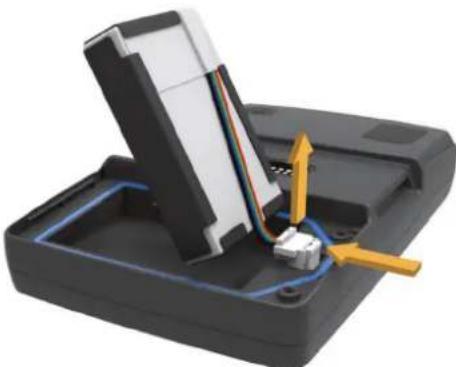
Installing Your Device in the Motorcycle Mount
CAUTION
Before driving, ensure the top of the latch is flat and even with the top of the device and the mount.
NOTE: The motorcycle mount is not included in all kits.
1 Fit the bottom of your device into the cradle.
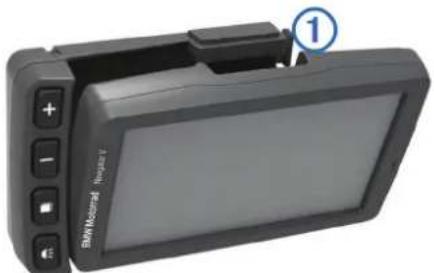
2 Tilt your device back until it snaps into place and the top of the latch is flat.
NOTE: Remove the device from the motorcycle mount before connecting a battery charger to your motorcycle.
Removing Your Device from the Motorcycle Mount
1 Press the release button ① on the side of the mount.
2 Lift out the device.
Entering Sleep Mode
Press the Power key.
Exiting Sleep Mode
While the device is in sleep mode, press the Power key.
About the Motorcycle Mount
You can access specific device features using the buttons on the motorcycle mount.
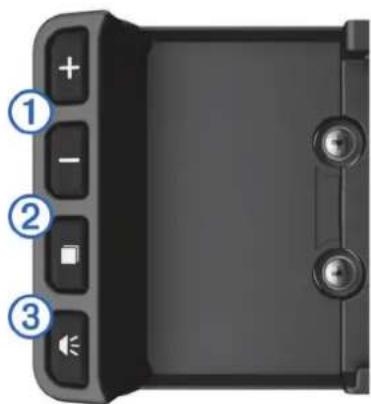
| ① | Select to zoom in and out on the map. Select to use functionality marked with a +r . - |
| ② | Select to view the map, compass, trip computer, and media player. Hold to open the brightness settings. |
| ③ | Select to hear the current prompt when you have a Bluetooth® helmet or headset connected. Hold to open the volume settings. |
Adjusting the Volume
1 Select Volume.
2 Select an option:
- Select to adjust the volume.
- Select to mute the device.
- Select for additional options.
Finding Locations
Finding BMW Dealers
You can find a BMW dealer closest to your location.
Select Where To? > BMW Motorrad.
Contact Information
If you encounter any difficulty while using your BMW Navigator V, or if you have any questions, contact your BMW Motorrad dealer.
Finding a Location by Category
1 Select Where To?
2 Select a category, or select Categories.
3 If necessary, select a subcategory.
4 Select a location.
Searching Within a Category
After you have performed a search for a point of interest, certain categories may display a Quick Search list that shows the last three destinations you selected.
1 Select Where To?
2 Select a category, or select Categories.
3 Select a category.
4 If applicable, select a destination from the Quick Search list.
5 If necessary, select the appropriate destination.
Finding a Location Using the Search Bar
You can use the search bar to search for locations by entering a category, brand name, address, or city name.
1 Select Where To?.
2 Select Enter Search in the search bar.
3 Enter all or part of the search term.
Suggested search terms appear below the search bar.
4 Select an option:
To search for a type of business, enter a category name (for example, "movie theaters").
To search for a business name, enter all or part of the name.
To search for an address near you, enter the street number and street name.
To search for an address in another city, enter the street number, street name, city, and state.
To search for a city, enter the city and state.
To search for coordinates, enter latitude and longitude coordinates.
5 Select an option:
To search using a suggested search term, select the term.
To search using the text you entered, select .Q
6 If necessary, select a location.
Saving a Home Location
You can set your home location for the location you return to most often.
1 Select Where To? Set Home Location.
2 Select Enter My Address, Use Current Location, or Recently Found.
The location is saved as "Home" in the Saved menu.
Going Home
Select Where To? > Go Home.
Editing Your Home Location Information
1 Select Where To? > Saved > Home.
2 Select
3 Select Edit.
4 Enter your changes.
5 Select Done.
Using the Navigation Map
1 Select View Map.
2 Select anywhere on the map.
3 Select an option:
To zoom in or out, select
To switch between North Up and 3-D views, select
To view specific categories when not navigating a route, select Q
To center the map on your current location, select
About Exit Services
While you navigate a route, you can find gas, food, lodging, and restrooms near upcoming exits.
Services are listed under tabs by category.
| Gas | |
| Food | |
| Lodging | |
| Restrooms |
Garmin Live Services
Before you can use Garmin Live Services, your device must be connected to a supported phone running Smartphone Link. Connecting to Smartphone Link provides access to Garmin Live Services. Garmin Live Services provides free and subscription-based plans to view live data on your device, such as traffic conditions and weather.
Some services, like weather, are available as separate apps on your device. Other services, like traffic, enhance the existing navigation features on your device. Features that require access to Garmin Live Services display the Smartphone Link symbol and appear only when the device is connected to Smartphone Link.
Smartphone Link
Smartphone Link is a phone application that allows you to synchronize location data with your phone and access live information using your phone data connection. Your device transfers data from Smartphone Link using Bluetooth wireless technology. Live information is available through free and subscription-based plans from Garmin Live Services.
Saved locations and recently found locations are synchronized with your phone each time your device connects to Smartphone Link.
Downloading Smartphone Link
Smartphone Link is available for some smartphones. See the application store for your phone for compatibility and availability information.
Download Smartphone Link from the application store on your supported phone.
See your phone owner's manual for information on downloading and installing applications.
Connecting to Smartphone Link
Before you can connect to Smartphone Link, you must download and install the Smartphone Link app on your phone.
See your phone owner's manual for more information.
1 Start Smartphone Link on your phone.
2 From your device, select Settings > Bluetooth.
3 Select the Bluetooth check box.
4 Select the Discoverable check box.
5 From your phone, select Bluetooth.
6 From your phone, enable Bluetooth wireless technology, and scan for nearby Bluetooth devices.
7 From your phone, select your device from the list of nearby devices.
8 Follow the on-screen instructions on your phone and on your device to confirm the pairing request.
喜 appears in the status bar on your device when Smartphone Link is connected.
About Hands-Free Features
NOTE: The device supports most mobile phones and wireless headsets or helmets, although some devices are not compatible. Hands-free or music features may not be available for your phone, headset, or helmet.
Using Bluetooth wireless technology, your device can connect to your mobile phone and wireless headset or helmet to become a hands-free device. To determine whether your device with Bluetooth technology is compatible with your device, go to www.garmin.com/bluetooth.
Enabling Bluetooth Wireless Technology
1 Select Settings > Bluetooth.
2 Select Bluetooth.
About Wireless Headsets
NOTE: To listen to high-quality audio wirelessly, you can connect to a Bluetooth headset that supports the A2DP profile.
Using wireless technology, your device can send audio navigation prompts to a wireless headset.
Pairing a Wireless Headset
NOTE: Only one headset can be active at a time.
Before you can receive navigation prompts through your headset, you must pair your device with a compatible mobile headset.
1 Place your headset and your Bluetooth device within 33 ft. (10 m) of each other.
2 On your device, enable Bluetooth wireless technology.
3 On your headset, enable Bluetooth wireless technology and make it visible to other Bluetooth devices.
4 Select Settings > Bluetooth > Scan for Devices.
A list of nearby Bluetooth devices appears.
5 Select your headset from the list.
6 Select OK.
- Your device sends navigation prompts to your headset as you navigate a route.
Support and Updates
Garmin Express provides easy access to these services for your device.
Product registration
- Software and map updates
Product manuals
- Vehicles, voices, and other extras
Setting Up Garmin Express
1 Plug the small end of the USB cable into the port on the device.
2 Plug the larger end of the USB cable into an available USB port on your computer.
3 Go to www.garmin.com/express.
4 Follow the on-screen instructions.
Activating Lifetime Maps
NOTE: Lifetime Maps are not applicable to products that do not have pre-loaded maps.
NOTE: Lifetime Maps entitle you to receive map updates when and as such updates are made available by Garmin during the useful life of one compatible Garmin product or as long as Garmin receives map data from a third party supplier, whichever is shorter. For the meaning of a product's "useful life" and for other important terms and conditions, go to www.garmin.com/numapslifetime.
1 Go to www.garmin.com/express.
2 Follow the on-screen instructions.
NOTE: If you register the device, you can receive e-mail notifications when a map update is available.
Using Help
Select Apps >Help to view information about using the device.
Searching Help Topics
Select App >Help>Q
Smartphone Link downloaden
VerbindingmakeemetSmartphoneLink
1 Selecteer Installingen > Bluetooth.
2 Selecteer Bluetooth.
Draadloze headsets
Søgning after positioner
Sogning after BMW forhandlere
Du kan soge after den BMW forhandler, der er taettes pa dig.
Vaelg Find > BMW Motorrad.
Kontatoplysninger
Søgning after emner i Hjaelp
Vaelg Apps >Hjaelp >Q
Lasted Smartphone Link
HHTepaKTNBhIe cnyx6blGarmin
Ipejde yem nCnoB3oBaTb INTEpaKTHNHe cnyk6blGarmin, Heo6xOdmo NOKnIOHTb ycTpoCTBO K COBMeCTNMOMy TelefoHy c noDepKkoJ Smartphone Link.
IOnKIOUeHHe Smartphone Link o6ecneuBaet DocTyn K INHTepaKTINBbIM cnyk6am Garmin. INHTepaKTINBhie clyk6bl Garmin no3BOJIAOT oOpMNTb 6ecnlaTHbIe NOdNcKn Ha nOlyeHHe pa3NIuHbIX daHHbIX B pexmme peaIbHoro BpeMeHN, HapnpME daHHbIX O norOde nnDopOKHOJ ocCTaHOBKe.
HekotbIe INHTepaKTbHBIe Cnyk6bl, TaKne KaK "NoroDA", pa6oTaIOB V BnDE OTdEhBbIX PpINIOKeHm Ha yCTpoiCTBe. Dpyrue INHTepaKTbHBIe Cnyk6bl, TaKne KaK "TpaΦNK", DOONHIAOT CNICOK DOCTyNbIX Ha yCTpoiCTBe cpeiCTB HABIRaCNI. FyHKUIM KOTOpBIM Tpe6yETc DOCTyn K INHTepaKTbHBIM Cnyk6am Garmin, IMeHOT 3HaOHK Smartphone Link n OTo6paKaHOTC ToJIbKO pRn NODKnIOueHm yCTpoiCTBa K Smartphone Link.
Smartphone Link
Smartphone Link - 3To npnloxehne dIe Tepeoha, KOtopoe no3B0JraET CINHPOHN3IPOBaTb DaHHbIe O MeCTONOLOXEHNI n NOyauTb DOCTyn K INHOFopMaun B peaNbHom BpeMeHn Upe3 coEINHeHne Nepeaun DaHHbIX Ha TeJefohe. YcTroNCTBO nepeaet daHHbIe N3 Smartphone Link yepe3 TexHOIroH6ecnpoBdoHN CBa3Nu Bluetooth. INTEpAKTNHBle CnyXbGarmin No3B0JraHT oFopMThb 6ecPnAthIbe NOndnckn Ha NOlyeHne pa3NJHbIX DaHHbIX B pexKIMpeaJIbHO BPemHeH.
CoxpaHeHHbIe N HeDaBHO HaIeHHbIe MeCTOnIOJxHcHn CnHXPOHN3NpyTc T TelefoHOM Pn KaXdOM NoKJIHcHm UcTpoCTBa K Smartphone Link.
3a2py3ka npuOKeHua Smartphone Link
Дян ekotopbix Mодeн CMapTфОH DoCTynH npuIoxHeNe Smartphone Link.Инфopmaцио O haJIuNn npuIoxKeHЯ erO COBmecTHMOCt Bbl MOKeTe HaITN B MaRa3Hne pUJIOxHnI.
3aRpy3nTe Ha TeIefoH npJIOXeHne Smartphone Link n3 MaRa3Ha npJIOXeHn.
O3HaKOMbTeCb c pa3dEnOM pyKOBOdCTBa NOJIb3OBaTeJIa, B KOTOpOM ONIcAH npOeCC 3aRpy3KN yCTaHOBKn npINIOKeHn.
TodKnHueHue K Smartphone Link
YTO6bI NOJIKIIOUHTbcra K Smartphone Link, Heo6xOIM0 3aRpy3ntb yCTaHOBNTb npINIOXeHne Smartphone Link Ha TeneDcOH.
IopobHyu HOpMaUcM. B pyKoOCTBe IOnb3OBaTeJI TenefoHa.
1 3anyctute Smartphone Link Ha Tepepohe.
2 Ha yctpoiCTBe BbIbepnTe HactpOkn > Bluetooth.
3 YcTaHOBIne pJnaxKOB nOJe Bluetooth.
4 YctaHOBtTe pJiaKoB nOte PeXm o6HapxKeHn.
5 Ha Tepehe BbepnTe NyHKT Bluetooth.
6 AktubpyTe Bluetooth Ha Bluetooth TeJefoHe N BbIOJHnTe NOCK 6JIkKaIuNX yCTpoiCTB Bluetooth.
7 B cnncke HauHdEHHbIX yCTpoiCTB Ha TeJIeΦOHe Bbl6epntcBOe yCTpoiCTBO.
8 CnEnyIte HNCTpyKUmaH Ma 3kpaHe TenefoHa N yctpoiCTBa, YTO6bI NOITBepNTb 3anpoc cponjxehna.
3haok To6paKaTcB Ctpoke CoctOHHa Ha yctpoicTBepnnoKnHueHmSmartphone Link.
Гromka CBЯЗ Hands-Free
IPNMEAHNE. yCTPOINCTBO COBMECTMOC 60JbWHCTBOM MOHbIX TepeHOOB, 6ecpOBOdHBix rapHtyp IN MOTOUKNETHBIX WNeMOB. OHaKO He BCE TepeHObl, rapHtypbl NlEMbl IOIDepKJBaOT rPOMkyo CB3b IN BOCpON3BeDeHne My3bIKI.
IodKIOHvB yctpoCTBO K MObIbHOMy TeJeFOHy, 6ecnpoBOHOH raphNtpe ININ Wnemy Upe3 6ecnpoBOHOe coeHNHeHne Bluetooth, Bbl CMOXeTe COBepaTb N npHIMaTb Bbl0Bb I NO rPOMKO CB3N. YTO6bl PNOBepNTb, COBMeCTMIO JIN BaWe yCTpoCTBO CTexHONOrNei Bluetooth c HABIRaUHOHBIM yCTPOCTBOM, NOcETnTE CTpaHNU cy www.garmin.com/bluetooth.
BkIoueHne yHKnbluetooth
1 BbIePeTe NyHKT HacTpoN > Bluetooth.
2 Bb6epTe npHTe Bluetooth.
BecnpoBoHbIe rapHtypbl
PIMMEAHNE. UTO6bI CNYuTaB My3bIKY B BBICOKOM KaueCTBe. uepe3 6ecnpoBOHoe COeINHeHne, MOXHO NOKIOHHTb rapHnTypy Bluetooth c noDnepKkO npoFInA2DP.
C NOMOUIO FyHKUNI 6ecnpoBOJHO CB83N YCTPOINCTBO MOKET BOCPON3BOJITb rOIOCOBIE NOCKA3KN NO HABURAUNYepe3 rapHNTpy.
ConpexHne c 6ecnpoBHOI rapHtypoi
PIMMEAHNE. B OJHO N TO KE BpeM MoXeT 6bIb AKTNBHa TOJIbKO OJHa rapHHTypa.
ДяВОСПОН3BEDEHЯ NOДСКАЗК HABINRAUM Yepe3 rapHnTypy Heo6xOДIMO yCTaHOBnTb COРЯЖЕ NHE yCTPOnCTBa C COBMECTMOMI rapHnTypoi.
1 PacnoJoxnTe raphNtpy n ycTpoIcTbO Bluetooth Ha pacctOaHHe 6oee 10 M (33 cyTOB) dpyr ot dpyra.
2 BkIIOHTe Ha yctpoiCTBe 6ecnpoBOHy cBra3b Bluetooth.
3 Ha rapHnIype BKnIOUHTe 6ecnpoBOdHyIO CBA3b Bluetooth n CdeNaTe ee BuIMoD IpaDpyrnx ycTpoNCTB Bluetooth.
4 Bb6epTe HactpOnKn > Bluetooth > PONCK yCTpOncTB. PONBTCaCnCOk paCNOJoxeHHbIX pAOM yCTpOncTB Bluetooth.
5 Bb6epnte rapHnIpy B cncke.
6 Haxmte OK.
Bo Bpem Habraa nno Mapwpy Ty yctpoNCTBO 6ydt Bocnpo3BODnTb NDCKa3Kn Ype3 raphNtpy.
Poepejka n o6HOBJeHnA
Garmin Express no3B0JnT c nERKocb nonycaTb doCTyn K pa3nHbim cIykbam dnyycTroaTBA.
- Perincta yctpoictba.
- O6HOBJIeHnI npOrpamMHorO o6ecneHnI n KapT.
PykoBoIDCTBaNoICNOJb3OBaHnIO. - ABTOMO6Hn, roJoc a n dpyrne donoJIHeHn.
Hactpoika Garmin Express
1 PoiKJIIOUHTe KOHeu USB-Ka6eIc MaNbIM pa3bEmOM K npOpy Ha yCTpOInCTbe.
2 POnKJIIOHHTe KOHeU USB-Ka6EJIra C 60JIbIIM pa3beMOM K CBO6OJHOMy nopTy USB Ha KOMNbIOTpe.
3Перейдпerte на Be6-страниу www.garmin.com/express.
4 CnedyTe HNCTpyKUmaH Ha 3kpaHe.
AknBaunKaPcNoDnNcKoHaBeCb cpoK 3Knnyataun yCtpoiCTBa
INPMEAHNE.KapTbICNoDnCKoHHaBeccPOK 3KcNpyatauHHeNoCTynHbI DnYyCTpoiCTB,KOTOpbIe NOCTaBnAaNCb6e3npdBaPnteBHO3arpyKeHHbx KapT.
IPIMMEAHNE. NOДИССКА НАΚΑРТБΙΗ ВЕСССССССССССССССССССССССССССССССССССССССССССССССССССССССССССССССCSCSCSCSCSCSCSCSCSCSCSCSCSCSCSCSCSCSCSCSCSCSCSCSCSCSCSCSCSCSCSCSCSCSCSCSCSCSCSCSCSCSCSCSCSCSCSCSCSCSCSCSCSCSCSCSCSCSCSCSCSCSCSCSCSCSCSCSCSCSCSCSCSCSCSCSCSCSCSCSCSCSCSCSCSCSCSCSCSCSCSCSCSCSCSCSCSCSCSCS CS CS CS CS CS CS CS CS CS CS CS CS CS CS CS CS CS CS CS CS CS CS CS CS CS CS CS CS CS CS CS CS CS CS CS CS CS CS CS CS CS CS CS CS CS CS CS CS CS CS CS CS CS CS CS CS CS CS CS CS CS CS CS CS CS CS CS CS CS CS CS CS CS CS CS CS CS CS CS CS CS CS CS CS CS CS CS CS CS CS CS CS CS CS CS CS CS CS CS CS-CSCCHS CNTSCCHS CNTSCCHS CNTSCCHS CNTSCCHS CNTSCCHS CNTSCCHS CNTSCCHS CNTSCCHS CNTSCCHS CNTSCCHS CNTSCCHS CNTSCCHS CNTSCCHS CNTSCCHS CNTSCCHS CNTSCCHS CNTSCCHS CNTSCCHS CNTSCCHS CNTSCCHS CNTsc CHS CNTSCCHS CNTSCCHS CNTSCCHS CNTSCCHS CNTSCCHS CNTSCCHS CNTSCCHS CNTSCCHS CNTSCCHS CNTSCCHS CNTSCCHS CNTSCCHS CNTSCCHS CNTSCCHS CNTSCCHS CNTSCCHS CNTSCCHS CNTSCCHS CNTSCCHS CNTSCch S CNTSCCHS CNTSCCHS CNTSCCHS CNTSCCHS CNTSCCHS CNTSCCHS CNTSCCHS CNTSCCHS CNTSCCHS CNTSCCHS CNTSCCHS CNTSCCHS CNTSCCHS CNTSCCHS CNTSCCHS CNTSCCHS CNTSCCHS CNTSCCHS CNTSCCHS CNTSCCH8CCTN NO OENH GARMIN. 10000000000000000000000000000000000000000000000000000000000000000000000000000000000000000000
1 Перейд范围内 на Be6-страниу www.garmin.com/express.
2 CnEduyIte HNCTpyKUmaH Ha 3kpaHe.
PIMMEAHNE. nocne pernctpaun ycpoicTba Bbl CMOXeTe noJyauTaB no 3JeKTPoHHoN noUte yBeDOMHeHna HAIuynu O6HOBLeHm KapTbI.
Mcnoj3oBaHne CnpaBKn
YTo6bI npocmOTpeb HOpMaHIO 6 NCnONb3OBaHN yCtpoNCTBa, Bbl6epNTe NHTPpInOKeHH> CnpabKa.
Nock no pa3deJam MeHIO "CnpaKa"
Bb6epnte PnpnokeHn > CnpabKa > Q
BMW Nav V Exyεiρiδio ypnyopns εKKivnσns
Evapqn xpno n
IPOEIAOIOIHsH
AvatpeTe OTOv Onyo 2nauvtke 11npopopie yia Tnv a0aAia kai TPOIOV TOU TEPIAuBavetai OTN OAKeuaia TOU TPOIOVTOG YIA TPOEIDOTOnoei OxETIKA ME TO TPOIOV KAI aAaes nauvtke 11npopopieC.
II npopopipieε επiokovwviae
Eav duokoleute kata n xpion tou BMW Navigator V n eav exete atopiec, etikoivwovote uov antipoos toc BMW Motorrad.
TOnoθεπονηματαρίας
1 BpEITE TO KATAIJI ① TOU OUMTEPIAIAβaVETAI OTN OUKKEuia Tou PoiovToC.
2 Bpeite Tny matarapia 1ovtwv Aioiu Tou ouuTepiAaBavetai Otn ouokuaia npoiovtoc.
3 EeoiTe Tc BiEc Kai apaipoeTo KaAupu Tou diapeipouatos mntapiaac.
4 Eav civai attapaitno, tottoehtnote ia kapi microSD ② otn ouokcun.
5 ToToeTeHoe TeV mntapia e To Kaawio TpoC ta Etravw.
6 ToTHeTnTo Buaa Tns mTatapiaac ③ OtvuTdooxn Tns mTatapias 4.
7 ToTtoeTnTo kAuaMa Tns mTataia, Tny ETravw TLeupa Tpwa ⑤.
8 KaeioTe to kalmua ngs mntapiaac 6 kai oipTe TIG biEc.
EHMEIOsH: Mny opiyyete UTEpOlaik a TIG biEc.
Evpyooinon nG ouokueun
SHMEIOH: H ouokun evepyotoieitai autouata otav piokeTai OTNV TPOaipetikn baoon otnpieng motoouklambdaotak n autokivntou kai eivai auvodoejevnn eEwepikn tpofooia, n oioia eivai evpyoiojevn.
PntnoTe to PAnKtpo AetoupyiaC.
AntevepyoToinon ts ouakeun
1 Kpatnote Tnatnevo To TAnktpo Aeitoupyiac expi va Eepaviotei eva mnuua otnv oovn. To mnuuapeaviCetai meta atto TVE deutepoAeTTA.A v afoete TO TAnktpo Aeioupyiac tpotou eepaviotei to mnuua, n oukeun 0a teei cataotaon avatoanc Aeioupyiac.
© 2013-2014 Garmin Ltd. or its subsidiaries
BMW is a registered trademark of BMW AG.
Garmin, and the Garmin logo are trademarks of Garmin Ltd. or its subsidiaries, registered in the USA and other countries. nUMaps Lifetime is a trademark of Garmin Ltd. or its subsidiaries. These trademarks may not be used without the express permission of Garmin.
The Bluetooth® word mark and logos are owned by Bluetooth SIG, Inc., and any use of such name by Garmin is under license. microSD™ is a trademark of SD-3C. Apple® and iPhone® are trademarks of Apple Inc., registered in the U.S. and other countries.
made for iPhone means that an electronic accessory has been designed to connect specifically to iPhone has been certified by the developer to meet Apple performance standards. Apple is not responsible for the operation of this device or its compliance with safety and regulatory standards. Please note that the use of this accessory with iPhone may affect wireless performance.




Bluetooth
February 2014
Garmin International, Inc.
1200 East 151st Street, Olathe, Kansas 66062, USA
Garmin (Europe) Ltd.
Liberty House, Hounsdown Business Park, Southampton, Hampshire, SO40 9LR, Great Britain
Garmin Corporation
No. 68, Zhangshu 2nd Road, Xizhi Dist. New Taipei City, 221, Taiwan (R.O.C.)
www.garmin.com


Made for iPhone
77018544456
190-01593-91_0E
Compatible with the iPhone 3GS or later.
This Class III product shall be powered by a LPS power supply.
- BMW Nav V KpaTkoe pyKoBOdCTBO no
- Contact Information
- Installing the Battery
- Turning On the Device
- Turning Off the Device
- Resetting the Device
- Removing the Battery
- Installing Your Device in the Motorcycle Mount
- CAUTION
- Removing Your Device from the Motorcycle Mount
- Entering Sleep Mode
- Exiting Sleep Mode
- About the Motorcycle Mount
- Adjusting the Volume
- Finding Locations
- Finding BMW Dealers
- Finding a Location by Category
- Searching Within a Category
- Finding a Location Using the Search Bar
- Saving a Home Location
- Going Home
- Editing Your Home Location Information
- Using the Navigation Map
- About Exit Services
- Garmin Live Services
- Smartphone Link
- Downloading Smartphone Link
- Connecting to Smartphone Link
- About Hands-Free Features
- Enabling Bluetooth Wireless Technology
- About Wireless Headsets
- Pairing a Wireless Headset
- Support and Updates
- Setting Up Garmin Express
- Activating Lifetime Maps
- Using Help
- Searching Help Topics
- Smartphone Link downloaden
- VerbindingmakeemetSmartphoneLink
- Draadloze headsets
- Søgning after positioner
- Sogning after BMW forhandlere
- Kontatoplysninger
- Lasted Smartphone Link
- HHTepaKTNBhIe cnyx6blGarmin
- 3a2py3ka npuOKeHua Smartphone Link
- TodKnHueHue K Smartphone Link
- Гromka CBЯЗ Hands-Free
- BkIoueHne yHKnbluetooth
- BecnpoBoHbIe rapHtypbl
- ConpexHne c 6ecnpoBHOI rapHtypoi
- Poepejka n o6HOBJeHnA
- Hactpoika Garmin Express
- AknBaunKaPcNoDnNcKoHaBeCb cpoK 3Knnyataun yCtpoiCTBa
- Mcnoj3oBaHne CnpaBKn
- Nock no pa3deJam MeHIO "CnpaKa"
- BMW Nav V Exyεiρiδio ypnyopns εKKivnσns
- Evapqn xpno n
- IPOEIAOIOIHsH
- II npopopipieε επiokovwviae
- TOnoθεπονηματαρίας
- Evpyooinon nG ouokueun
- AntevepyoToinon ts ouakeun
Brand : BMW
Model : Navigator V
Category : Browser