OfficeJet 6951 - Printer HP - Free user manual and instructions
Find the device manual for free OfficeJet 6951 HP in PDF.



| Product Type | Multifunction printer (print, scan, copy, fax) |
| Brand | HP |
| Model | OfficeJet 6951 |
| Dimensions (W x D x H) | 46.2 x 46.9 x 34.2 cm (estimated) |
| Weight | 12.7 kg (estimated) |
| Power Supply | 100-240 VAC, 50/60 Hz |
| Power Consumption | Active: approx. 30 W, Standby: approx. 5 W (estimated) |
| Main Functions | Color printing, scanning, copying, faxing, wireless printing (AirPrint, Wi-Fi Direct), mobile printing |
| Connectivity | Wi-Fi, Wi-Fi Direct, USB, Ethernet (estimated) |
| Input Trays | Main input tray (capacity not specified, estimated 250 sheets) |
| Ink Cartridges | Specific HP cartridges (black and color, included with printer) |
| Mobile Printing | AirPrint for iOS, HP Print Service for Android, HP All-in-One Printer Remote app |
| Network Setup | Wireless setup wizard via control panel, website 123.hp.com/obj6950 |
| Maintenance and Cleaning | Unplug before cleaning, use a soft dry cloth, avoid liquids |
| Safety | Basic precautions: do not use near water, do not step on the cord, unplug before cleaning, service by qualified technician |
| Spare Parts and Repairability | Ink cartridges, print heads, power cord; repair by qualified technician; 1-year warranty |
| General Information | HP limited 1-year warranty, online support at www.supportHp.com |
Frequently Asked Questions - OfficeJet 6951 HP
User questions about OfficeJet 6951 HP
0 question about this device. Answer the ones you know or ask your own.
Ask a new question about this device
Download the instructions for your Printer in PDF format for free! Find your manual OfficeJet 6951 - HP and take your electronic device back in hand. On this page are published all the documents necessary for the use of your device. OfficeJet 6951 by HP.
USER MANUAL OfficeJet 6951 HP
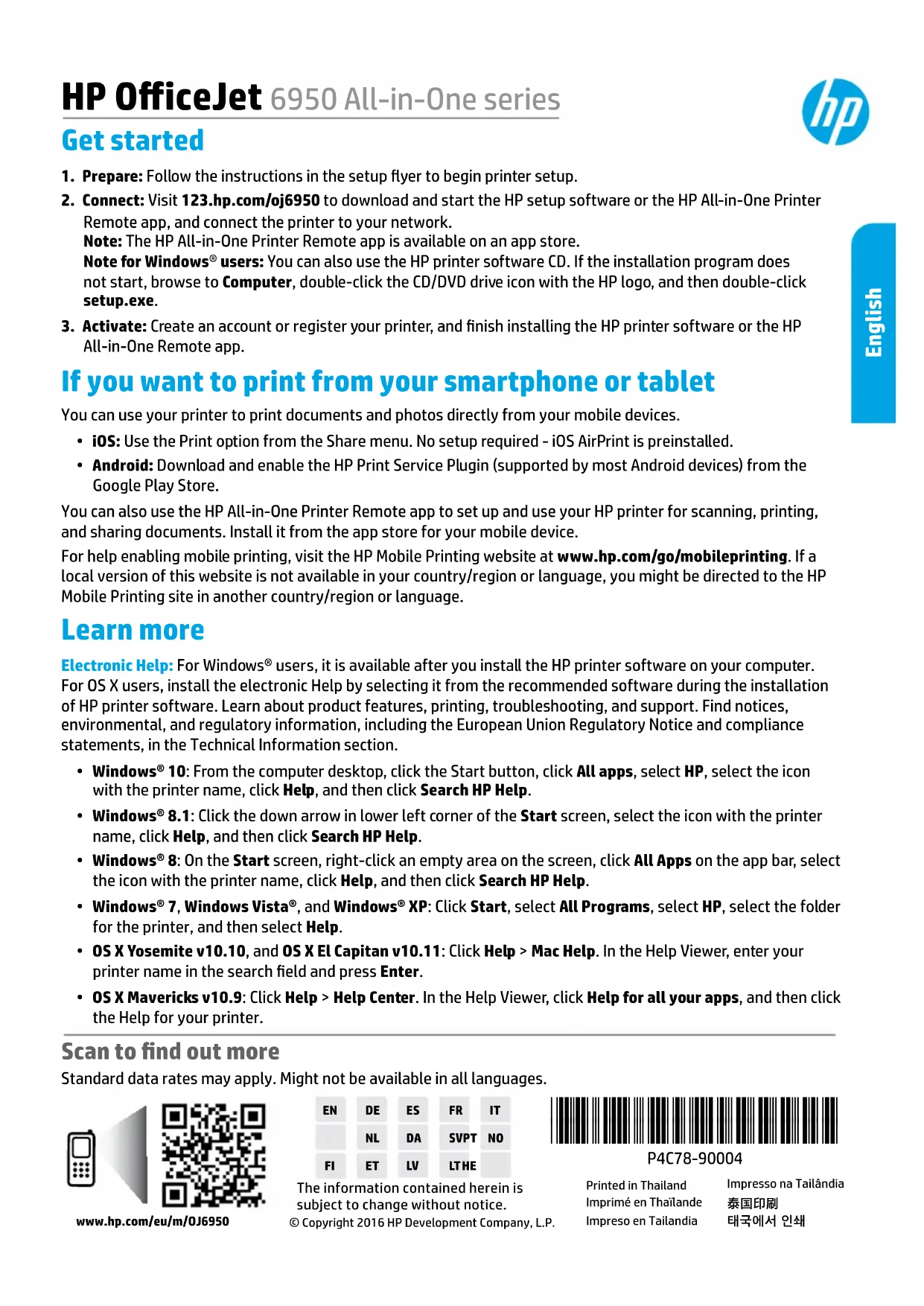
- Prepare: Follow the instructions in the setup flyer to begin printer setup.
- Connect: Visit 123.hp.com/obj6950 to download and start the HP setup software or the HP All-in-One Printer Remote app, and connect the printer to your network.
Note: The HP All-in-One Printer Remote app is available on an app store.
Note for Windows® users: You can also use the HP printer software CD. If the installation program does not start, browse to Computer, double-click the CD/DVD drive icon with the HP logo, and then double-click setup.exe.
3. Activate: Create an account or register your printer, and finish installing the HP printer software or the HP All-in-One Remote app.
If you want to print from your smartphone or tablet
You can use your printer to print documents and photos directly from your mobile devices.
- iOS: Use the Print option from the Share menu. No setup required - iOS AirPrint is preinstalled.
- Android: Download and enable the HP Print Service Plugin (supported by most Android devices) from the Google Play Store.
You can also use the HP All-in-One Printer Remote app to set up and use your HP printer for scanning, printing, and sharing documents. Install it from the app store for your mobile device.
For help enabling mobile printing, visit the HP Mobile Printing website at www.hp.com/go/mobileprinting. If a local version of this website is not available in your country/region or language, you might be directed to the HP Mobile Printing site in another country/region or language.
Learn more
Electronic Help: For Windows® users, it is available after you install the HP printer software on your computer. For OS X users, install the electronic Help by selecting it from the recommended software during the installation of HP printer software. Learn about product features, printing, troubleshooting, and support. Find notices, environmental, and regulatory information, including the European Union Regulatory Notice and compliance statements, in the Technical Information section.
- Windows® 10: From the computer desktop, click the Start button, click All apps, select HP, select the icon with the printer name, click Help, and then click Search HP Help.
- Windows® 8.1: Click the down arrow in lower left corner of the Start screen, select the icon with the printer name, click Help, and then click Search HP Help.
- Windows® 8: On the Start screen, right-click an empty area on the screen, click All Apps on the app bar, select the icon with the printer name, click Help, and then click Search HP Help.
- Windows® 7, Windows Vista®, and Windows® XP: Click Start, select All Programs, select HP, select the folder for the printer, and then select Help.
- OS X Yosemite v10.10, and OS X El Capitan v10.11: Click Help > Mac Help. In the Help Viewer, enter your printer name in the search field and press Enter.
- OS X Mavericks v10.9: Click Help > Help Center. In the Help Viewer, click Help for all your apps, and then click the Help for your printer.
Scan to find out more
Standard data rates may apply. Might not be available in all languages.
www.hp.com/eu/m/0J6950

The information contained herein is subject to change without notice.
Copyright 2016 HP Development Company, L.P.

P4C78-90004
Printed in Thailand
Learn more (continued)
Readme: Contains HP support information, operating system requirements, and recent printer updates.
- Windows: Insert the software CD in your computer, and then browse to the ReadMe.chm file. Double-click ReadMe.chm to open, and then select the ReadMe in your language.
On the Web: Additional help and information: www.support.hp.com. Printer registration: www.registerhp.com.
Declaration of Conformity: www.hp.eu/certificates. Ink usage: www.hp.com/go/inkusage.
Wireless network connections
By following the instructions on the printer control panel and installing the HP printer software, you should have successfully connected the printer to the wireless network.
Note: If you want to change the type of connection the printer is using (for example, from USB to wireless or vice versa), you must use the tools provided with the HP printer software. For more information, see "Change the connection type" in the Help file (see "Learn more" on page 1 of this guide for information about the Help file).
Solve wireless problems
1. Make sure the wireless light is turned on
If the blue light on the printer control panel is not lit, wireless might be turned off. To turn on wireless, on the printer control panel display, from the Home screen, touch (Wireless), touch (Settings), and then touch the button next to Wireless to turn it on.
If the blue wireless light is blinking, it means the printer is not connected to a network. Use the Wireless Setup Wizard available from the printer control panel to make a wireless connection. From the Home screen, touch (Wireless), touch (Settings), touch Wireless Setup Wizard, and then follow the onscreen instructions.
2. Make sure the computer or the mobile device is connected to the wireless network
Make sure your computer or mobile device is connected to your wireless network. If you cannot connect the computer to the network, contact the person who set up your network or the router manufacturer; there might be a hardware issue with the router or computer.
3. Run the wireless test
To check that the wireless connection is working properly, print the wireless test report.
a. Make sure the printer is turned on and paper is loaded in the tray.
b. On the printer control panel display, from the Home screen, touch (T) (Wireless), and then touch (Settings).
c. Touch and slide up on the screen, and touch Print Reports.
d. Touch Wireless Test Report.
If the test fails, review the report for information on how to fix the problem and run the test again.
If the wireless signal is weak, try moving the printer closer to the wireless router.
4. Restart components of the wireless network
Turn off the router and the printer, and then turn them back on in this order: router first and then printer. Sometimes, turning off devices and then turning them back on helps resolve network communication issues. If you still cannot connect, turn off the router, the printer, and the computer, and then turn them back on in this order: router first, then printer, and then computer.
Solve wireless problems (continued)
Still have problems? Visit the HP Wireless Printing Center (www.hp.com/go/wirelessprinting). This website contains the most complete, up-to-date information about wireless printing, as well as information to help you prepare your wireless network; solve problems when connecting the printer to the wireless network; and resolve security software issues.
Note: If you are using a computer running Windows, you can use the HP Print and Scan Doctor tool, which can help solve many problems you might have with the printer. To download this tool, visit www.hp.com/go/tools.
Wi-Fi Direct connections
With Wi-Fi Direct, you can connect your computer or mobile device (such as smartphone or tablet) directly to a printer wirelessly—without connecting to an existing wireless network. To use Wi-Fi Direct, you might need HP software installed on your computer or mobile device. For more information, visit 123.hp.com/oj6950.
- To check the status of Wi-Fi Direct, as well as the Wi-Fi Direct network name and password, on the printer control panel display, from the Home screen, touch l (Wi-Fi Direct). If Wi-Fi Direct is turned off, touch l (Settings) and turn it on.
- To learn about how to print with Wi-Fi Direct, visit the Wi-Fi Direct Printing website (www.hp.com/go/wifidirectprinting).
Ink cartridge information
Cartridges: During setup, when you are prompted to install cartridges, make sure you use the cartridges provided with the printer.
Anonymous usage information storage: HP cartridges used with this printer contain a memory chip that assists in the operation of the printer and stores a limited set of anonymous information about the usage of the printer. This information might be used to improve future HP printers.
For more information and instructions for turning off this usage information storage, see the Help file (see "Learn more" on page 1 of this guide for more information about the Help file).
Safety information
Always follow basic safety precautions when using this printer to reduce the risk of injury from fire or electric shock.
- Read and understand all instructions in the documentation that comes with the printer.
- Observe all warnings and instructions marked on the printer.
- Unplug this printer from wall outlets before cleaning.
- Do not install or use this printer near water, or when you are wet.
- Install the printer securely on a stable surface.
- Install the printer in a protected location where no one can step on or trip over the power cord, and the power cord cannot be damaged.
- If the printer does not operate normally, see the Help file (See "Learn more" on page 1 of this guide for more information about the Help file).
- There are no user-serviceable parts inside. Refer servicing to qualified service personnel.
- Use only with the power cord and power adapter (if provided) supplied by HP.
Acknowledgements
Microsoft and Windows are either registered trademarks or trademarks of Microsoft Corporation in the United States and/or other countries.
Mac and OS X are trademarks of Apple Inc., registered in the U.S. and other countries.
Setup fax
You can set up fax using the software wizard (recommended) during the software installation or after installation using Fax Setup Wizard from the software (Windows) or Basic Fax Settings from HP Utility (OS X), or continue with the steps below.
1. For users in Europe
If your country or region is listed below, visit www. hp.com/uk/faxconfig for setup information. Otherwise, follow the instructions in this guide.
Austria
Finland
- Ireland
Netherlands
Sweden
Belgium
France
Italy
- Portugal
Switzerland
Denmark
Germany
Norway
Spain
United Kingdom
2. Connect the phone line
Using the phone line for fax only
If a phone cord is provided with the printer, HP recommends that you use this phone cord. If the phone cord is not long enough, use a coupler and another phone cord to extend.
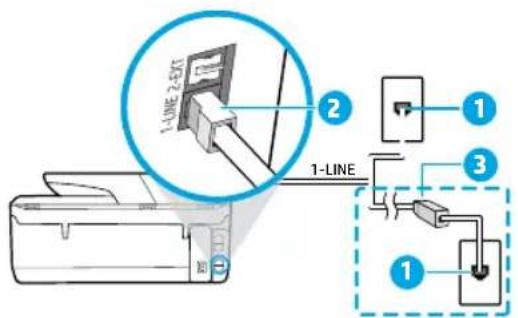
a. Connect one end of the phone cord to the phone wall jack.
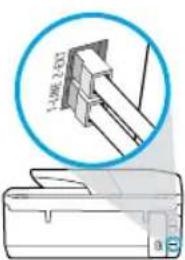
b. Connect the other end to the port labeled 1-LINE on the back of the printer.
Note: DO NOT insert the phone cord into the port labeled 2-EXT.
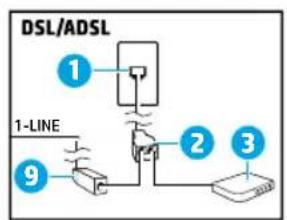
c. If you have subscribed to a DSL/ADSL service, connect a DSL/ADSL filter between the printer port labeled 1-LINE and the phone wall jack.
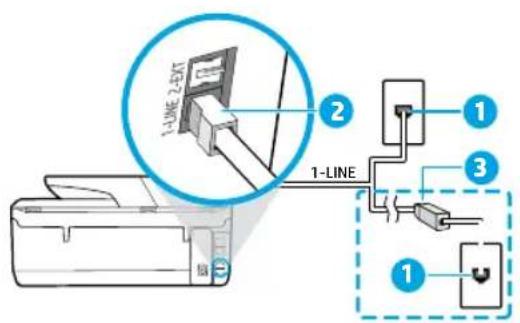
1 Phone wall jack
Fax port (labeled 1-LINE) on the back of the printer Note: Do not insert into the port labeled 2-EXT.
3 DSL/ADSL filter (provided by the telephone company or service provider)
3. Connect additional devices
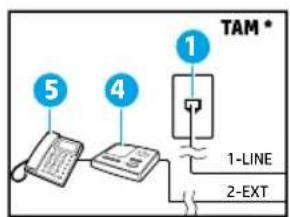
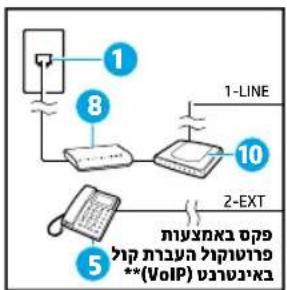
If you have other devices to connect, connect them as shown in the diagram below:
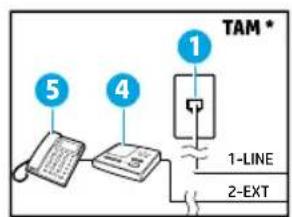
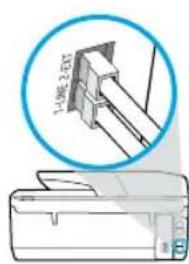
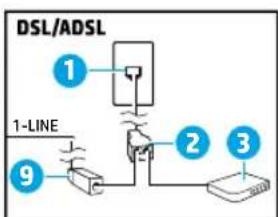
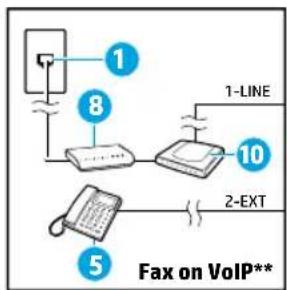
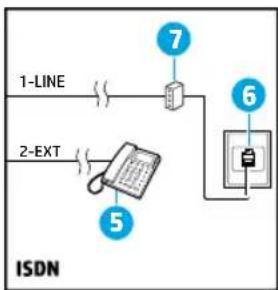
- TAM: Telephone Answering Machine
** Fax on VoIP: Fax on Voice over Internet Protocol
1 Phone wall jack
2 Parallel splitter
3 DSL/ADSL modem
4 Telephone answering machine
5 Telephone
6 ISDN wall jack
7 Terminal adapter or ISDN router
8 Broadband modem
9 DSL/ADSL filter
10 Analog telephone adaptor
How do I set up HP printers in digital phone environments?
HP printers are designed specifically for use with traditional analog phone services. If you are in a digital phone environment (such as DSL/ADSL, PBX, ISDN, or VoIP), you might need to use digital-to-analog filters or converters when setting up the printer for faxing.
Note: The printer might not be compatible with all digital service lines or providers in all digital environments or with all digital-to-analog converters. Contact your phone company to determine which setup options are best for you.
Note: If you are setting up ring pattern detection in a PBX phone system that has different ring patterns for internal and external calls, make sure you dial the fax number of your printer using an external number when recording the ring pattern.
4. Test fax setup
The fax test does the following:
- Tests the fax hardware
- Verifies the correct type of phone cord is connected to the printer
- Checks that the phone cord is plugged into the correct port
- Checks for a dial tone
- Checks for an active phone line
- Tests the status of your phone line connection
To run the fax test:
a. On the printer control panel display, from the Home screen, touch Fax.
b. Touch and slide up on the screen, and touch Setup.
c. Touch Tools, and then touch Test Fax. If the test fails, review the report for information on how to fix the problem, make the suggested changes, and run the test again.
If you still have problems using fax after successfully completing the fax test, visit www.support.hp.com.
| HP product | Duration of limited warranty |
| Printer | 1 year hardware warranty |
| Print or Ink cartridges | Until the HP ink is depleted or the “end of warranty” date printed on the cartridge has been reached, whichever occurs first. This warranty does not cover HP ink products that have been refilled, remanufactured, refurbished, misused, or |
| tampered with. | |
| Printheads (only applies to products with customer 1 year replaceable printheads) | |
| Accessories | 1 year unless otherwise stated |
A. Extent of limited warranty
1. HP Inc. (HP) warrants to the end-user customer that the HP products specified above will be free from defects in materials and workmanship for the duration specified above, which duration begins on the date of purchase by the customer.
2. For software products, HP's limited warranty applies only to a failure to execute programming instructions. HP does not warrant that the operation of any product will be interrupted or error free.
3. HP's limited warranty covers only those defects that arise as a result of normal use of the product, and does not cover any other problems, including those that arise as a result of: a. Improper maintenance or modification;
b. Software, media, parts, or supplies not provided or supported by HP;
c. Operation outside the product's specifications;
d. Unauthorized modification or misuse.
4. HP's limited warranty is void in the event the printer is attached to an aftermarket apparatus or system that modifies the printer's functionality such as a continuous ink system.
5. For HP printer products, the use of a non-HP cartridge or a refilled cartridge does not affect either the warranty to the customer or any HP support contract with the customer. However, if printer failure or damage is attributable to the use of a non-HP or refilled cartridge or an expired ink cartridge, HP will charge its standard time and materials charges to service the printer for the particular failure or damage.
6. If HP receives, during the applicable warranty period, notice of a defect in any product which is covered by HP's warranty, HP shall either repair or replace the product, at HP's option.
7. If HP is unable to repair or replace, as applicable, a defective product which is covered by HP's warranty, HP shall, within a reasonable time after being notified of the defect, refund the purchase price for the product.
8. HP shall have no obligation to repair, replace, or refund until the customer returns the defective product to HP.
9. Any replacement product may be either new or like-new products of similar functionality as the product being replaced.
10. HP products may contain remanufactured parts, components, or materials equivalent to new in performance.
11. HP's Limited Warranty Statement is valid in any country where the covered HP product is distributed by HP. Contracts for additional warranty services, such as on-site service, may be available from any authorized HP service facility in countries where the product is distributed by HP or by an authorized importer.
B. Limitations of warranty
TO THE EXTENT ALLOWED BY LOCAL LAW, NEITHER HP NOR ITS THIRD PARTY SUPPLIERS MAKES ANY OTHER WARRANTY OR
CONDITION OF ANY KIND, WHETHER EXPRESS OR IMPLIED WARRANTY OR CONDITIONS OF MERCHANTABILITY
SATISFACTORY QUALITY, AND FITNESS FOR A PARTICULAR PURPOSE.
C. Limitations of liability
1. To the extent allowed by local law, the remedies provided in this Warranty Statement are the customer's sole and exclusive remedies.
2. TO THE EXTENT ALLOWED BY LOCAL LAW, EXCEPT FOR THE OBLIGATIONS SPECIFICALLY SET FORTH IN THIS WARRANTY STATEMENT, IN NO EVENT SHALL HP OR ITS THIRD PARTY SUPPLIERS BE LIABLE FOR DIRECT, INDIRECT, SPECIAL, INCIDENTAL, OR CONSEQUENTIAL DAMAGES, WHETHER BASED ON CONTRACT, TORT, OR ANY OTHER LEGAL THEORY AND WHETHER ADVISED OF THE POSSIBILITY OF SUCH DAMAGES.
D. Local law
1. This Warranty Statement gives the customer specific legal rights. The customer may also have other rights which vary from state to state in the United States, from province to province in Canada, and from country to country elsewhere in the world.
2. To the extent that this Warranty Statement is inconsistent with local law, this Warranty Statement shall be deemed modified to be consistent with such local law. Under such local law, certain disclaimers, exclusions and limitations of this Warranty Statement may not apply to the customer.
HP Limited Warranty
Visit www.support.hp.c om to access warranty support including troubleshooting tips, diagnostics tools, software and drivers, product information, and how-to videos. Support options like chat and forums are also accessible from this website.
The HP limited Warranty is a commercial guarantee voluntarily provided by HP. The name and address of the HP entity responsible for the performance of the HP Limited Warranty in your country is as follows:
U.K: HP Inc UK Limited, Cain Road, Amen Corner, Bracknell, Berkshire, RG12 1HN
Ireland: Hewlett-Packard Ireland Limited, Liffey Park Technology Campus, Barnhall Road, Leixlip, Co.Kildare
Malta: Hewlett-Packard Europe B.V., Amsterdam, Meyrin Branch, Route du Nant-d'Avril 150, 1217 Meyrin, Switzerland
United Kingdom: The HP Limited Warranty benefits apply in addition to any legal rights to a guarantee from seller of nonconformity of goods with the contract of sale. These rights expire six years from delivery of goods for products purchased in England or Wales and five years from delivery of goods for products purchased in Scotland. However various factors may impact your eligibility to receive these rights. For further information, please consult the following link: Consumer Legal Guarantee or you may visit the European Consumer Centers website .Consumers have the right to choose whether to claim service under the HP Limited Warranty or against the seller under the legal guarantee.
Ireland: The HP Limited Warranty benefits apply in addition to any statutory rights from seller in relation to onconformity of goods with the contract of sale. However various factors may impact your eligibility to receive these rights. Consumer statutory rights are not limited or affected in any manner by HP Care Pack. For further information, please consult the following link: Consumer Legal Guarantee or you may visit the European Consumer Centers website. Consumers have the right to choose whether to claim service under the HP Limited Warranty or against the seller under the legal guarantee.
Malta: The HP Limited Warranty benefits apply in addition to any legal rights to a two-year guarantee from seller of nonconformity of goods with the contract of sale; however various factors may impact your eligibility to receive these rights. Consumer statutory rights are not limited or affected in any manner by the HP Limited Warranty. For further information, please consult the following link: Consumer Legal Guarantee or you may visit the European Consumer Centers website.
Consumers have the right to choose whether to claim service under the HP Limited Warranty or against the seller under two-year legal guarantee.
For further information, please consult the following link: Consumer Legal Guarantee (www. hp.com/go/eu-legal) or you may visit the European Consumer Centers website(http://ec.europa.eu/consumers/solving_consumer_disputes/non-judicial_redress/ccc-net/).
Erste Schritte
Alternatively, you can use the following two methods to import a file from a file system.
- Alternatively, you can import a file from a file system using the command import file, which will import the file from a file system using the command import filefrom.
- Alternatively, you can import a file from a file system using the command import filefromfrom.
(http://ec.europa.eu/consumers/solving_consumer_disputes/non-judicial_redress/ecc-net/)
Per saperne di più
(http://ec.europa.eu/consumers/solving_consumer_disputes/non-judicial_redress/ecc-net/).
Introdução
Conexões Wi-Fi Direct
(http://ec.europa.eu/consumers/solving_consumer_disputes/non-judicial_redress/ecc-net/)
Aandeslag
Godkendelser: www.hp.eu/certificates. Blaekforbrug: www.hp.com/go/inkusage.
4. Test of faxkconfiguration
(http://ec.europa.eu/consumers/solving_consumer_disputes/non-judicial_redress/ecc-net/).
Komma igang
(http://ec.europa.eu/consumers/solving_consumer_disputes/non-judicial_redress/ecc-net/)
Komigang
(http://ec.europa.eu/consumers/solving_consumer_disputes/non-judicial_redress/ecc-net/).
Alustamine
(http://ec.europa.eu/consumers/solving_consumer_disputes/non-judicial_redress/ccc-net/)
nnon npnn nnnn nnnpnn nnnn nnnnn nnnn .1
HP All-in-One nxn nXP 123. hp.com/0j6950 nn .2
. nnnn nn,Printer Remote
nnpnnn nnnn HP All-in-One Printer Remote npnnn nn
nnnn nnnn n. HP w noon nn n n CD-n w npwn nn:Windows Wnnn y nnwnn
setup.exe by nnnnyn
HP All-in-One Remote nXPnXPnXPnXPnXPnXPnXPnXPnXPnXPnXPnXPnXPnXPnXPnXPnXPnXPnXPnXPnXPnXPnXPnXPnXPnXPnXPnXPnXPnXPnXPnXPnXPnXPnXPnXPnXPnXPnXPnXPnXPnXPnXPnXPnXPnXPnXPnXPnXPnXPnXP
nwnnn nn nnnnnnnnn
nnon nnnn nn
. i0s .
mnn (Android-n 001n npnn n -y nnv) HP Print Service w Plugin-n onw nx yon nn :Android
. Google Play Store mnp
HP 100 HP All-in-One Printer Remote nnnn nn
n nn nnnn nnnn nnnn nnnn nnnn nnnn nnnn nnnn nnnn nnnn nnnn nnnn nnnn nnnn nnnn nnnn nnnn nnnn nnnn nnnn nnnn nnnn nnnn nnnn nnnn nnnn nnnn nnnn nnnn nnnn nnnn nnnn nnnn nnnn nn nnnn nn nnnn nn nnnn nn nnnn nn nnnn nn nnnn nn nnnn nn nnnn nn nnnn nn nnnn nn nnnn nn nnnn nn nnnn nn nnnn nn nnnn nn nnnn nn nnnn nn nnnn nn nnnn nn nnnn nn nnnn nn nnnn nn nnnn nn nnnn nn nnnn nnnn nn nnnn nn nnnn nn nnnn nn nnnn nn nnnn nn nnnn nn nnnn nn nnnn nn nnnn nn nnnn nn nnnn nn nnnn nn nnnn nn nnnn nn nnnn nn nann
yTN
Enter by ynn nn no9nn nn
by yn, (nnyn) Help Viewer nna. (nnyn) Help Center < (ny) Help by yn:OS X Mavericks v10.9
nntnn nny) Help for your printer by yn nn, (nynn) Help for all your apps
(7)
(wn) 901
.0nnn no nyn nyann noyn mny ,HP y no nn mnx ytn :Readme
wnnnn nn nnnn nn no,wnnnn nn
4.π
n nnnnnnnnnnnnnnnnnnnnnnnnnnnnnnnnnnnnnnnnnnnnnnnnnnnnnnnnnnnnnnnnnnnnnnnnnnnnnnnnnnnnnnnnnnnnnnnnnnnnnnnnnnnnnnnnnnnnnnnnnnnnnnnnnnnnnnnnnnnnnnnnnnn
n n nn .(www.hp.com/go/wirelessprinting) HP wnnnnn noonnnn nn nnnn nn nnnn nn nnnn nn nnnn nn nnnn nn nnnn nn nnnn nn nnnn nn nnnn nn nnnn nn nnnn nn nnnn nn nnnn nn nnnn nn nnnn nn nnnn nn nnnn nn nnnn nn nnnn nn nnnn nn nnnn nn nnnn nn nnnn nn nnnn nn nnnn nn.
Wi-Fi Direct
wnnnn nn nnnn nn nnnnnnnnnnnnnnnnnnnnnnnnnnnnnnnnnnnnnnnnnnnnnnnnnnnnnnnnnnnnnnnnnnnnnnnnnnnnnnnnnnnnnnnnnnnnnnnnnnnnnnnnnnnnnnnnnnnnnnnnnnnnnnnnnnnnnnnnnnnnnnnnnnnnnnnnnnn
Wn nn n,Wi-Fi Direct wnn nn nn nn nn nn nn nn nn nn nn nn nn nn nn nn nn nn nn nn nn nn nn nn nn nn nn nn nn nn nn nn nn nn nn nn nn nn nn nn nn nn nn nn nn nn nn nn nn nn nn nn nn nn nn nn nn nn nn nn nn nn nn nn nn nn nn nn nn nn nn nn nn nn nn nn nn nn nn nn nn nn nn nn nn nn nn nn nn nn nn nn nn nn nn nn nn nn nn nn nn. (www.hp.com/go/wifidirectprinting)
Tn nn nn nix ytn
nno nnnnnnnnnnnnnnnnnnnnnnnnnnnnnnnnnnnnnnnnnnnnnnnnnnnnnnnnnnnnnnnnnnnnnnnnnnnnnnnnnnnnnnnnnnnnnnnnnnnnnnnnnnnnnnnnnnnnnnnnnnnnnnnnnnnnnnnnnnnnnnnnnnnnnnnnnn nn nannn nannn nannn nannn nannn nannn nannn nannn nannn nannn nannn nannn nannn nannn nannn nannn nannn nannn nannn nannn nannn nannn nannn nannn nannn nannn nannn nannn nannn nannn nannn nannn nannn nannn nn annn nn annn nn annn nn annn nn annn nn annn nn annn nn annn nn annn nn annn nn annn nn annn nn annn nn annn nn annn nn annn nn annn nn annn nn annn nn annn nn annn nn annn nn annn nn annn nn annn nn annn nn annn nn annn nn annn nn annn nn annn nn annn nn annn nn ann
nnuyn
n nn n nn nn nn nn nn nn nn nn nn nn nn nn nn nn nn nn nn nn nn nn nn nn nn nn nn nn nn nn nn nn nn nn nn nn nn nn nn nn nn nn nn nn nn nn nn nn nn nn nn nn nn nn nn nn nn nn nn nn nn nn nn nn nn nn nn nn nn nn nn nn nn nn nn nn nn nn nn nn nn nn nn nn nn
(0) HP - by npnnn nn nnnn nn nnnn
Microsoft Corporation Windows-1 Microsoft .nX/ nX,Apple Inc. on OS X-1 Mac
'opnnn nynnnn nn nnnnnnnnnnnnn (yinn) nnnnnnnnnnnnnnnnnnnnnnnnnnnnnnnnnnnnnnnnnnnnnnnnnnnnnnnnnnnnnnnnnnnnnnnnnnnnnnnnnnnnnnnnnnnnnnnnnnnnnnnnnnnnn
1.n
www.hp.com/uk/faxconfig nnnn nn nnnn nn
n nn nnnn 19- by y,
·
-
790
·n
·
·
·
777
·
m
·
·
·y
1920nn 138
131 op9 19bn 17n
101 195v vin nynwn, 1n nn nnnn vin on. 1n nn nnnn HP ,n nn no nnnn an
.
n nn nnnnnnnnnnnnnnnnnnnnnnnnnnnnnnnnnnnnnnnnnnnnnnnnnnnnnnnnnnnnnnnnnnnnnnnnnnnnnnnnnnnnnnnnnnnnnnnnnnnnnnnnn
.1- LINE 1-1
.2-EXTnynnnnnpnnnynnynnynnyn
1-LINE nognnnDSL/ADSL-npon nn nDSL/ADSL mnnn
7777y71
no9nn 1-LINE 079
.2-EXT 1n nn np n np nn np nn
p00 1x nnnn nn -y p00)DSL/ADSL (nn
09011 077n 113n
ywnnn 19-ynonx n,000n nn
1
2
ADSL/DSL 3
4
5
ISDN 6
ISDN 7
8
DSL/ADSL 9
10

TAM
Vn nnnn nn nnnn nn nnnn nn nnnn nn nnnn nn nnnn nn nnnn nn nnnn nn nnnn nn nnnn nn nnnn nn nnnn nn nnnn nn nnnn nn nnnn nn nnnn nn nnnn nn nnnn nn nnnn nn nnnn nn nnnn nn nnnn nn nnnn nn nnnn nn nnnn nn nnnn
?y17 np0n101 HP y n109n 7n7n
nnnnnnnnnnnnnnnnnnnnnnnnnnnnnnnnnnnnnnnnnnnnnnnnnnnnnnnnnnnnnnnnnnnnnnnnnnnnnnnnnnnnnnnnnnnnnnnnnnnnnnnnnnnnnnnnnnnnnnnnnnnnnnnnn
.000000000000000000000000000000000000000
y n nn nnnn nn nnnnnnnnnnnnnnnnnnnnnnnnnnnnnnnnnnnnnnnnnnnnnnnnnnnnnnnnnnnnnnnnnnnnnnnnnnnnnnnnnnnnnnnnnnnnnnnnnnnnnnnnnnnnnnnnnnnnnnnnnnnnnnnnnnn
4 .op9n
:npn np
- 077nnn
- no97nn
·
·nyn npT
y 17
·n7n7n7
:07n n7n7n
.0791 y, nnn q't ton, no9nn b nn m nn nn .X
.1y1,0nn-ynn 19pnymx
nnn nn nnnn nn nnnn nn nnnn nn nnnn nn nnnn nn nnnn nn nnnn nn nnnn nn nnnn nn nnnn nn nnnn nn nnnn nn nnnn nn nnnn nn nnnn nn nnnn nn nnnn nn nnnn nn nnnn nn nnnn nn nnnn nn nnnn nn nnnn nn nnnn nn nnnn nn
.
. www . support . hp . com nnnn nn nnnn nnnn nnnn nnnn nnnn
Xn nn nnnnnnnnnnnnnnnnnnnnnnnnnnnnnnnnnnnnnnnnnnnnnnnnnnnnnnnnnnnnnnnnnnnnnnnnnnnnnnnnnnnnnnnnnnnnnnnnnnnnnnnnnnnnnnnnnnn
- If you want to print from your smartphone or tablet
- Learn more
- Scan to find out more
- Learn more (continued)
- Wireless network connections
- Solve wireless problems
- Make sure the wireless light is turned on
- Make sure the computer or the mobile device is connected to the wireless network
- Run the wireless test
- Restart components of the wireless network
- Solve wireless problems (continued)
- Wi-Fi Direct connections
- Ink cartridge information
- Safety information
- Acknowledgements
- Setup fax
- For users in Europe
- Connect the phone line
- Using the phone line for fax only
- Connect additional devices
- How do I set up HP printers in digital phone environments?
- Test fax setup
- HP Limited Warranty
- Erste Schritte
- Per saperne di più
- Introdução
- Conexões Wi-Fi Direct
- Aandeslag
- Test of faxkconfiguration
- Komma igang
- Komigang
- Alustamine
- nwnnn nn nnnnnnnnn
- yTN
- (wn) 901
- Wi-Fi Direct
- Tn nn nn nix ytn
- nnuyn
- op9 19bn 17n
- ?y17 np0n101 HP y n109n 7n7n
- .op9n
Brand : HP
Model : OfficeJet 6951
Category : Printer