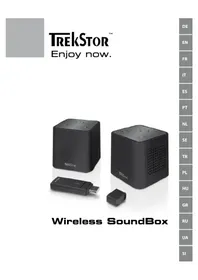
Wireless SoundBox - Loudspeaker TrekStor - Free user manual and instructions
Find the device manual for free Wireless SoundBox TrekStor in PDF.


| Product Type | Wireless Speaker |
| Brand | TrekStor |
| Model | Wireless SoundBox |
| Power supply | 4 AA batteries (non-rechargeable) or USB (computer or USB charger) |
| Transmission type | 2.4 GHz wireless, digital |
| Maximum range | Up to 25 m (line of sight) |
| Audio input | Line-In (3.5 mm jack) |
| Transmitter channels | 8 selectable channels |
| Speaker | Stereo |
| System compatibility | Windows 2000/XP/Vista, Mac OS X 10.3+, Linux Kernel 2.6.x+ |
| Connectivity | USB (power only) |
| Control buttons | Power On/Off, Volume +/-, channel change (on transmitter) |
| LED indicator | Blue: device on and ready |
| Operating temperature | 5°C to 40°C |
| Cleaning | Soft, dry cloth, without solvents |
| Included accessories | USB cable, Line-In cable, 4 AA batteries |
| Repairability | Not user-repairable, opening prohibited |
| Safety instructions | Do not expose to moisture, excessive heat, or shocks |
Frequently Asked Questions - Wireless SoundBox TrekStor
User questions about Wireless SoundBox TrekStor
0 question about this device. Answer the ones you know or ask your own.
Ask a new question about this device
Download the instructions for your Loudspeaker in PDF format for free! Find your manual Wireless SoundBox - TrekStor and take your electronic device back in hand. On this page are published all the documents necessary for the use of your device. Wireless SoundBox by TrekStor.
USER MANUAL Wireless SoundBox TrekStor
3)
4)

BEDIENUNGSANLEITUNG
Thank you for buying the TrekStor Wireless SoundBox. We are confident that this product will be the source of much enjoyment. Please read the following chapters carefully so that you can become acquainted with the advantages of this product and its use.
Enjoy the freedom of mobility with the wireless SoundBox as you listen to everything that you play on your computer - be it your favorite music or one of the many web-radio stations - without having to be close to your computer. Place your SoundBox up to 25 m from the handy transmitter and experience the noise-free digital transmission. You can easily add additional SoundBox loudspeakers and enjoy the full stereo sound in other rooms too.
You can find current product information at the TrekStor website: www.trekstor.de.
If you have difficulties with this product or its operation, please read the "FAQ" section. Here you will find answers to the most frequently asked questions.
System requirements
Computer:
Windows® 2000/XP/Vista, Mac® OS X from version 10.3, Linux® from kernel 2.6 • (USB sound driver support required)
USB 1.1 port (Hi-Speed USB 2.0 port recommended)•

For the wireless operation of your SoundBox, you require a transmitter. This is already included in the StarterSet.
1) Controls and Connections
Please look at the illustrations on the inside of the unfolding cover.
1.1) SoundBox
A) On/off switch ⏻: Switches the device on or off.
B) - key: Decreases the volume.
C) v+ key: Increases the volume.
D) Line-in jack: For the connection of an MP3 player or another audio source.
E) USB port: Used for the power supply of the SoundBox via a USB port on your computer or via a USB power supply (TrekStor USB Charger e.m).
If you operate your SoundBox with storage batteries, they cannot be charged in the device.
F) Battery compartment
1.2) Transmitter
A) LED: Signalizes the operational readiness of the transmitter.
B) △ key: Used to change the transmission channel.
C) □v key: Used to change the transmission channel.
D) USB port
E) Cap
2) Power Supply
The SoundBox can be operated either with batteries or via USB.
2.1) Battery Operation
In battery operation, the SoundBox requires four mignon batteries (type AA). TrekStor recommends the use of high-quality alkaline batteries.
To use your SoundBox in battery operation, insert the four batteries included in delivery into the battery compartment. Proceed as follows (see Figure 2):
a) Open the battery compartment on the bottom of SoundBox.
b) Insert the four mignon batteries (type AA) into the battery slots.
i During insertion check for the correct polarity (+/-) of the batteries.
Do not recharge, open, heat, or short-circuit batteries, throw them into open fire, or use them at the wrong polarity. Discharged batteries should be exchanged immediately.
c) Close the battery compartment.
2.2) Power Supply via USB Port
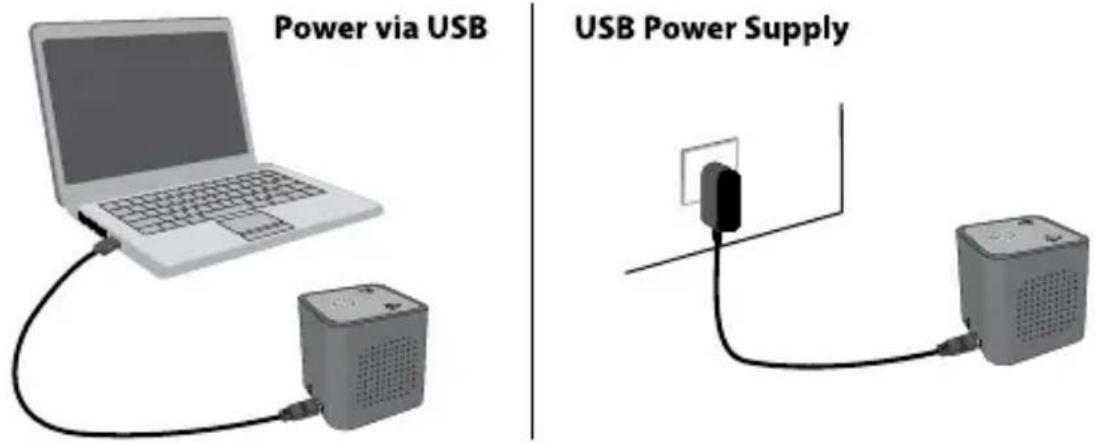
As an alternative to battery operation, you can supply your SoundBox with power via the USB port. In this case, two variants are available (see Figure 3):
1) Connect the USB port of SoundBox to a USB port on your computer using the USB cable included in delivery.
No data can be transferred to SoundBox via the USB port. The USB port of your SoundBox is used only to supply power.
2) Use a USB power supply (such as TrekStor USB Charger e.m, available from retailers) to supply SoundBox with power.
3) Commissioning
After you have guaranteed the supply of power to your SoundBox, you have two possibilities to play music using the loudspeaker. You can control SoundBox in a wireless manner or via the line-in jack, e.g. by connecting an MP3 player to your SoundBox.
i Simultaneous wireless and line-in operation is not possible.
3.1) Wireless Music Playback
To prevent any problems in the transmission of sound, first connect the transmitter of your SoundBox to the computer before playing a music file.
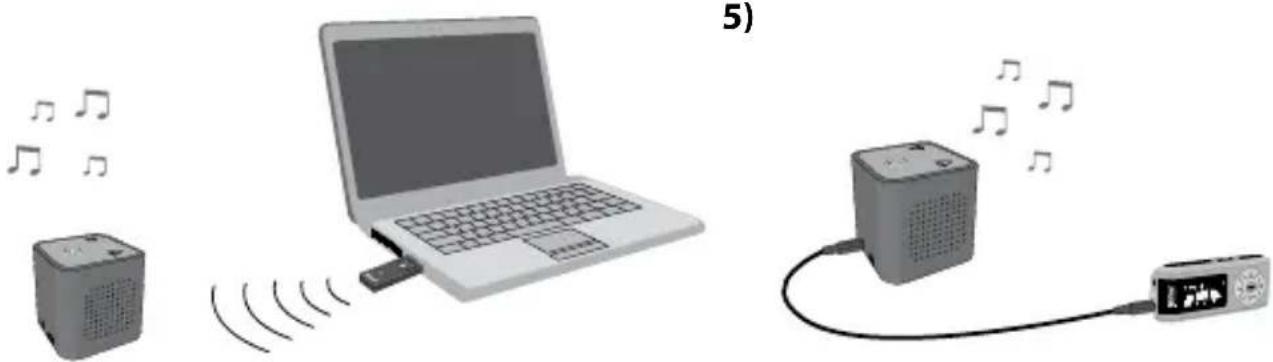
Through wireless data transfer, you can use your SoundBox within a radius of up to 25 m (direct visual connection) in a wireless manner (see Figure 4). The digital and thus interference-free transmission of the sound signal takes place via an ISM band in the 2.4 GHz frequency range. You can even control further SoundBox loudspeakers using the same transmitter without a problem.
Objects, such as walls, that block the direct line of transmission between the transmitter and SoundBox influence the transmission quality. The maximum possible distance between the transmitter and receiver can thus be strongly decreased.
⚠️ SoundBox uses a 2.4 GHz signal for the transmission of the sound signal. Devices located in the vicinity of SoundBox that transmit in the same frequency range may interfere with the transmission of the sound signal (such as microwave ovens or Bluetooth or WLAN devices).
a) Windows® 2000/XP/Vista: Connect the transmitter to a USB port on your computer. Your computer automatically detect the transmitter.
If the "NEW FOUND HARDWARE WIZARD" appears under Windows®, select "NEXT" and follow the instructions of the wizard to install the hardware.
Mac® OS X: Connect the transmitter to a USB port on your computer. To prepare the sound output via SoundBox, proceed as follows:
Under "• PPLA" → "SYSTEM PREFERENCES..." → "SOUND," open the setting options for the sound output.
Under the "• UTQIT" tab, select "USB AUDIO DEVICE" to select your SoundBox as an output device.
Music can not be played back via the internal sound card of your computer and to SoundBox via the transmitter at the same time.
b) Turn on the SoundBox by briefly pressing the on/off switch ⏻. As soon as the blue LED on the on/off switch lights up, your SoundBox is ready for operation.
c) Start the playback of the desired music file on the computer. The sound signal is now played back via your SoundBox.
d) To end the sound transmission, remove the transmitter from the USB port of your computer. Turn on the SoundBox by briefly pressing the on/off switch ⏻.
Existing radio connections may interfere with the wireless sound transmission to your SoundBox. To eliminate this malfunction and establish an optimum connection between the SoundBox and transmitter, change the transmission channel by pressing the ▲ or ▼ button on the transmitter. In the "FAQ" section, you can find further help and answers to the most frequently asked questions.
3.2) Line-in music playback
You can use your SoundBox as a loudspeaker for your MP3 player or other audio sources, such as your notebook (see Figure 5). To play back music with SoundBox via a line-in connection, proceed as follows:
a) Connect the MP3 player or another audio source with your SoundBox by connect the line-in cable included in delivery with the line-in jack of SoundBox. After that, insert the line-in cable into the headphone jack or line-out jack of your MP3 player/the audio source.
b) Turn on the SoundBox by briefly pressing the on/off switch ⏻. As soon as the blue LED on the on/off switch lights up, your SoundBox is ready for operation.
c) Start the playback of the desired music file on your MP3 player or another audio source. The sound signal is now played back via your SoundBox.
SoundBox can be used on your computer without the transmitter only via the line-in input of SoundBox.
4) Operation of TrekStor Wireless SoundBox
Activation/Deactivation of SoundBox
Turn on the SoundBox by briefly pressing the on/off switch ⏻. As soon as the blue LED on the on/off switch lights up, your SoundBox is ready for operation.
Turn off SoundBox by briefly pressing the on/off switch ⏻. SoundBox is switched off as soon as the blue LED extinguishes.
Adjusting the Volume
Press the v+ or v- button on the top of your SoundBox to raise or lower the volume. You can also adjust the volume for music playback on your computer, MP3 player, or other audio source.
Changing the Transmission Channel on the Transmitter
By pressing the ⬆ or ⬇ button on the transmitter, you can switch through the eight defined channels until you find one without interference. In this way, you can establish an optimum connection between your SoundBox and the transmitter.
5) FAQ
The SoundBox is switched on, but there is no sound.
The transmitter is not correctly connected to the USB port.
Check the connection of the transmitter to the computer and reconnect the transmitter to the USB port of your computer if necessary. The blue LED indicator lights up as soon as the transmitter is correctly detected.
The music playback was started before the transmitter was connected to the computer.
On your computer, close the program used to playback the music. Make sure that the transmitter is connected to the computer before starting the program for music playback.
The volume of your SoundBox is set to a very low level.
Increase the volume by repeatedly pressing the v+ button.
The volume of your computer is set to a very low level.
Increase the volume on your computer.
i SoundBox is not switched on.
Turn on SoundBox by pressing the on/off switch ⏻. The blue LED on the on/off switch lights up, as soon as your SoundBox is switched on.
During the music playback, interference can be heard.
i Other devices that transmit in the same frequency range (such as microwave ovens or Bluetooth or WLAN devices) are interfering with the transmission to SoundBox.
Switch to an interference-free transmission channel by pressing the △ or ▼ button on the transmitter. Through the possibility of selecting various transmission channels, optimum connection security between the transmitter and receiver is guaranteed.
i A metallic object is interfering with the reception.
Remove SoundBox from the vicinity of the metallic object. Do not place SoundBox on a metallic bookcase or cabinet.
The distance between SoundBox and the transmitter has exceeded the permissible transmission range.
Place SoundBox closer to the transmitter.
The sound of interference can be caused by the positioning of the transmitter or the existing room conditions.
Place the transmitter at a location where the best possible transmission of the signal is guaranteed. Do not position the transmitter too closely to a television, power supply adapter, or other sources of radiation.
The power supply of SoundBox is not switched sufficient.
Exchange the batteries used or provide SoundBox with power via the USB port as described in these instructions.
WLAN reception on my computer or notebook has a lot of interference.
The transmitter is located too close to the WLAN antenna of the computer or notebook.
WLAN devices use the same frequency range as the transmitter of SoundBox. To eliminate any interference of the WLAN reception on your computer/notebook, increase the distance between the WLAN antenna and the transmitter, for example, using a USB extension cord. In addition, you can switch to an interference-free transmission channel by pressing the △ or ▼ button on the transmitter.
Instructions for safety and use:

Only qualified persons may perform technical work on the product. The product may not be opened or changed. The components cannot be serviced by the user.

Never expose the device to moisture, condensation and liquids.

Protect the device from extremely high and low temperatures and temperature fluctuations. Use the device within an ambient temperature of 5° C to 40° C.

Never place the device close to a source of heat, and protect it from direct sunlight.

Make sure that the surroundings are as dust-free as possible when you use and store the device.

Never clean the surface of the device with solvents, paint thinners, cleansers or other chemical products. Instead, use a soft, dry cloth or soft brush.
Note:
- Batteries/storage batteries contain chemical substances and must be disposed of properly. Batteries/storage batteries should not be thrown away in household garbage. They can be brought to the public collection points of your community or wherever batteries/storage batteries are sold.
- TrekStor reserves the right to make changes in the specifications and other information contained in this document without prior notice.
Do not use USB cables longer than 3 meters.
• In certain circumstances, exposing the device to an electrostatic discharge may interrupt the data transfer between the device and the computer and impair the functions of the device. If this occurs, the device should be unplugged from the USB port and then plugged in again.
The manufacturer retains the right to continually improve the product. These changes may be made without being directly described in these operating instructions. For this reason, the information provided in these operating instructions may not reflect the current state of the art.
The manufacturer only guarantees suitability for the product's intended purpose. In addition, the manufacturer is not responsible for damages or loss of data and subsequent consequences.
Copyright © 2008 TrekStor GmbH & Co. KG. All rights reserved. Other cited product or company names may be trademarks or brand names of the respective owner.

NOTICE D'UTILISATION
MANUAL DE INSTRUÇÕES
As manufacturer and importer respectively:
D-64653 Lorsch, Germany
herewith declares that the products
Product: TrekStor Wireless SoundBox
Typ: Short Range Device
comply with the following directive(s):
• 1999/5/EC Radio equipment and telecommunications terminal equipment (R&TTE)
• 2006/95/EC Low Voltage Directive
The following norms were consulted to assess conformity:
• EN 300 440-1 V1.4.1 (2008-05)
EMC and ERM: Short range devices; Radio equipment to be used in the 1 GHz to 40 GHz frequency range; Part 1: Technical characteristics and test methods
• EN 300 440-2 V1.2.1 (2008-05)
EMC and ERM: Short range devices; Radio equipment to be used in the 1 GHz to 40 GHz frequency range; Part 2: Harmonized EN covering essential requirements of article 3.2 of the R&TTE Directive
- EN 301 489-1 V1.8.1 (2008-04)
EMC and ERM: EMC standard for radio equipment and services; Part 1: Common technical requirements
• EN 301 489-3 V1.4.1 (2002-08)
EMC and ERM: EMC standard for radio equipment and services; Part 3: Specific conditions for Short-Range Devices (SRD) operating on frequencies between 9 kHz and 40 GHz
• EN 60065:2002 + A1:2006 + Corrigendum:2006
Audio, video and similar electronic apparatus – Safety requirements
- EN 50371:2002
Generic standard to demonstrate the compliance of low power electronic and electrical apparatus with the basic restrictions related to human exposure to electromagnetic fields (10 MHz – 300 GHz) – General public
The CE symbol confirms that this product conforms with the above mentioned norms and regulations.
The manufacturer also declares the conformity of the product according to the following directives:
• 2001/95/EC General Product Safety
• 2002/95/EC RoHS: hazardous substances in electrical and electronic
Lorsch, 25.07.2008
Aaron Taylor, SPM
Support
| Hotline E-Mail Language | |||
| AT | +49 431 - 24 89 45 70** | support.at@trekstor.de German | |
| BE | +49 431 - 24 89 45 80** | support.en@trekstor.de English | |
| CH | +49 431 - 24 89 45 73** | support.ch@trekstor.de German | |
| DE | 01805 - TREKSTOR* | ||
| 01805 - 87 35 78 67* | support.de@trekstor.de German | ||
| ES | +49 431 - 24 89 45 76** | support.es@trekstor.de Spanish | |
| FR | +49 431 - 24 89 45 74** | support.fr@trekstor.de French | |
| HU | +49 431 - 24 89 45 79** | support.en@trekstor.de English | |
| IT | +49 431 - 24 89 45 75** | support.it@trekstor.de Italian | |
| LU | +49 431 - 24 89 45 72** | support.lu@trekstor.de German, French | |
| NL | +49 431 - 24 89 45 81** | support.en@trekstor.de English | |
| PL | +49 431 - 24 89 45 77** | support.pl@trekstor.de Polish | |
| PT | +49 431 - 24 89 45 78** | support.en@trekstor.de English | |
| UK | +49 431 - 24 89 45 71** | support.uk@trekstor.de English | |
| GR | +49 431 - 24 89 45 82** | support.en@trekstor.de English | |
| TR | +49 431 - 24 89 45 83** | support.en@trekstor.de English | |
| RU | +49 431 - 24 89 45 84** | support.en@trekstor.de English | |
| SE | +49 431 - 24 89 45 92** | support.en@trekstor.de English | |
| UA | +49 431 - 24 89 45 93** | support.en@trekstor.de English | |
| SI | +49 431 - 24 89 45 94** | support.en@trekstor.de | English |
| CA | +49 431 - 24 89 45 95** | support.en@trekstor.de English | |
| +49 431 - 24 89 45 96** | support.fr@trekstor.de French | ||
| Other Countries | +49 431 - 24 89 45 99** | support.en@trekstor.de English | |
- BEDIENUNGSANLEITUNG
- SYSTEM REQUIREMENTS
- COMPUTER
- CONTROLS AND CONNECTIONS
- SOUNDBOX
- TRANSMITTER
- POWER SUPPLY
- BATTERY OPERATION
- POWER SUPPLY VIA USB PORT
- COMMISSIONING
- WIRELESS MUSIC PLAYBACK
- LINE-IN MUSIC PLAYBACK
- OPERATION OF TREKSTOR WIRELESS SOUNDBOX
- ACTIVATION/DEACTIVATION OF SOUNDBOX
- ADJUSTING THE VOLUME
- CHANGING THE TRANSMISSION CHANNEL ON THE TRANSMITTER
- FAQ
- THE SOUNDBOX IS SWITCHED ON, BUT THERE IS NO SOUND
- DURING THE MUSIC PLAYBACK, INTERFERENCE CAN BE HEARD
- WLAN RECEPTION ON MY COMPUTER OR NOTEBOOK HAS A LOT OF INTERFERENCE
- NOTE
- NOTICE D'UTILISATION
- MANUAL DE INSTRUÇÕES
Brand : TrekStor
Model : Wireless SoundBox
Category : Loudspeaker