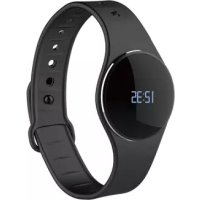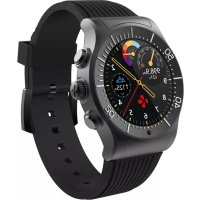
ZeWatch 4 - Smartwatch MYKRONOZ - Free user manual and instructions
Find the device manual for free ZeWatch 4 MYKRONOZ in PDF.



| Product type | Smartwatch |
| Brand | MyKronoz |
| Model | ZeWatch 4 |
| Dimensions | 47 x 32 x 12.3 mm |
| Weight | 38 g |
| Water resistance | IP65 (splash resistant) |
| Display type | 1.3-inch color touchscreen (240 x 240 pixels) |
| Power | Li-ion 200 mAh battery, charges via included USB cable, charging time ~1h30 |
| Battery life | Up to 3 days (depending on usage) |
| Connectivity | Bluetooth 2.1 + 4.0 BLE, NFC |
| Sensors | Tri-axial accelerometer |
| Memory | 5 days of activity |
| Main features | Activity tracking (steps, distance, calories), automatic sleep, notifications (calls, SMS, emails, calendar), voice command, music control, photo trigger, find my phone, stopwatch, contactless payment MyKronoz Pay |
| Compatibility | iOS (iPhone 4S or later), Android (4.3+), Windows Phone 8.1+ (with Bluetooth 4.0 BLE) |
| Care and cleaning | Clean with a soft, dry cloth. Avoid deep water and abrasive products. |
| Safety | Complies with CE and Industry Canada CNR standards. Built-in lithium-ion battery. |
| Warranty | International 1-year warranty |
| Operating temperature | -20°C to +40°C |
Frequently Asked Questions - ZeWatch 4 MYKRONOZ
User questions about ZeWatch 4 MYKRONOZ
0 question about this device. Answer the ones you know or ask your own.
Ask a new question about this device
Download the instructions for your Smartwatch in PDF format for free! Find your manual ZeWatch 4 - MYKRONOZ and take your electronic device back in hand. On this page are published all the documents necessary for the use of your device. ZeWatch 4 by MYKRONOZ.
USER MANUAL ZeWatch 4 MYKRONOZ
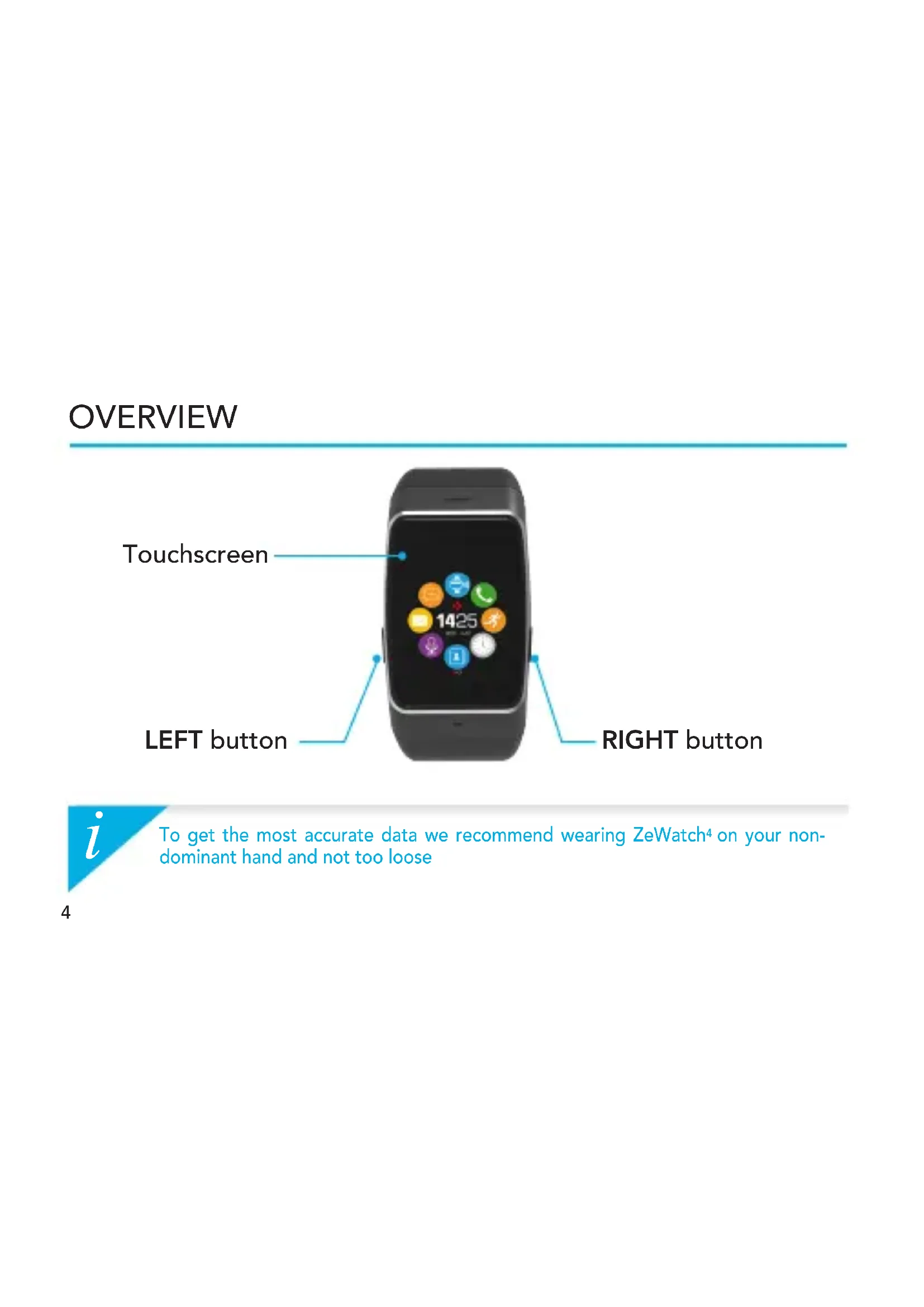
To get the most accurate data we recommend wearing ZeWatch4 on your non-dominant hand and not too loose
SWIPE UP OR DOWN, LEFT OR RIGHT to navigate through the screens
LEFT button
PRESS + HOLD activate pairing mode
PRESS 1 x volume -
RIGHT button
PRESS + HOLD
PRESS 1x
power ON / OFF
light up the screen,
exit, volume +

To reset ZeWatch4 to original settings, press and hold the RIGHT button for at least 7 seconds.
1. CHARGING
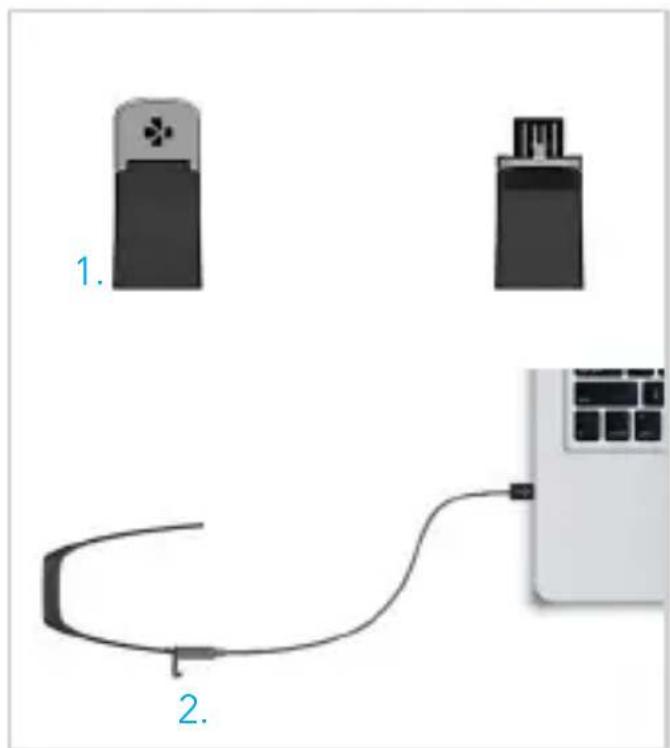
Charge ZeWatch for two hours before your first use.
- Gently push the clasp of your ZeWatch4
- Plug the USB end into the USB port of a computer
Tip: To easily connect ZeWatch to a power source, we recommend using the USB extension cable provided
- A battery indicator will fill to indicate charging is in progress
- Once ZeWatch is charged, the battery indicator will be full
i A full charge takes 1h30. When the battery level gets low, a low battery indicator will appear
2. PAIRING
The first time you use ZeWatch4, a SET UP message will prompt you to set up your ZeWatch4 using a mobile device.
GET ZeWatch4 APP
[iOS & Android users] Search for ZeWatch4 App on the App store or Google Play Store.
[Windows Phone users] Search for ZeWatch ^4 App on the Windows Phone Store.
System Requirements
iOS
iOS 8+ devices with Bluetooth 4.0 BLE
iPhones 4s, 5, 5c, 5s, 6, 6 Plus, 7 and newer, iPad (3d, 4h and 5th gen), iPad Mini, iPod touch (5 gen).
Android
Select Android 4.3 + devices that support Bluetooth 4.0 BLE
Windows Phone
Select Windows Phone 8.1+ that support Bluetooth 4.0 BLE
Visit www.mykronoz.com to get the latest compatibility list
Step 1 : Pairing through the application (Bluetooth Low Energy - BLE)
- Enable Bluetooth on your mobile device
- Open ZeWatch App on your mobile device. Sign up if you are a new member or Log in with your existing account. After entering your personal information, select your ZeWatch model and tap Set up
- Make sure ZeWatch4 is nearby and select ZeWatch4 BLE in the list of devices
- You will receive a pairing request on your mobile device. Press Pair to accept it
- Then, a pairing request will appear on your ZeWatch display. Press ZeWatch LEFT button to accept the pairing
- When ZeWatch is successfully paired, you will be notified on ZeWatch4 and on your mobile device's screen

This operation will allow you to synchronize time, date, activity and sleep data, reminders and notifications.

If pairing fails repeat the same steps. Pairing is a one-time process. If you want to pair your ZeWatch4 with another account, you first need to unpair from the current one. On ZeWatch4 App, go to Settings > Set up ZeWatch4 > Unpair. Tap Set up ZeWatch4 to pair a new device
Step 2: Manual Pairing (Bluetooth Classic)
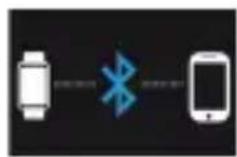
- From ZeWatch homescreen page, hold and press the LEFT button until a phone icon appears
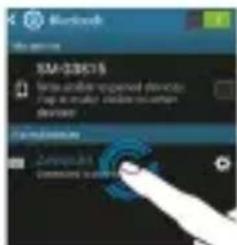
- Go to your mobile device's Bluetooth settings and select ZeWatch4 in the list of devices
- When ZeWatch is successfully paired, you will be notified on ZeWatch4 screen
This operation will allow you to make and receive calls with ZeWatch

If pairing fails repeat the same steps.
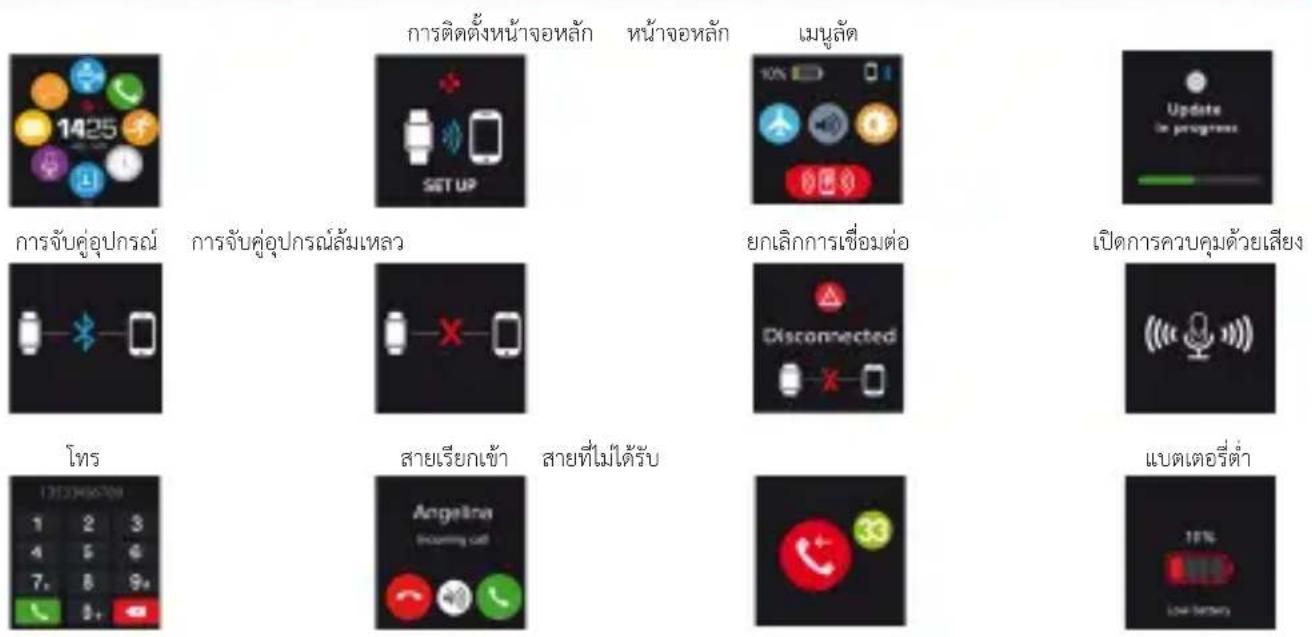
3. DISPLAYS
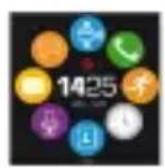
Set upHome screen Shortcuts
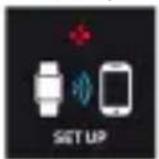
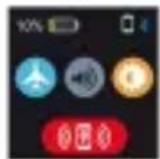
Updating
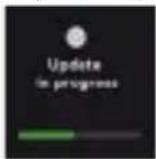
DisconnectedPairing Fwedeepaintgol ON
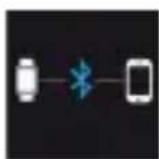
Dial
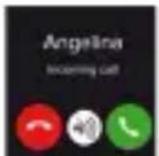
Incoming call Missed call
Low battery

ZeWatch4 will automatically sync the time and date of your paired mobile device (iOS8 + / select Android 4.3 + / select Windows Phone 8.1 + only). You can set your preferred time and date format manually in the Settings tab of ZeWatch4 App. Make sure you keep the device charged to avoid the time being reset
SMS
Steps Calories
Distance Sleep
Goal achieved
Inactivity alert

NotificationsEmails
Payment mode ON
Calendar events
Wallet
4. CALLS
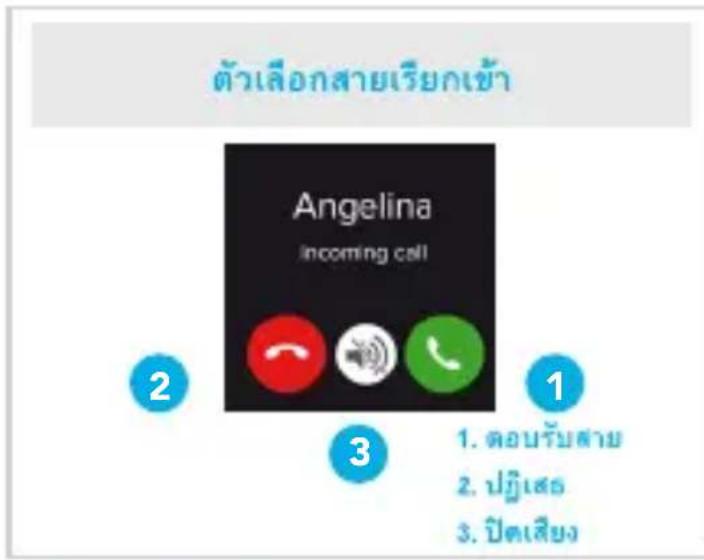
After successful Bluetooth pairing with your phone, Bluetooth call feature is on.
INCOMING CALL OPTIONS

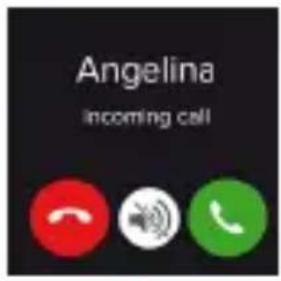


- ANSWER
- REJECT
- MUTE
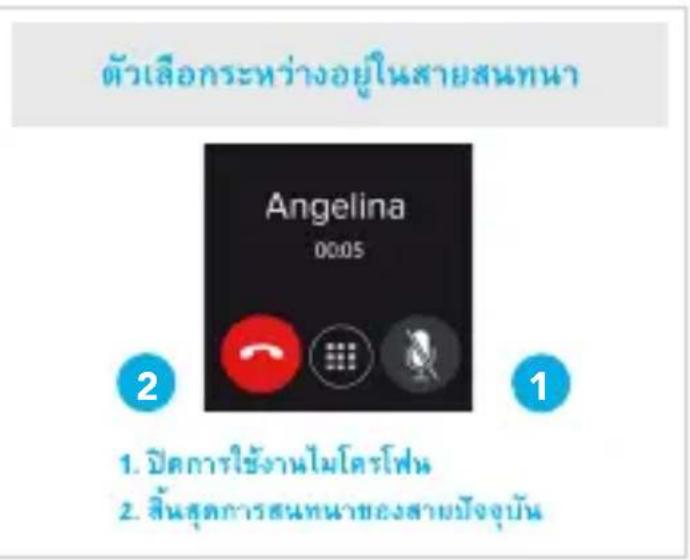
IN-CALL OPTIONS

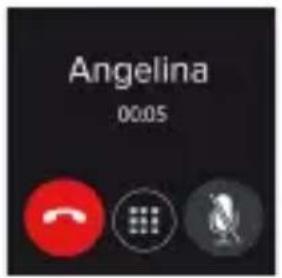

- TURN OFF THE MICROPHONE
2.END CURRENTCALL

*Windows Phones may not support those features, please visit www.mykronoz.com/support/ for more information
5. NOTIFICATIONS
ZeWatch4 shows notifications of incoming and missed calls, SMS, email, social media activity, calendar events and anti-lost alert*. Open ZeWatch4 App, tap Settings > Notifications to select the notifications you want to receive onto your ZeWatch4. If you wish to disable certain notifications, swipe the selection button to the left. Press ZeWatch4 button to dismiss the notification. If not dismissed, the notification will reappear next time you wake up the screen.
Setting up notifications for iOS users
Go to "Settings" of your iOS device
Tap "Notifications"
Select which type of notifications you wish to receive on ZeWatch
Enable "Show in Notification Center" to receive the notification on ZeWatch4
6. SMS
You can read SMS on your ZeWatch4 and reply using voice control, the pre-installed templates or emojis (Android only)

*Windows Phones may not support those features, please visit www.mykronoz.com/support/ for more information
7. VOICE CONTROL
Use the Voice Control feature to voice command your mobile device remotely or search information from the Internet.
To start using the feature, tap the Voice Control icon to open the respective page on ZeWatch4.
Then tap the Voice Control again to turn the function on or off.
Examples of what you can ask or do:
Call (name of your contact)
Send a SMS to (name of your contact)
What's the weather like?
Set an alarm for tomorrow 5 am

This feature is available with iOS 8+ devices that support Siri and Select Android 4.3 + devices that support Google Now. To use voice control, your smartphone must have access to the Internet using either 3/4G or Wifi
8. ACTIVITY
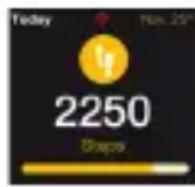
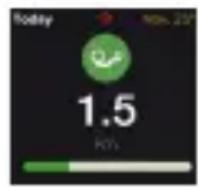
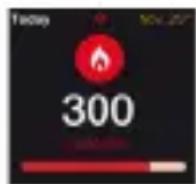
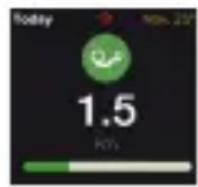
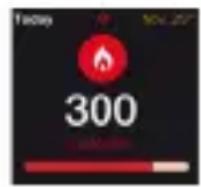
ZeWatch4 tracks the number of steps taken, distance travelled and calories burned throughout the day. You can view your daily activity in real-time onZeWatch4.
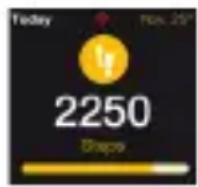
STEPS DISTANCE CALORIES
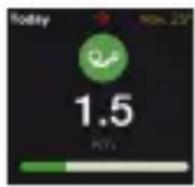
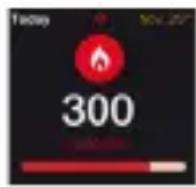
You can also monitor your activity data and history from the Activity tab of ZeWatch4. On the main activity screen, you can check your performance level against your daily goals. Click on any activity bar to get a detailed graph of your daily, weekly and monthly performance.

ZeWatch shows daily data. The activity tracker resets at midnight. To upload your latest activity data, go to the Activity tab and slide your finger down the screen.
9. SLEEP
ZeWatch4 tracks the hours slept and the quality of your sleep (light sleep, deep sleep, awake times)
START/EXIT SLEEP MODE
From your device, tap on the Sleep icon from the main menu page. To enable sleep mode from the sleep interface, press START. To exit sleep mode and switch to activity mode, press END.
I PRESET SLEEP
Open ZeWatch4 App > Go to Settings > Advanced Settings > Click on Preset sleep to enter your desired bed and wake up times. By default, ZeWatch4 will track your sleep from 11pm until 7am.

If you forgot to activate sleep mode, you can manually add sleep logs in ZeWatch4 App. Open ZeWatch4App, tap on the bottom purple sleep bar, click on «...» at the top > Add sleep
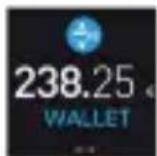
10. Wallet
To start using MyKronoz Pay contactless payment service, open ZeWatch4 App and press the wallet tab. Sign up if you are a new member, choose a plan, and follow the instructions on screen to set up and top-up your wallet with the funding methods of your choice (Mastercard, Visa, Amex, PayPal).
To make fast and secure payment with your watch, press the contactless payment icon to enable payment mode, and bring your watch close to the payment terminal. Contactless Payment limits may vary depending on local regulations.

MyKronoz Pay works at any retailer accepting Mastercard contactless payment. MyKronoz Pay may not be available in your country yet, for more information, visit: www.mykronoz.com/mykronoz-pay/
11. GOALS
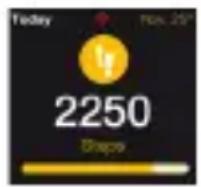
Tap the Goals tab of ZeWatch4 App to set daily goals for steps taken, distance travelled, calories burned and hours slept. On the Steps screen of your ZeWatch4, a progress bar will show how close you are to your daily goal.
Once you hit one of your daily goal, ZeWatch4 will gently vibrate and display a Goal achieved icon
12. REMINDERS
Tap the Reminders tab of ZeWatch4 App to add daily life reminders. You can set up to 6 daily reminders, and choose the type of reminder and preferred time and day. ZeWatch4 will gently vibrate and display the corresponding reminder icon to alert you. A single tap on your ZeWatch4 can dismiss the reminder. If not dismissed, the same alert will repeat after two minutes.
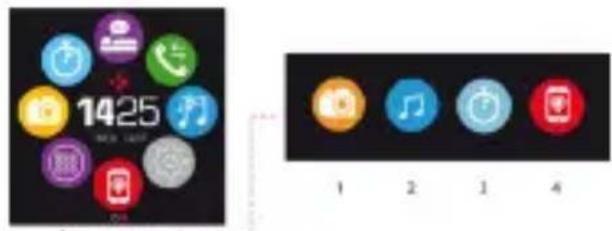
13. APPS
Several applications can be found in this menu:
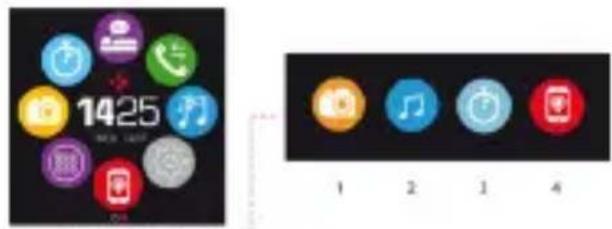
(1) Camera remote: To enjoy this feature, first, make sure ZeWatch's connected to your smartphone via Bluetooth. Then, open ZeWatch4 mobile app, click on the Settings tab > tap Camera to launch your smartphone's camera. Enabling Camera Remote function will let you take pictures remotely from your ZeWatch by a single tap on the camera icon.
(2) Music control: To enjoy this feature, make sure ZeWatch is connected to your smartphone via Bluetooth. Enabling Music control will let you play / pause the current song streamed on your smartphone, choose the previous or next song.
(3) Timer: From the timer interface, press START to enable the timer, press END to stop it.
(4) Find my phone: To enjoy this feature, make sure ZeWatch this connected to your smartphone via Bluetooth. Enabling Find my phone function will make your phone ring and help you find it.
14. SETTINGS
Several settings can be found in this menu:
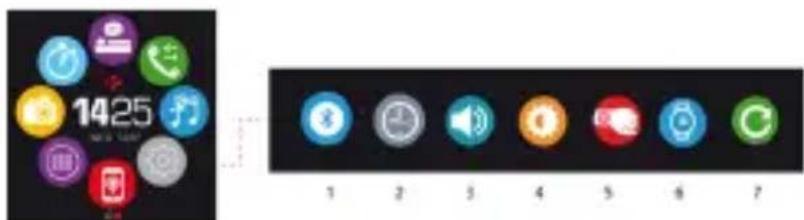
(1) Bluetooth
(2) Watch faces: Swipe left or right to go through the different watch faces available and tap on the one you want to select and use;
(3) Sound
(4) Brightness
(5) Activate on wrist flick
(6) Watch info
(7) Reset
15. TECH SPECS
| Dimensions 47*32*12.3 mm |
| Min 152 mm |
| Max 223 mm |
| Weight 38 gr |
| Bluetooth 2.1 + 4.0 BLE |
| NFC |
| Battery type Li-ion 200mAh |
| Standby time up to 3 days |
| Charging time 1 to 2 hours |
| Memory 5 days of activity |
| Display TFT Color Touchscreen 1.3 inches/ 240*240 pixels |
| Sensors 3-axis accelerometer |
| Operating temperature -20°C to +40°C |
| Water resistance IP65 |
| International Warranty 1 year |
| Contactless payment service powered by Mastercard |

If you have any question or require assistance regarding our product, please visit www.mykronoz.com/support/
ZeWatch4
— FRANÇAIS —
Charge. 26
Appairage 27
Affichages 30
Appels 32
Notifications. 33
SMS 33
Commande Vocale....34
Activité 35
Sommeil. 36
Portefeuille 37
Configurations requires
iOS
Les apparecs iOS 8+ équipés de Bluetooth 4.0 BLE - iPhone 4s, 5, 5c, 5s, 6, 6 Plus, 7 - iPad (3eme, 4eme and 5eme gen.) iPad Mini - iPod touch (5eme gen.)
Android
Cercains appareils Android 4.3+ Equipes de Bluetooth 4.0 BLE
Windows Phone
*Windows Phones may not support those features, please visit www.mykronoz.com/support/ for more information
5. NOTIFICATIONS
*Windows Phones may not support those features, please visit www.mykronoz.com/support for more information
7. CONTROL DE VOZ
Whenever you want to use this mode, please use the following instructions.
- Inside the mode, you can use the icono of sueño in the pantalla del menu principal.
- Para activating the mode, you can use the interfaz de sueño, pulse INICIAR. Para activating the mode, you can use the pulso de本次活动, pulse FINALIZAR.
PRESTABLECER SUEÑO
In this mode is possible synchronization data relating to the data of the system.

*Windows Phones may not support those features, please visit www.mykronoz.com/support/ for more information
5. NOTIFICATIONS
*Windows Phones may not support those features, please visit www.mykronoz.com/support/ for more information
5. NOTIFICAções
*Windows Phones may not support those features, please visit www.mykronoz.com/support/ for more information
5. YBΕДΟΜЛЕΗΝΥ
ZeWatch4 OTobpaKaet YBeDOMNeHnO KaIeHdApHbIX CO6bITnX, BXODaIcx I npOnyUeHHbIX 3BOHKax, O nOlyeHNn SMS-coo6uHn, 3JeKTPoHbIX nIcem, COo6uHn B COuaJIbHbIX cETx, a TAKKe CInHaJIIN3npyeT dIy npEoTbpaUeHn NOtepN*.OTkpoTe npINOxHe ZeWatch4 n HaxMITE HAcToPouKn >YBeDMnHn, UTObblb6paTb YBeDOMneHn, KOTOpB bbl XOTlTe NOnyTuBa H cBOu YacBt ZeWatchEcnn Bbl XOTlTe OTKnIOuHTb ONpeDeJIeHHbIE YBeDOMneHn, CDBINbTe KHOKNy YBeDOMneHn BNEBO. Dnra TOrO UTo6bI OTKnIOuHTb YBeDOMneHn, KOCHNTecb ZeWatch4 naIbUeM OOnn pa3. Ecnn YBeDOMneHn He OTKnIOuHTb, OHO IOBTOPHO OTObpa3ntc Ha 3KpaHe npR BKnIOUeHN.
Hactpoika yBeDoMneHn Dria noJIb3ObaTeJe iOS
OTKpoIte hAcTpoIKn yCTpoIcTba iOS.
HaKmTe «LeHTp yBeDOMJehn》.
BbIbepnte Tn yBeDMJIeHNI, KOToPbIE Bbl XOTeIN 6bl NOnyauTb Ha ZeWatch
BknIOuHTe onCIO «Ioka3bBaTb B CEHTpe yBeDMnEHN», UTO6bl noJyauTaB yBeOMJIeHna Ha ZeWatch.
6. CMC
BbI CMOXeTe YHTaTb CMC-coo6uHnHa CBOe ZeWatch n OTBeuATb Ha HnX, NcNoJb3yUyKe IMeHOuNecB B NaMAtn yCTpO'CTBa Wa6NoHbI nn CmaJInKn (ToJIbKO dJa Android)

*B Windows Phones He peaɪn3OBAHa BO3MOXHOCTh IɔdɛpЖKN 3Tnx ΦyHKÇuŋ.
*Windows Phones may not support those features, please visit www.mykronoz.com/support/ for more information
5. 通知
*Windows Phones may not support those features, please visit www.mykronoz.com/support/ for more information
5. 通知
PRESS + HOLD power ON / OFF
PRESS 1x
light up the screen, exit,
volume +
i
Weonn Zewatch 1uunnsnnusulnnnnnnnnnnnae 7
1. nnsnuw
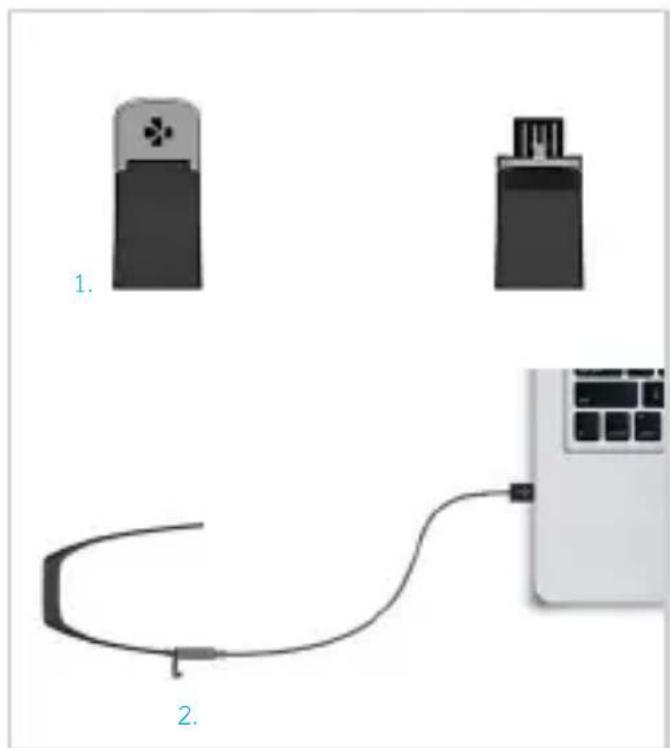
WzWatch' uunnns
- nuiu uunueuaeauye Zewatch
- 2uUanu USB uunwua USB uunuunuwa
nnuu: wannaua Zewatchnnnwnnnnnnnae nnnnnnne - 乌
- Wzewhch uunuunu
2. n
ZeWatch' 10n nn nnnn nn nn nn nn nn nn nn nn nn nn nn nn nn nn nn nn nn nn nn nn nn nn nn nn nn nn nn nn nn nn nn nn nn nn nn nn nn nn nn nn nn nn nn nn nn nn nn nn nn nn nn nn nn nn nn nn nn nn nn nn nn nn nn nn nn nn nn nn nn nn nn nn nn nn nn nn nn nn nn nn nn nn nn nn nn nn nn nn nn nn
ZeWatch4App
[OS & Android] Watch App Store Google Play Store
[Windows Phone] ZeWatch Windows Phone Store
yuyuoyu
iOS
unssios8+ wannnue 4.0 BLE iPhone 4s,5, 5c,6,6 Plus,7,iPad (3,4 uae 5) iPad Mini,iPod touch(5)
Android
enguns Android 4.3 + uuyuuy uuyu 4.0 BLE
Windows Phone
en Windows Phone 8.1+ muuu uuuu 4.0 BLE
mnnnneennnnnwwmykronoz.com wosnnnsounananaanrannnnn
y1: nssuunnnnnaWaa (yaaswaaan - BLE)
- uu ZeWatch uuaunauauauauu uuuuuuuuuuuuuuuuuuuuuuuuuuuuuuuuuuuuuuuuuuuuuuuuuuuuuuuuuuuuuuuuuuuuuuuuuuuuuuuuuuuuuuuuuuuuuuuuuuuuuuuuuuuuuuuuuuuuuuuuuuuuuuuuuuuuuuuuuuuuuuuuuuuuuuuuuuuuuuuuuuuuuuuuuuuuuuuuuuuUU
- 3
- 5
W
- ZeWatch4 155555555555555555555555555555555555555555555555555555555555555555555555555555555555555555555
- 1
- 1uunnnnnuuunnuuunnuuunnuuunnuuuuauuuuauuuuuuuuuuuuuuuuuuuuuuuuuuuuuuuuuuuuuuuuuuuuuuuuuuuuuuuuuuuuuuuuuuuuuuuuuuuuuuuuuuuuuuuuuuuuuuuuuuuuuuuuuuuuuuuuuuuuuuuuuuuuuuuuuuuuuuuuuuuuuuuuuuuuuuuuuuuuuuuuuuuuuuuuuuuuuuuuuuuuuuuuuuuuuuuuuuuuuuuuuUU
- ZeWatch ZeWatch
mnnnne nnnnnnnnnnnnnnnnnnnnnnnnnnnnnnnnnnnnnnnnnnnnnnnnnnnnnnnnnnnnnnnnnnnnnnnnnnnnnnnnnnnnnnnnnnnnnnnnnnnnnnnnnnn
mnnnnaaannnnaan nnnnnnnnnnnnnnnnnnn
3.
ZeWatch 2017-2018: Android 4.3 + / Laoen Windows Phone 8.1 +
SMS
y
4
mssuun

y
mss
i
mnnnnuu
nssu
4.
nannnnnnaanennnne nnnnnnnnnnnnnnnnnnnnnnnnnnnnnnnnnnnnnnnnnnnnnnnnnnnnnnnnnnnnnnnnnnnnnnnnnnnnnnnnnnnnnnnnnnnnnnnnnnnnnnnnnnnnnnnnn

*Windows Phones may not support those features, please visit www.mykronoz.com/support/ for more information
5.
ZeWatch4 2222222222222222222222222222222222222222222222222222222222222222222222222222222222222222222222
nsuuiuuaunusios
ynnnnsos
“"iOS
App ZeWatch
App ZeWatch
6. SMS
SMS uu ZeWatch vuaaunauulnnuuauuauuauuauuuu (own Android u)

*Windows Phones and Mobile phones are available in the United States support@mykronoz.com www.mykronoz.com
7.
Weywunwnn nn wunnnn nnnnnnnnnnnnnn nn Wewonn nn Wewonn nn Wewonn nn
1
Inraan (aayyuyuynnnaa)
SMS L (yuaan)
anunununununun
05:00 h.

nwnnnnnnnnnnnnnnnn nios 8+ naaannn Siri uaaan anenr Android 4.3 + naaannn Google Now wgn
8. 1
ZeWatch4 20000000000000000000000000000000000000000000000000000000000000000000000000000000
nnaaennnnnnnnnn
Wanwnn nnw nnnnnaaonnnnnae ananennnne aannnnnne neanennnne neanennnne neanennnne neanennnne neanennnne neanennnne neanennnne neanennnne neanennnne neanennnne neanennnne neanennnne neanennnne neanennnne neanennnne neanennnne neanennnne neanennnne neanennnne neanennnne neanannnne neanennnne neanennnne neanennnne neanennnne neanennnne neanennnne neanennnne neanennnne neanennnne neanennnne neanennnne neanennnne neanennnne neanennnne neanennnne neanennnne neanennnne neanennnne neanennnne neannnnnnee

ZeWatchuaaayaaauuauuuuauuuuuuuuuuuuuuuuuuuuuuuuuuuuuuuuuuuuuuuuuuuuuuuuuuuuuuuuuuuuuuuuuuuuuuuuuuuuuuuuuuuuuuuuuuuuuuuuuuuuuuuuuuuuuuuuuuuuuuuuuuuuuuuuuuuuuuuuuuuuuuuuuuuuuuuuuuuuuuuuuuuuuuuuuuuuuuuuuuuuuuuUU
9. nraa
ZeWatch 4 200000000000000000000000000000000000000000000000000000
1
nnaananaananaananaananaan anananaananaananaananaananaananaananaananaananaananaananaananaananaananaananaananaananaananaananaananaananaananaananaananaananaananaananaananaananaananaananaananaananaananaananaananaananaananaananaananaananaananaananaananaananaananaananaananaananaananaan anaannnnnnnnnnnnnnnnnnnnnnnnnnnnnnnnnnnnnnnnnnnnnnnnnnnnnnnnnnnnnnnnnnnnnnnnnnnnnnnnnnnnnnnnnnnnnnnnnnnnnnnnnnnn
nannnnnnnnnnnnnn
ZeWatch4 App> n mnnn> mnnnnnna> nnnn nn nnnnna nnnn nn nnnn nn nnnn nn nnnn nn nnnn nn nnnn nn nnnn nn nnnn nn nnnn nn nnnn nn nnnn nn nnnn nn nnnn nn nnnn nn nnnn nn nnnn nn nnnn nn nnnn nn nnnn nn nnnn nn nnnn nn nnnn nn nnnn nn nnnn nn nnnn nn nnnn nan 7.00

aannnnnnaananaananaananaananaananaananaananaananaananaananaananaananaananaananaananaananaananaananaananaananaananaananaananaananaananaananaananaananaananaananaananaananaananaananaananaananaananaananaananaananaananaananaananaananaananaananaananaananaananaananaanaraannaa
hoHanDnHnHnHnHnHnHnHnHnHnHnHnHnHnHnHnHnHnHnHnHnHnHnHnHnHnHnHnHnHnHnHnHnHnHnHnHnHnHnHnHnHnHnHnHnHnHnHnHnHnHn H
단제 1: 登hook to Bluetooth Low Energy - BLE)
- 麻卡日尼尼尼尼尼尼尼尼尼尼尼尼尼尼尼尼尼尼尼尼尼尼尼尼尼尼尼尼尼尼尼尼尼尼尼尼尼尼尼尼尼尼尼尼尼尼尼尼尼尼尼尼尼尼尼尼尼尼尼尼尼尼尼尼尼尼尼
- Moomba日机一ZeWatch 1000-1000-1000-1000-1000-1000-1000-1000-1000-1000-1000-1000-1000-1000-1000-1000-1000-1000-1000-1000-1000
- ZeWatch4将功能用上加其功能登录到ZeWatch4BLE将链接
-
- ZeWatch4 HachmeppeAorlig OgchI Eoiitn. ZeWatch4 Ieok Bttn to nre Rrng to sukhni.
- ZeWatch的端口可以写在ZeWatch4和Moba日志的文件夹中。
i

*Windows Phones may not support those features, please visit www.mykronoz.com/support/ for more information
5. 呤
iSiri 8+ iOS Now 4.3 + 2019
Hi-Fi 3/4G 3/4G 3/4G 3/4G 3/4G 3/4G 3/4G 3/4G 3/4G 3/4G 3/4G 3/4G 3/4G 3/4G 3/4G 3/4G 3/4G 3/4G 3/4G 3/4G 3/4
8. 歌谣
ZeWatch4是hwar同的,i同,lro山mo望到moTtL。当神是THTsK1R用真可口上云工电ZeWatch4DsspReIeE
calroli smoayiend gll
CKaHnpoBaHHe, yTo6bI nonyHTb 60nbWe Ra3bIKOB
请扫描二维码以获取更多语言翻译。
掃描QR碼獲得更多的語言
多<の言語を取得すたにスチ
aunuwauiyannnnn
则不能是任何人的
OR VISIT
https://www.mykronoz.com/support/
TO DOWNLOAD OUR MULTI-LANGUAGE USER MANUAL
SAFETYINSTRUCTIONS
Before using the device, read these instructions carefully.
- ZeWatch has one built-in battery. Do not disassemble the battery on your own. KRONOZ LLC is not responsible for any damage or personnel injury caused by the removal of the battery or any component.
This device is not waterproof so keep it away from all sources of heat or humidity. Do not use it near sink or other wet areas. Do not place it in water. - Charge the battery in a cool, ventilated room. Excessive temperature during charging could cause heat, smoke, fire or deformation of the battery or even explosion.
- Avoid excessive temperatures. Do not expose this device to excessive smoke, dust, or direct sunlight for an extended period of time.
Do not open, crush, bend, deform, puncture or shred secondary cells or batteries. In the event of a battery break or leak, prevent battery liquid contact with skin or eyes. If this happens, immediately flush the areas with water (do not rub the eye) or seek medical help.
Do not short-circuit. Short-circuiting can occur when a metallic object, such as coins, causes direct connection of positive and negative terminals of the battery. Short-circuiting may damage the battery.
Do not use batteries that have been damaged or have been exhausted.
- Keep the batteries out of children's reach and in a safe place to prevent danger.
Do not dispose of batteries in fire as they may cause explosion. Dispose of used batteries in accordance with your local regulations (such as recycling). Do not dispose as household waste.
Use only the USB cable supplied to charge this battery. Do not charge for more than 24 hours.
*KRONOZ LLC is not responsible for any damage caused by improper use of the device.
REGULATORYNOTICES
USA

FCC STATEMENT
This device complies with Part 15 of the FCC Rules. Operation is subject to the following two conditions: (1) This device may not cause harmful interference, and (2) This device must accept any interference received, including interference that may cause undesired operation.
CAUTIONS
Changes or modifications not expressly approved by the party responsible for compliance could void the user's authority to operate this equipment.
FCC NOTICE
This equipment complies within the limits of a Class B digital device, pursuant to part 15 of the FCC Rules. These limits are designed to provide reasonable protection against radio and TV interference in residential areas. However, even during normal operation, this equipment may cause TV or radio interference. If this equipment does cause harmful interference to radio or television reception, which can be determined by turning the equipment off and on, the user is encouraged to try one or more of the following corrective measures:
- Reposition the receiving antenna
* Increase the distance between the equipment and receiver - Connect the equipment into an outlet on a circuit different from which the receiver is connected.
- Consult the dealer or an experienced radio/TV technician for help.
FCC ID: 2AA7D-ZEWH4
CANADA
INDUSTRY CANADA (IC) STATEMENT
This device complies with Industry Canada license-exempt RSS standard(s). Operation is subject to the following two conditions: (1) this device may not cause interference, and (2) this device must accept any interference, including interference that may cause undesired operation of the device.
Declaration of conformity with regard to the EU Directive 1999/5/EC.
Kronoz LLC hereby declares that this device is in compliance with the essential requirements and other relevant provisions of the R&TTE Directive 1999/5/EC. The complete declaration of conformity is available on request via our customer service: support@mykronoz.com
DISPOSAL AND RECYCLING INFORMATION
After the implementation of the European Directive 2002/96/EU in the national legal system, the following applies: Electrical and electronic devices may not be disposed of with domestic waste. Consumers are obliged by law to return electrical and electronic devices at the end of their service lives to the public collecting points set up for this purpose or point of sale. Details to this are defined by the national law of the respective country. This symbol on the product, the instruction manual or the package indicates that a product is subject to these regulations. By recycling, reusing the materials or other forms of utilizing old devices, you are making an important contribution to protecting our environment.
©2016 Kronoz LLC, all rights reserved. Kronoz LLC, Avenue Louis-Casai 18, 1209 Geneva, Switzerland
All brands or product names are or may be trademarks of their respective owners.
Designed in Switzerland - Made in China
MYKRONOZ MORE THAN TIME
www.mykronoz.com