ZeFit 2 Pulse - Smartwatch MYKRONOZ - Free user manual and instructions
Find the device manual for free ZeFit 2 Pulse MYKRONOZ in PDF.


| Product Type | Smartwatch |
| Brand | MyKronoz |
| Model | ZeFit 2 Pulse |
| Dimensions | 50 x 22.5 x 11.7 mm |
| Wrist circumference | From 154 mm (min) to 210 mm (max) |
| Weight | 25 g |
| Screen type | Color TFT touchscreen, 0.9 inch (160 x 80 pixels) |
| Power | 200 mAh lithium-ion battery, charging via magnetic cradle (2 h for full charge) |
| Battery life | Up to 10 days |
| Connectivity | Bluetooth 4.0 BLE |
| Sensors | Triaxial accelerometer, heart rate monitor |
| Main functions | Pedometer, distance, calories burned, heart rate, sleep tracking, stopwatch, notifications (calls, SMS, emails, social networks), reminders, goals, anti-loss alert |
| Water resistance | IP67 (immersion up to 1 meter) |
| Memory | 14 days of activity |
| Operating temperature | -20°C to +40°C |
| Compatibility | iOS 7+ (iPhone 4s, 5, 5c, 5s, 6, 6 Plus, iPad, iPod touch), Android 4.3+ with Bluetooth 4.0 BLE, Windows Phone 8.1 |
| Warranty | 1 year international |
| Care and cleaning | Clean with a soft, dry cloth. Avoid harsh chemicals. |
| Safety | Contains strong magnets – may interfere with pacemakers, credit cards, and magnetic objects. Do not use as a medical device. |
| Box contents | ZeFit 2 Pulse watch, USB cable, magnetic charging cradle, quick start guide |
Frequently Asked Questions - ZeFit 2 Pulse MYKRONOZ
User questions about ZeFit 2 Pulse MYKRONOZ
0 question about this device. Answer the ones you know or ask your own.
Ask a new question about this device
Download the instructions for your Smartwatch in PDF format for free! Find your manual ZeFit 2 Pulse - MYKRONOZ and take your electronic device back in hand. On this page are published all the documents necessary for the use of your device. ZeFit 2 Pulse by MYKRONOZ.
USER MANUAL ZeFit 2 Pulse MYKRONOZ
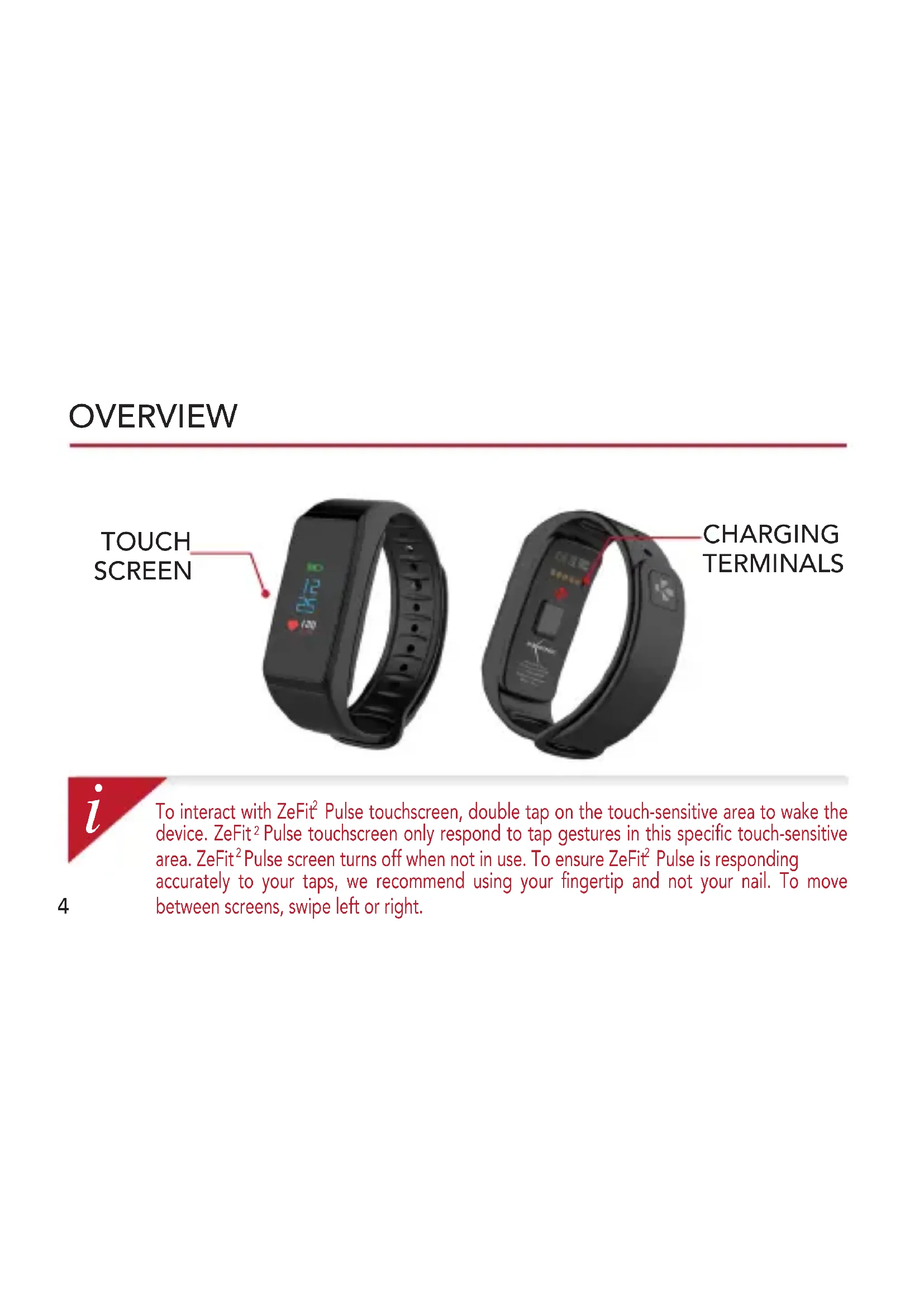
To interact with ZeFit ^2 Pulse touchscreen, double tap on the touch-sensitive area to wake the device. ZeFit ^2 Pulse touchscreen only respond to tap gestures in this specific touch-sensitive area. ZeFit ^2 Pulse screen turns off when not in use. To ensure ZeFit ^2 Pulse is responding accurately to your taps, we recommend using your fingertip and not your nail. To move between screens, swipe left or right.
1. CHARGING
natural_image
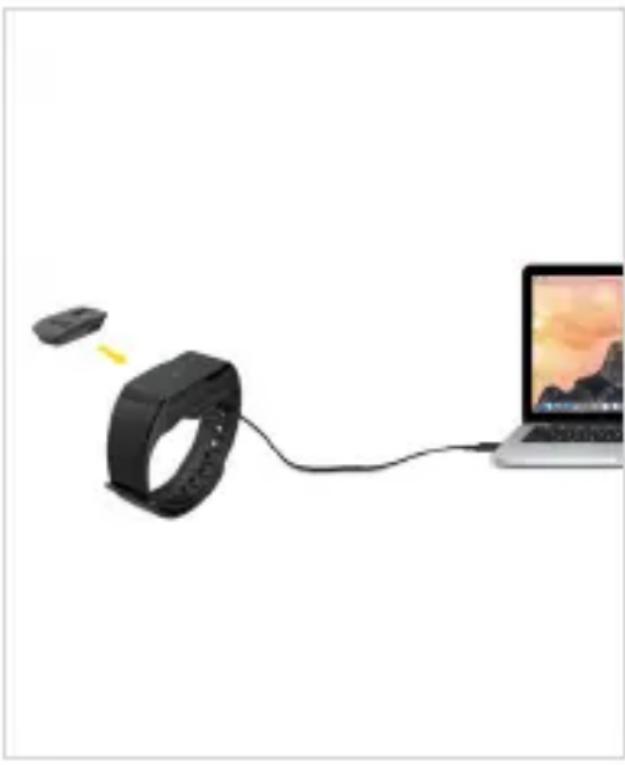
Diagram showing a smartwatch connected to a laptop via cable, with no visible text or symbols.Charge ZeFit ^2 Pulse for two hours before your first use.
- Put ZeFit ^2 Pulse on the magnetic charging dock
- Make sure the pin on the charging dock fit correctly onto the charging terminals on the back of ZeFit ^4 Pulse
- Plug the small end of the USB cable provided into the charging's dock USB port
- Plug the big end of the USB cable into a power source
- A battery indicator will fill to indicate charging is in progress. Once ZeFit ^2 Pulse is charged, the battery indicator will be full

A full charge takes 1:30 hour. When the battery level gets low, a battery indicator will appear.
2. PAIRING
The first time you use ZeFit ^2 Pulse, a SET UP message will prompt you to set up your ZeFit ^2 Pulse using a mobile device or a computer.
GET ZeFit ^2 Pulse APP
To set up your ZeFit ^2 Pulse using your mobile device, you first need to get ZeFit ^2 App. Search for ZeFit ^2 App in the App store, Google Play or Windows Phone store, download and install the App on your mobile device.
text_image
Available on the App Store
text_image
ANDROID APP ON Google play
text_image
Download from Windows Phone StoreSystem Requirements
iOS Android
iOS 7+ devices with Bluetooth 4.0 BLE iPhone 4s, 5, 5c, 5s, 6, 6 Plus, iPad (3 ^rd , 4 ^th and 5 ^th gen) iPad Mini, iPod touch (5 ^th gen)
Select Android 4.3 + devices that support Bluetooth 4.0 BLE
Windows Phone
Select Windows Phone 8.1 that support Bluetooth 4.0 BLE
Visit www.mykronoz.com to get the latest compatibility list
- Enable Bluetooth on your mobile device
- Open ZeFit ^2 App on your mobile device. Sign up if you are a new member or Log in with your existing account. After entering your personal information, tap Set up
- Make sure ZeFit ^2 Pulse is nearby and select ZeFit ^2 Pulse in the list of devices
- You will receive a pairing request on your mobile device.
Press Pair to accept it
- Then, a pairing request will appear on your ZeFit ^2 Pulse display. Tap on your ZeFit Pulse to accept the pairing
- When ZeFit ^2 Pulse is successfully paired, you will be notified on ZeFit ^2 Pulse and on your mobile device's screen
You can also set up your ZeFit Pulse using our Mac or PC software available on
MyKronoz website: http://www.mykronoz.com/support/
System requirements: Windows 7,8, XP,10 - Mac OS X 10.8 and above

If pairing fails, repeat the same steps. Pairing is a one-time process. If you want to pair ZeFit ^2 Pulse with another account, you first need to unpair it from the current one. Open ZeFit ^2 App, go to Settings > Connect ZeFit ^2 Pulse > Unpair ZeFit ^2 Pulse. Tap Connect ZeFit Pulse to pair a new device
3. WEARING
natural_image
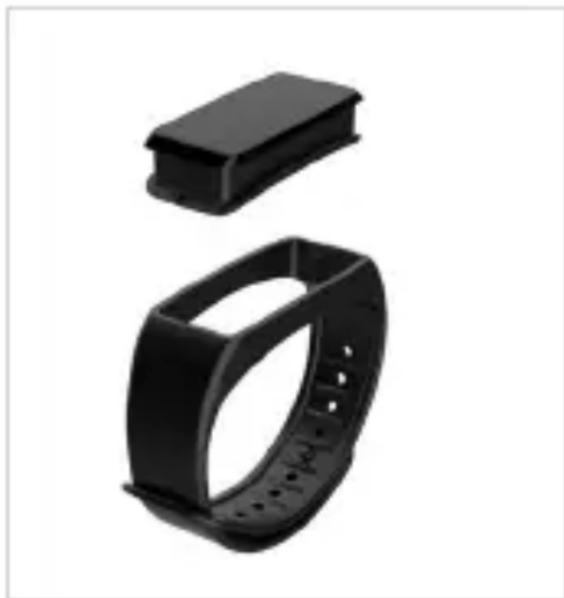
Two black plastic electronic devices with textured soles, one above a rectangular housing and the other a ring (no text or symbols visible)ZeFit ^2 Pulse has a removable wristband and is adjustable to fit different wrist sizes.
- Pop ZeFit ^2 Pulse tracker unit into the wristband
- Place ZeFit ^2 Pulse around your wrist and put the clasp pin inside the hole
- Press a few times to ensure the pin is fully inserted and that ZeFit ^2 Pulse is securely fastened
i
To get the most accurate data, we recommend wearing ZeFit Pulse on your non-dominant hand and not too loose.
4. DISPLAYS
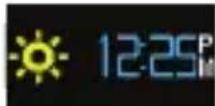
Homepage 24h
Incoming call
Pairing request Upgrading
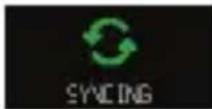
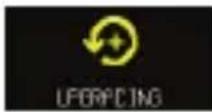
Full memory Low power Successful pairing
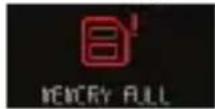
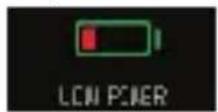
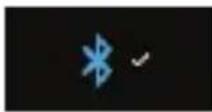
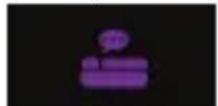
Sleep mode Activity mode Anti-lost alert
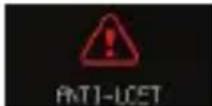
i
ZeFit ^2 Pulse will automatically sync the time and date of your paired mobile device. You can set your preferred time and date format manually in the Settings tab of ZeFit ^2 App. Make sure you keep the device charged to avoid the time being reset
5. ACTIVITY
ZeFit ^2 Pulse tracks the number of steps taken, distance travelled, calories burned and heart rate level throughout the day. You can view your daily activity in real-time on ZeFit ^2 Pulse display by swiping left or right on the touchscreen.
STEPS DISTANCE CALORIES
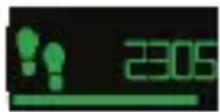
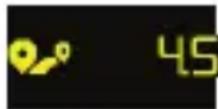
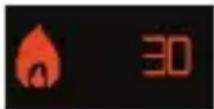
i
ZeFit ^2 Pulse shows daily data. The activity tracker resets at midnight. To upload your latest activity data, do not forget to tap the sync icon in the upper right hand corner of ZeFit ^2 App
6. HEART-RATE
On the heart-rate interface, press and hold the display for 3 seconds to launch heart rate monitor. You can define your tracking frequency and heart rate zones in ZeFit ^2 app and set up an alert if you reach a low heart rate or high heart rate level.
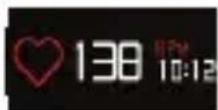
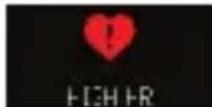
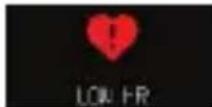
7. TIMER
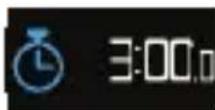
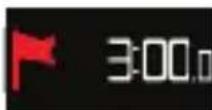
On the timer interface, press and hold the display for 3 seconds to launch the timer. Repeat the same steps to turn it off.
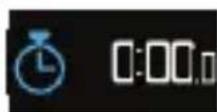
8. SLEEP
ZeFit ^2 Pulse tracks the hours slept and the quality of your sleep (light sleep, deep sleep, awake times)
■ START / EXIT SLEEP MODE
To start sleep mode, open ZeFit ^2 App, tap on the bottom purple sleep bar, click on Add sleep log > Start Sleep now To end sleep mode, open ZeFit ^2 App, tap on the bottom purple sleep bar, click on Add sleep log > Awake
PRESET SLEEP
Open ZeFit ^2 App > Go to Settings > Advanced Settings > Click on Preset sleep to enter your desired bed and wake up times. By default, ZeFit ^2 Pulse will track your sleep from 11pm until 7am.

To upload your latest sleep data, do not forget to tap the sync icon in the upper right hand corner of ZeFit ^2 App. If you forgot to activate sleep mode, you can manually add sleep logs in ZeFit ^2 App. Open ZeFit ^2 App, click on Add sleep log > Add sleep
9. GOALS
Tap the Goals tab of ZeFit App to set daily goals for steps taken, distance travelled, calories burned and hours slept. Click on the sync button in the upper right corner to save your goals. On the Steps screen of your ZeFit ^2 Pulse, a progress bar will show how close you are to your daily goal.
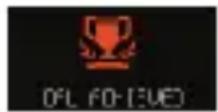
Once you hit one of your daily goal, ZeFit ^2 Pulse will gently vibrate and display a Goal achieved icon
10. REMINDERS
Tap the Reminders tab of ZeFit ^2 App to add daily life reminders. You can set up to 6 daily reminders, and choose the type of reminder and preferred time and day. ZeFit Pulse will gently vibrate and display the corresponding reminder icon to alert you. A single tap on your ZeFit ^2 Pulse can dismiss the reminder. If not dismissed, the same alert will repeat after two minutes.
11. NOTIFICATIONS
ZeFit ^2 Pulse shows notifications of incoming and missed calls, SMS, email, social media activity, calendar events and anti-lost alert*. Open ZeFit ^2 App, tap Settings > Notifications to select the notifications you want to receive onto your ZeFit ^2 Pulse. If you wish to disable certain notifications, swipe the selection button to the left. A single tap on your ZeFit ^2 Pulse can dismiss the notification. If not dismissed, the notification will reappear next time you wake up the screen.
Setting up notifications for iOS users:
- Go to "Settings" of your iOS device
Tap "Notification Center"
Select which type of notifications you wish to receive on ZeFit ^2 Pulse
Enable "Show in Notification Center" to receive the notification on ZeFit ^2 Pulse

Caller ID supports latin character only. For more languages support, please contact support@mykronoz.com. *Windows Phones may not support those features, please contact support@mykronoz.com. for more information.
12. SMS
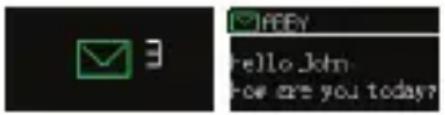
When receiving a SMS notification, press and hold ZeFit ^2 Pulse display to read the SMS content and see the identity of the sender. You can scroll down to read the full text message.
Press and hold to skip to another SMS.
text_image
3 A#BY hello_km How are you today?13. MISSED CALLS
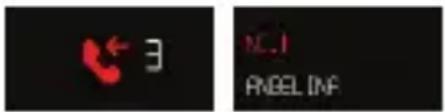
When receiving a Missed Call notification, press and hold ZeFit ^2 Pulse to see the identity of the missed call. You can scroll down to check the missed call history.
Press and hold to skip to another notification.
text_image
NE.1 ANGEL INF
You can read the latest 3 SMS received. You can view the latest 5 Missed Calls.
14. TECH SPECS
Size & Circumference 50 x 22.5 x 11.7 mm
Min:154 mm
Max: 210 mm
Weight 25 gr
Bluetooth 4.0 BLE
Battery type Li-iOn 200 mAh
Battery life Up to 10 days
Charging time 2 hours
Memory 14 days of activity
Display TFT Color touchscreen (0.9" / 160*80 pixels)
Sensor 3-axis accelerometer
Operating temperature -20°C to +40°C
Water resistance IP67
International warranty 1 year
ZeFit ^2 Pulse
FRANÇAIS
CHARGE 19 SOMMEIL 26
APPAIRAGE 20 OBJECTIFS 27
COMMENT LA PORTER 22 RAPPELS 27
AFFICHAGES 23 NOTIFICATIONS 28
ACTIVITÉ 24 SMS 29
FRÉQUENCE CARDIAQUE 25 APPELS MANQUÉS 29
CHRONOMÈTRE 25 SPECS TECH 30
PRÉSENTATION
text_image
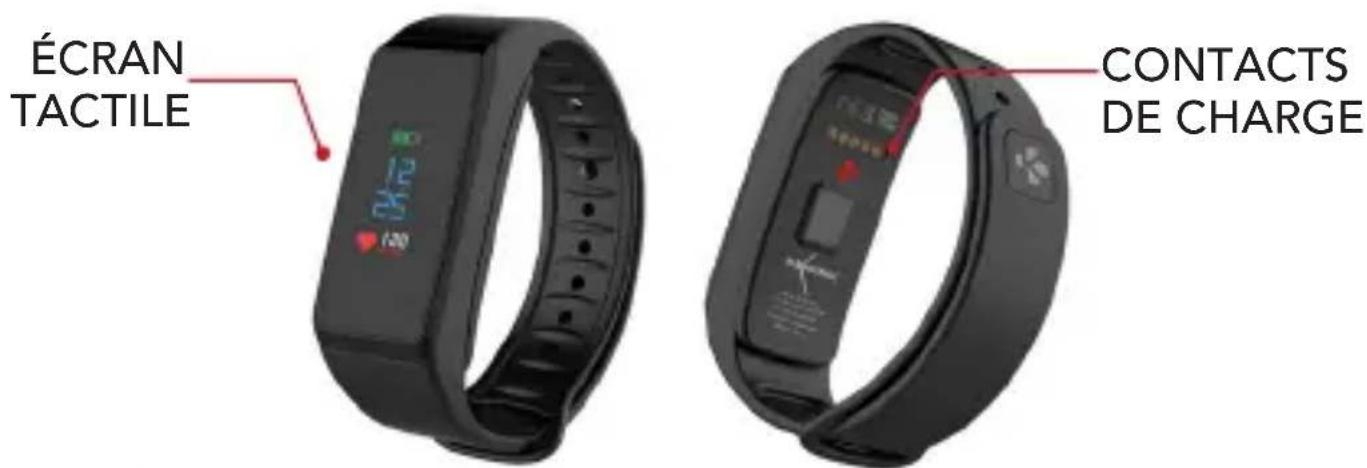
ÉCRAN TACTILE CONTACTS DE CHARGEi
natural_image
Diagram showing a smartwatch connected to a laptop via cable, with no visible text or symbols.Configurations requises
iOS Android
natural_image
Two black plastic electronic devices with textured soles, one above a rectangular housing and the other a ring (no text or symbols visible)text_image
3 P88Y hello jkm. how are you today?13. APPELS MANQUÉS
text_image
QR code image containing encoded data, no visible human-readable textScansionare per ottenere più lingue Digitalizar para obtermais línguas Escanear para obtener más idiomas Scannen, um anderen Sprachen erhalten Scan om meer talen te krijgen Daha fazla dil almak için tarama Skanowanie, aby uzyskać więcej języków için scanare pentru a obține mai multe limbi сканирование, чтобы получить больше языков 请扫描二维码以获取更多语言翻译。 掃描QR碼獲得更多的語言 より多くの言語を取得するためにスキャン สแกนเพื่อให้ได้ภาษามากขึ้น 더 많은 언어를 얻기 위해 검색
OR VISIT http://www.mykronoz.com/assets/user-guide-zefit2pulse.pdf TO DOWNLOAD OUR MULTI-LANGUAGE USER MANUAL
WARNING
I Connecting the charging cable improperly may cause serious damage to the device. Any damage caused by misuse is not covered by the warranty. Unplug the cable after ZeFit ^2 Pulse is fully charged.
I ZeFit ^2 Pulse unit and charging dock contains strong magnets that may interfere with pacemakers, credit cards, watches and other magnet-sensitive objects. If you use a pacemaker or any other electronic medical device, please consult your physician before wearing or handling ZeFit ^2 Pulse
This product is not a medical device and should not be used to diagnose or treat any medical condition.
This product is in compliance with the IP rating IP67. IP67 indicates that the product is resistant again dust ingress and water ingress up to 1 meter of submersion in still tap water at room temperature, for a maximum duration of 30 minutes
ABOUT THIS MANUAL
The features of ZeFit ^2 Pulse and the contents of the user manual are subject to change. To get the latest instructions on how to use this product, please refer to the online user manual available on www.mykronoz.com
SUPPORT
If you have any question or require assistance regarding our product, please visit www.mykronoz.com/support/ or email us at support@mykronoz.com
ATTENTION
Before using the device, read these instructions carefully.
■ ZeFit® Pulsehas one built-in battery. Do not disassemble the battery on your own. KRONOZ LLC is not responsible for any damage or personnel injury caused by the removal of the battery or any component.
This device is not waterproof so keep it away from all sources of heat or humidity. Do not use it near sink or other wet areas. Do not immerse the product in any liquid other than water. Do not immerse the product in salt water. Do not swim wearing this product. Do not use the product underwater.
- Charge the battery in a cool, ventilated room. Excessive temperature during charging could cause heat, smoke, fir or deformation of the battery or even explosion.
Avoid excessive temperatures. Do not expose this device to excessive smoke, dust sand, or direct sunlight for an extended period of time.
Do not open, crush, bend, deform, puncture or shred secondary cells or batteries. In the event of a battery break or leak, prevent battery liquid contact with skin or eyes. If this happens, immediately flush the areas with water (do not rub the eye) or seek medical help.
Do not short-circuit. Short-circuiting can occur when a metallic object, such as coins, causes direct connection of positive and negative terminals of the battery. Short-circuiting may damage the battery.
Do not use batteries that have been damaged or have been exhausted.
Keep the batteries out of children's reach and in a safe place to prevent danger.
Do not dispose of batteries in fire as they may cause explosion. Dispose of used batteries in accordance with your local regulations (such as recycling). Do not dispose as household waste.
Use only the USB cable supplied to charge this battery. Do not charge for more than 24 hours.
KRONOZ LLC is not responsible for any damage caused by improper use of the device.
REGULATORY NOTICES
USA

FCC STATEMENT
This device complies with Part 15 of the FCC Rules. Operation is subject to the following two conditions: (1) This device may not cause harmful interference, and (2) This device must accept any interference received, including interference that may cause undesired operation.
CAUTIONS
Changes or modifications not expressly approved by the party responsible for compliance could void the user's authority to operate this equipment.
FCC NOTICE
This equipment complies within the limits of a Class B digital device, pursuant to part 15 of the FCC Rules. These limits are designed to provide reasonable protection against radio and TV interference in residential areas. However, even during normal operation, this equipment may cause TV or radio interference. If this equipment does cause harmful interference to radio or television reception, which can be determined by turning the equipment off and on, the user is encouraged to try one or more of the following corrective measures:
■ Reposition the receiving antenna
Increase the distance between the equipment and receiver
Connect the equipment into an outlet on a circuit different from which the receiver is connected
Consult the dealer or an experienced radio/TV technician for help.
FCC ID: 2AA7D-ZEFT2P
CANADA
INDUSTRY CANADA (IC) STATEMENT
This device complies with Industry Canada license-exempt RSS standard(s). Operation is subject to the following two conditions: (1) this device may not cause interference, and (2) this device must accept any interference, including interference that may cause undesired operation of the device.
Declaration of conformity with regard to the EU Directive 1999/5/EC.
Kronoz LLC hereby declares that this device is in compliance with the essential requirements and other relevant provisions of the R&TTE Directive 1999/5/EC. The complete declaration of conformity is available on request via our customer service: support@mykronoz.com
DISPOSAL AND RECYCLING INFORMATION
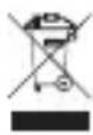
After the implementation of the European Directive 2002/96/EU in the national legal system, the following applies: Electrical and electronic devices may not be disposed of with domestic waste. Consumers are obliged by law to return electrical and electronic devices at the end of their service lives to the public collecting points set up for this purpose or point of sale. Details to this are defined by the national law of the respective country. This symbol on the product, the instruction manual or the package indicates that a product is subject to these regulations. By recycling, reusing the materials or other forms of utilizing old devices, you are making an important contribution to protecting our environment.
©2015 Kronoz LLC, all rights reserved. Kronoz LLC, Avenue Louis-Casai 18 - 1209 Geneva - Switzerland All brands or product names are or may be trademarks of their respective owners. Pictures and specifications are not contractual. Les marques citées sont des marques déposées par leur fabricant respectif. Photos et caractéristiques non contractuelles. Designed in Switzerland - Made in China
MYXKRONOZ MORE THAN TIME
www.mykronoz.com