EasyManual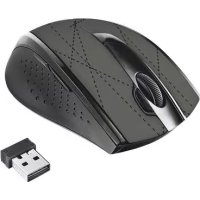
Daash - Mouse TRUST - Free user manual and instructions
Find the device manual for free Daash TRUST in PDF.



Download the instructions for your Mouse in PDF format for free! Find your manual Daash - TRUST and take your electronic device back in hand. On this page are published all the documents necessary for the use of your device. Daash by TRUST.
USER MANUAL Daash TRUST
USB Install Driver Online support www.trust.com Install driver Registration + online support www.trust.com Daash Wireless Mouse
a b Configuration Your device is ready to useDevice driver software installed successfully. a b
Installation is completed.Setup has finished Trust Wireless Mouse in your computer.Startup Trust Wireless MouseProfile 1Profile 2Profile 3Profile 4Profile 5 Profile 1
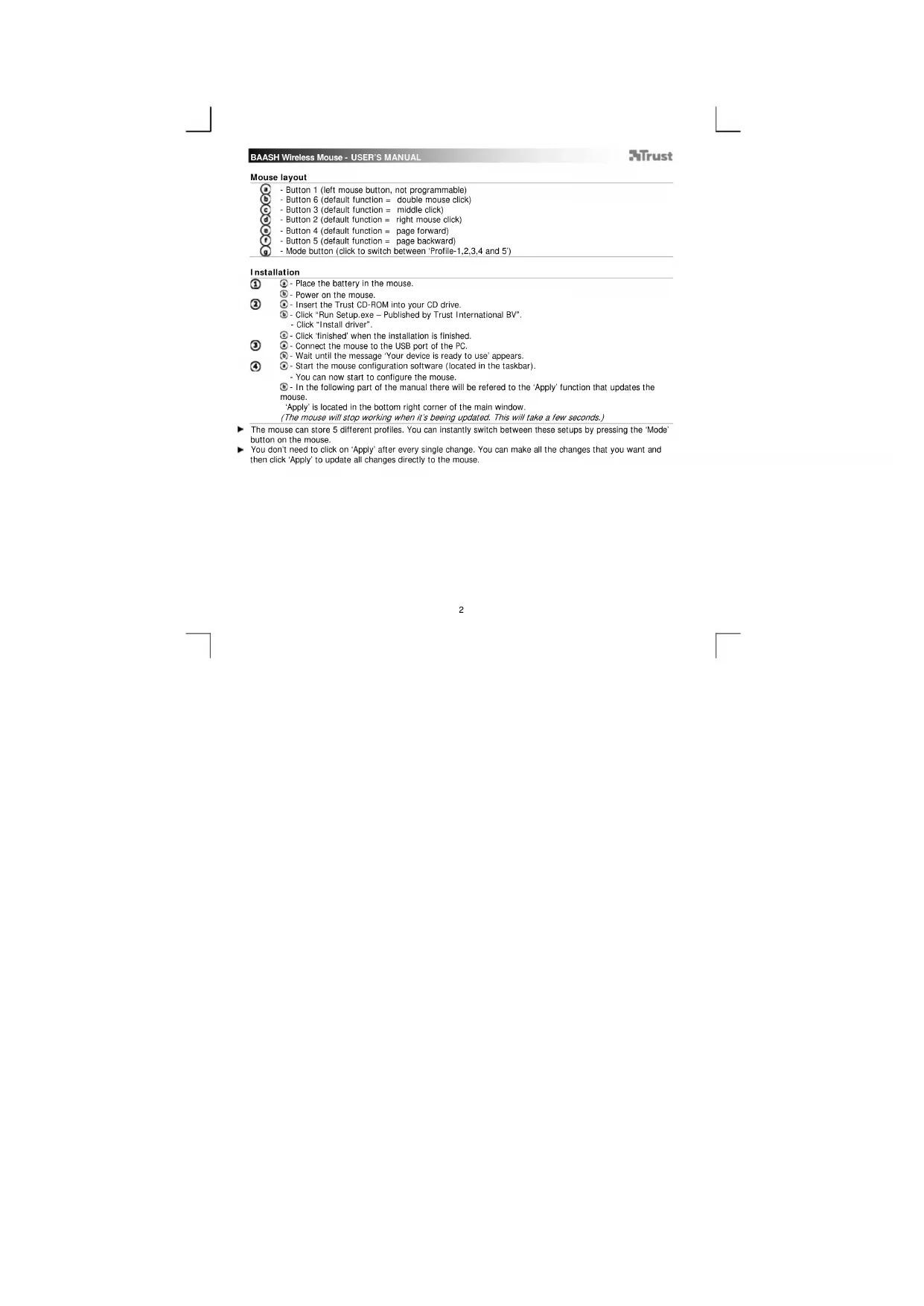
- Place the battery in the mouse. - Power on the mouse. - Insert the Trust CD-ROM into your CD drive. - Click “Run Setup.exe – Published by Trust International BV”. - Click “Install driver”. - Click ‘finished’ when the installation is finished. - Connect the mouse to the USB port of the PC. - Wait until the message ‘Your device is ready to use’ appears. - Start the mouse configuration software (located in the taskbar). - You can now start to configure the mouse. - In the following part of the manual there will be refered to the ‘Apply’ function that updates the mouse. ‘Apply’ is located in the bottom right corner of the main window. (The mouse will stop working when it’s beeing updated. This will take a few seconds.) The mouse can store 5 different profiles. You can instantly switch between these setups by pressing the ‘Mode’ button on the mouse. You don’t need to click on ‘Apply’ after every single change. You can make all the changes that you want and then click ‘Apply’ to update all changes directly to the mouse.BAASH Wireless Mouse - USER’S MANUAL
Profile settings (The mouse can store 5 different profiles)
Changing a profile - Click on ‘Profile’. - Click on the profile that you want to change.
Enable or disable profiles - Click on ‘Mode Name/Select’. - In the ‘Mode Administration’ window you can change profile names and enable or disable profile. - To disable a profile, un-tick each profile from the bottom to the top order; to add a profile tick each profile in reverse order. Configuration
Assign a function - Click on the button which you want to re-assign. - Hover over the function type you want to assign (Mouse, Internet, Multimedia, etc.). - Click on the function that you want to assign. - Click on ‘Apply’. The mouse is beeing updated.
Assign a Keyboard function - Click on the button which you want to re-assign. - Click on ‘Keyboard’. - Click on the virtual keyboard key that you wish to assign. - Click on ‘Apply’. The mouse is beeing updated.
Assign launch a program - Click on the button which you want to re-assign. - Click on ‘Execute Program’. - Double click the .exe file that you want to launch. - Click on ‘Apply’. The mouse is beeing updated. Windows 8 functions Assign a windows 8 feature - Click on the button which you want to re-assign. - Click on ‘Windows 8’. - Click on the function that you want to assign. - Click on ‘Apply’. The mouse is beeing updated.BAASH Wireless Mouse - USER’S MANUAL
Change the DPI settings (every profile has his own DPI setting, profiles and DPI are linked) - Click on ‘DPI Setting’. - You can change the DPI setting for both X and Y axis seperatly (100 – 2000). - Click on ‘OK’. - Click on ‘Apply’. The mouse is beeing updated.
Change the report rate (every profile has his own report rate profiles and report rate are linked) - Click on ‘Report Rate’. - Select the desired report rate (125Hz, 250Hz, 500Hz). - Click on ‘OK’. - Click on ‘Apply’. The mouse is beeing updated.
- Mouse default settings are being restored. This will take a few seconds.
Trouble shooting Problem Solution How can I see if the battery is empty - If the software is installed it will show a popup to indicate that the battery is almost empty. How can I change the mouse functions - Install the software (see step 2.). How do I reset the default settings - See step 9. The mouse arrow shakes, moves strangely or does not move at all - Replace the battery. - Try using the mouse on a different surface or use a mouse pad. - Clean the sensor on the bottom of the mouse with a dry cloth. - Connect the Trust wireless receiver to another USB port, closer to your Trust wireless device. - Remove any other wireless receivers which are connected to USB ports close to your Trust wireless receiver. If your problem is not solved, please contact the helpdesk at www.trust.com/18966/faq.BAASH Wireless Mouse - USER’S MANUAL