ASPIRE V5471 - Laptop ACER - Free user manual and instructions
Find the device manual for free ASPIRE V5471 ACER in PDF.



User questions about ASPIRE V5471 ACER
0 question about this device. Answer the ones you know or ask your own.
Ask a new question about this device
Download the instructions for your Laptop in PDF format for free! Find your manual ASPIRE V5471 - ACER and take your electronic device back in hand. On this page are published all the documents necessary for the use of your device. ASPIRE V5471 by ACER.
USER MANUAL ASPIRE V5471 ACER
Product registration
When using your product for the first time, it is recommended that you immediately register it. This will give you access to some useful benefits, such as:
- Faster service from our trained representatives.
Membership in the Acer community: receive promotions and participate in customer surveys.
The latest news from Acer.
Hurry and register, as other advantages await you!
How to register
To register your Acer product, please visit www.acer.com. Select your country, click PRODUCT REGISTRATION and follow the simple instructions.
You will also be asked to register your product during the setup process, or you can double-click the Registration icon on the desktop.
After we receive your product registration, you will be sent a confirmation email with important data that you should keep in a safe place.
Obtaining Acer accessories
We are happy to inform you that Acer's warranty extension program and Notebook accessories are available online. Come and visit our online shop and find what you need at store.acer.com.
The Acer store is being progressively rolled out, and, unfortunately may not be available in some regions. Please check back regularly to see when it will be available in your country.
Model number:
Serial number:
Date of purchase:
Place of purchase:
First things first
We would like to thank you for making an Acer notebook your choice for meeting your mobile computing needs.
Your guides
To help you use your Acer notebook, we have designed a set of guides: First off, the Setup Poster helps you get started with setting up your computer.
The Quick Guide introduces you to the basic features and functions of your new computer.
For more on how your computer can help you to be more productive, please refer to the Aspen V5 User's Manual. The Aspen V5 User's Manual contains useful information applying to your new computer. It covers basic topics such as using the keyboard and audio, etc.
This guide contains detailed information on such subjects as system utilities, data recovery, expansion options and troubleshooting. In addition it contains warranty information and the general regulations and safety notices for your notebook.
Follow these steps to access it:
1 Type "User" from Start.
2 Click on Acer User's Manual.
Your Acer notebook tour
After setting up your computer as illustrated in the setup poster, let us show you around your new Acer notebook.
Keyboard view
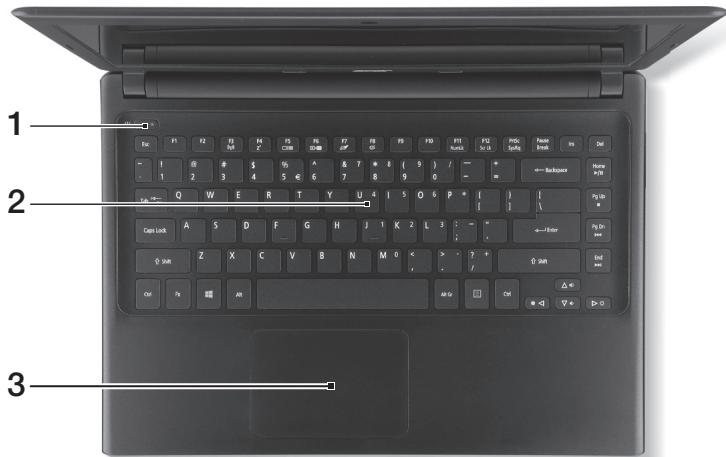
| # | Icon | Item | Description |
| 1 | Power button | Turns the computer on and off. | |
| 2 | Keyboard | For entering data into your computer. Caution: Do not use a keyboard protector or similar cover as the keyboard includes ventilation intakes for cooling. | |
| 3 | Touchpad | Touch-sensitive pointing device. The touchpad and selection buttons form a single surface. Press down firmly on the touchpad surface to perform a left click. Press down firmly on the lower right corner to perform a right click. |
Hotkeys
The computer employs hotkeys or key combinations to access most of the computer's controls like screen brightness and volume output.
To activate hotkeys, press and hold the
| Hotkey | Icon | Function | Description |
| +Fn> + <F3> | (1) | Airplane mode | Turns on / off the computer's network devices. (Network devices vary by configuration.) |
| <Fn> + <F4> | Z² | Sleep | Puts the computer in Sleep mode. |
| <Fn> + <F5> | □□ | Display toggle | Switches display output between the display screen, external monitor (if connected) and both. |
| <Fn> + <F6> | □□□ | Screen blank | Turns the display screen backlight off to save power. Press any key to return. |
| <Fn> + <F7> | ∅ | Touchpad toggle | Turns the internal touchpad on and off. |
| <Fn> + <F8> | 鸣 | Speaker toggle | Turns the speakers on and off. |
| <Fn> + <F9> | Brightness up | Increases the screen brightness. | |
| <Fn> + <F10> | Brightness down | Decreases the screen brightness. | |
| <Fn> + <△> | Volume up | Increases the sound volume. | |
| <Fn> + <▽> | Volume down | Decreases the sound volume. | |
| <Fn> + <Home> | /| | | Play/Pause | Play or pause a selected media file. |
| <Fn> + <Pg Up> | ■ | Stop | Stop playing the selected media file. |
| <Fn> + <Pg Dn> | |▲| | Previous | Return to the previous media file. |
| <Fn> + <End> | ▶▶| | Next | Jump to the next media file. |
Screen view
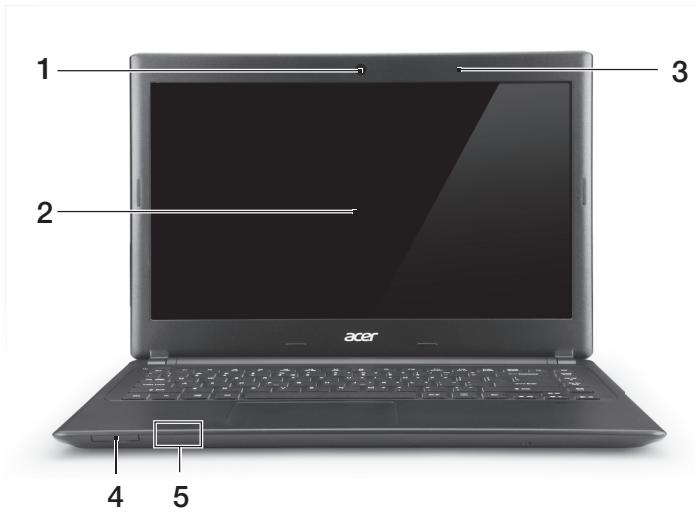
| # | Icon | Item | Description |
| 1 | Webcam | Web camera for video communication. A light next to the Web cam indicates that the webcam is active. | |
| 2 | Screen | Displays computer output. | |
| 3 | Microphone | Internal microphone for sound recording. | |
| 4 | MULTIMEDICRIDGE | 2-in-1 card reader | Accepts one Secure Digital (SD or SDHC) card or MultiMediaCard (MMC). Note: To remove the card, simply pull it from the slot. |
| 5 | Power indicator | Indicates the computer's power status. | |
| Battery indicator | Indicates battery status. Charging: The light is amber when the battery is charging. Fully charged: The light is blue. | ||
Left view
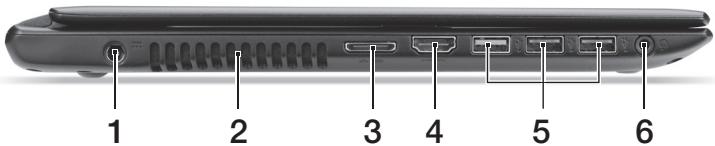
| # | Icon | Item | Description |
| 1 | DC-in jack | Connects to an AC adapter. | |
| 2 | Ventilation and cooling fan | Allows the computer to stay cool. Do not cover or obstruct the openings. | |
| 3 | LAN/VGA combo port | Makes it easy to get online and plug in an external display, from one place. The provided LAN/VGA combo cable is hot-swappable so you can plug it in and out even when the notebook is on. | |
| 4 | HDMI | HDMI port | Supports high-definition digital video connections. |
| 5 | USB ports | Connects to USB devices. If a port is black it is USB 2.0 compatible, if it is blue it is also USB 3.0 compatible (see below). | |
| 6 | Headset/speaker jack | Connects to audio devices (e.g., speakers, headphones) or a headset with microphone. |
Information on USB 3.0
- Compatible with USB 3.0 and earlier devices.
- For optimal performance, use USB 3.0-certified devices.
- Defined by the USB 3.0 specification (SuperSpeed USB).
Right view
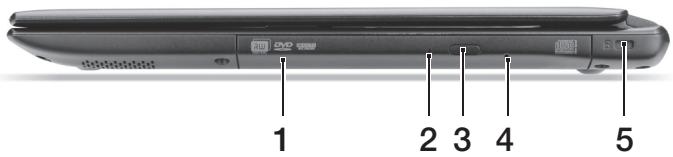
| # | Icon | Item | Description |
| 1 | Optical drive | Internal optical drive; accepts CDs or DVDs. | |
| 2 | Optical disk access indicator | Lights up when the optical drive is active. | |
| 3 | Optical drive eject button | Ejects the optical disk from the drive. | |
| 4 | Emergency eject hole | Ejects the optical drive tray when the computer is turned off. Carefully insert a straightened paper clip to eject the optical drive tray. | |
| 5 | K | Kensington lock slot | Connects to a Kensington-compatible computer security lock. Wrap the computer security lock cable around an immovable object such as a table or handle of a locked drawer. Insert the lock into the notch and turn the key to secure the lock. Keyless models are also available. |
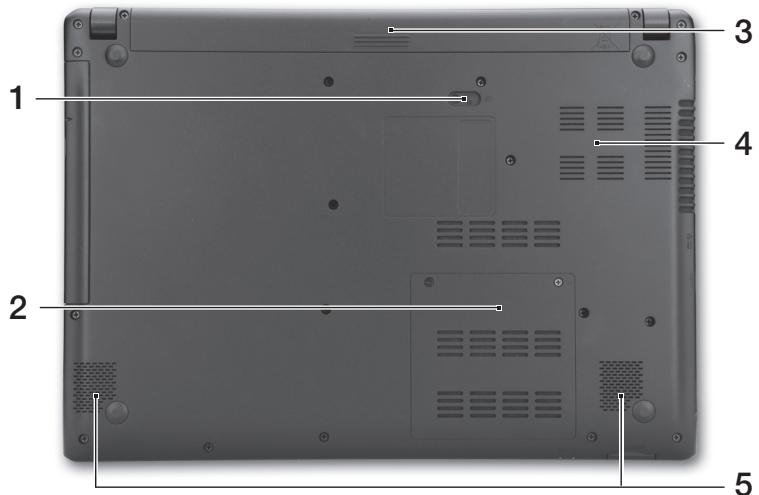
Base view
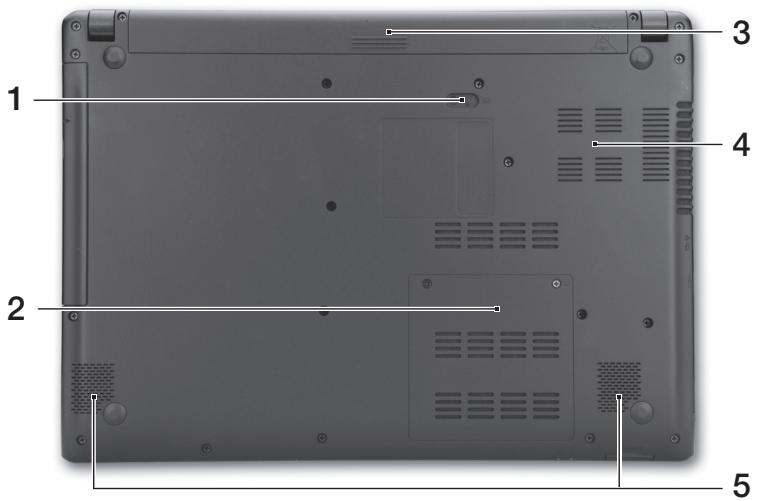
| # | Icon | Item | Description |
| 1 | L+ | Battery release latch | Releases the battery for removal. Insert a suitable tool and slide to release. |
| 2 | mm | Memory compartment | Houses the computer's main memory. |
| 3 | Battery bay | Houses the computer's battery pack. | |
| 4 | Ventilation and cooling fan | Allows the computer to stay cool. Do not cover or obstruct the openings. | |
| 5 | Speakers | Deliver stereo audio output. |
Environment
Temperature:
-
Operating: 5^ C to 35^ C
Non-operating: -20 °C to 65 °C -
Humidity (non-condensing):
-
Operating: 20% to 80% .
Non-operating: 20% to 80%
Connecting to the Internet
Your computer's wireless connection is turned on by default.
Windows will detect and display a list of available networks during setup. Select your network and enter the password if required.
Otherwise, open Internet Explorer and follow the instructions. Please also refer to your ISP or router documentation.
Power management
This computer has a built-in power management unit that monitors system activity, such as activity involving one or more of the following devices: keyboard, mouse, hard disk, peripherals connected to the computer, and video memory. If no activity is detected for a period of time, the computer stops some or all of these devices in order to conserve energy.
Aspire V5
Guide rapide
Acer notebook is bundled with the approved telecom modules for your networking.
Those modules' model number and specific homologation number refers to below:
[Modem]
| Modelo: RD02-D330 | CNC 54-4512 |
| Modelo: Delphi D40 (AM5) | CNC 54-5681 |
[Bluetooth]
| Modelo: BCM92046 | CNC 16-6735 |
| Modelo: BCM92070MD_REF | CNC 16-7165 |
| Modelo: T77H056 | CNC 16-7788 |
| Modelo: AR5BBU12 | CNC 16-7946 |
[Bluetooth+802.11bgn]
| Modelo: BCM943225HMB | CNC C-7497 |
[802.11AGN]
| Modelo: 512AN_MMW | CNC C-6399 |
| Modelo: 533AN_MMW | CNC C-6385 |
| Modelo: 512AN_HMW | CNC C-7612 |
| Modelo: 533AN_HMW | CNC C-7618 |
| Modelo: 622ANHMW | CNC C-7682 |
| Modelo: 633ANHMW | CNC C-7681 |
[802.11BGN]
| Modelo: AR5B95 | CNC C-7152 |
| Modelo: AR5B93 | CNC C-7151 |
| Modelo: 112BNHMW | CNC C-7470 |
| Modelo: 112BNMMW | CNC C-7471 |
| Modelo: RTL8192SE | CNC C-7495 |
| Modelo: BCM943225HM | CNC C-7395 |
| Modelo: AR5B97 | CNC C-7781 |
| Modelo: BCM94313HMG2L | CNC C-7881 |
[802.11BG]
| Modelo: BCM94312HMG | CNC 16-6180 |
[3G]
| Modelo: UNDP-1 | CNC 17-6334 |
| Modelo: Gobi2000 | CNC 17-7291 |
[Brasil] Noticia adicional de regulamento Anatel
Notification Regulation Adicional
[Mexico-COFETEL]
Acer notebook is bundled with the approved telecom modules for your networking. Those modules' model number and specific homologation number refers to below:
[Modem]
| Modelo: RD02-D330 | COFETEL: TTDCORD06-536 |
| Modelo: Delphi_D40 (AM5) | COFETEL: TTDAGDE07-056 |
[Bluetooth]
| Modelo: BCM92046 | COFETEL: RCPFOBC08-0472 |
| Modelo: BCM92070MD_REF | COFETEL: RCPBRBC09-0213 |
| Modelo: T77H056 | COFETEL: RCPATT709-1049 |
| Modelo: AR5BBU12 | COFETEL: RCPATAR10-0064 |
[Bluetooth+802.11BGN]
| Modelo: BCM943225HMB | COFETEL: RCPBRBC09-0574 |
[802.11AGN]
| Modelo: 512AN_HMW | COFETEL:RCPIN5108-0260 |
| Modelo: 512AN_MMW | COFETEL:RCPIN5108-0260-A3 |
| Modelo: 533AN_HMW | COFETEL:RCPIN5108-0260-A2 |
| Modelo: 533AN_MMW | COFETEL:RCPIN5108-0260-A1 |
| Modelo: 622ANHMW | COFETEL:RCPIN6209-1009 |
| Modelo: 633ANHMW | COFETEL:RCPIN6309-1010 |
[802.11BGN]
| Modelo: AR5B95 | COFETEL:RCPATAR09-0168 |
| Modelo: AR5B93 | COFETEL: RCPATAR09-0167 |
| Modelo: 112BNHMW | COFETEL: RCPIN1109-0613-A1 |
| Modelo: 112BNMMW | COFETEL: RCPIN1109-0613 |
| Modelo: RTL8192SE | COFETEL: RCPRERT09-0751 |
| Modelo: BCM943225HM | COFETEL: RCPBRBC09-0464 |
| Modelo: AR5B97 | COFETEL: RCPATAR09-1103 |
| Modelo: BCM94313HMG2L | COFETEL: RCPBRBC09-1196 |
[802.11BG]
| Modelo: BCM94312HMG | COFETEL: RCPBRBC08-0015 |
[3G]
| Modelo: UNDP-1 | COFETEL:RTIQUUN08-0253 |
| Modelo: Gobi2000 | COFETEL:RTIQUGO09-0555 |
| Modelo: EM770W | COFETEL:RTIHUEM10-0096 |
[WiMax]
| Modelo: 622ANXHMW | COFETEL: RCPIN6210-0219 |
Aspire V5
Guia=rápido
Registo do produto
- Pa6oua: ot 20% do 80%
- Hespera: ot 20% do 80%
Juhised selle avamiseks:
| # | 어이본 | hal복 | SELMSG |
| 1 | ◇◇◇◇◇◇◇◇◇◇◇◇◇◇◇◇◇◇◇◇◇◇◇◇◇◇◇◇◇◇◇◇◇◇◇◇◇◇◇◇◇◇◇◇◇◇◇◇◇◇◇◇◇◇◇◇◇◇◇◇◇◇◇◇◇◇◇◇◇◇◇◇◇◇◇◇◇◇◇◇◇◇◇◇◇◇◇◇◇◇◇◇◇◇◇◇◇◇◇◇◆ | ||
| 2 | ◇◇◇◇◇◇◇◇◇◇◇◇◇◇◇◇◇◇◇◇◇◇◇◇◇◇◇◇◇◇◇◇◇◇◇◇◇◇◇◇◇◇◇◇◇◇◇◇◇◇◇◇◇◇◇◇◇◇◇◇◇◇◇◇◇◇◇◇◇◇◇◇◇◇◇◇◇◇◇◇◇◇◇◇◇◇◇◇◇◇◇◇◇◇◇◇◇◆. | ||
| 3 | ◇◇◇◇◇◇◇◇◇◇◇◇◇◇◇◇◇◇◇◇◇◇◇◇◇◇◇◇◇◇◇◇◇◇◇◇◇◇◇◇◇◇◇◇◇◇◇◇◇◇◇◇◇◇◇◇◇◇◇◇◇◇◇◇◇◇◇◇◇◇◇◇◇◇◇◇◇◇◇◇◇◇◇◇◇◇◇◇◇◇◇◇◇◇◇◇◇○. | ||
| 4 | ◇◇◇◇◇◇◇◇◇◇◇◇◇◇◇◇◇◇◇◇◇◇◇◇◇◇◇◇◇◇◇◇◇◇◇◇◇◇◇◇◇◇◇◇◇◇◇◇◇◇◇◇◇◇◇◇◇◇◇◇◇◇◇◇◇◇◇◇◇◇◇◇◇◇◇◇◇◇◇◇◇◇◇◇◇◇◇◇◇◇◇◇◇◇◇◇◇✘. | ||
| 5 | K | Kensington 상품무원지름오리 | Kensington hypothesize that the person who has a problem with their body might be at risk of dying. |
| Kensington hypothesize that the person who has a problem with their body might be at risk of dying. | |||
| Kensington hypothesize that the person who has a problem with their body might be at risk of dying. | |||
| Kensington hypothesize that the person who has a problem with their body might be at risk of dying. | |||
| Kensington hypothesize that the person who has a problem with their body might be at risk of dying. |
卡默