
ASPIRE S7-191 - Laptop ACER - Free user manual and instructions
Find the device manual for free ASPIRE S7-191 ACER in PDF.



| Product type | Ultrabook laptop |
| Brand | Acer |
| Model | Aspire S7-191 |
| Processor | Intel Core i5 / i7 (depending on configuration) |
| RAM memory | 4 GB or 8 GB DDR3 |
| Storage | 128 GB or 256 GB SSD |
| Screen | 13.3-inch Full HD touch (1920 x 1080) |
| Weight | Approximately 1.3 kg |
| Dimensions (W x D x H) | 323 x 228 x 11.9 mm |
| Battery life | Up to 8 hours |
| Wi-Fi connectivity | Wi-Fi 802.11 a/b/g/n |
| Bluetooth | Bluetooth 4.0 |
| Ports | 1 x USB 3.0 (with power-off charging), 1 x USB 3.0, micro HDMI, headphone/microphone jack, microSD reader |
| Webcam | HD (1280 x 720) |
| Speakers | Built-in stereo |
| Operating system | Windows 8 (upgradeable) |
| Power supply | 45 W AC adapter |
| Operating temperature | 5 °C to 35 °C |
| Ambient light sensor | Yes, for automatic backlight |
| Warranty | Standard manufacturer warranty (depending on country) |
Frequently Asked Questions - ASPIRE S7-191 ACER
User questions about ASPIRE S7-191 ACER
0 question about this device. Answer the ones you know or ask your own.
Ask a new question about this device
Download the instructions for your Laptop in PDF format for free! Find your manual ASPIRE S7-191 - ACER and take your electronic device back in hand. On this page are published all the documents necessary for the use of your device. ASPIRE S7-191 by ACER.
USER MANUAL ASPIRE S7-191 ACER
Product registration
When using your product for the first time, it is recommended that you immediately register it. This will give you access to some useful benefits, such as:
- Faster service from our trained representatives.
- Membership in the Acer community: receive promotions and participate in customer surveys. The latest news from Acer.
Hurry and register, as other advantages await you!
How to register
To register your Acer product, please visit www.acer.com. Select your country, click PRODUCT REGISTRATION and follow the simple instructions.
You will also be asked to register your product during the setup process, or you can double-click the Registration icon on the desktop.
After we receive your product registration, you will be sent a confirmation email with important data that you should keep in a safe place.
Obtaining Acer accessories
We are happy to inform you that Acer's warranty extension program and Notebook accessories are available online. Come and visit our online shop and find what you need at store.acer.com.
The Acer store is being progressively rolled out, and, unfortunately may not be available in some regions. Please check back regularly to see when it will be available in your country.
Model number:
Serial number:
Date of purchase:
Place of purchase:
First things first
We would like to thank you for making an Acer notebook your choice for meeting your mobile computing needs.
Your guides
To help you use your Acer notebook, we have designed a set of guides:
First off, the Setup Poster helps you get started with setting up your computer.
The Quick Guide introduces you to the basic features and functions of your new computer.
For more on how your computer can help you to be more productive, please refer to the Aspire S7-191 User's Manual. The Aspire S7-191 User's Manual contains useful information applying to your new computer. It covers basic topics such as using the keyboard and audio, etc.
This guide contains detailed information on such subjects as system utilities, data recovery, expansion options and troubleshooting. In addition it contains warranty information and the general regulations and safety notices for your notebook.
Follow these steps to access it:
- Type 'User' from Start.
- Click on Acer User's Manual.
Environment
- Temperature:
- Operating: 5°C to 35°C Non-operating: -20°C to 65°C
- Humidity (non-condensing):
- Operating: 20% to 80%. Non-operating: 20% to 80%
Your Acer notebook tour
After setting up your computer as illustrated in the setup poster, let us show you around your new Acer notebook.
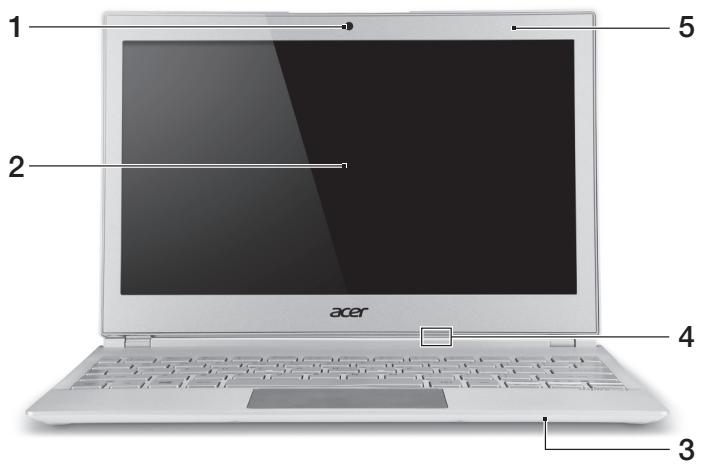
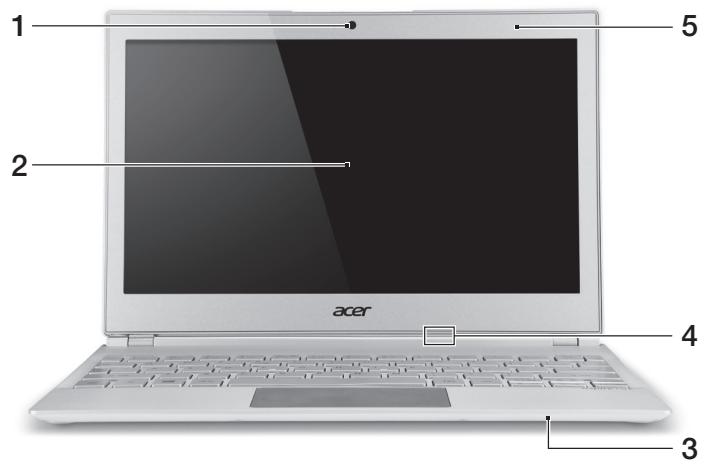
Screen view
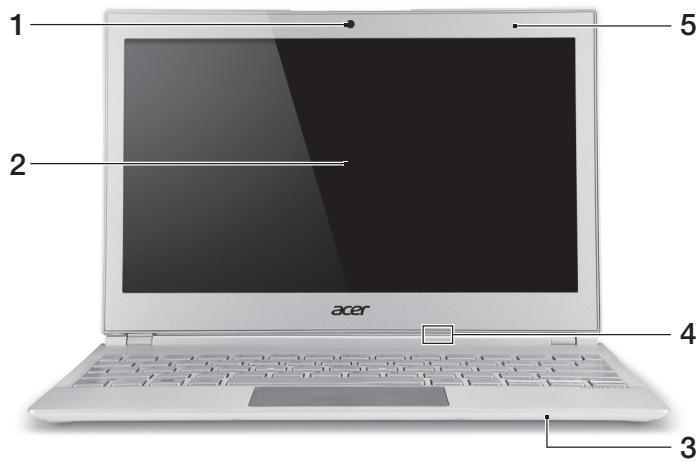
| # | Icon | Item | Description |
| 1 | Webcam | Web camera for video communication. A light next to the webcam indicates that the webcam is active. | |
| 2 | Touchscreen | Displays computer output, supports multi-touch input. | |
| 3 | Microphone | Internal microphone for sound recording. | |
| 4 | Power indicator | Indicates the computer's power status. Blue: The computer is turned on. Amber, slow flash: The computer is in Standby. Amber, fast flash: The computer is entering Hibernate / Deep Sleep. | |
| Battery indicator | Indicates battery status. Amber: The battery is charging. Blue: The battery is fully charged. | ||
| 5 | Ambient light sensor | Controls the keyboard and monitor backlights. |
Keyboard view
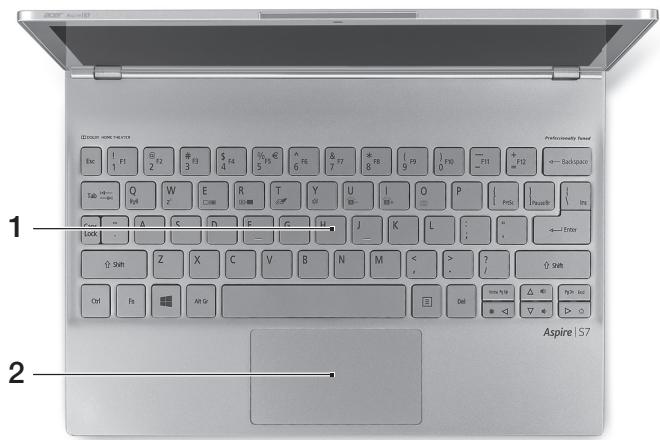
| # | Icon | Item | Description |
| 1 | Keyboard | For entering data into your computer. Caution: Do not use a keyboard protector or similar cover as the keyboard includes ventilation intakes for cooling. | |
| 2 | Touchpad | Touch-sensitive pointing device. The touchpad and selection buttons form a single surface. Press down firmly on the touchpad surface to perform a left click. Press down firmly on the lower right corner to perform a right click. Swipe the right-hand edge of the touchpad inward to access the charms. |
Rear view

| # | Icon | Item | Description |
| 1 | HDMI | HDMI Micro port | Supports high-definition digital video connections. |
Left view

| # | Icon | Item | Description |
| 1 | Extended battery securing location | Secures the optional extended battery in place. | |
| 2 | DC-in jack | Connects to an AC adapter. | |
| 3 | USB port | Connects to USB devices. If a port is black it is USB 2.0 compatible, if it is blue it is also USB 3.0 compatible (see below). | |
| 4 | Power button | Turns the computer on and off. Note: Opening the lid will also turn the computer on. |
Information on USB 3.0
- Compatible with USB 3.0 and earlier devices.
- For optimal performance, use USB 3.0-certified devices.
- Defined by the USB 3.0 specification (SuperSpeed USB).
Right view
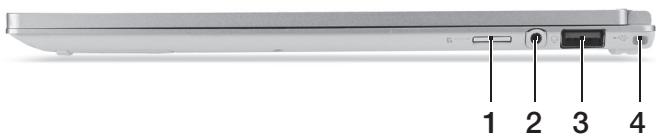
| # | Icon | Item | Description |
| 1 | microSD card reader | Accepts one microSD Card. Note: Push to remove/install the card. Only one card can operate at any given time. | |
| 2 | Headset/speaker jack | Connects to audio devices (e.g., speakers, headphones) or a headset with microphone. | |
| 3 | USB | USB port with power-off chargin | Connects to USB devices. If a port is black it is USB 2.0 compatible, if it is blue it is also USB 3.0 compatible (see below). |
| 4 | Extended battery securing location | Secures the optional extended battery in place. |
Base view
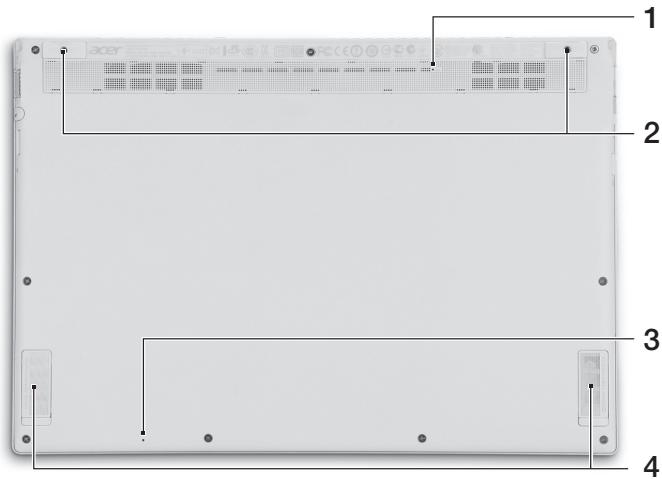
| # | Icon | Item | Description |
| 1 | Battery reset pinhole | Simulates removing and reinstalling the battery Insert a paperclip into the hole and press for four seconds to reset the computer. | |
| 2 | Screw holes | Screw holes for the optional extended battery. | |
| 3 | Microphone | Internal microphone for sound recording. | |
| 4 | Speakers | Deliver stereo audio output. |
Using the keyboard
The keyboard has full-sized keys, separate cursor, and Windows keys.
Hotkeys
The computer employs hotkeys or key combinations to access most of the computer's controls like screen brightness and volume output.
To activate hotkeys, press and hold the Fn key before pressing the other key in the hotkey combination.
| Hotkey | Icon | Function | Description |
| +Fn> + <Q> | ((:) | Communication | Enables/disables the computer's communication devices. |
| <Fn> + <W> | Z² | Sleep | Puts the computer in Sleep mode. |
| <Fn> + <E> | □□ | Display toggle | Switches display output between the display screen, external monitor (if connected) and both. |
| <Fn> + <R> | + - | Screen blank | Turns the display screen backlight off to save power. Press any key to return. |
| <Fn> + <T> | # | Touchpad toggle | Turns the internal touchpad on and off. |
| <Fn> + <Y> | 哟 | Speaker toggle | Turns the speakers on and off. |
| <Fn> + <U> | A- | Decrease backlight brightness | Decreases the brightness of the keyboard backlight. |
| <Fn> + <I> | A+ | Increase backlight brightness | Increases the brightness of the keyboard backlight. |
| <Fn> + <U> + <I> | Backlight toggle | Turns the keyboard backlight on and off. Note: This function is disabled if the light sensor detects a bright environment. | |
| <Fn> + <O> | Rotate screen | Rotates the image displayed on the screen. | |
| <Fn> + <D> | Brightness up | Increases the screen brightness. | |
| <Fn> + <Δ> | Brightness down | Decreases the screen brightness. | |
| <Fn> + <△> | Volume up | Increases the sound volume. | |
| <Fn> + <∇> | Volume down | Decreases the sound volume. |
Note: To use Function keys (such as F1, F2 ...) press and the corresponding number key. Thus, + <1> for etc. During boot up, press + <2> to access BIOS.
Connecting to the Internet
Your computer's wireless connection is turned on by default. Windows will detect and display a list of available networks during setup. Select your network and enter the password if required.
Otherwise, open Internet Explorer and follow the instructions. Please also refer to your ISP or router documentation.
Acer Instant Connect
Instant Connect ensures a faster connection to any of the networks that your computer connects to most frequently.
Power management
This computer has a built-in power management unit that monitors system activity, such as activity involving one or more of the following devices: keyboard, mouse, hard disk, peripherals connected to the computer, and video memory. If no activity is detected for a period of time, the computer stops some or all of these devices in order to conserve energy.
Acer Green Instant On
The Acer Green Instant On feature allows your computer to wake up from Sleep mode in less than the time it takes to open the lid. When you close the lid, or leave your computer for a while, your computer enters Sleep mode. While the computer is in Sleep mode, the power indicator LED will flash orange.
Open the lid or press any key to wake the computer from Sleep mode.
After a certain amount of time in Sleep mode, the computer will automatically enter Deep Sleep to preserve battery life. When the computer is in Deep Sleep, the power indicator LED will be turned off. In this state, battery remains ready to use for many weeks.
Your computer should wake from Deep Sleep when you open the lid. Otherwise, press the power button.
Note: Once in Deep Sleep, your PC will consume significantly less power compared with Sleep mode, but it will take a little longer to wake up from Deep Sleep.
Deep Sleep and Sleep mode work together to ensure that your computer saves as much power as possible while still enabling quick, instant on access.
To save more power, your computer will typically enter and stay in Deep Sleep during times when it will not be frequently accessed, for example, during the middle of the night. To provide quicker access, your computer will enter and stay in Sleep mode during times when it will be frequently accessed, for example, during working hours.
Acer Aspire S7-191
Quick Guide
Acer Instant Connect
Acer Instant Connect
Acer Instant Connect
Acer Instant Connect
Additional Regulatory Notice
[Argentina]
Acer notebook is bundled with the approved telecom modules for your networking. Those modules' model number and specific homologation number refers to below:
[Modem]
| Modelo: RD02-D330 | CNC 54-4512 |
| Modelo: Delphi D40 (AM5) | CNC 54-5681 |
[Bluetooth]
| Modelo: BCM92046 | CNC 16-6735 |
| Modelo: BCM92070MD_REF | CNC 16-7165 |
| Modelo: T77H056 | CNC 16-7788 |
| Modelo: AR5BBU12 | CNC 16-7946 |
[Bluetooth+802.11bgn]
| Modelo: BCM943225HMB | CNC C-7497 |
[802.11AGN]
| Modelo: 512AN_MMW | CNC C-6399 |
| Modelo: 533AN_MMW | CNC C-6385 |
| Modelo: 512AN_HMW | CNC C-7612 |
| Modelo: 533AN_HMW | CNC C-7618 |
| Modelo: 622ANHMW | CNC C-7682 |
| Modelo: 633ANHMW | CNC C-7681 |
[802.11BGN]
| Modelo: AR5B95 | CNC C-7152 |
| Modelo: AR5B93 | CNC C-7151 |
| Modelo: 112BNHMW | CNC C-7470 |
| Modelo: 112BNMMW | CNC C-7471 |
| Modelo: RTL8192SE | CNC C-7495 |
| Modelo: BCM943225HM | CNC C-7395 |
| Modelo: AR5B97 | CNC C-7781 |
| Modelo: BCM94313HMG2L | CNC C-7881 |
[802.11BG]
| Modelo: BCM94312HMG | CNC 16-6180 |
[3G]
| Modelo: UNDP-1 | CNC 17-6334 |
| Modelo: Gobi2000 | CNC 17-7291 |
[Brazil] Additional Anatel Regulatory Notice
Acer notebook is bundled with the approved telecom modules for your networking. Those modules' model number and specific homologation number refers to below:
[Modem]
| Modelo: RD02-D330 | COFETEL: TTDCORD06-536 |
| Modelo: Delphi_D40 (AM5) | COFETEL: TTDAGDE07-056 |
[Bluetooth]
| Modelo: BCM92046 | COFETEL: RCPFOBC08-0472 |
| Modelo: BCM92070MD_REF | COFETEL: RCPBRBC09-0213 |
| Modelo: T77H056 | COFETEL: RCPATT709-1049 |
| Modelo: AR5BBU12 | COFETEL: RCPATAR10-0064 |
[Bluetooth+802.11BGN]
| Modelo: BCM943225HMB | COFETEL: RCPBRBC09-0574 |
[802.11AGN]
| Modelo: 512AN_HMW | COFETEL:RCPIN5108-0260 |
| Modelo: 512AN_MMW | COFETEL:RCPIN5108-0260-A3 |
| Modelo: 533AN_HMW | COFETEL:RCPIN5108-0260-A2 |
| Modelo: 533AN_MMW | COFETEL:RCPIN5108-0260-A1 |
| Modelo: 622ANHMW | COFETEL:RCPIN6209-1009 |
| Modelo: 633ANHMW | COFETEL:RCPIN6309-1010 |
[802.11BGN]
| Modelo: AR5B95 | COFETEL:RCPATAR09-0168 |
| Modelo: AR5B93 | COFETEL: RCPATAR09-0167 |
| Modelo: 112BNHMW | COFETEL: RCPIN1109-0613-A1 |
| Modelo: 112BNMMW | COFETEL: RCPIN1109-0613 |
| Modelo: RTL8192SE | COFETEL: RCPRERT09-0751 |
| Modelo: BCM943225HM | COFETEL: RCPBRBC09-0464 |
| Modelo: AR5B97 | COFETEL: RCPATAR09-1103 |
| Modelo: BCM94313HMG2L | COFETEL: RCPBRBC09-1196 |
[802.11BG]
| Modelo: BCM94312HMG | COFETEL: RCPBRBC08-0015 |
[3G]
| Modelo: UNDP-1 | COFETEL:RTIQUUN08-0253 |
| Modelo: Gobi2000 | COFETEL:RTIQUGO09-0555 |
| Modelo: EM770W | COFETEL:RTIHUEM10-0096 |
[WiMax]
| Modelo: 622ANXHMW | COFETEL: RCPIN6210-0219 |
Acer Aspire S7-191
Quick Guide
Product Registration
Acer Instant Connect
Acer Instant Connect
Acer Instant Connect
Acer Instant Connect
Acer Instant Connect
Acer Instant Connect
Humidity (non-condensing):
- Work: from 20% to 80%
- Hespera: from 20% to 80%
Getting to know your Acer notebook
Now that you have completed the setup, as shown on the setup poster, let's get to know your new Acer notebook.
Top view
Acer Instant Connect
The Instant Connect function provides faster connection to any of the networks that your computer is already connected to.
Power management
This computer has a built-in power management unit that monitors system activity, controlling the activity of one or more devices, such as: keyboard, mouse, hard disk, peripheral devices connected to the computer, and video memory. If during a certain time interval no activity is detected from any of these devices, the computer will save energy by stopping some or all of these devices.
Acer Green Instant On
The "Green" Acer Green Instant On function can bring your computer out of sleep mode faster than opening the lid. After closing the lid or inactivity for a period of time, the computer enters sleep mode. While the computer is in sleep mode, the power indicator glows orange.
To bring the computer out of sleep mode, open the lid or press any key.
After some time after entering sleep mode, the computer automatically switches to "Deep sleep" mode to extend battery life. When the computer switches to "Deep sleep" mode, the power indicator turns off. In this state, the battery remains ready for use for several weeks.
Acer Instant Connect
Acer Instant Connect
Acer Instant Connect
Acer Instant Connect
Acer Instant Connect
Acer Instant Connect
Instant Connect ensures fast connection to the network that your computer connects to most often.
Acer Instant Connect
- Operating: from 20% to 80% for storage: from 20% to 80%
Overview of your Acer notebook
As you set up your computer, as shown in the setup guide, you will become familiar with your new Acer notebook.
Screen view
Acer Instant Connect
Instant Connect provides you with faster connection to each of the networks that your computer connects to most often.
Power management
This computer has built-in power management that monitors system activity, such as activity that involves one or more of the following devices: keyboard, mouse, hard disk, peripherals connected to the computer, and video memory. If no activity is detected for a specified period of time, the computer stops some or all of these devices to save energy.
Acer Green Instant On
The Acer Green Instant On function allows the computer to wake from Sleep mode in less time than is needed for a cold boot. When you close the lid or leave the computer idle for a certain period, it enters Sleep mode. While the computer is in Sleep mode, the power indicator blinks orange.
Open the lid or press any key to wake the computer from Sleep mode.
After a certain period of time in Sleep mode, the computer automatically enters Deep Sleep mode to save battery power. When the computer is in Deep Sleep mode, the LED indicator will be off. In this state, the battery is ready for use for many weeks.
Your computer must wake from Deep Sleep when you open the lid. In the opposite case, press the power button.

Note: In Deep Sleep mode, your computer consumes less energy compared to Sleep mode, but it will take longer to wake from Deep Sleep mode.
The Deep Sleep and Sleep modes work together to ensure that your computer operates as economically as possible while still allowing quick and reliable access.
For greater energy savings, your computer usually enters and stays in Deep Sleep mode when you are not using it regularly, for example, overnight. For faster access, your computer should enter and stay in Sleep mode when you use it more frequently, for example, during working hours.
Acer Instant Connect
Acer Instant Connect
Acer Instant Connect
Instant Connect guarantees faster connection to the networks that your computer connects to most often.
Power management
Acer Instant Connect
To use Instant Connect, you must connect to all the networks that your computer connects to most often.
Power management
This computer has a built-in power management unit that monitors system activity, for example, the activity of the following devices: hard disk, optical drive, display, USB devices connected to the computer, and memory. If no activity is detected for a certain period of time, the computer stops the operation of some or all of these devices to save energy.
Acer Green Instant On
Acer Instant Connect
Instant Connect allows your computer to establish faster connections to all the networks it connects to most often.
Power management
Acer Instant Connect
Acer Instant Connect
Acer Instant Connect
Acer Instant Connect
S7-191
Aspire
Aspire
S7-191
| ยงinel | ยงαι | ย诗句句 | ย诗句句 |
| <Fn> + <Q> | ((...) | nantaiarv | [(a) / (b) ] [a] [b] [a] [b] [a] [b] [a] [b] [a] [b] [a] [b] [a] [b] [a] [b] [a] [b] [a] [b] [a] [b] [a] [b] [a] [b] [a] [b] [a] [b] [a] [b] [a] [b] [a] |
| <Fn> + <W> | ZZ | Sleep | sleep |
| ### | ### | ### | ### |
| <Fn> + <E> | □□ | ### | ### |
| <Fn> + <R> | # | ### | ### |
| <Fn> + <T> | # | ### | ### |
| <Fn> + <Y> | # | ### | ### |
| <Fn> + <U> | A- | ### | ### |
| <Fn> + <I> | A+ | ### | ### |
| <Fn> + <U> + <I> | ### | ### | |
| <Fn> + <O> | # | ### | ### |
| <Fn> + <D> | # | ### | ### |
| <Fn> + << | # | ### | ### |
| <Fn> + <△> | # | ### | ### |
| <Fn> + <△> | # | ### | ### |
Acer Instant Connect
Instant Connect
J 1
- PRODUCT REGISTRATION
- HOW TO REGISTER
- OBTAINING ACER ACCESSORIES
- FIRST THINGS FIRST
- YOUR GUIDES
- ENVIRONMENT
- YOUR ACER NOTEBOOK TOUR
- SCREEN VIEW
- KEYBOARD VIEW
- REAR VIEW
- LEFT VIEW
- INFORMATION ON USB
- RIGHT VIEW
- BASE VIEW
- USING THE KEYBOARD
- HOTKEYS
- CONNECTING TO THE INTERNET
- ACER INSTANT CONNECT
- POWER MANAGEMENT
- ACER GREEN INSTANT ON
- ACER ASPIRE S
- QUICK GUIDE
- ADDITIONAL REGULATORY NOTICE
- [ARGENTINA]
- [BRAZIL] ADDITIONAL ANATEL REGULATORY NOTICE
- GETTING TO KNOW YOUR ACER NOTEBOOK
- TOP VIEW
- OVERVIEW OF YOUR ACER NOTEBOOK
- S
- ASPIRE
- J
Brand : ACER
Model : ASPIRE S7-191
Category : Laptop