
T80 Racing Wheel - Joystick THRUSTMASTER - Free user manual and instructions
Find the device manual for free T80 Racing Wheel THRUSTMASTER in PDF.


| Product Type | Racing wheel with pedal set |
| Brand | Thrustmaster |
| Model | T80 Racing Wheel |
| Compatibility | PlayStation 3 and PlayStation 4 |
| Power | Via console USB port |
| Approximate wheel dimensions | 28 x 28 x 28 cm |
| Approximate wheel weight | 2.5 kg |
| Pedal set | Accelerator and brake pedals |
| Gear shifters | 2 digital Up and Down shifters |
| Action buttons | 4 buttons |
| Indicator light | Sensitivity indicator (red, orange, green) |
| Specific buttons | SELECT/START (PS3) or SHARE/OPTIONS (PS4), PS button |
| D-pad | Yes |
| USB selector | PS4 or PS3 position |
| Pedal set connector | Male/female connector |
| Mounting | By clamping screw and mounting system (table/desk) |
| USB cable length | 3 meters |
| Sensitivity adjustment | 3 modes: Normal (red), Medium (orange), High (green) - on PS3 only |
| Internal memory | Automatic saving of chosen sensitivity |
| Automatic emulation (PS4) | Recognized as wheel, not as controller |
| Warranty | 2 years in EU (except batteries 6 months) |
| Maintenance | Clean with a soft, dry cloth; do not use solvents |
| Safety | Use the pedal set with shoes; do not play barefoot |
| Spare parts | Not provided during warranty; technical support only authorized to open |
| Environmental information | Recycle according to local regulations (WEEE) |
Frequently Asked Questions - T80 Racing Wheel THRUSTMASTER
User questions about T80 Racing Wheel THRUSTMASTER
0 question about this device. Answer the ones you know or ask your own.
Ask a new question about this device
Download the instructions for your Joystick in PDF format for free! Find your manual T80 Racing Wheel - THRUSTMASTER and take your electronic device back in hand. On this page are published all the documents necessary for the use of your device. T80 Racing Wheel by THRUSTMASTER.
USER MANUAL T80 Racing Wheel THRUSTMASTER
TECHNICAL FEATURES
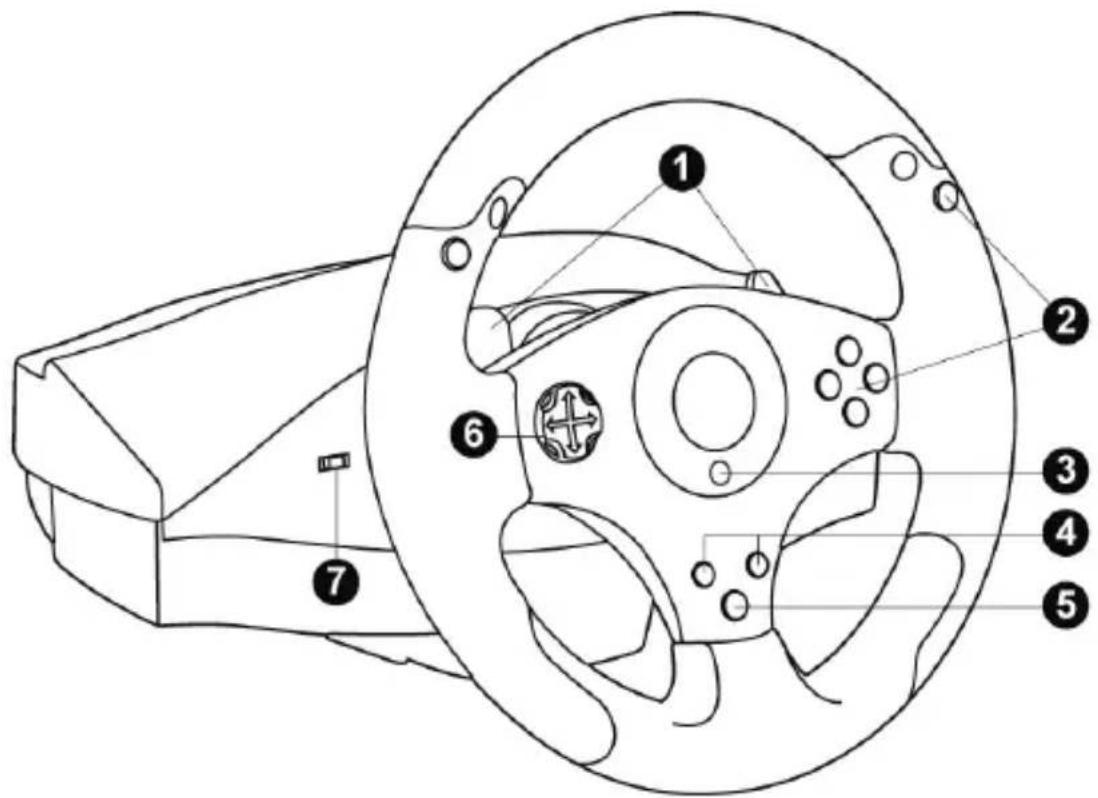
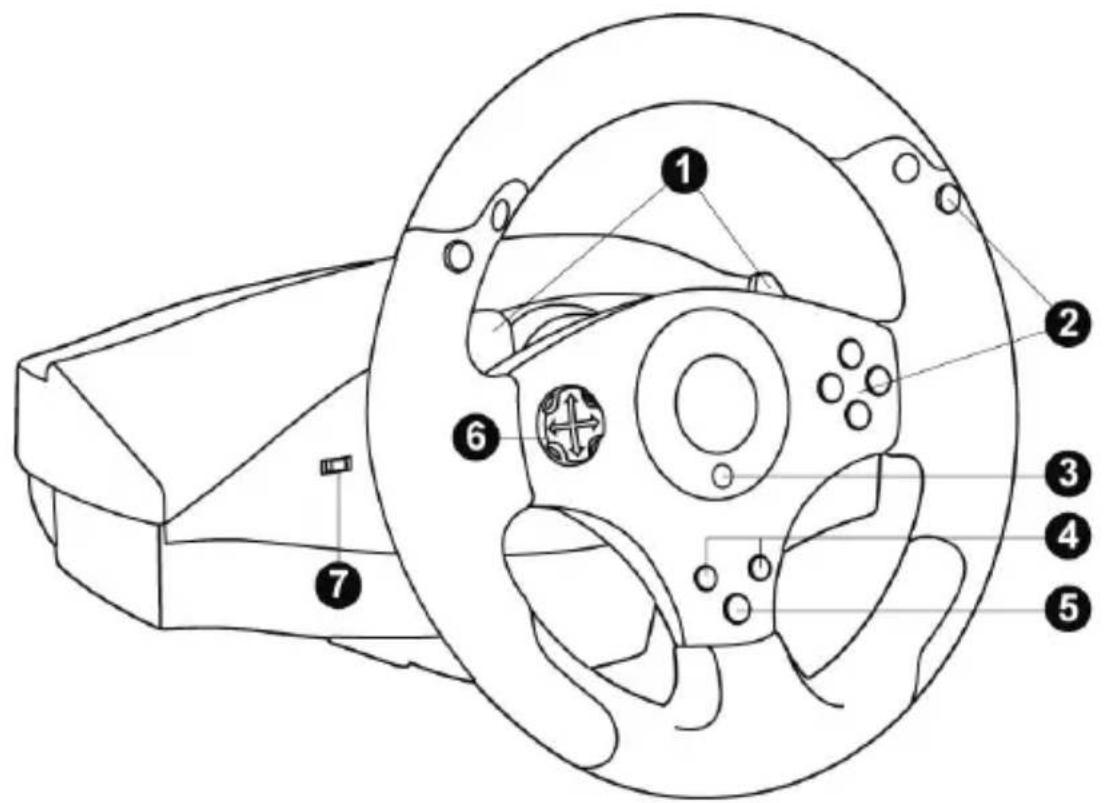
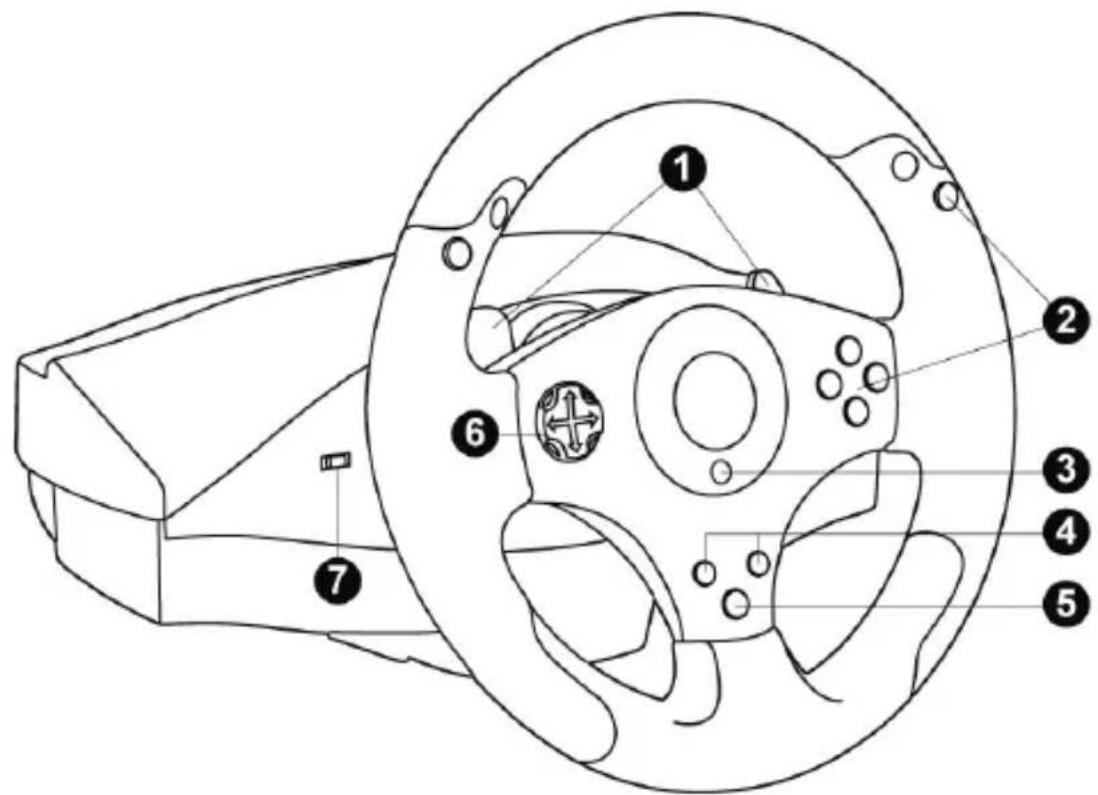
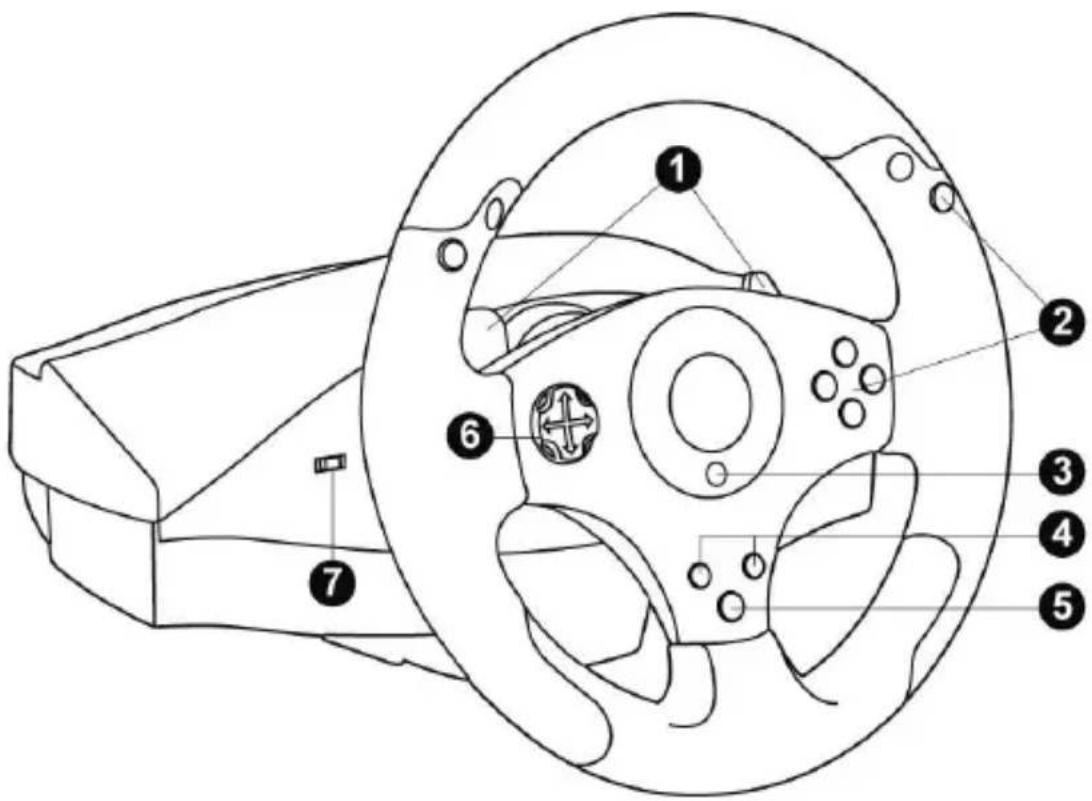
1 2 UP and DOWN digital paddle shifters
2 Action buttons
3 LED
4 SELECT/START buttons on PS3 ^TM and SHARE/OPTIONS buttons on PS4 ^TM
5 PS button
6 Directional buttons
7 PS4/PS3 USB sliding switch
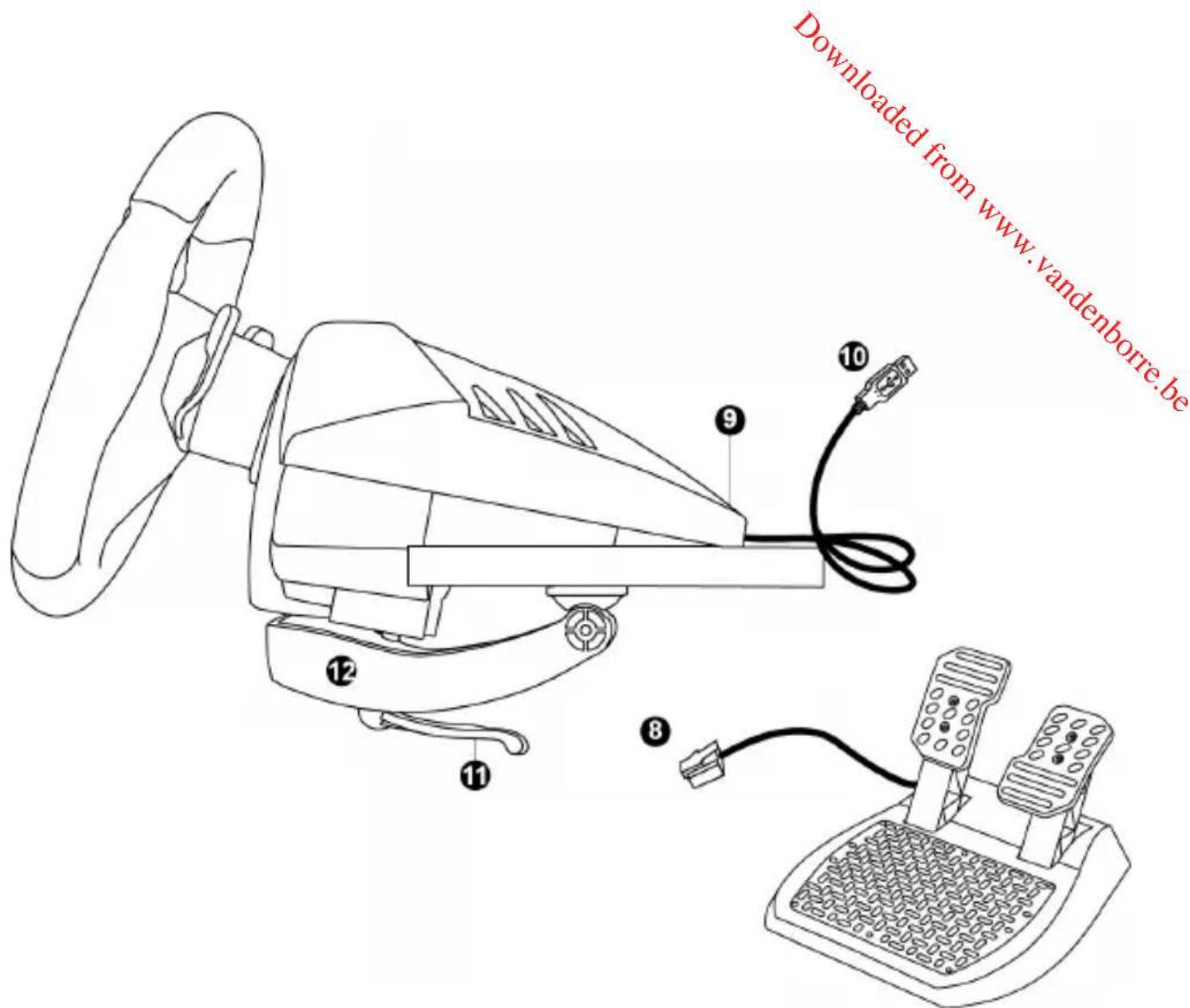
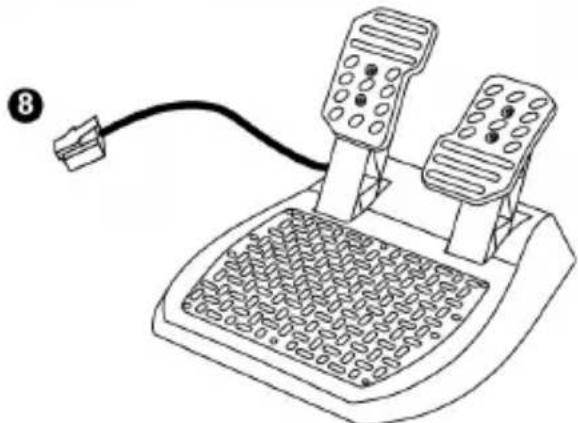
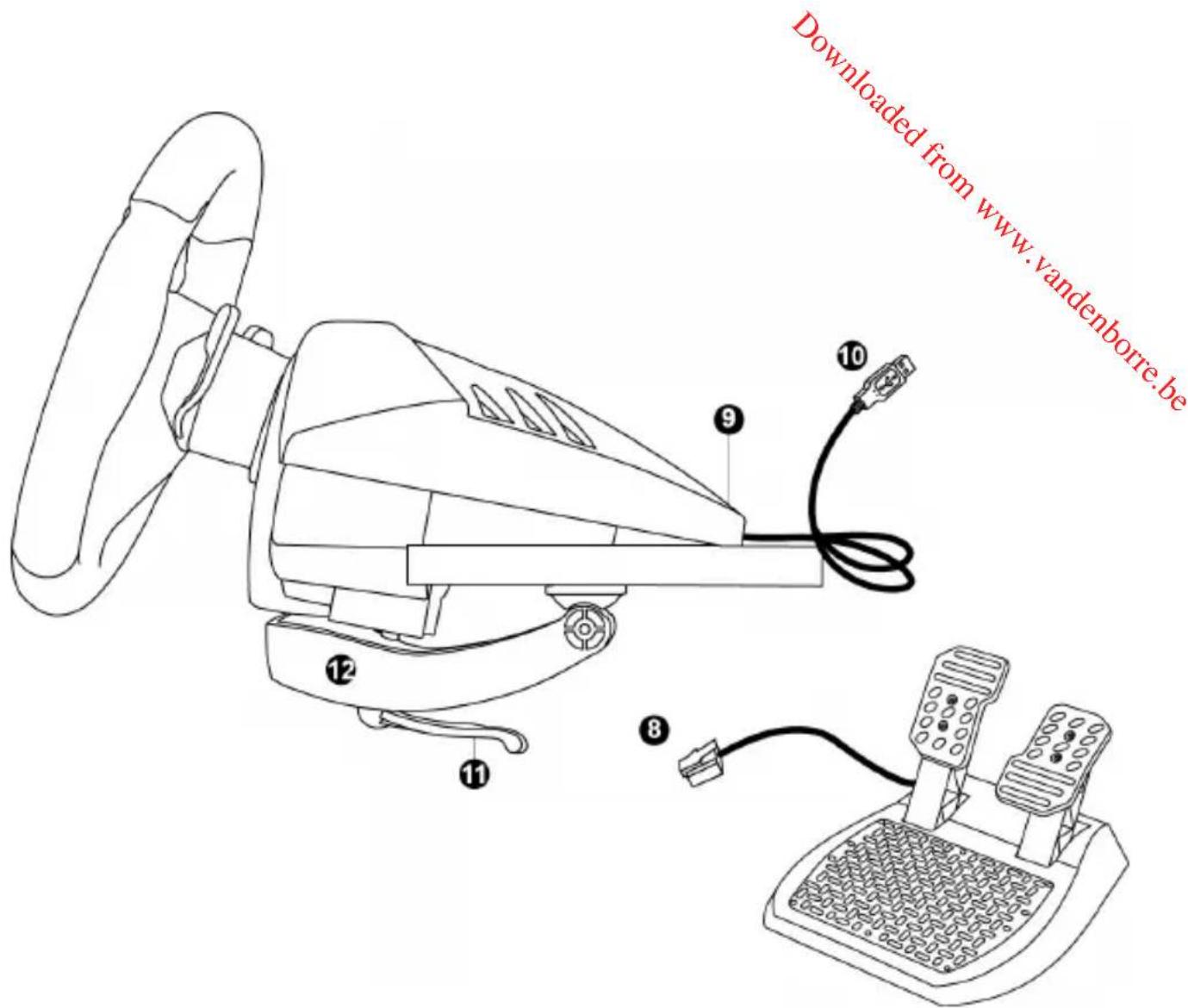
8 Pedal set's male connector
9 Female connector for pedal set
10 Wheel's USB connector
11 Fastening screw
12 Table/desk mounting system

For safety reasons, never use the pedal set with bare feet
or while wearing only socks on your feet.
THRUSTMASTER® DISCLAIMS ALL RESPONSIBILITY IN THE EVENT OF INJURY RESULTING FROM USE OF THE PEDAL SET WITHOUT SHOES.
INSTALLING THE WHEEL
Attaching the wheel to a table or desk
- Place the wheel on the edge of a table or other flat surface.
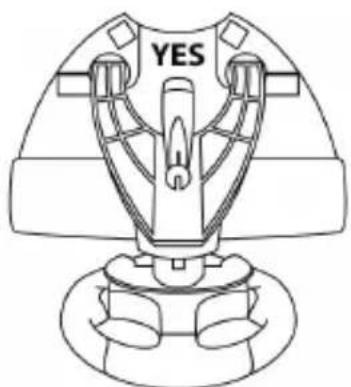
- Place the fastening screw (11) inside the table/desk mounting system (12), and screw the unit (counterclockwise) into the large screw thread on the underside of the wheel, until the wheel is perfectly stable.
natural_image
Line drawing of a mechanical device with 'YES' and 'O' labels, no readable text or symbols beyond the label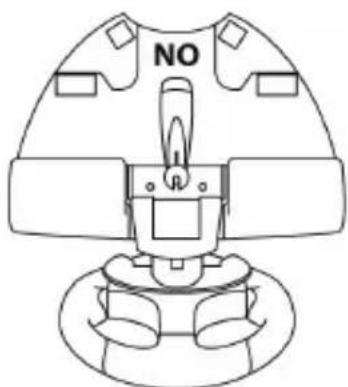
natural_image
Line drawing of a mechanical component with no visible text or symbolsWARNING: Never attempt to screw in the fastening screw (11) without the table/desk mounting system (12) in place!
(Doing so may damage your wheel.)
| INSTALLATION | REMOVAL |
To tighten:Turn the fastening screw (11)counterclockwise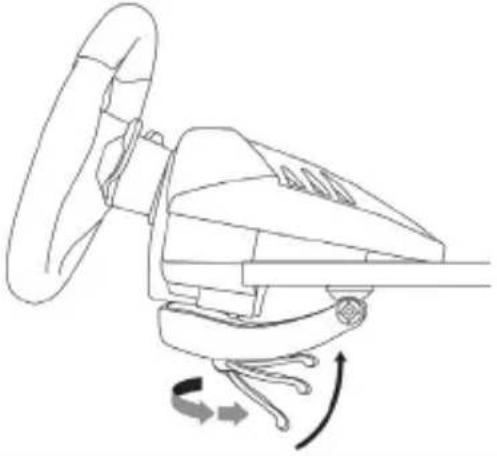 | To untighten:Turn the fastening screw (11)clockwise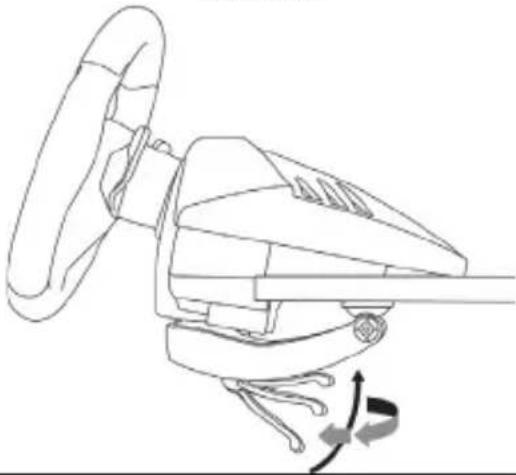 |
Connecting the pedal set to the wheel
Connect the pedal set's male connector (8) to the wheel's female connector (9), located at the back of the wheel's base.
PLAYSTATION®3
INSTALLATION ON PLAYSTATION®3
- Set the wheel's USB sliding switch (7) to the PS3 position.
- Connect the wheel's USB connector (10) to one of the console's USB ports.
- Power on your console.
- Start up your game.
You are now ready to play!
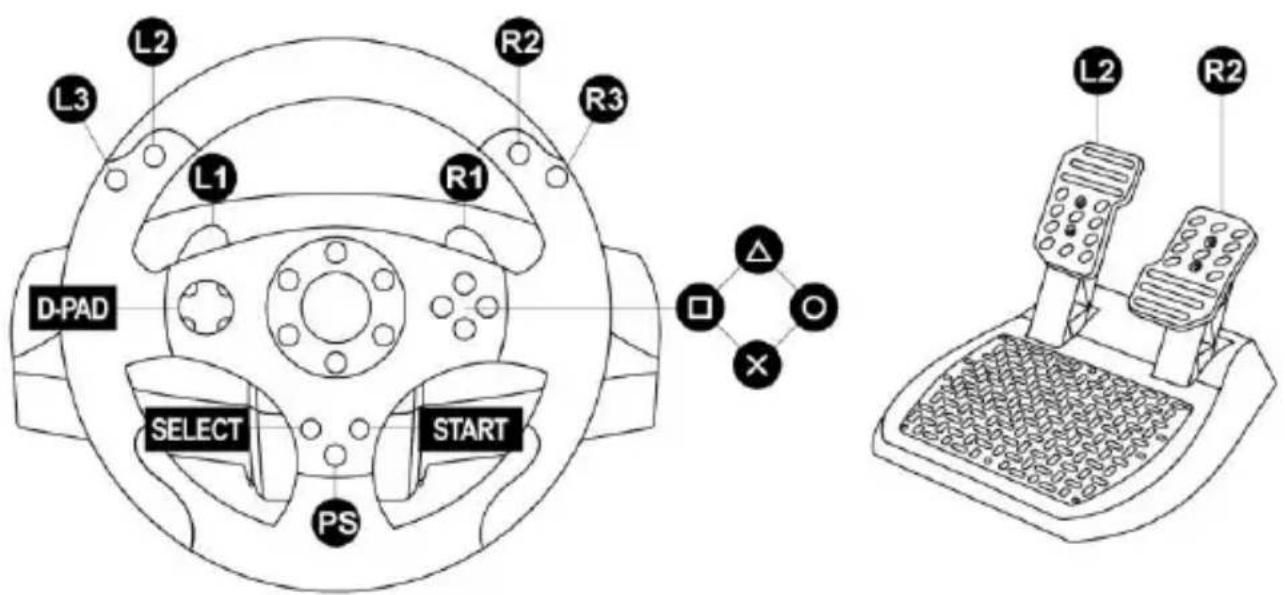
PLAYSTATION®3 MAPPING
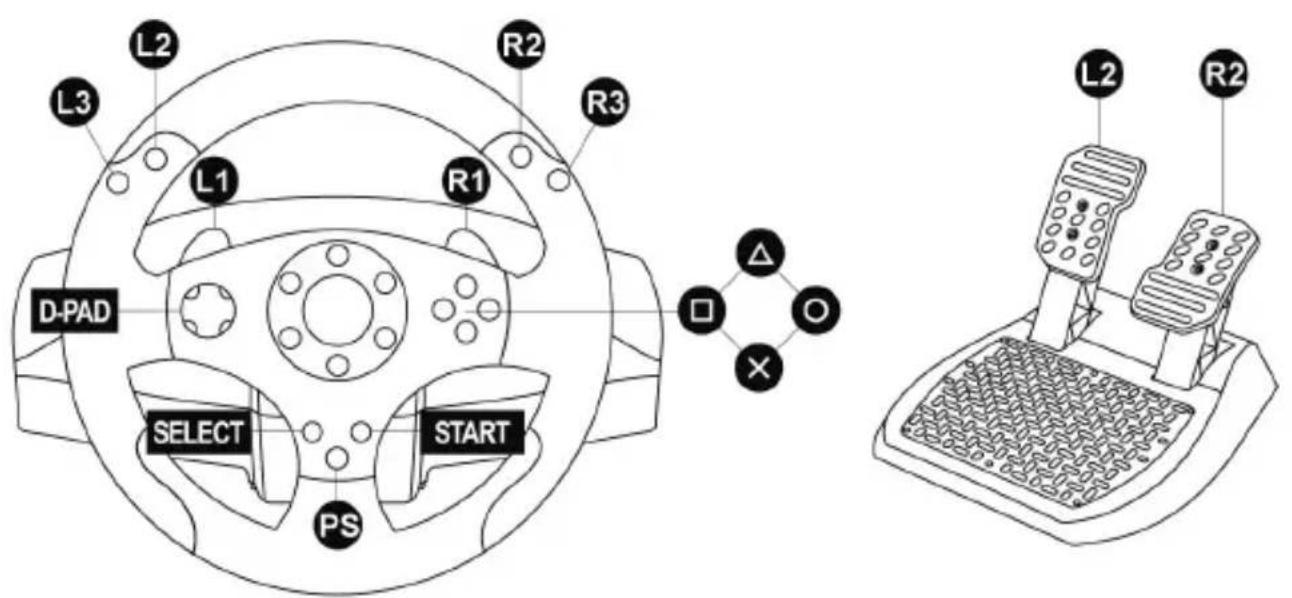
USING THE PS BUTTON (5)
Your wheel's PS button lets you exit your games and access the menus on your PlayStation®3 system.
CONFIGURING THE PEDAL SET ON PLAYSTATION®3
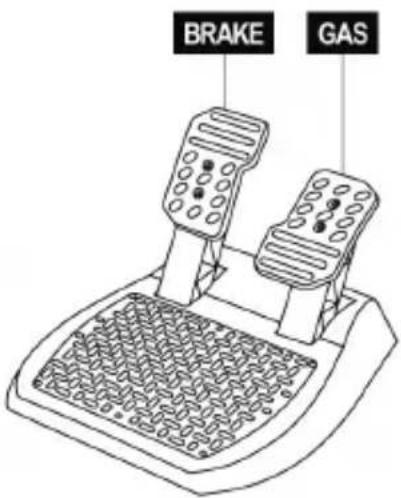
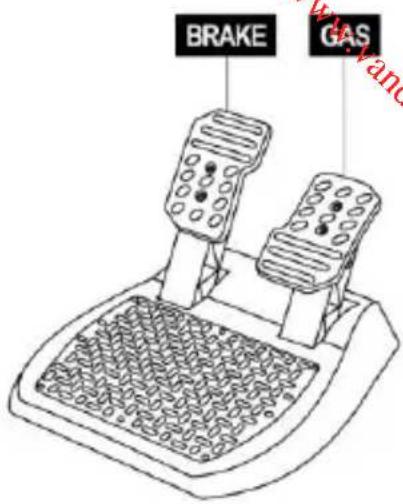
On PlayStation®3, the accelerator and brake controls function as follows:
* Accelerator = R2 trigger
* Brake = L2 trigger
AUTOMATIC GAMEPAD CONTROLLER EMULATION ON PLAYSTATION®3
In PlayStation®3 games only, the T80 Racing Wheel automatically emulates the official gamepad controller. The wheel is therefore compatible with most racing games.
- To change the mapping, go to the game's OPTIONS menu, and then select CONTROLLER SETTINGS.
- To change the sensitivity of the wheel's steering, use the wheel's Sensitivity Adjustment function, described below.
ADJUSTING THE WHEEL'S SENSITIVITY
(on PlayStation®3 only)
On PS3, there are 3 available sensitivity modes for your wheel's steering:
- NORMAL
- MEDIUM
- HIGH
- To change the wheel's steering sensitivity:
Simultaneously press and release the D-pad (6) + the 2 UP and DOWN paddle shifters (1):
- The wheel's LED (3) changes color according to the selected sensitivity level.
- The wheel's steering is now either more or less sensitive.
| WHEEL’S STEERING SENSITIVITY | LED COLOR |
| NORMAL | RED |
| MEDIUM | ORANGE |
| HIGH | GREEN |
- Internal memory for saving the wheel's steering sensitivity:
The steering sensitivity level that you have chosen is automatically saved in the product's internal memory, even when the console is powered off or the wheel is disconnected.
Therefore, there's no need to change the sensitivity level again every time you start up a game.
IMPORTANT NOTES REGARDING PLAYSTATION®3
- Always set the wheel's USB sliding switch (7) to the PS3 position before connecting the wheel to the console.
- In 1 player mode: if your official PlayStation®3 gamepad controller is powered on, you must switch it to controller port 2 in order for your wheel to be functional.
- On PlayStation®3, the wheel is only compatible with PlayStation®3 games, and will not function with Playstation®2 games.
- In some racing games, don't hesitate to test out your wheel's 3 steering sensitivity modes, to optimize its precision and responsiveness.
In this game, by default, acceleration and braking are not assigned to the R2/L2 controls, and gear shifting is not assigned to the R1/L1 controls (which is the case for the T80 Racing Wheel's pedal set and UP/DOWN paddle shifters).
Procedure to configure and optimize the wheel:
(This procedure only needs to be carried out once, as the changes will then automatically be saved in the game.)
1) Start up your game.
2) Go to the OPTIONS menu.
3) Go to the HARDWARE / GAMEPAD CHANGE BUTTON ASSIGNMENTS menu.
(by clicking on the symbol depicting the gamepad and the cross)
4) Configure your controller as follows:
- Accelerate on R2
- Brake on L2
- Gear Up on R1
- Gear Down on L1
- Rear View on L3 and/or R3
• Left & Right View on D-Pad Left & Right
5) Click OK (in the lower-right part of your screen).
6) Return to the main menu to select the race track of your choice.
You are now ready to play!
Note: there are 3 available sensitivity modes for your wheel's steering (Normal, Medium or High).
In order to enjoy optimal precision in Gran Turismo® on PS3™, we recommend that you select either Medium or High sensitivity, according to your taste.
PLAYSTATION®4
INSTALLATION ON PLAYSTATION®4
- Set the wheel's USB sliding switch (7) to the PS4 position.
- Connect the wheel's USB connector (10) to one of the console's USB ports.
- Power on your console.
- Start up your game.
You are now ready to play!
PLAYSTATION®4 MAPPING
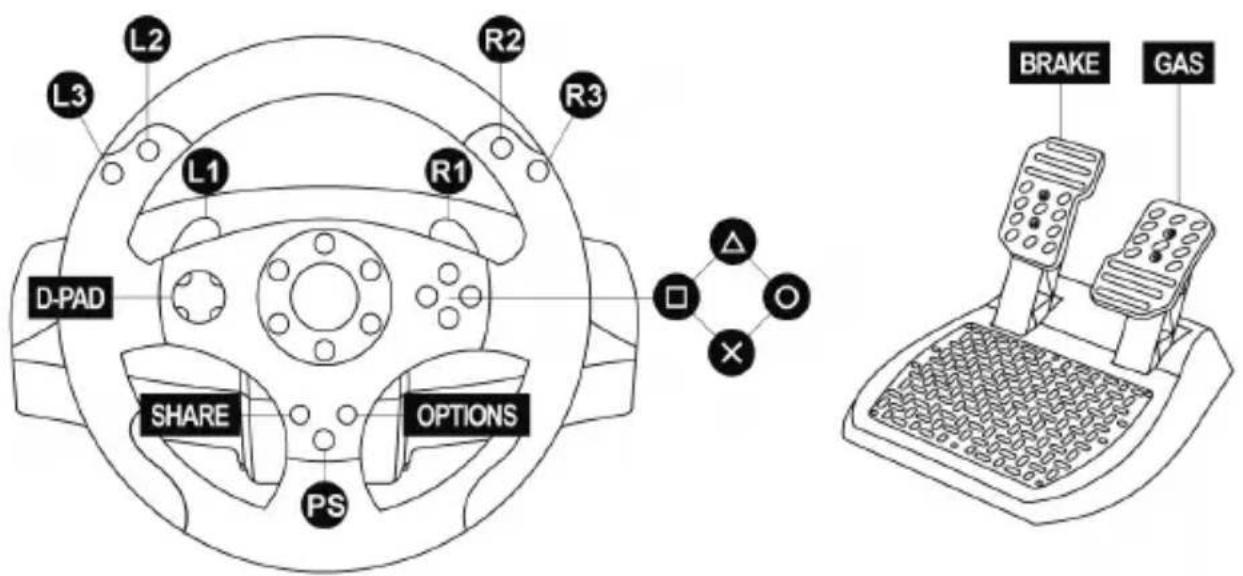
USING THE PS BUTTON (5)
Your wheel's PS button lets you:
- switch between the official gamepad controller and the wheel (which is necessary in order for the wheel to be enabled),
- exit your games and access the menus on your PlayStation®4 system.
IMPORTANT NOTES REGARDING PLAYSTATION®4
- Always set the wheel's USB sliding switch (7) to the PS4 position before connecting the wheel to the console.
AUTOMATIC WHEEL EMULATION ON PLAYSTATION®4
In PlayStation®4 games only, the T80 Racing Wheel is recognized as a real wheel and not as a gamepad, for better responsiveness and enhanced precision.
- To change the mapping, go to the game's OPTIONS menu, and then select WHEEL SETTINGS.
- To change the sensitivity of the wheel's steering, go to the game's OPTIONS menu, and then select WHEEL SETTINGS.
LIST OF COMPATIBLE PLAYSTATION®4 GAMES
A list of PlayStation®4 games compatible with the wheel is available at http://support.thrustmaster.com.
Go to Racing Wheels / T80 Racing Wheel, then select Games Settings.
This list will be added to regularly, with the arrival of new PS4 games compatible with racing wheels.
TROUBLESHOOTING AND WARNING
• My wheel is not functioning correctly or seems improperly calibrated:
- Switch off your console, completely disconnect your wheel and all cables, reconnect everything and then restart your game.
- Make sure that the wheel's USB sliding switch (7) is in the correct position (PS4 or PS3) before connecting the wheel's USB connector (10) to the console.
- Never move the wheel or press on the pedals when connecting your wheel, in order to avoid any calibration problems.
- Never move the wheel or press on the pedals when the game is starting up, in order to avoid any calibration problems.
• My pedal set is not functioning correctly:
- Reconfigure your wheel in your game's controller options.
• I can't configure my wheel:
- On PS3™, in your game's Options / Controller / Gamepads menu: select the most appropriate configuration.
- On PS4™, in your game's Options / Controller / Wheels menu: select the most appropriate configuration.
- Refer to your game's user manual or online help for more information.
- My wheel's steering is not responsive enough:
- On PS3™, use the wheel's Sensitivity Adjustment function, described on page 5 of this manual.
- On PS4™, go to the game's Options / Controller / Wheels menu.
CONSUMER WARRANTY INFORMATION
Worldwide, Guillemot Corporation S.A., whose registered office is located at Place du Granier, B.P. 97143, 35571 Chantepie, France (hereinafter "Guillemot") warrants to the consumer that this Thrustmaster product shall be free from defects in materials and workmanship, for a warranty period which corresponds to the time limit to bring an action for conformity with respect to this product. In the countries of the European Union, this corresponds to a period of two (2) years from delivery of the Thrustmaster product. In other countries, the warranty period corresponds to the time limit to bring an action for conformity with respect to the Thrustmaster product according to applicable laws of the country in which the consumer was domiciled on the date of purchase of the Thrustmaster product (if no such action exists in the corresponding country, then the warranty period shall be one (1) year from the original date of purchase of the Thrustmaster product).
Should the product appear to be defective during the warranty period, immediately contact Technical Support, who will indicate the procedure to follow. If the defect is confirmed, the product must be returned to its place of purchase (or any other location indicated by Technical Support).
Within the context of this warranty, the consumer's defective product shall, at Technical Support's option, be either replaced or returned to working order. If, during the warranty period, the Thrustmaster product is subject to such reconditioning, any period of at least seven (7) days during which the product is out of use shall be added to the remaining warranty period (this period runs from the date of the consumer's request for intervention or from the date on which the product in question is made available for reconditioning, if the date on which the product is made available for reconditioning is subsequent to the date of the request for intervention). If permitted under applicable law, the full liability of Guillemot and its subsidiaries (including for consequential damages) is limited to the return to working order or the replacement of the Thrustmaster product. If permitted under applicable law, Guillemot disclaims all warranties of merchantability or fitness for a particular purpose.
This warranty shall not apply: (1) if the product has been modified, opened, altered, or has suffered damage as a result of inappropriate or abusive use, negligence, an accident, normal wear, or any other cause unrelated to a material or manufacturing defect (including, but not limited to, combining the Thrustmaster product with any unsuitable element, including in particular power supplies, rechargeable batteries, chargers, or any other elements not supplied by Guillemot for this product); (2) if the product has been used for any use other than home use, including for professional or commercial purposes (game rooms, training, competitions, for example); (3) in the event of failure to comply with the instructions provided by Technical Support; (4) to software, said software being subject to a specific warranty; (5) to consumables (elements to be replaced over the product's lifespan: disposable batteries, audio headset or headphone ear pads, for example); (6) to accessories (cables, cases, pouches, bags, wrist-straps, for example); (7) if the product was sold at public auction.
This warranty is nontransferable.
The consumer's legal rights with respect to laws applicable to the sale of consumer goods in his or her country are not affected by this warranty.
Additional warranty provisions
During the warranty period, Guillemot shall not provide, in principle, any spare parts, as Technical Support is the only party authorized to open and/or recondition any Thrustmaster product (with the exception of any reconditioning procedures which Technical Support may request that the consumer carry out, by way of written instructions – for example, due to the simplicity and the lack of confidentiality of the reconditioning process – and by providing the consumer with the required spare part(s), where applicable).
Given its innovation cycles and in order to protect its know-how and trade secrets, Guillemot shall not provide, in principle, any reconditioning notification or spare parts for any Thrustmaster product whose warranty period has expired.
Liability
If permitted under applicable law, Guillemot Corporation S.A. (hereinafter “Guillemot”) and its subsidiaries disclaim all liability for any damages caused by one or more of the following: (1) the product has been modified, opened or altered; (2) failure to comply with assembly instructions; (3) inappropriate or abusive use, negligence, an accident (an impact, for example); (4) normal wear; (5) the use of the product for any use other than home use, including for professional or commercial purposes (game rooms, training, competitions, for example). If permitted under applicable law, Guillemot and its subsidiaries disclaim all liability for any damages unrelated to a material or manufacturing defect with respect to the product (including, but not limited to, any damages caused directly or indirectly by any software, or by combining the Thrustmaster product with any unsuitable element, including in particular power supplies, rechargeable batteries, chargers, or any other elements not supplied by Guillemot for this product).

COPYRIGHT
© 2017 Guillemot Corporation S.A. All rights reserved. Thrustmaster ^® is a registered trademark of Guillemot Corporation S.A.
Licensed for sale in Europe, Africa, Middle East, Russia, India and Oceania. For use exclusively with PlayStation®3 and PlayStation®4.
All other trademarks and brand names are hereby acknowledged and are property of their respective owners. Illustrations not binding. Contents, designs and specifications are subject to change without notice and may vary from one country to another. Made in China.
Manufactured and distributed by Guillemot Corporation S.A.
ENVIRONMENTAL PROTECTION RECOMMENDATION
natural_image
Simple line drawing of a trash bin with cross lines and a black rectangle below (no text or symbols)In the European Union and Turkey: At the end of its working life, this product should not be disposed of with standard household waste, but rather dropped off at a collection point for the disposal of Waste Electrical and Electronic Equipment (WEEE) for recycling.
This is confirmed by the symbol found on the product, user manual or packaging.
Depending on their characteristics, the materials may be recycled. Through recycling and other forms of processing Waste Electrical and Electronic Equipment, you can make a significant contribution towards helping to protect the environment.
Please contact your local authorities for information on the collection point nearest you.
For all other countries: Please adhere to local recycling laws for electrical and electronic equipment.
Retain this information. Colours and decorations may vary.
Plastic fasteners and adhesives should be removed from the product before it is used.
www.thrustmaster.com
*Applicable to EU and Turkey only


T80 Racing Wheel
Compatible : PlayStation®3 / PlayStation®4
CARACTÉRISTIQUES TECHNIQUES
natural_image
Line drawing of a mechanical device with 'YES' and 'I' labels, no readable text or symbols beyond the label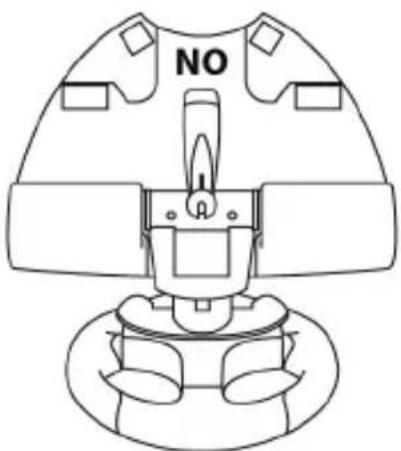
natural_image
Line drawing of a mechanical component with no visible text or symbols* Frein = Gâchette L2
EMULATION AUTOMATIQUE DE LA MANETTE SUR PLAYSTATION®3
INFORMATIONS RELATIVES A LA GARANTIE AUX CONSOMMATEURS
natural_image
Symbol of a trash bin crossed with a diagonal line and a black rectangle below (no text or labels)www.thrustmaster.com
TECHNISCHE MERKMALE
natural_image
Line drawing of a mechanical device with 'YES' and 'J1' labels, no readable text or symbols beyond the label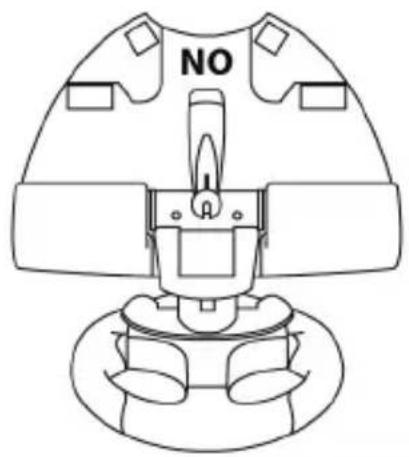
natural_image
Line drawing of a mechanical component with no visible text or symbols* Gas = R2 Trigger (Abzug)
* Bremse = L2 Trigger (Abzug)
AUTOMATISCHE GAMEPAD-KONTROLLEREMULATION AUF DER PLAYSTATION®3
natural_image
Symbol of a trash bin with crossed lines indicating no waste or discharge (no text or labels)www.thrustmaster.com
TECHNISCHE SPECIFICATIES
natural_image
Line drawing of a mechanical device with 'YES' and 'R' labels, no readable text or symbols beyond the label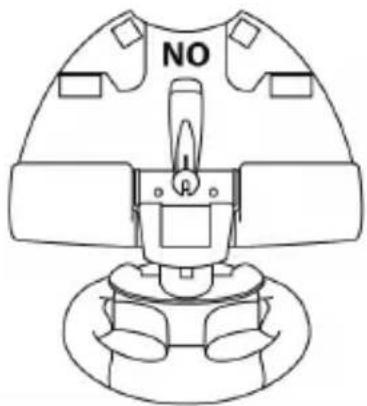
natural_image
Technical line drawing of a mechanical component with no visible text or symbolsnatural_image
Simple line drawing of a trash bin with crossed lines and a black rectangle below (no text or symbols)www.thrustmaster.com
CARATTERISTICHE TECNICHE
natural_image
Line drawing of a mechanical device with 'YES' and 'O' labels, no readable text or symbols beyond the label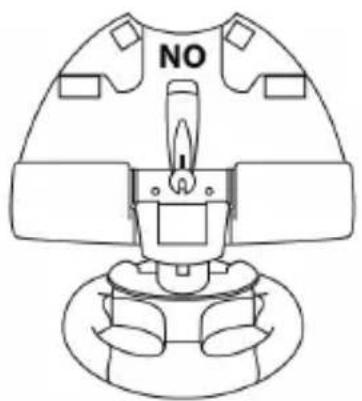
natural_image
Line drawing of a mechanical component with no visible text or symbolsnatural_image
Simple line drawing of a trash bin with two crossed lines indicating no waste or prohibition (no text or symbols)
www.thrustmaster.com
CARACTERÍSTICAS TÉCNICAS
natural_image
Line drawing of a mechanical device with 'YES' and 'NO' labels, no readable text or symbols beyond the label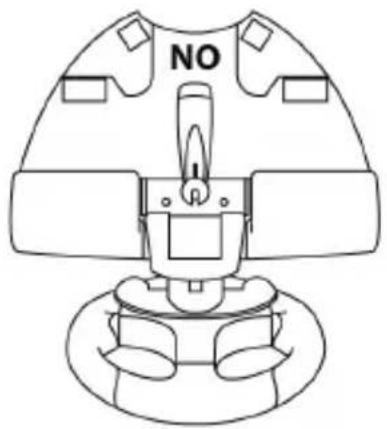
natural_image
Top-down line drawing of a mechanical device with no visible text or symbolsnatural_image
Three black icons: a lowercase 'i' in a circle, an envelope symbol, and a telephone handset (no text or labels)COPYRIGHT
natural_image
Symbol of a trash bin crossed with diagonal lines, no text or labels presentwww.thrustmaster.com
CARACTERÍSTICAS TÉCNICAS
natural_image
Line drawing of a mechanical device with 'YES' and 'O' labels, no readable text or symbols beyond the label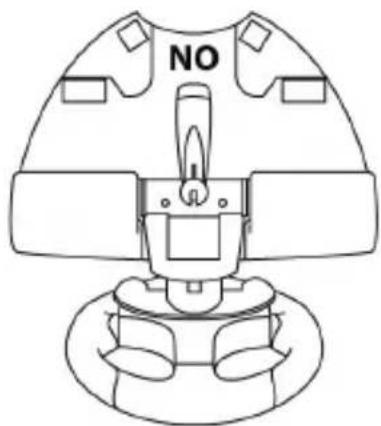
natural_image
Line drawing of a mechanical device with no visible text or symbolsnatural_image
Symbol of a trash bin crossed with a diagonal line and a black rectangle below (no text or labels)www.thrustmaster.com
natural_image
Line drawing of a mechanical device with 'YES' and 'N' labels, no readable text or symbols beyond the label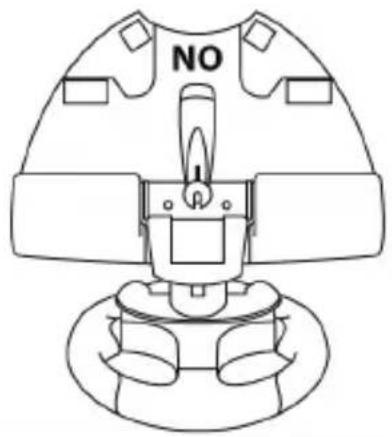
natural_image
Line drawing of a mechanical device with no visible text or symbolswww.thrustmaster.com
EAC

T80 Racing Wheel
TEXNIKA XAPAKTHPIΣTIKA
natural_image
Line drawing of a mechanical device with 'YES' and 'II' labels, no readable text or symbols beyond the label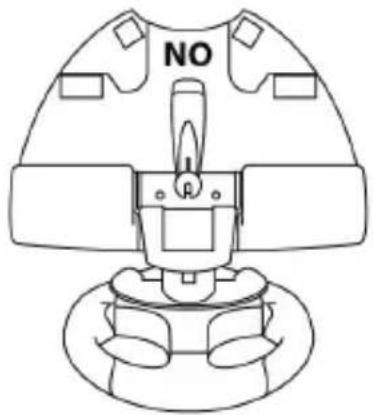
natural_image
Line drawing of a mechanical component with no visible text or symbolsnatural_image
Symbol of a trash bin with crossed lines indicating no waste or restriction (no text or labels)
www.thrustmaster.com
TEKNİK ÖZELLİKLER
natural_image
Line drawing of a mechanical device with 'YES' and 'I' labels, no readable text or symbols beyond the label
natural_image
Line drawing of a mechanical component with no visible text or symbolswww.thrustmaster.com
ELEMENTY
natural_image
Line drawing of a mechanical device with 'YES' and 'O' labels, no readable text or symbols beyond the label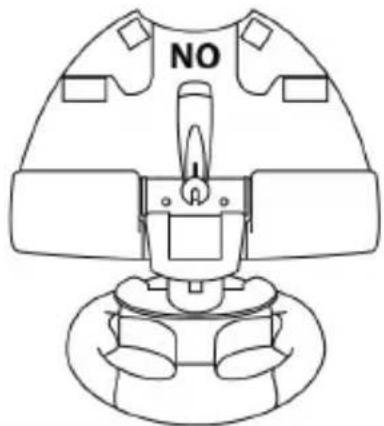
natural_image
Line drawing of a mechanical device with no visible text or symbolsnatural_image
Simple line drawing of a trash bin with crossed lines and a black rectangle below (no text or symbols)www.thrustmaster.com
PS 5
6 loحة رقمية
natural_image
Line drawing of a mechanical device with 'YES' and 'II' labels, no readable text or symbols beyond the label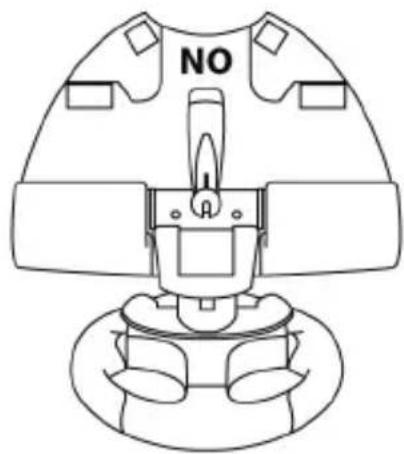
natural_image
Line drawing of a mechanical component with no visible text or symbols(Eq. 3) PlayStation® (English)
(5) PS استخدام زر
www.thrustmaster.com
TECHNICAL FEATURES
1 2 UP and DOWN digital paddle shifters
2 Action buttons
3 LED
4 SELECT/START buttons on PS3 ^TM and SHARE/OPTIONS buttons on PS4 ^TM
5 PS button
6 D-pad
7 PS4/PS3 USB sliding switch
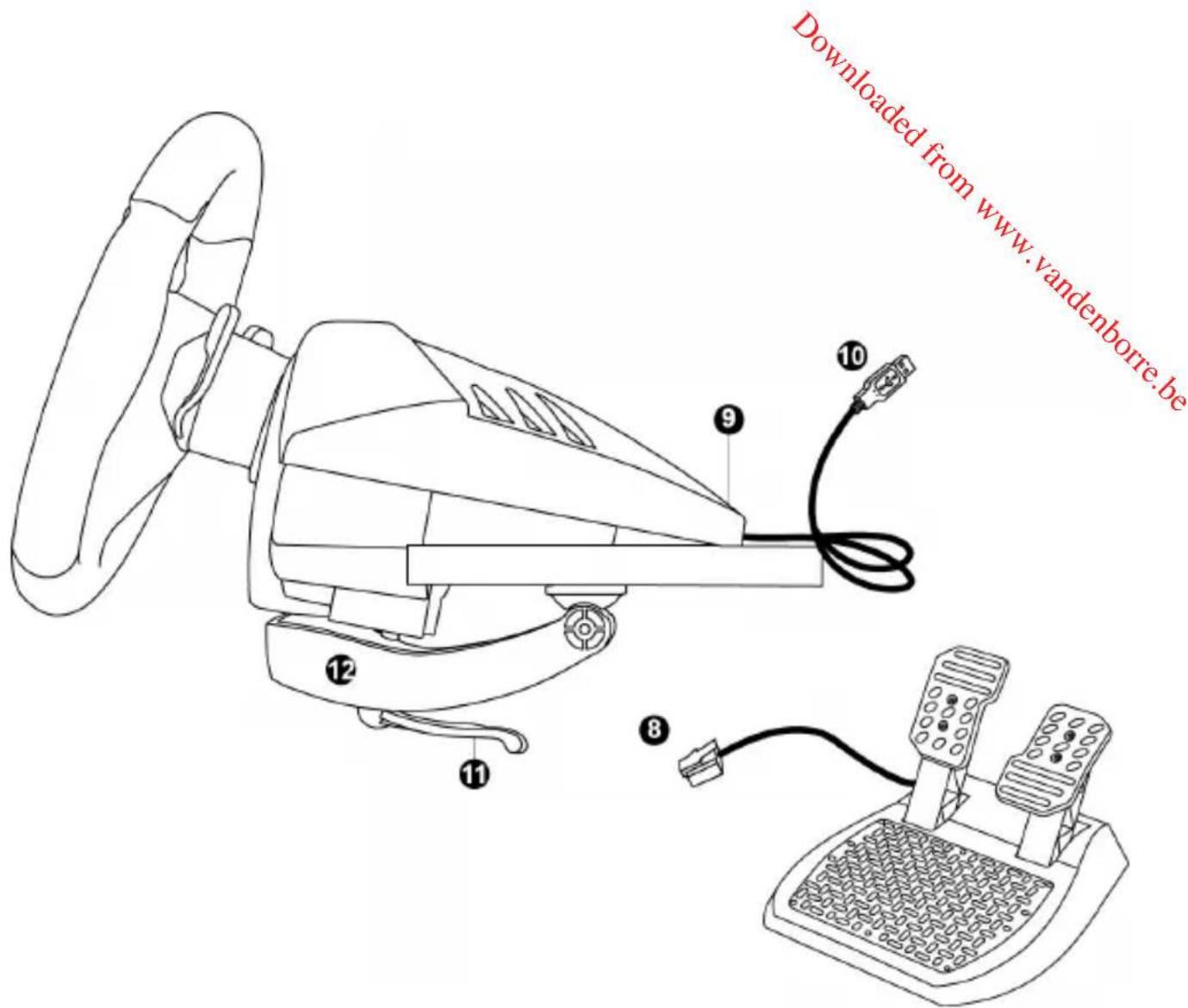
8 Pedal set's male connector
9 Female connector for pedal set
10 Wheel's USB connector
11 Fastening screw
12 Table/desk mounting system

For safety reasons, never use the pedal set with bare feet
or while wearing only socks on your feet.
THRUSTMASTER® DISCLAIMS ALL RESPONSIBILITY IN THE EVENT OF INJURY RESULTING FROM USE OF THE PEDAL SET WITHOUT SHOES.
INSTALLING THE WHEEL
Attaching the wheel to a table or desk
- Place the wheel on the edge of a table or other flat surface.
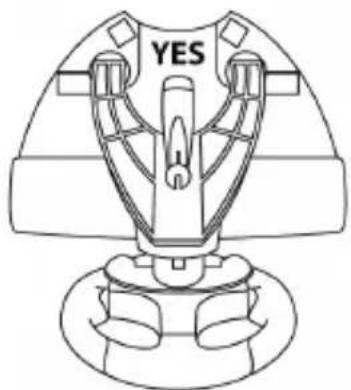
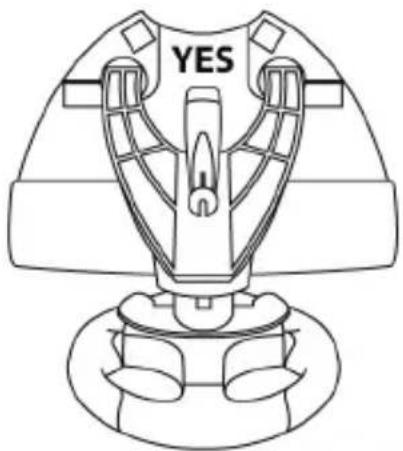
- Place the fastening screw (11) inside the table/desk mounting system (12), and screw the unit (counterclockwise) into the large screw thread on the underside of the wheel, until the wheel is perfectly stable.
natural_image
Line drawing of a mechanical device with no visible text or symbols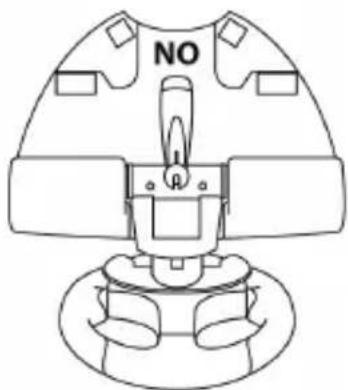
natural_image
Technical line drawing of a mechanical component with no visible text or symbolsWARNING: Never attempt to screw in the fastening screw (11) without the table/desk mounting system (12) in place! (Doing so may damage your wheel.)
| INSTALLATION | REMOVAL |
To tighten:Turn the fastening screw (11) counterclockwise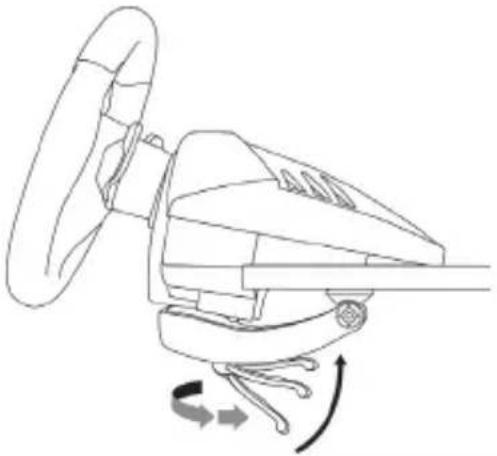 | To untighten:Turn the fastening screw (11) clockwise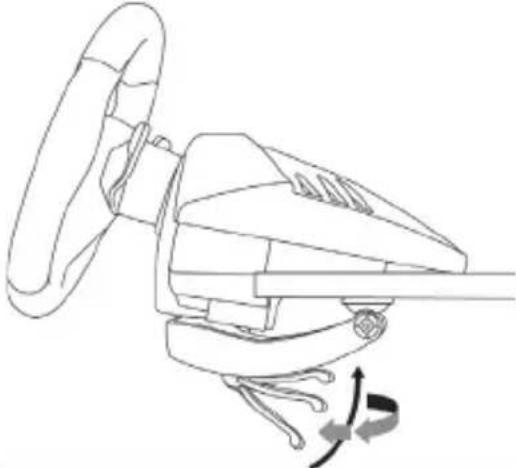 |
Connecting the pedal set to the wheel
Connect the pedal set's male connector (8) to the wheel's female connector (9), located at the back of the wheel's base.
PLAYSTATION®3
INSTALLATION ON PLAYSTATION®3
- Set the wheel's USB sliding switch (7) to the PS3 position.
- Connect the wheel's USB connector (10) to one of the console's USB ports.
- Power on your console.
- Start up your game.
You are now ready to play!
PLAYSTATION®3 MAPPING
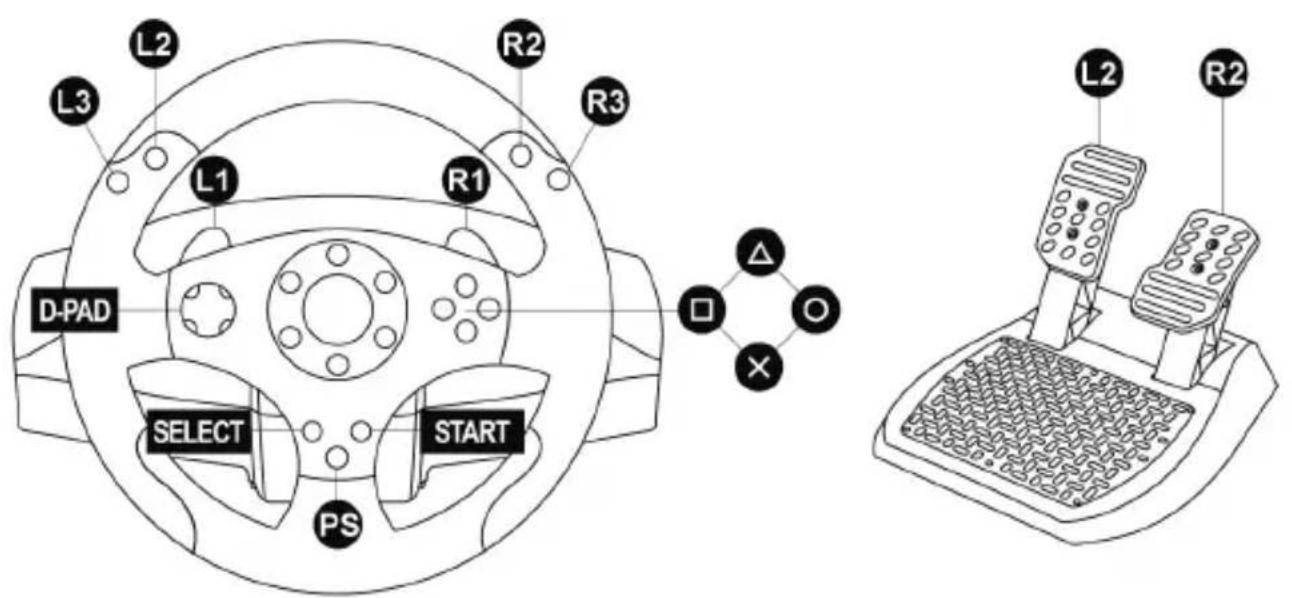
USING THE PS BUTTON (5)
Your wheel's PS button lets you exit your games and access the menus on your PlayStation®3 system.
CONFIGURING THE PEDAL SET ON PLAYSTATION®3
On PlayStation®3, the accelerator and brake controls function as follows:
* Accelerator = R2 trigger
* Brake = L2 trigger
AUTOMATIC GAMEPAD CONTROLLER EMULATION ON PLAYSTATION®3
In PlayStation®3 games only, the T80 Racing Wheel automatically emulates the official gamepad controller. The wheel is therefore compatible with most racing games.
- To change the mapping, go to the game's OPTIONS menu, and then select CONTROLLER SETTINGS.
- To change the sensitivity of the wheel's steering, use the wheel's Sensitivity Adjustment function, described below.
ADJUSTING THE WHEEL'S SENSITIVITY
(on PlayStation®3 only)
On PS3™, there are 3 available sensitivity modes for your wheel's steering:
- NORMAL
- MEDIUM
- HIGH
- To change the wheel's steering sensitivity:
Simultaneously press and release the D-pad (6) + the 2 UP and DOWN paddle shifters (1):
- The wheel's LED (3) changes color according to the selected sensitivity level.
- The wheel's steering is now either more or less sensitive.
| WHEEL’S STEERING SENSITIVITY | LED COLOR |
| NORMAL | RED |
| MEDIUM | ORANGE |
| HIGH | GREEN |
- Internal memory for saving the wheel's steering sensitivity:
The steering sensitivity level that you have chosen is automatically saved in the product's internal memory, even when the console is powered off or the wheel is disconnected.
Therefore, there's no need to change the sensitivity level again every time you start up a game.
IMPORTANT NOTES REGARDING PLAYSTATION®3
- Always set the wheel's USB sliding switch (7) to the PS3 position before connecting the wheel to the console.
- In 1 player mode: if your official PlayStation®3 gamepad controller is powered on, you must switch it to controller port 2 in order for your wheel to be functional.
- On PlayStation®3, the wheel is only compatible with PlayStation®3 games, and will not function with Playstation®2 games.
- In some racing games, don't hesitate to test out your wheel's 3 steering sensitivity modes, to optimize its precision and responsiveness.
CONFIGURATION PROCEDURE FOR GRAN TURISMO® ON PS3™
In this game, by default, acceleration and braking are not assigned to the R2/L2 controls, and gear shifting is not assigned to the R1/L1 controls (which is the case for the T80 Racing Wheel's pedal set and UP/DOWN paddle shifters).
Procedure to configure and optimize the wheel:
(This procedure only needs to be carried out once, as the changes will then automatically be saved in the game.)
1) Start up your game.
2) Go to the OPTIONS menu.
3) Go to the HARDWARE / GAMEPAD CHANGE BUTTON ASSIGNMENTS menu. (by clicking on the symbol depicting the gamepad and the cross)
4) Configure your controller as follows:
- Accelerate on R2
- Brake on L2
- Gear Up on R1
- Gear Down on L1
- Rear View on L3 and/or R3
• Left & Right View on D-Pad Left & Right
5) Click OK (in the lower-right part of your screen).
6) Return to the main menu to select the race track of your choice.
You are now ready to play!
Note: there are 3 available sensitivity modes for your wheel's steering (Normal, Medium or High).
In order to enjoy optimal precision in Gran Turismo® on PS3™, we recommend that you select either Medium or High sensitivity, according to your taste.
PLAYSTATION®4
INSTALLATION ON PLAYSTATION®4
- Set the wheel's USB sliding switch (7) to the PS4 position.
- Connect the wheel's USB connector (10) to one of the console's USB ports.
- Power on your console.
- Start up your game.
You are now ready to play!
PLAYSTATION®4 MAPPING
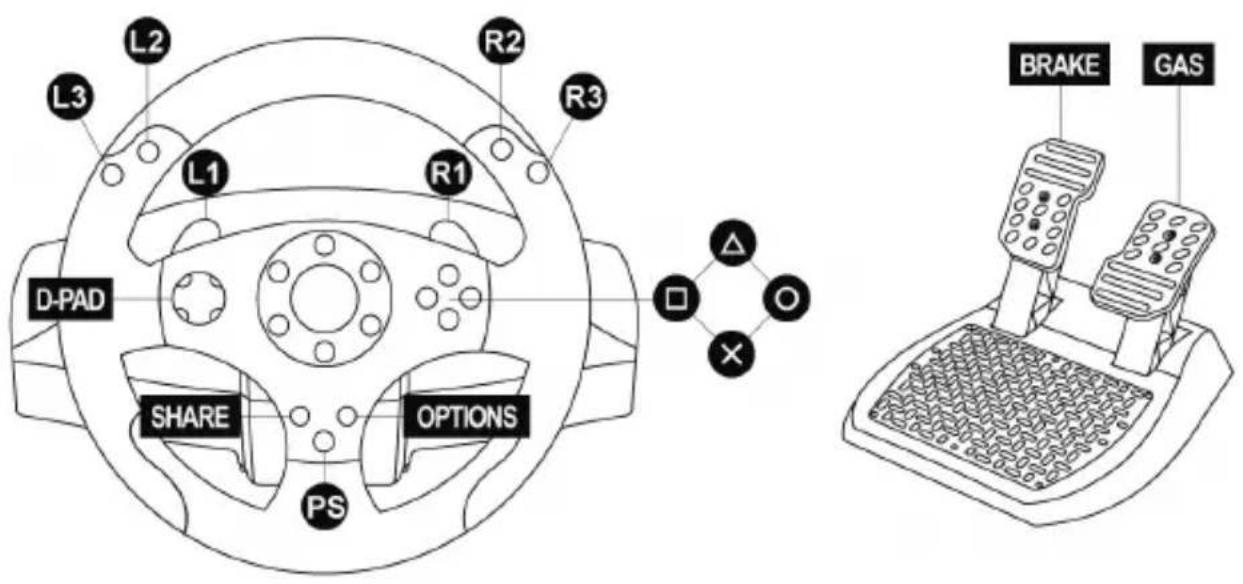
USING THE PS BUTTON (5)
Your wheel's PS button lets you:
- switch between the official gamepad controller and the wheel (which is necessary in order for the wheel to be enabled),
- exit your games and access the menus on your PlayStation®4 system.
IMPORTANT NOTES REGARDING PLAYSTATION®4
- Always set the wheel's USB sliding switch (7) to the PS4 position before connecting the wheel to the console.
AUTOMATIC WHEEL EMULATION ON PLAYSTATION®4
In PlayStation®4 games only, the T80 Racing Wheel is recognized as a real wheel and not as a gamepad, for better responsiveness and enhanced precision.
- To change the mapping, go to the game's OPTIONS menu, and then select WHEEL SETTINGS.
- To change the sensitivity of the wheel's steering, go to the game's OPTIONS menu, and then select WHEEL SETTINGS.
LIST OF COMPATIBLE PLAYSTATION®4 GAMES
A list of PlayStation®4 games compatible with the wheel is available at http://support.thrustmaster.com.
Go to Racing Wheels / T80 Racing Wheel, then select Games Settings.
This list will be added to regularly, with the arrival of new PS4 ^™ games compatible with racing wheels.
TROUBLESHOOTING AND WARNING
- My wheel is not functioning correctly or seems improperly calibrated:
- Switch off your console, completely disconnect your wheel and all cables, reconnect everything and then restart your game.
- Make sure that the wheel's USB sliding switch (7) is in the correct position (PS4™ or PS3™) before connecting the wheel's USB connector (10) to the console.
- Never move the wheel or press on the pedals when connecting your wheel, in order to avoid any calibration problems.
- Never move the wheel or press on the pedals when the game is starting up, in order to avoid any calibration problems.
• My pedal set is not functioning correctly: - Reconfigure your wheel in your game's controller options.
• I can't configure my wheel: - On PS3™, in your game's Options / Controller / Gamepads menu: select the most appropriate configuration.
- On PS4™, in your game's Options / Controller / Wheels menu: select the most appropriate configuration.
- Refer to your game's user manual or online help for more information.
- My wheel's steering is not responsive enough:
- On PS3™, use the wheel's Sensitivity Adjustment function, described on page 5 of this manual.
- On PS4™, go to the game's Options / Controller / Wheels menu.
Consumer warranty information
Worldwide, Guillemot Corporation S.A., whose registered office is located at Place du Granier, B.P. 97143, 35571 Chantepie, France (hereinafter "Guillemot") warrants to the consumer that this Thrustmaster product shall be free from defects in materials and workmanship, for a warranty period which corresponds to the time limit to bring an action for conformity with respect to this product. In the countries of the European Union, this corresponds to a period of two (2) years from delivery of the Thrustmaster product. In other countries, the warranty period corresponds to the time limit to bring an action for conformity with respect to the Thrustmaster product according to applicable laws of the country in which the consumer was domiciled on the date of purchase of the Thrustmaster product (if no such action exists in the corresponding country, then the warranty period shall be one (1) year from the original date of purchase of the Thrustmaster product).
Notwithstanding the above, rechargeable batteries are covered by a warranty period of six (6) months from the date of original purchase.
Should the product appear to be defective during the warranty period, immediately contact Technical Support, who will indicate the procedure to follow. If the defect is confirmed, the product must be returned to its place of purchase (or any other location indicated by Technical Support).
Within the context of this warranty, the consumer's defective product shall, at Technical Support's option, be either replaced or returned to working order. If, during the warranty period, the Thrustmaster product is subject to such reconditioning, any period of at least seven (7) days during which the product is out of use shall be added to the remaining warranty period (this period runs from the date of the consumer's request for intervention or from the date on which the product in question is made available for reconditioning, if the date on which the product is made available for reconditioning is subsequent to the date of the request for intervention). If permitted under applicable law, the full liability of Guillemot and its subsidiaries (including for consequential damages) is limited to the return to working order or the replacement of the Thrustmaster product. If permitted under applicable law, Guillemot disclaims all warranties of merchantability or fitness for a particular purpose.
This warranty shall not apply: (1) if the product has been modified, opened, altered, or has suffered damage as a result of inappropriate or abusive use, negligence, an accident, normal wear, or any other cause unrelated to a material or manufacturing defect (including, but not limited to, combining the Thrustmaster product with any unsuitable element, including in particular power supplies, rechargeable batteries, chargers, or any other elements not supplied by Guillemot for this product); (2) if the product has been used for any use other than home use, including for professional or commercial purposes (game rooms, training, competitions, for example); (3) in the event of failure to comply with the instructions provided by Technical Support; (4) to software, said software being subject to a specific warranty; (5) to consumables (elements to be replaced over the product's lifespan: disposable batteries, audio headset or headphone ear pads, for example); (6) to accessories (cables, cases, pouches, bags, wrist-straps, for example); (7) if the product was sold at public auction.
This warranty is nontransferable.
The consumer's legal rights with respect to laws applicable to the sale of consumer goods in his or her country are not affected by this warranty.
Additional warranty provisions
During the warranty period, Guillemot shall not provide, in principle, any spare parts, as Technical Support is the only party authorized to open and/or recondition any Thrustmaster product (with the exception of any reconditioning procedures which Technical Support may request that the consumer carry out, by way of written instructions – for example, due to the simplicity and the lack of confidentiality of the reconditioning process – and by providing the consumer with the required spare part(s), where applicable).
Given its innovation cycles and in order to protect its know-how and trade secrets, Guillemot shall not provide, in principle, any reconditioning notification or spare parts for any Thrustmaster product whose warranty period has expired.
In the United States of America and in Canada, this warranty is limited to the product's internal mechanism and external housing. In no event shall Guillemot or its affiliates be held liable to any third party for any consequential or incidental damages resulting from the breach of any express or implied warranties. Some States/Provinces do not allow limitation on how long an implied warranty lasts or exclusion or limitation of liability for consequential or incidental damages, so the above limitations or exclusions may not apply to you. This warranty gives you specific legal rights, and you may also have other rights which vary from State to State or Province to Province.
Liability
If permitted under applicable law, Guillemot Corporation S.A. (hereinafter "Guillemot") and its subsidiaries disclaim all liability for any damages caused by one or more of the following: (1) the product has been modified, opened or altered; (2) failure to comply with assembly instructions; (3) inappropriate or abusive use, negligence, an accident (an impact, for example); (4) normal wear; (5) the use of the product for any use other than home use, including for professional or commercial purposes (game rooms, training, competitions, for example). If permitted under applicable law, Guillemot and its subsidiaries disclaim all liability for any damages unrelated to a material or manufacturing defect with respect to the product (including, but not limited to, any damages caused directly or indirectly by any software, or by combining the Thrustmaster product with any unsuitable element, including in particular power supplies, rechargeable batteries, chargers, or any other elements not supplied by Guillemot for this product).
FCC STATEMENT
- This device complies with Part 15 of the FCC Rules. Operation is subject to the following two conditions:
(1) This device may not cause harmful interference, and
(2) This device must accept any interference received, including interference that may cause undesired operation.
- Changes or modifications not expressly approved by the party responsible for compliance could void the user's authority to operate the equipment.
DECLARATION OF CONFORMITY
CANADIAN COMPLIANCE NOTICE: this Class B digital apparatus meets all requirements of the Canadian Interference-Causing Equipment Regulations.
USA COMPLIANCE NOTICE: this equipment has been tested and found to comply with the limits for a Class B digital device, pursuant to Part 15 of the FCC rules. Operation is subject to the following two conditions:
(1) This device may not cause harmful interference, and
(2) This device must accept any interference received, including interference that may cause undesired operation. These limits are designed to provide reasonable protection against harmful interference in a residential installation. This equipment generates, uses and can radiate radio frequency energy and, if not installed and used in accordance with the instructions, may cause harmful interference to radio communications. However, there is no guarantee that interference will not occur in a particular installation. If this equipment does cause harmful interference to radio or television reception, which can be determined by turning the equipment on and off, the user is encouraged to try to correct the interference by one or more of the following measures:
- Reorient or relocate the receiving antenna.
- Increase the separation between the equipment and receiver.
- Connect the equipment into an outlet on a circuit different from that to which the receiver is connected.
- Consult the dealer or an experienced radio/TV technician for help.
COPYRIGHT
© 2017 Guillemot Corporation S.A. All rights reserved. Thrustmaster® is a registered trademark of Guillemot Corporation S.A. Manufactured & distributed under license by Sony Interactive Entertainment America LLC.
Playstation, the PS family logo, PS3, PS4 and “△OX□” are registered trademarks of Sony Interactive Entertainment. All rights reserved. All other trademarks and brand names are hereby acknowledged and are property of their respective owners. Illustrations not binding. Contents, designs and specifications are subject to change without notice and may vary from one country to another. Made in China.
ENVIRONMENTAL PROTECTION RECOMMENDATION
Please adhere to local recycling laws for electrical and electronic equipment.
Retain this information. Colors and decorations may vary.
Plastic fasteners and adhesives should be removed from the product before it is used.
www.thrustmaster.com





T80 Racing Wheel
Compatible: PlayStation®3 / PlayStation®4
Manual del usuario
CARACTERÍSTICAS TÉCNICAS
natural_image
Line drawing of a mechanical device with 'YES' and 'O' labels, no readable text or symbols beyond the label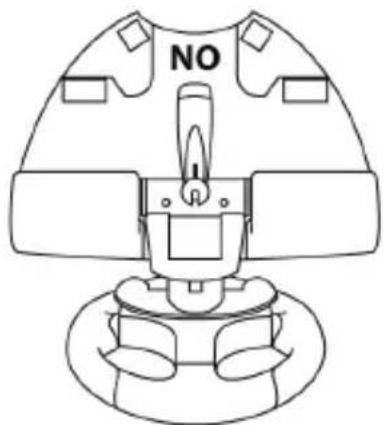
natural_image
Line drawing of a mechanical device with no visible text or symbolswww.thrustmaster.com





T80 Racing Wheel
Compatible : PlayStation®3 / PlayStation®4
CARACTÉRISTIQUES TECHNIQUES
natural_image
Warning symbol: black exclamation mark inside a triangle on white background (no text or numbers)natural_image
Line drawing of a mechanical device with 'YES' and 'J1' labels, no readable text or symbols beyond the label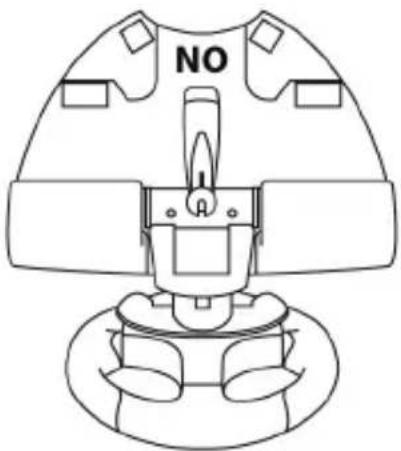
natural_image
Line drawing of a mechanical component with no visible text or symbols* Frein = Gâchette L2
EMULATION AUTOMATIQUE DE LA MANETTE SUR PLAYSTATION®3
www.thrustmaster.com



T80 Racing Wheel
CARACTERÍSTICAS TÉCNICAS
natural_image
Line drawing of a mechanical device with 'YES' and 'O' labels, no readable text or symbols beyond the label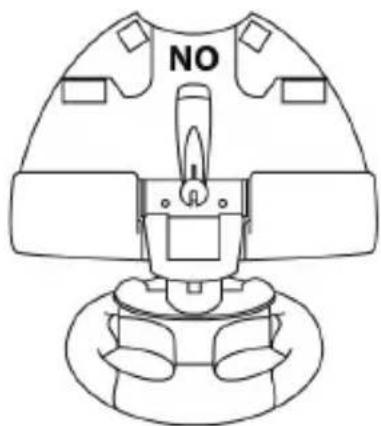
natural_image
Line drawing of a mechanical device with no visible text or symbolswww.thrustmaster.com




T80 Racing Wheel
対応機種: PC / PlayStation®3 / PlayStation®4
取扱説明書
警告:
natural_image
Line drawing of a manual push-button press with two motors and a connector (no text or symbols)natural_image
Line drawing of a mechanical device with 'YES' and 'O' labels, no readable text or symbols beyond the label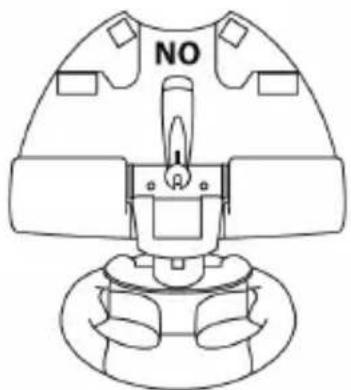
natural_image
Line drawing of a mechanical component with no visible text or symbolswww.thrustmaster.com
Made in China.


:外箱
CE FC
T80 Racing Wheel
支持:PlayStation®3/PlayStation®4
用户手册
技术参数
natural_image
Line drawing of a mechanical device with 'YES' and 'J' labels, no readable text or symbols beyond the label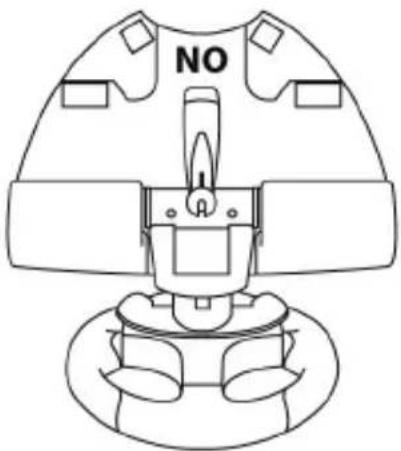
natural_image
Line drawing of a mechanical component with no visible text or symbols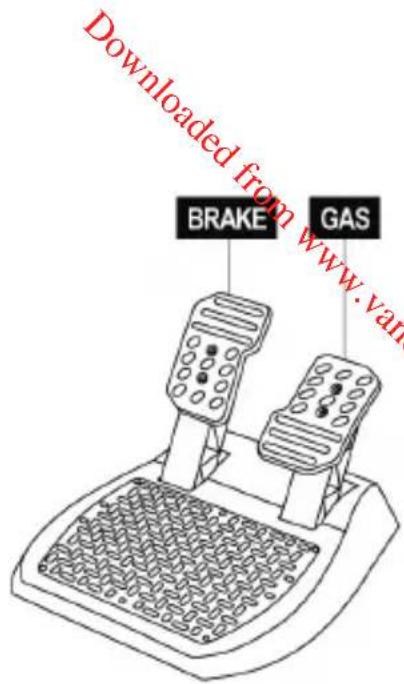
使用 PS 按钮 (5)
方向盘上的 PS 按钮具有下列功能:
natural_image
Abstract circular logo with a lowercase 'e' and two curved arrows, no text or symbols present.T80 Racing Wheel
支援:PlayStation®3 / PlayStation®4
使用手册
技術特性
natural_image
Line drawing of a mechanical device with 'YES' label and symmetrical components (no readable text or symbols beyond the label)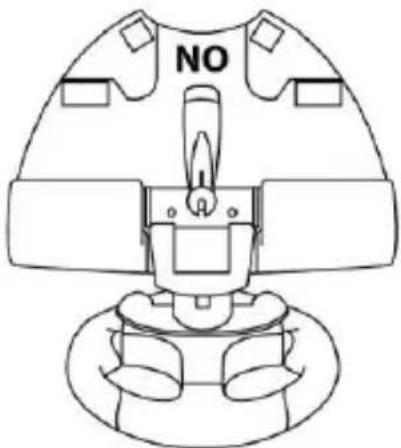
natural_image
Line drawing of a mechanical device with no visible text or symbolsDownloaded from www.vandenborre.be
現在您已準備好進行遊戲!
PLAYSTATION®3 操作圖示
使用 PS 按鈕 (5)
使用 PS 按鈕 (5)
方向盤上的 PS 按鈕具有下列功能:
기술적 특징:
8 폐달 세트 수놈 커넥터
9 폐달 세트용 암놈 커넥터
10핸들 USB 커넥터
11 조임 나사
12 테이블/책상 장착 시스템
natural_image
Line drawing of a mechanical device with 'YES' and 'I' labels, no readable text or symbols beyond the label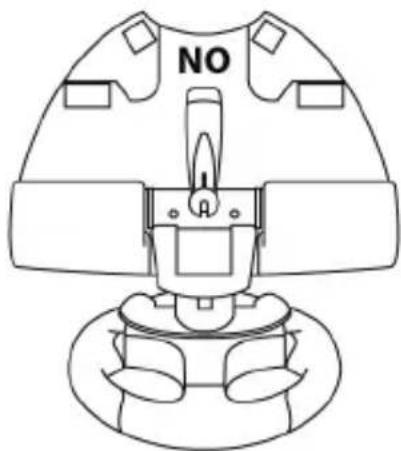
natural_image
Line drawing of a mechanical component with no visible text or symbols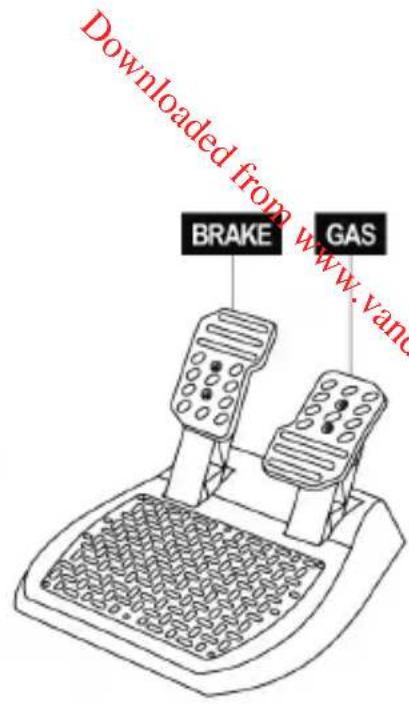
PS 버튼 (5) 사용하기
핸들 PS 버튼의 기능:
TECHNICAL FEATURES
1 2 UP and DOWN digital paddle shifters
2 Action buttons
3 LED
4 SELECT/START buttons on PS3 ^TM and SHARE/OPTIONS buttons on PS4 ^TM
5 PS button
6 Directional buttons
7 PS4/PS3 USB sliding switch
8 Pedal set's male connector
9 Female connector for pedal set
10 Wheel's USB connector
11 Fastening screw
12 Table/desk mounting system

For safety reasons, never use the pedal set with bare feet
or while wearing only socks on your feet.
THRUSTMASTER® DISCLAIMS ALL RESPONSIBILITY IN THE EVENT OF INJURY RESULTING FROM USE OF THE PEDAL SET WITHOUT SHOES.
INSTALLING THE WHEEL
Attaching the wheel to a table or desk
- Place the wheel on the edge of a table or other flat surface.
- Place the fastening screw (11) inside the table/desk mounting system (12), and screw the unit (counterclockwise) into the large screw thread on the underside of the wheel, until the wheel is perfectly stable.
natural_image
Line drawing of a mechanical device with 'YES' and 'J1' labels, no readable text or symbols beyond the label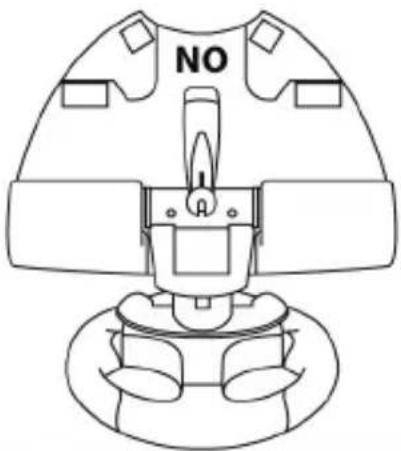
natural_image
Line drawing of a mechanical component with no visible text or symbolsWARNING: Never attempt to screw in the fastening screw (11) without the table/desk mounting system (12) in place!
(Doing so may damage your wheel.)
| INSTALLATION | REMOVAL |
To tighten:Turn the fastening screw (11)counterclockwise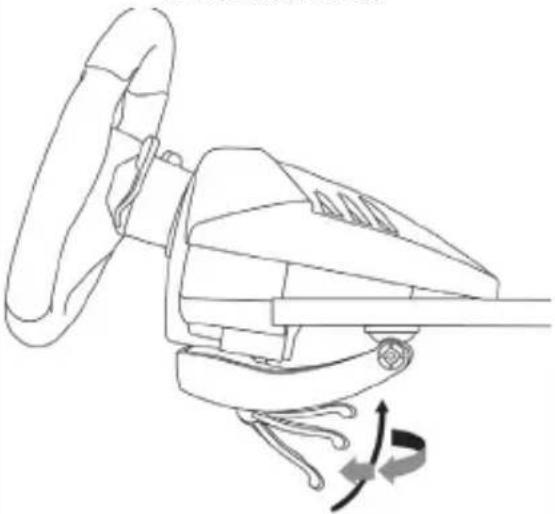 | To untighten:Turn the fastening screw (11)clockwise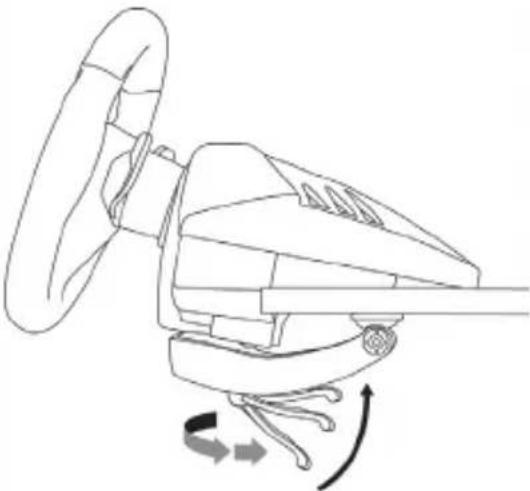 |
Connecting the pedal set to the wheel
Connect the pedal set's male connector (8) to the wheel's female connector (9), located at the back of the wheel's base.
PLAYSTATION®3
INSTALLATION ON PLAYSTATION®3
- Set the wheel's USB sliding switch (7) to the PS3 position.
- Connect the wheel's USB connector (10) to one of the console's USB ports.
- Power on your console.
- Start up your game.
You are now ready to play!
PLAYSTATION®3 MAPPING
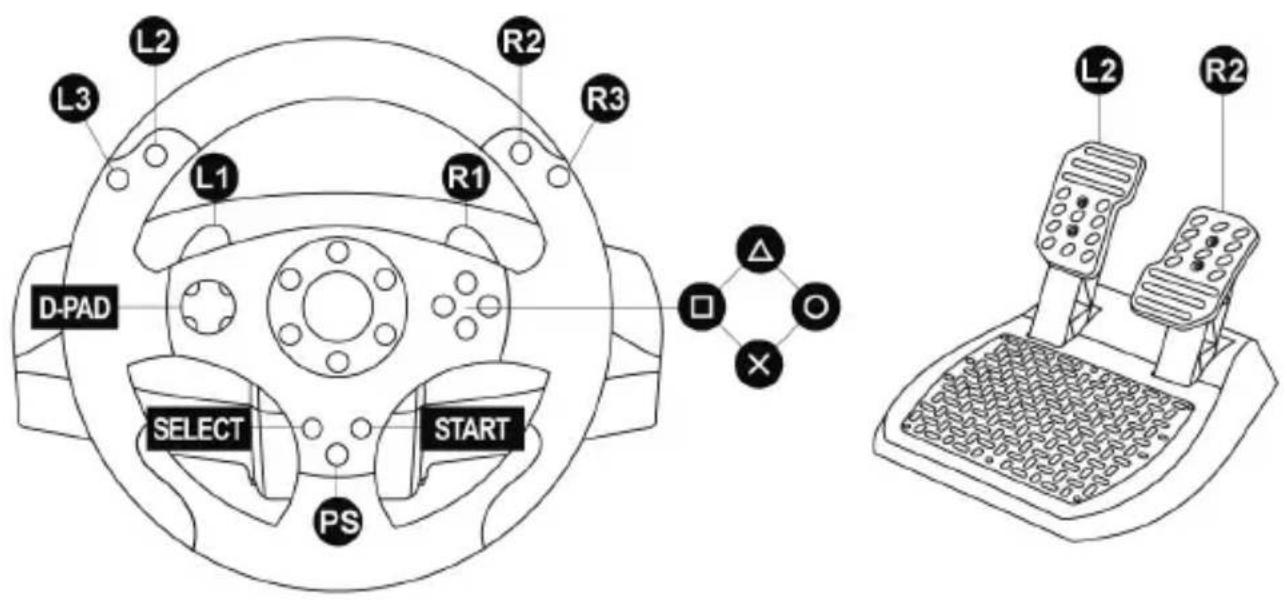
USING THE PS BUTTON (5)
Your wheel's PS button lets you exit your games and access the menus on your PlayStation®3 system.
CONFIGURING THE PEDAL SET ON PLAYSTATION®3
On PlayStation®3, the accelerator and brake controls function as follows:
* Accelerator = R2 trigger
* Brake = L2 trigger
AUTOMATIC GAMEPAD CONTROLLER EMULATION ON PLAYSTATION®3
In PlayStation®3 games only, the T80 Racing Wheel automatically emulates the official gamepad controller. The wheel is therefore compatible with most racing games.
- To change the mapping, go to the game's OPTIONS menu, and then select CONTROLLER SETTINGS.
- To change the sensitivity of the wheel's steering, use the wheel's Sensitivity Adjustment function, described below.
ADJUSTING THE WHEEL'S SENSITIVITY
(on PlayStation®3 only)
On PS3, there are 3 available sensitivity modes for your wheel's steering:
- NORMAL
- MEDIUM
- HIGH
- To change the wheel's steering sensitivity:
Simultaneously press and release the D-pad (6) + the 2 UP and DOWN paddle shifters (1):
- The wheel's LED (3) changes color according to the selected sensitivity level.
- The wheel's steering is now either more or less sensitive.
| WHEEL’S STEERING SENSITIVITY | LED COLOR |
| NORMAL | RED |
| MEDIUM | ORANGE |
| HIGH | GREEN |
- Internal memory for saving the wheel's steering sensitivity:
The steering sensitivity level that you have chosen is automatically saved in the product's internal memory, even when the console is powered off or the wheel is disconnected.
Therefore, there's no need to change the sensitivity level again every time you start up a game.
IMPORTANT NOTES REGARDING PLAYSTATION®3
- Always set the wheel's USB sliding switch (7) to the PS3 position before connecting the wheel to the console.
- In 1 player mode: if your official PlayStation®3 gamepad controller is powered on, you must switch it to controller port 2 in order for your wheel to be functional.
- On PlayStation®3, the wheel is only compatible with PlayStation®3 games, and will not function with Playstation®2 games.
- In some racing games, don't hesitate to test out your wheel's 3 steering sensitivity modes, to optimize its precision and responsiveness.
CONFIGURATION PROCEDURE FOR GRAN TURISMO® ON PS3™
In this game, by default, acceleration and braking are not assigned to the R2/L2 controls, and gear shifting is not assigned to the R1/L1 controls (which is the case for the T80 Racing Wheel's pedal set and UP/DOWN paddle shifters).
Procedure to configure and optimize the wheel:
(This procedure only needs to be carried out once, as the changes will then automatically be saved in the game.)
1) Start up your game.
2) Go to the OPTIONS menu.
3) Go to the HARDWARE / GAMEPAD CHANGE BUTTON ASSIGNMENTS Left & Right View menu.
(by clicking on the symbol depicting the gamepad and the cross)
4) Configure your controller as follows:
- Accelerate on R2
- Brake on L2
- Gear Up on R1
- Gear Down on L1
- Rear View on L3 and/or R3
• Left & Right View on D-Pad Left & Right
5) Click OK (in the lower-right part of your screen).
6) Return to the main menu to select the race track of your choice.
You are now ready to play!
Note: there are 3 available sensitivity modes for your wheel's steering (Normal, Medium or High). In order to enjoy optimal precision in Gran Turismo® on PS3™, we recommend that you select either Medium or High sensitivity, according to your taste.
PLAYSTATION®4
INSTALLATION ON PLAYSTATION®4
- Set the wheel's USB sliding switch (7) to the PS4 position.
- Connect the wheel's USB connector (10) to one of the console's USB ports.
- Power on your console.
- Start up your game.
You are now ready to play!
PLAYSTATION®4 MAPPING
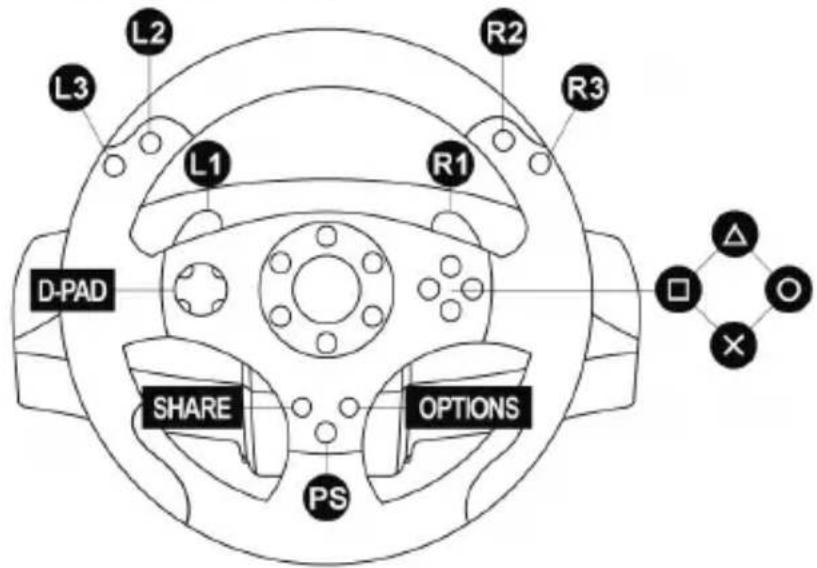
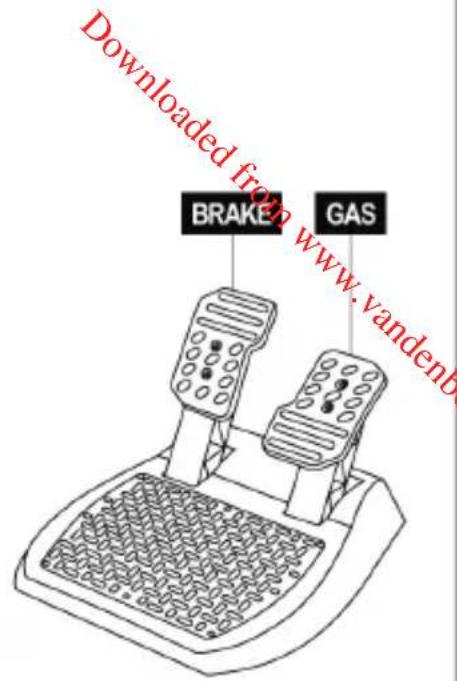
USING THE PS BUTTON (5)
Your wheel's PS button lets you:
- switch between the official gamepad controller and the wheel (which is necessary in order for the wheel to be enabled),
- exit your games and access the menus on your PlayStation®4 system.
IMPORTANT NOTES REGARDING PLAYSTATION®4
- Always set the wheel's USB sliding switch (7) to the PS4 position before connecting the wheel to the console.
AUTOMATIC WHEEL EMULATION ON PLAYSTATION®4
In PlayStation®4 games only, the T80 Racing Wheel is recognized as a real wheel and not as a gamepad, for better responsiveness and enhanced precision.
- To change the mapping, go to the game's OPTIONS menu, and then select WHEEL SETTINGS.
- To change the sensitivity of the wheel's steering, go to the game's OPTIONS menu, and then select WHEEL SETTINGS.
LIST OF COMPATIBLE PLAYSTATION®4 GAMES
A list of PlayStation®4 games compatible with the wheel is available at http://support.thrustmaster.com.
Go to Racing Wheels / T80 Racing Wheel, then select Games Settings.
This list will be added to regularly, with the arrival of new PS4 ^™ games compatible with racing wheels.
TROUBLESHOOTING AND WARNING
- My wheel is not functioning correctly or seems improperly calibrated:
- Switch off your console, completely disconnect your wheel and all cables, reconnect everything and then restart your game.
- Make sure that the wheel's USB sliding switch (7) is in the correct position (PS4 or PS3) before connecting the wheel's USB connector (10) to the console.
- Never move the wheel or press on the pedals when connecting your wheel, in order to avoid any calibration problems.
- Never move the wheel or press on the pedals when the game is starting up, in order to avoid any calibration problems.
• My pedal set is not functioning correctly: - Reconfigure your wheel in your game's controller options.
• I can't configure my wheel: - On PS3™, in your game's Options / Controller / Gamepads menu: select the most appropriate configuration.
- On PS4™, in your game's Options / Controller / Wheels menu: select the most appropriate configuration.
- Refer to your game's user manual or online help for more information.
- My wheel's steering is not responsive enough:
- On PS3™, use the wheel's Sensitivity Adjustment function, described on page 5 of this manual.
- On PS4™, go to the game's Options / Controller / Wheels menu.
COPYRIGHT
© 2017 Guillemot Corporation S.A. All rights reserved. Thrustmaster® is a registered trademark of Guillemot Corporation S.A.
“”, “PlayStation”, “PS3”, “PS4” and “△OX□” are registered trademarks of Sony Interactive Entertainment Inc. All rights reserved.
All other trademarks and brand names are hereby acknowledged and are property of their respective owners. Illustrations not binding. Contents, designs and specifications are subject to change without notice and may vary from one country to another. Made in China.
ENVIRONMENTAL PROTECTION RECOMMENDATION
Please adhere to local recycling laws for electrical and electronic equipment.
Retain this information. Colors and decorations may vary.
Plastic fasteners and adhesives should be removed from the product before it is used.
www.thrustmaster.com