
K290 - Gaming Keyboard LOGITECH - Free user manual and instructions
Find the device manual for free K290 LOGITECH in PDF.
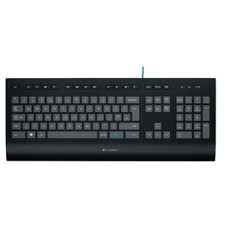

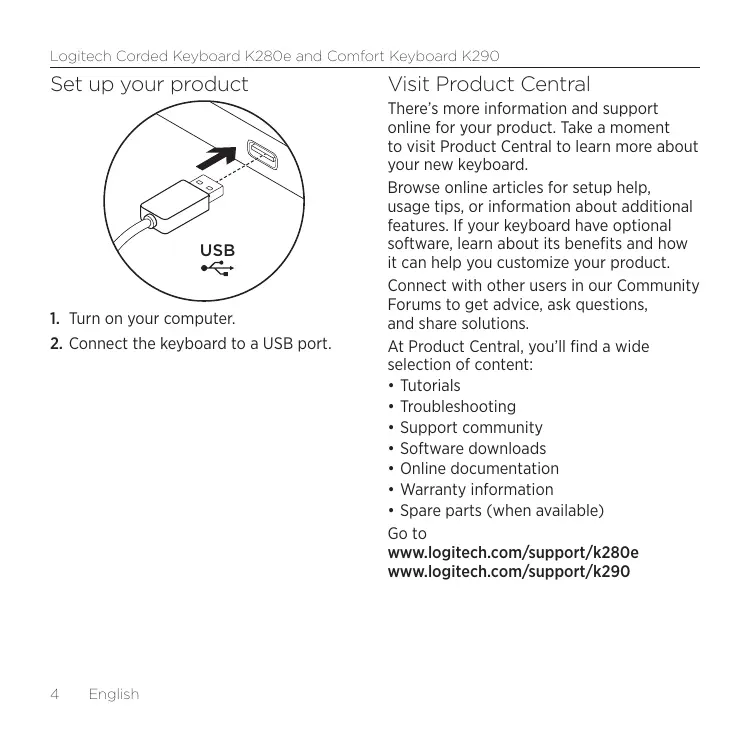


| Product type | Gaming keyboard |
| Brand | Logitech |
| Model | K290 |
| Dimensions (approx.) | 440 x 130 x 25 mm |
| Weight (approx.) | 0.85 kg |
| Power supply | USB connection (bus powered) |
| Interface | Wired USB |
| Function keys | F1 to F12 with Fn combinations for quick access |
| Multimedia functions | Play/Pause, next/previous track, volume, mute |
| Compatibility | Windows 8 and earlier versions |
| Optional software | Logitech SetPoint for customization |
| Cable length | Approx. 1.8 m |
| Care and cleaning | Clean with a soft, slightly damp cloth; avoid liquids |
| Safety | Use on a flat, stable surface; do not expose to water |
| Spare parts and repairability | Not applicable; sealed keyboard, no user-replaceable components |
| Warranty | Refer to Logitech website for warranty information |
| Online support | www.logitech.com/support/k290 |
Frequently Asked Questions - K290 LOGITECH
User questions about K290 LOGITECH
0 question about this device. Answer the ones you know or ask your own.
Ask a new question about this device
Download the instructions for your Gaming Keyboard in PDF format for free! Find your manual K290 - LOGITECH and take your electronic device back in hand. On this page are published all the documents necessary for the use of your device. K290 by LOGITECH.
USER MANUAL K290 LOGITECH
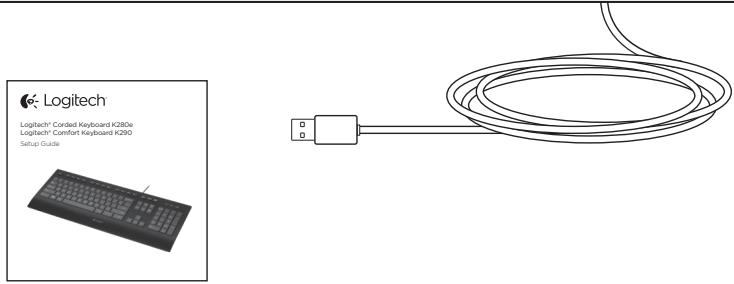
Logitech® Corded Keyboard K280e Logitech® Comfort Keyboard K290
Setup Guide

Contents
English 4 Lietuviu 34 Francais 7 Hrvatski 37 Nederlands 10 Srpski 40 Eληνικα 13 Slovenšcina 43 Iop-ycckn 16 Slovencina 46 Magyar 19 Română 49 Česká verze 22 Šělárapské 52 Po polsku 25 yKpaHcKa 55 Eesti 28 Turkce 58 Latviski 31 61.
www.logitech.com/support 67
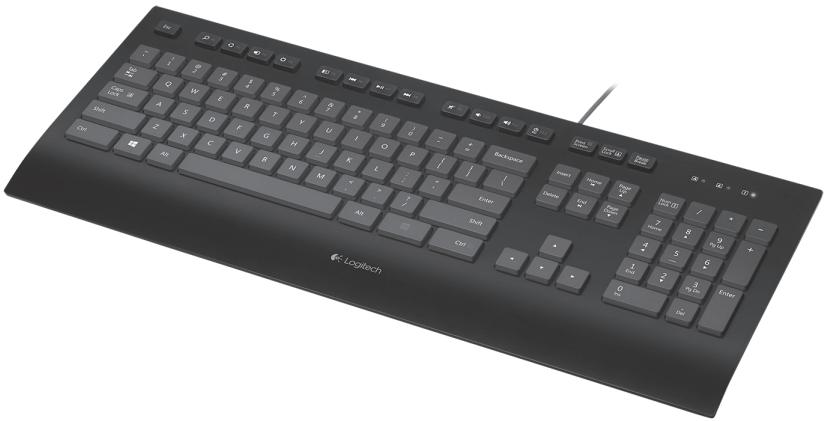
Set up your product
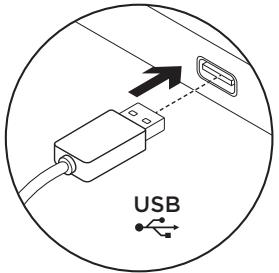
- Turn on your computer.
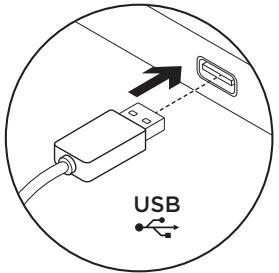
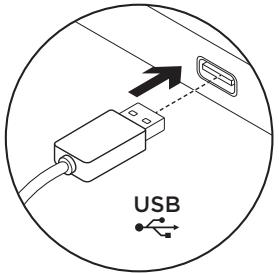
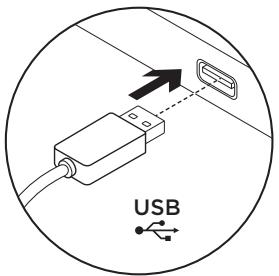
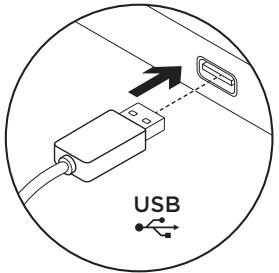
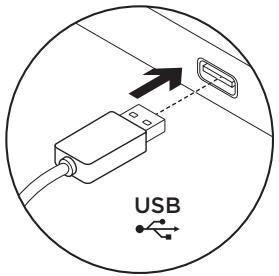
- Connect the keyboard to a USB port.
Visit Product Central
There's more information and support online for your product. Take a moment to visit Product Central to learn more about your new keyboard.
Browse online articles for setup help, usage tips, or information about additional features. If your keyboard has optional software, learn about its benefits and how it can help you customize your product.
Connect with other users in our Community Forums to get advice, ask questions, and share solutions.
At Product Central, you'll find a wide selection of content:
- Tutorials
- Troubleshooting Support community
- Software downloads Online documentation Warranty information
- Spare parts (when available)
Go to
www.logitech.com/support/k280e
www.logitech.com/support/k290
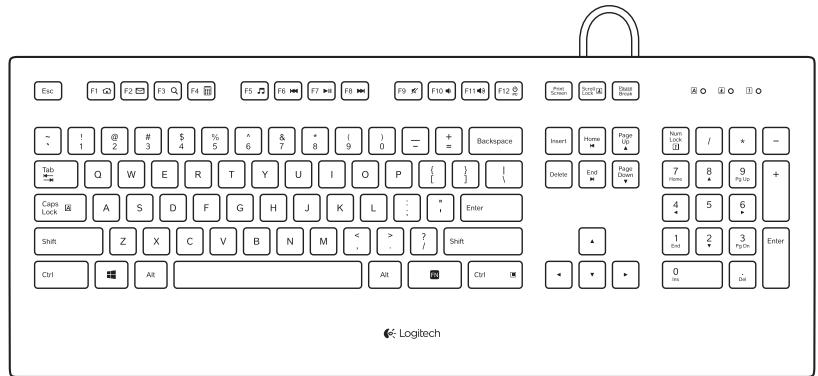
Function keys
The function keys available depend on which keyboard you have.
To identify your keyboard, look at the label fixed to the bottom.
Corded Keyboard K280e

To select a function key such as F1, just press the F-key.
To select a feature, press and hold the blue FN key on the bottom row of the keyboard, then press the F-key. The following features are available:
Fn+F1=Home Fn+F7=Play/Pause
Fn+F2=Launch Email Fn+F8=Next Track
Fn+F3=Search Fn+F9=Mute
Fn+F4=Calculator Fn+F10=Volume down
Fn + F5 = Launch Media Player; Fn + F11 = Volume up
Fn + F6 = Previous Track; Fn + F12 = PC Sleep
Comfort Keyboard K290

To select a function key such as F1, press and hold the blue FN key on the bottom row of the keyboard, and then press the F-key.
To select a feature, just press the F-key. The following features are available:
F1 = Search; F7 = Play/Pause; F2 = Share; F8 = Next Track; F3 = Devices; F9 = Mute; F4 = Settings; F10 = Volume down; F5 = Switch applications; F11 = Volume up; F6 = Previous Track; F12 = PC Sleep
Windows 8 feature.
Use the Logitech SetPoint software to map these keys to other functions.
You can download SetPoint from
www.logitech.com/support/k280e
www.logitech.com/support/k290
Troubleshooting
Keyboard does not work
- Check the USB cable connection.
- Use another USB port.
- Connect directly to the computer and don't use a USB hub.
- If the keyboard still doesn't work, please restart your computer.
What do you think?
Please take a minute to tell us.
Thank you for purchasing our product.
www.logitech.com/ithink
Coredd Keyboard K280e

Fn + F7 = Play/Pause
www.logitech.com/ithink
Setting up your product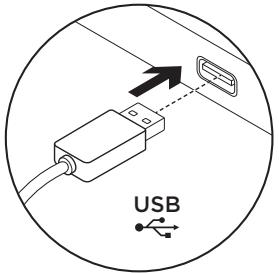
Coredd Keyboard K280e

www.logitech.com/ithink
Fn+F5= Open Media Player
Fn+F6= Previous Track
Fn+F7= Play/Pause
Product name
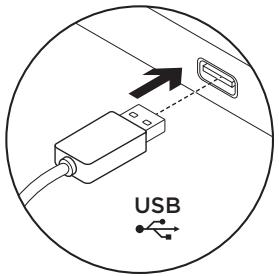
- Turn on the computer. 2. Connect the keyboard to a USB port.
Visit the Technical Support section
The Technical Support section contains additional information about your product, such as documentation and support. Take a few minutes to visit the Technical Support section to learn more about your new keyboard.
Read the FAQs to get help with installation, tips, and information about additional features. If your keyboard has additional software, learn about its benefits and the available configuration options for the product.
Connect with other users on the community forums to get advice, ask questions, and share solutions to problems.
The Technical Support section has a rich collection of materials on various topics.
- Tutorials
- Troubleshooting Community Support Software download
Visit the website www.logitech.com/support/k280e www.logitech.com/support/k290
- Internet documentation Warranty information Spare parts (if available)
Function keys
The functionality of the function keys depends on the keyboard model.
The keyboard model is indicated on the label.
Corded Keyboard K280e
| F1 | F2 | F3 | F4 | F5 | F6 | F7 | F8 | F9 | F10 | F11 | F12 |
To use the function keys, such as F1, simply press it.
To select an additional function, press and hold the Fn key in the bottom row, then press the corresponding function key. The following additional functions are available:
Fn+F1 = Go to the home page in the browser
Fn+F2 = Launch the email program
Fn+F3 = Search
Fn+F7 = Play/Pause
Fn+F8 = Next track
www.logitech.com/ithink
Corded Keyboard K280e
| F1 | F2 | F3 Q | F4 | F5 | F6 | F7 II | F8 | F9 | F10 | F11 | F12 PC |
www.logitech.com/ithink
Product setup
Corded Keyboard K280e
| F1 | F2 | F3 Q | F4 | F5 | F6 | F7 II | F8 | F9 | F10 | F11 | F12 PC |
www.logitech.com/ithink
Configure the product
www.logitech.com/ithink
Setting up the product
- Turn on the computer.
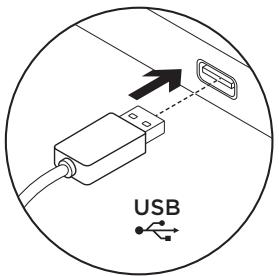
- Connect the keyboard to a USB port.
Visiting the Product Center
Coredd Keyboard K280e

www.logitech.com/ithink
Preparing the device for work
- Turn on the computer.
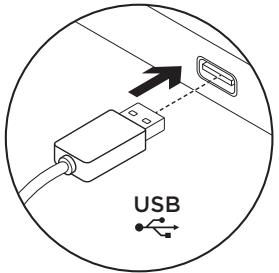
- Connect the keyboard to a USB port.
Information in the 'Product Center' section of the website
The website offers more information and support for your device.
www.logitech.com/ithink
Setting up the device
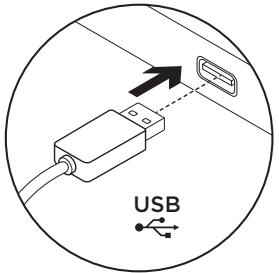
- Turn on the computer.
- Connect the keyboard to a USB port.
Visit the Product Center
Corded Keyboard K280e

To select a function key such as F1, simply press the F key.
www.logitech.com/ithink
Corded Keyboard K280e
| F1 | F2 | F3 Q | F4 | F5 | F6 | F7 II | F8 | F9 | F10 | F11 | F12 PC |
To select a function key such as F1, press the corresponding F key.
To select a function, press and hold the FN key at the bottom of the keyboard, then press the corresponding F key. The following functions are available:
Fn + F1 = Home Fn+F7 = Play/Pause
Fn + F2 = Launch email Fn+F8 = Next track
Fn + F3 = Search Fn+F9 = Mute
Fn + F4 = Calculator Fn+F10 = Volume down
Fn + F5 = Launch application Fn+F11 = Volume up
Media Player
Fn + F6 = Previous track
Comfort Keyboard K290

To select a function key such as F1, press and hold the FN key in the row at the bottom of the keyboard, then press the corresponding F key.
To select a function, press the corresponding F key. The following functions are available:
www.logitech.com/ithink
Continue section
Corded Keyboard K280e
| F1 | F2 | F3 Q | F4 | F5 | F6 | F7 II | F8 | F9 | F10 | F11 | F12 PC |
www.logitech.com/ithink
Product setup
Corded Keyboard K280e
| F1 | F2 | F3 Q | F4 | F5 | F6 | F7 II | F8 | F9 | F10 | F11 | F12 PC |
To activate a function key (e.g., F1), simply press it.
www.logitech.com/ithink
Corded Keyboard K280e

To select a function key, such as F1, simply press the F key.
To select a feature, press and hold the blue FN key on the bottom row of the keyboard, then press the F key. The following features are available:
Fn + F1 = Home page Fn+F7= Play/Pause
Fn + F2 = Launch email Fn + F8 = Next track
Fn + F3 = Search Fn + F9 = Mute volume
Fn + F4 = Calculator Fn + F10 = Volume down
Fn + F5 = Launch Media Player Fn + F11 = Volume up
Fn + F6 = Previous track Fn + F12 = PC in standby mode
Comfort Keyboard K290

www.logitech.com/ithink
B npodyktoBnO tDeI ue OTKpneTe pa3Hoo6pa3HO cneuaJHo pO6paHO cbbpxaHHe:
PbKOBOCTBa - OTrpaHbAhe Ha Hen3npaBHOCTN - 06uHocT,3aHIMBaUca Ce C BbnpocnHaPiDpBxKkata
- N3terTnHnHa coΦtyep
- OhnaH DOKyMeHTaCnA
- TapaHcHOnHa INHΦOpMaζη
- Pe3epBHH qactn (KOrato mTaKaIBa)
OTnTeHa
www.logitech.com/support/k280e
www.logitech.com/support/k290
DyHKLIOHajINKnaBn
AKTNBnHTe yHKnUHOHaJIH KnabNn 3aBcrt OT KnaBNaTpyaTa, C KOrTo pa3noJarate.
3a da pa36epeTe KaKBa e KnaBnAtypa Ta Bn, nOrJIeHHeTe eTtKeTa, 3aJIeNEH Ha NbHOTO.
KnaBnAtya Cored Keyboard K280e
| F1 | F2 | F3 | F4 | F5 | F6 | F7 | F8 | F9 | F10 | F11 | F12 |
3a da n36pepe foHKUHOHAJIEN KJIABNIOT TUNa Ha F1, npocTo HATNCHeF-KNAHua.
3a da n36epete fynkun,HaTncheTe 3aDpBxTe cHnna KnaBnFN ha na-donHna peH naKnaBnAtypata n Cled ToBa hntcHete F-KnaBnua. Pa3nolarate cbc cneHNite yhknim:
Fn+F1=Help Fn+F7=Play/Pause
Fn+F2=Open new window Fn+F8=Previous track
Fn+F3=Search Fn+F9=Mute
Fn+F4=Calculator Fn+F10=Volume down
Fn+F5=Start Media Player Fn+F11=Volume up
Fn+F6=Next track Fn+F12=Sleep mode
Comfort Keyboard K290

To select a function key, e.g. F1, press and hold the FN key at the bottom left of the keyboard and then press the F-key.
To select a function, simply press the F-key. You have the following functions:
F1 = Help F7 = Play/Pause F2 = Open F8 = Previous track F3 = Devices F9 = Mute F4 = Settings F10 = Volume down F5 = Switch application F11 = Volume up F6 = Next track F12 = Sleep mode
Troubleshooting
The keyboard does not work
- Check the USB cable connection.
- Use another USB port. Connect directly to the computer, do not use a USB hub.
- If the keyboard still does not work, restart the computer.
Finally, we have time to think. Thank you for purchasing our product.
www.logitech.com/ithink
Installed products
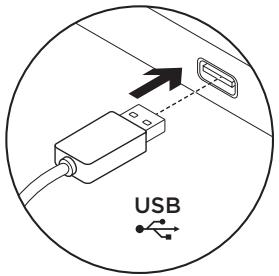
- Turn on the computer. 2. Connect the keyboard to a USB port.
Web site "Logitech Product Center"
On our website you will find detailed information about your product, as well as online support.
Visit the "Logitech Product Center" website to learn more about your keyboard.
Read online articles to get installation tips, usage advice, or learn about additional functions. If your keyboard came with additional software, check its benefits and how it can help you configure the product.
Join the user community on forums to get answers to your questions or share your experiences.
On the "Logitech Product Center" website you can find a variety of information, such as:
Corded Keyboard K280e

To select a function key, such as F1, press the corresponding function key. To select a function, press and hold the Fn key at the bottom of the keyboard, then press the function key. Available functions.
Fn+F1= Home page Fn+F7= Play/Pause
Fn+F2= Launch program Fn+F8= Next track
Fn+F3 = Search Fn+F10 = Decrease brightness
Fn+F4 = Calculator Fn+F11 = Increase brightness
Fn+F5 = Switch between programs Fn+F12 = Sleep mode
Fn+F6 = Previous track
Comfort Keyboard K290


To select a function key, for example F1, press and hold the FN key in the bottom row of the keyboard, then press the function key.
To disable the function, press the corresponding function key. The following functions are available.
F1 = Search F2 = Share F3 = Devices F4 = Settings F5 = Switch between programs F6 = Previous track
F7 = Play/Pause F8 = Next track F9 = Mute F10 = Decrease brightness F11 = Increase brightness F12 = Sleep mode
Windows 8 functions
Use the Logitech SetPoint software to assign these keys other functions. The Logitech SetPoint software can be downloaded from the website www.logitech.com/support/k280e / www.logitech.com/support/k290
Information about troubleshooting
Keyboard does not work
- Check the USB cable connection. Use a different USB port. Connect directly to the computer, do not use a USB hub. If the keyboard still does not work, restart the computer.
www.logitech.com/ithink
Coredd Keyboard K280e

www.logitech.com/ithink
. Windows 8
SetPoint 1jz kki jk. l Logitech SetPoint
www.logitech.com/support/k280e
www.logitech.com/support/k290
www.logitech.com/ithink
Corded Keyboard K280e

F Clllall gl biall g w y lcy lo F1 2000 2000
.F clll al 15 bc i 15 15 15 15 15 15 FN clll al 15 15 15 15 15 15
alall l jlll
Caa/1 Fn+F7 4
1 =Fn+F8 2 Fn+F2
一 F n + F 9 = F n + F 3
10 Fn+F4
山山山 =Fn+F11 Media Player =Fn+F5
1 =Fn+F12

www.logitech.com/support/k280e
www.logitech.com/support/k290
| België/Belgique | Dutch: +32-(0)2 200 64 44; French: +32-(0)2 200 64 40 |
| Česká Republika | +420 239 000 335 |
| Danmark | +45-38 32 31 20 |
| Deutschland | +49-(0)69-51 709 427 |
| España | +34-91-275 45 88 |
| France | +33-(0)1-57 32 32 71 |
| Ireland | +353-(0)1 524 50 80 |
| Italia | +39-02-91 48 30 31 |
| Magyarország | +36 (1) 777-4853 |
| Nederland | +31-(0)-20-200 84 33 |
| Norge | +47-(0)24 159 579 |
| Österreich | +43-(0)1 206 091 026 |
| Polska | 00800 441 17 19 |
| Portugal | +351-21-415 90 16 |
| Rocsnja | +7(495) 641 34 60 |
| Schweiz/Suisse | D +41-(0)22 761 40 12 |
| Svizzzera | F +41-(0)22 761 40 16 |
| I +41-(0)22 761 40 20 | |
| E +41-(0)22 761 40 25 |
| South Africa | 0800 981 089 |
| Suomi | +358-(0)9 725 191 08 |
| Sverige | +46-(0)8-501 632 83 |
| Türkiye | 00800 44 882 5862 |
| United Arab Emirates | 8000 441-4294 |
| United Kingdom | +44-(0)203-024-81 59 |
| European, Mid. East., & African Hq. Morges, Switzerland | English: +41-(0)22 761 40 25 Fax: +41-(0)21 863 54 02 |
| Eastern Europe | English: 41-(0)22 761 40 25 |
| Argentina | +0800 555 3284 |
| Brasil | +0800 891 4173 |
| Canada | +1-866-934-5644 |
| Chile | +1230 020 5484 |
| Colombia | 01-800-913-6668 |
| Latin America | +1 800-578-9619 |
| Mexico | 01.800.800.4500 |
| United States | +1 646-454-3200 |
www.logitech.com
- CONTENTS
- SET UP YOUR PRODUCT
- VISIT PRODUCT CENTRAL
- FUNCTION KEYS
- CORDED KEYBOARD K280E
- COMFORT KEYBOARD K
- TROUBLESHOOTING
- KEYBOARD DOES NOT WORK
- COREDD KEYBOARD K280E
- PRODUCT NAME
- VISIT THE TECHNICAL SUPPORT SECTION
- PRODUCT SETUP
- CONFIGURE THE PRODUCT
- SETTING UP THE PRODUCT
- VISITING THE PRODUCT CENTER
- PREPARING THE DEVICE FOR WORK
- SETTING UP THE DEVICE
- VISIT THE PRODUCT CENTER
- CONTINUE SECTION
- KNABNATYA CORED KEYBOARD K280E
- THE KEYBOARD DOES NOT WORK
- INSTALLED PRODUCTS
- WEB SITE "LOGITECH PRODUCT CENTER
- WINDOWS 8 FUNCTIONS
- INFORMATION ABOUT TROUBLESHOOTING
- WWW.LOGITECH.COM/SUPPORT/K280E
- WWW.LOGITECH.COM/SUPPORT/K
Brand : LOGITECH
Model : K290
Category : Gaming Keyboard