Smart Frame WiFi 1010 - Digital photo frame ROLLEI - Free user manual and instructions
Find the device manual for free Smart Frame WiFi 1010 ROLLEI in PDF.


| Product Type | Digital Photo Frame |
| Brand | Rollei |
| Model | Smart Frame WiFi 1010 |
| Dimensions | 29.5 x 22.5 x 3 cm |
| Weight | 705 g |
| Screen | 10.1 inches (25.53 cm), IPS LCD touchscreen, resolution 1280 x 800 pixels, 16:10 aspect ratio |
| Brightness | 200-220 cd/m², adjustable from 0 to 100% |
| Internal Memory | 32 GB |
| External Memory | microSD card up to 128 GB (class 10) |
| Connectivity | Wi-Fi 2.4 GHz (2.412 - 2.472 GHz) |
| Power Supply | Power adapter: input 100-240 V, 50-60 Hz, 0.3 A; output 5.0 V / 2.0 A |
| Power Consumption | 5.0 W (SDR) |
| Supported File Formats | JPEG, JPG, PNG, MP4 |
| Operating System | Android 6.0 |
| App | Frameo (iOS and Android) |
| Speakers | 1 speaker of 1.0 W (96±3 dB, 15 volume levels) |
| Mounting | On stand (horizontal/vertical) or wall mount |
| Operating Temperature | 0 to 40 °C |
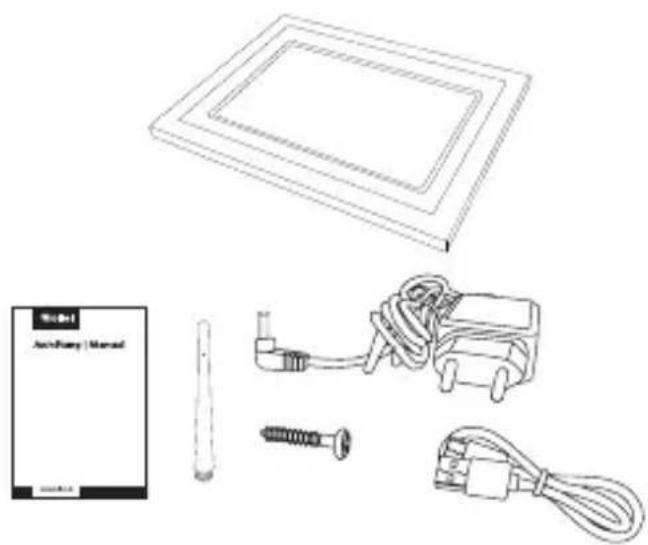
| Box Contents | Frame, power adapter, USB-C cable, stand, screws, user manual |
| Care and Cleaning | Clean the screen with a soft dry cloth. Do not use abrasive products. Protect from moisture. |
| Safety | Use only the provided adapter. Do not open the case. Keep out of reach of children. Do not expose to water or high temperatures (>40°C). |
| Repairability | Repairs must be carried out by a certified professional. Any opening of the case voids the warranty. |
Frequently Asked Questions - Smart Frame WiFi 1010 ROLLEI
User questions about Smart Frame WiFi 1010 ROLLEI
0 question about this device. Answer the ones you know or ask your own.
Ask a new question about this device
Download the instructions for your Digital photo frame in PDF format for free! Find your manual Smart Frame WiFi 1010 - ROLLEI and take your electronic device back in hand. On this page are published all the documents necessary for the use of your device. Smart Frame WiFi 1010 by ROLLEI.
USER MANUAL Smart Frame WiFi 1010 ROLLEI
Smart Frame WiFi 1010
natural_image
Abstract geometric line drawing of nested squares on a black background (no text or symbols)
natural_image
Abstract red circular logo with white hand gestures (no text or symbols)frameo
MANUAL IN GERMAN, ENGLISH, SPANISH, FRENCH, ITALIAN, DUTCH, CZECH, SLOVAK, DANISH, SWEDISH, NORWEGIAN AND FINNISH
Rollei
Inhalt
Vorwort 4
Explanation of Symbols. 33
Safety Instructions 34
What's in the Box 36
Product Overview 36
Mounting 37
Operation 38
- Weather menu 45
- My frame 45
- Manage photos 47
- My Friends 49
- Display 50
- Slideshow....50
- Wi-Fi....53
- Notifications....53
- Backup and Restore 55
- External storage backup. 56
- Help 57
- About. 58
Privacy 58
Support 58
Technical Data. 59
Disposal 61
Conformity 61
ESPAÑOL....62
FRANÇAIS 91
ITALIANO 120
NEDERLANDS 149
ČESKY 178
SLOVENSKY....207
DANSK 236
SVENSKA. 265
NORSK 294
SUOMI 323
Vorwort
natural_image
Line drawings of medical or electrical components including a rectangular plate, a small pen, a coiled cable, and a screw (no text or symbols)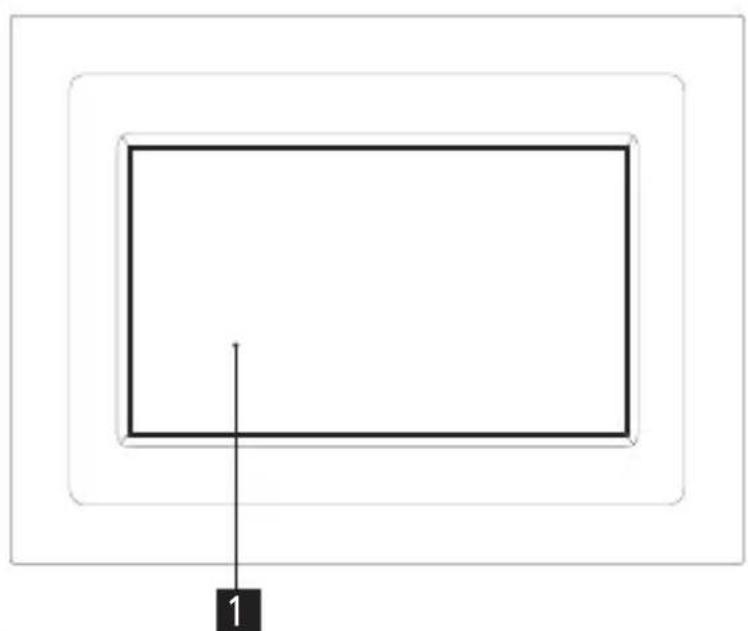
natural_image
Simple diagram with two nested rectangles and a labeled point '1' (no text or symbols within the shapes)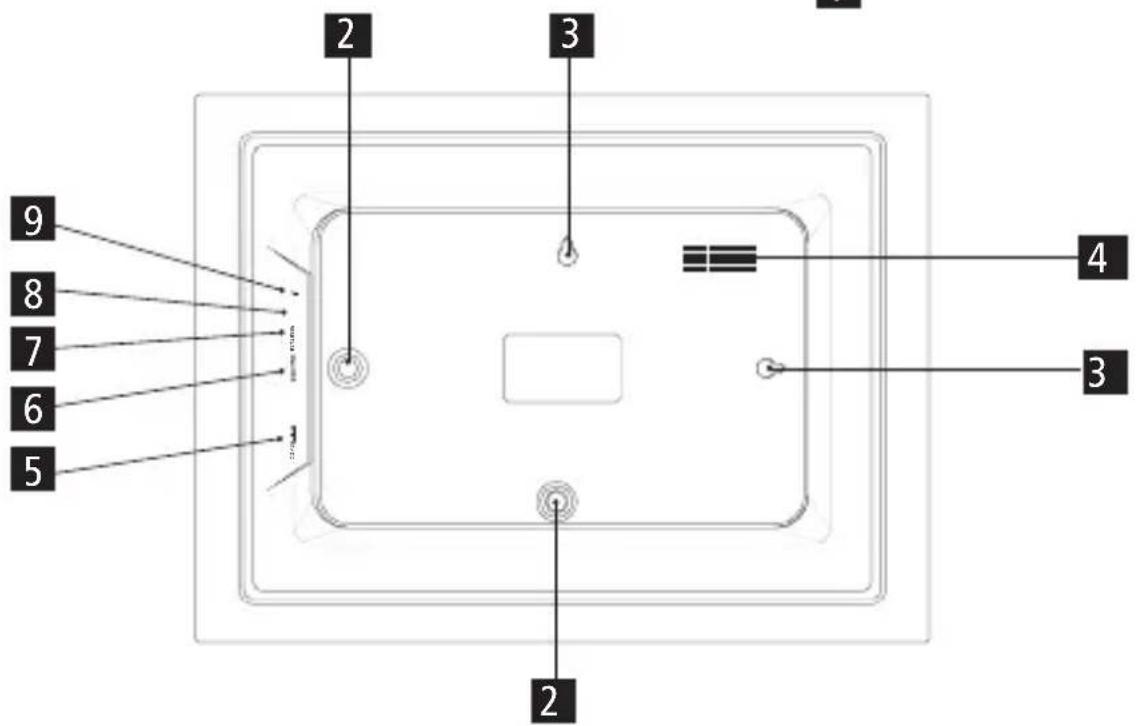
Montage
Stehende Montage

Laden im
App Store

JETZT BEI
Google Play
Bedienung
Video-Tutorials
Bedienung
Navigieren in Ihrem Frameo
natural_image
Close-up of a bowl of red watermelon with a spoon, next to a cut of watermelon (no text or symbols visible)
natural_image
Close-up of a whole watermelon cut open to reveal its flesh, with a decorative pattern in the foreground (no text or symbols visible)natural_image
Four yellow emoji icons: a heart, a smiling face, an exclamation, and a frowning face, arranged horizontally (no text or symbols)natural_image
Three simple icons: play button, download arrow, and refresh symbol (no text or labels)Receive wonderful photos and videos from friends and family with the Rollei Smart Frame WiFi 1010 with built-in Frameo software. Use the free Frameo app to send photos and videos directly from your smartphone or tablet to the Rollei Smart Frame WiFi 1010 – wherever you are in the world. The photos or videos will appear on the digital photo frame within seconds, so you can enjoy the moments right as they happen.
Before the First Use
Please read the operating instructions and safety instructions carefully before using the device for the first time.
Keep the operating instructions together with the device for later use. If other persons use this device, make this user manual available to them. If you sell the device, this manual belongs to the device and must be supplied with it.
Explanation of Symbols
The following symbols are used in these operating instructions, on the Rollei Smart Frame WiFi 1010 or on the packaging.
Products marked with this symbol comply with all relevant community regulations of the European Economic Area.
Products marked with this symbol are operated with direct current.
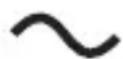
Products marked with this symbol are operated with alternating current.
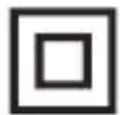
Products with this symbol have additional or reinforced insulation and comply with protection class II.
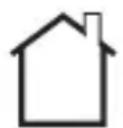
For indoor use only. Devices with this symbol may only be operated indoors (dry environment).
Explanation of Symbols
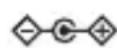
Products marked with this symbol have a positive polarity. They may only be connected to products that also have a positive polarity.
Safety Instructions
- Only connect the product if the mains voltage of the input or power supply matches the specifications on the type plate on the back of the product.
- Do not use the product if it is visibly damaged or if the power cable is defective.
- Use only the supplied power cable.
- If the product or the accessories are damaged, they must be replaced or repaired by the manufacturer, its customer service, or a similarly qualified person in order to prevent hazards.
- The housing must not be opened and repairs must only be carried out by a specialist. Contact a specialist workshop for this purpose. All liability and warranty claims are excluded in the event of repairs by the user, improper connection or incorrect operation.
- Do not insert any objects into the product.
- Do not leave the product unattended during operation.
- Protect the product from moisture. Do not touch it with wet / damp hands and do not immerse it in water.
- This product is not waterproof! Do not use this product in the rain or in wet environments.
- Do not use or store the product in high temperatures or in enclosed spaces with direct sunlight. Do not use the product at ambient temperatures above 40^ C .
- Ensure adequate ventilation during operation. Never cover the product.
- If the product is used in ambient temperatures that are too cold or too hot, the product will switch off automatically.
- Do not use the product in the vicinity of flammable gases or liquids, as this can lead to explosions.
– The product is not a toy. Keep the product, accessories and packaging materials away from children and pets to prevent accidents and suffocation. - Please have the product inspected by an authorized service center if a problem occurs. You are not allowed to disassemble the product in case of malfunction. Doing so will void your warranty.
Safety Instructions
- Turn off the power before connecting or disconnecting a memory card or USB storage device. Failure to do so may result in damage to the memory card, USB storage device and the device.
- The display is made of glass and is therefore fragile and can be scratched.
- Handle the display with care.
- You can remove fingerprints and dust on the display with a soft cleaning cloth.
- If you sell the product to another person, also pass on these operating instructions to that person.
Note: The product is intended for private use only and not for commercial use.
What's in the Box
- Rollei Smart Frame WiFi 1010
- Power adapter with power cable
- USB-C cable
- Stand
- Screw
- User manual
Product Overview
1 Display
2 Stand connection
3 Wall mount connection
4 Speaker
5 Power connection
6 microSD memory card slot
7 Emergency stop button
8 USB-C connection
9 Power on / off button
natural_image
Line drawings of various electronic components including a rectangular panel, battery pack, screwdriver, and plug (no text or symbols)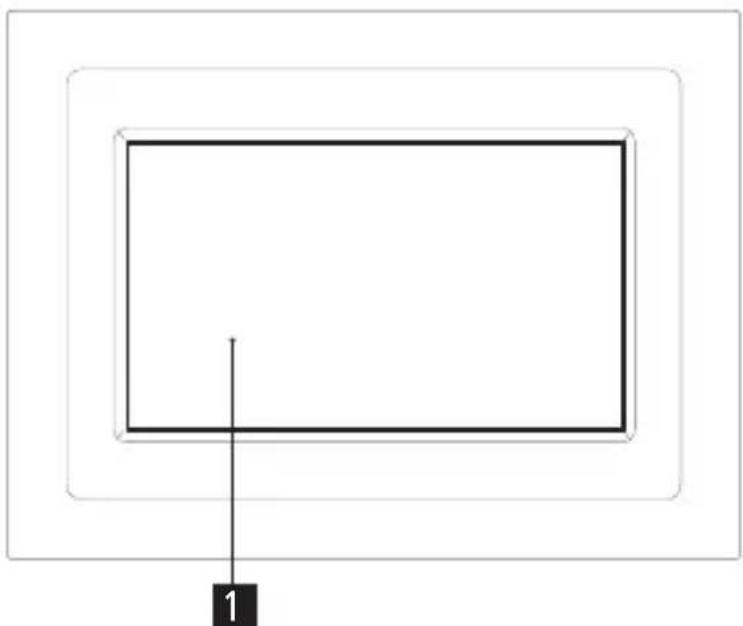
natural_image
Simple diagram with two nested rectangles and a labeled point '1' (no text or symbols within the shapes)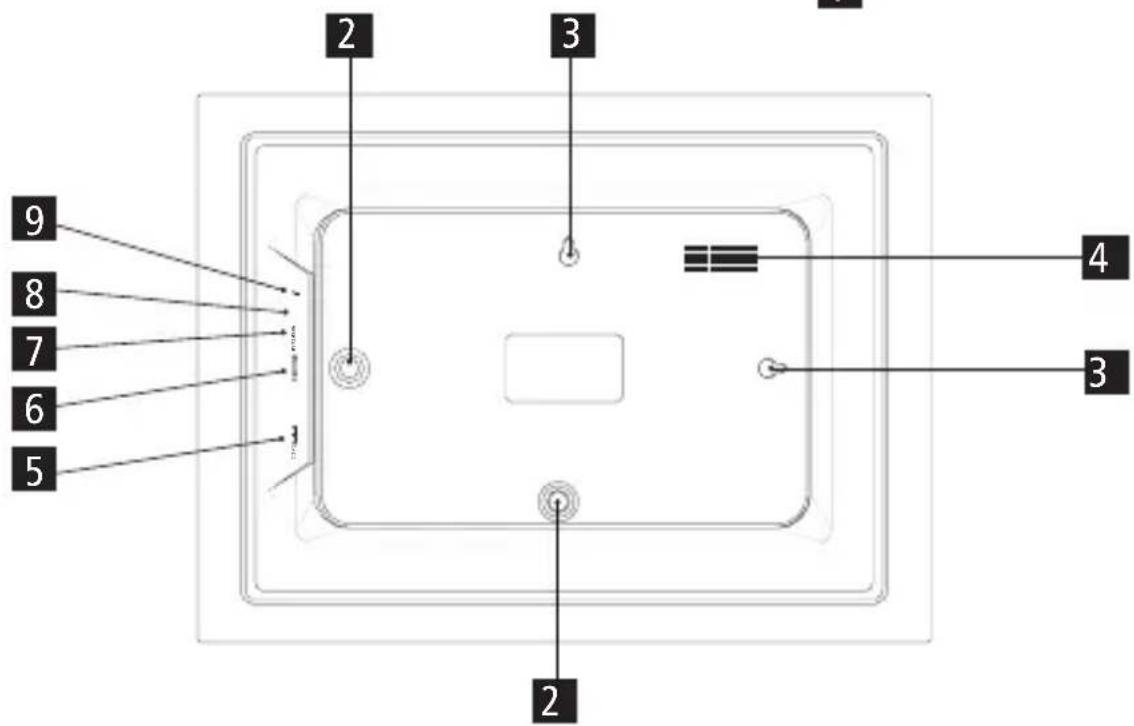
Mounting
Standing Mounting
- To place the digital photo frame on a flat surface, screw the stand into the stand connection for the horizontal or vertical position.
Hanging Mounting
- To mount the digital photo frame on a wall, fasten the supplied screw with a suitable dowel to the desired wall and hook the digital photo frame onto the screw with the wall mount connection for the horizontal or vertical position.
Note: Electrical, gas or water lines damaged during drilling pose a significant hazard. Before attaching the digital photo frame to the wall, make sure that there are no electrical, gas or water lines behind the planned drilling points. If necessary, check this with a line detector or consult specialists.
Operation
Getting started
Congratulations on your brand new Frameo photo frame!
If you are new to using Frameo then start by following the Frameo quick setup or follow the on-screen guide when powering it on for the first time.
Once you have set up your Frameo frame, you can start connecting it to your friends and family.
Frameo-App
To send photos to your frame, use the Frameo app for iOS or Android.

frameo

Download on the
App Store


GET IT ON
Google Play
Video tutorials
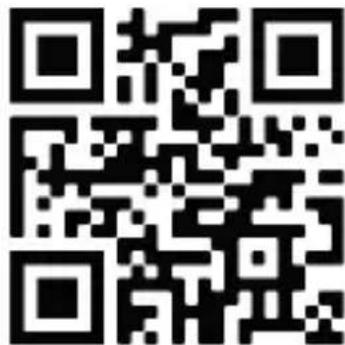
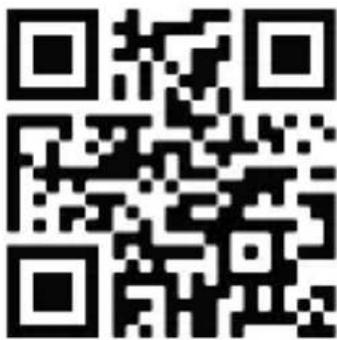
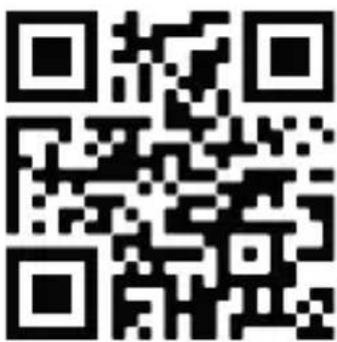
Check out our “Frameo Tutorials” playlist on YouTube with informative videos where we guide you on how to get started using Frameo. Scan the code to the right or use the link to find the playlist.

Frameo quick setup
When starting your frame for the first time, you will need to set up the frame.
- Select a language. This will be the language used on the Frameo.
- Connect your frame to the internet by connecting it to Wi-Fi.
- Verify or correct the date and time.
- Frameo may ask you to update to the latest version. It is recommended to update yourframe before continuing if asked to.
- Enter your name, and the location where you have placed your frame, e.g. "John Doe" and "Living room", "Kitchen" or "Office". Finally, set the timezone if not already correct
Operation
Start using Frameo
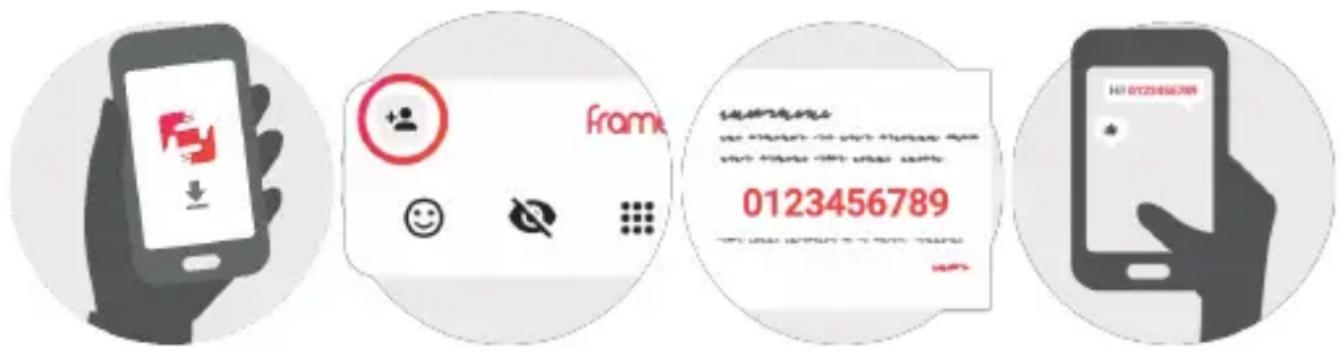
The next step is to connect Frameo with your friends and family by providing them with a code from your frame.
If you want to be able to send photos to the frame yourself, start by downloading the app for iOS or Android on App Store or Google Play. Then use the code to connect your frame and app as described below.
Connecting a new friend
Make sure that your friend has downloaded and installed the Frameo app.
Click the add friend icon on your frame +A dialog will appear showing a connection code, which is valid for 12 hours.
Now share this code in whatever fashion you prefer e.g. SMS, E-Mail, IM, phone call, to your friend.
Once your friends have added the code in their Frameo app, they will automatically appear on your frame and be able to send you photos.
Read chapter Change options for a friend to allow connected friends to retrieve and share the connection code via the smartphone app. If a connected friend is subscribed to Frameo+ you can also allow them to view/and or manage the contents of the frame, or perform a safety backup of your media and settings, from this menu.
Operation
Navigating your Frameo
Swipe left or right to go through your photos.
To access the menu, simply tap once on the screen.
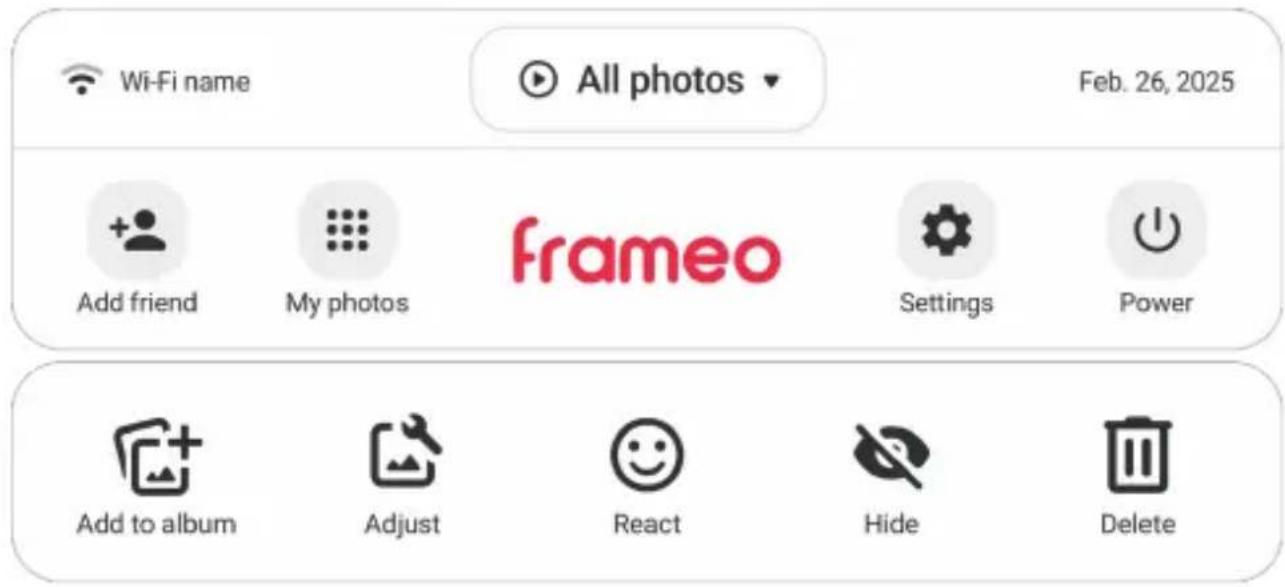
In the menu you will find the most used features.

Wi-Fi
Opens Wi-Fi menu. Also displays the name of the current Wi-Fi you are connected to, if any.
Album Selector
A quick menu to select what album to play or manage your albums.

Add friend
This will generate a code that you can share with your friends and family so they can connect and send photos to your frame.
My Photos

Settings
Opens the Settings.
Operation

Power menu
Opens the Power menu.

Add to album
Adds the photo currently being displayed to an album of choice.

React
Opens the React menu.
Note: The React menu can also be accessed by double-tapping on the screen.

Hide photo
Hides the current photo. This means that the photo will no longer be shown in the slideshow. If needed, the photo can be shown again through the My photos menu.

Adjust photo
Allows you to adjust the position of the photo in the frame for an even better fit. Here you can also use to rotate your photo, and you can use to edit the caption on imported photos. For received photos, please ask the sender to edit the caption in the Frameo app.

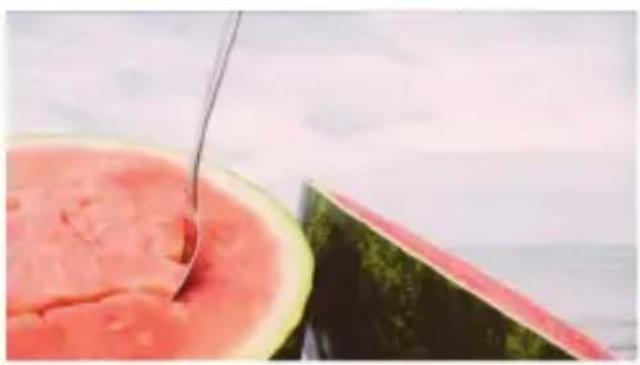
Fill frame option is the default. The photo is scaled so that it fills the whole
screen. It will be centered around what is selected as the most important part. See the first picture below.

Fit to frame will make sure that the entire photo is shown on the screen. See the
second picture below.
natural_image
Close-up of a bowl of red watermelon with a spoon, next to a cut of watermelon (no text or symbols visible)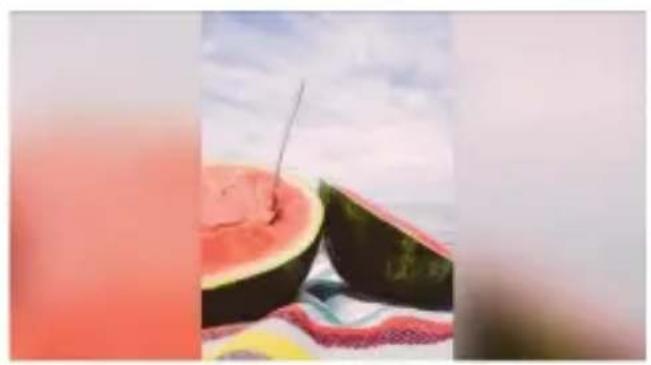
natural_image
Close-up of a halved watermelon slice with a spoon, set against a cloudy sky background (no text or symbols visible)Operation
Interacting with videos
When a video is shown, two additional controls are shown. One for play/pause of the video and one to control the volume level for video sounds.
Press to start the video playback. Pressing will pause the video playback.
Press to open the volume slider. Use the slider to adjust the volume level for video sounds.
Pressing will mute the video while pressing will unmute the video.
Power menu
Tap the power icon to access the power menu. Here you can power off using , restart your frame using or enter sleep mode using .
Note: Make sure to always use the power off button on the device or in the power menu to turn Frameo off. Never disconnect power when Frameo is running.
Operation
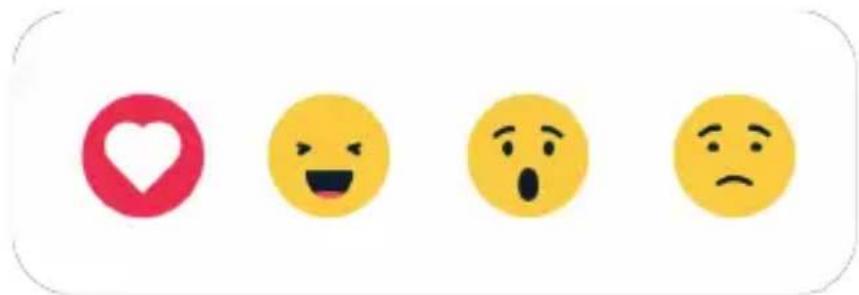
React menu
Tap one of the reactions to let the sender know how it made you feel.
natural_image
Four yellow emoji icons: a red heart, a smiling face, an open mouth, and a frowning face (no text or symbols)External storage menu
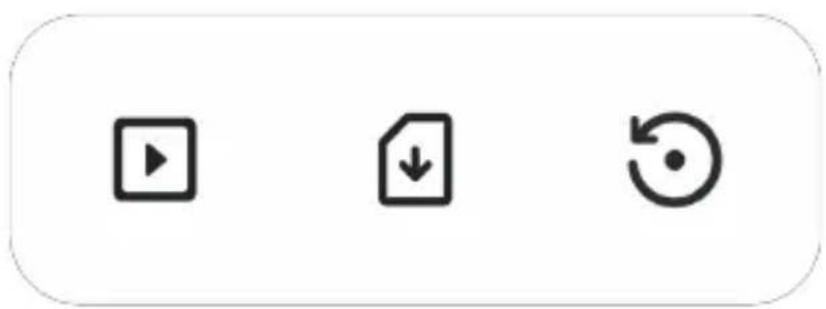
When inserting an external storage (e.g. a microSD card) a menu will automatically appear with three options: Press to play photos directly from the external storage, press to import photos to the internal memory of your frame or press to make a backup of your frame.
natural_image
Three simple icons: play button, download arrow, and refresh symbol (no text or labels)Clock and Weather widgets
The current time and weather will appear in the upper-right corner of the frame when the frame has received at least one photo. Tapping either of these will open the weather menu.
Operation
Weather menu
The weather menu contains more detailed weather forecasts and has shortcuts to weather-related settings.
Shows the weather location of your frame. Tap to access the weather location settings.
1 DAY
1-day forecast, which includes weather conditions for time periods of the day.
4 DAY
4-day forecast. Tap to see the weather forecast for the next four days.
Displays the frame's current time. Tap to access the time settings.
Settings
Through the settings, you can personalize your frame to your needs.
My frame
Frame name
Changes the name of your frame. This is also the name that connected friends and family will see in their list of connected frames in the smartphone app.
Frame location
Changes the location of your frame. This is the location displayed on your friends' and family's list of connected frames, which can help to distinguish frames from each other.
Set language
Sets the language used on the frame.
Operation
Weather location
Sets the location for the frame's weather feature, ensuring that your frame displays the appropriate weather forecast for you.
Temperature unit
Toggles between the Fahrenheit and Celsius temperature scales.
Date
Sets the date used on the frame.
Time
Sets the time used on the frame.
Frameo will automatically try to set the correct date and time when connected to the internet.
Time zone
Sets the time zone used on the frame.
Set first day of week
Sets which day of the week is considered the first.
Enable/Disable 24-hour format
Enables, and disables, 24-hour time format.
Operation
Manage photos
In the manage photos menu, you can see how many photos are on your frame and the storage they use. You can also see the amount of storage left available on your device for storing new photos.
My photos
Manage your photos and albums.
To select multiple photos, tap the Multi Select button or tap-and-hold on a single photo to automatically enable this mode.
Filter what photos to see and sort in what order you want to see them.
Note: The sorting selected here will not affect the order of which the photos are displayed in the slideshow. To change this, see:
To manage your albums, tap My Albums. A list of all your albums will be displayed. When tapping the three dots for more options, you can:
Play in slideshow, which will start the selected album as a slideshow immediately. Change name to change the name of an album. Delete album to remove it entirely.
Note: The photos in an album you delete will not be deleted from the local storage and will still be available to use in other albums or viewable from All Photos.
To make a new album, simply tap + create new album, at the bottom of the list.
Operation
Detail View
Tap a photo once to enter detail view.
Presented to you, are options to Display, Add to album, Adjust, Hide or Delete the photo. Additionally, you can see information on where the photo is stored (upper right corner), how it was transferred, when it was taken, when it was received and the size of the file.

Local storage

External storage
Transfer from computer
Allows you to transfer photos from a computer using a USB-A to USB-C cable. Enable the feature and then follow the on-screen guide for step-by-step instructions on how to transfer photos to your frame.
For more information, please visit our help center: https://frameo.com/usb_faq
Import photos
Allows you to import photos from an external storage (e.g. microSD card).
Before you try to import photos, make sure you have an external storage (e.g. microSD card) inserted into your frame with the photos you wish to import.
Start by selecting the photos that you want to import onto your frame. Once selected, tap the import button ↕ to start the import process.
Use to select or deselect all photos on the external storage (e.g. microSD card).
Use to set the sort order of photos before import and to order by ascending/descending.
Note: Please note, many frames will need a FAT32 formatted microSD card with a maximum of 32GB of storage. Please check with the brand of your frame for more information regarding compatibility for your specific device.
Operation
Export photos
Allows you to export photos from the frame to external storage (e.g. microSD card). The export function will export all photos on the frame as well as profile pictures.
Play from external storage
Enables / disables playback of photos and videos directly from an external storage (e.g. microSD card) without taking up space on the frame.
My Friends
This list contains all the connected friends that are allowed to send photos to your frame.
Change options for a friend
Click the options icon to open the friend options menu.
From here, you can change the following permissions for a friend:
Share code: Allow / disallow if a friend may share the code to the frame. If this is enabled, the friend can retrieve and share the code to the frame from his/her app.
See frame photos: Allow / disallow a friend to see the photos that are currently on your frame. The friend will need to have Frameo+ features enabled to make use of this.
Manage frame photos: Allow / disallow a friend to manage the photos that are currently on your frame. This includes being able to display, hide or delete photos.
The friend will need to have the Frameo+ features enabled to make use of this.
From the options menu, you can also delete a friend, by pressing the DELETE FRIEND button. This will remove the friend from the list and thereby remove their permission to send photos to the frame. You will then be asked to confirm the removal and if you would like to remove all photos previously received from this friend.
Operation
Add person
To allow a new person to send you photos, simply tap the add friend button + and share the presented code in whatever way you prefer.
Display
Brightness level
Adjust the brightness level of the screen.
Sleep mode
Frameo offers a sleep mode which turns off the screen to reduce power consumption. The default setting is to turn off the screen at 23:00 and turn on the screen again at 07:00 every day.
This can be altered by changing your sleep schedule(s). It is possible to have multiple schedules active at once to e.g. have different settings for weekdays and the weekend or a separate schedule to turn off the frame while at work.
Your frame is not powered down or in standby, so you will still be able to receive photos during sleep mode.
Slideshow
Timer
Set the duration that a photo should be displayed before showing the next photo.
Operation
Fill frame
Set the default frame photo setting. Check to set default to fill which makes the photos fit the device screen according to the most important part of the photo. Uncheck to make the photo fit inside the screen of the device, adding background bars on the sides or top/bottom.
Frame background
Choose between several different frame background options to be shown as bars if the photo does not fill the screen.
Photo display order
Sets the order in which your photos are displayed on the frame.
- By date taken: Photos are shown in order of when it was taken.
- By date received: Photos are shown in order of when it was received.
- Shuffle: Photos are shuffled and shown in a random order.
Reverse photo display order
Sets whether photos are displayed newest to oldest or oldest to newest.
Show caption
Set whether or not to display the captions that your friends have sent with the photo. Check to display captions. Uncheck to hide captions.
Operation
Show clock
Set whether or not to display the clock widget in the upper-right corner of the slideshow.
Show weather
Set whether or not to display the weather widget in the upper-right corner of the slideshow.
Autoplay
Enables/disables autoplay of videos in the slideshow. Videos can always be manually started regardless of this setting.
Video playback
Determines how videos should be played when autoplay is enabled.
- Loop videos: The video will loop until the slideshow timer is up.
- Play once: The video will play once and show its thumbnail until the timer is up.
- Play once and continue: The video will play once and continue to the next photo, or video, once it completes.
Auto mute
Enable to automatically mute the video volume after a short period of time of not interacting with the frame.
Video volume
Adjust the volume level for video sounds on the frames.
Operation
Wi-Fi
Set which Wi-Fi the frame connects to. If you are connecting to a network with a captive portal Connection status will say that Wi-Fi login is required and show 📄 tap this to open a login screen where you can enter credentials to access the network.
Wi-Fi details
Use to show details about the current connected Wi-Fi.
Reset Wi-Fi
Use to delete all Wi-Fi information and restart your frame.
Notifications
Show notifications
Enables/disables whether notifications are shown in the slideshow (e.g. when a new photo is received).
Notification volume
Adjust the volume level for notification sounds.
Storage space
Enables/disables notifications shown when frame storage is low.
Backup
Enables/disables notifications shown if automatic backup has failed.
Network connection
Enables/disables notifications showing network connection status.
Operation
New photos
Enables/disables notifications shown when receiving new photos.
New friends
Enables/disables notifications shown when new friends are added.
Software update
Enables/disables notifications shown when a software update has been installed.
Feature news
Enables/disables notifications shown when new exciting features are added.
Date and time
Enables/disables notifications shown if time or date is not set correctly.
Operation
Backup and Restore
Set up a cloud backup (Frameo+)
Tap Set up cloud backup and select a friend that has an active Frameo+ subscription, to initiate a cloud backup of your frame. The friend (or yourself) will have to accept the request on the phone tied to the Frameo+ account.
If you already have a backup set up, tap it to see more details.
Backup status will indicate what state your backup is in, with a symbol.
Cloud symbols and their meaning:
Backup complete and secured in the cloud
Cloud backup in progress
Warning. Indicating the need for other device to act (check the Frameo app on your phone)
Cloud backup failed
Restore complete
Restore warning
Restore error
Operation
External storage backup
Backup frame to external storage (e.g. microSD card)
Tap to make a backup of your photos, friends and settings. The time of the latest successful backup is also displayed here.
Any existing backup on the external storage will be overridden!
Note: Please note, many frames will need a FAT32 formatted microSD card with a maximum of 32GB of storage. Please check with the brand of your frame for more information regarding compatibility for your specific device..
Automatic backup
If checked, your frame will automatically take a backup within 30 hours of receiving new photos or making changes to your frame.
Restore from backup
Before you attempt to restore your frame, start by confirming that your backup is up-to-date. This is done by confirming the date under "Backup frame to external storage (e.g. microSD card)". If e.g. the last backup is too old or if no backup is made, then press the "Backup frame to externalstorage (e.g. microSD card)" button to make a new backup.
Note: To keep both the old and the new frame operational at the same time after restoring from backup, please make sure that both frames are updated to the latest version beforehand.
If you wish to restore a backup on a frame that has already been set up, then you must first reset the frame. This is done by pressing the "Reset frame" button. This will delete all data on the Frameo and reset the Frameo to its setup screen.
On the setup screen you can select the "Restore from backup" button which will restore your frame according to the backup.
If the “Restore from backup” button isn’t visible, then confirm that the external storage (e.g. microSD card) is correctly mounted.
Operation
Reset frame
Removes all data from your frame.
This will permanently remove all your photos, friends/connections and settings.
Help
Guide
Shows the quick start guide, which was shown when you first started the frame.
Operation
About
Peer ID
This is a unique ID for your photo frame. When contacting our support, please provide this ID with your message.
Frameo version
Shows what version of the Frameo software is currently installed on your frame.
Check for update
Check if an update is available for your frame.
Beta program
If checked, the device will join the Beta program, where it will receive updates more frequently and before normal release devices.
Third party attributions
Open source libraries
Opens a list of open source libraries used in the app and their licenses.
Privacy
For more information regarding privacy, please visit http://privacy.frameo.net
Support
Please visit https://support.frameo.net/hc for FAQ, support and to provide feedback.
Technical Data
| Processor Quad Core Rockchip 3126 | |
| Operation system Android 6.0 | |
| Power demand in standard dynamic range (SDR) | 5.0 W |
| EU energy efficiency class (EU 2017/1369) | C |
| EU energy efficiency class spectrum (EU 2017/1369) | A – G |
| Display LCD | Touchscreen | IPS panel | |
| Display size | resolution | format | 10.1" / 25.53 cm | 1280 x 800p | 16:10 |
| Brightness 200 – 220 cd/m | ^2 , adjustable from 0 – 100 % |
| Viewing angle 0 – 180 ° | |
| Speaker 1 | 1.0 W per speaker | |
| Volume 96 ± 3 dB per speaker, adjustable in 15 levels | |
| File format JPEG, JPG, PNG, MP4 | |
| Memory Internal: 32 GB | External: microSD memory card of memory class 10 with up to 128 GB or memory with USB-C connection | |
| App Frameo app | |
| Frequency band 2.4 GHz | |
| Frequency range 2.412 – 2.472 GHz | |
| Max. transmission power 12 dBm | |
| Power supply Smart Frame WiFi 1010: Input DC 5.0 V / 2.0 A | |
| Power adapter, model RSF-DY080-0502000EU: Input 100 - 240 V / 50 - 60 Hz / 0.3 A, output AC 5.0 V / 2.0 A / 10.0 W | |
| Connection | Power connection, USB-C connection, microSD memory card slot, 2x stand connection, 2x wall mounting connection |
Technical Data
Operating temperature 0 – 40 °C
Mounting Standing horizontally or vertically Hanging horizontally or vertically
Dimensions 29.5 x 22.5 x 3 cm
Weight 705 g
What's in the box Digital photo frame, power adapter with power cable, USB-C cable, stand, screw, user manual
Technical data are subject to change without notice.
The presented contents and representations may differ from the real contents and representations on the digital photo frame and in the Frameo app due to updates.

Dispose of the packaging according to its type. Use the local possibilities for collecting paper, cardboard and other materials (applicable in the European Union and other European countries with systems for the separate collection of recyclable materials).
Devices that are marked with this symbol must not be disposed of with household waste! You are legally obliged to dispose of old devices separately from to dispose of household waste. Information on collection points that accept old appliances free of charge can be obtained from your local authority or town council.
Conformity
Rollei GmbH & Co. KG herewith declares that the radio system type “Rollei Smart Frame WiFi 1010” complies with the Directive 2014/53/EU.
The full text of the EU declaration of conformity is available at the following Internet address: www.rollei.com/egk/smartframewifi1010
Rollei GmbH & Co. KG In de Tarpen 42 D-22848 Norderstedt Germany

Prólogo
natural_image
Line drawing of three concentric rectangular panels with no text or symbols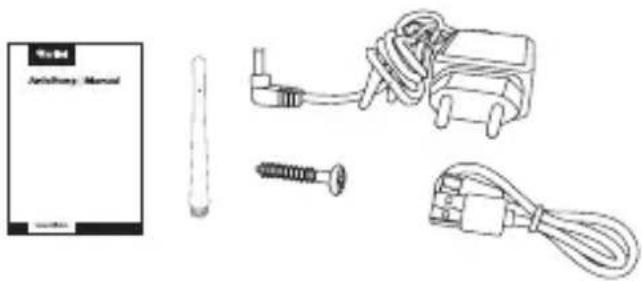
natural_image
Illustration of medical or electrical components including a card, screwdriver, and plug (no text or symbols)natural_image
Simple diagram with a rectangle and a vertical line, no text or symbols present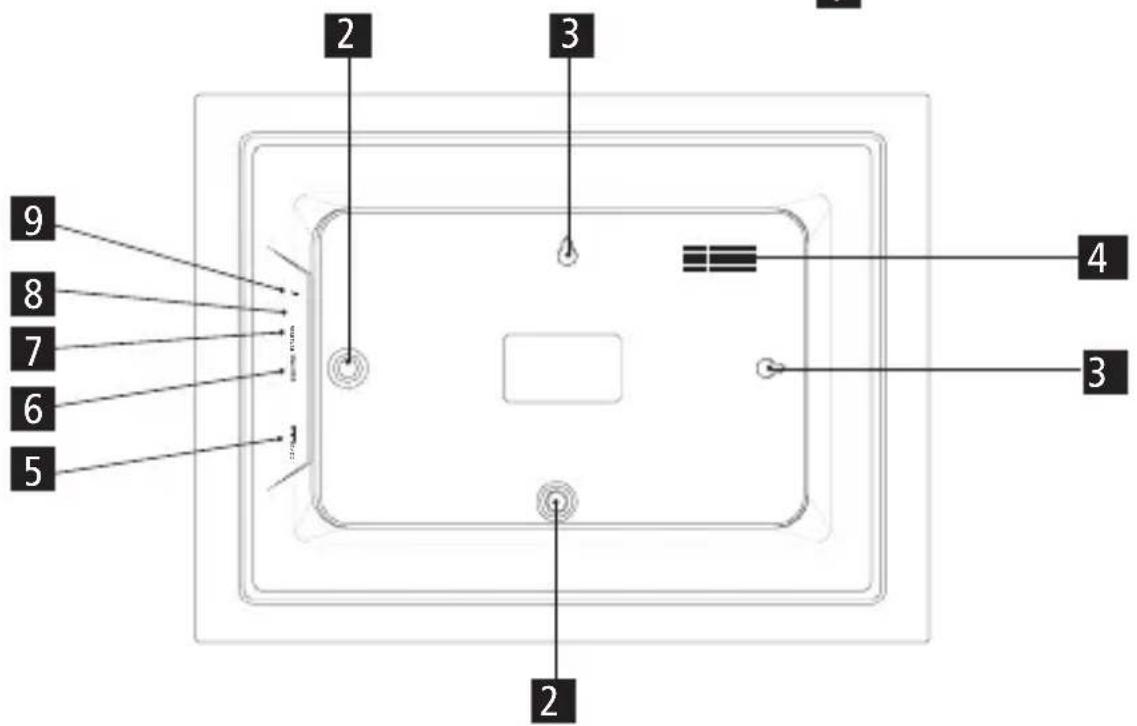
Montaje
Montaje de pie

Download on the
App Store

GETTON
Google Play
Operación
Tutoriales en vídeo
Operación
natural_image
Close-up of a bowl of watermelon with a spoon, next to a cut of watermelon (no text or symbols visible)
natural_image
Close-up of a halved watermelon and its cut, with a colorful striped pattern in the foreground (no text or symbols visible)Operación
natural_image
Four yellow emoji faces: a red heart, a smiling face with closed eyes, an exclamation mark, and a frowning face (no text or symbols)natural_image
Three simple icons: play button, download arrow, and refresh symbol (no text or labels)natural_image
Simple line drawing of a rectangular frame with no text or symbols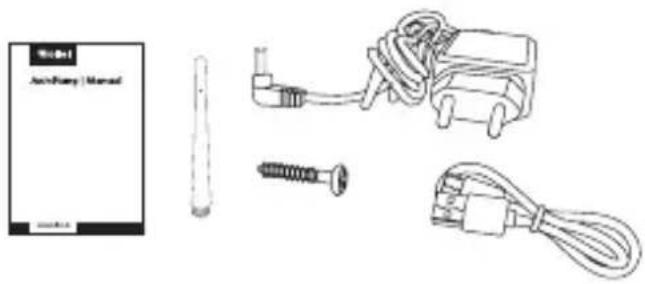
natural_image
Illustration of medical or electrical components including a medical device, screwdriver, and plug (no text or symbols)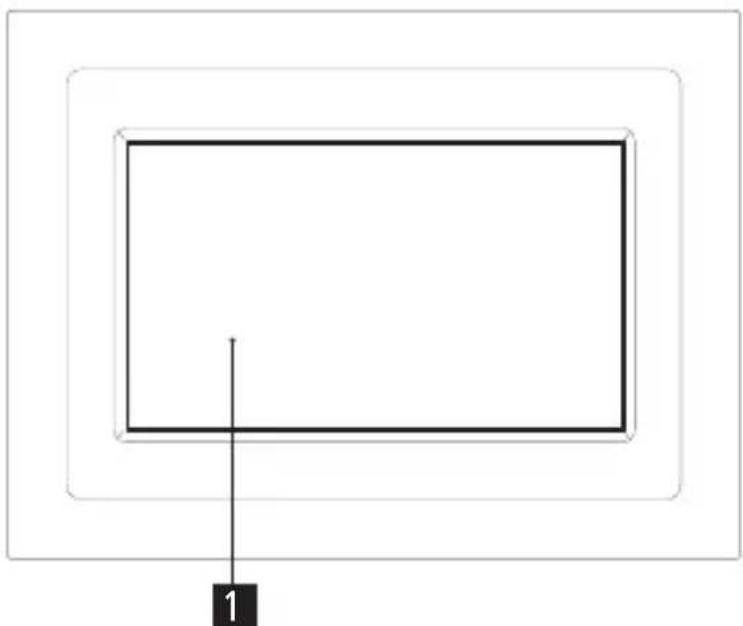
natural_image
Simple diagram with two nested rectangles and a labeled point '1' (no text or symbols within the shapes)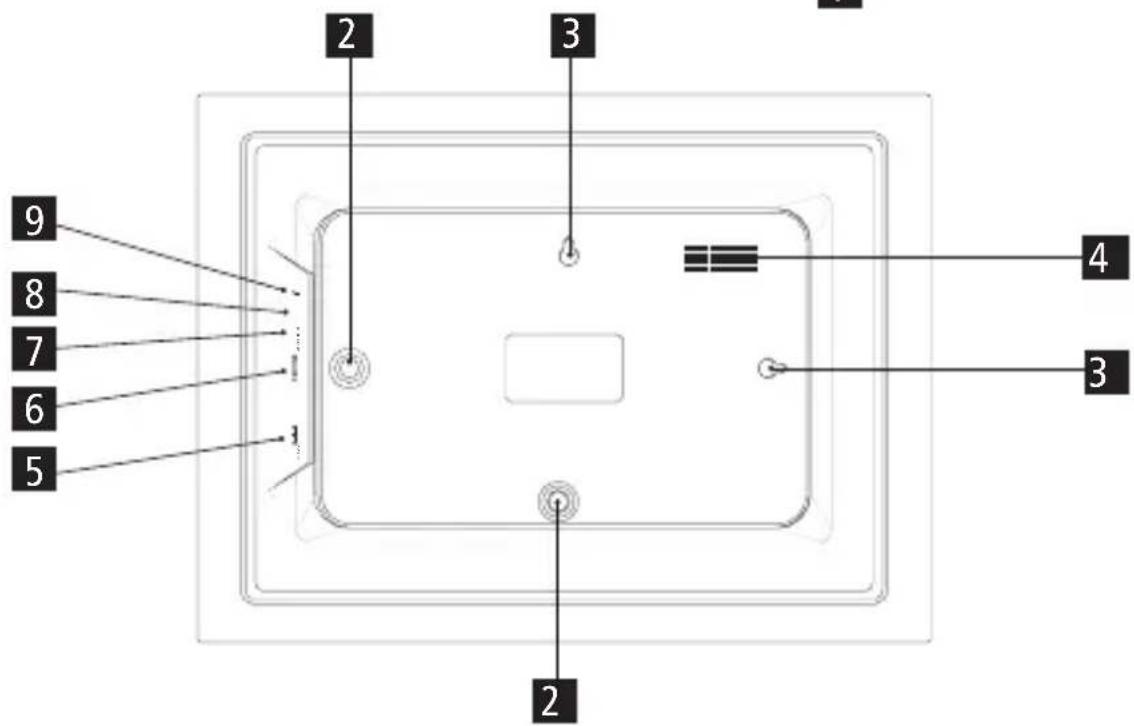
Montage
Montage sur pied
natural_image
Red logo with abstract curved shapes and the word 'frameo' below (no additional text or symbols)

Download on the App Store

GET IT ON Google Play
Fonctionnement
Tutoriels vidéo
Fonctionnement
natural_image
Close-up of a whole red watermelon in a bowl with a spoon, next to a cut of watermelon (no text or symbols visible)
natural_image
Close-up of a halved watermelon cut into a slice, with a straw and colorful striped pattern in the foreground (no text or symbols visible)FRANÇAIS
Fonctionnement
natural_image
Four emoji icons: a red heart, a smiling face with closed eyes, an open mouth with surprised expression, and a yellow frowning face (no text or symbols)natural_image
Three simple icons: play button, download arrow, and refresh symbol (no text or labels)natural_image
Simple line drawing of three concentric rectangular layers labeled 'ne' (no text or symbols within the shapes)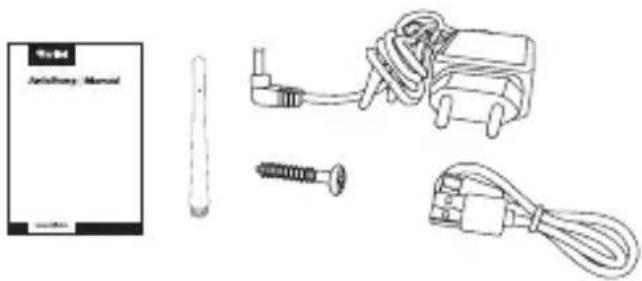
natural_image
Illustration of medical or electrical components including a card, screwdriver, and plug (no text or symbols)natural_image
Simple diagram with a rectangle and a vertical line, no text or symbols present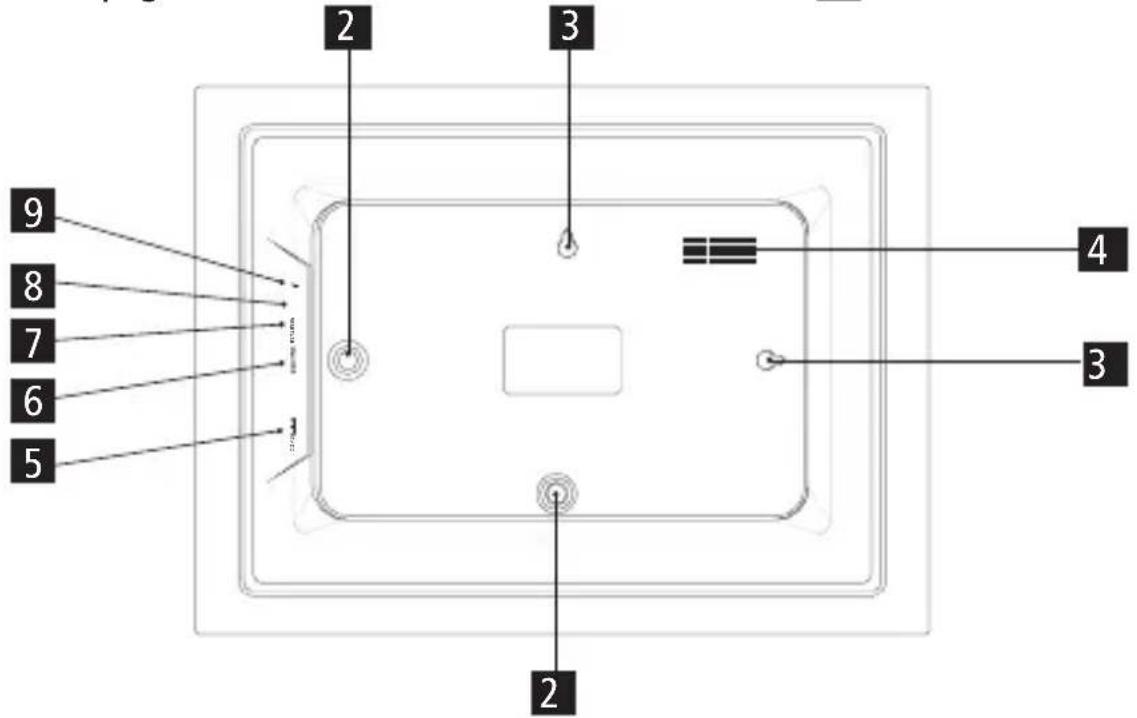
Montaggio
Montaggio in piedi

Download on the
App Store

GETTON
Google Play
Funzionamento
Tutorial video
Funzionamento
Navigare su Frameo
natural_image
Close-up of a whole watermelon in a halved bowl with a spoon, next to a cut of watermelon (no text or symbols visible)
natural_image
Close-up of a halved watermelon cut with a straw, set against a cloudy sky background (no text or symbols visible)Funzionamento
Interagire con i video
natural_image
Four yellow emoji faces: a red heart, a smiling face with closed eyes, an exclamation mark, and a frowning face (no text or symbols)natural_image
Three simple icons: play button, download arrow, and refresh symbol (no text or labels)natural_image
Line drawings of various electronic components including a rectangular frame, battery pack, screwdriver, and plug (no text or symbols)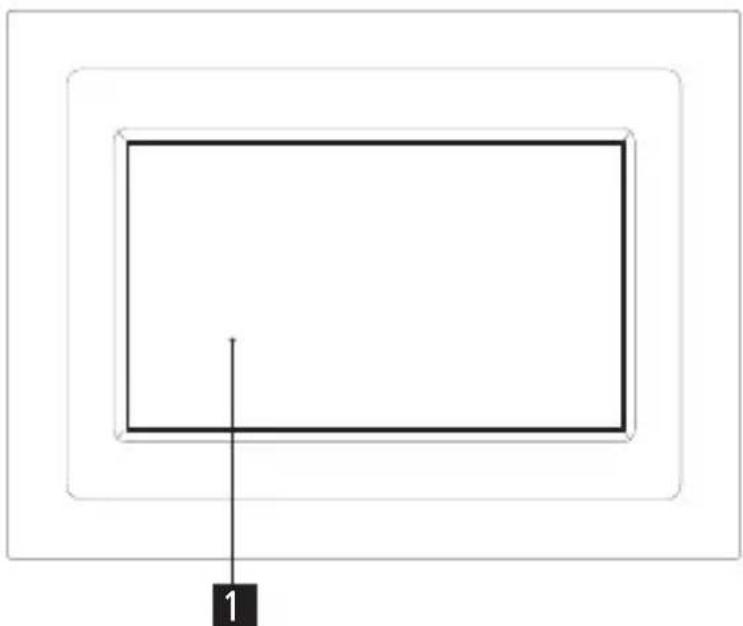
natural_image
Simple diagram with two nested rectangles and a labeled point '1' (no text or symbols within the shapes)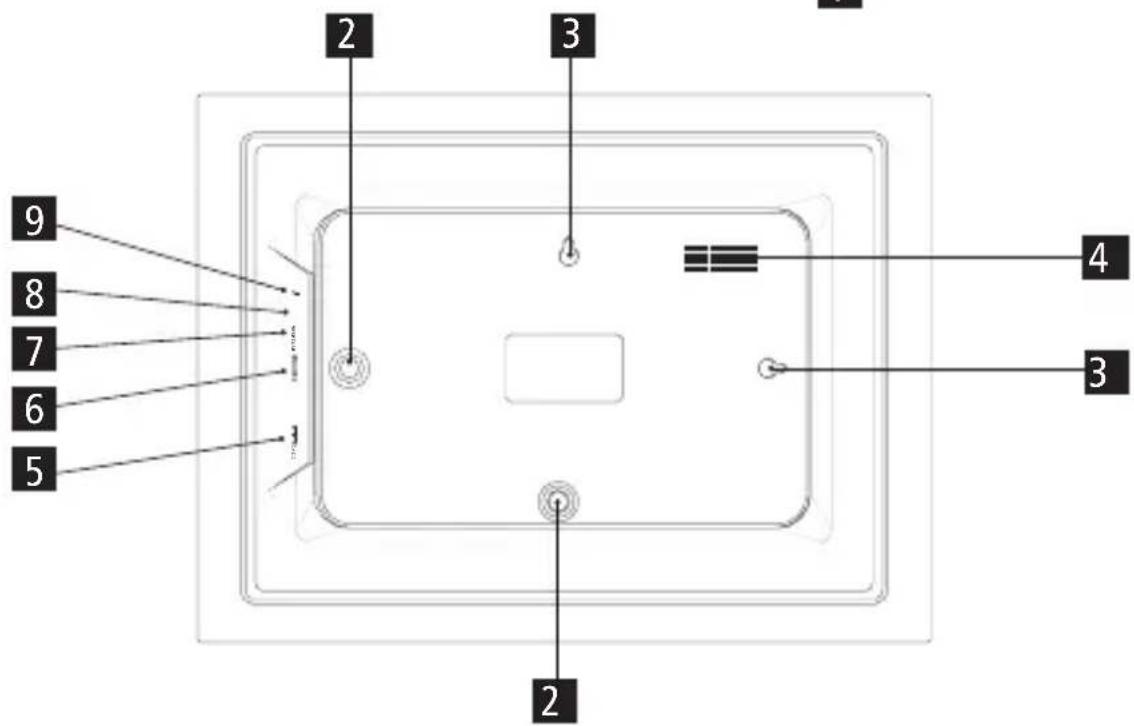
Montage
Staande montage

Download on the App Store

GET IT ON
Google Play
Video-tutorials
Bediening
Je Frameo navigeren
natural_image
Close-up of a bowl of watermelon with a spoon, next to a cut of watermelon (no text or symbols visible)
natural_image
Close-up of a whole watermelon cut open to reveal its flesh, with a knife inserted (no text or symbols visible)NEDERLANDS
Bediening
natural_image
Four emoji icons: a red heart, a smiling face with angry expression, an open mouth with surprised expression, and a yellow frowning face (no text or symbols)Extern opslagmenu
natural_image
Three simple icons: play button, download arrow, and refresh symbol (no text or labels)Klok- en weerwidgets
natural_image
Line drawings of medical or electrical components including a rectangular plate, screwdriver, and cable (no text or symbols)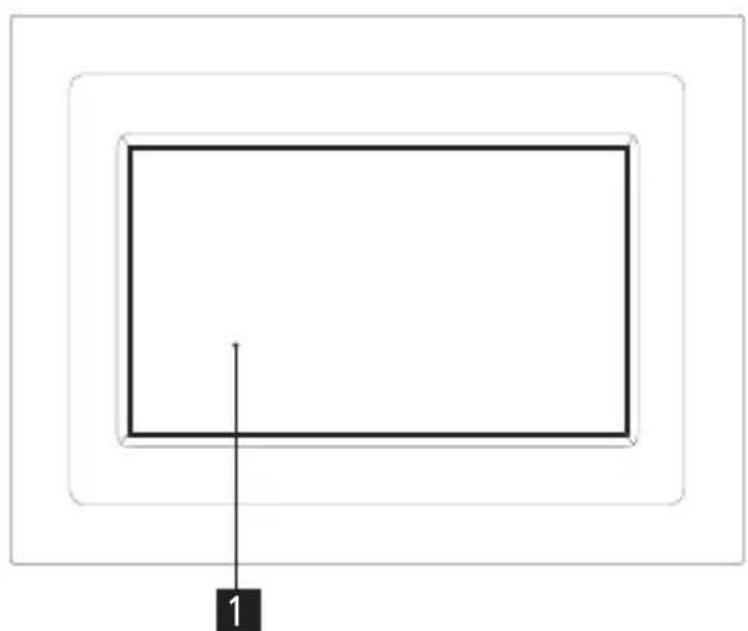
natural_image
Simple diagram with two nested rectangles and a labeled point '1' (no text or symbols within the shapes)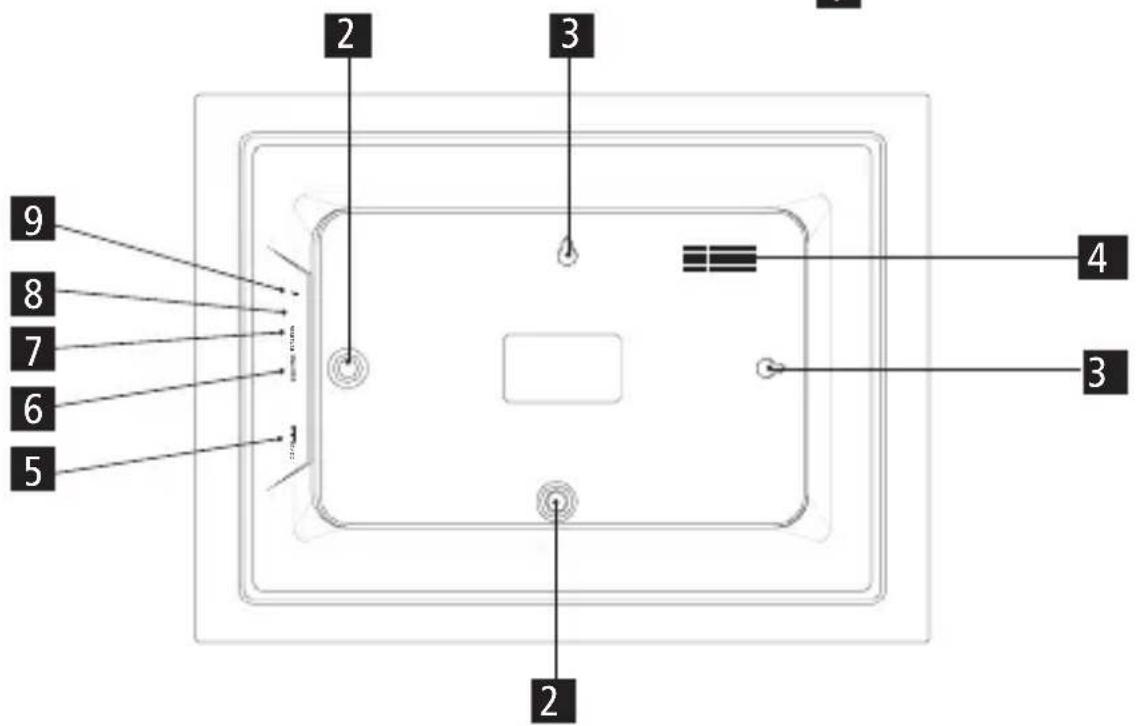
Montáž
Upevnění na stojan

Stáhnout v
App Store

ROZJEĐTE TO
Google Play
Video návody
Provoz
natural_image
Two-panel photo showing a whole watermelon slice cut into a glass, with a close-up of the fruit being held by tweezers against a cloudy sky (no text or symbols visible)Provoz
Interakce s videi
natural_image
Four yellow emoji icons: a red heart, a smiling face with closed eyes, an exclamation mark, and a frowning face (no text or symbols)natural_image
Three simple black-and-white icons: play button, download arrow, and refresh symbol (no text or labels)natural_image
Line drawings of various electronic components including a flat panel, battery pack, screwdriver, and plug (no text or symbols)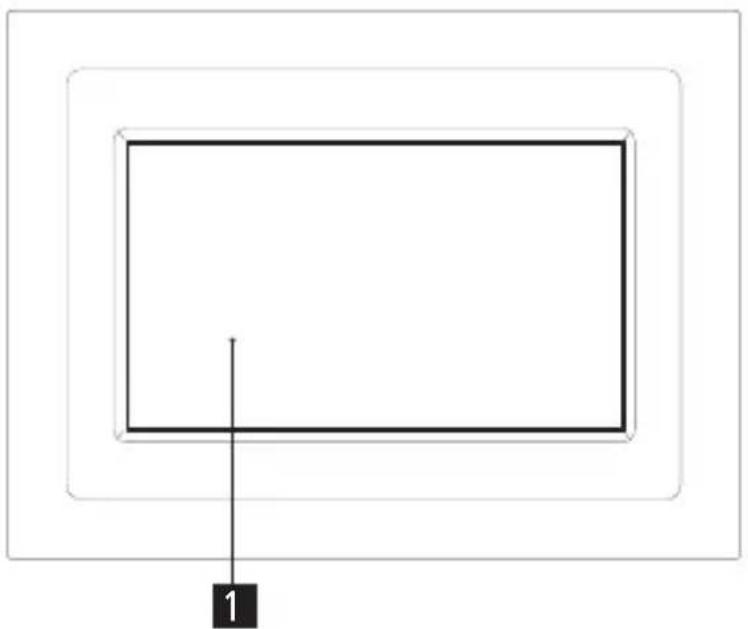
natural_image
Simple diagram with two nested rectangles and a vertical line, no text or symbols present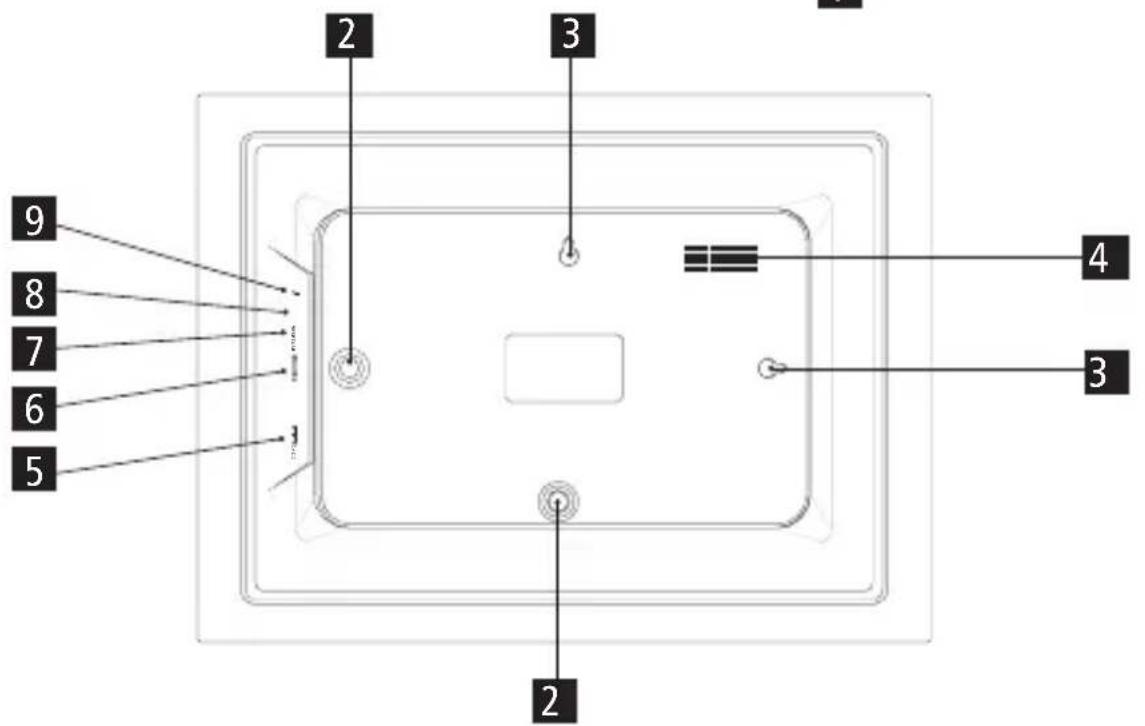
Montáž
Montáž na stojane

Prenos iz
App Store

NA VOLJO V
Googlu Play
Prevádzka
Video návody
Prevádzka
natural_image
Close-up of a whole watermelon in a bowl with a spoon, next to a cut of watermelon (no text or symbols visible)
natural_image
Close-up of a halved watermelon slice with a straw, set against a cloudy sky background (no text or symbols visible)Prevádzka
Interakcia s videami
natural_image
Four yellow emoji icons: a red heart, a smiling face, an open mouth, and a frowning face (no text or symbols)natural_image
Three simple icons: play button, download arrow, and refresh symbol (no text or labels)natural_image
Line drawings of medical or electrical components including a rectangular plate, a small pen, a wire-wrapped device, and a plug (no text or symbols visible)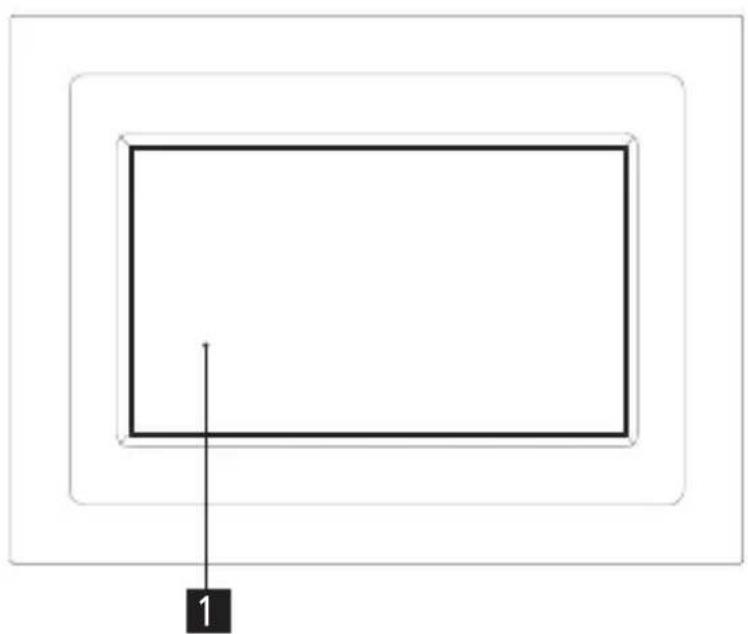
natural_image
Simple diagram with nested rectangles and a labeled point '1' (no text or symbols within the shapes)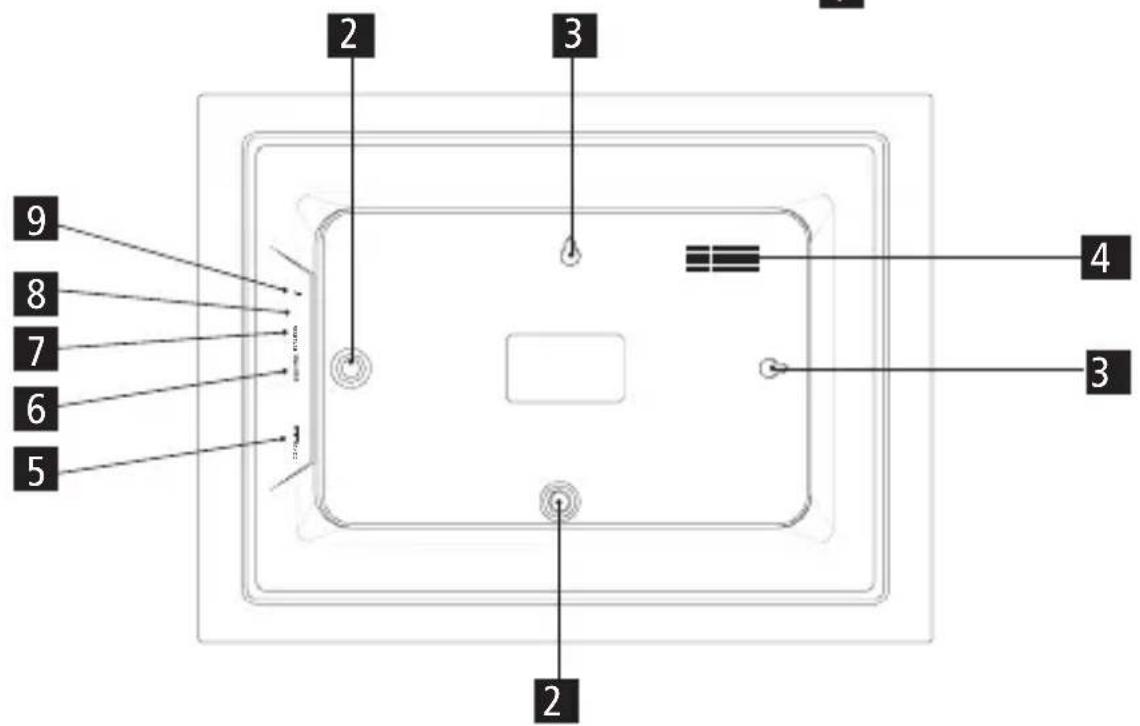
Montering
Stående montering
- For at placere den digitale fotoramme på en flad overflade, skrues holderen fast i standforbindelsen til vandret eller lodret position.
Ophængt montering

Download on the
App Store

GETTON
Google Play
Betjening
Videovejledninger
Betjening
natural_image
Close-up of a whole watermelon slice with a spoon, next to a cut of a whole watermelon (no text or symbols visible)
natural_image
Close-up of a halved watermelon slice with visible seeds, set against a cloudy sky background (no text or symbols)Betjening
natural_image
Four yellow emoji faces: a red heart, a smiling face with closed eyes, an exclamation mark, and a frowning face (no text or symbols)Ekstern lagringsmenu
natural_image
Three simple icons: play button, download arrow, and refresh symbol (no text or labels)Ur- og vejrwidgets
natural_image
Line drawings of various electronic components including a rectangular frame, screwdriver, and plug (no text or symbols)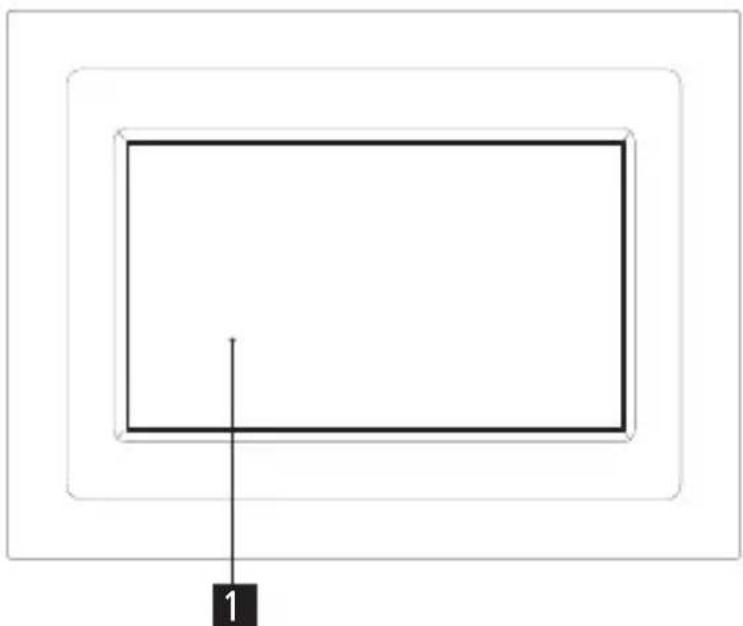
natural_image
Simple diagram with two nested rectangles and a labeled point '1' (no text or symbols within the shapes)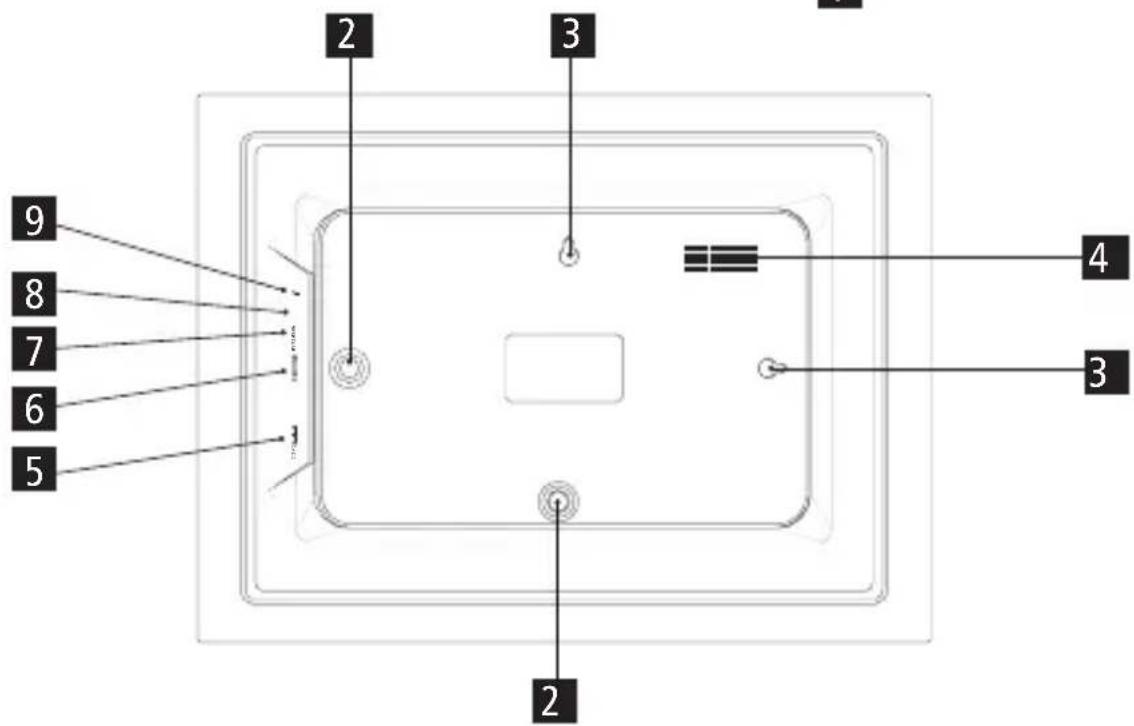
Montering
Stående montering

Download on the
App Store

GET IT ON
Google Play
Videoguider
Drift
Navigera i din Frameo
natural_image
Close-up of a whole watermelon slice with a spoon, next to a cut of watermelon (no text or symbols visible)
natural_image
Close-up of a sliced watermelon with visible flesh and seeds, set against a cloudy sky background (no text or symbols)natural_image
Four emoji icons: a red heart, a smiling face with angry expression, an open mouth with surprised expression, and a yellow frowning face (no text or symbols)natural_image
Three simple icons: play button, download arrow, and refresh symbol (no text or labels)natural_image
Line drawings of medical or electrical components including a rectangular plate, screwdriver, and cable (no text or symbols)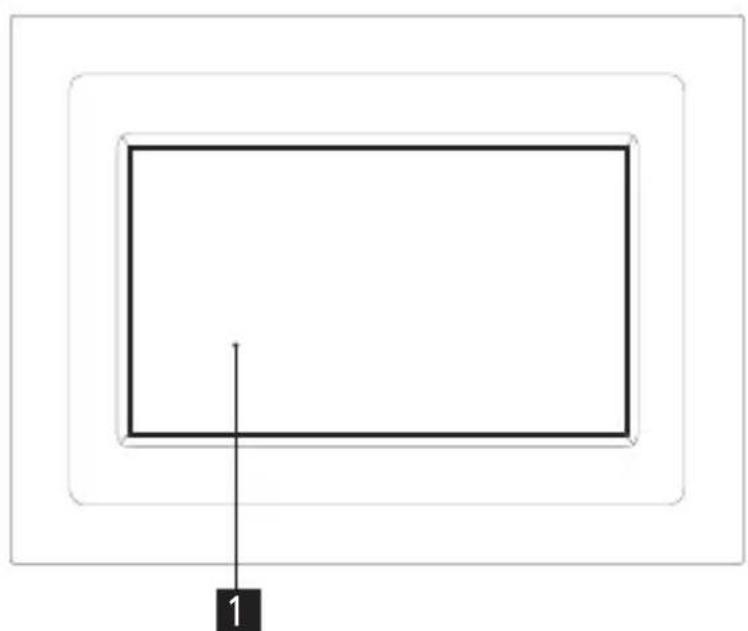
natural_image
Simple diagram with two nested rectangles and a labeled point '1' (no text or symbols within the shapes)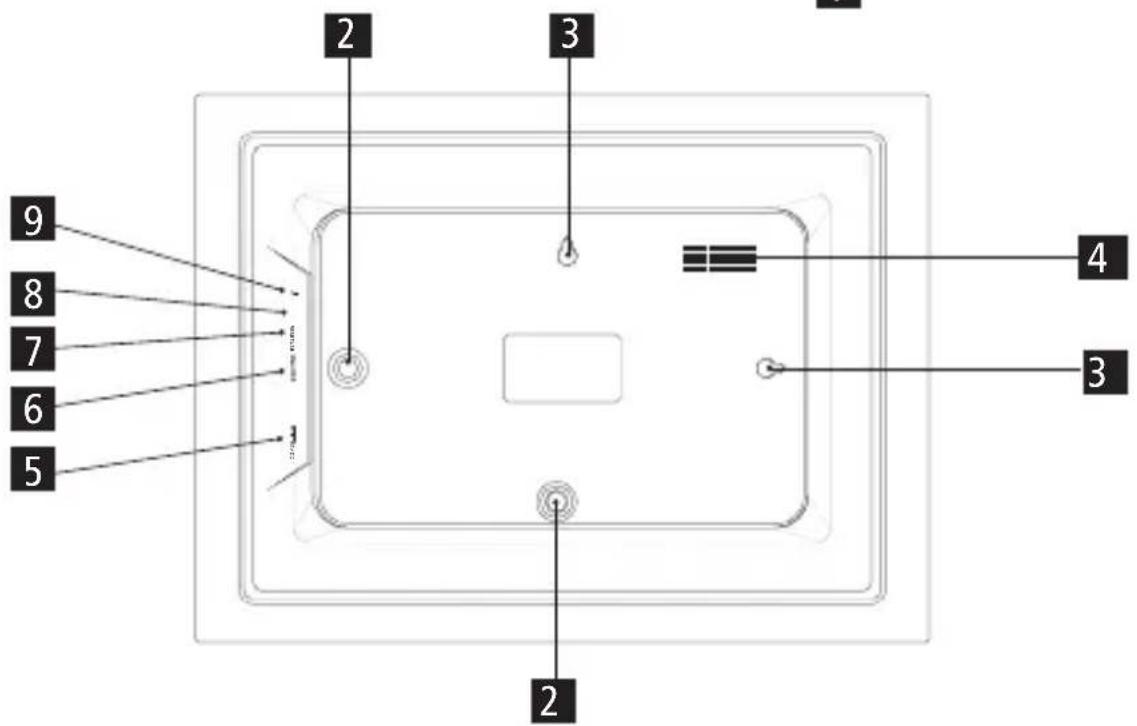
Montering
Stående montering
- For å plassere den digitale fotorammen på en flat overflate, skru fast holderen i festeanordningen for horisontal eller vertikal posisjon.
Opphengsmontering
- For å montere den digitale fotorammen på en vegg, fest den medfølgende skruen med en passende dybel til ønsket vegg, og hekt den digitale fotorammen på skruen med veggmonteringstilkoblingen for horisontal eller vertikal posisjon.

Download on the
App Store

GETTON
Google Play
Betjening
Videoveiledninger
Betjening
natural_image
Close-up of a whole watermelon slice with a spoon, next to a cut of a halved watermelon (no text or symbols visible)
natural_image
Close-up of a halved watermelon cut open to reveal its interior, with a colorful striped pattern in the foreground (no text or symbols visible)Betjening
Samhandling med videoer
natural_image
Four yellow emoji icons: a red heart, a smiling face with closed eyes, an exclamation mark, and a frowning face (no text or symbols)Meny for ekstern lagring
natural_image
Three simple icons: play button, download arrow, and refresh symbol (no text or labels)natural_image
Line drawings of various electronic components including a rectangular panel, battery pack, screwdriver, and plug (no text or symbols)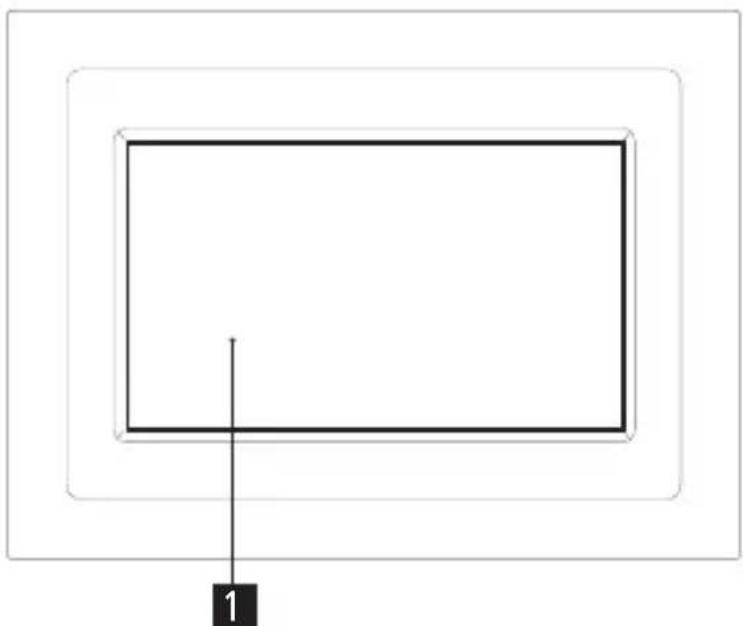
natural_image
Simple diagram with two nested rectangles and a labeled point '1' (no text or symbols within the shapes)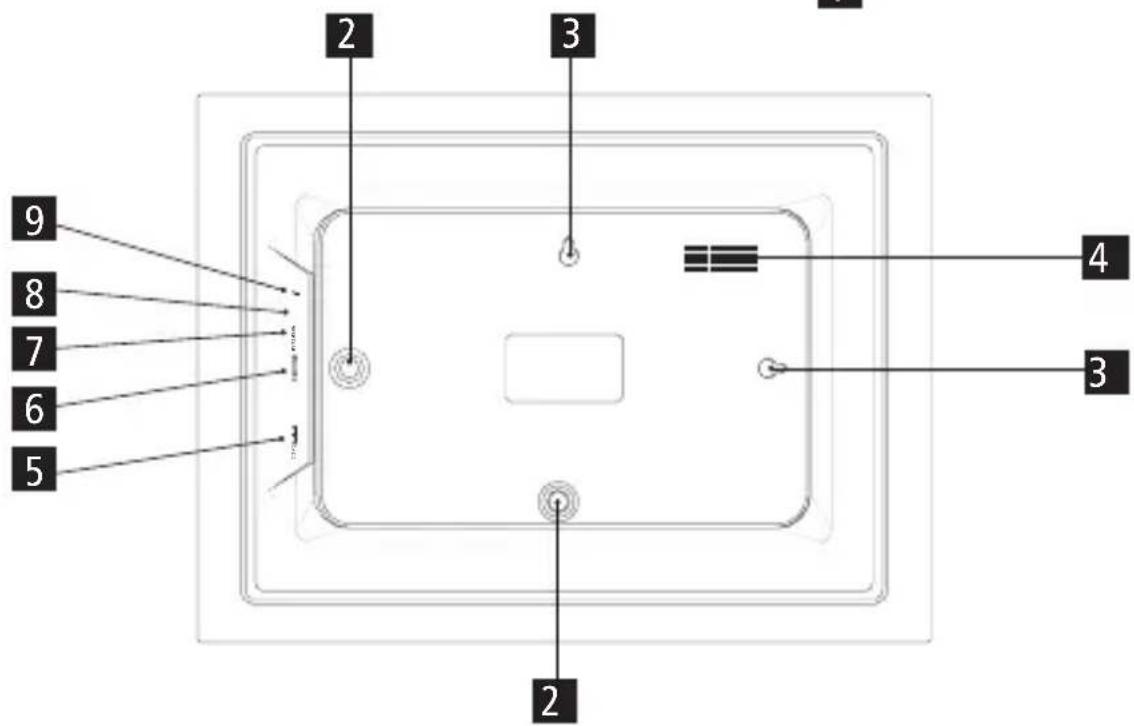
Kiinnitys
Pystyasennus
natural_image
Red logo with abstract curved shapes and the word 'frameo' below (no additional text or symbols)

Download on the App Store

GET IT ON Google Play
Videotutoriaalit
Käyttö
Frameon käyttö
natural_image
Close-up of a spoon dipping into a bowl of red watermelon, next to a cut of watermelon (no text or symbols visible)