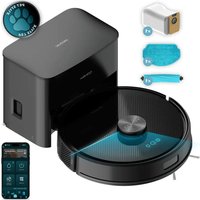
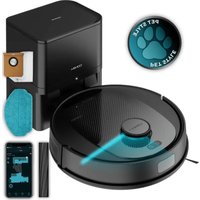
USER MANUAL Conga Y70 CECOTEC
Vacuum cleaner robot
cecotec
- Parts and components 20 2. Before use 21
- Operation 21
- Wi-Fi connectivity and mobile App 26
- Cleaning and maintenance 26
- Troubleshooting 28
- Copyright 32
- Simplified EU Declaration of Conformity 32
SOMMAIRE
EN · The coding in this manual is generic and applies to all code variants of the appliance.
Robot vacuum cleaner:
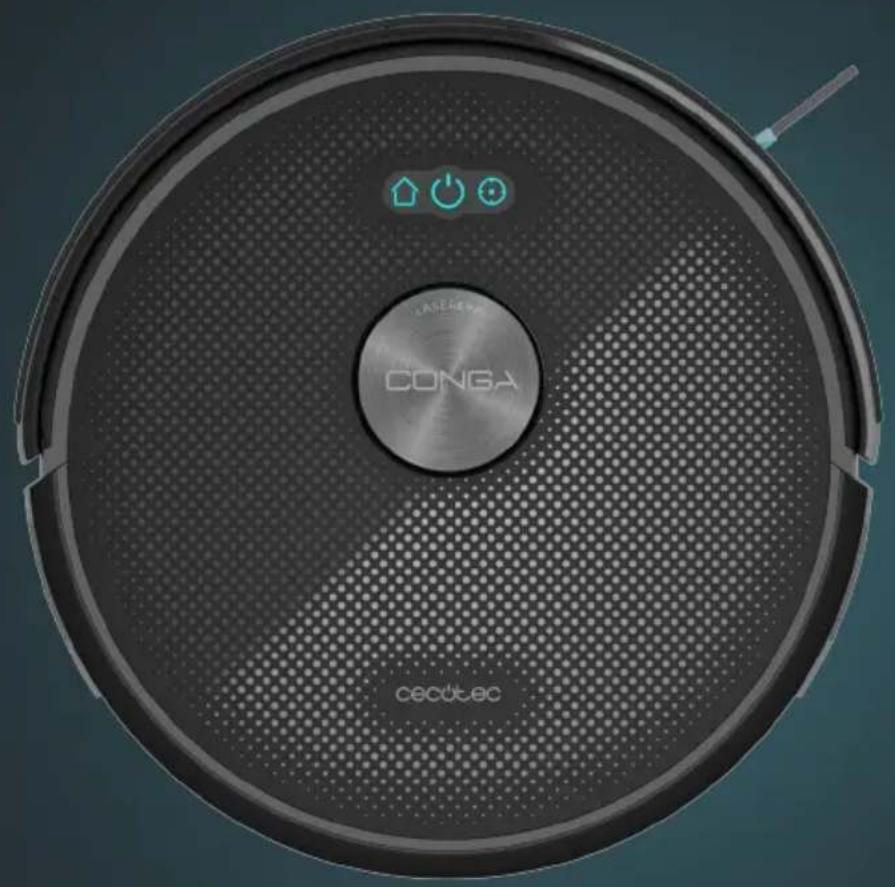
Main unit
Fig. 1
- Power button
- Short press: Start/Pause
- Long press: Power on/off
- Infrared sensor
- Bumper
- Spot Cleaning button
- Back Home button
- Laser sensor
Rear view
Fig. 2
- Fall-detection sensor
- Omnidirectional wheel
- Charging contacts
- Fall-detection sensor
- Side brushes
- Main brush release button
- Main brush
- Drive wheels
Mixed water and dust tank
Fig. 3
- Charging contacts
- Mixed water and dust tank
- Mop holder
- Washable mop pad
- Water inlet
- High-efficiency filter
- Sponge filter
- Pre-filter
Self-emptying base
Fig. 4
- Top cover
- Dust bag
- Signal transmission zone
- Charging contacts
- Dust bag buckle
- Visible air duct
- Dust suction inlet
- LED indicator light
NOTE:
The graphics in this manual are schematic representations and may not exactly match the product.
2. BEFORE USE
- This appliance comes in a packaging designed to protect it during transport. Take the appliance out of its box and remove all packaging materials. You can keep the original box and other packaging materials in a safe place to prevent damage to the appliance if you need to transport it in the future. If you wish to dispose of the original packaging, make sure all items are recycled properly.
- Check that all parts and components are included and in good condition. If any piece is missing or in bad condition, contact the official Cecotec Technical Support Service immediately.
Box content
- Robot vacuum cleaner
- Self-emptying base
- Dust bag
- Instruction manual
- Do not remove the product's serial number in order to keep proper traceability if technical assistance is required.
3. OPERATION
3.1 Cautions
- Check and prepare the area to be cleaned to ensure safe operation. Arrange furniture and remove obstacles that may hinder cleaning. Fig. 5.
- Remove low-lying objects on the floor that may interfere with the robot's operation, such as bathroom scales or stand fan bases.
ENGLISH
- For carpets with fringe or tassels, fold the edge underneath the carpet to prevent entanglement.
- When the robot is cleaning near open stairs or steps, place a protective barrier to ensure safe and trouble-free operation. Fig. 6.
- Remove any objects that could become entangled in the robot, such as power cables, cords, etc. Additionally, if a step is too high, the robot may get stuck.
Useful tips:
For the first use, follow the robot throughout its complete cleaning cycle. This will help you resolve any minor issues and ensure uninterrupted cleaning. While following it, be careful not to stand directly in front of the robot.
3.2 Preparation
Before using the product:
- Remove the protective strip and film. Fig. 7
- Install the side brushes. Fig. 8
3.3 Charging the robot
- Place the self-emptying base on the floor against a wall. Make sure there are no stairs, drops or objects within 1 metre to the left and right of the base, and 2 metres in front of it. Connect the base to the mains power supply. Fig. 9
Note:
- Keep away from objects with highly reflective surfaces such as mirrors or glass.
- Keep the self-emptying base away from direct sunlight.
- Press and hold the power button for 3 seconds to turn on the robot vacuum cleaner and place it on the self-emptying base. Make sure the charging contacts on both the robot and base connect properly.
Note:
The robot cannot be charged when it is turned off.
- When using it for the first time, fully charge the robot. During charging, the Back Home button will flash blue slowly; the light will remain steady when charging is complete. Charging time is approximately 4-5 hours.
Important notices:
- During daily use, place the robot vacuum cleaner on the self-emptying base. Also make sure that the self-emptying base is connected to the power supply and that the robot is turned on.
- Regularly clean the charging contacts on the base to ensure efficient charging.
- If the robot will not be used for an extended period, charge it completely before turning it off, and then store it in a dry, well-ventilated place. It is recommended to charge it once a month to protect the battery.
- If the battery becomes excessively discharged or is not used for a long time, the robot may not recharge. In this case, contact Cecotec's Official Technical Support Service. Do not attempt to disassemble the robot yourself.
3.4 Installing the mixed water and dust tank
- Open the water tank lid and fill it with water. Fig. 10
- Close the water tank lid. Make sure the lid is properly closed with no raised edges. Fig. 11
- Install the mop holder and mop pad. Fig. 12
- Press and hold the release button and insert the mixed water and dust tank. Fig. 13
Useful tips:
- To extend the water tank's service life, it is recommended to use purified or softened water.
- Do not use the mopping function on carpets.
- After mopping, empty the water tank and remove the mop holder.
- When the mop holder is installed, the robot will operate in vacuuming and mopping mode simultaneously. The default suction power is set to 'quiet' mode and cannot be manually adjusted.
- When the mop holder is not installed, the robot will operate only in vacuuming mode, without mopping.
- It is normal for a small amount of water to remain in the tank due to factory testing.
3.5 Operation
1. Start cleaning
Press and hold the power button for 3 seconds to turn on the robot.
Before the first cleaning session, make sure the robot is on the charging base and fully charged.
Briefly press the button to start cleaning and create a map at the same time.
2. Start/Pause
Press the power button and the robot will create a map based on its spatial scanning. It will divide each room into square areas, cleaning first the edges of each area and then the interior in a zigzag pattern until all zones are completed.
3. Wake Up
The indicator light will turn off if the robot remains paused for more than 4 hours. Press and hold to activate it again.
4. Spot Cleaning
Press the Spot Cleaning button and the robot will clean a 1.5m x 1.5m square area centered on its current position.
5. Recharge (Return to base)
Press the Back Home button and the robot will return to the charging base.
3.6 Dust collection
- The robot will automatically return to the self-emptying base to recharge and collect dust after cleaning is complete.
- Press the Back Home button and the robot will return to the self-emptying base to recharge and collect dust.
- During dust collection, press any button to stop the operation.
3.7. App operation and features
1. Map management
- Before using the robot, it is recommended to activate the "Map Saving Mode" in the App for an enhanced experience.
- Map creation: By selecting the "Complete Cleaning" mode, the robot will start cleaning from the charging base and return upon completion. During this process, it will create a map of the different areas of your home based on the house layout. You can save this map in the App. Up to 4 different maps can be saved.
- Map editing: You can split, merge or rename different areas (partitions) of the map.
2. Complete Cleaning Fig. 14
- The robot will create a map based on its spatial scanning. It will divide each room into square areas, cleaning first the edges of each area and then the interior in a zigzag pattern until all zones are completed.
3. Room Cleaning Fig. 15
- The robot will clean the rooms selected in the App.
Tips:
- "Map Saving Mode" must be activated in the App and a map must be saved before using "Room Cleaning".
- "Room Cleaning" is for customising the cleaning area, not for isolating hazardous zones. Remove any obstacles around the selected rooms.
4. Zone Cleaning Fig. 16
- The robot will clean the zones drawn in the App.
Tips:
- "Zone Cleaning" is for customising the cleaning area, not for isolating hazardous zones. Remove any obstacles within the drawn zones.
5. Pin & Go Fig. 17
- Specify a point on the map and the robot will automatically navigate to it.
6. Recharge and Resume Fig. 18
- When the battery is low during cleaning, the robot will automatically return to the charging base to recharge. Once recharged, it will resume cleaning from where it left off.
Tips:
- The robot will not resume cleaning if the "Do Not Disturb" mode is activated.
- If the robot is manually recharged or relocated, it will not resume cleaning.
7. Restricted Areas (Fig. 19)
- Create "No-Go Zones", "No-Mop Zones" and "Virtual Walls" on the map to prevent the robot from accessing certain areas or rooms. By default, the "No-Mop Zones" will only be activated when the mop holder is installed.
Tips:
- Restricted areas can be created on a saved map or during map creation.
- Restricted areas are for customising the cleaning area, not for isolating hazardous zones.
- If the robot is moved or significant changes occur in the house layout, the map may become invalid and restricted areas may be lost.
8. Scheduled Cleaning (Fig. 20)
- Set cleaning schedules in the App. The robot will clean at the programmed times and return to the charging base upon completion.
Tips:
- The robot will not start the scheduled cleaning if the battery level is low.
ENGLISH
4. WI-FI CONNECTIVITY AND MOBILE APP
Scan the following QR code to access the App download option and an instruction manual explaining how to pair your product:

5. CLEANING AND MAINTENANCE
5.1. Mixed water and dust tank
- Press and hold the release button and remove the mixed water and dust tank. Fig. 21
- Remove the mop holder and mop pads. Fig. 22
- Wash and dry the mop pads.
- Open the dust tank and remove the pre-filter, high-efficiency filter and sponge filter. Fig. 23
- Clean dust from the pre-filter using the cleaning brush. Gently tap the high-efficiency filter to remove dust. Fig. 24
- Wash the dust tank and sponge filter with water. The high-efficiency filter cannot be washed. If it accidentally gets wet, air dry before reuse. Fig. 25
- Empty any remaining water from the water tank. Air dry the water tank, dust tank and sponge filter. Fig. 26
5.2. Large dust tank
- Press and hold the release button to remove the large dust tank. Fig. 27.
- Open the dust tank and remove the pre-filter, high-efficiency filter and sponge filter. Fig. 28
- Clean dust from the pre-filter using the cleaning brush. Gently tap the high-efficiency filter to remove dust. Fig. 29
- Wash the dust tank and sponge filter with water. The high-efficiency filter cannot be washed. If it accidentally gets wet, air dry before reuse. Fig. 30
- Air dry the dust tank and sponge filter.
5.3. Main brush and side brush
- Pull the release tabs to unlock the main brush cover, as shown in Fig. 31.
- Lift the main brush to remove it. Fig. 32
- Clean the main brush with the cleaning brush. Fig. 33
- Clean the side brush with the cleaning brush. Fig. 34
5.4. Drive wheel
- Use the cleaning brush to remove hair and dirt from the drive wheel. Fig. 35
- If a drive wheel becomes jammed, rotate its gear in the opposite direction so dirt falls through the opening. Fig. 36
5.5. Omnidirectional wheel
Use the cleaning brush to remove hair and dirt from the omnidirectional wheel. Fig. 37
- Clean the self-emptying base charging contacts. Fig. 38
- Clean the robot's charging contacts. Fig. 39
- Clean the fall-detection sensors. Fig. 40
Note: The charging contacts and fall-detection sensors contain sensitive electronic components. Use a dry cloth to clean them, never a damp cloth, to prevent water damage.
5.7. Self-emptying base
To ensure proper dust collection, it is recommended to replace the dust bag and clean the filter and air duct regularly.
Replacing the dust bag and cleaning the filter
Fig. 41
- Open the base top cover.
- Remove the filled dust bag.
- Hold the handle to lift the dust bag.
Note: Hold the handle to lift the dust bag and effectively prevent dust leakage.
- Install the filter and the new dust bag.
6. TROUBLESHOOTING
If the following conditions occur during use, the user can check and resolve them without assistance:
| Problem Possible cause | Possible solution | |
| The robot does not connect to the App. | The router name and/or password are incorrect. | Configure the router network and make sure the router name and password are correct. |
| The router's network signal is out of the robot's range. | Make sure the robot is within the router's network signal range. |
| The robot is not in configuration mode. | Make sure the robot is connected to the power supply and turned on. Press the Back Home button and the Spot Cleaning button at the same time for 3 seconds. The robot will enter configuration mode when it hears a voice prompt. |
| You have not selected a 2.4GHz network. | The robot is not compatible with 5G networks. Please select a 2.4GHz network. |
| It is not possible to create maps in the App. | The robot does not start operating from the self-emptying base. | The robot must start cleaning from the self-emptying base. |
| The robot has been moved during operation. | Do not move the robot during operation. |
| The cleaning session is not complete. | Allow the robot to return to the self-emptying base after cleaning. |
| The robot does not return to the self-emptying base. | The self-emptying base is incorrectly positioned. | Position the base correctly. |
| The self-emptying base is unplugged or has been moved. | Make sure the base is turned on and do not move it during cleaning. |
| The robot does not start operating from the self-emptying base. | It is recommended that the robot starts cleaning from the base. |
| The path to the self-emptying base is blocked. For example, the door to the room where the base is located is closed. | Keep the charging route clear. |
| The robot returns to the self-emptying base before finishing cleaning. | The room is too large, and the robot needs to return to the base to recharge. | Follow the App instructions for more details. |
| The robot cannot access certain areas due to obstacles or furniture. | Clear the area to be cleaned, arranging furniture and small objects properly. |
| The robot does not charge. | The self-emptying base is not connected to the power supply. | Make sure that the base is connected to the power supply and the indicator light is on. |
| The robot's charging contacts are not in contact with those of the base. | Make sure that the robot's charging contacts connect with the base contacts and that the START/ PAUSE button is flashing. Check if the charging contacts are dirty and clean them as described in the "Cleaning and maintenance" section. |
| The battery temperature is too high or too low. | It is recommended to charge and use the robot at a temperature between 0 °C and 40 °C. |
| Extended periods of inactivity can lead to excessive battery discharge. | It is recommended to use the product regularly. If you do not use it for a long time and have issues charging it, contact Cecotec's Official Technical Support Service. |
ENGLISH
| Unusual noise during cleaning. | The side brush and main brush are entangled. The dust tank and filter are clogged. | Regular cleaning of the side brush, main brush, dust tank, filter, etc. is recommended. |
| The robot is in Turbo mode. Switch to Normal mode. |
| The robot gets stuck during cleaning and stops. | The robot has become entangled with an object on the floor (power cables, curtains, carpet tassels, etc.). | The robot will try several ways to free itself. If unsuccessful, you must remove the obstacles manually and restart the robot. |
| The robot may be stuck under furniture. | Place a physical barrier, or set a Virtual Wall in the App. |
| The following issues may occur while the robot is cleaning: disordered cleaning path, cleaning path deviation, repetitive cleaning or lack of cleaning in small areas. (If there is a large area that has not been cleaned, the robot will automatically clean the missing area later). | Operation on recently waxed and polished floors or smooth tiles results in less traction between the drive wheels and the floor. | It is recommended to wait for the floor wax to dry before using it. |
| When climbing steps, thresholds and door frames, the robot's drive wheel slips on the floor, which can affect the robot's perception of the whole house layout. | It is recommended to close the door and clean the area separately. After cleaning, it will return to the starting point. |
| Home layout prevents the robot to access some areas. | We recommend tidying up the home to ensure that the robot can access and clean properly. |
| The distance sensor is dirty or covered. | Clean the distance sensor or remove objects covering it. |
| The self-emptying base cannot pick up dust when the robot returns. | The self-emptying base lid is open. | Close the self-emptying base lid. |
| The dust bag is not installed. Install the dust bag and close the self-emptying base lid. | |
| The robot has been manually moved to the self-emptying base and emptying is not activated. | Allow the robot to return automatically to the self-emptying base, do not move it manually. |
| If Do Not Disturb mode is activated in the App, the base will not empty automatically when the robot returns. | Disable the Do Not Disturb mode in the App or empty the mixed tank manually. |
| The base detects low dust collection efficiency. | Replace the dust bag according to maintenance instructions and close the base cover. If the App indicates that the bag is not full, reinstall it. |
| If the above causes have been ruled out, the base components may be faulty. | Contact Cecotec's Official Technical Support Service. |
| Dust collection failure. | The base detects low dust collection efficiency. | Replace the dust bag according to maintenance instructions and close the base cover. If the App indicates that the bag is not full, reinstall it. |
| The interior of the self-emptying base is dirty. | Fine particles pass through dust bag and adhere to the base interior. | Clean the self-emptying base interior. |
| There is a dust leakage during operation. | The dust tank outlet is blocked. Remove the mixed tank and clean the dust tank outlet. |
| During use, the robot's water tank slips out of place. | The tank is not installed correctly. | Make sure that the robot's tank fits into place when installing it. |
| The drive wheels are blocked. | The drive wheels are blocked by foreign objects. | Rotate and press the drive wheels to check if there are any foreign objects wrapped or stuck. If you find anything, clean it up as soon as possible. If the problem persists, contact Cecotec's Official Technical Support Service. |
ENGLISH
| The robot does not perform Continuous Cleaning. | The Do Not Disturb mode is activated. | In Do Not Disturb mode, the robot does not perform Continuous Cleaning. |
| In the last cleaning session, the robot did not return to the self-emptying base automatically. | Continuous Cleaning is not performed when the robot is manually placed or moved to charging base. |
| The robot does not start automatic cleaning at the scheduled time. | The Scheduled Cleaning function is cancelled. | Reset the schedule. |
| The robot has run out of battery. | Charge the robot. |
| The Do Not Disturb mode is activated. | In Do Not Disturb mode, the robot does not perform Continuous Cleaning. |
7. COPYRIGHT
The intellectual property rights over the texts in this manual belong to CECOTEC INNOVACIONES, S.L. All rights reserved. The contents of this publication may not, in whole or in part, be reproduced, stored in a retrieval system, transmitted, or distributed by any means (electronic, mechanical, photocopying, recording or similar) without the prior authorization of CECOTEC INNOVACIONES, S.L.

Cecotec Innovaciones hereby declares that this appliance complies with the essential requirements and other relevant provisions of the regulations applicable in the European Union. This appliance has been designed, manufactured and tested in compliance with required safety and
quality standards. The full text of the EU Declaration of Conformity can be found on the following website: https://cecotec.es/es/information/declaration-of-conformity
1. PARTS AND COMPONENTS
Robot vacuum cleaner:
Main unit
Image 1
4. WI-FI CONNECTIVITY AND APP
6. TROUBLESHOOTING
4. WI-FI CONNECTION AND MOBILE APP
2. INSTRUCTIONS FOR USE
- Do not use the appliance if it has been dropped, if there are visible signs of damage, or if it is leaking. If the power cord is damaged, it must be replaced by the manufacturer, its service agent, or similarly qualified persons in order to avoid a hazard. If you need to move the appliance, make sure to unplug it and carry it by the base. If you want to dispose of the appliance, make sure to recycle all recyclable materials.
- Make sure all parts and accessories are included and in good condition. If any of them are missing or not in good condition, contact the official Cecotec Technical Support Service immediately.
Box contents
1. Instructions for use and cleaning
J 1 J 1 J 1 J 1 J 1 J 1 J 1 J 1 J 1
cdu 1e 1000
Jc Jc Jc Jc Jc Jc Jc Jc Jc Jc Jc Jc Jc Jc Jc Jc Jc Jc Jc Jc Jc Jc Jc Jc Jc Jc Jc Jc Jc Jc Jc Jc Jc Jc Jc Jc Jc Jc Jc Jc Jc Jc Jc Jc Jc Jc Jc Jc Jc Jc Jc
CUGS1U
-
- 1/2 < < 1 或 1/2
-
- 0.123456789
- j 1j 1j 1j 1j 1j 1j 1j 1j 1j 1j 1j 1j 1j 1j 1j
3.
3.1 UCCs
UeSis. UusJ 5
1Jj00sso JJJgssoo 1uys jusge 1jrs
E
6
- jjJ 1 JUwS 1 JUs g aJ i c uuui p Uus uu uu uu
Cusie 1
3.2 J
JU 1
- 7
- 8
3.3
- UJ 1UJ 1UJ 1UJ 1UJ 1UJ 1UJ 1UJ 1UJ 1U
J 1 1 1 1 1 1 1 1 1 1 1 1 1 1 1 1 1 1 1 1 1 1 1 1 1 1
4.2.1.13.3.1.1.9
山
1200 1
1
- 1u3 3 3 3
e o 1 1 1 1 1 1 1 1 1 1 1 1 1 1 1 1 1 1
pUC
JU 1JU
- 电
4-5
j 1
- 1234567890123456789012345678901234567890123456789012345678901234567890123456789012345678901234567890123456789
1
- 10000000000000000000000000000000000000000000
i.
- 1234567890123456789012345678901234567890123456789012345678901234567890123456789012345678901234567890123456789
J 1
J 1 J
-121 1234567890123456789012345678901234567890
y
Cecotec Uc uJgUuJg.
8.20
4.1 JWl-FI gBg

5.
5.1. 2jUJgJgJgJgJg
- 1
U23
- 1
J 24
25
- 1
J 1 J 26
5.2.
- 127
- 1
UJU28