C31NANODOCKPROPD - USB-C Dock i-TEC - Free user manual and instructions
Find the device manual for free C31NANODOCKPROPD i-TEC in PDF.


User questions about C31NANODOCKPROPD i-TEC
0 question about this device. Answer the ones you know or ask your own.
Ask a new question about this device
Download the instructions for your USB-C Dock in PDF format for free! Find your manual C31NANODOCKPROPD - i-TEC and take your electronic device back in hand. On this page are published all the documents necessary for the use of your device. C31NANODOCKPROPD by i-TEC.
USER MANUAL C31NANODOCKPROPD i-TEC
natural_image
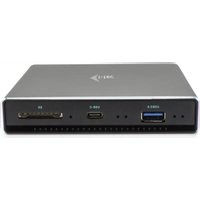
Exterior view of a gray USB flash drive with network ports and a USB cable (no text or symbols visible)User guide • Gebrauchsanweisung • Mode d'emplo Manual de instrucciones • Manuale • Uživatelská príručka Instrukcje obsługi • Užívatel'ská príručka Vartotojo vadovas • Handleiding
P/N: C31NANODOCKPROPD
EN
Please read the entire instruction manual carefully. Detailed manual is available on our website www.i-tec.cz/en/ in the tab „Manuals, drivers“. In case of any issues, please contact our technical support at: support@itecproduct.com
DE
DECLARATION OF CONFORMITY.....148-149
FCC 150
text_image
QR code image containing encoded data, no visible human-readable textwww.i-tec.cz/en
TERMINOLOGY
Interface / port / connector / input / slot – a place where two devices physically interconnect.
Controller - a semi-conductor component (so-called chipset) in a laptop, tablet, PC etc. ensuring the operation of a port.
USB-C – a new standard and a symmetrical connector. Enables faster charging, provides power supply, is dual-role (can be either host or device), supports alternate modes (DisplayPort, MHL, Thunderbolt).
Alternate modes (Alt modes) – special modes for the USB-C connector that can be supported. Currently the most popular modes are DisplayPort / DockPort, MHL, Thunderbolt. A device with this capability on the port and cable allows video transmission while also retaining other port functionalities (for data transfer and charging via Power Delivery).
DisplayPort / DockPort Alt mode – this mode allows video transmission via the USB-C port and cable.
USB-C Power Delivery / Data (USB-C PD) – optional property of the USB-C connector. A port supporting this property is able to both charge and be charged and supports 10 W to 100 W of load (range in profiles 1-5).
USB 3.1 / 3.0 / 2.0 – standard for USB interface / port for connecting various USB devices. Using the type A USB interface allows connecting various USB devices to a docking station or adapter. The type B USB port is used for connecting the docking station or adapter to a laptop, tablet or PC.
HDMI / DisplayPort – standard for digital graphics interface / port used for connecting monitors and other display devices.
Audio – designation for sound input (microphone) or output devices (headphones / speakers).
Important note:
To make full use of the potential of your docking station, it is important that the laptop's GPU supports DisplayPort 1.4.
If the GPU in the laptop supports DisplayPort 1.2, the docking station will function but will limit the maximum available resolution of external monitors. See the SPECIFICATIONS section for more.
Note for macOS: macOS does not support MST technology (2 and more monitors in extended mode). No docking station using USB-C DisplayPort Alt Mode supports the connection of two or more monitors in MacOS. Only docking stations with Thunderbolt 3 or DisplayLink docking stations allow this.
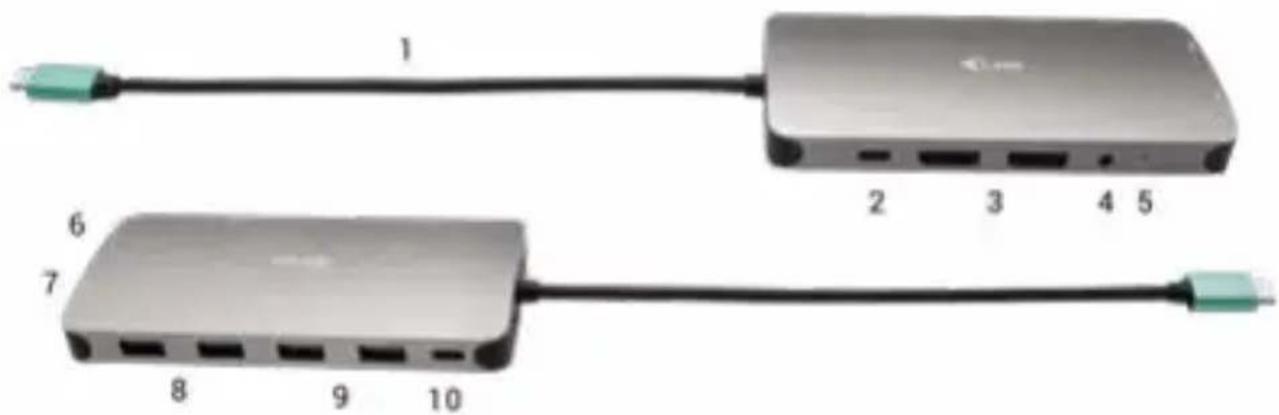
text_image
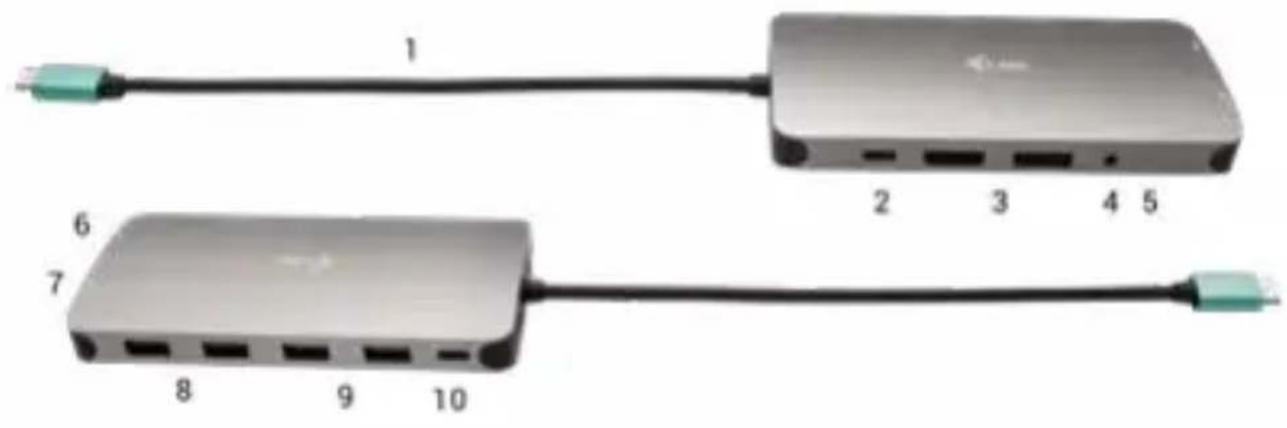
1 2 3 4 5 6 7 8 9 10DOCKING STATION DESCRIPTION
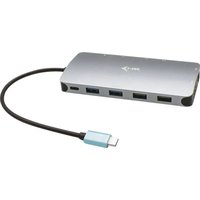
- Integrated cable with USB-C connector
- USB-C Power Delivery Port - for charging devices supporting Power Delivery technology.
- 2x DisplayPort
- 3.5 mm Combo Audio Jack (2.1 CH)
- LED indicator
- Ethernet GLAN RJ-45 port - for Ethernet network / router / switch / HUB and Internet connection
- HDMI
- 2x USB-A 2.0 port – for connecting USB devices
- 2x USB-A 3.0 port – for connecting USB devices
- USB-C 3.1 Gen 1 port – for connecting USB devices
SPECIFICATION
- 1x integrated USB-C cable for connecting a device (22 cm)
• Power Delivery: 100 W
• Video ports: 2x DisplayPort, 1x HDMI - Resolution:
USB-C/Thunderbolt™ 3 with DisplayPort 1.4 Support
1 monitor - 1x DP or 1x HDMI - up to 4K/60 Hz
2 monitors - 1x HDMI + 1 DP or 1x DP + 1x DP - up to 2x 4K/30 Hz
2 monitors - 1x HDMI + 1 DP or 1x DP + 1x DP - up to 2x 1440p/60 Hz
3 monitors - 1x HDMI + 1x DP + 1x DP - up to 3x 1080p/60 Hz
USB-C/Thunderbolt™ 3 with DisplayPort 1.2 Support
1 monitor - 1x DP or 1x HDMI - up to 4K/30 Hz
2 monitors - 1x HDMI + 1 DP or 1x DP + 1x DP - up to 2x 1080p/60 Hz
3 monitors - 1x HDMI + 1x DP + 1x DP - up to 3x 1080p/30 Hz
3 monitors - 1x HDMI + 1x DP + 1x DP - up to 1x 1080p/60 Hz + up to 2x 720p/60 Hz
• 1x USB-C Gen 1 port (data only)
• 1x USB-C PD port (power delivery only)
• 2x USB 3.1 Gen 1 port
- 2x USB 2.0 port
• 1x Ethernet GLAN RJ-45 port (Realtek RTL8153)
• 1x 3.5 mm Combo Audio port
- LED indication
• Product dimensions: 127 x 60 x 19 mm
• Product weight: 110 g
- OS: Windows 10, macOS X, Android, Chrome OS and Linux with the latest updates
SYSTEM REQUIREMENTS
Hardware Requirements: Device with a free USB-C or Thunderbolt port.
Requirements for Power Delivery function: Device with a free USB-C or Thunderbolt 3 port with Power Delivery support.
Requirements for video output: Device with a free USB-C port with DisplayPort Alternate Mode support or a Thunderbolt 3 port.
OS: Windows 10, macOS X, Android, Chrome OS and Linux with the latest updates.
DRIVER INSTALLATION
Windows 10 32/64bit: After connection, the drivers for the docking station are installed automatically on the system. Before installation make sure that your system has installed the latest drivers for your device and updated BIOS.
Mac OS X: Installation of the drivers in Mac OS X is automatic. Before installation make sure that your Mac has installed the latest OS for your device.
CONNECTING A HDMI / DISPLAYPORT MONITOR
The docking station is equipped with 2x DisplayPort and 1x HDMI ports for connecting external monitors, projectors or TVs with DisplayPort / HDMI interface. The graphics chip which is the “heart” of the docking station supports up to 1x 4K 3840x2160 resolution @60Hz. Use a high-quality DisplayPort / HDMI cable to connect the monitor to the docking station.
CONNECTING TO THE LAN
You can use the GLAN RJ-45 port for connecting the Ethernet to a router/ switch and to the internet, it supports speeds of 10 / 100 / 1000 Mbps.
CONNECTING USB DEVICES
You can use USB 3.0 ports for connecting your keyboard, mouse, external hard drive, printer and other devices or you can use it for connecting a USB HUB, which will give you more free USB ports.
CHARGING
The docking station supports charging of USB mobile devices, such as smart phones, e-book readers, multimedia players, navigation devices, and tablets. Simply connect the device that you want to charge using the original cable to the USB port of the docking station. If the device is not charging, connect an original or universal USB-C power adapter to the USB-C Power Delivery port on the docking station.
CHARGING THROUGH POWER DELIVERY
The docking station allows USB-C Power Delivery which is designed for powering the connected “mother” device using an original or universal mains power adapter with a USB-C connector.
Important: Disconnecting the USB-C adapter will restart the docking station and will disconnect and reconnect all connected devices.
Fully compatible devices / systems (Alt Mode & Power Delivery) USB-C is a new standard with a wide variety of uses, and compatibility information is complex. Some USB-C devices / systems support Alt Mode video output, while others do not. Some can be powered and charged via USB-C Power Delivery, while others cannot.
Partially compatible devices (support for either Alt Mode or Power Delivery, not both)
Many current USB-C devices that support Alt Mode video output do not support USB-C Power Delivery charging. These charging devices still need their original chargers. Conversely, some USB-C phones and tablets can be charged via Power Delivery, but most do not support Alt Mode video output.
Incompatible devices / systems
The docking station relies on new features introduced with USB 3.1, and as such, the USB-C Power Delivery feature is not backward compatible with USB 3.0 / 2.0 for charging older devices. Furthermore, the USB-A 3.0 / 2.0 (Male) to USB-C (Female) converters for connecting USB-C devices in the USB-A 3.0 ports of the docking station are not compatible. Most current phones and tablets with a USB-C port do not support Alt Mode video output, and some do not support USB-C Power Delivery. Check the suitability of these technologies in the device documentation or contact the device manufacturer.
USING IN WINDOWS OS
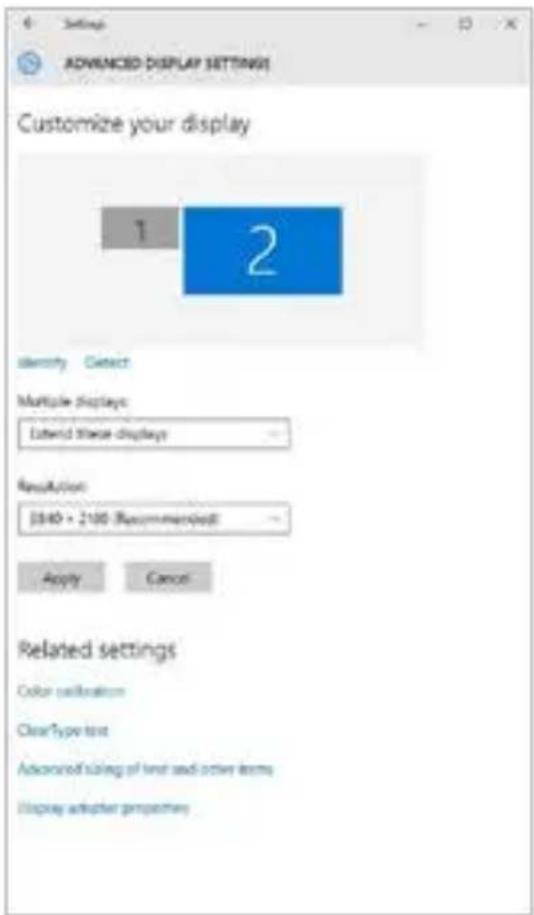
Advanced graphics output configuration – after connecting your monitor, right click your desktop and select "Display settings". Here you can choose which monitor to use, select resolution and refresh rate.
text_image
6 Settings ADVANCED DISPLAY SETTINGS Customize your display 1 2 Identity Select Multiple Displays Extend these displays Resolution: 3040 x 2100 -Recommended Apply Cancel Related settings Color calibration ClearType text Advanced size of text and other items Display adapter propertiesBy clicking on the second monitor and moving it you can position this monitor as required relative to the original monitor of your laptop / tablet.
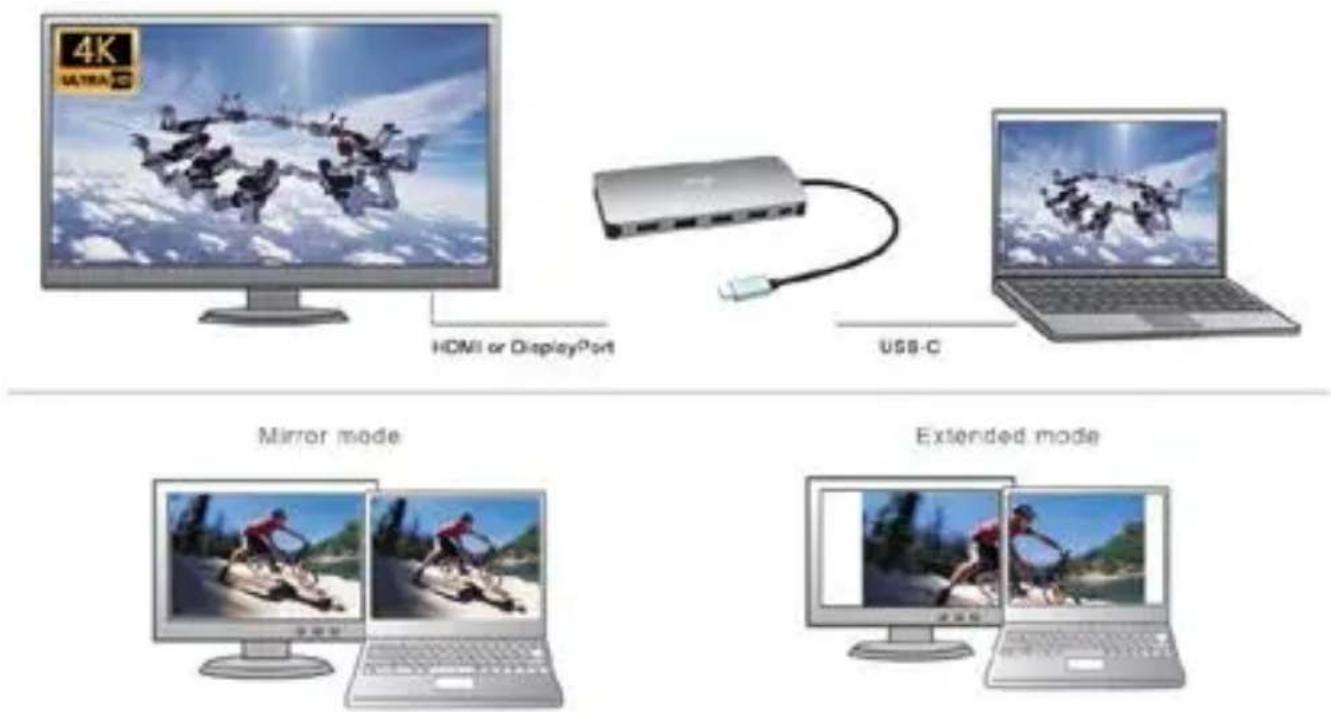
Now you can set Extend and Mirror mode:
- Mirror mode: on the monitor select the 2 ^nd Monitor, select Several monitors Mirror this display OK.
- Extend mode: on the monitor select the 2 ^nd Monitor
i-tec USB-C Metal Nano Docking Station Triple Display + PD
flowchart
graph TD
    A["4K ULTRA-3D"] -->|HDMI or DisplayPort| B["USB-C"]
    B --> C["Computer screen"]
    subgraph Mirror mode
        D["Computer monitor with snowboard image"]
        E["Computer monitor with mountain bike graphic"]
    end
    subgraph Extended mode
        F["Computer monitor with snowboard image"]
        G["Computer monitor with mountain bike graphic"]
    end
Mirror and Extended mode
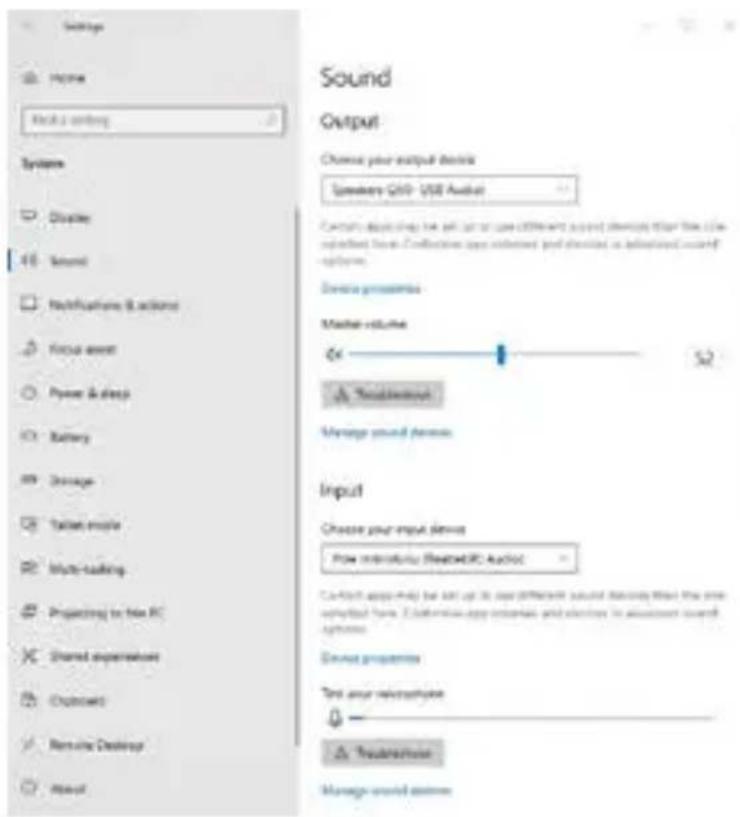
Audio settings – Windows → System → Audio
text_image
Settings Home Back 2 coming System Disable Sound Notifications & actions Focus asset Power & deep Battery Storage Table mode Multi-tanking Projecting to file PC Shared expressions Outdoors Remove Desktop About Sound Output Chinese your output device Solutions (USB Audio) Current deployment has not used to use different audio devices than the CIE's respective level. Conduction uses relevant and discrete in digital audio systems. Device processes Master volume On To Be a new Manage sound devices Input Choose your input device How interactive (Reactive/IC Audio) C-Host app help for all up to its own different sound devices than the pre-apPLICator have. Additional app interfaces and switches in acoustic audio systems. Device properties Test your microphone - Treatment Manage audio buttonsSound settings
The Standby / Hibernate mode and the Video port – after the activation of the laptop / tablet from the Standby / Hibernate mode the primary (original) monitor is displayed, for this reason we recommend using the monitor that is integrated with the laptop / tablet as the primary monitor, so that you can log on to the system again.
The Mirror mode – the additional monitor takes on the parameters of the original monitor in the system, i.e., if you select the Mirror mode and the original monitor resolution is e.g. 1280x1024 then the screen will be displayed on the additional monitor with a resolution of max. 1280x1024 (even if you set a higher resolution).
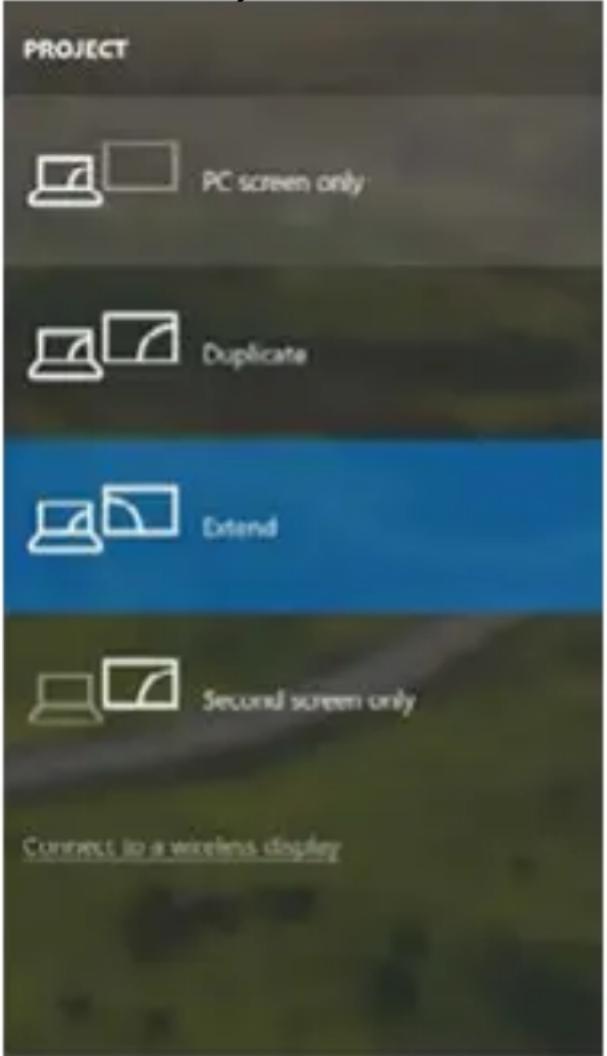
Pressing the keys „Windows“ + P you can also easily control the monitors – for using a monitor in Win 10 you can select: Computer screen only, Mirror, Extend, Second screen only
text_image
PROJECT PC screen only Duplicate Extend Second screen only Connect to a wireless displayControl the monitor in Windows 10
USING IN MACOS X
Note for macOS: macOS does not support MST technology (2 and more monitors in extended mode). No docking station using USB-C DisplayPort Alt Mode supports the connection of two or more monitors in MacOS. Only docking stations with Thunderbolt 3 or DisplayLink docking stations allow this.
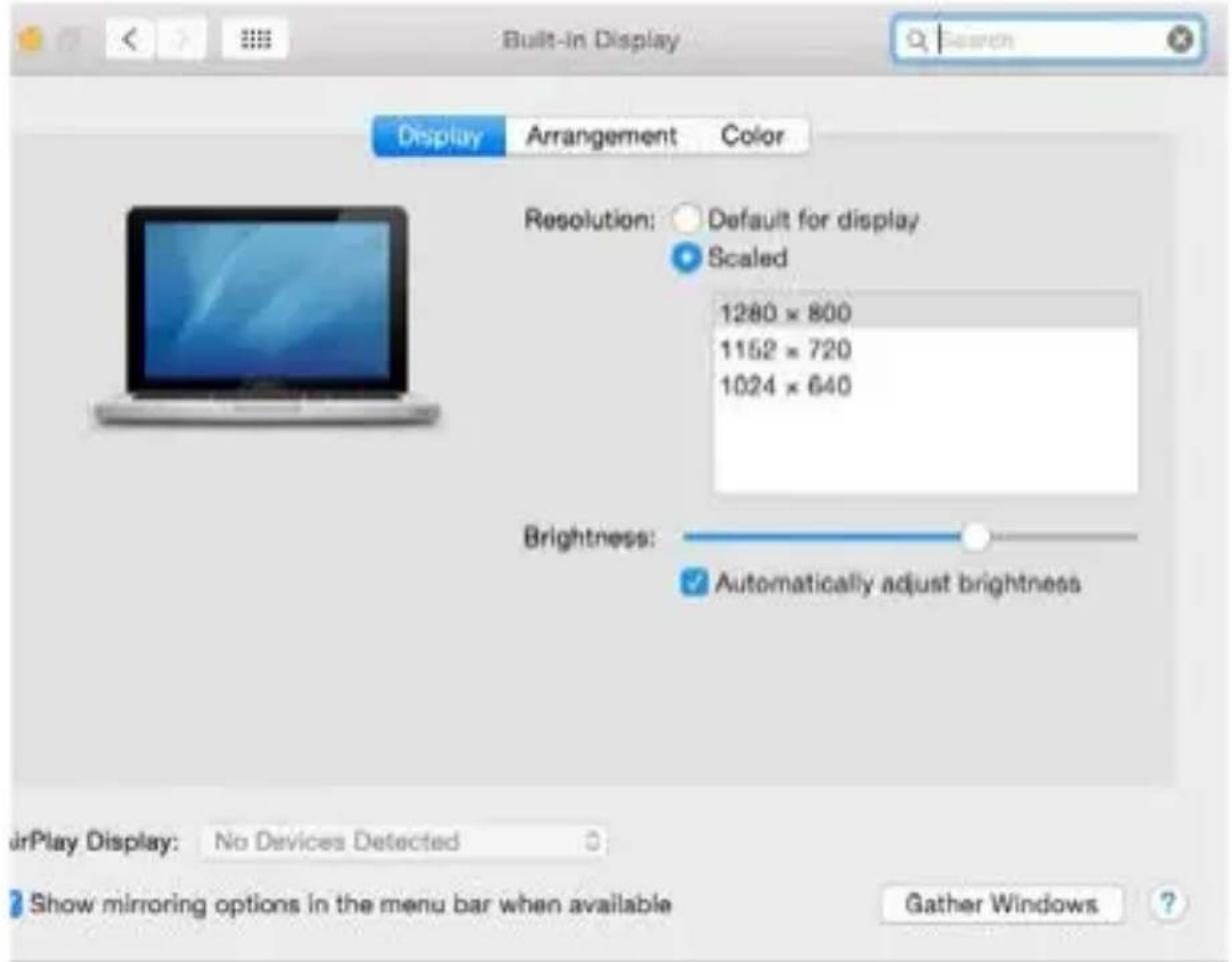
After connecting the monitor, the screen on your Mac will glimmer, which is a standard condition, after stabilization it is possible to perform standard setting of the monitor here: System Preferences-Displays:
text_image
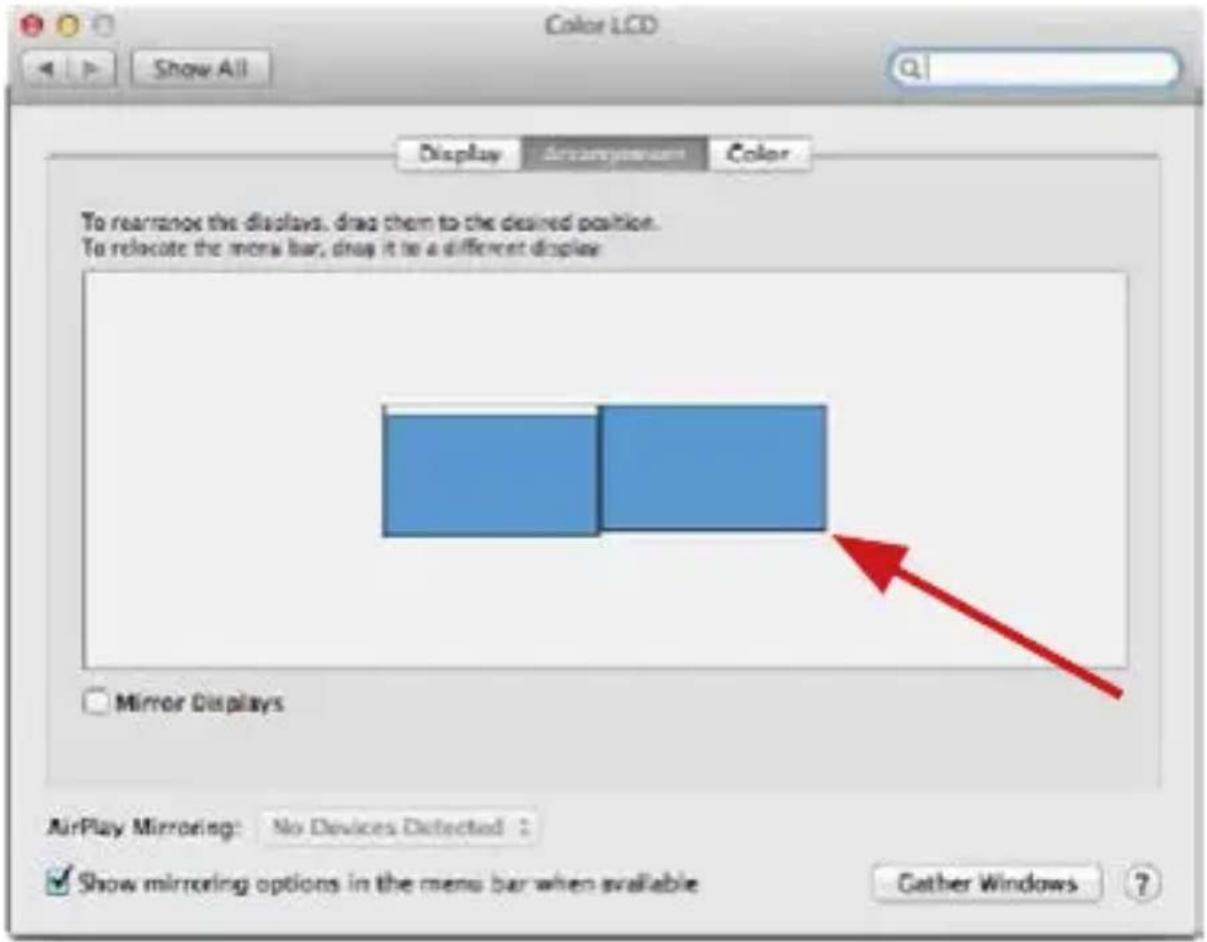
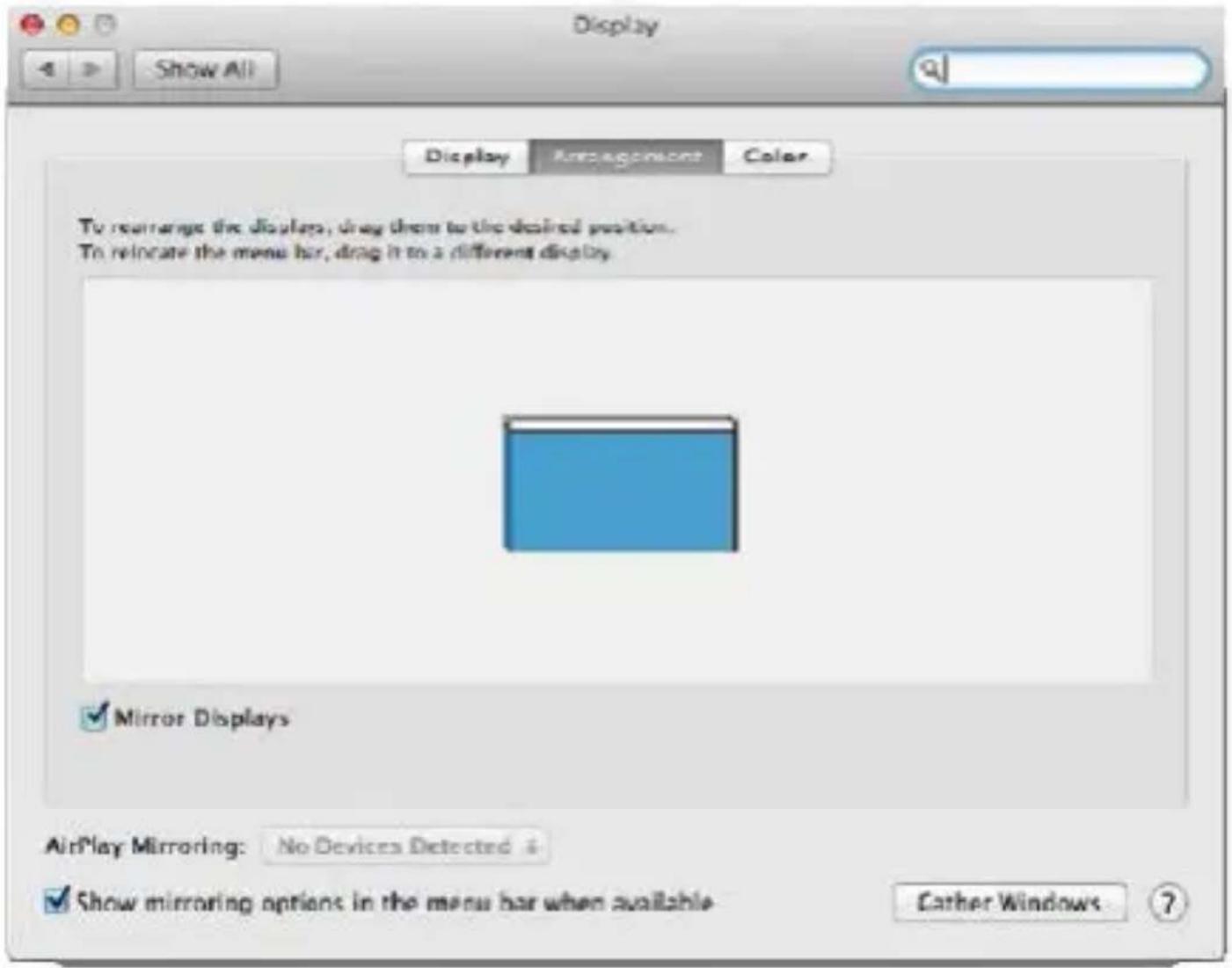
Built-in Display Search Display Arrangement Color Resolution: Default for display Scaled 1280 x 800 1152 x 720 1024 x 640 Brightness: Automatically adjust brightness UrPlay Display: No Devices Detected Show mirroring options in the menu bar when available Gather WindowsClick on Arrangement and in the default mode (Extended desktop) click on the new monitor and drag it as necessary vis-à-vis the Mac monitor. If you select Mirror displays the mode will change to Mirror (the resolution of the monitors will be automatically adjusted according to their parameters and the highest possible resolution will be set on both monitors). By cancelling the Mirror displays option you will return to the Extended desktop mode.
text_image
Color LCD Show All Display display screen Color To rearrains the displays, drag them to the desired position. To relocate the menu bar, drag it to a different display: Mirror Displays AirPlay Mirroring: No Devices Detected : ✓ Show mirroring options in the menu bar when available Cather Windows ?Extended mode: The arrow indicates the possible position of the connected monitor vis-à-vis the Mac monitor.
i-tec USB-C Metal Nano Docking Station Triple Display + PD
text_image
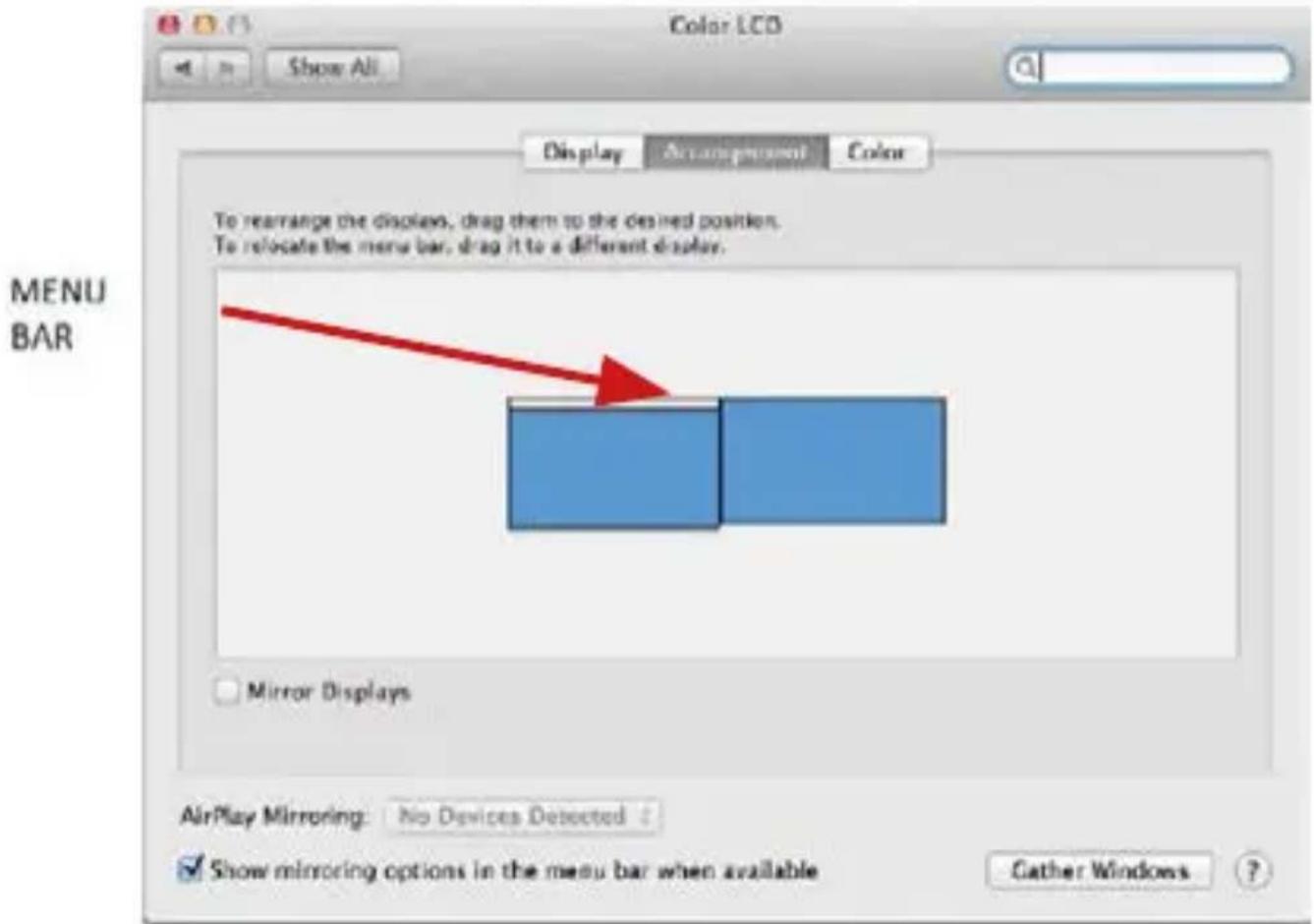
Color LCD Show All Display Arrangement Color To rearrange the displays, drag them to the desired position. To relocate the menu bar, drag it to a different display. MENU BAR Mirror Displays AirPlay Mirroring: No Devices Detected ✓ Show mirroring options in the menu bar when available Cather WindowsExtended mode: In this mode you can choose the Main monitor by dragging the Menu Bar.
text_image
Display Show All Display Attachments Color To rearrange the displays, drag them to the desired position. To relocate the menu bar, drag it to a different display. Mirror Displays AirPlay Mirroring: No Devices Detected & Show mirroring options in the menu bar when available Either Windows ?Mirror mode: This mode can only be used if supported by the Mac.
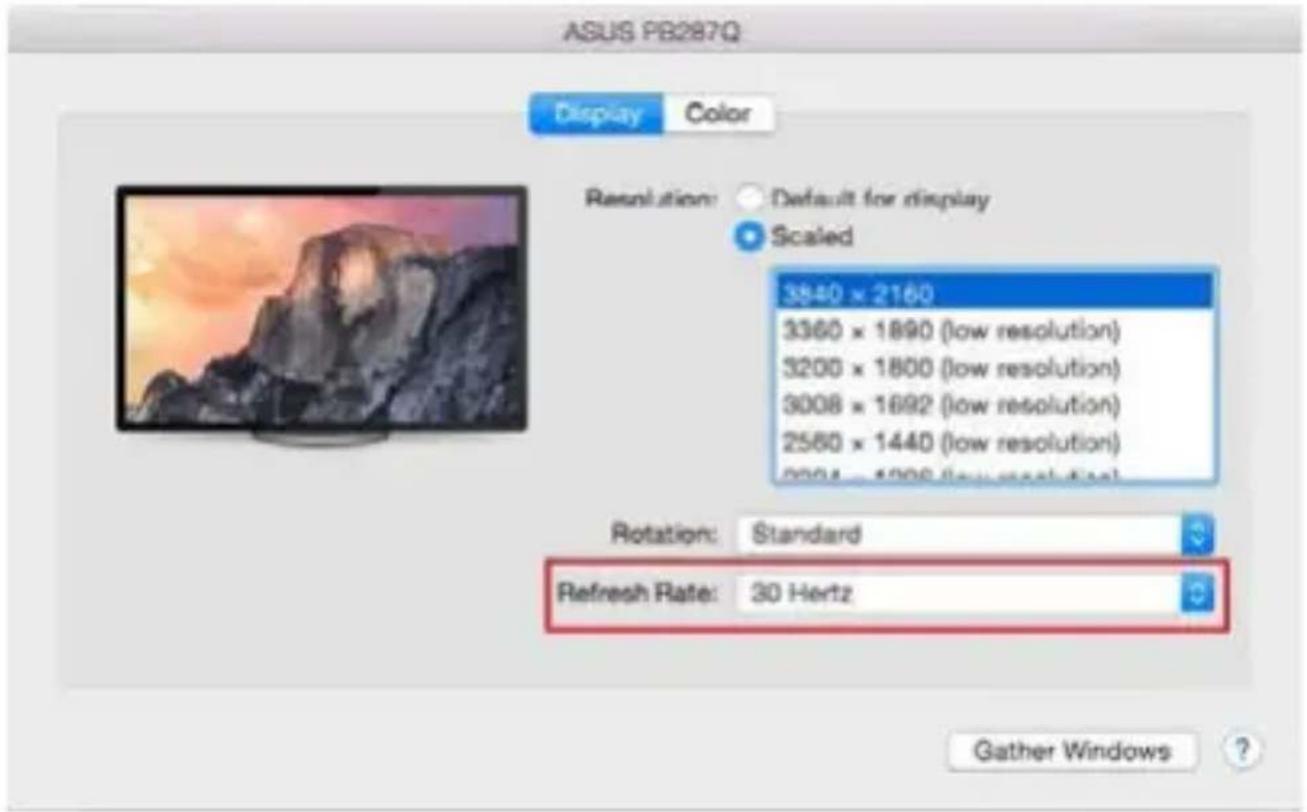
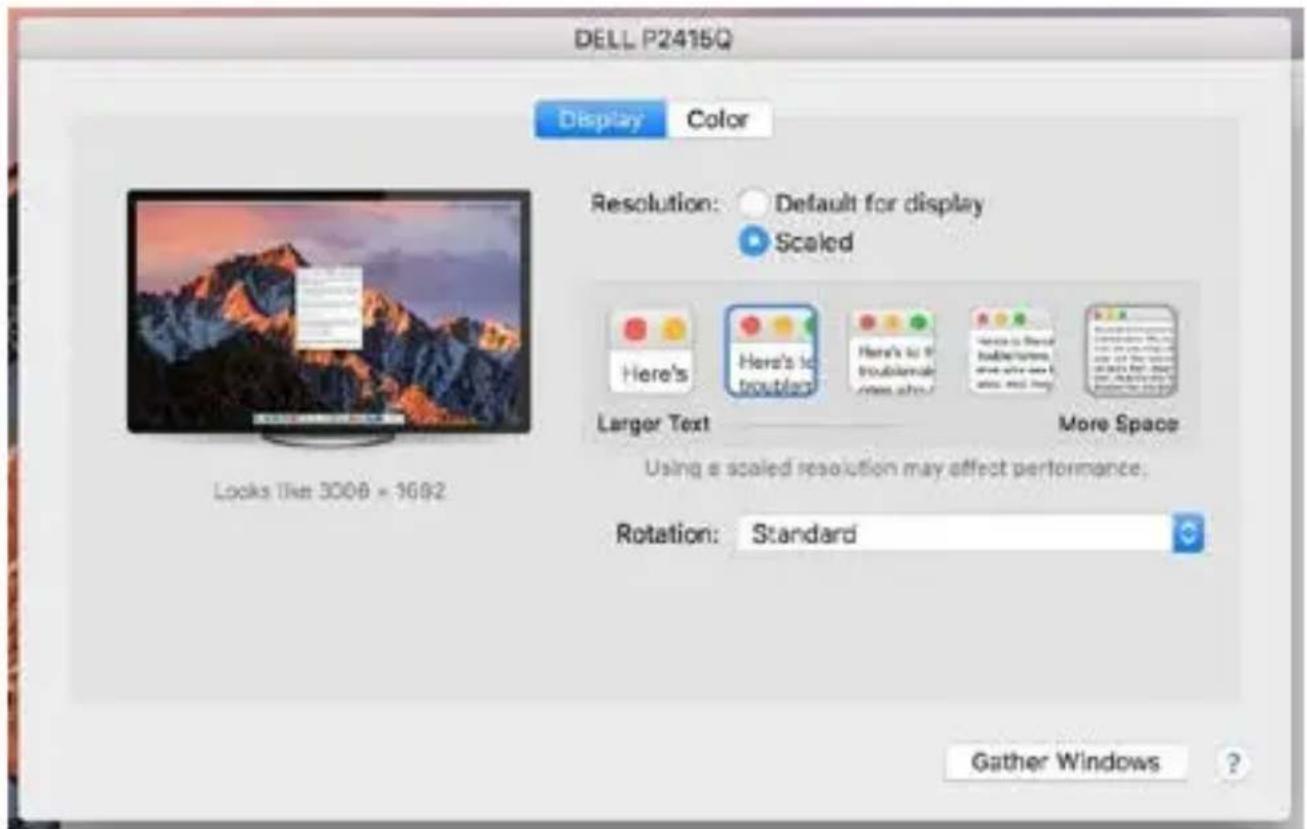
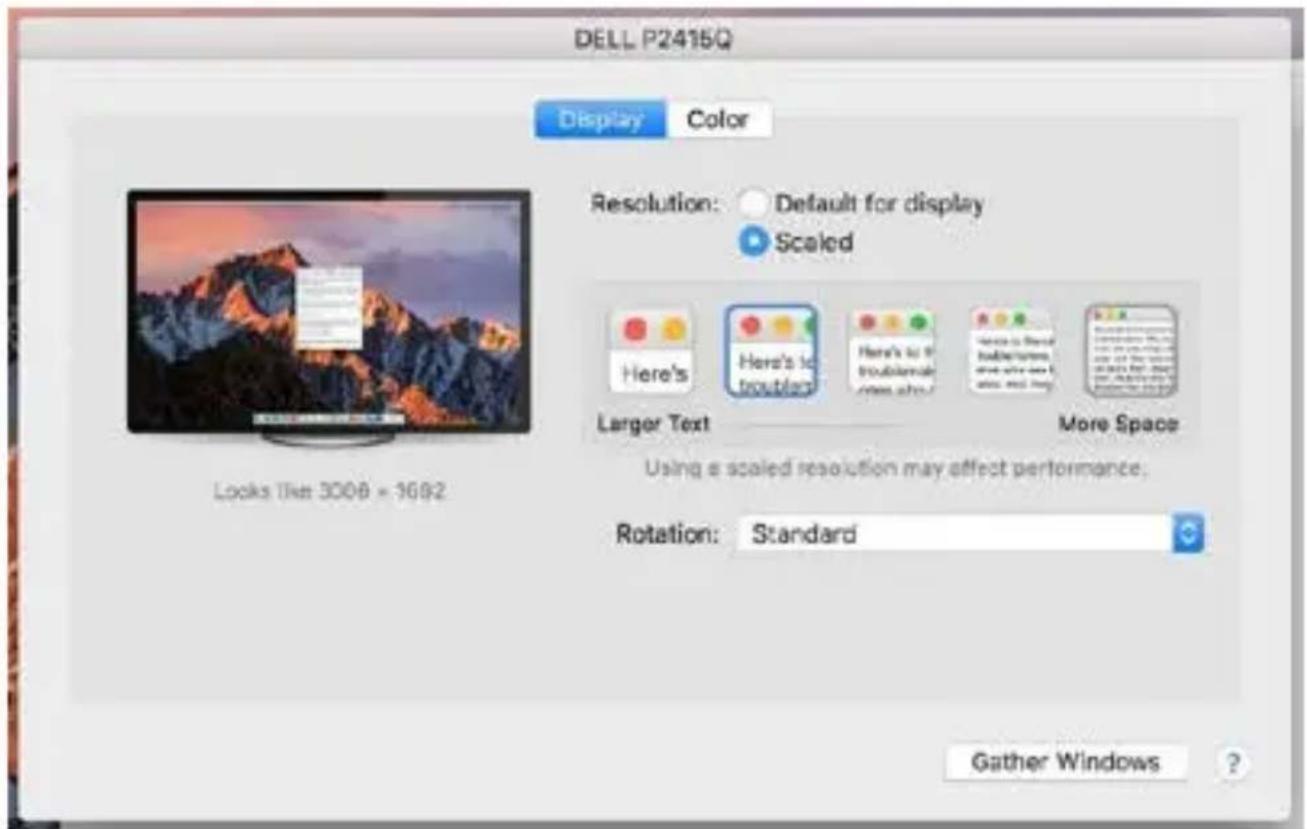
Click on Gather Windows: using this option you can choose the settings of the corresponding monitor – Scaled (offers available resolutions), Rotation (Standard, 90°, 180° and 270°) and Refresh rate (if offered). Below the following setting options are displayed. This may vary, depending on your monitor.
i-tec USB-C Metal Nano Docking Station Triple Display + PD
text_image
ASUS PB287Q Display Color Resolution: Default for display Scaled 3840 × 2160 3360 × 1890 (low resolution) 3200 × 1800 (low resolution) 3008 × 1692 (low resolution) 2560 × 1440 (low resolution) 2004 - 1996 (low resolution) Rotation: Standard Refresh Rate: 30 Hertz Gather Windows ?Display option 1
text_image
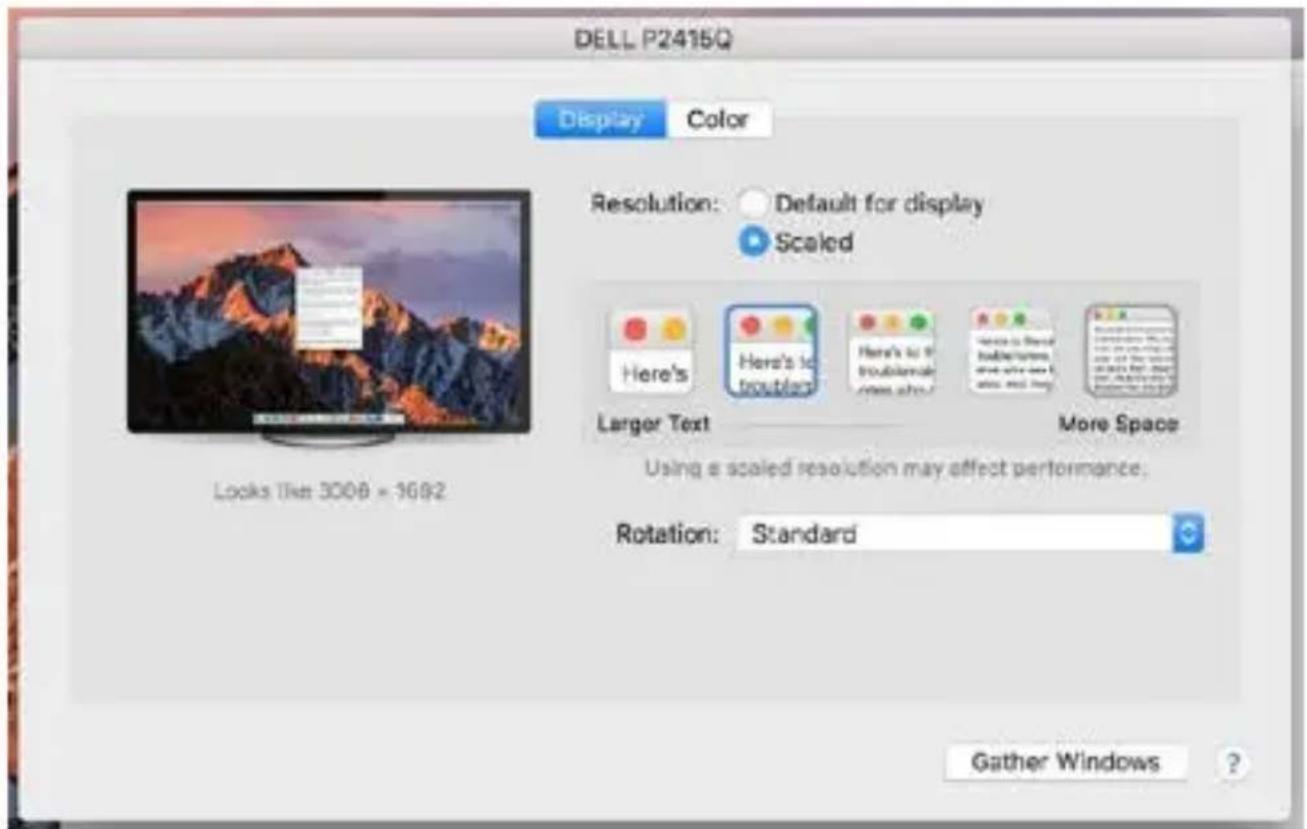
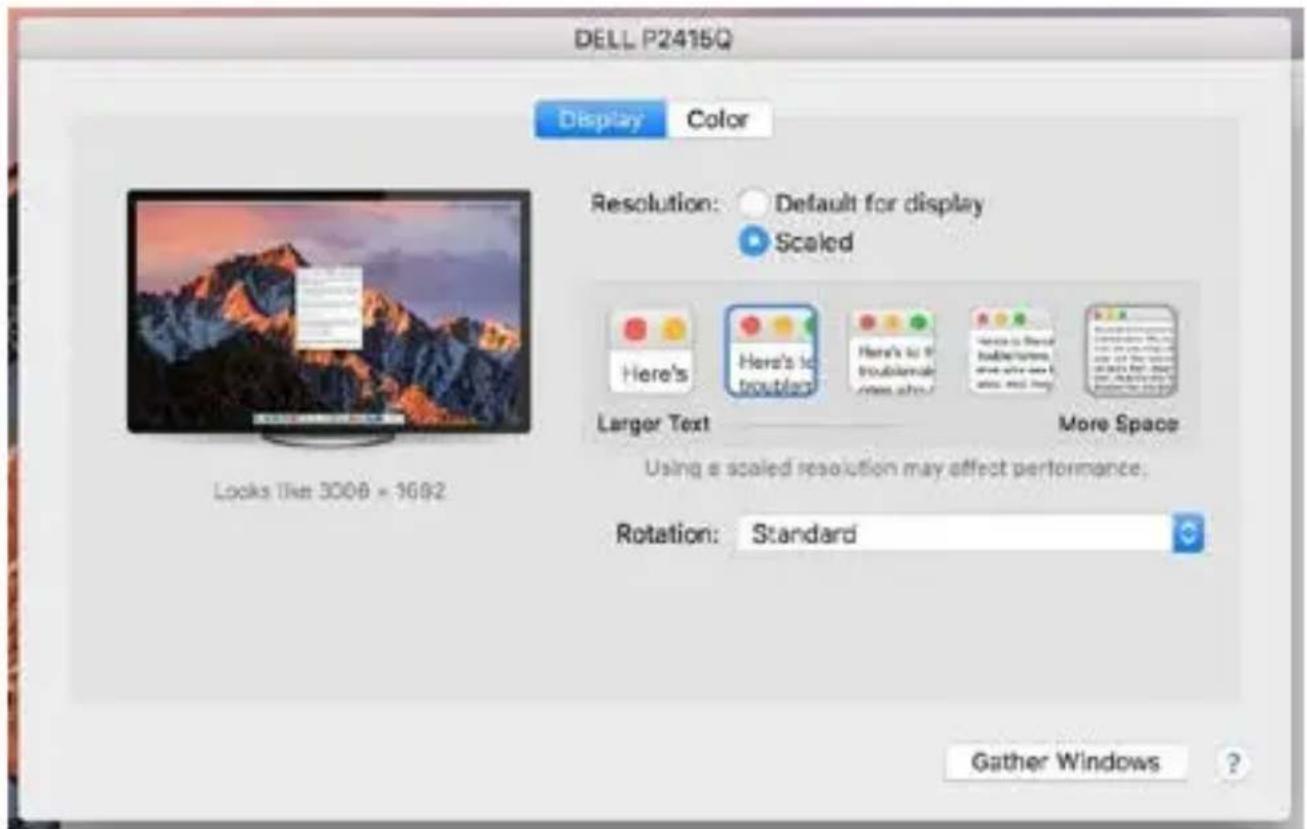
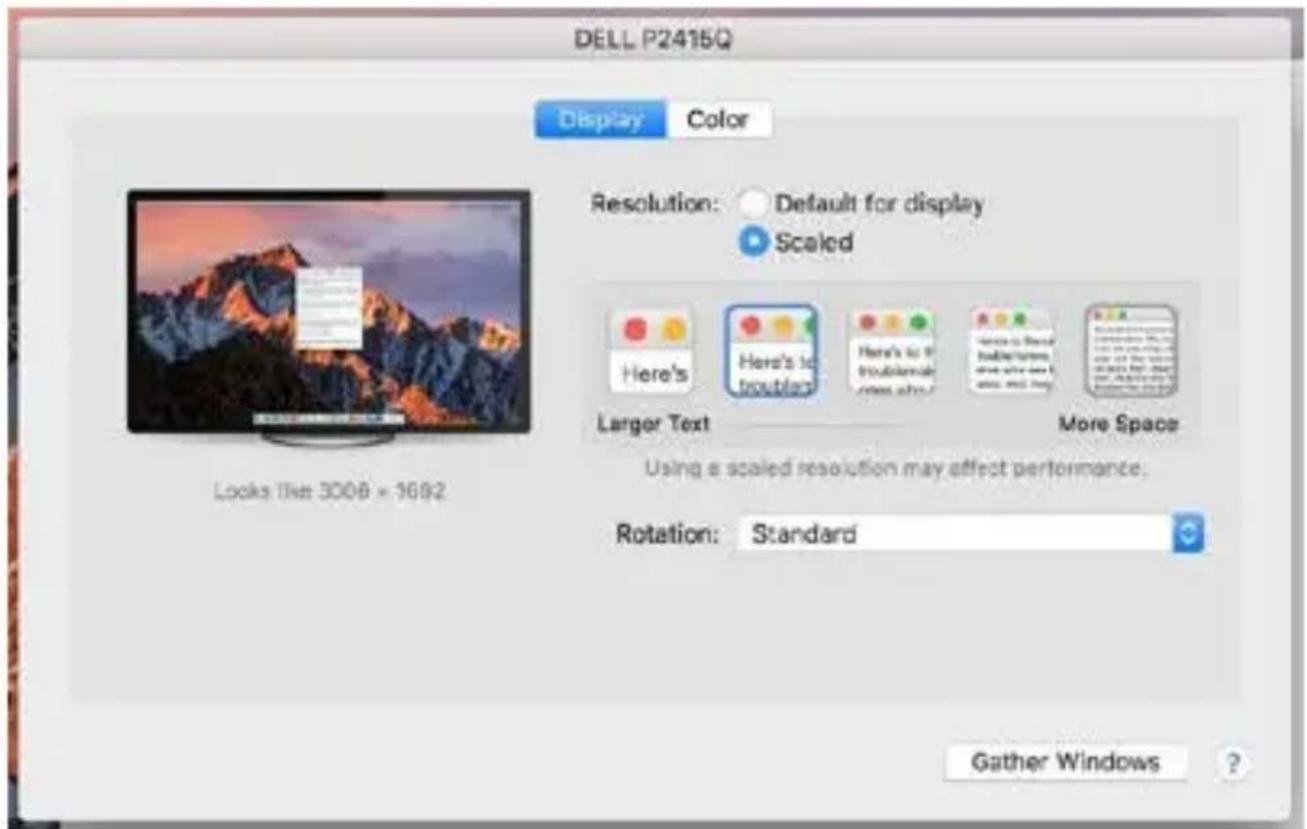
DELL P2415Q Display Color Resolution: Default for display Scaled Here's Here's to trouble? Here's to be troubleable More Space Larger Text More Space Using a scaled resolution may affect performance. Rotation: Standard Looks like 300B = 3692 Gather Windows ?Display option 2
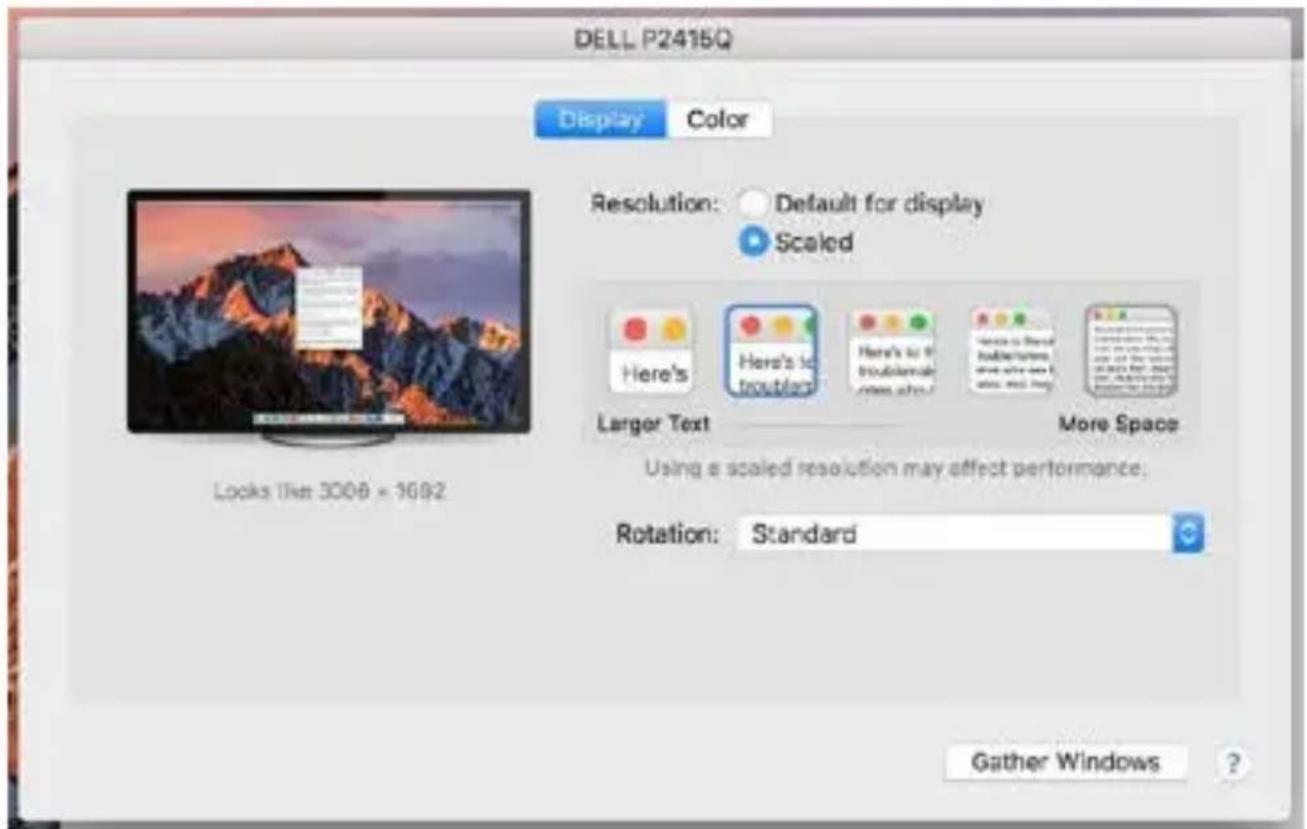
In Scaled mode click on the required icon, the resolution is displayed below (which looks like this, 3008x1692 = 4K/30Hz)
Closed-display mode – 4 conditions have to be met to prevent the MacBook from turning off. The MacBook must be connected to power and an external keyboard, mouse and monitor must be connected. You can then close the MacBook lid and work only with the external monitor. https://support.apple.com/en-us/HT201834
When running on battery power, the use of an HDMI monitor is limited by the Mac. In some cases, display issues can be resolved by disconnecting the docking station's USB 3.0 cable from the Mac's USB 3.0 port and reconnecting it after approximately 10 seconds. Wait for your peripherals to finish connecting. The majority of issues with fixing black screen issues on the connected monitor after putting the Mac to sleep mode, using the screen saver, restarting the Mac or turning the Mac on/off can be resolved the same way.
SAFETY INSTRUCTIONS
- Do not expose to extreme temperatures and air humidity
- Do not cover, risk of fire.
- Use the device on flat surfaces – you will prevent it from slipping and falling to the ground.
- Save the user manual for a possible use later.
In cooperation with the service department:
- Check functionality after falling to water or to the ground.
- Check functionality when the cover is broken.
- Send the device back if it does not work in accordance with the user manual.
FREQUENTLY ASKED QUESTIONS
Available on our website www.i-tec.cz/en on the "FAQ" tab of this product.
BEGRIFFSWÖRTERBUCH
text_image
6 Settings ADVANCED DISPLAY SETTINGS Customize your display 1 2 Identity Correct Multiple displays: Extend these displays Resolution: [0/40 + 2100 -Recommended] Apply Cancel Related settings Color calibration ClearType text Advanced size of text and other items Display adapter propertiesflowchart
graph TD
    A["4K ULTRA-3D"] -->|HDMI or DisplayPort| B["USB-C"]
    B --> C["Computer screen"]
    subgraph Mirror mode
        D["Computer monitor with snowboard image"]
        E["Computer monitor with mountain bike graphic"]
    end
    subgraph Extended mode
        F["Computer monitor with snowboard image"]
        G["Computer monitor with mountain bike graphic"]
    end
text_image
Settings Home Back 2 coming System Disable Sound Notifications & actions Focus asset Power & deep Battery Storage Table mode Multi-tanking Projecting to file PC Shared expressions Outdoors Remove Desktop About Sound Output Chinese your output device Solutions (USB Audio) Current deployment has not used to use different audio devices than the CIE's respective level. Conduction uses relevant and discrete in digital audio systems. Device processes Master volume On To Be a new Manage sound devices Input Choose your input device How interactive (Reactive) Audio C-Host app help for all up to its own different sound devices than the CIE's respective levels. Additional app interfaces and switches in acoustic audio systems. Device properties Test your microphone - Treatment Manage audio buttonsToneinstellung
text_image
PROJECT PC screen only Duplicate Extend Second screen only Connect to a wireless displaytext_image
Built-in Display Display Arrangement Color Resolution: Default for display Scaled 1280 x 800 1152 x 720 1024 x 640 Brightness: ✓ Automatically adjust brightness AirPlay Display: No Devices Detected Show mirroring options in the menu bar when available Gather Windowstext_image
Color LCD Show All Display drampanescent Color To rearrains the displays, drag them to the desired position. To relocate the menu bar, drag it to a different display: Mirror Displays AirPlay Mirroring: No Devices Detected : ✓ Show mirroring options in the menu bar when available Cather Windows ?text_image
Color LCD Show All Display Arrangement Color To rearrange the displays, drag them to the desired position. To relocate the menu bar, drag it to a different display. MENU BAR Mirror Displays AirPlay Mirroring: No Devices Detected ✓ Show mirroring options in the menu bar when available Cather Windowstext_image
Display Show All Display Attachments Color To rearrange the displays, drag them to the desired position. To relocate the menu bar, drag it to a different display. Mirror Displays AirPlay Mirroring: No Devices Detected & Show mirroring options in the menu bar when available Either Windows ?text_image
ASUS PB287Q Display Color Resolution: Default for display Scaled 3840 × 2160 3360 × 1890 (low resolution) 3200 × 1800 (low resolution) 3008 × 1692 (low resolution) 2560 × 1440 (low resolution) 2004 - 1996 (low resolution) Rotation: Standard Refresh Rate: 30 Hertz Gather Windows ?Abbildung 1
text_image
DELL P2415Q Display Color Resolution: Default for display Scaled Here's Here's to trouble? Here's to be troubleable More Space Larger Text More Space Using a scaled resolution may affect performance. Rotation: Standard Looks like 300B = 3692 Gather Windows ?Abbildung 2
https://support.apple.com/de-de/HT201834
text_image
Settings ADVANCED DISPLAY SETTINGS! Customize your display 1 2 Identity: Detect Multiple displays: Extend these displays Resolution: 0.040 + 2.000 Recommended Apply Cancel Related settings Color calibration ClearType text Adolesed sizing of text and other items Display adapter propertiesflowchart
graph TD
    A["4K ULTRA-3D"] -->|HDMI or DisplayPort| B["USB-C"]
    B --> C["Computer screen"]
    subgraph Mirror mode
        D["Computer monitor with snowboard image"]
        E["Computer monitor with mountain bike graphic"]
    end
    subgraph Extended mode
        F["Computer monitor with snowboard image"]
        G["Computer monitor with mountain bike graphic"]
    end
Mode "miroir" et "extension"
text_image
Settings Home Back 2 coming System Disable Sound Notifications & actions Focus asset Power & deep Battery Storage Table mode Multi-tanking Projecting to file PC Shared expressions Outdoors Remove Desktop About Sound Output Chinese your output device Solutions (USB Audio) Current deployment has not used to use different audio devices than the CIE's respective level. Conduction uses relevant and selective in digital audio systems. Device processes Master volume On To Be a new Manage sound devices Input Choose your input device How interactive (Reactive) Audio C-Host app help for all up to its own different sound devices than the CIE's respective levels. Additional app interfaces and switches in acoustic audio systems. Device properties Test your microphone - Treatment Manage audio buttonsParamètres audios
text_image
PROJECT PC screen only Duplicate Extend Second screen only Connect to a wireless displaytext_image
Built-in Display Search Display Arrangement Color Resolution: Default for display Scaled 1280 x 800 1152 x 720 1024 x 640 Brightness: Automatically adjust brightness AirPlay Display: No Devices Detected Show mirroring options in the menu bar when available Gather Windowstext_image
Color LCD Show All Display drampanescent Color To rearrains the displays, drag them to the desired position. To relocate the menu bar, drag it to a different display: Mirror Displays AirPlay Mirroring: No Devices Detected : ✓ Show mirroring options in the menu bar when available Cather Windows ?text_image
Color LCD Show All Display Arrangement Color To rearrange the displays, drag them to the desired position. To relocate the menu bar, drag it to a different display. MENU BAR Mirror Displays AirPlay Mirroring: No Devices Detected ✓ Show mirroring options in the menu bar when available Cather Windowstext_image
Display Show All Display Attachments Color To rearrange the displays, drag them to the desired position. To relocate the menu bar, drag it to a different display. Mirror Displays AirPlay Mirroring: No Devices Detected & Show mirroring options in the menu bar when available Either Windows ?text_image
ASUS PB287Q Display Color Resolution: Default for display Scaled 3840 × 2160 3360 × 1890 (low resolution) 3200 × 1800 (low resolution) 3008 × 1692 (low resolution) 2560 × 1440 (low resolution) 2004 - 1996 (low resolution) Rotation: Standard Refresh Rate: 30 Hertz Gather Windows ?Vue option 1
text_image
DELL P2415Q Display Color Resolution: Default for display Scaled Here's Here's to trouble? Here's to be troubleable More Space Larger Text More Space Using a scaled resolution may affect performance. Rotation: Standard Looks like 300B = 3692 Gather Windows ?Vue option 2
INSTRUCTIONS DE SÛRETÉ
text_image
6 Settings ADVANCED DISPLAY SETTINGS Customize your display 1 2 Identity Correct Multiple displays: Extend these displays Resolution: [0/40 + 2100 -Recommended] Apply Cancel Related settings Color calibration ClearType text Advanced size of text and other items Display adapter propertiestext_image
Settings Home Back 2 coming System Disable Sound Notifications & actions Focus asset Power & deep Battery Storage Table mode Multi-tanking Projecting to file PC Shared expressions Outdoors Remove Desktop About Sound Output Chinese your output device Solutions (USB Audio) Current deployment has not used to use different audio devices than the CIE's respective level. Conduction uses relevant and decisions in advanced audio systems. Device processes Master volume On To Be a new Manage sound devices Input Choose your input device How interactive (RebePC Audio) C-Cell app help for all up to its own different sound devices than the pre-analogable have. Additional app interfaces and switches in acoustic sound systems. Device properties Test your microphone - Treatment Manage audio buttonsAjustes de sonido
text_image
PROJECT PC screen only Duplicate Extend Second screen only Connect to a wireless displaytext_image
Built-in Display Search Display Arrangement Color Resolution: Default for display Scaled 1280 × 800 1152 × 720 1024 × 640 Brightness: Automatically adjust brightness urPlay Display: No Devices Detected Show mirroring options in the menu bar when available Gather Windowstext_image
Color LCD Show All Display drampanescent Color To rearrains the displays, drag them to the desired position. To relocate the menu bar, drag it to a different display: Mirror Displays AirPlay Mirroring: No Devices Detected : ✓ Show mirroring options in the menu bar when available Cather Windows ?text_image
Color LCD Show All Display Arrangement Color To rearrange the displays, drag them to the desired position. To relocate the menu bar, drag it to a different display. MENU BAR Mirror Displays AirPlay Mirroring: No Devices Detected ✓ Show mirroring options in the menu bar when available Cather Windowstext_image
Display Show All Display Attachments Color To rearrange the displays, drag them to the desired position. To relocate the menu bar, drag it to a different display. Mirror Displays AirPlay Mirroring: No Devices Detected & Show mirroring options in the menu bar when available Either Windows ?text_image
ASUS PB287Q Display Color Resolution: Default for display Scaled 3840 × 2160 3360 × 1890 (low resolution) 3200 × 1800 (low resolution) 3008 × 1692 (low resolution) 2560 × 1440 (low resolution) 2004 - 1996 (low resolution) Rotation: Standard Refresh Rate: 30 Hertz Gather Windows ?text_image
DELL P2415Q Display Color Resolution: Default for display Scaled Here's Here's to trouble? Here's to be troubleable More Space Larger Text More Space Using a scaled resolution may affect performance. Rotation: Standard Looks like 300B = 3692 Gather Windows ?docking station DisplayLink.
text_image
1 2 3 4 5 6 7 8 9 10DESCRIZIONE DELLA DOCKING STATION
text_image
Settings ADVANCED DISPLAY SETTINGS Customize your display 1 2 Identity Detect Multiple displays External fresh displays Resolution: 3640 x 2100 (Recommended) Apply Cancel Related settings Color calibration Clear Type text Adiavoured string of text and other terms Display adjusted proceduresflowchart
graph TD
    A["4K ULTRA-3D"] -->|HDMI or DisplayPort| B["USB-C"]
    B --> C["Computer screen"]
    subgraph Mirror mode
        D["Computer monitor with snowboard image"]
        E["Computer monitor with mountain bike graphic"]
    end
    subgraph Extended mode
        F["Computer monitor with snowboard image"]
        G["Computer monitor with mountain bike graphic"]
    end
text_image
Settings Home Back 2 coming System Disable Sound Notifications & actions Focus asset Power & deep Battery Storage Table mode Multi-tanking Projecting to file PC Shared expressions Outdoors Remove Desktop About Sound Output Chinese your output device Solutions (USB Audio) Current deployment has not used to use different audio devices than the CIE's respective level. Conduction uses relevant and discrete in digital audio systems. Device processes Master volume On To Be a new Manage sound devices Input Choose your input device How interactive (Reactive/IC Audio) C-Off each app help be set up to its own different sound devices than the CIE's respective levels. Additional app interfaces and switches in acoustic audio systems. Device properties Test your microphone - Treatment Manage audio buttonsImpostazione audio
text_image
PROJECT PC screen only Duplicate Extend Second screen only Connect to a wireless displaytext_image
Built-in Display Display Arrangement Color Resolution: Default for display Scaled 1280 x 800 1152 x 720 1024 x 640 Brightness: ✓ Automatically adjust brightness AirPlay Display: No Devices Detected Show mirroring options in the menu bar when available Gather Windowstext_image
Color LCD Show All Display drampanescent Color To rearrains the displays, drag them to the desired position. To relocate the menu bar, drag it to a different display: Mirror Displays AirPlay Mirroring: No Devices Detected : ✓ Show mirroring options in the menu bar when available Cather Windowstext_image
Color LCD Show All Display Arrangement Color To rearrange the displays, drag them to the desired position. To relocate the menu bar, drag it to a different display. MENU BAR Mirror Displays AirPlay Mirroring: No Devices Detected ✓ Show mirroring options in the menu bar when available Cather Windowstext_image
Display Show All Display Attachments Color To rearrange the displays, drag them to the desired position. To relocate the menu bar, drag it to a different display. Mirror Displays AirPlay Mirroring: No Devices Detected & Show mirroring options in the menu bar when available Either Windows ?text_image
ASUS PB287Q Display Color Resolution: Default for display Scaled 3840 × 2160 3360 × 1890 (low resolution) 3200 × 1800 (low resolution) 3008 × 1692 (low resolution) 2560 × 1440 (low resolution) 2004 - 1996 (low resolution) Rotation: Standard Refresh Rate: 30 Hertz Gather Windows ?text_image
DELL P2415Q Display Color Resolution: Default for display Scaled Here's Here's to troublet Here's to the troublet from Here's to the to double it Larger Text More Space Using a scaled resolution may affect performance. Rotation: Standard Gather Windows ?text_image
6 Settings ADVANCED DISPLAY SETTINGS Customize your display 1 2 Identity Select Multiple displays Extend these displays Resolution: 3040 x 2100 -Recommended Apply Cancel Related settings Color calibration ClearType text Advanced size of text and other items Display adapter propertiesflowchart
graph TD
    A["4K ULTRA-3D"] -->|HDMI or DisplayPort| B["USB-C"]
    B --> C["Computer screen"]
    subgraph Mirror mode
        D["Computer monitor with snowboard image"]
        E["Computer monitor with mountain bike graphic"]
    end
    subgraph Extended mode
        F["Computer monitor with snowboard image"]
        G["Computer monitor with mountain bike graphic"]
    end
text_image
Settings Home Back 2 coming System Disable Sound Notifications & actions Focus asset Power & deep Battery Storage Table mode Multi-tanking Projecting to file PC Shared expressions Outdoors Remove Desktop About Sound Output Chinese your output device Solutions (USB Audio) Current deployment has not used to use different audio devices than the CIE's respective level. Conduction uses relevant and decisions in advanced audio systems. Device processes Master volume On To Be a new Manage sound devices Input Choose your input device How interactive (Reactive/IC Audio) Co-first app help for all up to its own different sound devices than the pre-apPLICant have. Additional app interfaces and switches in acoustic audio systems. Device properties Test your microphone - Treatment Manage audio buttonsNastavení zvuku
text_image
PROJECT PC screen only Duplicate Extend Second screen only Connected to a wireless displaytext_image
Built-in Display Search Display Arrangement Color Resolution: Default for display Scaled 1280 x 800 1152 x 720 1024 x 640 Brightness: ✓ Automatically adjust brightness AirPlay Display: No Devices Detected Show mirroring options in the menu bar when available Gather Windowstext_image
Color LCD Show All Display display screen Color To rearrains the displays, drag them to the desired position. To relocate the menu bar, drag it to a different display: Mirror Displays AirPlay Mirroring: No Devices Detected : ✓ Show mirroring options in the menu bar when available Cather Windows ?text_image
Color LCD Show All Display Arrangement Color To rearrange the displays, drag them to the desired position. To relocate the menu bar, drag it to a different display. MENU BAR Mirror Displays AirPlay Mirroring: No Devices Detected ✓ Show mirroring options in the menu bar when available Cather Windowstext_image
Display Show All Display Attachments Color To rearrange the displays, drag them to the desired position. To relocate the menu bar, drag it to a different display. Mirror Displays AirPlay Mirroring: No Devices Detected & Show mirroring options in the menu bar when available Either Windows ?text_image
ASUS PB287Q Display Color Resolution: Default for display Scaled 3840 × 2160 3360 × 1890 (low resolution) 3200 × 1800 (low resolution) 3008 × 1692 (low resolution) 2560 × 1440 (low resolution) 2004 - 1996 (low resolution) Rotation: Standard Refresh Rate: 30 Hertz Gather Windows ?text_image
DELL P2415Q Display Color Resolution: Default for display Scaled Here's Here's to trouble? Here's to be troubleable More Space Larger Text More Space Using a scaled resolution may affect performance. Rotation: Standard Looks like 300B = 3692 Gather Windows ?https://support.apple.com/cs-cz/HT201834
text_image
6 Settings ADVANCED DISPLAY SETTINGS Customize your display 1 2 Identity Correct Multiple displays: Extend these displays Resolution: [0/40 + 2100 -Recommended] Apply Cancel Related settings Color calibration ClearType text Advanced size of text and other items Display adapter propertiesflowchart
graph TD
    A["4K ULTRA-3D"] -->|HDMI or DisplayPort| B["USB-C"]
    B --> C["Computer screen"]
    subgraph Mirror mode
        D["Computer monitor with snowboard image"]
        E["Computer monitor with mountain bike graphic"]
    end
    subgraph Extended mode
        F["Computer monitor with snowboard image"]
        G["Computer monitor with mountain bike graphic"]
    end
Tryb Mirror i Extended
text_image
Settings Home Back 2 coming System Disable Sound Notifications & actions Focus asset Power & deep Battery Storage Table mode Multi-tanking Projecting to file PC Shared expressions Outdoors Remove Desktop About Sound Output Chinese your output device Solutions (USB Audio) Current deployment has not used to use different audio devices than the CIE's respective level. Conduction uses relevant and discrete in digital audio systems. Device processes Master volume On To Be a new Manage sound devices Input Choose your input device How interactive (Reactive/IC Audio) C-Off each app help be set up to its own different sound devices than the CIE's respective levels. Additional app interfaces and switches in acoustic audio systems. Device properties Test your microphone - Treatment Manage audio buttonsUstawienia dźwięku
text_image
PROJECT PC screen only Duplicate Extend Second screen only Connect to a wireless displaytext_image
Built-in Display Search Display Arrangement Color Resolution: Default for display Scaled 1280 × 800 1152 × 720 1024 × 640 Brightness: Automatically adjust brightness urPlay Display: No Devices Detected Show mirroring options in the menu bar when available Gather Windowstext_image
Color LCD Show All Display drop screen Color To rearrains the displays, drag them to the desired position. To relocate the menu bar, drag it to a different display: Mirror Displays AirPlay Mirroring: No Devices Detected : ✓ Show mirroring options in the menu bar when available Cather Windows ?text_image
Color LCD Show All Display Arrangement Color To rearrange the displays, drag them to the desired position. To relocate the menu bar, drag it to a different display. MENU BAR Mirror Displays AirPlay Mirroring: No Devices Detected ✓ Show mirroring options in the menu bar when available Cather Windowstext_image
Display Show All Display Attachments Color To rearrange the displays, drag them to the desired position. To relocate the menu bar, drag it to a different display. Mirror Displays AirPlay Mirroring: No Devices Detected & Show mirroring options in the menu bar when available Either Windows ?text_image
ASUS PB287Q Display Color Resolution: Default for display Scaled 3840 × 2160 3360 × 1890 (low resolution) 3200 × 1800 (low resolution) 3008 × 1692 (low resolution) 2560 × 1440 (low resolution) 2004 - 1996 (low resolution) Rotation: Standard Refresh Rate: 30 Hertz Gather Windows ?Display opcja 1
text_image
DELL P2415Q Display Color Resolution: Default for display Scaled Here's Here's to trouble? Here's to be troubleable More Space Larger Text More Space Using a scaled resolution may affect performance. Rotation: Standard Looks like 300B = 3692 Gather Windows ?Display opcja 2
text_image
6 Settings ADVANCED DISPLAY SETTINGS Customize your display 1 2 Identity Correct Multiple displays: Extend these displays Resolution: [0/40 + 2/100 -Recommended] Apply Cancel Related settings Color calibration ClearType text Advanced size of text and other items Display adapter propertiesflowchart
graph TD
    A["4K ULTRA-3D"] -->|HDMI or DisplayPort| B["USB-C"]
    B --> C["Computer screen"]
    subgraph Mirror mode
        D["Computer monitor with snowboard image"]
        E["Computer monitor with mountain bike graphic"]
    end
    subgraph Extended mode
        F["Computer monitor with snowboard image"]
        G["Computer monitor with mountain bike graphic"]
    end
text_image
Settings Home Back 2 coming System Disable Sound Notifications & actions Focus asset Power & deep Battery Storage Table mode Multi-tanking Projecting to file PC Shared expressions Outdoors Remove Desktop About Sound Output Chinese your output device Solutions (USB Audio) Current deployment has not used to use different audio devices than the CIE's respective level. Conduction uses relevant and discrete in digital audio systems. Device processes Master volume On To Be a new Manage sound devices Input Choose your input device How interactive (Reactive) Audio C-Net approach can add up its own different sound devices than the CIE's respective levels. Additional app functions and settings in acoustic audio systems. Device properties Test your microphone - Treatment Manage audio buttonsNastavenie zvuku
text_image
PROJECT PC screen only Duplicate Extend Second screen only Connect to a wireless displaytext_image
Built-in Display Search Display Arrangement Color Resolution: Default for display Scaled 1280 × 800 1152 × 720 1024 × 640 Brightness: Automatically adjust brightness UrPlay Display: No Devices Detected Show mirroring options in the menu bar when available Gather Windowstext_image
Color LCD Show All Display drampanescent Color To rearrains the displays, drag them to the desired position. To relocate the menu bar, drag it to a different display: Mirror Displays AirPlay Mirroring: No Devices Detected : ✓ Show mirroring options in the menu bar when available Cather Windowstext_image
Color LCD Show All Display Arrangement Color To rearrange the displays, drag them to the desired position. To relocate the menu bar, drag it to a different display. MENU BAR Mirror Displays AirPlay Mirroring: No Devices Detected ✓ Show mirroring options in the menu bar when available Cather Windowstext_image
Display Show All Display Attachments Color To rearrange the displays, drag them to the desired position. To relocate the menu bar, drag it to a different display. Mirror Displays AirPlay Mirroring: No Devices Detected & Show mirroring options in the menu bar when available Either Windows ?text_image
ASUS PB287Q Display Color Resolution: Default for display Scaled 3840 × 2160 3360 × 1890 (low resolution) 3200 × 1800 (low resolution) 3008 × 1692 (low resolution) 2560 × 1440 (low resolution) 2004 - 1996 (low resolution) Rotation: Standard Refresh Rate: 30 Hertz Gather Windows ?Variant zobrazenia 1
text_image
DELL P2415Q Display Color Resolution: Default for display Scaled Here's Here's to trouble? Here's to be troubleable More Space Larger Text More Space Using a scaled resolution may affect performance. Rotation: Standard Looks like 300B = 3692 Gather Windows ?text_image
6 Settings ADVANCED DISPLAY SETTINGS Customize your display 1 2 Identity Correct Multiple displays: Extend these displays Resolution: [0/40 + 2100 -Recommended] Apply Cancel Related settings Color calibration ClearType text Advanced size of text and other items Display adapter propertiesflowchart
graph TD
    A["4K ULTRA-3D"] -->|HDMI or DisplayPort| B["USB-C"]
    B --> C["Computer screen"]
    subgraph Mirror mode
        D["Computer monitor with snowboard image"]
        E["Computer monitor with mountain bike graphic"]
    end
    subgraph Extended mode
        F["Computer monitor with snowboard image"]
        G["Computer monitor with mountain bike graphic"]
    end
text_image
Settings Home Back 2 coming System Disable Sound Notifications & actions Focus asset Power & deep Battery Storage Table mode Multi-tanking Projecting to file PC Shared expressions Outdoors Remove Desktop About Sound Output Chinese your output device Solutions (USB Audio) Current deployment has not used to use different audio devices than the CIE's respective level. Conduction uses relevant and decisions in advanced audio systems. Device processes Master volume On To Be a new Manage sound devices Input Choose your input device How interactive (Reactive/IC Audio) Co-first app help for all up to its own different sound devices than the pre-apPLICator have. Additional app interfaces and switches in acoustic audio systems. Device properties Test your microphone - Treatment Manage audio buttonsGarso nustatymas
text_image
PROJECT PC screen only Duplicate Extend Second screen only Connect to a wireless displaytext_image
Built-in Display Search Display Arrangement Color Resolution: Default for display Scaled 1280 × 800 1152 × 720 1024 × 640 Brightness: Automatically adjust brightness urPlay Display: No Devices Detected Show mirroring options in the menu bar when available Gather Windowstext_image
Color LCD Show All Display drampanescent Color To rearrains the displays, drag them to the desired position. To relocate the menu bar, drag it to a different display: Mirror Displays AirPlay Mirroring: No Devices Detected : ✓ Show mirroring options in the menu bar when available Cather Windowstext_image
Color LCD Show All Display Arrangement Color To rearrange the displays, drag them to the desired position. To relocate the menu bar, drag it to a different display. MENU BAR Mirror Displays AirPlay Mirroring: No Devices Detected ✓ Show mirroring options in the menu bar when available Cather Windowstext_image
Display Show All Display Attachments Color To rearrange the displays, drag them to the desired position. To relocate the menu bar, drag it to a different display. Mirror Displays AirPlay Mirroring: No Devices Detected & Show mirroring options in the menu bar when available Either Windows ?text_image
ASUS PB287Q Display Color Resolution: Default for display Scaled 3840 × 2160 3360 × 1890 (low resolution) 3200 × 1800 (low resolution) 3008 × 1692 (low resolution) 2560 × 1440 (low resolution) 2004 - 1996 (low resolution) Rotation: Standard Refresh Rate: 30 Hertz Gather Windows ?Vaizdo variantas 1
text_image
DELL P2415Q Display Color Resolution: Default for display Scaled Here's Here's to trouble? Here's to be troubleable More Space Larger Text More Space Using a scaled resolution may affect performance. Rotation: Standard Looks like 300B = 3692 Gather Windows ?Vaizdo variantas 2
Pritaikytame režime paspauskite ties pasirinkta piktograma, po ekranu bus nurodoma raiška (čia 3008x1692 = 4K@30Hz)
text_image
Settings ADVANCED DISPLAY SETTINGS Customize your display 1 2 Identity - Detect Multiple displays Extend these displays Resolution [340 • 2100 (Recommended) Apply Cancel Related settings Color calibration ClearType text Advanced sizing of text and other items Display adapter propertiesflowchart
graph TD
    A["4K VIDEO Camera"] -->|HDMI or DisplayPort| B["Laptop"]
    B --> C["USB-C"]
    style A fill:#f9f,stroke:#333
    style B fill:#ccf,stroke:#333
    style C fill:#cfc,stroke:#333
    subgraph Mirror mode
        D["Computer monitor with 4K video camera"]
        E["Computer monitor with 4K video camera"]
        F["Computer monitor with 4K video camera"]
        G["Computer monitor with 4K video camera"]
    end
    subgraph Extended mode
        H["Computer monitor with 4K video camera"]
        I["Computer monitor with 4K video camera"]
        J["Computer monitor with 4K video camera"]
        K["Computer monitor with 4K video camera"]
    end
text_image
Settings Home Include setting System Display Sound Refrsfusions & actions Focus asset Power & sleep Battery Storage Tablet mode Multi-talking Projecting to file PC Shared experiences Clockers Remote Desktop About Sound Output Choose your output devices Sensors (201: USB Audio) Can't use any user to get or use different types of sound. This is used to find a specific type of sound. It is also used in advanced sound options. Device generation: Master volume: 6x 52 3x 3x3x3x3x3x3x3x3x3x3x3x3x3x3x3x3x3x3x3x3x3x3x3x3x3x3x3x3x3x3x3x3x3x3x3x3x3x3x3x3x3x3x3x3x3x3x3x3x3x3x3 Manage sound devices Input Choose your input device How coloring: Smooth/PC audio To start using the tool to add up to use different sound effects than the time of the next session. Sometimes you chose to choose or update sound icons. Device properties One your microphone: — 2x 2x3x3x3x3x3x3x3x3x3x3x3x3x3x3x3x3x3x3x3x3x3x3x3x3x3x3x3x3x3x3x3x3x3x3x3x3x3x3x3x3 Manage sound devicesAudio-instellingen
text_image
PROJECT PC screen only Duplicate Extend Second screen only Connect to a wireless displayMonitorbediening in Windows 10
GEBRUIK IN MACOS X
text_image
Built-in Display Display Arrangement Color Resolution: Default for display Scaled 1280 x 800 1152 x 720 1024 x 640 Brightness: ✓ Automatically adjust brightness AirPlay Display: No Devices Detected Show mirroring options in the menu bar when available Gather Windowstext_image
Color LCD Show All Display Arrangement Color To rearrange the displays, drag them to the desired position. To relocate the menu bar, drag it to a different display Mirror Displays AirPlay Mirroring: No Devices Detected : ✓ Show mirroring options in the menu bar when available Cather Windows ?text_image
Color LCD Show All Display Arrangement Color To rearrange the displays, drag them to the desired position. To relocate the menu bar, drag it to a different scalar. MENU BAR Mirror Displays AirPlay Mirroring: No Devices Detected ✓ Show mirroring options in the menu bar when available Cather Windows ?text_image
Display Show All Display Arrangement Color To rearrange the displays, drag them to the desired position. To relocate the menu bar, drag it to a different display. Mirror Displays AirPlay Mirroring: No Devices Detected # Show mirroring options in the menu bar when available Either Windows ?text_image
ASUS PB287Q Display Color Resolution: Default for display Scaled 3540 x 2160 3360 x 1890 (low resolution) 3200 x 1800 (low resolution) 3008 x 1692 (low resolution) 2560 x 1440 (low resolution) 3304 x 1906 (low resolution) Rotation: Standard Refresh Rate: 30 Hertz Gather Windows ?text_image
DELL P2415Q Display Color Resolution: Default for display Scaled Here's Here's to bouteurs Here's to it Soushens (see also) Here's to be bouteurs, which will see it, are, and long. Larger Text More Space Using a scaled resolution may effect performance. Rotation: Standard Gather Windows ?https://support.apple.com/en-us/HT201834
This equipment is marked with the above recycling symbol. It means that at the end of the life of the equipment you must dispose of it separately at an appropriate collection point and not place it in the normal domestic unsorted waste stream. This wil benefit the environment for all. (European Union only)
DEUTSCH
This equipment has been tested and found to comply within the limits of a Class B digital device pursuant to Part 15 of the FCC Rules. These limits are designed to provide reasonable protection against harmful interference in a residential installation.