
C31MINIDOCKPD - Computer Accessories i-TEC - Free user manual and instructions
Find the device manual for free C31MINIDOCKPD i-TEC in PDF.


| Product Type | USB-C Travel Docking Station |
| Brand | i-TEC |
| Model | C31MINIDOCKPD |
| Dimensions | 133 x 56 x 15 mm |
| Weight | 83 g |
| Power Supply | USB bus powered; optional external USB-C PD adapter up to 60W |
| USB-C Host Port | 1x USB-C 3.1 Gen 1 (5 Gbps) with cable (15 cm) |
| USB-C Power Delivery Port | 1x USB-C PD (Profile 4, max 60 W) |
| USB-A Ports | 2x USB-A 3.0 (5 Gbps) |
| HDMI Port | 1x HDMI (max. 1920x1080 @ 60Hz) |
| Ethernet Port | 1x Gigabit LAN RJ-45 (10/100/1000 Mbps) |
| Supported Resolutions (HDMI) | 640x480, 800x600, 1024x768, 1280x720, 1280x768, 1280x800, 1280x1024, 1360x768, 1366x768, 1368x768, 1400x1050, 1600x1200, 1680x1050, 1920x1080 |
| Display Modes | Extend, Mirror, Primary Display |
| Color Depth | 16 / 32 bit |
| Chipset | VL100 & VL812 & CH7525 & AX88179 |
| Supported Operating Systems | Windows 10 (32/64-bit), macOS, Chrome OS, Android 6 (with Intel Broadwell or higher, DisplayPort Alt Mode & PD support required) |
| Compatibility Note | Requires USB-C with DisplayPort Alternate Mode and Power Delivery; non-compatible with Lenovo Yoga 900, many Android phones |
| Package Contents | I-tec USB-C Travel Docking Station (with 15 cm cable), Quick Start Guide |
| Warranty | Refer to manufacturer |
Frequently Asked Questions - C31MINIDOCKPD i-TEC
User questions about C31MINIDOCKPD i-TEC
0 question about this device. Answer the ones you know or ask your own.
Ask a new question about this device
Download the instructions for your Computer Accessories in PDF format for free! Find your manual C31MINIDOCKPD - i-TEC and take your electronic device back in hand. On this page are published all the documents necessary for the use of your device. C31MINIDOCKPD by i-TEC.
USER MANUAL C31MINIDOCKPD i-TEC
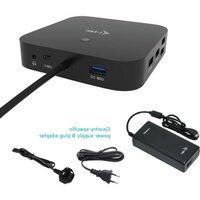
i-tec USB-C 3.1 Travel Docking Staon
+ Power Delivery
(GB) User's manual
natural_image
Black i-tec network device with USB port, HDMI, and Ethernet ports (no visible text or symbols on main body)ENGLISH
INTRODUCTION
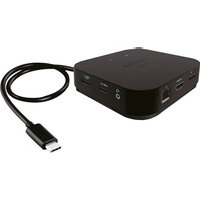
Thank you for purchasing the i-tec USB-C Travel Docking Staon that will allow you to connect your favourite devices via single USB-C connector to a notebook, a tablet, a PC or a smartphone with a USB-C port. It oers 1x HDMI port, 2x USB-A 3.0 port, 1x Ethernet GLAN RJ-45 port, 1x USB-C port and 1x USB-C Power Delivery port. Thanks to its compact dimensions, low weight and applicaon without a power adaptor it is also convenient for travelling.
Please, read the enre user manual carefully before you start using the adapter.
TERMINOLOGY
- Interface / port / connector / input / slot – a place where two devices are physically connected.
- Chipset – a semiconductor device in a notebook, tablet, PC, controlling the funcon of a port.
- USB-C / USB Type-C – is a new symmetric connector and standard, introduced by USB-IF in their specicaon USB 3.1. Windows 10 (Microso), Mac OS X (Apple) and Chrome OS and Android (Google) have introduced nave support for this connector. It allows faster charging, energizing, double-funcon (a host but also a guest), support for alternate modes (DisplayPort, MHL, Thunderbolt) and error messaging using Billboard equipment.
- Alternate modes (Alt modes) – special modes for USB-C connector, which can be supported. Currently the most popular ones include DisplayPort / DockPort, MHL, Thunderbolt. Devices with this feature of the connector and the cable allow transmission of images and at the same me preserve other funcons of a connector (for data transfers and charging).
- DisplayPort /DockPort Alt mode – this mode allows transmission of images over USB-C connector and a cable.
- USB Power Delivery (USB PD) – oponal property of the USB Type-C connector. A connector with this support can charge and be charged at the same me and it supports loads from 10W to 100W (depending on proles 1-5). In Windows 10 USB PD cannot be applied to older USB A, B and micro B ports.
- USB 3.1 / 3.0 / 2.0 – a standard for USB interface / port for connecn of various USB devices. Various USB devices can be connected to the docking staon or adapter using the USB interface type A. USB type B is used for connecng the docking staon or adapter to notebook, tablet, PC.
- HDMI – a standard for digital graphical interface / port for conneccon of monitors and other graphical display devices.
- Audio – designaon for audio input (microphone) or output (earphones / loudspeakers) devices.
PACKAGE CONTENTS
• i-tec USB-C Travel Docking Staon with cable (15 cm)
- Quick Start
SPECIFICATION
• 1x USB-C 3.1 (Gen. 1) port, transfer rate up to 5 Gbps
- 2x USB-A 3.0 port, transfer rate up to 5 Gbps
• 1x USB-C Power Delivery with prole 4 (max. 60 W)
• 1x Ethernet GLAN RJ-45 port, 10/100/1000 Mbps
• Graphic interface: 1x HDMI, max. 1920x1080 / 60Hz
- Resoluon: 640x480, 800x600, 1024x768, 1280x720, 1280x768, 1280x800, 1280x1024, 1360x768, 1366x768, 1368x768, 1400x1050, 1600x1200, 1680x1050, 1920x1080
- Mode: Extend, Mirror and Primary Display
• Supported colors 16 / 32 bit
- Powered through USB bus, external power adaptor may be used as well, if necessary
- Chipset: VL100 & VL812 & CH7525 & AX88179
- OS: Requires USB-C interface with "DisplayPort Alternate Mode" and „Power Delivery" support (not all devices / systems with USB-C interface supports the standard) or Thunderbolt 3 port – Windows 10 32/64bit, Mac OS X, Chrome OS and Android 6 (Google) with Intel Broadwell Processor and R51 and higher
• Product dimensions: 133 x 56 x 15 mm
• Product weight: 83 g
DESCRIPTION OF THE DOCKING STATION
-
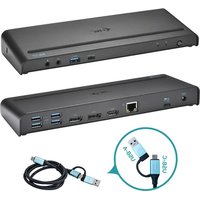
USB-C Power Delivery port – for charging notebooks, tablets or smartphones with support for Power Delivery. To this port you can connect an original or a universal AC power adapter with USB Type-C connector, it ensures the constant charging of your notebook, tablet or smartphone during your work.
-
HDMI port – for connecng a HDMI monitor
-
2x USB-A 3.0 port – for connecng USB devices
-
USB-C 3.1 port – for connecng USB-C devices
-
Ethernet GLAN RJ-45 port – for connecng to the Ethernet network / router / switch / HUB and the internet
-
Connecng cable with USB-C connector – for connecng of Docking staon to a notebook, tablet, PC or smartphone with USB-C port

SYSTEM REQUIREMENTS
Hardware requirements: notebook, tablet, PC, smartphone with OS Windows, Mac or Google with a free port USB-C
Operang system: Windows 10, Mac OS X, Google (Chrome OS and Android 6) with latest updates
Aer connecng, the drivers for the docking staon are installed automacally from the system.
CAUTION!
Before installaon make sure that your system has installed the latest drivers for your device and updated BIOS.
CONNECTING AN HDMI MONITOR
The docking staon is equipped with 1x HDMI port for conneccon of an external monitor or beamer with an HDMI interface. For displaying your images you can use modern plazma or LCD monitors and TVs. The graphic chip, which is the heart of the docking staon, supports resoluon Full HD up to 1920 x 1080 pixels. Connect the monitor to the docking staon using a high-quality HDMI cable. During installaon of an additional monitor the screen of the notebook, tablet or PC can icker which is a standard condion.
CONNECTING TO THE LAN
You can use the GLAN RJ-45 port for connecng to the Ethernet to a router / switch / HUB and to the internet, it supports speeds of 10 / 100 / 1000 Mbps.
CONNECTING USB DEVICES
You can use the USB-C 3.1 port for connecng your keyboard, mouse, external hard drive, printer and other devices or you can use it for conncon of an USB HUB by which you will gain some more free USB ports. In this case we recommend using a HUB with an external power source. If the connected device is not charged or does not work, connect the original / external USB-C power adaptor to the power connector of the parent notebook / Mac / smartphone / tablet or USB-C Power Delivery port on the docking staon for support of charging.
Notes for using the USB-C port:
Fully compatible devices / systems (Alt Mode & Power Delivery)
USB-C is a new standard with a large diversity of uses, while the informaon on compatibility is complex. Some USB-C devices / systems support Alt Mode video output, while other devices do not. Some can be energized and charged from USB-C Power Delivery, while other devices do not. Devices / systems currently supporting both Alt Mode and Power Delivery include for example MacBook Rena 12" 2015/2016, Chromebook Pixel 2015 and Dell XPS 13" 9350 / 15" 9550.
Parally compatible devices (supporting either Alt Mode or Power Delivery, but not both)
Many current USB-C devices that support Alt Mode video output do not support charging from USB-C Power Delivery. These devices sll need their original power adaptors for charging. On the other hand, some USB-C phones or tablets can be charged from Power Delivery, but most of them do not support Alt Mode video output.
Non-compatible devices / systems
The docking staon uses new funcons introduced with USB 3.1 and as such the USB-C Power Delivery is not backward compatible with USB 3.0 / 2.0 for charging of older devices. Further, the USB-A 3.0/2.0 (Male) converters to USB-C (Female) for connecng USB-C devices in USB-A 3.0 ports of the docking staon are not compatible either. Most current phones and tablets with the USB-C port do not support Alt Mode video output and some do not support USB-C Power Delivery. Check the compatibility with this technology in the device documentaon or contact the device manufacturer. Lenovo Yoga 900 is not compatible with the i-tec USB-C Travel Docking Staon. No phones and tablets with the Android OS currently support Alt Mode video output. Currently, ASMedia USB 3.1 controllers do not support Alt Mode video output.
CHARGING AND ENERGIZING
Apple New MacBook Rena 12" 2015/2016, Windows 10 devices with the USB-C Power Delivery port (Dell XPS 13" 9350 / 15" 9550 and other devices) or Chromebook Pixels 2015 and other devices. The adaptor oers 1x USB-C Power Delivery port, designed for energizing of the connected "parent" device using the original / external power adaptor and for charging of devices connected through the USB-C or USB-A 3.0 ports. The docking staon can charge the host up to 60 W from the standard USB-C Power Delivery port. As already menoned above, some devices supporting the video output through USB-C cannot be charged from USB-C. For these devices / systems it is necessary to use the original power adaptor.
The majority of problems with the docking staon and the connected peripheral devices can be solved by disconnecting the USB-C cable of the docking staon from the USB-C port of the PC / Mac / smartphone and reconnecting aer approximately 10 s.
USING THE USB-C DOCKING STATION IN WINDOWS OS
Advanced conguraon for the graphics – aer connecng the monitor and aer clicking on the sengs for "Image Resoluon" in Windows you can select the monitor you want to use.

Note: By clicking on the second monitor and moving it you can posion this monitor as required relave to the original monitor of your notebook / tablet / PC.
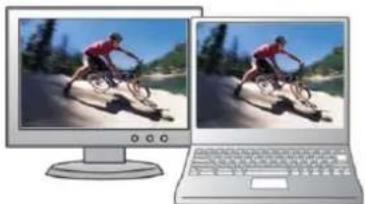
Now you can set Extend and Mirror mode:
a) for the Mirror mode: on the monitor select the 2nd Monitor, select Several monitors → Mirror this display → OK.
b) for the Extend mode: on the monitor select the 2nd Monitor, select Several monitors → Extend this display → OK.

Audio sengs – this will allow audio sengs in the Control Panels → Audio.

Notes on using:
The Standby / Hibernate mode and the Video port – aer the acvaon of the notebook / tablet / PC from the Standby / Hibernate mode the primary (original) monitor is displayed, for this reason we recommend using the monitor that is integrated with the notebook / tablet / PC as the primary monitor so that you can log on to the system again.
The Mirror mode – the additional monitor takes on the parameters of the original monitor in the system, i.e., if you select the Mirror mode and the original monitor resoluon is 1280x1024 then the screen will be displayed on the additional monitor with a resoluon of max. 1280x1024 (even if you set a higher resoluon).
Use and set the monitors in accordance with the user manual, i.e., using a monitor with the resoluon lower than the sengs on the HDMI port can damage the monitor (e.g., for a monitor with max. resoluon 1024x768 do not set the resoluon value 1280x960 and higher on the HDMI port)!
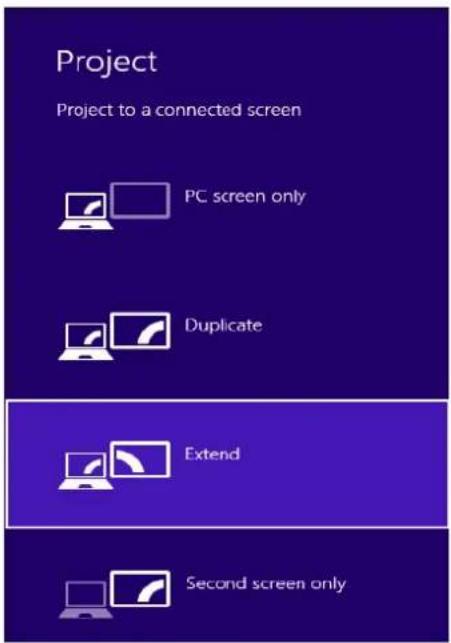
Pressing the keys „Windows“ + P you can also easily control the monitors – for using a monitor in Win 10 you can select: Computer screen only, Mirror, Extend, Second screen only.
USING THE USB-C DOCKING STATION IN MAC OS X
CAUTION!
Before installaon make sure that your Mac has installed the latest OS for your device.
Installaon of the drivers in Mac OS X is automac.
Aer connecng the monitor the screen on your Mac will glimmer, which is a standard condion, and aer stabilizaon it is possible to perform standard seng of the monitor here: System Preferences-Displays.
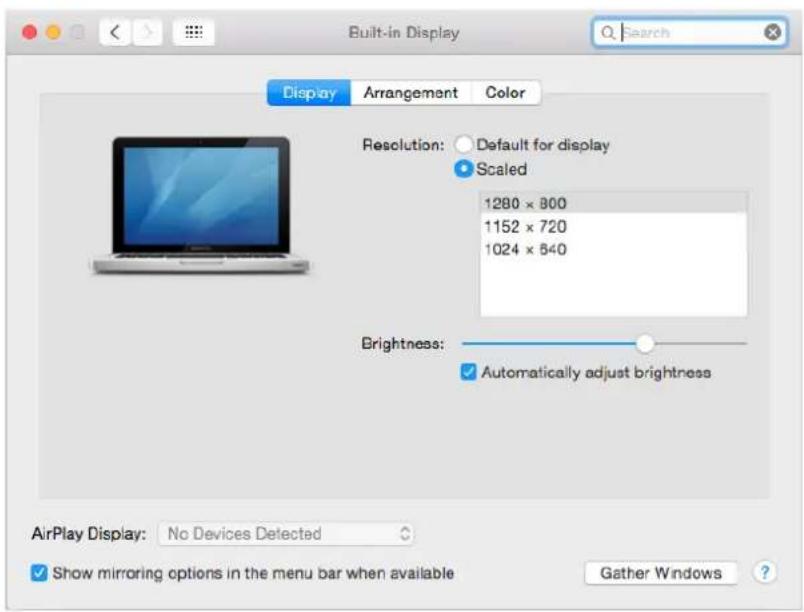
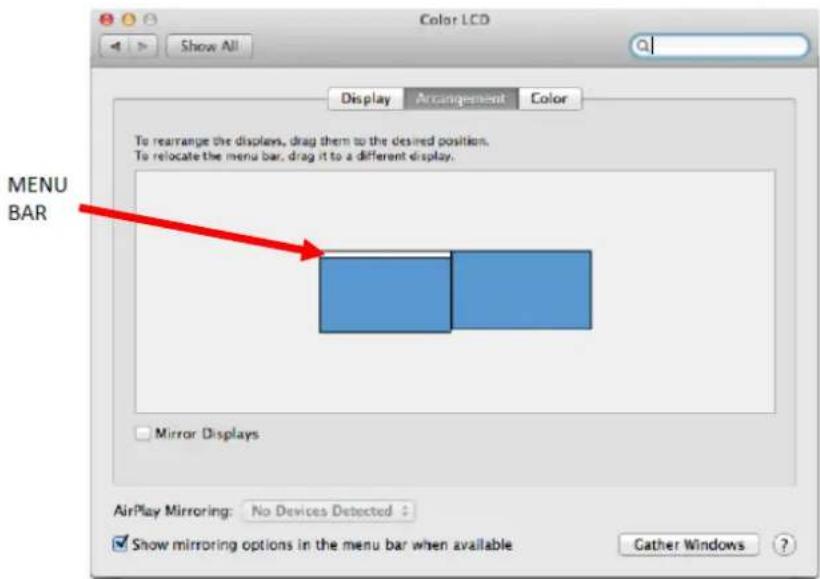
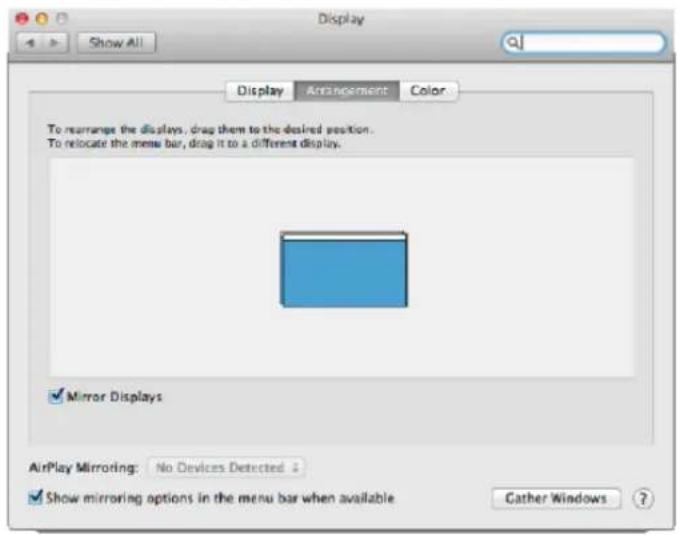
Click on Arrangement and in the default mode (Expanded desktop) click on the new monitor and drag it as necessary vis-à-vis the Mac monitor. If you select Mirror displays the mode will change to Mirror (the resoluon of the monitors will be automatically adjusted according to their parameters and the highest possible resoluon will be set on both monitors). By cancelling the Mirror displays upon you will return to the Expanded desktop mode.
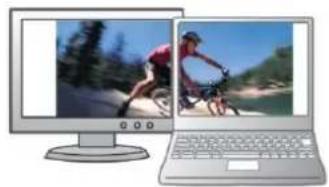
Expanded desktop mode: The arrow indicates the possible posion of the connected monitor vis-à-vis the Mac monitor.

In the Expanded desktop mode you can choose the Main monitor by dragging the Menu Bar.
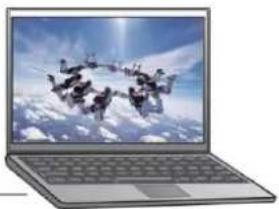
Mirror mode: This mode can only be used if supported by the Mac.
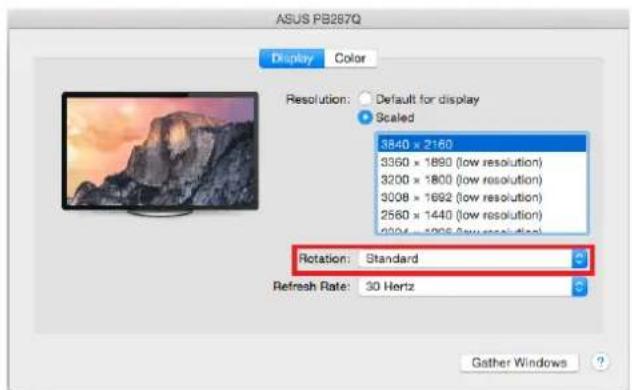
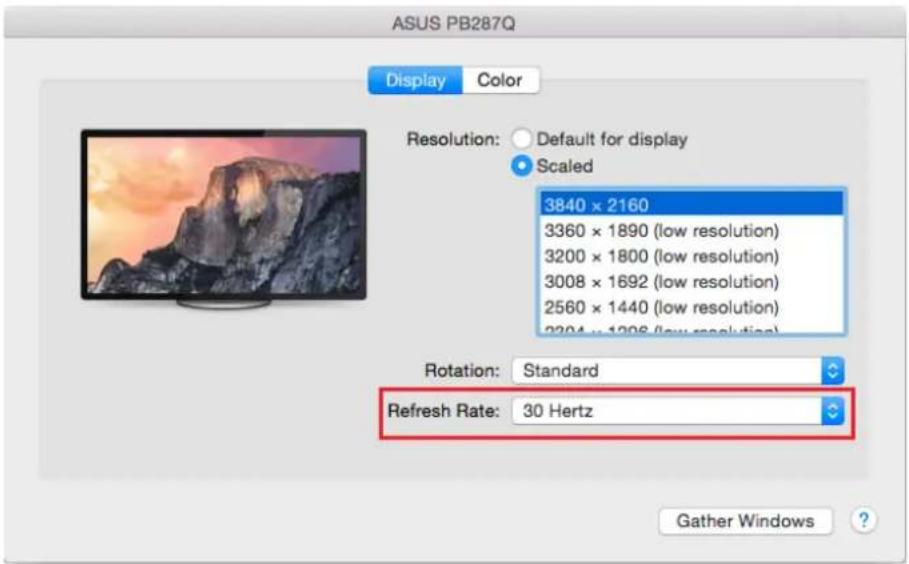
Click on Gather Windows: using this opon you can choose the sengs of the corresponding monitor – Scaled (oers available resoluons), Rotaon (Standard, 90°, 180° and 270°) and Refresh rate (if oered).
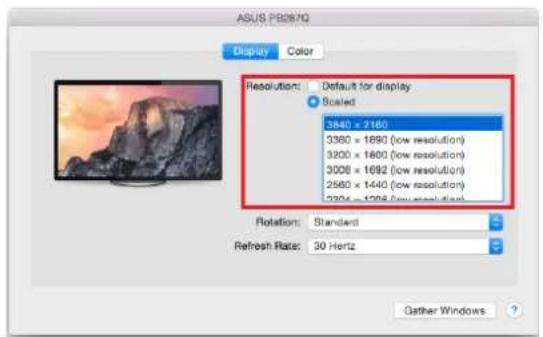
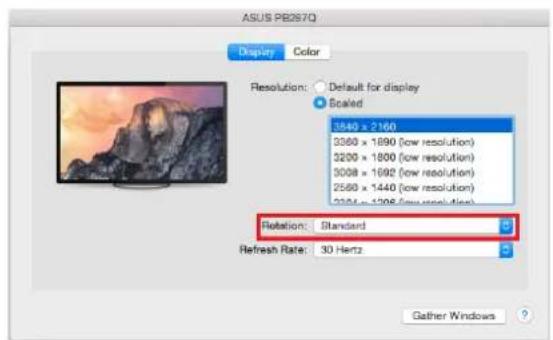

Notes for using the docking staon with monitors:
- Working on the connected monitor when the Mac monitor is closed is possible with the power supply from the grid (there are some limitaons when using a HDMI monitor on older versions of Mac). When the power supply is from the baery, the use of a HDMI
monitor is limited by the Mac (in some situations in case of problems with displaying it is possible to use the method described in the following paragraph).
- Most problems with renewing the screen on the connected monitor aer hibernaon of the Mac, aer using screensaver, aer restarng the Mac, aer turning the Mac OFF / ON can be solved by disconnectng the USB-C cable of the docking staon from the USB-C port on the Mac and reconnectng it aer approximately 10 s. Please wait for compleon of conncon of all peripherals.
B: Aer connecng other USB devices to the USB 3.0 port of docking staon (e.g. USB external HDD, USB keyboard, USB mouse, USB Hub, USB graphic adapter) these devices are used in a standard way. If the device is not charged or does not work, connect the original USB-C power adaptor to the USB-C port of the docking staon for support of charging.
The majority of problems with the docking staon and the connected peripheral devices can be solved by disconnecting the USB-C cable of the docking staon from the USB-C port of the PC / Mac / smartphone and reconnecting aer approximately 10 s.
CHARGING
The docking staon supports charging of the connected USB mobile devices such as smart phones, e-book readers, mulmedia players, navigaon devices, and tablets. Simply connect the device that you want to charge using the original cable to the USB port of the docking staon. If the device is not charged or does not work, connect the original USB-C power adapter to the USB-C port of the docking staon for support of charging.
AUDIO
- Audio output devices, for listening through HDMI, need to be set / veried here: System Preferences-Sound-Output – select HDMI Audio Device.
- Seng the audio output device to both the earphones and the monitor simultaneously can be done in Open-Applicaons-Ulies-Audio sengs MIDI.app – click on „+“ on the le at the boom – Create device with mulple outputs and select the desired outputs from the oered opons on the Device with mulple outputs.
SAFETY INSTRUCTIONS
- Do not expose to extreme temperatures and air humidity.
- Use the device on at surfaces – you will prevent it from slipping and falling to the ground.
- Save the user manual for a possible use later.
In cooperaon with the service department:
- Check funconality aer falling to water or to the ground.
- Check funconality when the cover is broken.
- Send the device back if it does not work in accordance with the user manual.
FREQUENTLY ASKED QUESTIONS
Queson: What are the requirements for the primary graphic cards to be used with the graphic chipsets in the i-tech graphic adapters and docking staons?
Answer: Graphic chipsets are secondary (additional) graphic cards in the PC. For their funcon they need to have an installed primary graphic card. Windows 10 and later: In these operang system the graphic controller works only in conneccon with the primary graphic cards: Intel, NVidia, ATI/AMD, VIA. It cannot work with the SiS or Matrox graphic cards.
Queson: Can I get more detailed informaon on the problems related to the USB-C docking staon?
Answer: Of course, you can contact our technical help.
Queson: The device does not charge an Apple / Samsung tablet.
Answer: If the connected device is not charged or does not work, connect the original / external USB-C power adaptor to the power connector of the parent notebook / Mac / smartphone / tablet or USB-C port on the docking staon for support of charging. Unfortunately despite the European standard on unicaon of the power supply devices some companies protect their products by allowing charging these products only with the original / licensed power adaptor through the USB-C port.
DEUTSCH
EINLEITUNG
natural_image
Illustration of a laptop and a pair of stationary bikes displayed on either side, with no visible text or symbols.natural_image
Two computer monitors displaying a racing scene with a cyclist on the left and a laptop on the right (no text or symbols visible)Extended Mode
natural_image
Two computer monitors displaying a cyclist image: one on a forested hill, the other on a lake with bicycles (no text or symbols visible)KORZYSTANIE Z STACJI DOKUJĄCEJ USB-C W SYSTEMIE MAC OS X
UWAGA!


natural_image
Computer monitor displaying a group of parachutes flying above clouds, with a 4K ULTRA HD logo on the top (no text on main image)4K (3840 × 2160)

USB-C
natural_image
Laptop displaying a sky view of a group of people flying above clouds (no text or symbols visible)Mirror Mode
natural_image
Two computer monitors displaying a racing scene with a cyclist on a snowy road (left) and another laptop keyboard open (right), both without visible text or symbols.Extended Mode

natural_image
Two computer monitors displaying a person cycling on their back, one on the left and one on the right, both in outdoor setting (no text or symbols visible)Pastabos dèl naudojimo:
USB-C TRAVEL DOKO STOTELÉ NAUDOJIMAS MAC OS X
PASTABA!
Pastabos dèl doko stotelè su monitoriumi naudojimo:


- i-tec USB-C 3.1 Travel Docking Staon
- + Power Delivery
- ENGLISH
- INTRODUCTION
- TERMINOLOGY
- PACKAGE CONTENTS
- SPECIFICATION
- DESCRIPTION OF THE DOCKING STATION
- SYSTEM REQUIREMENTS
- CAUTION!
- CONNECTING AN HDMI MONITOR
- CONNECTING TO THE LAN
- CONNECTING USB DEVICES
- Notes for using the USB-C port:
- Non-compatible devices / systems
- CHARGING AND ENERGIZING
- USING THE USB-C DOCKING STATION IN WINDOWS OS
- Notes on using:
- Installaon of the drivers in Mac OS X is automac.
- Notes for using the docking staon with monitors:
- CHARGING
- AUDIO
- SAFETY INSTRUCTIONS
- FREQUENTLY ASKED QUESTIONS
- DEUTSCH
- EINLEITUNG
- KORZYSTANIE Z STACJI DOKUJĄCEJ USB-C W SYSTEMIE MAC OS X
- UWAGA!
- Pastabos dèl naudojimo:
- USB-C TRAVEL DOKO STOTELÉ NAUDOJIMAS MAC OS X
- PASTABA!
- Pastabos dèl doko stotelè su monitoriumi naudojimo:
Brand : i-TEC
Model : C31MINIDOCKPD
Category : Computer Accessories