C31HDD4KDOCKPD - USB-C Dock i-TEC - Free user manual and instructions
Find the device manual for free C31HDD4KDOCKPD i-TEC in PDF.


User questions about C31HDD4KDOCKPD i-TEC
0 question about this device. Answer the ones you know or ask your own.
Ask a new question about this device
Download the instructions for your USB-C Dock in PDF format for free! Find your manual C31HDD4KDOCKPD - i-TEC and take your electronic device back in hand. On this page are published all the documents necessary for the use of your device. C31HDD4KDOCKPD by i-TEC.
USER MANUAL C31HDD4KDOCKPD i-TEC
EN Please read the entire instruction manual carefully. Detailed manual is available on our website www.i-tec.cz/en/ in the tab „Manuals, drivers". In case of any issues, please contact our technical support at: support@itecproduct.com
Declaration of Conformity 58-59
FCC. 60
INTRODUCTION
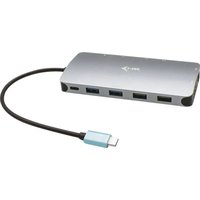
Thank you for purchasing the i-tec docking station that lets you quickly and easily connect your favourite devices to a USB-C equipped laptop, tablet or smartphone using a single USB-C connector. It offers 1x HDMI 4K port, 1x USB-A 3.0 port, 1x USB-C Power Delivery 1x USB-C data port 1x SD card and microSD card reader and 1x internal slot for 2.5" SSD/HDD drive.
PACKAGE CONTENTS
- i-tec USB-C Docking Station
USB-C cable - Mounting kit
- Quick Start guide
SPECIFICATION
- Graphic interface: 1x HDMI (max. resolution 4K 3840x2160@30Hz)
Mode: Extend, Mirror and Primary Display
Supported colors 16 / 32 bit - 1x USB-A 3.0 ports for connecting USB 3.1/3.0/2.0 devices for high-speed data transmission up to 5 Gbps
- 1x USB-C Power Delivery / Data Port - Power Delivery with the profile 5 (max. 85W) for charging laptops, tablets or smartphones with support for Power Delivery. To this port you can connect an original or a universal AC power adapter with USB-C connector, it ensures the constant charging of your laptop, tablet or smartphone during your work.
- 1x USB-C 3.1 (Gen. 1) data transfer port, transfer rate up to 5 Gbps; no other monitor can be connected through this port; this is possible only with a Thunderbolt 3 docking station.
- 1x USB-C port for connecting of the docking station to a laptop, tablet, or smartphone
- 1x Internal slot for 2.5-inch SATA SSD/HDD drive compatible with all HDD/SSD drives with a maximum thickness of 9.5mm .
- Powered through USB bus (no power adapter is needed) or through USB-C PD
- OS: Requires USB-C interface with „DisplayPort Alternate Mode" and „Power Delivery" support (not all devices / systems with USB-C interface support this as standard) or Thunderbolt 3 port - Windows 10 32/64bit, macOS X, Chrome OS and Android, Linux
Product dimensions: 112 × 112 × 22 ~mm
Product weight: 255 g
DOCKING STATION DESCRIPTION
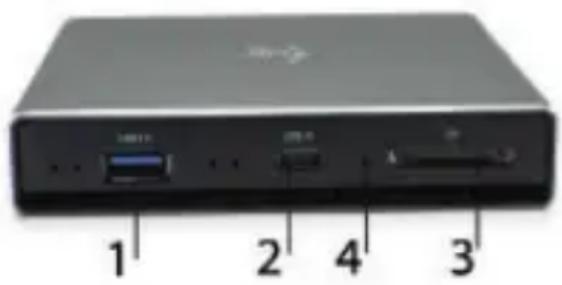
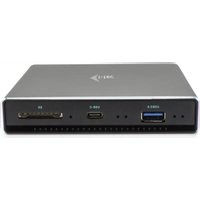
Front panel:
-
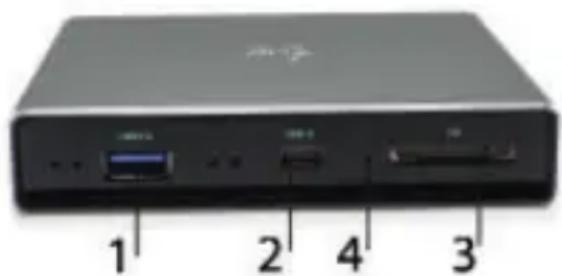
1x USB-A 3.0 port (transfer rate up to 5 Gbps) for connecting and charging of a USB device
-
1x USB-C 3.1 (Gen. 1) data port - for connecting of USB-C data devices (e.g. HDD, flash drive)
- 1x SD/microSD card reader.
- Active LED indicator showing the status of the frame (lit - connected, flashing - writing/reading)
Back panel:
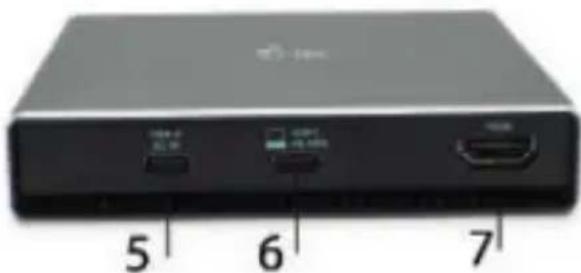
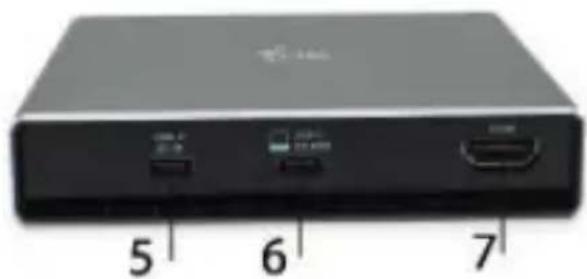
- 1x USB-C Power Delivery Port - for charging a laptop, tablet or smartphone supporting Power Delivery technology. Into this port, you can plug a universal AC power adapter equipped with a USB-C connector to ensure continuous charging of your laptop, tablet, or smartphone while working. Disconnecting the USB-C adapter will restart the docking station and will disconnect and reconnect all connected devices.
- 1x USB-C (upstream - data support, Display Port Alt mode, Power Delivery Alt mode) - for connecting of the docking station to a laptop or tablet with a USB-C port; Power Delivery with the profile 5 (max. 85 W)
- 1x HDMI port - for connecting a monitor/TV with a HDMI input.
Internal panel:
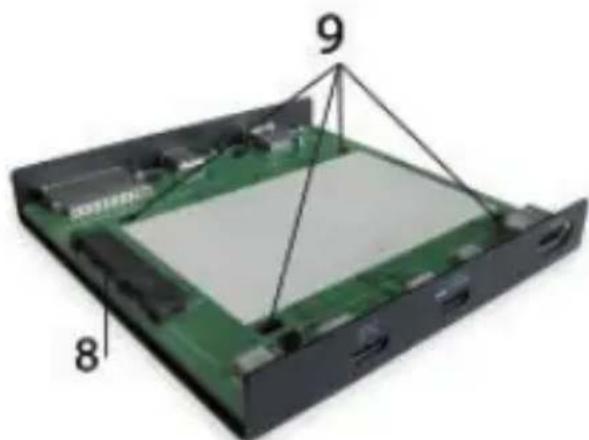
- 1x SATA (6 Gbps) slot - for connecting the HDD/SSD drive.
- Holes for mounting the HDD/SSD to the docking station.
SATA HDD/SSD drive hardware installation: Follow the instructions below.
- After removing the docking station from the frame, insert your drive into the slot shown in the picture and connect it.
- Screw the drive to the board from the bottom side of the board.
- Slide the board with the drive back into the frame and screw it from the bottom side.
- Attach the rubber pads to the bottom of the frame.
- Plug the USB-C cable to the docking station and connect it to your supported device.
- The device will be detected and installed automatically.
- The device can now be used.
Note: If you remove the main board from the frame, please pay attention when inserting it back.
Note: The new drive must be formatted to function properly. Follow the instructions below. This may not be necessary if the drive was previously used. Formatting will always erase already saved data.
Note: It is recommended to backup important or valuable data on multiple discs or on other recording media.
Note: The surface of the docking station may become warm during operation. This is a normal operating feature, not a malfunction. This feature is provided for cooling the internal electronics of the docking station. Therefore it is recommended not to cover the docking station by any objects.
Formatting of a new HDD:
In Windows:
- Right-click the icon "My Computer".
- Select "Manage".
- Click the "Disk Management"
- Select the HDD that shows "Unassigned" and the indicated capacity of the inserted drive (it is usually shown less).
- Right-click on the disk area and select "New Simple Volume", click "Next".
- Leave the volume size at its maximum and click "Next".
- Select "Assign the following drive letter" and click "Next".
- Select "Format this volume with the following settings" (leave the default setting). Click "Next" and "Finish".
- The HDD will be formatted. The formatting time depends on the size of the HDD, after formatting the HDD is visible in the system.
In macOS:
- Select "Open" in the main menu
- Select "Utility" and then "Disk Utility"
- Select an external drive from the item
- Open the menu and select "erase"
- Now you can choose "disk name" and file system "format"
- Select "erase" to format the disc.
Quick Start / USB-C Storage Dock 4K HDMI with PD EN
SYSTEM REQUIREMENTS
Hardware requirements: Requires USB-C interface with „DisplayPort Alternate Mode" and „Power Delivery" support (not all devices / systems with USB-C interface support this as standard) or Thunderbolt 3 port
Operating system: Windows 10 32/64bit, macOS X, Chrome OS and Android, Linux
DRIVER INSTALLATION
Windows 10 32/64bit: After connection, the drivers for the docking station are installed automatically on the system. Before installation make sure that your system has installed the latest drivers for your device and updated BIOS.
macOS X: Installation of the drivers in macOS X is automatic. Before installation make sure that your Mac has installed the latest OS for your device.
Android/Chrome OS: Installing the drivers in Android/Chrome OS is automatic. Before installing make sure that you have the latest versions of OS installed your device.
CONNECTING A HDMI MONITOR
The docking station is equipped with 1x HDMI 4K Ultra HD port for the connection of an external monitor or beamer with a HDMI interface. For displaying your images you can use a modern plazma or LCD monitors and TVs. The graphic chip, which is the heart of the docking station, supports up to 4K resolution 3840x2160@30Hz. Connect the monitor to the docking station using a highquality HDMI cable. During installation of an additional monitor the screen of the notebook or tablet can flicker which is a standard condition.
CONNECTING USB DEVICES
You can use USB 3.0 and USB-C ports for connecting your keyboard, mouse, external hard drive, printer and other devices or you can use it for connecting a USB HUB, which will give you more free USB ports.
CHARGING
The docking station supports charging of USB mobile devices, such as smart phones, e-book readers, multimedia players, navigation devices, and tablets. Simply connect the device that you want to charge using the original cable to the USB port of the docking station. If the device is not charged, connect the original USB-C power adapter to the USB-C Power Delivery port of the docking station.
CHARGING THROUGH POWER DELIVERY
Devices with USB-C port and power delivery support and power adapter up to 85W.
The docking station offers USB-C Power Delivery, designed for energizing of the connected "parent" device using the original power adapter and for charging of devices connected through the USB ports.
Important:
Disconnecting the USB-C adapter will restart the docking station and will disconnect and reconnect all connected devices.
Partially compatible devices (support either for Alt Mode or Power Delivery, but not both)
Many existing USB-C devices that support Alt Mode video output do not support USB-C Power Delivery charging. These devices still need their original chargers
for charging. Conversely, some USB-C phones and tablets can be charged via Power Delivery, but most of them do not support Alt Mode video output.
Incompatible devices / systems
The docking station relies on the new features introduced with the USB 3.1 interface and as such the USB-C Power Delivery and Alt Mode video output are not backward compatible with USB 3.0 / 2.0. Most of current USB-C phones and tablets do not support Alt Mode video output, and some of them do not support USB-C Power Delivery. Check in the device documentation the compatibility with these technologies or contact the device manufacturer.
The majority of problems with the docking station and the connected peripheral devices can be solved by disconnecting the USB-C cable of the docking station from the USB-C port of the PC / Mac / smartphone and reconnecting after approximately 10 s.
Using of the HDMI monitor is limited by Mac when running on battery power. In some cases, the display problems can be resolved by disconnecting the USB-C cable of the docking station from the Mac's USB-C port and reconnecting it after about 10 seconds. Wait until all peripherals will reconnect. Most of the screen recovery problems on a connected monitor after a Mac suspends to sleep mode, after using a screensaver, after the Mac restarts, after the Mac is turned off/on, can be resolved in the same way.
SAFETY INSTRUCTIONS
- Do not expose to extreme temperatures and air humidity.
- Use the device on flat surfaces - you will prevent it from slipping and falling to the ground.
- Save the user manual for a possible use later.
In cooperation with the service department:
- Check functionality after falling to water or to the ground.
- Check functionality when the cover is broken.
- Send the device back if it does not work in accordance with the user manual.
FREQUENTLY ASKED QUESTIONS
Available on our website www.i-tec.cz/en/ on the "FAQ" tab of this product.
EINLEITUNG
Quick Start / USB-C Storage Dock 4K HDMI with PD DE
Quick Start / USB-C Storage Dock 4K HDMI with PD FR
Quick Start / USB-C Storage Dock 4K HDMI with PD ESES
CASTO KLADENE OTÁZKY
K dispozicii na našom webe www.i-tec.cz v založke „FAQ“ pri tomto produkte.
JVEDIMAS
Dékojame, kad jsigijote „i-tec" dokingo stoti, leidžianci greitai ir lengvai prijungti nešiojamaji kompiuteri, plansetinji kompiuteri, ismanuji Telefona su USB-C prievadu prie savo megstamu prietaisu per vienintele USB-C jungtj. Užtikrina 1 x prievada HDMI 4K, 1 x prievada USB-A 3.0, 1 x USB-C Power Delivery, 1 x duomenu USB-C prievada, 1 x SD ir microSD korteliu skaitytuvá ir 1 x vidinj lizda 2,5" SSD/HDD diskui.
PAKUOTÉS TURINYS
Doko stolis i-tec USB-C
USB-C Iaidas
Montavimo rinkinys
- Naudiojimo instrukcija
SPECIFIKACIJA
- Vaizdo sasaja: 1x HDMI (maks. raiška 4K 3840x2160@30Hz)
- Režimai: Isplétimas, Atspindéjimas ir Pagrindinis ekranas
Remiamos spalvos 16 / 32 bitu - 1x USB-A 3.0 prievada, USB 3.1/3.0/2.0 irenginio prijungimui, perdavimo greitis iki 5 Gbps
- USB-C Power Delivery - Power Delivery su profiliu 5 (maks. 85W) nešiojamo kompiuterio, planşétés arba ismaniojo Telefono jkrovimui su technologijos Power Delivery palaikymu. Prie šio prievado galite jungti originalu arba universalu maitinimo adapterj su USB-C jungtimi, Jums dirbant su nešiojamu kompiuteriu, planşete arba ismaniuoju Telefonu užtikrinamas pastovus jkrovimas.
- 1 x prievadas USB-C 3.1 (Gen. 1) duomeny perdavimui, perdavimo greitis iki 5 Gbps; per šj prievada negalima prijungti kito monitoriaus, tai gali tik „Thunderbolt 3" dokingo stolis.
- 1 x USB-C prievadas, skirtas prijungti dokingo stotele prie nešiojamojo kompiuterio, planšetinio kompiuterio ar ismanaus Telefono.
- 1 x vidinis lizdas 2,5 colio SATA SSD / HDD diskui, suderinamas su visais HDD / SSD diskais, kuriç didžiausias storis yra 9,5 mm.
- Maitinimas is USB magistralés (nereikia išorinio maitinimo adapterrio) arba per USB-C PD
- OS: Reikalauja USB-C sasajos su palaikymu „DisplayPort Alternate Mode" ir „Power Delivery" (ne visi jrenginiai / sistemas su sasaja USB-C šj standartā turi) arba Thunderbolt 3 prievadas - dabar Windows 10 32/64bit, macOS X, Chrome OS ir Android, Linux
Gaminio matmenys: 112 × 112 × 22 ~mm
Gaminio svoris: 255 g
DOKO STOTIES APRAŠYMAS
Priekinis skydas:
-
1 x prievas USB-A 3.0 Gen.1 (perdavimo greitis iki 5 Gbps) USB jrenginio prijungimui ir jkrovimui.
-
1 x prievadas USB-C 3.1 (Gen. 1) skirtas USB-C duomenu apdorojimo jrenginiams (pvz., HDD, "Pendrive") prijungti.
- 1 x SD, microSD korteliu skaitytuvas.
- Aktyvus sviesos diodas, rodantis remelio buben (sviecia- prijungta, mirksi -Vyksta issaugojimas/ skaitymas).
Galinis skydas:
- 1 x USB-C Power Delivery prievadas - nešiojamojo kompiuterio, planşetinio kompiuterio ar ismanaus Telefono jkrovimui naudojant „Power Delivery" technologija. Prie šio prievado galite prijungti universçu tinklo maitinimo adapterj su USB-C jungtimi, o tai užtikrina nuolatinj jkrovimă darbant su nešiojamu, planşetiniu kompiuteriu ar ismaniuoju Telefonu. Atjungus USB-C adapterj, stolis is naujo paleidžiama, o visi prijungti jrenginiai atjungiami ir vel prijungiami.
- 1 x USB-C (upstream - duomenu palaikymas, Display Port Alt mode, Power Delivery Alt mode) - doko stoties prijungimui prie nešiojamojo kompiuterio, planşetinia kompiuterio su USB-C prievadu; Power Delivery su 5 profiliu (maks. 85 W).
- x prievadas HDMI - monitoriaus/televizoriaus prijungimui su HDMI jvestimi
Vidinis skydas:
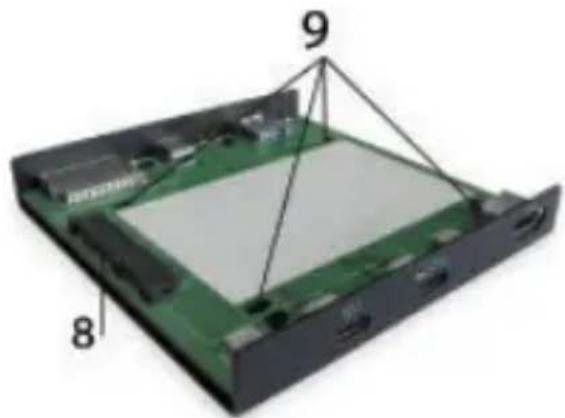
- 1 x SATA (6Gbps) lizdas - HDD / SSD disko prijungimui.
- Skylès HDD / SSD pritvirtinimui prie doko stoties.
SATA HDD / SSD hardware diegimas:
This equipment is marked with the above recycling symbol. It means that at the end of the life of the equipment you must dispose of it separately at an appropriate collection point and not place it in the normal domestic unsorted waste stream. This will benefit the environment for all. (European Union only)
DEUTSCH
This equipment has been tested and found to comply within the limits of a Class B digital device pursuant to Part 15 of the FCC Rules. These limits are designed to provide reasonable protection against harmful interference in a residential installation.