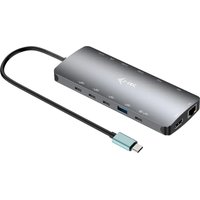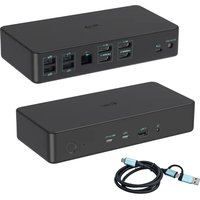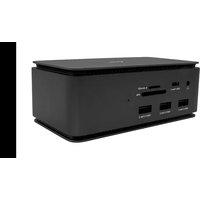
USB4DUAL4KDOCKPD - Docking station i-TEC - Free user manual and instructions
Find the device manual for free USB4DUAL4KDOCKPD i-TEC in PDF.
User questions about USB4DUAL4KDOCKPD i-TEC
0 question about this device. Answer the ones you know or ask your own.
Ask a new question about this device
Download the instructions for your Docking station in PDF format for free! Find your manual USB4DUAL4KDOCKPD - i-TEC and take your electronic device back in hand. On this page are published all the documents necessary for the use of your device. USB4DUAL4KDOCKPD by i-TEC.
USER MANUAL USB4DUAL4KDOCKPD i-TEC
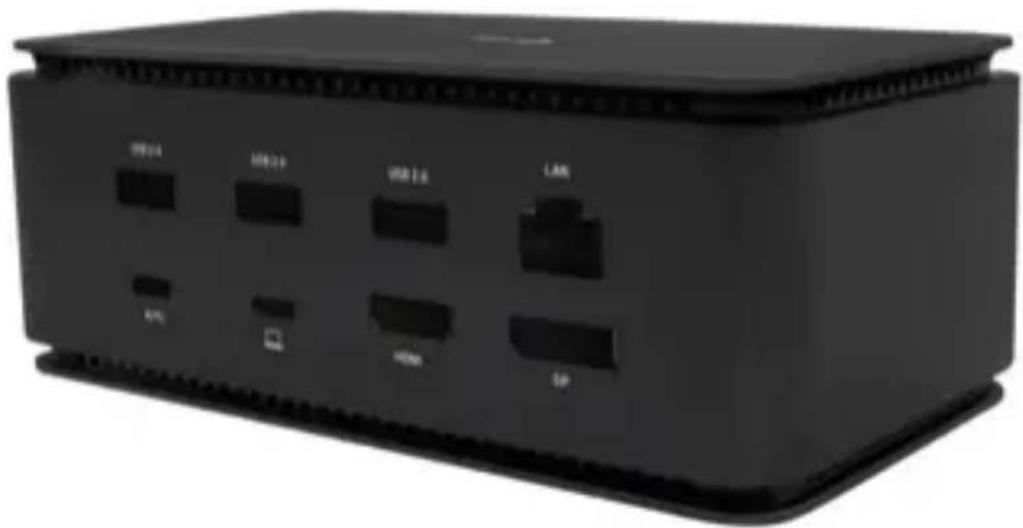
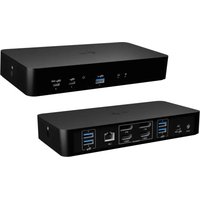
USB4 Metal Docking Station Dual 4K HDMI DP
1x HDMI / 1x DP / 1x Gigabit LAN / 1x USB-C Power Delivery / 1x USB-C 3.2 Gen. 2 / 3x USB-A 3.2 Gen. 2 / 3x USB 2.0 / 1x SD Card Reader / 1x microSD Card Reader / 1x Combo Audio Jack
natural_image
Black wireless router device with labeled ports (no visible text or symbols beyond labels)User guide • Gebrauchsanweisung • Mode d'emploi Manual de instrucciones • Manuale • Uživatelská príručka Instrukcje obsługi • Užívatel'ská príručka • Vartotojo vadovas Handleiding
EN
Please read the entire instruction manual carefully. Detailed manual is available on our website www.i-tec.pro/en/ in the tab „Manuals, drivers“. In case of any issues, please contact our technical support at: support@itecproduct.com
DE
Declaration of Conformity....172–173
FCC....174

text_image
QR code image containing encoded data, no visible human-readable textwww.i-tec.pro/en
IMPORTANT NOTICE REGARDING 8K RESOLUTION:
The dock supports up to 8K resolution (7680x4320/30Hz), but this resolution can only be set if your laptop supports it - USB4/ Thunderbolt™ 3 / Thunderbolt™ 4 must support DisplayPort 1.4.
GLOSSARY OF TERMS
Interface / port / connector / input / slot - the place where two devices are physically connected.
Controller - a semiconductor component (called a chipset) in a notebook/tablet that ensures the operation of one of the ports.
Thunderbolt™ - is a fast hardware interface that allows you to connect devices (peripherals) to your computer via an expansion bus. Thunderbolt combines PCI-Express and DisplayPort into a serial data interface. It allows daisy chaining of up to 6 additional Thunderbolt™ devices, the transfer rate (bitrate) of Thunderbolt™ 3 is up to 40Gbit/s.
USB-C / USB Type-C / Thunderbolt™ - is a new symmetrical connector and standard introduced by USB-IF in its USB 3.1 specification. It enables faster charging, power, so-called dual-role (not only host but also guest), support for so-called alternative modes - Alt Mode (DisplayPort, MHL, Thunderbolt 3, Power Delivery) and error notification via the device Billboard.
USB-C Power Delivery (USB-C PD) - optional feature of the USB-C connector. A connector with this support can both charge and be charged, and supports loads from 10W to 100W (depending on profiles 1-5).
USB 3.1 / 3.0 / 2.0 - standard for USB interface / port for connecting various USB devices. Various USB devices can be connected to the docking station or adapter using USB Type-A interface. The USB Type B port is used to connect the docking station or adapter to a laptop/tablet.
HDMI/Display Port - A standard for a digital graphics interface/port used to connect monitors and other graphic display devices.
LAN (Local Area Network) - local computer network, now the most common is the so-called Ethernet, which reaches a theoretical transfer rate of up to 1 Gbit/s at the docking station - the designation GLAN / RJ-45.
Audio - a term for an audio input (microphone) or output device (headphones/speakers).
SPECIFICATIONS
• 1x USB4 port for connection to a laptop
• Power Delivery: 80 W
- Video Ports:
- 1x HDMI
- 1x DisplayPort
- Resolution:
USB4/Thunderbolt™ 3/Thunderbolt™ 4 with DisplayPort 1.4 support
1 monitor - 1x HDMI/DP up to 8K/30Hz
2 monitors - HDMI+DP up to 2x4K/60Hz
Thunderbolt™ 3 with DisplayPort 1.2 support
1 monitor - 1x HDMI/DP up to 5K/60Hz
2 monitors - HDMI+DP up to 2x4K/60Hz
USB-C with DisplayPort 1.4 DSC support
1 monitor - 2x DP - up to 5K/60Hz
1 monitor - 1x DP or 1x HDMI - up to 4K/60Hz
2 monitors - 1x HDMI + 1 DP - up to 2x 4K/60Hz
USB-C with DisplayPort 1.4 support without DSC support
1 monitor - 1x DP or 1x HDMI - up to 4K/60Hz
2 monitors - 1x HDMI + 1 DP - up to 2x 2560×1440/60Hz
USB-C with DisplayPort 1.2 support
1 monitor - 1x DP or 1x HDMI - up to 4K/30Hz
2 monitors - 1x HDMI + 1 DP - up to 2x 1920×1080/60Hz
- 1x Gen 2 USB-C port (data only)
• 3x USB 3.2 Gen. 2 port with fast charging support (BC 1.2) - 3x USB 2.0
• 1x Ethernet GLAN RJ-45 port (ASIX AX88179) - 1x SD/microSD slot
- 1x 3.5mm Audio combo connector
- LED indication
- USB4 cable (80cm)
- OS: Windows 10/11, macOS and Linux with latest updates
- Product dimensions: 69 x 128 x 48 mm
• Product weight: 314 g
* 8K resolution must be supported by a connected laptop or tablet.
DESCRIPTION
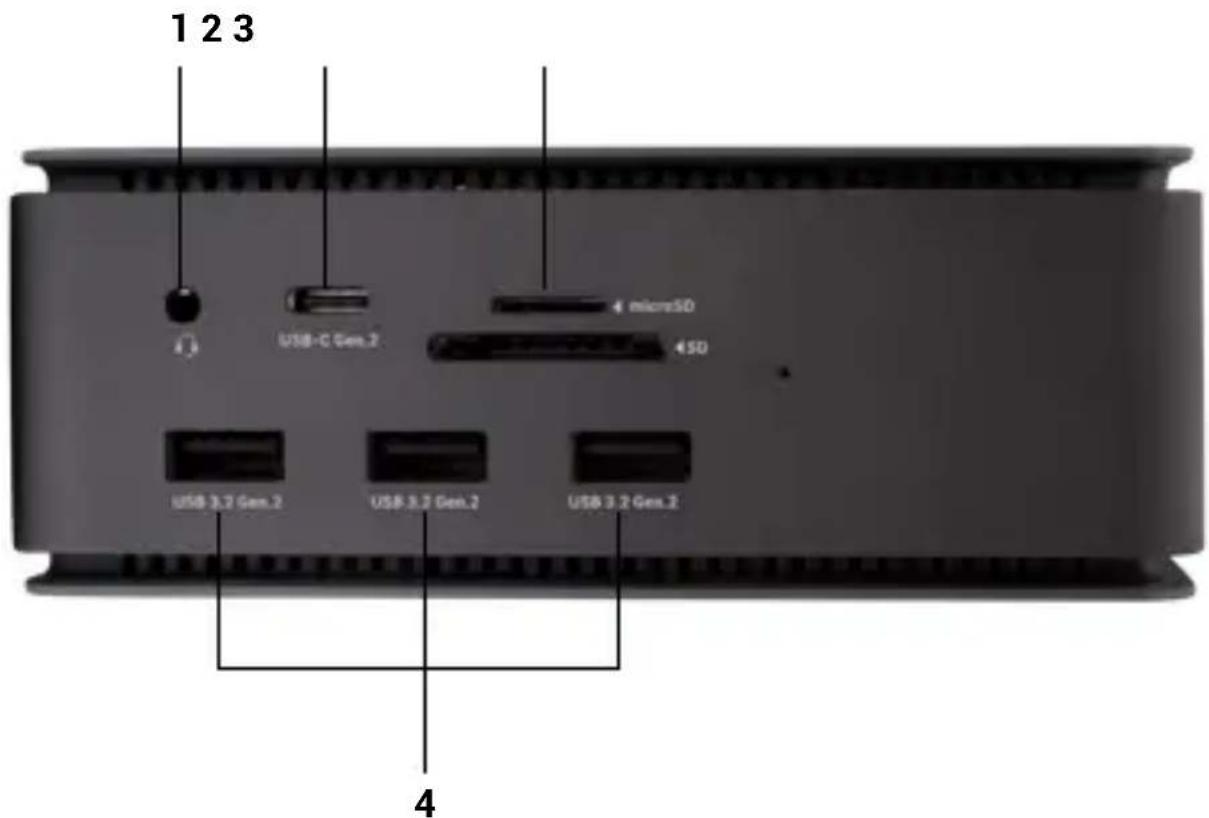
Front panel:
text_image
1 2 3 USB-C Gen.2 4 microSD 4 SD USB 3.2 Gen.2 USB 3.2 Gen.2 USB 3.2 Gen.2 4- 3.5mm Audio combo connector
- Gen 2 USB-C port (data only)
- SD/microSD slot
- 3x USB 3.2 Gen. 2 port with fast charging support (BC 1.2)
text_image
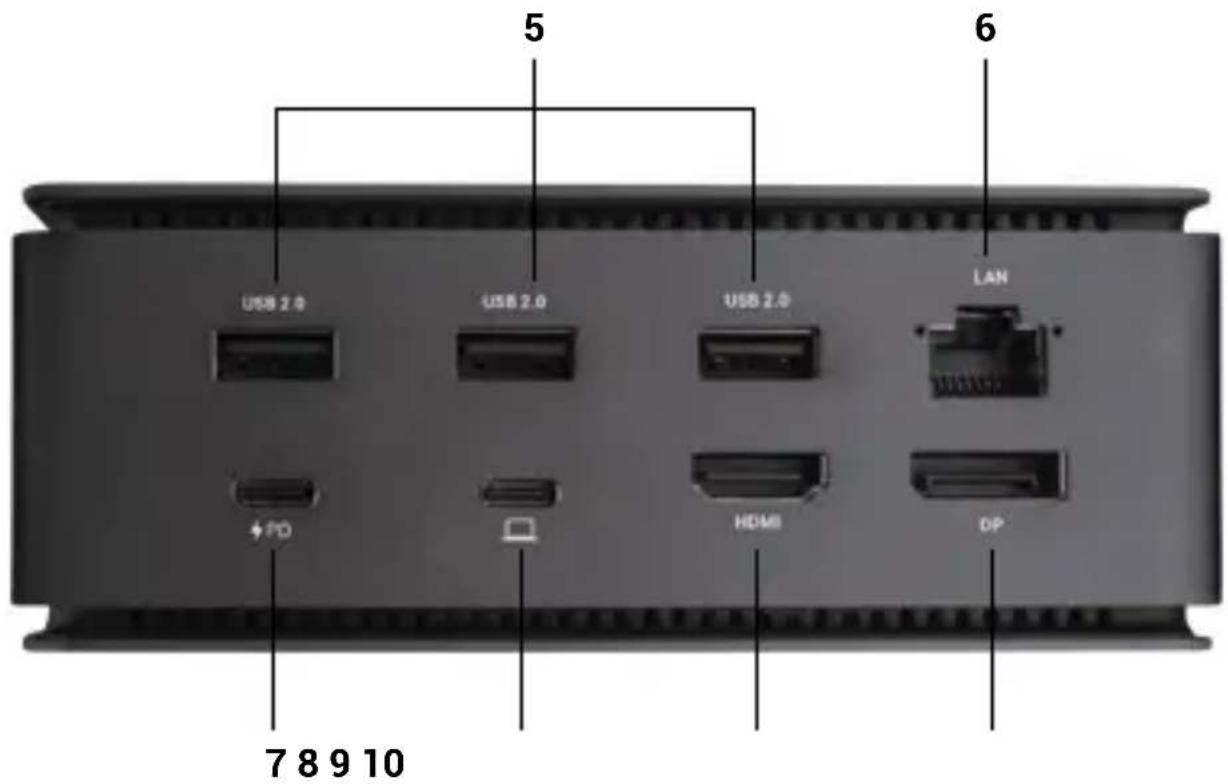
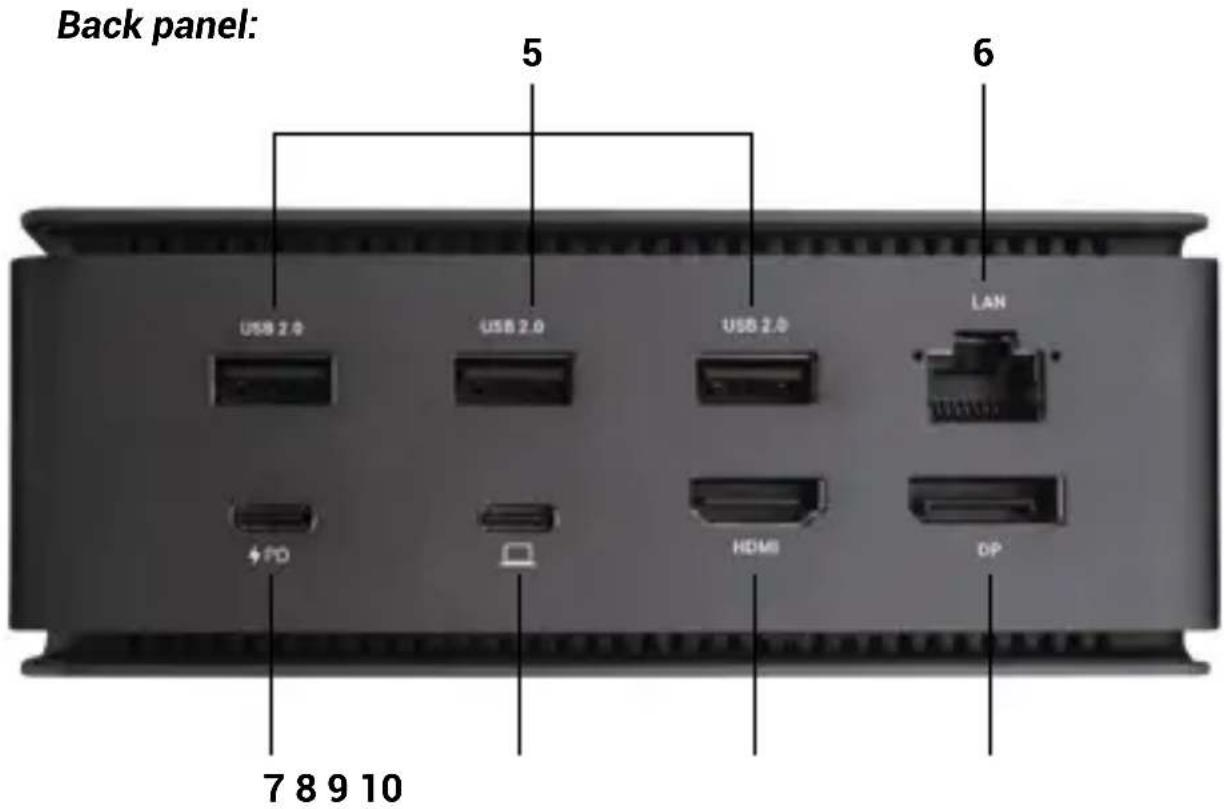
Back panel: 5 6 USB 2.0 USB 2.0 USB 2.0 LAN + PD HDMI DP 7 8 9 10- 3x USB 2.0
- Ethernet GLAN RJ-45 port (ASIX AX88179) - supports 10/100/1000 Mbps
- USB-C port PD (Power delivery only)
- USB4 port - to connect the dock to the laptop's USB4 port or to connect a USB4 / Thunderbolt™ 3/4 / USB-C device to the dock, this port supports Power Delivery function on profile 5, max 80W.
- HDMI 2.1 port
- DisplayPort 1.4
SYSTEM REQUIREMENTS
Hardware Requirements: Device with a free USB4, Thunderbolt or USB-C port
Requirements for Power Delivery: devices with a free USB4, Thunderbolt or USB-C port with „Power Delivery“ support
Video Output Requirements: Device with a free USB4, Thunderbolt or USB-C port with „DisplayPort Alternate Mode“ support
Operating System: Windows 10/11, macOS, Linux and iPadOS with latest updates
To play Ultra HD 4K/5K/8K video, the computer must be able to decode the video with its GPU. Especially for less powerful laptops, it is true that they can handle 4K/5K/8K video playback, but the result is not ideal (interruptions, video tearing).
INSTALLING DRIVERS
The docking station can be connected directly, the drivers are included in the operating system.
For Windows 10, please make sure you have the latest Thunderbolt™ 3 drivers installed on your computer, as provided by your laptop manufacturer.
Quick Start
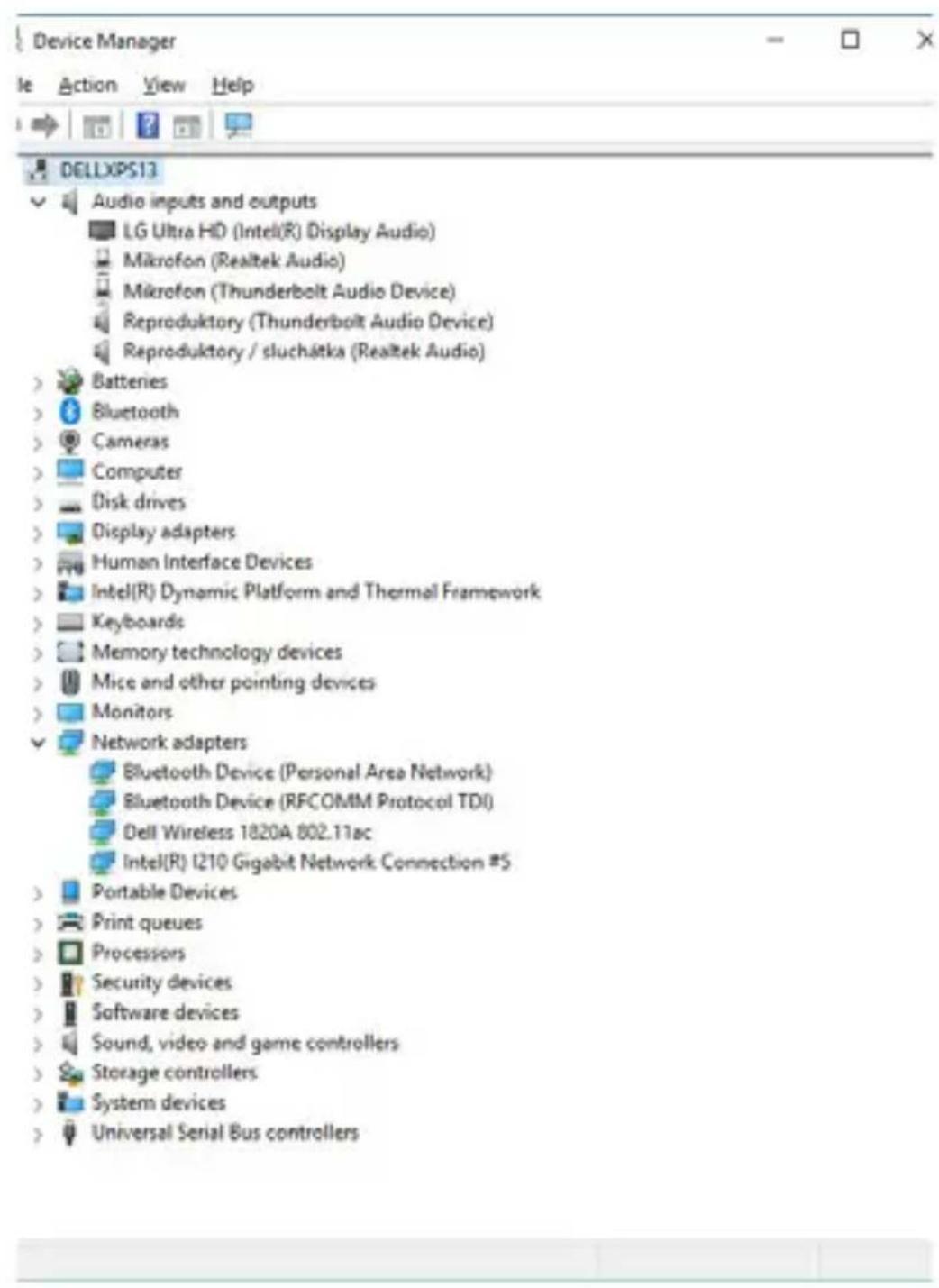
In Windows, the LAN port appears in Start → Control Panel (View Small Icons) → Device Manager → Network Adapters as „ASIX AX88179“. Audio ports can be found in Start → Control Panel (View Small Icons) → Device Manager → Audio, Video and Game Controllers as „USB Advanced Audio Device“ and/or according to the connected monitor (e.g. in Fig. „LG Ultra HD (Intel ® Display Audio)“).
text_image
Device Manager Action View Help DELLXPS13 Audio inputs and outputs LG Ultra HD (Intel(R) Display Audio) Microfon (Realtek Audio) Microfon (Thunderbolt Audio Device) Reproduktory (Thunderbolt Audio Device) Reproduktory / sluchátka (Realtek Audio) Batteries Bluetooth Cameras Computer Disk drives Display adapters Human Interface Devices Intel(R) Dynamic Platform and Thermal Framework Keyboards Memory technology devices Mice and other pointing devices Monitors Network adapters Bluetooth Device (Personal Area Network) Bluetooth Device (RFCOMM Protocol TDI) Dell Wireless 1820A 802.11ac Intel(R) I210 Gigabit Network Connection #5 Portable Devices Print queues Processors Security devices Software devices Sound, video and game controllers Storage controllers System devices Universal Serial Bus controllersView LAN and audio ports in Device Manager
HDMI / DP MONITOR CONNECTION
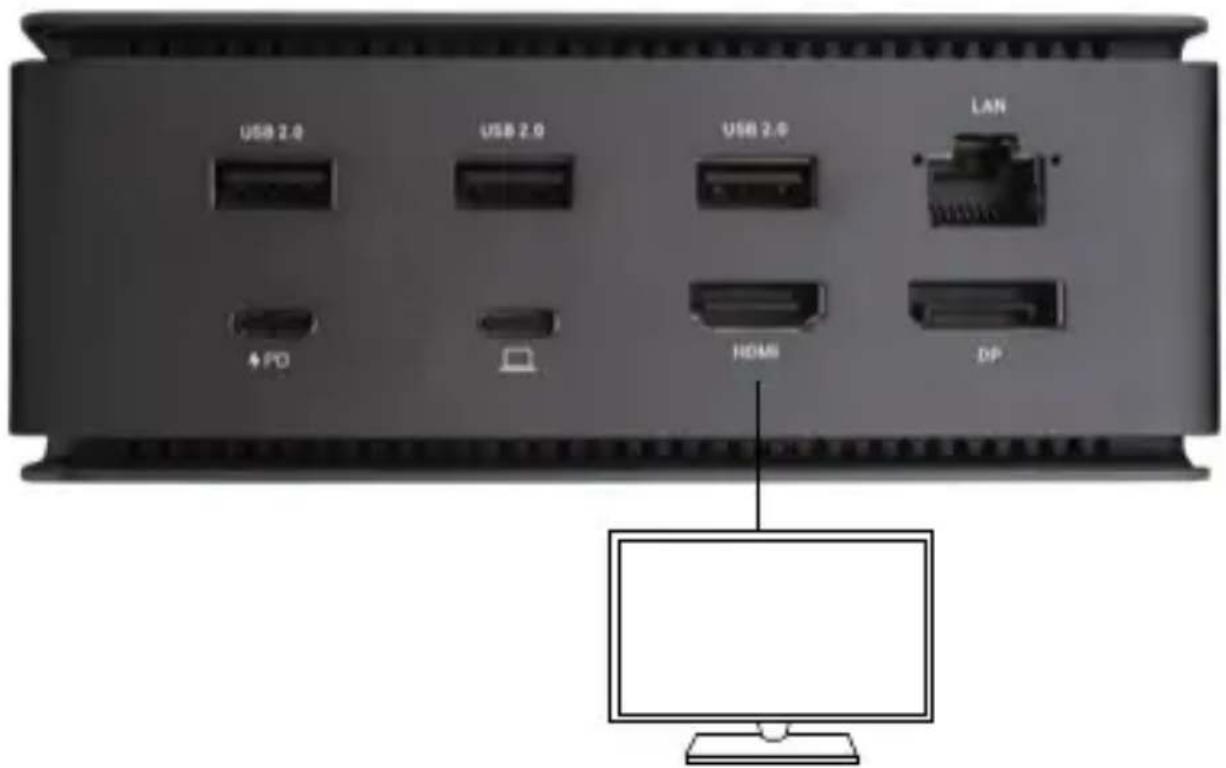
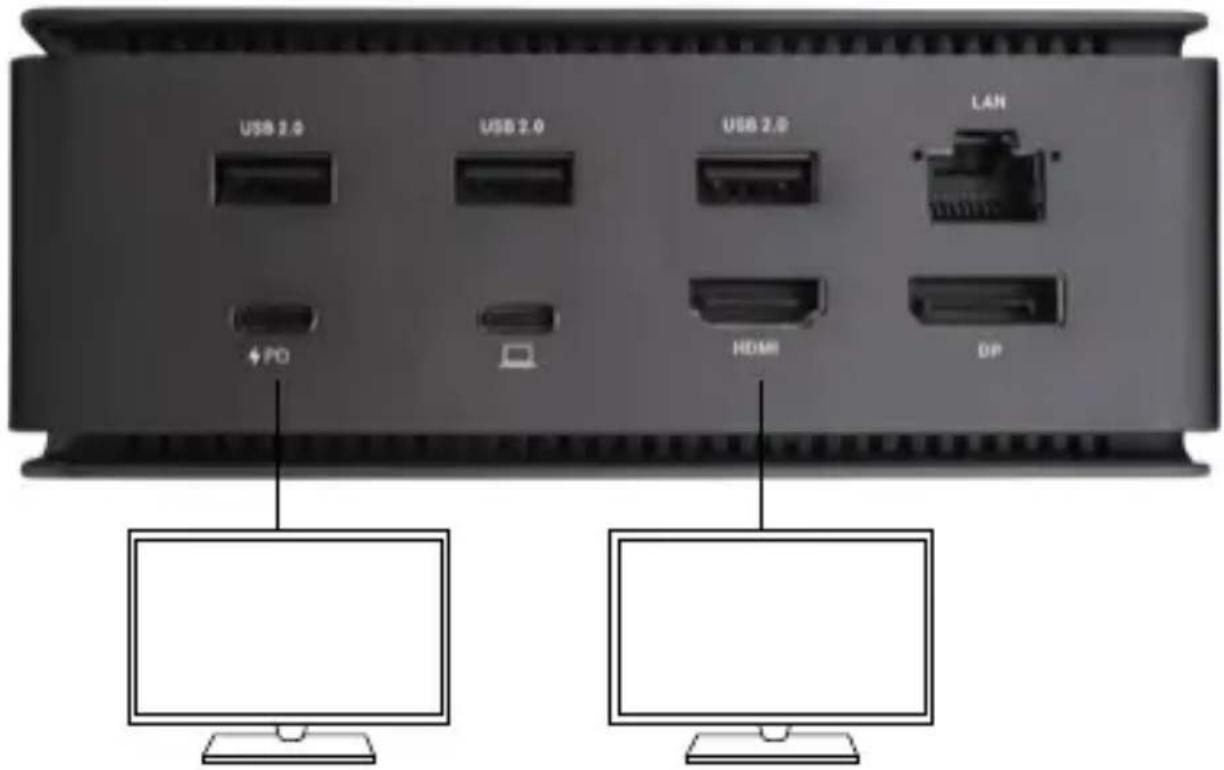
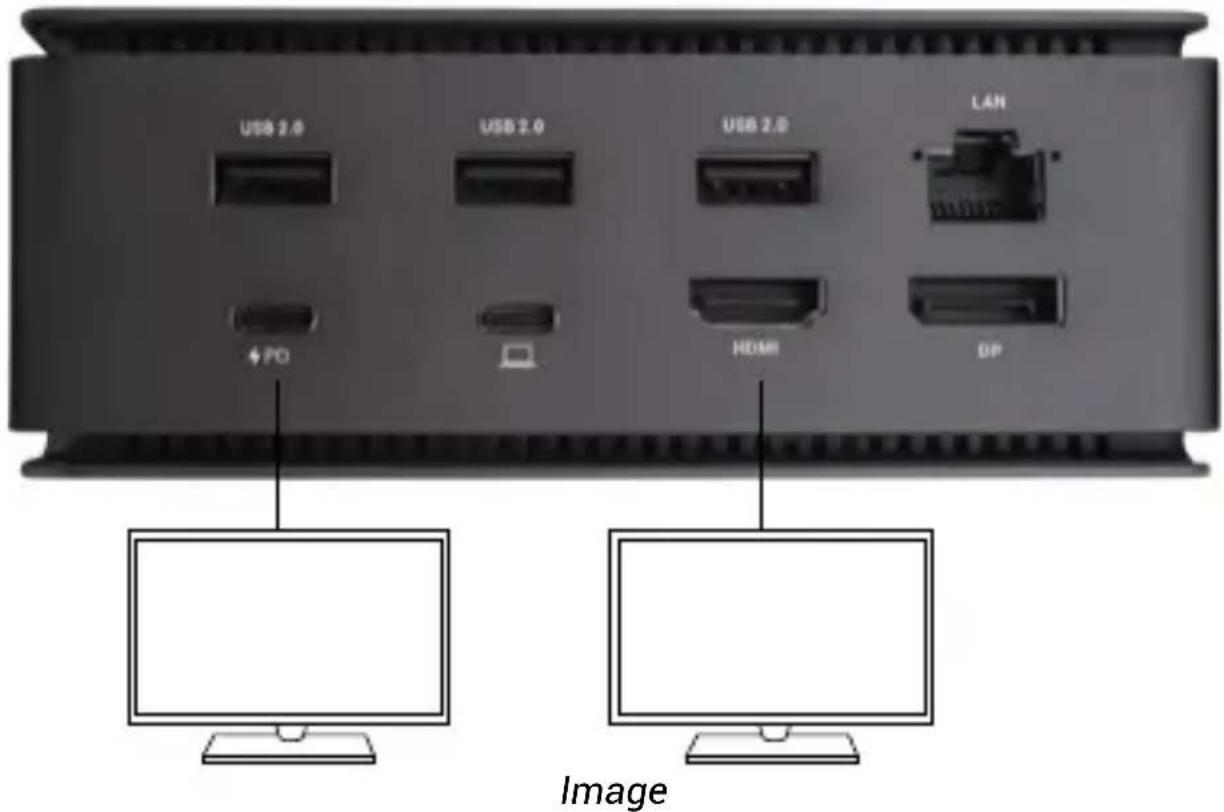
Use HDMI / DP to connect the monitor to the docking station (for HDMI, we recommend a cable version 2.0 or higher, and for DP, we recommend a DP 1.4 or higher cable). During installation of the additional monitor, the monitor may flicker on the laptop/tablet, which is a standard condition. The docking station supports the connection of up to two monitors. Graphics interface: 1x HDMI and 1x DP. Resolution:
text_image
USB 2.0 USB 2.0 USB 2.0 LAN + PD ↓ HOME DPImage 1
1 monitor connected via 1 DisplayPort or HDMI cable - resolution up to 8K 7680x4320/30Hz
8K resolution is only supported if your laptop's USB4
or Thunderbolt™ connector supports DisplayPort 1.4.
If Thunderbolt™ 3 only supports DisplayPort 1.2, the maximum resolution is 5K 5120x2880/60Hz
If USB-C supports DisplayPort 1.4 with DSC, the maximum resolution is 5K 5120x2880/60Hz
If USB-C supports DisplayPort 1.2, the maximum resolution is 5K 4096x2160@30Hz
text_image
USB 2.0 USB 2.0 USB 2.0 LAN + PD HDMI DPImage 2
2 monitors connected simultaneously 1x DisplayPort and 1x HDMI, resolution max. 4K 4096x2160@60Hz
Video resolution and repetition rate depends on the capabilities of the host PC/NB
using the DOCKING STATION in OS windows
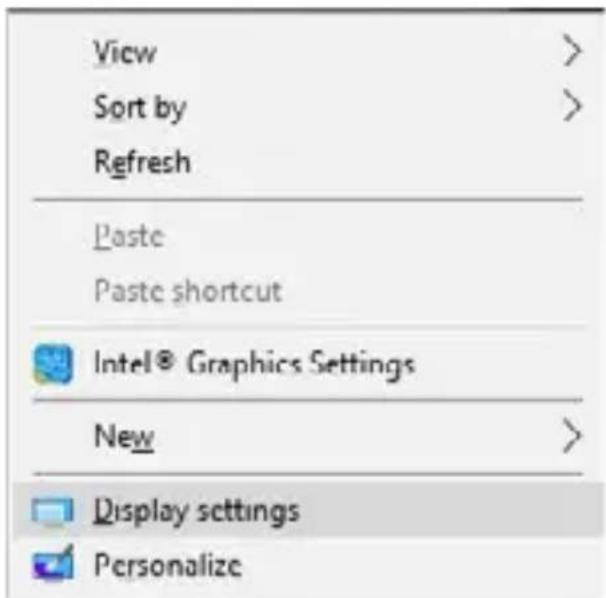
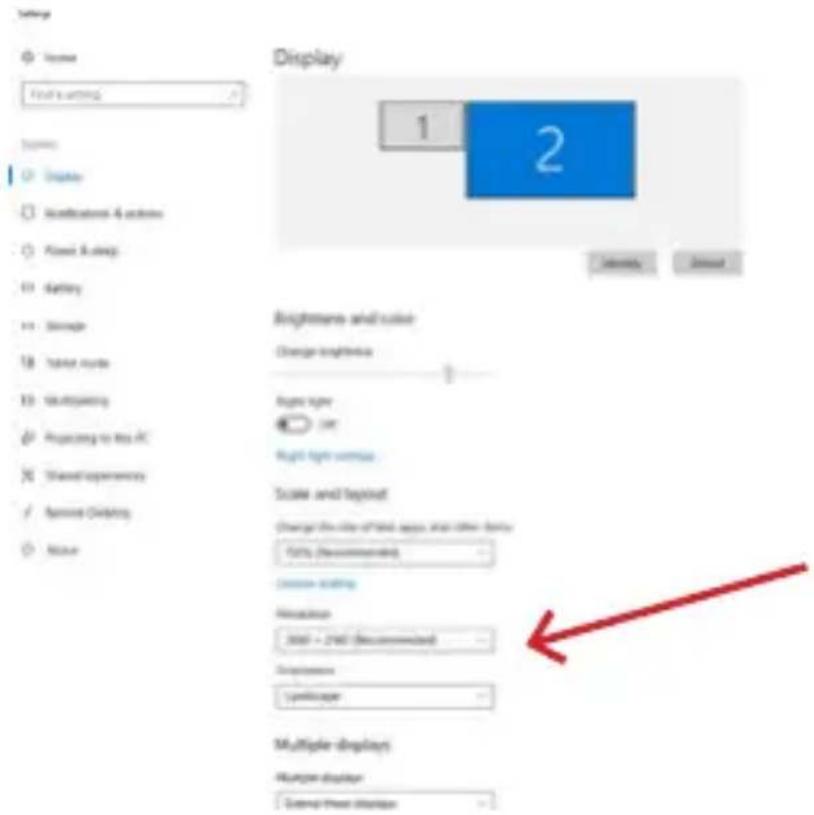
- Right-click anywhere on the free screen and select View Settings
text_image
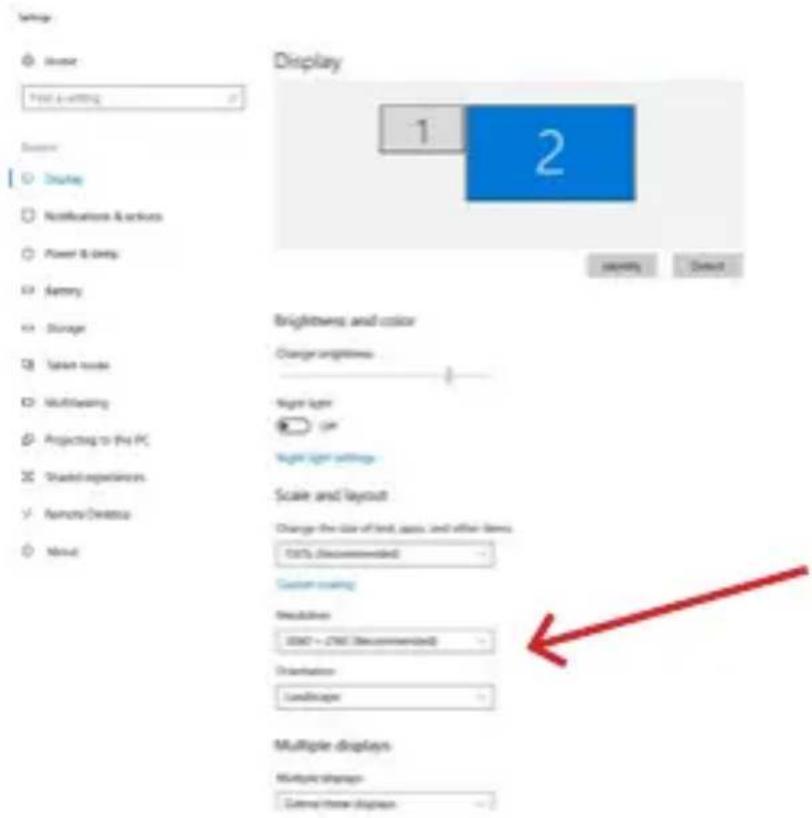
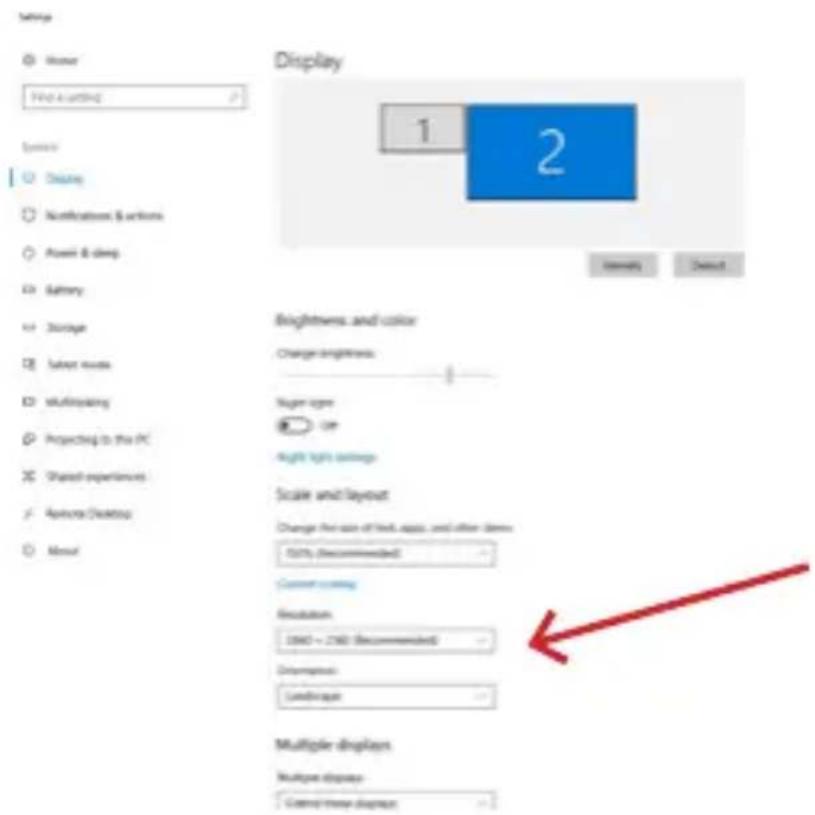
View Sort by Refresh Paste Paste shortcut Intel® Graphics Settings New Display settings Personalize- The settings for Display Resolution from Windows are then displayed.
text_image
Display 1 2 Brightness and color Change brightness Sugar type On Right light colors Scale and layout Change the size of find, apps, and other items 50% (Recommended) Current scaling Resolution: 1000 - 2000 (Recommended) Disruptive: Landings Multiple dimpletes Multiple dimpletes: Control time dimpletesDisplay resolution in Windows 10
You can now make the Extend and Mirror/Duplicate settings:
- Extend mode: on the screen, select Multiple monitors Extend this view OK.
- Mirror / Duplicate mode: on the screen, select Multiple monitors → Duplicate this view → OK.
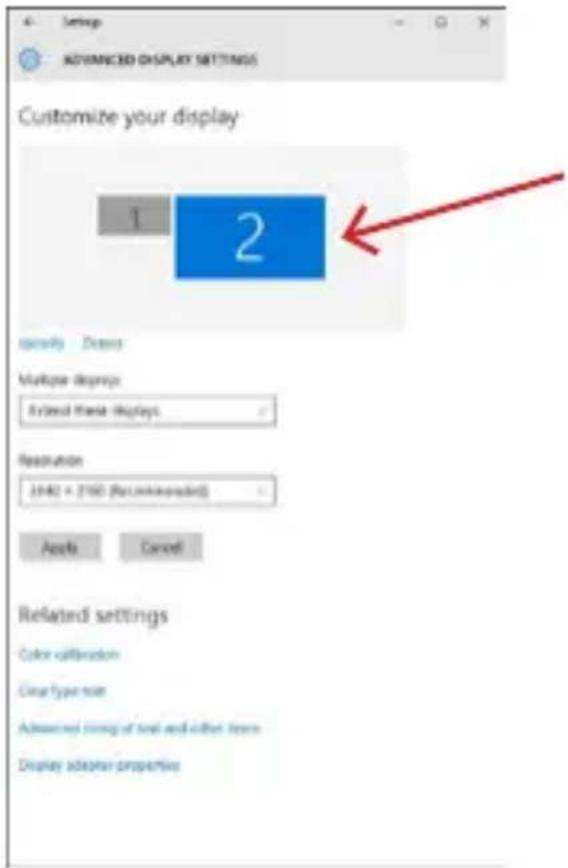
Check the „Set this monitor as main“ box to select the additional monitor as the main monitor.
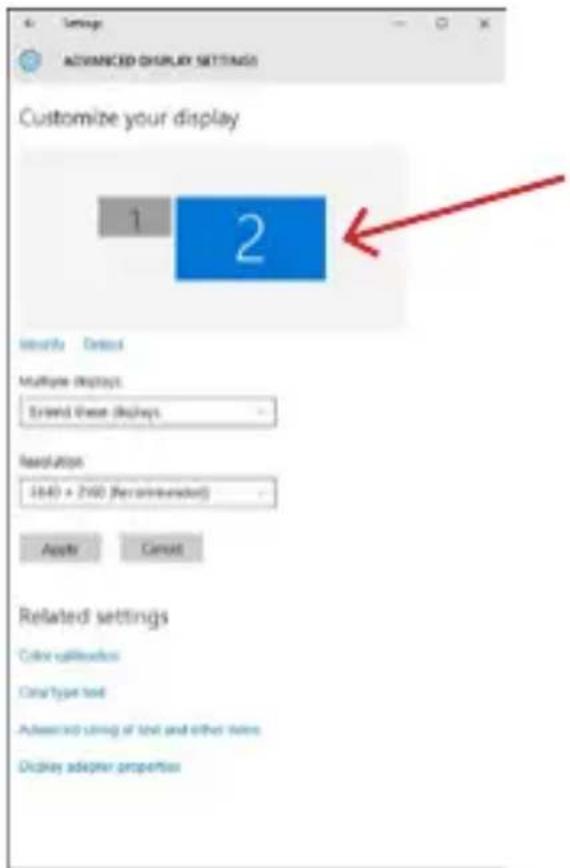
Click and drag the second monitor to position it relative to the original monitor on your laptop/tablet as needed.
text_image
Settings ADVANCED DISPLAY SETTINGS Customize your display 1 2 Openify Downs Multiple downloads: Extend these Displays. Resolution 2H40 x 2H60 (Recommended) Actions Cancel Related settings Color calibration Clear type color Advanced image of text and other items Display adapter propertiesPlacement of one additional monitor in relation to the original laptop/tablet monitor
Standby / Hibernate mode and Video port - after activating the laptop/tablet from Standby / Hibernate mode, the primary (original) monitor is displayed, so we recommend using the one integrated with the laptop/tablet as the primary monitor to log back into the system.
Mirror mode - the additional monitor follows the parameters of the original monitor in the system, i.e. if you set the Mirror mode and the original monitor has a resolution of 1920x1080, then the screen is transferred to the additional monitor at a maximum resolution of 1920x1080, even if you set it to a higher resolution.
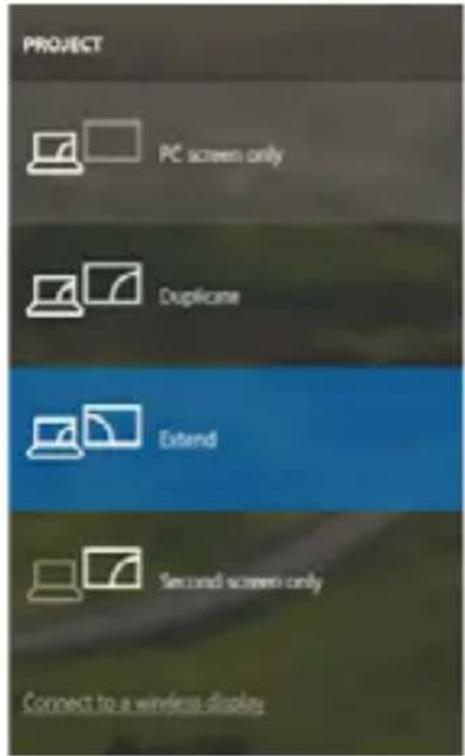
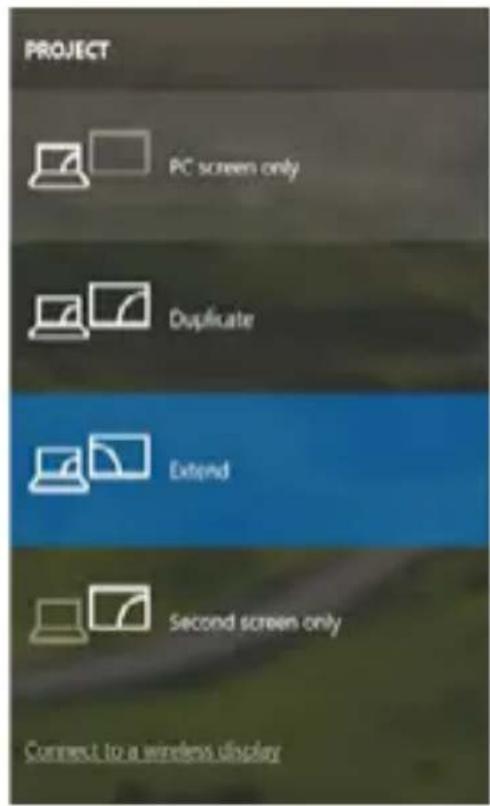
You can also easily control the monitors using the „Windows“ + P keyboard option:
i-tec USB4 Metal Docking station Dual 4K HDMI DP + PD 80 W
text_image
PROJECT PC screen only Duplicate Extend Second screen only Connect to a wireless displayControl the monitor in Windows 10
USING THE DOCKING STATION IN MAC OS
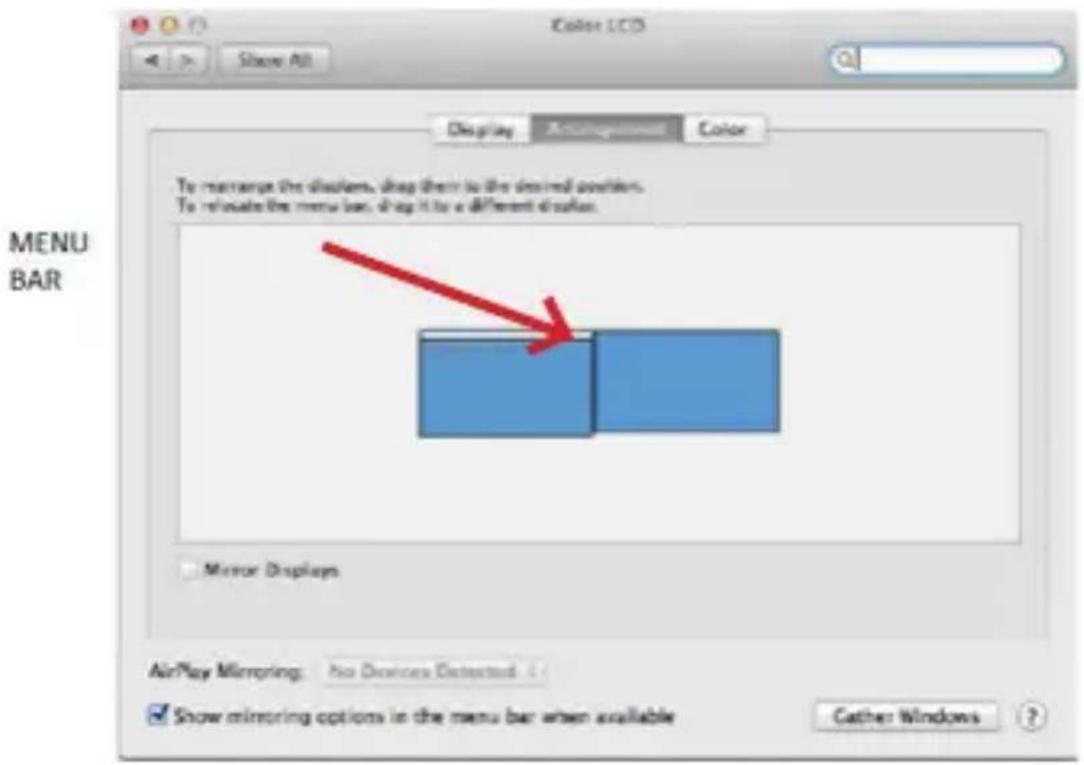
When you connect the monitor, the screen on your Mac will flicker, which is a standard condition. Once it has stabilized, you can make adjustments here: System Preferences-Monitors:

text_image
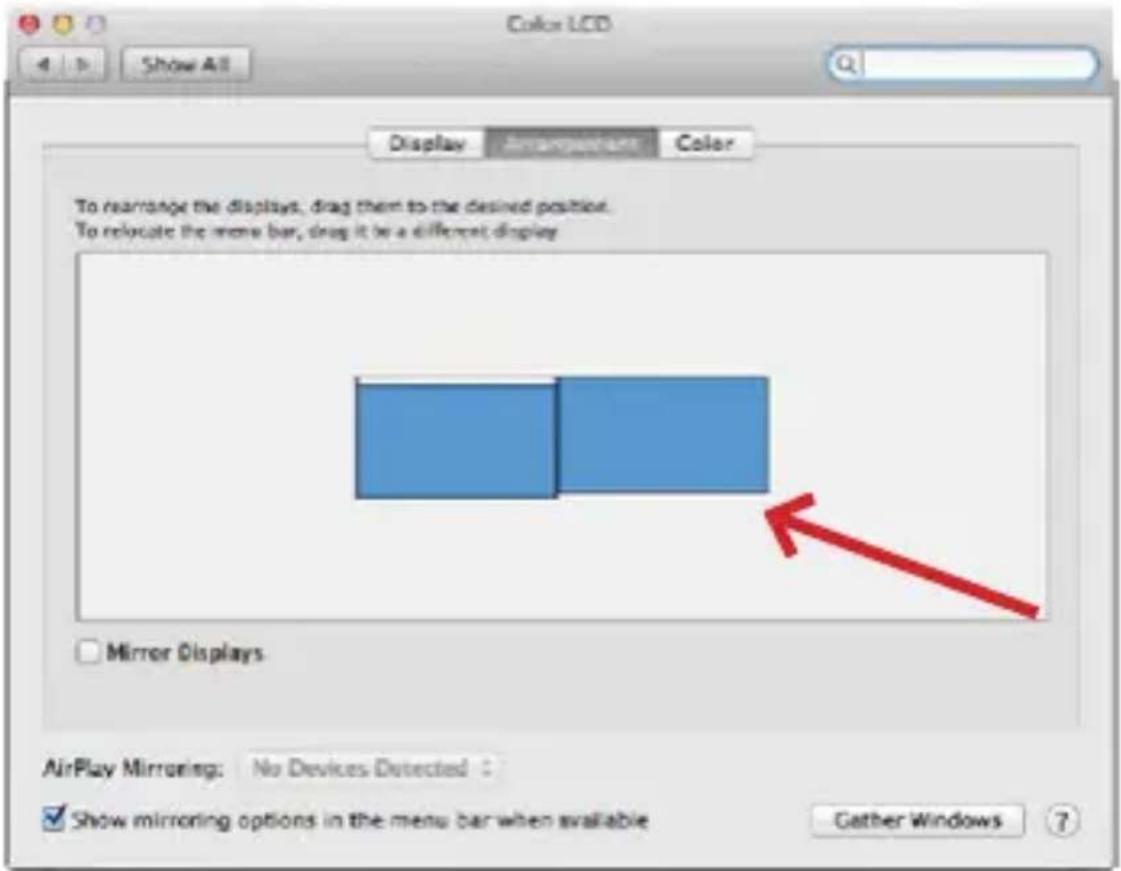
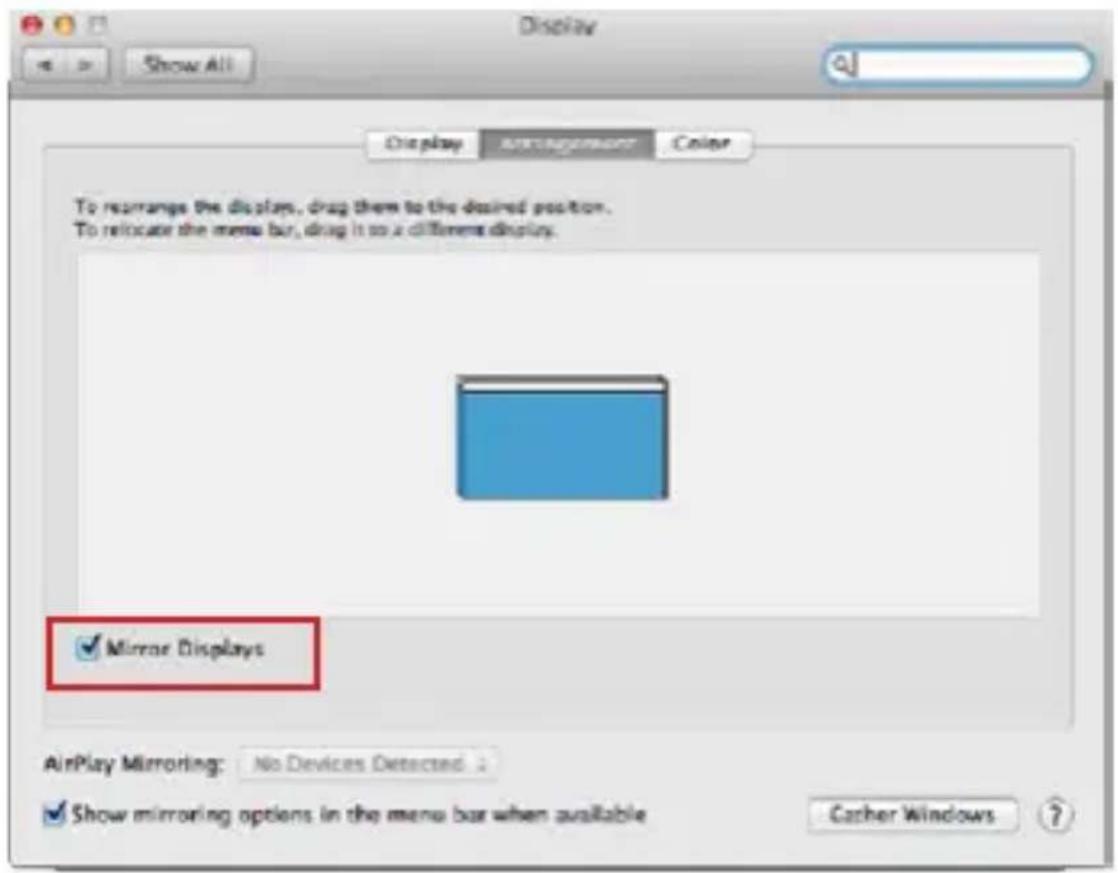
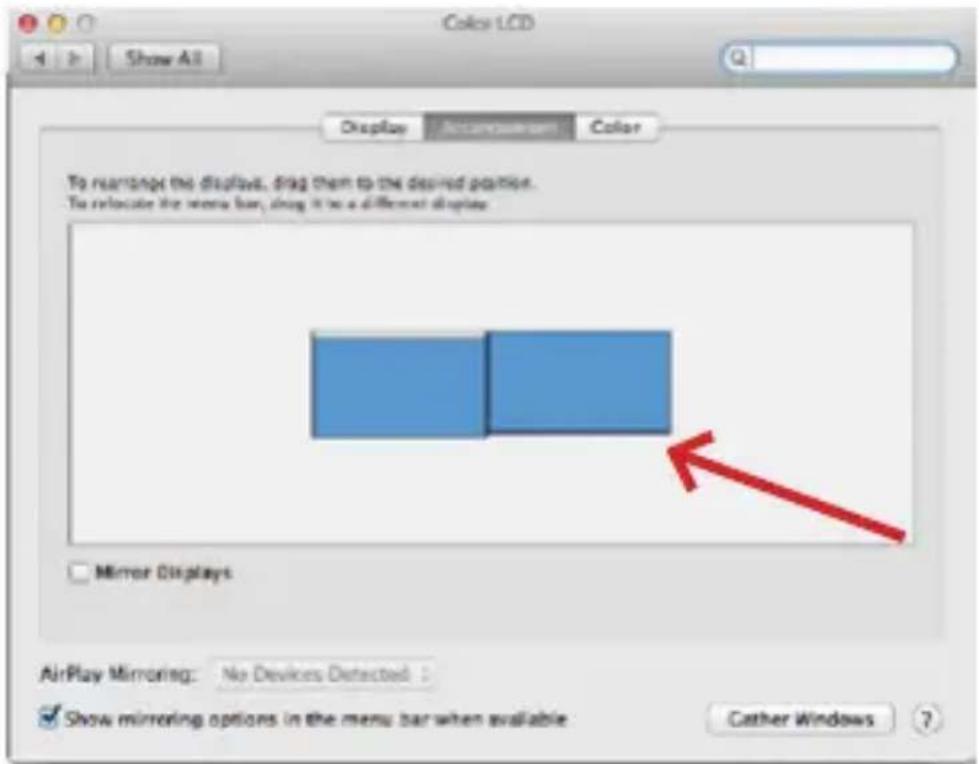
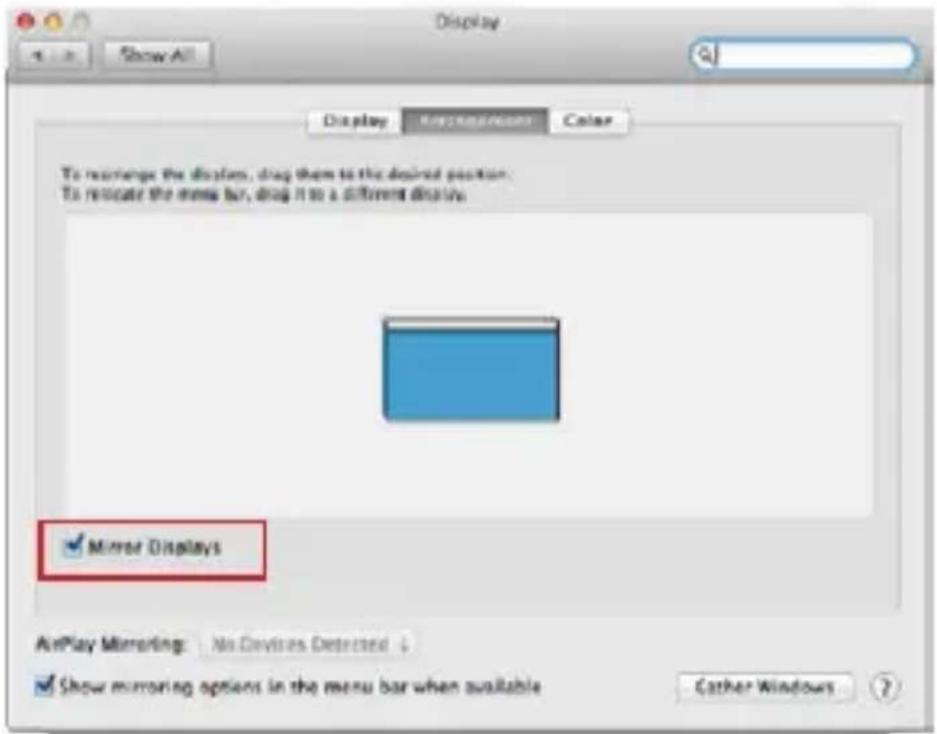
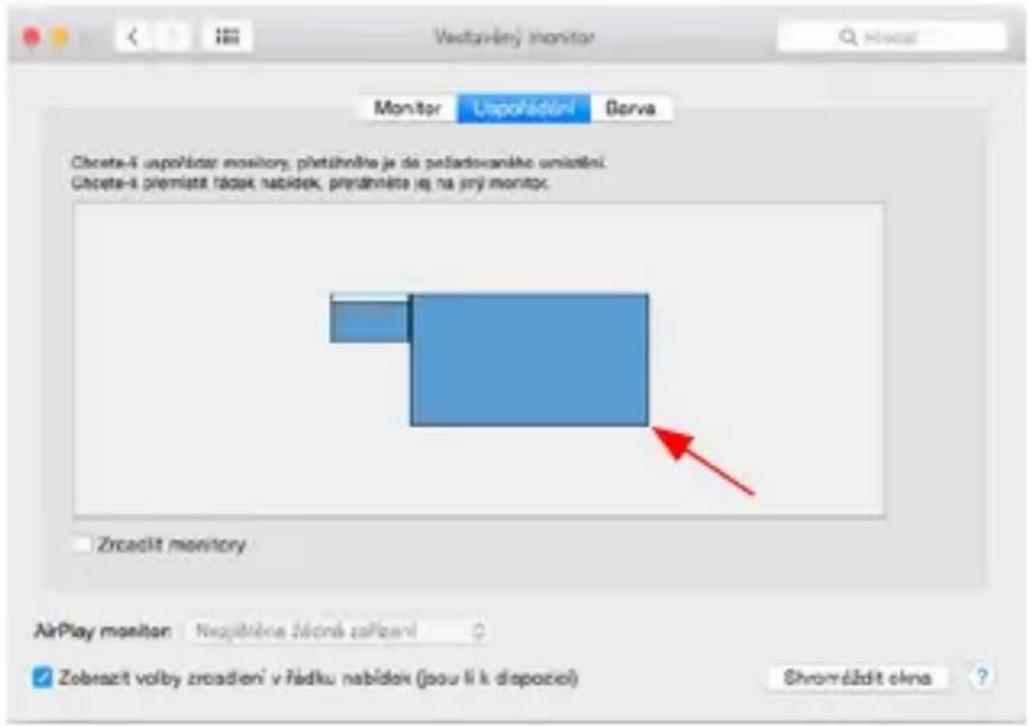
Built-In Display Display Arrangement Color Resolution: Default for display Scaled 1280 x 800 1152 x 720 1024 x 640 Brightness: Automatically adjust brightness AirPlay Display: No Devices Detected Show mirroring options in the menu bar when available Gather Windows ?In the Layout tab and in the default mode (Expand), click and drag the new monitor as needed relative to the Mac monitor. Selecting Mirror Monitors will change the mode to Mirror (the resolution of the monitors will automatically adjust to their parameters, setting the highest resolution possible on both monitors). Deselect Mirror Monitors to restore the Expand mode.
text_image
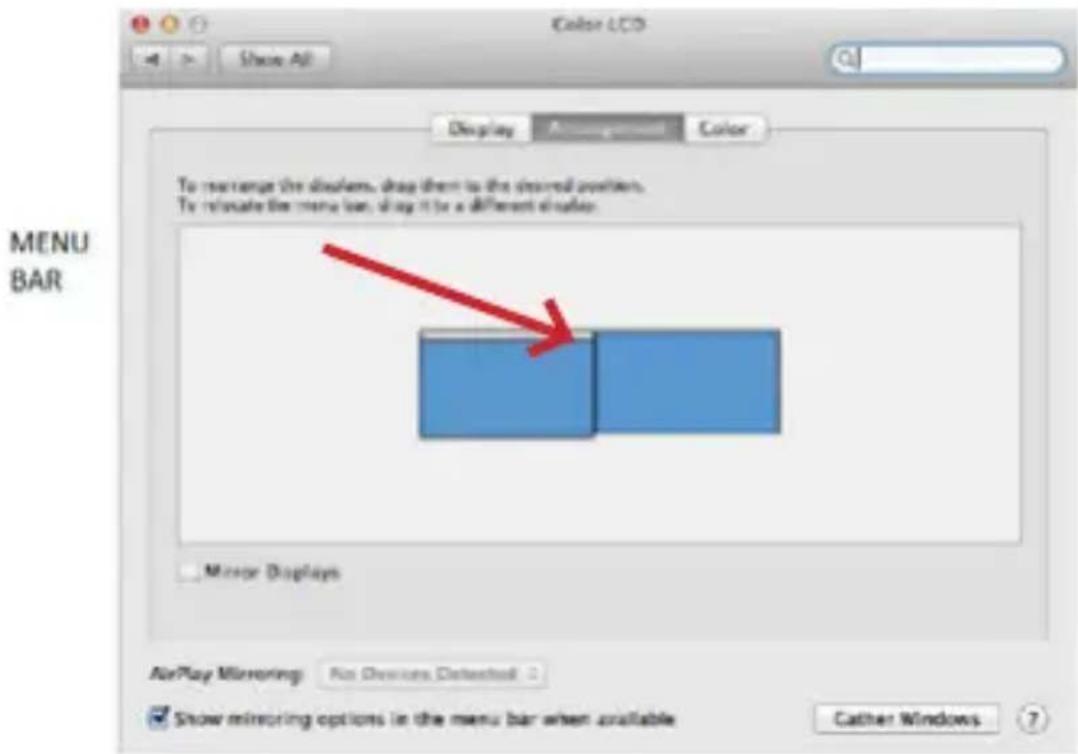
Color LCD Display Color To rearrange the displays, drag them to the desired position. To relocate the menu bar, drag it to a different display Mirror Displays AirPlay Mirroring: No Devices Detected Show mirroring options in the menu bar when available Gather WindowsExtend mode: The arrow indicates the possibility of positioning the connected monitor relative to the Mac monitor.
i-tec USB4 Metal Docking station Dual 4K HDMI DP + PD 80 W
text_image
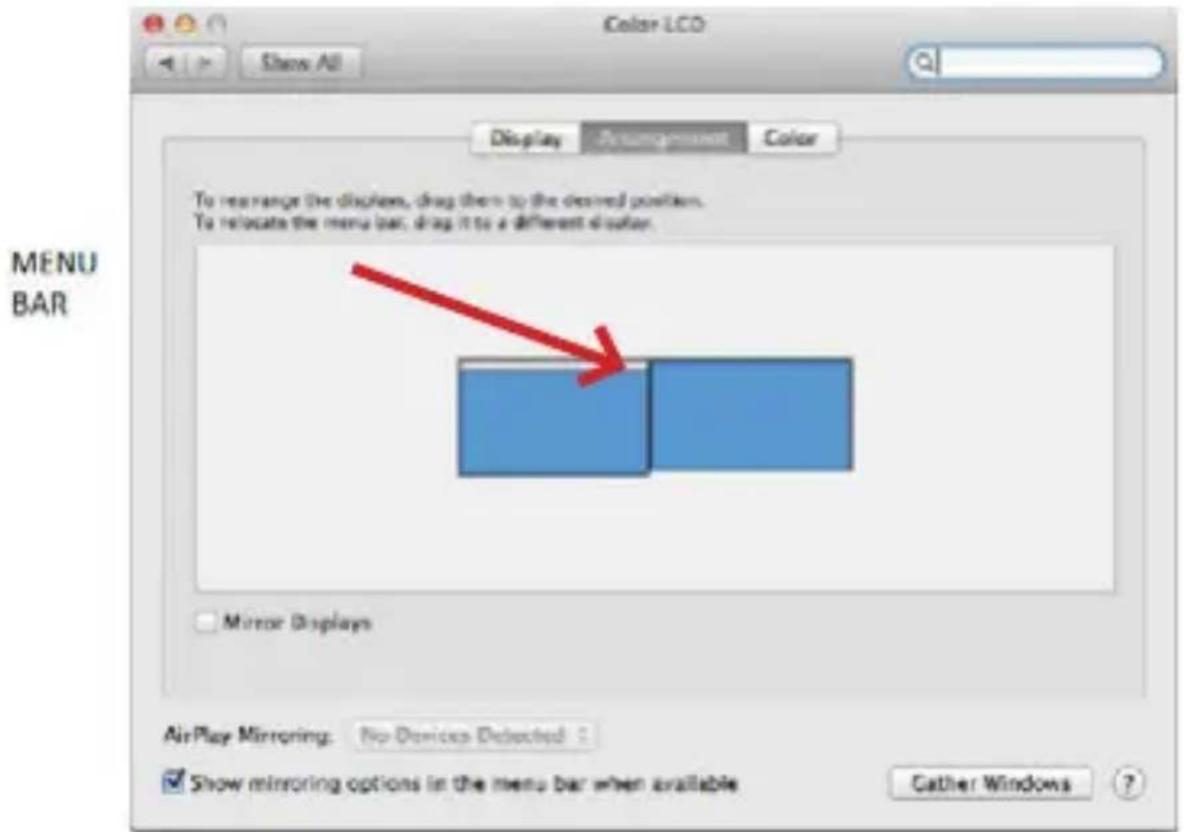
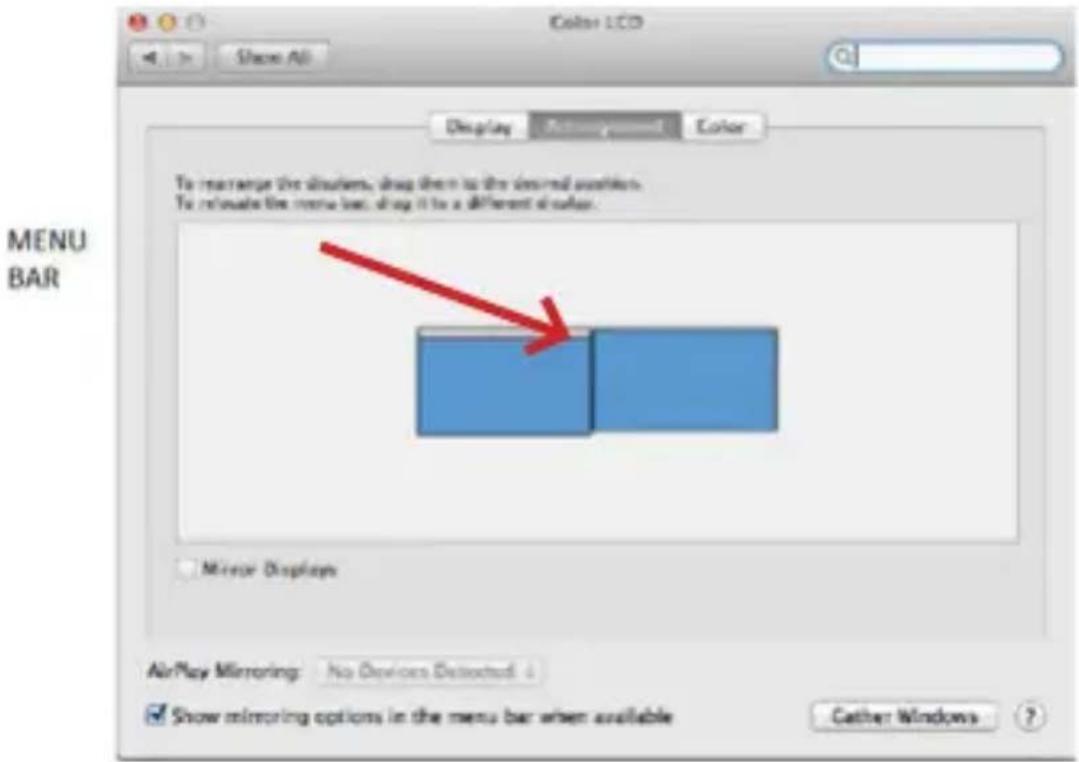
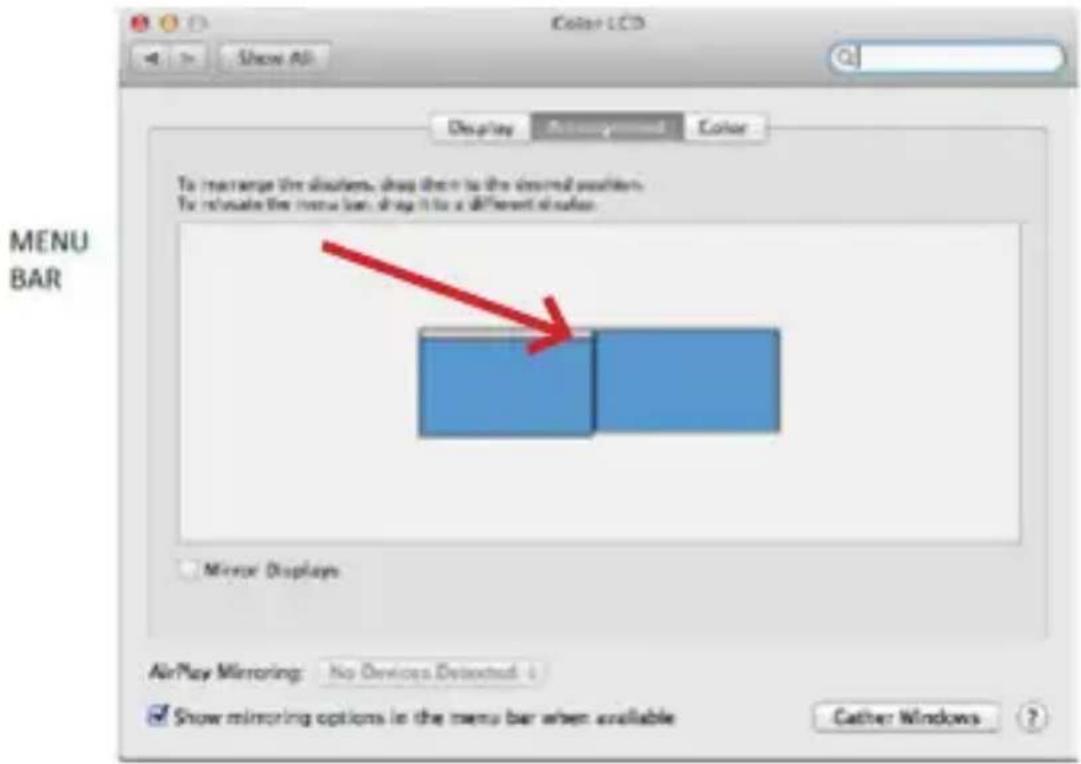
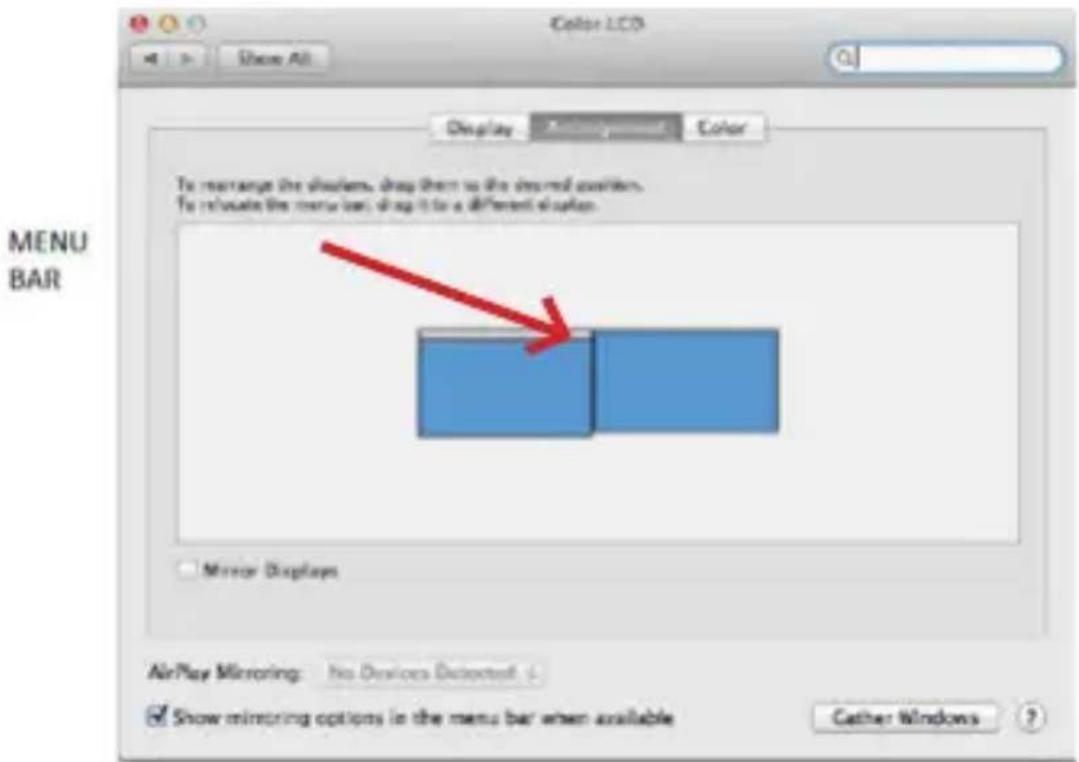
Color LCD Show All Display Adjustment Color To re arrange the displays, drag them to the desired positions. To relocate the menu bar; drag it to a different display. MENU BAR Mirror Displays AirPlay Mirroring: No Devices Detected Show mirroring options in the menu bar when available Cather WindowsExtend mode: In this mode, you can select the Main Monitor by dragging the Menu Bar.
text_image
Display To rearrange the displays, drag them to the desired position. To relocate the menu bar, drag it to a different display. Mirror Displays AirPlay Mirroring: No Devices Detected Show mirroring options in the menu bar when available Catcher WindowsMirror mode: can only be used if it is offered by Mac.
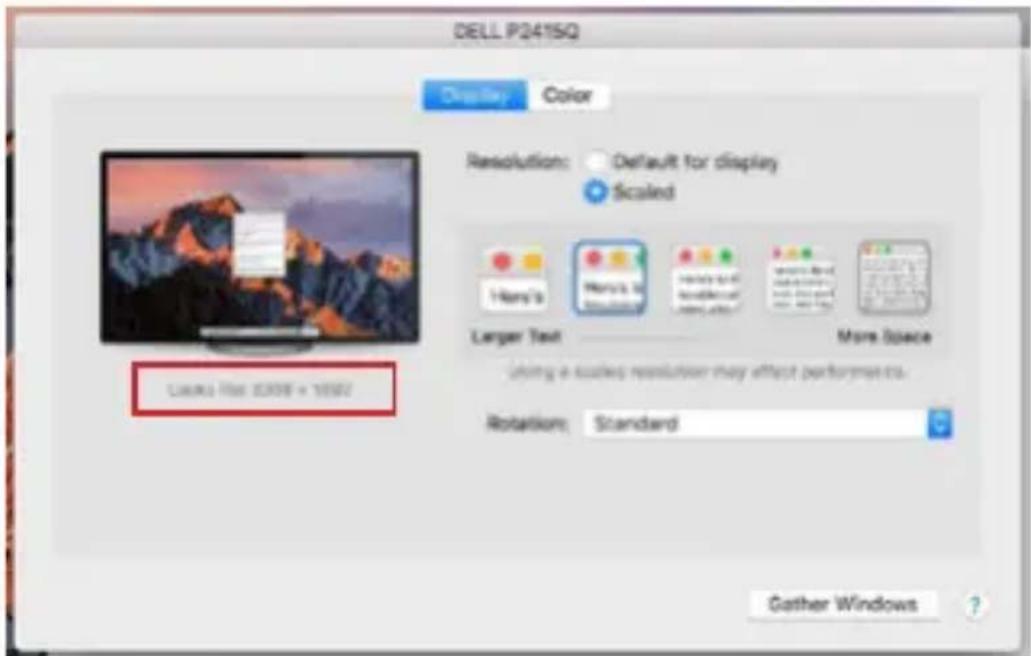
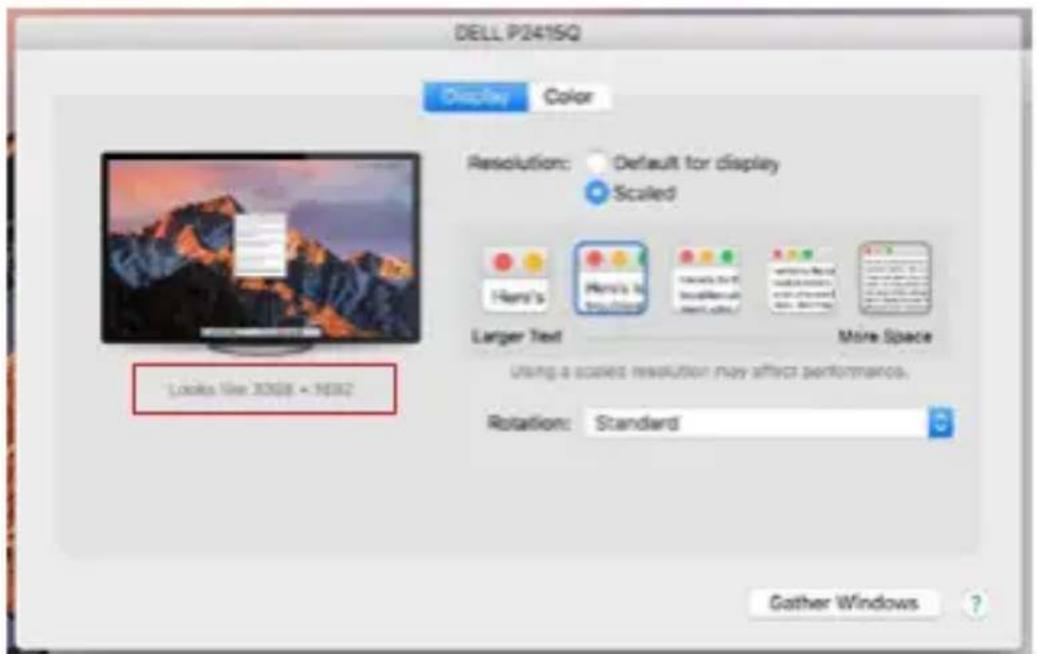
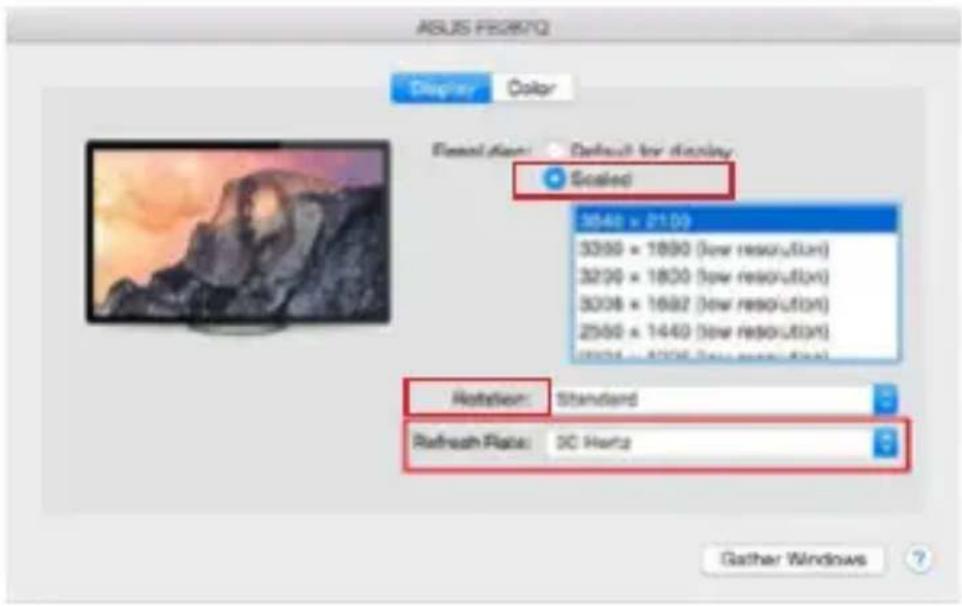
By selecting Gather Windows, you can choose the settings for the corresponding monitor - Customized Resolution (offers usable resolutions), Rotation (Standard, 90°, 180° and 270°) and Refresh Rate (if offered). Depending on the monitor you are using, these settings are:
text_image
ASUS ES287Q Display Color Default for display Scaled 3040 x 21.00 3050 x 1890 (low resolution) 3200 x 1800 (low resolution) 3038 x 1692 (low resolution) 2500 x 1440 (low resolution) 3038 x 1206 (low resolution) Rotation: Standard Refresh Rate: 3C Hertz Gather Windows ?Display variant 1

text_image
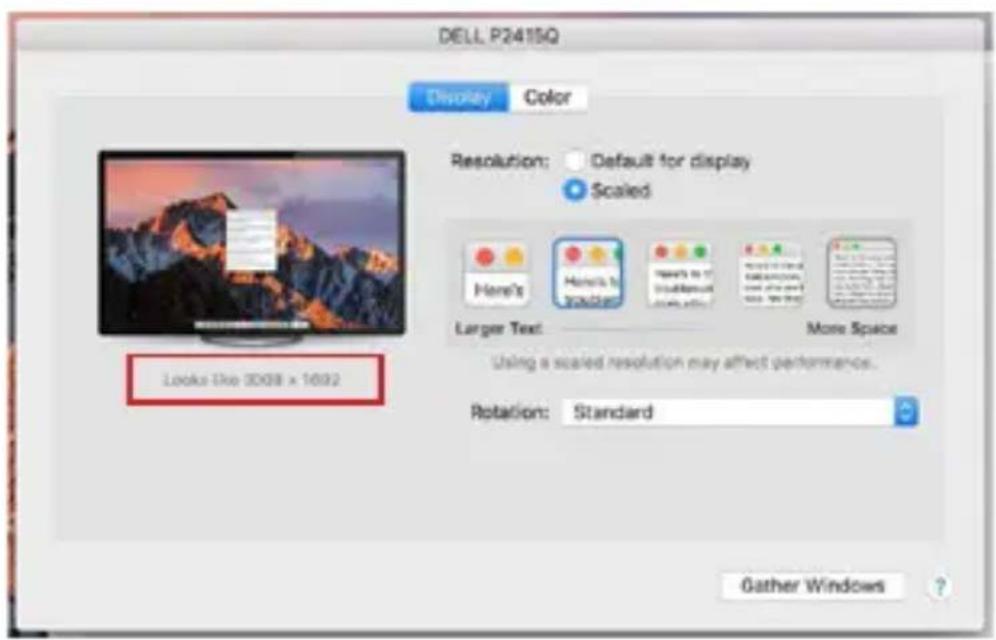
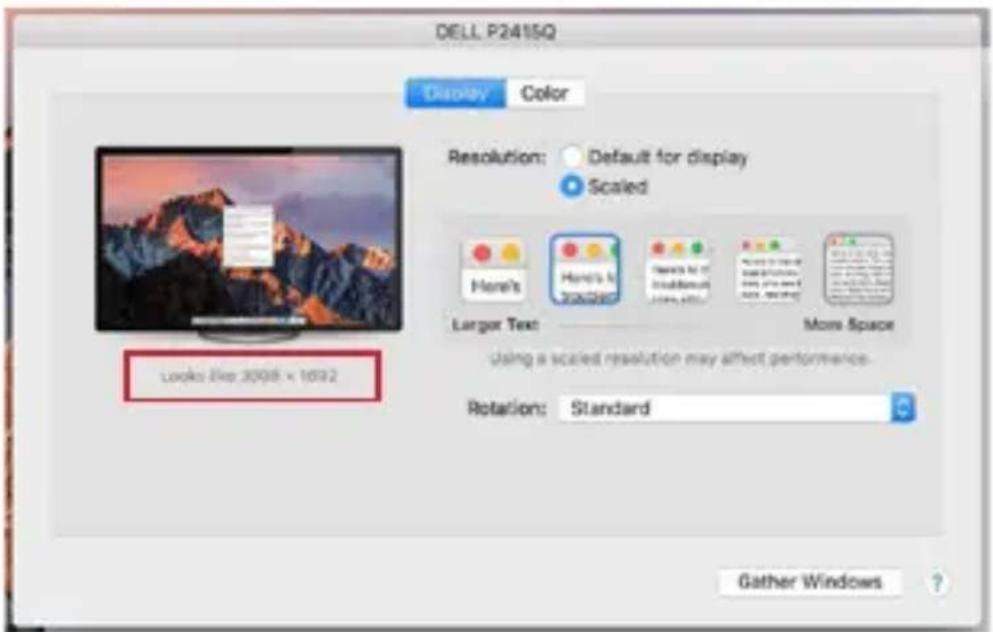
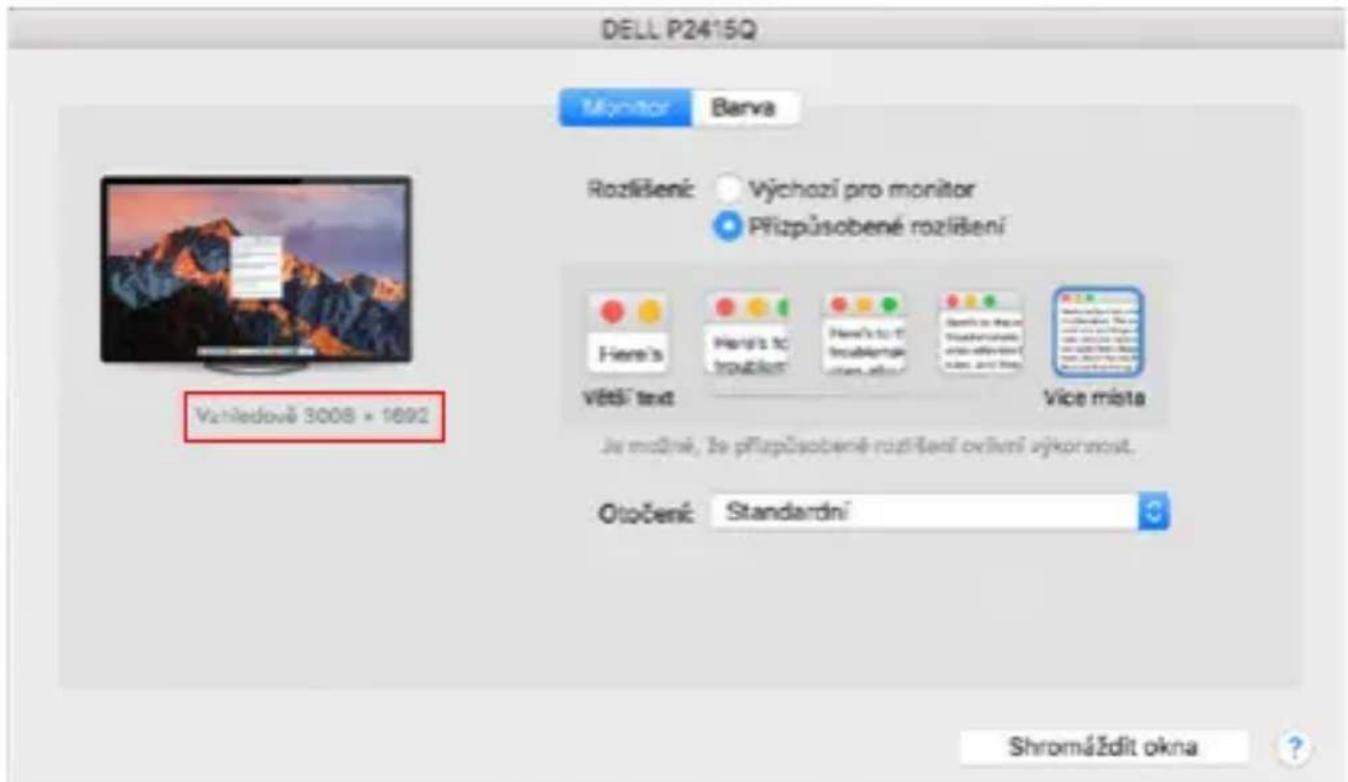
DELL P2415Q Display Color Resolution: Default for display Scaled Here's Honey is Trucker Honey is to Doublefoot Style adder More Space Larger Text More Space Using a scaled resolution may affect performance. Rotation: Standard Gather Windows ?Display variant 2
In Customized mode, click on the icon of your choice, the resolution will be described below the screen
(here visually 3008x1692 = 4K@30Hz)
Closed display mode - Working on a connected external monitor when the Mac monitor is tilted is only possible when the Mac is powered on and the mouse and keyboard are connected. More information here: https://support.apple.com/cs-cz/HT201834
Most of the problems with screen refresh on a connected monitor after putting the Mac to sleep, after using a screensaver, after restarting the Mac, after turning the Mac off/on can be solved by disconnecting the Thunderbolt™ 3 dock cable from the Thunderbolt™ 3 port of the Mac and reconnecting it after about 10s. After that, please wait for all peripherals to finish connecting.
ADDITIONAL DOCKING STATION FEATURES on Windows and macOS
LAN Connection - GLAN RJ-45 port connects to router/switch/hub and to the Internet, supports speeds of 10 / 100 / 1000 Mbps
Connecting USB devices - After connecting USB devices to the USB 3.0 port of the docking station (USB external HDD, USB keyboard, USB mouse, USB Hub, USB graphics adapter), these devices are used in the standard way. USB-C devices e.g. external HDD, flash drive, graphics adapter can be connected via Thunderbolt™ 3 port.
Charging - The docking station supports charging of connected USB mobile devices such as smartphones, e-book readers, media players, navigation devices and tablets. Simply connect the device to be charged with the original cable to the USB port of the docking station.
Power Delivery charging - the dock supports Power Delivery on the designated Thunderbolt™ 3 port. Power Delivery is supported on Profile 5, i.e. max 85W.
Supported laptops: e.g. Dell XPS13, MacBook Pro 2016, Acer Aspire V 15 Nitro, Acer Aspire V 17 Nitro or Windows 10 devices with Thunderbolt™ 3 port and Power Delivery support and original power adapter up to 100W.
Non-supported laptops: e.g. HP Folio G1 and other HP laptops; HP restricts the use of non-original power supplies by default
Audio in Windows
By default, the audio output automatically switches to the connected docking station. You can check or set the default audio output in Control Panel-Sound
Audio on macOS
The audio output device for listening via the graphic output needs to be set/verified here: System Preferences-Sound-Output - Set USB Advanced Audio Device.
The audio output devices for both headphones and monitor can be selected in Open-Applications-Utilities-Audio MIDI.app - click on „+“ at the bottom left - Create Multi Output Device and select the desired outputs from the options on Multi Output Device.
Note: Most issues with the dock and connected peripherals can be resolved by disconnecting the Thunderbolt™ 3 cable of the dock from the Thunderbolt™ 3 port of the laptop/tablet/Mac and reconnecting it after about 10s.
SAFETY INSTRUCTIONS FOR USING THE DOCKING STATION
- Do not expose to extreme temperatures and humidity.
- Use the device on flat pads to avoid slipping and falling on the ground.
- Keep the drivers and manual for later use.
In cooperation with the service department:
- Check functionality after falling into water or on the ground.
- Verify functionality when the cover is cracked.
- Complain about the device not working according to the manual.
FREQUENTLY ASKED QUESTIONS
Available on our website www-i-tec.pro/en under „FAQ“ for this product
text_image
1 2 3 USB-C Gen.2 4 microSD 4 SD USB 3.2 Gen.2 USB 3.2 Gen.2 USB 3.2 Gen.2 4text_image
Device Manager Action View Help DELLXPS13 Audio inputs and outputs LG Ultra HD (Intel(R) Display Audio) Mikrofon (Realtek Audio) Mikrofon (Thunderbolt Audio Device) Reproduktory (Thunderbolt Audio Device) Reproduktory / sluchåtka (Realtek Audio) Batteries Bluetooth Cameras Computer Disk drives Display adapters Human Interface Devices Intel(R) Dynamic Platform and Thermal Framework Keyboards Memory technology devices Mice and other pointing devices Monitors Network adapters Bluetooth Device (Personal Area Network) Bluetooth Device (RFCOMM Protocol TDI) Dell Wireless 1820A 802.11ac Intel(R) I210 Gigabit Network Connection #5 Portable Devices Print queues Processors Security devices Software devices Sound, video and game controllers Storage controllers System devices Universal Serial Bus controllerstext_image
Display 1 2 Newly Close Brightness and color Change brightness Light light Light light settings Scale and layout Change the size of text, apps, and other terms. 100% Recommended Custom scaling Resolution: 5000 x 2000 (Recommended) Dimension: Longitude: Multiplier displays Multiple overlays Current Power droppertext_image
6. Settings ADVANCED DISPLAY SETTINGS Customize your display 1 2 Identify Select Multiple displays: Extend their displays Resolution 3540 x 2160 (Recommended) Apply Cancel Related settings Color calibration Clear Type text Advanced listing of text and other items. Display adapter propertiestext_image
PROJECT PC screen only Duplicate Extend Second screen only Connect to a wireless displaytext_image
Built-in Display Display Arrangement Color Resolution: Default for display Scaled 1260 x 800 1152 x 720 1024 x 640 Brightness: Automatically adjust brightness AirPlay Display: No Devices Detected Show mirroring options in the menu bar when available Gather Windowsi-tec USB4 Metal Docking station Dual 4K HDMI DP + PD 80 W
text_image
Color LCD Show All Display Antenna screen Color To rearrange the displays, drag them to the desired portion. To relocate the menu bar, drag it to a different display. Mirror Displays AirPlay Mirroring: No Devices Detected Show mirroring options in the menu bar when available Cather Windowstext_image
Color LCD Show All Display According Color To arrange the sliders, drag them to the desired position. To revalue the menu bar, drag it to a different position. MENU BAR Mirror Displays AirPlay Mirroring: No Devices Dissected Show mirroring options in the menu bar when available Cather Windowstext_image
Display To rearrange the displays, drag them to the desired position. To rotate the menu bar, drag it to a different display. Mirror Displays AirPlay Mirroring: No Devices Detected Show mirroring options in the menu bar when available Cather Windowstext_image
ASLBS PECRNTQ Display Color Femol Aion: Default for display Scaled 3540 x 2100 3000 x 1890 (low resolution) 3200 x 1800 (low resolution) 3008 x 1692 (low resolution) 2560 x 1440 (low resolution) 3504 - 1208 (low resolution) Rotation: Standard Refresh Rate: 50 Hz Gather Windows ?Variante 1 anzeigen

text_image
DELL P2415Q Display Color Resolution: Default for display Scaled Here's Here's to Standard More Space Larger Text using a scaled resolution may affect performance. Rotation: Standard Gather Windows ?text_image
1 2 3 USB-C Gen.2 4 microSD 450 USB 3.2 Gen.2 USB 3.2 Gen.2 USB 3.2 Gen.2 4i-tec USB4 Metal Docking station Dual 4K HDMI DP + PD 80 W
text_image
Device Manager Action View Help DELLXPS13 Audio inputs and outputs LG Ultra HD (Intel(R) Display Audio) Mikrofon (Realtek Audio) Mikrofon (Thunderbolt Audio Device) Reproduktory (Thunderbolt Audio Device) Reproduktory / sluchütka (Realtek Audio) Batteries Bluetooth Cameras Computer Disk drives Display adapters Human Interface Devices Intel(R) Dynamic Platform and Thermal Framework Keyboards Memory technology devices Mice and other pointing devices Monitors Network adapters Bluetooth Device (Personal Area Network) Bluetooth Device (RFCOMM Protocol TDI) Dell Wireless 1820A 802.11ac Intel(R) I210 Gigabit Network Connection #5 Portable Devices Print queues Processors Security devices Software devices Sound, video and game controllers Storage controllers System devices Universal Serial Bus controllersi-tec USB4 Metal Docking station Dual 4K HDMI DP + PD 80 W

text_image
USB 2.0 USB 2.0 USB 2.0 LAN + PD HDMI DP Imagetext_image
Display 1 2 Brightness and color Change brightness Light type: Low High spot settings Scale and layout Change the size of text, pages, and other times 50% (Recommended) Current setting Resolution: (200) x 2500 (Recommended) Dimension: Layerage Multiplier displays Multiple Displays Cancel these displaysi-tec USB4 Metal Docking station Dual 4K HDMI DP + PD 80 W

text_image
Settings ADVANCED DISPLAY SETTINGS Customize your display 1 2 Identity Default Multiple Displays Extend these Displays Resolution 3640 x 2160 (Recommended) Apply Cancel Related settings Color calibration Color Type test Advanced timing of test and other times Display adapter propertiestext_image
PROJECT PC screen only Duplicate Extend Second screen only Connect to a wireless displaytext_image
Built-in Display Display Arrangement Color Resolution: Default for display Scaled 1260 x 800 1152 x 720 1024 x 640 Brightness: Automatically adjust brightness AirPlay Display: No Devices Detected Show mirroring options in the menu bar when available Gather Windows ?text_image
Color LCD Show All Display Color To rearrange the displays, drag them to the desired position. To relocate the menu bar, drag it in a different display. Mirror Displays AirPlay Mirroring: No Devices Detected Show mirroring options in the menu bar when available Cather Windows ?text_image
Color LCD Show All Display Arrangement Color To rearrange the sliders drop them to the desired positions. To minimize the menu bar, drop it to a different slider. MENU BAR Mirror Displays AirPlay Mirroring: No Devices Detected Show mirroring options in the menu bar when available Cather Windowsi-tec USB4 Metal Docking station Dual 4K HDMI DP + PD 80 W

text_image
Display To rearrange the displays, drag them to the desired position. To relocate the menu bar, drag it to a different display. Mirror Displays AirPlay Mirroring: No Devices Detected Show mirroring options in the menu bar when available Cather Windowstext_image
ASUS FB287Q Display Color Resolution: Default for display Scaled 3500 x 2100 3300 x 1890 (low resolution) 3200 x 1800 (low resolution) 3008 x 1692 (low resolution) 2550 x 1440 (low resolution) 2004 x 1238 (low resolution) Rotation: Standard Refresh Rate: SC Hertz Gather Windowstext_image
DELL P2415Q Display Color Resolutions: Default for display Scaled Larger Text More Space Using a scaled resolution may affect performance. Rotations: Standard Gather Windows ?text_image
1 2 3 USB-C Gen.2 4 microSD 4 SD USB 3.2 Gen.2 USB 3.2 Gen.2 USB 3.2 Gen.2 4- Conector combinado de audio de 3,5 mm
- Puerto USB-C Gen 2 (solo datos)
- Ranura SD/microSD
- 3 puertos USB 3.2 Gen. 2 con soporte de carga rápida (BC 1.2)
Panel trasero:

text_image
5 USB 2.0 USB 2.0 USB 2.0 LAN + FD HDMI DP 7 8 9 10text_image
Device Manager Action View Help DELLXPS13 Audio inputs and outputs LG Ultra HD (Intel(R) Display Audio) Mikrofon (Realtek Audio) Mikrofon (Thunderbolt Audio Device) Reproduktory (Thunderbolt Audio Device) Reproduktory / sluchátka (Realtek Audio) Batteries Bluetooth Cameras Computer Disk drives Display adapters Human Interface Devices Intel(R) Dynamic Platform and Thermal Framework Keyboards Memory technology devices Mice and other pointing devices Monitors Network adapters Bluetooth Device (Personal Area Network) Bluetooth Device (RFCOMM Protocol TDI) Dell Wireless 1820A 802.11ac Intel(R) I210 Gigabit Network Connection #5 Portable Devices Print queues Processors Security devices Software devices Sound, video and game controllers Storage controllers System devices Universal Serial Bus controllerstext_image
Display 1 2 Brightness and color Change brightness Light type Right Light setting Scale and layout Change the size of files, apps, and other items 100% (Recommended) Custom mode Resolution: .000 x 250 (Recommended) Dransetion: Lampmeter Multiplier displays Multiple displays Transform these displaystext_image
Settings ADVANCED DISPLAY SETTINGS Customize your display 1 2 Identity Detects Multiple displays Extend these displays Resolution 1040 x 2160 (Recommended) Apply Cancel Related settings Color calibration ClearType text Advanced setting of text and other items Display adapter propertiesi-tec USB4 Metal Docking station Dual 4K HDMI DP + PD 80 W

text_image
PROJECT PC screen only Duplicate Extend Second screen only Connect to a wireless displayControlar el monitor en Windows 10
UTILIZANDO EL DOCKING STATION EN MAC OS
text_image
Built-in Display Search Display Arrangement Color Resolution: Default for display Scaled 1280 x 800 1152 x 720 1024 x 640 Brightness: Automatically adjust brightness AirPlay Display: No Devices Detected Show mirroring options in the menu bar when available Gather Windowstext_image
Color LCD Show All Display Color To rearrange the disclos, drag them to the desired portion. To relocate the menu bar, drag it to a different display Mirror Displays AirPlay Mirroring: No Devices Detected Show mirroring options in the menu bar when available Cather Windowsi-tec USB4 Metal Docking station Dual 4K HDMI DP + PD 80 W

text_image
Color LCD Show All Display A Color To manage the display, drag them to the desired position. To release the menu bar, drag it to a different display. MENU BAR Minor Displays AirPlay Mirroring: No Devices Detected Show mirroring options in the menu bar when available Cather Windowstext_image
Display To rearrange the display, drag them to the desired position. To restore the menu bar, drag it to a different display. Mirror Displays AirPlay Mirroring: No Devices Detected Show mirroring options in the menu bar when available Cather Windowstext_image
ASUS FE287Q Display Color Presets: Default for display Scaled 3048 = 2100 3090 = 1690 (low resolution) 3200 = 1800 (low resolution) 3008 = 1692 (low resolution) 2500 = 1440 (low resolution) 3004 = 1200 (low resolution) Rotation: Standard Refresh Rate: 50 Hz Gather Windowstext_image
DELL P2415Q Display Color Resolution: Default for display Scaled Here's Here's is too small Here's to be double More Space Larger Text More Space Using a scaled resolution may affect performance. Rotation: Standard Gather Windowstext_image
1 2 3 USB-C Gen.2 4 microSD 4 SD USB 3.2 Gen.2 USB 3.2 Gen.2 USB 3.2 Gen.2 4text_image
Device Manager Action View Help DELLXPS13 Audio inputs and outputs LG Ultra HD (Intel(R) Display Audio) Mikrofon (Realtek Audio) Mikrofon (Thunderbolt Audio Device) Reproduktory (Thunderbolt Audio Device) Reproduktory / sluchátka (Realtek Audio) Batteries Bluetooth Cameras Computer Disk drives Display adapters Human Interface Devices Intel(R) Dynamic Platform and Thermal Framework Keyboards Memory technology devices Mise and other pointing devices Monitors Network adapters Bluetooth Device (Personal Area Network) Bluetooth Device (RFCOMM Protocol TDI) Dell Wireless 1820A 802.11ac Intel(R) I210 Gigabit Network Connection #5 Portable Devices Print queues Processors Security devices Software devices Sound, video and game controllers Storage controllers System devices Universal Serial Bus controllersi-tec USB4 Metal Docking station Dual 4K HDMI DP + PD 80 W
text_image
Display 1 2 Refresh Reset Brightness and color Change brightness Sign eyes Up Right light settings Scale and layout Change the size of red, gray, and other sizes 50% (Recommended) Custom setting Resolution: 5000 x 7000 (Recommended) Dimensions: Coordinate Multiple displays Multiple pixels Control other pixelstext_image
Settings ADVANCED DISPLAY SETTINGS Customize your display 1 2 Identity Detect Multiple displays: Extend these displays Resolution 3640 x 2160 (Recommended) Apply Cancel Related settings Color calibration Clear type text Advanced listing of text and other items Display adapter propertiesi-tec USB4 Metal Docking station Dual 4K HDMI DP + PD 80 W
text_image
PROJECT PC screen only Duplicate Extend Second screen only Connect to a wireless displaytext_image
Built-in Display Display Arrangement Color Resolution: Default for display Scaled 1280 x 800 1152 x 720 1024 x 640 Brightness: Automatically adjust brightness AirPlay Display: No Devices Detected Show minoring options in the menu bar when available Gather Windowstext_image
Color LCD Show All Display Color To rearrange the displays, drag them to the desired position. To relocate the menu bar, drag it in a different display Mirror Displays AirPlay Mirroring: No Devices Detected Show mirroring options in the menu bar when available Cather Windowsi-tec USB4 Metal Docking station Dual 4K HDMI DP + PD 80 W

text_image
Color LCD Show All Display Mode Color To rearrange the sliders, drop them to the desired position. To reinvolve the menu bar, drop it to a different cursor. MENU BAR Mirror Displays AirPlay Mirroring: No Devices Detected Show mirroring options in the menu bar when available Cather Windowstext_image
Display To rearrange the displays, drag them to the desired position. To relocate the menu bar, drag it to a different display. Mirror Displays AirPlay Mirroring: No Devices Detected Show mirroring options in the menu bar when available Cather Windowstext_image
AGUS PD267Q Display Color Resolution: Default for display Scaled 3540 x 21-60 3540 x 1890 (low resolution) 3200 x 1800 (low resolution) 3008 x 1692 (low resolution) 3560 x 1440 (low resolution) 3554 - 4508 (low resolution) Rotation: Standard Refresh Rate: 30 Hertz Gather Windows ?text_image
DELL P2415Q Display Color Resolution: Default for display Scaled Here's Here's is broadway ncorls to it inoukshenl grrn ala www.her womson you的人s More Space Larger Text Using a scaled resolution may affect performance. Rotation: Standard Gather Windows ?Variante del display 2
1 monitor - 2x DP - up to 5K/60Hz
1 monitor - 1x DP or 1x HDMI - up to 4K/60Hz
2 monitory - 1x HDMI + 1 DP - up to 2x 4K/60Hz
text_image
1 2 3 USB-C Gen.2 4 microSD 4 SD USB 3.2 Gen.2 USB 3.2 Gen.2 USB 3.2 Gen.2 4i-tec USB4 Metal Docking station Dual 4K HDMI DP + PD 80 W
i-tec USB4 Metal Docking station Dual 4K HDMI DP + PD 80 W

i-tec USB4 Metal Docking station Dual 4K HDMI DP + PD 80 W
https://support.apple.com/cs-cz/HT201834
i-tec USB4 Metal Docking station Dual 4K HDMI DP + PD 80 W
Audio ve Windows
text_image
1 2 3 USB-C Gen.2 4 microSD 4 SD USB 3.2 Gen.2 USB 3.2 Gen.2 USB 3.2 Gen.2 4text_image
Device Manager le Action View Help DELLXPS13 Audio inputs and outputs LG Ultra HD (Intel(R) Display Audio) Mikrofon (Realtek Audio) Mikrofon (Thunderbolt Audio Device) Reproduktory (Thunderbolt Audio Device) Reproduktory / sluchátka (Realtek Audio) Batteries Bluetooth Cameras Computer Disk drives Display adapters Human Interface Devices Intel(R) Dynamic Platform and Thermal Framework Keyboards Memory technology devices Mice and other pointing devices Monitors Network adapters Bluetooth Device (Personal Area Network) Bluetooth Device (RFCOMM Protocol TDI) Dell Wireless 1820A 802.11ac Intel(R) I210 Gigabit Network Connection #5 Portable Devices Print queues Processors Security devices Software devices Sound, video and game controllers Storage controllers System devices Universal Serial Bus controllersi-tec USB4 Metal Docking station Dual 4K HDMI DP + PD 80 W
text_image
Display 1 2 Show: Close Noifications & actions Power & deep Battery Storage Layout mode Multifacing Projecting to the PC Shared experiences Remote Onsetup About Brightness and color Change brightness Light Light Off Light Light setting Scale and layout Change the size of text, apps and other items 100% (Recommended) Custom scaling Resolution (300 x 2760 (Recommended)) Orientation Landscapes Multiplier displays Multiple displays Sorted these displaystext_image
Settings ADVANCED DISPLAY SETTINGS Customize your display 1 2 Select Multiple displays Extend these displays Resolution 1040 x 2160 (Recommended) Apply Cancel Related settings Color calibration ColorType test Advanced setting of land and other items Display adapter propertiesi-tec USB4 Metal Docking station Dual 4K HDMI DP + PD 80 W
text_image
PROJECT PC screen only Duplicate Extend Second screen only Connect to a wireless displaySterowanie monitorem w systemie Windows 10
KORZYSTANIE Z PROGRAMU DOCKING STATION W SYSTEMIE MAC OS
text_image
Built-in Display Display Arrangement Color Resolution: Default for display Scaled 1280 x 800 1152 x 720 1024 x 640 Brightness: Automatically adjust brightness AirPlay Display: No Devices Detected Show minoring options in the menu bar when available Gather Windowstext_image
Color LCD Show All Display To rearrange the displays, drag them to the desired portion. To rehydrate the menu bar, drag it on a different display Mirror Displays AirPlay Mirroring: No Devices Detected Show mirroring options in the menu bar when available Cather Windowsi-tec USB4 Metal Docking station Dual 4K HDMI DP + PD 80 W
text_image
Color LCD Show All Display Mode Image Color To rearrange the blouses, drop them to the desired position. To reinvolve the menu bar, drop it to a different position. MENU BAR Mirror Displays AirPlay Mirroring: No Devices Detected ✓ Show mirroring options in the menu bar when available Cather Windowstext_image
Display To rearrange the displays, drag them to the desired position. To relocate the menu bar, drag it to a different display. Mirror Displays AirPlay Mirroring: No Devices Detected Show mirroring options in the menu bar when available Cather Windowstext_image
AGUS PD2670 Display Color Resolution Default for display Scaled 3640 x 2'60 $360 x 1890 (low resolution) $230 x 1800 (low resolution) $008 x 1692 (low resolution) $560 x 1440 (low resolution) $004 x 890 (low resolution) Rotation: Standard Refresh Rate: 30 Hertz Gather Windows ?text_image
DELL P241SQ Display Color Resolution: Default for display Scaled Larger Text More Space using a scaled resolution may affect performance. Rotation: Standard Gather Windows ?text_image
1 2 3 USB-C Gen.2 4 microSD 4 SD USB 3.2 Gen.2 USB 3.2 Gen.2 USB 3.2 Gen.2 4text_image
Device Manager Action View Help DELLXPS13 Audio inputs and outputs LG Ultra HD (Intel(R) Display Audio) Mikrofon (Realtek Audio) Mikrofon (Thunderbolt Audio Device) Reproduktory (Thunderbolt Audio Device) Reproduktory / sluchátka (Realtek Audio) Batteries Bluetooth Cameras Computer Disk drives Display adapters Human Interface Devices Intel(R) Dynamic Platform and Thermal Framework Keyboards Memory technology devices Mice and other pointing devices Monitors Network adapters Bluetooth Device (Personal Area Network) Bluetooth Device (RFCOMM Protocol TDI) Dell Wireless 1820A 802.11ac Intel(R) I210 Gigabit Network Connection #5 Portable Devices Print queues Processors Security devices Software devices Sound, video and game controllers Storage controllers System devices Universal Serial Bus controllersi-tec USB4 Metal Docking station Dual 4K HDMI DP + PD 80 W
- Potom sa zobrazia nastavenia Rozlíšenie displeja zo systému Windows.

text_image
Display 1 2 Brightness and color Change brightness Light layer OK Light light settings Scale and layout Change the size of test, pass, and other items. CCTS (Recommended) Custom scaling Resolution ISO - CMC (Recommended) Translation Language Multiple displays Multiple steps: Outside these stepsRozlíšenie displeja v systéme Windows 10
text_image
6 Settings ADVANCED DISPLAY SETTINGS Customize your display 1 2 Opacity Dress Multiple Dispos: Extend these Dispos. Resolution (2040) + (2100) (Recommended) Apply Cancel Related settings Color diffuser Clear Type size Policies and Settings of this tool used within items Display supplier propertiesi-tec USB4 Metal Docking station Dual 4K HDMI DP + PD 80 W
text_image
PROJECT PC screen only Duplicate Extend Second screen only Connect to a wireless displayOvládanie monitora v systéme Windows 10
POUŽÍVANIE DOCKING STATION V SYSTÉME MAC OS
text_image
Built-in Display Search Display Arrangement Color Resolution: Default for display Scaled 1280 x 800 1152 x 720 1024 x 640 Brightness: Automatically adjust brightness. AirPlay Display: No Devices Detected Show minoring options in the menu bar: when available Gather Windowstext_image
Color LCD Show All Display To rearrange the slide, drag them to the desired portion. To rearrange the mouse bar, drag it to a different display. Mirror Displays AirPlay Mirroring: No Devices Detected Show mirroring options in the menu bar when available Cather Windowsi-tec USB4 Metal Docking station Dual 4K HDMI DP + PD 80 W
text_image
Color LCD Show All Display A Color To rearrange the sliders, drop them to the desired options. To revalue the menu bar, drop it to a different solution. Mirror Displays AirPlay Mirroring: No Devices Detected Show mirroring options in the menu bar when available Cather Windows MENU BARtext_image
Display To rearrange the display, drag them to the desired position. To restore the menu bar, drag it to a different display. Mirror Displays AirPlay Mirroring: No DevUsers Detected Show mirroring options in the menu bar when available Cather WindowsRežim zrkadlenia: možno ho použit' len vtedy, ak ho Mac ponúka.
text_image
ASUS P6287Q Display Color Resolution: Default for display Scaled 3540 x 2160 $360 x 1890 (low resolution) $250 x 1800 (low resolution) $308 x 1692 (low resolution) $560 x 1440 (low resolution) $934 x 8700 (low resolution) Rotation: Standard Refresh Rate: 30 Hertz Gather Windows ?Variant zobrazenia 1

text_image
DELL P2415Q Display Color Resolution: Default for display Scaled Here's Here's to More Space Larger Text More Space using a scaled resolution may effect performance. Rotation: Standard Gather Windows ?Variant zobrazenia 2
text_image
Device Manager le Action View Help DELLXPS13 Audio inputs and outputs LG Ultra HD (Intel(R) Display Audio) Mikrofon (Realtek Audio) Mikrofon (Thunderbolt Audio Device) Reproduktory (Thunderbolt Audio Device) Reproduktory / sluchátka (Realtek Audio) Batteries Bluetooth Cameras Computer Disk drives Display adapters Human Interface Devices Intel(R) Dynamic Platform and Thermal Framework Keyboards Memory technology devices Mice and other pointing devices Monitors Network adapters Bluetooth Device (Personal Area Network) Bluetooth Device (RFCOMM Protocol TDI) Dell Wireless 1820A 802.11ac Intel(R) I210 Gigabit Network Connection #5 Portable Devices Print queues Processors Security devices Software devices Sound, video and game controllers Storage controllers System devices Universal Serial Bus controllersi-tec USB4 Metal Docking station Dual 4K HDMI DP + PD 80 W
- Tada rodomi „Windows“ ekrano skiriamosios gebos nustatymai.
text_image
Display 1 2 Brightness and color Change brightness Type type Right type color Scale and footprint Change the size of the size, except other types 50% (Recommended) Decision scaling Resolution 3000 - 2400 (Recommended) Completeness Largeizer Multiple displays Marker display External Press DisplayEkrano skiriamoji geba sistemoje „Windows 10“
text_image
Settings ADVANCED DISPLAY SETTINGS Customize your display 1 2 Identity Close Multiple displays Extend these displays Resolution 3440 x 2500 (Recommended) Apply Cancel Related settings Color calibration Clear Type text Adjusted listing of text and other items. Display adaptor propertiesVieno papildomo monitoriaus vieta, palyginti su pradiniu nešiojamojo ir (arba) planšetinio kompiuterio monitoriumi
i-tec USB4 Metal Docking station Dual 4K HDMI DP + PD 80 W
text_image
PROJECT PC screen only Duplicate Extend Second screen only Connect to a wireless displaytext_image
Built-in Display Display Arrangement Color Resolution: Default for display Scaled 1280 x 830 1152 x 720 1024 x 640 Brightness: Automatically adjust brightness AirPlay Display: No Devices Detected Show minoring options in the menu bar when available Gather Windowstext_image
Color LCD Show All Display To rearrange this display, drag them to the desired portion. To rereplace the menu bar, drag it in a different display Mirror Displays AirPlay Mirroring: No Devices Detected Show mirroring options in the menu bar when available Cather Windowsi-tec USB4 Metal Docking station Dual 4K HDMI DP + PD 80 W
text_image
Color LCD Show All Display Adding Color To rearrange the sliders, drop them to the desired positions. To infrasize the menu bar, drop it to a different disorder. Mirror Displays AirPlay Mimroring: No Devices Detected. ✓ Show mirroring options in the menu bar when available Cather: Windows MENU BARtext_image
Display To rearrange the displays, drag them to the desired position. To relocate the menu bar, drag it to a different display. Mirror Displays AirPlay Mirroring: No Devices Detected Show mirroring options in the menu bar when available Cather Windowstext_image
AGUS PG267Q Display Color Resolution: Default for display Scaled 3540 x 2'60 3560 x 1890 (low resolution) 3200 x 1800 (low resolution) 3008 x 1692 (low resolution) 2560 x 1440 (low resolution) 3004 x 1295 (low resolution) Rotation: Standard Refresh Rate: 30 Hertz Gather Windows1 ekrano variantas

text_image
DELL P241SQ Display Color Resolution: Default for display Scaled Here's Here's is the source Larger Text More Space Using a scaled resolution may affect performance. Rotation: Standard Gather Windows ?2 ekrano variantas