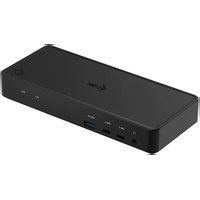
C31DUALKVMDOCKPD - Docking station i-TEC - Free user manual and instructions
Find the device manual for free C31DUALKVMDOCKPD i-TEC in PDF.


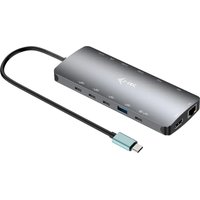
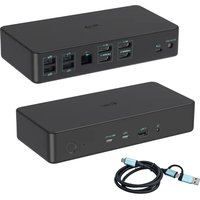
| Product type | Docking station |
| Brand | i-TEC |
| Model | C31DUALKVMDOCKPD |
| Dimensions | 185 x 79 x 28 mm |
| Weight | 265 g |
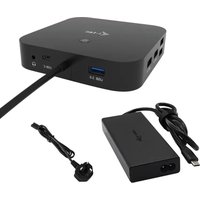
| Power supply | Input 20V/6A (power adapter included) |
| Host ports | 2x USB-C (USB4/Thunderbolt 3/4) with Power Delivery (PC1: 100W, PC2: 65W) |
| Video outputs | 1x DisplayPort, 1x HDMI (up to 4K/60Hz single, 2560x1440/60Hz dual with DisplayPort 1.4) |
| USB ports | 2x USB 3.2 Gen 1, 1x USB 3.2 Gen 1 with fast charging (BC 1.2), 2x USB-C 3.2 Gen 1 with fast charging, 1x USB-C power only |
| Network | 1x RJ-45 Gigabit Ethernet (ASIX AX88179) |
| Audio | 1x 3.5mm combo jack (headphone/mic) |
| Special function | 3.5mm jack for external switch (on/off and PC switching) |
| Built-in button | Front button to turn on/off and switch between PC1/PC2 |
| Security | Kensington lock support |
| Operating systems | Windows 10, 11, macOS, Android, Chrome OS, Linux, iPadOS |
| Maintenance and cleaning | Clean with a soft, dry cloth. Do not use solvents. |
| Usage safety | Avoid extreme temperatures and humidity. |
Frequently Asked Questions - C31DUALKVMDOCKPD i-TEC
User questions about C31DUALKVMDOCKPD i-TEC
0 question about this device. Answer the ones you know or ask your own.
Ask a new question about this device
Download the instructions for your Docking station in PDF format for free! Find your manual C31DUALKVMDOCKPD - i-TEC and take your electronic device back in hand. On this page are published all the documents necessary for the use of your device. C31DUALKVMDOCKPD by i-TEC.
USER MANUAL C31DUALKVMDOCKPD i-TEC
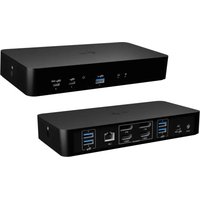
USB-C KVM Dual Display Docking Station with Power Delivery
2x USB-C 3.2 Gen. 1 / 1x USB-A 3.0 Gen. 1 (BC 1.2) / 2x USB-A 3. Gen. 1
1x HDMI / 1x DisplayPort / 1x Gigabit LAN / 1x Audio/Mic Jack
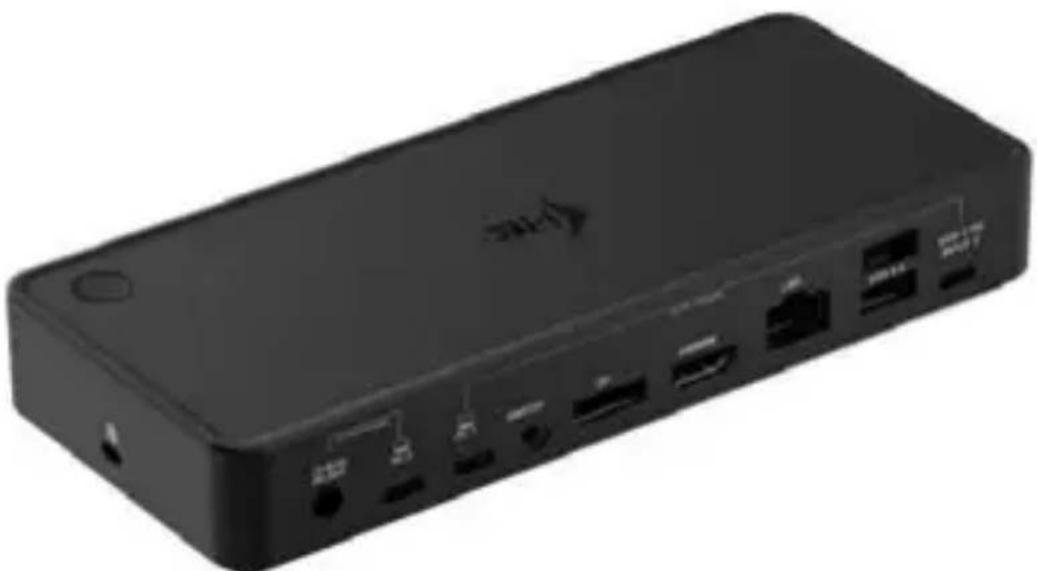
User guide · Gebrauchsanweisung · Mode d'emploi Manual de instrucciones · Manuale · Uživotelská príručka Instrukcje obstugi · Uživotelská príručka · Vartotojo vadovas Handleiding
P/N: C31DUALKVMDOCKPD
EN
Please read the entire instruction manual carefully. Detailed manual is available on our website www.i-tec.pro/en/ in the tab „Manuals, drivers". In case of any issues, please contact our technical support at: support@itecproduct.com
DE
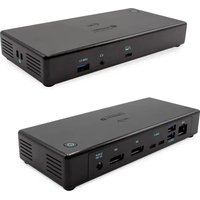
USB-C Dual Display Docking Station with Power Delivery
ENGLISH 06-23
DEUTsCH 24-41
FRANÇAIS 42-59
ESPANOL. 60-77
ITALIANO 78-95
CESKY 96-113
POLSKI 114-131
SLOVENSKY 132-149
LIETUVOS. 150-167
NEDERLANDS. 168-185
WEEE. 186-187
Declaration of Conformity. 188-189
FCC. 190

www.i-tec.pro/en
GLOSSARY OF TERMS
- Interface / port / connector / input / slot - the place where two devices are physically connected.
- Controller- a semiconductor component (called a chipset) in a notebook/tablet that ensures the operation of one of the ports.
- USB-C / USB Type-C - is a new symmetrical connector and standard introduced by USB-IF in its USB 3.1 specification. Windows 10 (Microsoft), macOS X (Apple) and Chrome OS and Android (Google) introduced native support for this connector. It enables faster charging, power, so-called dual-role (not only host but also guest), support for so-called alternative modes - Alt Mode (DisplayPort, MHL, Thunderbolt 3, Power Delivery) and error notification via the device Billboard.
- USB 3.2/USB 3.1/3.0/2.0 - standard for USB interface/port for connecting various USB devices. Various USB devices can be connected to the docking station or adapter using the USB Type-A interface. The USB Type B port is used to connect the dock or adapter to a laptop/tablet.
- HDMI/Display Port - A standard for a digital graphics interface/port used to connect monitors and other graphic display devices.
- LAN (Local Area Network) - local computer network, now the most common is the so-called Ethernet, which reaches a theoretical transfer rate of up to 1 Gbit/s at the docking station - the designation GLAN / RJ-45.
- Audio - a term for an audio input (microphone) or output device (headphones/speakers).
- Switch Jack- Designation of the port/jack for connecting a special button.
CONNECTING A SPECIAL BUTTON TO THE DOCKING STATION:
- Connect the 3.5mm jack to the 3.5mm port on the back of the dock
IN CASE OF A PROBLEM WITH THE BUTTON CONNECTION:
- Make sure the button is connected correctly (don't be afraid to use a lot of force, the button must be pushed in to the stop)
In some cases it is necessary to rotate the jack to the correct position. - If the button is inserted correctly, the input can be changed with this button, or the docking station can be switched off and on with this button.
DOCKING STATION SPECIAL BUTTON FUNCTION:
An external button connected to the rear 3.5mm switch port/jack can be used to:
- To turn the docking station off and on (by long pressing the button).
- Switching between inputs PC1 and PC2 (by short press of a button).
THE FUNCTION BUTTON ON THE TOP OF THE DOCKING STATION:
The button on the top of the docking station can be used to:
- To turn the docking station off and on (by long pressing the button).
- Switching between inputs PC1 and PC2 (by short press of a button).
SPECIFICATIONS
- 2x USB-C port for connection to a laptop or device with USB-C, USB4 or Thunderbolt™ 3/4
- Power: PC1 port - up to 100W (additional USB-C power adapter is required to power through this port)
PC2 port - up to 65W - Docking station technology: USB-C (MST)
- Video ports: 1x DisplayPort, 1x HDMI
Resolution :
- USB-C/USB4/Thunderbolt™ 3/4 with DisplayPort 1.4 support without DSC support
- 1 monitor - 1x DP or 1x HDMI - up to 4K/60Hz
- 2 monitors - 1x DP + 1x HDMI - up to 2x 2560×1440/60Hz
- USB-C/USB4/Thunderbolt™ 3/4 with DisplayPort 1.2 support
- 1 monitor - 1x DP or 1x HDMI - up to 4K/30Hz
- 2 monitors - 1x DP + 1x HDMI - up to 2x 1920×1080/60Hz
- 2x USB 3.2 Gen 1 (5Gbps)
- 1x USB 3.2 Gen 1 (5Gbps) with fast charging support (BC 1.2)
- 1x USB-C power only (power pass-through for PC1 port)
- 2x USB-C 3.2 Gen 1 (5Gbps) with fast charging support (BC 1.2)
- 1x Ethernet GLAN RJ-45 port (ASIX AX88179)
- 1x 3.5mm audio combo jack
- 1x 3.5mm switch jack to connect a special external switch (this button can be used to turn the docking station on and off and to switch the input between PC1 and PC2)
- 1x power input (20V/6A)
- Power button to turn the docking station on/off and switch between inputs
- LED indication (indicating active input and docking station power on)
- Kensington lock support
- USB-C cable (100 cm)
- OS: Windows 10, 11, macOS, Android, Chrome OS, Linux and iPadOS
- Product dimensions 185 × 79 × 28 mm
Product weight: 265g
DESCRIPTION
Front panel:
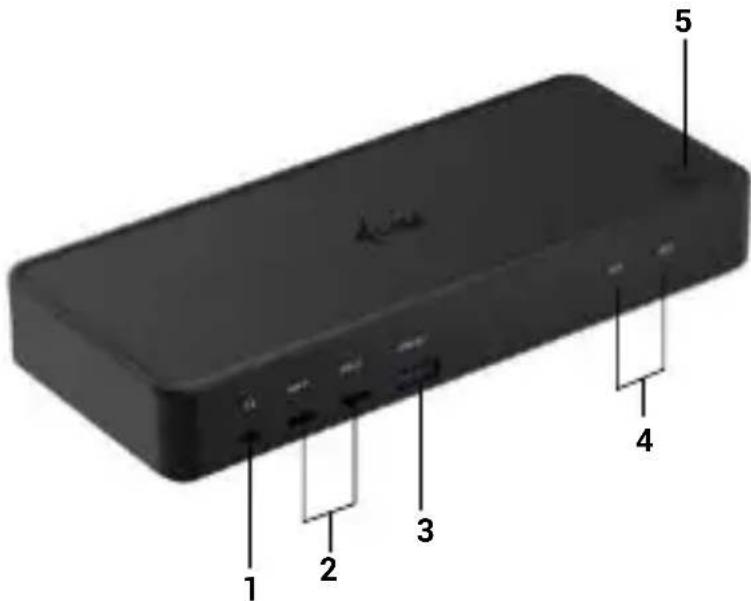
1 3.5mm combo jack
2 2x USB-C 3.2 Gen 1
3 USB 3.2 Gen 1 with fast charging support (BC 1.2)
4 Led indication
5 Button to turn the docking station on and off or to switch between PC1 and PC2 inputs
i-tec USB-C Dual DP Display Dock with PD 65W/100W
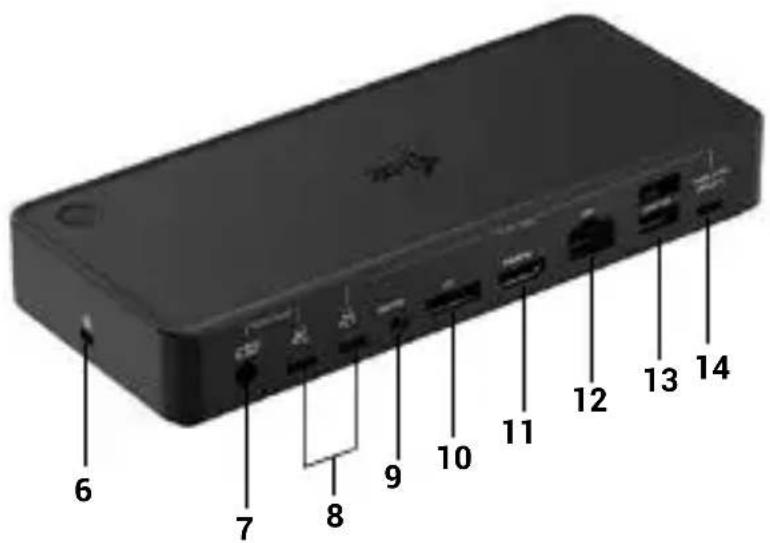
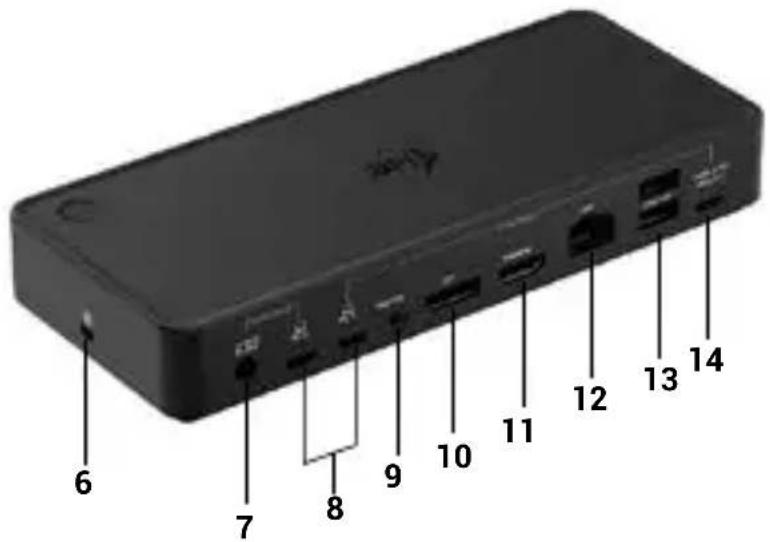
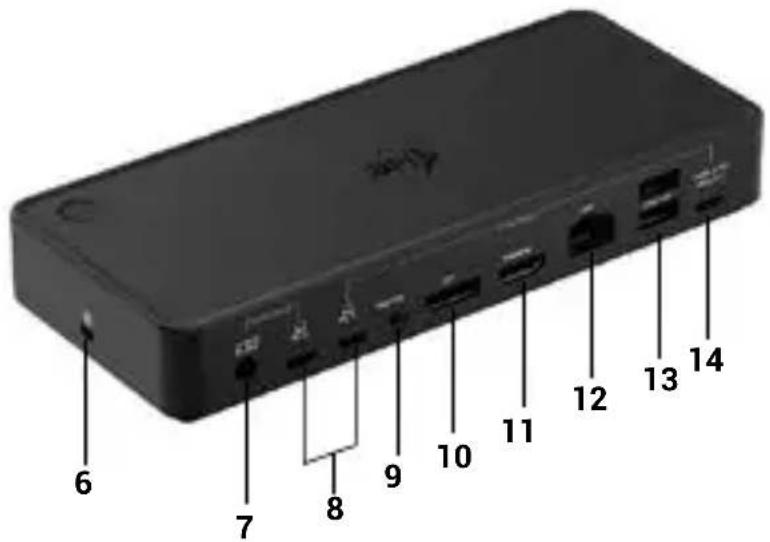
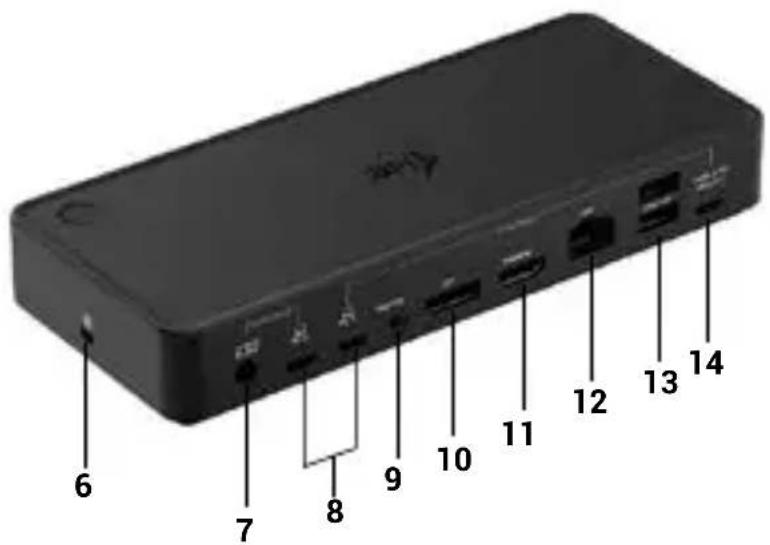
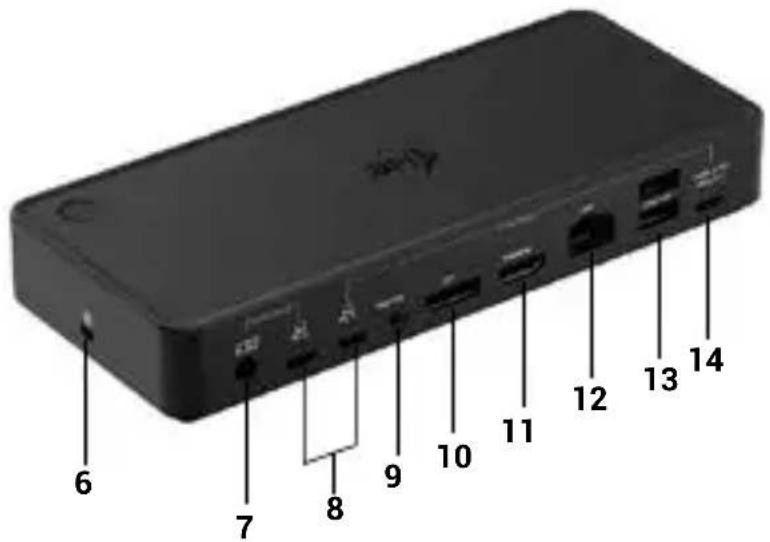
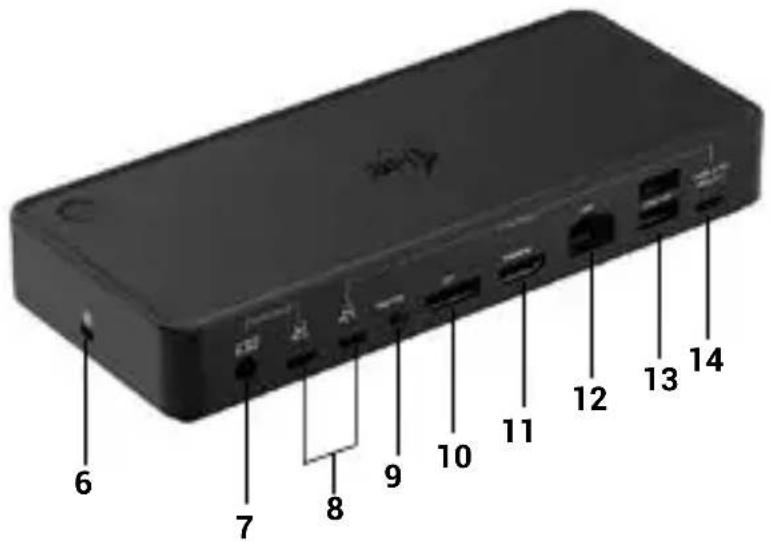
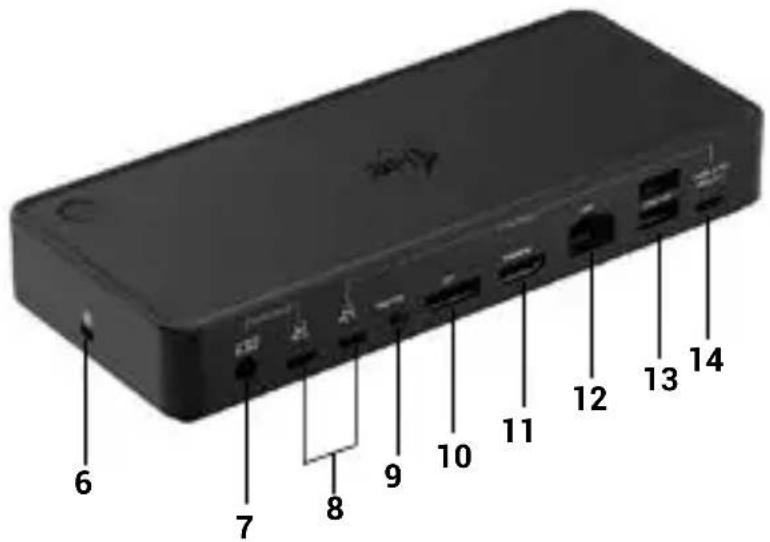
Back panel:
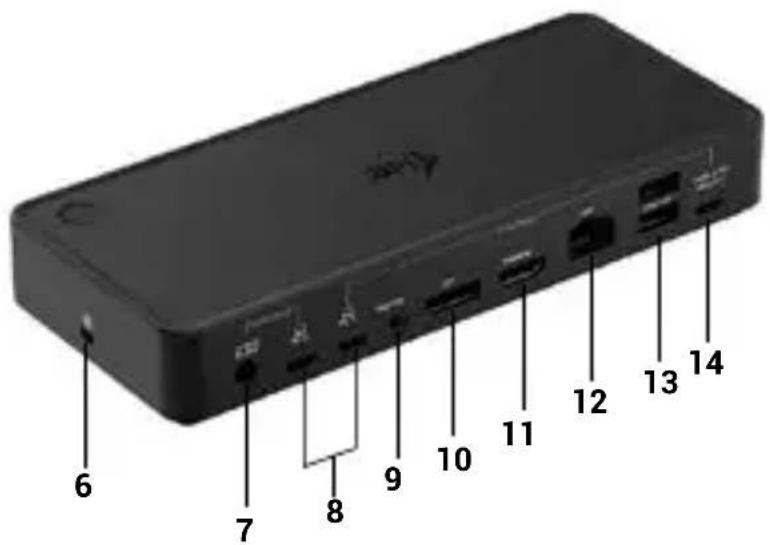
- Kensington lock
- Power input (20V/6A)
- 2x USB-C port for connection to laptops or devices with USB-C, USB4 or Thunderbolt™ 3/4
- 3.5mm switch jack to connect a special external switch (this button can be used to turn the docking station on and off and to switch the input between PC1 and PC2)
- 1x DisplayPort
- 1xHDMI
- GLAN RJ-45 Port (ASIX AX88179)
- 2x USB 3.2 Gen 1
- USB-C Power delivery passthrough port to power the connected device in the PC1 port
SYSTEM REQUIREMENTS
Hardware requirements:
Hardware requirements:
Devices with a free USB-C, USB4 or Thunderbolt™ 3/4 port
Power Delivery requirements:
Devices with a free USB-C, USB4 or Thunderbolt™ 3/4 port with „Power Delivery“ support.
Video output requirements:
Devices with a free USB-C port, USB4 with „DisplayPort Alternate Mode" support, or Thunderbolt™ 3/4 port
Operating system:
- Windows 10, 11, macOS, Android, ChromeOS, Linux and iPadOS.
INSTALLING DRIVERS IN WINDOWS 10/11
WARNING! If you do not install the ASIX drivers, the RJ-45 (Ethernet) may not work on your device.
For Windows, download the drivers from our website www.i-tec.cz/setup under the "Download" tab for this product. Start the installation from the downloaded file (asix), select the installation language and follow the on-screen instructions.
In Windows 10/ 11, install drivers as the "Administrator" user.
The screen may flicker during driver installation, this is a standard process. We recommend restarting your laptop/tablet after the installation is complete.
HARDWARE INSTALLATION (CONNECTING THE DOCKING STATION
1) Turn on your laptop/tablet and connect the power adapter to the docking station.
2) (Optional) Plug the dedicated switch button into the rear 3.5mm switch port. (This button can be used to turn the docking station on and off, switch between PC1 and PC2 inputs)
3) Plug the power adapter of the docking station into the AC 110 V / 230 V mains and hold the ON button.
4) Plug the USB-C cable into the USB-C port on the back panel of the dock
5) Plug the other end into an available USB-C or Thunderbolt™ 3/4 port on your device.
6) The automatic installation of ports on each system is then initiated.
7) After the installation is complete, restart your laptop/tablet.
In Windows, the LAN port appears in Start → Control Panel (View Small Icons) → Device Manager → Network Adapters as "ASIX USB Ethernet". Audio ports can be found in Start → Control Panel (View Small Icons) → Device Manager → Audio, Video and Game Controllers as "USB Audio".
If one of these devices is marked with a yellow "!" or "? ", then the docking station is not installed correctly. In this case, disconnect the docking station, uninstall the existing drivers (see the section „Uninstalling Drivers“) and reinstall the latest drivers, which are available for download on our website www.i-tec.pro/en under the „Download“ tab for this product. Then reconnect the docking station to the laptop/tablet. In case of problems, you can contact our technical support: support@itecproduct.com.
INSTALLING DRIVERS ON MAC OS X
WARNING! If you do not install the ASIX driver, the RJ-45 (Ethernet) may not work on your macOS device.
Download the drivers from our website www.i-tec.cz/setup under the "Download" tab for this product and start the installation of: driver ASIX 88179
HARDWARE INSTALLATION (CONNECTING THE DOCKING STATION TO THE MACBOOK)
1) Turn on your MacBook and connect the power adapter to the dock.
2) (Optional) Plug the dedicated switch button into the rear 3.5mm switch port. (This button can be used to turn the docking station on and off, switch between PC1 and PC2 inputs)
3) Plug the power adapter of the docking station into the AC 110 V / 230 V mains and press the ON button.
4) Plug the USB-C cable into the USB-C port on the back panel of the dock.
5) Plug the other end into a free USB-C or Thunderbolt™ 3/4 port on your device.
6) The automatic installation of the ports will then begin.
7) After the installation is complete, restart your MacBook.
These are available for download on our website under the „Download“ tab for this product or here: www.i-tec.cz/setup
i-tec USB-C Dual DP Display Dock with PD 65W/100W
HDMI / DISPLAY PORT monitor connection
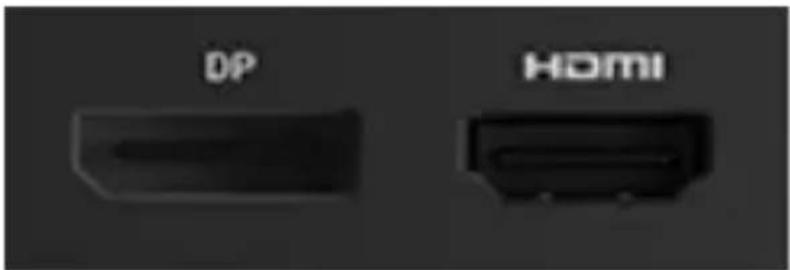
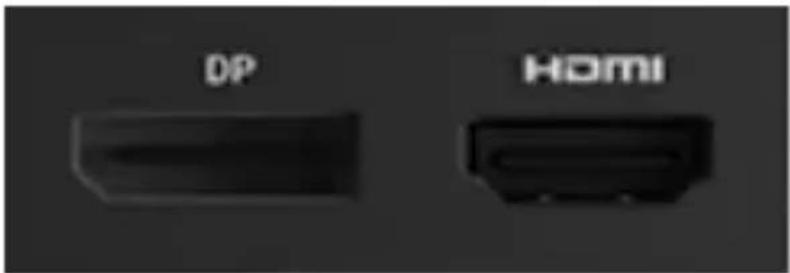
Use an HDMI/DP cable to connect the monitor to the docking station. During installation of the additional monitor, the monitor on the laptop/ tablet may flicker, which is a standard condition. The docking station offers the following graphic interfaces: 1x HDMI , 1x DisplayPort
USING THE DOCKING STATION IN OS WINDOWS
Ad a) Sound settings - allows you to set the sound (the settings are similar to Control Panel → Sound). For use, select 2-channel headphones and a microphone with a 3.5mm jack. In audio devices, set "USB Audio" as the default input and output device.

Sound settings
This can then be used to set up e.g. Skype.
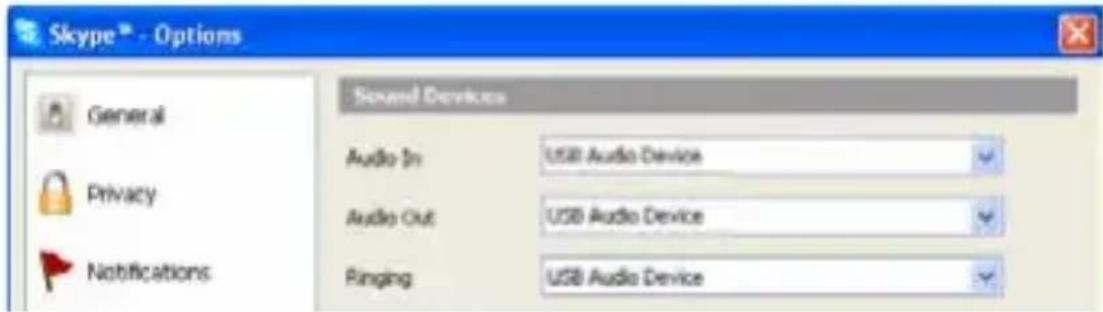
Audio settings for Skype
Ad b) Advanced Configuration - click to display the settings for Display Resolution from Windows.
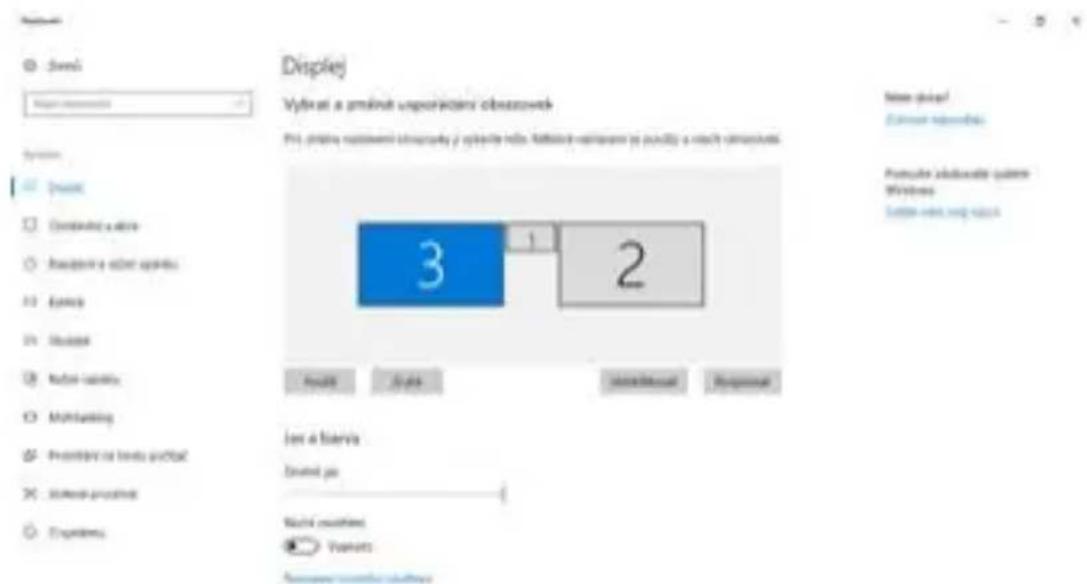
Display resolution in Windows 10/11
Now you can make the Extend and Mirror/Duplicate settings:
- Extend mode: on the screen, select Multiple monitors → Extend this view → OK.
- Mirror / Duplicate mode: on the screen, select Multiple monitors → Duplicate this view on the two monitors of your choice* → OK.
*Windows can duplicate an image on up to two monitors. The others must be either disabled or Extend
i-tec USB-C Dual DP Display Dock with PD 65W/100W
Check the "Set this monitor as main" box to select the additional monitor as the main monitor.
Click and drag the second monitor to position it relative to the original monitor on your laptop/tablet as needed.
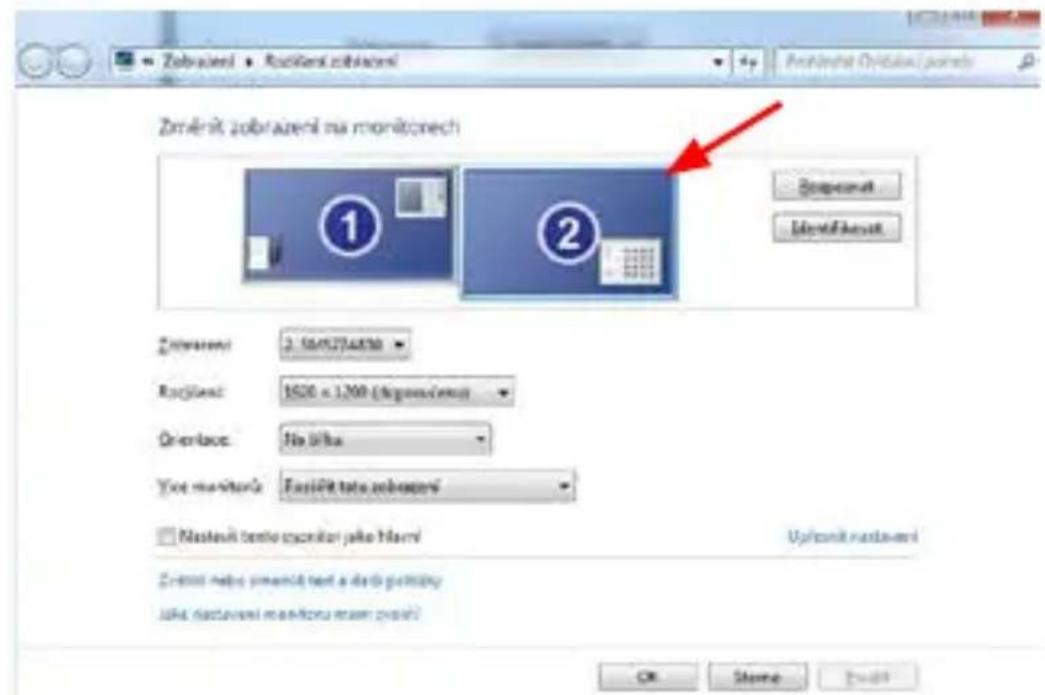
Placement of one additional monitor in relation to the original laptop/tablet monitor
Standby / Hibernate mode and Video port - after activating the laptop/ tablet from Standby / Hibernate mode, the primary (original) monitor is displayed, so we recommend using the one integrated with the laptop/tablet as the primary monitor to log back into the system.
Mirror mode - the additional monitor is governed by the parameters of the original monitor in the system, i.e. if you set the Mirror mode and the original monitor has a resolution of 1280x1024, then the screen is transferred to the additional monitor at a maximum resolution of 1280x1024, even if you set it to a higher resolution.
Quick Start
You can also easily control the monitors using the keyboard option "Windows" + P (this keyboard shortcut is only functional from Windows 7 onwards).
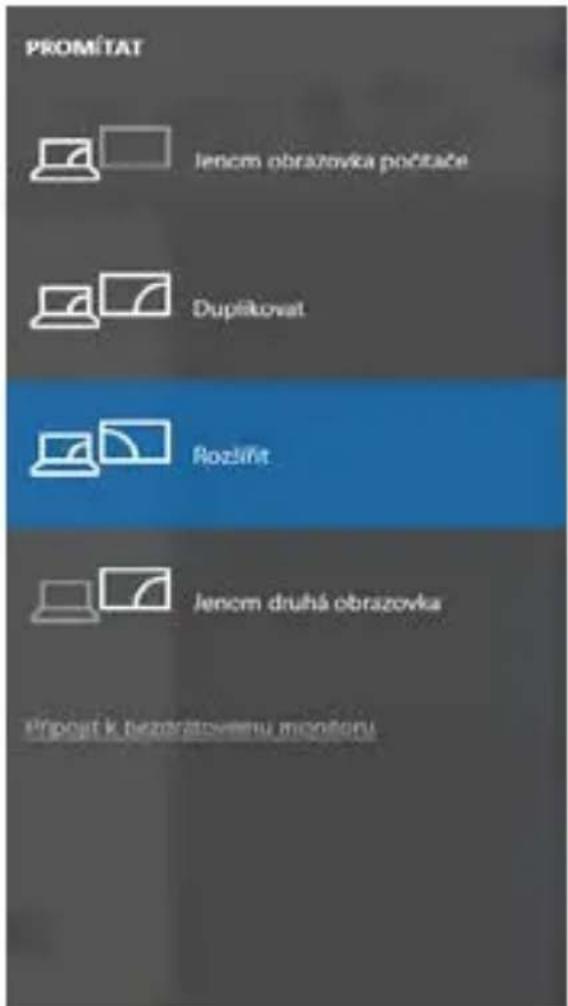
Controlling the monitor in Windows 10/11
USING THE DOCKING STATION IN MAC OS
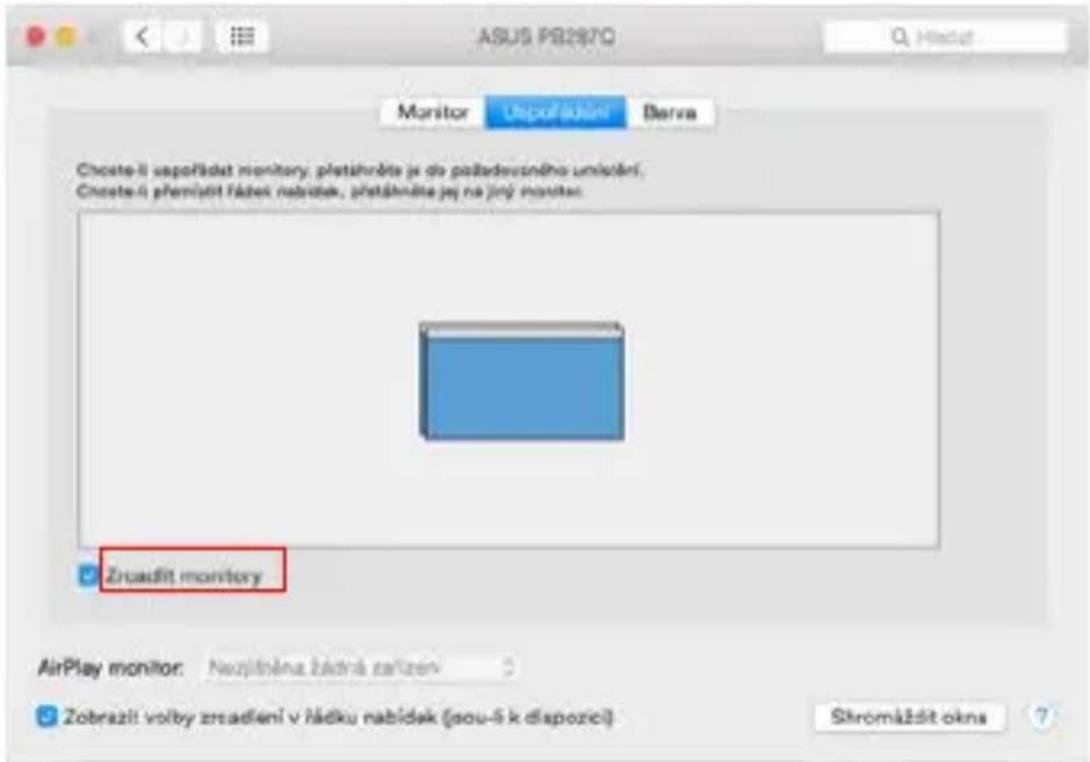
When you connect the monitor, the screen on your Mac will flicker, which is a standard condition. Once it has stabilized, you can make adjustments here: System Preferences-Monitors:
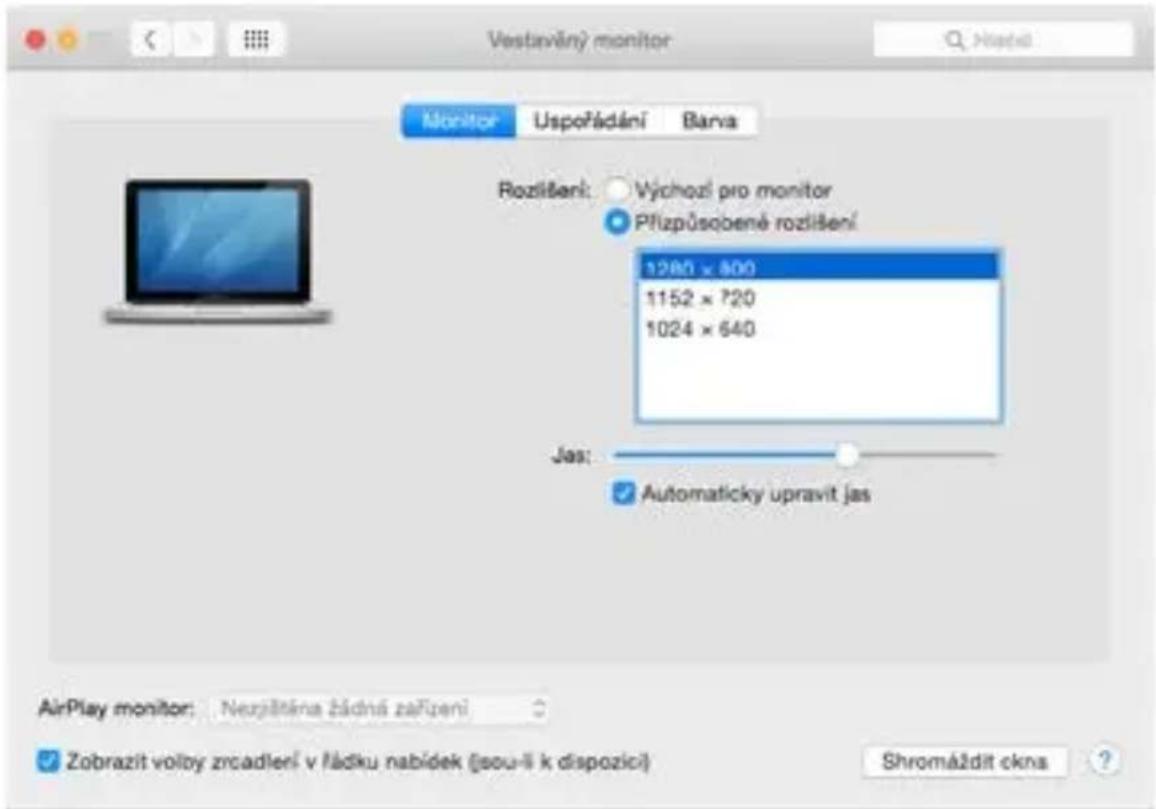
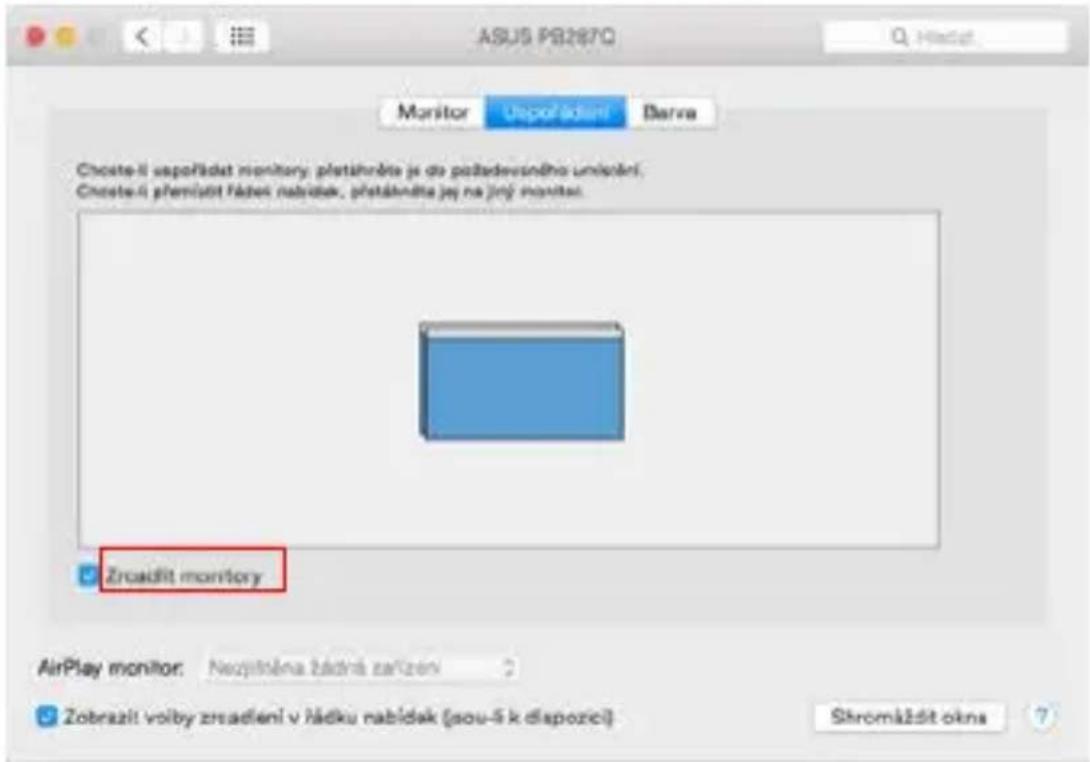
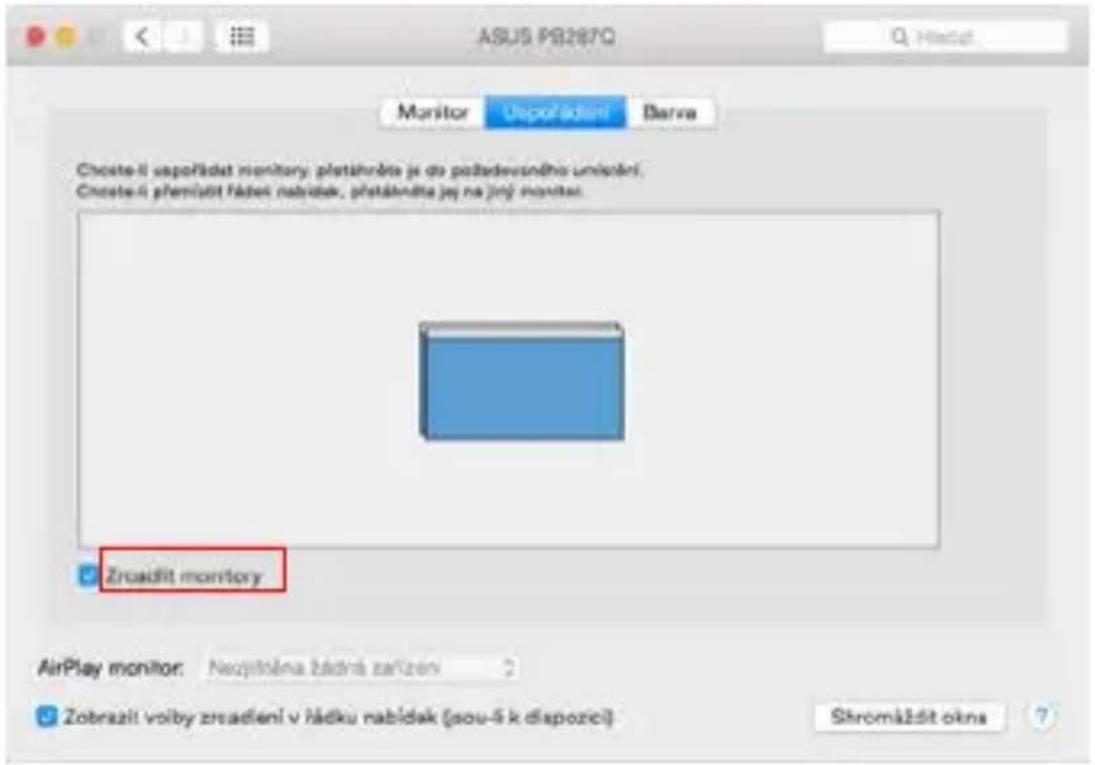
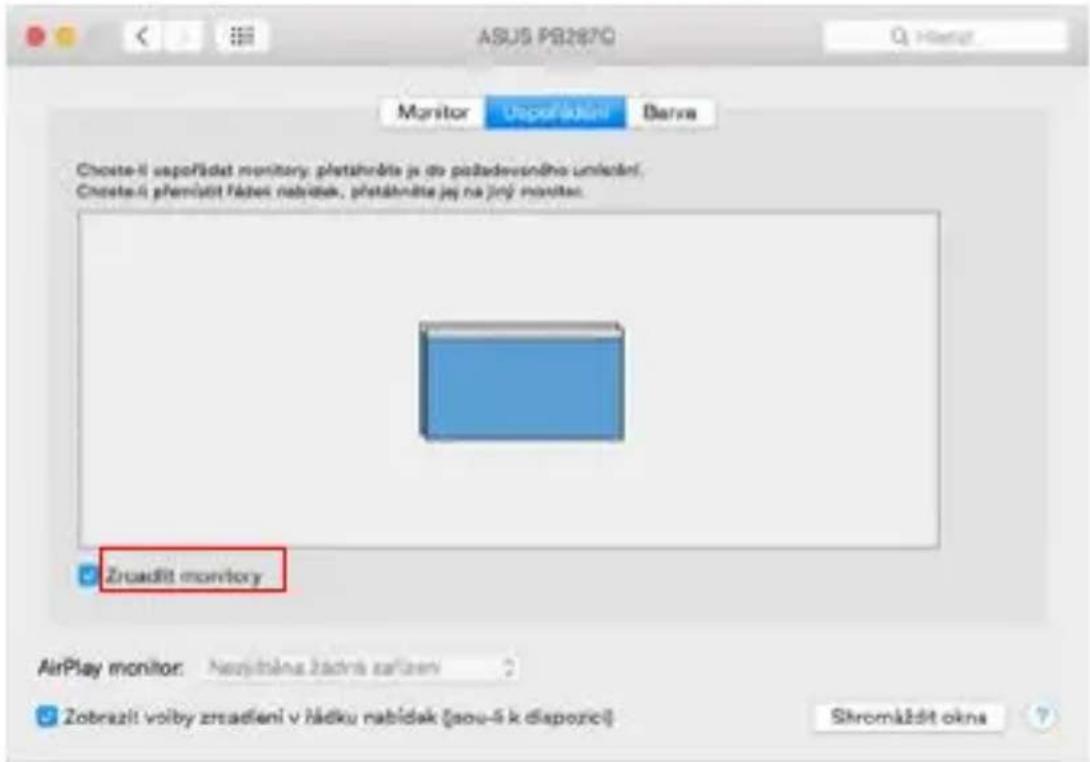
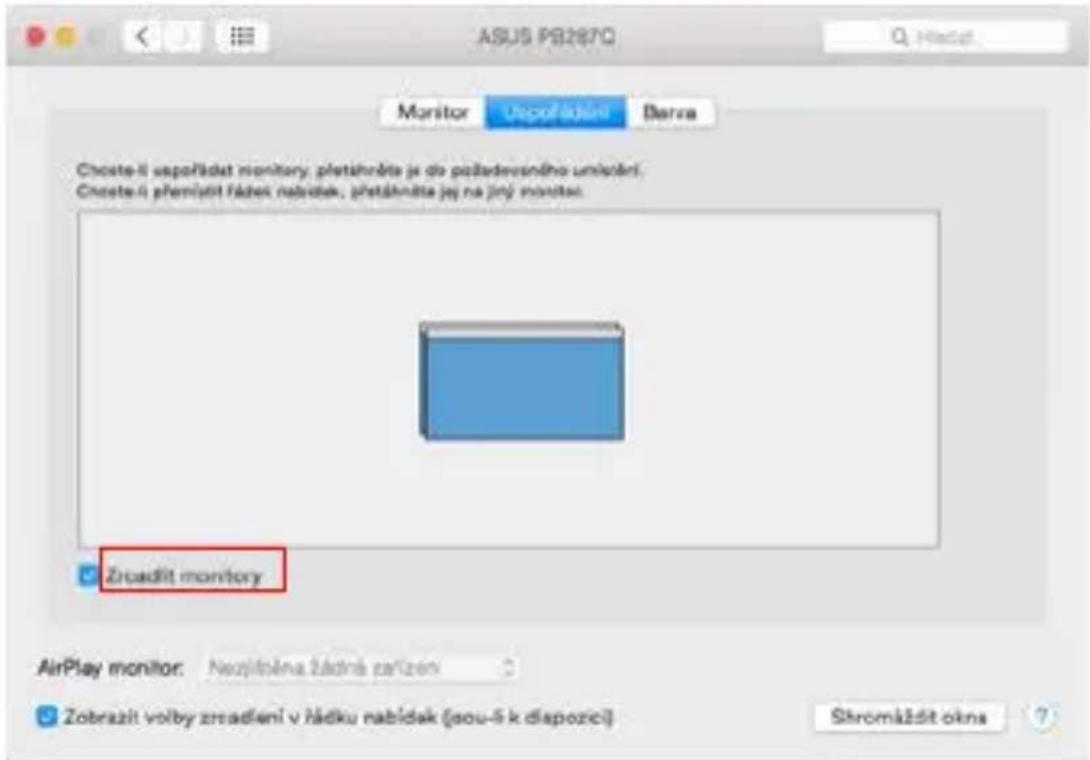
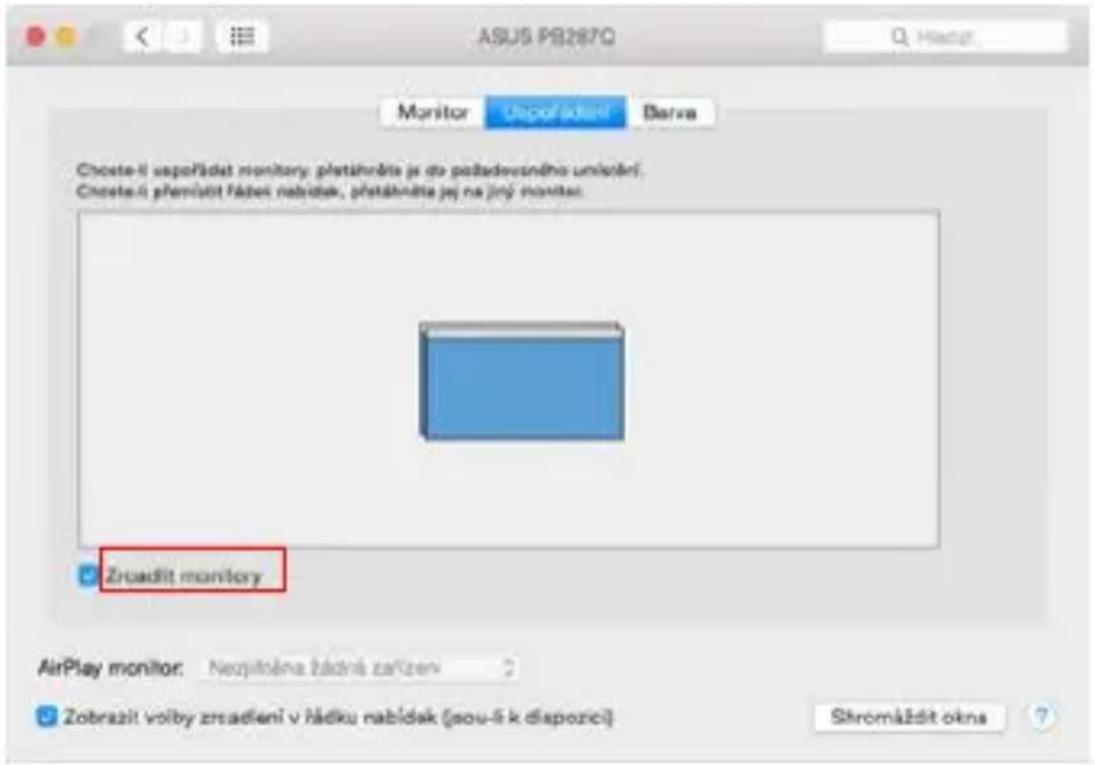
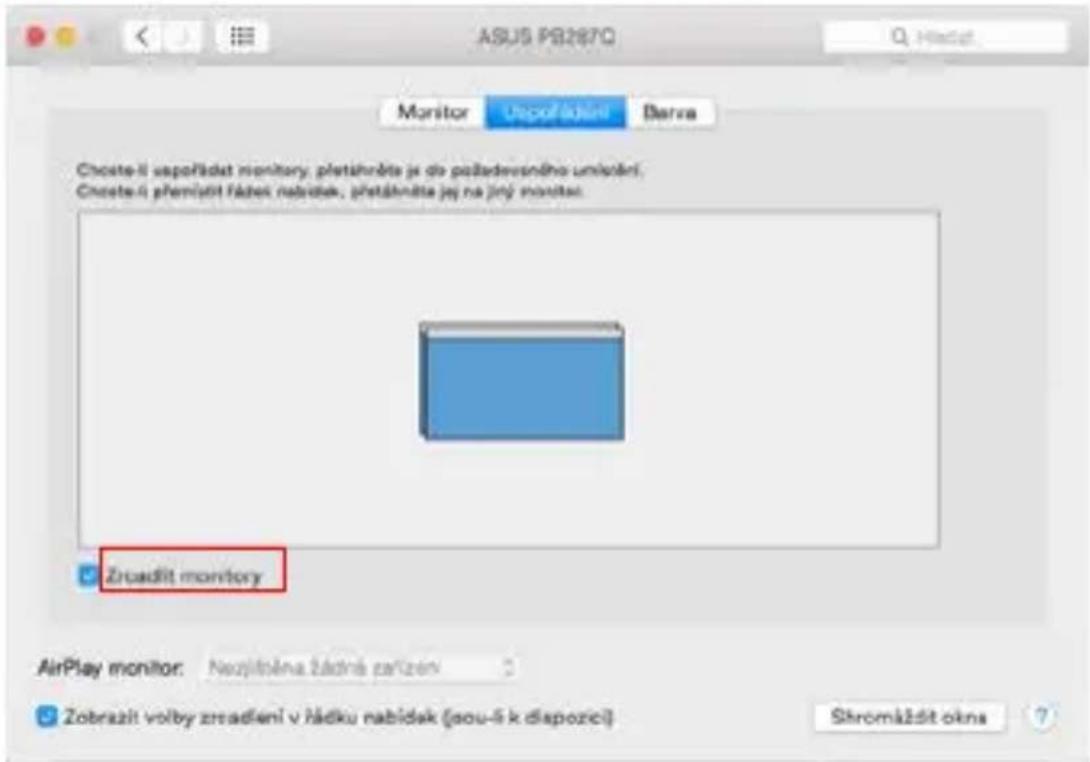
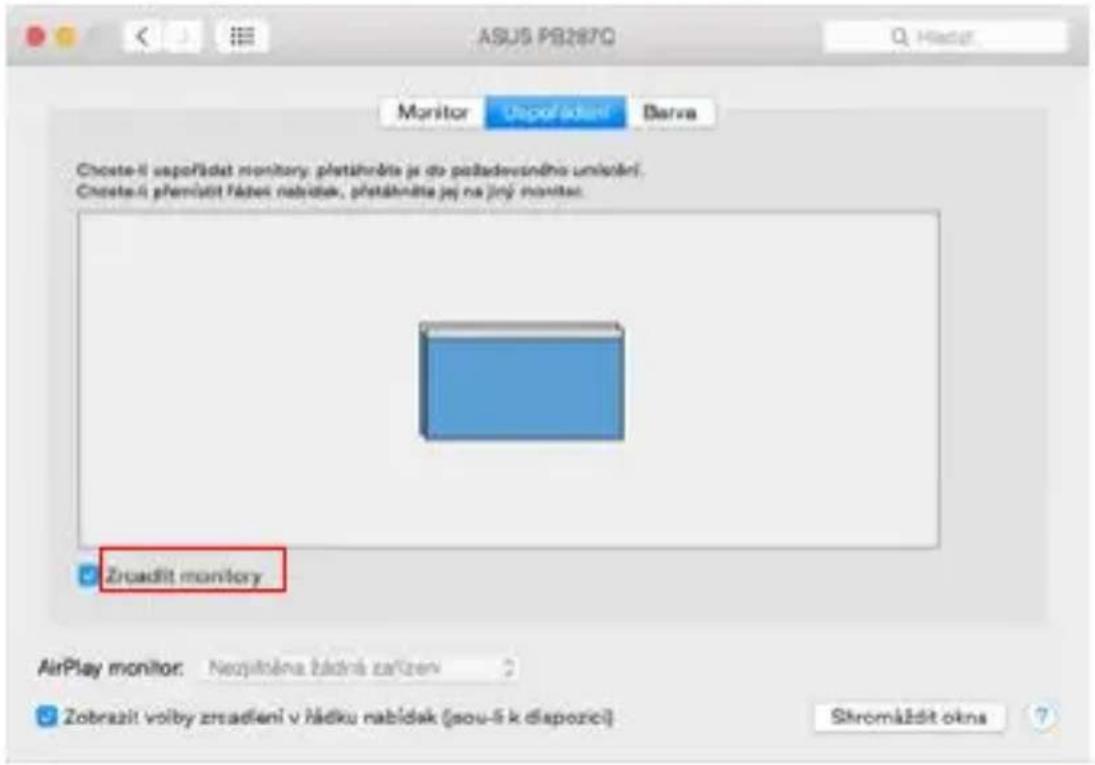
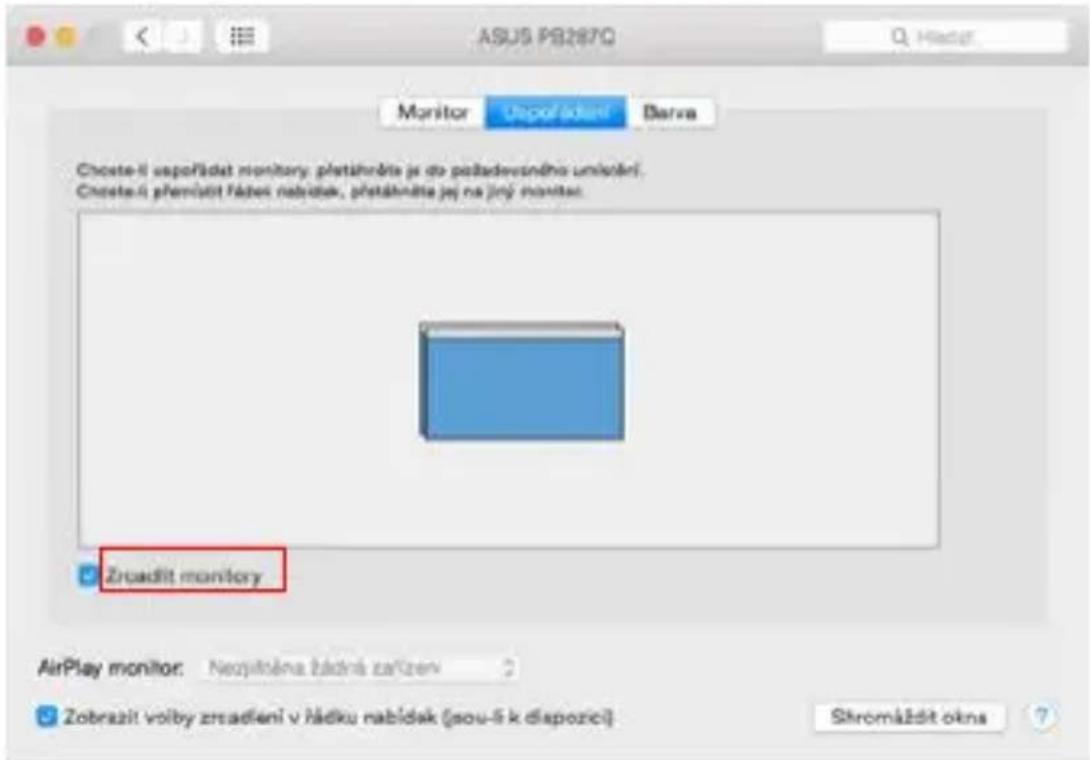
In the Layout tab and in the default mode (Expand), click and drag the new monitor as needed relative to the Mac's monitor. Selecting Mirror Monitors will change the mode to Mirror (the resolution of the monitors will automatically adjust to their parameters, setting the highest resolution possible on both monitors). Deselect Mirror Monitors to restore the Expand mode.
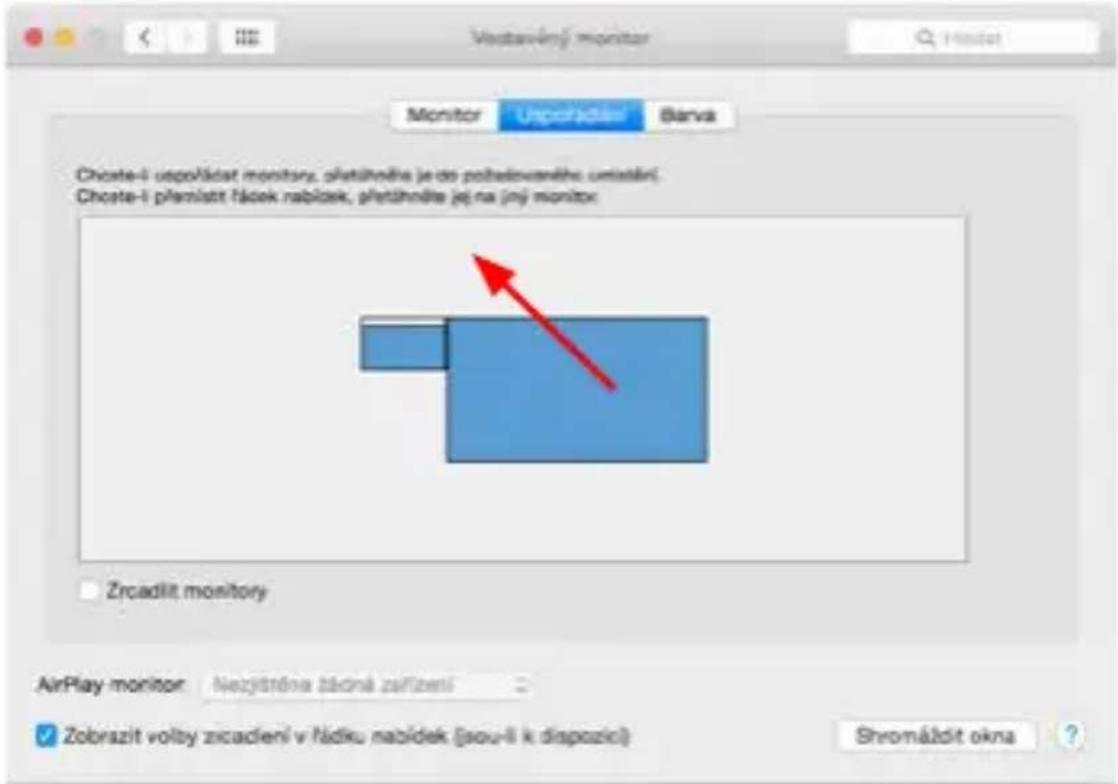
Extend mode: The arrow indicates the possibility of positioning the connected monitor relative to the Mac monitor.
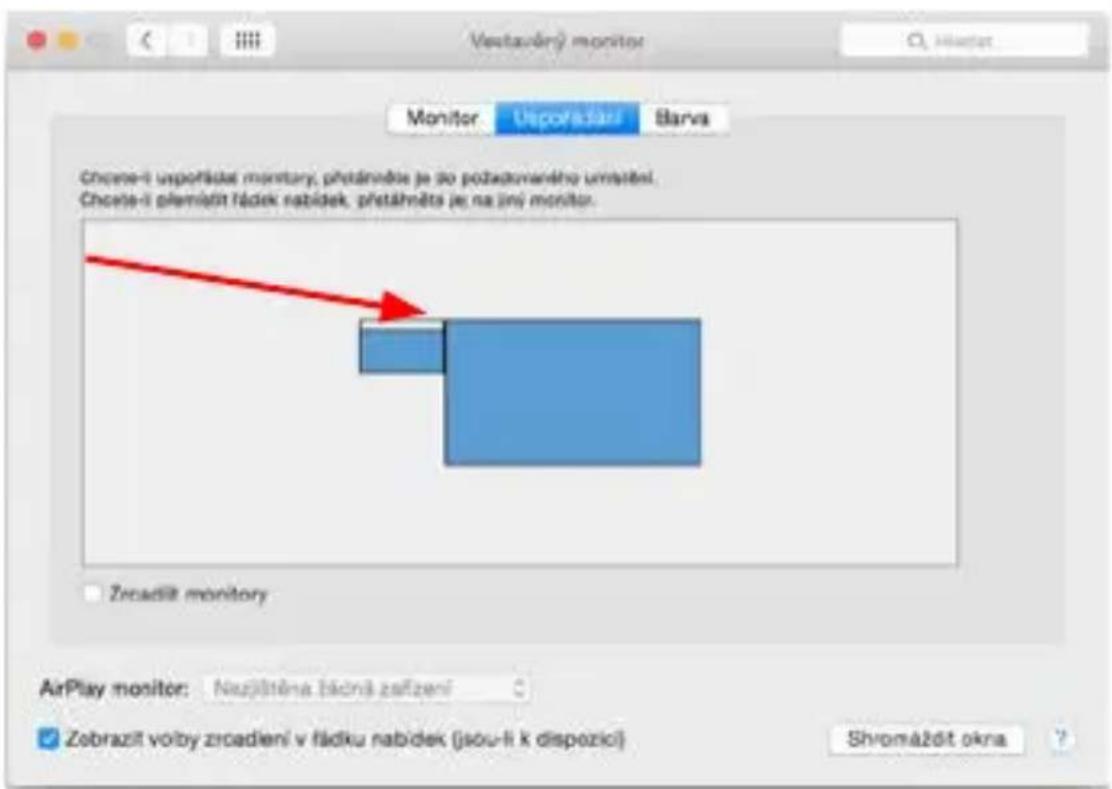
Extend mode: In this mode, you can select the Main Monitor by dragging the Menu Bar.
i-tec USB-C Dual DP Display Dock with PD 65W/100W
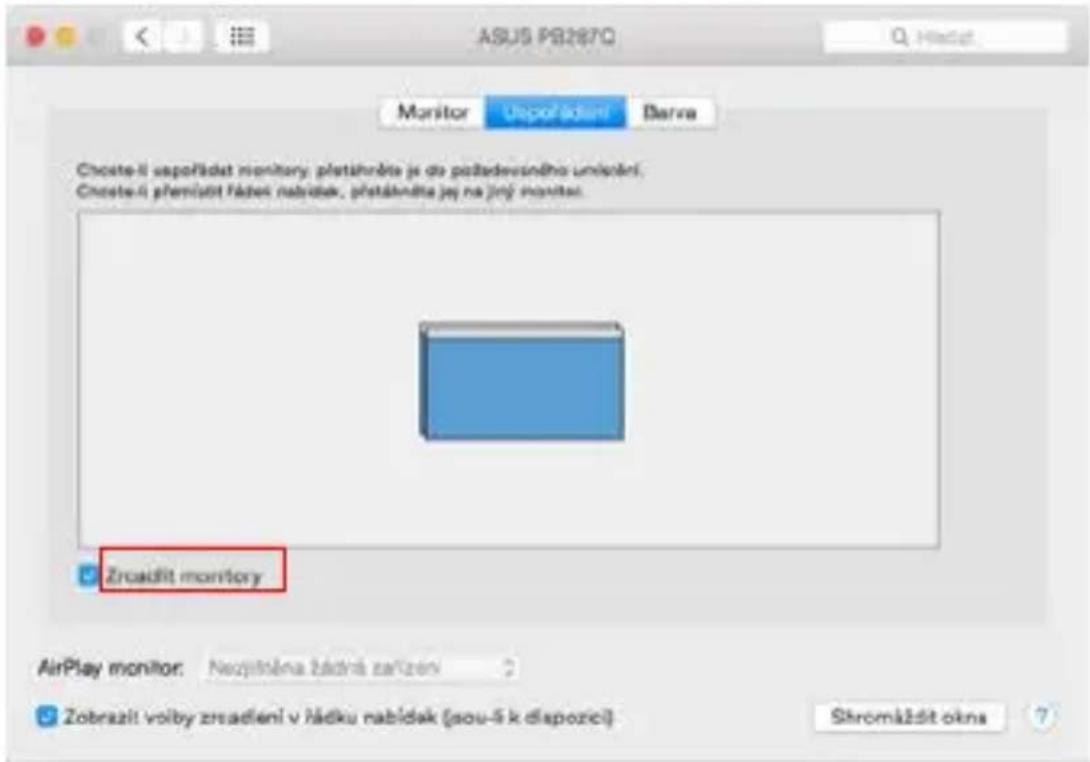
Mirror mode: can only be used if it is offered by Mac.
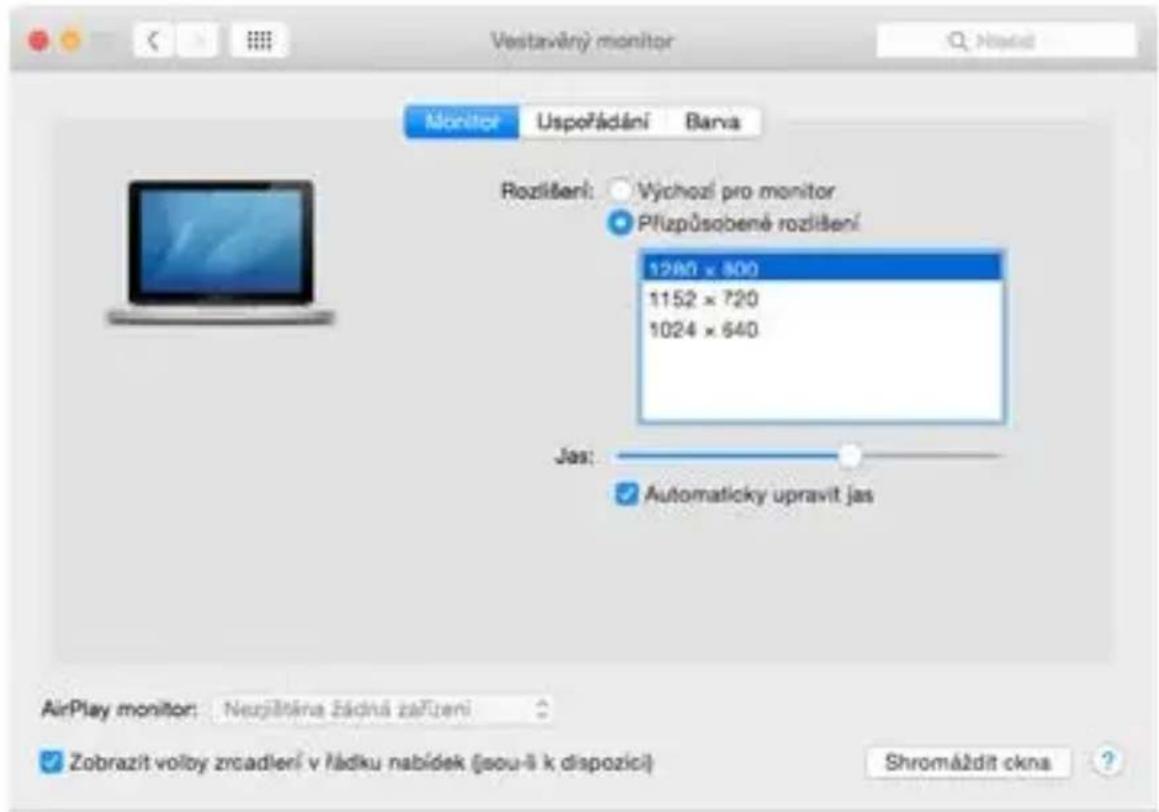
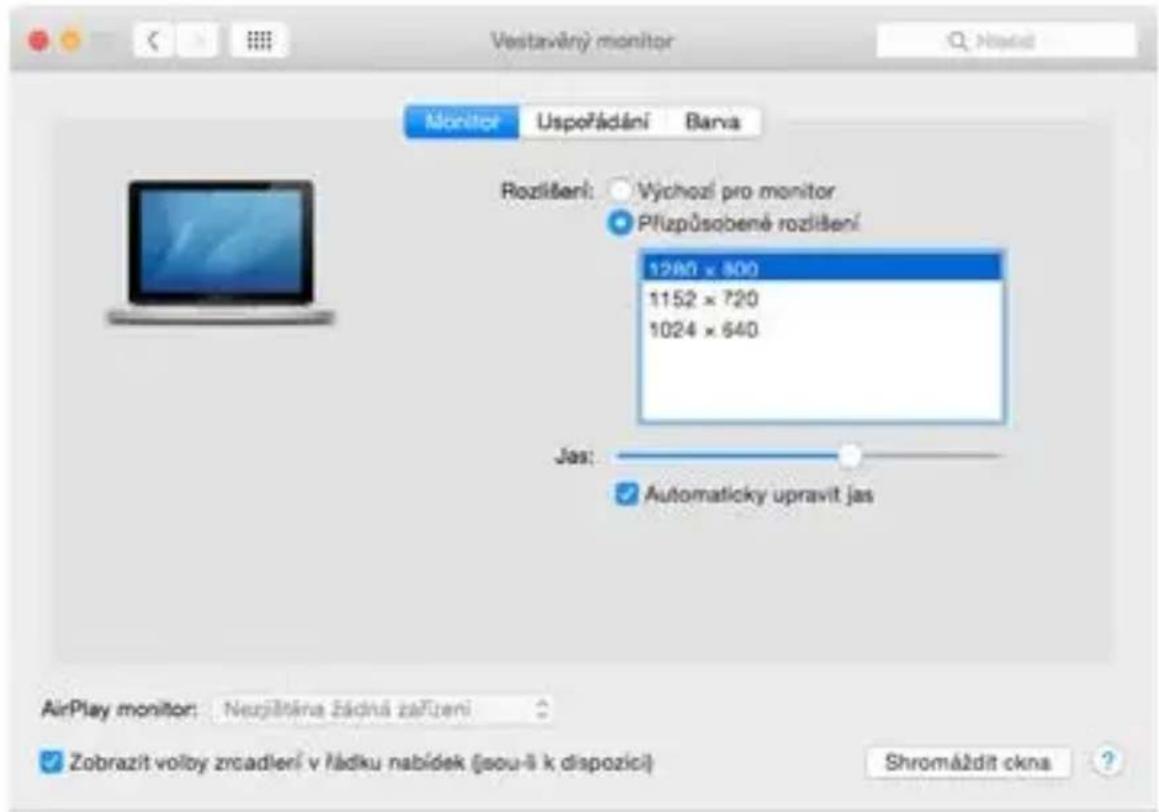
By selecting Gather Windows, you can choose the settings for the corresponding monitor - Customized Resolution (offers usable resolutions), Rotation (Standard, 90° , 180° and 270° ) and Refresh Rate (if offered). Depending on the monitor being used, the following settings are available:
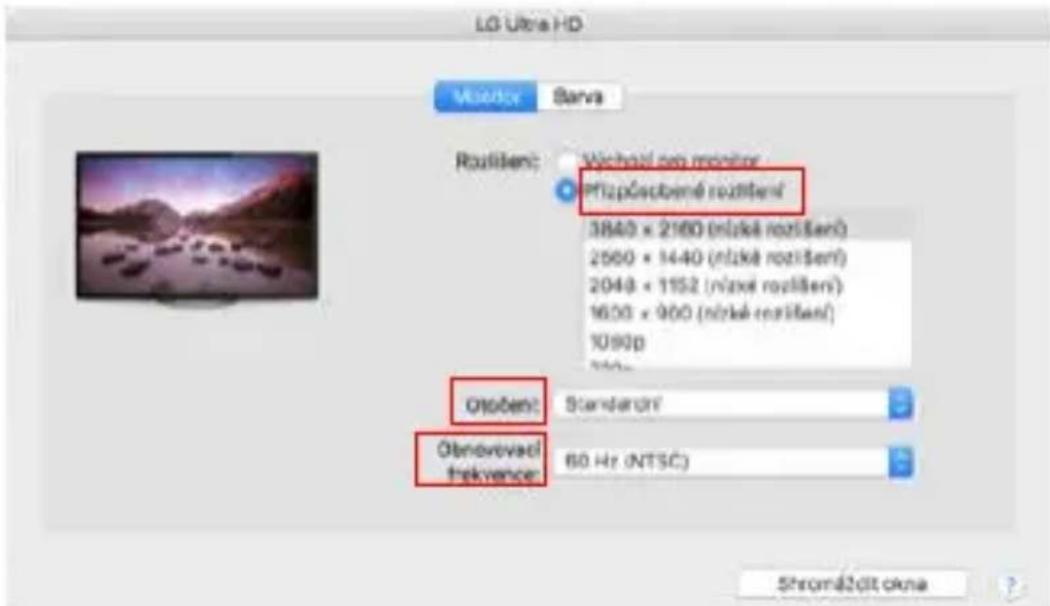
Display variant 1
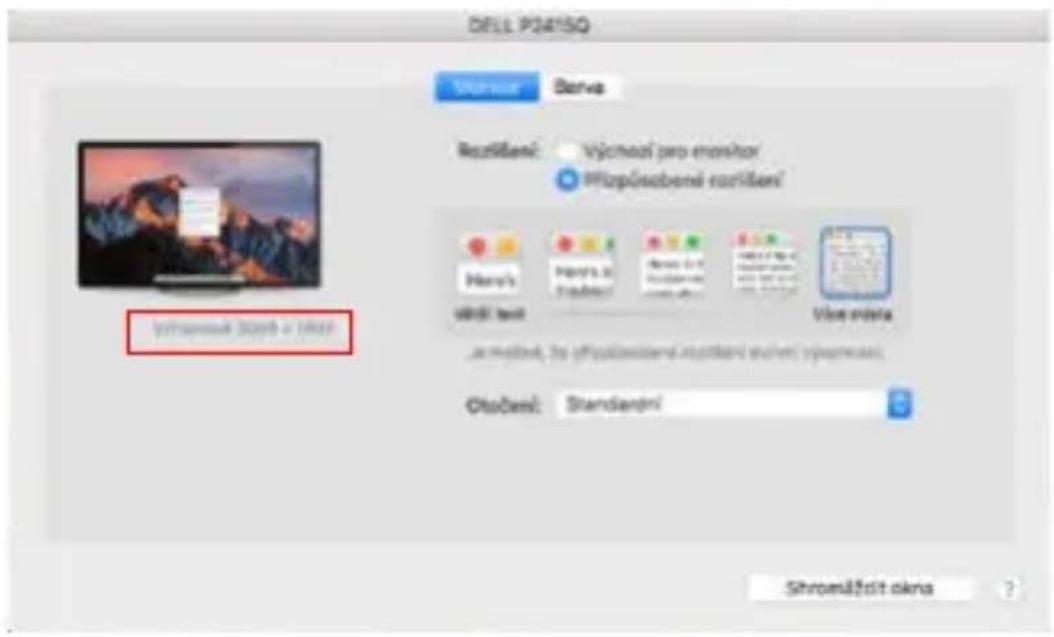
Display variant 2
In Customized mode, click on the icon of your choice, the resolution will be described below the screen (here visually 3008x1692 = 4K@30Hz)
Closed display mode - Working on a connected external monitor when the Mac monitor is tilted is only possible when the Mac is powered on and the mouse and keyboard are connected. More information here:
https://support.apple.com/en-en/HT201834
Most of the problems with screen refresh on the connected monitor after putting the Mac to sleep, after using the screensaver, after restarting the Mac, after turning the Mac off/on can be solved by using the On/Off switch or by disconnecting the dock USB cable from the Mac's USB port and reconnecting it after about 10s. After that, please wait for all peripherals to finish connecting.
OTHER FUNCTIONS
Connecting USB devices - After connecting USB devices to the USB 3.0 port of the docking station (USB external HDD, USB keyboard, USB mouse, USB Hub, USB graphics adapter), these devices are used in the standard way.
- Charging - The docking station supports charging of connected USB mobile devices such as smartphones, e-book readers, media players, navigation devices and tablets. Simply connect the device to be charged with the original cable to the USB port of the docking station.
Audio
The audio output device for listening via the graphic output needs to be set/verified here: System Preferences-Sound-Output - Set USB Audio Device.
The audio output devices for both headphones and monitor can be selected in Open-Applications-Utilities-Audio MIDI.app - click on "+" at the bottom left - Create Multi Output Device and select the desired outputs from the options on Multi Output Device.
Most of the problems with the docking station and connected peripherals can be solved by using the On/Off switch or by disconnecting the USB cable of the docking station from the USB port of the laptop/tablet/Mac and reconnecting it after at least 10 seconds.
SAFETY INSTRUCTIONS FOR USING THE DOCKING STATION
- Do not expose to extreme temperatures and humidity.
- Use the device on flat pads to avoid slipping and falling on the ground.
- Keep the drivers and manual for later use.
In cooperation with the service department:
- Check functionality after falling into water or on the ground.
- Verify functionality when the cover is cracked.
- Complain about the device not working according to the manual.
FREQUENTLY ASKED QUESTIONS
Available on our website www.i-tec.pro/en/ on the „FAQ“ tab of this product.
GLOSSAR DER BEGRIFFE
- To turn the docking station off and on (by long pressing the button.)
- Switching between inputs PC1 and PC2 (by short press of a button.)
SPEZIFKATIONEN
i-tec USB-C Dual DP Display Dock with PD 100 W
HDMI / DISPLAY PORT MONITORANSCHLUSS
i-tec USB-C Dual DP Display Dock with PD 100 W
i-tec USB-C Dual DP Display Dock with PD 100 W
The button on the top of the docking station can be used to:
i-tec USB-C Dual DP Display Dock with PD 100 W
- Technologie de station d'accueil : USB-C (MST)
- Ports video: 1x DisplayPort, 1x HDMI
Résolution :
i-tec USB-C Dual DP Display Dock with PD 100 W
Panneau arrête :
i-tec USB-C Dual DP Display Dock with PD 100 W
CONNEXION MONITEUR HDMI / DISPLAY PORT
i-tec USB-C Dual DP Display Dock with PD 100 W
i-tec USB-C Dual DP Display Dock with PD 100 W
UTILISATION DE LA DOCKING STATION DANS MAC OS
i-tec USB-C Dual DP Display Dock with PD 100 W
The button on the top of the docking station can be used to:
i-tec USB-C Dual DP Display Dock with PD 100 W
i-tec USB-C Dual DP Display Dock with PD 100 W
Paneltrasero:
i-tec USB-C Dual DP Display Dock with PD 100 W
CONEXION DE MONITOR HDMI / DISPLAY PORT
Audio settings for Skype
i-tec USB-C Dual DP Display Dock with PD 100 W
Controlling the monitor in Windows 10/11
i-tec USB-C Dual DP Display Dock with PD 100 W UTILIZANDO EL DOCKING STATION EN MAC OS
i-tec USB-C Dual DP Display Dock with PD 100 W
Multi Output Device.
i-tec USB-C Dual DP Display Dock with PD 100 W
i-tec USB-C Dual DP Display Dock with PD 100 W
COLLEGAMENTO MONITOR HDMI / DISPLAY PORT
i-tec USB-C Dual DP Display Dock with PD 100 W
i-tec USB-C Dual DP Display Dock with PD 100 W
UTILIZZO DI DOCKING STATION IN MAC OS
i-tec USB-C Dual DP Display Dock with PD 100 W
i-tec USB-C Dual DP Display Dock with PD 100 W
ROZLIŠENI:
i-tec USB-C Dual DP Display Dock with PD 100 W
Zadni panel:
- Kensington lock
- Vstup pro napajeni (20V/6A)
- 2x USB-C port pro pripojení k notebookküm nebo zařizením s USB-C, USB4 nebo Thunderbolt™ 3/4
- 3.5mm switch jack k pripojeni specialniho externiho prepinace (toto tlacitko lze vyuzit pro zapnuti a vypnuti dokovaci stanice a pro prepinani vstupu mezi PC1 a PC2)
- 1x DisplayPort
- 1xHDMI
- GLAN RJ-45 Port (ASIX AX88179)
- 2x USB 3.2 Gen 1
- USB-C Power delivery passthrough port k napajeni pripojeného za-rizeni v portu PC1
SYSTÉMOVÉ POŽADAVKY
i-tec USB-C Dual DP Display Dock with PD 100 W
PRIPOJENI HDMI / DISPLAY PORT MONITORU
i-tec USB-C Dual DP Display Dock with PD 100 W
i-tec USB-C Dual DP Display Dock with PD 100 W
POUZITÍ DOKOVACÍ STANICE V MACOS
i-tec USB-C Dual DP Display Dock with PD 100 W
i-tec USB-C Dual DP Display Dock with PD 100 W
OSTATNI FUNKCE
CASTO KLADENE OTÁZKY
i-tec USB-C Dual DP Display Dock with PD 100 W
Panel tylny:
i-tec USB-C Dual DP Display Dock with PD 100 W
HDMI / ZŁACZE MONITORA DISPLAY PORT
i-tec USB-C Dual DP Display Dock with PD 100 W
i-tec USB-C Dual DP Display Dock with PD 100 W
KORZYSTANIE Z PROGRAMU DOCKING STATION W SYSTEMIE MAC OS
i-tec USB-C Dual DP Display Dock with PD 100 W
i-tec USB-C Dual DP Display Dock with PD 100 W
ROZLIŠENIE:
- USB-C/USB4/Thunderbolt™ 3/4 s podporou DisplayPort 1.4 bez podpory DSC
- 1 monitor - 1x DP alebo 1x HDMI - do 4K/60Hz
- 2 monitory - 1x DP + 1x HDMI - až 2x 2560×1440/60Hz
- USB-C/USB4/Thunderbolt™ 3/4 s podporou DisplayPort 1.2
- 1 monitor - 1x DP alebo 1x HDMI - do 4K/30Hz
- 2 monitory - 1x DP + 1x HDMI - až 2x 1920×1080/60Hz
- 2x USB 3.2 Gen 1 (5Gbps)
- 1x USB 3.2 Gen 1 (5 Gb/s) s podporou rychleho nabijania (BC 1.2)
- 1x napájanie iba vez USB-C (priechod pre napájanie portu PC1)
- 2x USB-C 3.2 Gen 1 (5 Gb/s) s podporou rychleho nabijania (BC 1.2)
- 1x port Ethernet GLAN RJ-45 (ASIX AX88179)
- 1x 3,5 mm kombinovany audio konektor
- 1x 3,5 mm spinaci konektor na pripojenie špecialneho externého spinača (toto tlacidlo možno použit' na zapnutie a vypnutie dokovacej stanice a na prepínanie vstupu medzi PC1 a PC2)
- 1x napájací vstup (20V/6A)
- Tlacidlo napajania na zapnutie/vypnutie dokovacej stanice a prepınanie medzi vstrupmi
- Indikácia LED (indikácia aktívneho vstupu a zapnutia dokovacej stanice)
- Podpora zámku Kensington
Kabel USB-C (100 cm)
OS: Windows 10, 11, macOS, Android, Chrome OS, Linux a iPadOS - Rozmery vyrobku 185 x 79 x 28 mm
Hmotnost'vyrobku:265g
POPIS
Predný panel:
5
1
3
i-tec USB-C Dual DP Display Dock with PD 100 W
Zadny panel:
i-tec USB-C Dual DP Display Dock with PD 100 W
PRIPOJENIE MONITORA HDMI / DISPLAY PORT
i-tec USB-C Dual DP Display Dock with PD 100 W
i-tec USB-C Dual DP Display Dock with PD 100 W
POUZÍVANIE DOCKING STATION V SYSTÉME MAC OS
Po pripojen monitora bude obrazovka Macu blikat, co je standardny stav. Ked' sa stabilizuje, možete tu vykonat upravy: Predvolby systému - monitory:
i-tec USB-C Dual DP Display Dock with PD 100 W
Režim zrkadlenia: možno použit'len vtedy, ak ho ponúka Mac.
Vyberom položky Gather Windows mözete vybrat' nastavenia pre prislušné monitor - Customized Resolution (ponúka použitelné rozlíšenia), Rotation (Standard, 90°, 180° a 270°) a Refresh Rate (ak je k dispozicii). V závislosti od použivaného monitora su tieto nastavenia nasledovné:
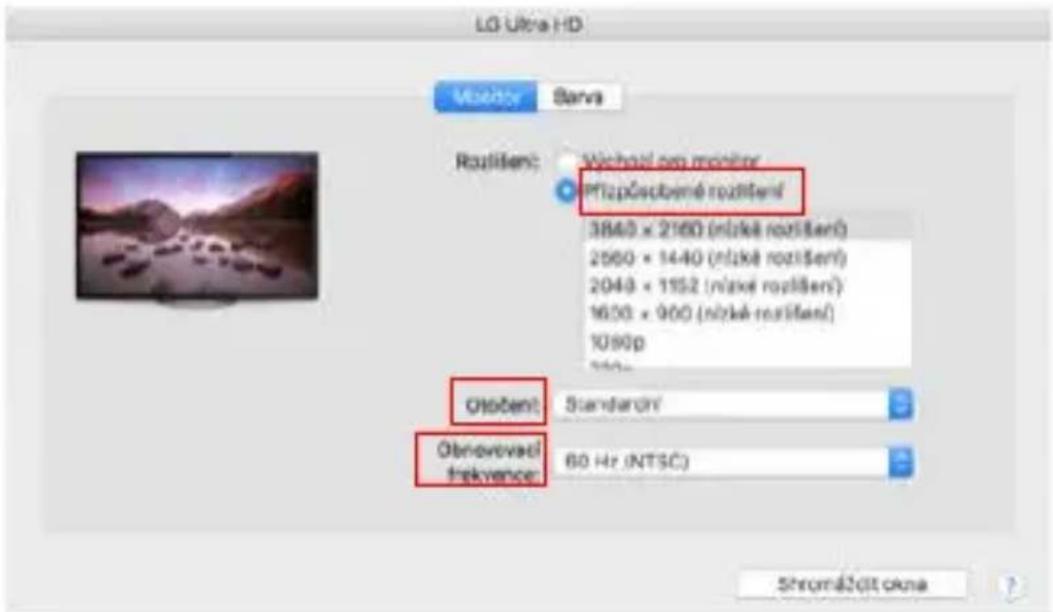
Variant zobrazenia 1
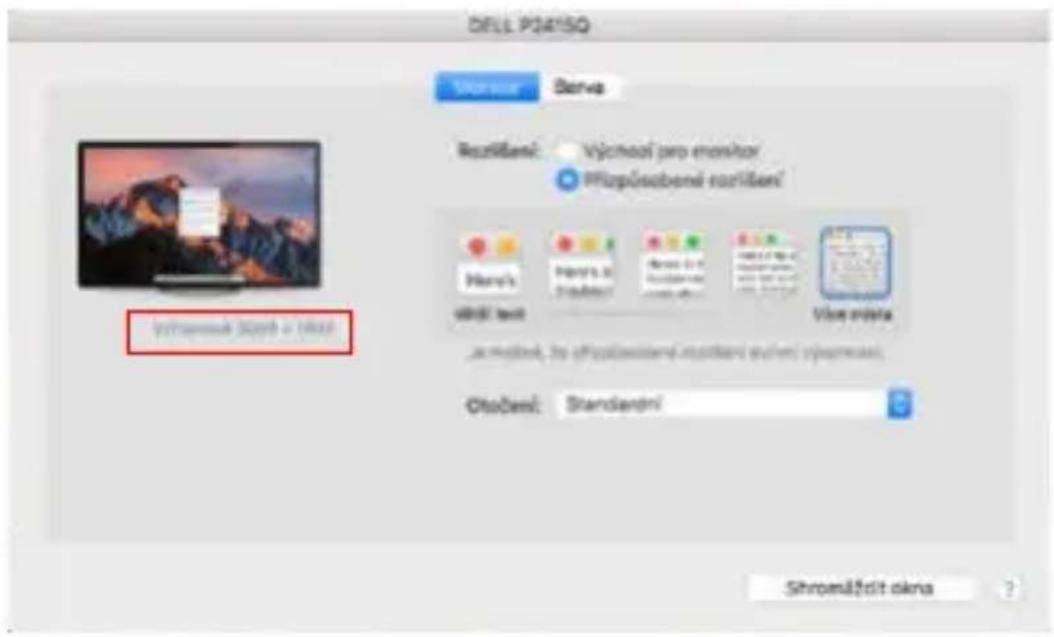
Variant zobrazenia 2
CASTO KLADENE OTÁZKY
i-tec USB-C Dual DP Display Dock with PD 100 W
REZOLUÇIJA:
- USB-C/USB4/Thunderbolt™ 3/4 ar DisplayPort 1.4 atbalstu bez DSC atbalsta
- 1 monitors - 1x DP vai 1x HDMI - lidz 4K/60 Hz
- 2 monitori - 1x DP + 1x HDMI - lidz 2x 2560 x 1440/60 Hz
- USB-C/USB4/Thunderbolt™ 3/4 ar DisplayPort 1.2 atbalstu
- 1 monitors - 1x DP vai 1x HDMI - lidz 4K/30Hz
- 2 monitori - 1x DP + 1x HDMI - lidz 2x 1920x1080/60 Hz
- 2x USB 3.2 Gen 1 (5 Gbps)
- 1x USB 3.2 Gen 1 (5 Gbps) ar atras uzlades atbalstu (BC 1.2)
- 1x tikai USB-C barošanas avots (barošanas caurlaide PC1 pieslēgviet ai)
- 2x USB-C 3.2 Gen 1 (5 Gbps) ar atras uzlades atbalstu (BC 1.2)
- 1x Ethernet GLAN RJ-45 ports (ASIX AX88179)
- 1x3,5mm kombinētā audio ligzda
- 1x 3,5 mm sleža ligzda, lui pieslēgtu ipašu ārejo sleždi (so pogu var izmantot, lui ieslēgtu un izslēgtu dokstaciju un párslēgtu ivadi starp PC1 un PC2).
1x barosanas ieeja (20V/6A) - Barošanas poga, lái ieslēgtu/izslegtu dokstaciju un párslēgtos starp ieejām.
- LED indicators (norāda aktīvu ievadi un dokstacijas ieslēgšanu)
Kensington blokeesanas atbalsts - USB-C kabelis (100 cm)
- OS: Windows 10, 11, macOS, Android, Chrome OS, Linux un iPadOS.
- Izstrādājuma izmēri 185 x 79 x 28 mm
- Produktsvars: 265 g
POPIS
i-tec USB-C Dual DP Display Dock with PD 100 W
Aizmugurejais panelis:
- Kensingtonas sledzene
- Leejas barosanas avots (20V/6A)
- 2x USB-C ports savienošanai ar klēpjdatoriem vai iericem ar USB-C, USB4 vai Thunderbolt™ 3/4
- 3,5 mm slédža ligzda, lái pievienotu ipasu arejo slédzi (so pogu var izmantot, lái ieslēgtu un izslēgtu dokstaciju un párslēgtu ievadi starp PC1 un PC2).
- 1x DisplayPort
- 1x HDMI
- GLAN RJ-45 ports (ASIX AX88179)
- 2x USB 3.2 Gen 1
- USB-C Power delivery passthrough ports, lai darbinatu pieslegto ierici PC1 porta.
SISTÉMAS PRASIBAS
i-tec USB-C Dual DP Display Dock with PD 100 W
HDMI / DISPLAY PORT MONITORA PIESLÉGUMS
Izmantojiet HDMI/DP kabeli, lui savienotu monitoru ar dokstaciju. Papildu monitora uzstadisanas laikā klēpjdatora/tableeta monitors var mirgot, un tas ir standarta stavoklis. Dokëšanas stacija piedāvā šādas grafiskāssaskarnes: 1x HDMI , 1x DisplayPort1x HDMI , 1x DisplayPort
IZMANTOJOT DOKINGA STACIJU OPERETAJSISTEMA WINDOWS
i-tec USB-C Dual DP Display Dock with PD 100 W
Atzimejiet izveles rutiu „lestatit šo monitoru kā galveno“, lai atlasitu pa-pildu monitoru kā galveno monitoru.
Noklikskinet un velcietOTHER monitoru, lai to pec vajadzibas novietotu attiecibapret sakotnejo monitoru sava klepjdatora/tablea.
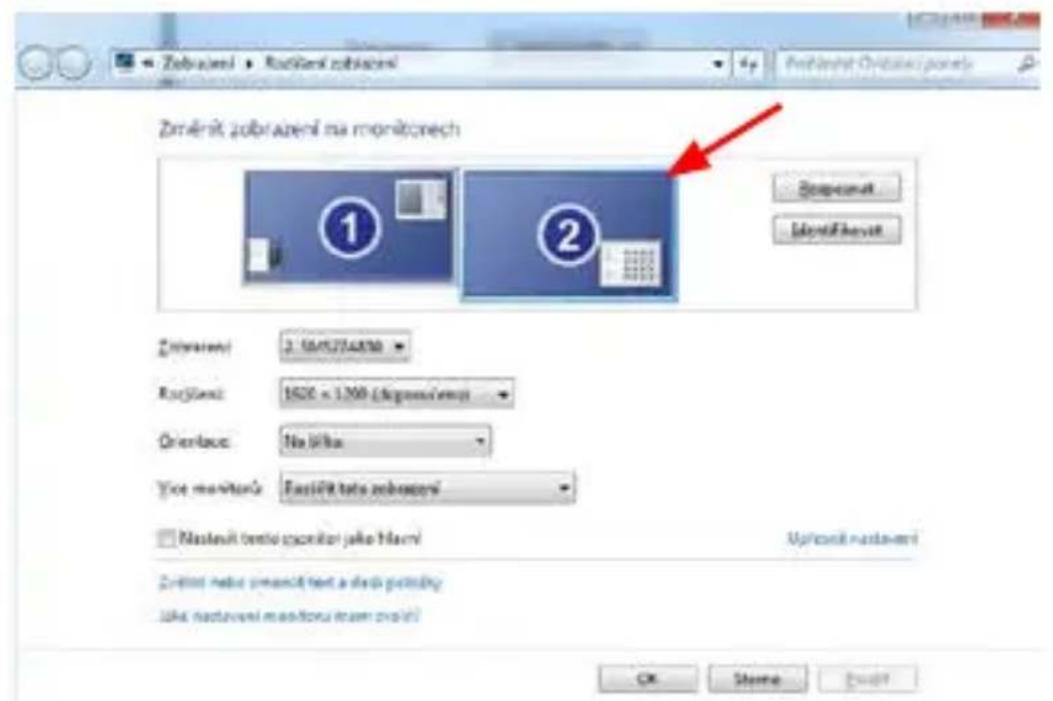
Viena papildu monitora novietosana attiecibā pret sākotnejo klēpjdatora/tableeta monitoru.
Gaidisanas/miega rezims un video ports - pec klepjdatora/tableeta aktivizesanas no gaidisanas/miega rezima tiek paradits primarais (sakotnejais) monitors, tapec mes iesakam kā primaro monitoru izmantot to, kas ir integrets klepjdatora/tableta, lui atkal ieietu sistema.
i-tec USB-C Dual DP Display Dock with PD 100 W
IZMANTOJOT DOKING STACIJU MAC OS OPERETAJSISTEMA
Kad piesledzat monitoru, Mac ekrans mirgo, un tas ir standarta stavoklis.
Kad tas irnostabilizejies, varat veikt korekcijas: Sistemas preferences - monitori:
i-tec USB-C Dual DP Display Dock with PD 100 W
Spogulrežims: var izmantot tikai tad, ja to piedava Mac.
https://support.apple.com/cs-cz/HT201834
i-tec USB-C Dual DP Display Dock with PD 100 W
RESOLUTIE:
i-tec USB-C Dual DP Display Dock with PD 100 W
Achterpaneel:
i-tec USB-C Dual DP Display Dock with PD 100 W
HDMI / DISPLAY PORT MONITOR AANSLUITING
i-tec USB-C Dual DP Display Dock with PD 100 W
i-tec USB-C Dual DP Display Dock with PD 100 W
GEBRUIK VAN DE DOCKING STATION IN MAC OS
i-tec USB-C Dual DP Display Dock with PD 100 W
This equipment is marked with the above recycling symbol. It means that at the end of the life of the equipment you must dispose of it separately at an appropriate collection point and not place it in the normal domestic unsorted waste stream. This wil benefit the environment for all. (European Union only)
DEUTSCH
This equipment has been tested and found to comply within the limits of a Class B digital device pursuant to Part 15 of the FCC Rules. These limits are designed to provide reasonable protection against harmful interference in a residential installation.
- USB-C KVM DUAL DISPLAY DOCKING STATION WITH POWER DELIVERY
- EN
- DE
- USB-C DUAL DISPLAY DOCKING STATION WITH POWER DELIVERY
- GLOSSARY OF TERMS
- CONNECTING A SPECIAL BUTTON TO THE DOCKING STATION
- IN CASE OF A PROBLEM WITH THE BUTTON CONNECTION
- DOCKING STATION SPECIAL BUTTON FUNCTION
- THE FUNCTION BUTTON ON THE TOP OF THE DOCKING STATION
- SPECIFICATIONS
- RESOLUTION
- DESCRIPTION
- FRONT PANEL
- I-TEC USB-C DUAL DP DISPLAY DOCK WITH PD 65W/100W
- BACK PANEL
- SYSTEM REQUIREMENTS
- HARDWARE REQUIREMENTS
- OPERATING SYSTEM
- INSTALLING DRIVERS IN WINDOWS 10/11
- HARDWARE INSTALLATION (CONNECTING THE DOCKING STATION
- INSTALLING DRIVERS ON MAC OS X
- HARDWARE INSTALLATION (CONNECTING THE DOCKING STATION TO THE MACBOOK)
- HDMI / DISPLAY PORT MONITOR CONNECTION
- USING THE DOCKING STATION IN OS WINDOWS
- QUICK START
- USING THE DOCKING STATION IN MAC OS
- DISPLAY VARIANT 2
- HTTPS://SUPPORT.APPLE.COM/EN-EN/HT201834
- OTHER FUNCTIONS
- AUDIO
- SAFETY INSTRUCTIONS FOR USING THE DOCKING STATION
- FREQUENTLY ASKED QUESTIONS
- GLOSSAR DER BEGRIFFE
- SPEZIFKATIONEN
- I-TEC USB-C DUAL DP DISPLAY DOCK WITH PD 100 W
- HDMI / DISPLAY PORT MONITORANSCHLUSS
- RÉSOLUTION
- PANNEAU ARRÊTE
- CONNEXION MONITEUR HDMI / DISPLAY PORT
- UTILISATION DE LA DOCKING STATION DANS MAC OS
- PANELTRASERO
- CONEXION DE MONITOR HDMI / DISPLAY PORT
- AUDIO SETTINGS FOR SKYPE
- I-TEC USB-C DUAL DP DISPLAY DOCK WITH PD 100 W UTILIZANDO EL DOCKING STATION EN MAC OS
- MULTI OUTPUT DEVICE
- COLLEGAMENTO MONITOR HDMI / DISPLAY PORT
- UTILIZZO DI DOCKING STATION IN MAC OS
- ROZLIŠENI
- ZADNI PANEL
- SYSTÉMOVÉ POŽADAVKY
- PRIPOJENI HDMI / DISPLAY PORT MONITORU
- POUZITÍ DOKOVACÍ STANICE V MACOS
- OSTATNI FUNKCE
- CASTO KLADENE OTÁZKY
- PANEL TYLNY
- HDMI / ZŁACZE MONITORA DISPLAY PORT
- KORZYSTANIE Z PROGRAMU DOCKING STATION W SYSTEMIE MAC OS
- ROZLIŠENIE
- POPIS
- ZADNY PANEL
- PRIPOJENIE MONITORA HDMI / DISPLAY PORT
- POUZÍVANIE DOCKING STATION V SYSTÉME MAC OS
- VARIANT ZOBRAZENIA 2
- REZOLUÇIJA
- AIZMUGUREJAIS PANELIS
- SISTÉMAS PRASIBAS
- HDMI / DISPLAY PORT MONITORA PIESLÉGUMS
- IZMANTOJOT DOKINGA STACIJU OPERETAJSISTEMA WINDOWS
- IZMANTOJOT DOKING STACIJU MAC OS OPERETAJSISTEMA
- RESOLUTIE
- ACHTERPANEEL
- HDMI / DISPLAY PORT MONITOR AANSLUITING
- GEBRUIK VAN DE DOCKING STATION IN MAC OS
- DEUTSCH
Brand : i-TEC
Model : C31DUALKVMDOCKPD
Category : Docking station