HP Color LaserJet Pro MFP 4302fdw - Printer

Color LaserJet Pro MFP 4302fdw - Printer HP - Free user manual and instructions

Find the device manual for free Color LaserJet Pro MFP 4302fdw HP in PDF.

📄 76 pages English EN Download 💬 AI Question 11 questions ⚙️ Specs
Notice HP Color LaserJet Pro MFP 4302fdw - page 2
Pick your language and provide your email: we'll send you a specifically translated version.
Product type Laser color multifunction printer
Functions Print, scan, copy, fax
Print speed Up to 28 ppm (black and color)
Print resolution 600 x 600 dpi (black and color)
Paper capacity Tray 1: 50 sheets, Tray 2: 250 sheets
Duplex printing Automatic
Connectivity USB 2.0, Ethernet Gigabit, Wi-Fi 802.11 b/g/n, Wi-Fi Direct
Touchscreen Yes, color
Dimensions (L x W x H) 420 x 420 x 490 mm (approx)
Weight 22 kg (approx)
Power 110-127 V or 220-240 V, 50/60 Hz
Power consumption Max 500 W, standby 70 W, sleep 5 W
Noise level Printing: 50 dB(A), standby: 25 dB(A)
Security Access control, user authentication, SSL/TLS encryption
Toner cartridges Black, cyan, magenta, yellow (separate)
Maintenance Regular cleaning of scanner and rollers, toner replacement
Repairability Spare parts available via HP and authorized resellers
Warranty 1 year (varies by country)

Frequently Asked Questions - Color LaserJet Pro MFP 4302fdw HP

How to connect the printer via Wi-Fi?
On the control panel, go to Menu > Settings > Network > Wi-Fi. Enable Wi-Fi and select your network. Enter the password if required. Make sure your computer is connected to the same network. If the setup mode expires, restart it from the screen.
What to do if the printer does not connect to the network?
Check that the printer and computer are on the same network. If using a VPN, disconnect it during installation. Restart the router and printer. On the panel, go to Menu > Settings > Network > Restore network settings, then try again.
How to load paper in tray 2?
To load legal size paper, press the latch at the front of the tray and pull it forward to extend. For standard paper, open the tray, adjust the guides and insert the paper stack. Ensure the guides touch the paper edges.
How to replace toner cartridges?
Open the front door (tray 1). Pull the toner drawer outward. Remove the used cartridge by pulling it gently. Insert the new cartridge until it clicks into place. Close the drawer and door.
How to scan a document to email?
Place the document in the automatic document feeder or on the glass. On the panel, press Scan. Choose 'Scan to email', enter the email address, then press the Start button.
How to set up fax?
Connect the phone line to the 'Fax (line input)' port. On the panel, go to Menu > Settings > Fax. Follow the instructions to set the name and number. Test by sending a fax to another device.
How to clean the printer?
Turn off the printer and unplug it. Use a soft, slightly damp cloth to wipe the exterior. For the scanner, lift the lid and clean the glass with a non-abrasive glass cleaner. Avoid any liquid inside.
What to do in case of a paper jam?
Open the back door and gently remove the jammed paper. Also check the input tray and paper path. Make sure the paper is properly loaded and not wrinkled.
How to print from a USB device?
Plug the USB drive into the Walk-up USB port (front or back). On the home screen, select 'USB' then choose the file to print. Press Start. Make sure the file is in a supported format (PDF, JPEG, etc.).
Where to find firmware updates?
Go to the HP support website: www.hp.com/support/colorljmfp4301-4303. Download the latest firmware version for your model. Follow the instructions to install via USB or network.

User questions about Color LaserJet Pro MFP 4302fdw HP

1 question about this device. Answer the ones you know or ask your own.

Ask a new question about this device

The email remains private: it is only used to notify you if someone responds to your question.

How to set default black and white printing on the HP Color LaserJet Pro MFP 4302fdw printer?
Frequently Asked Questions - 24/04/2026
Response Notice-Facile

To set default black and white (or grayscale) printing on your HP Color LaserJet Pro MFP 4302fdw printer, follow the steps below:

Steps to set default black and white printing on Windows:

  1. Open the Control Panel on your computer.
  2. Go to Devices and Printers.
  3. Find your printer HP Color LaserJet Pro MFP 4302fdw in the list.
  4. Right-click on the printer icon and select Printer Properties or Printing Preferences.
  5. In the printing preferences tab, look for an option related to color or print quality.
  6. Select Black and White or Grayscale Printing depending on the available options.
  7. Confirm by clicking Apply then OK to save the settings.

Notes:

  • This setting will ensure that all your prints use black and white mode by default, unless you manually change this setting during a specific print job.
  • If you are using another operating system (macOS, Linux), the steps to access the printing preferences may differ, but the option to set grayscale printing is generally available in the printer settings.

By following these steps, you will be able to save color ink and get default black and white prints on your HP Color LaserJet Pro MFP 4302fdw.

Respond (be the first)

Download the instructions for your Printer in PDF format for free! Find your manual Color LaserJet Pro MFP 4302fdw - HP and take your electronic device back in hand. On this page are published all the documents necessary for the use of your device. Color LaserJet Pro MFP 4302fdw by HP.

USER MANUAL Color LaserJet Pro MFP 4302fdw HP

natural_image Line drawing of a HP printer with paper and print (no text or symbols)

HP Color LaserJet Pro

MFP 4302dw, fdn, fdw series

2

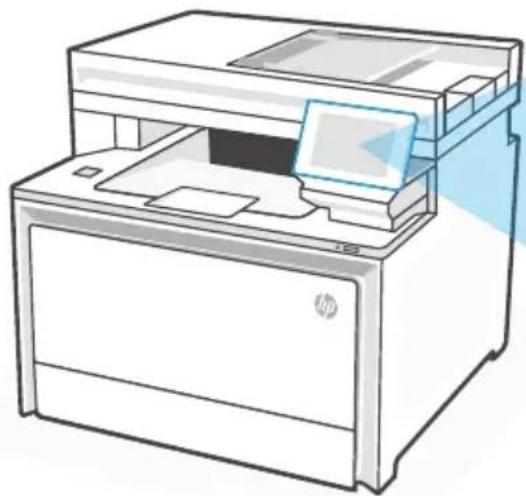
Control panel
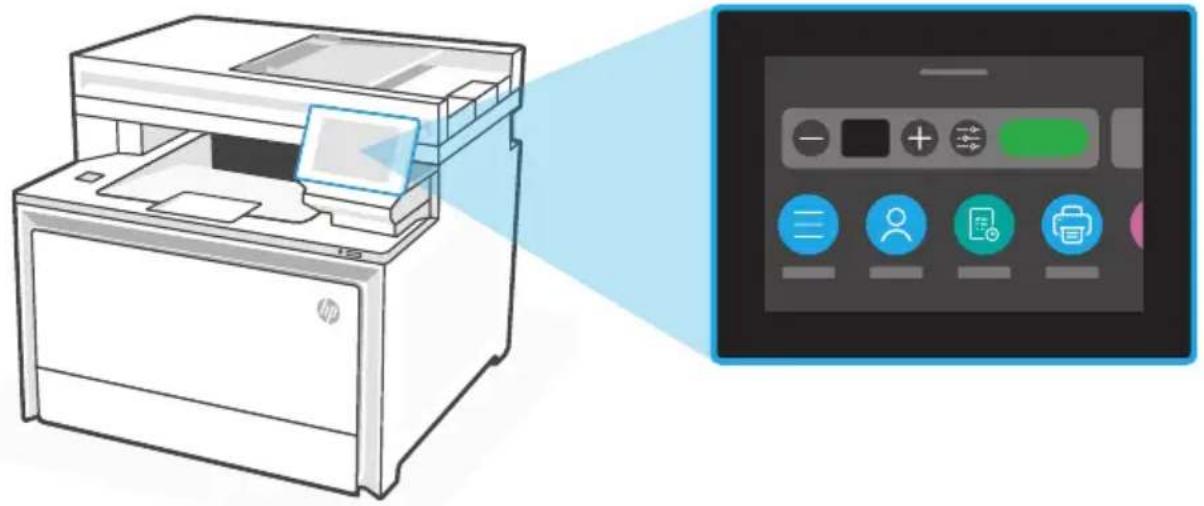
HP Color LaserJet Pro MFP 4302fdw - Control panel - 1

natural_image Illustration of a printer with a paper airplane being processed, alongside a digital display showing icons for print and editing (no text or symbols on the device itself)

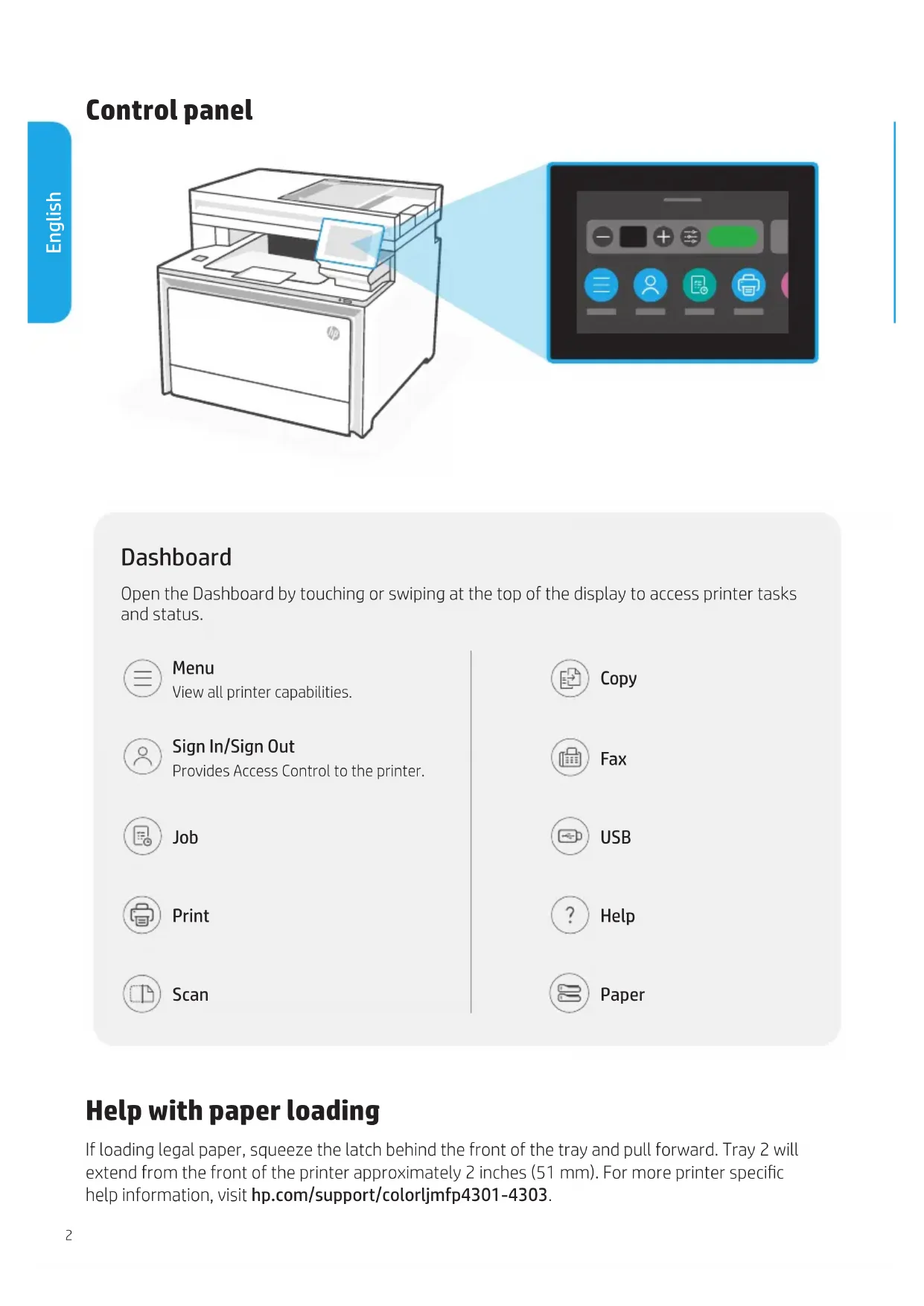
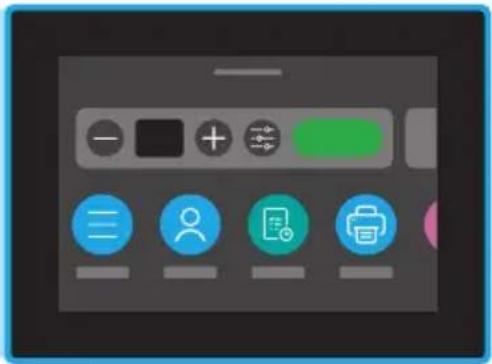
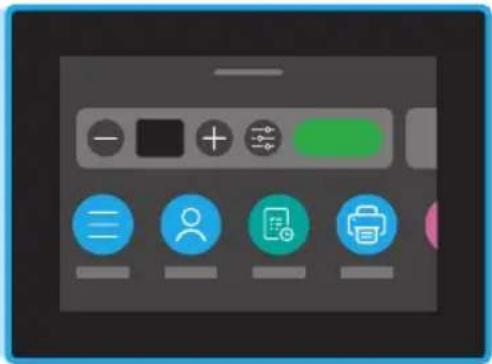
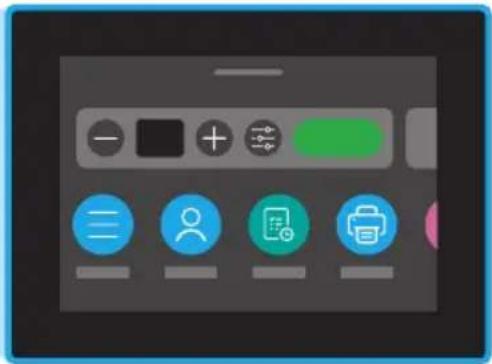
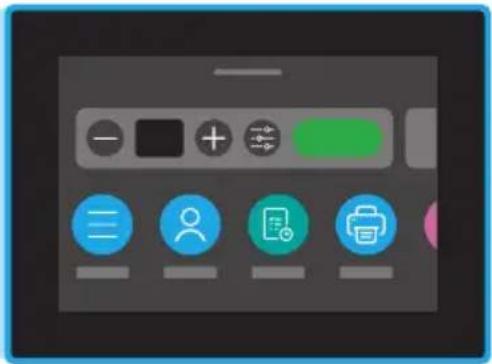
Dashboard

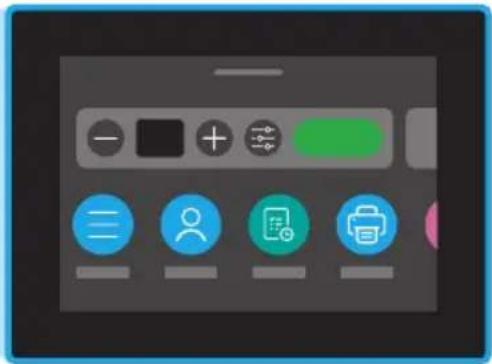
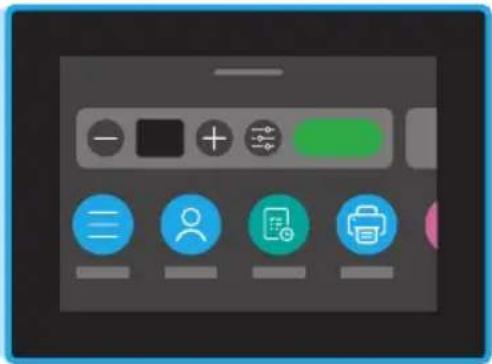
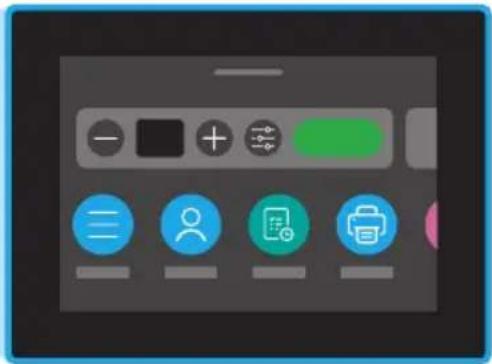
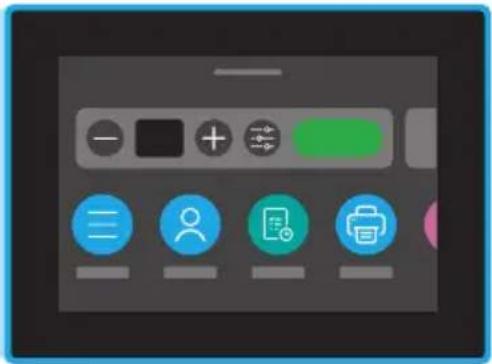
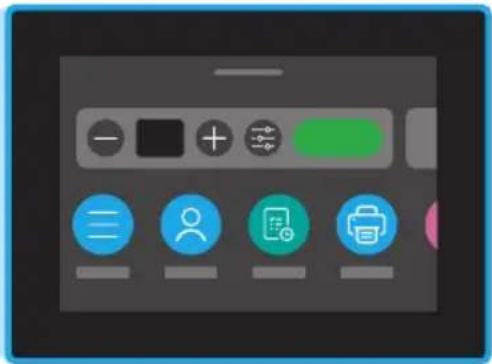
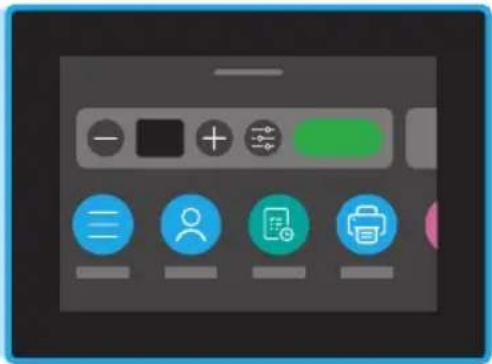
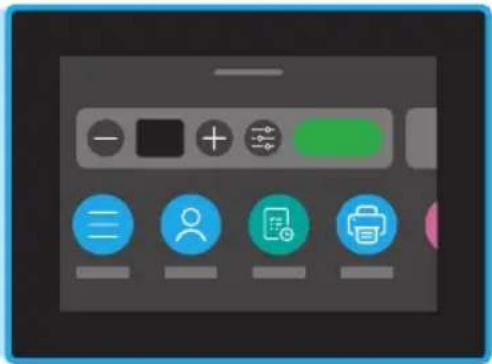
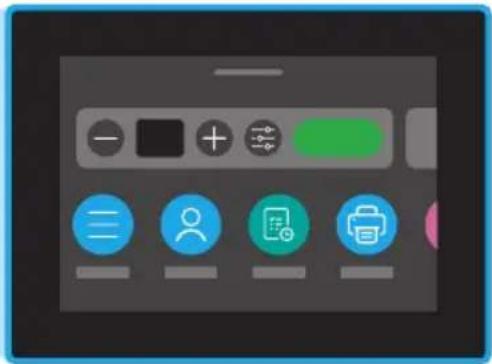
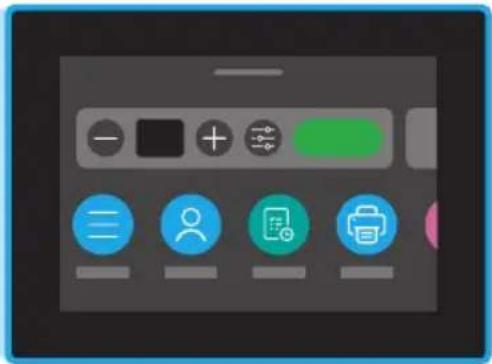
Open the Dashboard by touching or swiping at the top of the display to access printer tasks and status.

HP Color LaserJet Pro MFP 4302fdw - Dashboard - 1

View all printer capabilities.

HP Color LaserJet Pro MFP 4302fdw - Menu - 1

Sign In/Sign Out

Provides Access Control to the printer.

HP Color LaserJet Pro MFP 4302fdw - Sign In/Sign Out - 1

Job

HP Color LaserJet Pro MFP 4302fdw - Sign In/Sign Out - 2

Print

HP Color LaserJet Pro MFP 4302fdw - Sign In/Sign Out - 3

Scan

HP Color LaserJet Pro MFP 4302fdw - Sign In/Sign Out - 4

Copy

HP Color LaserJet Pro MFP 4302fdw - Sign In/Sign Out - 5

Fax

HP Color LaserJet Pro MFP 4302fdw - Sign In/Sign Out - 6

USB

HP Color LaserJet Pro MFP 4302fdw - Sign In/Sign Out - 7

Help

HP Color LaserJet Pro MFP 4302fdw - Sign In/Sign Out - 8

Paper

Help with paper loading

If loading legal paper, squeeze the latch behind the front of the tray and pull forward. Tray 2 will extend from the front of the printer approximately 2 inches (51 mm). For more printer specific help information, visit hp.com/support/colorljmfp4301-4303.

Printer features
HP Color LaserJet Pro MFP 4302fdw - Help with paper loading - 1

text_image Diagram of a printer with numbered parts labeled 1 through 8, showing internal structure and page layout.

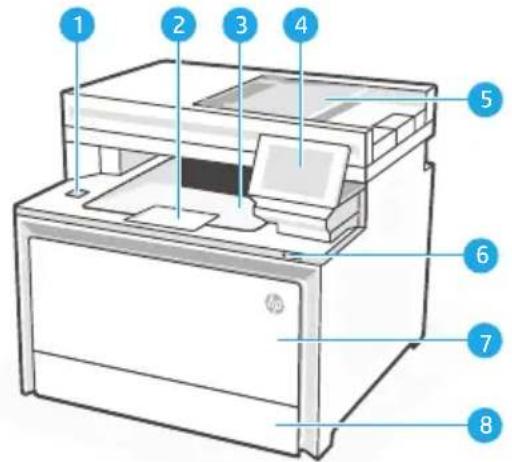
Front

Walk-up USB port (wireless models only)1

2 Output tray extender
3 Output tray
4 Control panel
5 Automatic document feeder
6 Power button
7 Tray 1/Toner access door
Tray 28
HP Color LaserJet Pro MFP 4302fdw - Front - 1

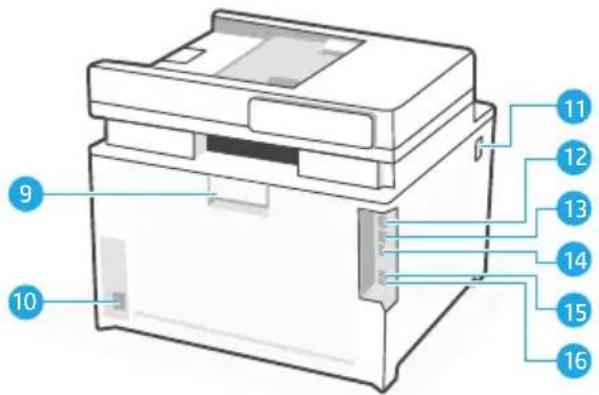
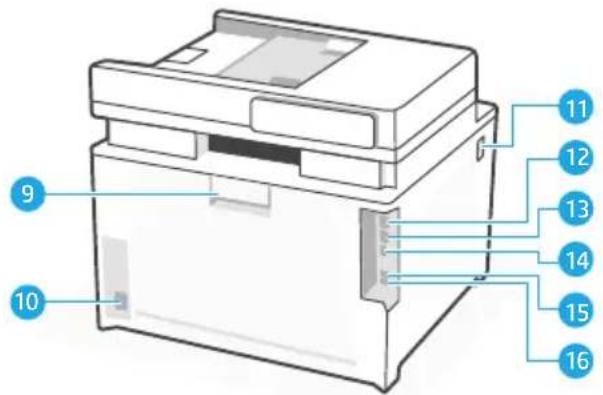
text_image 9 10 11 12 13 14 15 16

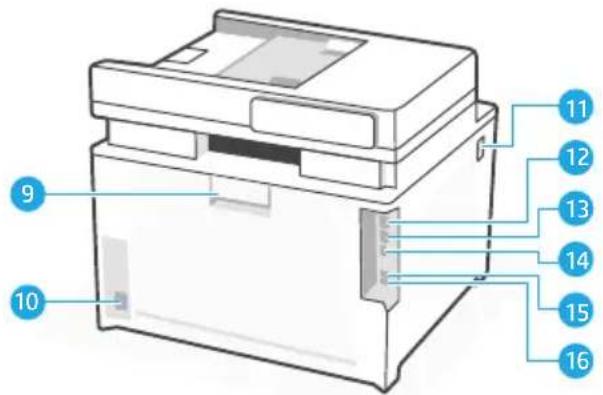
Back

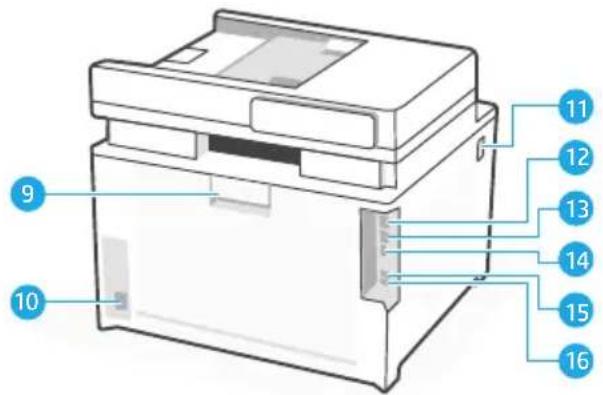
Rear door9

Power connection10

Access toner cartridges11

USB port for computer connection12

Ethernet port13

USB port for Job Storage14

Fax port: Fax "line in"*15

Fax port: Telephone "line out"*16

* Fax models only

During Setup: Help and tips for Wi-Fi and connectivity

If the software is unable to find your printer during setup, check the following conditions to resolve the issue.

Potential Issue Solution

Printer Wi-Fi setup mode timed out Check the control panel, and restart wireless setup mode, if prompted.
Computer too far from printer Move your computer closer to the printer. Your computer might be out of range of the printer's Wi-Fi signal.
Computer connected to a Virtual Private Network (VPN) or remote work networkDisconnect from a VPN before installing HP printer software. Connect to the VPN again after finishing printer setup.Note: Consider your location and the security of the Wi-Fi network before disconnecting from a VPN.
Wi-Fi turned off on computer (computer connected by Ethernet)If your computer is connected by Ethernet, turn on the computer's Wi-Fi while setting up the printer. You don't need to disconnect the Ethernet cable from the printer.

Post-Setup: Help and tips for Wi-Fi and connectivity

If you completed setup, but have issues with maintaining a Wi-Fi connection, check the wireless status and restart setup mode to try connecting again.

Potential Issue Solution

Printer won't reconnect or maintain a connection to network (Post-setup)
  1. On the control panel, select Menu > Information > Connectivity > Wi-Fi. if the printer is listed as "Not Connected", proceed to Step 2.
  2. Go back to the Home screen. Select Menu > Settings > Network > Restore Network Settings.
  3. Wait for one minute. Open the printer software and try connecting again.

HP Color LaserJet Pro MFP 4302fdw - Post-Setup: Help and tips for Wi-Fi and connectivity - 1

Help and Support

For printer troubleshooting and videos, visit the HP support site.

HP Color LaserJet Pro MFP 4302fdw - Help and Support - 1

https://www.hp.com/support/colorljmfp4301-4303

Panneau de commande
HP Color LaserJet Pro MFP 4302fdw - Panneau de commande - 1

natural_image Illustration of a HP printer with paper inside, showing internal components and a close-up of the paper (no text or symbols)

HP Color LaserJet Pro MFP 4302fdw - Panneau de commande - 2

natural_image Generic software interface icon with menu bar, plus/minus buttons, and icons (no readable text or symbols)

Tableau de bord

text_image Diagram of a printer with numbered parts labeled 1 through 8 for identification.

Avant

natural_image Illustration of a printer with a paper airplane being processed, alongside a digital display showing icons for print and editing (no text or symbols on the device itself)

Dashboard

text_image Diagram of a printer with numbered parts labeled 1 through 8, showing internal structure and page layout.

Vorne

natural_image Illustration of a HP printer with paper inside, showing internal components and a blank sheet (no text or symbols)

HP Color LaserJet Pro MFP 4302fdw - Vorne - 1

text_image Mobile app interface screenshot showing status bar, navigation buttons, and icons for user profile, document, and printer.

Dashboard

text_image Diagram of a printer with numbered parts labeled 1 through 8 for identification.

Parte anteriore

Porta USB walk-up (solo modelli wireless)1
natural_image Line drawing of a HP printer with paper tray and paper holder (no text or symbols)

HP Color LaserJet Pro MFP 4302fdw - Parte anteriore - 1

natural_image User interface toolbar with icons for menu, add, delete, and print (no readable text or symbols)

Panel

text_image Diagram of an HP printer with numbered parts labeled 1 through 8

Parte delantera

natural_image Illustration of a HP printer with paper inside, showing internal components and a close-up of the paper (no text or symbols)

HP Color LaserJet Pro MFP 4302fdw - Parte delantera - 1

natural_image Generic software interface icon with menu bar, plus/minus buttons, and icons (no readable text or symbols)

Табло за управление

text_image Diagram of a printer with numbered parts labeled 1 through 8 for identification.

Отпред

natural_image Illustration of a printer with a paper airplane being processed, alongside a digital display showing icons for print and editing (no text or symbols on the device itself)

Escriptori digital

text_image Diagram of an HP printer with numbered parts labeled 1 through 8

Part davantera

natural_image Illustration of a HP printer with paper inside, showing internal components and a blank sheet (no text or symbols)

HP Color LaserJet Pro MFP 4302fdw - Part davantera - 1

text_image Mobile app interface screenshot showing status bar, navigation buttons, and icons for user profile, document, and printer.

Upravljačka ploča

text_image Diagram of an HP printer with numbered parts labeled 1 through 8

Prednja strana

1 USB priključak za izravan rad – walk-up (samo za bežične modele)
2 Produžetak izlazne ladice
3 Izlazna ladica
4 Upravljačka ploča
5 Uređaj za automatsko umetanje papira
6 Gumb za uključivanje
7 Ladica 1 / vrata za pristup toneru Ladica 28
HP Color LaserJet Pro MFP 4302fdw - Prednja strana - 1

text_image 9 10 11 12 13 14 15 16

Stražnja strana

Stražnja vrata9

natural_image Line drawing of a HP printer with paper tray and paper holder (no text or symbols)

HP Color LaserJet Pro MFP 4302fdw - Stražnja strana - 1

natural_image User interface toolbar with icons for menu, add, delete, and print (no text or symbols)

Řídicí panel

text_image Diagram of a printer with numbered parts labeled 1 through 8 for identification.

Přední strana

natural_image Illustration of a HP printer with paper inside, showing internal components and a close-up of the paper (no text or symbols)

HP Color LaserJet Pro MFP 4302fdw - Přední strana - 1

natural_image Generic software interface icon with menu bar, plus/minus buttons, and icons (no readable text or symbols)

Dashboard

text_image Diagram of a printer with numbered parts labeled 1 through 8 for identification.

Forside

natural_image Illustration of a printer with a paper airplane being processed, alongside a digital display showing icons for print and editing (no text or symbols on the device itself)

Dashboard

text_image Diagram of a printer with numbered parts labeled 1 through 8, showing internal structure and page layout.

Voorkant

Tonercartridge to e gang 11

natural_image Illustration of a HP printer with paper inside, showing internal components and a blank sheet (no text or symbols)

HP Color LaserJet Pro MFP 4302fdw - Voorkant - 1

text_image Mobile app interface screenshot showing status bar, navigation buttons, and icons for user profile, document, and printer

Töölaud

text_image Diagram of a printer with numbered parts labeled 1 through 8 for identification.

Esiosa

natural_image Illustration of a printer with a paper airplane being processed, alongside a digital display showing icons and control buttons (no text or symbols on the device itself)

Koontinäyttö

text_image Diagram of a printer with numbered parts labeled 1 through 8, showing internal structure and page layout.

Etuosa

USB-portti (vain langattomissa malleissa)1
natural_image Illustration of a HP printer with paper inside, showing internal components and a close-up of the paper (no text or symbols)

HP Color LaserJet Pro MFP 4302fdw - Etuosa - 1

natural_image Generic software interface icon with menu bar, plus/minus buttons, and icons (person, document, printer) on a dark background

Πίνακας εργαλείων

text_image Diagram of a printer with numbered parts labeled 1 through 8 for identification.

Μπροστινό μέρος

natural_image Illustration of a printer with a paper airplane being processed, alongside a digital display showing icons for print and editing (no text or symbols on the device itself)

Irányítópult

text_image Diagram of an HP printer with numbered parts labeled 1 through 8

Elülső nézet

natural_image Illustration of a HP printer with paper inside, showing internal components and a close-up of the paper (no text or symbols)

HP Color LaserJet Pro MFP 4302fdw - Elülső nézet - 1

natural_image Generic software interface icon with menu bar, plus/minus buttons, and icons (person, document, printer) on a dark background
text_image Diagram of a printer with numbered parts labeled 1 through 8 for identification.

HP Color LaserJet Pro MFP 4302fdw - Elülső nézet - 2

text_image 9 10 11 12 13 14 15 16

Priekšpuse

natural_image Illustration of a printer with a paper airplane being processed, alongside a digital display showing icons and control buttons (no text or symbols on the device itself)

Ataskaitų sritis

text_image Diagram of a printer with numbered parts labeled 1 through 8 for identification.

Priekis

natural_image Illustration of a HP printer with paper inside, showing internal components and a blank sheet (no text or symbols)

HP Color LaserJet Pro MFP 4302fdw - Priekis - 1

text_image Mobile app interface screenshot showing status bar, navigation buttons, and icons for user profile, document, and printer.

Dashbord

text_image Diagram of a printer with numbered parts labeled 1 through 8 for identification.

Forside

USB-port (bare trådløse modeller)1

2 Utskuff-forlenger
3 Utskuff
4 Kontrollpanel
5 Automatisk dokumentmater
6 Av/på-knapp
7 Skuff 1/Tonertilgangsdeksel Skuff 28
HP Color LaserJet Pro MFP 4302fdw - Forside - 1

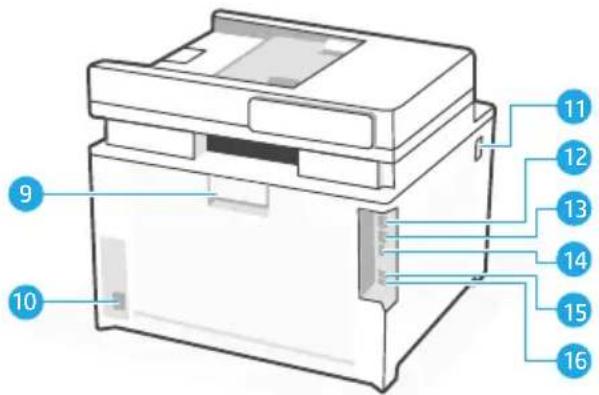
text_image 9 10 11 12 13 14 15 16

Bakside

Bakre deksel9

Strømtilkobling10

Tilgang til tonerkassetter11

natural_image Illustration of a printer with a paper airplane being processed, alongside a digital display showing icons for print and editing (no text or symbols on the device itself)

Tablica rozdzielcza

text_image Diagram of a printer with numbered parts labeled 1 through 8 for identification.

Przód

text_image Diagram of a device with numbered parts labeled 9 to 16, likely for assembly or labeling purposes.

Tyt

Tylne drzwiczki9

Gniazdo zasilania10
natural_image Illustration of a HP printer with paper inside, showing internal components and a blank sheet (no text or symbols)

HP Color LaserJet Pro MFP 4302fdw - Tyt - 1

text_image Mobile app interface screenshot showing status bar, navigation buttons, and icons for user profile, document, and printer

Painel

text_image Diagram of a printer with numbered parts labeled 1 through 8 for identification.

Parte frontal

Porta USB portátil (apenas modelos sem fio)1

text_image Diagram of a device with numbered parts labeled 9 to 16, likely for assembly or labeling purposes.

Parte traseira

Porta traseira9

natural_image Line drawing of a HP printer with paper tray and paper holder (no text or symbols)

HP Color LaserJet Pro MFP 4302fdw - Parte traseira - 1

natural_image User interface toolbar with icons for menu, add, delete, and print (no readable text or symbols)

Tabloul de bord

text_image Diagram of a printer with numbered parts labeled 1 through 8 for identification.

Partea frontală

Port walk-up USB (doar modelele wireless)1

2 Extensie tavă de ieşire
3 Tavă de ieşire
4 Panoul de control
5 Alimentatorul automat de documente
6 Buton de alimentare
7 Tava 1/uşă de acces la toner
Tava 28
HP Color LaserJet Pro MFP 4302fdw - Partea frontală - 1

text_image 9 10 11 12 13 14 15 16

Partea din spate

Uşa din spate9

natural_image Illustration of a HP printer with paper inside, showing internal components and a close-up of the printer's screen (no text or symbols)

HP Color LaserJet Pro MFP 4302fdw - Partea din spate - 1

text_image Mobile app interface screenshot showing status bar, navigation buttons, and icons for user profile, document, and printer.

Riadiaci panel

text_image Diagram of a printer with numbered parts labeled 1 through 8 for identification.

Predná čast

natural_image Illustration of a printer with a paper airplane being processed, alongside a digital display showing icons for print and editing (no text or symbols on the device itself)

Nadzorna plošča

text_image Diagram of a printer with numbered parts labeled 1 through 8 for identification.

Spredaj

natural_image Illustration of a HP printer with paper inside, showing internal components and a close-up of the printer's screen (no text or symbols)

HP Color LaserJet Pro MFP 4302fdw - Spredaj - 1

text_image Mobile app interface screenshot showing status bar, navigation buttons, and icons for user profile, document, and printer.

Kontrollpanel

text_image Diagram of a printer with numbered parts labeled 1 through 8 for identification.

Framsida

Manuell USB-port (endast trådlösa modeller)1
natural_image Line drawing of a HP printer with paper tray and paper holder (no text or symbols)

HP Color LaserJet Pro MFP 4302fdw - Framsida - 1

text_image Mobile app interface screenshot showing status bar, navigation buttons, and icons for menu, person, document, and printer functions

בְרָהוּוֹת

text_image Diagram of a printer with numbered parts labeled 1 through 8 for identification.

תָרִי

תְרָה וּוֹת

https://www.hp.com/support/

colorljmfp4301-4303

© Copyright 2022 HP Development Company, L.P.

Reproduction, adaptation or translation without prior written permission is prohibited, except as allowed under the copyright laws.

The information contained herein is subject to change without notice.

The only warranties for HP products and services are set forth in the express warranty statements accompanying such products and services. Nothing herein should be construed as constituting an additional warranty. HP shall not be liable for technical or editorial errors or omissions contained herein.

text_image Barcode image containing encoded digital information

4RA83-90011

Manual assistant
Powered by Anthropic
Waiting for your message
Product information

Brand : HP

Model : Color LaserJet Pro MFP 4302fdw

Category : Printer