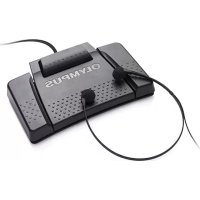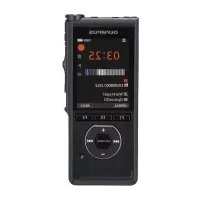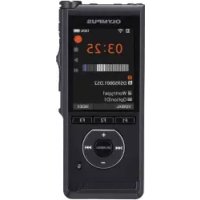
VoiSquare DS F1 - Voice recorder OLYMPUS - Free user manual and instructions
Find the device manual for free VoiSquare DS F1 OLYMPUS in PDF.



| Product type | Digital voice recorder |
| Brand | Olympus |
| Model | VoiSquare DS F1 |
| Dimensions | 114 mm × 63.8 mm × 14.6 mm (excluding protrusions) |
| Weight | 140 g (battery included) |
| Power supply | Lithium-ion battery Li-92B (3.6 V), recharge via USB or AC adapter |
| Battery life | Approximately 24 hours of operation |
| Display | 3.7-inch TFT color LCD touch screen, 854x480 pixels (FWVGA) |
| Internal memory | 8 GB (NAND Flash) |
| External storage | microSD/SDHC card (2 GB to 32 GB) |
| Connectivity | Wi-Fi 802.11b/g/n (2.4 GHz), USB mini-AB, 3.5 mm headphone jack, 3.5 mm microphone jack |
| Operating system | Android 4.3 |
| Speaker | Built-in dynamic speaker ø 20 mm |
| Microphone | Built-in microphone + external microphone input |
| Main functions | Voice recording, playback, dictation, Wi-Fi connection, touch screen, airplane mode, silent mode |
| Operating temperature | 0 °C to 42 °C |
| Maintenance and cleaning | Clean with a soft dry or slightly damp cloth (soapy water). Disinfect with ethanol 76.9-81.4% vol. or isopropanol 70% vol. Do not spray directly. |
| Safety | Do not use near flammable gases, do not disassemble, use only Olympus accessories, avoid exposure to water |
| Spare parts and repairability | Battery LI-92B, charger UC-90, cradle CR20, clip holder CL3, footswitch RS31, microphones ME12/ME15/ME52W |
| General information | Manual available in several languages (FR, EN, DE, ES...). Support via Olympus service center. |
Frequently Asked Questions - VoiSquare DS F1 OLYMPUS
User questions about VoiSquare DS F1 OLYMPUS
0 question about this device. Answer the ones you know or ask your own.
Ask a new question about this device
Download the instructions for your Voice recorder in PDF format for free! Find your manual VoiSquare DS F1 - OLYMPUS and take your electronic device back in hand. On this page are published all the documents necessary for the use of your device. VoiSquare DS F1 by OLYMPUS.
USER MANUAL VoiSquare DS F1 OLYMPUS
Thank you for purchasing an Olympus VoiSquare.
Please read these instructions for information about using the product correctly and safely.
Keep the instructions handy for future reference.
Introduction
- The information in this document is subject to change in future without prior notice. Contact Olympus Customer Support Center for the latest product names, model numbers and other information.
- The display and illustrations of the device used in this manual may be different from the actual product. While every precaution has been taken to ensure the accuracy of the information in this manual, errors may occasionally arise. Any questions or concerns regarding doubtful information, or possible errors or omissions should be directed to the Olympus Customer Support Center.
- Olympus Corporation and Olympus Imaging Corp. are the copyright holders of this manual. Copyright law prohibits unauthorized reproduction of this manual, or unauthorized distribution of reproductions thereof.
- Note that Olympus will assume no liability in the event of damages, lost earnings, or any claims from third parties resulting from improper use of the product.
Table of contents
Introduction 2
Getting started
Identification of parts .... 3 Touch screen .... 4
Touch screen operations 5
Installing the battery 6
Charging the battery....7 Charging using docking station and AC adapter....7 Charging using docking station and USB cable....7 Using the lithium-ion battery....8
Turn the power ON 9
Memory card....11 Inserting a micro SD card....11 Ejecting a micro SD card....11
Various Settings .... 12 Settings list .... 12
Other information
Device care 13
Troubleshooting 14
Wi-Fi Function....16
Copyright and trademark information 17
Safety precautions 18
Specifications 25
Getting started
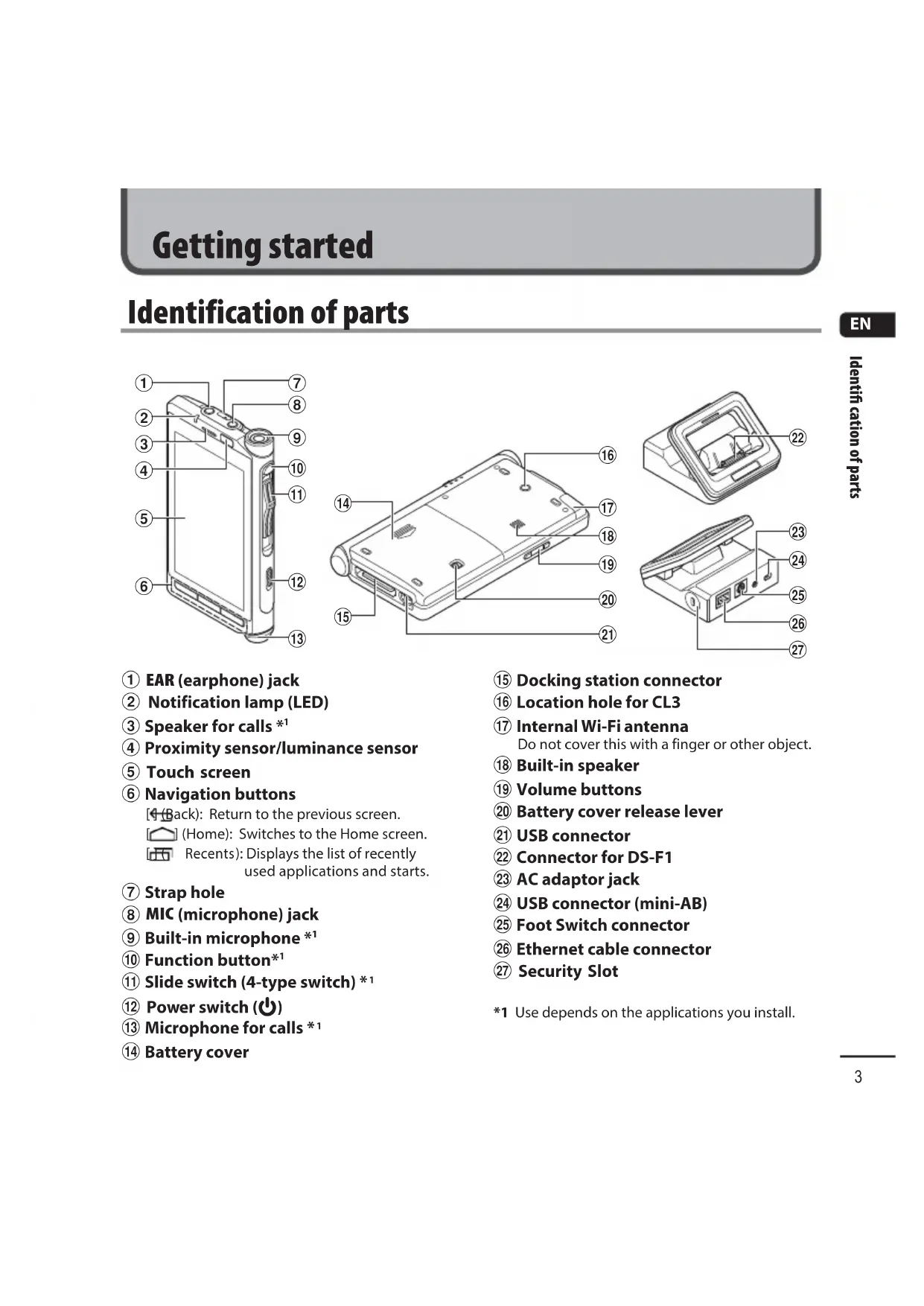
Identification of parts

text_image
Labeled diagram of a device showing numbered components for identification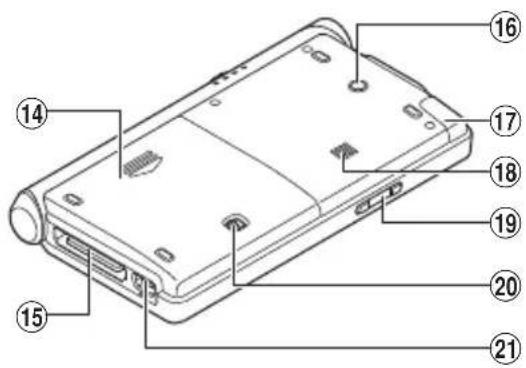
text_image
Diagram of a device rear panel with numbered labels pointing to different components
text_image
Technical diagram of a device with numbered parts labeled 22 to 27, showing internal components and connectors.① EAR (earphone) jack
② Notification lamp (LED)
③ Speaker for calls *1
④ Proximity sensor/luminance sensor
⑤ Touch screen
⑥ Navigation buttons
◀(Back): Return to the previous screen.
[Home]: Switches to the Home screen.
[RECENTED] Recents): Displays the list of recently used applications and starts.
⑦ Strap hole
⑧ MIC (microphone) jack
⑨ Built-in microphone *1
⑩ Function button*1
⑪ Slide switch (4-type switch) *1
⑫ Power switch (⏻)
⑬ Microphone for calls *1
⑭ Battery cover
⑮ Docking station connector
⑯ Location hole for CL3
⑰ Internal Wi-Fi antenna
Do not cover this with a finger or other object.
⑱ Built-in speaker
⑲ Volume buttons
⑳ Battery cover release lever
②1 USB connector
②2 Connector for DS-F1
②3 AC adaptor jack
⑳ USB connector (mini-AB)
⑲ Foot Switch connector
②6 Ethernet cable connector
⑳ Security Slot
Touch screen
Home screen

text_image
10:00 THEJANUARY 3① Status bar
Indicates the remaining battery power, device settings, notifications, and other information with icons.

text_image
[●]: Wi-Fi [●]: Aeroplane mode [●]: Silent mode [●]: Alarm [●]: Battery indicator [●]: Battery charging② Time display
③ button
Displays a list of applications.
④ Shortcut (application)
TIP
- The operating instructions in this manual explain operations performed from the default Home screen. If, for example, another application is set as the Home screen, the explanations and operating procedures in this manual may differ.
- The screen configuration differs depending on the operating system version.
Touch screen operations
The device employs a multi-touch interface. The interface is operated by directly touching it. The basic operations are described below.

natural_image
Line drawing of a hand pointing at a smartphone screen (no text or symbols)Tap
Gently touch a shortcut, list, or other item with a fingertip and then immediately release your finger. Use this operation to, for example, select an icon or item.
Tapping the screen twice with a fingertip is called a double-tap. Use this operation to, for example, enlarge an image. Double-tapping the image again while it is enlarged restores it to its original display size.
Long press
Continue pressing a shortcut, list, or other item with a fingertip. Use this operation to, for example, move a shortcut or access a sub menu for the selected item.
Drag
Continue pressing a shortcut, list, or other item with a fingertip and move your finger to the desired position without releasing it from the screen. Use this operation to, for example, adjust the volume or screen brightness.
Flick (Swipe)
Gently swipe the screen with a fingertip. Use this operation to switch or scroll the screen.
Pinch
Place two fingers on the screen and then narrow the distance between them. Use this operation to reduce the screen or other item to a size that is easy to see.
Spread
Place two fingers on the screen and then widen the distance between them. Use this operation to enlarge the screen or other item to a size that is easy to see.
NOTE
- Do not push the touch screen forcibly with a finger or press it with a sharp-pointed object (fingernail, ballpoint pen, pin, etc.).
- Set the device to power save mode before carrying it around in a pocket, bag, etc.
- The touch screen may not operate normally in the following cases. Furthermore, be careful because the following cases will result in incorrect operation.
- When touched while wearing gloves.
- When touched with the tip of a fingernail.
- When touched while a foreign object is on the operating surface.
- When touched while a protective sheet, sticker, etc. is affixed.
- When touched while the touch screen is wet.
- When touched with sweaty or wet fingers.
Installing the battery
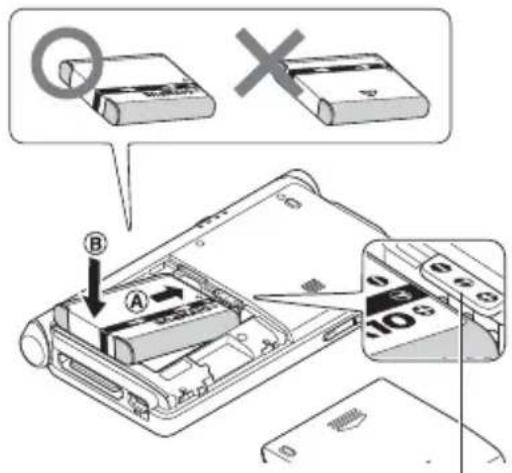
This device uses a lithium-ion battery specified by Olympus (LI-92B). Do not use any other type of battery.
1 To open the battery cover, slide the battery cover lock release lever in the direction of the arrow.

text_image
Diagram of a device rear panel with labeled components and directional arrows indicating movement or assembly.2 With the label facing up, align the terminals on the device and the battery, then press down in at Ⓐ, and set the battery into place by pressing it inward at Ⓑ.
text_image
Diagram showing device close-up with labeled parts and a warning symbol indicating cancellation or error.As shown, set the battery so that it tucks under the protruding section of the device.
3 Slide the battery cover until it is completely closed.
NOTE
- Be sure to firmly close the battery cover (slide until the battery cover lock clicks).
- Do not close the battery cover if the battery is not completely inserted.
- Check for any metallic foreign matter or dust on the terminal of the battery.
- Do not use a battery other than that specified.
- Turn OFF the device before removing the battery. Removing the battery while the device is still in use may cause malfunctions, file corruption or file loss.
- Remove the battery if you are not going to use the device for an extended period of time.
• After removing the battery, it may become necessary to re-set the time and date if you leave the battery out of the device for more than 15 minutes or if you remove the battery right after loading it into the device.
Charging the battery
After loading the battery into the device, you can charge it by connecting the USB cable to the device, or by using the docking-station in combination with the USB cable or the AC adapter. Fully charge the battery (approx. 2 hours 30 minutes) before use.
NOTE
- Lithium-ion batteries are self-discharging. Be sure to charge the battery before you start using.
Charging using docking station and AC adapter

text_image
Diagram illustrating the connection of a device to a smartphone, showing cable routing and component assembly steps.Charging using docking station and USB cable

text_image
Diagram showing a device being inserted into a device with labeled parts, including a close-up view of the component.Charging directly via USB cable

natural_image
Line drawing of a device with an attached cable and connector (no text or symbols)NOTE
- Charge the battery frequently during the first period of use. The battery will perform better after several charge/discharge cycles.
- Models of batteries which are different from the included one may not be charged.
- Charging the battery via the USB cable connection may not be successful depending on the power capacity of the USB port in your PC. Use the AC adapter instead.
- Do not set or remove the device from the docking station while operating.
Charging the battery
- Do not charge the device through a USB hub.
- Do not attach or remove the battery if the USB cable is connected.
Using the lithium-ion battery
The included battery is exclusively for use with the Olympus VoiSquare DS-F1. Do not use in combination with other electronic equipment.
Cautions concerning the battery
Read the following instructions carefully when you use the battery.
Discharging:
Rechargeable batteries self-discharge while not in use. Charge it regularly before use.
Battery life:
Over time, the rechargeable battery may gradually wear down. When the operating time becomes shorter even if the rechargeable battery is fully charged under the specified condition, replace it with a new one.
■ Operating temperature:
Rechargeable batteries are chemical products. Battery efficiency may vary even when operating within the recommended temperature range. This is an inherent nature of these products.
■ Recommended temperature range of use:
During operation:
0^ C - 42^ C / 32^ F - 107.6^ F
Charging:
5^ C-35^ C / 41^ F-95^ F
Storage for a long period:
-20^-60^/-4^-140^
Using the battery outside the above temperature range may result in declining efficiency and shorter battery life.
NOTE
- When disposing the batteries, always observe the local laws and regulations. Contact your local recycling center for proper disposal methods.
- If battery is not fully discharged, protect it against short-circuiting (e.g. by taping the contacts) before disposal.
For customers in Germany:
Olympus has a contract with the GRS (Joint Battery Disposal Association) in Germany to ensure environmentally friendly disposal.
Battery indicator
The battery indicator on the display will decrease as the battery loses power.

- When this [■] indicator appears on the display, charge the battery as soon as possible. When the battery is too weak, [■] and [Power off] will appear on the display and the device will shut down.
Turn the power ON
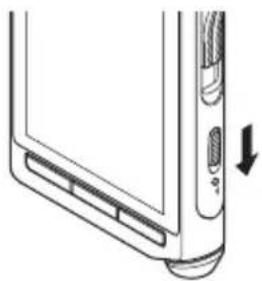
1 While the device is turned OFF, slide the power switch (⏻) in the direction of the arrow for at least 2 seconds.

natural_image
Diagram of a computer tower with ventilation slots and an arrow indicating left-side motion (no text or symbols)- The device vibrates and then the lock screen appears after a short while.
2 Move (drag) the lock icon (💡) on the Home screen to the unlock icon ( Lock) without removing your finger from the screen.

text_image
10:10 THU 1 JANUARY 10:10 THU 1 JANUARYTurning the power OFF
Existing data, mode settings and the clock setting are saved when the power is turned OFF.
1 Slide the power switch (⏻) in the direction of the arrow for at least one second.
natural_image
Diagram of a computer tower with ventilation slots and an arrow indicating rotation (no text or symbols)2 Tap [ Power off].

text_image
Power off Aeroplane mode Aeroplane mode is OFF Silent mode Sound is ON3 Tap [OK].
TIP
- Turning the power OFF whenever the device is not in use minimizes battery consumption.
Power save mode
When you set power save mode, the screen turns off and the screen lock is set. This mode prevents unintended operation of the touch screen when carrying the device.
1 Slide the power switch (⏻) in the direction of the arrow.

natural_image
Diagram of a computer tower front panel with a double-headed arrow indicating left side (no text or symbols present)TIP
- When the device has been stopped for at least 15 seconds (default setting) after power ON, the device automatically enters the power save mode.
- To release the power save mode, slide the power switch again.
Forcetermination
The device may not accept an operation while a large volume of data is being transferred. Please wait until the process is finished.
If the screen is still frozen after waiting a short while, the power can be forcefully turned OFF as follows.
NOTE
- Please note that the power is being forcefully turned OFF so any data being processed or settings being configured may not be saved.
1 Slide the power switch (⏻) in the direction of the arrow for at least 5 seconds.

natural_image
Diagram of a computer tower front panel showing ventilation slots and a directional arrow (no text or symbols)Memory card
The device has its own internal memory, and also supports standard microSD cards (SD, SDHC) sold separately. Some applications may allow you to select either the internal memory or a microSD card as the save location.
Compatible cards
The device supports memory card capacity from 2 GB up to 32 GB.
NOTE
- Before replacing a microSD card, turn OFF the power of the device.
Inserting a micro SD card
1 Turn the power OFF.
2 Remove the battery cover and then remove the battery (P.6).
3 Insert the micro SD card fully into the card slot with the card facing the direction shown in the illustration below, until it clicks into place.

natural_image
Technical line drawing of a device showing internal components and a close-up view of a component (no text or symbols)Ejecting a micro SD card
1 Push the microSD card inward to unlock it and let it come out of the slot.
- Hold the card straight and pull it out.
Cards compatibility
For a list of card compatible with the device, please visit the product homepage at the Olympus website applicable to your region or contact your Olympus dealer where you purchased the product.
NOTE
- Inserting the card the wrong way or at an angle could damage the contact area or cause the card to jam.
- If the card is not inserted all the way into the slot, data may not be written properly.
• After pushing the card inward to eject it, releasing your finger too quickly may cause the card to be ejected unexpectedly. - The device may not properly recognize the card even when that card is compatible with it.
- The processing performance reduces in a card when you repeat writing and deleting. In this case, format the card.
VariousSettings
Settings list
Wi-Fi
Turn on/off the Wi-Fi function.
- When Wi-Fi is connected, battery life is shorter. If the battery runs out during data transfer, the data may be damaged. Therefore, when using a Wi-Fi connection we recommend that you use the AC adapter included with the device.
Data usage
Check data usage for communication via the network.
More...
Set VPN (Virtual Private Network) or airplane mode.
Sound
Set functions related to the sound of the device such as the volume or notification ringtone.
■ Display
Set functions related to the screen of the device such as the brightness or sleep.
Storage
Check information related to the memory of the device such as the available space or used space.
Battery
Check information related to the battery of the device such as battery usage.
Apps
Check information on the installed applications.
Users
Check detailed user information.
Security
Set functions related to the security of the device such as the screen lock or password.
Language & input
Set functions related to the text of the device such as the display language or text input.
Backup & reset
Return the device to its initial state.
Add account
Register or add an account for each application to be used.
Date & time
Set the date and time of the device.
■ Accessibility
Set accessibility for operation.
■ About device
Check the device information.
Other information
Device care
- Exterior
Wipe gently with a soft cloth. If the device is very dirty, soak the cloth in mild soapy water and wring well. Wipe the device with the damp cloth and then wipe it with a dry cloth.
- Monitor
Wipe gently with a soft cloth.
Using alcohol disinfectant solution

• Make sure that your device is turned OFF.
- Do not use other than ethanol for disinfection (76.9 to 81.4 v/v%) and isopropanol for disinfection (70 v/v%).
1 Soak a soft cloth in the disinfectant solution and then wring the cloth to prevent dripping.

flowchart
graph TD
    A["Document"] --> B["Three plastic bottles"]
    B --> C["Processed food item with water droplets"]
2 Wipe the device gently.

natural_image
Line drawing of a hand holding a smartphone with a screen and scroll (no text or symbols)3 Wipe the device well with a soft dry cloth so that no solution remains.

CAUTION
- Do not use disinfectant solution to clean the LED and each sensor.
- Do not rub the device strongly when using disinfectant solution. The paint or print may peel off.
- Do not spray disinfectant solution directly onto the device. The device does not have a waterproof design so solution may enter inside the device and affect the electronic parts.
Troubleshooting
EN
Troubleshoothing
*1 Please note that the power is being forcefully turned OFF so any data being processed or settings being configured may not be saved.
| Problem Possible cause Solution | ||
| Power does not turn ON. | The battery has run out of power. | Charge the battery (P.7). |
| The battery is not inserted properly. | Insert the battery properly (P.6). | |
| Charging is not possible. | The battery is not inserted properly. | Insert the battery properly (P.6). |
| The AC adapter is not connected to the docking station properly. | Connect the AC adapter properly (P.7). | |
| The protective function is activated. | If the temperature of the device becomes very high, the protection function may be activated and may stop charging automatically. Wait until the temperature drops and then perform charging again. | |
| The power of the USB device is OFF. | Before charging from a USB device, turn ON the power of the USB device. | |
| Touch screen does not operate normally. | The power is OFF. | Turn the power ON (P.9). |
| The battery has run out of power. | Charge the battery (P.7). | |
| The screen lock is enabled. | Disable the screen lock (P.9). | |
| The operating procedure is incorrect. | Use the correct procedure to operate the touch screen. Do not push the touch screen forcibly with a finger or press it with a sharp-pointed object such as a fingernail, ballpoint pen, pin, etc. (P.5). | |
| A protective sheet is affixed to the display. | Correct operation may not be possible depending on the type of protective sheet. | |
| Response of the screen is slow when it is tapped or a key is pressed. | The platform is processing data. | This may occur when saving a large volume of data or when moving or copying a large volume of data between the internal memory and microSD card. |
| Touch screen went black. The device is in power save mode. | Cancel power save mode (P.10). | |
| Screen light is dark. | The screen is set to a dark level. | Increase the brightness in the [Brightness] setting of [Display] (P.12). |
| The proximity sensor/luminance sensor is covered. | Do not cover the proximity sensor or luminance sensor of the device with a finger, protective sheet, or other object (P.3). | |
| Screen display does not change when changing the orientation of the device. | The [Auto-rotate screen] setting is disabled. | Enable the [Auto-rotate screen] setting of [Display] (P.12). |
| Device becomes hot during operation and charging. | The device is being operated for a long time during charging. | If the device is operated for a long time during charging, the device or internal battery may become hot but this is not abnormal. If the device becomes too hot to touch, turn OFF the power of the device to stop operation and then ask Olympus Customer Support Center to inspect and repair the device. |
| Screen does not change and power does not turn OFF. | The platform is processing data. | The device may not accept an operation while a large volume of data is being transferred. Please wait until the process is finished.If the screen is still frozen after waiting a short while, the power can be forcefully turned OFF *1 (P.10). |
| Battery usage time is short. The battery has deteriorated. | Battery usage time differs depending on the operating environment. If the usage time has become extremely short even after fully charging the battery, it is time to replace the battery so purchase a new battery of the designated type (LI-92B). | |
| Cannot connect to a Wi-Fi network. | The Wi-Fi function is set to [OFF]. | Change the [Wi-Fi] setting to [ON] (P.12). |
| The connection settings of the W-Fi network are incorrect. | Check the settings of the Wi-Fi function. | |
| An obstacle is blocking the signal between the communication devices. | Check whether or not there is an obstacle blocking the signal between the communication devices. | |
■ The Wi-Fi function of the device is designed to be used in the following regions.
America:
United states, Canada
Europe:
Austria, Belgium, Bulgaria, Cyprus, Czech Republic, Denmark, Estonia, Finland, France, Germany, Greece, Hungary, Ireland, Italy, Latvia, Lithuania, Luxembourg, Malta, Netherlands, Poland, Portugal, Romania, Slovakia, Slovenia, Spain, Sweden, United Kingdom, Iceland, Liechtenstein, Norway, Switzerland, Croatia, Turkey
Oceania:
Australia, New Zealand
Do not use the Wi-Fi function of the device in regions other than those mentioned above.
Also do not use the Wi-Fi function in other than the country or region of purchase.
Using the function could violate the radio signal restrictions in that country. We will assume no responsibility whatsoever for the use of this technology.
■ Communication may be affected if there are reinforced structures, metal or concrete between the device and the Wi-Fi access point.
Near a microwave, cordless telephone set, or device that uses the 2.4GHz frequency band, if the device is used at the same time with such an equipment, communication performance may be affected. When using the device, keep a sufficient distance away from such equipments.
■ To the extent possible, try not to use the device near mobile phones, televisions, or radios.
Mobile phones, PHS, TV sets, and radios use different frequencies than the device but electromagnetic waves generated from Wi-Fi products including this device could generate noise in audio or video images.
Notes on security when using Wi-Fi products
- With a Wi-Fi connection, information is exchanged wirelessly and as long as radio signals reach the unit, flexible connection is possible. However, because radio signals can penetrate through obstacles (wood, glass, etc.), if there is no security-related setting, the following problems could occur.
- A malicious third party intentionally intercepts radio signals to spy on communication content.
- Unauthorized intrusion causes the leaking of important information.
- Intercepted communication contents are rewritten and transmitted.
- Destructive computer viruses are released that can destroy data or systems.
For security protection, we recommend to change the password periodically using the [Wi-Fi] function of the device (P.12).
- Should a problem occur for an inevitable reason due to the specifications of the Wi-Fi connection, we assume no responsibility whatsoever for any damage incurred.
Copyright and trademark information
Trademarks and registered trademarks
• The product uses MP3 audio coding technology licensed from Fraunhofer IIS and Thomson.
- microSD and microSDHC are trademarks of SD Card Association.
- Wi-Fi is a registered trademark of the Wi-Fi Alliance. The Wi-Fi CERTIFIED logo is a certification mark of the Wi-Fi Alliance.
- Android is trademarks or registered trademark of Google Inc.
- VoiSquare is registered trademark of Olympus Corporation.
All other brand or product names in this manual are the trademarks or registered trademarks of their respective owners.




Notes

WARNING
- When using the device in a medical institution, follow the instructions of that medical institution.
Turn OFF the power of the device when near electronic equipment that handles high-precision control or weak signals. The electronic equipment may malfunction or otherwise be adversely affected.
- Keep a distance of at least 22 cm from the location where a pacemaker is implanted.
Electric waves from this device could affect the operation of a pacemaker.
● Turn OFF the device power when on airplane.
Security of the service could be affected.
Safety precautions
Before using the device, read this manual to ensure correct and safe operation. After reading this manual, be sure to keep it on hand for ready reference whenever needed.
Important safety precautions
- Important items about safety are indicated by the following display and sentences. Always follow these precautions to prevent harming yourself or others, or causing damage to property.
- The meaning of each precaution type is given below.

DANGER
A precaution about an imminent danger that is expected to result in death or serious injury if equipment is handed incorrectly.

WARNING
A precaution about a situation that is expected to potentially result in death or serious injury if equipment is handled incorrectly.

CAUTION
A precaution about a situation that is expected to potentially result in injury, or is expected to result only in property damage, if equipment is handled incorrectly.
Caution for usage environment
● To protect the high-precision technology contained in this device, never leave the device in the places listed below, no matter if in use or storage.
- Places where temperatures and/or humidity are high or go through extreme changes. Direct sunlight, beaches, locked cars, or near other heat sources (stove, radiator, etc.) or humidifiers.
- Near flammable items or explosives.
- In wet places, such as bathrooms or in the rain.
• In places prone to strong vibrations.
● Never drop the device or subject it to severe shocks or vibrations.
● Near a microwave, cordless telephone set, or device that uses the 2.4GHz frequency band, if the device is used at the same time with such an equipment, communication performance may be affected. When using the device, keep a sufficient distance away from such equipments.
● To the extent possible, try not to use the device near mobile phones, televisions, or radios.
- Mobile phones, PHS, TV sets, and radios use different frequencies than the device but electromagnetic waves generated from Wi-Fi products including this device could generate noise in audio or video images.
- Recorded content in the internal memory and microSD card may be destroyed or lost due to reasons such as operating errors, device failure or repair.
- Also, when content is saved in the memory for long period of time or is used repeatedly, operations such as writing to, reading from, or erasing of contents may not be possible.
- Making a backup of important recorded information and saving it on a PC's hard disk or other recording media is recommended.
- Note that Olympus will assume no liability for damages or lost earnings resulting from recorded data damage or loss, regardless of the nature or cause thereof.
- Note that Olympus will assume no liability for recorded files being erased or becoming unplayable due to device or PC failure.
- Recording of copyrighted material is permitted when the recording is for your personal use only. Any other type of use without the permission of the copyright owner is prohibited by copyright law.
- Even when data is formatted or erased, only the management information of the file is updated and the data that was recorded on the microSD card or internal memory is not completely erased. When disposing of an microSD card, be sure to destroy the card, format the card and record silence until the recording time runs out, or perform a similar operation in order to prevent the leakage of personal information.
Device safety precautions

WARNING
- Do not use the device in an atmosphere that might contain flammable or explosive gases.
This may cause fire or explosion.
- Do not attempt to disassemble, repair or modify the device.
This may cause electric shock or injury.
- Do not operate the device while operating a vehicle (such as a bicycle, motorcycle or car).
This may cause traffic accidents.
- Do not leave the device in a location accessible to an infant or child.
Pay attention when using the device near an infant or child, taking care not to leave it unattended. Infants and children are unable to understand the device safety precautions, and are at risk of accidents such as:
– Strangulation caused by accidental entanglement of the earphone cord around the neck.
– Operation errors resulting in injury or electric shock.
- Use microSD/SDHC memory cards only. Never place other types of cards in the device.
If another card type is placed in the device by accident, do not try to pull it out by force. Contact an Olympus repair center or service center.
- If the device is dropped in water or, if water, metal or combustible foreign matter gets inside:
① Remove the battery immediately.
② Contact your place of an authorized distributor or service center for repair. Continued use may result in fire or electric shock.
- Do not use the device or use it only as directed in airplanes or other locations where use of electronic devices is restricted.
- Stop using the device if you notice unusual odor, noise, or smoke coming from it.
This may cause fire or burns. Remove the battery immediately, taking care not to burn yourself. Contact your place of an authorized distributor or service center. (Do not touch the battery with bare hands when removing it. Remove the battery outdoors, and away from flammable objects.)
- When carrying the device by its strap, take care to prevent it becoming caught on other items.
- Do not touch for an extended period of time an energized AC adapter or battery while it is charging.
The temperature of the AC adapter or battery being charged rises. Low-temperature burns may result if your skin touches the AC adapter or battery being charged for extended period of time.
- Use only Olympus' special lithium-ion battery, charger, and AC adapter.
Attempting to use other equipment could cause fire or electric shock due to heating, deformation, etc. Also, the power of the device could fail or an unexpected accident could occur. We assume not responsibility for problems as a result of using other than specified products.

CAUTION
- Do not raise the volume before performing an operation.
Hearing damage or loss may result.
Batteries

DANGER
- Do not place the battery near ignition sources.
- Do not incinerate, heat or disassemble the battery. Do not short-circuit the battery's positive and negative electrodes.
This may cause fire, ruptures, combustion or overheating.
- Do not solder connections directly onto the battery. Do not deform, modify or disassemble the battery.
- Do not connect the battery's positive and negative terminals.
This may cause overheating, electric shock or fire.
- When carrying or storing the battery, always place it in the case to protect its terminals. Do not carry or store the battery together with precious metal items such as key rings.
This may cause overheating, electric shock or fire.
- Do not connect the battery directly to a power outlet or car cigarette lighter.
- Do not use or leave the battery in a hot location such as in direct sunlight, inside a vehicle on a hot day, or near a room heater.
This may cause fire, burns or injuries from leaking, overheating or ruptures.

WARNING
- Do not touch or hold the battery with wet hands.
This may cause electric shock or malfunctions.
- Do not use a battery with a scratched or damaged case.
This may cause ruptures or overheating.
- Do not insert the battery with its positive/negative terminals in the opposite direction.
This may cause leaking, overheating, combustion or ruptures.
- Do not use a battery with a torn casing seal (insulating covering).
• Always remove the battery when the device will not be used for an long period. -
When disposing used batteries, insulate their contacts with tape and discard them as general waste in the manner prescribed by the local authority.
-
Remove the battery from the device as soon as the battery becomes unusable. This may cause leakage.
● Battery fluid in the eyes may cause blindness. If battery fluid gets in eyes, do not rub the eyes. Instead, rinse them thoroughly with tap water or other clean water right away. Go to doctor immediately. - Keep the battery out of the reach of infants and children.
The battery could be swallowed by an infant or child. If swallowed, go to doctor immediately.
- If you notice abnormal sound, heat, burning odor or smoke from the device during use:
① Remove the battery immediately, taking care not to injure yourself.
② Have the device repaired by your place of an authorized distributor or service center. Continued use may result in fire or burns.
- Do not submerge the battery in freshwater or saltwater, or allow its terminals to become wet.
● Discontinue use of the battery if it develops a problem such as leaking, discoloration or deformation. - Stop charging the rechargeable battery if charging has not finished after the specified amount of charging time.
● Battery fluid on clothing or skin may damage the skin, so rinse the battery fluid off right away with tap water or other clean water.

CAUTION
- Do not throw the battery around, or subject it to strong shocks.
● Always charge the rechargeable battery before use when using it for the first time or if it has not been used for a long time. - There is a risk of explosion if the battery is replaced with the incorrect battery type. Dispose of the used battery following the instructions.
- Please recycle batteries to help save our planet's resources. When you throw away dead batteries, be sure to cover their terminals and always observe local laws and regulations.
● Rechargeable batteries have a limited life. When the device operating time becomes shorter after recharging under the specified condition, please consider that battery is expired and replace it with a new one.
Disposing the rechargeable battery
● Recycling batteries helps saving resources. When disposing a used battery, always cover its terminals and observe local laws and regulations.
Operating precautions
- Do not leave the device in hot or humid locations such as in direct sunlight inside a vehicle, or on a beach during summer.
-
Do not store the device in humid or dusty locations.
-
If the device becomes wet or damp, wipe off the moisture right away with a dry cloth. Contact with salt water should be particularly avoided.
- Do not place the device on top of or near a TV, refrigerator or other electrical appliance.
- Prevent sand or mud from getting on the device. This may cause product not to be repairable.
- Do not subject the device to intense vibrations or shocks.
- Do not use the device in humid locations.
- Placing a magnetic card (such as a bank cash card) near the speaker or earphones may cause errors in the data stored on the magnetic card.
Docking station

DANGER
● Never disconnect the AC adapter or power cord with a wet hand. This may cause electric shock or injury.
- Only use the specified AC adapter with the docking station. Using it in combination with other AC adapters may cause overheating, fire, or malfunction.

WARNING
● Never disassemble, modify, or repair the docking station yourself. This may cause fire, electric shock, or injury.
● Never use the docking station in locations where it might come into contact with liquids. Getting the docking station wet may cause fire or electric shock.
- Do not drop the docking station or allow it to suffer extreme shocks. This may cause damage, or fire or electric shock.
- Do not touch the connector or insert the metal wires or similar object into any of the plugs. This may cause fire, or electric shock.

CAUTION
● Unplug the AC adapter or power cord from the docking station and AC outlet when not using for extended periods of time. If this precaution is not followed and the docking station is damaged then fire may occur.
AC adapter

DANGER
- Be sure to use the AC adapter with the proper voltage (AC 100 - 240 V).
Using it with other voltage levels may cause fire, explosion, overheating, electric shock or injury.
- For your safety, be sure to unplug the AC adapter from the outlet before performing maintenance or cleaning.
Also, never plug in or disconnect the power plug with a wet hand. This may cause electric shock or injury.

WARNING
- Do not attempt to disassemble, repair or modify the AC adapter in any way.
This may cause electric shock or other injury.
- Do not use the AC adapter in the vicinity of flammable gas (including gasoline, benzine and lacquer thinner).
This may cause explosion, fire, or burns.
- Do not short circuit the and at the plug end.
This may cause fire, burns or electric shock.
- If internal material is exposed due to dropping or damage:
① Never touch exposed internal material. Doing so could cause electric shock, burns or other injury.
② Immediately disconnect the power supply plug from the power outlet, and;
③ Call your dealer or local Olympus representative for servicing. Continued use may result in fire or burns.
- If the AC adapter is submerged in water or, if water, metal or combustible foreign matter gets inside:
① Disconnect the power plug from the outlet.
② Call your dealer or local Olympus representative for servicing. Continued use may result in fire or electric shock.
- If you notice abnormal sound, heat, burning odor or smoke from the AC adapter during use:
① Remove the battery immediately, taking care not to injure yourself.
② Call your dealer or local Olympus representative for servicing. Continued use may result in fire or burns.

CAUTION
- Do not moisten the AC adapter or touch it with a wet hand.
Doing so could cause electric shock or other injury.
● Only use the AC adapter with the specified power supply voltage.
- Do not attempt to insert a power plug with dust adhering into an outlet.
- Do not use the AC adapter if the power plug is damaged or the plug is not completely connected to the outlet.
● Unplug the AC adapter from AC outlet when not using.
- Do not damage the power cord.
- Make sure to hold the plug when removing the power plug from the outlet.
- Do not place heavy objects on the cord.
- Do not bring the cord near heating equipment.
• This may cause fire or electric shock.
LCD monitor
● The LCD used for the monitor is made with high-precision technology.
However, black spots or bright spots of light may appear constantly on the LCD Monitor. Due to its characteristics or the angle at which you are viewing the monitor, the spot may not be uniform in color and brightness. This is not a malfunction.
Precautions for touch screen
● The LCD screen is made of glass. If the glass is cracked or otherwise damaged, do not touch the touch screen or attempt to repair it yourself.
Be careful when handling the LCD screen because it may be damaged if it is dropped or subjected to an impact.
Damage resulting from inappropriate handling is not covered by the warranty.
General points
Operating System
Android ^TM 4.3
Storage\*
Internal NAND FLASH memory: 8 GB
microSD/microSDHC card:
Supports 2 GB to 32 GB
* Some recording media memory capacity is used as a management area, so the actual usable capacity will always be slightly less than the displayed capacity.
■ Display
Size: 3.7 inches
Resolution: 854 x 480 pixels (FWVGA)
Type: TFT color LCD
Speaker
Built-in ø20 mm round dynamic speaker
■ Maximum working output
350 mW (8Ω speaker)
■ Maximum headphone output
≤ 150 mV (conforms to EN 50332-2)
Wireless standards
Complies with IEEE802.11b/g/n*
* IEEE802.11n is compatible with only the 2.4 GHz band
- The communication speed and distance may vary depending on ambient conditions such as the radio environment, obstacles and installation environment.
Security
WEP, WPA/WPA2 Personal, WPA/WPA2 Enterprise
MIC jack
ø3.5 mm impedance 2 kΩ
EAR jack
ø3.5 mm impedance 8Ω or more
Power source
Standard voltage: 3.6V
Battery: Lithium-ion battery (LI-92B)
External power supply: USB connection, AC adapter (A517) (DC5V)
■ External dimensions
114 mm × 63.8 mm × 14.6 mm
(Not including largest projection)
Weight
140 g (including battery)
■ Operating temperature
0 to 42°C (32 to 107.6°F)
Battery life
The figures below are guideline values.
Operating time: 24 hours (approx)
Specifications and design are subject to change without notice.
Battery life is measured by Olympus. It varies greatly according to the conditions of use.
Accessories (optional)
Docking Station: CR20
This product is designed specifically for Olympus DS-F1, keeping it safe and secure.
Clip: CL3
This product is designed to protect your DS-F1 from accidental drops.
Lithium-ion battery: LI-92B
This lithium-ion rechargeable battery is manufactured by Olympus. It is best paired with the UC-90 battery charger.
Battery charger: UC-90
This product is designed for LI-92B.
Foot Switch: RS31
Connect to the USB docking station with DS-F1 for hands-free transcription.
Noise-cancellation microphone: ME12
(Dictation microphone)
Used to get crisp recordings of your own voice by reducing the effects of ambient noise.
Recommended to improve the accuracy when using voice-recognition software.
External microphone: ME15
A lavalier omni-directional microphone that clips to clothing. Used to record your own voice or people near you.
Highly sensitive noise-cancellation monaural microphone: ME52W
This microphone is used to record sound at a distance while minimizing surrounding noise.
For customers in North America
For customers in USA
Declaration of Conformity
Model Number: DS-F1
Trade Name: OLYMPUS
Responsible Party: OLYMPUS IMAGING AMERICA INC.
Address: 3500 Corporate Parkway, P.O. Box 610, Center Valley, PA 18034-0610, U.S.A.
Telephone Number: 484-896-5000
Tested To Comply With FCC Standards FOR HOME OR OFFICE USE
This device complies with Part 15 of FCC Rules and Industry Canada licence-exempt RSS standard(s).
Operation is subject to the following two conditions:
(1) this device may not cause harmful interference, and
(2) this device must accept any interference received, including interference that may cause undesired operation of this device.
For customers in CANADA
CAN ICES-3 (B) / NMB-3 (B)
FCC CAUTION
Changes or modifications not expressly approved by the party responsible for compliance could void the user's authority to operate the equipment.
This transmitter must not be co-located or operated in conjunction with any other antenna or transmitter.
To maintain compliance with FCC's RF exposure guidelines, use only the supplied antenna. Unauthorized antenna, modification, or attachments could damage the transmitter and may violate FCC regulations.
FCC Notice
● This equipment has been tested and found to comply with the limits for a Class B digital device, pursuant to Part 15 of the FCC Rules. These limits are designed to provide reasonable protection against harmful interference in a residential installation.
● This equipment generates, uses, and can radiate radio frequency energy and, if not installed and used in accordance with the instructions, may cause harmful interference to radio communications.
● However, there is no guarantee that interference will not occur in a particular installation. If this equipment does cause harmful interference to radio or television reception, which can be determined by turning the equipment off and on, the user is encouraged to try to correct the interference by one or more of the following measures:
- Adjust or relocate the receiving antenna.
- Increase the distance between the equipment and receiver.
- Connect the equipment to an outlet on a circuit different from that to which the receiver is connected.
- Consult your dealer or an experienced radio/TV technician for help.
- Only the OLYMPUS supplied USB cable should be used to connect the equipment to USB enabled personal computers (PC).
Any unauthorized changes or modifications to this equipment would void the user's authority to operate it.
DS-F1 is equipped with WLAN device with IC and FCC ID:
- FCC ID: YSKA01,
- IC: 4763E-A01
The available scientific evidence does not show that any health problems are associated with using low power wireless devices. There is no proof, however, that these low power wireless devices are absolutely safe. Low power Wireless devices emit low levels of radio frequency energy (RF) in the microwave range while being used. Whereas high levels of RF can produce health effects (by heating tissue), exposure of low-level RF that does not produce heating effects causes no known adverse health effects. Many studies of low-level RF exposures have not found any biological effects. Some studies have suggested that some biological effects might occur, but such findings have not been confirmed by additional research. DS-F1 has been tested and found to comply with FCC/IC radiation exposure limits set forth for an uncontrolled environment and meets the FCC radio frequency (RF) Exposure Guidelines in Supplement C to OET65 and RSS-102 of the IC radio frequency (RF) Exposure rules. SAR testing has been done at a distance of 0 cm from the body and the head.
For customers in Europe
EN

The "CE" mark indicates that this product complies with the European requirements for safety, health, environment and customer protection. CE-mark products are for sale in Europe.

This symbol [crossed-out wheeled bin WEEE Annex IV] indicates separate collection of waste electrical and electronic equipment in the EU countries. Please do not throw the equipment into the domestic refuse. Please use the return and collection systems available in your country for the disposal of this product.

This symbol [crossed-out wheeled bin Directive 2006/66/EC Annex II] indicates separate collection of waste batteries in the EU countries. Please do not throw the batteries into the domestic refuse. Please use the return and collection systems available in your country for the disposal of the waste batteries.

To prevent possible hearing damage, do not listen at high volume levels for long periods.
Hereby, OLYMPUS, declares that VoiSquare is in compliance with the essential requirements and other relevant provisions of Directive 1999/5/EC.
For details visit: http://olympus-europa.com/SAR testing has been done at a distance of 0 cm from the body and the head.
This product supports WLAN. Radio function of this equipment is not allowed to use in the geographical area within a radius of 20 km from the centre of Ny-Alesund on Svalbard.
OLYMPUS®
VoiSquare
DS-F1
UŽIVATELSKÁ PŘÍRUČKA
ENGLISH
ČEŠTINA
DANSK
DEUTSCH
ESPAÑOL
FRANÇAIS
NEDERLANDS
POLSKI
РУССКИЙ
SVENSKA
1
29
55
81
109
137
165
193
221
249
DÁREK PRO VÁS <<
text_image
Labeled diagram of a device showing numbered components for identification
text_image
Diagram of a device rear panel with numbered labels pointing to different components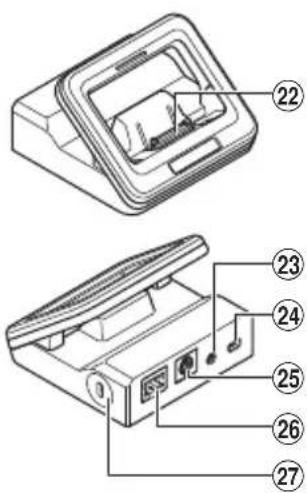
text_image
Technical diagram of a device with numbered parts labeled 22 to 27, showing internal components and connectors.natural_image
Line drawing of a hand pointing at a smartphone screen (no text or symbols)Dotyk
text_image
Diagram of a device rear panel with labeled components and directional arrows indicating movement or assembly.text_image
Diagram illustrating a device's internal structure with labeled parts and an 'X' symbol indicating cancellation or error.text_image
Diagram illustrating the connection of a device to a smartphone, showing cable routing and component assembly steps.text_image
Diagram showing two-step installation of a mobile phone device, labeled with component numbers and cable connections.natural_image
Line drawing of a device with an attached cable and connector (no text or symbols)POZNÁMKA
5^ C - 35^ C
natural_image
Diagram of a computer tower front panel showing internal components and a directional arrow (no text or symbols)natural_image
Diagram of a computer tower with ventilation slots and an arrow indicating rotation (no text or symbols)natural_image
Diagram of a computer tower with ventilation slots and an arrow indicating direction (no text or symbols)TIP
natural_image
Diagram of a computer tower front panel showing ventilation slots and a directional arrow (no text or symbols)Pamětová karta
natural_image
Technical line drawing of a device showing internal components and a close-up view of the internal structure (no text or symbols)Vyjmutí karty microSD
flowchart
graph TD
    A["Bag with lid"] --> B["Three plastic bottles"]
    B --> C["Water droplets"]
    C --> D["Fish with water droplets"]
natural_image
Line drawing of a hand holding a smartphone with a screen and buttons (no text or symbols)WEP, WPA/WPA2 Personal, WPA/WPA2 Enterprise
KoneMpc
∅ 3,5 mm, impedance 2 000 Ω
Konekar
text_image
Labeled diagram of a device showing numbered components for identification
text_image
Diagram of a device rear panel with numbered labels pointing to different components
text_image
Technical diagram of a device with numbered parts, showing front and side views with labeled components.natural_image
Line drawing of a hand pointing at a smartphone screen (no text or symbols)Tryk (Tap)
text_image
Diagram of a device rear panel with labeled components and directional arrows indicating movement or assembly.text_image
Diagram illustrating a device's internal structure with labeled parts and an 'X' symbol indicating cancellation or error.text_image
Diagram illustrating the installation of an electronic device via cable, showing components labeled 1 to 4 with connection points.text_image
Diagram showing a device being inserted into a device with labeled parts, including a close-up view of the internal structure.Direkte opladning via USB kablet

natural_image
Line drawing of a mobile phone rear panel with an attached cable (no text or symbols)BEMÄRK
natural_image
Diagram of a computer tower front panel showing ventilation slots and a directional arrow (no text or symbols)natural_image
Diagram of a computer monitor front panel with an arrow indicating left-side motion (no text or symbols present)2 Tryk på [ Sluk].

natural_image
Diagram of a computer tower front panel with a double-headed arrow indicating left side (no text or symbols present)TIP
natural_image
Diagram of a computer tower front panel with an arrow indicating left-side motion (no text or symbols present)Hukommelseskort
natural_image
Technical line drawing of a device showing internal components and a close-up view of the internal structure (no text or symbols)text_image
Diagram illustrating a chemical process with bottles, a paper, and a bag pouring liquid into a container.natural_image
Line drawing of a hand holding a smartphone with a screen and scroll (no text or symbols)text_image
Labeled diagram of a device showing numbered components for identification
text_image
Diagram of a device rear panel with numbered labels pointing to different components
text_image
Technical diagram of a device with numbered parts, likely an electronic component or connector assembly.natural_image
Line drawing of a hand pointing at a smartphone screen (no text or symbols)Tippen
text_image
Diagram of a device rear panel with labeled components and directional arrows indicating movement or assembly.text_image
Diagram showing a device with labeled parts and an 'X' symbol indicating cancellation or disassembly.text_image
Diagram illustrating the installation and connection of a device with labeled components including power, cable, and sensor connections.text_image
Diagram showing two-step installation of a smartphone device with labeled components and cable connectionsnatural_image
Line drawing of a device with an attached cable and ports, no text or symbols presentHINWEIS
natural_image
Diagram of a computer tower front panel with a double-headed arrow indicating left side (no text or symbols present)natural_image
Diagram of a computer tower with an arrow indicating a component or connection (no text or symbols present)natural_image
Diagram of a computer tower front panel with ventilation slots and a directional arrow indicating left side (no text or symbols)TIPP
natural_image
Diagram of a computer tower front panel with an arrow indicating left-side motion (no text or symbols present)Speicherkarte
natural_image
Technical line drawing of a device showing internal components and a close-up view of the internal structure (no text or symbols)flowchart
graph TD
    A["Paper using paper"] --> B["Three plastic bottles"]
    B --> C["Cleaner with liquid"]
    C --> D["Car Washing Bag with water droplets"]
natural_image
Line drawing of a hand holding a smartphone with a close-up of its screen (no text or symbols visible)Docking Station: CR20
text_image
Labeled diagram of a device with numbered parts for identification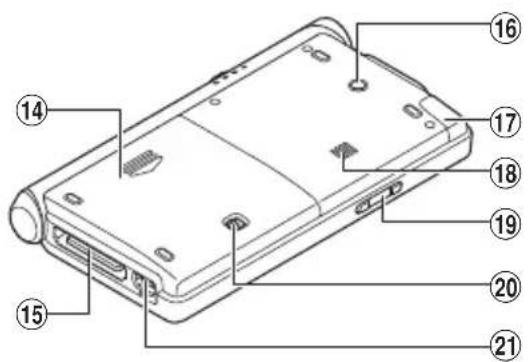
text_image
Diagram of a device rear panel with numbered labels pointing to different components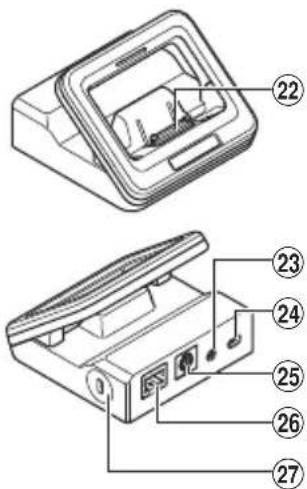
text_image
Technical diagram of a device with numbered parts, likely an electronic component or connector assembly.natural_image
Line drawing of a hand pointing at a smartphone screen (no text or symbols)Tocar
text_image
Diagram of a device rear panel with labeled components and directional arrows indicating movement or assembly.text_image
Diagram showing a device with labeled components and a warning dialog box, including a magnified view of the device's internal structure.text_image
Diagram illustrating the connection of a device to a smartphone, showing cable routing and component assembly steps.text_image
Diagram showing a device being inserted into a device with labeled parts, including a close-up view of the device's internal structure.natural_image
Line drawing of a device with an attached cable and ports (no text or symbols)NOTA
natural_image
Diagram of a computer tower front panel with a double-headed arrow indicating left side (no text or symbols present)natural_image
Diagram of a computer tower with ventilation slots and an arrow indicating rotation (no text or symbols)2 Toque [ Apagar].

natural_image
Diagram of a computer tower front panel with ventilation slots and a directional arrow indicating left side (no text or symbols)CONSEJO
natural_image
Diagram of a computer tower front panel with an arrow indicating left-side motion (no text or symbols present)Tarjeta de memoria
natural_image
Technical line drawing of a device showing internal components and a close-up view of the internal structure (no text or symbols)natural_image
Line drawing of a hand holding a smartphone with a screen and buttons (no text or symbols)text_image
Labeled diagram of a device showing numbered components for identification
text_image
Diagram of a device rear panel with numbered labels pointing to different components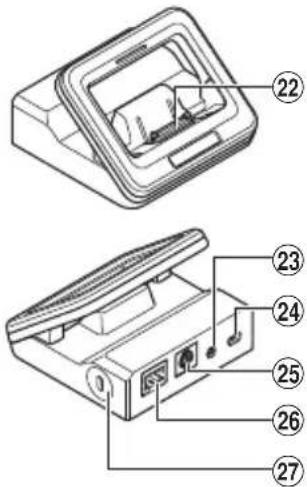
text_image
Technical diagram of a device with numbered parts labeled 22 to 27natural_image
Line drawing of a hand pointing at a smartphone screen (no text or symbols)Taper
text_image
Diagram of a device rear panel with labeled components and directional arrows indicating movement or assembly.text_image
Diagram illustrating a device's internal structure with labeled parts and annotations, including a magnified view of the device's internal components.text_image
Diagram illustrating the connection of a device to a smartphone, showing cable routing and component disassembly steps.text_image
Diagram showing a device being inserted into a device with labeled parts, including a close-up of the internal structure.natural_image
Line drawing of a device with an attached cable and ports, no text or symbols presentREMARQUE
natural_image
Diagram of a computer tower front panel with a directional arrow indicating left side (no text or symbols present)natural_image
Diagram of a computer tower with ventilation slots and an arrow indicating rotation (no text or symbols)2 Touchez [ Éteindre].

natural_image
Diagram of a computer tower with ventilation slots and an arrow indicating rotation (no text or symbols)CONSEIL
natural_image
Diagram of a computer tower front panel with an arrow indicating left-side motion (no text or symbols)Carte mémoire
natural_image
Technical line drawing of a device interior showing internal components and a close-up view of a component (no text or symbols)natural_image
Line drawing of a hand holding a smartphone with a screen and scroll (no text or symbols)WEP, WPA/WPA2 Personal, WPA/WPA2 Enterprise
PMIe
Adresse : 3500 Corporate Parkway, P.O. Box 610, Center Valley, PA 18034-0610, U.S.A.
text_image
Labeled diagram of a device showing numbered components for identification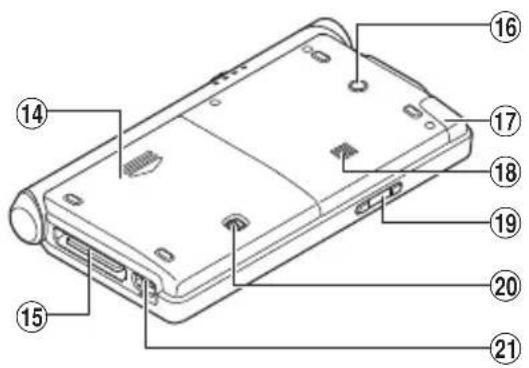
text_image
Diagram of a device rear panel with numbered labels pointing to different components
text_image
Technical diagram of a device with numbered parts labeled 22 to 27, showing internal components and connectors.natural_image
Line drawing of a hand pointing at a smartphone screen (no text or symbols)Aantippen
text_image
Diagram of a device rear panel with labeled components and directional arrows indicating movement or flow.text_image
Diagram showing device close-up with labeled parts and a magnified view of the internal componenttext_image
Diagram illustrating the connection of a device to a smartphone, showing cable routing and component assembly steps.text_image
Diagram showing two-step installation of a smartphone device with labeled parts and cable connectionsDirect opladen met de USB-kabel

natural_image
Line drawing of a device with a cable inserted into the housing (no text or symbols)OPMERKING
natural_image
Diagram of a computer tower front panel with a double-headed arrow indicating left side (no text or symbols present)natural_image
Diagram of a device rear panel with internal components and a downward arrow indicating rotation (no text or symbols)2 Tip [ Uitschakelen] aan.

text_image
Uitschakelen Vliegmodus Vliegmodus is UIT Stille modus Geluid is AAN3 Tip [OK] aan.
TIP
natural_image
Diagram of a computer tower with ventilation slots and an arrow indicating left-side motion (no text or symbols)TIP
natural_image
Diagram of a computer tower front panel with ventilation slots and a directional arrow indicating left side (no text or symbols)Geheugenkaart
natural_image
Technical line drawing of a device showing internal components and a close-up view of the internal structure (no text or symbols)natural_image
Line drawing of a hand holding a smartphone with a screen and scroll (no text or symbols)WEP, WPA/WPA2 Personal, WPA/WPA2 Enterprise
MIC-aansluiting
∅ 3,5 mm impedantie 2 kΩ
EAR-aansluiting
text_image
Labeled diagram of a device showing numbered components for identification
text_image
Diagram of a device rear panel with numbered labels pointing to different components
text_image
Technical diagram of a device with numbered parts labeled 22 to 27, showing internal components and connectors.natural_image
Line drawing of a hand pointing at a smartphone screen (no text or symbols)Dotknięcie
text_image
Technical diagram of a device rear panel with labeled components and directional arrows indicating movement or assembly.text_image
Diagram showing device close-up with labeled parts and a magnified view of the internal portion, including a 10x magnification indicator.text_image
Diagram illustrating the connection of a device to a smartphone, showing cable routing and component assembly steps.text_image
Diagram showing two steps of inserting a device into a battery, labeled with numbers 1 and 2.natural_image
Line drawing of a device with a cable inserted into the housing (no text or symbols)UWAGA
natural_image
Diagram of a computer tower with ventilation slots and an arrow indicating direction (no text or symbols)natural_image
Diagram of a computer monitor front panel with an arrow indicating left-side motion (no text or symbols present)natural_image
Diagram of a computer tower front panel with ventilation slots and a downward arrow indicating rotation (no text or symbols)WSKAZÓWKA
natural_image
Diagram of a computer tower front panel with ventilation slots and a directional arrow indicating left side (no text or symbols)Karta pamięci
natural_image
Technical line drawing of a device showing internal components and housing (no text or symbols)flowchart
graph TD
    A["Clothing cloth"] --> B["Three plastic bottles"]
    B --> C["Box with liquid and granules"]
    C --> D["Fish-shaped item with water droplets"]
natural_image
Line drawing of a hand holding a smartphone with a screen and scroll (no text or symbols)WEP, WPA/WPA2 Personal, WPA/WPA2 Enterprise
Gniamo
text_image
Labeled diagram of a device showing numbered components for identification
text_image
Diagram of a device rear panel with numbered labels pointing to different components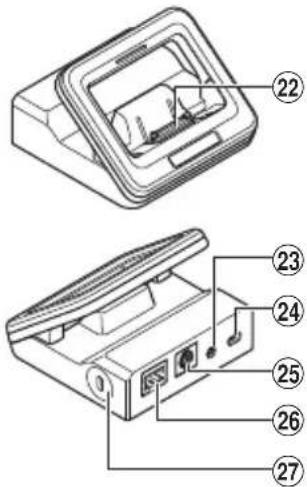
text_image
Technical diagram of a device with numbered parts labeled 22 to 27, showing internal components and mounting points.natural_image
Line drawing of a hand pointing at a smartphone screen (no text or symbols)Нажатие
text_image
Diagram of a device rear panel with labeled components and directional arrows indicating movement or assembly.text_image
Diagram illustrating a device setup with labeled components including a power connector, cable, and a smartphone mounted on a base.text_image
Diagram showing a device being inserted into a device with labeled parts, including a magnified view of the device's internal structure.natural_image
Line drawing of a device with an attached cable and ports, no text or symbols presentПРИМЕЧАНИЕ
natural_image
Diagram of a computer tower front panel with an arrow indicating left-side motion (no text or symbols present)natural_image
Diagram of a computer tower or server unit with a double-headed arrow indicating rotation (no text or symbols present)natural_image
Diagram of a computer tower with ventilation slots and an arrow indicating direction (no text or symbols)COBET
natural_image
Diagram of a computer tower front panel with an arrow indicating left-side movement (no text or symbols present)Карта памяти
natural_image
Technical line drawing of a device showing internal components and an inset view of a chip (no text or symbols)natural_image
Line drawing of a hand holding a smartphone with a screen and scroll (no text or symbols)WEP, WPA/WPA2 Personal, WPA/WPA2 Enterprise
■ Гнебик
text_image
Labeled diagram of a device showing numbered components for identification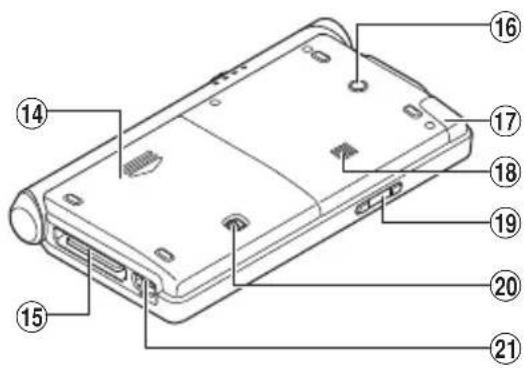
text_image
Diagram of a device rear panel with numbered labels pointing to different components
text_image
Technical diagram of a device with numbered parts, showing front and side views with labeled components.natural_image
Line drawing of a hand pointing at a smartphone screen (no text or symbols)Tryck (Tap)
text_image
Diagram of a device rear panel with labeled components and directional arrows indicating movement or assembly.text_image
Diagram showing device close-up with labeled parts and a warning symbol indicating cancellation or error.text_image
Diagram illustrating the connection of a device to a smartphone, showing cable routing and component assembly steps.text_image
Diagram showing a device being inserted into a device with labeled parts, including a close-up view of the component.natural_image
Line drawing of a device with an attached cable and connector (no text or symbols)OBS!
natural_image
Diagram of a computer tower front panel with ventilation slots and a directional arrow indicating left side (no text or symbols)natural_image
Diagram of a computer tower with ventilation slots and an arrow indicating direction (no text or symbols)natural_image
Diagram of a computer tower front panel with a double-headed arrow indicating left side (no text or symbols present)TIPS
natural_image
Diagram of a device rear panel with ports and a directional arrow indicating movement (no text or symbols)Minneskort
natural_image
Technical line drawing of an electronic device showing internal components and casing (no text or symbols)natural_image
Line drawing of a hand holding a smartphone with a screen and buttons (no text or symbols)WEP, WPA/WPA2 Personal, WPA/WPA2 Enterprise
MIC-uttag
ø 3,5 mm impedans 2 kΩ
EAR-uttag
3500 Corporate Parkway, P.O. Box 610, Center Valley, PA 18034-0610, U.S.A. Tel. 484-896-5000
http://www.olympusamerica.com
OLYMPUS EUROPA SE & CO. KG
Consumer Product Division
Wendenstrasse 14 - 18, 20097 Hamburg, Germany.
European Technical Customer Support:
Please visit our homepage http://www.olympus-europa.com/voice
Or call our TOLL FREE NUMBER*: 00800 - 67 10 83 00
for Austria, Belgium, Czech Republic, Denmark, Finland, France, Germany, Luxemburg, Netherlands, Norway, Poland, Portugal, Russia, Spain, Sweden, Switzerland, United Kingdom.
* Please note some (mobile) phone services / provider do not permit access or request an additional prefix to +800 numbers.
For all not listed European Countries and in case that you can't get connected to the above mentioned number please make use of the following CHARGED NUMBER: +49 40 - 237 73 899.
OLYMPUS IMAGING AUSTRALIA PTY LTD.
Ground Floor, 82 Waterloo Road, Macquarie Park NSW 2113, Australia
PO Box 1991 Macquarie Centre NSW 2113
Tel: +61 2 9886 3992
http://www.olympus.com.au