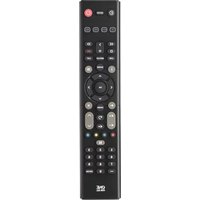
Essence TV URC 1211 - Remote control ONE FOR ALL - Free user manual and instructions
Find the device manual for free Essence TV URC 1211 ONE FOR ALL in PDF.



| Brand | One For All |
| Model | Essence TV URC 1211 |
| Product type | Universal remote control |
| Power supply | 2 AAA/LR03 batteries (alkaline recommended) |
| Technology | Infrared (IR) |
| Approximate range | 10 meters |
| Dimensions (approx.) | 20 x 5 x 2.5 cm |
| Weight (approx.) | 120 g (with batteries) |
| Number of buttons | 42 |
| Main functions | TV control, volume, channels, menu, guide, playback, subtitles, apps, search |
| Setup | SimpleSet (prelisted brands) or manual code, learning function |
| Compatible devices | TV (Bush, Grundig, JVC, LG, Panasonic, Philips, Samsung, Sharp, Sony, Toshiba and others via code) |
| Warranty | 3 years (conditions: normal use, receipt required) |
| Care and cleaning | Clean with a soft, dry cloth, avoid abrasive products |
| Safety | Do not expose to humidity, follow battery instructions, recycle at end of life |
| Recycling | Return to store or recycling center (WEEE and batteries) |
Frequently Asked Questions - Essence TV URC 1211 ONE FOR ALL
User questions about Essence TV URC 1211 ONE FOR ALL
0 question about this device. Answer the ones you know or ask your own.
Ask a new question about this device
Download the instructions for your Remote control in PDF format for free! Find your manual Essence TV URC 1211 - ONE FOR ALL and take your electronic device back in hand. On this page are published all the documents necessary for the use of your device. Essence TV URC 1211 by ONE FOR ALL.
USER MANUAL Essence TV URC 1211 ONE FOR ALL
natural_image
Simple line drawing of a cylindrical object with a rounded end and a small protrusion, no text or symbols present.
natural_image
Simple line drawing of a cylindrical object with a small protrusion and label '2' in the corner (no text or symbols on the object itself)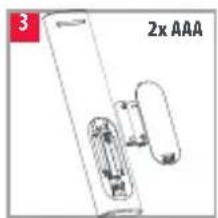
natural_image
Diagram of a handheld device with two components, labeled '2x AAA' (no readable text or symbols beyond label)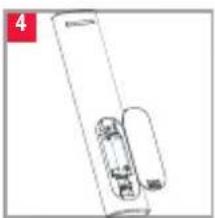
natural_image
Simple line drawing of a cylindrical object with a rectangular base and a separate cylindrical component, no text or symbols present.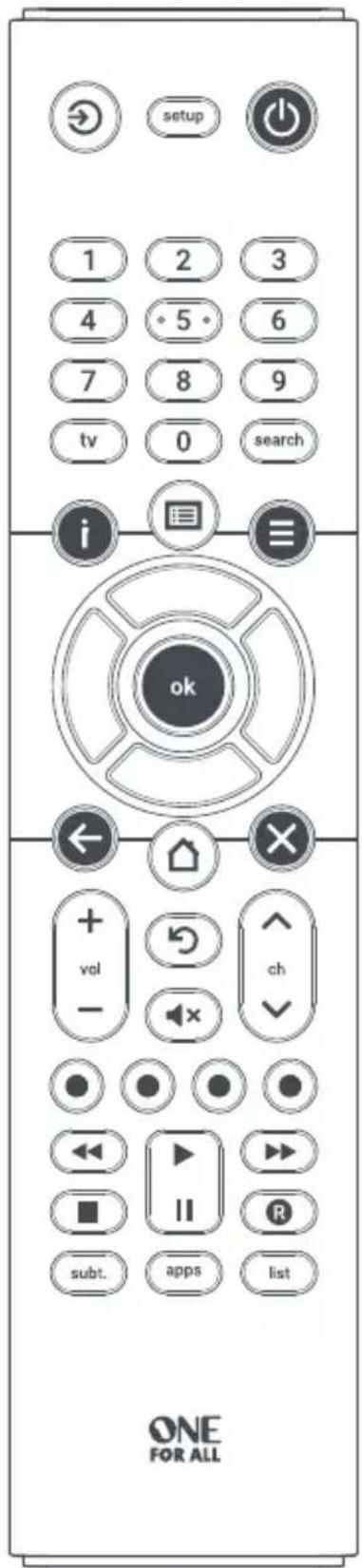
text_image
setup 1 2 3 4 5 6 7 8 9 tv 0 search i ok ← → × + vol ← ch - × ● ● ● ● ◀ ▶ ▶ ▶ ■ II R subt. apps list ONE FOR ALLBATTERIES
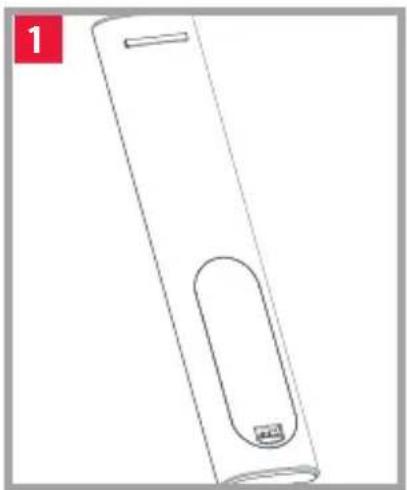
Your remote requires 2 x AAA / LR03 batteries. Please insert them as shown below. Alkaline batteries are recommended.
natural_image
Line drawing of a cylindrical device with a rounded body and a small protrusion, labeled '1' in the top-left corner (no text or symbols on the device itself)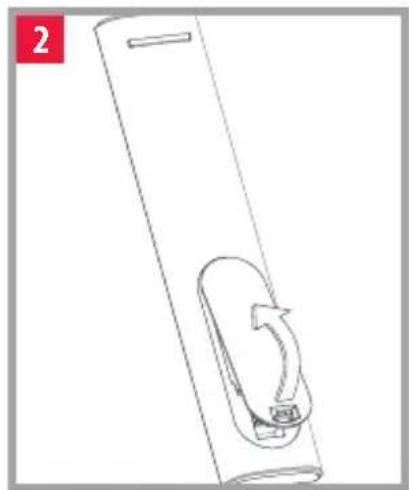
natural_image
Line drawing of a cylindrical device with a curved arrow indicating rotation or movement (no text or symbols)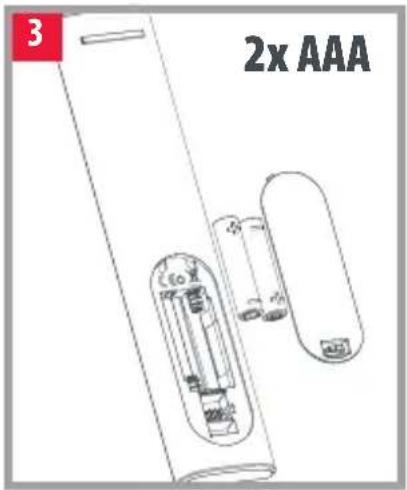
text_image
3 2x AAA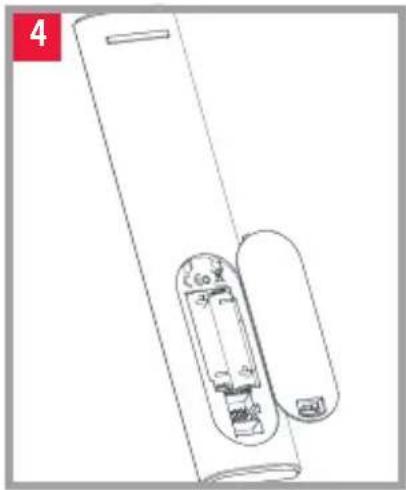
natural_image
Line drawing of a cylindrical device with internal components, no text or symbols present
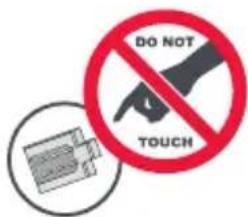
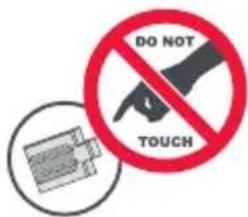
CAUTION: Risk of explosion if battery is replaced by an incorrect type. Use quality Alkaline batteries.
text_image
DO NOT TOUCHKEY DESCRIPTIONS
text_image
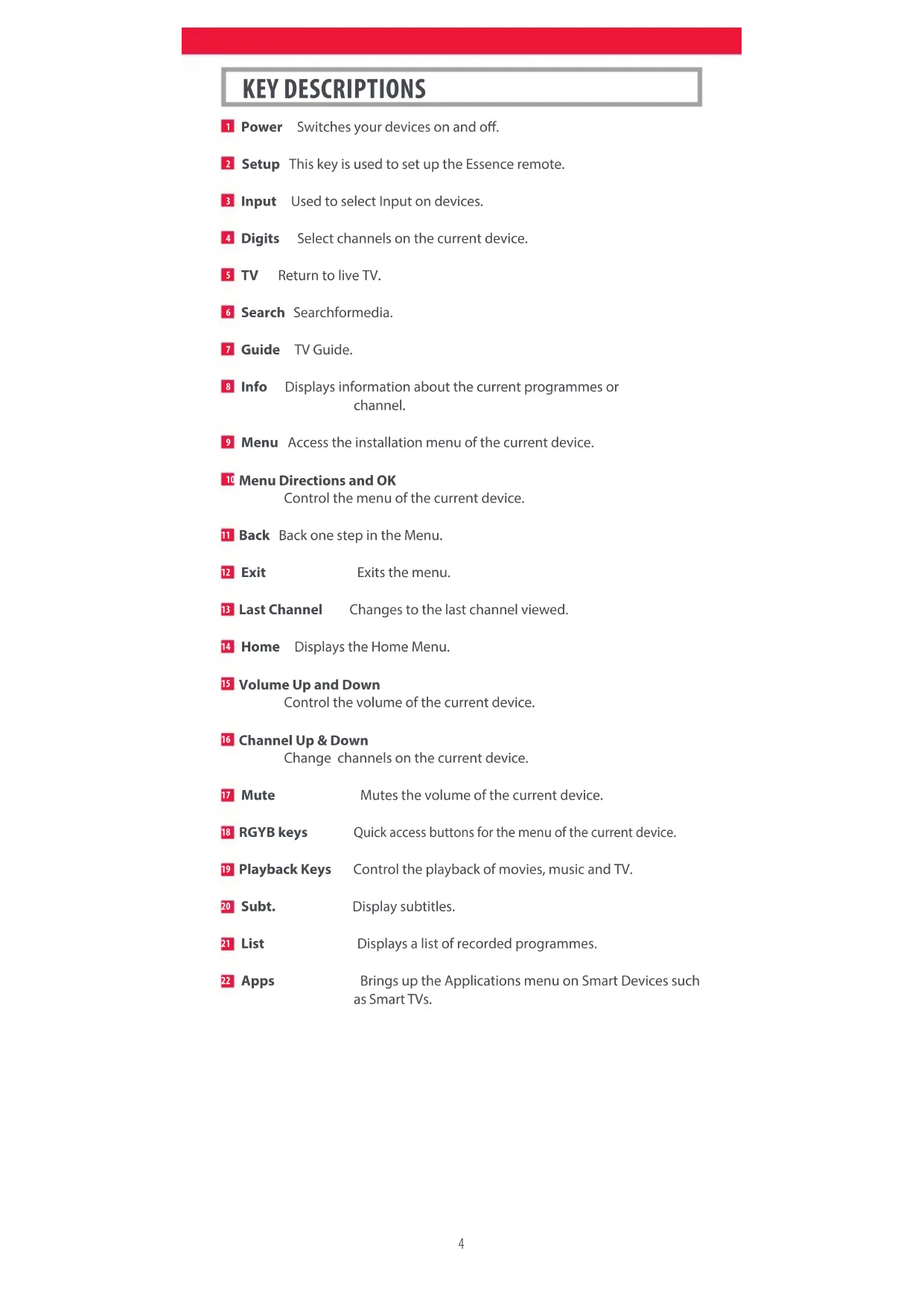
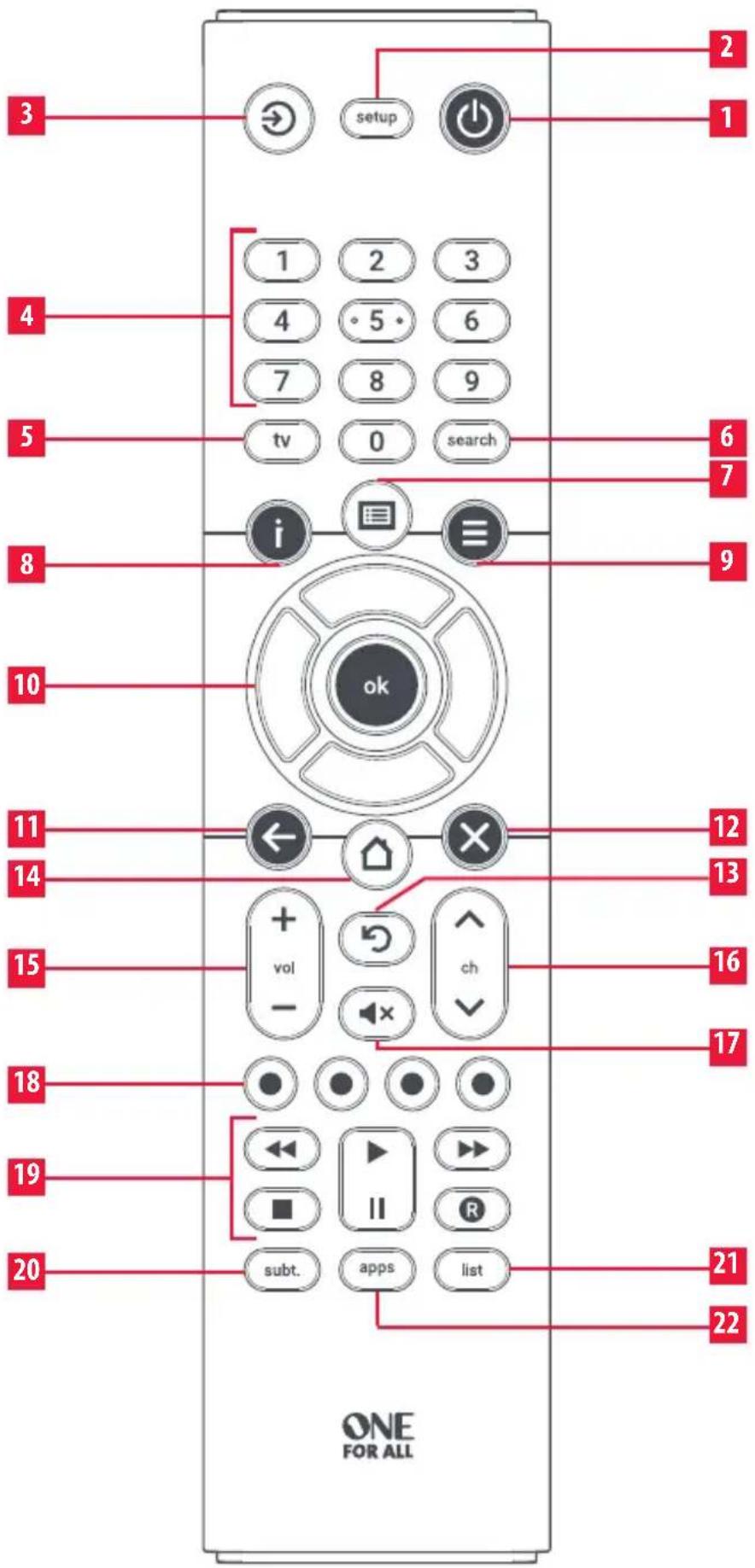
2 1 setup 3 4 1 2 3 4 5 6 7 8 9 tv 0 search 5 i 6 7 8 9 10 ok 11 ← × 12 13 14 15 + vol - ch 16 17 18 ● ● ● ● 19 ◀ ▶ ▶ ▶ ■ II R 20 subt. apps list 21 22 ONE FOR ALLKEY DESCRIPTIONS
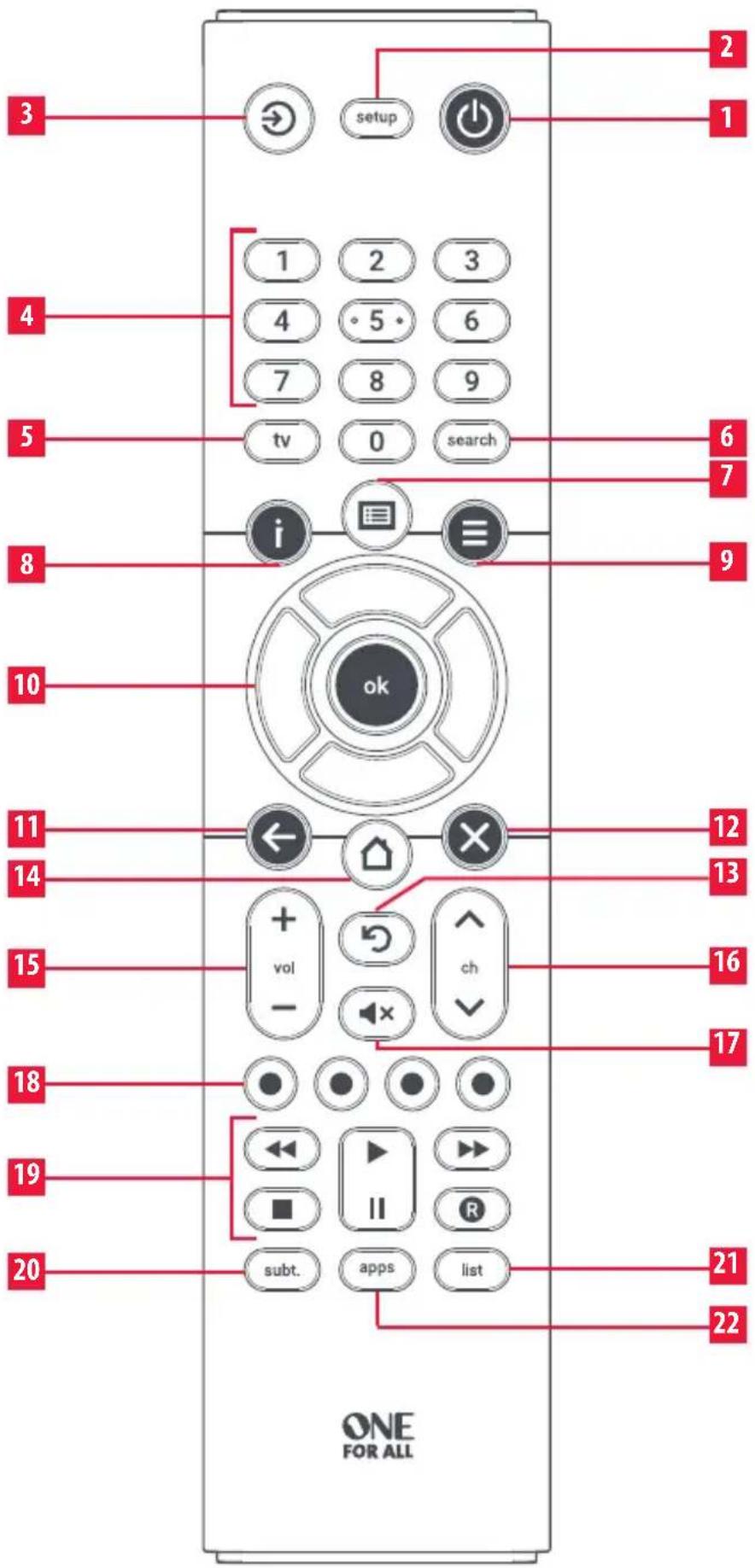
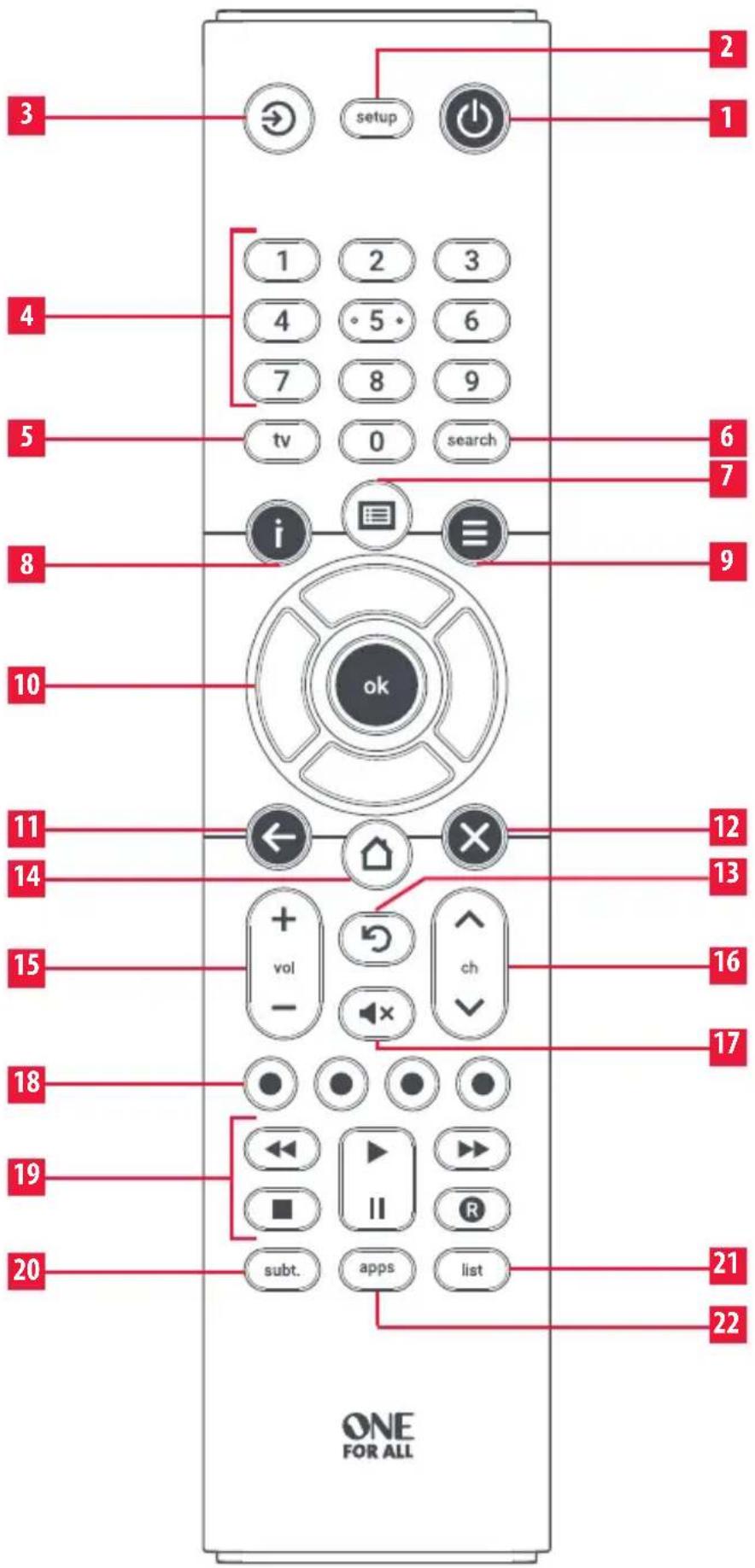
1 Power Switches your devices on and off.
2 Setup This key is used to set up the Essence remote.
3 Input Used to select Input on devices.
4 Digits Select channels on the current device.
5 TV Return to live TV.
6 Search Searchformedia.
7 Guide TV Guide.
8 Info Displays information about the current programmes or channel.
9 Menu Access the installation menu of the current device.
10 Menu Directions and OK
Control the menu of the current device.
11 Back Back one step in the Menu.
12 Exit Exits the menu.
13 Last Channel Changes to the last channel viewed.
14 Home Displays the Home Menu.
15 Volume Up and Down
Control the volume of the current device.
16 Channel Up & Down
Change channels on the current device.
17 Mute Mutes the volume of the current device.
18 RGYB keys Quick access buttons for the menu of the current device.
19 Playback Keys Control the playback of movies, music and TV.
20 Subt. Display subtitles.
21 List Displays a list of recorded programmes.
22 Apps Brings up the Applications menu on Smart Devices such as Smart TVs.
SETUP
SIMPLESET
If the brand of your device is shown in the SimpleSet picture pointing to a key, you can use the SimpleSet system described in this section, please locate the brand of your device and note the key associated with it.
TV
| 1 | Bush |
| 2 | Grundig |
| 3 | JVC |
| 4 | LG |
| 5 | Panasonic |
| 6 | Philips |
| 7 | Samsung |
| 8 | Sharp |
| 9 | Sony |
| 0 | Toshiba |
| 1 | 2 | 3 |
| 4 | 5 | 6 |
| 7 | 8 | 9 |
| tv | 0 | search |
To set up your device:
-
Turn on your device (not on standby) and point the Essence remote towards it.
-
Hold down the Setup key until the LED under the Device key blinks twice.
-
Hold down the digit for your brand and device as listed in the tables above - e.g. 7 for a Samsung TV.
-
The remote will send Power every 3 seconds until your device switches off.
-
As soon as your device switches off, release the digit.
-
The LED will blink twice and the remote should now operate your device.
- If you find one or more keys do not work as you expect, start again at step 2 – the remote will start with the next code in the memory.
SETUP
SETUP BY CODE
If the brand of your device is not listed in the SimpleSet feature, you can set up by trying codes individually. To do this firstly locate your brand in the Code List. Codes are listed by brand and device, and in order of popularity.
-
Turn on your device (not on standby) and point the Essence remote towards it.
-
Hold down the Setup key until the LED under the Device key blinks twice.
-
Enter the first 4 digit code listed for your brand (e.g. 1840 for LG).
-
The LED will blink twice on the last digit of the code.
-
Now in the remote towards your device and press the Power key.
-
If the device turns off your remote is ready to use. If not, repeat steps 2-5 with the next code in the list.
LEARNING
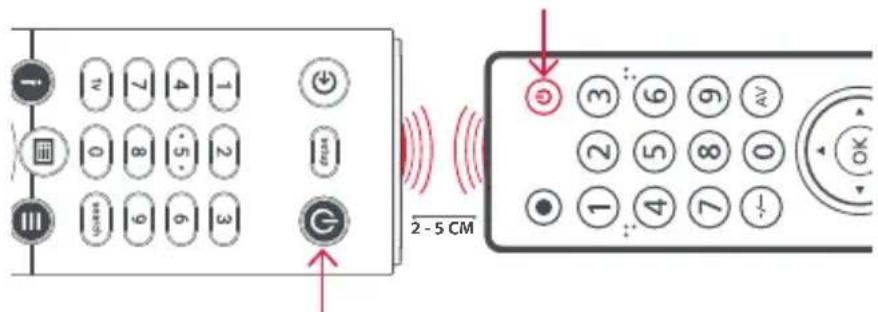
Your Essence remote control can learn any function from any other working remote control. This is a quick and easy one-time setup that allows to control any infrared controlled device you have in your living room. It also allows you to add a key or keys that may be missing to a spare key on the Essence.
To do this, firstly make sure you have all your original remote controls to hand, and that they have working batteries in.
To learn functions, the original remote should be approximately 3cm from the Essence remote, pointing towards it:
text_image
2 - 5 CM-
Hold down the Setup key until the LED under the Device key blinks twice.
-
Press 975 the LED should blink twice.
-
Press and release the key you want to learn a function onto (for example the TV Power key) – the LED will begin to flash rapidly.
SETUP
-
Press and release* the corresponding key on the original remote, for example Power.
-
The LED will blink twice to indicate the key has been learned correctly.
-
Repeat steps 3 and 4 for each key you want to learn – remember you can learn from multiple remotes, but only one function per key.
-
When you have learned all the functions you require, press and hold Setup key until the LED blinks twice.
* Some remotes send commands differently. If you find a function cannot be learned, try holding down the key on the original remote instead of pressing and releasing.
Hints:
- If the LED shows one long blink at step 5, the function was not learned correctly, please try again from step 3.
- If you find one or more keys don't work properly after set up, you can re-enter the learning mode at any time by repeating the procedure from step 1.
- If one or more of your original remotes aren't working, you can still set up the Essence remote by SimpleSet or Code Set Up.
Deleting a learned function
If you want to delete a learned function and return that keys to its original state, you can use the following procedure:
- Hold down the Setup key until the LED under the Device key blinks twice.
- Press 976 - the LED should blink twice
- Press the key you want to reset twice – the LED should blink twice and the learned function has been deleted.
Connect with us

facebook.com/ @oneforall.worldwide linkedin.com/ youtube.com/ oneforallworldwide company/one-for-all-worldwide/user/oneforallproducts


DEUTSCH BATTERIEN
natural_image
Line drawing of a cylindrical object with a rounded top and a small protrusion, labeled '1' in the corner (no text or symbols on the object itself)
natural_image
Line drawing of a cylindrical device with a curved internal component and a circular arrow indicating rotation (no text or symbols)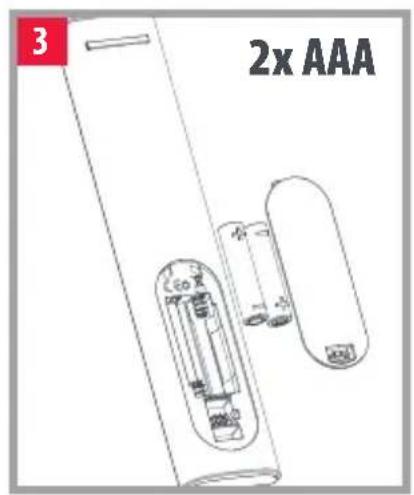
text_image
3 2x AAA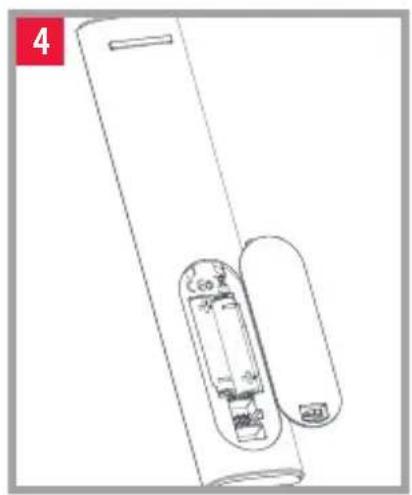
natural_image
Line drawing of a handheld device with internal components and a handle (no text or symbols)natural_image
Line drawing of a cylindrical object with a rounded end and a small protrusion, labeled '1' in the top-left corner (no text or symbols on the object itself)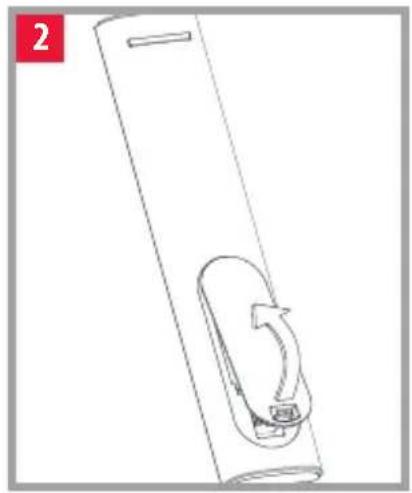
natural_image
Line drawing of a cylindrical mechanical component with a curved internal feature (no text or symbols)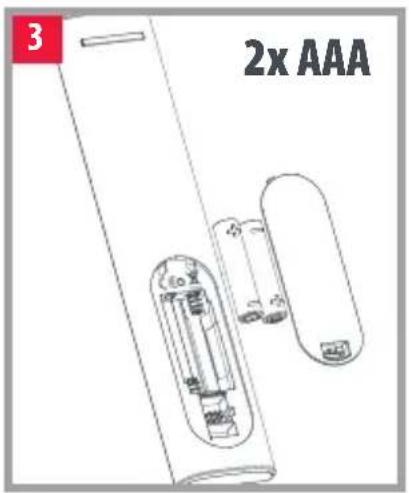
text_image
3 2x AAA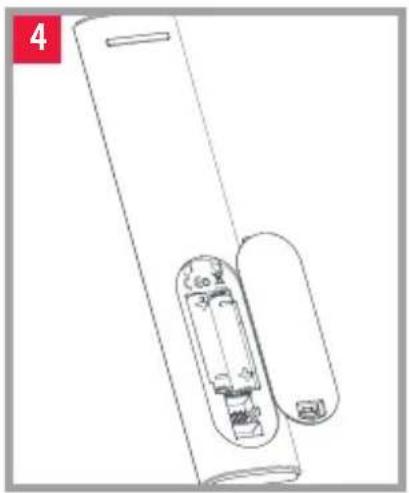
natural_image
Line drawing of a cylindrical device with internal components, no text or symbols presentnatural_image
Simple line drawing of a cylindrical object with a rounded end and a small protrusion, no text or symbols present.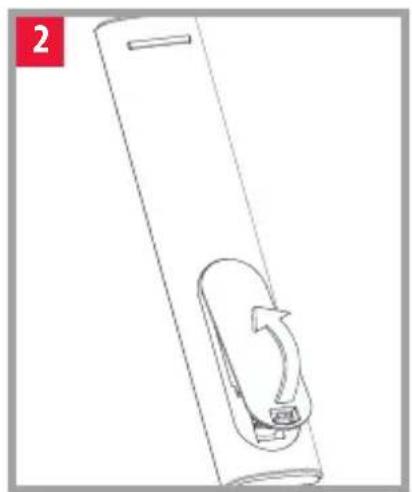
natural_image
Line drawing of a cylindrical device with a curved handle and internal components (no text or symbols)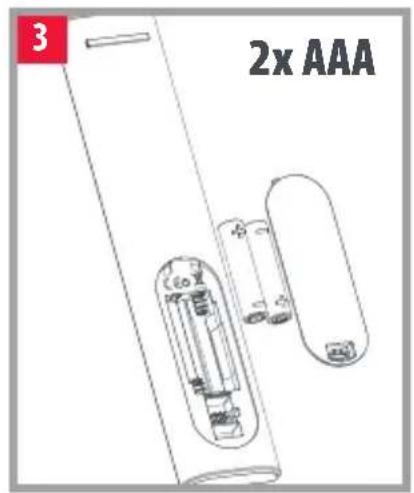
text_image
3 2x AAA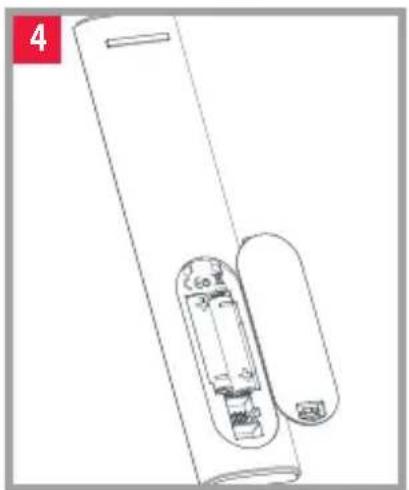
natural_image
Line drawing of a cylindrical device with internal components and a lid, no text or symbols presentnatural_image
Line drawing of a cylindrical object with a rounded side and a small protrusion, labeled '1' in the top-left corner (no text or symbols on the object itself)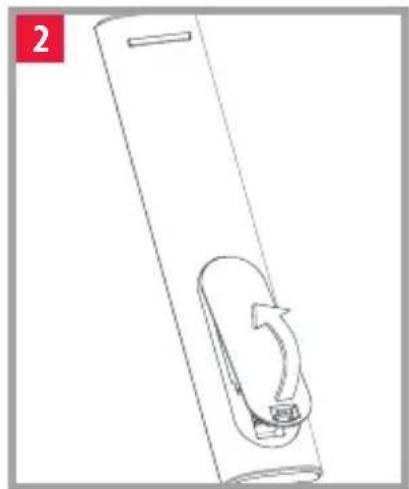
natural_image
Line drawing of a cylindrical device with a curved arrow and internal component (no text or symbols)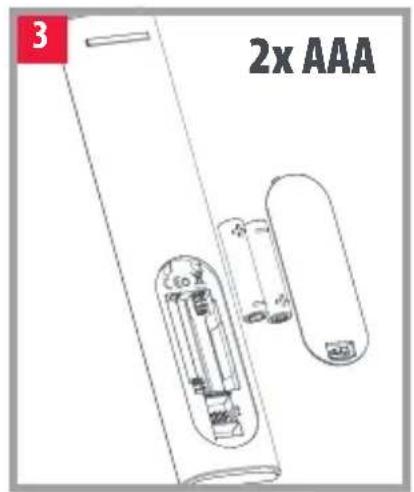
text_image
3 2x AAA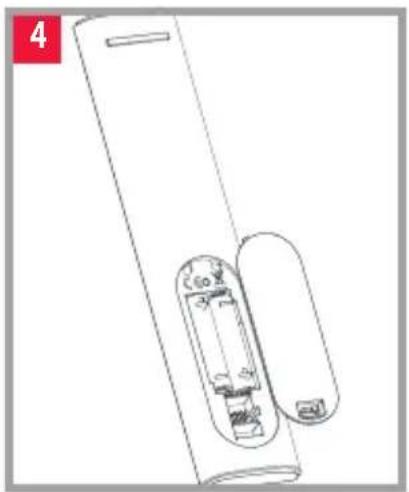
natural_image
Line drawing of a handheld device with internal components and a handle (no text or symbols)
natural_image
Simple line drawing of a cylindrical object with two rounded ends and a small protrusion, labeled '1' in the top-left corner (no text or symbols on the object itself)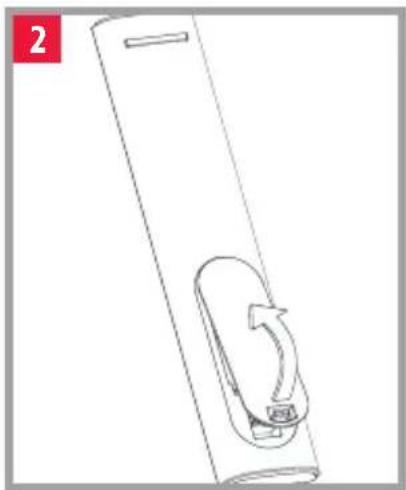
natural_image
Line drawing of a cylindrical device with a curved arrow and label '2' (no text or symbols on the device itself)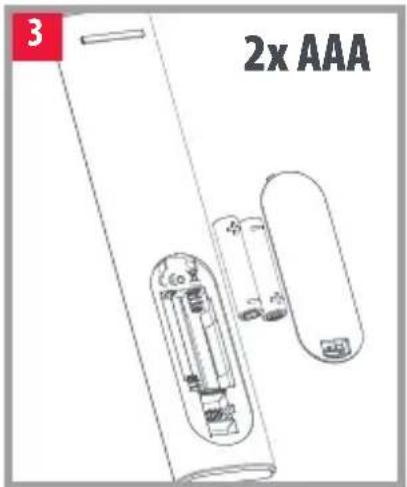
text_image
3 2x AAA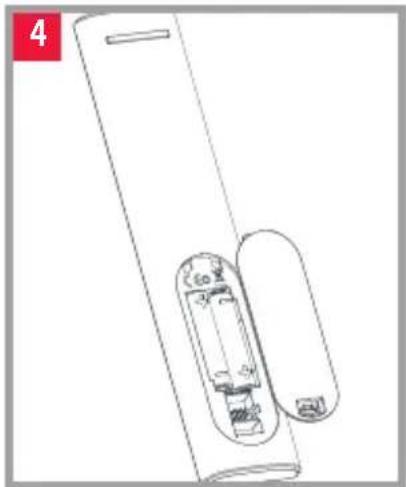
natural_image
Line drawing of a handheld device with internal components and a handle (no text or symbols)natural_image
Line drawing of a cylindrical object with a rounded side and a small protrusion, labeled '1' in the top-left corner (no text or symbols on the object itself)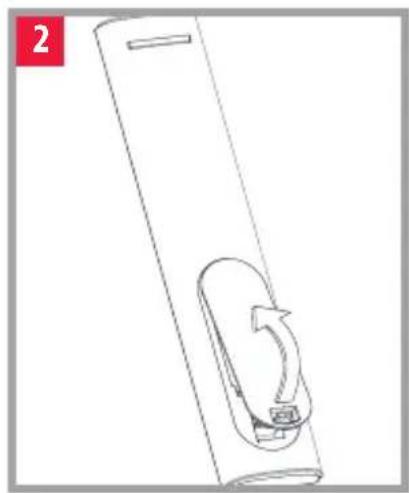
natural_image
Line drawing of a cylindrical device with a curved arrow indicating rotation or movement (no text or symbols)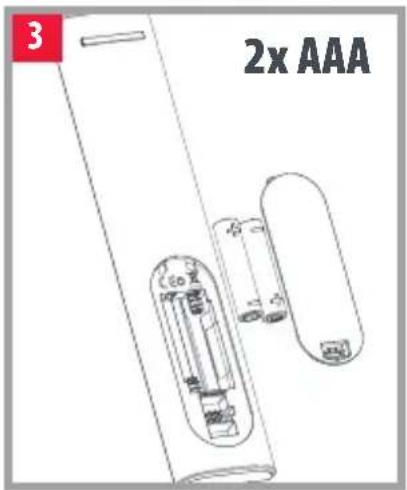
text_image
3 2x AAA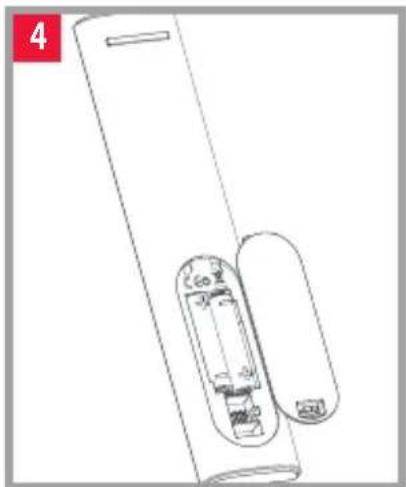
natural_image
Line drawing of a handheld device with internal components and a handle (no text or symbols)BESCHRIJVING KNOPPEN
text_image
2 1 setup 3 4 1 2 3 4 5 6 7 8 9 tv 0 search 5 i 6 7 8 9 10 ok 11 ← × 12 13 14 15 + vol - ch 16 17 18 ● ● ● ● 19 ◀ ▶ ▶ ▶ ■ II R 20 subt. apps list 21 22 ONE FOR ALLBESCHRIJVING KNOPPEN
natural_image
Line drawing of a cylindrical object with a rounded end and a small protrusion, labeled '1' in the top-left corner (no text or symbols on the object itself)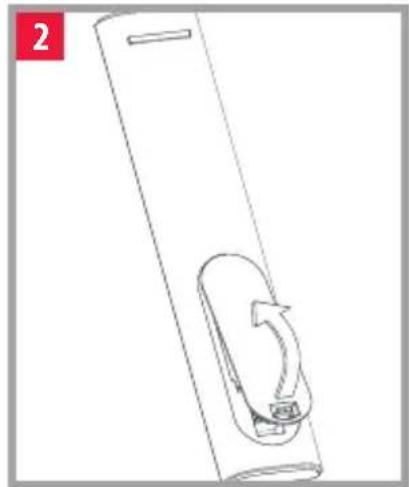
natural_image
Line drawing of a cylindrical device with a curved arrow indicating rotation or movement (no text or symbols)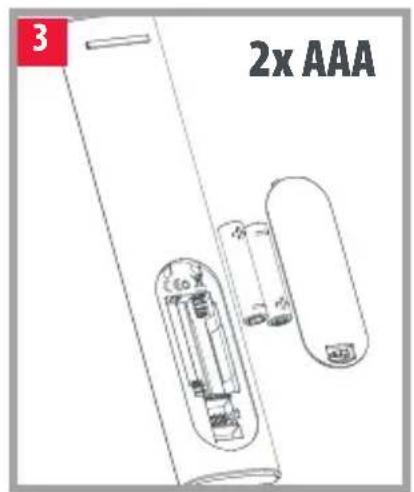
text_image
3 2x AAA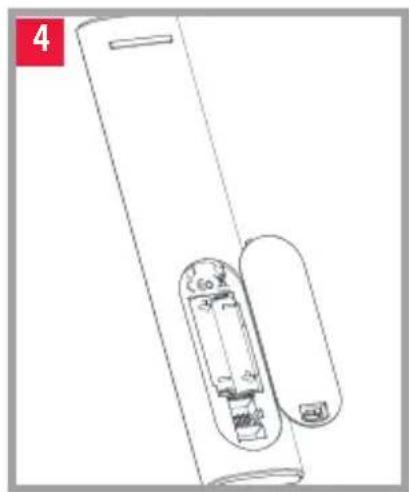
natural_image
Line drawing of a handheld device with internal components and a handle (no text or symbols)natural_image
Line drawing of a cylindrical object with a rounded top and a small protrusion, labeled '1' in the corner (no text or symbols on the object itself)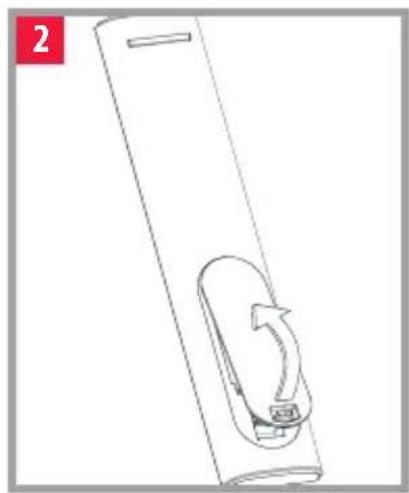
natural_image
Line drawing of a cylindrical device with a curved internal component and a scroll-like arrow, no text or symbols present.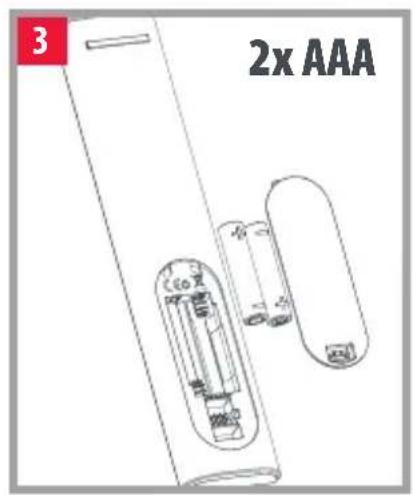
text_image
3 2x AAA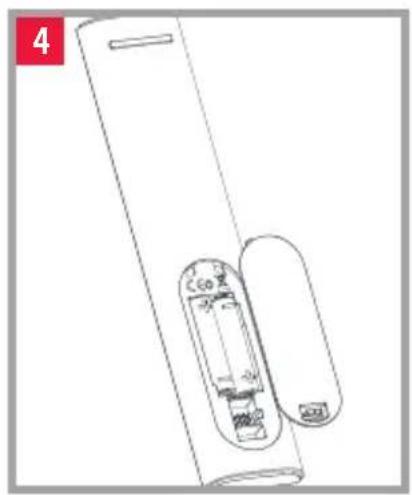
natural_image
Line drawing of a handheld device with internal components and a handle (no text or symbols)natural_image
Simple line drawing of a cylindrical object with a rounded side and a small protrusion, labeled '1' in the top-left corner (no text or symbols on the object itself)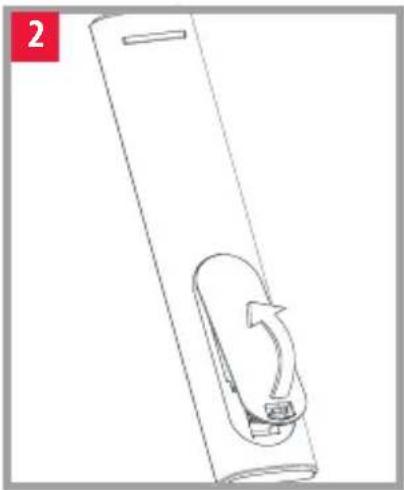
natural_image
Line drawing of a cylindrical device with a curved arrow and internal component (no text or symbols)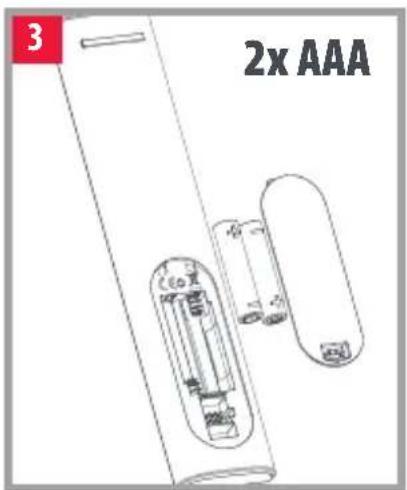
text_image
3 2x AAA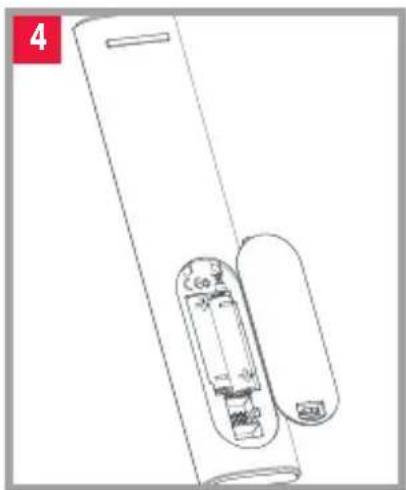
natural_image
Line drawing of a handheld device with internal components and a handle (no text or symbols)natural_image
Simple line drawing of a cylindrical object with a rounded side and a small protrusion, labeled '1' in the top-left corner (no text or symbols on the object itself)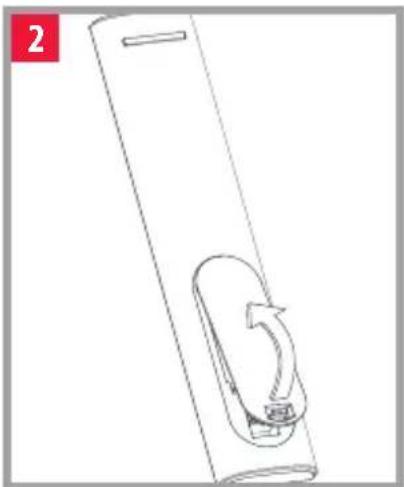
natural_image
Line drawing of a cylindrical device with a curved handle and a small component, no text or symbols present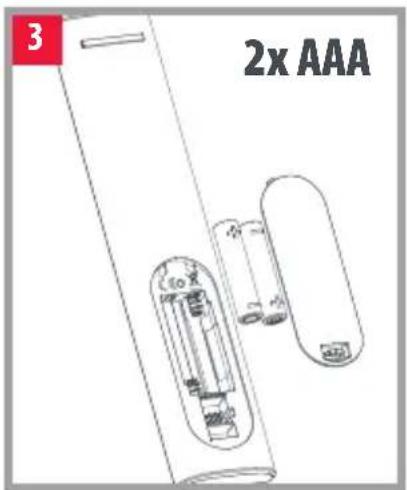
text_image
3 2x AAA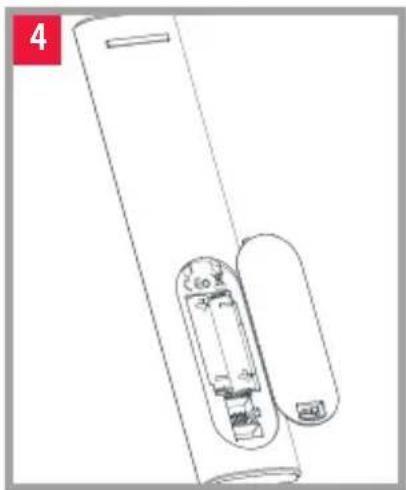
natural_image
Line drawing of a handheld device with internal components and a handle (no text or symbols)natural_image
Line drawing of a cylindrical object with a rounded end and a small protrusion, labeled '1' in the top-left corner (no text or symbols on the object itself)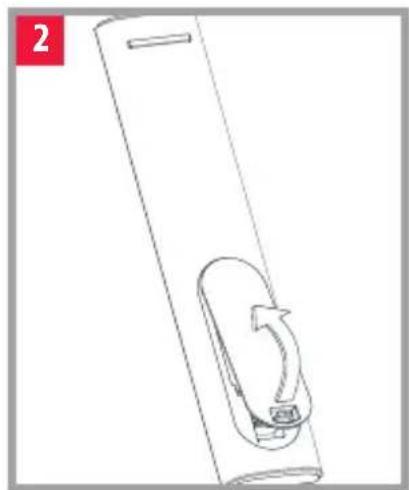
natural_image
Line drawing of a cylindrical mechanical component with a curved internal feature (no text or symbols)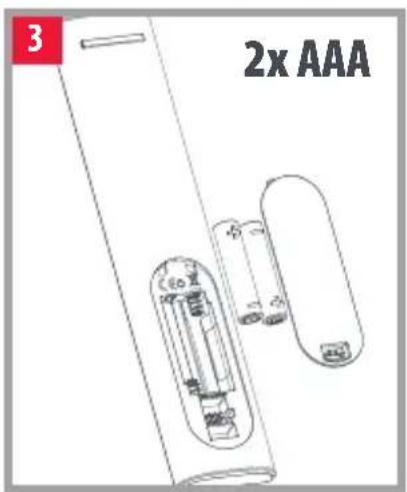
text_image
3 2x AAA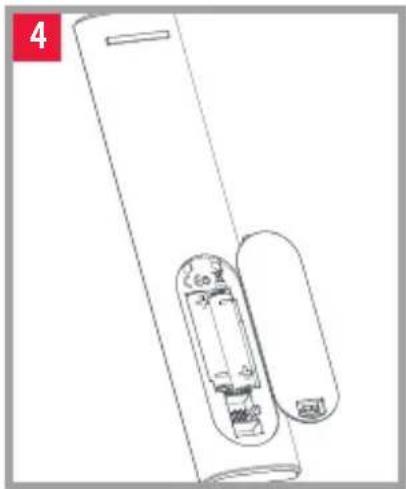
natural_image
Line drawing of a handheld device with internal components and a handle (no text or symbols)
natural_image
Line drawing of a cylindrical object with a rounded side and a small protrusion, labeled '1' in the top-left corner (no text or symbols on the object itself)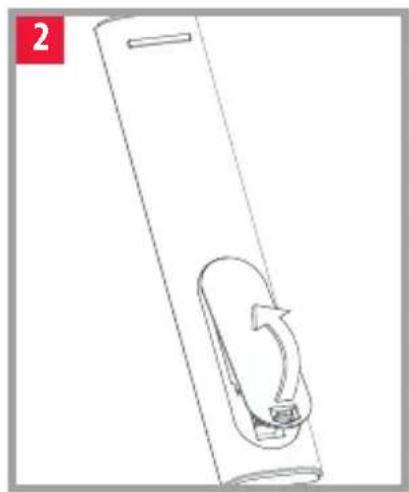
natural_image
Line drawing of a cylindrical device with a curved arrow indicating rotation or movement (no text or symbols)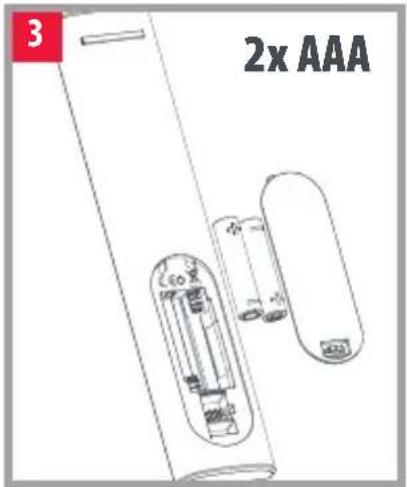
text_image
3 2x AAA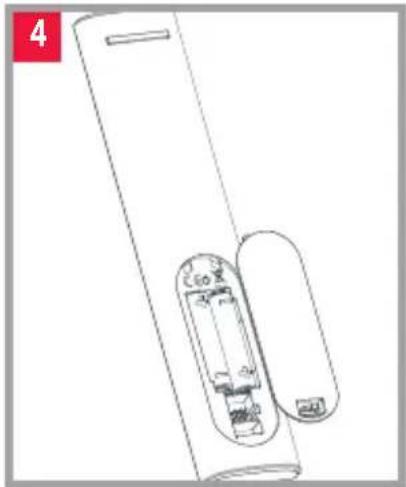
natural_image
Line drawing of a handheld device with internal components and a handle (no text or symbols)
natural_image
Line drawing of a cylindrical object with a rounded end and a small protrusion, labeled '1' in the top-left corner (no text or symbols on the object itself)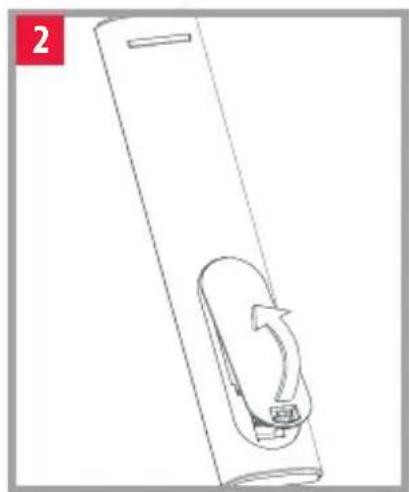
natural_image
Line drawing of a cylindrical device with a curved arrow indicating rotation or movement (no text or symbols)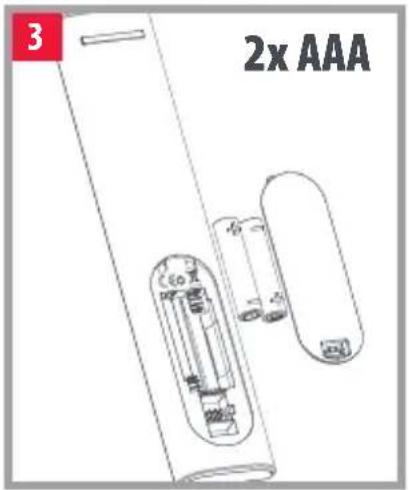
text_image
3 2x AAA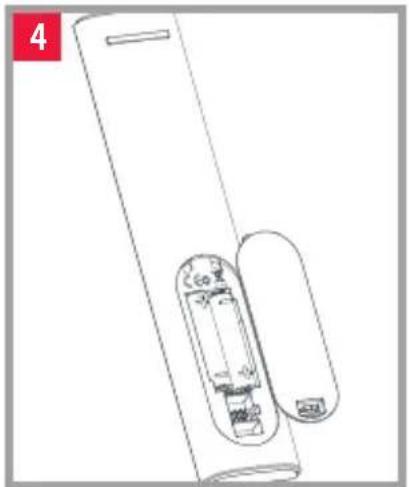
natural_image
Line drawing of a handheld device with internal components and a handle (no text or symbols)natural_image
Line drawing of a cylindrical object with a rounded side and a small protrusion, labeled '1' in the top-left corner (no text or symbols on the object itself)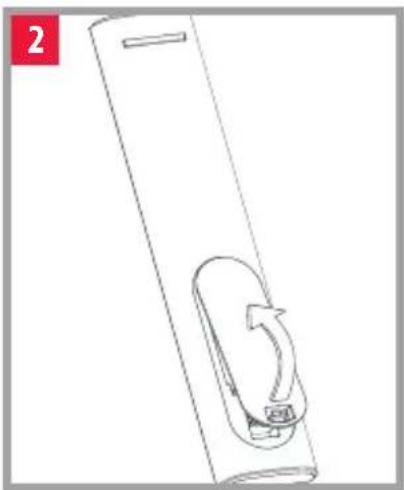
natural_image
Line drawing of a cylindrical device with a curved handle and a small inset component (no text or symbols)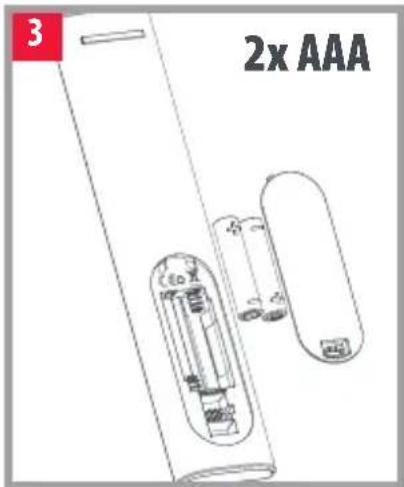
text_image
3 2x AAA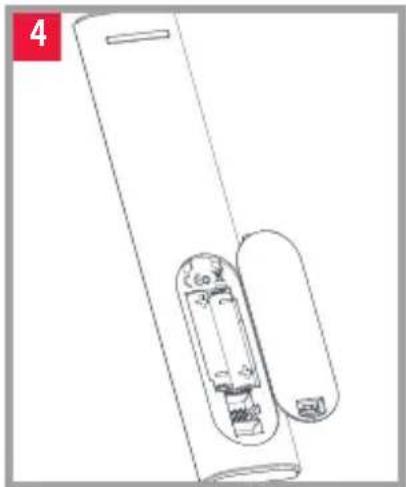
natural_image
Line drawing of a cylindrical device with internal components and a handle, no text or symbols presentnatural_image
Line drawing of a cylindrical object with a rounded side and a small protrusion, labeled '1' in the top-left corner (no text or symbols on the object itself)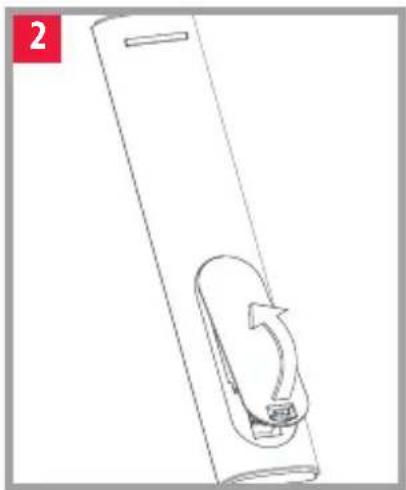
natural_image
Line drawing of a cylindrical device with a curved arrow indicating rotation or movement (no text or symbols)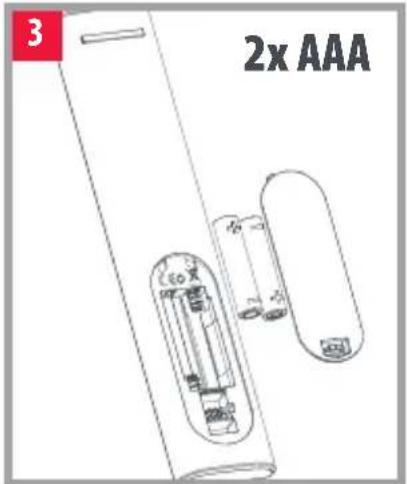
text_image
3 2x AAA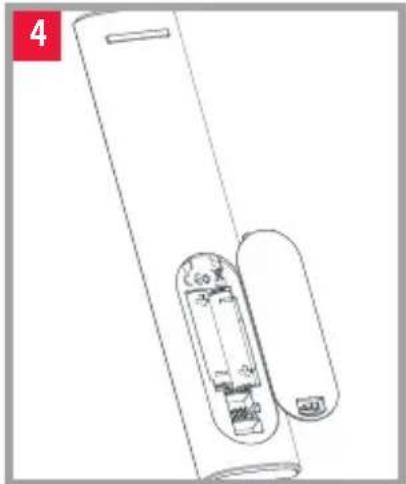
natural_image
Line drawing of a handheld device with internal components and a handle (no text or symbols)natural_image
Line drawing of a cylindrical object with a rounded side and a small protrusion, labeled '1' in the top-left corner (no text or symbols on the object itself)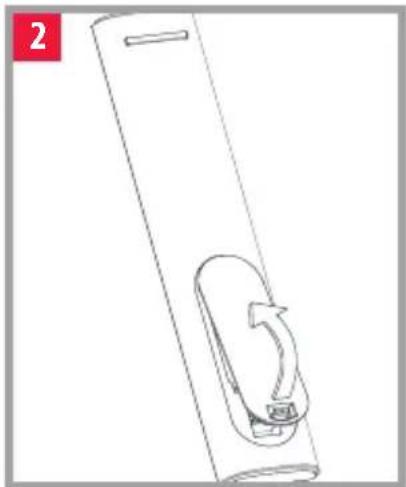
natural_image
Line drawing of a cylindrical device with a curved arrow and a small button, no text or symbols present
text_image
3 2x AAA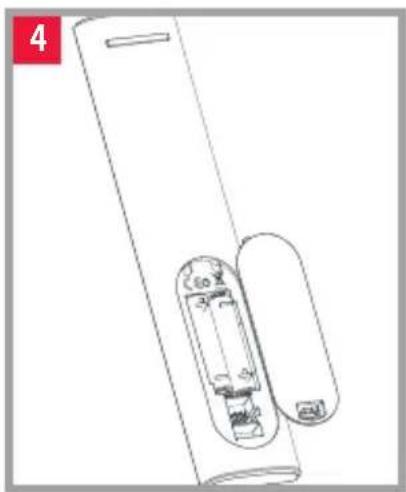
natural_image
Line drawing of a cylindrical device with internal components and a separate housing (no text or symbols)natural_image
Line drawing of a cylindrical object with a rounded side and a small protrusion, labeled '1' in the top-left corner (no text or symbols on the object itself)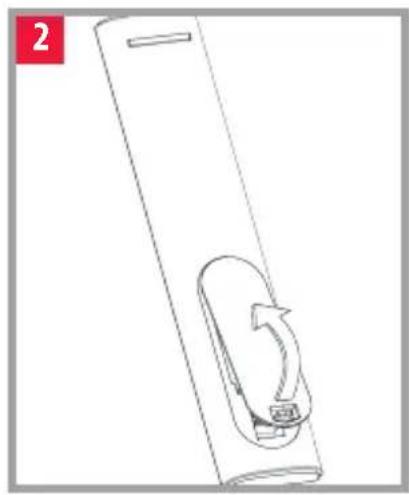
natural_image
Line drawing of a cylindrical device with a curved arrow indicating rotation or movement (no text or symbols)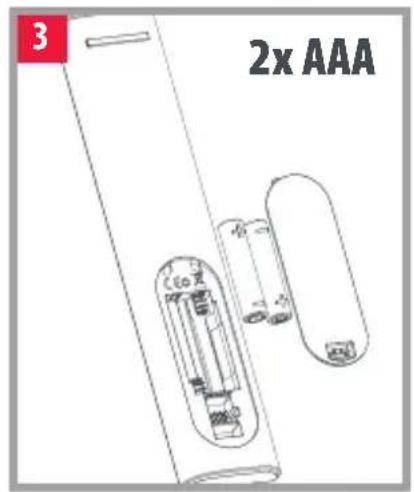
text_image
3 2x AAA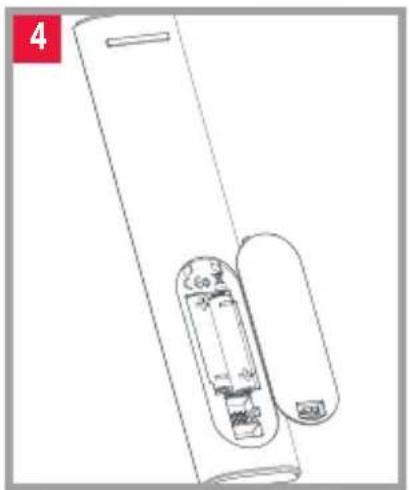
natural_image
Line drawing of a handheld device with internal components and a label '4' in the corner (no text or symbols on the device itself)natural_image
Line drawing of a cylindrical object with a rounded top and a small oval cutout, no text or symbols present.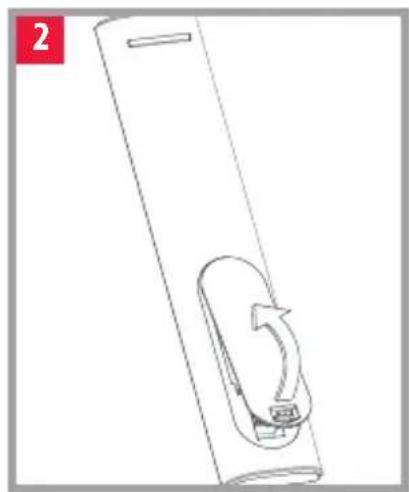
natural_image
Line drawing of a cylindrical device with a curved internal component and a scroll-like arrow, no text or symbols present.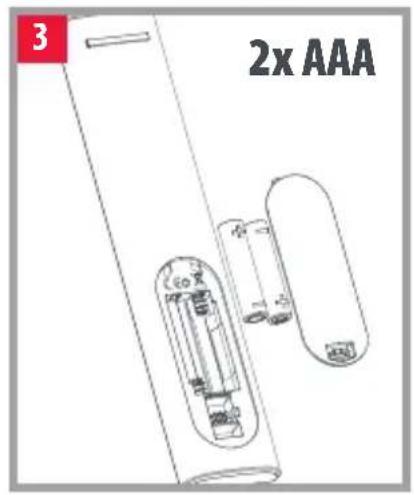
text_image
3 2x AAA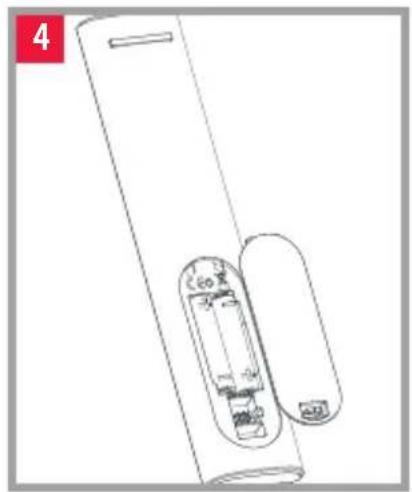
natural_image
Line drawing of a handheld device with internal components and a label '4' in the corner (no readable text or symbols)natural_image
Line drawing of a cylindrical object with a rounded side and a small protrusion, labeled '1' in the top-left corner (no text or symbols on the object itself)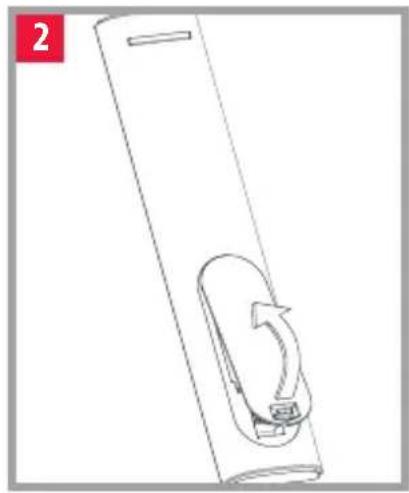
natural_image
Line drawing of a cylindrical device with a curved arrow indicating rotation or movement (no text or symbols)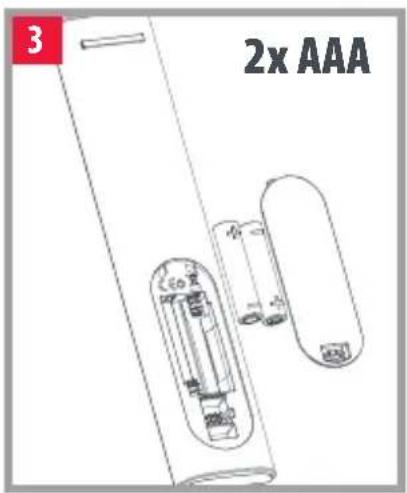
text_image
3 2x AAA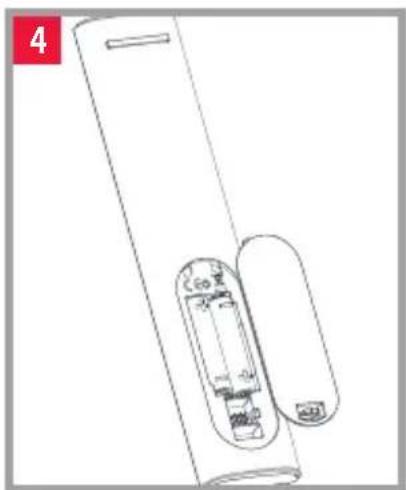
natural_image
Line drawing of a handheld electronic device with a cylindrical body and internal components (no text or symbols)natural_image
Simple line drawing of a cylindrical object with a rounded top and a small inset slot, no text or symbols present.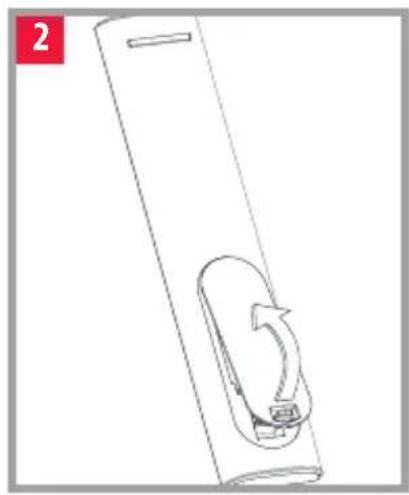
natural_image
Line drawing of a cylindrical device with a curved arrow indicating rotation or movement (no text or symbols)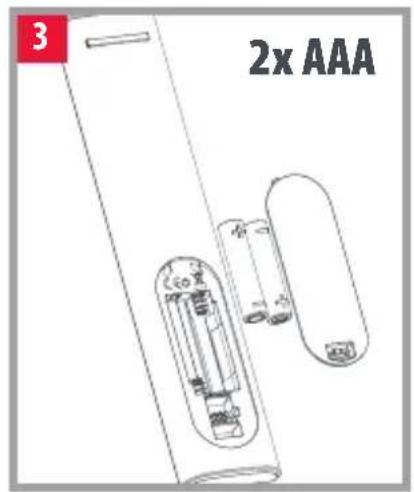
text_image
3 2x AAA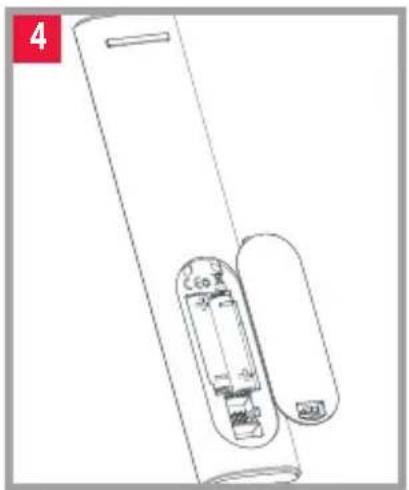
natural_image
Line drawing of a handheld device with internal components and a labeled part (no text or symbols)
OPREZ: opasnost od eksplozije ako se baterija zamijeni neispravnom vrstom baterije. Upotrebljavajte kvalitetne alkalne baterije.
text_image
DO NOT TOUCHOPIS TIPKI
text_image
2 1 setup 3 4 1 2 3 4 5 6 7 8 9 tv 0 search 5 i 6 7 8 9 10 ok 11 ← × 12 13 14 15 + vol - ch 16 17 18 ● ● ● ● 19 ◀ ▶ ▶ ▶ ■ II R 20 subt. apps list 21 22 ONE FOR ALLOPIS TIPKI
The crossed out wheeled bin symbol on this product ensures that this product is manufactured using high quality components that can be recycled and reused according European Directive 2012/19/EU. Please do not dispose of this product with your normal household waste, refer to local regulations for the proper collection or disposal of electrical and electronic products. This will help this will help in preventing negative effects on the environment and/or human health.
BATTERY DISPOSAL (EUROPEAN DIRECTIVE 2006/66/EC)
Please do not dispose of your batteries with your normal household waste, refer to local regulations for the proper collection or disposal. This will help preventing potential negative effects on the environment and/or human health.
GUARANTEE TERMS AND CONDITIONS UNIVERSAL ELECTRONICS warrants to the original purchaser that this product will be free from defects in materials and workmanship under normal and correct use for a period of 3 years from the date of original purchase. This product will be repaired or if necessary, replaced free of charge if it has been proven to be defective within the 3 year warranty period. The forwarding costs are on the account of the owner; the costs of returning the product are on the account of UNIVERSAL ELECTRONICS.
This warranty does not cover damage or failures caused by products or services not supplied by UNIVERSAL ELECTRONICS, or which result from not mounting the product according to manual instructions. This also applies when the product has been modified / repaired by others than UNIVERSAL ELECTRONICS or if a fault is the result of accident, misuse, abuse, neglect, mishandling, misapplication, faulty installation, improper maintenance, alteration, modifications, fire, water, lightning, natural disasters, wrong use or carelessness.
To obtain warranty service during the warranty period contact [...], and please note that we need your original purchase receipt so that we may establish your eligibility for service. If you have bought this product for purposes which are not related to your trade, business or profession, you may have legal rights under your national legislation governing the sale of consumer goods. This guarantee does not affect those rights. www.oneforall.com
DEUTSCH
UTYLIZACJA BATERII (DYREKTYWA EUROPEJSKA 2006/66/WE)
oneforallworldwide company/one-for-all-worldwide/user/oneforal products
CODE LIST
TV
A.R. Systems 0556
Acer 3539, 3630, 2530
Acoustic Solutions 1585, 1523, 2676
Acronn 2561
Adcom 0625
AEG 2530, 2457, 2197, 1585
Agfaphoto 2719
Airis 2561
Aiwa 4542,3512,3434
Akai 2676, 3611, 1523,
3528, 3512, 3067,
3719,0714,1585,
3810, 4022, 0556,
2197, 3434, 3983, 4136
Akira 2457, 2530
Akura 0714, 1585, 2676,
1983
Alba 2676,3587,3810,
1585,0714,3005,
3067, 2214, 4132,
1523, 2561, 3589,
3964
Allview 3611
Altius 3611
Altus 0714, 2663
Amoi 3047
AmTRAN 2127
Andersson 2676, 1585, 3719
Ankaro 3528
Antarion 3719, 2676
AOC 2214,0625
Arcelik 3433
Bush 2676,3810,3719,
2214, 3964, 3005,
3589,0714,2530,
2888, 4132, 5201,
3983, 2673, 1585,
3587, 3820, 4346,
1983, 0556, 2125,
1523, 2457, 2719,
4136, 2127
Cabletech 3296
Caixun 3528
Cameron 1523
Canox 3611
Caratec 3067
Celcus 2676,3719,1585
cello 3820,2673
Changhong 3434, 3296
Chimei 1852,1666
CHL 3067
Chromex 1585
Clatronic 0714
Clayton 3719,2676
CMX 3296,3067
Condor 4136
Conia 1523
Conrad 3719
Continental Edison 2676, 3719, 4022,
2530, 3983, 2457,
3512, 1585, 3528,
4132
CPTEC 0625
Cranker 3719
Crown 0714,2676,0653,
3434, 3719
Currys Essences 2486
Daewoo 2275,0556,2125
Daewoo Display 2275
Dantax 2676,0714
Days 2561
Denver 3067,2197,3515,
4155
DEXP 3528, 3434, 3572,
4539, 4348, 4136
Dgtec 2457
TV
Dick Smith
Electronics 3296, 2457, 2530, 3572
Dicra 3528
Differo 2676
Digatron 2890
Digihome 3719, 2676, 3983, 4501, 5201, 1585
Digitrex 3067
Dikom 2676, 2561, 3719, 3528
diVision 2197
DMTech 2676
DNS 3572, 3528, 3434, 4136
Doffler 3528, 4539, 4348, 3434
Donghai 3611, 3528, 3067, 3296
DSE 3296, 2457, 2530, 3572
Dual 3719, 2197, 2676, 1585, 3067, 3611, 3820, 0714
Durabase 2676, 3719
Durabrand 1595,0714
D-Vision 2197,0556
DW Display 2275
DX Antenna 1817
Dyon 3512, 3525, 2457, 2530
Easy Living 1666, 2005
ECG 2197, 2125, 3528, 3296, 0714, 3067, 3434
Eco-Star 3572
EGL 3611
Elbe 2676,0556
Elect 3067
Electriq 3719,5201
Electrolux 1585
Electronia 2676,3719
Element 4398
Elenberg 3512
Eletra 3719
Elite 1457
Emerson 1595,0714
e-motion 2426, 3810, 2106
Engel 3512
Enox. 2673,3820
Envision 1506
Epworth 4542, 3512, 3434
Erisson 4542, 3528, 3047, 3434, 4136
ESA 1595
Essences 2486
Essentiel b 2676, 4306
e-Star 3528
Eternity 3810,2426
Everest 3528
Everline 3512,3528
Evesham Technology 1248
Evotel 2561,3589
Express Luck 3528
F&U 2530, 2676, 3719
FairTec 1585,2676,2561
Favi 2676
Fedders Lloyd 4136, 4539
Felson 3719,2676
Ferguson 0625, 2676, 3005, 0653, 2426, 0195, 1585, 3874
FFalcon 3047,4259
Finlux 3719,2676,3983, 1585,0714,0556, 5201,1248
Firstline 0714,0556
Fisher 1585
Fox 3528
Fujicom 3719,2676
Fujitsu Siemens 1666, 1248
Funai 1817,1595,3719, 1666,0714
Funai United 2530, 2676, 3719
Fusion 3047,3528
Futronic 1585
Futura 3296
Galatec 3528
GE 0625
Gelhard 3719
General Electric 0625
Godrej 1585
GoGen 3719,2676,1585
GoldStar 3047,0714,3512,4542,3434,3572
Goodmans 3820, 1585, 2393, 1523, 1983, 2223, 2676, 0714, 2125, 2127, 0556, 0625, 2005, 2426, 2214
Gorenje 1585,2676
Gradiente 0653
Graetz 1585, 3528, 0714, 4542
Gran Prix 2197
Grandin 3434, 2676, 0714, 3719, 4306, 0556, 1585, 2125, 3983
Grundig 4212,0195,3433, 1223,2890,2663, 2125,3296,0556, 2127,1523,3067, 2676,2561
Grunkel 3528, 2676, 3512, 1523
GVA 3611, 3296, 2561, 3067
Haier 2888, 1983, 2214, 2530, 3719, 4398, 2457
Handic 2676
Hannspree 2786
Hanseatic 0714, 0625, 0556
Hantarex 2197
Harper 4542, 3512, 3528
Harrow 3719,1585,2676
HB 0714
HB Ingelen 0714
Helix 3528
Heran 1852
Hightong 4542
Hikona 1983
TV
Hi-Level 3719
Hisawa 0714
Hisense 4539, 2399, 4348,
4136, 4728, 0556,
5370, 4398, 2197,
3296
Hitachi 2676, 1576, 2207,
3719,5201,1585,
1484, 4398, 2214,
3611, 2005, 3512,
2127,3983
HKC 3512
Höher 2676, 0714, 2125,
3434
Horizon 3719, 3528, 2676
Horizont 0714
Hugoson 1666
Hypson 0714, 0556
Hyundai 2676, 3719, 1585,
3434, 3528, 4136,
1523, 3512, 3611
iFFALCON 4259
i-INN 3528
i-Joy 3528, 3512, 3067,
1523
Infiniton 3528
Ingelen 0714
Inno Hit 2676, 1585, 3528
Insignia 1423
Internal 0556
Inves 3528,3512
Isis 2676
ITT 3719,0714,2399,
2675, 2125, 2676,
1523
Izumi 3434, 3528
Jay-tech 3611, 3067
Jinxing 0556
JMB 2676,3810,3719,
0556, 2426, 1585
JTC 3611,3067
Jubilee 0556
JVC 0653, 2118, 1818,
3719, 2676, 3874,
3802, 2005, 3296,
4398, 3047, 3983,
4244,3572
Kaisui 3528
Karcher 2125,0714
Kathrein 0556
Kendo 3719, 1585, 2676
Kenmark 2393
Kennex 3296
Kenstar 2548
Kioto 0556
Kneissel 0556
Kogan 3572, 3296, 4291,
3528, 2888, 3434
Koncar 3719
Konka 3572,0714
Krüger&Matz 3296,3802
Kunft 3434, 3719
Küppersbusch 2676
L&S Electronic 0714
Laurus 2676
Lava 2197
Lazer 3719
Leiker 2676
Lenco 3515, 4155, 4346,
1983, 2676
LG 1840, 1860, 4397,
1423, 2182, 5168,
0714, 4398, 0556,
1576
Liberton 2675, 3047
Lifetec 0714
Linden 3296,3528
Linetech 2676
Linsar 2676, 3719, 3611,
1585
Listo 4306, 2676, 3719,
4155, 4542
Lloyd 4136,4539
Loewe 1884
Logik 3831, 3005, 3802,
2486, 3719, 2673,
1585, 5201, 2530
Luxor 2676, 3719, 3983
1585, 5201
M&S 2673
Magnavox 1506, 1887, 2800,
2676, 4398
Magnum 0714
Majestic 3611, 3512
Manata 3512
Manhattan 2676,3719
Manta 3528, 3512
Marantz 0556
Mark 0714
Marks & Spencer 2673
Mascom 2125, 2197, 2663
Master 4022
Mastro 0653
Matsui 0195, 2486, 2676,
1585, 1666, 0714,
0556, 2561
Mediator 0556
Medion 2676, 4447, 4155,
2719, 1248, 0714,
1585, 3067, 3983,
0556,3515
Meile 3047
Melectronic 0195,0714
Melody 3047
Memory 1983
Metronic 0625
Metz 1533,4289,0195
Micromax 3572
Micromaxx 0714
Miia 3512
Mikomi 1585
Minerva 1248,0195
Mirai 1666, 1852
Mitchell & Brown 3719
Mitsai 2676, 2106, 3434
1585
Mitsubishi 0556
Mitsubishi Electric 0556
Mitsun 4136
Mivar 0609
Mobile Tv 3719
Moserbaer 1585
TV
mp man 3067, 3296
MTlogic 0714
Murphy 2676, 2426, 2673, 2005, 1585
Mx Onda 1983
My TV 3090
Myrica 1666
Myryad 0556
Mystery 3296, 2530, 3047, 3528
Nabo 3719
Navon 3719
Naxoo 3515
NEC 0653, 2461, 1852
Neckermann 0556
NEI 3611,3983
NEO 2676,3528,3719
Neon 2673,3820
Nesons 3528
Neufunk 0556, 0714
Nevir 3528, 2676, 3719
New Tech 0556
Next 2676
Nikkei 2676, 1585, 2197, 3719, 0714, 5201
Nordmende 2676, 2548, 3512, 0195, 1585, 3528, 0714
Novex 1523
Novita 1585
NPG 3434
Nu-Tec 3090
Ocean 3434
Oceanic 4022, 3719, 3611
Odys 2719, 2530, 3512, 2457
OK. 3802, 2676, 3434, 3810, 3719, 3047
Okano 3168
Okeah 3434
OKI 2676, 1585, 2125, 3434, 2947
Onida 0653
Onimax 0714
Onn 4398, 2125, 1585
Opera 0714
Opticum 3611
Orava 3719, 3296, 3528, 3512
Orima 3719
Orion 4346, 2005, 3874,
2676, 2108, 0714,
0556,3512,2197, 3434,4136,4542
Osaki 0556
Otic 1983
Otto Versand 0556,0195
Pacific 0714,0556
Packard Bell 3630
Palladium 0714,0556
Palsonic 2461,3067,4155,4291
Panasonic 1636, 3825, 4501, 0653, 3719
Panavideo 3825
Pendo 3434,4291
Philips 0556, 2800, 3614, 4209, 1887, 1506, 4398
Philips Magnavox 1887
Phocus 0714
Phonola 0556
Pioneer 1260, 1457, 1636
PJ 1506
Playsonic 0714
Polar 2197, 3067
Polaroid 1523, 3296, 2676, 2125, 3611, 4132, 5201, 3719, 4542, 3512, 3589
Powerpoint 3296
Prima 2461
Princeton 3719, 3983
Pro Vision 0556,0714,2197
ProCaster 3719
ProLine 3434,0625,1585,2676,2223,2393,3528
Proscan 3512, 2561
Prosonic 2676, 0714, 2426, 2125, 3719, 2197, 2663, 1523, 1585, 2106
Pulier 3611
Pye 0556
Q.Bell 2561
Q.Media 3515
Qilive 3719
QONIX 3067
Quadro 2561, 2676, 3719, 3434, 1585, 2197
Quelle 0195
Radiola 0556
Radionette 0714
RCA 0625, 4398
RefleXion 3067,4155
Relisys 1585
Reoc 0714, 2197
Roadstar 0714
Roku 4398
Rolsen 4136, 3067, 3434
Romsat 3719
Rowa 3047
Rubin 3528
Saba 0625, 2676, 3434, 1585, 2005, 3528, 3719, 0714, 2947
Saga 2197
Salora 2676, 2197, 3983, 3719, 3067, 2125
Samsung 2051, 3131, 3970, 4096, 0556, 0625
Samus 3434
Sandstrøm 3802, 2399, 3047, 2197
Sansui 0714, 1248
Sanyo 1585, 2461, 2676, 3096
Saturn 3067
SBR 0556
ScanSonic 2676
TV
Schaub Lorenz 4022, 2676, 0714,
2125, 1585, 3719,
2197
Schneider 2676, 0714, 0556,
1585, 3528, 3611,
4501
Schneider Electric 2676, 0714, 0556,
1585, 3528, 3611,
4501
Sungpo 1659,2951,3810,
3983, 2676, 4843,
2214,3719,0653,
4398, 1423
Sunkai 1523
Sunstech 2676,3719,3515,
2530, 3528
Superior 1585
SuperTech 0556
Supra 3512, 2947, 3434,
3047, 4542, 4348,
4136
Supratech 3067
Svan 3719
Swisstec 2106
Sylvania 1595, 1817
Symphonic 1595, 1817
Tatung 1248
Tauras 2197,3067
TCL 3047, 4259, 4398,
2675, 2530
TCM 0714
TD Systems 3719,2676,3512
Teac 3158, 2168, 0714,
3005, 3572, 1983,
1248, 2457, 3067
Tech Line 1585,2676,1636
Technica 2106, 2168, 2426,
2676
Technical 2676,3719,3983
Technics 0556
Technika 2426,3810,2106
2168, 2676, 2197,
1585, 1983, 3005,
3067, 2125, 2719
TechniSat 0556
Technisson 0714
Techno 1585
Technosonic 0556,0625
Techwood 2676,3719,1585,
3983,5201
Tecnimagen 0556
Teco 0653,1523
TELE System 2125, 2676, 3434,
2530, 1585
Telefunken 3719, 2676, 0625,
3528, 3983, 4542,
3296, 1585, 3047,
3434,0714,3067,
3589
Telestar 0556
Teletech 2676
Terra 2888
Terris 2530, 3296
Tesco 2426
Tesla 4542,0556,0714
Tevion 0714, 1248, 2426,
2125, 2530, 0556,
1523, 1585, 2197,
2461
Thes 2947
Thomas 0625
Thomas America 0625
Thomson 0625,3047,4259,
2675,0556
Tokai 3611, 3528, 3067,
3296
Toshiba 1508, 2775, 2676,
4213, 2732, 3296,
2108,0195
Tosonic 1508
TRANS-continents 0556
Transonic 3528
Trevi 3528
TV
Triad 0556
Trio 1248
Tristan Auron 3528
Triumph 0556
Tucson 2676,3719
TV Star 3528,3512
TVE 3589
TVTEXT 95 0556
Ultravox 1585
U-max 3434, 3296
UMC 2106, 2426, 2168
Uniden 2676, 1585, 3047
United 3434, 3515, 0714,
3296, 2530, 3512,
4542, 2663, 0556,
1523, 1585, 1983,
2125
Universal 0714
VNPT Technology 3090
Vortex 3528
Vortex View 3528
VOX 3719,2676
Voxson 2197
VR 3067
VU 4539, 4136, 2399
Walker 2676,1585,3719
Waltham 2676,3719
Watson 0714, 1248
Watsvision 2676
WeCube 1860
Wellington 3719,2676,1585
Welltech 0714
Westinghouse 3067, 3964, 4132
Westline 3719,2676
Westwood 1585
Wharfedale 1983, 2676, 0556
Wilson 0556
Windsor 2676,3719,3983,
1585
Windy Sam 0556
Wintel 0714
XCanvas 1840
XD 3719
Xenius 1585,2676
Xiahua 2461
Xiron 1983
Xoceco 2461
Xomax 3067,3515
Xoro 3067
Xpeer 2051
Yamaha 1576
Yuntu 3611
Zanussi 3434, 3528
Zenith 1423
Zephir 3611
Zepto 1585
Ziggo 1818
Connect with us

facebook.com/
oneforallworldwide

@oneforall.worldwide

linkedin.com/
company/one for all worldwide/

youtube.com/
user/oneforallproducts