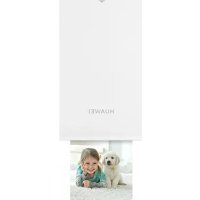
Pocket Photo Printer - Printer HUAWEI - Free user manual and instructions
Find the device manual for free Pocket Photo Printer HUAWEI in PDF.



| Product type | Portable photo printer |
| Brand | Huawei |
| Model | Pocket Photo Printer (CV80) |
| Power supply | Internal rechargeable lithium-ion battery via USB; battery model P0925-HF |
| Connectivity | Bluetooth |
| Mobile app | HUAWEI Printer (Android and iOS) |
| Main functions | Print galleries, collages (1-6 photos), documents, AR, business cards; print via Huawei Share |
| Printing capacity | Print in batches of 10 sheets + 1 color correction card |
| Paper type | HUAWEI photo paper (ZINK) with blue correction card |
| Operating temperature | 5 to 40°C |
| Storage temperature | -30 to +70°C |
| Status indicators | Status light (green flashing/steady, red steady); power light (red/green flashing/steady) |
| Power management | Auto-off after 5 min of standby; standby after 5 min of inactivity |
| Reset | Press and hold the Power button for 9 seconds |
| Safety | Stop printing if error; do not expose to water, magnetic fields, extreme temperatures; non-removable battery |
| Maintenance and cleaning | Clean with a soft, dry cloth; do not use harsh chemicals |
| Spare parts and repairability | Internal battery non-removable; repair only by authorized Huawei center; use of HUAWEI paper recommended |
| Compliance | CE, FCC, IC; Bluetooth 2.4 GHz, max power 6 dBm |
Frequently Asked Questions - Pocket Photo Printer HUAWEI
User questions about Pocket Photo Printer HUAWEI
0 question about this device. Answer the ones you know or ask your own.
Ask a new question about this device
Download the instructions for your Printer in PDF format for free! Find your manual Pocket Photo Printer - HUAWEI and take your electronic device back in hand. On this page are published all the documents necessary for the use of your device. Pocket Photo Printer by HUAWEI.
USER MANUAL Pocket Photo Printer HUAWEI
HUAWEI Pocket Photo Printer
Quick Start Guide
Кратко ръководство
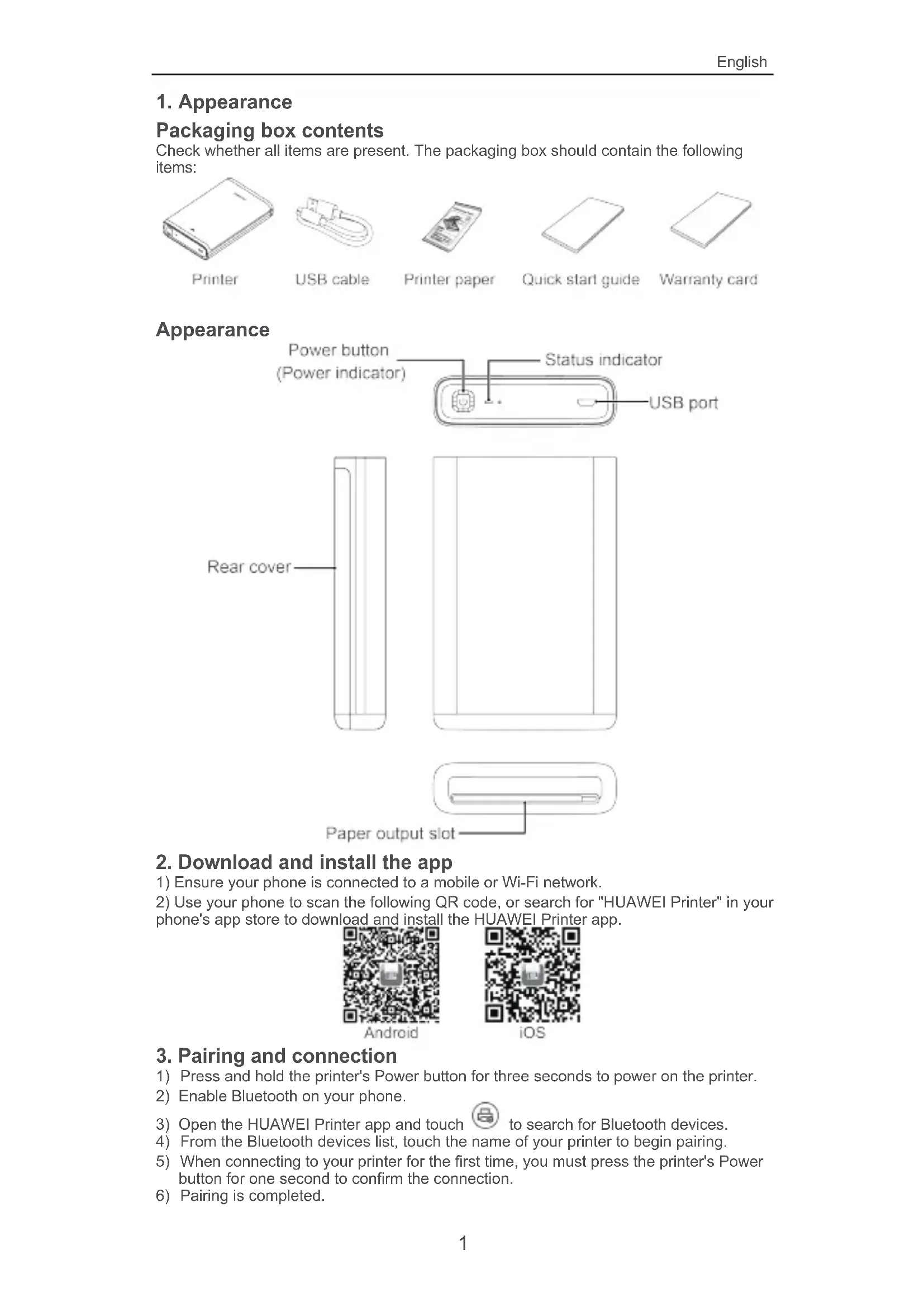
Packaging box contents
Check whether all items are present. The packaging box should contain the following items:

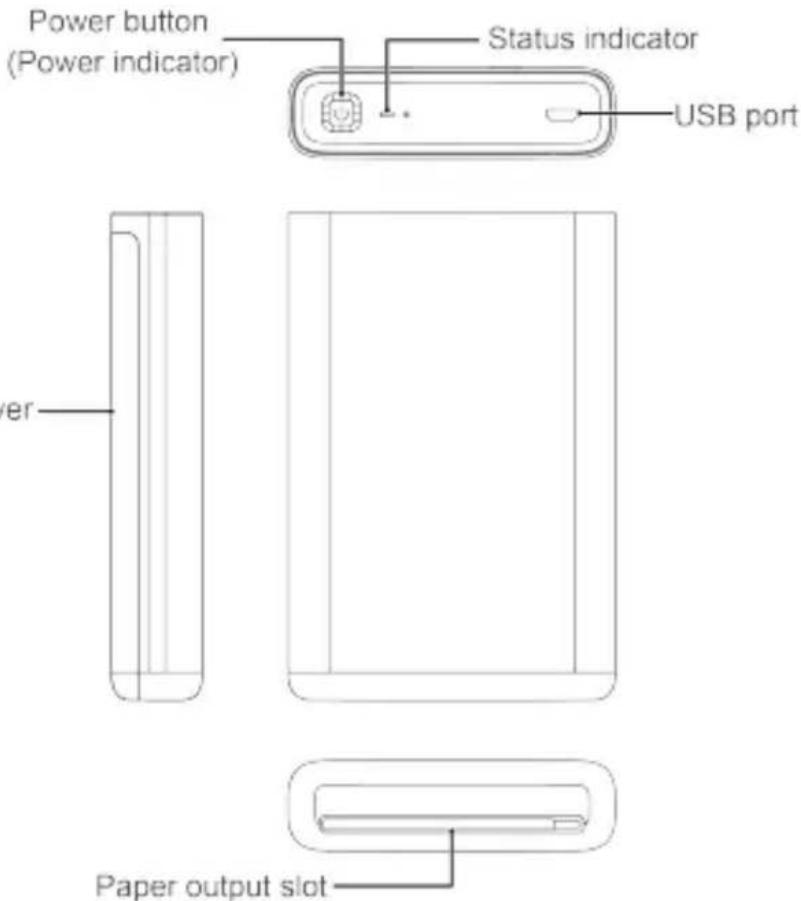
Appearance
2. Download and install the app
1) Ensure your phone is connected to a mobile or Wi-Fi network.
2) Use your phone to scan the following QR code, or search for "HUAWEI Printer" in your phone's app store to download and install the HUAWEI Printer app.
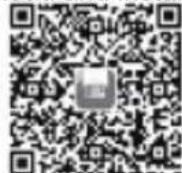
Android
iOS
3. Pairing and connection
1) Press and hold the printer's Power button for three seconds to power on the printer.
2) Enable Bluetooth on your phone.
3) Open the HUAWEI Printer app and touch 📋 to search for Bluetooth devices.
4) From the Bluetooth devices list, touch the name of your printer to begin pairing.
5) When connecting to your printer for the first time, you must press the printer's Power button for one second to confirm the connection.
6) Pairing is completed.
4. Insert printer paper
natural_image
Line drawing of two hands holding a smartphone with bidirectional arrows indicating movement (no text or symbols)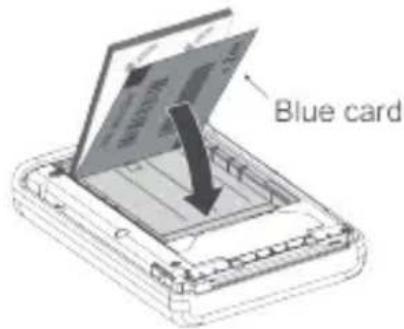
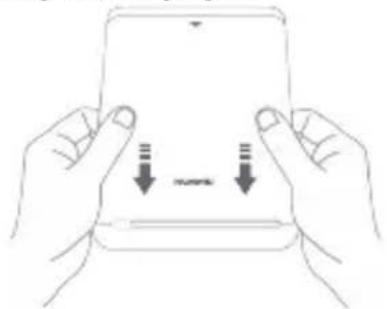
1) Remove the rear cover.
2) Take out a pack of printer paper and place the blue card and paper into the printer, as shown in the illustration.

- Please only insert one pack of printer paper (10 sheets of paper + 1 blue card) at a time and ensure that the text side is facing down. - HUAWEI printer paper is recommended for better printing quality. Error may occur if you use other printer paper that are not compatible. You may choose to continue but the printing quality may be affected.
3) Place the rear cover back on.

The blue card is used for color correction and to clean the printer nozzle. When you print a photo after inserting a new pack of printer paper, the blue card will come out first followed by your photo.
5. Begin printing
Power on/off
Press and hold the printer's Power button for three seconds to power on/off the printer.

- If the printer is not connected within 5 minutes after it is powered on, it will automatically enter Sleep mode. Touch the Power button or use Huawei Share's connection feature to wake up the printer.
- After the printer is in Sleep mode for five minutes, it will automatically power off.
Printer functions
1) Gallery printing
Open the HUAWEI Printer app and select 📋 Gallery. Select the picture you want to print and select a processing option for the picture (optional). Touch Print in the upper right corner of the app screen to print the picture.
2) Collage printing
Open the HUAWEI Printer app and select Collage. Select the pictures you want to make into a collage (you can select a total of 1–6 pictures) and touch Create collage. Once the collage is created, touch the √ button in the upper right corner of the app screen and then touch Print to print the collage.
3) Document printing
Open the HUAWEI Printer app and select ID photo. Select the document picture you want to print, select the print size, and move or zoom the picture as desired. Touch Next and then touch Print.
4) AR printing
Open the HUAWEI Printer app and select AR print. Select the video you want to print, choose a frame rate, and touch the button in the upper right corner of the app screen and then touch Print.
5) AR scanning
Open the HUAWEI Printer app and select AR scan. Place the AR photo in the viewfinder of your phone and the app will play the AR photo.
6) Business card printing
Open the HUAWEI Printer app and select Business card. Follow the onscreen instructions to enter the content of the business card. Touch the button in the upper right corner of the app screen and then touch Print.

During the printing process, touch ✗ to cancel the print.
6. Huawei Share printing
You can use Huawei Share to print pictures stored on your Huawei/Honor phone.
1) Press and hold the printer's Power button for three seconds to power on the printer.
2) Open Gallery on your phone and select the picture you want to print. Touch touch Huawei Share search and find your printer in the list.
3) When connecting to your printer for the first time, you must press the printer's Power button for one second to confirm the connection.
4) Begin printing.

This feature is only available for phones running EMUI 9.0.1 or later.
7. Printer reset
Press and hold the printer's Power button for 9 seconds to force reset and power off the printer.
8. Printer status
Status Indicator
| Color | Description |
| Slightly faster flashing green | Powering on or pairing |
| Slow flashing green | Standby mode |
| Steady green | Normal operation |
| Fast flashing green | Printing |
| Steady red | An error has occurred |
| Off | Power off |
Power Indicator
| Color | Description |
| Flashing red | Low battery |
| Steady red | Charging |
| Flashing green | Ready to connect |
| Steady green | Fully charged or powered on and operational |
| Flashing red and green | Printer is updating |

If the power indicator is flashing red, please charge the printer. The power indicator will turn off after the printer automatically powers off.
9. Printer paper precautions

- Use the printer paper as quickly as possible after opening.
- Avoid exposure to direct sunlight and low temperatures.
- Do not use non-standard printer paper as this may cause device damage.
- Do not fold or damage the printer paper.
Safety Information
Before using the device, read and comply with the following precautions carefully to ensure optimal device performance and avoid danger or violation of laws and regulations.
- Do not use the device at locations where the use of wireless devices is prohibited due to potential interference with other electronic devices, which may cause safety hazards.
- In clinics and hospitals where the use of wireless devices is prohibited, please comply with the regulations and power off the device.
- Some wireless devices may interfere with implantable medical devices and other medical equipment, such as pacemakers, cochlear implants, and hearing aids. Consult the manufacturer of your medical equipment for more information.
- When using the device, keep it at least 15 cm away from medical devices.
- Avoid dusty, damp, or dirty environments. Avoid magnetic fields. Using the device in these environments may result in circuit malfunctions.
- Keep the device away from appliances with strong magnetic or electrical fields, such as microwave ovens and refrigerators.
- Do not use the device during thunderstorms to avoid any lightning-related damage or injury.
- Use the device at temperatures between 5^ C and 40^ C, and store the device and its accessories at temperatures between -30^ C and +70^ C. Extreme heat or cold may damage the device.
- Do not place the device in places that are easily exposed to direct sunlight such as on a car's dashboard or on a window sill.
-
Do not place the device near exposed heat or ignition sources (such as heaters, microwaves, ovens, stove fire, candles, and so on).
-
The device and its accessories may contain small components. Keep the device and its accessories out of the reach of children. Otherwise, children may damage the device and its accessories by mistake, or swallow the small components, which may result in hazards such as choking.
- The device is not a toy, and children should only use it under adult supervision.
- You can only use device manufacturer-approved accessories for this model number. The use of other accessories may void the device warranty, lead to injury, or violate the related regulations of the country where the device is located. Contact an authorized Huawei Customer Service Center to obtain approved accessories.
- Connecting the device to non-approved or incompatible power supplies, chargers, or batteries is not advised as this may cause fires or explosions.
- Do not disassemble or modify the device, insert foreign objects, or submerge in water or other liquids to prevent leakage, overheating, fires, or explosions.
- Do not drop, squeeze, or puncture the battery. Avoid applying external pressure to the battery as this may cause its electronic circuitry to short or overheat.
- The device is equipped with a non-removable internal battery. Do not attempt to replace the battery yourself to avoid damaging the battery or device or causing fires and explosions. The battery should only be replaced by professional personnel at an authorized Huawei Customer Service Center.
- Ensure that the device and its accessories are dry. Do not attempt to dry the device using an external heating device such as a microwave oven or hair dryer.
- Avoid placing the device and its accessories in environments that are too hot or cold as this may cause device malfunctions or even explosions.
- Stop using the device, close all apps, and disconnect all connected devices before cleaning and performing maintenance on the device.
- Do not use strong chemicals, cleaning agents, or strong detergents to clean the device and its accessories. Instead, only clean the device and its accessories using a clean, soft, and dry cloth.
- Do not place magnetic stripe cards (such as bank cards or phone cards) near the device for extended periods of time as this may damage the magnetic stripe card.
- Please do not disassemble or modify the device and its accessories without prior authorization. Any resulting damage in this case will not be covered by manufacturer's warranty. If the device suffers an error or ceases to function properly, please contact an authorized Huawei Customer Service Center for assistance.
- Avoid disposing the device and its accessories as ordinary household waste.
- Respect local laws on the disposal of electronic products and their accessories and support recycling efforts.
Disposal and Recycling Information
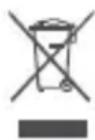
The crossed-out wheeled-bin symbol on your product, battery, literature or packaging reminds you that all electronic products and batteries must be taken to separate waste collection points at the end of their working lives; they must not be disposed of in the normal waste stream with household garbage. It is the responsibility of the user to dispose of the equipment using a designated collection point or service for separate recycling of waste electrical and electronic equipment (WEEE) and batteries according to local laws.
Proper collection and recycling of your equipment helps ensure electrical and electronic equipment (EEE) waste is recycled in a manner that conserves valuable materials and protects human health and the environment, improper handling, accidental breakage, damage, and/or improper recycling at the end of its life may be harmful for health and environment. For more information about where and how to drop off your EEE waste, please contact your local authorities, retailer or household waste disposal service or visit the website http://consumer.huawei.com/en/.
Reduction of Hazardous Substances
This device and its electrical accessories are compliant with local applicable rules on the restriction of the use of certain hazardous substances in electrical and electronic equipment, such as EU REACH, RoHS and Batteries (where included) regulations. For declarations of conformity about REACH and RoHS, please visit our web site http://consumer.huawei.com/certification.
EU regulatory conformance
RF Exposure
Your device is a low-power radio transmitter and receiver. As recommended by international guidelines, the device is designed not to exceed the limits established by the European Commission for exposure to radio waves.
Statement
Hereby, Huawei Technologies Co., Ltd. declares that this device CV80 is in compliance with the essential requirements and other relevant provisions of Directive 2014/53/EU.
The most recent and valid version of the DoC (Declaration of Conformity) can be viewed at http://consumer.huawei.com/certification.
This device may be operated in all member states of the EU.
Observe national and local regulations where the device is used.
This device may be restricted for use, depending on the local network.
Frequency Bands and Power
(a) Frequency bands in which the radio equipment operates: Some bands may not be available in all countries or all areas. Please contact the local carrier for more details.
(b) Maximum radio-frequency power transmitted in the frequency bands in which the radio equipment operates: The maximum power for all bands is less than the highest limit value specified in the related Harmonized Standard.
The frequency bands and transmitting power (radiated and/or conducted) nominal limits applicable to this radio equipment are as follows: Bluetooth: 2400MHZ-2483.5Mhz.6dBm.
Accessories and Software Information
Some accessories are optional in certain countries or regions. Optional accessories can be purchased from a licensed vendor as required. The following accessories are recommended:
Batteries: P0925-HF
The product software version is 27.05000500. Software updates will be released by the manufacturer to fix bugs or enhance functions after the product has been released. All software versions released by the manufacturer have been verified and are still compliant with the related rules.
All RF parameters (for example, frequency range and output power) are not accessible to the user, and cannot be changed by the user.
For the most recent information about accessories and software, please see the DoC (Declaration of Conformity) at http://consumer.huawei.com/certification.
FCC Regulatory Compliance
RF Exposure
Your device is a low-power radio transmitter and receiver. As recommended by international guidelines, the device is designed not to exceed the limits established by the Federal Communications Commission for exposure to radio waves.
FCC Statement
This equipment has been tested and found to comply with the limits for a Class B digital device, pursuant to Part 15 of the FCC Rules. These limits are designed to provide reasonable protection against harmful interference in a residential installation. This equipment generates, uses and can radiate radio frequency energy and, if not installed and used in accordance with the instructions, may cause harmful interference to radio communications. However, there is no guarantee that interference will not occur in a particular installation. If this equipment does cause harmful interference to radio or television reception, which can be determined by turning the equipment off and on, the user is encouraged to try to correct the interference by one or more of the following measures:
--Reorient or relocate the receiving antenna.
--Increase the separation between the equipment and receiver.
--Connect the equipment into an outlet on a circuit different from that to which the receiver is connected.
--Consult the dealer or an experienced radio/TV technician for help.
This device complies with Part 15 of the FCC Rules. Operation is subject to the following two conditions: (1) this device may not cause harmful interference, and (2) this device must accept any interference received, including interference that may
cause undesired operation.
Caution: Any changes or modifications to this device not expressly approved by Huawei Technologies Co., Ltd. for compliance could void the user's authority to operate the equipment.
Responsible Party - Contact for FCC Information only
Huawei Device USA Inc.
5700 Tennyson Parkway, Suite 300
Plano, TX 75024
Main: 214-919-6800
Industry Canada Compliance
Certification Information (SAR)
This device has been tested and meets applicable limits for radio frequency (RF) exposure.
The highest SAR value reported to the IC for this device type when using in portable exposure conditions is 0.079 W/kg.
IC Statement
This device complies with CAN ICES-3 (B)/NMB-3(B).
This device complies with Industry Canada licence-exempt RSS standard(s). Operation is subject to the following two conditions: (1) this device may not cause interference, and (2) this device must accept any interference, including interference that may cause undesired operation of the device.
Legal Statement
Copyright © Huawei Technologies Co., Ltd. 2019. All rights reserved.
This document is for reference only. Nothing in this guide constitutes a warranty of any kind, express or implied.
All pictures and illustrations in this guide, including but not limited to the product color, size, and display content, are for your reference only. The actual product may vary.
Nothing in this guide constitutes a warranty of any kind, express or implied.
Please visit http://consumer.huawei.com/us/support/index.htm for recent updated hotline and email address in your country or region.
The Bluetooth ^® word mark and logos are registered trademarks owned by Bluetooth SIG, Inc. and any use of such marks by Huawei Technologies Co., Ltd. is under license.
Android ^TM is a trademark of Google Inc.
Privacy Protection
To understand how we protect your personal information, please visit http://consumer.huawei.com/privacy-policy and read our privacy policy.
For United States warranty card information, visit
http://consumer.huawei.com/us/support/warranty-policy/index.htm.
1. Външен вид
natural_image
Line drawing of two hands holding a smartphone with downward arrows indicating compression or disassembly (no text or symbols)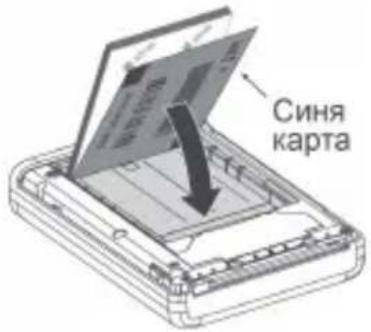
5700 Tennyson Parkway, Suite 300
Plano, TX 75024
Главен: 214-919-6800
Съответствие с Industry Canada
natural_image
Line drawing of two hands holding a smartphone with downward arrows indicating download or compression (no text or symbols)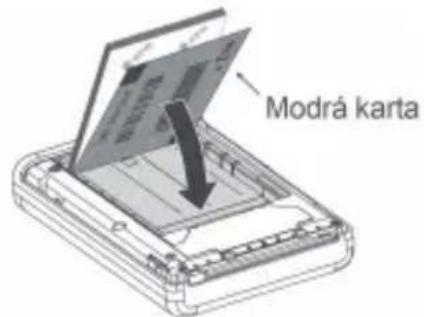
Responsible Party - Contact for FCC Information only
Huawei Device USA Inc.
5700 Tennyson Parkway, Suite 300
Plano, TX 75024
http://consumer.huawei.com/us/support/warranty-policy/index.htm.
1. Uiterlijk
natural_image
Line drawing of two hands holding a smartphone with downward arrows indicating compression or disassembly (no text or symbols)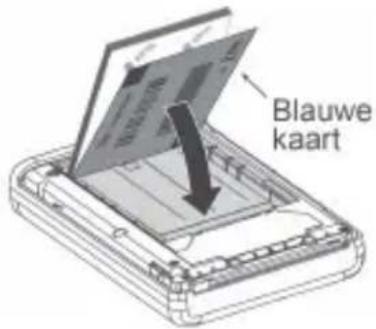
5700 Tennyson Parkway, Suite 300
Plano, TX 75024
Main: 214-919-6800
Naleving van Industry Canada
Informatie over certificaten (SAR)
natural_image
Line drawing of two hands holding a smartphone with downward arrows indicating download or disassembly (no text or symbols)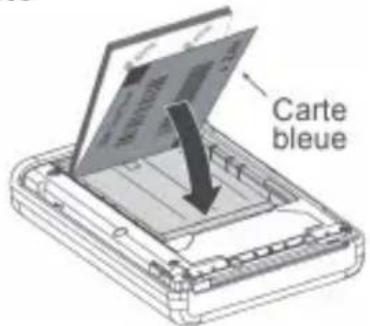
5700 Tennyson Parkway, Suite 300
Plano, TX 75024
Principal : 214-919-6800
natural_image
Illustration of two hands holding a smartphone with double-headed arrows indicating compression or disassembly (no text or symbols)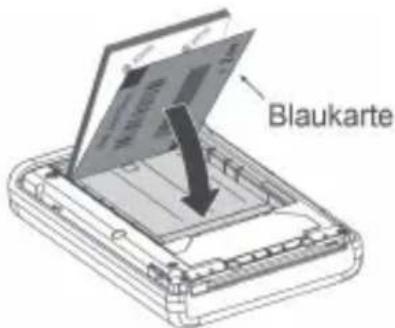
5700 Tennyson Parkway, Suite 300
Plano, TX 75024
Haupt: 214-919-6800
natural_image
Illustration of two hands holding a smartphone with downward arrows indicating compression or disassembly (no text or symbols)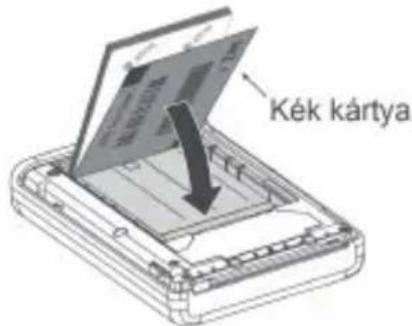
5700 Tennyson Parkway, Suite 300
Plano, TX 75024
Központi: 214-919-6800
natural_image
Line drawing of two hands holding a smartphone with double-headed arrows indicating compression or disassembly (no text or symbols)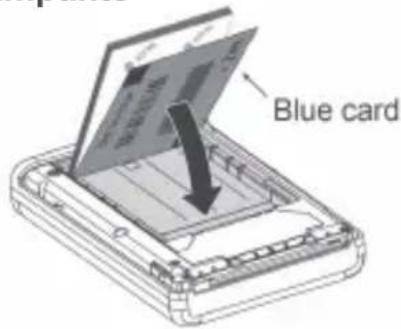
Responsible Party - Contact for FCC Information only
Huawei Device USA Inc.
5700 Tennyson Parkway, Suite 300
Plano, TX 75024
Main: 214-919-6800
natural_image
Line drawing of two hands holding a smartphone with downward arrows indicating compression or dislocation (no text or symbols)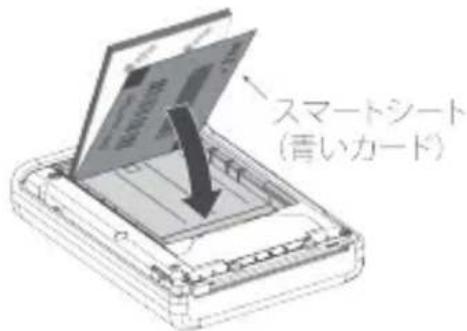
5700 Tennyson Parkway, Suite 300
Plano, TX 75024
代表電話:214-919-6800
カナダ産業省の要件への準拠
認証情報(SAR)
Copyright © Huawei Technologies Co., Ltd. 2019. All rights reserved.
natural_image
Illustration of two hands holding a smartphone with downward arrows indicating compression or disassembly (no text or symbols)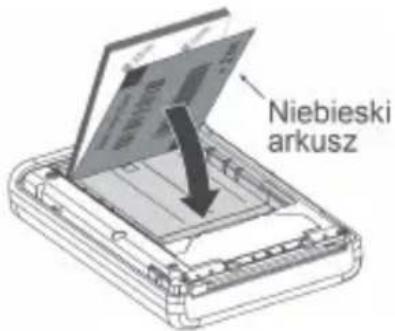
5700 Tennyson Parkway, Suite 300
Plano, TX 75024
Telefon: 214-919-6800
natural_image
Illustration of two hands holding a smartphone with downward arrows indicating download or compression (no text or symbols)
5700 Tennyson Parkway, Suite 300
Plano, TX 75024
Main: 214-919-6800
natural_image
Line drawing of two hands holding a tablet device with downward arrows indicating compression or disassembly (no text or symbols)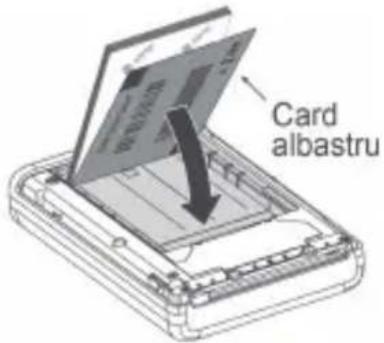
6. Imprimare Huawei Share
Responsible Party - Contact for FCC Information only Huawei Device USA Inc.
5700 Tennyson Parkway, Suite 300
Plano, TX 75024
Linie principală: 214-919-6800
natural_image
Line drawing of two hands holding a smartphone with downward arrows indicating download or compression (no text or symbols)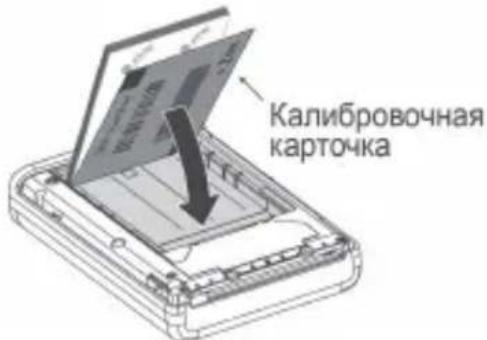
5700 Tennyson Parkway, Suite 300
Plano, TX 75024
Тел.: 214-919-6800
natural_image
Illustration of two hands holding a smartphone with downward arrows indicating compression or disassembly (no text or symbols)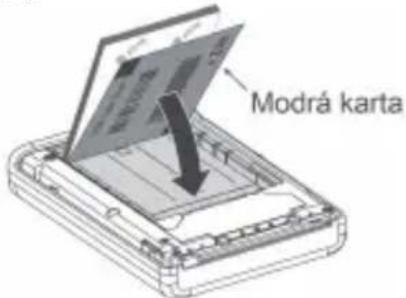
Responsible Party – Contact for FCC Information only
Huawei Device USA Inc.
5700 Tennyson Parkway, Suite 300
Plano, TX 75024
Zhoda s Industry Canada
http://consumer.huawei.com/us/support/warranty-policy/index.htm.
1. Aspecto
natural_image
Illustration of two hands holding a smartphone with downward arrows indicating compression or disassembly (no text or symbols)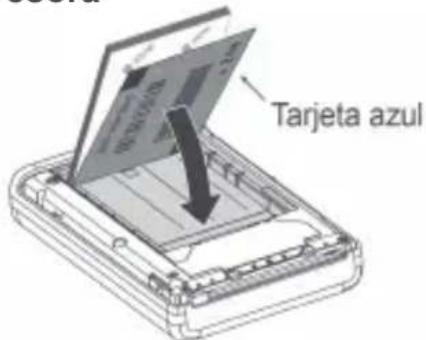
5700 Tennyson Parkway, Suite 300
Plano, TX 75024
Principal: 214-919-6800
natural_image
Line drawing of two hands holding a smartphone with downward arrows indicating download or disassembly (no text or symbols)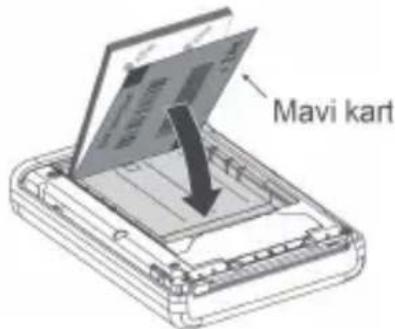
5700 Tennyson Parkway, Suite 300
Plano, TX 75024
Ana hat: 214-919-6800
http://consumer.huawei.com/us/support/warranty-policy/index.htm adresini ziyaret edin.
1. Зовнішній вигляд
Вміст упаковки
natural_image
Illustration of two hands holding a smartphone with downward arrows indicating compression or disassembly (no text or symbols)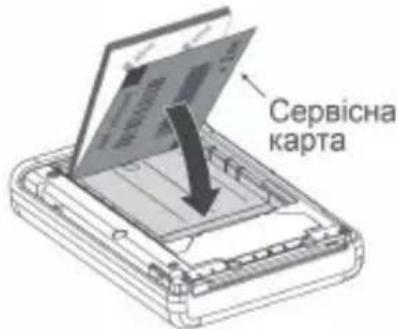
Responsible Party - Contact for FCC Information only
Huawei Device USA Inc.
5700 Tennyson Parkway, Suite 300
Plano, TX 75024

- HUAWEI Pocket Photo Printer
- Packaging box contents
- Appearance
- Download and install the app
- Pairing and connection
- Insert printer paper
- Begin printing
- Power on/off
- Printer functions
- Huawei Share printing
- Printer reset
- Printer status
- Printer paper precautions
- Safety Information
- Disposal and Recycling Information
- Reduction of Hazardous Substances
- EU regulatory conformance
- RF Exposure
- Statement
- Frequency Bands and Power
- Accessories and Software Information
- FCC Regulatory Compliance
- FCC Statement
- Industry Canada Compliance
- Certification Information (SAR)
- IC Statement
- Legal Statement
- Privacy Protection
- Външен вид
- Съответствие с Industry Canada
- Uiterlijk
- Naleving van Industry Canada
- Informatie over certificaten (SAR)
- カナダ産業省の要件への準拠
- 認証情報(SAR)
- Imprimare Huawei Share
- Zhoda s Industry Canada
- Aspecto
- Зовнішній вигляд
- Вміст упаковки
Brand : HUAWEI
Model : Pocket Photo Printer
Category : Printer