
CV80 - Printer HUAWEI - Free user manual and instructions
Find the device manual for free CV80 HUAWEI in PDF.


| Product Type | Monochrome Laser Printer |
| Model | CV80 |
| Brand | Huawei |
| Dimensions (W x D x H) | 380 x 300 x 200 mm |
| Weight | 8 kg |
| Power Supply | 220-240V AC, 50/60 Hz |
| Print Speed | Up to 28 ppm (A4) |
| Print Resolution | 1200 x 1200 dpi |
| Paper Capacity | 250 sheets (input), 100 sheets (output) |
| Supported Paper Sizes | A4, A5, B5, Letter, Legal, Executive, Envelopes |
| Connectivity | USB 2.0, Ethernet (10/100), Wi-Fi 802.11 b/g/n |
| Display | LED indicators |
| Operating Temperature | 10°C to 32°C |
| Operating Humidity | 20% to 80% RH (non-condensing) |
| Toner Yield | Approximately 2000 pages (standard cartridge) |
| Duty Cycle | Up to 15,000 pages per month |
| Noise Level | Less than 50 dB (printing) |
| Maintenance | Clean exterior with soft dry cloth; remove dust from paper path |
| Safety Instructions | Do not expose to water or moisture; unplug before cleaning |
| Spare Parts / Consumables | Toner cartridge (Huawei original) |
| Repairability | User-replaceable toner and drum; contact service center for other repairs |
| General Information | Compact and reliable laser printer for home and small office |
Frequently Asked Questions - CV80 HUAWEI
User questions about CV80 HUAWEI
0 question about this device. Answer the ones you know or ask your own.
Ask a new question about this device
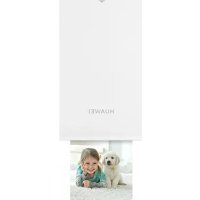
Download the instructions for your Printer in PDF format for free! Find your manual CV80 - HUAWEI and take your electronic device back in hand. On this page are published all the documents necessary for the use of your device. CV80 by HUAWEI.
USER MANUAL CV80 HUAWEI
Packaging box contents
Check whether all items are included. The packaging box should contain the following items:
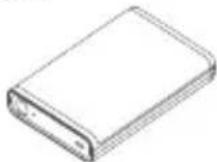


Portable Printer x1
USB data cable x1
Bag of paper x1
Quick Start Guide x1
Appearance

2. Pairing and Connection
Download and install the app
(1) Ensure your phone is connected to a mobile or Wi-Fi network.
(2) Use your phone to scan the following QR code, or search for "HUAWEI portable printer" in your phone's app store to download and install the HUAWEI portable printer app.

Pairing and connection
(1) Press and hold the printer's Power button for three seconds to power on the printer.
(2) Enable Bluetooth on your phone.
(3). Open the HUAWEI portable printer app and touch 📄 to search for Bluetooth devices.
(4). From the Bluetooth devices list, touch the name of your printer to begin pairing.
(5). When connecting to your printer for the first time, you must press the printer's Power
button for one second to confirm the connection.
(6). Pairing is complete.
Begin printing
Add paper
(1) Open the paper tray.
(2) Place paper together with the blue card into the paper tray.
Place the blue card at the very bottom of the paper tray with the text side facing down.
(3) Close the paper tray.
The blue card is used to clean the printer head. When a fresh batch of paper is inserted, the blue card will first be ejected and after which normal printing can resume.
Power on/off
Press and hold the printer's Power button for three seconds to power on/off the printer.

- If the printer is not used for five minutes after it is powered on, it will automatically enter Sleep mode. Reopen the HUAWEI portable printer app or use Huawei Share's connection feature to wake the printer.
• After the printer is in Sleep mode for one hour, it automatically powers off.
Printer functions
(1) AR print
Open the portable printer app and select AR print. Select the video you want to print, choose a frame rate, and touch Begin printing in the upper right corner of the app screen to print the AR photo.
(2) AR scan
Open the portable printer app and select AR scan. Place the AR photo inside the scan box and the app will play the AR photo.
(3) Gallery print
Open the portable printer app and select Gallery print. Select the picture you want to print and select a processing option for the picture (optional). Touch Begin printing in the upper right corner of the app screen to print the picture.
(4) Collage print
Open the portable printer app and select Collage print. Select the pictures you want to make into a collage (you can select a total of 1–4 or 6 pictures) and touch Create collage. Once the collage is created, touch Begin printing in the upper right corner of the app screen to print the collage.
(5) Document print
Open the portable printer app and select Document print. Select the document picture you want to print, select the print size, and move or zoom the picture as desired. Touch the √ button in the upper right corner of the app screen and then touch Begin printing.
(6) Business card print
Open the portable printer app and select Business card print. Select a picture that you want to use as your business card and move or zoom the picture as desired. Touch Next and follow the onscreen instructions to enter the content of the business card.
Touch the √ button in the upper right corner of the app screen and then touch Begin printing.
During the printing process, touch ☑ to cancel the print.
3. Huawei Share Print
You can use Huawei Share to print pictures stored on your Huawei/Honor phone.
(1) Press and hold the printer's Power button for three seconds to power on the printer.
(2) Open Gallery on your phone and select the picture you want to print. Touch 📁, touch Huawei Share search and find your printer in the list.
(3) When connecting to your printer for the first time, you must press the printer's Power button for one second to confirm the connection.
(4) Begin printing.
This feature is only available for phones running EMUI 9.0.1 or later.
4. Printer Reset
Press and hold the printer's Power button for nine seconds to force reset and power off
the printer.
5. Printer Status
Status indicator
| Color | Description |
| Flashing red and green | Powering on or pairing |
| Slow flashing green | Standby mode |
| Steady green | Normal operation |
| Fast flashing green | Printing |
| Steady red | An error has occurred |
| Off | Power off |
Power indicator
| Color | Description |
| Flashing red | Low battery |
| Steady red | Charging |
| Steady green | Fully charged |
| Flashing red and green | Printer is upgrading |
6. Printer Paper Precautions

- Check the printer paper expiry date before use. Do not use beyond the expiry date.
- When inserting fresh paper, place the blue card at the very bottom of the paper tray with the text side facing down.
- Use quickly after opening.
- Do not store the printer paper with mothballs.
- Please store the printer paper in a cool and dry environment away from direct sunlight. Do not store the printer paper for prolonged periods in damp or hot environments.
Safety Information
Before you use the device, read the following precautions carefully to ensure optimal product performance and to avoid danger or violation of laws and regulations.
- Do not use the device at locations where the use of wireless devices is prohibited due to potential interference with other electronic devices, which may cause safety hazards.
- In clinics and hospitals where the use of wireless devices is prohibited, please comply with the regulations and power off the device.
- Some wireless devices may interfere with implantable medical devices and other medical equipment, such as pacemakers, cochlear implants, and hearing aids. Consult the manufacturer of your medical equipment for more information.
- When using the device, keep it at least 15 cm away from medical devices.
- Avoid dusty, damp, or dirty environments. Avoid magnetic fields. Using the device in these environments may result in circuit malfunctions.
- Keep the device away from appliances with strong magnetic or electrical fields, such as microwave ovens and refrigerators.
- Do not use the device during thunderstorms to avoid any lightning-related damage or injury.
- Use the device at temperatures between 5^ C and 40^ C, and store the device and its accessories at temperatures between -30^ C and 70^ C. Extreme heat or cold may damage the device. At temperatures below 5^ C, the performance of the battery will be degraded.
- Do not place the device in places that are easily exposed to direct sunlight such as on a car's dashboard or on a window sill.
- Do not place the device near exposed heat or ignition sources (such as heaters, microwaves, ovens, stove fire, candles, and so on).
- The device and its accessories may contain small components. Keep the device and its accessories out of the reach of children. Otherwise, children may damage the device and its accessories by mistake, or swallow the small components, which may result in hazards such as choking.
- The device is not a toy, and children should only use it under adult supervision.
-
You can only use device manufacturer-approved accessories for this model number. The use of other accessories may void the device warranty, lead to injury, or violate the related regulations of the country where the device is located. Contact an authorized service center to obtain approved accessories.
-
Connecting the device to non-approved or incompatible power supplies, chargers, or batteries is not advised as this may cause fires or explosions.
- Do not disassemble or modify the device, insert foreign objects, or submerge in water or other liquids to prevent leakage, overheating, fires, or explosions.
- Do not drop, squeeze, or puncture the device. Avoid applying external pressure to the device as this may cause its electronic circuitry to short or overheat.
- The device is equipped with a non-removable internal battery. Do not attempt to replace the battery yourself to avoid damaging the battery or device or causing fires and explosions. The battery should only be replaced by professional personnel at an authorized Customer Service Center.
- Ensure that the device and its accessories are dry. Do not attempt to dry the device using an external heating device such as a microwave oven or hair dryer.
- Avoid placing the device or its accessories in environments that are too hot or cold as this may cause device malfunctions or even explosions.
- Stop using the device, close all apps, and disconnect all connected devices before cleaning and performing maintenance on the device.
- Do not use strong chemicals, cleaning agents, or strong detergents to clean the device or its accessories. Instead, only clean the device using a clean, soft, and dry cloth.
- Do not place magnetic stripe cards (such as bank cards or phone cards) near the device for extended periods of time as this may damage the magnetic stripe card.
- Avoid disassembling or modifying the device and its accessories. Unauthorized disassembly and modifications may result in voiding of the factory warranty. If the device fails, take your device and proof of purchase to an authorized Customer Service Center for assistance.
- Avoid disposing the device and its accessories as ordinary household waste.
- Respect local laws on the disposal of electronic products and their accessories and support recycling efforts.
Disposal and recycling information
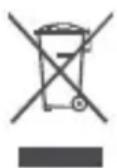
The crossed-out wheeled-bin symbol on your product, battery, literature or packaging reminds you that all electronic products and batteries must be taken to separate waste collection points at the end of their working lives; they must not be disposed of in the normal waste stream with household garbage. It is the responsibility of the user to dispose of the equipment using a designated collection point or service for separate recycling of waste electrical and electronic equipment (WEEE) and batteries according to local laws. Proper collection and recycling of your equipment helps ensure electrical and electronic equipment (EEE) waste is recycled in a manner that conserves valuable materials and protects human health and the environment, improper handling, accidental breakage, damage, and/or improper recycling at the end of its life may be harmful for health and environment. For more information about where and how to drop off your EEE waste, please contact your local authorities, retailer or household waste disposal service or visit the website http://consumer.huawei.com/en/.
Reduction of hazardous substances
This device and its electrical accessories are compliant with local applicable rules on the restriction of the use of certain hazardous substances in electrical and electronic equipment, such as EU REACH, RoHS and Batteries (where included) regulations. For declarations of conformity about REACH and RoHS, please visit our web site http://consumer.huawei.com/certification.
EU regulatory conformance
RF Exposure
Your device is a low-power radio transmitter and receiver. As recommended by international guidelines, the device is designed not to exceed the limits established by the European Commission for exposure to radio waves.
Statement
Hereby, Huawei Technologies Co., Ltd. declares that this device CV80 is in compliance with the essential requirements and other relevant provisions of Directive 2014/53/EU. The most recent and valid version of the DoC (Declaration of Conformity) can be viewed at http://consumer.huawei.com/certification.
This device may be operated in all member states of the EU.
Observe national and local regulations where the device is used.
This device may be restricted for use, depending on the local network.
Frequency Bands and Power
(a) Frequency bands in which the radio equipment operates: Some bands may not be available in all countries or all areas. Please contact the local carrier for more details.
(b) Maximum radio-frequency power transmitted in the frequency bands in which the radio equipment operates: The maximum power for all bands is less than the highest limit value specified in the related Harmonized Standard.
The frequency bands and transmitting power (radiated and/or conducted) nominal limits applicable to this radio equipment are as follows: XXXXX.
Accessories and Software Information
Some accessories are optional in certain countries or regions. Optional accessories can be purchased from a licensed vendor as required. The following accessories are recommended:
Adapters: XXXXXX
Batteries: XXXXXX
The product software version is XXXXXX. Software updates will be released by the manufacturer to fix bugs or enhance functions after the product has been released. All software versions released by the manufacturer have been verified and are still compliant with the related rules.
All RF parameters (for example, frequency range and output power) are not accessible to the user, and cannot be changed by the user.
For the most recent information about accessories and software, please see the DoC (Declaration of Conformity) at http://consumer.huawei.com/certification.
FCC Regulatory Compliance
RF Exposure
Your device is a low-power radio transmitter and receiver. As recommended by international guidelines, the device is designed not to exceed the limits established by the Federal Communications Commission for exposure to radio waves.
FCC statement
This equipment has been tested and found to comply with the limits for a Class B digital device, pursuant to Part 15 of the FCC Rules. These limits are designed to provide reasonable protection against harmful interference in a residential installation. This equipment generates, uses and can radiate radio frequency energy and, if not installed and used in accordance with the instructions, may cause harmful interference to radio communications. However, there is no guarantee that interference will not occur in a particular installation. If this equipment does cause harmful interference to radio or television reception, which can be determined by turning the equipment off and on, the user is encouraged to try to correct the interference by one or more of the following measures:
--Reorient or relocate the receiving antenna.
--Increase the separation between the equipment and receiver.
--Connect the equipment into an outlet on a circuit different from that to which the receiver is connected.
--Consult the dealer or an experienced radio/TV technician for help.
This device complies with Part 15 of the FCC Rules. Operation is subject to the following two conditions: (1) this device may not cause harmful interference, and (2) this device must accept any interference received, including interference that may cause undesired operation.
Caution: Any changes or modifications to this device not expressly approved by Huawei Technologies Co., Ltd. for compliance could void the user's authority to operate the equipment.
Industry Canada compliance
Body worn operation
This device has been tested and meets applicable limits for radio frequency (RF) exposure.
The highest SAR value reported to the IC for this device type when using in portable exposure conditions is 0.079 W/kg.
IC Statement
This device complies with CAN ICES-3 (B)/NMB-3(B).
This device complies with Industry Canada licence-exempt RSS standard(s). Operation is subject to the following two conditions: (1) this device may not cause interference, and (2) this device must accept any interference, including interference that may cause undesired operation of the device.
Legal statement
Copyright © Huawei Technologies Co., Ltd. 2018. All rights reserved.
This document is for reference only. Nothing in this guide constitutes a warranty of any kind, express or implied.
All pictures and illustrations in this guide, including but not limited to the product color, size, and display content, are for your reference only. The actual product may vary.
Nothing in this guide constitutes a warranty of any kind, express or implied.
Please visit http://consumer.huawei.com/us/support/index.htm for recent updated hotline and email address in your country or region.
The Bluetooth ^® word mark and logos are registered trademarks owned by Bluetooth SIG, Inc. and any use of such marks by Huawei Technologies Co., Ltd. is under license. Wi-Fi ^® , the Wi-Fi CERTIFIED logo, and the Wi-Fi logo are trademarks of Wi-Fi Alliance.
Privacy protection
To understand how we protect your personal information, please visit http://consumer.huawei.com/privacy-policy and read our privacy policy.
For United States warranty card information, visit
http://consumer.huawei.com/us/support/warranty-policy/index.htm.
- Packaging box contents
- Appearance
- Pairing and Connection
- Download and install the app
- Pairing and connection
- Begin printing
- Add paper
- Power on/off
- Printer functions
- Huawei Share Print
- Printer Reset
- Printer Status
- Printer Paper Precautions
- Safety Information
- Disposal and recycling information
- Reduction of hazardous substances
- EU regulatory conformance
- RF Exposure
- Statement
- Frequency Bands and Power
- Accessories and Software Information
- FCC Regulatory Compliance
- FCC statement
- Industry Canada compliance
- Body worn operation
- IC Statement
- Legal statement
- Privacy protection
Brand : HUAWEI
Model : CV80
Category : Printer