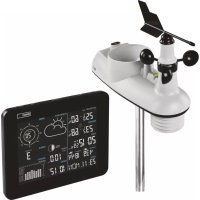
E5059 - Weather Station Emos - Free user manual and instructions
Find the device manual for free E5059 Emos in PDF.



| Product Type | Wireless weather station with outdoor sensor |
| Brand / Model | Emos E5059 |
| Station dimensions | 30 × 215 × 173 mm |
| Station weight | 545 g (without batteries) |
| Sensor dimensions | 151 × 396 × 313 mm |
| Sensor weight | 972 g (without battery) |
| Station power supply | 3 AAA 1.5 V batteries (not included) or AC 230 V/DC 5 V 1.2 A adapter (included) |
| Sensor power supply | Li-ion 3.7 V 4400 mAh battery (included) + built-in solar panel |
| Radio range | Up to 50 m in open air |
| Radio frequency | 868 MHz (25 mW e.r.p. max) |
| WiFi connection | 2.4 GHz (25 mW e.i.r.p. max) |
| Indoor temperature range | -10 °C to +50 °C (resolution 0.1 °C) |
| Outdoor temperature range | -40 °C to +70 °C (resolution 0.1 °C) |
| Temperature accuracy | ±1 °C |
| Humidity range | 1% to 99% RH (resolution 1%) |
| Humidity accuracy | ±3% (30-80% RH), ±5% elsewhere |
| Barometric pressure range | 850 to 1050 hPa |
| Wind speed range | 0 to 215 km/h |
| Precipitation range | 0 to 999.9 mm |
| UV index | Levels 1 to 11+ |
| Main functions | Indoor/outdoor temperature, humidity, pressure, wind, precipitation, UV, weather forecast, moon phase, WiFi clock, alarms, backlight, mobile app |
| Maintenance and cleaning | Soft damp cloth; do not use solvents; do not immerse |
| Safety | Do not expose to flames, water, or shocks; repair only by a specialist |
| Spare parts and repairability | Batteries and battery replaceable; other repairs by a professional |
Frequently Asked Questions - E5059 Emos
User questions about E5059 Emos
0 question about this device. Answer the ones you know or ask your own.
Ask a new question about this device
Download the instructions for your Weather Station in PDF format for free! Find your manual E5059 - Emos and take your electronic device back in hand. On this page are published all the documents necessary for the use of your device. E5059 by Emos.
USER MANUAL E5059 Emos
GB | Wireless Weather Station
Technical specifications:
clock controlled by Wi-Fi signal
Time format: 12/24 h
Indoor temperature: -10^ + 50^, 0.1^ resolution
Outdoor temperature: -40^ + 70^, 0.1^ resolution
Temperature measurement accuracy: ± 1^
Indoor and outdoor humidity: 1% -99% RH, 1 % resolution
Humidity measurement accuracy: 3 % for 30 % to 80 % range, 5 % for other ranges
Temperature display unit: ^ C / ^ F
Barometric pressure measurement range: 850 hPa to 1 050 hPa
Unit of pressure: hPa/inHg/mmHg
Wind sensor measurement range: 0-215 km/h
Unit of wind speed: km/mph
Rainfall sensor measurement range: 0-999.9 mm
Unit of rainfall: mm/inch
Radio signal range: up to 50m in an open space
Unit interconnection: via 868 MHz radio signal, 25mW e.r.p. max.
Connection of the main unit to the Wi-Fi network: 2.4 GHz, 25 mW e.i.r.p. max.
Station power supply:
3 × 1.5 V AAA batteries (not included)
230 V AC /5 V DC, 1.2 A adapter (included)
Temperature/humidity/wind/rainfall/UV radiation sensor power supply: 1 × 3.7 V 4,400 mAh Li-ion 21700T battery (included)
Station dimensions and weight: 30 × 215 × 173 ~mm ; 545 ~g (without batteries)
Sensor dimensions and weight: 151 × 396 × 313 ~mm ; 972 g (without batteries)
Weather Station - Description of Icons and Buttons (see Fig. 1):
1 - outdoor temperature
15 - data from rainfall sensor
2 - outdoor temperature trend
16 - pressure value
3 - sensor batteries low
17 - day of the week
4 - max/min indoor temperature and humidity values
18 - sunset time
5 - max/min outdoor temperature and humidity values
19 - sunrise time
6 - outdoor humidity trend
20-month
7 - indoor humidity trend
21-day
8 - weather forecast
22 - synchronisation of Wi-Fi connection
9 - glaze ice
23 - Wi-Fi reception
10 - moon phase
24 - alarm no. 1/no. 2
11 - wind direction: S - south, W - west, N - north, E - east
25 - time
12 - wind speed
26 - indoor humidity
13 - UV index
27 - temperature alert/station batteries low
14 - pressure history
28 - indoor temperature
29 - indoor temperature trend
30 - comfort level indicator -smiley face
31 - Wi-Fi signal reception LED
A-BARO button
F-WIFI button
B-WIND button
G-MODE button
C-LIGHT/SNOOZE button
H- ^+ button
D-INDEX button
I--button
E - RAINFALL button
J-GRAPH button
K-SEARCH button
M - battery cover
L - stand
N - connector for power adapter
Description of the Multifunctional Sensor and Battery Charger (see Fig. 2)
1 - wind direction paddle
9 - battery compartment cover
2 - wind sensor cups
10 - water-level
3 - cover of the temperature and humidity sensor
11 - rainfall dish
4 - mounting rod
12 - UV radiation sensor
5-LEDindicator
13 - solar panel
6-TX button
14 - north indicator
7 - rainfall cover screw
15 - battery charger USB connector
8 - rainfall cover
16 - battery compartment
Mounting the Sensor onto a Wall (see Fig. 3)
List of Cities (see Fig. 4)
Getting Started/Installation
- Plug the power adapter into the station, then insert batteries first into the weather station (3× 1.5V AAA) and then into the outdoor sensor. The battery compartment of the sensor is protected by screws; use a suitable screwdriver.
- When inserting the batteries, make sure to observe the correct polarity to avoid damaging the weather station or sensor. Only use alkaline batteries of the same type. Do not use rechargeable batteries in the weather station.
- Place the two units next to each other. The weather station will automatically start searching for sensor signal within 3 minutes. To speed up the pairing process, you can press the TX button on the sensor (red LED will flash).
- If the signal from the sensors is not detected, long-press the SEARCH button on the weather station to repeat the search and press the TX button on the sensor.
- To ensure correct measurement, the sensor must be placed higher above the ground (at least 1.5m ) on a horizontal surface outside of buildings and structures. The sensor must be mounted firmly to prevent its damaging. First screw the mounting rod onto a wall, then screw the sensor onto the rod according to the figure Mounting the Sensor onto a Wall. Wind must flow freely around the wind sensor from all sides. Check that the wind direction indicator and paddles for measuring wind speed can rotate freely. The north (N) indicator on the front of the sensor must be pointing north. Otherwise, wind direction will always be displayed incorrectly. When choosing a suitable place for mounting the sensor, check before installation that the main station is within range of the sensor. The range of the sensor may decrease substantially in areas with a large number of obstacles.
- Do not place the sensor onto metal objects; this would reduce its transmission range.
- If the low battery icon appears on the screen, replace the batteries in the weather station or recharge the battery in the sensor using the enclosed charger.
Recharging the Sensor Battery
- Place the battery from the sensor into the USB charger. When inserting the battery, make sure to observe the correct polarity to avoid damaging the battery.
- Plug the USB-A connector on the charger cable into an adapter (not included) or another device that will supply power to the charger. Make sure the adapter is plugged into a socket or the device receives sufficient power.
- If connected correctly, the charger will start recharging the battery.
- Charging is indicated by a red LED. Fully charging the battery takes approximately 10 hours.
- When the battery is fully charged, a green LED will light up.
Note: the sensor features an integrated solar panel that continuously recharges the battery. Charging speed is dependent on the intensity of sunlight - it serves only as supplementary charging. In the winter, it is recommended to always recharge the battery using the enclosed USB charger.
Wi-Fi Controlled Clock
Current time/date is loaded into the station automatically once it connects to a Wi-Fi network.
The icon will be displayed.
Time will be updated automatically every day at 19:00/20:00/21:00.
Long-pressing the WIFI button activates a manual search for a Wi-Fi network.
Short-pressing the WIFI button afterwards cancels the search.
Connection is indicated by an LED in the bottom right:
- LED not lit up - no Wi-Fi connection.
- LED flashing red - automatic/manual Wi-Fi search.
- LED lit up in red - Wi-Fi connected.
- LED lit up in blue - Wi-Fi connected to the cloud.
Always have the station connected to a power source when receiving Wi-Fi signal.
For more info, see the Mobile Application section.
Mobile Application (see Fig. 5)
The weather station can be controlled using a mobile application for iOS or Android.
Download the "EMOS GoSmart" application to your device.
Android
iOS
Signing Up in the Application
-
Connect your device to the Wi-Fi network. Sign up in the application or enter your login if you are already using the app, see Fig. 5-1.
-
Log into the application, tap the My Home icon and Add Device, see Fig. 5-2.
-
Enable all 3 methods of device localisation (location, wifi, bluetooth) and tap Start scanning, see Fig. 5-3.
-
Long-press the WIFI button on the station; the red LED will start flashing.
-
The application will locate the device and the weather station icon will appear on the screen. Press Next, see Fig. 5-4.
-
Select the same Wi-Fi network as you did on the mobile device and press Next, see Fig. 5-5.
-
The application will add the weather station to the Wi-Fi network; wait for 100% to appear on the screen, see Fig. 5-6.
-
The added weather station will be displayed. Press Finish, see Fig. 5-7. The weather station's LED will glow blue.
-
An overview of measured values and the weather forecast will appear on the screen, see Fig. 5-8. You can view the data in the central table by sliding left/right.
-
Settings icons appear at the bottom, see Fig. 5-9:
a) Alarm Options - alarm settings
b) Temp Alert - temperature alert settings
c) Graph Curve - graph of the history of temperature/humidity/pressure/wind/rainfall
d) Unit conversion - selection of temperature/pressure/wind/rainfall units
Note: in order to make changes in settings, the icon on the bottom right of the station must glow blue.
a) Alarm Options - Alarm Settings (see Fig. 5-10)
- Tap Alarm Options and tap on the left to select the top alarm (no. 1) or bottom alarm (no. 2).
- Set the alarm times and tap Confirm.
To activate the alarms, tap the slider on the right (alarm icons will appear on the station's screen).
b) Temp Alert - Temperature Alert Settings (see Fig. 5-11)
- Tap Temp Alert.
- Set the indoor temperature (Indoor) and outdoor temperature (Outdoor).
- Activate by tapping the slider on the top right and press Confirm.
c) Graph Curve - Graph of the History of Temperature/Humidity/Pressure/Wind/Rainfall (see Fig. 5-12)
- Tap Graph Curve.
- Select the icon on the top left and select the type of measurement.
- Select the time period for measurement: day, week, month.
- Tap the arrow on the top right and enter your e-mail. Tap Confirm.
- A link to an xlsx file will be sent to your e-mail; the link is valid for 24 hours.
d) Unit conversion - Selection of Temperature/Pressure/Wind/Rainfall Units (see Fig. 5-13)
- Tap Unit Conversion; to change the unit, tap the arrows on the right.
- Tap Confirm.
If you wish to delete a station from the application, tap the My Home icon, long-press the name of the station and confirm by pressing Remove Device (see Fig. 5-14).
Manual Setting of Time, Date, Location for Displaying Sunrise and Sunset Time
- Press and hold the MODE button.
-
Set the following values using the + and - buttons:
-
12/24 h time format, time zone, date format, year, month, day, hour, minute, calendar language (ENG), city abbreviation.
-
For the Czech Republic, use PRG (Prague). Other cities and countries are listed on page 8.
-
Confirm the selected value by pressing MODE, hold + or - to navigate faster.
Setting an Alarm
The weather station allows setting 2 alarms.
Select the alarm of choice:
- Press the MODE button 1 × to view settings for alarm no. 1 (A1).
Press the MODE button 2× to view settings for alarm no. 2 (A2). - Long-press the MODE button - the time settings will start flashing.
- Set the hour and minutes for the alarm by pressing + or-.
Confirm the selected value by pressing MODE; holding the + or - buttons speed up value change.
Alarm Activation/Deactivation
Select the alarm of choice:
- Press the MODE button 1 × to view settings for alarm no. 1 (A1).
Press the MODE button 2× to view settings for alarm no. 2 (A2). - Press + or -; the ice will appear on the screen - the alarm is now activated and will ring at the set time.
- If you press + or - again, the alarm icon will disappear and the alarm is deactivated.
Snoopze Function
Alarm ringing can be postponed by 5 minutes using the LIGHT/SN00ZE button located on the top of the weather station. Press the button when the alarm starts ringing. The alarm icon will start flashing.
To cancel SN00ZE mode, press any other button – the alarm icon will stop flashing and will remain on the screen. The alarm will be re-activated the next day.
Setting Altitude and Atmospheric Pressure
The station shows atmospheric pressure in hPa/inHg/mmHg and keeps a history of pressure readings in the last 72 hours.
To achieve more accurate calculation of pressure values, it is advised to manually set the altitude for the place where the weather station is being used.
- Long-press the LIGHT/SNOOZE button.
-
The altitude icon will start flashing. Adjust the value using the + and - buttons. Minimum and maximum altitude settings are -200m to +2000m respectively (10 m resolution).
-
Confirm the value by pressing LIGHT/SNOOZE.
- The weather forecast icon will start flashing.
- Set the icon based on the current weather using the + and - buttons. This is used to make the forecast calculation more accurate.
- Confirm by pressing LIGHT/SNOOZE.
Setting the Unit of Pressure/Daylight Intensity and Duration
Repeatedly pressing the BARO button will display:
- Pressure in hPa.
- Pressure in inHg.
- Pressure in mmHg.
- Daylight intensity in lux.
- Daylight duration.
Setting the Rainfall Unit/Overview of Measured Values
Repeatedly pressing the RAINFALL button displays:
- Rainfall for today in mm (TODAY).
- Rainfall for yesterday in mm (YESTERDAY).
- Rainfall in total in mm (TOTAL).
- Rainfall for today in inches (TODAY).
- Rainfall for yesterday in inches (YESTERDAY).
- Rainfall in total in inches (TOTAL).
Long-pressing the RAINFALL button erases the memory of measured values.
Setting the Unit of Wind Speed
Repeatedly pressing the WIND button will display wind speed in miles per hour (mph) or in km per hour (kmh).
Setting Temperature Limits for Maximum and Minimum Temperature
Temperature limits can be set for both indoor and outdoor temperature.
Temperature Limit Ranges
| OUTDOOR INDOOR | ||
| Minimum -40 °C to | +69 °C -10 °C to 49 °C | |
| Maximum -39 °C to | +70 °C -9 °C to 50 °C | |
| Resolution 1 °C 1 °C | ||
- Press the MODE button 3 × . The maximum indoor temperature icon will start flashing.
- Long-press the MODE button - the temperature value will start flashing.
- Use the + and - buttons to adjust the value and confirm by pressing MODE.
- The ±b icon will start flashing; to activate the feature, press + or - ; the ±b icon will remain in the screen. If you press + or - again, the feature will be deactivated - the ±b icon will be flashing.
- Continue by pressing MODE; the minimum indoor temperature icon will start flashing.
- Long-press the MODE button - the temperature value will start flashing.
- Use the + and - buttons to adjust the value and confirm by pressing MODE.
- The icon will start flashing; to activate the feature, press + or -; the icon will remain in the screen. If you press + or - again, the feature will be deactivated - the icon will be flashing.
- Continue by pressing MODE; the maximum outdoor temperature icon will start flashing.
- The setting process is the same as the one used for setting indoor temperature limits.
When the set temperature limit is exceeded, an audio alarm will sound 5 × every 55 seconds and the value will start flashing.
Pressing any button (except LIGHT/SNOOZE) cancels the alert sound, but the icon of an active alert will continue flashing. Once temperature drops below the set limit, the icon on the screen will stop flashing.
Indoor and Outdoor Temperature Trend
| Rising | → |
| Stable | → |
| Falling | → |
Comfort Level Indicator - Smiley Face
The comfort level indicator (field no. 30) combines indoor air temperature and relative air humidity to determine the apparent temperature - also known as felt air temperature.
The body normally cools by sweating. Sweat is essentially water that conducts heat away from the body though evaporation. If relative humidity is high, the speed of water evaporation is low and heat dissipates from the body more slowly.
As a result, the body retains more heat than it would in a dry environment.
If humidity is within 40% -70% RH and temperature within 20^ - 28^ the icon (nice environment) will be displayed.
If humidity is lower than 40% RH, the icon (dry environment) will be displayed.
If humidity is higher than 70% RH, the icon (wet environment) will be displayed.
If temperature is not between 20^ - 28^ and humidity is not between 40% -70% RH, no icon will be displayed.
Moon Phase
| ()1234 | ()5678 | () | () | () | () | () |
1-new moon
2 - waxing crescent
3-first quarter
4 - waxing gibbous
5 - full moon
6-waning gibbous
7 - last quarter
8 - waning crescent
Displaying Maximum and Minimum Temperature and Humidity Readings
Press the + button repeatedly to gradually display the maximum and minimum temperature and humidity readings.
Long-pressing the ^+ button erases the memory.
UV Index/Apparent Temperature/Dew Point/Wind Chill/Heat Index
Repeatedly pressing the INDEX button will display:
1. UV INDEX
The UV index is a unit used to measure ultraviolet radiation. It indicates what level of protection we should use.
1-2 (low) - wear sunglasses.
- 2-5 (medium) - wear sunglasses and headgear.
- 5-7 (high) - the same protection as with a lower index, but also use a sunscreen with high sun protection factor (SPF).
- 7-11 (very high) - stay out of the sun between 11:00 and 15:00, otherwise use the same protection used for a high index.
- 11 and higher (extreme) - do not go outside during the day; the sunlight is so intense, it could cause photodermatitis (sunburn) within 10 minutes.
2. FEEL LIKE
- Apparent outdoor temperature.
3. DEW POINT - outdoor dew point
- Dew point is the temperature at which air becomes fully saturated with water vapour, which then starts condensing in the form of water droplets.
4. WIND CHILL
- Apparent outdoor temperature, taking into account wind speed.
5. HEAT INDEX
- Apparent outdoor temperature, taking into account humidity.
Pressure/Temperature/Humidity/Rainfall Graph
Repeatedly pressing the GRAPH button will display:
- BAROMETER - graph of pressure history in up to the last 72 hours.
- IN TEMPERATURE - graph of indoor temperature history in up to the last 72 hours.
- OUT TEMPERATURE - graph of outdoor temperature history in up to the last 72 hours.
- IN HUMIDITY - graph of indoor humidity history in up to the last 72 hours.
- OUT HUMIDITY - graph of outdoor humidity history in up to the last 72 hours.
- RAINFALL - graph of rainfall history in up to the last 7 days.
Station Screen Illumination
1. When powered via adapter:
Permanent screen illumination is set automatically.
Repeatedly pressing the LIGHT/SNOOZE button will allow you to select between 2 modes of permanent illumination (on/off).
2. When powered only by 3 × 1.5 V AAA batteries:
Screen illumination is off. Pressing the LIGHT/SNOOZE button will turn screen illumination on for 10 seconds, then it turns off again. When the station is only powered by batteries, permanent screen illumination cannot be activated!
Note:
The inserted batteries serve as backup for the measured/set data.
If batteries are not inserted and you unplug the adapter, all data will be erased.
Weather Forecast
The station uses changes in atmospheric pressure to forecast weather for the next 12-24 hours for an area within the radius of 15 - 20km
The accuracy of weather forecast is 70% - 75% . The forecast icon is displayed in field no. 8.
As the weather forecast may not always be 100% accurate, neither the manufacturer nor the seller can be held responsible for any loss caused by an incorrect forecast.
Weather Forecast Icons:
| 12345 | ||||
1 - sunny
4-rain
2-cloudy
5 - heavy rain
3-overcast
At outdoor temperature between -1^ and +1^ , the glaze ice icon will be displayed.
Upkeep and Maintenance
- Read the manual carefully before using this product.
- Do not expose the product to direct sunlight, extreme cold and moisture, and sudden changes in temperature as these may compromise detection accuracy.
-
Do not place the product in locations prone to vibration and shocks; these may cause damage.
-
Do not expose the product to excessive force, impacts, dust, high temperatures or humidity; they may cause malfunction, shorter battery life, damage to batteries and deformation of plastic parts.
- Do not expose the product to rain or moisture, it is not designed for outdoor use.
- Do not place any open flame sources on the product, e.g. a lit candle, etc.
- Do not place the product in places with inadequate air flow.
- Do not tamper with the internal electric circuits of the product. Doing so might damage it and automatically void the warranty. The product should only be repaired by a qualified professional.
- To clean the product, use a slightly moistened soft cloth. Do not use solvents or cleaning agents; they could scratch the plastic parts and cause corrosion of the electric circuits.
- Do not immerse the product in water or other liquids.
- The product must not be exposed to dripping or splashing water.
- In the event of damage or defect on the product, do not perform any repairs by yourself. Have it repaired in the shop where you bought it.
- Place the product out of reach of children; it is not a toy.
- Remove flat batteries; they could leak and damage the product. Use only new batteries of the recommended type and make sure polarity is correct when replacing them.
- Do not throw batteries into a fire and do not disassemble or short-circuit them.
- This device is not intended for use by persons (including children) whose physical, sensory or mental disability or lack of experience and expertise prevents safe use, unless they are supervised or instructed in the use of the appliance by a person responsible for their safety. Children must always be supervised to ensure they do not play with the device.
Do not dispose with domestic waste. Use special collection points for sorted waste. Contact local authorities for information about collection points. If the electronic devices would be disposed on landfill, dangerous substances may reach groundwater and subsequently food
chain, where it could affect human health.
Hereby, EMOS spel. s r. o. declares that the radio equipment type E5059 is in compliance with Directive 2014/53/EU. The full text of the EU declaration of conformity is available at the following internet address: http://www.emos.eu/download.
9-Kpnuika 6aTapeHoro BiCiKy
2-uaa daTnKa nBtiPy
10-piBHeHb
3-Kpnska daTunka TempepaTyPi Ta BOJorOCTi
11-uaaДЯОадВ
4-MOHTaKHHKpNiJIbHnIuTOK
12-YΦ-ⅡaTUnk npncTpOra
5-cnHaHbHcBtIOiO
13-coHryHa nHaHeIb
6-KHONKa TX
14- noka3nK nBHOci
7-ΓBnHT KpnuKn onaIb
15-USB KOHeKTop 3apAnHOro npncTpoIO
8- noKpnuKa noka3Hnka onaIb
16 - npoctip nla BknaaHn 6aTapeNoK
YcTaHOBka DaTnKa Ha CTiHy (DnB. Man. 3)
Cnncok MicT (INB. Man. 4)
BVeHnB Eeknyataio/MoHTax
1.Пдклioчть Мереку до CTанцi, a NOTIM BCTaBte 6atapeиkn cnoataky B MeTeocTaHciIO (3x 1,5 B AAA), a NOTIMdo 3OBHIshbOTo DaTUnka.KpUka 6atapei daTUnka 3axuueHa rBnHTamn, BnKopncToByIte BiINOBiDHy BnKpyTKy.
2. BCTabIyOuH 6aTapei, nepeKoHaITeCb, 10 noJepHicTb npaBnIbHa, 106 yHnKHyTN noUkoJKeHHa MeTeocTahii a6o daTuNka. BnKOpNCtOByIe IInSe JnyHi 6aTapei OndHO rTny. He BnKOpNCtOByIe Tnn MeTeocTahii 3apAHI 6aTapei.
3. Nomicitb obuBa npictpoi npuy. Meoteoctaizra ABtOMaTHNO 3niCHnTB nowyk cnHany Bi, daTunka npotrrom 3 xBUNH. Lio6 npncKOpHTN CnoJyehn MOxTe Ha daTUnky HATNCHTN KHOKNY TX (6IIMHe ueboHn CbitNoiO).
4.Якшо сигнан BiД ДатчИКIB He 3найdeHo,HaTnCHiTB i npuTpmaIte KHONky SEARCH Ha MeTeocTaHciII, 606 noBTOpNTn NowyK, TakoK Ha DATUKNy HATNCHiTB KHONky TX.
5.ДязabesneHH npabunbHOro BmipobAHn Heo6xidno po3MiuyBaTu n daTyn K Buue HnOBepxHeo (miimalho 1,5 M)Ha ropn3oHTaJIbHy nobepxHTo Ta 3a MeKam6yDBeB Ta cnpuy. NObuHEn 6yt npinkpInIeHn, 06 Bin 6yb MiUHO npNKpInIeHn, 06 3anO6irTu noXKOJeeHN. CNoatKy npNKpyTiB KpiINbHn 8TOK Do CTiHn, a NotIM Do 8TOKa npNKpyITb DaTyn, Ra Ha Man. BCTaHOJIeHNr DaTynka Ha CTiHy. NobITpy NOBHHO BInbHo npoxOHTn 3i BCIX CToPiH DaTynka. NepeKOHTeCra, 0c CTPIKHa HApMky Bitpy Ta BItpyOK WBDIOKCTI BiTy MoxyTB BInbHO oBeptATncs. Noka3Nk niBHOi (N) No3NaeHn Ha nepeHni NaHEnI DaTynka, i Hacnpabdi NobuHEn 6yt cnpMaOBAHn Ha nIBHi. B Inshomy BInaIky HapPOMok, 3 JkoR Ode BITEp, 3aBXd n Bye BIDobpaKaTscn He npabUNbHO. BIn- 6paBUn BIDNOBIDHe Micce Ue nepej yCTaHOBKOIO nepeKOHATECb, YI ROJOBHa CTAnci 3HaXODITbcB Mexkax DaTynka. Y 3abYOBAHnx Ipocctopax DocxHICTb DaTynka MoKe WBDIOK 3MeHsyBaTncs.
6. He CTaBTe DaTnK Ha MeTaJIeBi IpeMEtN, diana3OH Ioro nepeJau 3MeHUnTbcra.
7.Якwo 3'яВЯETbC iKoHka Hn3bKOrO 3apAу batapey y MeTeocTahci,ix 3amHITb a60 3apAitb 6batapeyn BiD DaTuNka 3a DonOMoTO 3apAHO npIcTpoU, lo BXODITB B KOMJIeKT.
3apnka 6aTapeyn 3 daTynKa
- BCTaBte 6bTapeKn BiD DaTUnKa B 3apAHy nPncTpri USB. BCTaBnaIouH 6bTaapeU, nepeKoHaTeecy, 00 noJepHiCt b npabInbHa, 006 NOrO He noWkoDHTN.
2.ПдклioчыkoнeКeTOpUSB-Akaбязэрго npистpoюdoаanTepa(HeBXoHtbyKOMnneKT) aboInworooblaadHaHHa,Bidяkofo6yde3apxatncb3aprdnnpictpi.IpekeKaHtecb,ua anTpepiiknuehendoMepekiI TakoxnpioctpiДOCTaTHbO3apxactbcra. - 3apaHn npicpti npunHae 3apJkaTn 6aTapeIO, KOJI JINBJIeHHN PIIKIIOueHO HaJIeHHM YIHNOM.
- 3apxHnno3NaueCTbcyaepBOHm cBtIIOIOom, 3apyka akymyIaTopa 3aMae 6n3bko 10rOHN.
- Iicra 3aBepeHHa 3apJkaHHa 3aRopntbc 3eJIeHn CbitIOioI.
Pnmitka: daTuk MaC B6yDobAHy COHauHy nAHeJIb, kA NoCTiHo 3apJHXac akymyIaTOp. LJBnKicTb 3apJKN 3aIeXHTb BiD iHTeHCNBHOCTi COHauHOrO CBiTNa - BOHa CnyKHTb JInIe Ra DOnaTOK. Y 3mOBi MICAJI Mt 3aBKn peKOMeHdYcMo 3apJHXaTI bataeIO 3a DonomorIO 3apJHOro npicToIO USB.
TodHHNK, KepobHn Wi-Fi
AkyaIbHn yac/ daTa 3uHTyETbcra CTAHcIeIO ABTomTuHO nicJI niKJUoyehn do MepeKi Wi-Fi.
БудзлбрakеHa iKoHka
Yac 6ynde aBTOMaTHUHO OHOBJIbBaTnCg I0DnHa o 19:00/20:00/21:00.
HATnCHi b i npTpmaTe KhoNky WIFl, 06 akTbByBatn noWyK MepeKi Wi-Fi bpyHy.
Notim KopoTKM HATnCKaHHaM KHOKN WIFl DeakTNByeTe nouYk Mepexi Wi-Fi.
CnoJyehn no3Hauaetbcra Cbitnoioom Bn3y npabopyu:
- IkOHka He cBITnTbCry -Wi-Fi He niiKJIIOUeHO.
- IkOHka MInrae chepBOHn - ABToMaTHn/pyHn noSyK Wi-Fi.
- IKOHka CbiTb YepBOHm - Wi-Fi niknIOyeHo.
- IKOHka cBiITb CnHIM - Wi-Fi nIikNIOueHo Do MepeXi cepBepa.
3aBKn iNkIouaTe 6nok KnnBHeHHdo cTahci, KOJI n OTPmyeTe ciHan Wi-Fi.
IINr OTPMAMHHN DOaTKOBoi IHcOpMaui II NIB. MobInbHa nporpama.
M6iJbHa nporpama (INB MaJI. 5)
Bn Moxe Te KepybaTn MeTeocTaHcIeIO 3a DOnomOroIO MobiJIbHOI npOrpaMn IJRA iOS a6o Android.
3aBaHTaKTe Ha Cbii npncTpii nporpamy ,EMOS GoSmart".
Android

iOS
Pecctpaia y nporpami
- YbiinbY mepexy Wi-Fi Ha MobibHomy npncTpoi. 3apeectpyntecb y nporpaMi abo BnKOpncTOByTe CBOI daH I DIA BxOy, kkuo BN BKe BnKOpncTOBye TnporpaMy, nB. Man. 5-1.
- YbiinDb nporpaMn, HataNCHiB Ha iKoHky My Home Ta DoaTn npicTpii, mIb. MaI. 5-2.
- Ybimkhitb yci 3 cnocobn nowyky npnctroio (location, wifi, bluetooth) ta HATNCHITb Ha Iouatn cKaHyBaHHra, mB. MaJ. 5-3.
- HatncHtB npntpumabwn KhoNky WI-Fl ha ctaHcii, noHe MnraTn cepBOHn CbitIoJIOd.
- Pporpama noyne nouyk npnctroio, 3'ABNTbcra iKoHka MeTeocTahui, KliKHiHa Iani, nB. Man. 5-4.
- Bn6epitb Ty camy MepeKHy WI-Fl, 0o i Ha Mo6iNbHomy npncTpoi, KNIKiHtB Ha DaJI, DnB. Man. 5-5.
- Pporpama IOnaI MeTeocTauio Do MepeKi WI-Fl, 3aueKaIte, nOKn ducnne cTaHe 100%, mB. MaJ. 5-6.
- BiO6pa3ntb6ra IdoHa MeTeocTaHci, HATNCiHb Ha TOTOB, INB. Man. 5-7. CbitnoioM MeTeocTaHci II Bye cBiITb6c HINH KOnbOpom.
- 3o6pa3ntbca cnncok BmipraHnx 3naueHb Ta nporHOz y noroHn, mB. MaI. 5-8. IpoBeiTB naIbceM BnIO/BnpaBO, 06 nepeRJHyTu daHi B ceHTpaJIbHi Tabnui.
- Y HnKHi yactHhi 3haxOraTbcra IKoHN HaJaaTyBaHHa, mN MaI.5-9:
a) Alarm Options - HanaTbyBaHH6yDnJIbHnKa
b) Temp Alert-HanaHTyBaHHcHany TempeaTpyn
c) Graph Curve - rpaφικ TemnepaTyπ/BoJorocti/TnCKy/BiTpγ/OnaɪB
d) Unit conversion -налштуваимь одуни TeMнераТу/TиСКу/ВiTpy/onaДIB
PnIMtKa:IJIa3MInHaJaUbAHINOBHHaIKOHKa npcTpoBHN3y npaBOpy CbiTncb CNHIM KOJbOpom.
a) Alarm option - HalaawTyBaHHa 6yDnJIbHnka (INB MaI. 5-10)
- KniKHiTb Ha Alarm Options Ta KNIiKHyTTaB IeBi aactnHi BepxHi 6yIJIbHnK (No 1) a6o HnKHi 6yIINbHnK (No 2).
- BcTaHOBt bac 6yDnIbHnka Ta HaTnCHiT Ha Confirm.
IIO6 aKTHyBaTn 6yDnJIbHnKn, HATNCiTb Ha NOB3yHOK npaBOpuy (Ha DnCnJIe I npucTpOIO 3o6pa3aTbcra IKOHKn 6yDnJIbHnKa).
b) Temp Alert -налашуаннг Tempepatypсилзauii (nB mI. 5-11)
- KπiikHiTa Ha Temp Alert.
- BctahOBiBt 3haueHHBAHtpiunHboI TemnepaTypn (Indoor), 3obHIuHboI TemnepaTypn (Outdoor).
3.ПлдевердьakTиBaцio,HaTиСHуВши noB3yHOK y BepxHbOMy npaBOMy KyTi,a notim HaTиСhiTb Ha Confirm.
c) Graph Curve - rpaφik ictopii Temnepatypn/BoIorocti/TnCKy/BiTpy/ictopii onaB (dVB. Man. 5-12)
- KniikHItb Ha Graph Curve.
- HaxmiTb Ha iKOHky y BepXhBomy JIbOMy KyTi Ta Bn6epiTb 6aKaHn TnBmipioBaHHa.
- Bn6epitb yacobni diaana30h BmipioBaHHr: DeHb (day), TnKdeHb (week), Micra (month).
- KniKHiB Ha cTpiNkY Bropi npabopyu i BBeDiTb eNeKTpoHHy noU Ty, NiTBepePiTb, HATNCHyBUn Ha Confirm.
- Ha eIeKtpoHHe nobiOmneHHy 6yIe HApicnaHO nocuHaHH y 3aBaHTaKeHHy paJy y fOpMaTI xlsx, noCnHaHH dy 24 roDHH.
d) Unit conversion - HanaatyBaHn oDHHu TeMnepatyn/Tncky/BiTy/onaib (mB. mJI. 5-13)
- KniKhItb Ha Unit conversion, 306 3miHHTO OINHnIO Bmipy, HATNCHiB Ha cTpiKn npabOpuy.
2.ПИТВЕРДITБ,HAТИСЧУВШИHA Confirm.
KxO xOuyTe BnAHTN CTaHcIO 3 nporpaMn, HATNCIb Ha iOKHy My Home, TAKoX HATNCIb Ta npITpMaIte Ha3By cTaNii a Notim NiIDTBepDiB HATNCyBwn Ha BnAHTN cTaNIO (INB. Man. 5-14).
BcTaHOBJIeHnBpyuHy yacy, daTn, MiczI dIy BiIO6paXeHHaY acy cxOdy Ta 3axOdy coHcz
-
HatncHiTb i npntpMaJte KhoNky MODE.
2.3a donomoroIO KHOIOK + i - BCTaHOItb Taki 3HaueHHA: -
ΦopMaT yacy 12/24 roi, yacobn noarc, fopMaT daTu, pik, micu, deHb, rOunHa, XBUNHa, MOBa kaJIeHdapr (ENG), ckopoehnHa MiCTa.
-ДяЧecькоi PecnyблійсКОроченnoNo3HauCheNO PRG (Праз).ИшіmicTa Ta KpaIIHn nepepaXOBaHI y cncKy Ha CTOpIHcI No.8. -
Ⅲo6 nIITBepdntu BCTaHOBnHe 3HaueHHa, HATNCiTb KhoNky PEXIM, npITpMaBun KhoNk + Ta -, byTe WbUdSe nepemiuataTncb.
HanaWtYBaHHa 6yDnIbHnKa
MeTeocTaHciD03B0JnE HanaUyBaTu 26yDnIbHnK.
Bn6epiB nOpiHn Homep 6yDInbHnka:
- Hatncihtb 1 pa3 KhoNky MODE, BiO6pa3ntbcra HauaHTyBaHnHa 6yIuNbHnKa No 1 (A1).
KUHO HATNCHTe KhoNky MODE Iba pa3n, BIO6pa3ntbca HalaTsyBaHHa 6yDInbHnka No 2 (A2). - HatncHt b i npntpmae KhoNky MODE - nouyHyb MrgaTn HajaToBaHi rOHNH.
- HanaHTyIe roDInHy i XBnInHy 6yDnIbHnKa 3a DOnOMoROIO KHOON +i-.
Для пдтвердхення Всановлесно 3наченя Натиспь конку MODE, начсны Та npintримашни Кноги + i - 6удete wBnDше nepemiiatancb.
AknBaia/daeknBaia 6yHbHka
Bn6epitbHomepHaJaWtYBaHHa 6yDnIbHnka:
- Hatncihb Ha Khonky MODE 1 pa3, 306pa3ntbcra HanaWtBuHna 6ydnlbHnka No 1 (A1). Hatncihb Ha KhoNky MODE 2 pa3n, 306pa3ntbcra HanaWtBuHna 6ydnlbHnka No 2 (A2).
- HATnCHiTb Ha KhoNky + a6o -, 306pa3ntbc8 iKoHka 6o - 6mNbHK BKNIOueHn - 6yde D3BOHHTu HAaSTOBaHn Yac.
3.ЯкшоЗнову haTnchHeHa KhoNky + abo-, iKOHka 6yDInIbHnka 3HnKHe, 6yDInIbHnK DeaKTuBOBaHn.
aTnchyBwn KhoNky INDEX kInbka pa3iB 306pa3ntbc:
1. yΦ-iHneKc
YΦ-iHdEKC-ze ODNHnBaBnHa COHrHOrO yIbTpapioJeTOBOrOBnIpomHOBaHH, BIDIOBDo JKOi Mn NobHHI oBupatn 3axnCT HaWOrTo Tna.
- CtyniHb 1-2 (Hn3bkn) - BnKOpncTaHHa COHcε3axnCHnx OkyJpiB.
- CtyniHb 2-5 (cepeHi) - BnKOpNCTaHH CoHe3axnCHnx OkyIpaB Ta roJIOBnHex y6Opib.
- CtyniHb 5-7 (BnCOkN) - ti cami 3axoNi, 10 o i n HnKuX KlaCIB, pIIOc BnKOpNCaHHa COHce3aXnCHOrO KpeMy 3 BnCOkIM YΦ-ΦakTopOM.
- Ctypinb 7-11 (надзвачаино високи) - nepebybaHHa B tihi mixk 11:00 i 15:00 nIIOc Ti k 3anobixnH 3axoN, lo i dny BnCOKoro Klnacy.
CTynb 11 i6iIbwe (ekctpemaJIbHn) - He BHXoHTN 3 ceTJAHnx abO depeB'HNx 6yIDBeN npotrrom nH, coHnue CbitIO hactIbKn iHTeHCINBHe, lo MoKe cnpuHHnTOpoToepMaTIT (MOKe cnaHnU shkipy) npotrrom 10 xBNH.
2. FEEL LIKE
- BiüyTTa 30BHIuHbOi TempepaTypn.
3. DEW POINT - 30BhiHn TaOka pocn
- Touka pocn - ue tempepatya, npn kki noBITpmaKcImaIbHo hAcNHyETbcra BODaHOIO npoIO, i BOHn POnuHaIOb KOHdEHCyBaTncsry KpanPi BOIN.
4. WIND CHILL
- BiuTyT TaemepaTpyn 3OBHnHbO rnoBITpra 3 ypaXyBaHHaM UBNKoCTi BItpy.
5. HEAT INDEX
- BiDuyTTa TemnepaTyPi 3OBHlHbOro nobiTpra 3 ypaXyBaHHaM BOJorOCTI.
Tpaik Tncky/temnepaTyPi/Bolorocti/onadib
Kilbka pa3iB HATNCHTb KhoNkY GRAPH, noctynoBO BiO6pa3ntbc:
- BAROMETER - rpaqik icTopi TnCKy do 72 roinTomy.
- IN TEMPERATURE - rpaqik ictopii BHytpiHbOi TemnepaTpyn do 72 TOMy.
- OUT TEMPERATURE - rpaφik ictopi 3OBHιhboi Tempepatypn do 72 rodn Tomy.
- IN HUMIDITY - rpaqik ictopii BnytpiHbOi BOJIOcTi 72 roHN TOMy.
- OUT HUMIDITY - rpaΦiK icTopii 30BhiHbOi BONorocTi do 72 roDn ToMv.
- RAINFALL - rpaΦik icTopoi anaB do 72 roinn Tomy.
PiccbiyBaHHn DnCnpe npncTpo
He nidaabaTe Bnpi6 BnIbV dou y a6o BOJOnr, BiH He np3HaueHn IJIa 3OBHIshBoro BNKOpCTaHHa.
He cTabTe Ha BnpiD JxpeJa BiKpnToro nOyM' Taki k3aJaleHi CbiKN.
-
He po3miuye Bnip6 TaM, De HenoctaHiN notik nobitpr.
-
He BTPyuaTnca y BHyTpiiHni eJeKtpuHn IaHcIg Bnpo6y. Bn MoKeTe NOro NoUkoNt Ta aBTOMaTnUHO cKAcYBaTu rapaHTIO. Bupi6 NobuHeH peMOHTyBaTu IInue KbaJIqKOBaHn faxibeB.
-Дячицень ВИКОПСТОВУЕ BOЛORY,М'Ягку raHчIPky. He BИКОПСТОВУЕ POЗЧИНКИ, Hi MИQUI 3aXODN,BOHN MOKYtB NOUKKРЯБATN ПАCTMACOJI YACTHIN Ta NOPUYUHTN eJekTPNUH I KOHTPNU.
Bupi6 He 3aHypoIte y Body Ta iHsu piHy.
Bupi6 He niiDaaBaiTe KpannMaT Ta 6pn3KaM BoN.
-
PoiKoJKeHn qI DeΦeKTHn Bnpi6 cami He peMOHTyTe. 3daIte Ioro dIrapeMOHTy y Mara3HH de 6vB npu6aHn.
-
Po3micTiB Bnpi6 B HeIOCTyNHomV IJIa ITei Micci TOMv, UO ue He irpaWka.
BnMItb po3pJxHei 6atapeKn -MOyTb noteKtn i noWkoOnTu Bpi6. BnkOpncToByte TjIbKn HOBt 6atapeKn peKOMeHIOBaHOrO TINy Ta pN iXhOBMy BmIHIOBaHHI dbaTe Ha IpaBUNHy NOJIAPHCTb.
BaTapeKHe BnKJaTe y BOrHb, He po3bupaTN ix, He po6iB KobopoTKoTo 3AMKaHHA.
Ley npicpi He npn3haeHnn dIa KOpNCTyBaHHaOc6am (BkIOUHO iTe), Ia KOTpIX cI3uHa, nouyTTeBa nn pO3ymoBa He3di6hictb, Hn He IOCTaTOK DOCBiDy Ta 3HaHb 3abOpOHc Hm Be3neHooKopNCTyBaTnCRA, RaIO Taka Oco6a He 6ynde nID DOrIaOM, YraKIO He 6yla npOBedeHa Ira Hei HCTpyKTax BiINOCHO KopNCTyBaHHa BnPo6om, BiINOBiHOIO OCBOIO, KOtpa BiINOBiAe 3a II63neHicTB. Heo6xioHO INBNTnCRA 3a DIbMn Ta 3abe3neHTn, uo6 3 npNCPOcM He rpaIncr.
He Bnkyte eEektpuHi npctpoi k HecoptobHi KOMyHaIbHi BiXoH, KopcTyTecb MiCzAMN 360py KOMyHaIbHx BiXoDiB. 3a akTuJIbHOIO iHcpOpMaicio npo Micu 360py 3BeptaTecb Do ycTaHOB 3a Miceem npoxHBHH. JkuO eEektpuHi npctopooi po3MiueHi Ha Micx 3 BiXoDaMn,
To He6e3neHi peOBOHm MOKytb npOHkATn Do NiI3emHnx Boi i icTaTncb Do xapOBOrO obiry Ta no- shKOJxByaTN BaWe 3dopOB'
LIMIINPnEMCTBO EMOS spol. s r.o. nporonooye, 0o Tn paoooaandhaHna E5059 BiIOBiae DInpeKTHbAM 2014/53/EU. NobHn TeKCT EC nporonoueHHra npo BIDNOBicHicTB MoHHa 3HaHTn Ha cboMy caTl http://www.emos.eu/download.
RO|MD | Static meteod fara fir
Specifications tehnice:
Ceas reglat prin semnal wifi
J-poga GRAPH (DIAGRAMMA)
K - poga SEARCH (MEKLET)
L-stativs
M - bateriju nodalijuma vacinš
HactpoBaHe Ha HAdMopcka BnCOuHa n aTMocepHo HaJaRaHe
CTaHcIyTa Noka3Ba CToHocTtHa aTMocOpeHTo HJIraHe B hPa/inHg/mmHg n noIbpxKa xpoHoiorna Ha OTHTaHnTa Ha HJIraHeto 3a IocneHnte 72 yaca.
3a da ce nocTnHHe no-TOUHO n3uNCJIBaHe Ha cToHOCHTe Ha HAnraHaTe, Ce npenOpbUba pBuHO da CE HAcTpON HaMOPcKaTa BnCOUnHa 3a MAcTTo, KbJeTO ce n3NoJ3Ba MeTeOpJOnrHuHaTa CTAHcIa.
- HatncheTe 3a nbIro 6yToHa LIGHT/SNOOZE.
- Иконта за наиморская височа ще заоче за мига. Perулар TE StOnHocTTa C n3noJI3BaHe Na 6byToHnTe + n-. HactpoRKeTe 3a MInHmAlHa mAkCmAlHa надморcka височа ca -200 mdo +2000 M cBoTBeTHO (10 m pe3oJIOZna).
- NtBbpeTe CToHocTtac HATnCKaHe Ha LIGHT/SNOOZE.
4.ИкогаТаЗпргноза3aВретоцеЗапочеДмига.
5. HactpoIte nkoHaTa Ha 6a3aTa Ha TekyuTo BpeMe C NOMOuTa Ha 6yToHnTe + n-. N3noJ3Ba ce, 3a Da e No-ToUHa npOrHo3aTa.
6. NtBbpeTe c HatackaHe Ha LIGHT/SNOOZE.
HactpoBaHe Ha eHNuata 3a HnlaRaHe/HTeH3NBHOCT Ha DHeBHaTa CBETnHa
BpeMeTpaeHeto
NobtopHOTo HatackaHe Ha byToHa BARO nokae:
- Hanahe b hPa.
- Hanahe B inHg.
- Hanahe B mmHg.
4.ИHTeH3nBHOCT HaДHEBHaTc CBETJIHbВ JyKCOBe. - BpeMeTpaeHe Ha IHeBHata CBetTnHa.
HacpoKa Ha eHNHa 3a BaIeKn/npereJHa n3MepeHn cToHocTn
IobtopHOTo HatackaHe Ha 6yToHa BAJIEXN noka3Ba:
- BaJIeKJ 3a IHeC B MM (IHEC).
- Banelkni 3a Buepa B MM (BUEPA).
- BaneKn o6uO BMM (OBL0).
- BaneKn 3a nHeC B nHouBe (DHEC).
- Bαλεχιν 3a Bчepa B ένηουβe (BчΕРΑ).
- Bānèxīn ǒnbuò B iHuObe (ObLlO).
ДьлгOTO haNTCKaHe Ha 6yToH BANEXN n3TpNa bAmETTa cbc 3anamTeHN cToHOCn.
HactpoBaHe Ha MepHa eDHHua 3a cKOpocT Ha Btbpa
MHorokpatHTo Hatackane Ha 6yToHa BrtbP ige nokaKe ckopocTtHa Brtbpa B MnIn B yac (mph) INBKM B yac (kmh).
HactpoBaHe Ha rpaHnCHTe 3a MaKcMmaJHa n MmHMaJHa TeMpePaTpa
Tempeatpyn NIMNTu Moar Ta Ce HactpoT 3a BbTpewHa N BbHsHa Tempeatypa.
Dnana3oHnHaTeMnepaTypHa rpaHua
| HA OTKРИTO B ПOMEЛЕНИЯ | |
| Минимално -40 °C до | +69 °C -10 °C до 49 °C |
| Мakсимално -39 °C до | +70 °C -9 °C до 50 °C |
| Раздени滥 на способноct 1 | °C 1 °C |
- HatncheTe MODE 6yToHa 3× .NkoHata 3a MaKcImaIIHa BbTpEuHa TempeHa TEmnepaTpy Ta 3anOue He da Mira.
2.Длго HatнckaHe Ha 6byToHa MODE - TempepaTyphaT a cToHoc T ue 3anOHe da Mnra. - ⅢnoJI3BaITe + n - 6byToHInTe 3a peRyInpuAHe Ha cToHocT Ta nNotBbPdTe CHaTnCKaHe Ha MODE.
4.Икога T 3e 3anoHHe da Mira; 3a aKTHBnpaHe Ha cyHKunra Ta HATNCHE+ nH -; IKOHata T 3e octaH He ekpaHa. Ako HATNCHE+ nH - OTHOBO, cyHKunra Ta Ie ce deakTbnpa - IKOHata T 3e 3anoHHe da Mira. - Поблжete с натукaine Ha MODE; Икова за минимална Temпература Ha зakрно 3anoчныда мига.
6.Дьлго Hatиckaine Ha 6byToHa MODE - TempepaTyphata cToHocT ue 3anOuHe da Mnra. - 3no3BaTe + n - 6yToHnTe 3a peRyInpaHe Ha CToHocTtA n NOTBbPdTe c HATnCKaHe Ha MODE.
8.Икога Tse 3anoHHe da Mra;3a aKTHBnpaHe Ha cyHKunraHaTNCheTe ^+ nIN-;IKOHata Y Ie octaH He ekpaHa.Ako HATNCheTe ^+ nIN -OTHOBO, cyHKunraTa Ie ce deakTbnpa -IKOHata YIse 3anoHHe da Mra. - Пордьлжete с chatнckeане на MODE; Икога та за мakсимална Вьнша Temпература 7це 3аночныда мига.
- Празецьт на有很大 поюка сбшия кATO TO3N, ИЗПОЛЗВан 3a有很大 поюка на有很大 поюпte 3a вътpeша Temпература.
Korato 3aadaenata TemnepaTyphna rpaHua 6bde npemHaTa, anapMaTa 5 npo3Byu 5 nbTu Ha BCEKn 55 cekyHni n CToHocTta 7e 3anoHe da npemrBa.
Ha Ka He To Ka To N da e 6yToH (c n3KIOUeHne LIGHT/SNOOZE) OTMeHr 3ByKObTa aIapMa, Ho IKoHaTa Ha AKTINBHO npEynpeKJeHne Ie 3aNoUHe da Mra. CneI KaTo TemNepaTypa Ta naHne no3aJaHeHa TpaHua, IKoHaTa Ha ekpaHa Ie cnpe da Mra.
TeHdEhCnJa 3a N3MeHeHne Ha BbTpEwHaTa N BbHsHaTa TeMnpaTypa
| Повшиавашиа ce | → |
| Стобийna | → |
| Понижавашиа ce | → |
HnkaTop 3a HNBOTo Ha KOMΦopT - ycmxHaTo JnUnc
Индikatopbт 3а НВОТо Ha KOMфopt (noIe hom. 30) KOMbHnpa BbTppeHnata TempepaTpa Ha Bb3dYxa
и OTHOCHTeHnata BnaKHOCT Ha Bb3dYxa, 3a Да onpeJIEN DeIcTBNTeHnata TempepaTpa - n3BecTHa N KaTO TempepaTpa Ha yceUaHe Ha Bb3dYxa.
TЯно obинhoeо ce oxlaжда уpe3 n3notyahe. Notta e no cbuceCTBO caMo Boda, kOTo OTBeJda TOnJIHaTa ot TЯnoTO upe3 n3napeHne. Ako OTHocuTeHata BlaXHOCT e BnCOka, CKOpocTTa Ha n3napraBaHe Ha BODaTa e HnCKa N ToNIIHaTa ce pa3ceBbAo T TAnOTO no-6abHo.
BpeyntaHa ToBa TaNoTo 3ana3Ba NoBeYe TOnnHa,OTKoNkOTo B Cyxa Cpea.
Ako BnaKHOCTTa e B paMKnTe Ha 40% - 70% OTHOCHTHa BnaXHOCT N TempePaTpaTa e B paMKnTe Ha 20°C - 28°C, nKOHaTa (6NaoropnraTHa OKoHa cpe) ue ce nokaKe.
Ako BnaHocT Ta e no-HnCKa OT 40% oTHOCnteHa BnaXHoCT, nKoHaTa (cyxa OKoHa cpea) ue ce nokaxe.
Ako BnaJxHocTt a e no-BnCoka ot 70 % OTHOCHTeHa BnaXHOCT, IKOHATA (BnaXHa OKoJHa cpea) Ice ce NOKaXe.
Ako tempepatpata He e mejdy 20^ - 28^ n BnaXHocTta He e mejdy 40% -70% oTHOCHTHa BnaXHocT, HMa da ce nokaxe IKOHa.
Φa3a Ha JyHaTa
| ()1234 | ()5678 | () | () | () | () | () |
1-HOBOJyHHe
5-πbJHohyHne
2-MnanaIyHa
6-HaMaJaBaUaIyHa
3- npbPa YeTbbpT
7-nocnepHa qetBbpt
4HapactBauaJyHa
8-cTapaIyHa
Ioka3BaHe Ha MaKcMmaJIHnTe I MmHMaJIHnTe OTUHTaHnHa TeMpepaTypata
INBlaJXHOCTTa
HaTnchete HeKoIkoKpaTHO 6yToHa +, 3a da ce NOKaKAT NocJeIOBATEHNO MaKcIMaJIHNTe IMHHMaJIHHTe OTHTAHN Ha TEMpepAtypata N BlaXHOCTTA.
3aBpKaHeTo Ha 6yToHa + n3TpNa nAmETTa.
UV Hndekc/oceaema TempepaTpa/Touka Ha KOHdeH3/OxJaXdAHe OT Btbp/
TOnJIHHEn HNDeKc
HeKoJIkoKpAToHaTnCKaHe Ha 6yToHa INDEKC ige nokaKe Ha dncnpe:
1. UV INHDEKC
UV INHKeKbTe eEINHua, IN3NoI3BaHa 3a IN3MepBaHe Ha yIITpaBNOJeTOBOTo JbYeHne. Tg yKa3Ba KaKBO HnBO Ha 3aUNTa Tp8Ba Da IN3NoI3BaMe.
1-2(HNCbK)-HOcTe CJIbHueBn OuHa.
2-5 (cpeen) - Hocete cIbHueBn Ounna n IuaNka.
- 5-7 (BncoK) - cbuata 3aunta kaT0 npn no-Hncbk INdeKC, Ho n3noJ3BaIte cJbHue3aunTe H Kpe m c cakTop Ha 3aunTa (SPF).
7-11 (Mnoro Bucok) - na3eTe ce ot cnblnceto Mejdy 11:00 n 15:00,В npotnbEn cnyaHn3noJ3BaIte CbUaTa 3aUnTa, N3NoJ3BaHa 3a BUCOK HndeKC.
11 n no-BncoK (ekctpeMeH) - He n3nn3aIte HABbH npe3 DeHra; CJIbHueBaTa CBETInHa e ToJIKOBA nHTeh3nBHa, ye MoKe da npuynH 3a 10 mHyTu foToOpMaTt (CJIbHueBO n3rapAHe).
2. YCEUCA KEATO
- Oce3aema BbHnHa TempepaTypa.
3. TOUKA HA KOHDeH3 - BbHnHa ToUka Ha KOHdeH3
ToKaTa Ha KOHdEh3 e TempeaTypa, npn KoTbB3dyXbT ce HacuHaHbJHo C BODn Napu, KOnTO cNeI TOBa 3aNoyBaT da KOHdEh3npaT nOd oOpMaTa Ha BOHN KaNuCi.
4. OXJIAXKDAHE OT BRTbP
- Oce3aema BbHnHa TemnepaTypa, KaTo Ce B3eMe NOD BHIMaHne CKOpocTt Ha Brtbpa.
5. TONJIINHEN INDEKC
- Oce3aema BbHnHa TemnepaTypa, KaTO ce B3eMe NOB BHMaHHe BJaXHOCTTa.
Графика Ha Hailrahe/TeMnepaTypa/BlaXHocT/BAlexn
HeKoJIkoKpAtoHaTnCKaHe Ha byToHa rPAfNKA ige nokae He dncnne:
- BAPOMETbP - rpaФиka Ha nCTOpnra Ta Ha nHaIraHTo 3a nocleDnTe 72 yaca.
- BbTPEUHA TEMNEPATPA - rpaФиka Ha nCTopnTa Ha BbTpewHaTa Tempepatya 3a nocneHnTe 72 yaca.
- BbHLHATAEMNEPATYAP - rpaФнka Ha nctopnra Ta HbHNHaTa TEMpepatypa 3a nocJIeHNHTe 72 yaca.
- BbTPELIHA BIIAXKHOCT - rpaФиka Na ИсторЯТа Na BbTpEshHaTa BnaxHoCT 3a nocleHnTe 72 Yaca.
- BbHLHa BJIAXHOCT - rpaΦnka Ha nCTOpnTa Ha BbHnHaTa BJIaxHOCT 3a NocJeHNHe 72 Yaca.
- BAJIEXKIN - rpaФИKa Ha nCTOpIa Ta Ha BAJIEXKInTe 3a NocJIeHInTe 7 INN.
OcbetJIeHne Ha ekpaHa Ha cTaHcIyTa
1. Korato ce 3axpaHbca aanTepa:
A bTOMaTuHHeHaCTpoEHOOCBeTneHneToHaekpaHa Da CBETnIOCTOARHHo.
IobtopHTo HataNcKaHe Ha 6yToHa LIGHT/SNOOZE ue Bn no3BoJn da hactponTe 2 pa3JIuHn peKIma 3a NoctoHHo CBeTeHe (BKn/In3Kn).
2. Korato ce 3axpaHbCaMo c 3 6p. 6aTeepn 1,5 V Tm AAA:
OcbetJIeHHeTo Ha ekpaHa e n3Kn. HaTnCKaHcTo Ha 6yToHa LIGHT/SNOOZE ue BkIIOuN ocBETJeHHeTo Ha ekpaHa 3a 10 cekyni, i cne ToBa ce n3KIOUba OTHOB. Korato cTaHcIra Ta ce 3axpaHb caMo OT 6aTePm, NoCToHHOTo OCBeTJIeHHe Ha ekpaHa He MoKe Da ce AKTINBIPA!
3abenekkka:
IocTabeHnTe 6aTeepu CnyKaT KaTo pe3epBHN daHHN 3a n3MepeHnTe/3aJaedeHnTe daHHN.
Ako baTepuNTe He ca nocTaBeHn H3KnIOuHTe aanTepa, BCNUKn daHHn Ue 6buaT n3TpTuN.
Pporho3a 3a BpeMeTo
CtahnraTAporH03npaBpeMeToHa6a3aHa npomeHteBaTMoccephTOHaJIraHe 3a CJIeDbaUnte 12-24 yaca 3a obnact B oxbat OT 15-20 km.
ToHocTtHa nporHO3aTa 3a BpeMeTo e 70% -75% .IkoHaTa 3a nporHO3aTa 3a BpeMeTo ce noka3BaB noJe No.8.
TbI KaTo npOrHO3aTa 3a BpeMeTo He MoKe Da 6bJe 100% ToUHa, HnTo npOn3BODnteJIaT, HnTo npOdaBaYbT MoRat Da 6bDaT DpbKaHn OTROBOPHn 3a 3ary6a, npuInHeHa OT HenpaBnHa npOrHO3a.
IkoH3a nporH03a 3a BpeMeTo:
| 12345 | ||||
1-cnHueBO
4-1b
2-06naHNO
5-06nJIeHbXk
3- npomehnBa o6lauHocT
PnBbHHa TeMnepaTpaMeJy-1°C n+1°C, NkoHaTa 3a 3aJeBaHe *Ice ce noKaKe.
06cnykBaHe n noDpBxka
- PpOyTeTe BHNMaTeHbKOBODCTBOTO, ppeIa I3NOJ3BaTe TO3n ypeI.
He n3JIaIe Te ypeHa Ha npKa CJIbHueBa CBeTJInHa, npeKaJIeHO HnCKa TempepaTypa, TBbpDe BnCOka BnaxHoCT n pe3Kn IpomEnHa TaempepaTypaTa, TbN KaTO TOBa MoKe Da BLOuN ToUHOCTTa Ha n3MepBaHe Ha TempepaTypa.
He nocTabaIte ypeDa Ha MeCTa, KbJeTo e Bb3MOxHo Da IMa Bn6paCInu YdApri; Te MoXe da ro nobpeT.
He nojlaraye ypea Ha npekaleh HATNC, yapn, npax, Bucokn TemnpaTyPi INBlaJXHOCT; Te Moat Da IOBeaT Do HeN3npaBHOCT, DO CkbcraBaHe Ha XJBOTa Ha 6aTepyTa, Do nobpeHa 6bATEPHTe Ido DeOpMnpaHe Ha PnaCTMaCOBtE qactn.
He n3naTe ypeHa NbKd NJI Bnara, ToH e npedHa3NaueH 3a H3noI3BaHe Ha oTKpntO.
He nocTabraIte Bbpxy ypeia H3TOUHnCuHa OTKpTN PnAmbci, HanpImep 3anaJeHa CBeu np.
He nocTabrIe ypeHa Ha MeCTa C OrpaHnueHa cIurKyJaCnHa Hb3duXa.
He npabete Hnso no Bbtpeunite eektpnueckn Bepn Ha ypea. Moxe da ro nobpeinte n rapaHuaTc ce anynpa aBtOMaTHUHO. YpeBb Tpr6Ba da ce peMOHTpa caMo OT npocpecnoHaNCT C HyxHaTa KBaJnФkaun.