PowerConnect BDCX4s - Network Equipment DELL - Free user manual and instructions
Find the device manual for free PowerConnect BDCX4s DELL in PDF.



| Product Type | Backbone Fibre Channel 16 Gbps, high-density network switch |
| Brand and Model | Dell PowerConnect BDCX4s (Brocade DCX 8510-8) |
| Dimensions (W x D x H) | 43.74 cm x 61.29 cm x 14U (62.23 cm) |
| Maximum Weight | 159.2 kg (351 lb) with eight FC16-48 blades |
| Power Supply | 200-240 VAC, 50-60 Hz, 4 redundant power supplies (recommended) |
| Power Consumption | Up to 2400 W (fully configured) |
| Number of Ports | Up to 384 Fibre Channel 16 Gbps ports (with FC16-48 blades) |
| Supported Blade Types | FC16-32, FC16-48, FC8-64 port blades; CR16-8 switch blades; CP8 control processor blades |
| Network Interfaces | Fibre Channel (SFP+, mSFP, QSFP), Ethernet 10/100/1000 BaseT (management), RS-232 serial console |
| Operating System | Brocade Fabric OS (FOS) |
| Key Features | Fibre Channel switching, trunking, Inter-Chassis Links (ICL), zoning, Extended Fabric, Fabric Watch, Performance Monitor |
| Management | Serial console, Telnet, SSH, Web Tools, Brocade Network Advisor, SNMP |
| Rack Mounting | 14U, mounting kit included |
| Cooling | Front-to-back ventilation, 5 cm clearance around vents |
| Operating Temperature | 0 °C to 40 °C (inlet air temperature below 40 °C) |
| Maintenance and Cleaning | Unplug before cleaning; use a dry, lint-free cloth; do not block vents; maintain cooling space |
| Safety | Use provided power cords; mandatory grounding; follow danger and caution notices in the manual |
| Spare Parts and Repairability | SFP+, mSFP, QSFP optics; power supplies, fans, blades; spare parts available from Brocade |
| General Information | Manual available online; technical support via Brocade; warranty according to terms |
Frequently Asked Questions - PowerConnect BDCX4s DELL
User questions about PowerConnect BDCX4s DELL
0 question about this device. Answer the ones you know or ask your own.
Ask a new question about this device
Download the instructions for your Network Equipment in PDF format for free! Find your manual PowerConnect BDCX4s - DELL and take your electronic device back in hand. On this page are published all the documents necessary for the use of your device. PowerConnect BDCX4s by DELL.
USER MANUAL PowerConnect BDCX4s DELL
Brocade DCX 8510-8 Backbone
QuickStart Guide
BROCADE
53-1002366-01

Copyright © 2011 Brocade Communications Systems, Incorporated.
Brocade, the B-wing symbol, BigIron, DCFM, DCX, Fabric OS, FastIron, IronView, NetIron, SAN Health, ServerIron, Turboliron, and Wingspan are registered trademarks, and Brocade Assurance, Brocade NET Health, Brocade One, Extraordinary Networks, MyBrocade, VCS, and VDX are trademarks of Brocade Communications Systems, Inc., in the United States and/or in other countries. Other brands, products, or service names mentioned are or may be trademarks or service marks of their respective owners.
Notice: This document is for informational purposes only and does not set forth any warranty, expressed or implied, concerning any equipment, equipment feature, or service offered or to be offered by Brocade. Brocade reserves the right to make changes to this document at any time, without notice, and assumes no responsibility for its use. This informational document describes features that may not be currently available. Contact a Brocade sales office for information on feature and product availability. Export of technical data contained in this document may require an export license from the United States government.
The authors and Brocade Communications Systems, Inc. shall have no liability or responsibility to any person or entity with respect to any loss, cost, liability, or damages arising from the information contained in this book or the computer programs that accompany it.
The product described by this document may contain "open source" software covered by the GNU General Public License or other open source license agreements. To find out which open source software is included in Brocade products, view the licensing terms applicable to the open source software, and obtain a copy of the programming source code, please visit http://www.brocade.com/support/oscd.
Brocade Communications Systems, Incorporated
| Corporate and Latin American HeadquartersBrocade Communications Systems, Inc.130 Holger WaySan Jose, CA 95134Tel: 1-408-333-8000Fax: 1-408-333-8101E-mail: info@brocade.com | Asia-Pacific HeadquartersBrocade Communications Systems China HK, Ltd.No. 1 Guanghua RoadChao Yang DistrictUnits 2718 and 2818Beijing 100020, ChinaTel: +8610 6588 8888Fax: +8610 6588 9999E-mail: china-info@brocade.com |
| European HeadquartersBrocade Communications Switzerland SàrlCentre SwissairTour B - 4ème étage29, Route de l'AéroportCase Postale 105CH-1215 Genève 15SwitzerlandTel: +41 22 799 5640Fax: +41 22 799 5641E-mail: emea-info@brocade.com | Asia-Pacific HeadquartersBrocade Communications Systems Co., Ltd. (Shenzhen WFOE)Citic PlazaNo. 233 Tian He Road NorthUnit 1308 – 13th FloorGuangzhou, ChinaTel: +8620 3891 2000Fax: +8620 3891 2111E-mail: china-info@brocade.com |
Document History
| Document Title Publication Number Summary of Changes Publication Date | ||
| Brocade DCX 8510-8 Backbone QuickStart Guide | 53-1002179-01 New document. April 2011 | |
| Brocade DCX 8510-8 Backbone QuickStart Guide | 53-1002179-02 Several small changes, including new graphic, genericized text, new online link, IP address and PID clarifications. | August 2011 |
In this guide
• Introduction.... 3
• Safety notices.... 4
• Danger notices 4
• Caution notices.... 4
• Brocade DCX 8510-8, port side. 4
• Brocade DCX 8510-8, nonport side 6
• Time and items required for installation.... 6
- Site planning and safety guidelines 8
- Items included with the Brocade DCX 8510-8....9
• Unpacking and installing the Brocade DCX 8510-8. 9
• Providing power to the Brocade DCX 8510-8....11
- Managing cables 11
• High density cabling.... 12
• Installing QSFP cables (optional).... 13
- Possible QSFP cable configurations 14
- Establishing a serial connection to the Brocade DCX 8510-8 ..... 16
- Logging on to the Brocade DCX 8510-8 17
- Configuring IP addresses.... 18
- Establishing an Ethernet connection 19
- Customizing a switch name.... 19
- Customizing a chassis name.... 20
- Setting the Domain ID 20
- Verifying the PID mode.... 20
• Installing transceivers 21
- Confirming software licenses 23
- Backing up the configuration 24
Introduction
This guide provides instructions for unpacking, installing, and setting up a Brocade DCX 8510-8 as a standalone unit quickly. Note the following additional documentation:
- For detailed installation and configuration instructions, refer to the Brocade DCX 8510-8 Backbone Hardware Reference Manual.
• For rack-specific installation instructions, refer to the 14U Rack Mount Kit Installation Procedure.
The Brocade DCX 8510-8 can be installed in the following ways:
• As a standalone unit on a flat surface.
• In a 19-inch Electronic Industries Association (EIA) cabinet, using the 14U rack mount kit (provided).
The basic configuration steps required to set up the Brocade DCX 8510-8 are listed in this guide. Additional configuration information is provided in the Brocade DCX 8510-8 Backbone Hardware Reference Manual and the Fabric OS Administrator's Guide.
Safety notices
When using this product, observe the danger, caution, and attention notices in this manual. The notices are accompanied by symbols that represent the severity of the safety condition.
NOTE
Translated safety notices are in the Brocade Product Safety Notices publication, which is on the CD-ROM that accompanies this product.
The danger and caution notices are listed in numerical order based on their IDs, which are displayed in parentheses, for example (D004), at the end of each notice. Use this ID to locate the translations of these danger and caution notices in the Brocade Product Safety Notices.
Danger notices
A danger notice calls attention to a situation that is potentially lethal or extremely hazardous to people. A lightning bolt symbol accompanies a danger notice to represent a dangerous electrical condition. Read and comply with the following danger notice before installing or servicing this device.

DANGER
Use the supplied power cords. Ensure the facility power receptacle is the correct type, supplies the required voltage, and is properly grounded. (D004)
Caution notices
A caution notice calls attention to a situation that is potentially hazardous to people because of some existing condition. Read and comply with the following caution notice before installing or servicing this device.

CAUTION
Use safe lifting practices when moving the product. (C015)
Brocade DCX 8510-8, port side
The following figure shows a sample configuration of the port side of the Brocade DCX 8510-8.
NOTE
Airflow for the Brocade DCX 8510-8 is from the nonport (non-cable) side to the port (cable) side and out the exhaust vent.

1 Exhaust Vent 4 FC16-32 port blade
2 Core switch blade (CR16-8) 5 Cable management comb
3 Control processor blade (CP8)
FIGURE 1 Port side of the Brocade DCX 8510-8 (sample configuration)
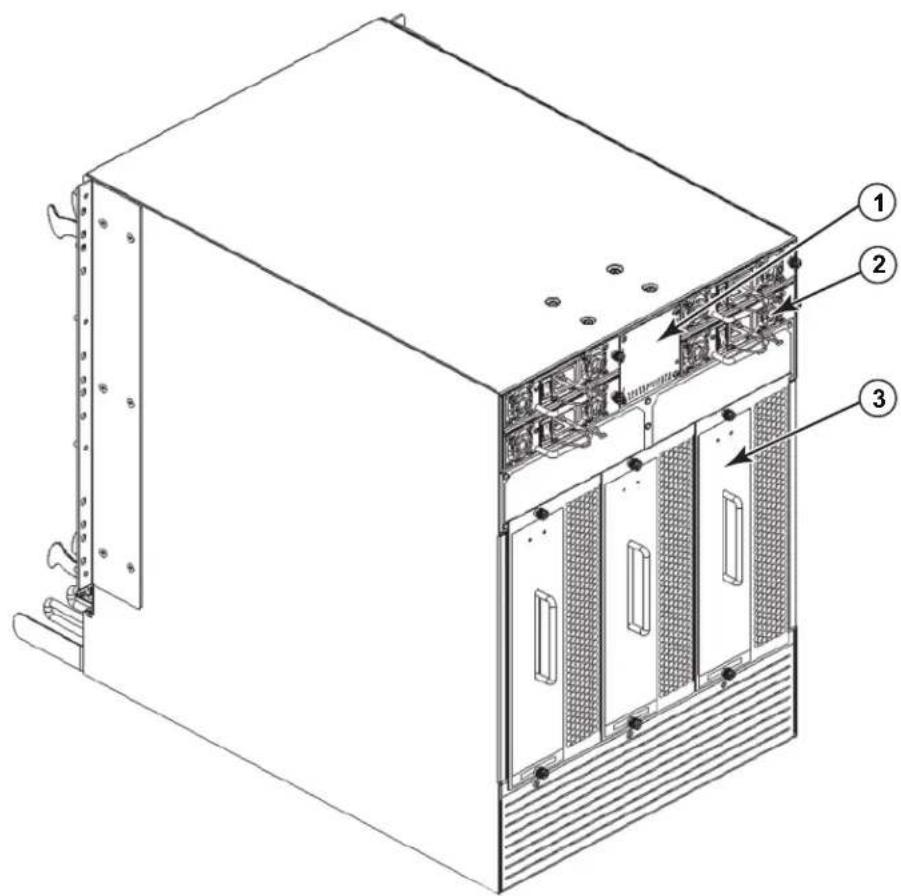
Brocade DCX 8510-8, nonport side
The following figure shows a sample configuration of the nonport side view of the Brocade DCX 8510-8.
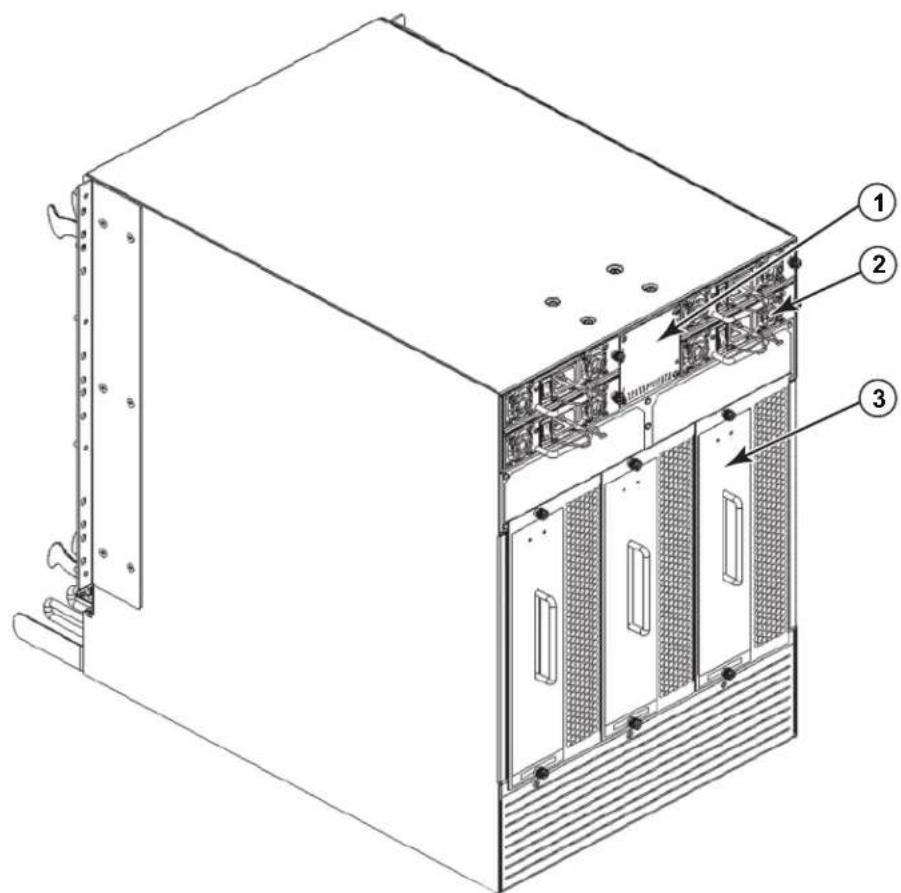
1 WWN bezel (logo plate - WWN card behind with serial number on the card)
3 Blower assembly
2 Power supply
FIGURE 2 Nonport side of the Brocade DCX 8510-8 (sample configuration)
Time and items required for installation
You can set up and install the Brocade DCX 8510-8 in the following ways:
• As a standalone unit on a flat surface.
• In a 19-inch Electronic Industries Association (EIA) cabinet, using the 14U Rack Mount Kit (provided).
- In a mid-mount telecommunications (Telco) rack, using the Mid-Mount Rack Kit available from your Brocade DCX 8510-8 supplier.
This chapter describes how to set up the Brocade DCX 8510-8 as a standalone unit. For rack-mount installation instructions, refer to the appropriate manual as described in the following table.
The following table describes the main installation and setup tasks, the estimated time required for each, and the items required to complete the task based on a fully populated Brocade DCX 8510-8 (384 Fibre Channel ports using the FC16-48 port blades). Configurations with fewer ports require less time. These time estimates assume a prepared installation site and appropriate power and network connectivity.
TABLE 1 Installation tasks, time, and items required
| Installation task Time estimate Items required | ||
| Site preparation and unpacking Brocade DCX 8510-8 | 30 minutes 1/2-in. socket wrench (to remove pallet bolts).#2 Phillips screwdriver(for cable management comb).Pallet jack.Hydraulic lift or assisted lift, able to raise to a minimum of 140 cm (55 in.), with a minimum capacity of 113 kg (250 lb). The Brocade DCX 8510-8 weighs 159.2 kg (351 lb) with eight FC16-48 port blades installed (384 ports). | |
| Installing rack mount kit 30 minutes Refer to the 14U Rack Mount Kit Installation | ||
| Mounting and securing Brocade DCX 8510-8 in rack | 30 minutes | Procedure or the Mid-Mount Rack Kit Installation Procedure. |
| Installing power cables and powering on the Brocade DCX 8510-8 | 20 minutes Power cables (provided in the Brocade DCX 8510-8 accessory kit). | |
| Establishing serial connection, logging on to Brocade DCX 8510-8, and configuring IP addresses | 20 minutes Serial cable (provided in the accessory kit).Workstation computer with a serial port or terminal server port and a terminal emulator application (such as HyperTerminal).Ethernet IP addresses for the Brocade DCX 8510-8 chassis and for both control processor blades: total three addresses. | |
| Installing an Ethernet cable, opening a Telnet session, and configuring the Brocade DCX 8510-8 domain ID, date and time, and additional system parameters.Verify and back up configuration. | 20 minutes Ethernet cabling (optional) for Telnet access.Refer to the Fabric OS Administrator's Guide. | |
| Installing transceivers as needed 30 minutes (longer if using high-density port blades) | SFP+, mSFP, and QSFP optical transceivers as needed. | |
| Attaching fiber optic cables, cable ties, and cable guides | 2-3 hours Fiber optic cables, cable ties, and cable comb. | |
Site planning and safety guidelines
NOTE
Read the safety notices before installation ("Safety notices").
Read “Power specifications” in the Brocade DCX 8510-8 Hardware Reference Manual appendix to plan for meeting power supply standards before installing the chassis.
Read "Managing cables" to plan for cable management.
The following steps are required to ensure correct installation and operation.
- Provide a space that is 14 rack units (14U) high, 61.29 cm (24.09 in.) deep, and 43.74 cm (17.22 in.) wide. 1U is equal to 4.45 cm (1.75 in.).
Plan to install the Brocade DCX 8510-8 with the nonport side facing the air-intake aisle. The Brocade DCX 8510-8 can be installed facing either direction, if serviceability and cooling requirements are met.
- Ensure that dedicated electrical branch circuits with the following characteristics are available:
NOTE
See “Power specifications” in the “Specifications” appendix for specific requirements depending on your chassis configuration.
- 200 - 240 VAC, 50–60 Hz (two branch circuits) - recommended for high availability and maximum blade usage when configured with 192 16 Gbps ports (four circuits required for high availability if configured with 384 16 Gbps ports)
• 110 - 120 VAC, 50-60 Hz (four branch circuits highly recommended)
• Two or four cables for 200 - 240 VAC service; up to four cables for 110 - 120 VAC service - Protected by a circuit breaker in accordance with local electrical codes
• Supply circuit, line fusing, and wire size adequate to the electrical rating on the chassis nameplate - Location close to the chassis and easily accessible
• Grounded outlets installed by a licensed electrician and compatible with the power cords
ATTENTION
To maximize fault tolerance, connect each power cord to a separate power source.
- Plan for cable management before installing the chassis.
Cables can be managed in a variety of ways, such as by routing cables below the chassis, to either side of the chassis, through cable channels on the sides of the cabinet, or by using patch panels.
- Ensure that the following is available for configuration of the Brocade DCX 8510-8:
• Workstation with an installed terminal emulator, such as HyperTerminal
- Serial cable (provided)
• Three Ethernet cables (including one spare)
- Access to an FTP server for backing up the switch configuration or collecting supportsave output data (optional)
• A Brocade USB stick for collecting supportsave output data (optional)
• Transceivers (copper and optical) and compatible cables
-
Ensure that the air intake and exhaust vents have a minimum of two (2) inches of airspace.
-
Ensure that the air temperature on the air intake side is less than 40 degrees Celsius (104 degrees Fahrenheit) during operation.
Items included with the Brocade DCX 8510-8
The Brocade DCX 8510-8 ships with the following:
• Brocade DCX 8510-8 chassis, populated with:
- Control processor blades (CP8)
- Core switch blades (CR16-8)
- Port blades, application blades, and encryption blades (included based on customer specification)
- Blade slot filler panels (for slots not filled by blades)
- WWN cards
- WWN bezel (logo plate)
- Power supplies
- Power supply filler panel (included if there are fewer than four power supplies)
- Blower assemblies
- Cable management comb
- Chassis door
• Accessory kit containing the following items:
- Brocade DCX 8510-8 Backbone QuickStart Guide
- Brocade Documentation CD (contains documents related to the Brocade DCX 8510-8)
- ESD grounding strap
- USB device
- RS-232 serial cable. The RS-232 cable has an adapter at one end that can be removed to provide an RJ-45-style connector.
• 14U Rack Mount Kit with instructions (includes rear brackets and bottom support rails)
Order the Brocade-branded optical transceivers (SFP+, mSFP, and QSFP). The Brocade DCX 8510-8 supports SWL, LWL, and ELWL transceivers. The mSFPs and QSFPs are SWL transceivers only.
NOTE
For information about the SFP+, mSFP, and QSFP transceivers that are qualified for the Brocade DCX 8510-8, go to http://www.brocade.com/downloads/documents/matrices/Brocade_Compatibility_Matrix.pdf.
Unpacking and installing the Brocade DCX 8510-8
Use the following procedure to unpack and install your Brocade DCX 8510-8.
NOTE
A fully populated Brocade DCX 8510-8 (eight FC16-48 port cards, 384 ports) weighs approximately 159.2 kg (351 lbs) and requires a hydraulic or assisted lift to install it.
- Unpack the Brocade DCX 8510-8.
a. Cut the bands that encircle the packaging.
b. Remove the lid and the kits and foam from the top of the chassis.
c. Lift the cardboard box off the chassis and remove the plastic bag from around the chassis. Save the packing materials for use when returning the old chassis.
d. Leave the chassis on top of the plastic shipping tray if the chassis must be transported to the installation location.
NOTE
The Brocade DCX 8510-8 packaging does not incorporate a wood pallet and pallet brackets. The chassis sits on top of a plastic shipping tray.
- Use a pallet jack or other assisted lift to transport the new chassis to the installation area. Doorways must be wider than 36 in. (91 cm) to accommodate the chassis.
- Remove the 14U rack mount kit, accessory kit, packing foam, and antistatic plastic from the chassis and set aside.
- Remove the chassis door from the Brocade DCX 8510-8.
- Remove the cable management comb.
- Use a lift to raise the chassis to the correct level. If installing the chassis in a cabinet, follow the instructions provided by the rack kit manufacturer.
- If applicable, lock the wheels of the lift.
- Gently slide the chassis onto the final installation surface, ensuring that it remains supported during the transfer.
- Ensure that the chassis is oriented so that the nonport side has access to intake air (cool).
- Reinstall the cable management comb.
- Reinstall the door. The door must be installed to meet EMI compliance.
Providing power to the Brocade DCX 8510-8
Complete the following steps to provide power to the chassis.

DANGER
Use the supplied power cords. Ensure the facility power receptacle is the correct type, supplies the required voltage, and is properly grounded. (D004)
- Connect the AC power cords to the power supply assemblies. Two or four power cords are required depending on electrical service and if the high availability option is selected.
- Connect the power cords to a power source with voltage of 200 to 240 VAC, 47 to 63 Hz (normally two power cords or as many as four) or optionally to a power source with voltage of 110 to 120 VAC, 47 to 63 Hz (up to four power cords).
ATTENTION
Use of the high-voltage line (200 to 240 VAC) is highly recommended because of better power-conversion efficiency. A DCX 8510-8 chassis fully loaded with 16 Gbps port blades (384 ports total) should be supplied with four power supplies connected to 200-240 VAC lines.
-
Turn the AC power switches on the power supplies to 1. The AC power switches light green when switched on and power is supplied.
-
The Brocade DCX 8510-8 performs a power-on self-test (POST) each time it is powered on. POST takes approximately 10 minutes and is complete when the indicator light activity displays the operational state. You can bypass POST by using the fastBoot command. You can also disable POST for successive reboots on the Brocade DCX 8510-8 using the diagDisablePost command.
ATTENTION
Do not connect the switch to the network until the IP addresses are configured.
Managing cables
The cable management comb is attached to the chassis under the chassis door and allows for simple cable management. The comb can be installed without service disruption.
Route the cables along the front of the blades to keep LEDs visible. Leave at least one meter of slack for each fiber optic cable to provide room to remove and replace blades.
ATTENTION
The minimum radius to which a 50 micron cable should be bent under full tensile load is 2 in. For a cable under no tensile load, that minimum is 1.2 in.
Cables can be organized and managed in a variety of ways, for example, using cable channels on the sides of the cabinet or patch panels to minimize cable management. Following is a list of recommendations:
NOTE
You should not use tie wraps with optical cables because they are easily overtightened and can damage the optic fibers.
- Plan for rack space required for cable management before installing the switch.
- Leave at least 1 m (3.28 ft) of slack for each port cable. This provides room to remove and replace the switch, allows for inadvertent movement of the rack, and helps prevent the cables from being bent to less than the minimum bend radius.
- If you are using Brocade ISL Trunking, consider grouping cables by trunking groups. The cables used in trunking groups must meet specific requirements, as described in the Fabric OS Administrator's Guide.
• For easier maintenance, label the fiber optic cables and record the devices to which they are connected. - Keep LEDs visible by routing port cables and other cables away from the LEDs.
- Use Velcro® type straps to secure and organize fiber optic cables.
ATTENTION
Do not route the cables in front of the air exhaust vent, which is located at the top of the port side of the chassis.
High density cabling
The FC8-64 high density port blade cannot use the standard LC cables because the pitch between optics in the new mini-SFP (mSFP) transceiver is smaller than in standard SFPs. Patch cables and panels can be used to attach standard size cabling to the blade if necessary. The figure below illustrates the mSFP to SFP patch cable. See “Best Practices Guide: High Density Cable Management Solutions” (available at http://www.brocade.com) for cable management guidelines for high-density port solutions, cable and patch panel part numbers.
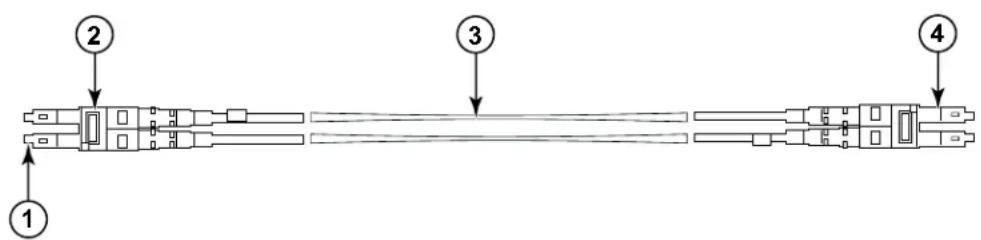
1 mSFP connector 3 1.6 mm cable
2 Duplex clip (black) 4 SFP connector
FIGURE 3 Cable design for the mSFP patch cables for the FC8-64 high density port blade
Please note that the duplex clip on the mSFP end of the cable is black for easier recognition. See the appendix for a listing of the qualified mSFP optical cables for the FC8-64 port blade.
If ISL Trunking is in use, group the cables by trunking group. The ports are color-coded to indicate which ports can be used in the same ISL Trunking group: eight ports marked with solid black ovals alternate with eight ports marked with oval outlines. See the appendix for a listing of supported cable speeds and distances.
Installing QSFP cables (optional)
Use this procedure to remove and replace a QSFP cable.
NOTE
The QSFP ports can be used only with an inter-chassis link (ICL) license. After the addition or removal of a license, the license enforcement is performed on the ports only when the portdisable and portenable commands are issued on the ports. An ICL license must be installed on all Brocade Backbones forming the ICL connection. Up to six neighboring Brocade 8510 series chassis can be combined with the QSFP cables.
NOTE
For the Brocade 8510 Backbones, an off-the-shelf QSFP cable up to 50 meters long can be used as an ICL cable.
ATTENTION
For the 8510 series models, if the QSFP cables are not used, make sure the rubber gaskets are in the QSFP transceivers.
The following table describes the connector port LED patterns and the recommended actions for those patterns.
TABLE 2 QSFP connector port LEDs
| LED purpose Color Status Recommended action | ||
| QSFP connector status | No light (LED is off) No QSFP module, all four QSFP ports are disabled | No action required if QSFP no present or verify that the QSFP is fully inserted. |
| Steady amber QSFP module is in, all four ports have no signal/no sync. | No action required if QSFP only is installed or ensure that the cable is properly connected. If the LED remains amber, consult the Brocade DCX 8510-8 supplier. | |
| Blinking amber Port is disabled or faulted, FC link activity, segmented, loopback mode, also during transition between QSFP cable insertion and confirmation. | Check for console messages or wait for all four ports to come online. | |
| Steady green Both ends of QSFP cable are in and all ports are online. Full link is established. | No action required. | |
Follow this procedure to install the QSFP cables. Refer to the Fabric OS Administrator's Guide for the configuration procedure and requirements.
The figure below shows an QSFP cable and transceiver. The QSFP connectors on the core blades are labeled by trunk group (trunking is optional) for ease of installation. The subsequent figures show acceptable cabling configurations for the ICL feature. The recommended topology is the parallel type where there are four QSFP cables connected between any pair of Brocade 8510 series chassis. The full mesh configuration is also supported.

natural_image
Technical line drawing of two types of electronic connectors or connectors (no text or symbols)FIGURE 4 QSFP cable and transceiver
Installing a QSFP cable
Complete the following steps to replace a QSFP cable.
-
If the QSFP transceiver is being replaced, grasp the bail of the new QSFP and push the QSFP into the connector on the blade until it is firmly seated. The QSFP is keyed to fit into the connector in one way. The status LED initially blinks amber after installation, then displays steady amber.
-
Grasp the QSFP cable by the rubber housing and push it into the QSFP transceiver until it is firmly seated. The cable housing is keyed to fit into the QSFP in one way.
The status LED displays steady amber until both ends of the cable are inserted and the link is established. When the link is fully established, the LED displays steady green.
-
Repeat for each cable that requires replacement.
-
Once all the cables are attached, see the Fabric OS Administrator's Guide for the configuration procedure.
Possible QSFP cable configurations
The following figure illustrates one possible QSFP cable configuration between two 8510 series chassis. Up to six neighboring 8510 chassis can be connected as long as each of two cores in one chassis is interconnected with each of two cores in the next chassis. This provides for inter-chassis link (ICL) trunking between chassis, ensuring redundancy. Parallel connections between core blades are recommended, but both parallel and mesh cable arrangements are supported.

1 Chassis 1 2 Chassis 2
FIGURE 5 QSFP cable connections - 8510 sample configuration - parallel type
Six 8510 chassis can be connected in a core/edge configuration (two core/four edge) as shown in the figure below. Although 8510-8 chassis are shown in the figure, the chassis can be either 8510-4 or 8510-8. The cabling scheme should follow the parallel example shown in the previous figure.

flowchart
graph TD
    A["Input Sequence 1"] --> D["Processing Unit"]
    B["Input Sequence 2"] --> D
    C["Input Sequence 3"] --> D
    E["Input Sequence 4"] --> D
    F["Input Sequence 5"] --> D
    D --> G["Output Data"]
    D --> H["Feedback Loop"]
    D --> I["Feedback Loop"]
    D --> J["Feedback Loop"]
    D --> K["Feedback Loop"]
FIGURE 6 DCX 8510 core/edge ICL topology
Establishing a serial connection to the Brocade DCX 8510-8
To establish a serial connection to the console port on the Brocade DCX 8510-8, complete the following steps.
- Verify that the Brocade DCX 8510-8 is powered on and that POST is complete by verifying that all power LED indicators on the port, control processor, and core switch blades display a steady green light.
- Remove the shipping cap from the CONSOLE port on the active CP. Use the serial cable provided with the Brocade DCX 8510-8 to connect the CONSOLE port on the active CP to a computer workstation. The active CP blade is indicated by an illuminated (blue) LED.
ATTENTION
The CONSOLE port is intended primarily for the initial setting of the IP address and for service purposes.
- Access the Brocade DCX 8510-8 using a terminal emulator application (such as HyperTerminal in a Windows environment or tip in a UNIX environment).
- Disable any serial communication programs running on the workstation (such as synchronization programs).
- Open a terminal emulator application (such as HyperTerminal on a PC, or term, tip, or kermit in a UNIX environment), and configure the application as follows:
• In a Windows environment:
Parameter Value
| Bits per second 9600 |
| Data bits 8 |
| Parity None |
| Stop bits 1 |
| Flow control None |
• In a UNIX environment, enter the following string at the prompt:
tip /dev/ttyb -9600
If ttyb is already in use, use ttya instead and enter the following string at the prompt:
tip /dev/ttya -9600
When the terminal emulator application stops reporting information, press Enter. You receive the following login prompt:
CP0 Console Login:
- Proceed to the next task.
Logging on to the Brocade DCX 8510-8
To log in to the Brocade DCX 8510-8 through the serial connection, follow these steps.
- Log in to the Brocade DCX 8510-8 as admin. The default password is password. At the initial login, you are prompted to enter new admin and user passwords. Make sure to write down the new passwords and keep this information in a secure location.
Fabric OS (swDir)
swDir login: admin
Password:
Please change your passwords now.
Use Control-C to exit or press 'Enter' key to proceed.
swDir:admin>
- (Optional) Modify passwords. To skip modifying the password, press Ctrl-C. For more information on passwords, refer to the Fabric OS Administrator's Guide.
NOTE
Passwords can be 8 to 40 characters long. They must begin with an alphabetic character. They can include numeric characters, the dot (.), and the underscore (_) only. Passwords are case-sensitive, and they are not displayed when you enter them on the command line.
For more information on passwords, refer to the Fabric OS Administrator's Guide.
Configuring IP addresses
The Brocade DCX 8510-8 requires three IP addresses, which are configured using the ipAddrSet command. IP addresses are required for both CP blades (CPO and CP1) and for the chassis management IP (shown as SWITCH under the ipAddrShow command) in the Brocade DCX 8510-8.
NOTE
The default IP addresses and host names for the Brocade DCX 8510-8 are: - 10.77.77.75 / CPO (the CP blade in slot 6 at the time of configuration) - 10.77.77.74 / CP1 (the CP blade in slot 7 at the time of configuration)
ATTENTION
Resetting an IP address while the Brocade DCX 8510-8 has active IP traffic or has management and monitoring tools running, such as DCFM, Fabric Watch, and SNMP, can cause traffic to be interrupted or stopped.
Complete the following steps to set the IP addresses for the Brocade DCX 8510-8.
-
Log in to the active CP as admin using the serial cable connection.
-
Set up the Brocade DCX 8510-8 IP address by entering the ipaddrset -chassis command:
swDir:admin> ipAddrSet -chassis
Enter the information at the prompts. Specify the -chassis IP address. The -sw 0 IP address is not valid on this chassis.
NOTE
The addresses 10.0.0.0 through 10.0.0.255 are reserved and used internally by the Brocade DCX 8510-8. External IPs must not use these addresses.
- Set up the CPO IP address by entering the ipaddrset -cp 0 command:
swDir:admin> ipAddrSet -cp 0
Enter the information at the prompts.
- Set up the CP1 IP address by entering the ipaddrset -cp 1 command:
swDir:admin> ipAddrSet -cp 1
Enter the information at the prompts.
This is a sample IP configuration:
swDir:admin> ipaddrset -chassis Ethernet IP Address [0.0.0.0]: 192.168.1.1 Ethernet Subnetmask [0.0.0.0]: 255.255.255.0 Fibre Channel IP Address [0.0.0.0]: Fibre Channel Subnetmask [0.0.0.0]: Issuing gratuitous ARP...Done. Committing configuration...Done.
swDir:admin> ipaddrset -cp 0 Host Name [cp0]: Ethernet IP Address [10.77.77.75]: 192.168.1.2 Ethernet Subnetmask [0.0.0.0]: 255.255.255.0 Gateway IP Address [0.0.0.0]: 192.168.1.254 IP address is being changed...Done.
Committing configuration...Done.
swDir:admin> ipaddrset -cp 1
Host Name [cp1]:
Ethernet IP Address [10.77.77.74]: 192.168.1.3
Ethernet Subnetmask [0.0.0.0]: 255.255.255.0
Gateway IP Address [0.0.0.0]: 192.168.1.254
IP address of remote CP is being changed...Done.
Committing configuration...Done.
Establishing an Ethernet connection
NOTE
Connecting the CP blades to a private network/VLAN is recommended.
After using a serial connection to configure the IP addresses for the Brocade DCX 8510-8, you can connect the active CP blade to the local area network (LAN).
By establishing an Ethernet connection, you can complete the Brocade DCX 8510-8 configuration using either a serial session, Telnet, or management applications, such as Web Tools or Brocade Network Advisor.
Perform the following steps to establish an Ethernet connection to the Brocade DCX 8510-8.
- Remove the shipping plug from the Ethernet port on the active CP blade.
- Insert one end of an Ethernet cable into the Ethernet port.
- Connect the other end to an Ethernet 10/100/1000 BaseT LAN.
The Brocade DCX 8510-8 can be accessed through a remote connection using the command line via Telnet or any of the management tools, such as Web Tools or Brocade Network Advisor. - To complete any additional Brocade DCX 8510-8 configuration procedures through a Telnet session, log in to the Brocade DCX 8510-8 by Telnet, using the admin login. The default password is password.
Customizing a switch name
The switch name of the Brocade DCX 8510-8 can be up to 30 characters long using Fabric OS release 6.3.0 or later; can include letters, numbers, hyphens, and underscore characters; and must begin with a letter.
NOTE
Changing the name causes a domain address format RSCN to be issued.
- Type switchName followed by the new name in double quotes.
swDir:admin> switchName "swModularSwitch5"
Committing configuration...
Done.
swModularSwitch5:admin>
- Record the new name for reference.
Customizing a chassis name
The chassis name of the Brocade DCX 8510-8 can be up to 15 characters long; can include letters, numbers, hyphens, and underscore characters; and must begin with a letter.
- Enter chassisName followed by the new name in double quotes.
switch:admin> chassisname "DCX8510_chassis"
Committing configuration...
Done.
- Enter chassisName by itself to show the name.
switch:admin> chassisname
DCX8510_chassis
- Record the new name for reference.
Setting the Domain ID
Each switch in the fabric must have a unique domain ID. The domain ID can be manually set through the configure command or can be automatically set. The default domain ID for the Brocade DCX 8510-8 is 1. Use the fabricShow command to view the already assigned domain IDs.
-
Enter switchDisable to disable the Brocade DCX 8510-8.
-
Enter configure.
-
Enter y at the Fabric parameters prompt:
Fabric parameters (yes, y, no, n): [no] y
- Enter a unique domain ID:
Domain: (1.239) [1] 3
-
Complete the remaining prompts or press Ctrl+D to accept the settings and exit.
-
Enter switchEnable to reenable the Brocade DCX 8510-8.
Verifying the PID mode
Before connecting the Brocade DCX 8510-8 to the fabric, verify that the WWN Based persistent port identifier (PID) feature on the Brocade DCX 8510-8 matches the other switches in the fabric. This parameter must be identical for all switches in the fabric and is set using the configure command as shown below:
switch:admin>configure
Configure...
Fabric parameters (yes, y, no, n): [no] y
Domain: (1..239) [1]
Enable a 256 Area Limit
(0 = No,
1 = Zero Based Area Assignment,
2 = Port Based Area Assignment): (0..2) [0] 1
WWN Based persistent PID (yes, y, no, n): [no] yes
You can check the PID setting using the configshow command as in the following example. You can use the | grep -i pid qualifier to pinpoint the PID information.
switch:admin> configshow | grep -i pid fabric.ops.mode.pidFormat:1 fabric.wwnPidMode:1
The 1 indicates that the WWN Based persistent PID feature is enabled. The default value is 0 for disabled.
Installing transceivers
The first procedure is used to install SFP+s and mSFPs (FC8-64 port card only) and cables to the Brocade DCX 8510-8. The second procedure is used to install the QSFP transceivers in the 16 Gbps core blades.
Installing SFP-type transceivers
Complete the following steps to install SFP-type optical transceivers.
NOTE
mSFP transceivers are compatible only with the FC8-64 port blade. While they will fit in other blades, this configuration is unsupported and will generate an error.
The ports are color-coded to indicate which can be used in the same port group for trunking (trunking port groups can be up to eight ports). The ports and cables used in trunking groups must meet specific requirements. Refer to the Fabric OS Administrator's Guide for more information.
- Add the optical transceivers and cables to the Fibre Channel ports.
The ports are color-coded to indicate which can be used in the same port group for trunking (trunking port groups can be up to 8 ports). The ports and cables used in trunking groups must meet specific requirements. Refer to the Fabric OS Administrator's Guide.
- Position one of the optical transceivers so that the key is oriented correctly to the port. Insert the transceiver into the port until it is firmly seated and the latching mechanism clicks.
Transceivers are keyed so that they can only be inserted with the correct orientation. If a transceiver does not slide in easily, ensure that it is correctly oriented.
- Position a cable so that the key (the ridge on one side of the cable connector) is aligned with the slot in the transceiver. Insert the cable into the transceiver until the latching mechanism clicks.
Cables are keyed so that they can be inserted in only one way. If a cable does not slide in easily, ensure that it is correctly oriented.
-
Repeat steps 1 through 3 for the remaining ports.
-
Organize the cables See "Managing Cables."
-
Verify the Brocade DCX 8510-8 and port status using the switchShow command.
-
Verify fabric connectivity using the fabricShow command.
Installing QSFP transceivers
Follow these steps to install the QSFPs and cables in the 16 Gbps core blades. These transceivers and cables are used to form the inter-chassis links (ICL) with neighboring DCX 8510 Backbones.
The transceivers should be installed in the blades before connecting the cables.
Because each QSFP contains four 16 Gbps ports, be aware that any problems with one port could affect all four ports in the quad if the QSFP has to be replaced.
- Position one of the QSFP transceivers so that the key is oriented correctly to the port. Insert the transceiver into the port until it is firmly seated.
Transceivers are keyed so that they can only be inserted with the correct orientation. If a transceiver does not slide in easily, ensure that it is correctly oriented.
When the transceiver is correctly seated, the status LED will flash amber several times and then turn solid amber.
- Remove the protective cap from the special QSFP cable and insert it into the transceiver until it is firmly seated.
The cables are also keyed to fit into the transceivers correctly.
When the cable is correctly seated, the status LED will change from amber to green.
Repeat steps 1 and 2 for the remaining ICL
-
Organize the cables See "Managing Cables."
-
Verify the Brocade DCX 8510-8 and connector and port status using the switchShow -qsfp command.
A sample of the command output is shown below. The example is from a DCX 8510-4 with a core blade installed in slot 3. Some details for the 8510-8 will be different, but the reported information for the QSFPs will be similar.
Note that the State reported for an unconnected QSFP (shown QSFP 0 and Ports 0-3 below) is No_SigDet. This is different from the State of No_Synch that is reported for regular SFPs that are unconnected.
QSFP 7 (ports 3/28-3/31, Index 748-751) in the following example shows the results for a connected QSFP.
switch:FID128:admin> switchshow -qsfp
switchName: switch name
switchType: 121.3
switchState: Online
switchMode: Native
switchRole: Subordinate
switchDomain: 75
switchId: fffc4b
switchWwn: 10:00:00:05:1e:4f:eb:00
zoning: ON (zoning name)
switchBeacon: OFF
FC Router: OFF
Allow XISL Use: OFF
LS Attributes: [FID: 128, Base Switch: No, Default Switch: Yes, Address Mode 0]
| Index | Slot | Port | QSFP | Address | Media | Speed | State | Proto |
| 256 | 3 | 0 | 0 | ---- | id | 16G | No_SigDet | FC |
| 257 | 3 | 1 | 0 | ---- | id | 16G | No_SigDet | FC |
| 258 | 3 | 2 | 0 | ---- | id | 16G | No_SigDet | FC |
| 259 | 3 | 3 | 0 | ---- | id | 16G | No_SigDet | FC |
| 260 | 3 | 4 | 1 | ---- | -- | 16G | No_Module | FC |
| 261 | 3 | 5 | 1 | ---- | -- | 16G | No_Module | FC |
| 262 | 3 | 6 | 1 | ---- | -- | 16G | No_Module | FC |
| 263 | 3 | 7 | 1 | ---- | -- | 16G | No_Module | FC | ||
| 264 | 3 | 8 | 2 | ---- | -- | 16G | No_Module | FC | ||
| 265 | 3 | 9 | 2 | ---- | -- | 16G | No_Module | FC | ||
| 266 | 3 | 10 | 2 | ---- | -- | 16G | No_Module | FC | ||
| 267 | 3 | 11 | 2 | ---- | -- | 16G | No_Module | FC | ||
| 268 | 3 | 12 | 3 | ---- | -- | 16G | No_Module | FC | ||
| 269 | 3 | 13 | 3 | ---- | -- | 16G | No_Module | FC | ||
| 270 | 3 | 14 | 3 | ---- | -- | 16G | No_Module | FC | ||
| 271 | 3 | 15 | 3 | ---- | -- | 16G | No_Module | FC | ||
| 736 | 3 | 16 | 4 | ---- | -- | 16G | No_Module | FC | ||
| 737 | 3 | 17 | 4 | ---- | -- | 16G | No_Module | FC | ||
| 738 | 3 | 18 | 4 | ---- | -- | 16G | No_Module | FC | ||
| 739 | 3 | 19 | 4 | ---- | -- | 16G | No_Module | FC | ||
| 740 | 3 | 20 | 5 | ---- | -- | 16G | No_Module | FC | ||
| 741 | 3 | 21 | 5 | ---- | -- | 16G | No_Module | FC | ||
| 742 | 3 | 22 | 5 | ---- | -- | 16G | No_Module | FC | ||
| 743 | 3 | 23 | 5 | ---- | -- | 16G | No_Module | FC | ||
| 744 | 3 | 24 | 6 | ---- | -- | 16G | No_Module | FC | ||
| 745 | 3 | 25 | 6 | ---- | -- | 16G | No_Module | FC | ||
| 746 | 3 | 26 | 6 | ---- | -- | 16G | No_Module | FC | ||
| 747 | 3 | 27 | 6 | ---- | -- | 16G | No_Module | FC | ||
| 748 | 3 | 28 | 7 | ---- | id | 16G | Online | FC | E-Port | 10:00:00:05:1e:39:e4:5a |
| trunkmaster name (Trunk master) | ||||||||||
| 749 | 3 | 29 | 7 | ---- | id | 16G | Online | FC | E-Port | 10:00:00:05:1e:39:e4:5a |
| trunkmaster name (Trunk master) | ||||||||||
| 750 | 3 | 30 | 7 | ---- | id | 16G | Online | FC | E-Port | 10:00:00:05:1e:39:e4:5a |
| trunkmaster name (Trunk master) | ||||||||||
| 751 | 3 | 31 | 7 | ---- | id | 16G | Online | FC | E-Port | 10:00:00:05:1e:39:e4:5a |
| trunkmaster name (Trunk master) | ||||||||||
Confirming software licenses
Depending on the vendor agreement, certain licenses are factory installed on the Brocade DCX 8510-8. To determine which licenses are enabled, use the licenseShow command.
swDir:admin> licenseshow
AAbbccDDeeFFeeGG:
Web license
Zoning license
Extended Fabric license
Fabric Watch license
Performance Monitor license
Trunking license
Security license
In this example, the license key is AAbbccDDeeFFeeGG. Keep a copy of the license key for reference.
The 64-bit chassis License ID is required to obtain and activate licenses for the Brocade DCX 8510-8. The chassis License ID is available through the licenseldShow command. The licenseShow and licenseldShow commands must be typed through the active CP blade. Refer to the Fabric OS Administrator's Guide for information about unlocking and maintaining licenses.
Backing up the configuration
Complete the following steps to back up the configuration for the Brocade DCX 8510-8.
- Check the LEDs to verify that all components are functional.
- If necessary, log on to the switch by Telnet, using the admin account.
- Verify the correct operation of the Brocade DCX 8510-8 by entering the switchShow command from the workstation. This command provides information about switch and port status.
-
Verify the correct operation of the Brocade DCX 8510-8 in the fabric by entering the fabricShow command from the workstation. This command provides general information about the fabric.
-
To back up the configuration, run the following two steps:
a. Enter the configupload -vf command. This command uploads the Brocade DCX 8510-8 virtual fabric data.
b. Enter the configupload command. This command uploads the Brocade DCX 8510-8 configuration.
-
You can run the following commands to see additional configuration information that you can copy to a file to save:
-
configShow
- ipaddrShow
licenseShow - switchShow
Alternatively, you can save the configuration file to a Brocade USB device by using the usbstorage command.
NOTE
Passwords are not saved in the configuration file, and are not uploaded during a configuration upload.
NOTE
It is recommended that the configuration be backed up on a regular basis to ensure that a complete configuration is available for downloading to a replacement Brocade DCX 8510-8.
Brocade DCX 8510-8 主干
快速启动指南
BROCADE
53-1002366-01

版权所有 © 2011 Brocade Communications Systems, Incorporated.
http://www.brocade.com/support/oscd.
Brocade Communications Systems, Incorporated
公司及拉美总部
Brocade Communications Systems, Inc.
130 Holger Way
San Jose, CA 95134
Tel: 1-408-333-8000
Tel: 1-408-333-8101
E-mail: info@brocade.com
亚太总部
Brocade Communications Systems China HK, Ltd.
北京
朝阳区
光华路1号
Brocade Communications Switzerland Sàrl
Centre Swissair
Tour B - 4ème étage
Brocade Communications Systems Co., Ltd. (Shenzhen WFOE)
中国
天河北路
233号 中信广场
1308 室
电话:+8620 3891 2000
传真:+8620 3891 2111
E-mail: info@brocade.com
文档历史版本
文档标题出版编号更改摘要出版日期
natural_image
Technical line drawing of two types of electronic connectors: a cable and a rectangular housing (no text or symbols)图4 QSFP 电缆和收发器
安装 QSFP 电缆
完成以下步骤以更换 QSFP 电缆。
swDir:admin> ipaddrset -cp 0
Host Name [cp0]:
Ethernet IP Address [10.77.77.75]: 192.168.1.2
Ethernet Subnetmask [0.0.0.0]: 255.255.255.0
Gateway IP Address [0.0.0.0]: 192.168.1.254
IP address is being changed...Done.
Committing configuration...Done.
swDir:admin> ipaddrset -cp 1
Host Name [cp1]:
Ethernet IP Address [10.77.77.74]: 192.168.1.3
Ethernet Subnetmask [0.0.0.0]: 255.255.255.0
Gateway IP Address [0.0.0.0]: 192.168.1.254
IP address of remote CP is being changed...Done.
Committing configuration...Done.
建立以太网连接
注
swDir:admin> switchName "swModularSwitch5"
Committing configuration...
Done.
swModularSwitch5:admin>
- 记录新名称供参考。
自定义机箱名称
switch:admin> chassisname "DCX8510_chassis"
Committing configuration...
Done.
Verifying the PID mode
switch:admin>configure
Configure...
Fabric parameters (yes, y, no, n): [no] y
    Domain: (1..239) [1]
    Enable a 256 Area Limit
    (0 = No,
    1 = Zero Based Area Assignment,
    2 = Port Based Area Assignment): (0..2) [0] 1
    WWN Based persistent PID (yes, y, no, n): [no] yes
    <command output truncated>
Copyright © 2011 Brocade Communications Systems, Incorporated.
Brocade Communications Systems, Incorporated
企業及拉丁美洲區總公司
Brocade Communications Systems, Inc.
130 Holger Way
San Jose, CA 95134
電話:1-408-333-8000
傳真:1-408-333-8101
Brocade Communications Systems China HK, Ltd.
中國廣州市 朝陽區
光華路 1 號
2718、2719室 100020
電話:+8610 6588 8888
傳真:+8610 6588 9999
電子郵件:china-info@brocade.com
歐洲區總公司
Brocade Communications Switzerland Sàrl
Centre Swissair
Tour B - 4ème étage
Brocade Communications Systems Co., Ltd. (Shenzhen WFOE)
中國廣州市
天河北路 233 號
中信廣場
13 樓 1308 室
電話:+8620 3891 2000
傳真:+8620 3891 2111
電子郵件:china-info@brocade.com
文件紀錄
natural_image
Technical line drawing of two types of electronic connectors: a cable and a rectangular housing (no text or symbols)圖4 QSFP 連接線及收發器
安裝 QSFP 連接線
完成下列步驟更新 QSFP 連接線。
Fabric OS (swDir)
swDir login: admin
Password:
Please change your password now.
Use Control-C exit or press 'Enter' key to proceed.
swDir: admin>
IP address is being changed...Done.
Committing configuration...Done.
swDir:admin> ipaddrSet -cp 1
Host Name [cp1]:
Ethernet IP Address [10.77.77.74]:192.168.1.3
Ethernet Subnetmask [0.0.0.0]?255.255.255.0
Gateway IP Address [0.0.0.0]:192.168.1.254
IP address of remote CP is being changed...Done.
Committing configuration...Done.
建立乙太網路連接
註
swDir:admin> switchName "swModularSwitch5"
Committing configuration...
Done.
swModularSwitch5:admin>
- 記錄新名稱供參考用。
自訂機箱名稱
switch:admin> chassisname "DCX8510_chassis"
Committing configuration...
Done.
switch:admin>configure
Configure...
Fabric parameters yes, y, no, n): [no] y
Domain: (1..239) [1]
Enable a 256 Area Limit
(0 = No,
1 = Zero Based Area Assignment,
2 = Port Based Area Assignment): (0..2) [0] 1
WWN Based persistent PID (yes, y, no, n): [no] yes <command output truncated>
Index Slot Port QSFP Address Media Speed State Proto
| 256 | 3 | 0 | 0 | ---- | id | 16G | No_SigDet | FC |
| 257 | 3 | 1 | 0 | ---- | id | 16G | No_SigDet | FC |
| 258 | 3 | 2 | 0 | ---- | id | 16G | No_SigDet | FC |
| 259 | 3 | 3 | 0 | ---- | id | 16G | No_SigDet | FC |
| 260 | 3 | 4 | 1 | ---- | -- | 16G | No_Module | FC |
| 261 | 3 | 5 | 1 | ---- | -- | 16G | No_Module | FC |
| 262 | 3 | 6 | 1 | ---- | -- | 16G | No_Module | FC |
| 263 | 3 | 7 | 1 | ---- | -- | 16G | No_Module | FC |
| 264 | 3 | 8 | 2 | ---- | -- | 16G | No_Module | FC |
| 265 | 3 | 9 | 2 | ---- | -- | 16G | No_Module | FC |
| 266 | 3 | 10 | 2 | ---- | -- | 16G | No_Module | FC | ||
| 267 | 3 | 11 | 2 | ---- | -- | 16G | No_Module | FC | ||
| 268 | 3 | 12 | 3 | ---- | -- | 16G | No_Module | FC | ||
| 269 | 3 | 13 | 3 | ---- | -- | 16G | No_Module | FC | ||
| 270 | 3 | 14 | 3 | ---- | -- | 16G | No_Module | FC | ||
| 271 | 3 | 15 | 3 | ---- | -- | 16G | No_Module | FC | ||
| 736 | 3 | 16 | 4 | ---- | -- | 16G | No_Module | FC | ||
| 737 | 3 | 17 | 4 | ---- | -- | 16G | No_Module | FC | ||
| 738 | 3 | 18 | 4 | ---- | -- | 16G | No_Module | FC | ||
| 739 | 3 | 19 | 4 | ---- | -- | 16G | No_Module | FC | ||
| 740 | 3 | 20 | 5 | ---- | -- | 16G | No_Module | FC | ||
| 741 | 3 | 21 | 5 | ---- | -- | 16G | No_Module | FC | ||
| 742 | 3 | 22 | 5 | ---- | -- | 16G | No_Module | FC | ||
| 743 | 3 | 23 | 5 | ---- | -- | 16G | No_Module | FC | ||
| 744 | 3 | 24 | 6 | ---- | -- | 16G | No_Module | FC | ||
| 745 | 3 | 25 | 6 | ---- | -- | 16G | No_Module | FC | ||
| 746 | 3 | 26 | 6 | ---- | -- | 16G | No_Module | FC | ||
| 747 | 3 | 27 | 6 | ---- | -- | 16G | No_Module | FC | ||
| 748 | 3 | 28 | 7 | ---- | id | 16G | Online | FC | E-Port | 10:00:00:05:1e:39:e4:5a |
| trunkmaster name (Trunk master) | ||||||||||
| 749 | 3 | 29 | 7 | ---- | id | 16G | Online | FC | E-Port | 10:00:00:05:1e:39:e4:5a |
| trunkmaster name (Trunk master) | ||||||||||
| 750 | 3 | 30 | 7 | ---- | id | 16G | Online | FC | E-Port | 10:00:00:05:1e:39:e4:5a |
| trunkmaster name (Trunk master) | ||||||||||
| 751 | 3 | 31 | 7 | ---- | id | 16G | Online | FC | E-Port | 10:00:00:05:1e:39:e4:5a |
| trunkmaster name (Trunk master) | ||||||||||
確認軟體授權
Extended Fabric license
Fabric Watch license
Performance Monitor license
Trunking license
Security license
Copyright © 2011 Brocade Communications Systems, Incorporated.
Brocade Communications Systems, Incorporated
Brocade Communications Systems, Inc.
130 Holger Way
San Jose, CA 95134-1706
Tél : 1-408-333-8000
Fax:1-408-333-8101
E-mail: info@brocade.com
Brocade Communications Systems China HK, Ltd.
Brocade Communications Switzerland Sàrl
Centre Swissair
Tour B - 4ème étage
Brocade Communications Systems Co., Ltd. (Shenzhen WFOE)
Citic Plaza
Unit 1308 - 13th Floor
Guangzhou, Chine
Tél : +8620 3891 2000
Fax: +8620 3891 2111
E-mail: china-info@brocade.com
natural_image
Technical line drawing of two types of electronic connectors: a cable and a rectangular housing (no text or symbols)Please change your passwords now. (Veuillez changer maintenant vos mots de passe)
switch:admin> chassisname "DCX8510_chassis"
Committing configuration...
Done. (Validation de la configuration...Terminé)
Copyright © 2011 Brocade Communications Systems, Incorporated.
Brocade Communications Systems, Incorporated
Brocade Communications Systems, Inc.
130 Holger Way
San Jose, CA 95134-1706
Tel.: 1-408-333-8000
Fax: 1-408-333-8101
E-Mail: info@brocade.com
Brocade Communications Systems China HK, Ltd.
Nein. 1 Guanghua Road
Chao Yang District
Units 2718 and 2818
Beijing 100020, China
Tel.: +8610 6588 8888
Fax: +8610 6588 9999
E-Mail: china-info@brocade.com
Brocade Communications Switzerland Sàrl
Centre Swissair
Tour B - 4ème étage
Brocade Communications Systems Co., Ltd. (Shenzhen WFOE)
Citic Plaza
Nein. 233 Tian He Road North
Unit 1308 - 13th Floor
Guangzhou, China
Tel.: +8620 3891 2000
Fax: +8620 3891 2111
E-Mail: china-info@brocade.com
Dokumentenverlauf
natural_image
Technical line drawing of two types of electronic connectors: a cable and a rectangular housing (no text or symbols)licenseShow
- switchShow
Hak Cipta © 2011 Brocade Communications Systems, Incorporated.
Brocade, simbol B-wing, BigIron, DCFM, DCX, Fabric OS, FastIron, IronView, NetIron, SAN Health, ServerIron, Turbolron, dan Wingspan merupakan merek dagang terdaftar, dan Brocade Assurance, Brocade NET Health, Brocade One, Extraordinary Networks, MyBrocade, dan VCS merupakan merek dagang milik Brocade Communications Systems, Inc., di Amerika Serikat dan/atau negara-negara lain. Nama layanan, produk, atau merek lain yang disebutkan merupakan atau mungkin merupakan merek dagang atau merek layanan pemiliknya masing-masing.
Brocade Communications Systems, Incorporated
Corporate and Latin American Headquarters
Brocade Communications Systems, Inc.
130 Holger Way
San Jose, CA 95134
Tel: 1-408-333-8000
Brocade Communications Systems China HK, Ltd.
No. 1 Guanghua Road
Chao Yang District
Units 2718 and 2818
Beijing 100020, China
Tel: +8610 6588 8888
Brocade Communications Switzerland Sàrl
Centre Swissair
Tour B - 4ème étage
Brocade Communications Systems Co., Ltd. (Shenzhen WFOE)
Citic Plaza
No. 233 Tian He Road North
Unit 1308 - 13th Floor
Guangzhou, China
Tel: +8620 3891 2000
GAMBAR 1 Sisi port Brocade DCX 8510-8 (konfigurasi sampel)
Brocade DCX 8510-8, sisi nonport
Gambar berikut menampilkan konfigurasi sampel bentuk sisi nonport Brocade DCX 8510-8.
1 Bezel WWN bezel (pelat logo - kartu WWN di belakang nomor seri di kartu)
3 Unit blower
2 C a t u d a y a
GAMBAR 2 Sisi nonport Brocade DCX 8510-8 (konfigurasi sampel)
natural_image
Technical line drawing of two types of electronic connectors: a cable and a rectangular housing (no text or symbols)GAMBAR 4 Transceiver dan kabel QSFP
Memasang kabel QSFP
swDir:admin> ipaddrset -cp 0
Host Name [cp0]:
Ethernet IP Address [10.77.77.75]: 192.168.1.2
Ethernet Subnetmask [0.0.0.0]: 255.255.255.0
Gateway IP Address [0.0.0.0]: 192.168.1.254
IP address is being changed ...Done. (Alamat IP sedang diubah...Selesai.)
Committing configuration...Done.
swDir:admin> ipaddrset -cp 1
Host Name [cp1]:
Ethernet IP Address [10.77.77.74]: 192.168.1.3
Ethernet Subnetmask [0.0.0.0]: 255.255.255.0
Gateway IP Address [0.0.0.0]: 192.168.1.254
IP address of remote CP is being changed...Done.
Committing configuration...Done.
swDir:admin> switchName "swModularSwitch5"
Committing configuration...
Done.
swModularSwitch5:admin>
switch:admin> chassisname "DCX8510_chassis"
Committing configuration...
Done.
switch:admin>configure
Configure...
Fabric parameters (yes, y, no, n): [no] y
Domain: (1..239) [1]
Enable a 256 Area Limit
(0 = No,
1 = Zero Based Area Assignment,
2 = Port Based Area Assignment): (0..2) [0] 1
WWN Based persistent PID (yes, y, no, n): [no] yes
<command output truncated>
Memasang transceiver
Memasang transceivers QSFP
Brocade Communications Systems, Incorporated
本部、南米本社
Brocade Communications Systems, Inc.
130 Holger Way
San Jose, CA 95134
電話:1-408-333-8000
FAX:1-408-333-8101
Brocade Communications Systems China HK, Ltd.
No.1 Guanghua Road
Chao Yang District
Units 2718 and 2818
Beijing 100020, China
電話:+8610 6588 8888
FAX : +8610 6588 9999
Brocade Communications Switzerland Sàrl
Centre Swissair
Tour B - 4ème étage
- Route de l'Aéroport
Case Postale 105
CH-1215 Genève 15
Switzerland
電話:+41 22 799 5640
FAX: +41 22 799 5641
電子メール:emea-info@brocade.com
アジア太平洋本社
Brocade Communications Systems Co., Ltd. (Shenzhen WFOE)
Citic Plaza
No.233 Tian He Road North
Unit 1308 - 13th Floor
Guangzhou, China
電話:+8620 3891 2000
FAX: +8620 3891 2111
natural_image
Technical line drawing of two types of electronic connectors or connectors (no text or symbols)Please change your passwords now.
Use Control-C to exit or press 'Enter' key to proceed.
swDir:admin>
swDir:admin> ipAddrSet -cp 0
Host Name [cp0]:
Ethernet IP Address [10.77.77.75]: 192.168.1.2
Ethernet Subnetmask [0.0.0.0]: 255.255.255.0
Ethernet IP Address [0.0.0.0]: 192.168.1.254
IP address is being changed...Done.
Committing configuration...Done.
swDir:admin> ipAddrSet -cp 0
Host Name [cp1]:
Ethernet IP Address [10.77.77.74]: 192.168.1.3
Ethernet Subnetmask [0.0.0.0]: 255.255.255.0
Ethernet IP Address [0.0.0.0]: 192.168.1.254
IP address of remote CP is being changed...Done.
Committing configuration...Done.
Ethernet 接続の確立
メモ
swDir:admin> switchName "swModularSwitch5"
Committing configuration...
Done.
swModularSwitch5:admin>
- 参照のため、新しい名前を記録します。
シャーシ名のカスタマイズ
switch:admin> chassisname "DCX8510_chassis"
Committing configuration...
Done.
switch:admin> chassisname
DCX8510 chassis
- 参照のため、新しい名前を記録します。
ドメイン ID の設定
switch:admin>configure
Configure...
Fabric parameters (yes, y, no, n): [no] y
Domain: (1..239) [1]
Enable a 256 Area Limit
(0 = No,
1 = Zero Based Area Assignment,
2 = Port Based Area Assignment): (0..2) [0] 1
WWN Based persistent PID (yes, y, no, n): [no] yes
<command output truncated>
Copyright © 2011 Brocade Communications Systems, Incorporated.
Brocade Communications Systems, Incorporated
법인 및 라틴 아메리카 본사
Brocade Communications Systems, Inc.
130 Holger Way
San Jose, CA 95134
전화:1-408-333-8000
팩스 :1-408-333-8101
Brocade Communications Systems China HK, Ltd.
No. 1 Guanghua Road
Chao Yang District
Units 2718 and 2818
Beijing 100020, China
전화 :+8610 6588 8888
팩스 :+8610 6588 9999
Brocade Communications Switzerland Sàrl
Centre Swissair
Tour B - 4ème étage
Brocade Communications Systems Co., Ltd. (Shenzhen WFOE)
Citic Plaza
No. 233 Tian He Road North
Unit 1308 - 13th Floor
Guangzhou, China
전화 :+8620 3891 2000
팩스 :+8620 3891 2111
1 배기 환기구
4 FC16-32 포트 블레이드
natural_image
Technical line drawing of two types of electronic connectors or connectors (no text or symbols)1 새시 1
2 새시 2
Please change your passwords now.
Use Control-C to exit or press 'Enter' key to proceed.
swDir:admin>
swDir:admin> ipaddrset -cp 0
Host Name [cp0]:
Ethernet IP Address [10.77.77.75]: 192.168.1.2
Ethernet Subnetmask [0.0.0.0]: 255.255.255.0
Gateway IP Address [0.0.0.0]: 192.168.1.254
IP address is being changed...Done.
Committing configuration...Done.
swDir:admin> ipaddrset -cp 1
Host Name [cp1]:
Ethernet IP Address [10.77.77.74]: 192.168.1.3
Ethernet Subnetmask [0.0.0.0]: 255.255.255.0
Gateway IP Address [0.0.0.0]: 192.168.1.254
IP address of remote CP is being changed...Done.
Committing configuration...Done.
이더넷 연결 설정
주
swDir:admin> switchName "swModularSwitch5"
Committing configuration...
Done.
swModularSwitch5:admin>
- 참조를 위해 새 이름을 기록합니다.
새시 이름 사용자 지정
switch:admin> chassisname "DCX8510_chassis"
Committing configuration...
Done.
switch:admin>configure
Configure...
Fabric parameters (yes, y, no, n): [no] y
Domain: (1..239) [1]
Enable a 256 Area Limit
(0 = No,
1 = Zero Based Area Assignment,
2 = Port Based Area Assignment): (0..2) [0] 1
WWN Based persistent PID (yes, y, no, n): [no] yes
<command output truncated>
Extended Fabric license
Fabric Watch license
Performance Monitor license
Trunking license
Security license
Copyright © 2011 Brocade Communications Systems, Incorporated.
Brocade Communications Systems, Incorporated
| Sede corporativa e para os países da América LatinaBrocade Communications Systems, Inc.130 Holger WaySan Jose, CA 95134-1706Tel: 1-408-333-8000Tel: 1-408-333-8101E-mail: info@brocade.com | Sede para os países da região Ásia-PacíficoBrocade Communications Systems China HK, Ltd.No. 1 Guanghua RoadChao Yang DistrictUnits 2718 and 2818Beijing 100020, ChinaTel: +8610 6588 8888Fax: +8610 6588 9999E-mail: china-info@brocade.com |
| Sede europeiaBrocade Communications Switzerland SàrlCentre SwissairTour B - 4ème étage29, Route de l'AéroportCase Postale 105CH-1215 Genève 15SuíçaTel: +41 22 799 5640Fax: +41 22 799 5641E-mail: emea-info@brocade.com | Sede para os países da região Ásia-PacíficoBrocade Communications Systems Co., Ltd. (Shenzhen WFOE)Citic PlazaNo. 233 Tian He Road NorthUnit 1308 – 13th FloorGuangzhou, ChinaTel: +8620 3891 2000Fax: +8620 3891 2111E-mail: china-info@brocade.com |
1 abertura de exaustão 4 blade de portas FC16-32
2 blade de comutador principal (CR16-8) 5 pente de gerenciamento de cabos
3 blade de processador de controle (CP8)
natural_image
Technical line drawing of two types of electronic connectors: a cable and a rectangular housing (no text or symbols)FIGURA 4 Transceptor e cabo QSFP
Please change your passwords now.
Use Control-C to exit or press 'Enter' key to proceed.
swDir:admin>
swDir:admin> ipAddrSet -cp 0 Host Name [cp0]: Ethernet IP Address [10.77.77.75]: 192.168.1.2 Ethernet Subnetmask [0.0.0.0]: 255.255.255.0 Gateway IP Address [0.0.0.0]: 192.168.1.254 IP address is being changed...Done. Committing configuration...Done.
swDir:admin> ipaddrset -cp 1
Host Name [cp1]:
Ethernet IP Address [10.77.77.74]: 192.168.1.3
Ethernet Subnetmask [0.0.0.0]: 255.255.255.0
Gateway IP Address [0.0.0.0]: 192.168.1.254
IP address of remote CP is being changed...Done.
Committing configuration...Done.
swDir:admin> switchName "swModularSwitch5"
Committing configuration...
Done.
swModularSwitch5:admin>
switch:admin> chassisname "DCX8510_chassis"
Committing configuration...
Done.
switch:admin> chassisname
DCX8510 chassis
switch:admin>configure
Configure...
Fabric parameters (yes, y, no, n): [no] y
Domain: (1..239) [1]
Enable a 256 Area Limit
(0 = No,
1 = Zero Based Area Assignment,
2 = Port Based Area Assignment): (0..2) [0] 1
WWN Based persistent PID (yes, y, no, n): [no] yes
<command output truncated>
Copyright © 2011, Brocade Communications Systems, Incorporated.
Brocade Communications Systems, Incorporated
Brocade Communications Systems, Inc.
130 Holger Way
San José, CA 95134
Tel: 1-408-333-8000
Tel: 1-408-333-8101
Brocade Communications Systems China HK, Ltd.
No. 1 Guanghua Road
Distrito Chao Yang
Unidades 2718 y 2818
Beijing 100020, China
Tel: +8610 6588 8888
Fax: +8610 6588 9999
Correo electrónico: china-info@brocade.com
Sede central europea
Brocade Communications Switzerland Sàrl
Centre Swissair
Tour B - 4ème étage
Brocade Communications Systems Co., Ltd. (Shenzhen WFOE)
Citic Plaza
No. 233 Tian He Road North
natural_image
Technical line drawing of two types of electronic connectors or connectors (no text or symbols)FIGURA 4 Cable QSFP y transceptor
Please change your passwords now
Use Control-C to exit or press 'Enter' key to proceed.
swDir:admin>
swDir:admin> ipaddrset -cp 0
Host Name [cp0]:
Ethernet IP Address [10.77.77.75]: 192.168.1.2
Ethernet Subnetmask [0.0.0.0]: 255.255.255.0
Gateway IP Address [0.0.0.0]: 192.168.1.254
IP address is being changed...Done.
Committing configuration...Done.
swDir:admin> ipAddrSet -cp 0
Host Name [cp1]:
Ethernet IP Address [10.77.77.74]: 192.168.1.3
Ethernet Subnetmask [0.0.0.0]: 255.255.255.0
Ethernet IP Address [0.0.0.0]: 192.168.1.1
IP address of remote CP is being changed...Done.
Committing configuration...Done.
switch:admin>chassisname "DCX8510_chassis"
Committing configuration...
Done
Telif Hakki © 2011 Brocade Communications Systems, Incorporated.
Brocade Communications Systems, Incorporated
| Kurumsal ve Latin Amerika Genel MüdürlüğüBrocade Communications Systems, Inc.130 Holger WaySan Jose, CA 95134Tel: 1-408-333-8000Faks: 1-408-333-8101E-posta: info@brocade.com | Asya-Pasifik Genel MüdürlüğüBrocade Communications Systems China HK, Ltd.No. 1 Guanghua RoadChao Yang DistrictUnits 2718 and 2818Beijing 100020, ÇinTel: +8610 6588 8888Faks: +8610 6588 9999E-posta: china-info@brocade.com |
| Avrupa Genel MüdürlüğüBrocade Communications Switzerland SàrlCentre SwissairTour B - 4ème étage29, Route de l'AéroportCase Postale 105CH-1215 Genève 15İsviçreTel: +41 22 799 5640Faks: +41 22 799 5641E-posta: emea-info@brocade.com | Asya-Pasifik Genel MüdürlüğüBrocade Communications Systems Co., Ltd. (Shenzhen WFOE)Citic PlazaNo. 233 Tian He Road NorthUnit 1308 – 13th FloorGuangzhou, ÇinTel: +8620 3891 2000Faks: +8620 3891 2111E-posta: china-info@brocade.com |
Belge Geçmişi
natural_image
Technical line drawing of two types of electronic connectors: a cable and a rectangular housing (no text or symbols)10:00:00:05:1e:39:e4:5a trunkmaster name (Trunk master)
| 749 | 3 | 29 | 7 | ---- id 16G Online FC E-Port | ||
| 10:00:00:05:1e:39:e4:5a trunkmaster name (Trunk master) | ||||||
| 750 | 3 | 30 | 7 | ---- id 16G Online FC E-Port | ||
| 10:00:00:05:1e:39:e4:5a trunkmaster name (Trunk master) | ||||||
| 751 | 3 | 31 | 7 | ---- id 16G Online FC E-Port | ||
| 10:00:00:05:1e:39:e4:5a trunkmaster name (Trunk master) | ||||||
switchWwn: 10:00:00:05:1e:4f:eb:00
zoning: ON (zoning name)
switchBeacon: OFF
FC Router: OFF
Allow XISL Use: OFF
LS Attributes: [FID: 128, Base Switch: No, Default Switch: Yes, Address Mode 0]
Index Slot Port QSFP Address Media Speed State Proto
| 256 | 3 | 0 | 0 | ---- | id | 16G | No_SigDet | FC |
| 257 | 3 | 1 | 0 | ---- | id | 16G | No_SigDet | FC |
| 258 | 3 | 2 | 0 | ---- | id | 16G | No_SigDet | FC |
| 259 | 3 | 3 | 0 | ---- | id | 16G | No_SigDet | FC |
| 260 | 3 | 4 | 1 | ---- | -- | 16G | No_Module | FC |
| 261 | 3 | 5 | 1 | ---- | -- | 16G | No_Module | FC |
| 262 | 3 | 6 | 1 | ---- | -- | 16G | No_Module | FC |
| 263 | 3 | 7 | 1 | ---- | -- | 16G | No_Module | FC |
| 264 | 3 | 8 | 2 | ---- | -- | 16G | No_Module | FC |
| 265 | 3 | 9 | 2 | ---- | -- | 16G | No_Module | FC |
| 266 | 3 | 10 | 2 | ---- | -- | 16G | No_Module | FC |
| 267 | 3 | 11 | 2 | ---- | -- | 16G | No_Module | FC |
| 268 | 3 | 12 | 3 | ---- | -- | 16G | No_Module | FC |
| 269 | 3 | 13 | 3 | ---- | -- | 16G | No_Module | FC |
| 270 | 3 | 14 | 3 | ---- | -- | 16G | No_Module | FC |
| 271 | 3 | 15 | 3 | ---- | -- | 16G | No_Module | FC |
| 736 | 3 | 16 | 4 | ---- | -- | 16G | No_Module | FC |
| 737 | 3 | 17 | 4 | ---- | -- | 16G | No_Module | FC |
| 738 | 3 | 18 | 4 | ---- | -- | 16G | No_Module | FC |
| 739 | 3 | 19 | 4 | ---- | -- | 16G | No_Module | FC |
| 740 | 3 | 20 | 5 | ---- | -- | 16G | No_Module | FC |
| 741 | 3 | 21 | 5 | ---- | -- | 16G | No_Module | FC |
| 742 | 3 | 22 | 5 | ---- | -- | 16G | No_Module | FC |
| 743 | 3 | 23 | 5 | ---- | -- | 16G | No_Module | FC |
| 744 | 3 | 24 | 6 | ---- | -- | 16G | No_Module | FC |
switch:admin>configure
Configure...
Fabric parameters (yes, y, no, n): [no] y
Domain: (1..239) [1]
Enable a 256 Area Limit
(0 = No,
, 1 = Zero Based Area Assignment
2 = Port Based Area Assignment): (0..2) [0] 1
WWN Based persistent PID (yes, y, no, n): [no] yes
<command output truncated>
. SFP men men men men men men men men men men men men men men men men men men men men men men men men men men men men men men men men men men men men men men men men men men men men men men men men men men men men men men men men men men men men men men men men men men men men men men men men men men men men men men men men men men men men men men men men men men men men men men men men men men men men
תַרְשָׁ
switch:admin> chassisname "DCX8510_chassis" Committing configuration... Done.
chassisName 17.2
switch:admin> chassisname DCX8510_chassis
Committing configuration...
Done.
swModularSwitch5:admin>
Committing configuration...Done.
swDir:admin> ipaddrset -cp 0
Host Name [cp0]:
Ethernet IP Address [10.77.77.75]: 192.168.1.2
Ethernet Subnetmask [0.0.0.0]: 255.255.255.0
Gateway IP Address [0.0.0.0]: 192.168.1.254
.IP address is being changed...Done
Committing configuration...Done.
swDir:admin> ipaddrset -cp 1
Host Name [cp1]:
Ethernet IP Address [10.77.77.74]: 192.168.1.3
Ethernet Subnetmask [0.0.0.0]: 255.255.255.0
Gateway IP Address [0.0.0.0]: 192.168.1.254
IP address of remote CP is being changed...Done.
Committing configuration...Done.
Ctrl-C, Fabric
תַרְשָׁ
.Please change your passwords now
.Use Control-C to exit or press 'Enter' key to proceed
swDir:admin>

flowchart
graph TD
    A["Abacus Set 1"] --> B["Abacus Set 2"]
    C["Abacus Set 3"] --> D["Abacus Set 4"]
    E["Abacus Set 5"] --> F["Abacus Set 6"]
    B --> G["Component Structure"]
    D --> G
    F --> G
    G --> H["Output"]
    style A fill:#f9f,stroke:#333
    style C fill:#f9f,stroke:#333
    style E fill:#f9f,stroke:#333
    style B fill:#ccf,stroke:#333
    style D fill:#ccf,stroke:#333
    style F fill:#ccf,stroke:#333
הַרְׁאֶ DCX 851
Brocade DCX 8510-8 -הַרְׁבָרִיֹתָה
in Windows HyperTerminal (in) 100-12000000000000000000000000000000000000000000000000000000000
.( UNIX כְרָה tip
1 12 2
- 8510 - QSFP 5
natural_image
Technical line drawing of two types of electronic connectors: a cable and a rectangular housing (no text or symbols)ה"א4 QSFP υ"
QSFP בַבְרָה
. QSFP 70-10-11-12-13-14-15-16-17-18-19-20-21-22-23-24-25-26-27-28-29-30-31-32-33-34-35-36-37-38-39-40-41-42-43-44-45-46-47-48-49-50-51-52-53-54-55-56-57-58-59-60-61-62-63-64-65-66-67-68-69-70-71-72-73-74-75-76-77-78-79-80-81-82-83-84-85-86-87-88-89-90-91-92-93-94-95-96-97-98-99
n"n 1.6 720 3
mSFP 1
(הכלה)הכלה 2SFP
.הכלההוּרָהוּרָהוּרָהוּרָהוּרָהוּרָהוּרָהוּרָהוּרָהוּרָהוּרָהוּרָהוּרָהוּרָהוּרָה
תָרִי
" passage" cannot be "if any person is now, if you want to go for my own way, if you want to go for my own way
.(הכלה) 14Uהכלההוּרָהוּרָהוּרָהוּרָהוּרָהוּרָהוּרָהוּרָהוּרָהוּרָהוּרָהוּרָהוּרָהוּרָהוּרָה: 'בִי' 19 (EIA) Electronic Industries Association
.Copyright © 2011 Brocade Communications Systems, Incorporated
Turbolron, ServerIron, SAN Health, NetIron, IronView, FastIron, Fabric OS, DCX, DCFM, BigIron, B-wing 7mo, Brocade, Extraordinary Networks, Brocade One, Brocade NET Health, Brocade Assurance -1. MyBrocade is the first major program for Brocade Communications Systems, Inc. and VDX -1. VCS, MyBrocade is the second major program for Brocade Communications Systems, Inc. and VDX -1.
Brocade Communications Systems, Incorporated
| Brocade Communications Systems China HK, Ltd.No. 1 Guanghua RoadChao Yang DistrictUnits 2718 and 2818Beijing 100020, China+8610 6588 8888 :70+8610 6588 9999 :075china-info@brocade.com :7"XIT |
| Brocade Communications Systems, Inc.Holger Way 130San Jose, CA 951341-408-333-8000 :701-408-333-8101 :079info@brocade.com :7"### |
| Brocade Communications Systems Co., Ltd. (Shenzhen WFOE) |
| Citic Plaza |
| No. 233 Tian He Road North |
| Unit 1308 – 13th Floor |
| Guangzhou, China |
| +8620 3891 2000 :70 |
| +8620 3891 2111 :075 |
| china-info@brocade.com :7"NIT |
| Brocade Communications Switzerland SàrlCentre SwissairTour B - 4ème étageRoute de l'Aéroport ,29Case Postale 105CH-1215 Genève 15 |
| +41 22 799 5640 :70+41 22 799 5641 :079emea-info@brocade.com :7"NIT |
תְמַעָה בְּרָה

- Brocade DCX 8510-8 Backbone
- In this guide
- Introduction
- Safety notices
- NOTE
- Danger notices
- DANGER
- Caution notices
- CAUTION
- Brocade DCX 8510-8, port side
- Brocade DCX 8510-8, nonport side
- Time and items required for installation
- Site planning and safety guidelines
- ATTENTION
- Items included with the Brocade DCX 8510-8
- Unpacking and installing the Brocade DCX 8510-8
- Providing power to the Brocade DCX 8510-8
- Managing cables
- High density cabling
- Installing QSFP cables (optional)
- Installing a QSFP cable
- Possible QSFP cable configurations
- Establishing a serial connection to the Brocade DCX 8510-8
- Logging on to the Brocade DCX 8510-8
- Configuring IP addresses
- Establishing an Ethernet connection
- Customizing a switch name
- Customizing a chassis name
- Setting the Domain ID
- Verifying the PID mode
- Installing transceivers
- Installing SFP-type transceivers
- Installing QSFP transceivers
- Confirming software licenses
- Backing up the configuration
- Brocade DCX 8510-8 主干
- 快速启动指南
- Brocade Communications Systems, Incorporated
- 公司及拉美总部
- 亚太总部
- 文档历史版本
- 安装 QSFP 电缆
- 建立以太网连接
- 注
- 自定义机箱名称
- 文件紀錄
- 安裝 QSFP 連接線
- 建立乙太網路連接
- 註
- 自訂機箱名稱
- 確認軟體授權
- Dokumentenverlauf
- Brocade DCX 8510-8, sisi nonport
- Memasang kabel QSFP
- Memasang transceiver
- Memasang transceivers QSFP
- Ethernet 接続の確立
- メモ
- シャーシ名のカスタマイズ
- ドメイン ID の設定
- 이더넷 연결 설정
- 주
- 새시 이름 사용자 지정
- Brocade DCX 8510-8 -הַרְׁבָרִיֹתָה
- QSFP בַבְרָה
Brand : DELL
Model : PowerConnect BDCX4s
Category : Network Equipment