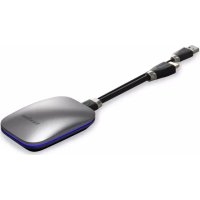
VBWPS003 - Wireless pointer VIEWSONIC - Free user manual and instructions
Find the device manual for free VBWPS003 VIEWSONIC in PDF.

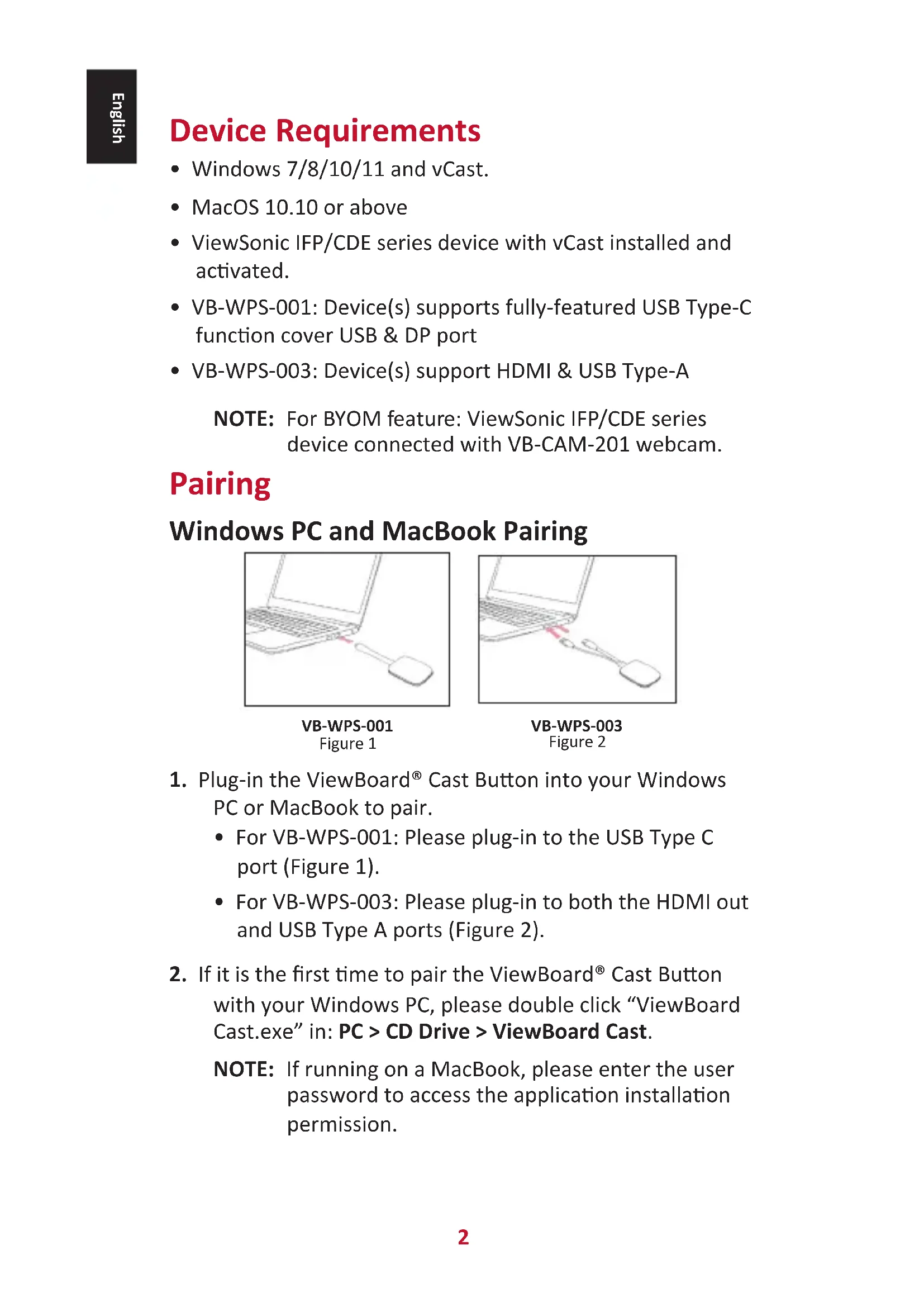


| Brand | Viewsonic |
| Model | VBWPS003 |
| Category | Wireless Pointer / Cast Button |
| Product Type | Wireless HDMI/USB-A Presentation Adapter |
| Main Functions | Wired and wireless screen sharing, BYOM (Bring Your Own Meeting), support for conference software (Teams, Zoom, Google Meet) |
| Compatible Operating Systems | Windows 7/8/10/11, macOS 10.10 or higher |
| Compatible Hardware | ViewSonic IFP/CDE with vCast enabled |
| Connectivity | HDMI (video output), USB Type-A (power and data) |
| LED Indicator | Solid blue (ready), solid white (active connection), white flashing (connection problem) |
| Pairing | Configurable via ViewBoard Cast software by entering network name, password, and receiver IP |
| Recommended Network | Wi-Fi 5 GHz non-DFS channel, minimum bandwidth 10 Mbps, latency <50 ms |
| Power Supply | Via USB port (5 V, 500 mA) – no internal battery |
| Dimensions (approx.) | ~60 x 20 x 10 mm |
| Weight (approx.) | ~20 g |
| Operating Temperature | 0 °C to 40 °C |
| Operating Humidity | 10% to 90% (non-condensing) |
| Certifications | FCC Part 15 Class B, IC, CE, RoHS |
| Package Contents | ViewBoard Cast Button VBWPS003, quick start guide |
Frequently Asked Questions - VBWPS003 VIEWSONIC
User questions about VBWPS003 VIEWSONIC
0 question about this device. Answer the ones you know or ask your own.
Ask a new question about this device
Download the instructions for your Wireless pointer in PDF format for free! Find your manual VBWPS003 - VIEWSONIC and take your electronic device back in hand. On this page are published all the documents necessary for the use of your device. VBWPS003 by VIEWSONIC.
USER MANUAL VBWPS003 VIEWSONIC
ViewBoard® Cast Button
VS18189
User Guide
Brugervejledning
Handleiding
Käyttöopas
Manuel utilisateur
Bedienungsanleitung
Manuale utente
Brukerveiledning
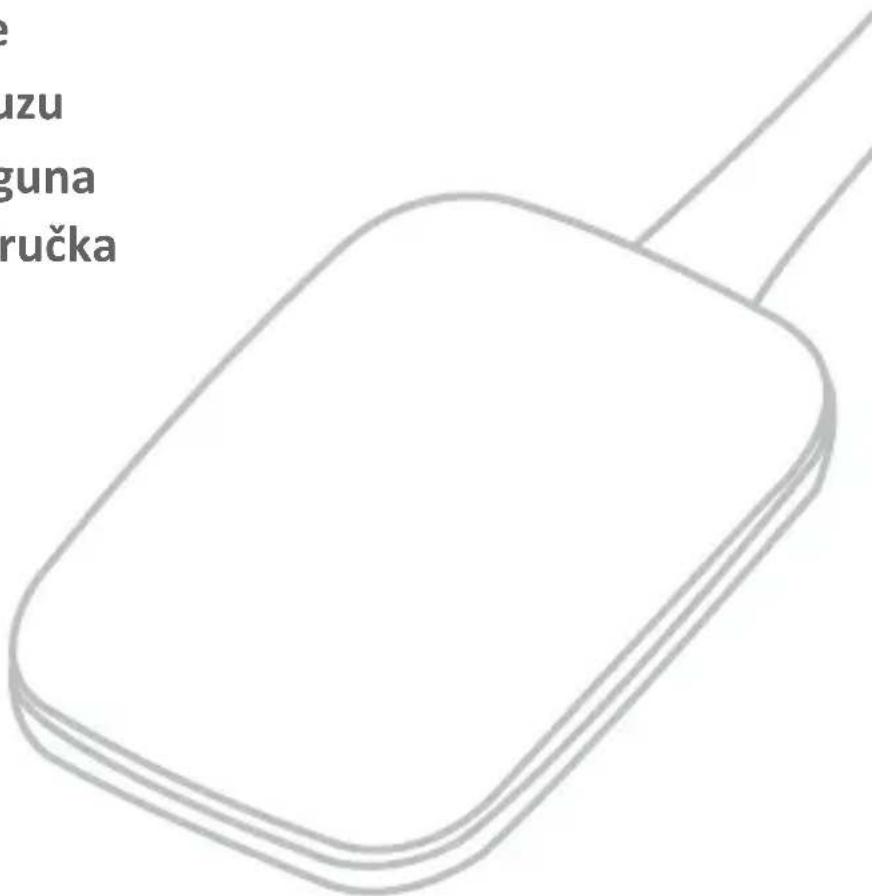
Device Requirements
- Windows 7/8/10/11 and vCast.
• MacOS 10.10 or above - ViewSonic IFP/CDE series device with vCast installed and activated.
- VB-WPS-001: Device(s) supports fully-featured USB Type-C function cover USB & DP port
• VB-WPS-003: Device(s) support HDMI & USB Type-A
NOTE: For BYOM feature: ViewSonic IFP/CDE series device connected with VB-CAM-201 webcam.
Pairing
Windows PC and MacBook Pairing
natural_image
Line drawing of a laptop with a mouse inserted, no text or symbols presentVB-WPS-001
Figure 1
natural_image
Line drawing of a laptop connected to a mouse, showing a red mark on the mouse (no text or symbols present)VB-WPS-003
Figure 2
-
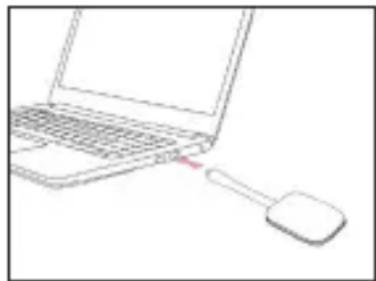
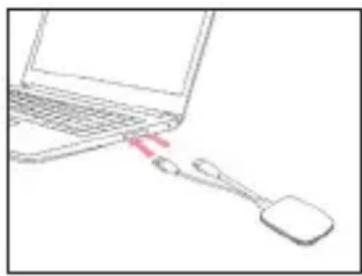
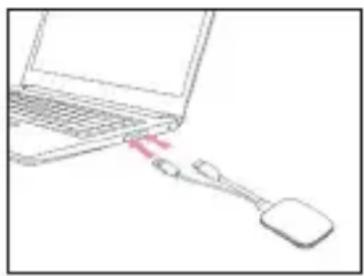
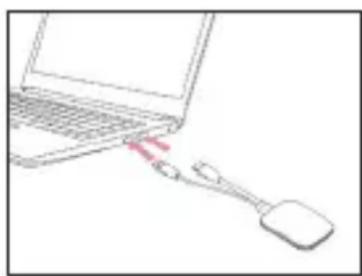
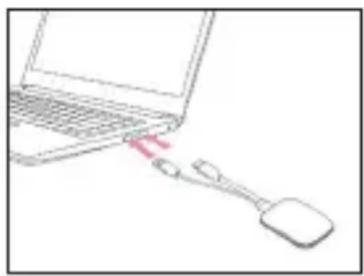
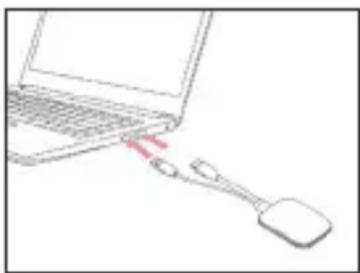
Plug-in the ViewBoard® Cast Button into your Windows PC or MacBook to pair.
-
For VB-WPS-001: Please plug-in to the USB Type C port (Figure 1).
-
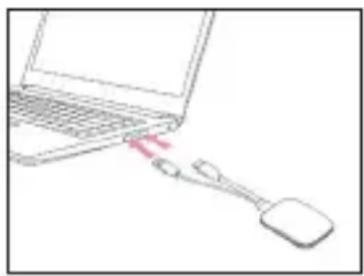
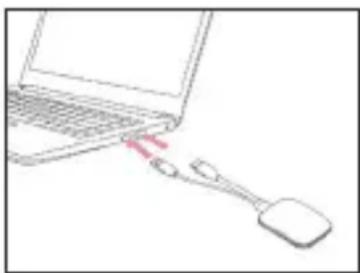
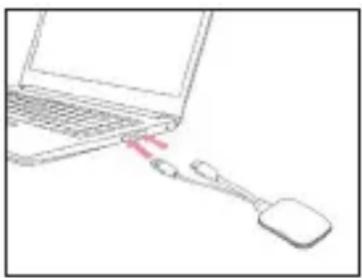
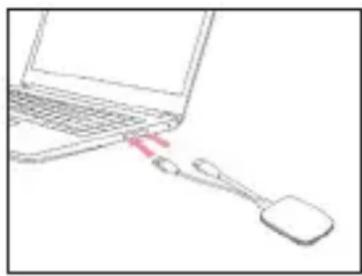
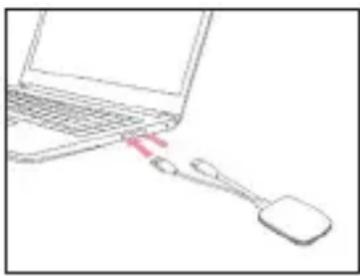
For VB-WPS-003: Please plug-in to both the HDMI out and USB Type A ports (Figure 2).
-
If it is the first time to pair the ViewBoard® Cast Button with your Windows PC, please double click "ViewBoard Cast.exe" in: PC > CD Drive > ViewBoard Cast.
NOTE: If running on a MacBook, please enter the user password to access the application installation permission.
- For PC, with the application installed, ViewBoard® Cast will launch automatically after the ViewBoard® Cast Button is plugged into the PC.
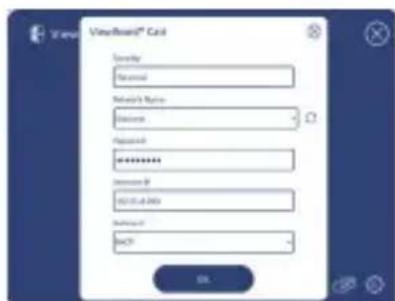
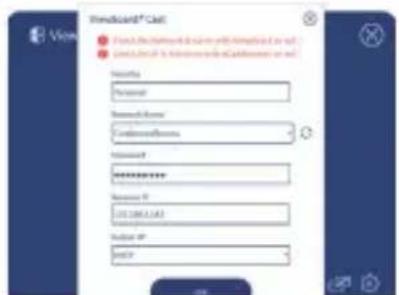
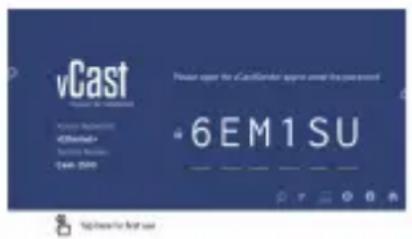
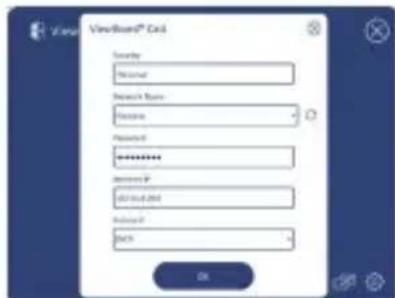
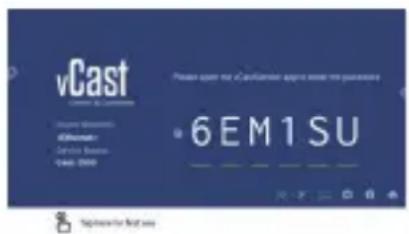
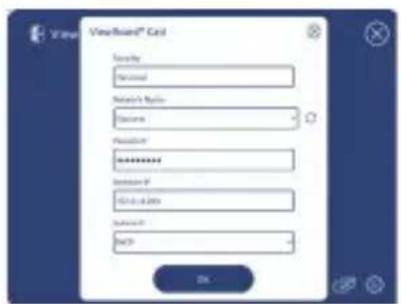
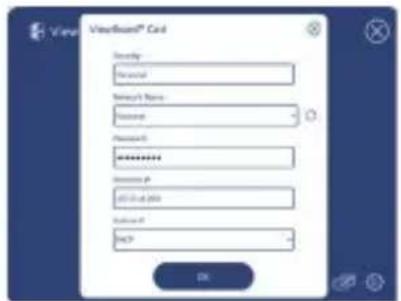
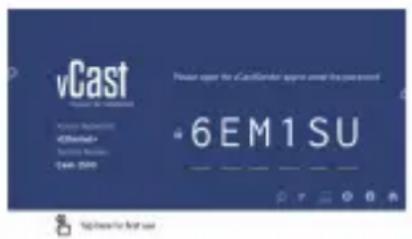
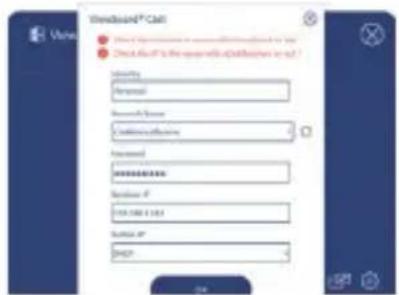
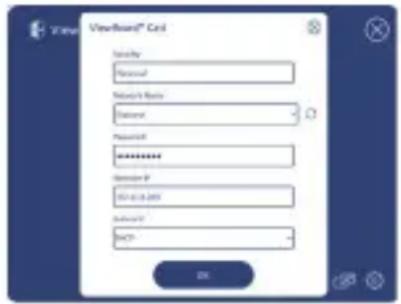
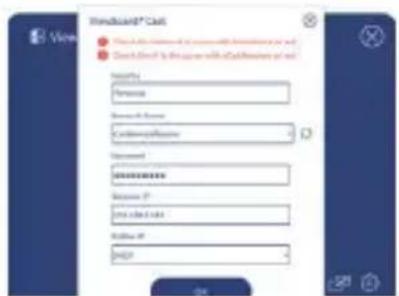
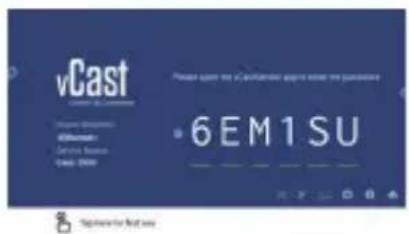
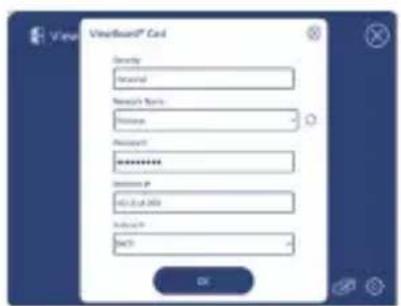
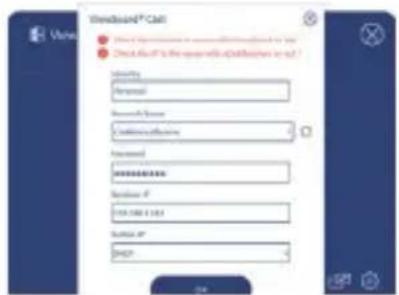
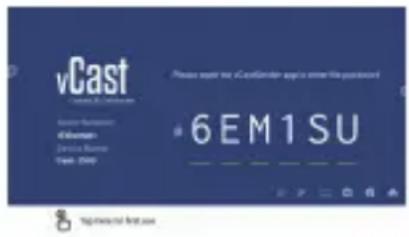
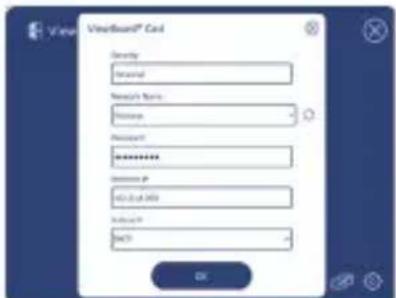
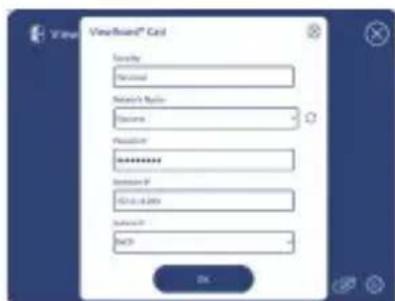
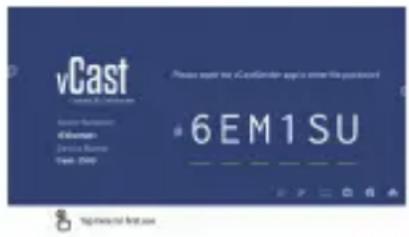
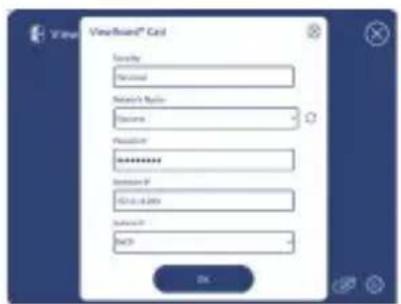
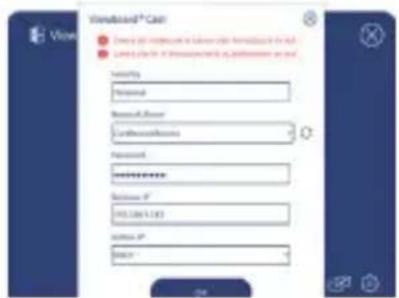
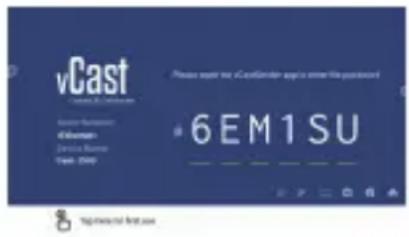
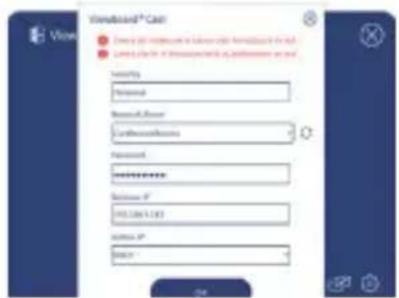
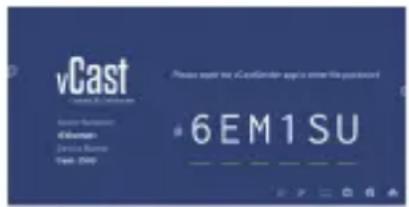
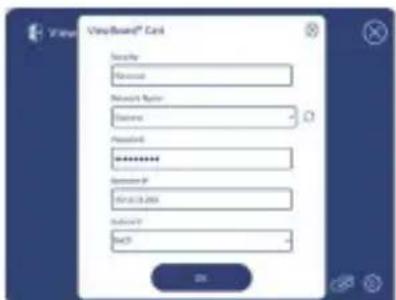
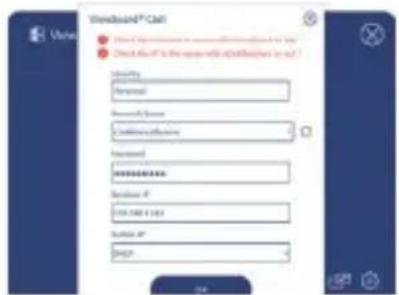
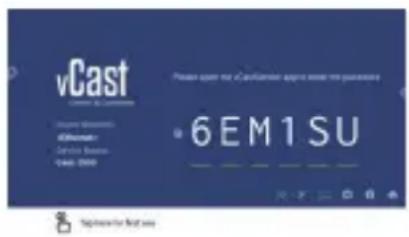
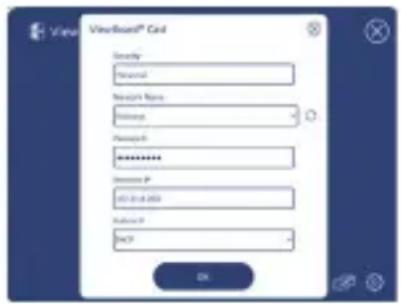
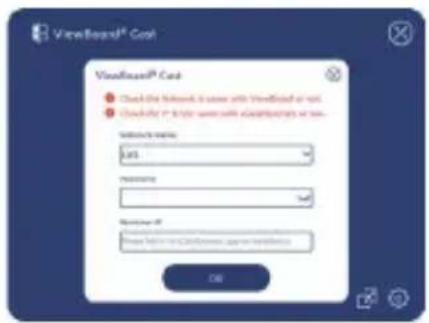
- The pairing dialogue box will pop up on your PC. Please enter the Network Name, Password, and the vCast IP address shown on the IFP/CDE device(s) home screen.
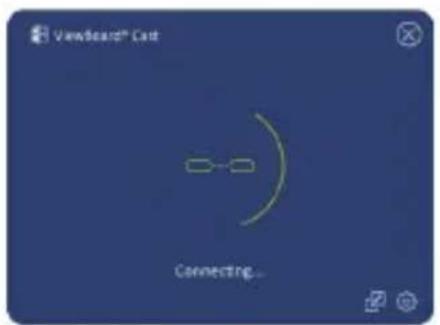
- Click OK to complete the pairing of the ViewBoard® Cast Button and the IFP/CDE device(s) (Figure 3).
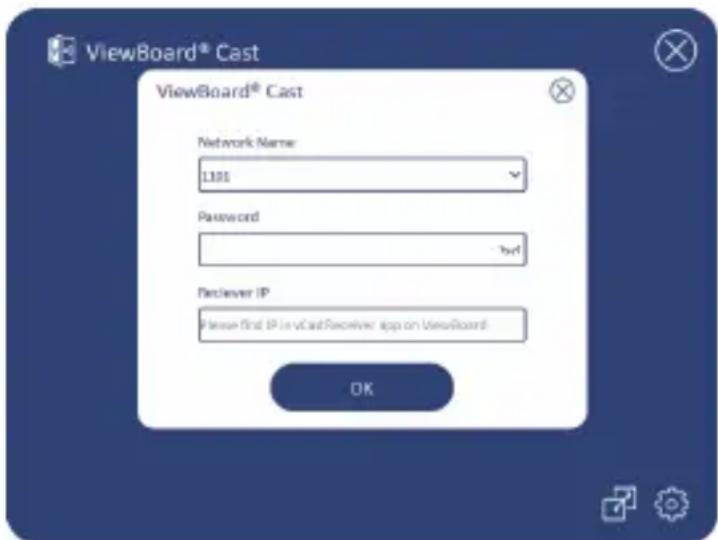
Figure 3
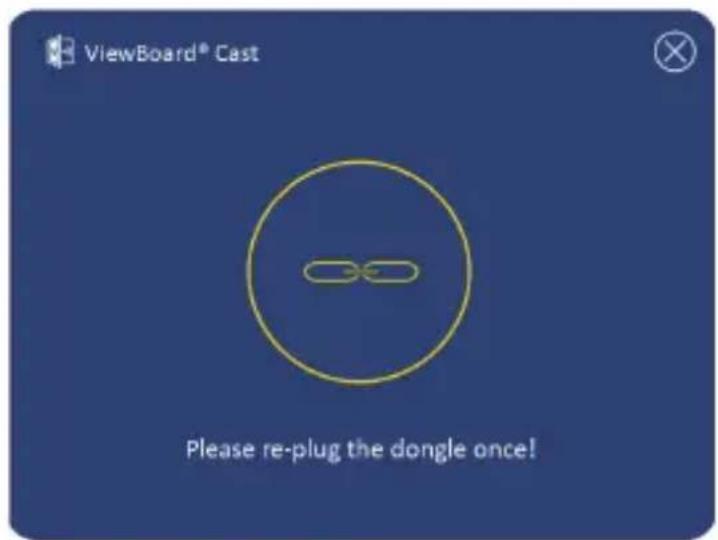
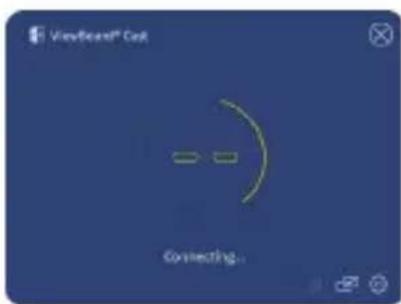
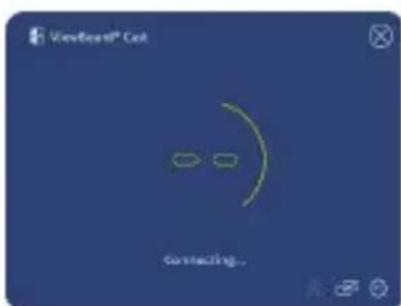
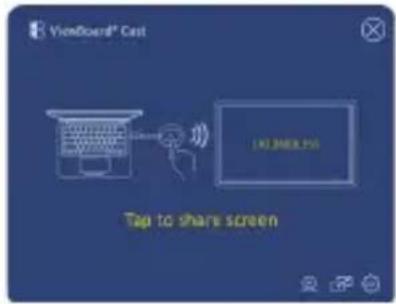
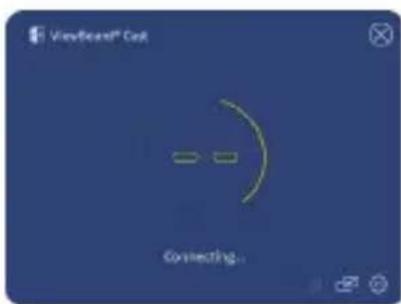
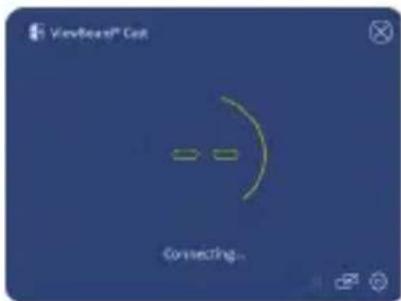
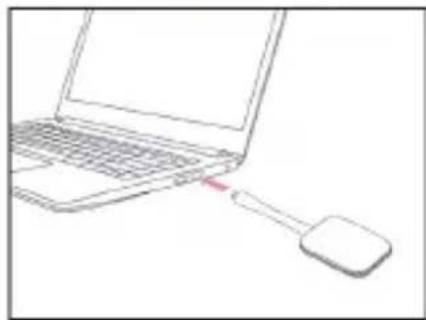
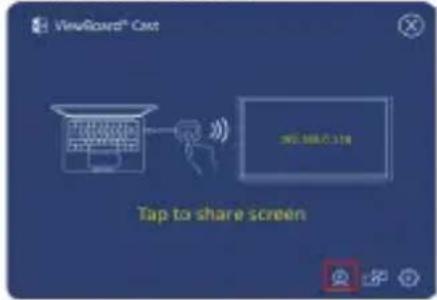
- Remove the ViewBoard® Cast Button and then plug it in again to start sharing (Figure 4).
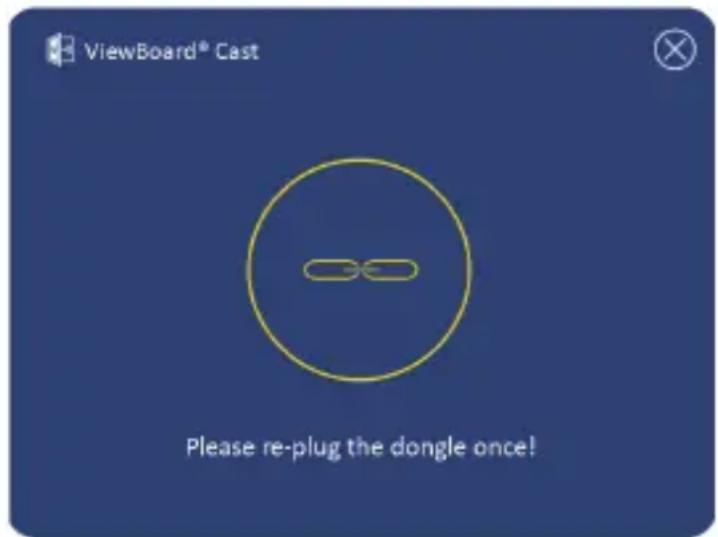
Figure 4
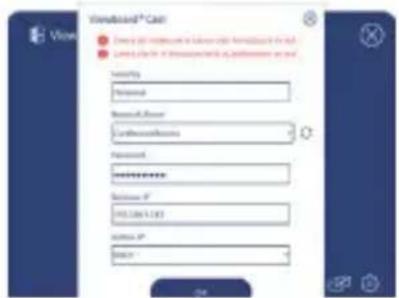
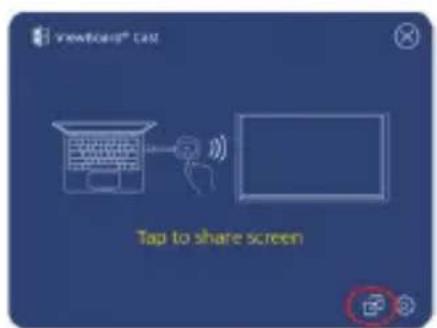
- If the ViewBoard® Cast Button has been paired, and you would like to pair it with another IFP/CDE device, please click the “Pairing-Switch Button” at the bottom right corner (Figure 5) and re-enter the network information to re-pair the ViewBoard® Cast Button (Figure 6). After the ViewBoard® Cast Button is re-paired, please remove it and plug it in again to start sharing.
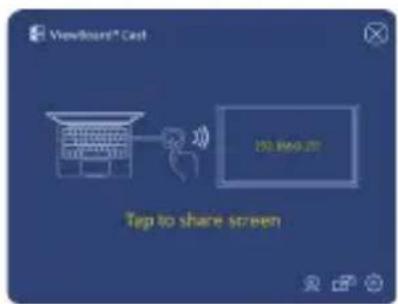
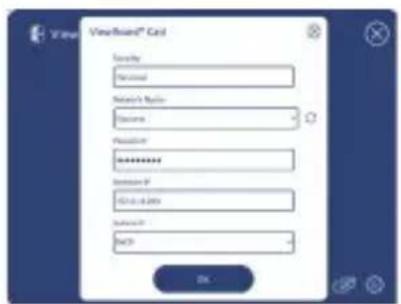
Figure 5 Figure 6
ViewBoard IFP/CDE Pairing
You can also plug-in the ViewBoard ^® Cast Button into IFP/CDE device(s) to pair if the IFP/CDE device(s) is connected to a LAN (Ethernet cable).
For VB-WPS-001:
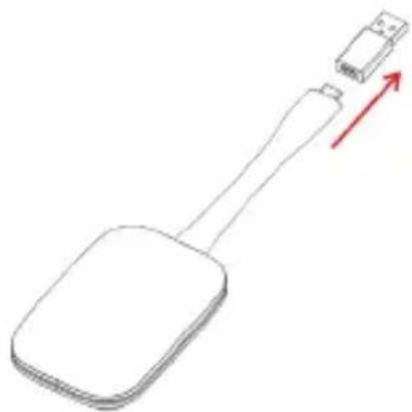
- Attach the USB Type C to USB Type A adapter to the VB-WPS-001 viewsboard® Cast Button (Figure 7).
- Then plug the ViewBoard® Cast Button into the IFP/CDE device's USB port for pairing.
natural_image
Diagram of a spatula with an attached connector and red arrow indicating direction (no text or symbols)Figure 7
NOTE: The USB Type C to USB Type A adapter is for optional IFP/CDE device pairing only.
For VB-WPS-003:
- Plug the USB Type A cable into the IFP/CDE device's USB port for pairing.
- A "Pairing" dialogue box will appear.
- Enter the Network Name and Password, then select Save to pair (Figure 8).
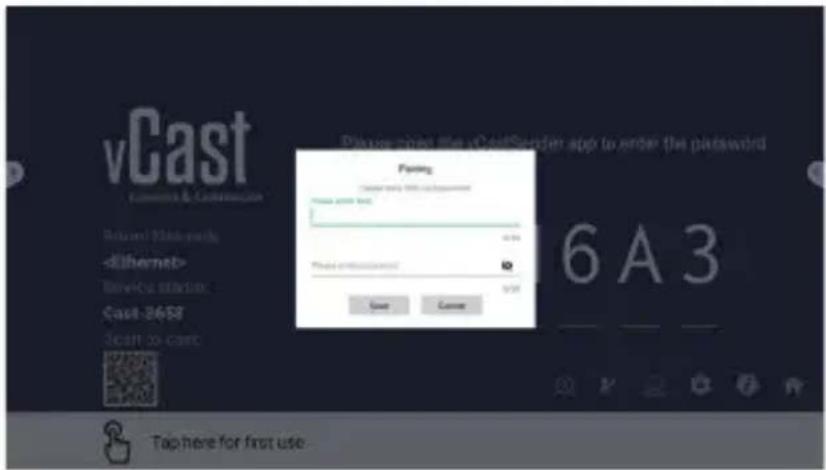
Figure 8
Screen Sharing
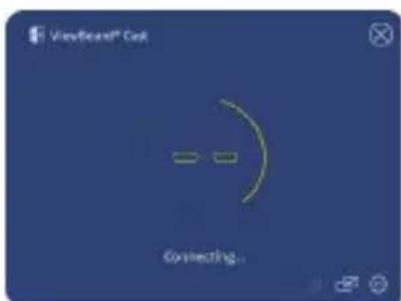
Figure 1
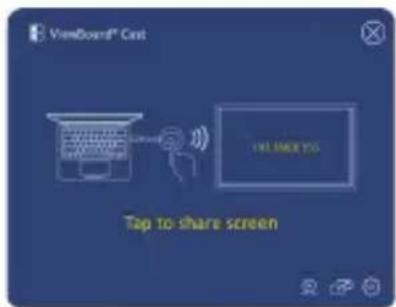
Figure 2
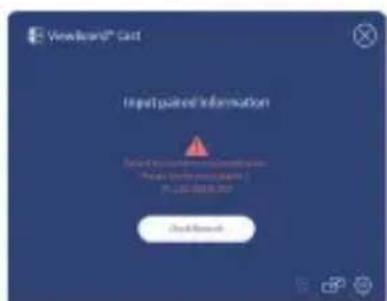
Figure 3 Figure 4
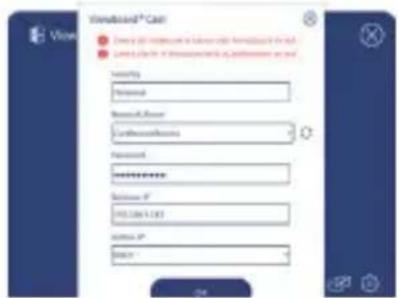
NOTE: Ensure the ViewBoard® Cast Button is plugged into your Windows PC/MacBook.
-
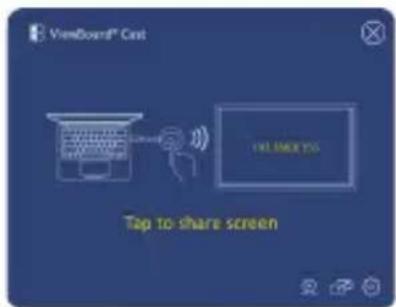
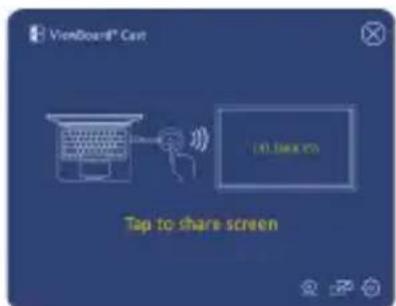
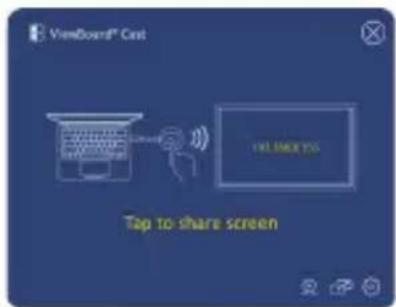
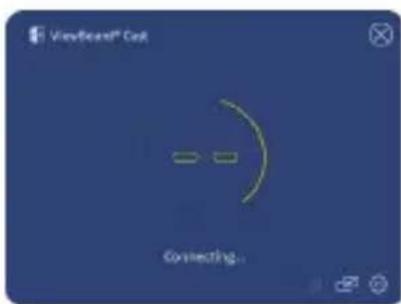
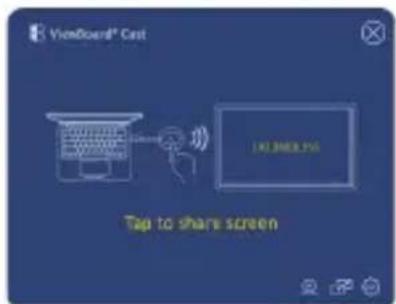
When the ViewBoard® Cast Button is connecting to your device, the LED indicator will be flashing blue. Your device is ready for screen sharing when the LED indicator changes to static blue (Figure 1).
-
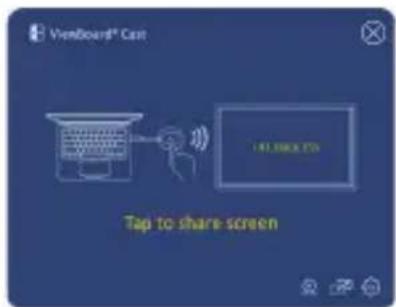
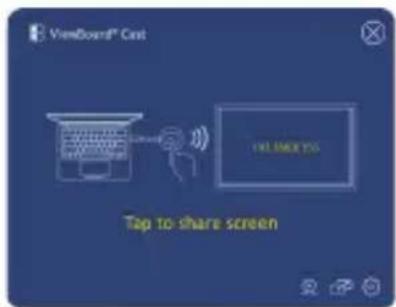
Tap the button of the ViewBoard® Cast Button to share your device's screen to another display. The LED indicator will change from blue to white when it's successfully connected and sharing (Figure 2).
-
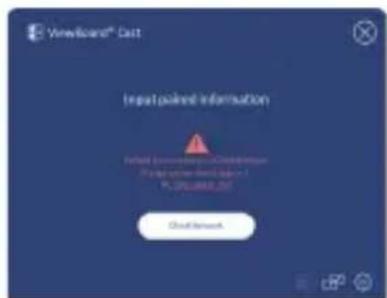
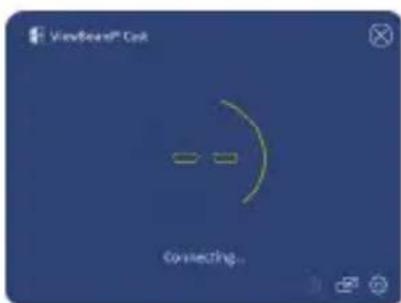
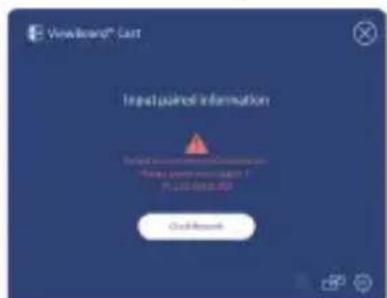
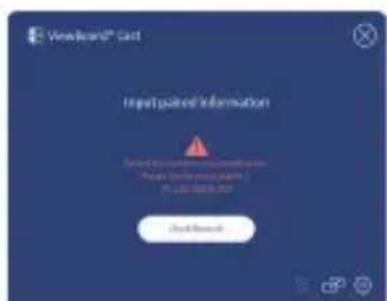
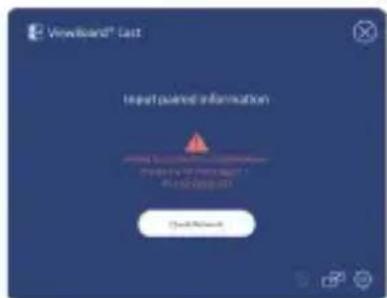
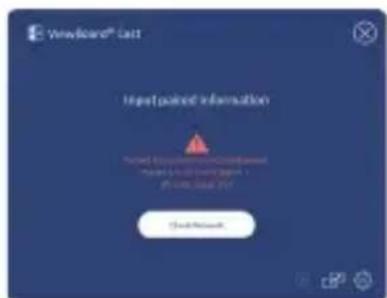
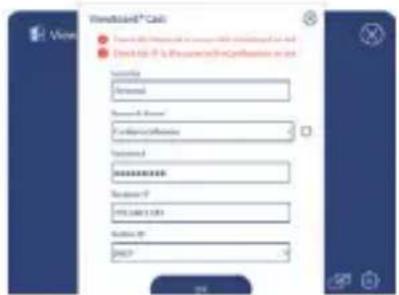
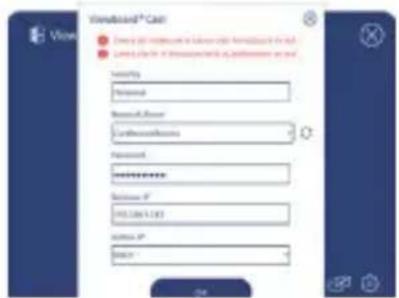
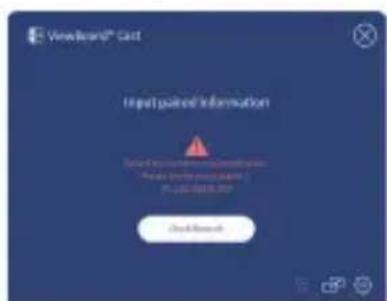
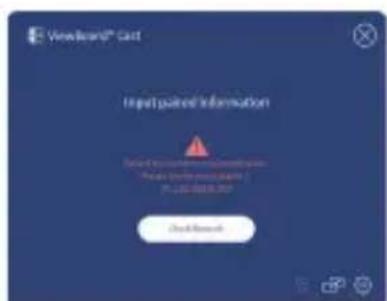
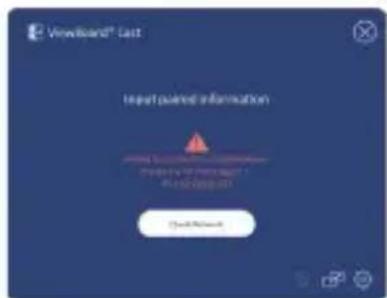
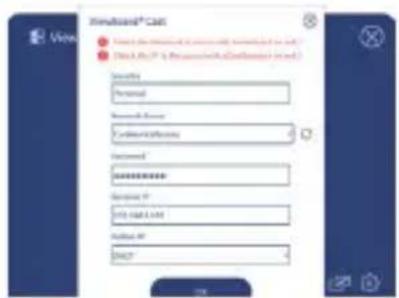
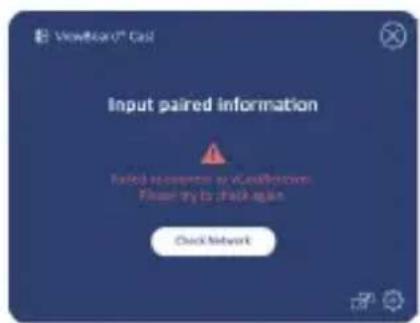
If the LED indicator only flashes white and fails to connect, please ensure the IFP/CDE device(s) are working correctly and that the pairing information is entered correctly (Figure 3 and 4).
BYOM
Introduction
ViewBoard Cast Button's advanced feature of BYOM (Bring your Your Own Meeting) lets you use your own laptop to host a video conference with your preferred conferencing software (e.g., Microsoft Teams, Zoom, and Google Meet). You can extend your meeting to a ViewSonic IFP/CDE series device, optimizing workplace productivity.
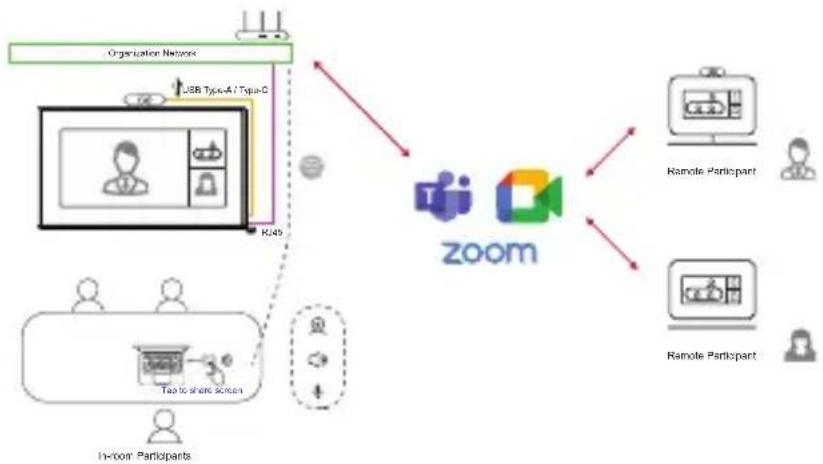
flowchart
graph TD
    A["Organization Network"] -->|USB Type-A / Type-C| B["Zoom"]
    C["In-loom Participants"] --> D["Tap to share screen"]
    D --> E["User"]
    D --> F["User"]
    D --> G["User"]
    H["Remote Participant"] --> I["Zoom"]
    J["Remote Participant"] --> K["Zoom"]
    L["Remote Participant"] --> M["Zoom"]
    N["Remote Participant"] --> O["Zoom"]
    P["Zoom"] --> Q["User"]
    P --> R["User"]
    P --> S["User"]
    P --> T["User"]
    P --> U["User"]
    P --> V["User"]
    P --> W["User"]
    P --> X["User"]
    P --> Y["User"]
    P --> Z["User"]
NOTE: ViewSonic IFP/CDE series device with built-in or external USB VB-CAM-201 webcam is required to use this feature.
How to Use the BYOM feature
- Plug the ViewBoard Cast Button into your laptop.
- Start the vCast or the vCastPro and wait for the ViewBoard Cast Button to connect with the camera.
NOTE: Connection to the camera is established when the camera icon on the viewsBoard Cast changes from gray to white.
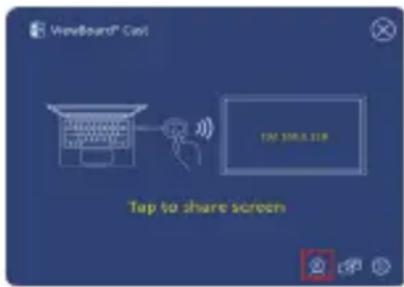
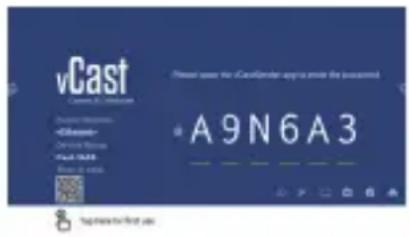
Figure 1 Figure 2
- Start a meeting on Microsoft Teams, Zoom, or Google Meet from your laptop.
- Tap the ViewBoard Cast Button to share content onto the ViewBoard IFP/CDE device.
- Select "ViewBoard Cast" as your Microphone/Speaker source and "ViewBoard Webcam" as your Camera source from the conferencing software
NOTE: Refer to the screenshots on the next page.
| Conferencing Software | Audio and Video Settings | |
 Microsoft Teams Microsoft Teams | Audio | 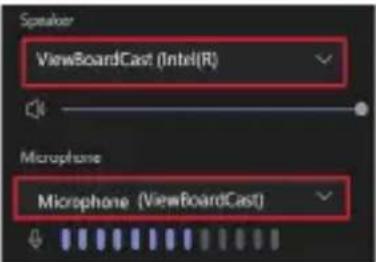 |
| Video |  | |
 Google MeetGoogle Meet Google MeetGoogle Meet | Audio |      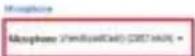  |
| Video |     | |
 Zoom Zoom | Audio |         [ASTZ] [ASTZ] |
| Video |     | |
Network information
- Wi-Fi: 802.11ac 5GHz channel for table on non-DFS channels in your country.
NOTE: In the USA, channels are 36\~48 and 149\~165.
- Bandwidth: At least 10Mbps in a typical deployment. Latency shall be less than 50ms for HD video streaming, more than 10Mbps is required.
- Ports:
» TCP 56789, 25123, 8212, 8000, 8600
» UPD 48689, 25123
- Port and DNS for activation:
» Port: 443
» DNS: https://vcastactivate.viewsonic.com
- OTA service:
This section describes some common problems that you may experience when using the WaveBoard Cast Button.
NOTE: Please contact your sales representative or IT department if you are experiencing any further problems.
| Problem or Issue Possible Solutions | |
| ViewBoard Cast Button is not pairing with IFP/CDE device | Check that the ViewBoard Cast Button is plugged into your laptop.Check that the LED indicator changes to static blue. |
| LED indicator is only flashing white | Check that the IFP/CDE device is working correctly.Verify that the pairing information is entered correctly. |
| IFP/CDE device cannot be found in the conferencing software | Re-plug the USB webcam into the IFP/CDE device and restart the IFP/CDE device. |
| Audio and/or video is not outputting from the IFP/CDE device | Check the device settings of the conferencing software.Check the volume settings of the laptop and the IFP/CDE device.Restart the IFP/CDE device. |
| Audio and/or video stops working during the conference | Check that the network signal is strong.Check device settings in the conferencing software.Re-pair the views Board Cast Button with the IFP/CDE device.Restart the vCast or vCastPro and reconnect your laptop to the IFP/CDE device. |
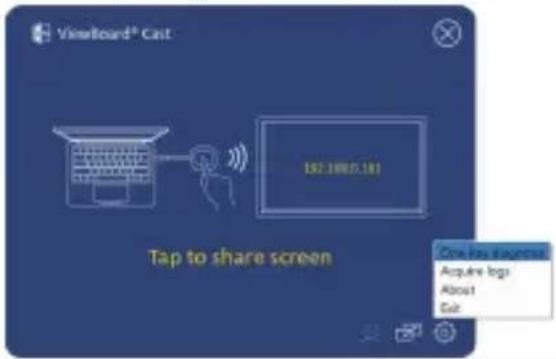
| Bad audio and/or video quality through the IFP/CDE device | Ensure the Wi-Fi network signal strength is good.Use 5GHz channel. The allocated bandwidth must be at least 10Mbps or higher.The network status of Button and IFP/ CDE devices can be detected through the one-key diagnosis function.SOP: Run the viewsBoard Cast program>Click the "Setting" icon> Select "One-key diagnosis"> Click "Start" on the One-Key Diagnosis page.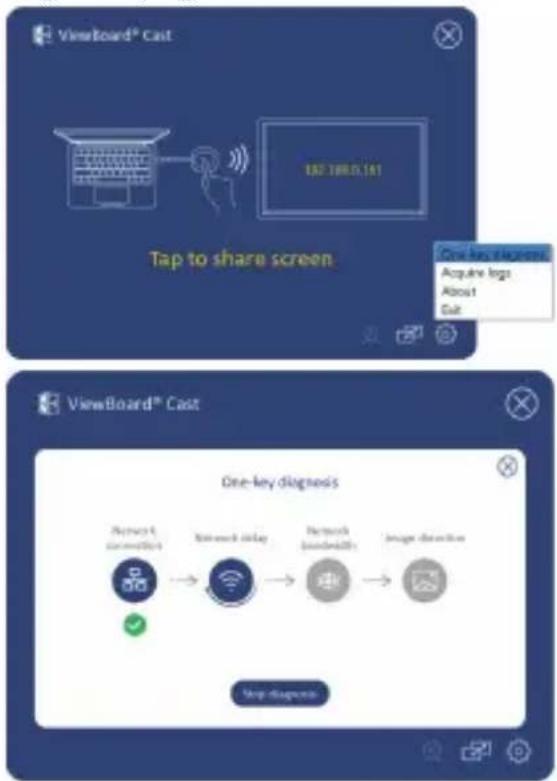 Restart vCast or vCastPro. Restart vCast or vCastPro. |
| “NO DISPLAYPORT SIGNAL” or “NO HDMI SIGNAL” is displayed on IFP/CDE after screen cast | ·Use the “one-key diagnosis” function to check whether the PC port (Type-C or HDMI port) that the button is plugged into can acquire image normally.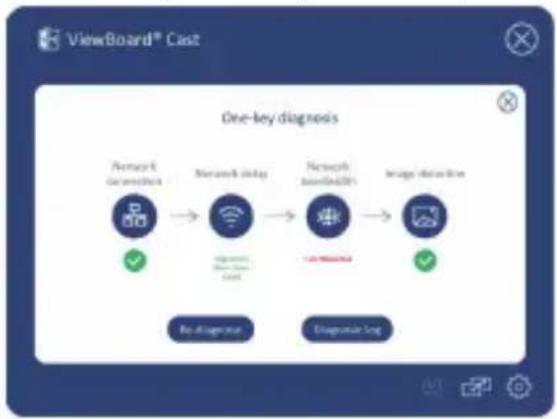 ·If you are using VB-WPS-001, please make sure that the Type-C port of the computer supports DP image output.·If the Type-C port of the computer supports DP image output, please re-plug it into the PC and try again. It may be that the cable plug into the Type-C port is unstable and causes no image output. ·If you are using VB-WPS-001, please make sure that the Type-C port of the computer supports DP image output.·If the Type-C port of the computer supports DP image output, please re-plug it into the PC and try again. It may be that the cable plug into the Type-C port is unstable and causes no image output. |
| Remote participant hears an echo when speaking | ·Avoid placing the webcam (with microphone) or microphone next to the speaker.·Avoid facing the webcam (with microphone) or microphone toward the speak.·Reduce the microphone volume to max. 100% if needed.·Adjust the volume of the IFP/CDE device to 30% or less.·Adjust your laptop volume to 70% or less. |
| Volume is too low | ·Verify that your microphone is not muted on the OS audio settings.·Increase the microphone volume in the OS audio setting.·Update the webcam or speaker to the latest firmware. |
Problem or Issue Possible Solutions
If you encounter other issue that cannot be solved, please explain the issue phenomenon or take a video, and acquire the log for us to analyze
- SOP: Reproduce the issue> Click the "Setting" icon> Select "Acquire log"> After Acquire the logs, click "Open logs" and copy dongle.txt and log.zip to us.
Regulatory and Service Information
Compliance Information
This section addresses all connected requirements and statements regarding regulations. Confirmed corresponding applications shall refer to nameplate labels and relevant markings on the unit.
FCC Compliance Statement
This device complies with part 15 of FCC Rules. Operation is subject to the following two conditions: (1) this device may not cause harmful interference, and (2) this device must accept any interference received, including interference that may cause undesired operation. This equipment has been tested and found to comply with the limits for a Class B digital device, pursuant to part 15 of the FCC Rules.
These limits are designed to provide reasonable protection against harmful interference in a residential installation. This equipment generates, uses, and can radiate radio frequency energy, and if not installed and used in accordance with the instructions, may cause harmful interference to radio communications. However, there is no guarantee that interference will not occur in a particular installation. If this equipment does cause harmful interference to radio or television reception, which can be determined by turning the equipment off and on, the user is encouraged to try to correct the interference by one or more of the following measures:
- Reorient or relocate the receiving antenna.
- Increase the separation between the equipment and receiver.
- Connect the equipment into an outlet on a circuit different from that to which the receiver is connected.
- Consult the dealer or an experienced radio/TV technician for help.
Canadian Regulatory Statements
This device complies with Industry Canada license-exempt RSS standard(s). Operation is subject to the following two conditions: (1) this device may not cause interference, and (2) this device must accept any interference, including interference that may cause undesired operation of the device.
CE Conformity for European Countries

The device complies with the EMC Directive 2014/30/EU and Low Voltage Directive 2014/35/EU.
The following information is only for EU-member states:
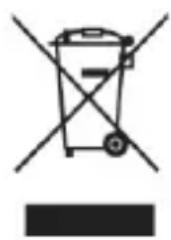
The mark shown to the right is in compliance with the Waste Electrical and Electronic Equipment Directive 2012/19/EU (WEEE). The mark indicates the requirement NOT to dispose of the equipment as unsorted municipal waste, but use the return and collection systems according to local law.
natural_image
Symbol of a trash bin with crossed lines indicating no waste or discharge, and a solid black rectangle below (no text or labels)Enhedskrav
natural_image
Line drawing of a laptop with a mouse attachment (no text or symbols)VB-WPS-001
Figur 1
natural_image
Line drawing of a laptop with a mouse attached to its side (no text or symbols)VB-WPS-003
Figur 2
Figur 3
- Fjern ViewBoard® Cast-knappen, og sæt den i igen, for at starte delingen (figur 4).
Figur 4
Figur 5 Figur 6
ViewBoard IFP/CDE-parring
natural_image
Line drawing of a flat pad with a USB connector and red arrow indicating upward motion (no text or symbols)Figur 7
Figur 8
Skærmdeling
Figur 1
Figur 2
Figur 3 Figur 4
Figur 1 Figur 2
» DNS: https://vcastactivate.viewsonic.com
- OTA-service:
» Serverport: TCP 443
» Serverens FQDN-navn: https://vcastupdate.viewsonic.com
Bilag
Fejlfinding
natural_image
Line drawing of a laptop with a mouse inserted, no text or symbols presentnatural_image
Line drawing of a laptop connected to a mouse, with a red mark on the mouse (no text or symbols)Afbeelding 4
natural_image
Simple line drawing of a spatula with a handle and a small rectangular object on top, no text or symbols present.Afbeelding 7
Afbeelding 8
Scherm delen
Afbeelding 1

Afbeelding 2
https://vcastupdate.viewsonic.com
Bijlage
Probleemoplossing
NOOT: Please contact your sales representative or IT department if you are experiencing any further problems.
natural_image
Line drawing of a laptop with a mouse inserted at the end (no text or symbols)VB-WPS-001
Kuva 1
natural_image
Line drawing of a laptop connected to a mouse, showing a red accent line (no text or symbols)VB-WPS-003
Kuva 2
Kuva 3
Kuva 4
Kuva 5 Kuva 6
ViewBoard IFP/CDE -pariuttaminen
natural_image
Diagram of a spatula with an attached connector and red arrow indicating direction (no text or symbols)Kuva 7
HUOMAUTUS: USB Type C - USB Type A -sovitin on vain valinnaisen IFP/CDE-laitteen pariuttamista varten.
VB-WPS-003:
Kuva 8
Näytön jakaminen
Kuva 1
Kuva 2
Kuva 3 Kuva 4

Kuva 1 Kuva 2
» DNS: https://vcastactivate.viewsonic.com
- OTA-palvelu:
natural_image
Symbol of a trash bin with crossed lines indicating no waste or restriction, and a solid black rectangle below (no text or labels)natural_image
Line drawing of a laptop with a mouse attachment (no text or symbols)VB-WPS-001
Figure 1
natural_image
Line drawing of a laptop with a mouse attached to its side (no text or symbols)VB-WPS-003
Figure 2
Figure 3
Figure 4
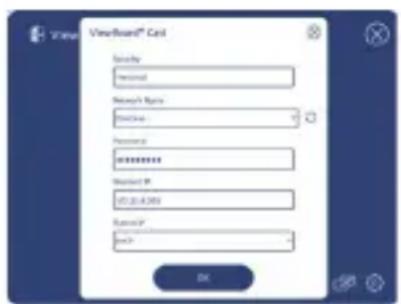
Figure 5 Figure 6
Appairage ViewBoard IFP/CDE
natural_image
Diagram of a spatula with a connector and directional arrow (no text or symbols)Figure 7
Figure 8
Partage d'écran
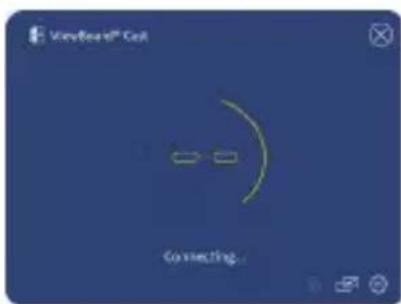
Figure 1
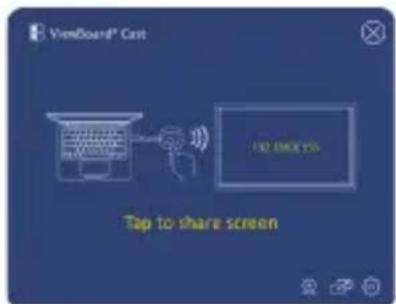
Figure 2
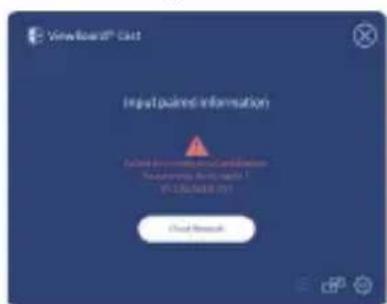
Figure 3 Figure 4
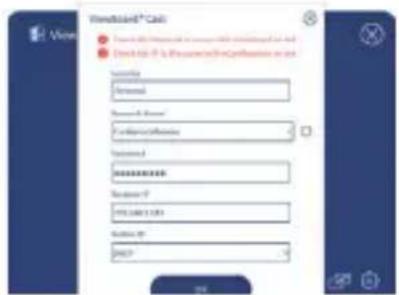
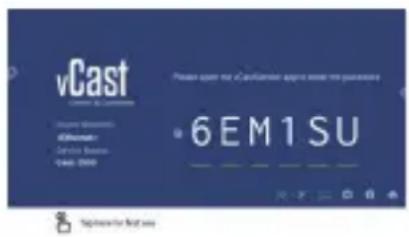
Figure 1 Figure 2
» DNS: https://vcastactivate.viewsonic.com
- Service OTA :
natural_image
Line drawing of a laptop with a mouse attached, no text or symbols presentnatural_image
Line drawing of a laptop connected to a mouse, showing a red accent line (no text or symbols)Abbildung 3
Abbildung 4
natural_image
Simple line drawing of a spatula with a connector and red arrow indicating direction (no text or symbols)Abbildung 7
Abbildung 8
Bildschirmfreigabe
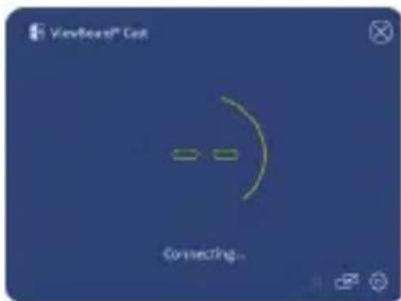
Abbildung 1
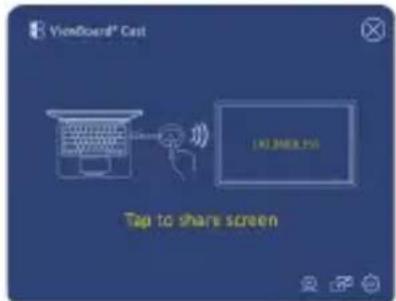
Abbildung 2
natural_image
Symbol of a trash bin with crossed lines indicating no waste or restriction, and a solid black rectangle below (no text or labels)Requisiti del dispositivo
natural_image
Line drawing of a laptop with a mouse inserted, no text or symbols presentVB-WPS-001
Figura 1
natural_image
Line drawing of a laptop connected to a mouse, showing a red arrow pointing to the mouse (no text or symbols present)VB-WPS-003
Figura 2
Figura 3
Figura 4
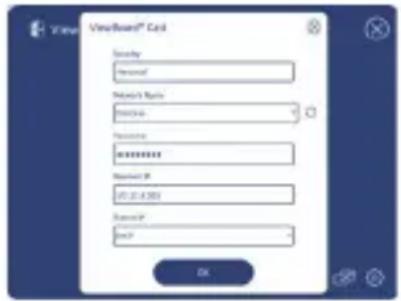
Figura 5 Figura 6
Associazione IFP/CDE ViewBoard
natural_image
Diagram of a spatula with a connector and red arrow indicating direction (no text or symbols)Figura 7
Figura 8
Figura 1
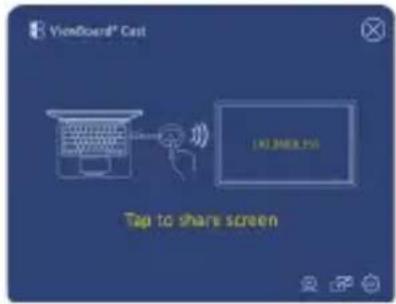
Figura 2
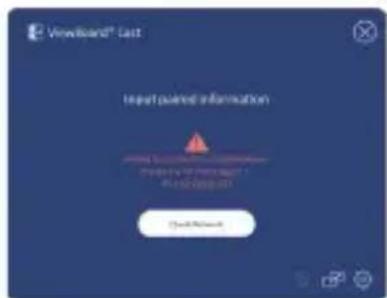
Figura 3 Figura 4
flowchart
graph TD
    A["Organization Network"] -->|USB Type-A/Type-C| B["Zoom"]
    C["In-poor Participants"] --> D["Tap to share screen"]
    D --> E["User Interface"]
    F["Remote Participant"] --> G["Zoom"]
    H["Remote Participant"] --> I["Zoom"]
    J["User Interface"] --> K["Zoom"]
    L["User Interface"] --> M["Zoom"]
    N["User Interface"] --> O["Zoom"]
    P["User Interface"] --> Q["Zoom"]
    R["User Interface"] --> S["Zoom"]
    T["User Interface"] --> U["Zoom"]
    V["User Interface"] --> W["Zoom"]
    X["User Interface"] --> Y["Zoom"]
    Z["User Interface"] --> AA["Zoom"]
    AB["User Interface"] --> AC["Zoom"]
    AD["User Interface"] --> AE["Zoom"]
    AF["User Interface"] --> AG["Zoom"]
    AH["User Interface"] --> AI["Zoom"]
    AJ["User Interface"] --> AK["Zoom"]
    AL["User Interface"] --> AM["Zoom"]
    AN["User Interface"] --> AO["Zoom"]
    AP["User Interface"] --> AQ["Zoom"]
    AR["User Interface"] --> AS["Zoom"]
    AT["User Interface"] --> AU["Zoom"]
    AV["User Interface"] --> AW["Zoom"]
    AX["User Interface"] --> AY["Zoom"]
    AZ["User Interface"] --> BA["Zoom"]
    BB["User Interface"] --> BC["Zoom"]
    BD["User Interface"] --> BE["Zoom"]
    BF["User Interface"] --> BG["Zoom"]
    BH["User Interface"] --> BI["Zoom"]
    BJ["User Interface"] --> BK["Zoom"]
    BL["User Interface"] --> BM["Zoom"]
    BN["User Interface"] --> BO["Zoom"]
    BP["User Interface"] --> BQ["Zoom"]
    BR["User Interface"] --> BS["Zoom"]
    BT["User Interface"] --> BU["Zoom"]
    BV["User Interface"] --> BW["Zoom"]
    BX["User Interface"] --> BY["Zoom"]
    BZ["User Interface"] --> CA["Zoom"]
    CB["User Interface"] --> CC["Zoom"]
    CD["User Interface"] --> CE["Zoom"]
    CF["User Interface"] --> CG["Zoom"]
    CH["User Interface"] --> CI["Zoom"]
    CJ["User Interface"] --> CK["Zoom"]
    CE1["User Interface"] --> CE2["Zoom"]
    CE2 --> CE3["Zoom"]
    CE3 --> CE4["Zoom"]
    CE4 --> CE5["Zoom"]
    CE5 --> CE6["Zoom"]
    CE6 --> CE7["Zoom"]
    CE7 --> CE8["Zoom"]
    CE8 --> CE9["Zoom"]
    CE9 --> CE10["Zoom"]
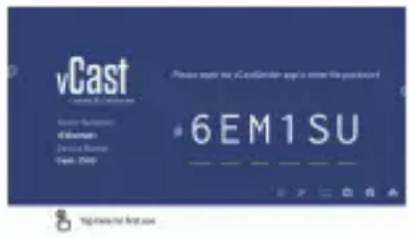
Figura 1 Figura 2
» DNS: https://vcastactivate.viewsonic.com
- Servizio OTA:
» Porta server: TCP 443
» Nome FQDN del server: https://vcastupdate.viewsonic.com
Appendice
natural_image
Line drawing of a laptop with a mouse attached, no text or symbols presentVB-WPS-001
figur 1
natural_image
Line drawing of a laptop connected to a mouse, showing a red accent line (no text or symbols)VB-WPS-003
figur 2
Figur 3
Figur 4
Figur 5 Figur 6
ViewBoard IFP/CDE Pairing
natural_image
Simple line drawing of a spatula with a connector and directional arrow (no text or symbols)Figur 7
MERKNAD: USB-type C til USB Type A-adapteren er kun for valgfri IFP/CDE-enhetsparing.
For VB-WPS-003:
Figur 8
Skjermdeling
Figur 1
Figur 2
Figur 3 Figur 4
MERKNAD: Sørg for at ViewBoard® Cast-knappen er koblet til en Windows-PC/MacBook.
flowchart
graph TD
    A["Organization Network"] -->|USB Type-A / Type-C| B["Zoom"]
    C["In-room Participants"] --> D["Trip to share screen"]
    D --> E["User interface"]
    F["Remote Participant"] --> G["Zoom"]
    H["Remote Participant"] --> I["Zoom"]
    J["User Interface"] --> K["Zoom"]
    L["User Interface"] --> M["Zoom"]
    N["User Interface"] --> O["Zoom"]
    P["User Interface"] --> Q["Zoom"]
    R["User Interface"] --> S["Zoom"]
    T["User Interface"] --> U["Zoom"]
    V["User Interface"] --> W["Zoom"]
    X["User Interface"] --> Y["Zoom"]
    Z["User Interface"] --> AA["Zoom"]
    AB["User Interface"] --> AC["Zoom"]
    AD["User Interface"] --> AE["Zoom"]
    AF["User Interface"] --> AG["Zoom"]
    AH["User Interface"] --> AI["Zoom"]
    AJ["User Interface"] --> AK["Zoom"]
    AL["User Interface"] --> AM["Zoom"]
    AN["User Interface"] --> AO["Zoom"]
    AP["User Interface"] --> AQ["Zoom"]
    AR["User Interface"] --> AS["Zoom"]
    AT["User Interface"] --> AU["Zoom"]
    AV["User Interface"] --> AW["Zoom"]
    AX["User Interface"] --> AY["Zoom"]
    AZ["User Interface"] --> BA["Zoom"]
    BB["User Interface"] --> BC["Zoom"]
    BD["User Interface"] --> BE["Zoom"]
    BF["User Interface"] --> BG["Zoom"]
    BH["User Interface"] --> BI["Zoom"]
    BJ["User Interface"] --> BK["Zoom"]
    BL["User Interface"] --> BM["Zoom"]
    BN["User Interface"] --> BO["Zoom"]
    BP["User Interface"] --> BQ["Zoom"]
    BR["User Interface"] --> BS["Zoom"]
    BT["User Interface"] --> BU["Zoom"]
    BV["User Interface"] --> BW["Zoom"]
    BX["User Interface"] --> BY["Zoom"]
    BZ["User Interface"] --> CA["Zoom"]
    CB["User Interface"] --> DA["Zoom"]
    DB["User Interface"] --> DBQ["Zoom"]
    DC["User Interface"] --> DBR["Zoom"]
    DBT["User Interface"] --> DBU
    DBU --> DBV
    DBV --> DBX
    DBX --> DBY
    DBY --> DBZ
    DBZ --> DBX
    DBX --> DBY
MERKNAD: ViewSonic IFP/CDE series device with built-in or external USB VB-CAM-201 webcam is required to use this feature.
Figur 1 Figur 2
» DNS: https://vcastactivate.viewsonic.com
- OTA-tjeneste:
» Serverport: TCP 443
» Server FQDN-navn: https://vcastupdate.viewsonic.com
Vedlegg
Feilsøking
natural_image
Symbol of a trash bin crossed out by two diagonal lines, with no text or labels present.natural_image
Line drawing of a laptop with a mouse on the side (no text or symbols)natural_image
Line drawing of a laptop with a mouse and cable, no text or symbols presentRysunek 3
Rysunek 4
Rysunek 5 Rysunek 6
Parowanie ViewBoard IFP/CDE
natural_image
Simple line drawing of a spatula with a connector and directional arrow (no text or symbols)Rysunek 7
Rysunek 8
Rysunek 1
Rysunek 2
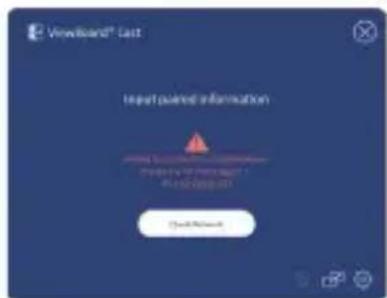
Rysunek 3 Rysunek 4
Rysunek 1 Rysunek 2
natural_image
Symbol of a trash bin with crossed lines indicating no waste, and a solid black rectangle below (no text or labels)natural_image
Line drawing of a laptop with a mouse inserted, no text or symbols presentVB-WPS-001
Рис. 1
natural_image
Line drawing of a laptop with a USB cable inserted, no text or symbols presentVB-WPS-003
Рис. 2
Рис. 3
Рис. 4
Рис. 5 Рис. 6
natural_image
Simple line drawing of a spatula with a connector and directional arrow (no text or symbols)Рис. 7
Рис. 8
Рис. 1
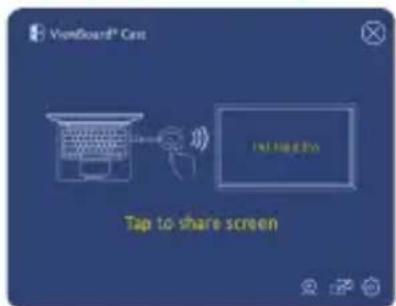
Рис. 2
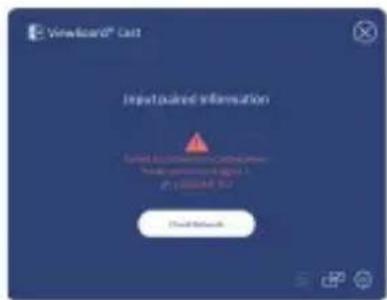
Рис. 3 Рис. 4
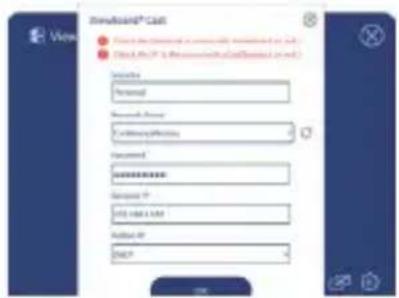
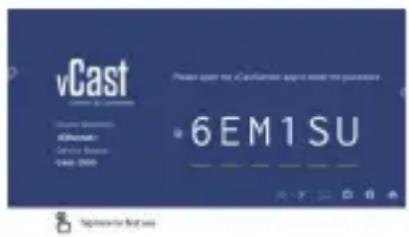
Рис. 1 Рис. 2
» DNS: https://vcastactivate.viewsonic.com
- ОТА-сервис:
natural_image
Symbol of a trash bin with crossed lines indicating no waste or restriction, and a solid black rectangle below (no text or labels)natural_image
Line drawing of a laptop with a mouse inserted at the base (no text or symbols)VB-WPS-001
Figura 1

natural_image
Line drawing of a laptop connected to a mouse, with a red arrow indicating the mouse pointer (no text or symbols present)VB-WPS-003
Figura 2
Figura 3
Figura 4 141
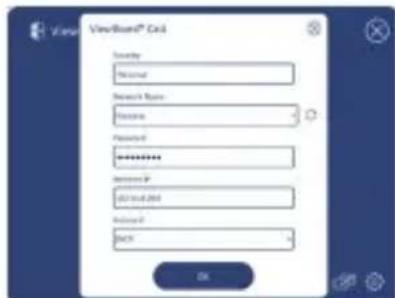
Figura 5 Figura 6
Asociación IFP/CDE de ViewBoard
natural_image
Line drawing of a spatula with a red arrow indicating direction (no text or symbols)Figura 7
Figura 8
Figura 1
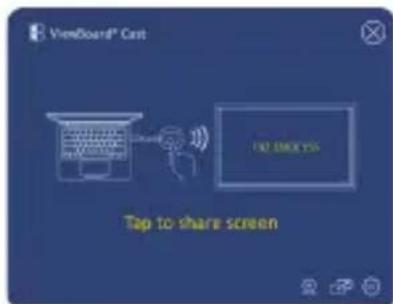
Figura 2
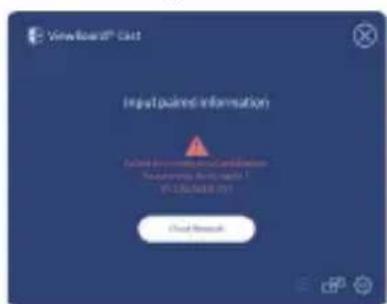
Figura 3 Figura 4
flowchart
graph TD
    A["Organization Network"] -->|USB Type-A/Type-D| B["Zoom"]
    C["In Room Participants"] --> D["Topic to share screen"]
    D --> E["User Interface"]
    E --> F["Remote Participant"]
    F --> G["Remote Participant"]
    G --> H["Zoom"]
    I["User Interface"] --> J["Zoom"]
    K["User Interface"] --> L["Zoom"]
    M["User Interface"] --> N["Zoom"]
    O["User Interface"] --> P["Zoom"]
    Q["User Interface"] --> R["Zoom"]
    S["User Interface"] --> T["Zoom"]
    U["User Interface"] --> V["Zoom"]
    W["User Interface"] --> X["Zoom"]
    Y["User Interface"] --> Z["Zoom"]
    AA["User Interface"] --> AB["Zoom"]
    AC["User Interface"] --> AD["Zoom"]
    AE["User Interface"] --> AF["Zoom"]
    AG["User Interface"] --> AH["Zoom"]
    AI["User Interface"] --> AJ["Zoom"]
    AK["User Interface"] --> AL["Zoom"]
    AM["User Interface"] --> AN["Zoom"]
    AO["User Interface"] --> AP["Zoom"]
    AQ["User Interface"] --> AR["Zoom"]
    AS["User Interface"] --> AT["Zoom"]
    AU["User Interface"] --> AV["Zoom"]
    AW["User Interface"] --> AX["Zoom"]
    AY["Zoom"] --> AZ["Zoom"]
    style A fill:#f9f,stroke:#333
    style C fill:#f9f,stroke:#333
    style U fill:#f9f,stroke:#333
    style AE fill:#f9f,stroke:#333
    style AK fill:#f9f,stroke:#333
    style O fill:#f9f,stroke:#333
    style AG fill:#f9f,stroke:#333
    style AJ fill:#f9f,stroke:#333
    style AK fill:#f9f,stroke:#333
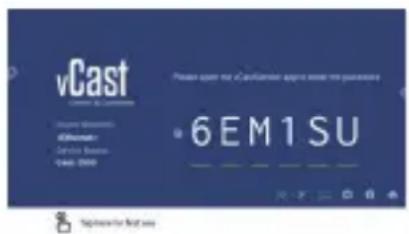
Figura 1 Figura 2
natural_image
Symbol of a trash bin with crossed lines indicating no waste or discharge, and a solid black rectangle below (no text or labels)Enhetskrav
natural_image
Line drawing of a laptop with a mouse inserted, no text or symbols presentVB-WPS-001
Figur 1
natural_image
Line drawing of a laptop connected to a mouse, showing a red accent line (no text or symbols)VB-WPS-003
Figur 2
Figur 4
Figur 5 Figur 6
ViewBoard IFP/CDE-parkoppling
natural_image
Diagram of a spatula with an attached connector and red arrow indicating direction (no text or symbols)Figur 7
Figur 8
Skärmdelning
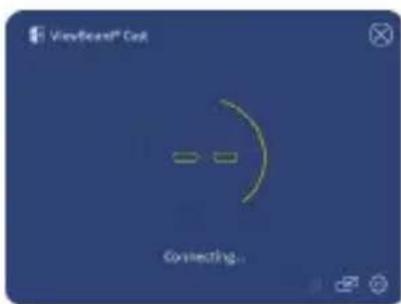
Figur 1
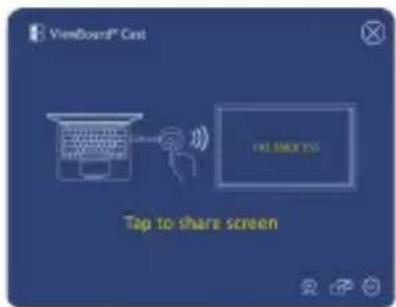
Figur 2
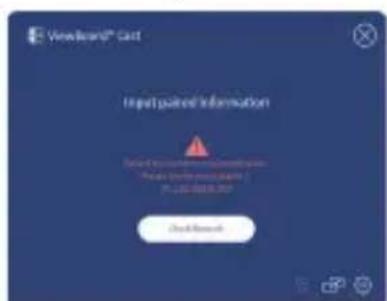
Figur 3 Figur 4
Figur 1 Figur 2
» DNS: https://vcastactivate.viewsonic.com
- OTA-tjänst:
» Serverport: TCP 443
» Servers FQDN-namn: https://vcastupdate.viewsonic.com
Bilaga
Felsökning
natural_image
Symbol of a trash bin with crossed lines indicating no waste or discharge, and a solid black rectangle below (no text or labels)natural_image
Line drawing of a laptop with a mouse inserted, no text or symbols presentVB-WPS-001 Şekil 1
natural_image
Line drawing of a laptop connected to a mouse, with a red mark on the mouse (no text or symbols)VB-WPS-003 Şekil 2
Şekil 4
Şekil 5 Şekil 6
natural_image
Diagram of a spatula with an attached connector and red arrow indicating direction (no text or symbols)Şekil 7
Şekil 8
Ekran Paylaşımı
Şekil 1
Şekil 2
Şekil 3 Şekil 4
Şekil 1 Şekil 2
- Wi-Fi: 802.11ac 5GHz channel for table on non-DFS channels in your country.
NOT: In the USA, channels are 36\~48 and 149\~165.
- Bandwidth: At least 10Mbps in a typical deployment. Latency shall be less than 50ms for HD video streaming, more than 10Mbps is required.
- Ports:
» TCP 56789, 25123, 8212, 8000, 8600 » UPD 48689, 25123
- Port and DNS for activation:
» Port: 443
» DNS: https://vcastactivate.viewsonic.com
- OTA service:
natural_image
Symbol of a trash bin with crossed lines indicating no waste or restriction, and a solid black rectangle below (no text or labels)natural_image
Line drawing of a laptop with a mouse attached, no text or symbols presentVB-WPS-001
Gambar 1
natural_image
Line drawing of a laptop connected to a mouse, showing a red accent line (no text or symbols)VB-WPS-003
Gambar 2
Gambar 3
Gambar 4

Gambar 5 Gambar 6
Pemasangan IFB/CED ViewBoard
natural_image
Diagram of a spatula with an attached connector and directional arrow (no text or symbols)Gambar 7
Gambar 8
Berbagi Layar
Gambar 1
Gambar 2
Gambar 3 Gambar 4
CATATAN: Pastikan viewsboard® Cast Button tersambung pada PC Windows/MacBook Anda.
Gambar 1 Gambar 2
8 Top-level first issue
- Bandwidth: At least 10Mbps in a typical deployment. Latency shall be less than 50ms for HD video streaming, more than 10Mbps is required.
- Ports:
» TCP 56789, 25123, 8212, 8000, 8600
» UPD 48689, 25123
» DNS: https://vcastactivate.viewsonic.com
- Layanan OTA:
» Port Server: TCP 443
» Nama FQDN Server:
https://vcastupdate.viewsonic.com
Lampiran
Pemecahan Masalah
natural_image
Line drawing of a laptop with a mouse attached, no text or symbols presentnatural_image
Line drawing of a laptop with a mouse and cable inserted, no text or symbols presentObrázek 3
obrázek 4
obrázek 5 obrázek 6
natural_image
Simple line drawing of a spatula with a connector and directional arrow (no text or symbols)obrázek 7
obrázek 8
Sdílení obrazovky
obrázek 1
obrázek 2
obrázek 3 obrázek 4
obrázek 1 obrázek 2
» DNS: https://vcastactivate.viewsonic.com
- Služba OTA:
» Port serveru: TCP 443
» Název serveru FQDN: https://vcastupdate.viewsonic.com
Příloha
natural_image
Line drawing of a laptop connected to a mouse, showing a red connector (no text or symbols)VB-WPS-003
圖 1
圖2
圖 3
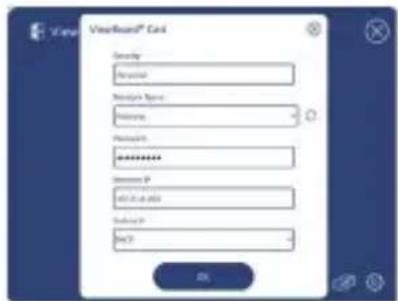
圖5圖6
圖1
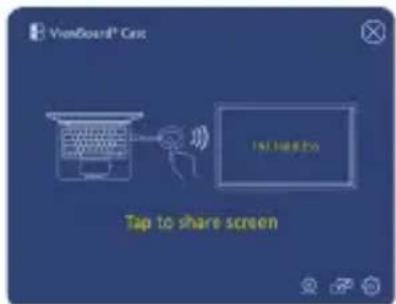
圖2
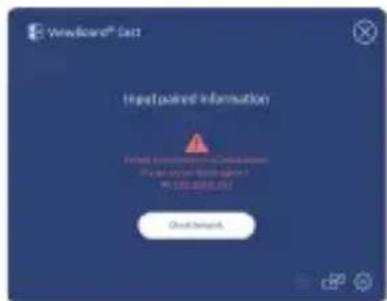
圖3圖4
flowchart
graph TD
    A["Organization Network"] -->|USB Type-A/Type-C| B["Zoom"]
    C["In-poor Participants"] --> D["Tap to share screens"]
    D --> E["User Interface"]
    F["Remote Participant"] --> G["Remote Participant"]
    H["Remote Participant"] --> I["Remote Participant"]
    J["User Interface"] --> K["User Interface"]
    L["User Interface"] --> M["User Interface"]
    N["User Interface"] --> O["User Interface"]
    P["User Interface"] --> Q["User Interface"]
    R["User Interface"] --> S["User Interface"]
    T["User Interface"] --> U["User Interface"]
    V["User Interface"] --> W["User Interface"]
    X["User Interface"] --> Y["User Interface"]
    Z["User Interface"] --> AA["User Interface"]
    AB["User Interface"] --> AC["User Interface"]
    AD["User Interface"] --> AE["User Interface"]
    AF["User Interface"] --> AG["User Interface"]
    AH["User Interface"] --> AI["User Interface"]
    AJ["User Interface"] --> AK["User Interface"]
    AL["User Interface"] --> AM["User Interface"]
    AN["User Interface"] --> AO["User Interface"]
    AP["User Interface"] --> AQ["User Interface"]
    AR["User Interface"] --> AS["User Interface"]
    AT["User Interface"] --> AU["User Interface"]
    AV["User Interface"] --> AW["User Interface"]
    AX["User Interface"] --> AY["User Interface"]
    AZ["User Interface"] --> BA["User Interface"]
    BB["User Interface"] --> BC["User Interface"]
    BD["User Interface"] --> BE["User Interface"]
    BF["User Interface"] --> BG["User Interface"]
    BH["User Interface"] --> BI["User Interface"]
    BJ["User Interface"] --> BK["User Interface"]
    BL["User Interface"] --> BM["User Interface"]
    BN["User Interface"] --> BO["User Interface"]
    BP["User Interface"] --> BQ["User Interface"]
    BR["User Interface"] --> BS["User Interface"]
    BT["User Interface"] --> BU["User Interface"]
    BV["User Interface"] --> BW["User Interface"]
    BX["User Interface"] --> BY["User Interface"]
    BZ["User Interface"] --> CA["User Interface"]
    CB["User Interface"] --> CC["User Interface"]
    CD["User Interface"] --> CE["User Interface"]
    CF["User Interface"] --> CG["User Interface"]
    CH["User Interface"] --> CI["User Interface"]
    CJ["User Interface"] --> CK["User Interface"]
    CL["User Interface"] --> CM["User Interface"]
    CN["User Interface"] --> CO["User Interface"]
    CP["User Interface"] --> CY["User Interface"]
    CZ["User Interface"] --> DA["User Interface"]
    DB["User Interface"] --> DC["User Interface"]
    DD["User Interface"] --> DE["User Interface"]
    DF["User Interface"] --> DG["User Interface"]
    DH["User Interface"] --> DI["User Interface"]
    DJ["User Interface"] --> DK["User Interface"]
    DL["User Interface"] --> DM["User Interface"]
    DN["User Interface"] --> DE
    DO --> DU[Xue Box 10000000000000000000000000000000000000000000000000000000000000000000000000000000000000000000000000000.0.0.1.1.2.3.4.5.6.7.8.9.10.11.12.13.14.15.16.17.18.19.20.21.22.23.24.25.26.27.28.29.30.31.32.33.34.35.36.37.38.39.40.41.42.43.44.45.46.47.48.49.50.51.52.53.54.55.56.57.58.59.60.61.62.63.64.65.66.67.68.69.70.71.72.73.74.75.76.77.78.79.80.81.82.83.84.85.86.87.88.89.90.91.92.93.94.95.96.97.98.99.10.11.12.13.14.15.16.17.18.19.20.21.22.23.24.25.26.27.28.29.30.31.32.33.34.35.36.37.38.39.40.41.4<nl>
圖1圖2
» DNS: https://vcastactivate.viewsonic.com
- OTA 服務:
»伺服器連接埠:TCP 443
》 伺服器 FQDN 名稱:
https://vcastupdate.viewsonic.com
附錄
故障排除
法規和服務資訊
FCC 符合性聲明
natural_image
Symbol of a trash bin with crossed lines indicating no waste or restriction, plus a solid black rectangle below (no text or labels)限用物質含有情況標示聲明書
natural_image
Line drawing of a laptop with a mouse inserted at the end (no text or symbols)VB-WPS-001
图 1

natural_image
Line drawing of a laptop with a USB cable inserted, showing no text or symbolsVB-WPS-003
图 2
图3
图4
图 5 图 6
natural_image
Diagram of a device with a handle and connector, showing an upward arrow (no text or symbols)图7
图8
屏幕分享
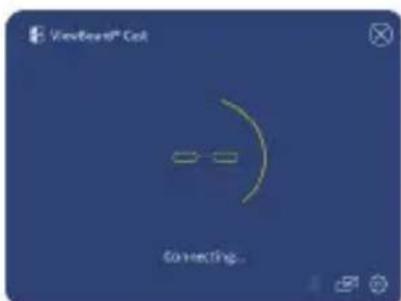
图1
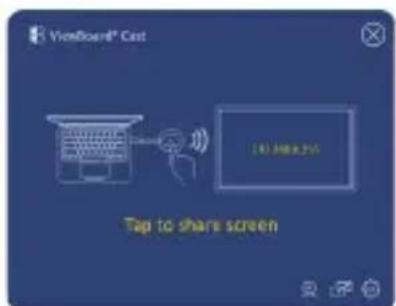
图2
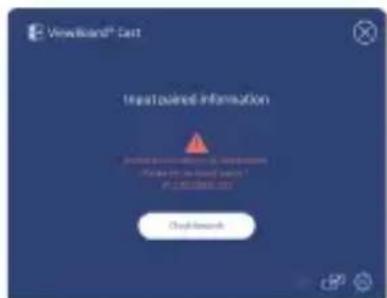
图3 图4
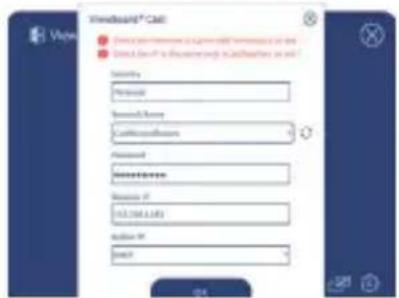
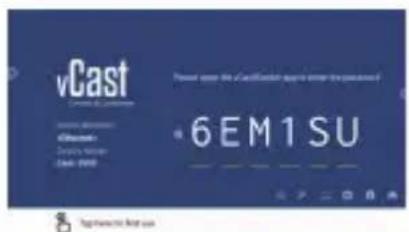
图1 图2
» DNS: https://vcastactivate.viewsonic.com
- OTA 服务:
»服务器端口:TCP 443
》服务器 FQDN 名称:
https://vcastupdate.viewsonic.com
附录
故障排除
法规和服务信息
FCC 符合性声明
natural_image
Symbol of a trash bin with crossed lines indicating no waste or discharge, and a solid black rectangle below (no text or labels)الشكل
الشكل
متطلبات الجهاز
natural_image
Line drawing of a laptop connected to a USB port (no text or symbols)VB-WPS-003
الشكل ٢
natural_image
Line drawing of a laptop with a mouse attached to its side (no text or symbols)VB-WPS-001
الشكل 1
A الشكل
الشكل
الشكل ٥
ViewBoard IFP/CDE اقتران
natural_image
Diagram of a device with a handle and connector, showing an upward arrow (no text or symbols)v alشكل
الشكل
الشكل
الشكل
الشكل
الشكل
الشكل
https://vcastactivate.viewsonic.com:DNS
:OTA خدمة •
TCP 443 : منظّالخُمْدَة »
ل Chang FQDN أسم »
https://vcastupdate.viewsonic.com
VB-WPS-003 Viewsonic.com VB-WPS-001
natural_image
Illustration of three colorful parroturfing birds perched on a green surface (no text or symbols)ViewSonic


- ViewBoard® Cast Button
- Device Requirements
- Pairing
- Windows PC and MacBook Pairing
- ViewBoard IFP/CDE Pairing
- For VB-WPS-001:
- For VB-WPS-003:
- Screen Sharing
- BYOM
- Introduction
- How to Use the BYOM feature
- Network information
- Problem or Issue Possible Solutions
- Regulatory and Service Information
- Compliance Information
- FCC Compliance Statement
- Canadian Regulatory Statements
- CE Conformity for European Countries
- The following information is only for EU-member states:
- Enhedskrav
- ViewBoard IFP/CDE-parring
- Skærmdeling
- Bilag
- Fejlfinding
- Scherm delen
- Bijlage
- Probleemoplossing
- ViewBoard IFP/CDE -pariuttaminen
- VB-WPS-003:
- Näytön jakaminen
- Appairage ViewBoard IFP/CDE
- Partage d'écran
- Bildschirmfreigabe
- Requisiti del dispositivo
- Associazione IFP/CDE ViewBoard
- Appendice
- Skjermdeling
- Vedlegg
- Feilsøking
- Parowanie ViewBoard IFP/CDE
- Asociación IFP/CDE de ViewBoard
- Enhetskrav
- ViewBoard IFP/CDE-parkoppling
- Skärmdelning
- Bilaga
- Felsökning
- Ekran Paylaşımı
- Pemasangan IFB/CED ViewBoard
- Berbagi Layar
- Lampiran
- Pemecahan Masalah
- Sdílení obrazovky
- Příloha
- 附錄
- 故障排除
- 法規和服務資訊
- FCC 符合性聲明
- 限用物質含有情況標示聲明書
- 屏幕分享
- 附录
- 法规和服务信息
- FCC 符合性声明
- متطلبات الجهاز
- ViewBoard IFP/CDE اقتران
- ViewSonic
Brand : VIEWSONIC
Model : VBWPS003
Category : Wireless pointer