
VSR100 - Wireless pointer VIEWSONIC - Free user manual and instructions
Find the device manual for free VSR100 VIEWSONIC in PDF.


| Product Type | Wireless Presentation Pointer |
| Brand | Viewsonic |
| Model | VSR100 |
| Dimensions (L x W x H) | 14.2 x 2.1 x 2.0 cm |
| Weight (including batteries) | 52 g |
| Battery Type | 2 x AAA alkaline |
| Battery Life | Up to 20 hours continuous use |
| Laser Color | Red |
| Laser Class | Class 2 (< 1 mW) |
| Operating Range | Up to 30 meters (line of sight) |
| Connectivity | 2.4 GHz wireless via USB nano receiver |
| Receiver Storage | Built-in slot in pointer |
| Compatible Operating Systems | Windows, macOS, Linux, Chrome OS |
| Button Functions | Power on/off, page up/down, laser on/off |
| LED Indicators | Power and low battery warning |
| Power Management | Auto sleep after 10 minutes inactivity |
| Housing Material | ABS plastic with soft-touch coating |
| Color | Black |
| Warranty | 1 year limited |
| Included Accessories | USB receiver, AAA batteries, carrying pouch |
Frequently Asked Questions - VSR100 VIEWSONIC
User questions about VSR100 VIEWSONIC
0 question about this device. Answer the ones you know or ask your own.
Ask a new question about this device
Download the instructions for your Wireless pointer in PDF format for free! Find your manual VSR100 - VIEWSONIC and take your electronic device back in hand. On this page are published all the documents necessary for the use of your device. VSR100 by VIEWSONIC.
USER MANUAL VSR100 VIEWSONIC
Wireless Presentation Gateway User Guide

natural_image
Pure line drawing of a 3D rectangular object with a small protrusion, no text or symbols presentIMPORTANT: Please read this User Guide to obtain important information on installing and using your product in a safe manner, as well as registering your product for future service. Warranty information contained in this User Guide will describe your limited coverage from ViewSonic® Corporation, which is also found on our web site at http://www.viewsonic.com in English, or in specific languages using the Regional selection box in the upper right corner of our website. "Antes de operar su equipo lea cu idadosamente las instrucciones en este manual"
Model No. VS17983
P/N: VSR100
Thank you for choosing ViewSonic®
As a world-leading provider of visual solutions, ViewSonic® is dedicated to exceeding the world's expectations for technological evolution, innovation, and simplicity. At ViewSonic®, we believe that our products have the potential to make a positive impact in the world, and we are confident that the ViewSonic® product you have chosen will serve you well.
Once again, thank you for choosing ViewSonic®!
> Contents
Overview......5
EZCast Pro Dongle II with Native Mirror Function ...... 6
Android 6
iOS 6
Windows 6
macOS 6
Multi-screen Broadcasting with ProCast 7
Download EZCast Pro App 9
Android....9
iOS 9
Windows....9
Mac....9
Chrome OS....9
EZCast Pro App Introduction 10
EZNote 10
EZKeep 10
EZChannel 10
Photo 10
Camera 10
Music 10
Video 11
Document (iOS only) 11
Web 11
Cloud Storage 11
AirView 11
Setting 12
Scan 5G SSID and Connect ....12
Language 12
Device Name 12
Resolution 12
EZAir Mode 12
AirView 13
Castcode Control 13
Max Connections ....13
Advanced Setting 14
Link Status 14
Conference Control ....14
Device Management 14
Network Management 16
Admin Setting 16
Reboot 18
About....18
Split Screen Mode 19
Mirror 20
Privacy Setting ......21
Regulatory and Service Information 22
Compliance Information....22
Copyright Information 26
> Overview
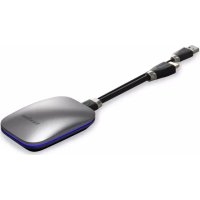
EZCast Pro Dongle II improves on the existing Pro Dongle technology with new hardware and software support. The new 802.11ac 5G 2T2R Wi-Fi transceiver creates faster and more stable Wi-Fi performance.
• Brand New Hardware Design
GHz-level SoC with 1GB DDR3 memory to deliver a more powerful performance.
• Enhanced Wi-Fi Capability
Supports 802.11ac 5GHz Wi-Fi with 2T2R MIMO high sensitivity antenna to improve bandwidth to run resource intensive applications such as 4K video streaming.
- 4K Compatibility
Screen mirror wirelessly to beautiful UHD TV and projectors to enhance your presentation experience.
• Multi-screen Broadcasting
Easy-to-use ProCast app designed to wirelessly screen mirror 1-to-many screens from your laptop. We are proud to say this is the most advanced wireless presentation application ever, no more lousy and costly wiring installations.
• Efficient Meeting with EZCast Pro App
Take realtime notes with EZNote, stream documents and photos in wireless presentations. Control meeting agendas with Host Control.
• Cross Platform Support
Compatible with both airplay screen mirroring and miracast without switching its configuration, ready for wireless screen mirroring from any smart device.
> EZCast Pro Dongle II with Native Mirror Function
To provide native casting experience, EZCast Pro Dongle II supports Miracast, AirPlay, thus enabling user to do video streaming without installing any app.
Android

- Click ☐ in your setting menu and select the SSID that matches with your dongle. Please make sure your device supports Miracast protocol. Also, Cast Logo may vary from different devices.
- Once connected, user may see the mirror screen on the external display.
iOS
- Connect your iOS device to EZCast Pro Dongle II in the Wi-Fi list. Or connect your iOS device and Dongle to the same WAP (Wireless Access Point).
- Click □ in your menu and select the SSID that matches your dongle.
- Once connected, user may see the mirror screen on the external display.
Windows

- Open your Windows Settings Menu, then enter the Display section.
- User may find the SSID of the dongle. Once connected, user may see the mirror screen on the external display. Based on different using scenarios, you may select different methods, including Duplicate, Extend, etc.
macOS

- Connect your iOS device to EZCast Pro Dongle II in the Wi-Fi list. Or connect your iOS device and Dongle to the same WAP (Wireless Access Point).
- Click ▲ in your menu and select the SSID that matches your dongle.
- Once connected, user may see the mirror screen on the external display.
> Multi-screen Broadcasting with ProCast
User may use one laptop as casting source and mirror to other external displays. Please note that Multiscreen broadcasting is only compatible with Windows and Mac.
DO NOT open EZCast Pro App and ProCast at the same time.
Before using Multi-screen broadcasting, make sure all your dongles that connected to external displays are using the same Wi-Fi.
Please note that with the rising number of connected devices, the lower bandwidth will be.
For more details, please visit our website.
- Download ProCast App from our website and install it.
- Open ProCast App, and you'll see the matching dongle SSID.
- Click 📷 and your screen will be cast to the external displays.
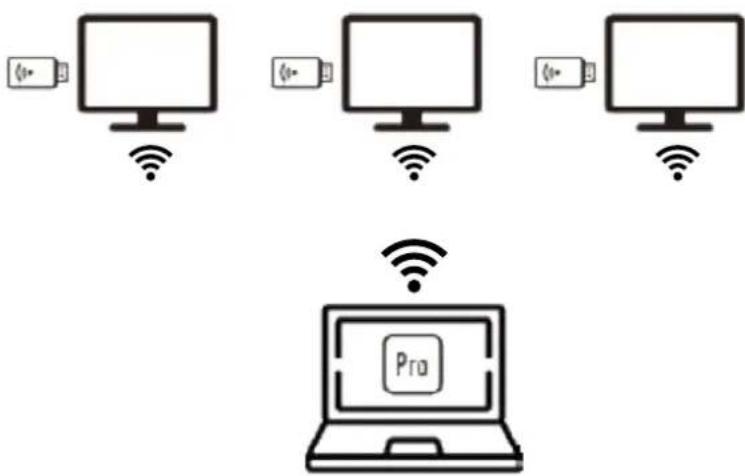
flowchart
graph TD
    A["Computer monitor"] --> B["Wi-Fi icon"]
    C["Computer monitor"] --> D["Wi-Fi icon"]
    E["Computer monitor"] --> F["Wi-Fi icon"]
    G["Laptop with Wi-Fi signal"] --> H["Pro"]
Please make sure your laptop and the external displays are under the Same Network.
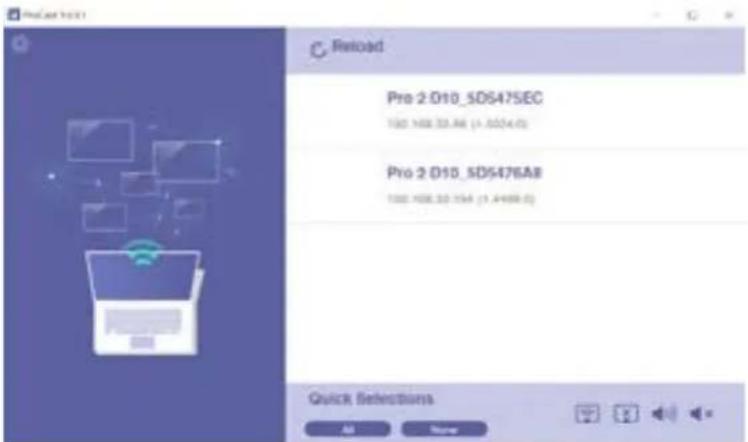
The following icons serves different purposes:

Mirror Disconnect


Silent mode Sound-on mode
By clicking , we provide users with setting option and diagnostic tool.
- Audio Buffer
a. Long: With longer buffer, may provide better audio streaming experience
b. Short: May cause audio cracked more frequently
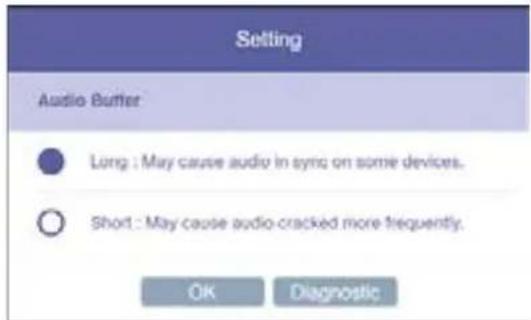
- Diagnostic Tool:
Based on user's CPU and Network performance, the Diagnostic Tool will calculate the ideal number of connected external displays.
Please note that the mirror performance may change under different scenarios. For example, static presentation will perform better than 4K video streaming.

> Download EZCast Pro App
We have built different versions of EZCast Pro App for multiple OS platforms. With EZCast Pro App, users may do custom configuration for their dongles, including Wi-Fi, Split Screen, etc.
Please refer to the following information. As for the App function intro, we'll elaborate on more details at the latter sections.
Android
You may download EZCast Pro App for Android from Google Play or our website.
iOS
You may download EZCast Pro App for iOS directly from App Store.
Windows
You may download EZCast Pro App for Windows from our website.
Mac
You may download EZCast Pro App for Windows from our website.
Chrome OS
You may download EZCast Pro App for Windows from our website.
> EZCast Pro App Introduction

In the following section, we'll introduce the built-in function of EZCast Pro App. Please note that some functions are limited to certain OS platform.
EZNote

With EZNote, user may view all the devices' casting content in the output screen, then taking notes directly on their own mobile device.
EZKeep

User can review notes saved previously in EZKeep. Other than browsing note, a user can also add bookmarks, editing notes information, making comments, deleting notes, etc.
EZChannel

Gathering the most popular, latest online video at EZChannel home page, including movies, TV series, 24-hour news. At the upper right corner, the user may see the HQ/LQ button, which allows the user to alternate between High Quality (HQ) and Low Quality (LQ) video.
Photo

Once the mobile device is connected to EZCast Pro Dongle II, user can browse images that stored in their device. EZCast Pro App also supports slideshow mode, providing four different timing transition options, which includes 3, 5, 10, 30 sec / per photo.
Camera

With Camera function, EZCast Pro Dongle II provides Live Casting service by transmitting Live image from a user's device to external display.
Music

Streaming audio to the output device. Please note that when streaming music to external display, EZCast Pro Dongle II only accepts one device as an audio source.
Video

Casting video content to the external display. Please note that when using the Video function during the Split Screen mode, all the connected devices will be disconnected from network display mode.
Document (iOS only)

Reviewing document in EZCast Pro App, supporting mainstream document formats, including Microsoft's Word, Excel, PowerPoint, and Apple's Pages, Numbers, and Keynotes.
Web

User can browse Web content in EZCast Pro App, without using 3rd party browser. To provide better browsing experience, EZCast Pro App already integrated web portals like Google, Facebook, Yahoo, YouTube, etc. Users who already owned EZCast account, may login first and browse bookmarks saved before.
Cloud Storage

EZCast Pro Dongle II has integrated mainstream cloud storage service, such as Dropbox, Google Drive, etc. With this function, user may browse, edit, delete or manage their cloud storage without leaving EZCast Pro App.
AirView

When turning on AirView mode, users may see all the external display on their own device. This function also allows the user to choose the preferred refresh rate. Please note that user may choose the preferred refresh rate in the Setting menu.
> Setting
In Setting menu, user may do custom settings for their EZCast Pro Dongle II, including Wi-Fi, Language, Device Name, etc..
Scan 5G SSID and Connect

Connecting EZCast Pro Dongle II to preferred networking by selecting SSID and entering Wi-Fi password. After setting up, the user may utilize wireless function such as online video streaming, web browsing, etc.
Language

Supporting mainstream languages such as English, French, German, Chinese, etc.
Device Name

User may set new SSID for EZCast Pro Dongle II, deciding whether to show SSID at the standby screen.
Please note that before turning off SSID function, making sure that EZCast Pro Dongle II is connected to Wi-Fi router, otherwise would cause EZCast Pro Dongle II to lose wireless connectivity. User will have to do hard reset for EZCast Pro Dongle II to regain wireless connectivity.
Resolution

EZCast Pro Dongle II will select the proper output resolution for the user automatically. This function also supports manual selection.
EZAir Mode

EZAir mode is specifically designed for the iOS device, including iPhone and iPad, which enables users to utilize AirPlay, native mirroring function provided by Apple.
User may choose “Mirror only” or “Screen Mirror+Video Streaming”. The former can only mirror the screen content, while the latter can cast both screen and audio content to external display.
AirView
When turning on AirView mode, with users' own device, you may see all the casting content captured from external display. This function also enables the user to choose the preferred refresh rate.
Castcode Control
When turning on, the user may mirror the screen by entering castcode displayed on the standby screen.
Max Connections
Host may decide the number of devices that allowed to connect to EZCast Pro Dongle II. The default setting is 8 users.
Please note that with the rising number of connected devices, the lower network bandwidth would have for each user.

Advanced Setting

Admin Setting is designed for advanced users, including MIS Engineer, IT specialist, Network admin, etc. In Admin Setting section, QuattroPod provides users with various custom configurations.
Link Status
With this option, the attendees may see all the device information that connected to EZCast Pro Dongle II, including detailed information like device name, IP address, and Role.
Conference Control
This function is only for Host user. With Host authorization, a user can assign each device with their own casting area, disconnecting all device, or assigning Host authorization to others.
Device Management
- Language

Supporting mainstream languages such as English, French, German, Chinese, etc.
- Device Name

User may set new SSID for EZCast Pro Dongle II. If the user doesn't want to show SSID at the standby screen, it could also be deactivated.
Please note that before turning off SSID function, making sure that EZCast Pro Dongle II is connected to Wi-Fi router, otherwise would cause EZCast Pro Dongle II to lose wireless connectivity. User will have to do hard reset for EZCast Pro Dongle II to regain wireless connectivity.
- Resolution

EZCast Pro Dongle II will select proper output resolution for the user automatically. This function also supports manual selection.
- EZAir Mode

EZAir mode is specifically designed for the iOS device, including iPhone and iPad, which enables users to utilize AirPlay, native mirroring function provided by Apple.
User may choose “Mirror only” or “Screen Mirror+Video Streaming”. The former can only mirror the screen content, while the latter can cast both screen and audio content to external display.
- AirView

When turning on AirView mode, with users' own device, you may see all the casting content captured from external display. This function also enables the user to choose the preferred refresh rate.
- EZNote

Through EZNote, a user can take note directly on the casting screen shot provided by EZCast Pro Dongle II.
- Castcode Control

When turning on, the user may mirror the screen by entering castcode displayed on the standby screen.
- Max Connections

Host may decide the number of devices that allowed to connect to EZCast Pro Dongle II. The default setting is 8 users.
Please note that with the rising number of connected devices, the lower network bandwidth would have for each user.
Network Management
- Scan 5G SSID and Connect

Connecting EZCast Pro Dongle II to preferred networking by selecting SSID and entering Wi-Fi password. After setting up, the user may utilize wireless function such as online video streaming, web browsing, etc.
- WiFi IP Setting

With this function, EZCast Pro Dongle II will set up a default IP address, Netmask. For an advanced setting, the user may manually configure the IP address, Gateway, Netmask, and DNS for EZCast Pro Dongle II.
- WiFi Password

Setting Wi-Fi password for EZCast Pro Dongle II. A user may decide whether to hide the Wi-Fi password from the standby screen.
- WiFi Channel

User may configure WiFi Channel manually, such as Country, Channel, and Bandwidth. Please note that user won't be able to switch WiFi Channel when EZCast Pro Dongle II is connected with an external router.
Admin Setting
Admin Setting is built for advanced users like IT admins, MIS engineers. In this section, premium users are allowed to provide Digital certificate for EZCast Pro Dongle II, setting SNMP for mass devices configuration deployment, updating EZCast Pro Dongle II through OTA Server, etc.
- Admin Password

Setting New Admin Password for EZCast Pro Dongle II.
- WiFi Enterprise

Wi-Fi Enterprise function allows user uploading Digital certificate.
- Host Authority

Specifying Host user authorization, including Conference Control, Device manager control, Network setup control, and Reboot control.
- Internet Access Control

EZCast Pro Dongle II provide three options for Internet Access control.
» All allowed:
Any device can access to Internet through EZCast Pro Dongle II.
» Casting users allowed:
Device that casting through EZCast Pro Dongle II is allowed to access to the Internet.
» All denied:
None of the devices is allowed to access to the internet through EZCast Pro Dongle II.
- SNMP

IT admin may apply the same configuration to many EZCast Pro Dongle II in once, hence enriching IT management productivity.
- My Screen

Allow the user to choose wallpaper based on their preference. Please note that the updated file must be JPEG format that smaller than 3MB, fitting in 1920x 1080.
- OTA URL

IT admin may facilitate OTA URL function for deploying a new firmware version to many devices at once.
- Connection

EZCast Pro Dongle II provides three different ways allowing a device to build the connection with EZCast Pro Dongle II.
» Via Router Allowed:
Device may connect to EZCast Pro through Router.
» Direct Link Only:
Device can only connect to EZCast Pro Dongle II through Direct Link.
» Via Router Only:
Device can only connect to EZCast Pro Dongle II through Router.
- Upgrade
Upgrading to latest firmware through this function. To utilize the latest function provided by EZCast, please make sure your firmware version is up to date.
- Reset to default
Resetting EZCast Pro Dongle II to factory default. Please note that once clicking OK, all your configuration will be reset.
Reboot
Rebooting EZCast Pro Dongle II for troubleshooting.
About
Listing detailed information about EZCast Pro Dongle II, including SSID, Firmware version, Internet IP address, MAC address, etc.
> Split Screen Mode
Based on the numbers of connected devices, host user may divide the external display into one-half, one-quarter.
Null One-Half

natural_image
Computer monitor with a blue screen and a white circular icon on the screen (no text or symbols visible)
natural_image
Front view of a modern flat-screen monitor with a dark stand (no visible text or symbols)One-Quater Full

natural_image
Front view of a flat-screen monitor with four vertical panels and a small base (no text or symbols visible)
natural_image
Blue flat-screen computer monitor with a small black tab at the bottom (no visible text or symbols)> Mirror

User may also cast with Mirror function. Please note that that under Mirror mode, video is projected to external display, while audio coming out from your mobile device.

> Privacy Setting

User may set access configuration for your App, including Photos, Camera, Cellular Data, Notification, etc.
As for data collecting function like Google Analytics for App, Google Analytics for Dongle, user may decide whether to turn on or not.
> Regulatory and Service Information
Please read before proceeding
- Do not store your device in temperatures higher than 50^ (122°F).
- The operating temperature for this device is from 0^ (32°F) to 35^ (95°F).
Compliance Information
This section addresses all connected requirements and statements regarding regulations. Confirmed corresponding applications shall refer to nameplate labels and relevant markings on the unit.
FCC Compliance Statement
This device complies with part 15 of FCC Rules. Operation is subject to the following two conditions: (1) this device may not cause harmful interference, and (2) this device must accept any interference received, including interference that may cause undesired operation. This equipment has been tested and found to comply with the limits for a Class B digital device, pursuant to part 15 of the FCC Rules.
These limits are designed to provide reasonable protection against harmful interference in a residential installation. This equipment generates, uses, and can radiate radio frequency energy, and if not installed and used in accordance with the instructions, may cause harmful interference to radio communications. However, there is no guarantee that interference will not occur in a particular installation. If this equipment does cause harmful interference to radio or television reception, which can be determined by turning the equipment off and on, the user is encouraged to try to correct the interference by one or more of the following measures:
- Reorient or relocate the receiving antenna.
- Increase the separation between the equipment and receiver.
- Connect the equipment into an outlet on a circuit different from that to which the receiver is connected.
- Consult the dealer or an experienced radio/TV technician for help.
Changes or modifications not expressly approved by the party responsible for compliance could void the user's authority to operate the equipment.
The antenna(s) used for this transmitter must not be colocated or operating in conjunction with any other antenna or transmitter.
The device was tested and complies to measurement standards and procedures specified in FCC CFR Tile 47 Part 15 Subpart C
FCC Radiation Exposure Statement
This equipment complies with FCC radiation exposure limits set forth for an uncontrolled environment. End users must follow the specific operating instructions for satisfying RF exposure compliance.
This transmitter must not be co-located or operating in conjunction with any other antenna or transmitter. This equipment should be installed and operated with a minimum distance of 20 centimeters between the radiator and your body.
The users manual or instruction manual for an intentional or unintentional radiator shall caution the user that changes or modifications not expressly approved by the party responsible for compliance could void the user's authority to operate the equipment.
CE Conformity for European Countries

The device complies with the EMC Directive 2014/30/EU and Low Voltage Directive 2014/35/EU.
The following information is only for EU-member states:
The mark shown to the right is in compliance with the Waste Electrical and Electronic Equipment Directive 2012/19/EU (WEEE). The mark indicates the requirement NOT to dispose of the equipment as unsorted municipal waste, but use the return and collection systems according to local law.
If the batteries, accumulators and button cells included with this equipment, display the chemical symbol Hg, Cd, or Pb, then it means that the battery has a heavy metal content of more than 0.0005% Mercury, or more than 0.002% Cadmium, or more than 0.004% Lead.


European Union Regulatory Conformance
The equipment complies with the RF Exposure Requirement 2014/53/EU, Council Recommendation of 16 April 2014 on the limitation of exposure of the general public to electromagnetic fields (0-300 GHz). This equipment meets the following conformance standards: EN301489-1, EN301489-17, EN60950-1, EN300328.
We, hereby, declare that this Wi-Fi radio is in compliance with the essential requirements and other relevant provisions of Directive 2014/53/EU.
IC Warning Statement
This device complies with Industry Canada license- exempt RSS standard(s). Operation is subject to the following two conditions: (1) this device may not cause interference, and (2) this device must accept any interference, including interference that may cause undesired operation of the device.
For ptoduct available in the USA/Canada market, only channe 1\~11 can be operated. Selection of other channels is not possible.
For MPE Statement – Mobile device
IMPORTANT NOTE:
IC Radiation Exposure Statement:
This equipment complied with IC RSS-102 radiation exposure limits set forth for an uncontrolled environment. This equipment should be installed and operated with minimum distance 20cm between the radiator & your body. The device for the band 5150-5825 MHz is only for indoor usage to reduce potential for harmful interference to co-channel mobile satellite systems.
Declaration of RoHS2 Compliance
This product has been designed and manufactured in compliance with Directive 2011/65/EU of the European Parliament and the Council on restriction of the use of certain hazardous substances in electrical and electronic equipment (RoHS2 Directive) and is deemed to comply with the maximum concentration values issued by the European Technical Adaptation Committee (TAC) as shown below:
| Substance | Proposed Maximum Concentration | Actual Concentration |
| Lead (Pb) 0.1% < 0.1% | ||
| Mercury (Hg) 0.1% < 0.1% | ||
| Cadmium (Cd) 0.01% < 0.01% | ||
| Hexavalent Chromium ( Cr6^+ ) 0.1% < 0.1% | ||
| Polybrominated biphenyls (PBB) 0.1% < 0.1% | ||
| Polybrominated diphenyl ethers (PBDE) 0.1% < 0.1% | ||
| Bis(2-ethylhexyl) phthalate (DEHP) 0.1% < 0.1% | ||
| Butyl benzyl phthalate (BBP) 0.1% < 0.1% | ||
| Dibutyl phthalate (DBP) 0.1% < 0.1% | ||
| Diisobutyl phthalate (DIBP) 0.1% < 0.1% |
Certain components of products as stated above are exempted under the Annex III of the RoHS2 Directives as noted below:
• Copper alloy containing up to 4% lead by weight.
- Lead in high melting temperature type solders (i.e. lead-based alloys containing 85% by weight or more lead).
- Electrical and electronic components containing lead in a glass or ceramic other than dielectric ceramic in capacitors, e.g. piezoelectronic devices, or in a glass or ceramic matrix compound.
- Lead in dielectric ceramic in capacitors for a rated voltage of 125V AC or 250V DC or higher.
Product Disposal at End of Product Life
ViewSonic® respects the environment and is committed to working and living green. Thank you for being part of Smarter, Greener Computing. Please visit the ViewSonic® website to learn more.
USA & Canada:
http://www.viewsonic.com/company/green/recycle-program/
Europe:
http://www.viewsoniceurope.com/eu/support/call-desk/
Taiwan:
Copyright© ViewSonic® Corporation, 2019. All rights reserved.
Macintosh and Power Macintosh are registered trademarks of Apple Inc.
Microsoft, Windows, and the Windows logo are registered trademarks of Microsoft Corporation in the United States and other countries.
ViewSonic ^® , the three birds logo, OnView, ViewMatch, and ViewMeter are registered trademarks of ViewSonic ^® Corporation.
VESA is a registered trademark of the Video Electronics Standards Association. DPMS, DisplayPort, and DDC are trademarks of VESA.
Disclaimer: ViewSonic® Corporation shall not be liable for technical or editorial errors or omissions contained herein; nor for incidental or consequential damages resulting from furnishing this material, or the performance or use of this product.
In the interest of continuing product improvement, ViewSonic® Corporation reserves the right to change product specifications without notice. Information in this document may change without notice.
No part of this document may be copied, reproduced, or transmitted by any means, for any purpose without prior written permission from ViewSonic® Corporation.
Customer Service
For technical support or product service, see the table below or contact your reseller.
NOTE: You will need the product's serial number.
| Country/ Region Website Country/ Region Website | |||
| Asia Pacific & Africa | |||
| Australia | www.viewsonic.com/au/ | Bangladesh | www.viewsonic.com/bd/ |
| 中国 (China) | www.viewsonic.com.cn | 香港(繁體中文) | www.viewsonic.com/hk/ |
| Hong Kong (English) | www.viewsonic.com/hk-en/ | India | www.viewsonic.com/in/ |
| Indonesia | www.viewsonic.com/id/ | Israel | www.viewsonic.com/il/ |
| 日本 (Japan) | www.viewsonic.com/jp/ | Korea | www.viewsonic.com/kr/ |
| Malaysia | www.viewsonic.com/my/ | Middle East | www.viewsonic.com/me/ |
| Myanmar | www.viewsonic.com/mm/ | Nepal | www.viewsonic.com/np/ |
| New Zealand | www.viewsonic.com/nz/ | Pakistan | www.viewsonic.com/pk/ |
| Philippines | www.viewsonic.com/ph/ | Singapore | www.viewsonic.com/sg/ |
| 臺灣 (Taiwan) | www.viewsonic.com/tw/ | Us=lnrIny | www.viewsonic.com/th/ |
| Viêt Nam | www.viewsonic.com/vn/ | South Africa & Mauritius | www.viewsonic.com/za/ |
| Americas | |||
| United States | www.viewsonic.com/us | Canada | www.viewsonic.com/us |
| Latin America | www.viewsonic.com/la | ||
| Europe | |||
| Europe | www.viewsonic.com/eu/ | France | www.viewsonic.com/fr/ |
| Deutschland | www.viewsonic.com/de/ | Қазақстан | www.viewsonic.com/kz/ |
| Россия | www.viewsonic.com/ru/ | España | www.viewsonic.com/es/ |
| Türkiye | www.viewsonic.com/tr/ | Україна | www.viewsonic.com/ua/ |
| United Kingdom | www.viewsonic.com/uk/ | ||
Limited Warranty
ViewSonic® Wireless Presentation Gateway
What the warranty covers:
ViewSonic warrants its products to be free from defects in material and workmanship, under normal use, during the warranty period. If a product proves to be defective in material or workmanship during the warranty period, ViewSonic will, at its sole option, repair or replace the product with a like product. Replacement product or parts may include remanufactured or refurbished parts or components.
How long the warranty is effective:
ViewSonic Wireless Presentation Gateway is warranted for 1 year for labor from the date of the first customer purchase.
Who the warranty protects:
This warranty is valid only for the first consumer purchaser.
What the warranty excludes and does not cover:
- Any product on which the serial number has been defaced, modified, or removed.
- Damage, deterioration, or malfunction resulting from:
» Accident, misuse, neglect, fire, water, lightning, or other acts of nature, unauthorized product modification, or failure to follow instructions supplied with the product.
» Repair or attempted repair by anyone not authorized by ViewSonic®.
» Damage to or loss of any programs, data, or removable storage media.
» Normal wear and tear.
» Removal or installation of the product.
- Software or data loss occurring during repair or replacement.
- Any damage of the product due to shipment.
- Causes external to the product, such as electric power fluctuations or failure.
- Use of supplies or parts not meeting ViewSonic's specifications.
- Failure of owner to perform periodic product maintenance as stated in the User Guide.
-
Any other cause which does not relate to a product defect.
-
Damage caused by static (non-moving) images displayed for lengthy periods of time (also referred to as image burn-in).
- Software - Any third-party software included with the product or installed by the customer.
- Hardware/Accessories/Parts/Components – Installation of any unauthorized hardware, accessories, consumable parts or components (e.g. Projector Lamps).
- Damage to, or abuse of, the coating on the surface of the display through inappropriate cleaning as described in the product User Guide.
- Removal, installation, and set-up service charges, including wall-mounting of the product.
How to get service:
- For information about receiving service under warranty, contact ViewSonic® Customer Support (Please refer to the “Customer Service” page). You will need to provide your product’s serial number.
- To obtain warranty service, you will be required to provide: (a) the original dated sales slip, (b) your name, (c) your address, (d) a description of the problem, and (e) the serial number of the product.
- Take or ship the product, freight prepaid, in the original container to an authorized ViewSonic® service center or ViewSonic®.
- For additional information or the name of the nearest ViewSonic® service center, contact ViewSonic®.
Limitation of implied warranties:
There are no warranties, express or implied, which extend beyond the description contained herein including the implied warranty of merchantability and fitness for a particular purpose.
Exclusion of damages:
ViewSonic's liability is limited to the cost of repair or replacement of the product. ViewSonic® shall not be liable for:
- Damage to other property caused by any defects in the product, damages based upon inconvenience, loss of use of the product, loss of time, loss of profits, loss of business opportunity, loss of goodwill, interference with business relationships, or other commercial loss, even if advised of the possibility of such damages.
- Any other damages, whether incidental, consequential or otherwise.
- Any claim against the customer by any other party.
- Repair or attempted repair by anyone not authorized by ViewSonic®.
Effect of state law:
This warranty gives you specific legal rights, and you may also have other rights which vary from state to state. Some states do not allow limitations on implied warranties and/or do not allow the exclusion of incidental or consequential damages, so the above limitations and exclusions may not apply to you.
Sales outside the U.S.A. and Canada:
For warranty information and service on ViewSonic® products sold outside of the U.S.A. and Canada, contact ViewSonic® or your local ViewSonic® dealer.
The warranty period for this product in mainland China (Hong Kong, Macao, and Taiwan Excluded) is subject to the terms and conditions of the Maintenance Guarantee Card.
For users in Europe and Russia, full details of warranty provided can be found at: http://www.viewsonic.com/eu/ under "Support/Warranty Information".
Mexico Limited Warranty
ViewSonic® Wireless Presentation Gateway
What the warranty covers:
ViewSonic® warrants its products to be free from defects in material and workmanship, under normal use, during the warranty period. If a product proves to be defective in material or workmanship during the warranty period, ViewSonic® will, at its sole option, repair or replace the product with a like product. Replacement product or parts may include remanufactured or refurbished parts or components & accessories.
How long the warranty is effective:
ViewSonic Wireless Presentation Gateway is warranted for 1 year for labor from the date of the first customer purchase.
Who the warranty protects:
This warranty is valid only for the first consumer purchaser.
What the warranty excludes and does not cover:
- Any product on which the serial number has been defaced, modified or removed.
- Damage, deterioration, or malfunction resulting from:
» Accident, misuse, neglect, fire, water, lightning, or other acts of nature, unauthorized product modification, unauthorized attempted repair, or failure to follow instructions supplied with the product.
» Causes external to the product, such as electrical power fluctuations or failure.
» Use of supplies or parts not meeting ViewSonic®’s specifications.
» Normal wear and tear.
» Any other cause which does not relate to a product defect.
- Any product exhibiting a condition commonly known as “image burn-in” which results when a static image is displayed on the product for an extended period of time.
- Removal, installation, insurance, and set-up service charges.
How to get service:
For information about receiving service under warranty, contact ViewSonic® Customer Support (Please refer to the attached “Customer Service” page). You will need to provide your product’s serial number, so please record the product information in the space provided below on your purchase for your future use. Please retain your receipt of proof of purchase to support your warranty claim.
For Your Records
Product Name: Model Number:
Document Number: Serial Number:
Purchase Date: Extended Warranty Purchase? (Y/N)
If so, what date does warranty expire?
- To obtain warranty service, you will be required to provide (a) the original dated sales slip, (b) your name, (c) your address, (d) a description of the problem, and (e) the serial number of the product.
- Take or ship the product, in the original container packaging, to an authorized ViewSonic® service center.
- Round trip transportation costs for in-warranty products will be paid by ViewSonic®.
Limitation of implied warranties:
There are no warranties, express or implied, which extend beyond the description contained herein including the implied warranty of merchantability and fitness for a particular purpose.
Exclusion of damages:
ViewSonic ^® 's liability is limited to the cost of repair or replacement of the product. ViewSonic ^® shall not be liable for:
- Damage to other property caused by any defects in the product, damages based upon inconvenience, loss of use of the product, loss of time, loss of profits, loss of business opportunity, loss of goodwill, interference with business relationships, or other commercial loss, even if advised of the possibility of such damages.
- Any other damages, whether incidental, consequential or otherwise.
- Any claim against the customer by any other party.
- Repair or attempted repair by anyone not authorized by ViewSonic®.
| Contact Information for Sales & Authorized Service (Centro Autorizado de Servicio) within Mexico: | |
| Name, address, of manufacturer and importers:México, Av. de la Palma #8 Piso 2 Despacho 203, Corporativo Interpalmas,Col. San Fernando Huixquilucan, Estado de MéxicoTel: (55) 3605-1099 http://www.viewsonic.com/la/soporte/index.htm | |
| NÚMERO GRATIS DE ASISTENCIA TÉCNICA PARA TODO MÉXICO: 001.866.823.2004 | |
| Hermosillo:Distribuciones y Servicios Computacionales SA de CV.Calle Juarez 284 local 2Col. Bugambilias C.P: 83140Tel: 01-66-22-14-9005E-Mail: disc2@hmo.megared.net.mx | Villahermosa:Compumantenimietnos Garantizados, S.A. de C.V.AV. GREGORIO MENDEZ #1504COL, FLORIDA C.P. 86040Tel: 01 (993) 3 52 00 47 / 3522074 / 3 52 20 09E-Mail: compumantenimientos@prodigy.net.mx |
| Puebla, Pue. (Matriz):RENTA Y DATOS, S.A. DE C.V. Domicilio:29 SUR 721 COL. LA PAZ72160 PUEBLA, PUE.Tel: 01(52).222.891.55.77 CON 10 LINEASE-Mail: datos@puebla.megared.net.mx | Veracruz, Ver.:CONEXION Y DESARROLLO, S.A DE C.V. Av.Americas # 419ENTRE PINZÓN Y ALVARADOFracc. Reforma C.P. 91919Tel: 01-22-91-00-31-67E-Mail: gacosta@qplus.com.mx |
| Chihuahua:Soluciones Globales en ComputaciónC. Magisterio # 3321 Col. MagisterialChihuahua, Chih.Tel: 4136954E-Mail: Cefeo@soluglobales.com | Cuernavaca:Compusupport de Cuernavaca SA de CVFrancisco Leyva # 178 Col. Miguel HidalgoC.P. 62040, Cuernavaca MorelosTel: 01 777 3180579 / 01 777 3124014E-Mail: aquevedo@compusupportcva.com |
| Distrito Federal:QPLUS, S.A. de C.V.Av. Coyoacán 931Col. Del Valle 03100, México, D.F.Tel: 01(52)55-50-00-27-35E-Mail : gacosta@qplus.com.mx | Guadalajara, Jal.:SERVICRECE, S.A. de C.V.Av. Niños Héroes # 2281Col. Arcos Sur, Sector Juárez44170, Guadalajara, JaliscoTel: 01(52)33-36-15-15-43E-Mail: mmiranda@servicrece.com |
| Guerrero Acapulco:GS Computación (Grupo Sesicomp)Progreso #6-A, Colo Centro39300 Acapulco, GuerreroTel: 744-48-32627 | Monterrey:Global Product ServicesMar Caribe # 1987, Esquina con Golfo PérsicoFracc. Bernardo Reyes, CP 64280Monterrey N.L. MéxicoTel: 8129-5103E-Mail: aydeem@gps1.com.mx |
| MERIDA:ELECTROSERAv Reforma No. 403Gx39 y 41Mérida, Yucatán, México CP97000Tel: (52) 999-925-1916E-Mail: rrrb@sureste.com | Oaxaca, Oax.:CENTRO DE DISTRIBUCION YSERVICIO, S.A. de C.V.Murguía # 708 P.A., Col. Centro, 68000, OaxacaTel: 01(52)95-15-15-22-22Fax: 01(52)95-15-13-67-00E-Mail. gpotai2001@hotmail.com |
| Tijuana:STDAv Ferrocarril Sonora #3780 L-CCol 20 de NoviembrTijuana, Mexico | FOR USA SUPPORT:ViewSonic® Corporation381 Brea Canyon Road, Walnut, CA. 91789 USATel: 800-688-6688E-Mail: http://www.viewsonic.com |
Wireless Presentation Gateway Warranty Term Template In UG
VSC_TEMP_2014

natural_image
Three colorful bird figurines standing on grass, no text or symbols visibleViewSonic

- Wireless Presentation Gateway User Guide
- Thank you for choosing ViewSonic®
- > Contents
- Overview......5
- EZCast Pro Dongle II with Native Mirror Function ...... 6
- Multi-screen Broadcasting with ProCast 7
- Download EZCast Pro App 9
- EZCast Pro App Introduction 10
- Setting 12
- Advanced Setting 14
- Split Screen Mode 19
- Mirror 20
- Privacy Setting ......21
- Regulatory and Service Information 22
- > Overview
- > EZCast Pro Dongle II with Native Mirror Function
- Android
- iOS
- Windows
- macOS
- > Multi-screen Broadcasting with ProCast
- > Download EZCast Pro App
- Mac
- Chrome OS
- > EZCast Pro App Introduction
- EZNote
- EZKeep
- EZChannel
- Photo
- Camera
- Music
- Video
- Document (iOS only)
- Web
- Cloud Storage
- AirView
- > Setting
- Scan 5G SSID and Connect
- Language
- Device Name
- Resolution
- EZAir Mode
- Castcode Control
- Max Connections
- Advanced Setting
- Link Status
- Conference Control
- Device Management
- - Language
- - Device Name
- - Resolution
- - EZAir Mode
- - AirView
- - EZNote
- - Castcode Control
- - Max Connections
- Network Management
- - Scan 5G SSID and Connect
- - WiFi IP Setting
- - WiFi Password
- - WiFi Channel
- Admin Setting
- - Admin Password
- - WiFi Enterprise
- - Host Authority
- - Internet Access Control
- - SNMP
- - My Screen
- - OTA URL
- - Connection
- - Upgrade
- - Reset to default
- Reboot
- About
- > Split Screen Mode
- > Mirror
- > Privacy Setting
- > Regulatory and Service Information
- Please read before proceeding
- Compliance Information
- FCC Compliance Statement
- FCC Radiation Exposure Statement
- CE Conformity for European Countries
- The following information is only for EU-member states:
- European Union Regulatory Conformance
- IC Warning Statement
- For MPE Statement – Mobile device
- IMPORTANT NOTE:
- IC Radiation Exposure Statement:
- Declaration of RoHS2 Compliance
- Certain components of products as stated above are exempted under the Annex III of the RoHS2 Directives as noted below:
- Product Disposal at End of Product Life
- USA & Canada:
- Europe:
- Taiwan:
- Customer Service
- Limited Warranty
- ViewSonic® Wireless Presentation Gateway
- What the warranty covers:
- How long the warranty is effective:
- Who the warranty protects:
- What the warranty excludes and does not cover:
- How to get service:
- Limitation of implied warranties:
- Exclusion of damages:
- Effect of state law:
- Sales outside the U.S.A. and Canada:
- Mexico Limited Warranty
- For Your Records
Brand : VIEWSONIC
Model : VSR100
Category : Wireless pointer