
VPC15-WP-3 - Wireless pointer VIEWSONIC - Free user manual and instructions
Find the device manual for free VPC15-WP-3 VIEWSONIC in PDF.


| Product Type | Wireless Presentation Pointer |
| Brand | Viewsonic |
| Model | VPC15-WP-3 |
| Connectivity | RF 2.4 GHz |
| Wireless Range | Up to 30 m (100 ft) |
| Laser Color | Red (Class 2) |
| Battery Type | 2 x AAA (LR03) not included |
| Battery Life | Approximately 20 hours continuous use |
| Dimensions (L x W x H) | 140 x 25 x 15 mm (5.5 x 1.0 x 0.6 in) |
| Weight | 50 g (1.8 oz) without batteries |
| Color | Black / Dark Gray |
| Button Functions | Power, Laser, Page Up, Page Down, Blank Screen |
| Receiver Type | USB Nano Receiver (stored in pointer) |
| Operating System Compatibility | Windows, macOS, Linux |
| Safety Class | Laser Class 2 (IEC 60825-1) |
| Cleaning Instructions | Wipe with a soft, dry cloth; avoid liquids |
| Spare Parts Available | Batteries only; receiver is integrated |
| Repairability | Battery compartment accessible; no user-serviceable parts inside |
| General Information | Plug-and-play; no driver required |
Frequently Asked Questions - VPC15-WP-3 VIEWSONIC
User questions about VPC15-WP-3 VIEWSONIC
0 question about this device. Answer the ones you know or ask your own.
Ask a new question about this device
Download the instructions for your Wireless pointer in PDF format for free! Find your manual VPC15-WP-3 - VIEWSONIC and take your electronic device back in hand. On this page are published all the documents necessary for the use of your device. VPC15-WP-3 by VIEWSONIC.
USER MANUAL VPC15-WP-3 VIEWSONIC
Connect & Collaborate
User Guide

natural_image
Silhouette of a hand with a finger pressing a circular button (no text or symbols)Thank you for choosing ViewSonic®
As a world-leading provider of visual solutions, ViewSonic® is dedicated to exceeding the world's expectations for technological evolution, innovation, and simplicity. At ViewSonic®, we believe that our products have the potential to make a positive impact in the world, and we are confident that the ViewSonic® product you have chosen will serve you well.
Once again, thank you for choosing ViewSonic®!
> Contents
Introduction 4
Preparing to launch ViewBoard® Cast......6
Needed components....6
Launching ViewBoard® Cast ....7
Starting ViewBoard® Cast on a client device. 8
Network information.... 11
Casting to ViewBoard ^® with AirPlay 12
ViewBoard ^® Cast setting:....13
Display Group settings for one to many casting ..... 15
Display Group settings....15
Share a screen to the grouped display (one to many casting) 16
ViewBoard ^® Cast Activation ....16
ViewBoard® Cast User Features....17
Connecting to a ViewBoard ^® or display from PC....17
Connecting to a ViewBoard ^® or display....17
Moderator mode for PC users (Window/Mac/Chrome only)....19
Troubleshooting 21
Device List is Not Displayed 21
Unable to Connect to ViewBoard® Cast Download Page 21
Network requirement 21
Ports 21
Port for activation: 21
Airplay service 21
Ports: 22
How to confirm that Airplay service is broadcasting: 22
Other Information 23
Customer Support 23
> Introduction
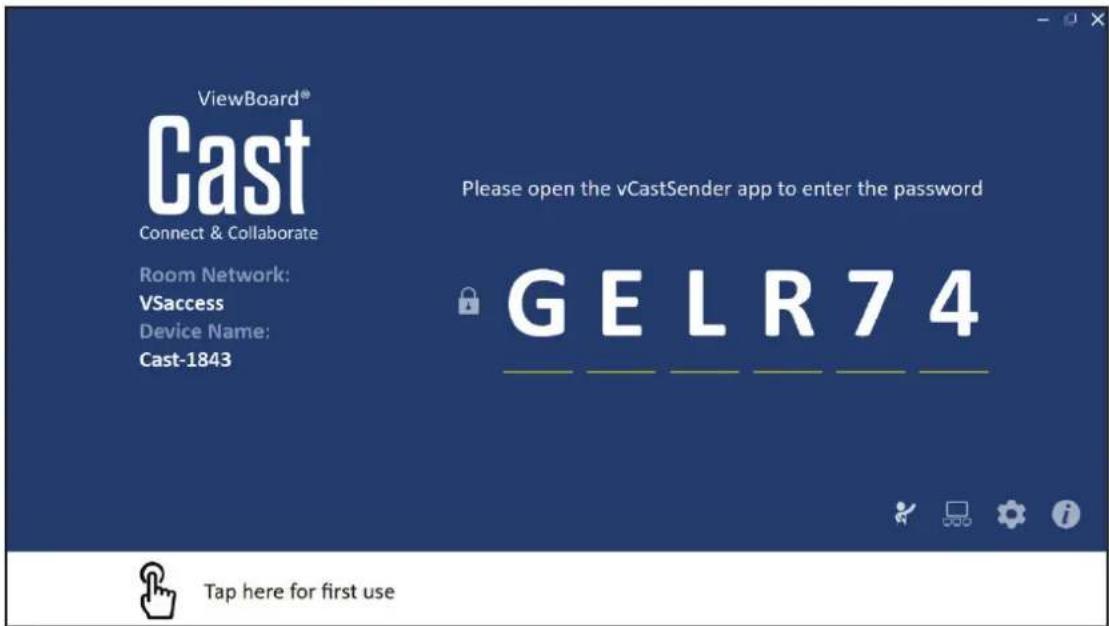
ViewBoard® Cast for Windows software is designed for wireless presentations and wireless collaboration.
Working with ViewBoard® Cast software and the vCastSender app allows you to stream live recordings and annotate as well as share your screen, photos, videos, annotations, documents and camera directly onto ViewSonic® ViewBoard® Interactive Flat Panels and other mobile devices.
Presenters can control displayed content from a phone, tablet, or laptop while Android and iOS device users are able to use vCastSender's specialized annotation toolbar and control the ViewBoard® remotely. Whether in class or in a meeting, vCastSender makes teaching and group discussion quick and easy. The specialized moderation feature allows a moderator to take control of meetings or classrooms.
Wireless screen sharing and collaboration in just three easy steps:
- Connect with ViewBoard® Cast.
- Download vCastSender app.
- Open vCastSender to share content.
ViewBoard ^® Cast has the following features:
| Wireless Display Users can connect to the same network or cross sub-network environments and display their personal screen to aViewBoard®or display. |
| Multi-split screen display Multiple users can connect and display concurrently to theViewBoard®or display. |
| Touch feedback The current presenter can use touch control on ViewBoard®’sscreen to remotely control casting devices. |
| Remote View Android/iOS users can view the screen of the currentpresenter on aViewBoard®or display. |
| Annotation and collaboration When viewing a presentation, users can annotate on thepresenter’s display via Android/iOS pen tools. |
| Moderator mode The moderator has full control of a presentation session andcan assign other participants to be the presenter or viewer.The moderator can broadcast a presentation cast to theconnected devices to be viewers and make necessaryannotations. |
NOTE: The touch feedback function is limited when using Chrome.
> Preparing to launch ViewBoard® Cast
This section covers information you need to know about the ViewBoard® Cast software installed on your Windows PC device.
Needed components
- Suggested Windows PC hardware specifications:
» Intel i3 series CPU or better
• PC Operation system requirements:
» Wi-Fi capability – 2.4GHz /5.0GHz
(5.0GHz band will provide better wireless screen sharing performance.)
» Microsoft® Windows* 7, 8, 8.1, 10
> Launching ViewBoard® Cast
Follow the download link provided on the viewsBoard or display.
- Connect to the room Network (i.e. "http://your company URL here")
- Download and open the Application
- Launch vCastSender and enter the six (6) digit connecting PIN-code.

Starting ViewBoard ^® Cast on a client device.
- To start a ViewBoard® Cast, first search for the vCastSender application and ensure the client device is connected to the same ViewBoard® Cast room network server.
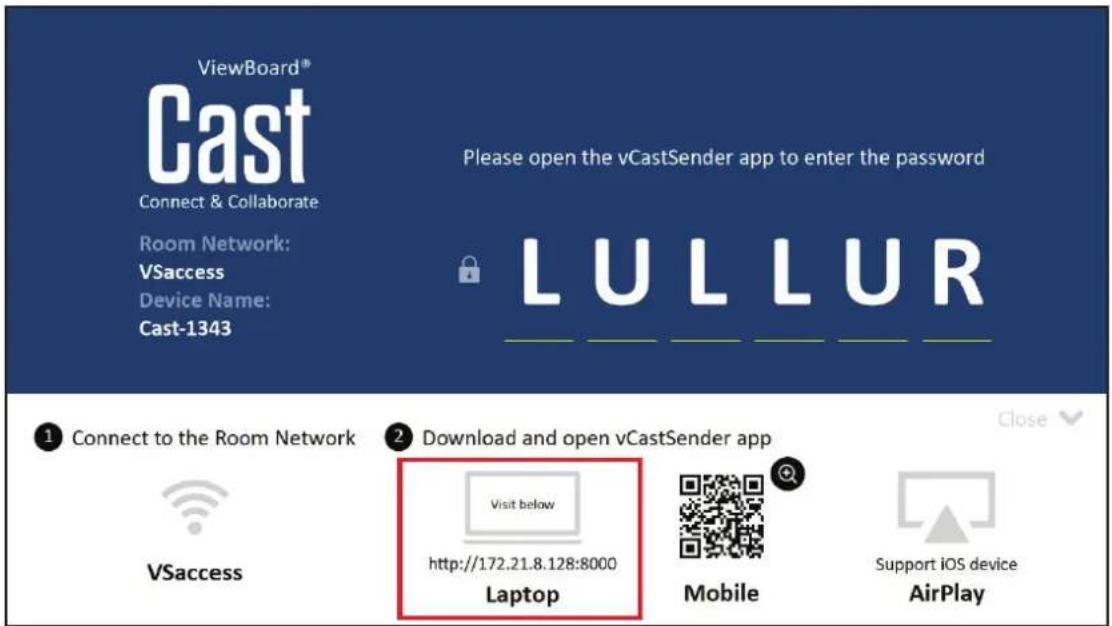
- PC client devices (Windows/Mac/Chrome) should visit the address displayed in a browser; phone/tablet devices (Android/iOS) should use the QR code to scan and download the app directly from the server or from Google Play Store for Android devices, Apple Store for iOS devices, or Chrome Web Store for Chromebook devices.

- Input the displayed PIN-code to download and install the app.


- Once the client device has installed vCastSender the app can be launched.

- Enter the six (6) digit PIN-code to wirelessly display content onto the viewsboard®.

other
| Device | Value | | :--- | :--- | | Cast-1343 | 172.21.8.128 | | Cast-5551 | 172.21.10.186 | | Cast-2256 | 172.21.8.103 | | Cast-2745 | 172.21.10.71 | | ViewSonic PJ-65... | 172.21.10.55 |Network information
- ViewBoard® Cast software, laptops, and mobile devices can connect to both the same subnet and the cross subnet network by entering the PIN-code to connect to the viewsboard.
- Connected devices will show up under "Device List" on the same subnet connection.

other
| Device | Value | | :--- | :--- | | Cast-1343 | 172.21.8.128 | | Cast-5551 | 172.21.10.186 | | Cast-2256 | 172.21.8.103 | | Cast-2745 | 172.21.10.71 | | ViewSonic PJ-65... | 172.21.10.55 |Casting to ViewBoard® with AirPlay
Apple AirPlay ^® is compatible with ViewBoard ^® Cast for screen mirroring and content streaming under the same subnet environment only. Another “AirPlay Password” number will be generated on-screen for connection when using AirPlay to cast to the ViewBoard ^® . If you are in a cross subnet environment, please connect with vCastSender iOS first.

ViewBoard® Cast setting:
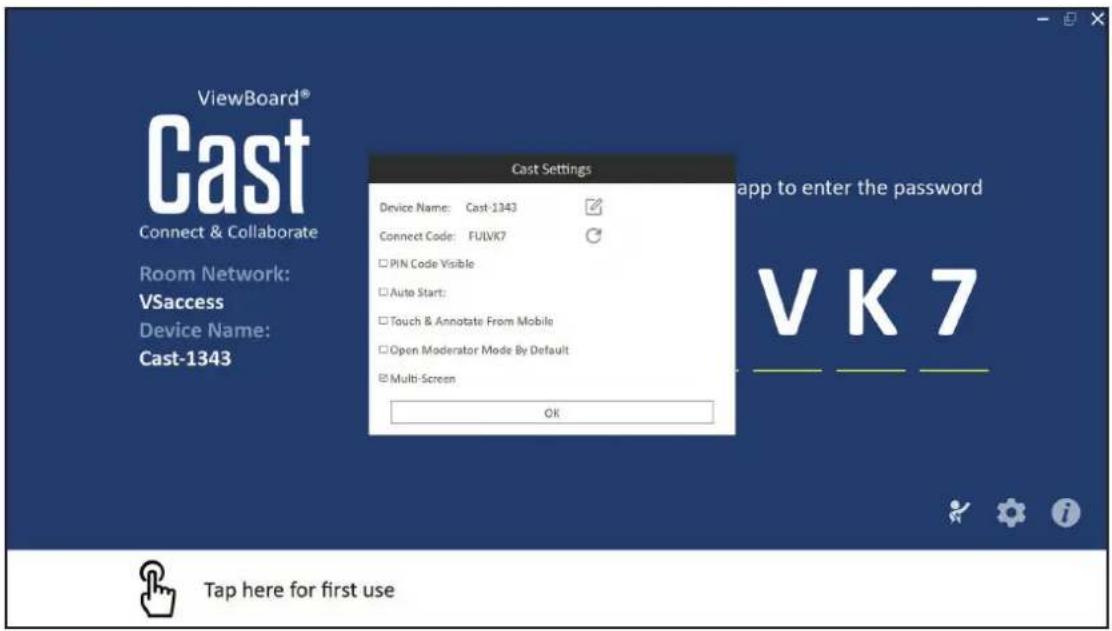
ViewBoard® Cast allows you to make advanced Cast Settings by clicking the Settings icon located in the bottom right corner of the screen.
| Cast Settings | |
| Device Name: Cast-1343 | |
| Connect Code: CEM4SV | |
| ☐ PIN Code Visible | |
| ☐ Auto Start: | |
| ☐ Touch & Annotate From Mobile | |
| ☐ Open Moderator Mode By Default | |
| ☑ Multi-Screen | |
| OK | |
| Device name Allows users to set | their preferred device name so it is easy to identify. |
| Connect Code Click the refresh icon | on to generate a new random code. |
| PIN Code Visible Toggle between | showing the ViewBoard® Cast connectionPIN-code in the upper right side of the windows screen for easy log-in or hide it. |
| Auto Start ViewBoard® Cast will | start automatically when you start your Windows PC. |
| Touch & Annotate From Mobile | Enable/disable the touch and annotate functions for mobile devices for easier screen management. |
| Open Moderator Mode by Default | Allows users to have moderator mode open by default. |
| Multi-Screen Multiple users can | wirelessly present to ViewBoard® Cast simultaneously. |
NOTE:
- The current presenter can touch each split ViewBoard® screen to remotely control casting devices.
- The number of multi-screen presenters on-screen depends on your Windows CPU processor performance and router specs.
> Display Group settings for one to many casting
Display Group settings
- Click the Display Group Settings icon ( ) on the home screen and turn on the display group feature. Other preinstalled viewsBoard Cast devices in the same network will be listed.
- Next, select the devices you want to join in the display group and click "OK" to save the settings.
NOTE: If the devices you wish to group are not listed, you can enter their respective IP address or connecting PIN code.
- Toggle the advanced feature, "Synchronized group screen all the time", On or Off. If On, it will display a synchronized group screen continuously. If you toggle it Off, it will work on WaveBoard Cast mirroring only.
NOTE:
- The Display Group limit is a maximum of 4 devices.
- Please select the correct devices to group first, then turn on the "Synchronized group screen all the time" function to avoid interruption.
Display Group Settings
Turn On/Off Display Group

Synchronized group screen all the time

If you turn-off the toggle will work on ViewBoard Cast mirroring only.
Device List

Cast-3598
172.21.8.130

ViewSonic PJ-3423
172.21.9.209

Cast-8353
172.21.10.62

ViewSonic PJ-6624
172.21.10.103

Cast-3832
172.21.9.222
Enter IP address or PIN code to add devices

OK
Share a screen to the grouped display (one to many casting)
After confirming the above settings, you can share your screen to the main display, then the grouped client devices will be synced up to your screen.

natural_image
Three modern house photos and a laptop displaying a Wi-Fi symbol, no text or labels present.ViewBoard® Cast Activation
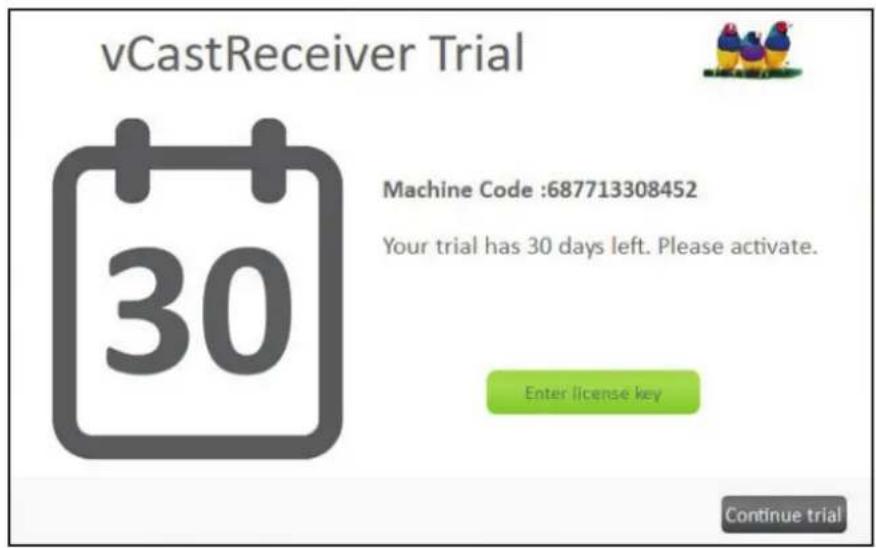
When using a trial version of ViewBoard® Cast software, a window indicating the number of days left in your trial will be displayed. To continue using the software after the trial period you must activate the software.
Please contact ViewSonic to purchase a license activation key.
>ViewBoard® Cast User Features
This section describes the ViewBoard® Cast – vCastSender application features you can use while connected to ViewBoard® Cast or a display.
Connecting to a ViewBoard ^® or display from PC
Once connected, the vCastSender app for Windows, Mac and Chrome can wirelessly share your screen and use ViewBoard® touch to control your PC remotely.
Connecting to a ViewBoard ^® or display
Once connected, the ViewBoard ^® or selected display screen will appear on your phone.

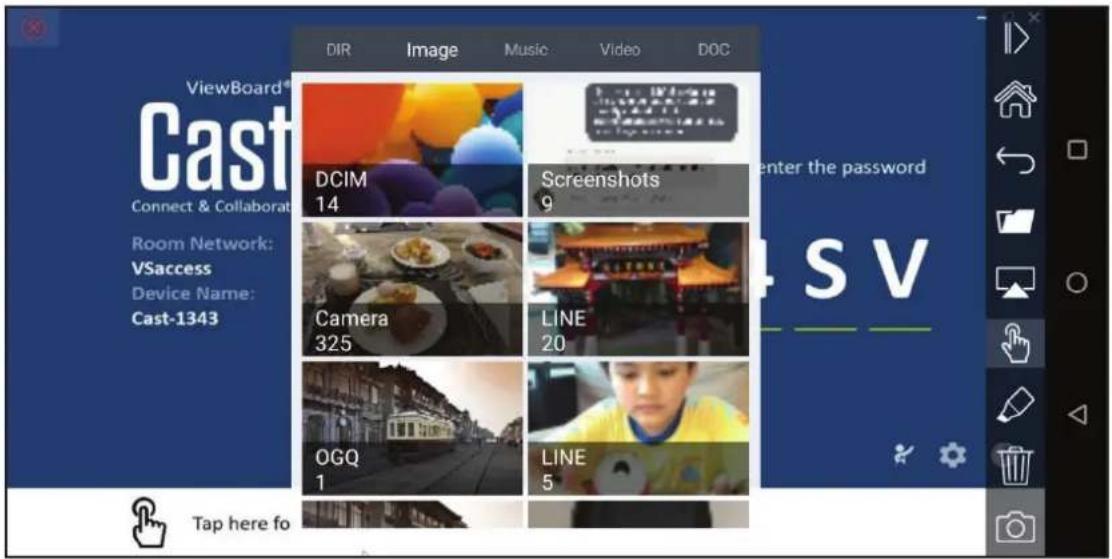
| Item Description | |
| Toggle Click to hide or display the tool bar. | |
| Home Go to the Windows home page. | |
| Return Return to the previous operation interface. | |
| Folder View or open mobile device files including images, music, video and documents. | |
| Share Share your screen onto the connected ViewBoard® or display. | |
| Touch Touch to remotely control the ViewBoard® or display. | |
| Annotation Annotation is used to quickly highlight and point out specific items or sections on a displayed screen.You can switch between pen colors by selecting your preferred color. | |
| Clear Click to clear everything on the screen. | |
| Camera Can be used to send camera images to the ViewBoard® or display. | |
Moderator mode for PC users (Window/Mac/Chrome only)
Click the Moderator icon on-screen to enter ViewBoard® Cast Moderator mode, the feature allows the Moderator to take control of meetings or a classroom.
NOTE:
- Moderator mode is only supported on Windows/Mac/Chrome devices.
- When you cast your Windows/Mac/Chrome screen to a ViewBoard®, the full screen will not be broadcasted back to your device in order to avoid recycled screen casting.
-
Chrome OS is limited to only a “preview” function and casting sound out.
-
Moderator: The moderator has full control of meetings or classrooms and can preview images and screens shared to the ViewBoard® by a presenter.
- Broadcast and annotate: Moderators can broadcast screen content to participants on Windows/Mac/Chrome devices and do annotation.
- Presenter: Presenters can present, view, and annotate (mobile devices only).
- Viewer: After the moderator has enabled the broadcast function, all participants will be able to view the meeting or classroom content being displayed.


natural_image
Close-up of a young lion cub looking upward, displayed within a desktop interface with toolbars and window controls (no readable text or symbols on the main image)> Troubleshooting
ViewBoard® Cast is designed to be easy to use, please contact your sales representative or IT department if you are experiencing any problems. Below are some issues that you may experience.
Device List is Not Displayed
Please make sure you have followed all instructions for connecting to the same network segment environment carefully.
Unable to Connect to ViewBoard® Cast Download Page
Ensure that the firewall for your operating system permits ViewBoard® Cast to run and communicate on your network.
This message will only appear if the server is using a self-signed certificate with an invalid trust chain.
Network requirement
ViewBoard ^® and mobile devices need to link to the same room LAN network subnet when the PIN-Code is disabled. ViewBoard ^® Cast supports cross sub-network connectivity via PIN-Code.
For the most stable transmission, having ViewBoard ^® connected via Ethernet cable and having client devices working on a 5GHz Wi-Fi band is recommended.
Ports
TCP 56789, 25123, 8121 & 8000
UDP 48689, 25123
Port for activation:
Port: 8001
Airplay service
Please ensure that DNS is enabled on the network/access point/wireless controller (where applicable).
Ports:
TCP 51040, 51030, 51020 & 51010
UDP 5353 (mDNS to broadcast Airplay)
How to confirm that Airplay service is broadcasting:
- Ensure that your iOS device and ViewBoard ^® are connected to the same sub-network.
- Open Control Center and select Airplay Mirroring On for iOS devices (e.g. iPhone/iPad).
- You will see a device with the "Cast-" prefix being shown.
- If "Cast-" is showing, this confirms that the vCastReceiver is broadcasting Airplay services.
- Click on the broadcasted "Cast-" device to mirror your iOS device to the viewsBoard®.
> Other Information
Customer Support
For technical support or product service, see the table below or contact your reseller.
NOTE: You will need to provide the product serial number.
| Country/ Region Website Country/ Region Website | |||
| Asia Pacific & Africa | |||
| Australia www.viewsonic.com/au/ Bangladesh www.viewsonic.com/bd/ | |||
| 中国 (China) | www.viewsonic.com.cn | 香港(繁體中文) | www.viewsonic.com/hk/ |
| Hong Kong (English) www.viewsonic.com/hk-en/ India www.viewsonic.com/in/ | |||
| Indonesia | www.viewsonic.com/id/ Israel | www.viewsonic.com/il/ | |
| 日本 (Japan) | www.viewsonic.com/jp/ Korea | www.viewsonic.com/kr/ | |
| Malaysia | www.viewsonic.com/my/ | Middle East | www.viewsonic.com/me/ |
| Myanmar | www.viewsonic.com/mm/ | Nepal | www.viewsonic.com/np/ |
| New Zealand | www.viewsonic.com/nz/ | Pakistan | www.viewsonic.com/pk/ |
| Philippines | www.viewsonic.com/ph/ | Singapore | www.viewsonic.com/sg/ |
| 臺灣 (Taiwan) | www.viewsonic.com/tw/ | ประเทศไทย | www.viewsonic.com/th/ |
| Việt Nam | www.viewsonic.com/vn/ | South Africa & Mauritius | www.viewsonic.com/za/ |
| Americas | |||
| United States | www.viewsonic.com/us | Canada | www.viewsonic.com/us |
| Latin America | www.viewsonic.com/la | ||
| Europe | |||
| Europe | www.viewsonic.com/eu/ | France | www.viewsonic.com/fr/ |
| Deutschland | www.viewsonic.com/de/ | Қазақстан | www.viewsonic.com/kz/ |
| Россия | www.viewsonic.com/ru/ | España | www.viewsonic.com/es/ |
| Türkiye | www.viewsonic.com/tr/ | Україна | www.viewsonic.com/ua/ |
| United Kingdom | www.viewsonic.com/uk/ | ||

natural_image
Illustration of three colorful birds with vibrant colors and beaded caps (no text or symbols)ViewSonic®

- Thank you for choosing ViewSonic®
- > Contents
- Introduction 4
- Preparing to launch ViewBoard® Cast......6
- Launching ViewBoard® Cast ....7
- Display Group settings for one to many casting ..... 15
- ViewBoard® Cast User Features....17
- Troubleshooting 21
- Other Information 23
- > Introduction
- > Preparing to launch ViewBoard® Cast
- Needed components
- > Launching ViewBoard® Cast
- Starting ViewBoard ® Cast on a client device.
- Network information
- Casting to ViewBoard® with AirPlay
- ViewBoard® Cast setting:
- NOTE:
- > Display Group settings for one to many casting
- Display Group settings
- Device List
- Share a screen to the grouped display (one to many casting)
- ViewBoard® Cast Activation
- >ViewBoard® Cast User Features
- Connecting to a ViewBoard ® or display from PC
- Connecting to a ViewBoard ® or display
- Moderator mode for PC users (Window/Mac/Chrome only)
- > Troubleshooting
- Device List is Not Displayed
- Unable to Connect to ViewBoard® Cast Download Page
- Network requirement
- Ports
- Port for activation:
- Airplay service
- Ports:
- How to confirm that Airplay service is broadcasting:
- > Other Information
- Customer Support
Brand : VIEWSONIC
Model : VPC15-WP-3
Category : Wireless pointer