U3VGAHDMIADA - Network card / adapter i-TEC - Free user manual and instructions
Find the device manual for free U3VGAHDMIADA i-TEC in PDF.


| Product Type | USB 3.0 to HDMI and VGA Adapter |
| Brand | i-TEC |
| Model | U3VGAHDMIADA |
| Dimensions | 115 x 43 x 15 mm |
| Weight | 50 g |
| Power | Via USB port (bus-powered) |
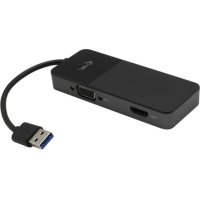
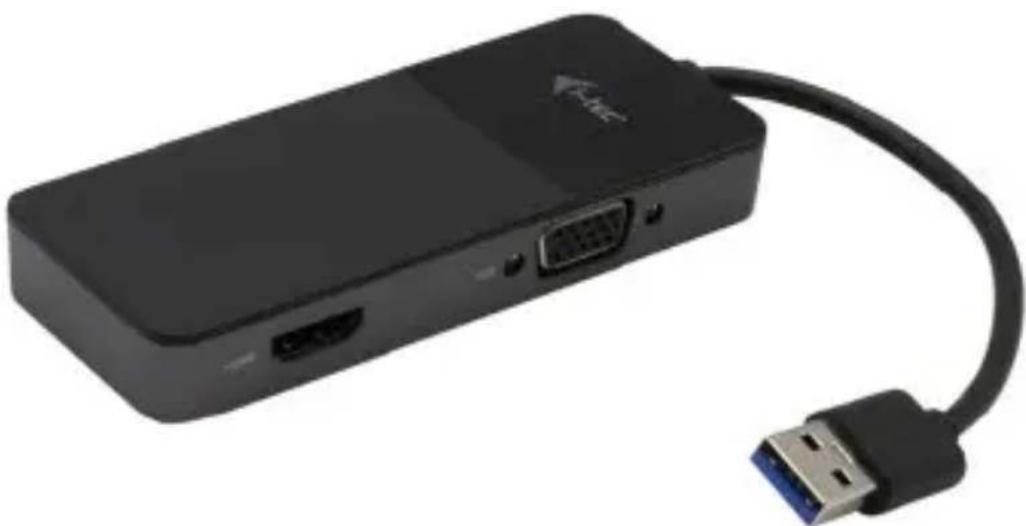
| Ports | 1x HDMI, 1x VGA, 1x USB 3.0 (integrated cable) |
| HDMI Resolution | Up to 3840x2160 @30Hz (4K Ultra HD) |
| VGA Resolution | Up to 1920x1080 @60Hz (Full HD) |
| OS Compatibility | Windows 7/8/8.1/10, macOS 10.13+, Android 7+ |
| Main Functions | Mirror and extended mode, multi-monitor support |
| Driver Installation | Download from www.i-tec.cz/en, tab 'Manuals, drivers' |
| Care and Cleaning | Avoid extreme temperatures and humidity. Clean with a dry cloth. |
| Safety | Do not cover, risk of fire. Recycle at end of life (EU). |
| Spare Parts and Reparability | Contact support via i-tec.cz. No spare parts provided. |
| General Information | Warranty and support at www.i-tec.cz/en. Detailed manual available online. |
Frequently Asked Questions - U3VGAHDMIADA i-TEC
User questions about U3VGAHDMIADA i-TEC
0 question about this device. Answer the ones you know or ask your own.
Ask a new question about this device
Download the instructions for your Network card / adapter in PDF format for free! Find your manual U3VGAHDMIADA - i-TEC and take your electronic device back in hand. On this page are published all the documents necessary for the use of your device. U3VGAHDMIADA by i-TEC.
USER MANUAL U3VGAHDMIADA i-TEC
USB 3.0 to HDMI and VGA Adapter
1x 4K HDMI or 1x VGA
natural_image
Black USB device with attached cable, showing ports and connectors (no text or symbols visible)User guide • Gebrauchsanweisung • Mode d'emploi Manual de instrucciones • Manuale • Uživatelská príručka Instrukcje obsługi • Užívatel'ská príručka Vartotojo vadovas • Handleiding
P/N: U3VGAHDMIADA
ENGLISH
Please read the entire instruction manual carefully. Detailed manual i website www.i-tec.cz/en/ in the tab „Manuals, drivers“. In case of any issues, please contact our technical support at: support@itecproduct.com
DEUTCH
USB 3.0 to HDMI and VGA Adapter
ENGLISH.... 04-14
DEUTSCH....15-25
FRANÇAIS....26-36
ESPAÑOL....37-47
ITALIANO....48-58
ČESKY....59–69
POLSKI....70-80
SLOVENSKY....81-91
LIETUVOS....92-102
NEDERLANDS....103-113
PORTUGUÊS....114
WEEE....115-116
Declaration of Conformity ....117–118
FCC 119
TERMINOLOGY
Interface / port / connector / input / slot - a place where two devices are physically connected.
Chipset – a semiconductor device in a laptop, tablet or PC controlling the function of a port.
USB / 3.0 / 2.0 – a standard for USB interface / port for connection of various USB devices. Various USB devices can be connected to the docking station or adapter using the USB interface type A. USB type B is used for connecting the docking station or adapter to a laptop, tablet or PC.
HDMI – a standard for digital graphical interface / port for connection of monitors and other graphical display devices.
VGA – a standard for analog graphical interface / port for connection of monitors and other graphical display devices.
SPECIFICATION
- 1 x integrated USB 3.0 cable for connecting to a device with USB 3.0, USB-C or Thunderbolt 3 (USB 3.0 to USB-C adapter included)
• Video ports: 1x HDMI, 1x VGA
- Resolution:
• 1 monitor – 1x HDMI up to 4K/30Hz
- 1 monitor – 1x VGA up to 1920x1080/60Hz
- 2 monitors – 1x HDMI + 1x VGA up to 4K/30Hz + 1920x1080/60Hz
- OS: Windows 7 / 8 / 8.1 / 10, macOS 10.13 and higher, Android 7 and higher
• Product dimensions: 115 x 43 x 15 mm
- Cable length: 14 cm
• Product weight: 50 g
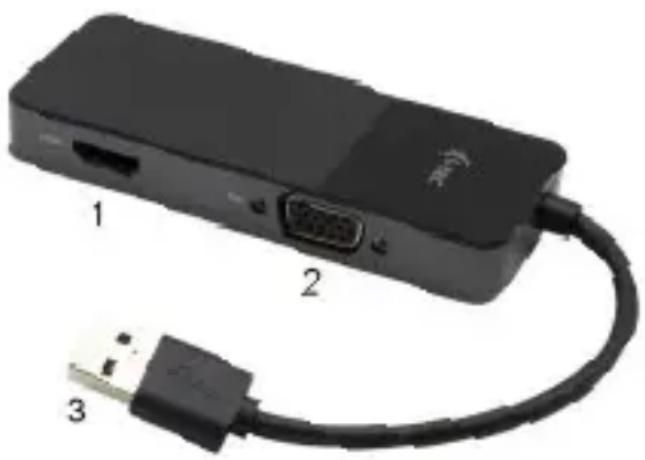
DESCRIPTION OF THE ADAPTER
-
HDMI port
-
VGA port
-
USB 3.0 cable
natural_image
Black USB device with labeled ports and cable, showing port 1, port 2, and USB connector (no text or symbols on device body)SYSTEM REQUIREMENTS
Hardware requirements: Device with a free USB 3.0, USB-C or Thunderbolt 3 port
Operating system: Windows 7 / 8 / 8.1 / 10, macOS 10.13 and later, Android 7 and later
DRIVER INSTALLATION
Download the drivers for the adapter from our website at www.i-tec.cz/en in the Download tab for this product and confirm automatic installation.
macOS: After the driver is installed, it must be enabled in macOS settings. Instructions for enabling the driver can be found on our website at www.i-tec.cz/setup
Android: The driver can be downloaded from Google Play. You can find the link on our website at www.i-tec.cz/setup
CONNECTING A HDMI MONITOR
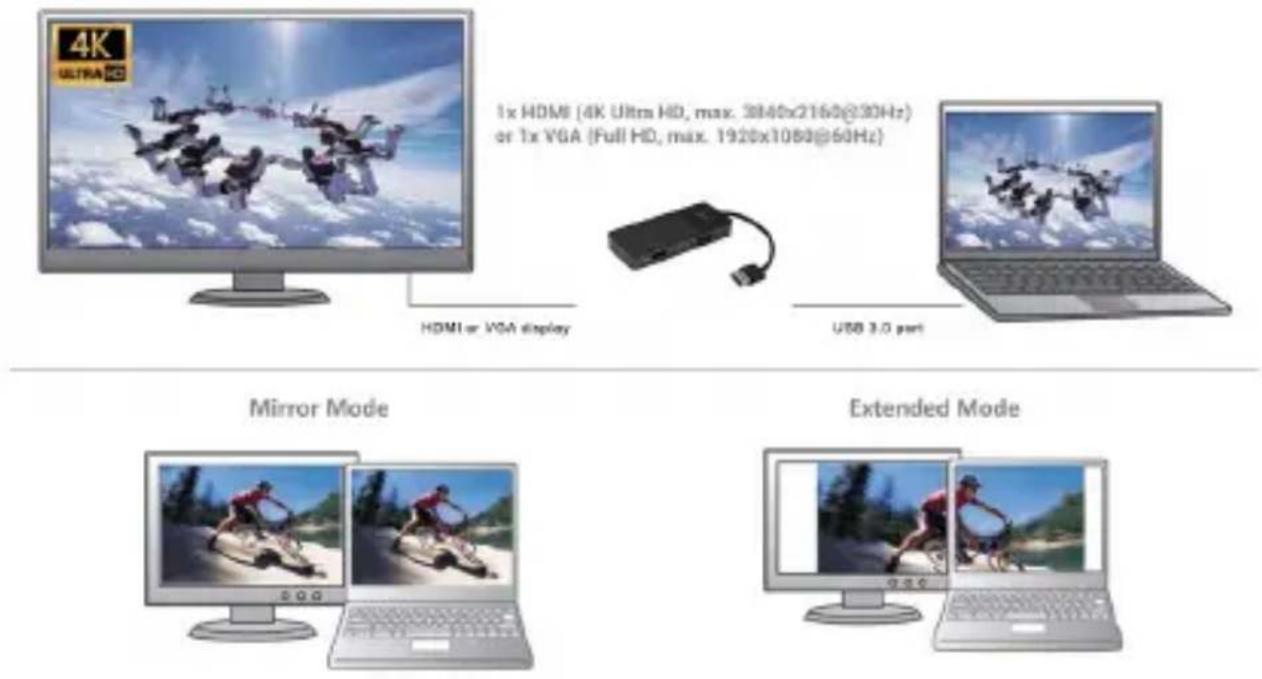
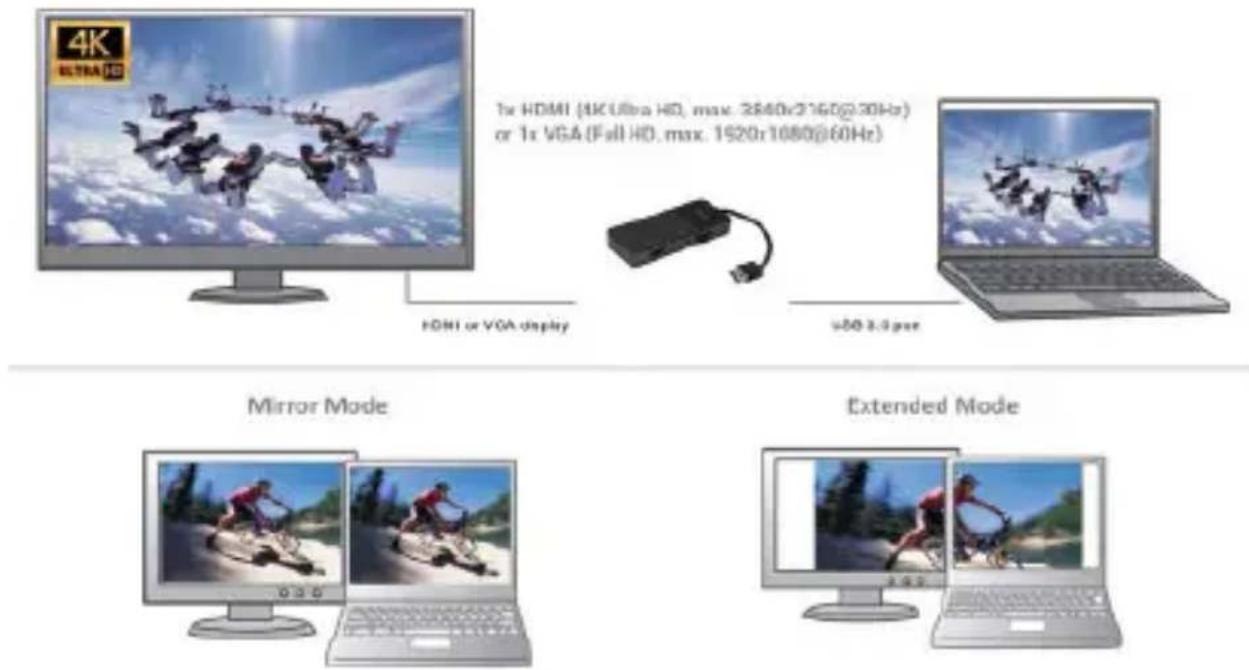
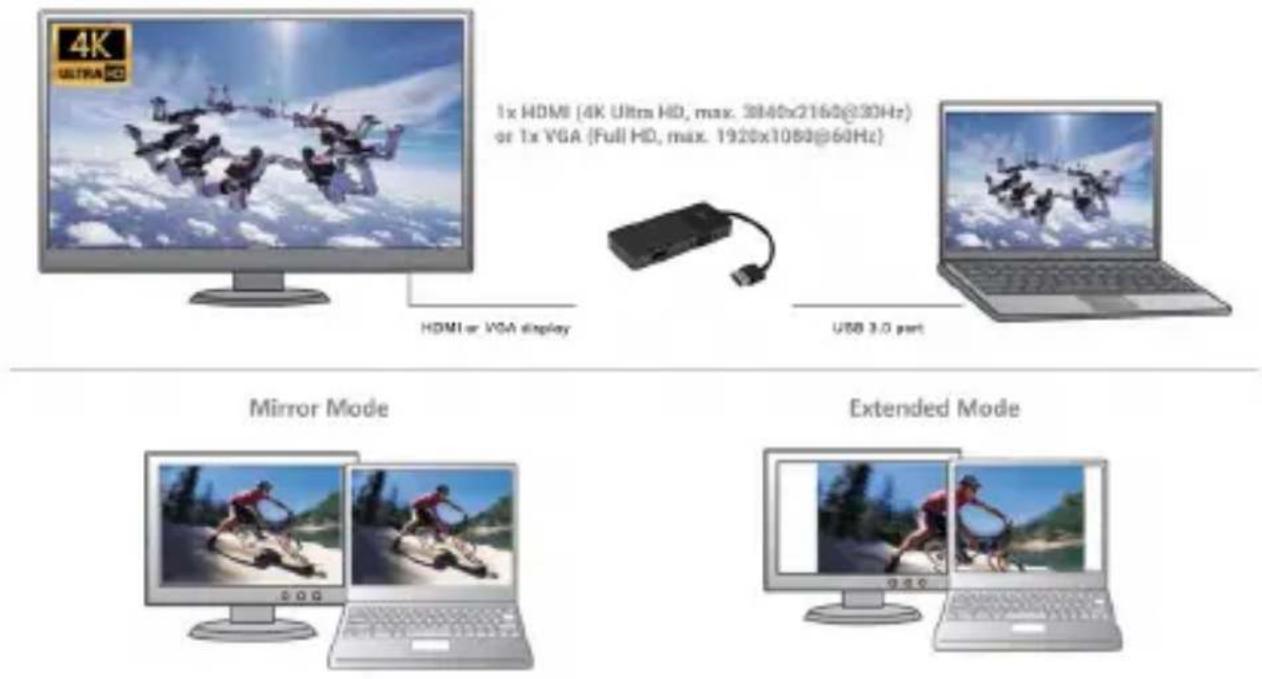
The adapter provides 1x HDMI 4K Ultra HD port for connecting external screen or projector with HDMI interface. For displaying you can use a modern plazma or LCD monitors and TVs. The graphic chip, which is the heart of the docking station, supports up to 4K resolution 3840x2160/30Hz. Connect the monitor to the docking station using a high-quality HDMI cable. During installation of an additional monitor screen of the notebook or tablet can flicker which is a standard condition.
CONNECTION A VGA MONITOR
The adapter provides 1x VGA Full HD port for connecting external screen or projector with VGA interface. For displaying your images you can use a plazma or LCD monitors and TVs. Connect the monitor to the docking station using a VGA cable. During installation of an additional monitor the screen of the notebook or tablet can flicker which is a standard condition.)
The majority of issues with the docking station and connected peripherals can be resolved by disconnecting the USB 3.0 cable of the docking station from the USB 3.0 port on the PC / Mac / smartphone / tablet and reconnecting it after approximately 10 seconds.
USING IN WINDOWS OS
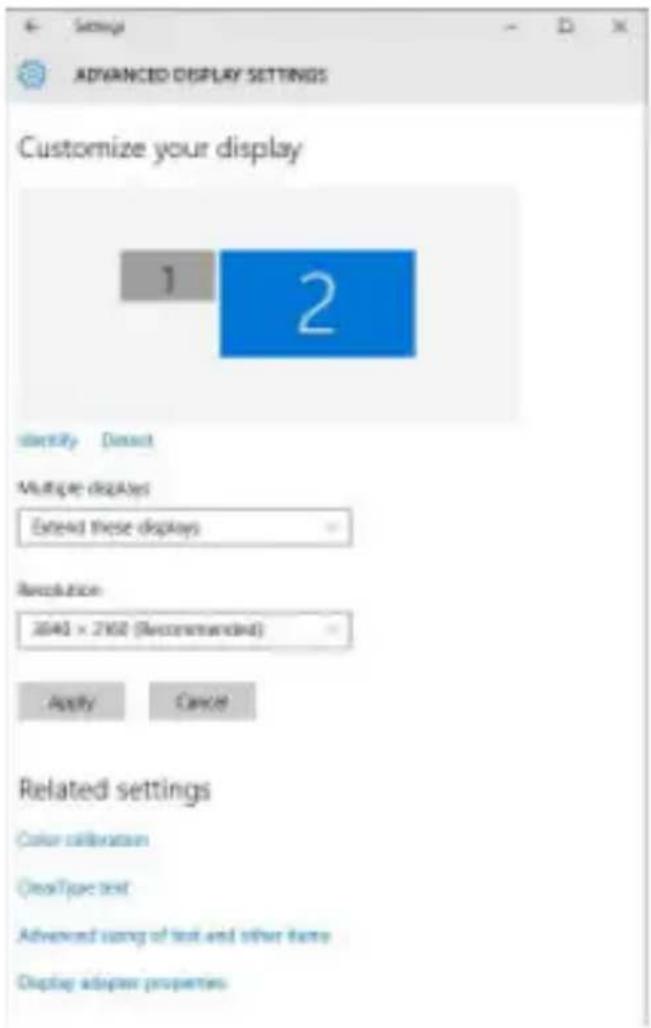
Advanced configuration for the graphics – after connecting the monitor and clicking on the settings for "Image Resolution" in Windows, you can select the monitor you want to use.
USB 3.0 to HDMI and VGA Adapter
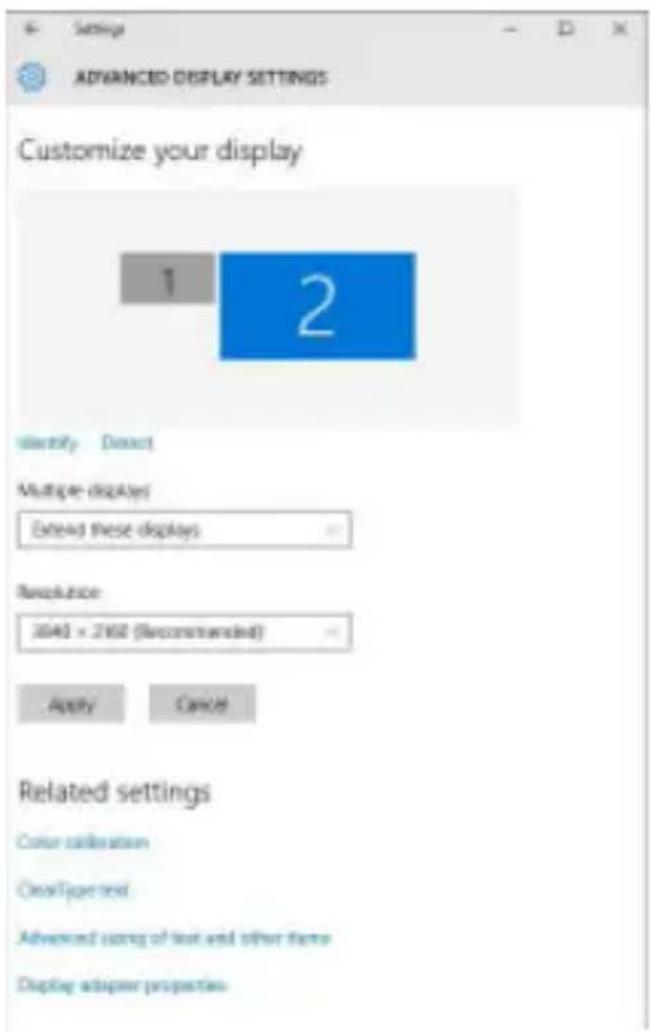
By clicking on the second monitor and moving it you can position this monitor as required relative to the original monitor of your laptop / tablet
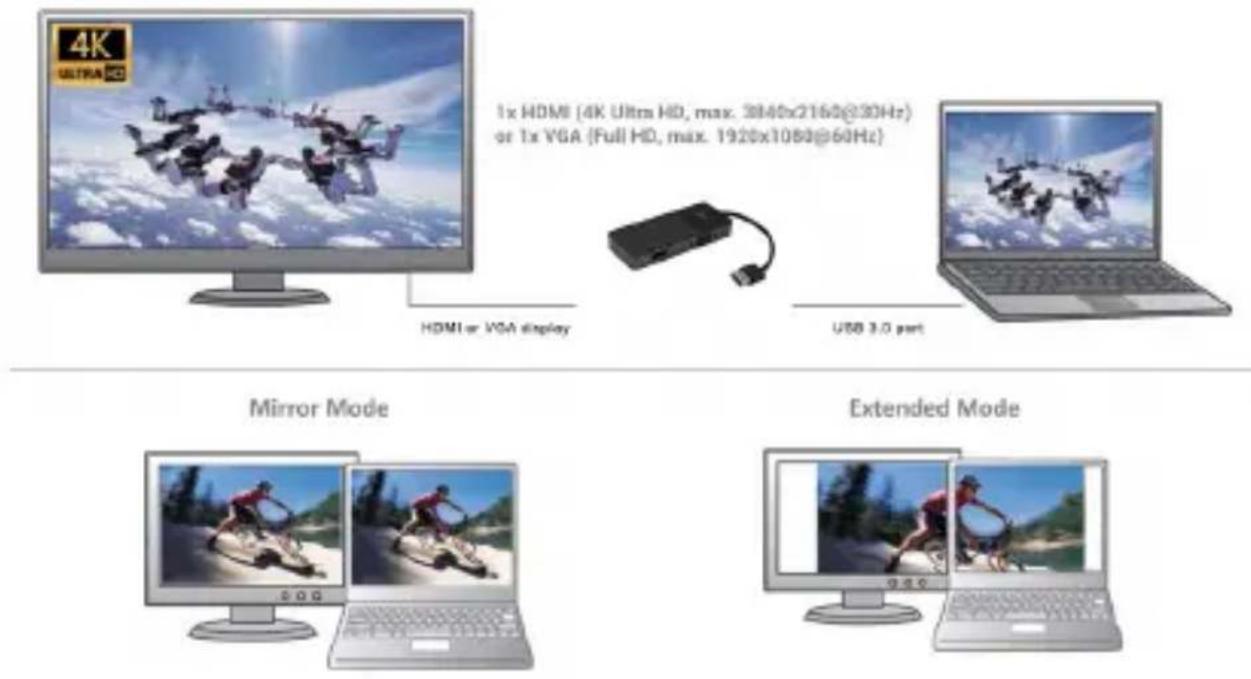
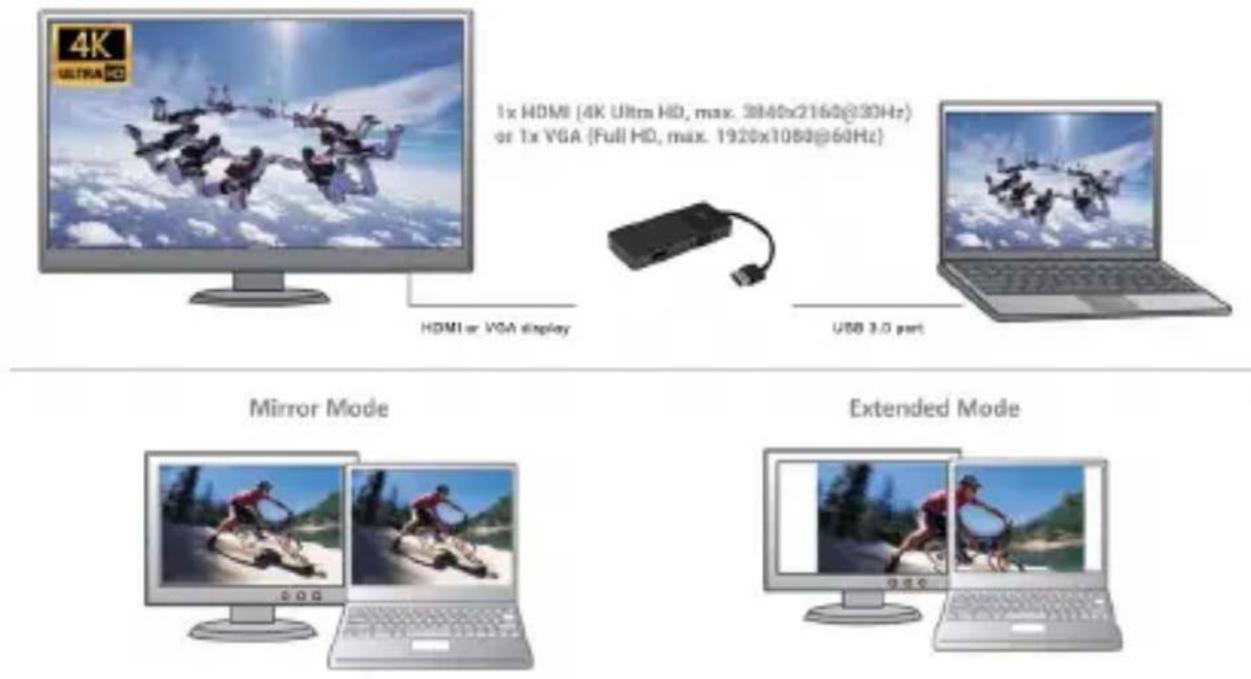
Now you can set Extend and Mirror mode:
- Mirror mode: on the monitor select the 2nd Monitor, select Several monitors Mirror this display OK.
- Extend mode: on the monitor select the 2nd Monitor, select Several monitors Extend this display OK.
Quick Start
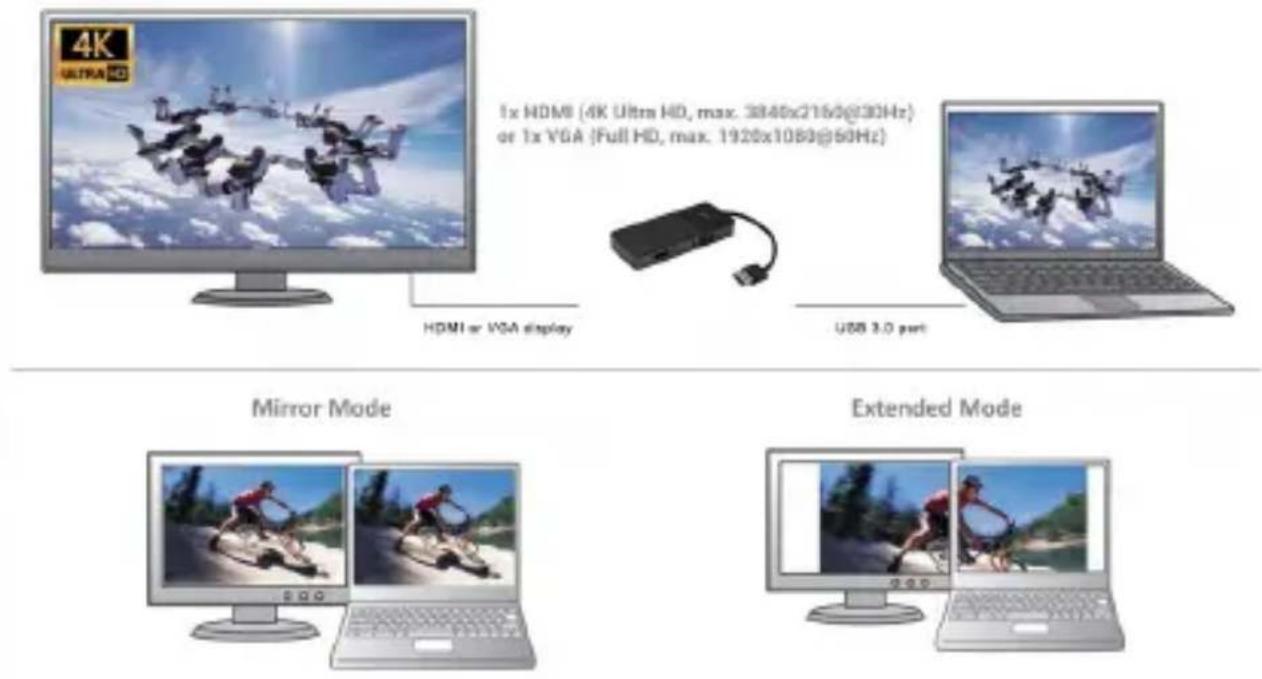
Mirror and Extended mode
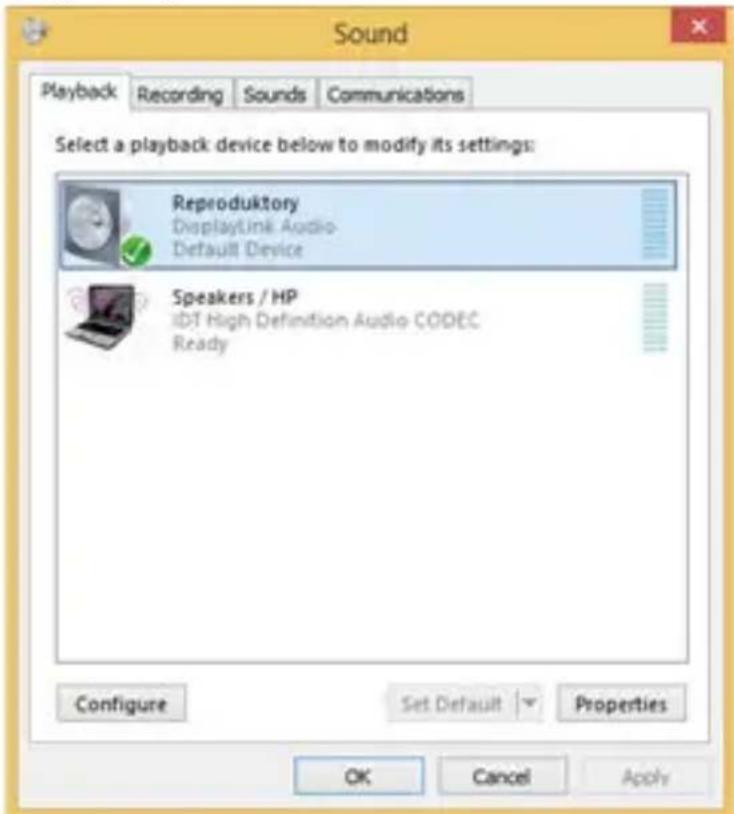
Audio settings – Output audio device to play audio via the HDMI port must be set here: Start – Settings – System – Audio – set to SMI USB Audio.
USB 3.0 to HDMI and VGA Adapter
The Standby / Hibernate mode and the Video port – after the activation of the laptop / tablet from the Standby / Hibernate mode the primary (original) monitor is displayed, for this reason we recommend using the monitor that is integrated with the laptop / tablet as the primary monitor, so that you can log on to the system again.
The Mirror mode – the additional monitor takes on the parameters of the original monitor in the system, i.e., if you select the Mirror mode and the original monitor resolution is e.g. 1280x1024 then the screen will be displayed on the additional monitor with a resolution of max. 1280x1024 (even if you set a higher resolution).
Pressing the keys „Windows“ + P you can also easily control the monitors – for using a monitor in Win 10 you can select: Computer screen only, Mirror, Extend, Second screen only
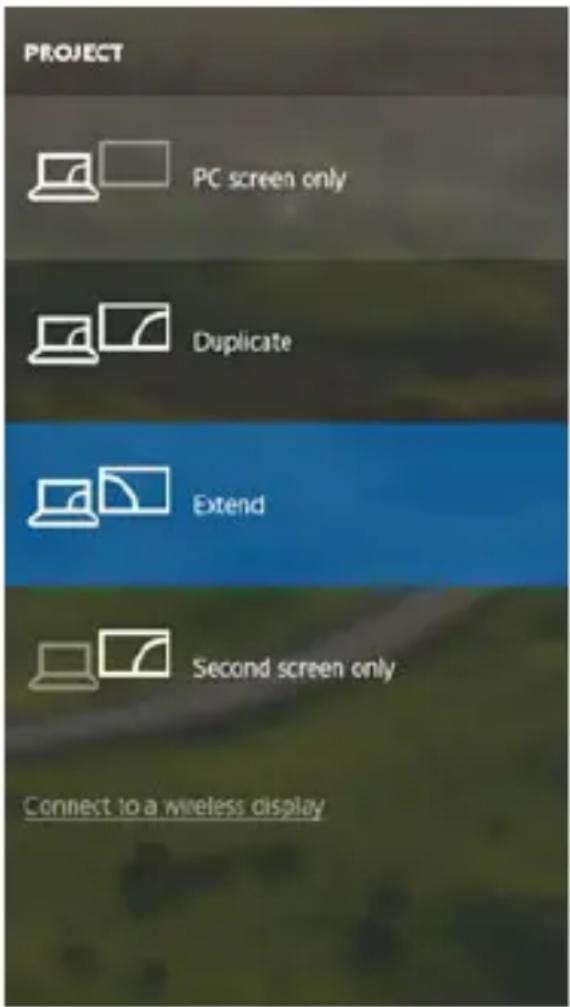
Control the monitor in Windows 10
USING IN MAC OS X
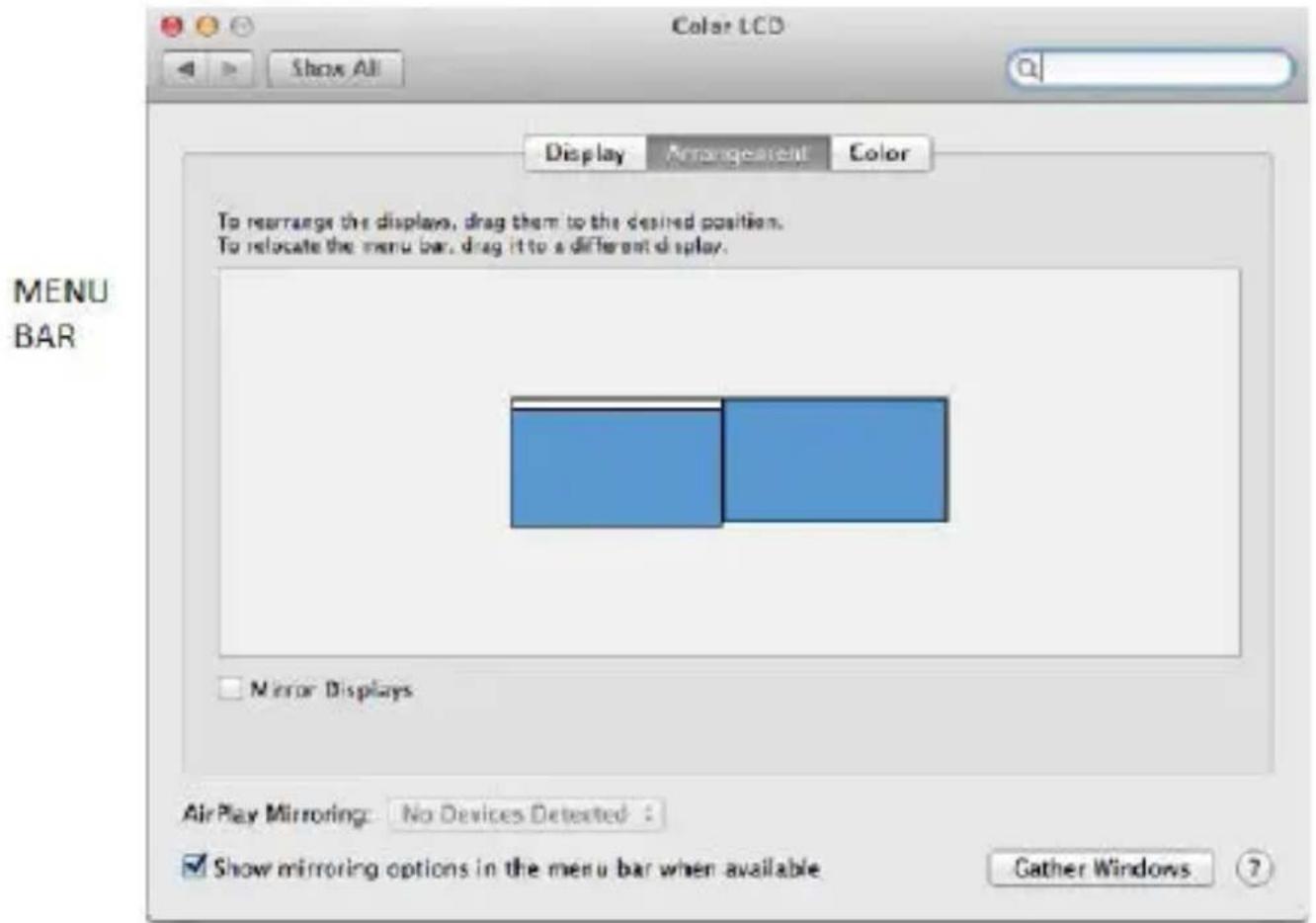
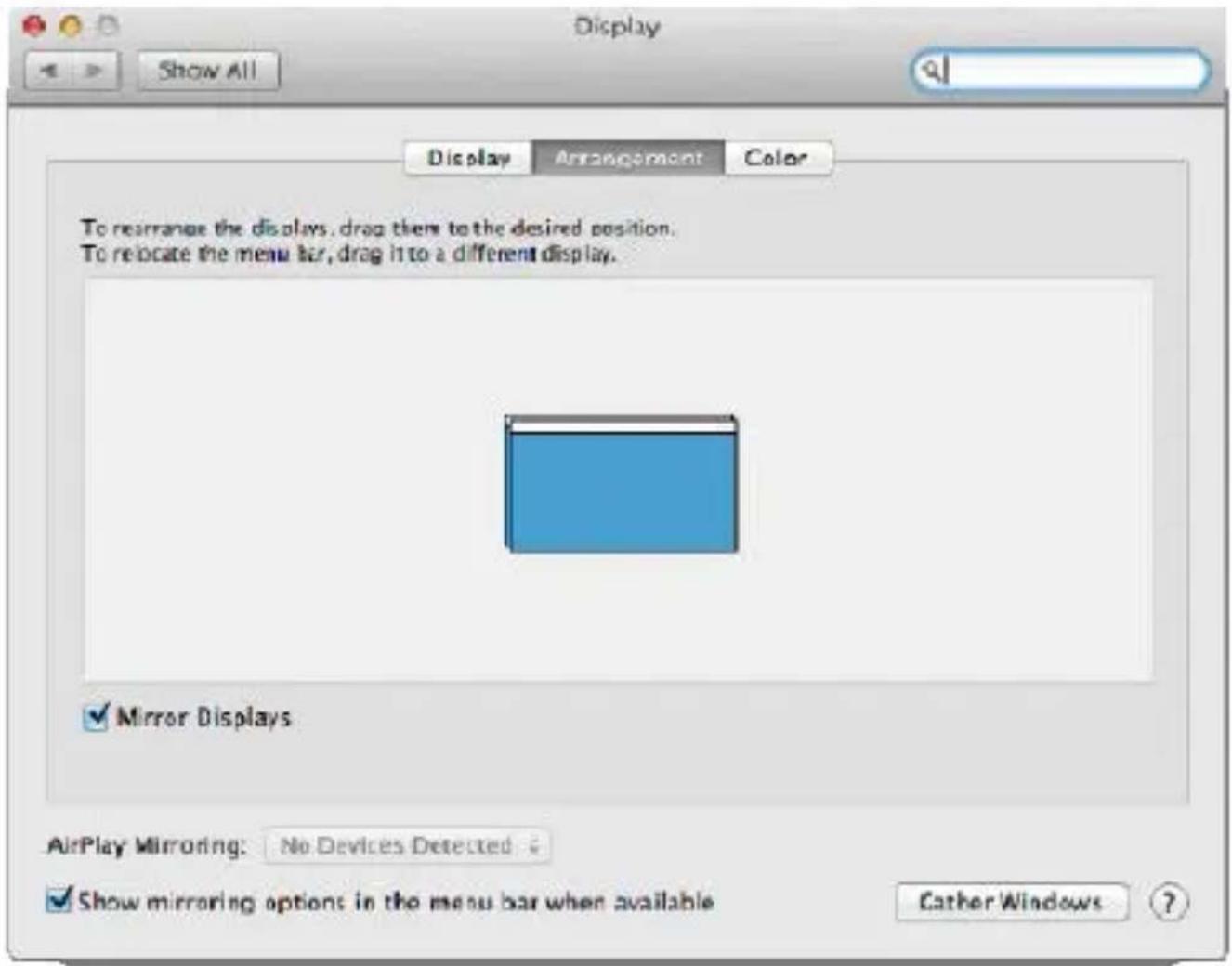
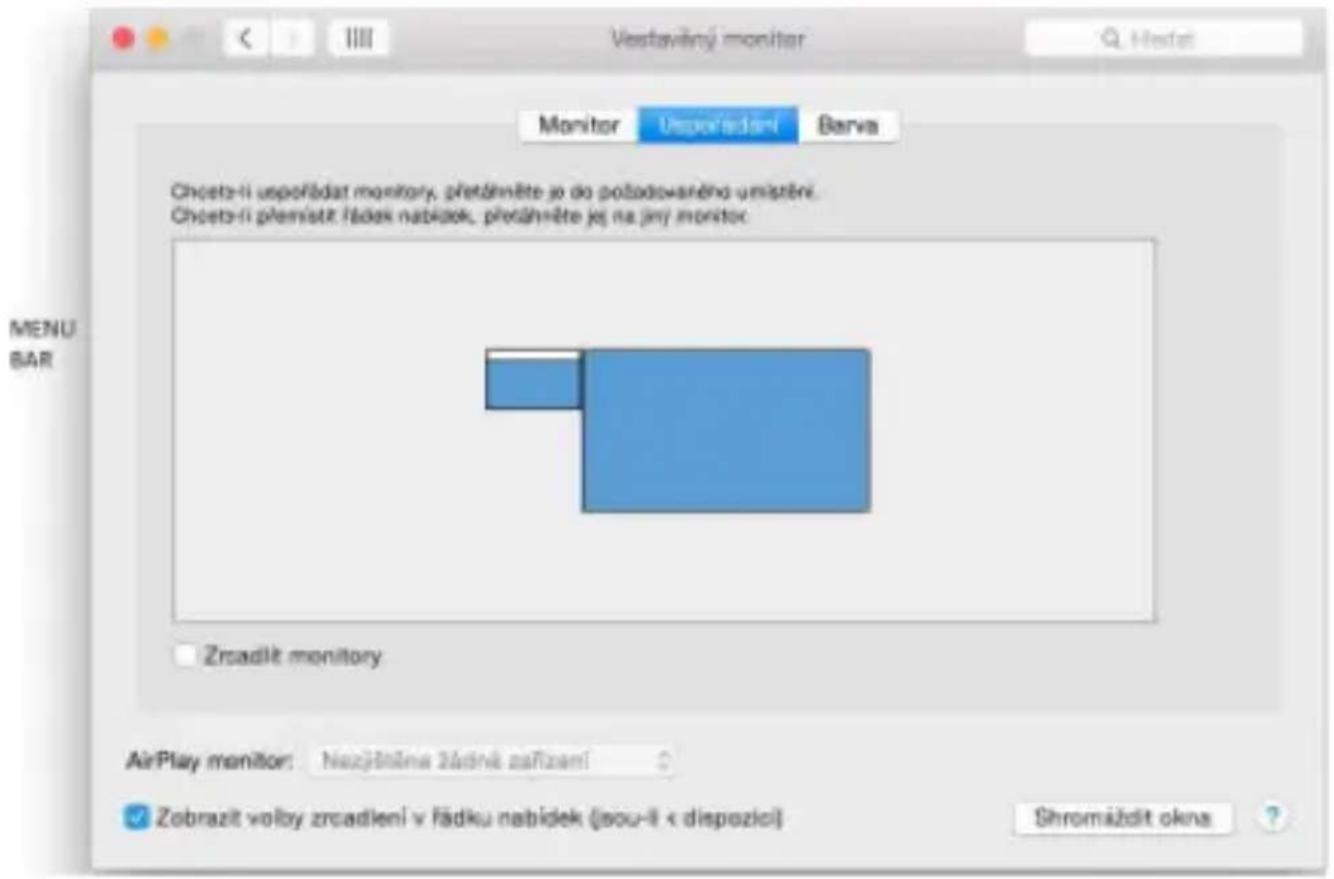
After connecting the monitor, the screen on your Mac will glimmer, which is a standard condition, after stabilization it is possible to perform standard setting of the monitor here: System Preferences-Displays:
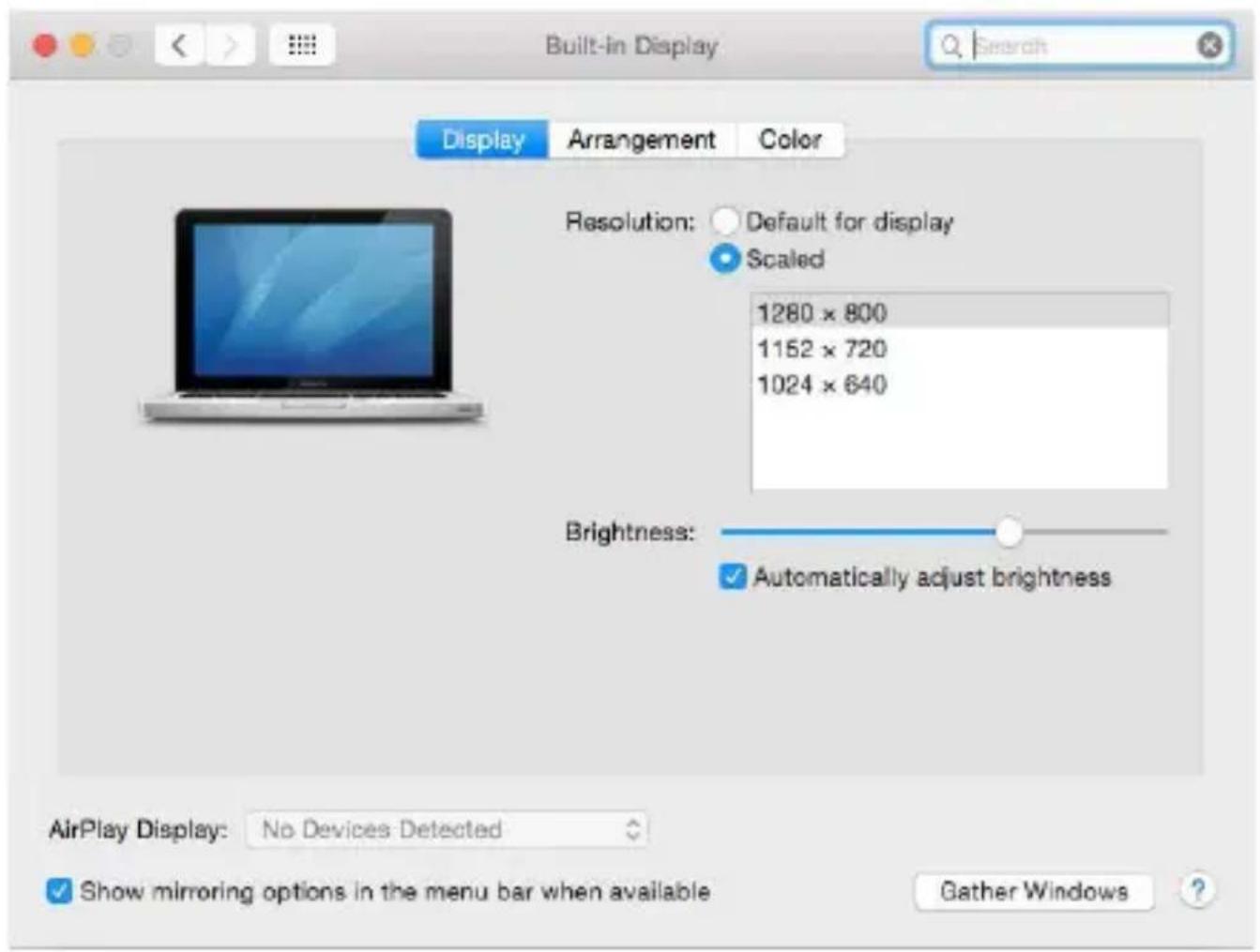
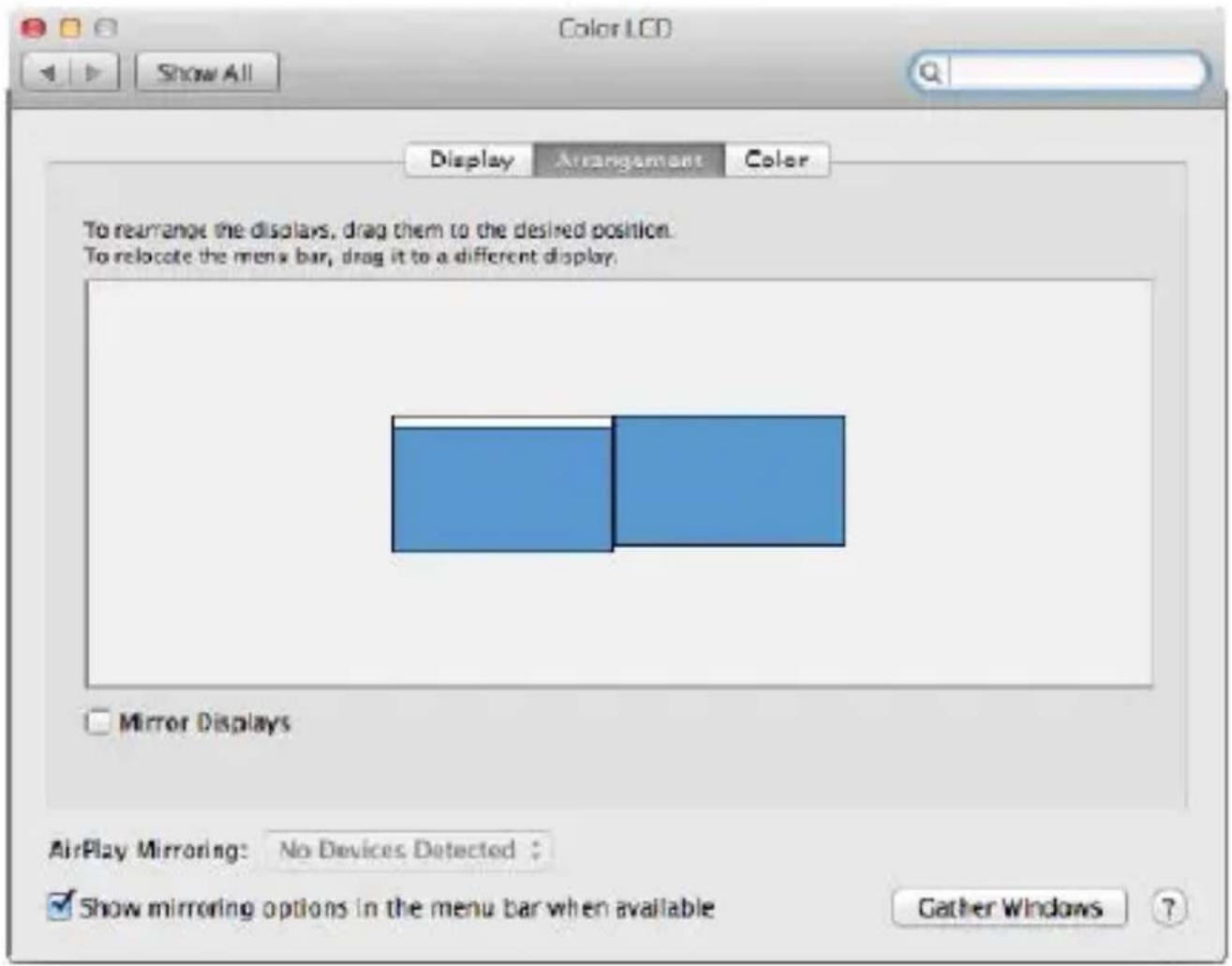
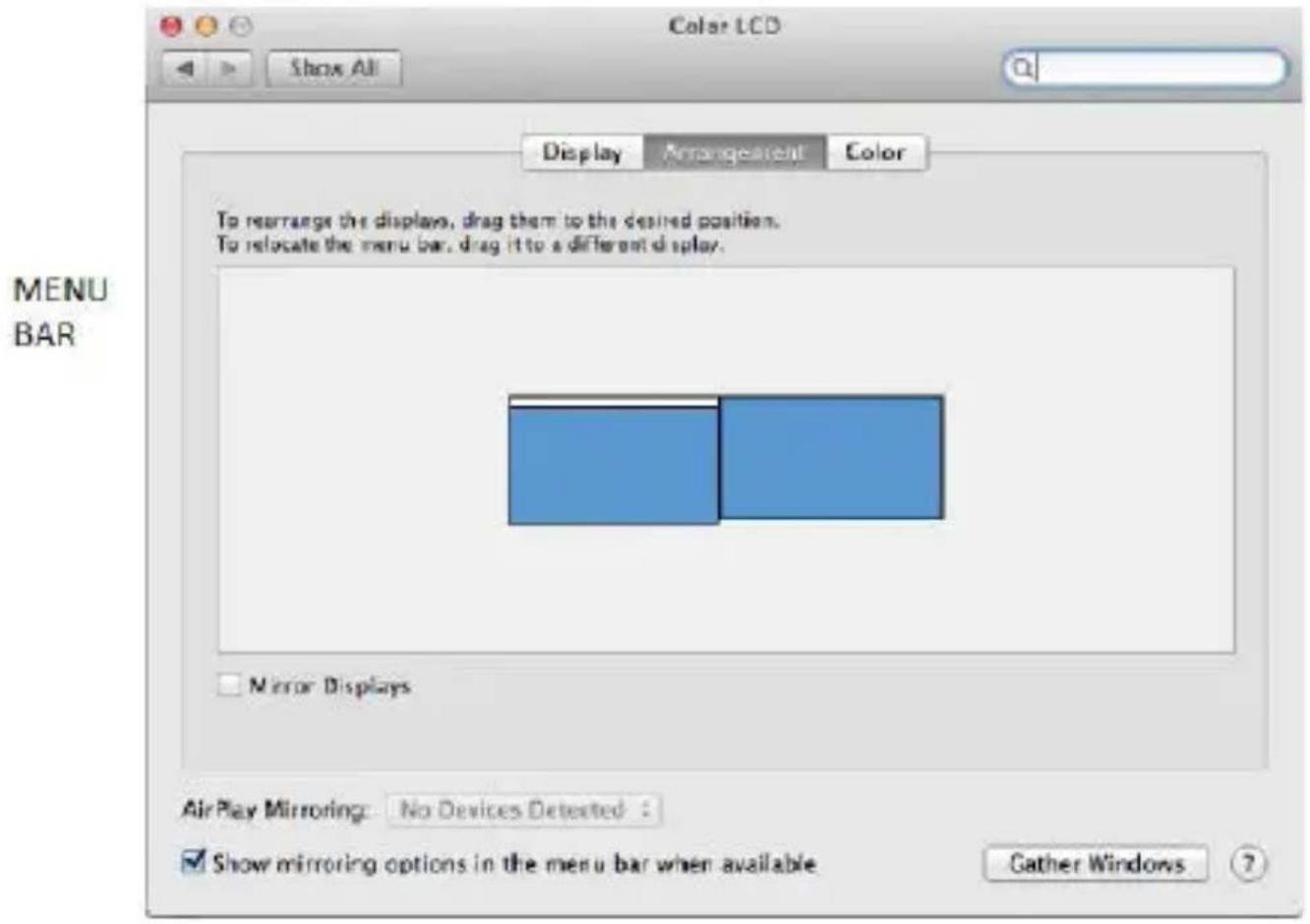
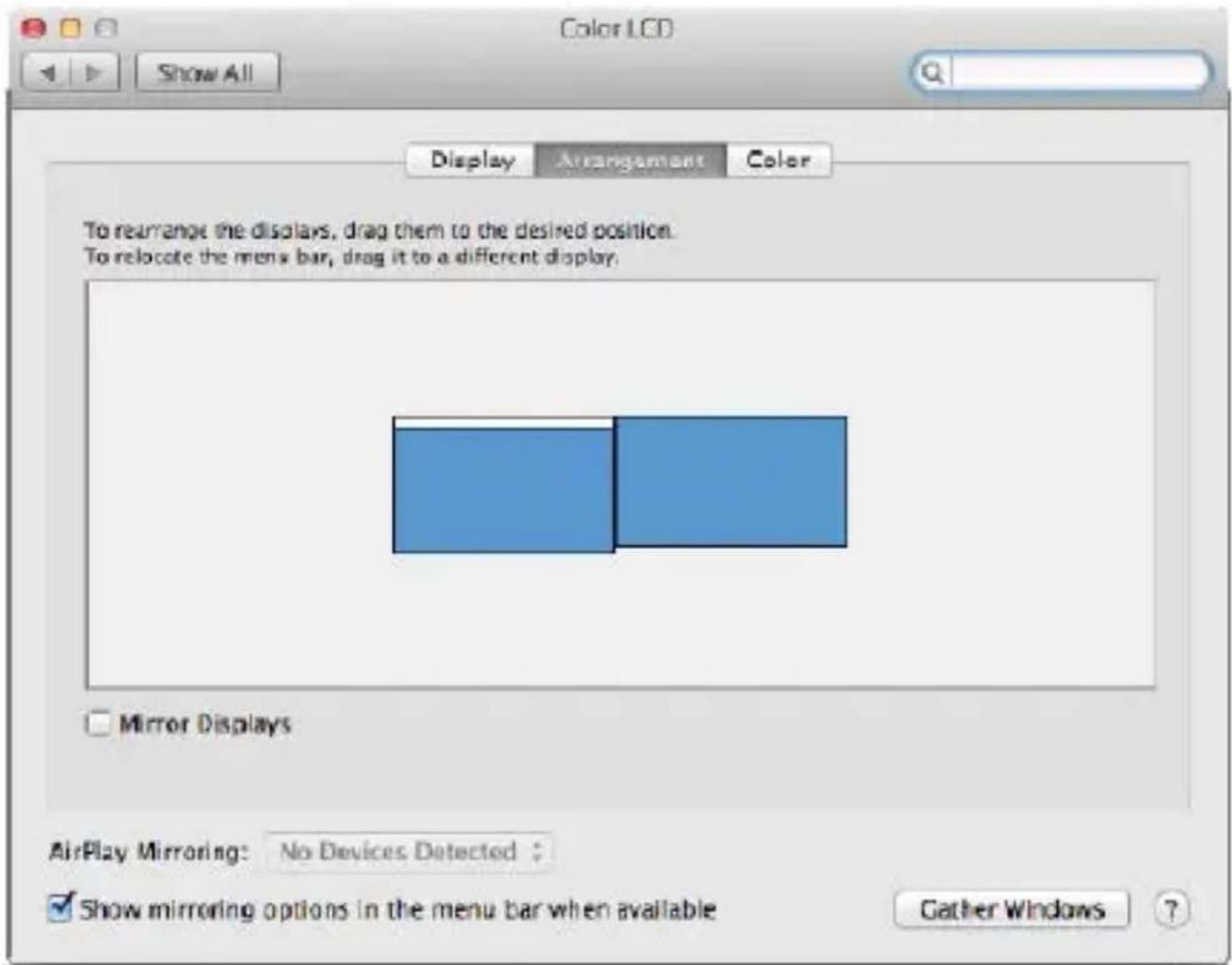
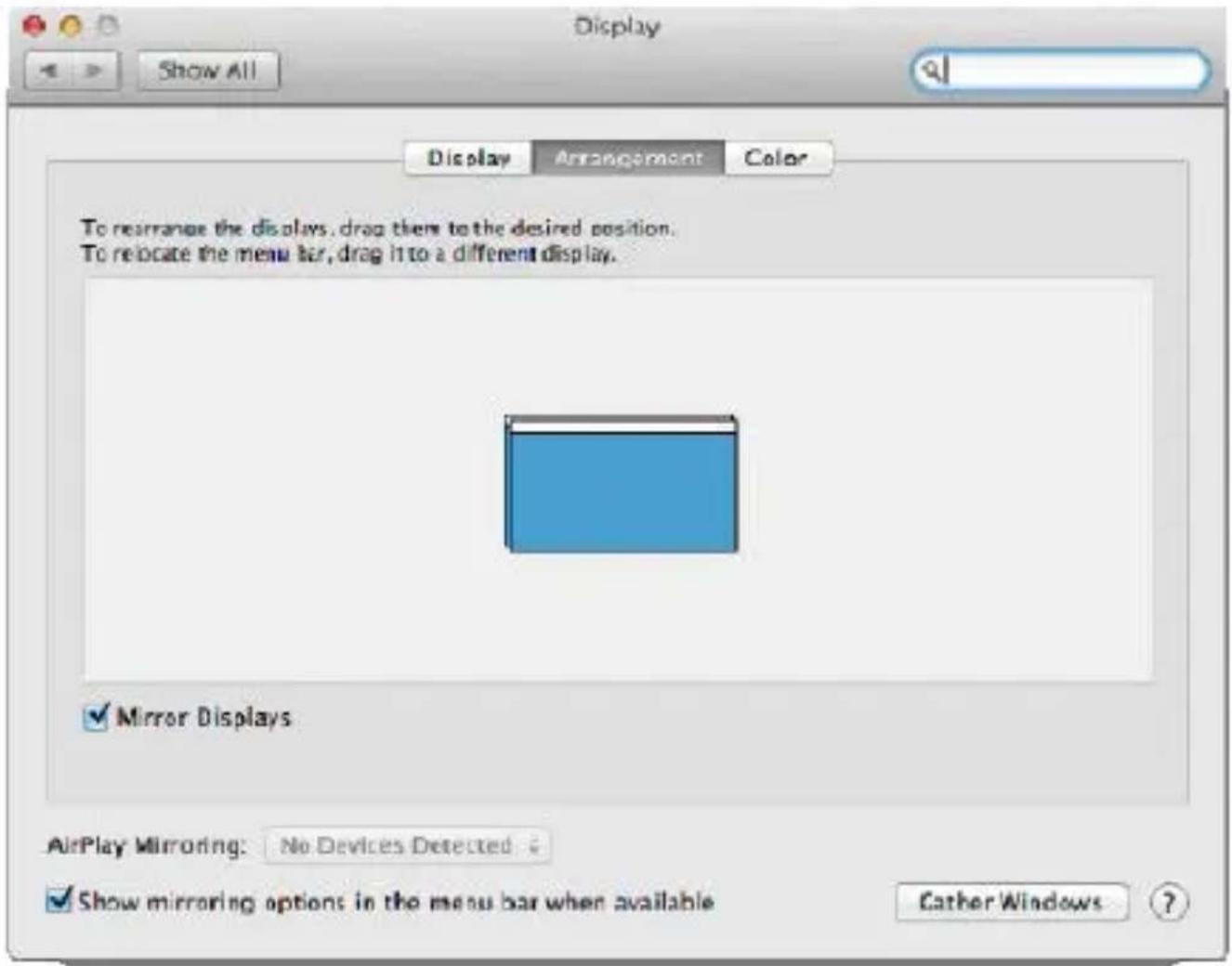
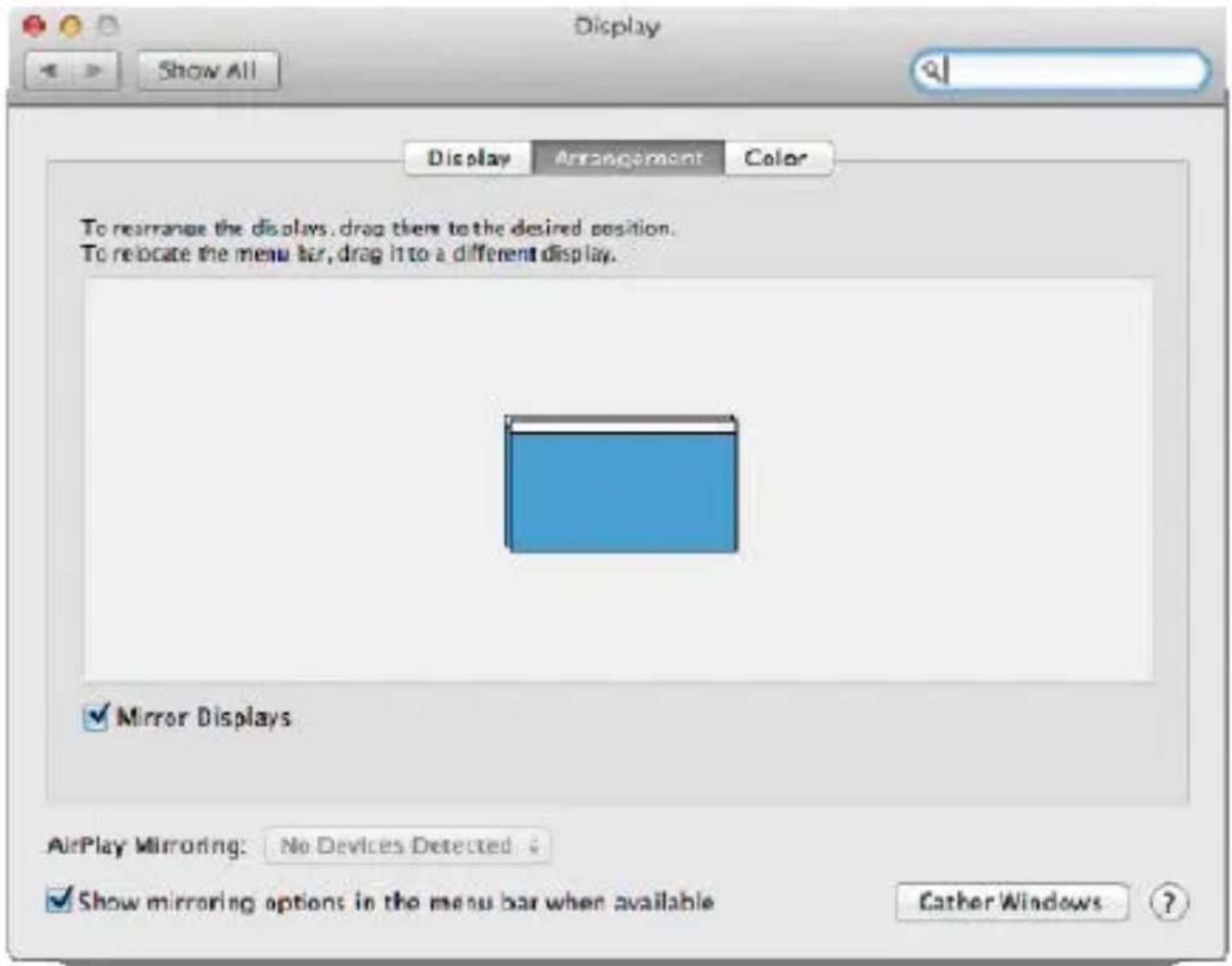
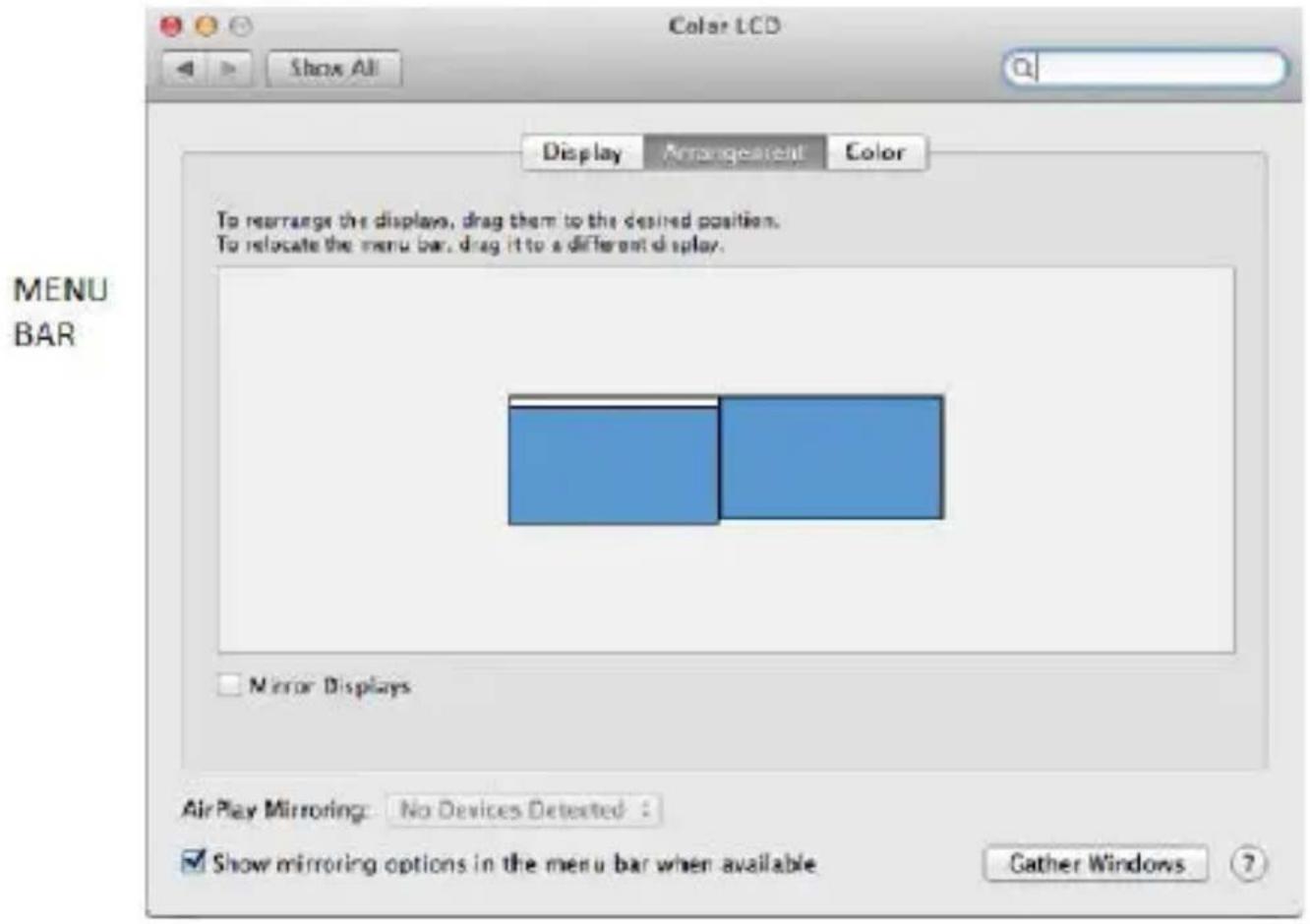
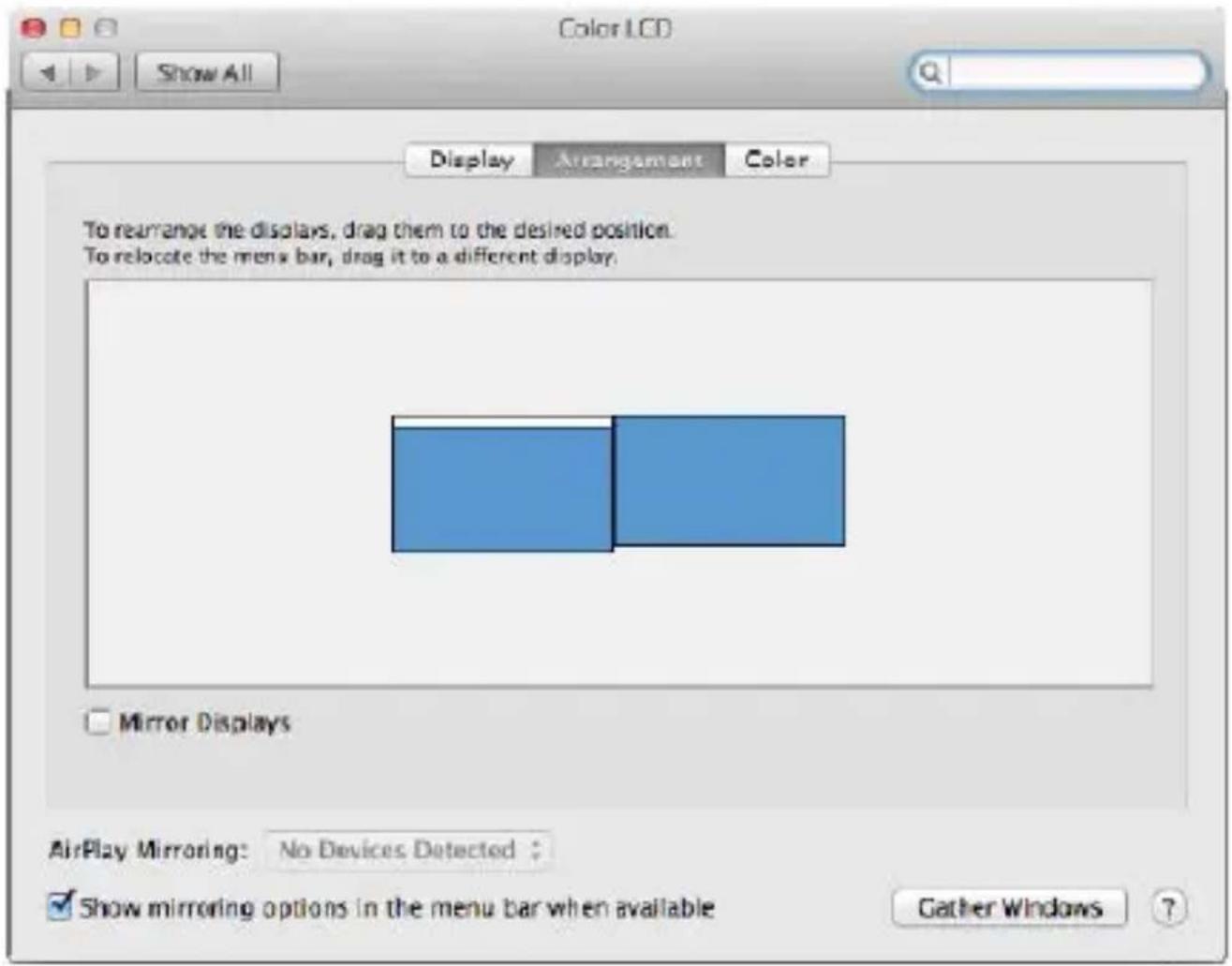
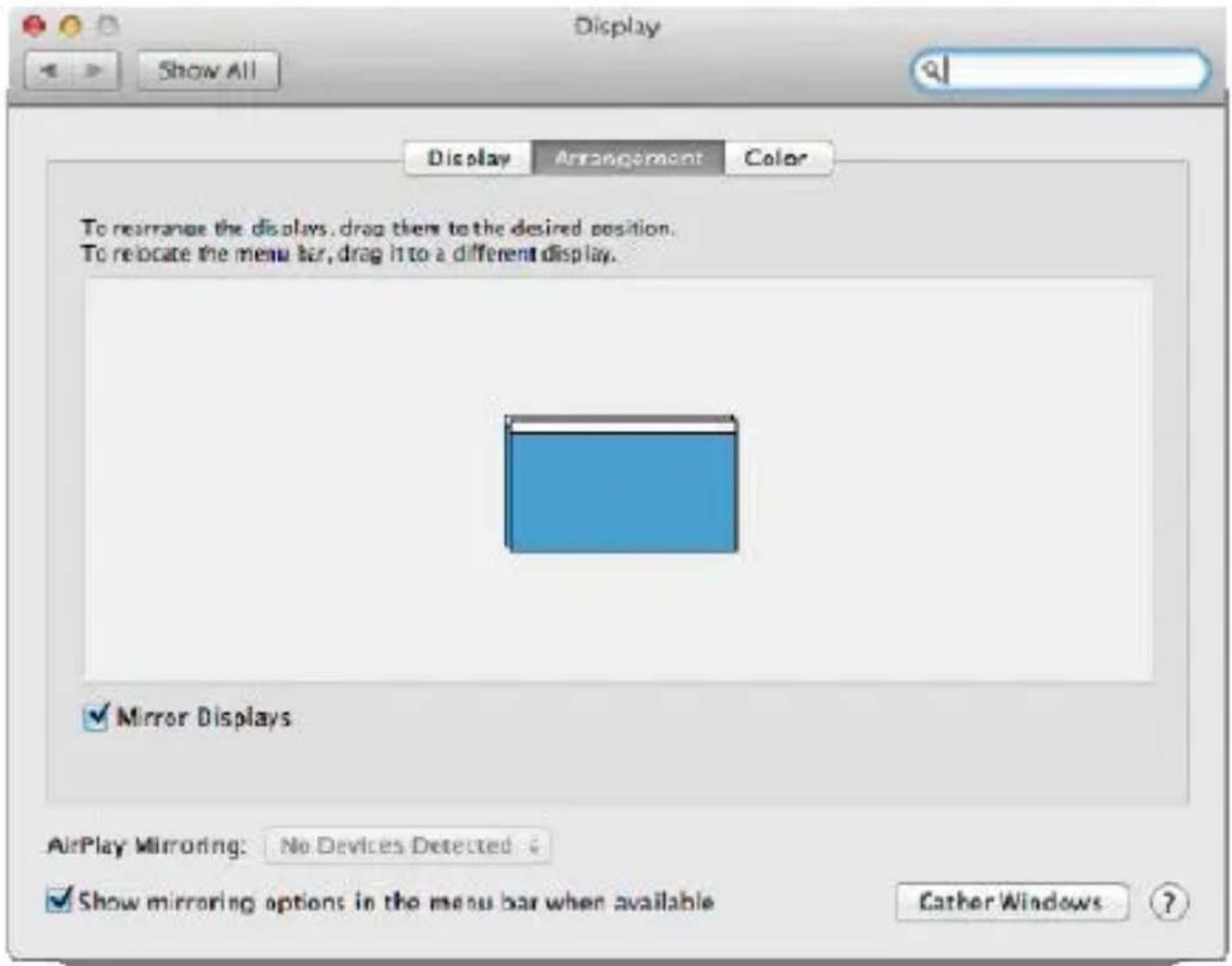
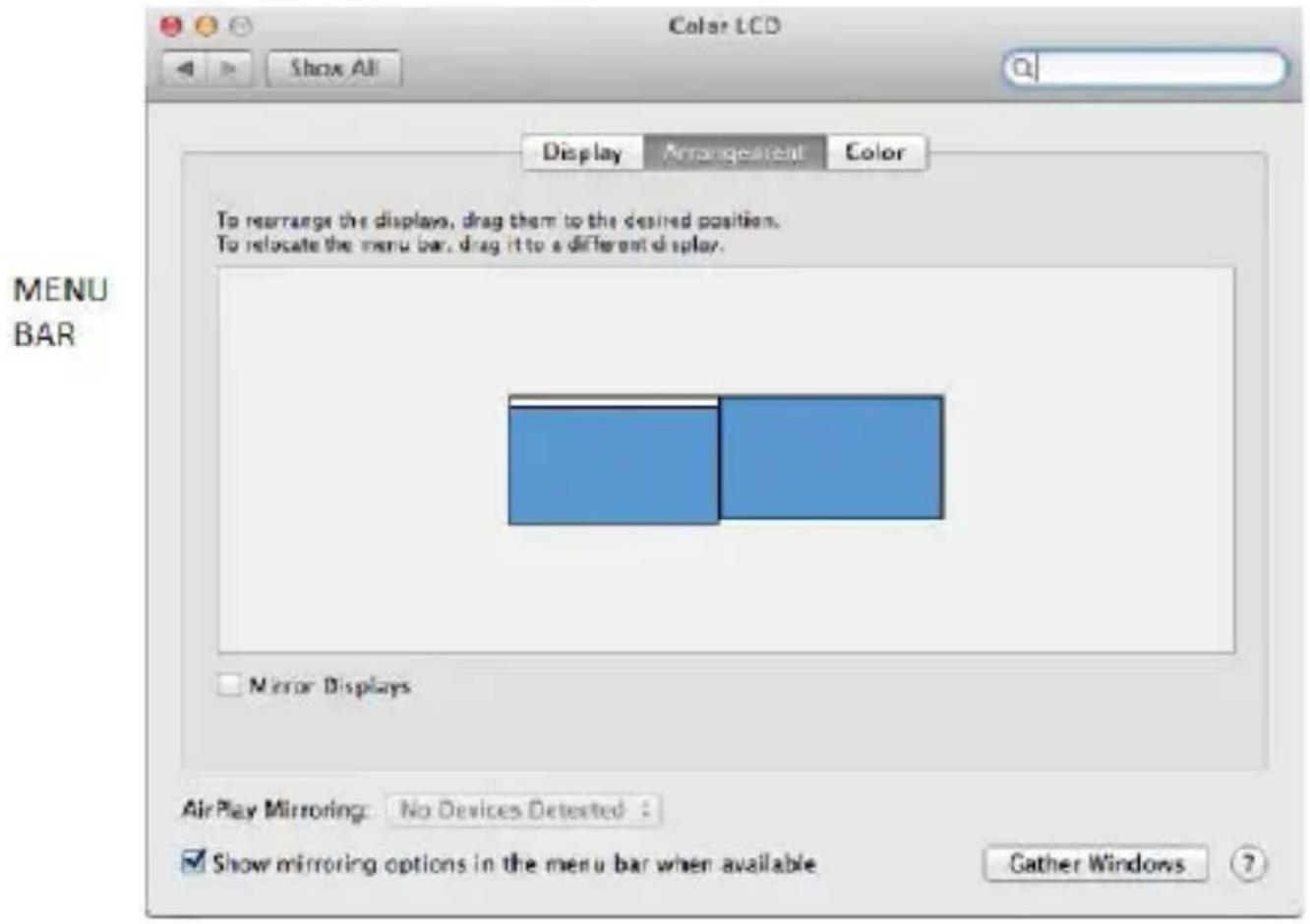
Click on Arrangement and in the default mode (Extended desktop) click on the new monitor and drag it as necessary vis-à-vis the Mac monitor. If you select Mirror displays the mode will change to Mirror (the resolution of the monitors will be automatically adjusted according to their parameters and the highest possible resolution will be set on both monitors). By cancelling the displays option you will return to the Extended desktop mode.
USB 3.0 to HDMI and VGA Adapter
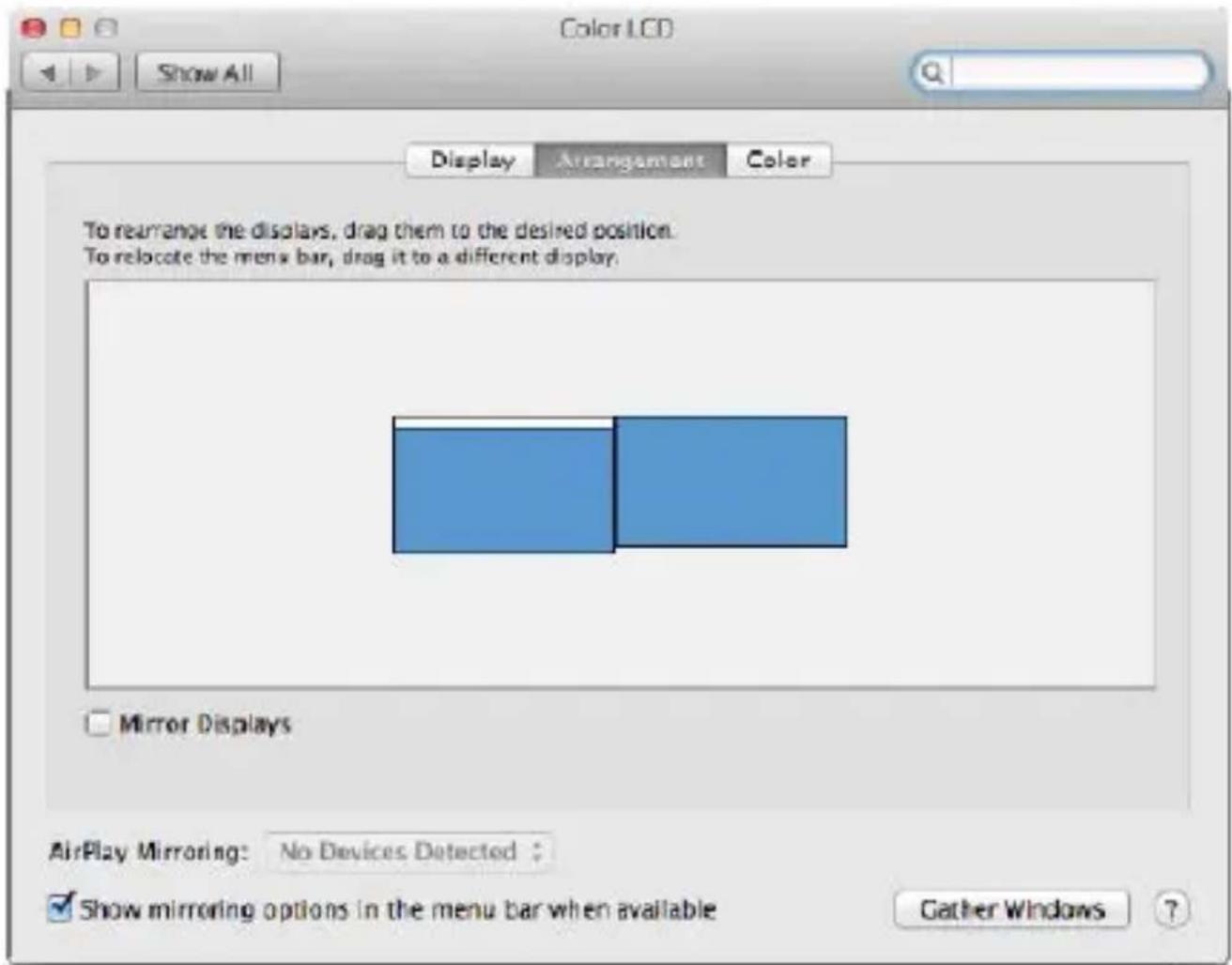
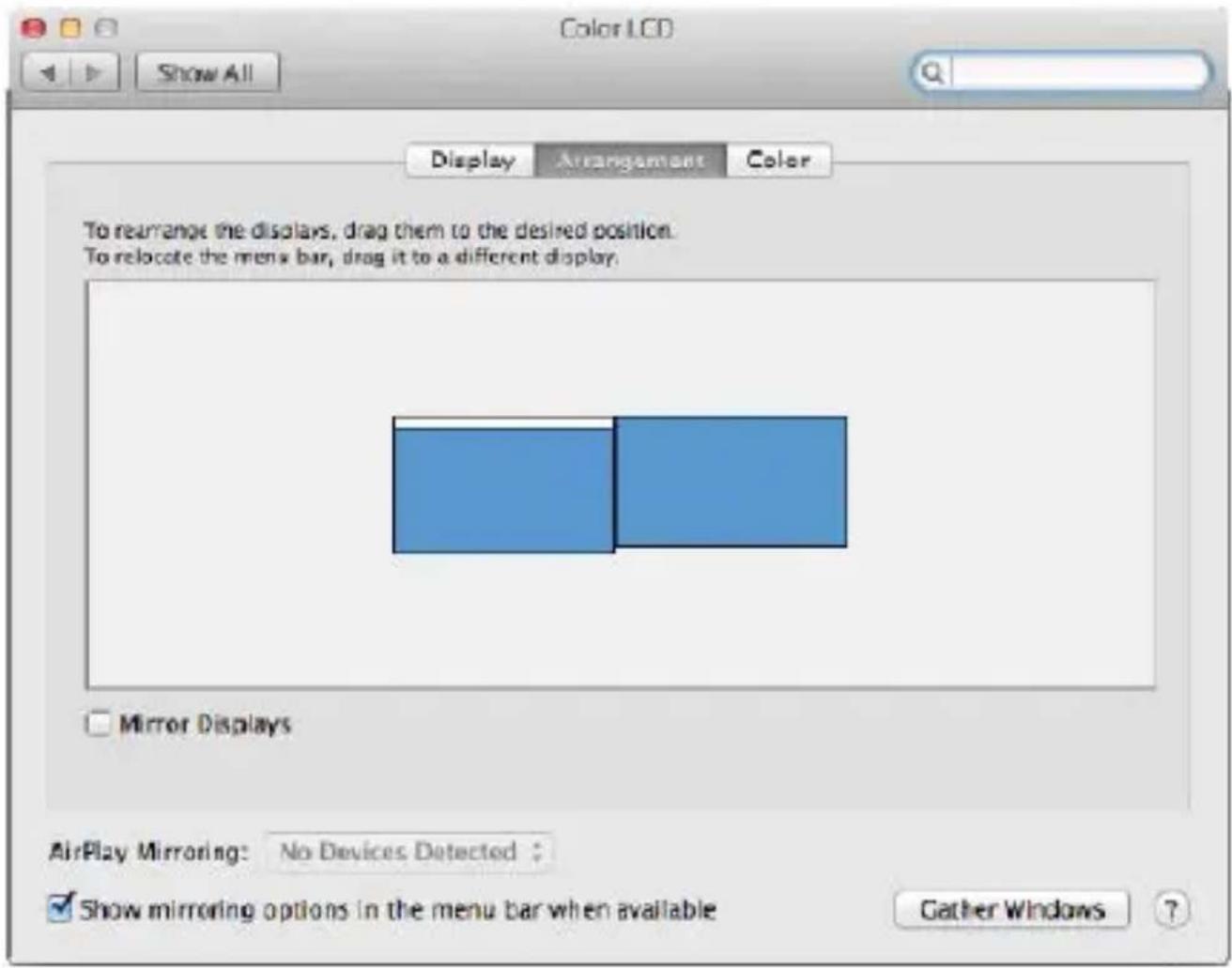
Extended mode: The arrow indicates the possible position of the connected monitor vis-à-vis the Mac monitor.
Quick Start
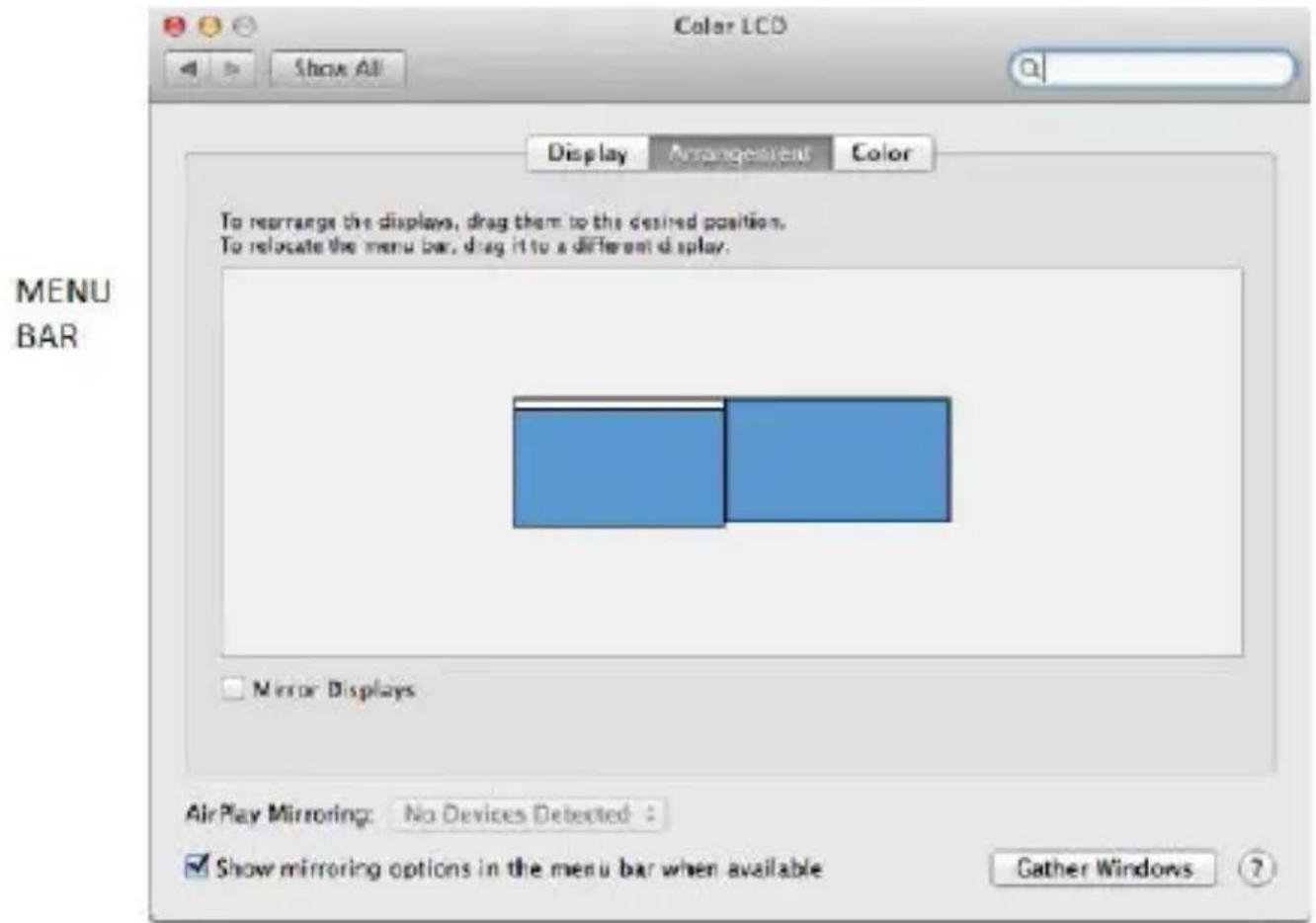
Extended mode: In this mode you can choose the Main monitor by dragging the Menu Bar.
USB 3.0 to HDMI and VGA Adapter
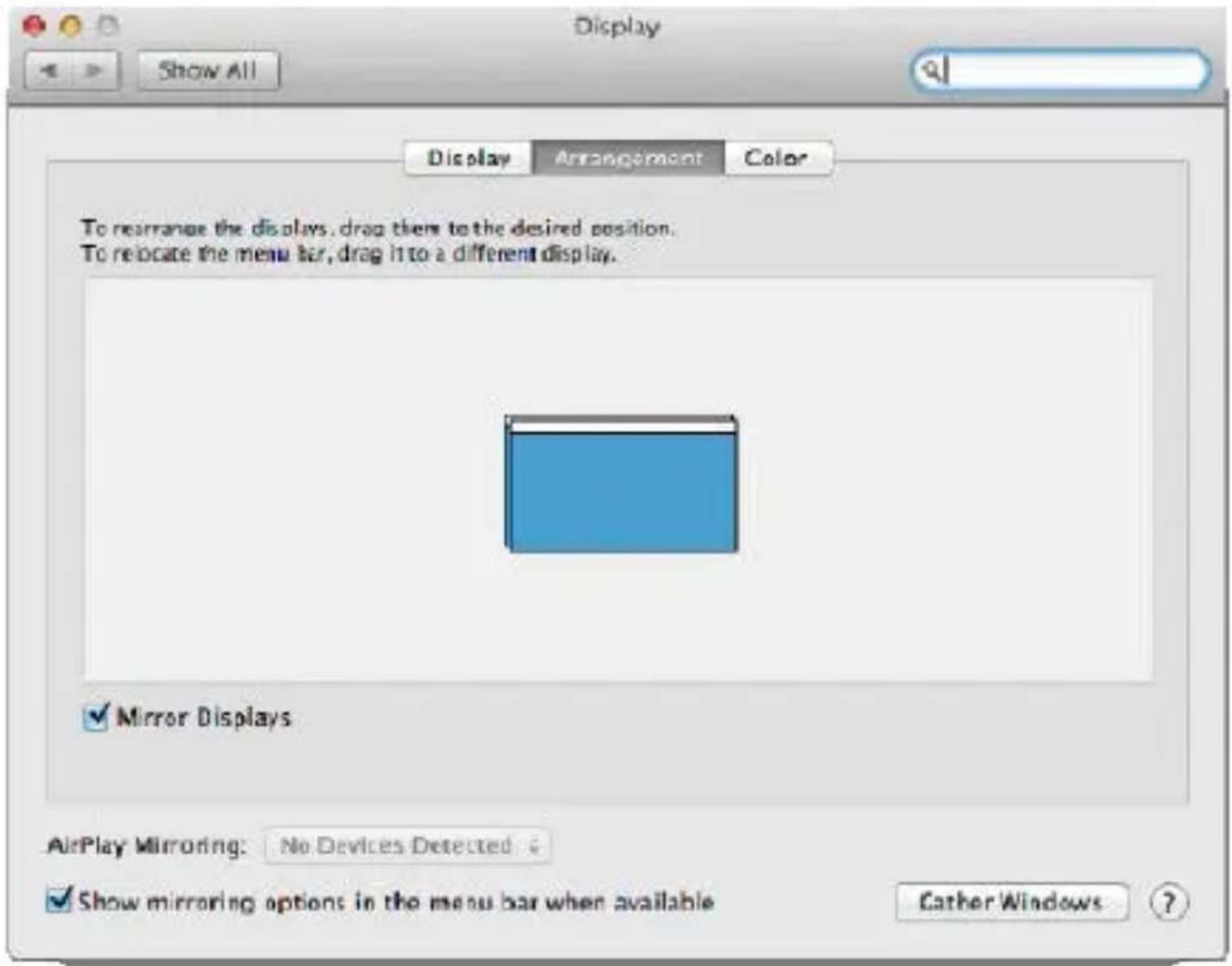
Mirror mode: This mode can only be used if supported by the Mac.
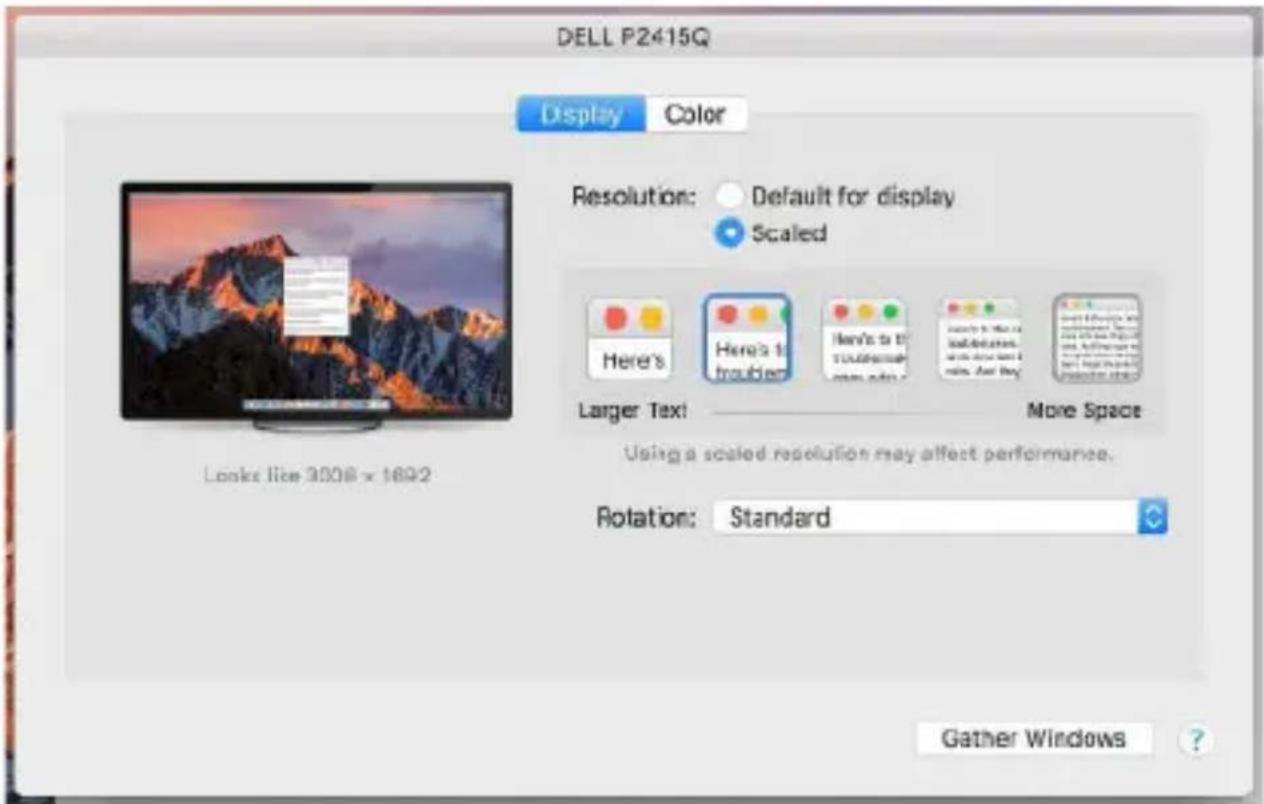
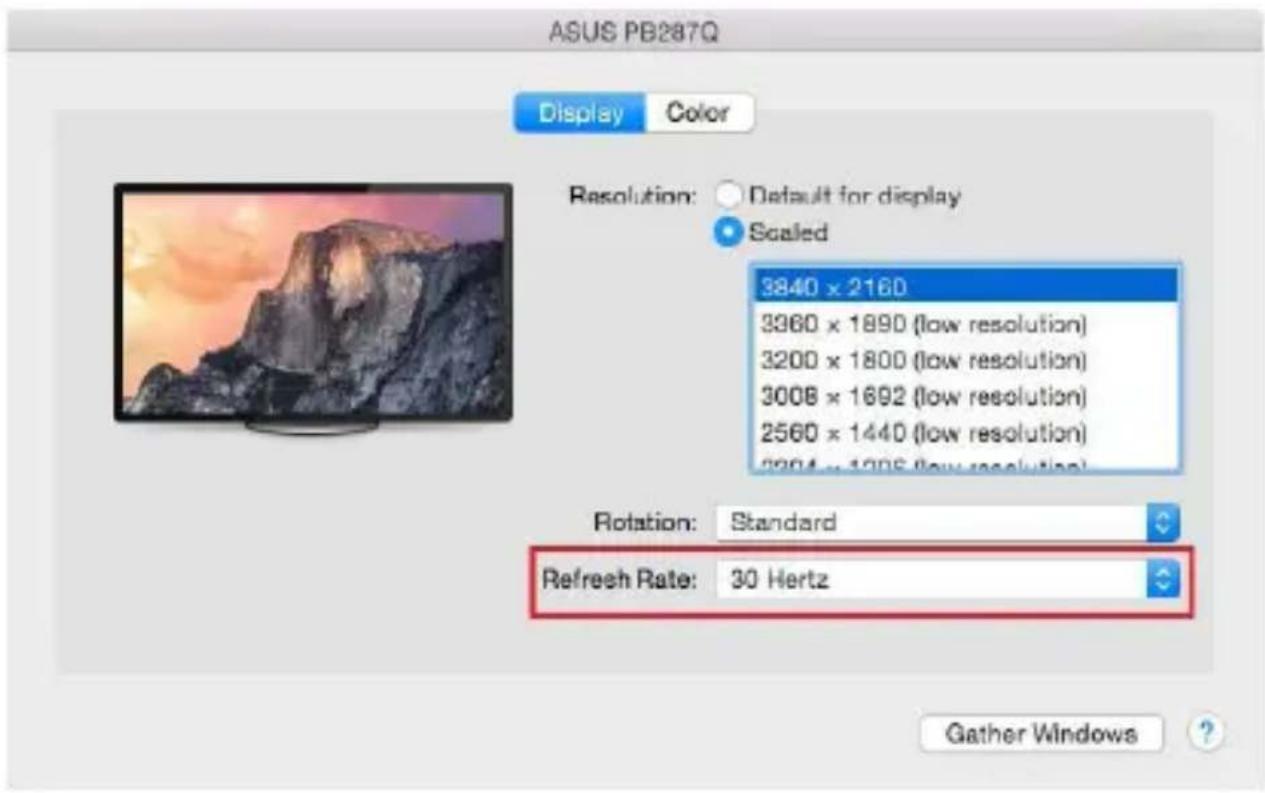
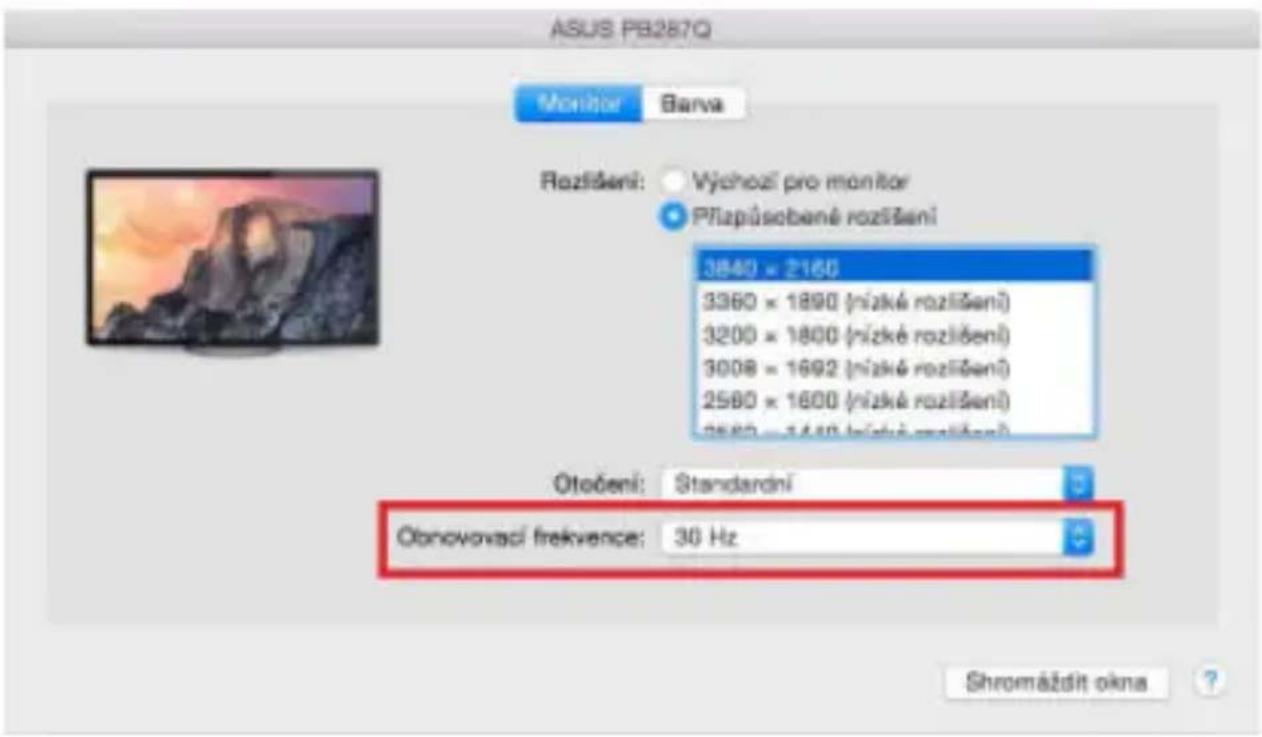
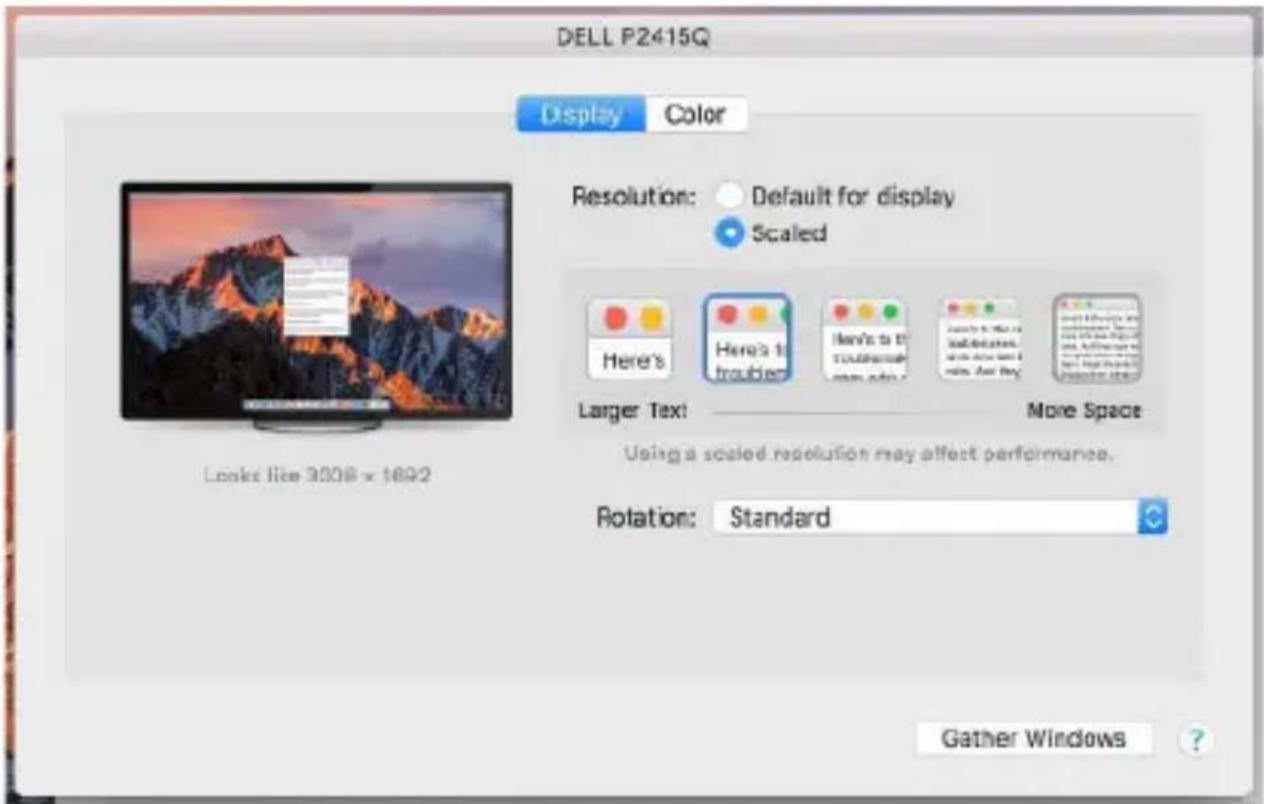
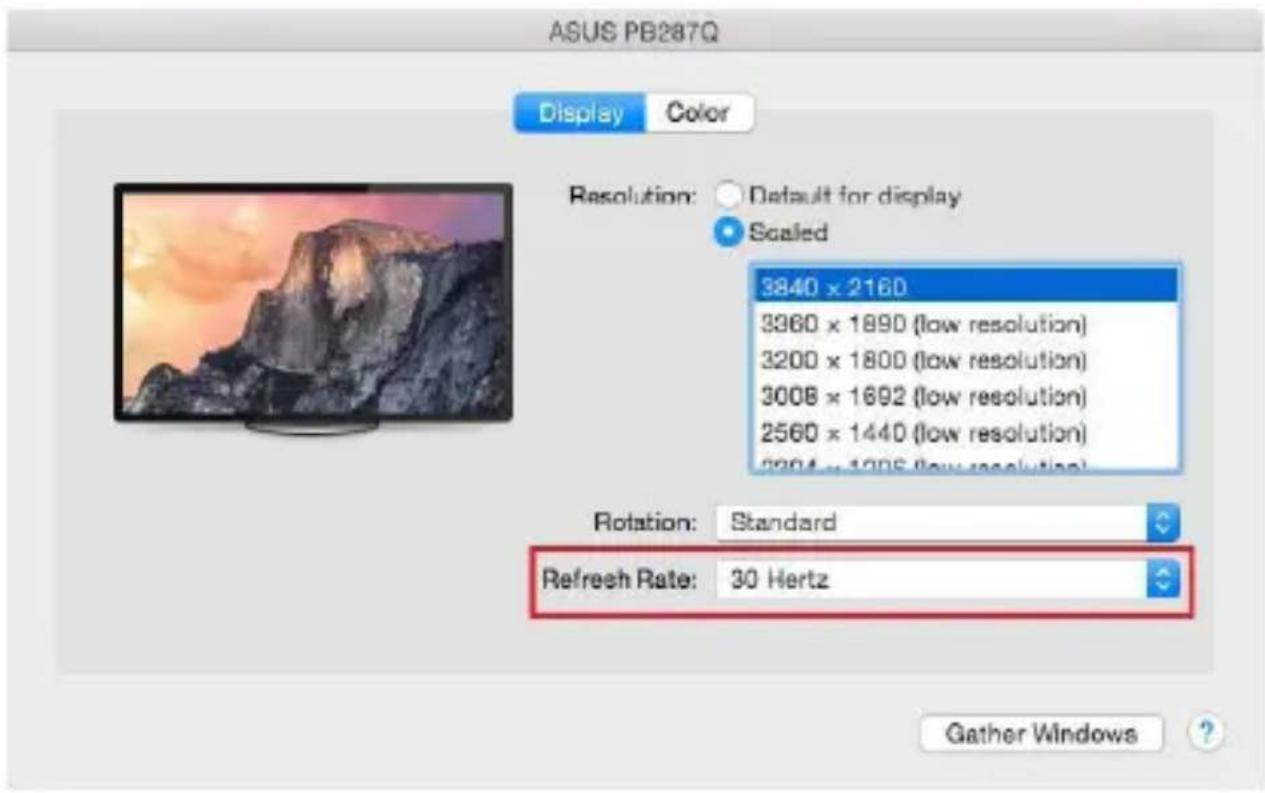
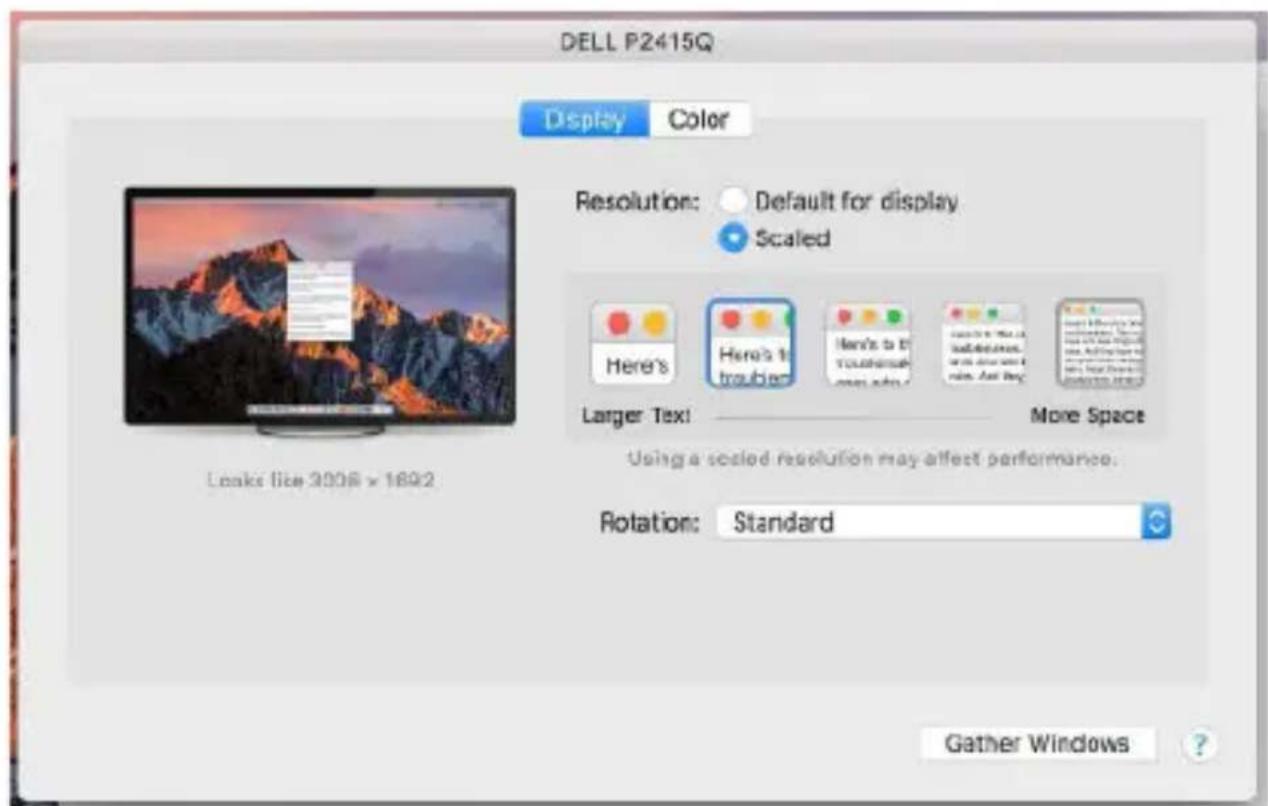
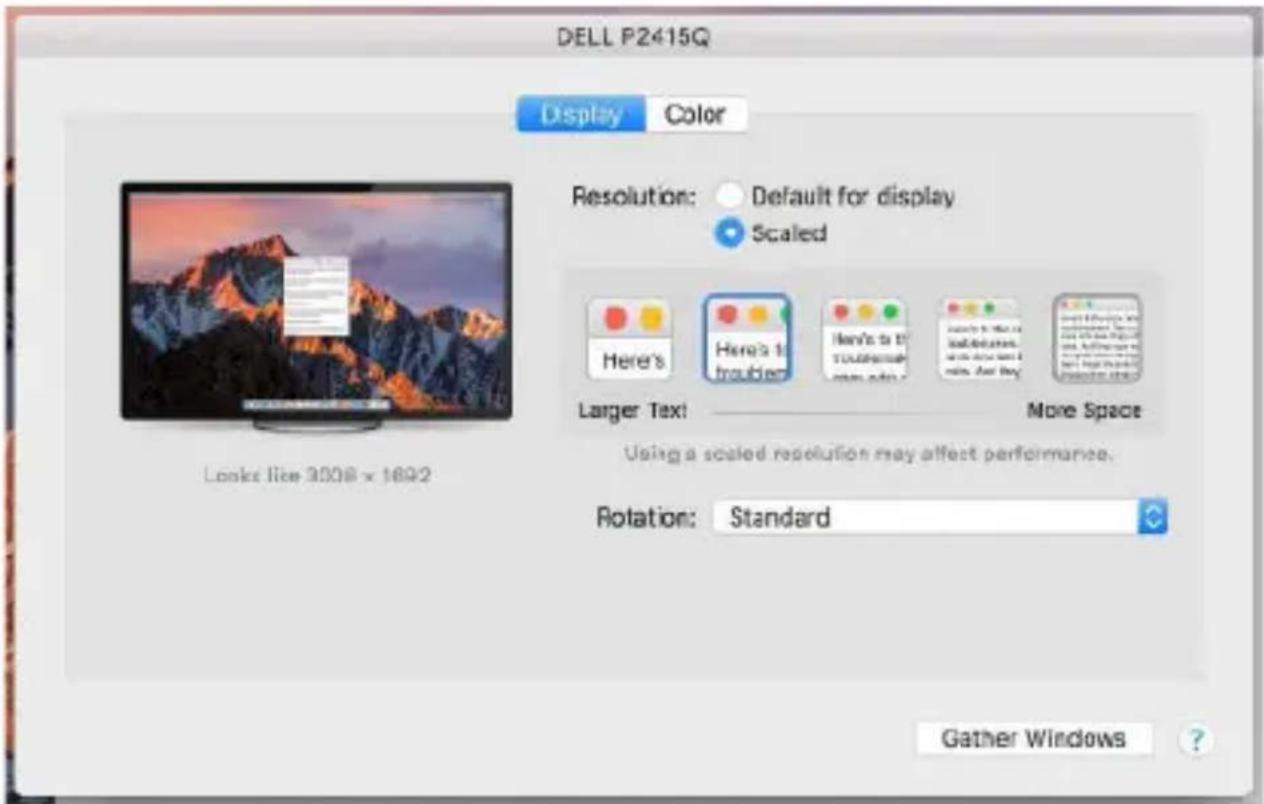
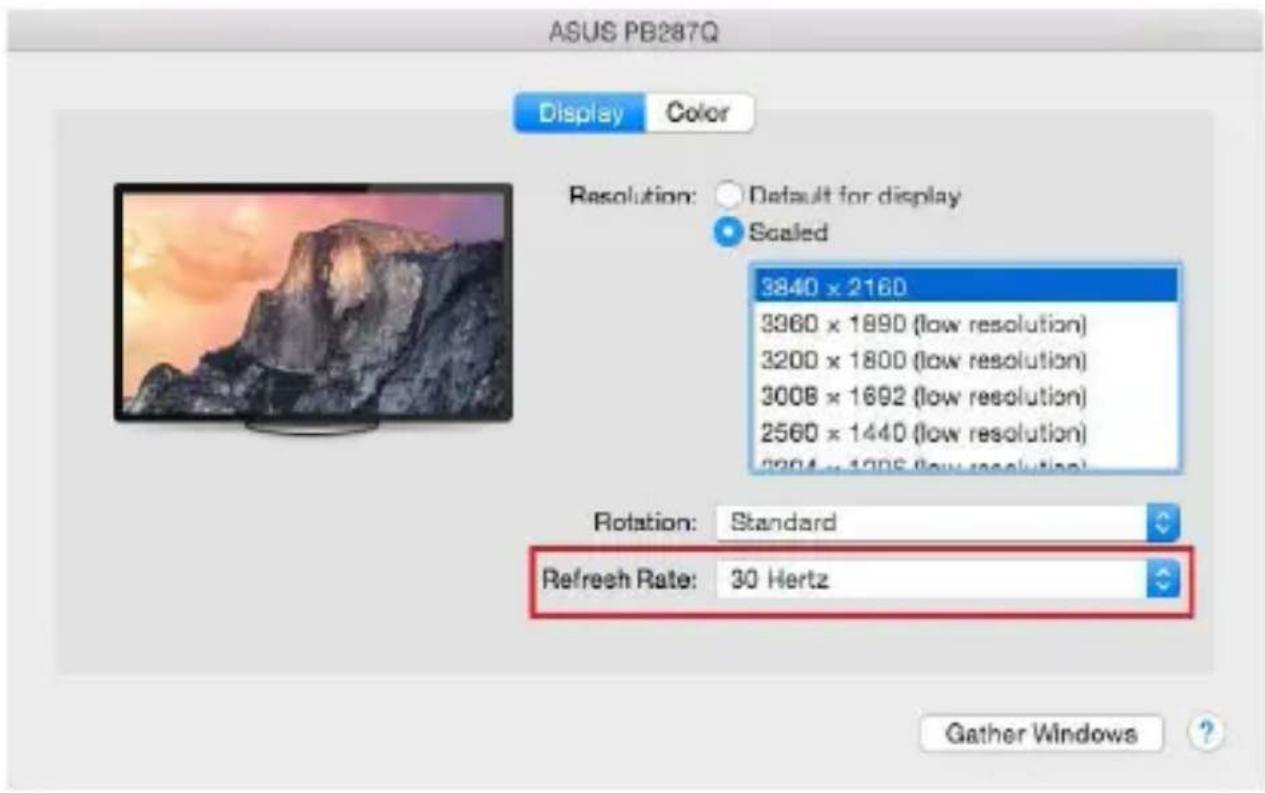
Click on Gather Windows: using this option you can choose the settings of the corresponding monitor – Scaled (offers available resolutions), Rotation (Standard, 90°, 180° and 270°) and Refresh rate (if offered). Below the following setting options are displayed. This may vary, depending on your monitor.
Quick Start
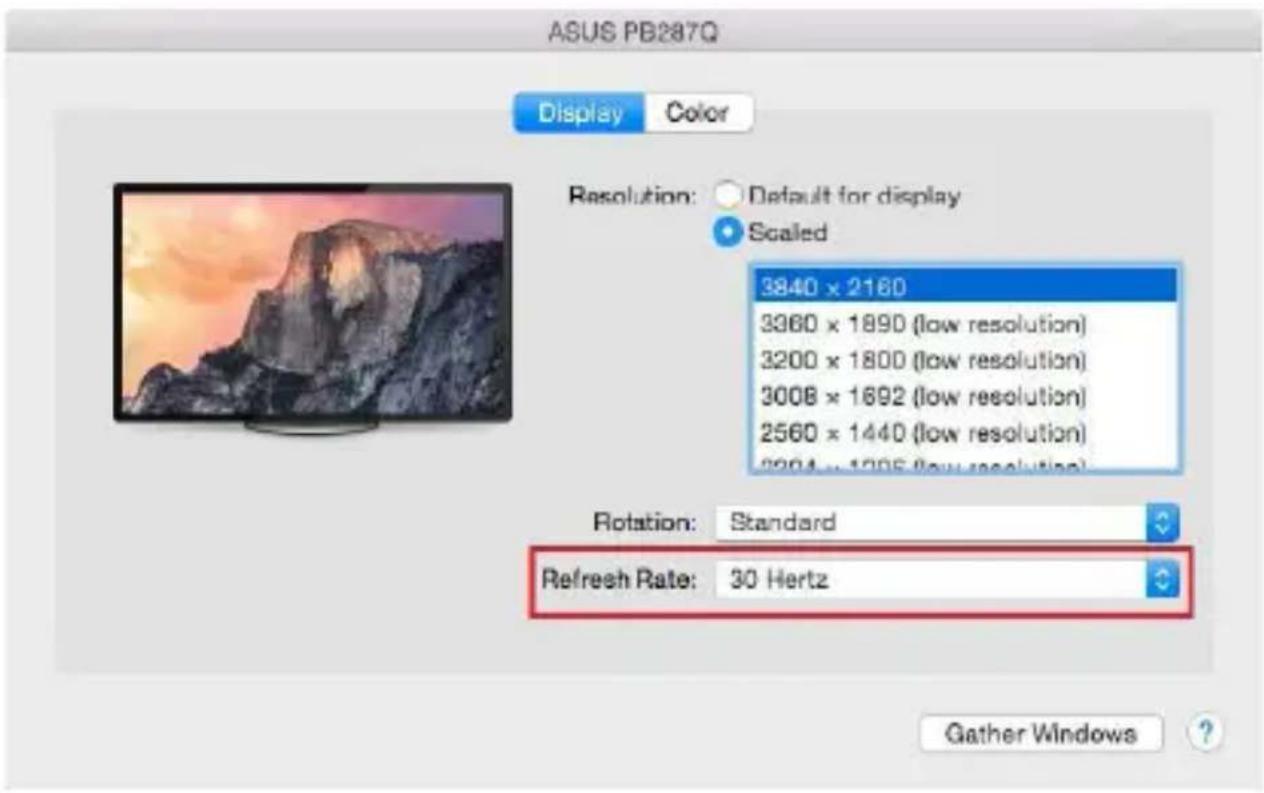
Display option 1
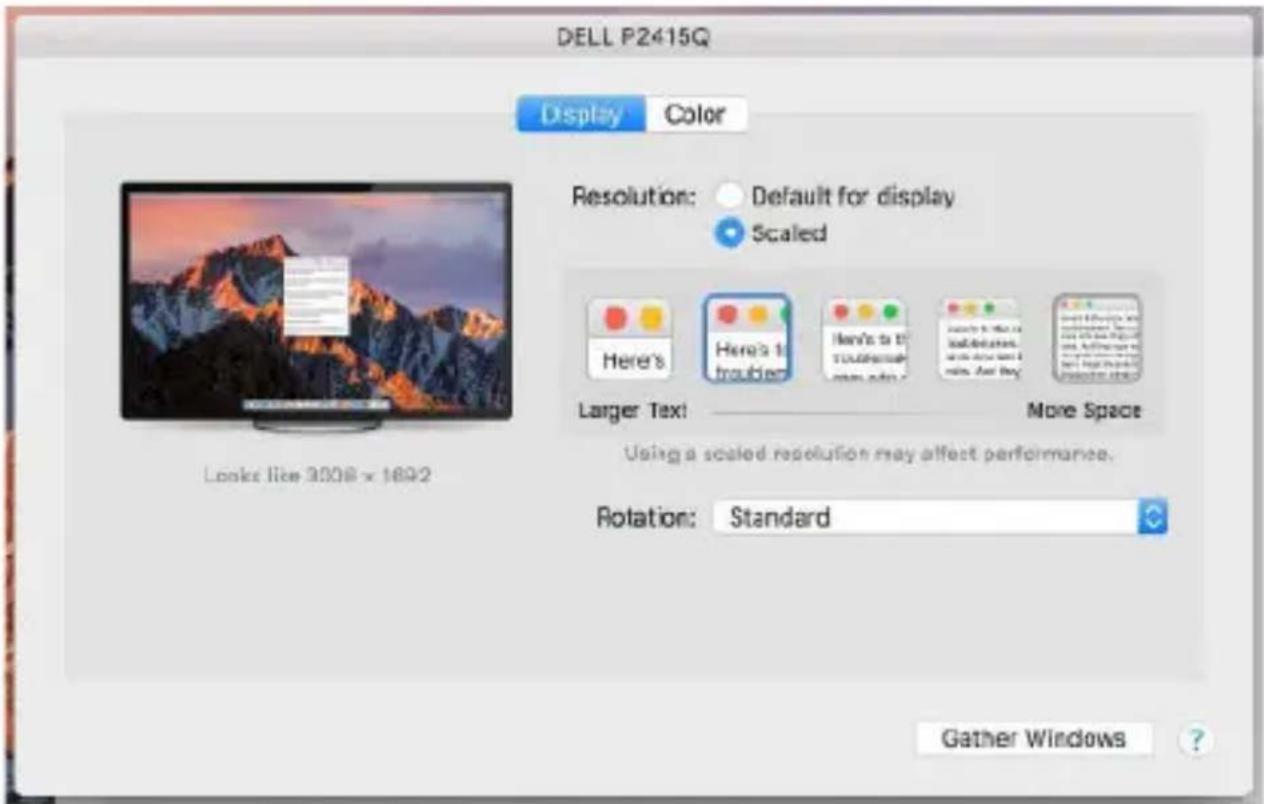
Display option 2
USB 3.0 to HDMI and VGA Adapter
In Scaled mode click on the required icon, the resolution is displayed below (which looks like this, 3008x1692 = 4K@30Hz)
Closed-display mode – 4 conditions have to be met to prevent the MacBook from turning off. The MacBook must be connected to power and an external keyboard, mouse and monitor must be connected. You can then close the MacBook lid and work only with the external monitor.
When running on battery power, the use of an HDMI monitor is limited by the Mac. In some cases, display issues can be resolved by disc the docking station's USB 3.0 cable from the Mac's USB 3.0 port and reconnecting it after approximately 10 seconds. Wait for your peripherals to finish connecting. The majority of issues with fixing black screen issues on the connected monitor after putting the Mac to sleep mode, using the screen saver, restarting the Mac or turning the Mac on/off can be resolved the same way.
SAFETY INSTRUCTIONS
- Do not expose to extreme temperatures and air humidity
- Do not cover, risk of fire.
- Use the device on flat surfaces – you will prevent it from slipping and falling to the ground.
- Save the user manual for a possible use later.
In cooperation with the service department:
- Check functionality after falling to water or to the ground.
- Check functionality when the cover is broken.
- Send the device back if it does not work in accordance with the user manual.
FREQUENTLY ASKED QUESTIONS
Available on our website www.i-tec.cz/en on the "FAQ" tab of this product.
BEGRIFFSWÖRTERBUCH
natural_image
Black electronic device with labeled ports and cable, showing port, VGA, and USB connector (no text or symbols on device body)USB 3.0 to HDMI and VGA Adapter
USB 3.0 to HDMI and VGA Adapter
USB 3.0 to HDMI and VGA Adapter
USB 3.0 to HDMI and VGA Adapter
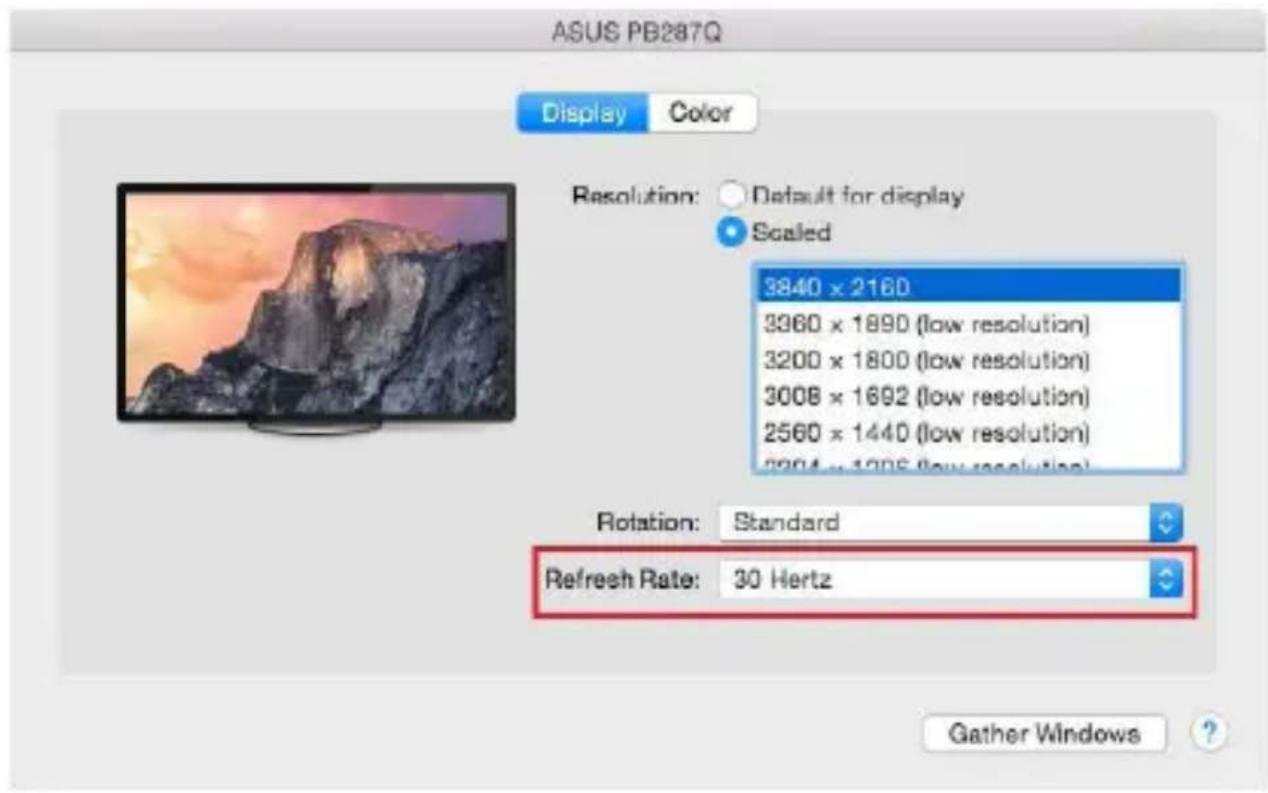
Abbildung 1
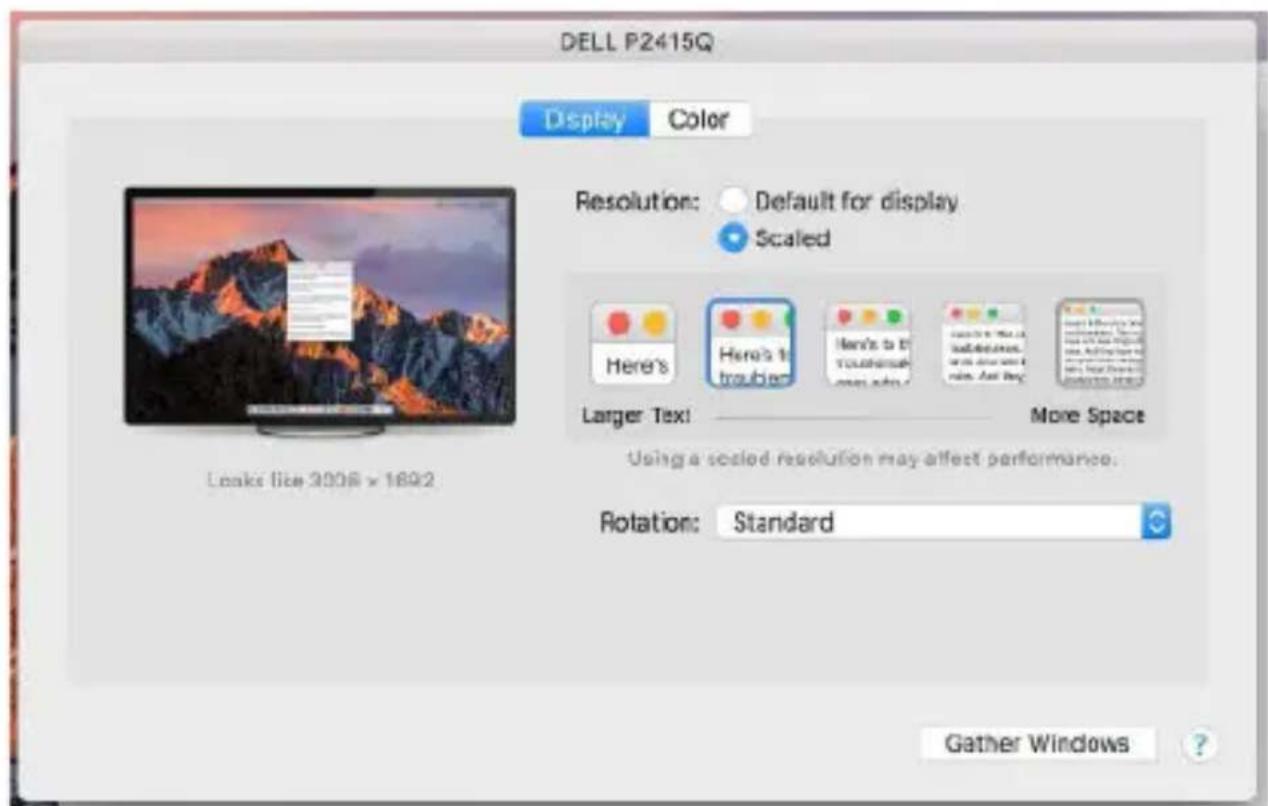
Abbildung 2
natural_image
Black electronic device with labeled ports and cable, showing internal components (no text or symbols visible)CONFIGURATION REQUISE
USB 3.0 to HDMI and VGA Adapter
UTILISATION DANS LE SYSTÈME WINDOWS
USB 3.0 to HDMI and VGA Adapter
USB 3.0 to HDMI and VGA Adapter
USB 3.0 to HDMI and VGA Adapter
Vue option 1
Vue option 2
INSTRUCTIONS DE SÛRETÉ
natural_image
Black USB device with labeled ports and cable, showing port 1, port 2, and USB connector (no text or symbols on device body)USB 3.0 to HDMI and VGA Adapter
USB 3.0 to HDMI and VGA Adapter
USB 3.0 to HDMI and VGA Adapter
USB 3.0 to HDMI and VGA Adapter
natural_image
Black electronic device with labeled ports and cable, showing internal components (no text or symbols visible)REQUISITI DI SISTEMA
USB 3.0 to HDMI and VGA Adapter
USB 3.0 to HDMI and VGA Adapter
USB 3.0 to HDMI and VGA Adapter
USB 3.0 to HDMI and VGA Adapter
USB 3.0 to HDMI and VGA Adapter
USB 3.0 to HDMI and VGA Adapter
USB 3.0 to HDMI and VGA Adapter
POUŽITÍ V MAC OS X
USB 3.0 to HDMI and VGA Adapter
USB 3.0 to HDMI and VGA Adapter
natural_image
Black USB device with labeled ports and cable, showing port, VGA, and USB connector (no text or symbols on device body)WYMAGANIA SYSTEMOWE
USB 3.0 to HDMI and VGA Adapter
KORZYSTANIE W SYSYTEMIE WINDOWS
USB 3.0 to HDMI and VGA Adapter
USB 3.0 to HDMI and VGA Adapter
USB 3.0 to HDMI and VGA Adapter
Display opcja 1
Display opcja 2
USB 3.0 to HDMI and VGA Adapter
natural_image
Black electronic device with labeled ports and cable, showing internal components (no text or symbols visible)USB 3.0 to HDMI and VGA Adapter
Režimy Rozšířit' a Zrkadlit'
USB 3.0 to HDMI and VGA Adapter
POUŽITIE V MAC OS X
USB 3.0 to HDMI and VGA Adapter
USB 3.0 to HDMI and VGA Adapter
Variant zobrazenia 1
Variant zobrazenia 2
natural_image
Black USB device with labeled ports and cable, showing port, VGA, and USB connector (no text or symbols on device body)SISTEMOS REIKALAVIMAI
Reikalavimai jrangai: Iranga su prieinamu USB 3.0, USB-C arba Thunderbolt 3
USB 3.0 to HDMI and VGA Adapter
USB 3.0 to HDMI and VGA Adapter
USB 3.0 to HDMI and VGA Adapter
Vaizdo variantas 1
Vaizdo variantas 2
Pritaikytame režime paspauskite ties pasirinkta piktograma, po ekranu nurodoma raiška
$$ (\text { cia } 3 0 0 8 \times 1 6 9 2 = 4 K @ 3 0 H z) $$
- 1 monitor – 1x VGA □ max. 1920x1080/60Hz
- 2 monitoren - 1x HDMI + 1x VGA □ max. 4K/30Hz + 1920x1080/60Hz
natural_image
Black electronic device with labeled ports and cable, showing internal components (no text or symbols visible)SYSTEEMEISEN
USB 3.0 to HDMI and VGA Adapter
Monitorbediening in Windows 10
USB 3.0 to HDMI and VGA Adapter
GEBRUIK IN MAC OS X
USB 3.0 to HDMI and VGA Adapter
USB 3.0 to HDMI and VGA Adapter
This equipment is marked with the above recycling symbol. It means that at the end of the life of the equipment you must dispose of it separately at an appropriate collection point and not place it in the normal domestic unsorted waste stream. This wil benefit the environment for all. (European Union only)
DEUTSCH
This equipment has been tested and found to comply within the limits of a Class B digital device pursuant to Part 15 of the FCC Rules. These limits are designed to provide reasonable protection against harmful interference in a residential installation.
Vyhrazujeme si právo na chyby nebo změny zařízení, balení či návodu k použití. We reserve the right to make any changes or alterations to the device, packaging or instructions. Wir behalten uns das Recht vor, Änderungen am Gerät, der Verpackung oder der Anleitung vorzunehmen. Nous nous réservons le droit d'apporter toute modification ou altération à l'appareil, à l'emballage ou aux instructions. Nos reservamos el derecho de cometer errores o alteraciones en el dispositivo, el embalaje o las instrucciones de uso. Ci riserviamo il diritto di apportare modifiche o alterazioni al dispositivo, alla confezione o alle istruzioni. Vyhradzujeme si právo na chyby alebo zmeny zariadení, balenie či návodu na použitie. Zastrzegamy sobie prawo do wprowadzania zmian lub modyfikacji urządzenia, opakowania lub instrukcji. Mes pasiliekame teisę atlikti bet kokius pakeitimus ar pakeitimus jrenginyje, pakuotėje ar instrukcijose. We behouden ons het recht voor om fouten of wijzigingen aan het apparaat, de verpakking of de gebruiksinstructies aan te brengen.
www.i-tec.cz/en