
U2BTD - Network card / adapter i-TEC - Free user manual and instructions
Find the device manual for free U2BTD i-TEC in PDF.


| Product Type | Bluetooth USB Module |
| Brand | i-TEC |
| Model | U2BTD |
| Category | Network card / adapter |
| Dimensions | Approximately 50 x 20 x 10 mm |
| Weight | Approximately 10 g |
| Power Supply | USB bus powered (5V) |
| Supported Operating Systems | Windows XP / Vista / 7 / 8 (32 and 64-bit) |
| System Requirements | 75 MB free hard drive space, 256 MB RAM |
| Bluetooth Version | 2.1 (HCI/LMP version) |
| Transfer Speed | Up to 1 Mbps |
| Main Functions | Wireless Bluetooth connectivity, file transfer, dial-up networking, fax, headset, PIM synchronization, serial port, network access |
| Installation Method | Install IVT BlueSoleil software from CD first, then plug in USB module |
| Antenna | Internal |
| Compliance | Bluetooth standard, RoHS |
| Care and Maintenance | Keep dry, avoid extreme temperatures, gently clean with dry cloth |
| Safety Precautions | Use only with USB compliant devices; do not modify; avoid static discharge |
| Spare Parts | Replacement USB dongle available; contact i-TEC support |
| Repairability | Not user-serviceable; contact professional repair service |
| General Information | Quick and easy wireless connection for PC, notebook, PDA, printer, fax |
Frequently Asked Questions - U2BTD i-TEC
User questions about U2BTD i-TEC
0 question about this device. Answer the ones you know or ask your own.
Ask a new question about this device
Download the instructions for your Network card / adapter in PDF format for free! Find your manual U2BTD - i-TEC and take your electronic device back in hand. On this page are published all the documents necessary for the use of your device. U2BTD by i-TEC.
USER MANUAL U2BTD i-TEC
natural_image
Close-up of a black USB flash drive with 'i-tec' branding and mounting holes (no additional text or symbols visible)ENGLISH....02-29
DEUTCH....30-58
ČESKY....59-84
POLSKI....85-111
USER'S MANUAL FOR
Bluetooth USB module
This user's manual describes installation of IVT BlueSoleil program for operating Bluetooth USB Module. (Install the software from this CD first).
This installation process is necessary for installation and operating the Bluetooth USB Module. Operating program BlueSoleil (IVT) allows you to communicate with all accessible Bluetooth devices (mobile phones, synchronized PDA etc.) and to use their services, e.g. Internet connection through the mobile phone with Bluetooth technology or exchanging business cards and files.
The manual has been keeping up to date with the newest findings and information from each operator, you can find last updated version of the manual on the CD.
Dear customer,
you are getting to your hands another high quality product from i-tec company.
Bluetooth USB Module
If you wish to connect your personal computer, notebook, PDA, printer or fax easily, quickly, effectively and wirelessly, Bluetooth USB Module is the perfect solution for you.
Bluetooth technology allows you to communicate with the whole world and to move freely at the same time. There is not a problem to connect to the Internet, take care of your e-mails, exchange business cards with your business partner etc. You can do all that with the 1Mb/s transfer speed, saving your time and wallet.
You can connect to the Internet through the GPRS/EDGE technology or HSCSD technology (see page 15).
You can exchange business cards with your business partner in .VCF format (see page 18).
You can transfer any data between paired devices PC – PDA, PC – PC (see page 13).
Easy installation, one restart and plugging in the USB Module into the USB port of your computer will take you to the exciting world of Bluetooth technology – to the world, where the wireless communication for every user pleasure is.
In the hectic 21 century is the cable functionless luxury and complication. There is nothing simpler then to take the easier, more economical and more effectively way – the way of i-tec Bluetooth products.
Do not hesitate and enter the world of great future. Soon the company i-tec will offer you Bluetooth hands-free for car application or regular daily life application and other amazing news of Bluetooth technology.
INSTALLATION
Supported systems:
- Windows XP / Vista / 7 / 8 (32 and 64bit)
Installation for Windows
System requirements:
- 75 MB free space on hard drive for full installation, 256 MB RAM
- installed supported operation system (see the list above)
Before installing the application of Bluetooth Software IVT BlueSoleil, do not plug the Bluetooth USB Module to your computer in!!!
-
Insert CD marked with Bluetooth in the CD-ROM drive (keep this CD safe).
-
Installation program runs automatically. You can also run the installation of Bluetooth software directly from the folder CD:/setup.exe.
-
Choose the language for the installation: manual's description is in English.

-
Click Next.
-
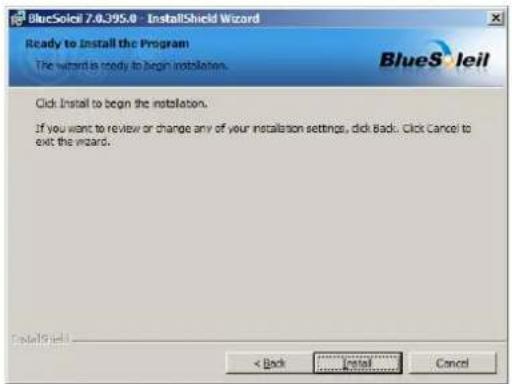
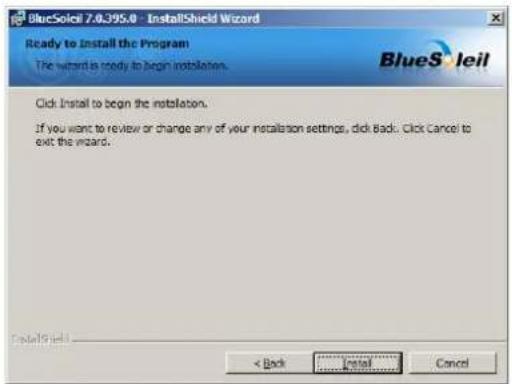
Accept the terms in the license agreement; choose the destination folder that you wish to install the program to. We recommend to keep the standard destination, i.e. Program files folder. Click Install to begin the installation


- Watch the installation process and the status carefully.

- Click Finish to exit the Wizard.
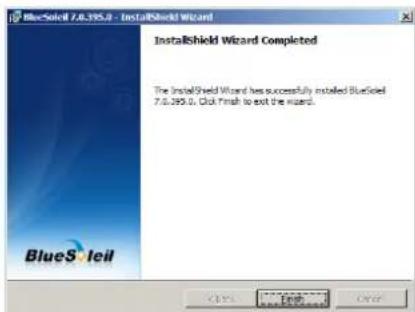
- You must restart your computer after the installation.
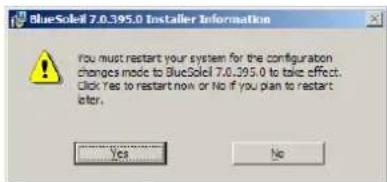
- After restart of the computer, plug the USB Bluetooth dongle into the USB port PC/NB in. The drivers will be installed.
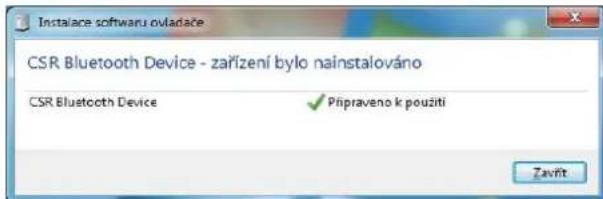
Note: If in OS is not displayed as CSR Bluetooth Device, then you find in Device manager-Bluetooth devices - Generic Bluetooth Device and you update drivers on „CSR Bluetooth Device“.
Insert into USB port and start the Bluetooth dongle click on „Turn On Bluetooth“ (by right button of mouse on Bluetooth icon on system tray next to time).

Congratulations, you finished the installation of program utility of Bluetooth Software IVT BlueSoleil (further IVT only) and drivers for Bluetooth USB Module.
Warning:
Regarding to the specification of the cooperation between Windows OS and Bluetooth, resulting from Bluetooth technology, you must remember that wrong installation or wrong settings and configuration may lead to incorrect functions of the Bluetooth USB Module or to instability of the Windows system.
USING IVT
Note: IVT software works on the profile system. It means that after creating the connection with the other Bluetooth device, you automatically gain the access to its services. Configuration of services is very simple then.
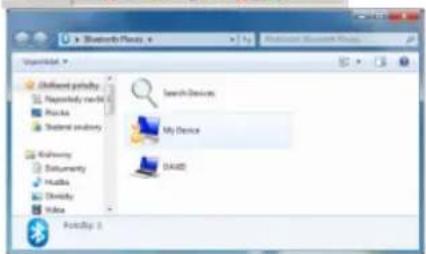
You can run the application by clicking on the Bluetooth Places icon on the desktop or by right mouse clicking on the blue Bluetooth icon on the right bottom of the toolbar next to the clock and by choosing Explore Bluetooth Places.
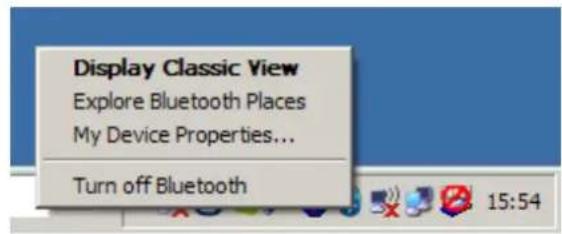

Click on My Device and available BT services will be displayed:

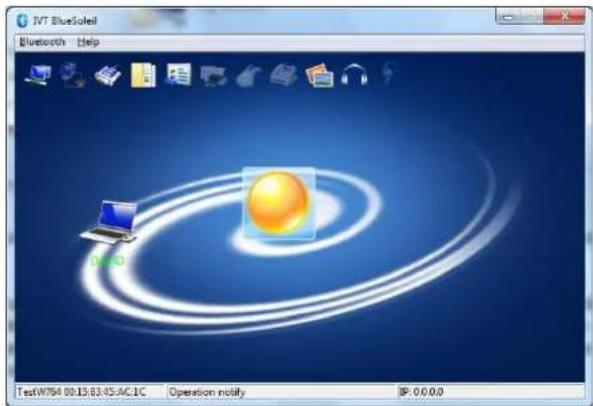
Note: IVT software also allows using classic setting, characteristic for IVT. You can run this application by right mouse clicking on the blue Bluetooth icon on the right bottom of the toolbar next to the clock and by choosing Display Classic View. Using this setting is described while running the application in the Help-BlueSoleil Online Help (F1).

Note: You can find description of this setting on the web in English.
http://www.ivtcorporation.com/download/ivtdocument.php#headphone
Here in this manual we will describe the setup through Bluetooth Places only.
Check if your Bluetooth device works properly.

Choose My Device Properties from the Bluetooth menu.

In the tab Hardware check that Bluetooth MAC address, description and information about HW and firmware is displayed properly (HCI/LMP Version is Bluetooth version 2.1).
If that information is missing, then you need to restart your PC and run the application, eventually the installation again.
In the tab Advanced you can choose additional settings for USB BT Dongle (e.g. VoIP).

Supported Bluetooth services:
- Bluetooth Serial Port – wireless connection between two devices. It replaces the physical connection through the serial cable (SPP).
- Dial-up Networking – allows creating Internet connection through the mobile phone or modem with BT support. (DUN)
- Fax – allows faxing through the remote BT mobile phone, modem or PC. You need to use additional software for faxing. (FAX)
- File Transfer – allows executing the operation with files through the remote BT device: exploring, opening, copying etc.
- Headset – allows connecting your PC with remote BT headset through additional software. This connection allows using the headset for audio input/output (HEADSET)
- PIM Item Transfer and Object Push – allows two BT devices to exchange so called PIM data (Personal Information Manager) – business card, calendar items, messages and notes (OPP, OBEX).
- PIM Synchronization – allows two BT devices to synchronize so called PIM data (Personal Information Manager) – business cards, calendar items, messages and notes.
- Network PAN, LAN – allows other device to connect to the LAN network through the second BT device that is connected directly to LAN network and that allows the remote device to become a part of so called ad hoc network which runs Bluetooth server (PAN, GN, NAP)
- Audio Gateway – allows audio (input-microphone/output-headset) cooperation between PC with BT device and mobile phone with integrated BT device; it supports settings for these devices (A2DP, AVRCP, GAP, GAVDP).
- Imaging – allows controlling BT camera or mobile phone with camera and transferring images (BIP)
• My Printer – printer setup (HCRP)
Note: Every BT device has various services at disposal, that's why not all these services may appear. For example BT Gateway has Network Access service at disposal only.
1. Pairing (e.g. with mobile phone)
Enable this option on your mobile phone or other device supporting Bluetooth. In running application, choose Search Devices. Wait for completion of searching available BT devices. Then choose the requested device, right click on it and choose Pair Device.

Insert code for pairing (any number – up to 16 numbers) a click OK.

The same code use in the mobile phone. You have been paired with your mobile phone (the green icon).

Now double-click on the icon of paired mobile phone – list of available services (BT profiles) will be displayed.
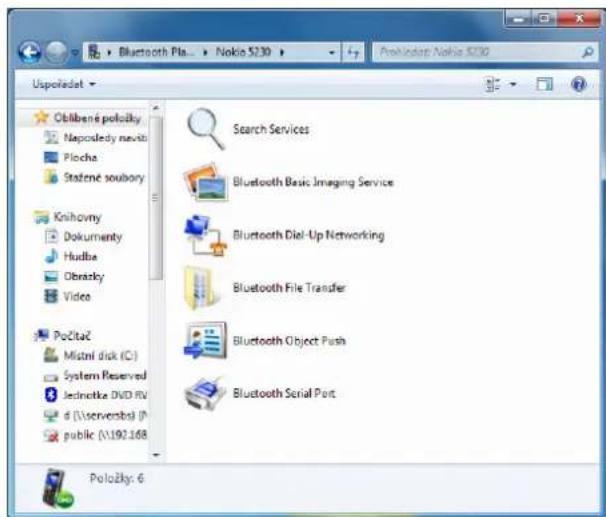
2. Creating BT connection on selected profile
Double-click on the profile that you wish to use with the other BT device. Required drivers will be installed for using on selected profile and requested action will be executed.
Icons informing about BT status, about devices and about services
In Start folder: Basic Bluetooth icons
| Bluetooth Icon Indicates Bluetooth Status | ||
| Enabled | Disabled | Connected |
| Blue with White | Blue with Red | Blue with Green |
Bluetooth Icon Indicates Bluetooth Status
Setup icons for Windows XP
| Device Icons for Windows XP | |||
| Name | Normal | Connected | Paired |
| Audio Gateway | |||
| Desktop | |||
| Headset | |||
| Laptop | |||
| Modem | |||
| Network Access Point | |||
| Personal Digital Assistant | |||
| Printer | |||
| Telephone | |||
| Unknown Device | |||

Service Icons for Windows XP
| Service Icons for Windows XP | ||||
| Name | Normal | Connected | Not Available* | |
| Audio Gateway |  | |||
| Dial-up Networking | ||||
| Fax |  | |||
| Headset |  | |||
| Network Access |  | |||
| PIM Item Transfer | ||||
| PIM Synchronization |  | |||
| Public Folder |  | |||
| Serial Port | ||||
| *Services may be unavailable because they are in use or because the necessary hardware is not installed. | ||||

Note: Available services will be displayed only.
SERVICE SETUP
A. Network Sharing for Windows
Service Network Access allows some PC with BT device (as client) to access the Internet and network through the PC, which is physically connected to the network (Internet) and has also BT device.
Setup Network Sharing for Windows
PC to PC (Windows XP)
- Allow Internet Connection Sharing on the server PC (e.g. with Widcomm SW)
- Click on the Start menu→Settings→Network and Internet connection and search your LAN network that is connected to the Internet
- Right mouse click on the active LAN connection and choose Settings
- In the tab Advanced choose Internet Connection Sharing and check Allow other...

- Next click on Settings...and choose services that you wish to provide to the surrounding BT devices. Click OK to save changes
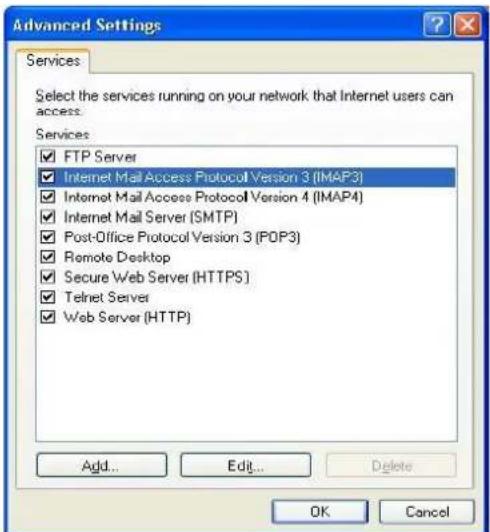
- Return back to Net and phone connection, by right mouse clicking choose Bluetooth LAN Access Server Driver and Settings
- In the tab General click on Internet Protocol (TCP/IO) and Settings
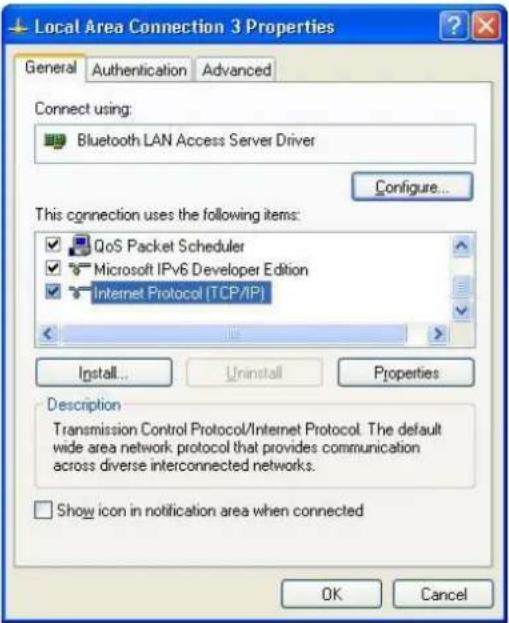
- In the tab General check virtual IP, as it is displayed on the figure bellow. Click OK to save changes

- This setting allows working as DHCP server towards to BT clients
- On the client's PC run the Bluetooth software then – Bluetooth Places – icon on the desktop
- Double-click on Search device to find surrounding BT devices

- After finishing the searching choose the appropriate PC (server for network access) and double-click on it to begin searching for services that provides (e.g. Bluetooth Serial Port, Dial-up Networking, File Transfer, Network PAN Access ect..)

- Choose Network Access to create connection with PC server

- Click OK and Connect without entering User and Password

- After connecting to the server PC you can share Internet access through the Bluetooth.
Note: If your PC gain access to the Internet through Proxy server in the network, do not forget to configure the access for Proxy in your web explorer. For Internet Explorer take following steps:
- Right mouse click on Internet Explorer, choose Settings – Connection. Choose Bluetooth Null Connection – Settings..

- Choose Proxy server and enter proxy IP and port valid for your network.

B. File transfer – Setup for Windows
File Transfer service allows executing operation with files and with folders on remote PC that must provide this service and must allow sharing some folders.
PC - PC
Description is introduced for two PCs that use IVT and Widcomm.
- As soon as you set Bluetooth device on both PCs, run Bluetooth Places from desktop.
- On one of them run Search devices to search available BT devices.

- After searching choose the appropriate PC and double-click on it. Offered services will be displayed (e.g. Bluetooth Serial Port, Dial-up, Networking, File Transfer, Network Access, etc.).
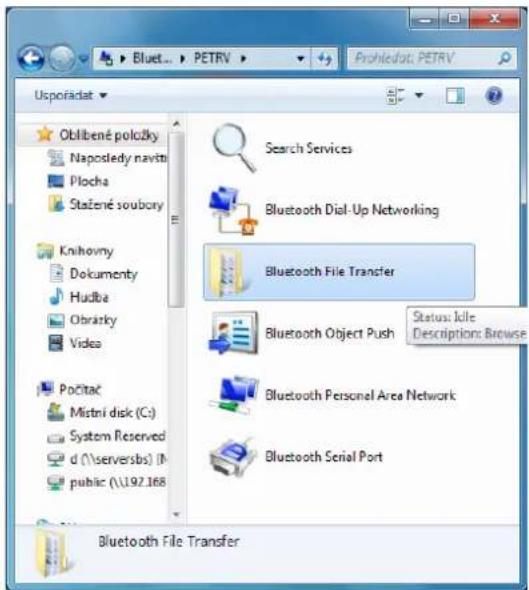
- Double-click on File Transfer to open the folder for sharing on the remote PC.
- Search for file that you wish to transfer to the remote PC and transfer it to the window File Transfer.
- Following transfer progress will be displayed.

- On the remote PC you must predefine the destination folder for File Transfer and eventually the field Start Automatically must be marked to open the file automatically after transfer. (My device-right mouse click-Properties).

C. Internet connection in Windows (Dial-up Networking)
Dial-up Networking service allows one BT device to connect to the remote network (Internet) through the other BT device that is either physically connected to the Internet through modem or this connection may be activated e.g. by mobile phone and PC and GPRS/EDGE connection.
Client's connection (PC):
- In the PC choose Bluetooth Places – Search Devices.
- In Bluetooth Places execute pairing with chosen device (Nokia 5230).

- Now double-click on the paired phone icon – a list of available services (BT profiles) will be displayed.

- Choose Dial-up Networking and double-click on it, drivers will be installed.
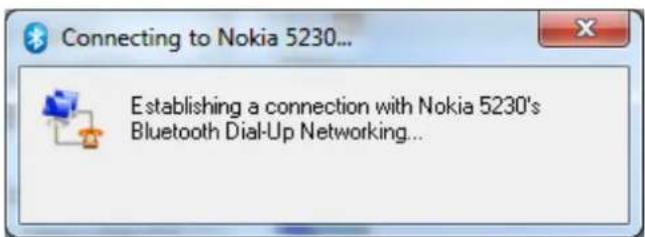
- In the following window, insert user name, password and phone number in the Dial field.
- Check Save password and click Dial to connect to the Internet.
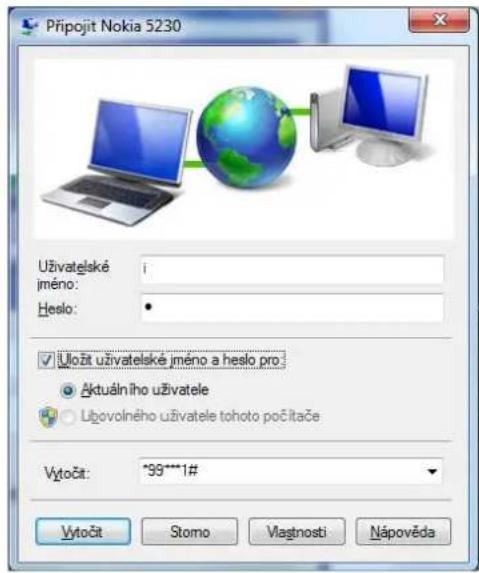
For GPRS connection is necessary to adjust additional settings before connecting:
a) Presumption for using the Internet access through GPRS/EDGE is:
- mobile phone with newest firmware (we recommend you to inform by the mobile phone's handler)
- notebook or PC with USB slot and installed USB BT Dongle card
- Internet Explorer version 5.0 and higher or similar explorer
-
activation of data service and GPRS service by the mobile operator:
-
for O2 you can set it on the phone number *11 or 800 020202, www.eurotel.cz
- for T-Mobile you can set it on the phone number 4603 (4684) or 603 603 603, www.t-mobile.cz
o for Vodafone you can set it on the phone number *607 or 800 77 00 77, www.oskarmobil.cz
b) on PC:
For XP:
Go to the Device administrator-Modems and choose Bluetooth Fax Modem (consequently also Bluetooth Modem)-Properties-Specify and insert at+cgdcont=1,"IP","internet.t-mobile.cz"

Setup for Phone connection network for each mobile operator GSM – basis for GPRS
You can use this basis for particular setup of GPRS connection:
Phone number: for all operators *99***1#
User: we recommend choosing internet by all operators, password internet and saving it
O2 (former Eurotel):
Primary DNS: 160.218.10.200
Secondary DNS: 160.218.43.200
APN: Internet
SMTP server: smtp.email.cz
T-Mobile:
Primary DNS: 62.141.0.1
Secondary DNS: 62.141.0.2
APN: internet.t-mobile.cz
SMTP server: smtp.t-email.cz
New T-Mobile service: GPRSpeed – more info on www.t-mobile.cz/GPRSpeed
Vodafone (former Oskar):
Primary DNS: 217.77.161.130
Secondary DNS: 217.77.161.131
APN: internet
SMTP server: smtp.mujoskar.cz
Quitting Internet connection
-
On client's PC in Bluetooth Places choose device (mobile phone), that has been being used for the connection and double-click on it.
-
In the right part Bluetooth Places choose by right mouse clicking on Dial-up Networking and choose Disconnect Dial-up Networking.

D. Fax
Fax service allows Bluetooth client to send fax wirelessly through BT modem on remote BT device – server (mobile phone). Presumption: other device supports this BT profile.
Sending fax
Client:
- On client's PC in Folders in Bluetooth Places choose Search Devices.
- In Folders in Bluetooth Places by right clicking on chosen device you will start searching for available services.
- Double-click on Fax in Bluetooth Places. After setting the connection, create or open document that you wish to send and click Print or Send to Fax Recipient available in all application. After sending the connection will be terminated.
E. PIM and Object Push – setup and description
Overview
Bluetooth Object Push service and PIM (Personal Information Manager) allows sending and receiving through PC Personal Information Manager files to/from remote BT device.
There are few transfer methods:
- From Windows Explorer, Bluetooth Places right mouse click on Object Push service on remote PC and choose appropriate transfer.
-
From Windows Explorer choose Bluetooth Places, check Object Push service on the remote BT device and then from Bluetooth file in Windows choose appropriate transfer.
-
Files from remote BT device and supporting Object Push; choose one or more files for transfer and click Send to Bluetooth.
Most remote BT devices must confirm the transfer (it depends on the setup-pairing).
Quitting Object Push Connection
Quit automatically after finishing the task.
PIM Synchronization configuration (valid for mobile phone)
Execute pairing with mobile phone that you wish to synchronize with. Install the newest application valid for the mobile phone for the communication with PC (e.g. Nokia Ovi Suite). After installation and restart, the application will connect with mobile phone through 2x BT Serial Port Profile (one incoming and one outgoing). Setup - according to the instruction for the application.

- Supported PIM application will be displayed only if they are installed on the PC.
- For synchronization we recommend setting the speed of port at 115200b/s.
F. Serial port setup
Bluetooth Serial Port service allows executing wireless connection between two BT devices through virtual COM port and using this connection just like both BT devices were physically connected together.
Connection setup through the Bluetooth serial port (e.g. for Nokia 5230):
Client:
- On client's PC in Folder in Bluetooth Places choose Search devices.
- Searching process of available devices will begin.
-
In Bluetooth Places by right clicking on device (Nokia 5230) you will begin to search available services.
-
In Nokia 5230 double-click on Bluetooth Serial Port. Selectable window with COM port will be displayed, that you can use for connecting the client with the other station. It is important to select security for that port – the same must be chosen on both devices.
Server:
-
Select COM port for communication:
-
On the server in Folders in Bluetooth Places by right clicking on My Device choose Properties
- In Bluetooth Configuration Panel select tab Serial Ports
- You can check (Properties), which port is being used for serial communication and settings
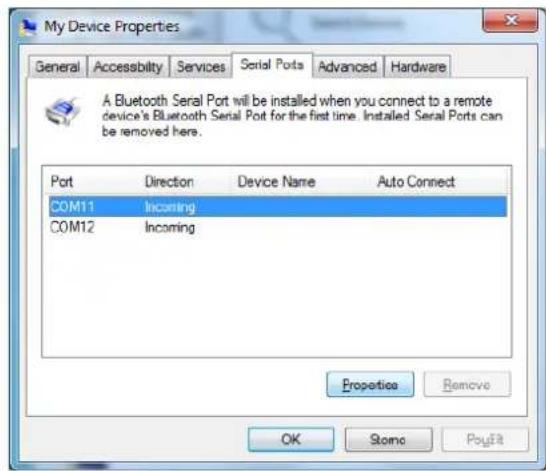
Quitting the connection through Bluetooth serial port: We recommend quitting from the client first:
- On client's PC in Folders in Bluetooth Places choose the other device that communicate and use Blue Serial Port service.
- In Bluetooth Places by right mouse clicking on Bluetooth Serial Port choose Disconnect Bluetooth Serial Port
We do not recommend it on the server side:
- In Folders in Bluetooth Places choose My Device
- In the right field of the window Bluetooth Places by right mouse clicking on Bluetooth Serial Port choose Stop to terminate the service. You must start the service here again for the next use of the service.
G. ActiveSync setup
ActiveSync through Bluetooth between PDA with remote PC with BT support (i-Tec BT CF):
Note: Example of PDA setup with i-Tec BT CF
a) Basic presumption for using ActiveSync service:
PC:
- There must be ActiveSync 3.6 or higher installed on the PC
- There must be executed synchronization on selected items between PC-PDA – through physical cable (serial or USB) again – see next figure

- There must be installed BT device with support of Serial port, initialized setup program for BT device in PC (there will be displayed cooperation with i-Tec BT CF) and the computer must be paired standard way with PDA.
Note:
For ActiveSync you must use Serial port. Blue Manager is the setup software for i-Tec BT CF. Appropriate virtual COM port for Serial port that you will adjust for ActiveSync service, you can find in Bluetooth Configuration-Setup-Configuration-Local Service-Service Properties – in our case COM11.

PDA
- Firstly, through the option Start-ActiveSync-Tools-Option choose the physical port for synchronization (serial or USB) and execute the connection and synchronization with host computer through ActiveSync
- Next accept the request for pairing with the other BT device in PC that will be displayed on PDA by the request from the PC
![ActiveSync 4:04 ok Bluetooth Passkey 3:27 ok When synchronizing with a PC, use these settings. Bluetooth Authentication Device: PETRV Passkey: *** Cancel Include PC when synchronizing remotely and connect to: PETRV How to use this screen The Bluetooth pairing procedure establishes a secret key that is used in all future connections to authenticate 123 1 2 3 4 5 6 7 8 9 0 - = + Tab q w e r t y u i o p [ ] CAP a s d f g h j k l ; * Shift z x c v b n m , . / ← PC Schedule CtI äü \ ↓ ↑ ← →](/content/2026/05/1025655/images/77f96533145a66ea41f1ec9b681cca9da1642fa9f8f54d01ead46f5c0063a915.jpg)
b) Own ActiveSync procedure through Bluetooth
- Disconnect the cable from the PC and PDA after completed synchronization (contacts, tasks,...) according to your choice
- On PDA choose in Start-BlueManager-New-Connect-ActiveSync-through Bluetooth guide and click Next
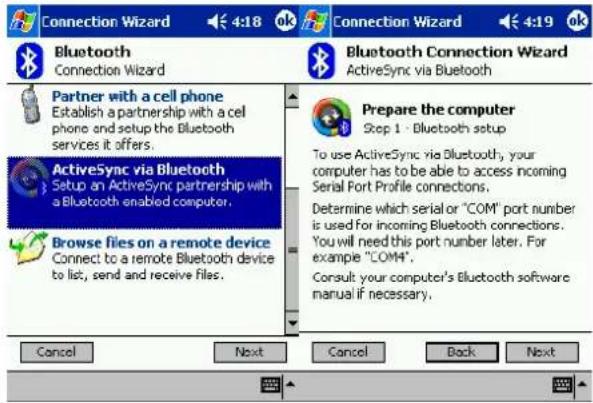
- On the computer choose in ActiveSync-File-Connection Settings – Serial port COM6 (according to selection) and then click Get Connected and by clicking Next let the computer to search for all available ports (even virtual to use through Bluetooth).

- After searching choose the Storno and click OK.

Warning:
The relation between server-client while controlling the communication ActiveSync, will be from the PDA side as the server and PC as the client. In case you click OK in that moment, that relation will turn up and you will not finish the ActiveSync guide, because the PC as the Server does not allow it.
- Next on the PDA, click Next, on the next screen click Next again and choose host computer that is ready, according to the steps 1 – 4. Then select security and create an icon in My shortcuts. You can execute the connection of ActiveSync by keeping the pointer on the created icon and choosing Connect.


- On the PC by the connecting through ActiveSync there will run synchronization according to your choices and the icon in My shortcuts after successful connection ActiveSync will light green up.

H. Setup Audio Gateway in Windows
Audio Gateway – allows audio cooperation (input-microphone/output-headset) between PC with BT device and mobile phone with integrated BT device; next it allows remote setup of these devices (volume, mute,...)

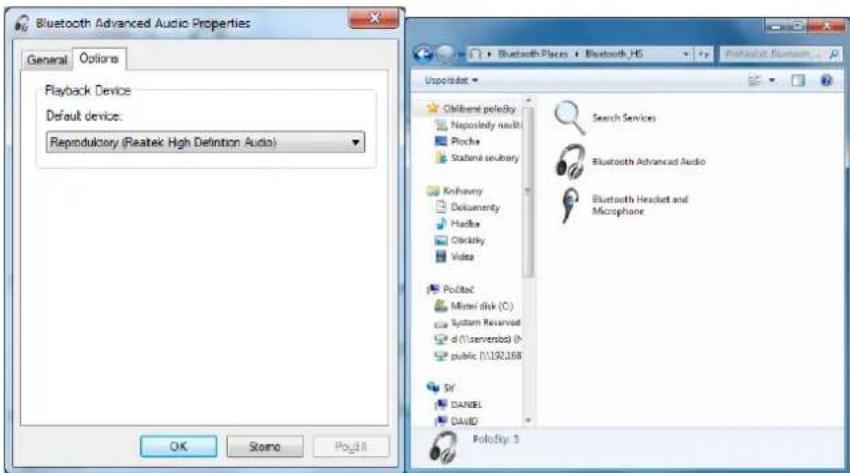
Presumption for using Audio Gateway:
- Set your audio device in Settings panel-Tones and multimedia-Tones in the tab Playing Tones click on Bluetooth AV Audio.

- On PC in Folders in Bluetooth Places choose Search Devices
- Searching available devices will start
- Execute pairing with selected headset device (if necessary).
Quitting connection Audio Gateway – from Bluetooth Places choose the service and the device and click Disconnect.

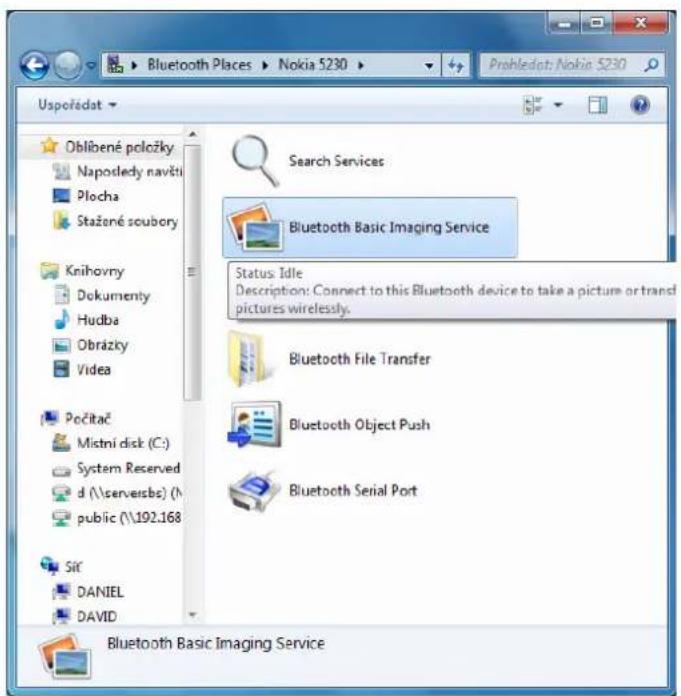
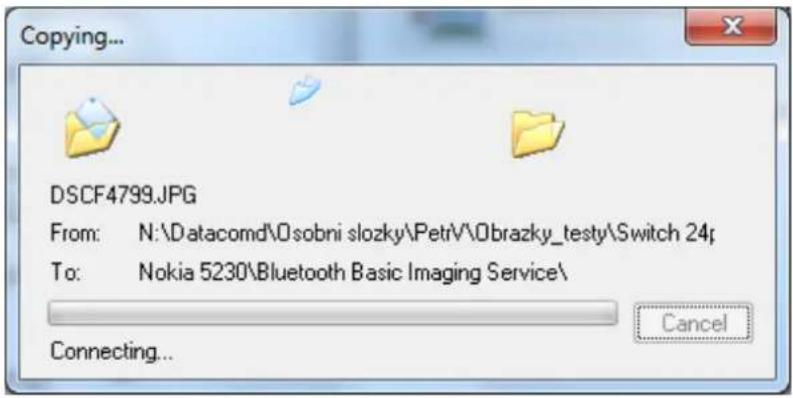
I. Basic Imaging profile (BIP)
Basic Imaging Profile (BIP) allows users to receive pictures from BT cameras, mobile phones or other BT matching devices. It also allows remote control of these devices by own taking pictures or consequently displaying pictures (it depends on used application).
J. My Printer
This profile allows remote BT device to access to the local printer in case that both BT device has this profile enabled and it works.


http://www.ivtcorporation.com/download/ivtdocument.php#headphone
| Service Icons for Windows XP | |||
| Name | Normal | Connected | Not Available* |
| Audio Gateway | |||
| Dial-up Networking | |||
| Fax | |||
| Headset | |||
| Network Access | |||
| PIM Item Transfer | |||
| PIM Synchronization | |||
| Public Folder | |||
| Serial Port | |||

Bild No 20
Bild No 21
Im PDA:
Bild №23
Bild №24
Bild №25
Bild №25a
Bild N025b
Bild N025d
ACHTUNG:

http://www.ivtcorporation.com/download/ivtdocument.php#headphone
Z Bluetooth menu vyberte My Device Properties.

| Device Icons for Windows XP | |||
| Name | Normal | Connected | Paired |
| Audio Gateway | |||
| Desktop | |||
| Headset | |||
| Laptop | |||
| Modem | |||
| Network Access Point | |||
| Personal Digital Assistant | |||
| Printer | |||
| Telephone | |||
| Unknown Device | |||
Ikony služeb pro Windows XP
| Service Icons for Windows XP | |||
| Name | Normal | Connected | Not Available* |
| Radio Gateway | |||
| Disk-up Networking | |||
| Fax | |||
| Rednet | |||
| Network Access | |||
| PIM Item Transfer | |||
| PIM Synchronization | |||
| Public Folder | |||

Na PDA:
POZOR:


Z menu Bluetooth wybrać My Device Properties.

| Bluetooth Icon Indicates Bluetooth Status | ||
| Enabled | Disabled | Connected |
| Blue with White | Blue with Red | Blue with Green |
| Device Icons for Windows XP | ||||||
| Name | Normal | Connected | Paired | |||
| Audio Gateway |  |  |  | |||
| Desktop | ||||||
| Headset |  |  |  | |||
| Laptop | ||||||
| Modem |  |  |  | |||
| Network Access Point | ||||||
| Personal Digital Assistant |  |  |  | |||
| Printer | ||||||
| Telephone |  |  |  | |||
| Unknown Device | ||||||
| Service Icons for Windows XP | |||||||
| Name | Normal | Connected | Not Available* | ||||
| Audio Gateway |  |  |  | ||||
| Dial-up Networking | |||||||
| Fax |  |  |  | ||||
| Headset |  |  |  | ||||
| Network Access |  |  |  | ||||
| PIM Item Transfer |  |  |  | ||||
| PIM Synchronization |  |  |  | ||||
| Public Folder |  |  |  | ||||
| Serial Port |  |  |  | ||||
 |  |  | |||||
| *Services may be unavailable because they are in use or because the necessary hardware is not installed. | |||||||
*Services may be unavailable because they are in use or because the necessary hardware is not installed.

- W Bluetooth Configuration Panel wybrać Serial Ports.
- W Bluetooth Places wybrać My Device.
rysunek 20
rysunek 21
Na PDA:
rysunek 25b
rysunek 25d
UWAGA:
rysunek 25j

Wymagania Audio Gateway:


- USER'S MANUAL FOR
- Bluetooth USB module
- INSTALLATION
- Supported systems:
- Installation for Windows
- System requirements:
- Before installing the application of Bluetooth Software IVT BlueSoleil, do not plug the Bluetooth USB Module to your computer in!!!
- Warning:
- USING IVT
- Supported Bluetooth services:
- Pairing (e.g. with mobile phone)
- Creating BT connection on selected profile
- SERVICE SETUP
- Network Sharing for Windows
- Setup Network Sharing for Windows
- PC to PC (Windows XP)
- File transfer – Setup for Windows
- Internet connection in Windows (Dial-up Networking)
- Client's connection (PC):
- For GPRS connection is necessary to adjust additional settings before connecting:
- a) Presumption for using the Internet access through GPRS/EDGE is:
- b) on PC:
- For XP:
- O2 (former Eurotel):
- T-Mobile:
- Vodafone (former Oskar):
- Quitting Internet connection
- Fax
- Sending fax
- Client:
- PIM and Object Push – setup and description
- Overview
- Quitting Object Push Connection
- PIM Synchronization configuration (valid for mobile phone)
- Serial port setup
- Connection setup through the Bluetooth serial port (e.g. for Nokia 5230):
- Server:
- Quitting the connection through Bluetooth serial port: We recommend quitting from the client first:
- ActiveSync setup
- PC:
- Note:
- PDA
- b) Own ActiveSync procedure through Bluetooth
- Setup Audio Gateway in Windows
- Basic Imaging profile (BIP)
- My Printer
- Im PDA:
- ACHTUNG:
- Na PDA:
- POZOR:
- UWAGA:
Brand : i-TEC
Model : U2BTD
Category : Network card / adapter