GXV3370 - IP Phone GRANDSTREAM - Free user manual and instructions
Find the device manual for free GXV3370 GRANDSTREAM in PDF.


| Product Type | Android IP Video Phone |
| Brand | Grandstream |
| Model | GXV3370 |
| Display | 7-inch TFT LCD capacitive touchscreen, 1024x600 |
| Camera | Built-in Mega-pixel |
| Audio | HD, dual speakers |
| Video | HD |
| Operating System | Android 7.0 |
| Network Connectivity | 2 Gigabit ports (10/100/1000Mbps) with PoE/PoE+ |
| Wi-Fi | Built-in 802.11a/b/g/n |
| Bluetooth | Built-in |
| SIP Lines | Up to 16 |
| Power Supply | 12V DC adapter (included) or PoE/PoE+ (IEEE 802.3at) |
| Additional Interfaces | 1 HDMI port, 1 SD card slot, 1 USB port (with adapter or PoE+), 3.5mm headset jack, RJ9 handset port |
| Display | Message waiting indicator LED |
| Physical Keys | Volume up/down, Home, Menu, Back |
| Wall Mount | Yes (mount included) |
| Cleaning | Use included cleaning cloth for LCD screen |
| Safety | Do not power off during firmware update; use provided adapter |
| Package Contents | 12V adapter, wall mount, cleaning cloth, quick installation guide, GPL license |
Frequently Asked Questions - GXV3370 GRANDSTREAM
User questions about GXV3370 GRANDSTREAM
0 question about this device. Answer the ones you know or ask your own.
Ask a new question about this device
Download the instructions for your IP Phone in PDF format for free! Find your manual GXV3370 - GRANDSTREAM and take your electronic device back in hand. On this page are published all the documents necessary for the use of your device. GXV3370 by GRANDSTREAM.
USER MANUAL GXV3370 GRANDSTREAM
Grandstream Networks, Inc.
126 Brookline Ave, 3rd Floor
Boston, MA 02215. USA
Tel: +1 (617) 566 - 9300
*Android is a Registered Trademark of Google LLC.
HDMI™
HDMI, the HDMI Logo, and High-Definition
Multimedia Interface are trademarks or registered
trademarks of HDMI Licensing LLC in the United
States and other countries.
UK CA
C
€
e
[NO TEXT]

In the UK and EU member states, operation of 5150-5350 MHz is restricted to indoor use only.
For Warranty and RMA information, please visit www.grandstream.com
EU Agent:
Picus Advisors Ltd
Taivalmaki 9F1-02200 Espoo, FINLAND https://www.picus.fi
Note: For European Union only

GRANDSTREAM
CONNECTING THE WORLD
natural_image
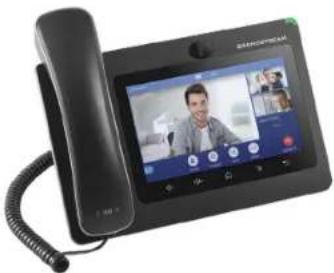
Black office phone with telephone handset and dual video call interface (no visible text or symbols)GXV3370
IP Multimedia Phone for Android™
Quick Installation Guide
Content
English....1
简体中文....7
Español....13
Français....19
Deutsch....25
Italiano....31
Русский....37
Português....43
Polski....49
EN
The GXV3370 is not pre-configured to support or carry emergency calls to any type of hospital, law enforcement agency, medical care unit ("Emergency Service(s)") or any other kind of Emergency Service. You must make additional arrangements to access Emergency Services. It is your responsibility to purchase SIP-compliant Internet telephone service, properly configure the GXV3370 to use that service, and periodically test your configuration to confirm that it works as you expect. If you do not do so, it is your responsibility to purchase traditional wireless or landline telephone services to access Emergency Services.
GRANDSTREAM DOES NOT PROVIDE CONNECTIONS TO EMERGENCY SERVICES VIA THE GXV3370. NEITHER GRANDSTREAM NOR ITS OFFICERS, EMPLOYEES OR AFFILIATES MAY BE HELD LIABLE FOR ANY CLAIM, DAMAGE, OR LOSS. YOU HEREBY WAIVE ANY AND ALL SUCH CLAIMS OR CAUSES OF ACTION ARISING FROM OR RELATING TO YOUR INABILITY TO USE THE GXV3370 TO CONTACT EMERGENCY SERVICES, AND YOUR FAILURE TO MAKE ADDITIONAL ARRANGEMENTS TO ACCESS EMERGENCY SERVICES IN ACCORDANCE WITH THE IMMEDIATELY PRECEDING PARAGRAPH.
PRECAUTIONS:
WARNING: Please DO NOT power cycle the GXV3370 during system boot up or firmware upgrade. You may corrupt firmware images and cause the unit to malfunction.
WARNING: Use only the power adapter included in the GXV3370 package. Using an alternative non-qualified power adapter may possibly damage the unit.
PACKAGE CONTENTS:
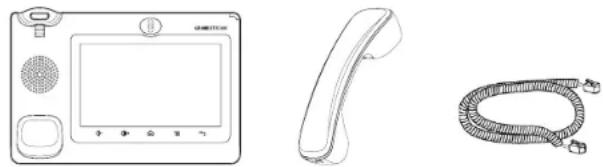
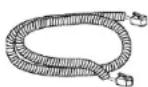
1x GXV3370 Main Case 1x Handset 1x Phone Cord
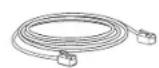
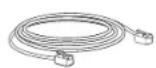
1x Ethernet Cable
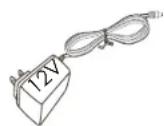
1x 12V Power Adapter
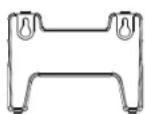
1x Wall Mount

1x Screen Cleaning Cloth

1x Quick Installation Guide / 1x GPL License
OVERVIEW:
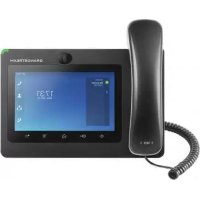
The GXV3370 IP Video Phone for Android combines a 16-line IP video phone with a multi-platform video conferencing solution and the functionality of an Android tablet to offer an all-in-one communications solution. The phone features a 7" 1024x600 capacitive touch screen TFT LCD, Mega pixel camera, dual Gigabit ports with PoE/PoE+, HD audio and video, integrated WiFi (802.11a/b/g/n) & Bluetooth, rich peripheral interfaces, and Android 7.0. By combining a state-of-the-art IP video phone, an advanced conferencing solution, businesses throughout the world can now use the GXV3370 for all communication and productivity needs.
PHONE SETUP:
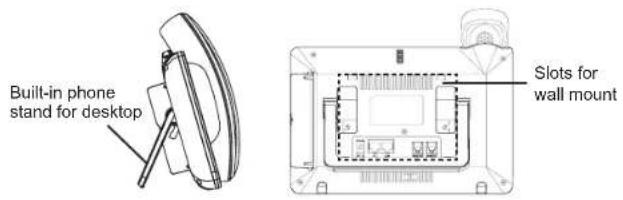
text_image
Built-in phone stand for desktop Slots for wall mountInstalling the Phone (Wall Mount):
- Attach the wall mount to the slots on the back of the phone.
- Attach the phone to the wall via the wall mount hole.
- Pull out the tab from the handset cradle (see figure below).
- Rotate the tab and plug it back into the slot with the extension up to hold the handset while the phone is mounted on the wall.
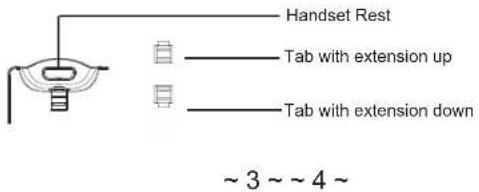
text_image
Handset Rest Tab with extension up Tab with extension down ~ 3 ~ ~ 4 ~Using the Phone Stand:
The GXV3370 has a built-in phone stand. To use it, pull out the phone stand handle on the back of the phone. Adjust the angle as preferred and make sure the phone stands still on the desktop.
CONNECTING THE PHONE:
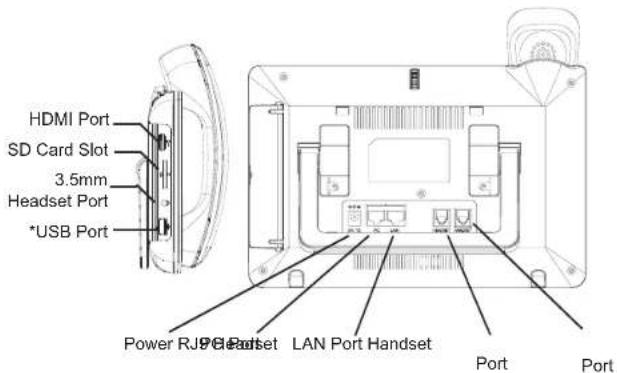
- Connect the handset and main phone case with the phone cord.
- Connect the LAN port of the phone to the RJ-45 socket of a hub/switch or a router (LAN side of the router) using the Ethernet cable.
- Connect the 12V DC output plug to the power jack on the phone; plug the power adapter into an electrical outlet. If PoE switch is used in step 2, this step could be skipped.
- The LCD will display booting up or firmware upgrading information. Before continuing, please wait for the main screen display to show up.
- Using the web configuration interface or from the menu of the touch screen, you can further configure network connection using static IP, DHCP... etc.
text_image
HDMI Port SD Card Slot 3.5mm Headset Port *USB Port Power RJ91 Circuit LAN Port Handset Port Port*USB enabled only when power supply or PoE+ is used.
Tips for using the GXV3370 Keys:
text_image
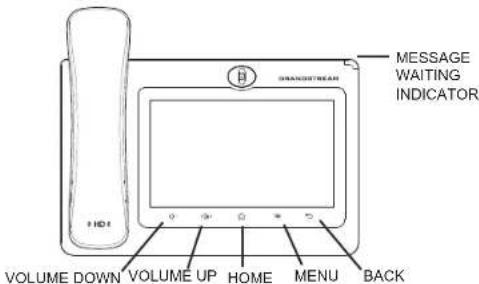
MESSAGE WAITING INDICATOR VOLUME DOWN VOLUME UP HOME MENU BACK- Tap on VOLUME DOWN / UP keys to adjust volume on the phone.
- Tap on HOME key to return to the default idle screen. Or press and hold on the HOME key for 2 seconds to take a screenshot.
- Press MENU key to access phone's display settings, edit widgets and thread manager. Or press and hold on the MENU key for 2 seconds to enter managing application interface directly.
- Press BACK key to go back to the previous menu.
PHONE CONFIGURATION:
Configuring the GXV3370 using Web Browser:
- Ensure your phone is properly powered up and connected to the Internet.
- Tap on Settings → About → Network status, to obtain the IP address of your phone.
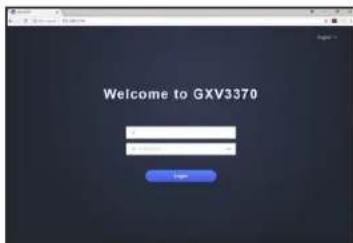
- Type the phone's IP address in your PC's browser (See figure in the next page).
- The default username and password for administrator are "admin" and "admin". The default username and password for user are "user" and "123".
- In the web GUI → Account, select Account 1/2/3/.../16 page to configure Account name, SIP Server, SIP User ID, Authenticate ID and Authenticate Password to register the account on the GXV3370.
text_image
Welcome to GXV3370Configuring the GXV3370 using Touch Screen:
- Make sure the phone is properly powered up and in idle screen.
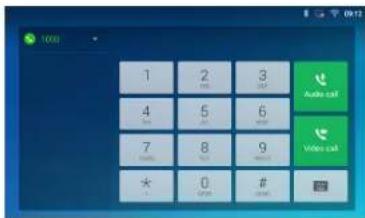
- Select Settings → Advanced Settings → Account settings. Tap on one of the Account to configure Account name, SIP Server, SIP User ID, SIP Auth ID, SIP Auth Password to register account on the GXV3370. After successfully registered, the dial screen will be shown as the figure below.
- Follow the Menu options to configure other settings on the phone. For example, to configure static IP on the GXV3370, set up static IP address via LCD Menu → Settings → Network → Ethernet Settings.
- Please contact your ITSP (Internet Telephony Service Provider) for additional settings that may be necessary to configure the phone.
text_image
1 2 3 4 5 6 7 8 9 * 0 # Audio call Video callFor the detailed user manual, please download from: http://www.grandstream.com/support
This product is covered by one or more of the U.S. patents (and any foreign patent counterparts thereto) identified at www.cmspatents.com.
ZH
natural_image
Front view of a portable electronic device with a screen, speaker, and control panel (no visible text or symbols)
natural_image
Front view of a portable electronic device with a screen, speaker, and control buttons (no text or symbols visible)1x GXV3370 Base Principal

1x Auricular
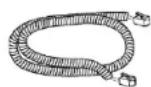
1x Cable
Telefónico
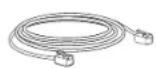
1x Cable de Red
text_image
Welcome to GXV3370natural_image
Front view of a modern kitchen appliance with a digital display and control buttons (no text or symbols visible)1x GXV3370 Boîtier principal

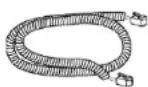
1x Combiné 1x Cordon
tél
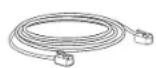
1x Câble Ethernet
text_image
Welcome to GXV3370text_image
Welcome to GXV3370natural_image
Line drawing of a vintage-style electronic device with front panel, keypad, and speaker grille (no text or symbols)text_image
Welcome to GXV3370natural_image
Front view of a modern office kitchen appliance with a digital display and control panel (no visible text or symbols)1x GXV3370 Base principal

1x Fone 1x Cabo de
telefone
1x Cabo de ethernet
text_image
Welcome to GXV3370Configurando o GXV3370 usando Touch Screen:
natural_image
Front view of a portable electronic device with a screen and control panel (no visible text or symbols)text_image
Welcome to GXV3370For certification information, please refer to User Manuals: http://www.grandstream.com
Common part:
This equipment complies with radiation exposure limits set forth for an uncontrolled environment. This transmitter must not be co-located or operating in conjunction with any other antenna or transmitter. This equipment should be installed and operated with minimum distance 20cm between the radiator& your body.
The earpiece is easy to absorb small object, please take care to avoid scratching.
U.S. FCC Part 15 Regulatory Information
This device complies with part 15 of the FCC Rules. Operation is subject to the following two conditions: (1) this device may not cause harmful interference, and (2) this device must accept any interference received, including interference that may cause undesired operation.
Any Changes or modifications not expressly approved by the party responsible for compliance could void the user's authority to operate the equipment.
Note: This equipment has been tested and found to comply with the limits for a Class B digital device, pursuant to part 15 of the FCC Rules. These limits are designed to provide reasonable protection against harmful interference in a residential installation. This equipment generates, uses and can radiate radio frequency energy and, if not installed and used in accordance with the instructions, may cause harmful interference to radio communications. However, there is no guarantee that interference will not occur in a particular installation. If this equipment does cause harmful interference to radio or television reception, which can be determined by turning the equipment off and on, the user is encouraged to try to correct the interference by one or more of the following measures:
—Reorient or relocate the receiving antenna.
—Increase the separation between the equipment and receiver.
—Connect the equipment into an outlet on a circuit different from that to which the receiver is connected.
—Consult the dealer or an experienced radio/TV technician for help.
U.S. FCC Part 68 Regulatory Information
This equipment complies with Part 68 of the FCC rules. Located on the equipment is a label that contains, among other information, the ACTA registration number and ringer equivalence number (REN.) If requested, this information must be provided to the telephone company.
The REN is used to determine the quantity of devices which may be connected to the telephone line. Excessive REN's on the telephone line may result in the devices not ringing in response to an incoming call. In most, but not all areas, the sum of the REN's should not exceed five (5.0). To be certain of the number of devices that may be connected to the line, as determined by the total REN's contact the telephone company
to determine the maximum REN for the calling area.
This equipment cannot be used on the telephone company-provided coin service. Connection to Party Line Service is subject to State Tariffs.
If this equipment causes harm to the telephone network, the telephone company will notify you in advance that temporary discontinuance of service may be required. If advance notice isn't practical, the telephone company will notify the customer as soon as possible. Also, you will be advised of your right the file a complaint with the FCC if you believe it is necessary.
The telephone company may make changes in its facilities, equipment, operations, or procedures that could affect the operation of the equipment. If this happens, the telephone company will provide advance notice in order for you to make the necessary modifications in order to maintain uninterrupted service.
If the trouble is causing harm to the telephone network, the telephone company may request you to remove the equipment from the network until the problem is resolved. This equipment uses the following USOC jacks: RJ45C.
It is recommended that the customer install an AC surge arrester in the AC outlet to which this device is connected. This is to avoid damaging the equipment caused by local lightening strikes and other electrical surges.
If trouble is experienced with this equipment, please contact (Agent in the US):
Company Name: Grandstream Networks, Inc.
Address: 126 Brookline Ave, 3rd Floor Boston, MA 02215, USA
Tel: 1-617-5669300
Fax: 1-617-2491987
Canada Regulatory Information
Radio equipment
Operation of 5150-5250 MHz is restricted to indoor use only.
This device contains licence-exempt transmitter(s)/receiver(s) that comply with Innovation, Science and Economic Development Canada's licence-exempt RSS(s). Operation is subject to the following two conditions:
(1) This device may not cause interference.
(2) This device must accept any interference, including interference that may cause undesired operation of the device.
This product meets the applicable Innovation, Science and Economic Development Canada technical specifications.
This product meets the applicable Innovation, Science and Economic Development Canada technical specifications.
The Ringer Equivalence Number (REN) indicates the maximum number of devices allowed to be connected to a telephone interface. The termination of an interface may consist of any combination of devices subject only to the requirement that the sum of the RENs of all the devices not exceed five.
EU Regulatory Information
Operation of 5150-5350 MHz is restricted to indoor use only.
Support Frequency Bands and Power:
BT 2402-2480 MHz < 10 dBm;
BLE 2402-2480 MHz < 2 dBm;
WLAN 2412-2472 MHz < 20 dBm;
WLAN 5150-5250 MHz < 20 dBm;
WLAN 5250-5350 MHz < 18 dBm;
WLAN 5470-5725 MHz < 18 dBm;
The simplified EU declaration of conformity referred to in Article 10(9) shall be provided as follows:
Hereby, [Grandstream Networks, Inc.] declares that the radio equipment type [GXV3370] is in compliance with Directive 2014/53/EU.
The full text of the EU declaration of conformity is available at the following internet address: www.grandstream.com
UK Regulatory Information
Operation of 5150-5350 MHz is restricted to indoor use only.
Support Frequency Bands and Power:
BT 2402-2480 MHz < 10 dBm;
BLE 2402-2480 MHz < 2 dBm;
WLAN 2412-2472 MHz < 20 dBm;
WLAN 5150-5250 MHz < 20 dBm;
WLAN 5250-5350 MHz < 18 dBm;
WLAN 5470-5725 MHz < 18 dBm;
The simplified UK declaration of conformity referred to in Regulation 8& 14 shall be provided as follows:
Hereby, [Grandstream Networks, Inc.] declares that the radio equipment type [GXV3370] is in compliance with Directive RER 2017 (S.I.2017/1206)..
The full text of the UK declaration of conformity is available at the following internet address: www.grandstream.com