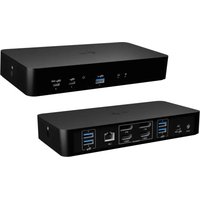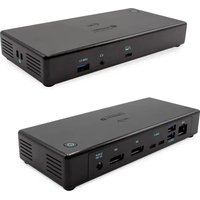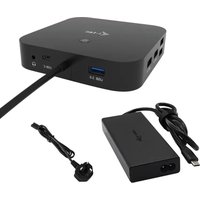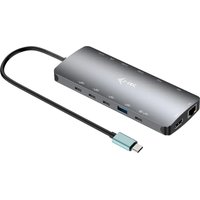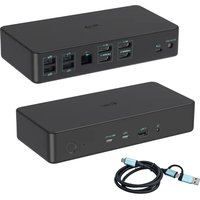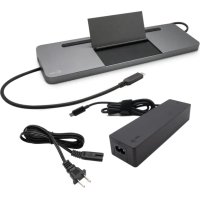
C31FLATDOCKPRO - Docking station i-TEC - Free user manual and instructions
Find the device manual for free C31FLATDOCKPRO i-TEC in PDF.


| Brand | i-TEC |
| Model | C31FLATDOCKPRO |
| Product type | Docking station |
| Connectivity | Integrated USB-C cable (60 cm) |
| Power supply | USB-C Power Delivery (max. 85 W for the host) |
| Video ports | 1x DisplayPort, 1x HDMI, 1x VGA |
| USB-C PD port | 1x for host charging |
| USB 3.0 ports | 2x (with fast charging BC 1.2) |
| USB 2.0 ports | 2x |
| Ethernet port | 1x GLAN RJ-45 (Realtek RTL8153, 10/100/1000 Mbps) |
| Card readers | 1x SD, 1x microSD |
| Audio | 1x 3.5 mm combo (headphone/mic) |
| Maximum resolution | 4K Ultra HD (3840x2160 @ 30 Hz) via HDMI or DisplayPort |
| Compatible operating systems | Windows 10, macOS X, Android, Chrome OS, Linux |
| Station power consumption | 15 W |
| USB fast charging support | BC 1.2 (5V/1.5A) on USB 3.0 ports |
| Maintenance | Clean with a dry, soft cloth. Avoid contact with water or chemicals. |
| Safety | Do not expose to extreme temperatures or humidity. Use on a flat, stable surface. |
| Spare parts and repairability | No user-serviceable parts. Contact i-TEC support in case of malfunction. |
| General information | Uses DisplayPort Alt Mode over USB-C. Compatible with Thunderbolt 3. Requires a host with a USB-C port supporting DisplayPort Alt Mode. |
Frequently Asked Questions - C31FLATDOCKPRO i-TEC
User questions about C31FLATDOCKPRO i-TEC
0 question about this device. Answer the ones you know or ask your own.
Ask a new question about this device
Download the instructions for your Docking station in PDF format for free! Find your manual C31FLATDOCKPRO - i-TEC and take your electronic device back in hand. On this page are published all the documents necessary for the use of your device. C31FLATDOCKPRO by i-TEC.
USER MANUAL C31FLATDOCKPRO i-TEC
USB-C Metal Nano 3x Display Docking Station + Power Delivery 100 W
natural_image
Exterior view of a gray electronic device with ports and connectors (no visible text or symbols)User guide • Gebrauchsanweisung • Mode d'emploi Manual de instrucciones • Manuale • Uživatelská príručka Instrukcje obsługi • Užívatel'ská príručka • Vartotojo vadovas Handleiding
ENGLISH
Please read the entire instruction manual carefully. Detailed manual is available on our website www.i-tec.cz/en/ in the tab „Manuals, drivers“. In case of any issues, please contact our technical support at: support@itecproduct.com
DEUTCH
Declaration of Conformity.... 129–130
FCC....131
GLOSSARY
- Interface / port / connector / input / slot – a place where two devices physically interconnect.
- Controller – a semi-conductor component (so-called chipset) in a laptop, tablet, PC etc. ensuring the operation of a port.
- USB-C / USB Type-C – a new symmetrical connector and standard introduced by USB-IF in its USB 3.1 specification. Windows 10 (Microsoft), macOS (Apple), Chrome OS and Android (Google) introduced native support for this connector. Allows faster charging, power delivery, dual-role use (can function as either a host or a device), support for alternate modes - Alt Mode (DisplayPort, MHL, Thunderbolt 3, Power Delivery) and delivery of error notifications via Billboard devices.
- Alternate modes (Alt modes) – special modes for the USB-C connector that can be supported. Currently the most popular modes are DisplayPort / DockPort, MHL, Thunderbolt. A device with this capability on the port and cable allows video transmission while also retaining other port functionalities (for data transfer and charging via Power Delivery).
- DisplayPort / DockPort Alt mode – this mode allows video transmission via the USB-C port and cable.
- USB Power Delivery (USB PD) – optional property of the USB-C connector. A port supporting this property is able to both charge and be charged and supports a load of 10 W to 100 W (ranges in profiles 1–5). In Windows 10, USB Power Delivery cannot be applied to older USB 3.0/2.0 A, B and micro B ports.
- USB 3.1 / 3.0 / 2.0 – USB interface / port standard for connecting various USB devices. Using the type A USB interface allows the connection of various USB devices to a docking station or adapter. The type B USB port is used for connecting a docking station or adapter to a laptop, tablet or PC.
- HDMI / Display Port – standard for digital graphics interface / port used for connecting monitors and other display devices.
- VGA – an analogue computer standard for graphic display / port used for connecting monitors and other graphic display devices.
- Audio – designation for sound input (microphone) or output devices (headphones / speakers).
SPECIFICATIONS
- 1x integrated USB-C cable for connection to a device (60 cm)
• Power Delivery: 85 W - Video ports:
1x Display Port
1x HDMI
1x VGA
- Resolution:
1 monitor - 1x Display Port/HDMI → up to 4K/30 Hz
1 monitor - 1x VGA → up to 1080p/60 Hz
2 monitors - 1x (DP, HDMI, VGA) + 1x (DP, HDMI, VGA)
→ up to 2x 1080p/60 Hz
3 monitors - 1x Display Port + 1x HDMI + 1x VGA
→ up to 3x 1080p/30 Hz *
3monitors - 1x Display Port + 1x HDMI + 1x VGA
→ up to 1x 1080p/60 Hz + 2x 720p/60 Hz *
• 1x USB-C PD port (power delivery only)
- 2x USB 3.0 port with quick charging support (BC 1.2)
- 2x USB 2.0 port
USB-C Metal Nano 3x Display Docking Station + Power Delivery 100 W
• 1x Ethernet GLAN RJ-45 port (Realtek RTL8153)
- 1x SD slot
- 1x microSD slot
• 1x 3.5 mm combo audio jack
- OS: Windows 10, macOS, Android, Chrome OS, Linux with the latest updates
* In order for three external monitors to function, the laptop lid must be closed.
SYSTEM REQUIREMENTS
Hardware requirements: Device with a free USB-C or Thunderbolt™3 port
Requirements for Power Delivery feature:
Device with a free USB-C or Thunderbolt™3 port with "Power Delivery" support
Requirements for video output: Device with a free USB-C port with "DisplayPort Alternate Mode" support or a Thunderbolt™3 port
Operating system:
Windows 10, macOS, Android, Chrome OS, Linux with the latest updates
Important:
The docking station has a 15 W power consumption. Thus, when connecting a USB-C power adapter of 45 W, the docking station delivers 30 W to the notebook. In the case of a 60 W power adapter, the docking station delivers 45 W, in case of a 85 W power adapter delivers the docking station 70 W and in case of a 100 W adapter it delivers 85 W.
Note: macOS does not support MST technology (2 and more monitors in extended mode). No docking station using USB-C DisplayPort Alt Mode supports the connection of two or more monitors on macOS; only Thunderbolt 3 and DisplayLink docking stations support this function.
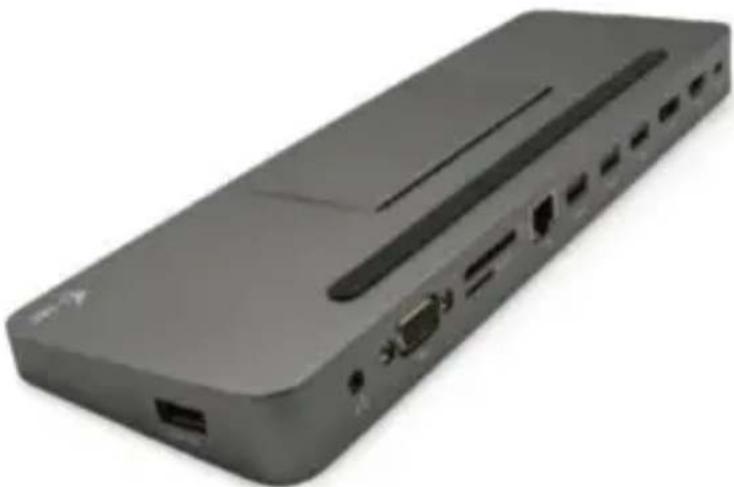
DOCKING STATION DESCRIPTION
- Audio kombo connector 3.5 mm - for connecting the phones and mic
- VGA port - for connecting a monitor with VGA input
- SD and microSD card reader
- Ethernet GLAN RJ-45 port - for Ethernet network / router / switch / HUB and Internet connection
- USB-A 2.0 port - for connecting of the USB devices - primarily for use with a mouse or keyboard
- 2x USB-A 3.0 port - for connecting of the USB devices - with fast charging according to spec. BC 1.2 - for connection and fast charging of a USB device (5V/1.5A)
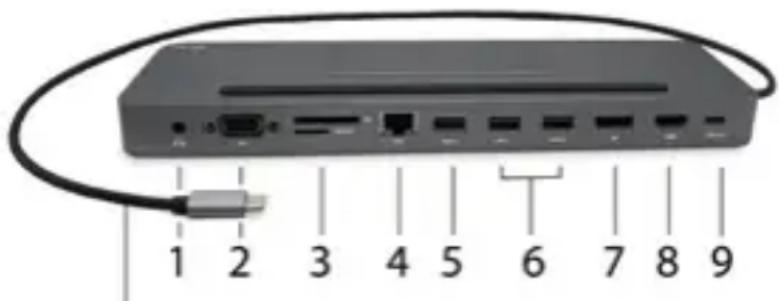
10
natural_image
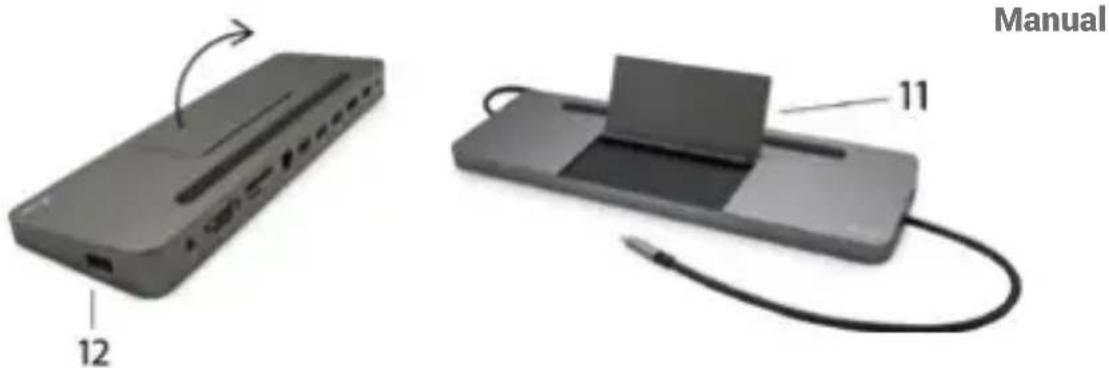
Two electronic devices: a USB drive labeled 12 and a device with a cable labeled 11, shown without any text or symbols on the devices themselves.- DisplayPort - for connecting a monitor with a DisplayPort input
- HDMI port - for connecting a monitor with a HDMI input
- USB-C Power Delivery Port - for charging the notebook, tablet or smartphone supporting Power Delivery technology. To this port, you can plug the original or universal AC power adapter equipped with a USB-C connector to ensure continuous charging of your notebook, tablet, or smartphone while working. Disconnecting the USB-C adapter will restart the docking station and will disconnect and reconnect all connected devices.
- Connecting cable with USB-C connector - for connecting the docking station to a notebook, tablet, PC or smartphone with a USB-C port
- Foldable mobile phone stand
- USB-A 2.0 port – for connecting of the USB devices – primarily for use with a mouse or keyboard
NOTICE!
Before plugging in the docking station, make sure you have the latest drivers for your device and an updated BIOS installed.
Automatic driver installation in WINDOWS / macOS operating systems. If you need to install LAN, download the latest drivers from our website www.i-tec.cz/en/ in the "Download" tab of this product.
CONNECTING A HDMI / DISPLAYPORT / VGA MONITOR
The docking station is equipped with 1x HDMI, 1x DisplayPort 4K port and 1x VGA port for the connection of an external monitor or projector with a HDMI/DP/VGA interface. For displaying your images you can use a modern plazma or LCD monitors and TVs. The graphic chip, which is the heart of the docking station, supports up to 4K resolution 3840x2160 pixels. Connect the monitor to the docking station using a high quality HDMI/DP/VGA cable. During installation of an additional monitor the screen of the device can flicker which is a standard condition.
DisplayPort does not support DP++ and therefore cannot be used to connect a passive DP-to-HDMI adapter etc.
CONNECTING TO THE LAN
You can use the GLAN RJ-45 port for connecting the Ethernet to a router/ switch/ HUB and to the internet, it supports speeds of 10 / 100 / 1000 Mbps.
CONNECTING USB DEVICES
You can use USB-C 3.1 and USB 3.0 ports for connecting your keyboard, mouse, external hard drive, printer and other devices or you can use it for connecting a
USB-C Metal Nano 3x Display Docking Station + Power Delivery 100 W
USB HUB, which will give you more free USB ports. In this case we recommend using a HUB with an external power source. If the connected device is not charged or does not work, connect the original / external USB-C power adaptor to the power connector of the parent notebook / Mac / smartphone / tablet or USB-C Power Delivery port on the docking station for support of charging.
Notes for using the USB-C port:
Fully compatible devices / systems (Alt Mode & Power Delivery)
USB-C is a new standard with a large diversity of uses, while the information on compatibility is complex. Some USB-C devices / systems support Alt Mode video output, while other devices do not. Some can be energized and charged from USB-C Power Delivery, while other devices do not.
Partially compatible devices (supporting either Alt Mode or Power Delivery, but not both)
Many current USB-C devices that support Alt Mode video output do not support charging from USB-C Power Delivery. These devices still need their original power adaptors for charging. On the other hand, some USB-C phones or tablets can be charged from Power Delivery, but most of them do not support Alt Mode video output.
Non-compatible devices / systems
The docking station uses new functions introduced with USB 3.1 and as such the USB-C Power Delivery is not backward compatible with USB 3.0 / 2.0 for charging of older devices. Further, the USB-A 3.0/2.0 (Male) converters to USB-C (Female) for connecting USB-C devices in USB-A 3.0 ports of the docking station are not compatible either. Most current phones and tablets with the USB-C port do not support Alt Mode video output and some do not support USB-C Power Delivery. Check the compatibility with this technology in the device documentation or contact the device manufacturer.
CHARGING AND ENERGIZING
The adaptor offers 1x USB-C Power Delivery port, designed for energizing of the connected “parent” device using the original / external power adaptor and for charging of devices connected through the USB-C or USB-A 3.0 ports. The docking station can charge the host up to 85 W from the standard USB-C Power Delivery port. As already mentioned above, some devices supporting the video output through USB-C cannot be charged from USB-C. For these devices / systems it is necessary to use the original power adaptor.
Important:
The docking station has a 15 W power consumption. Thus, when connecting a USB-C power adapter of 45 W, the docking station delivers 30 W to the notebook. In the case of a 60 W power adapter, the docking station delivers 45 W, in case of a 85 W power adapter delivers the docking station 70 W and in case of a 100 W adapter it delivers 85 W.
Most of the problems with the docking station and connected peripherals can be solved by disconnecting the USB-C docking station cable from the PC / Mac / smartphone / tablet USB-C port and reconnecting it after about 10 seconds.
USING IN WINDOWS OS
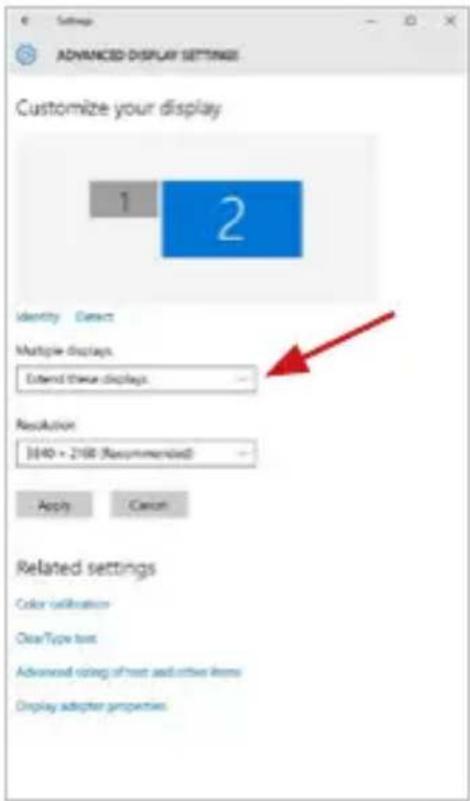
Advanced configuration for the graphics after connecting the monitor, right-click on the Desktop and select settings for "Display settings", you can select here the resolution and frequency for monitor you want to use.
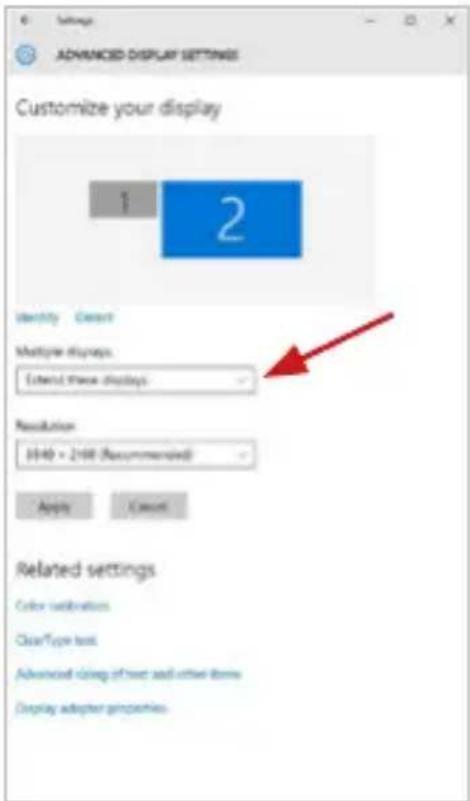
By clicking on the second monitor and moving it you can position this monitor as required relative to the original monitor of your laptop / tablet / PC.
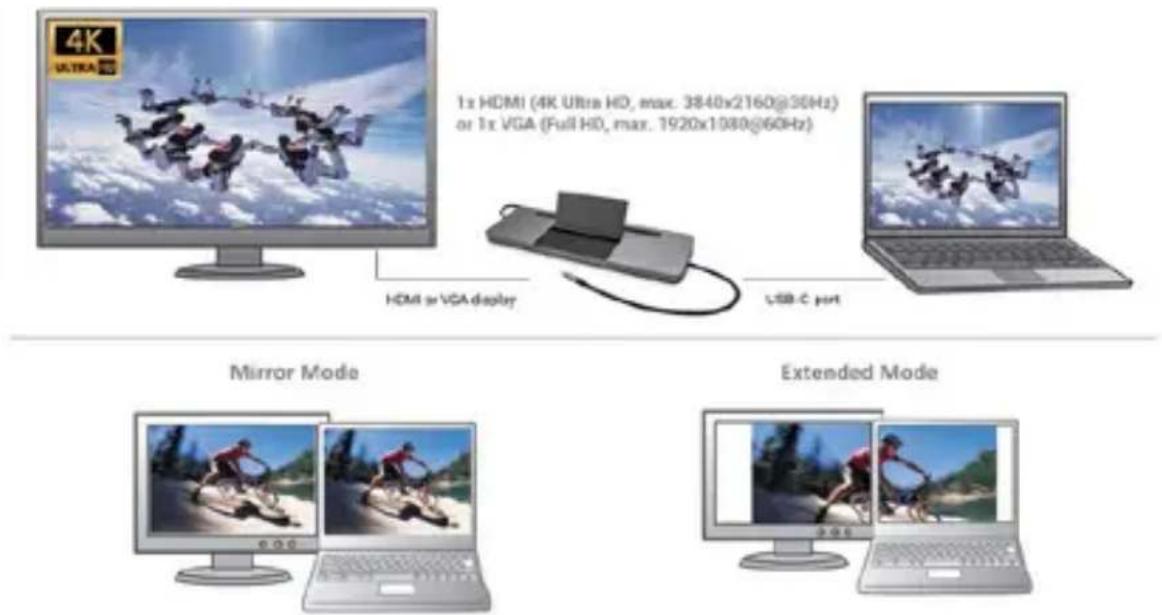
Now you can set Extend and Mirror mode:
- Mirror mode: on the monitor select the 2 ^nd Monitor, select Several monitors Mirror this display OK.
- Extend mode: on the monitor select the 2 ^nd Monitor, select Several monitors → Extend this display → OK.
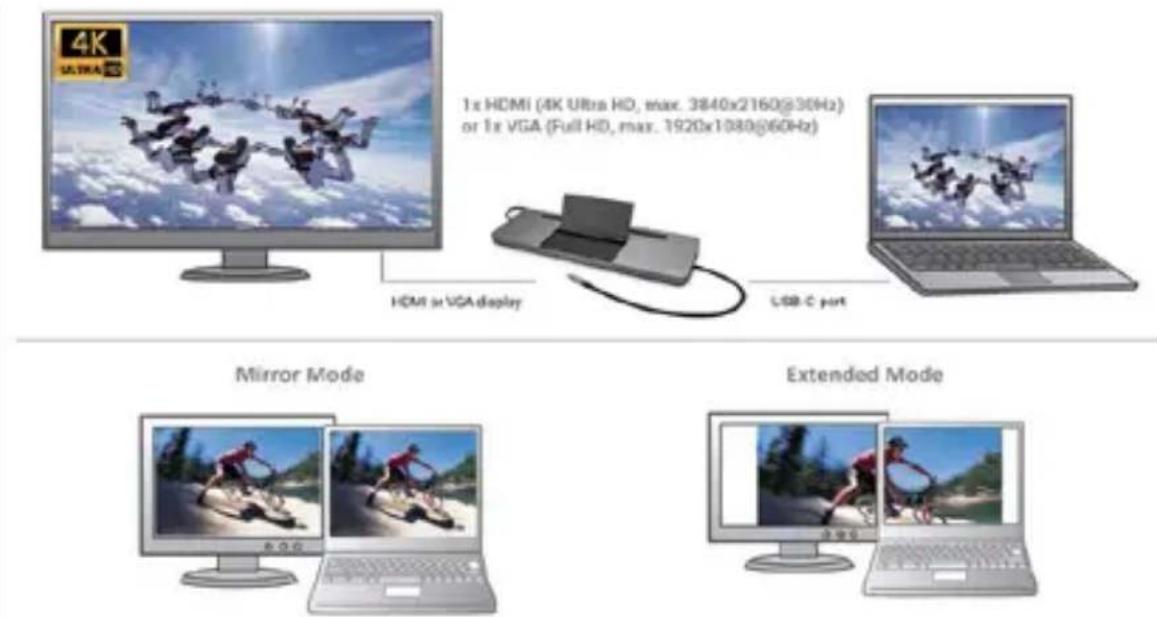
Mirror and Extended mode
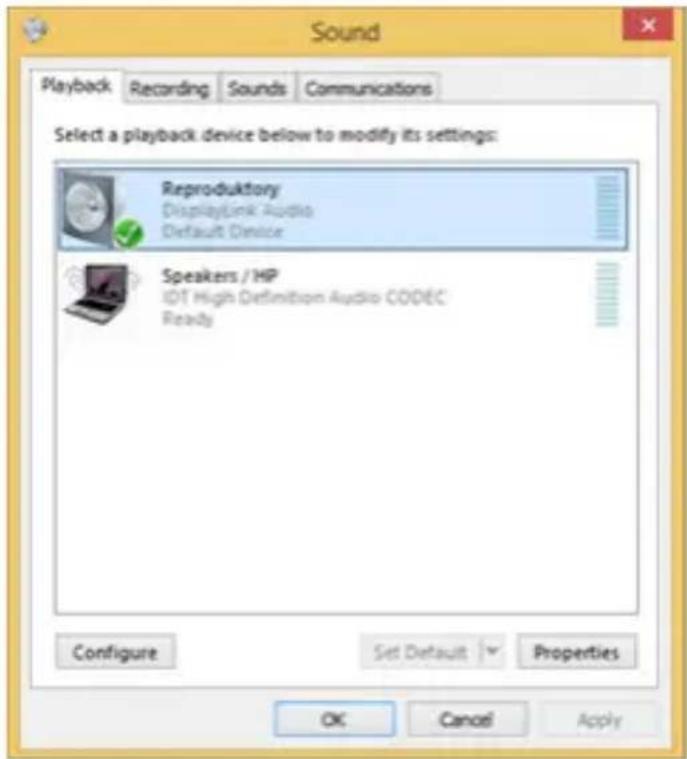
Audio settings - Windows → System → Audio
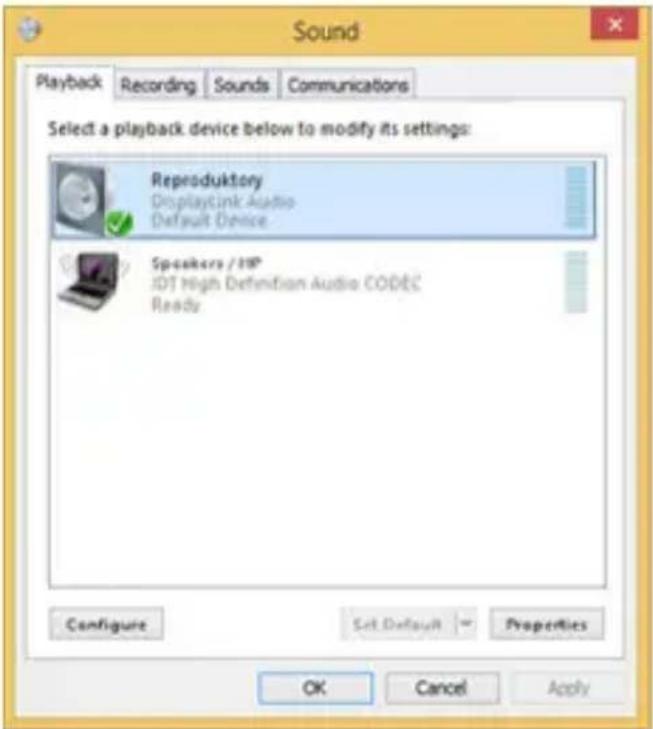
Sound settings
The Standby / Hibernate mode and the Video port – after the activation of the laptop / tablet from the Standby / Hibernate mode the primary (original) monitor is displayed, for this reason we recommend using the monitor that is integrated with the laptop / tablet as the primary monitor, so that you can log on to the system again.
The Mirror mode – the additional monitor takes on the parameters of the original monitor in the system, i.e., if you select the Mirror mode and the original monitor resolution is e.g. 1280x1024 then the screen will be displayed on the additional monitor with a resolution of max. 1280x1024 (even if you set a higher resolution).
Use and set the monitors in accordance with the user manual, i.e., using a monitor with the resolution lower than the settings on the HDMI port can damage the monitor (e.g., for a monitor with max. resolution 1024x768 do not set the resolution value 1280x960 and higher on the HDMI port)!
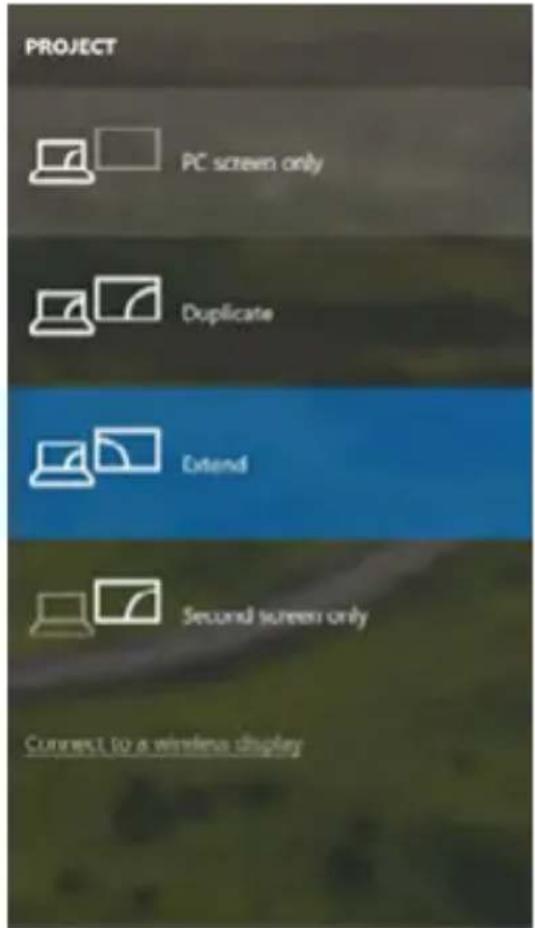
Pressing the keys „Windows“ + P you can also easily control the monitors – for using a monitor in Win 10 you can select: Computer screen only, Mirror, Extend, Second screen only
USING IN MACOS X
CAUTION!
Before installation make sure that your Mac has installed the latest macOS for your device.
Note: macOS does not support MST technology (2 and more monitors in extended mode). No docking station using USB-C DisplayPort Alt Mode supports the connection of two or more monitors on macOS; only Thunderbolt 3 and DisplayLink docking stations support this function.
Automatic driver installation in macOS operating systems.
If you need to install LAN, download the latest drivers from our website www.i-tec.cz/en/ in the "Download" tab of this product.
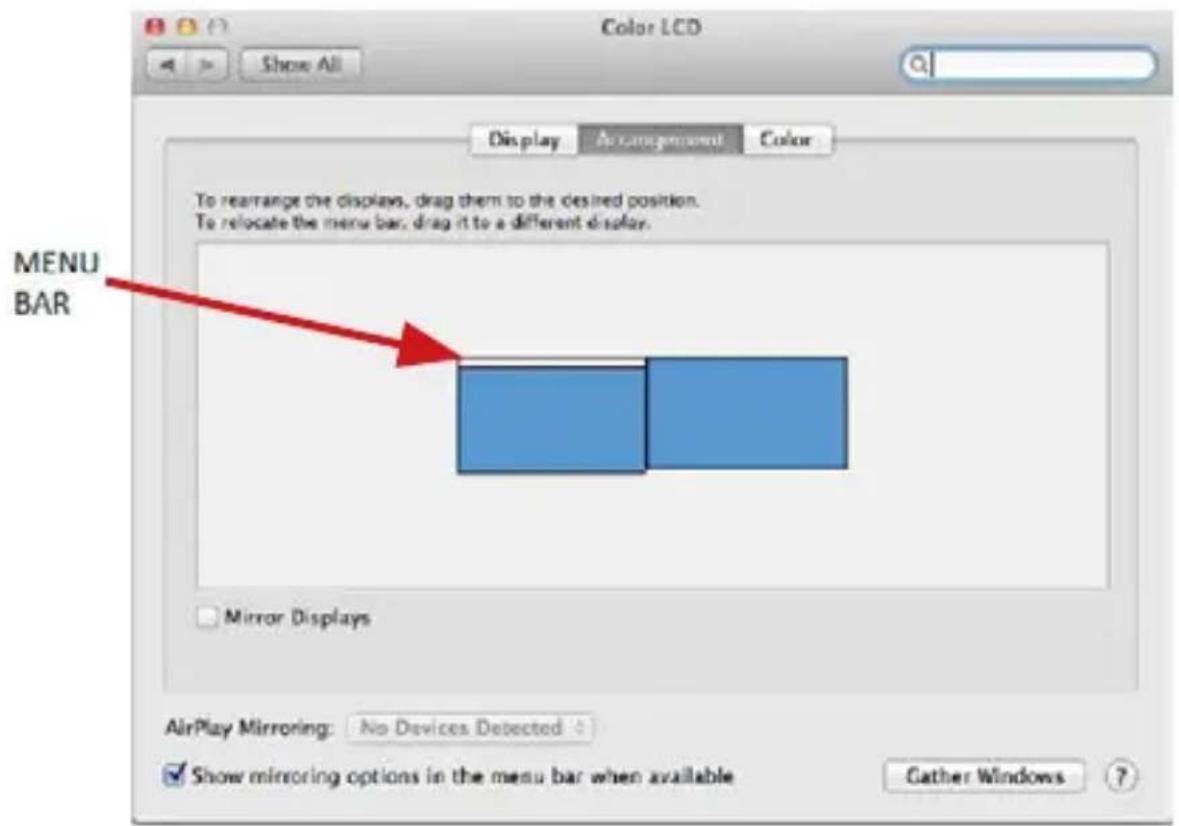
A: After connecting the monitor, the screen on your Mac will glimmer, which is a standard condition, after stabilization it is possible to perform standard setting of the monitor here: System Preferences-Displays:
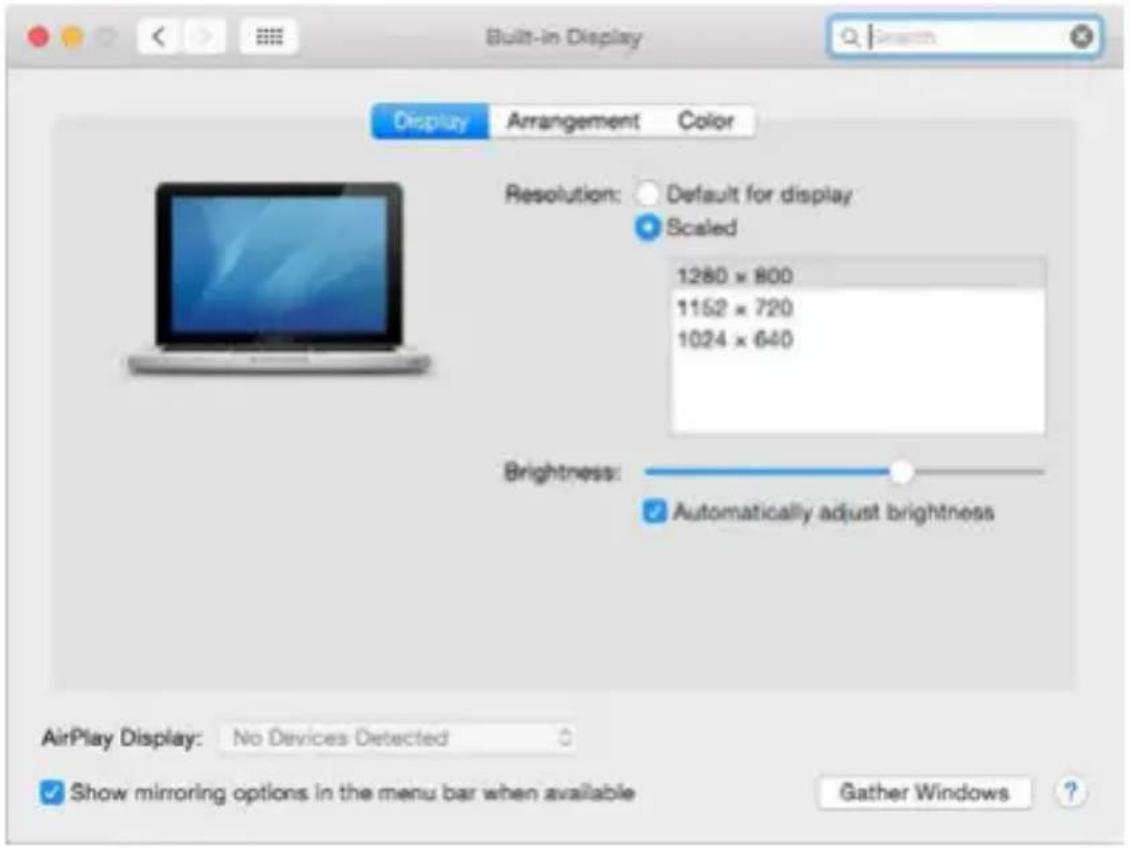
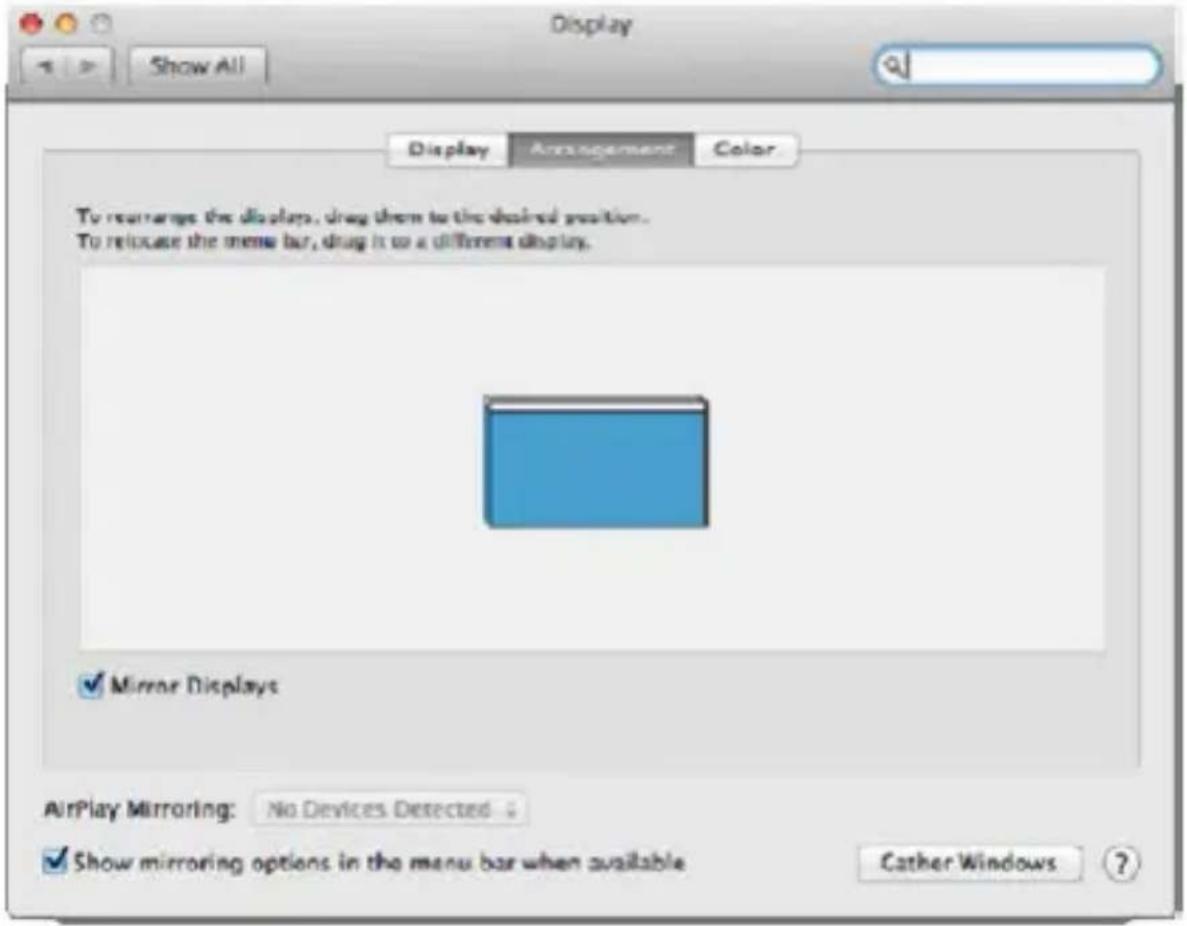
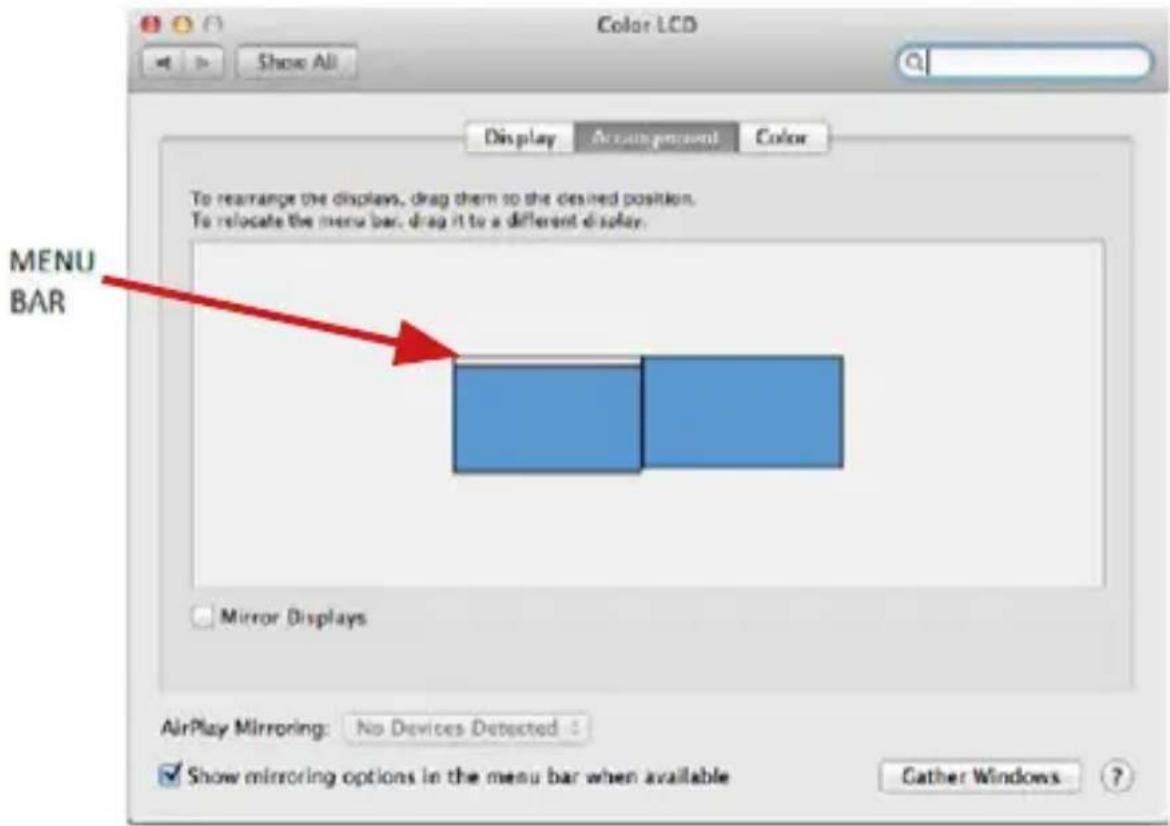
Click on Arrangement and in the default mode (Extended desktop) click on the new monitor and drag it as necessary vis-à-vis the Mac monitor. If you select Mirror displays the mode will change to Mirror (the resolution of the monitors will be automatically adjusted according to their parameters and the highest possible resolution will be set on both monitors). By cancelling the Mirror displays option you will return to the Extended desktop mode.
Extended mode: The arrow indicates the possible position of the connected monitor vis-à-vis the Mac monitor.
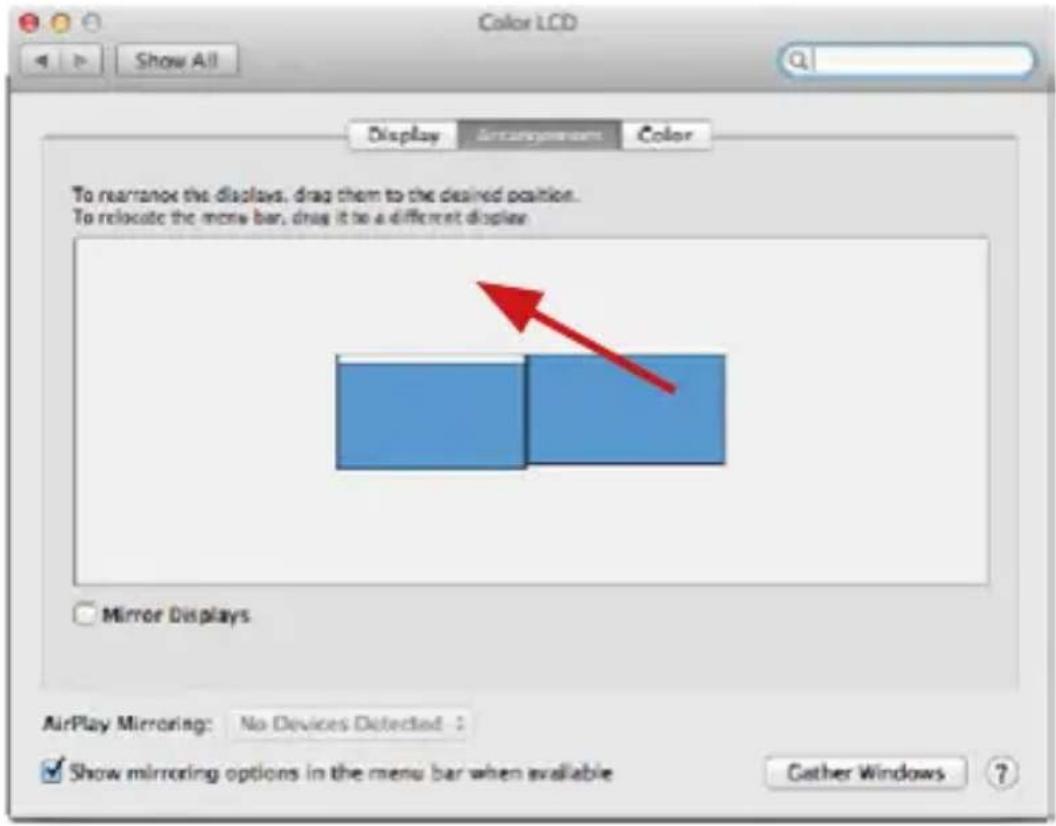
Extended mode: In this mode you can choose the Main monitor by dragging the Menu Bar.
USB-C Metal Nano 3x Display Docking Station + Power Delivery 100 W
Mirror mode: This mode can only be used if supported by the Mac.
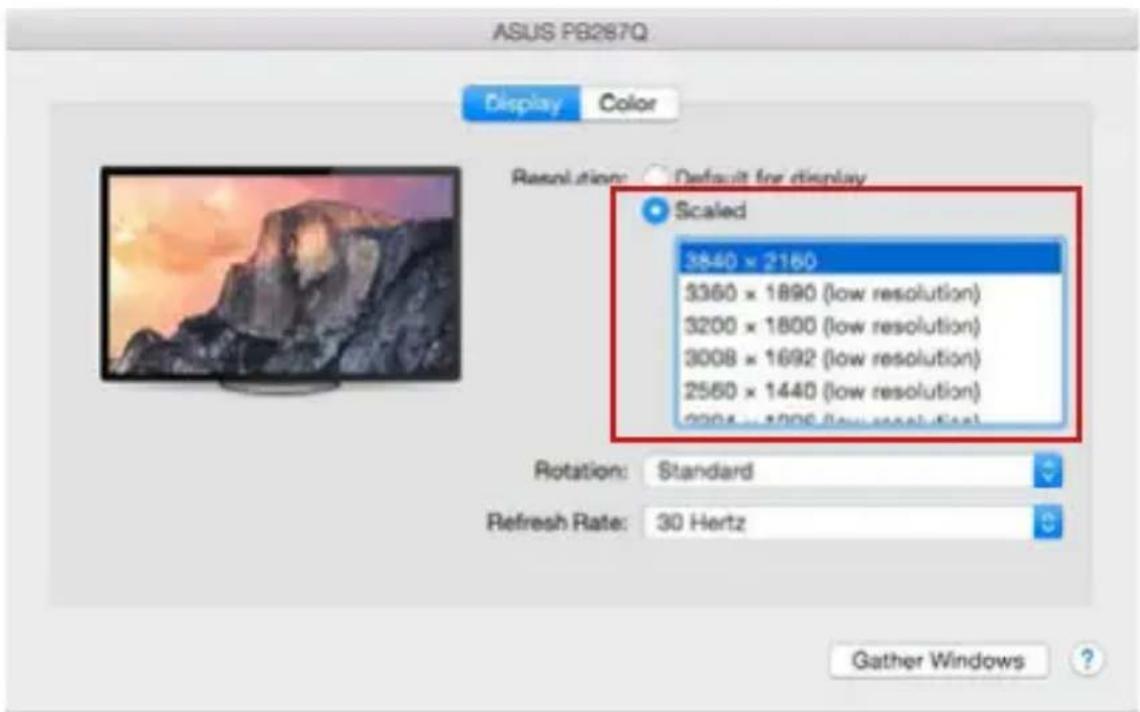
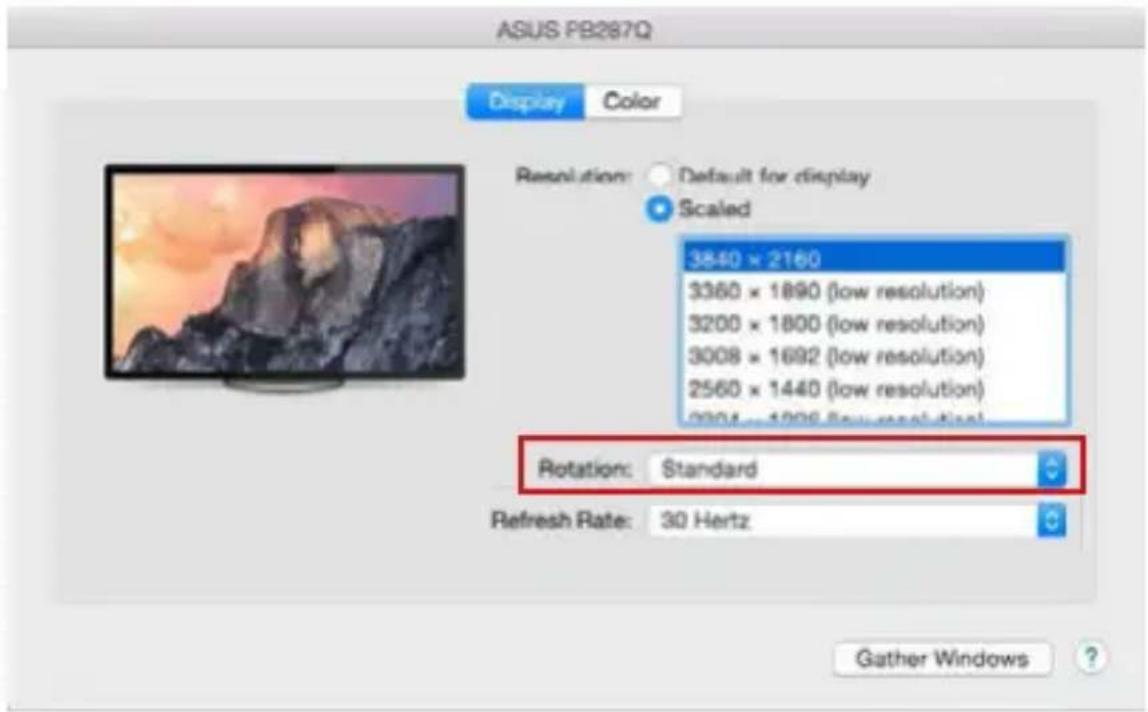
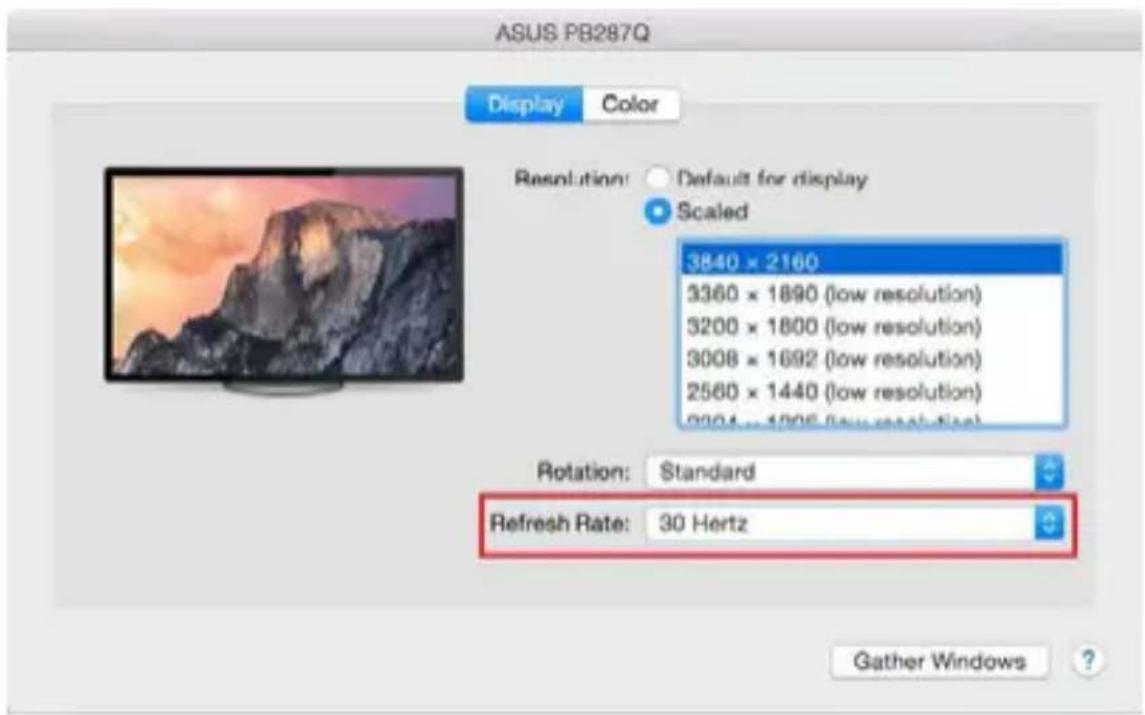
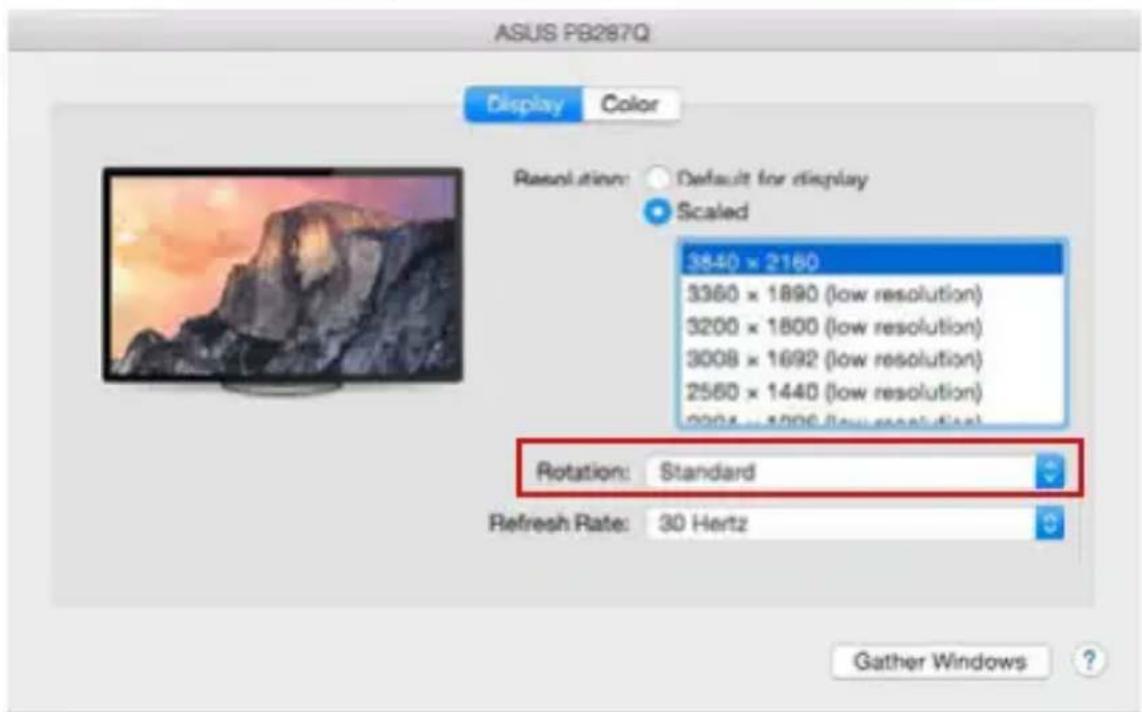
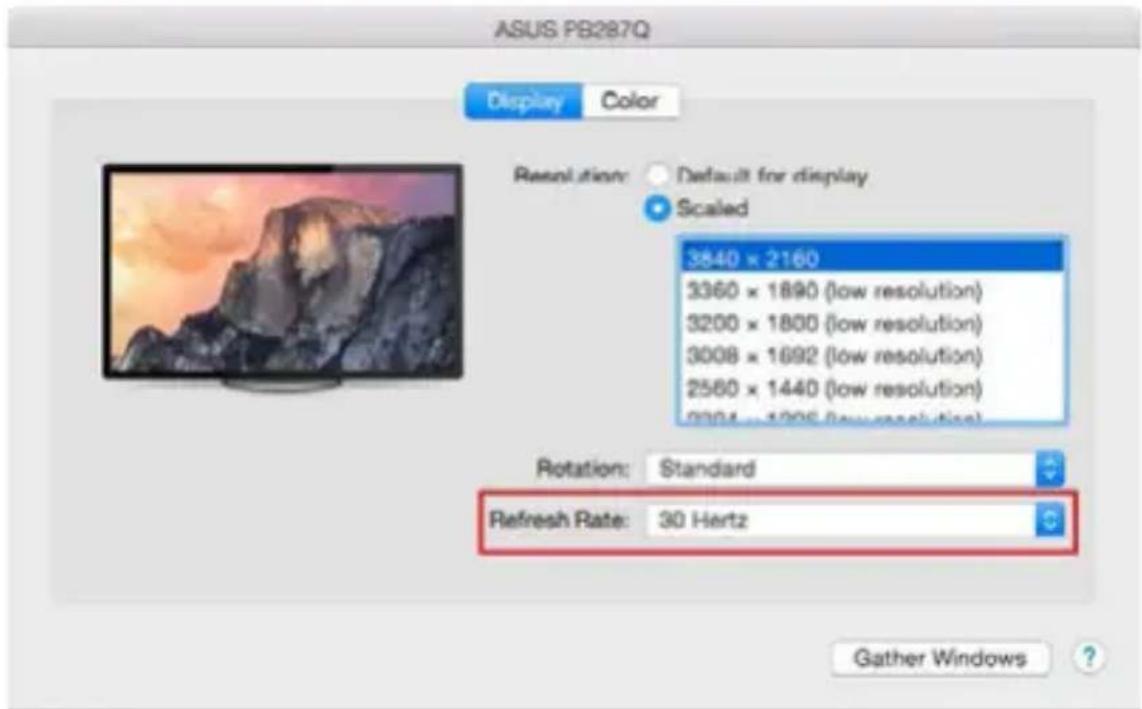
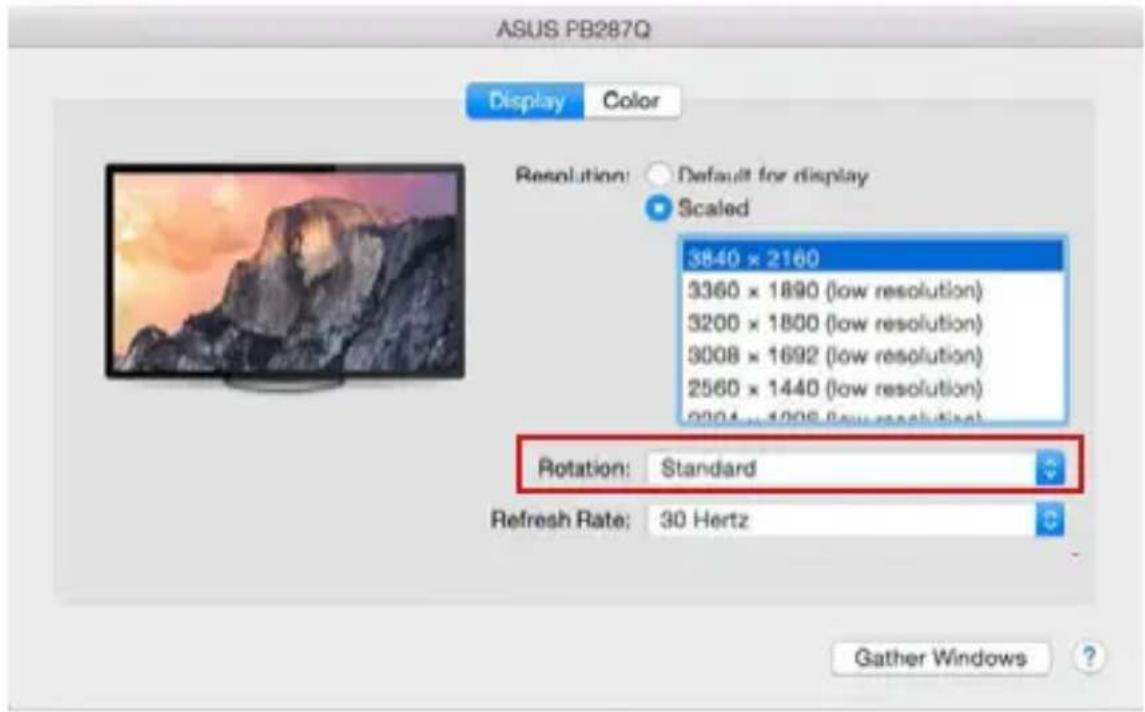
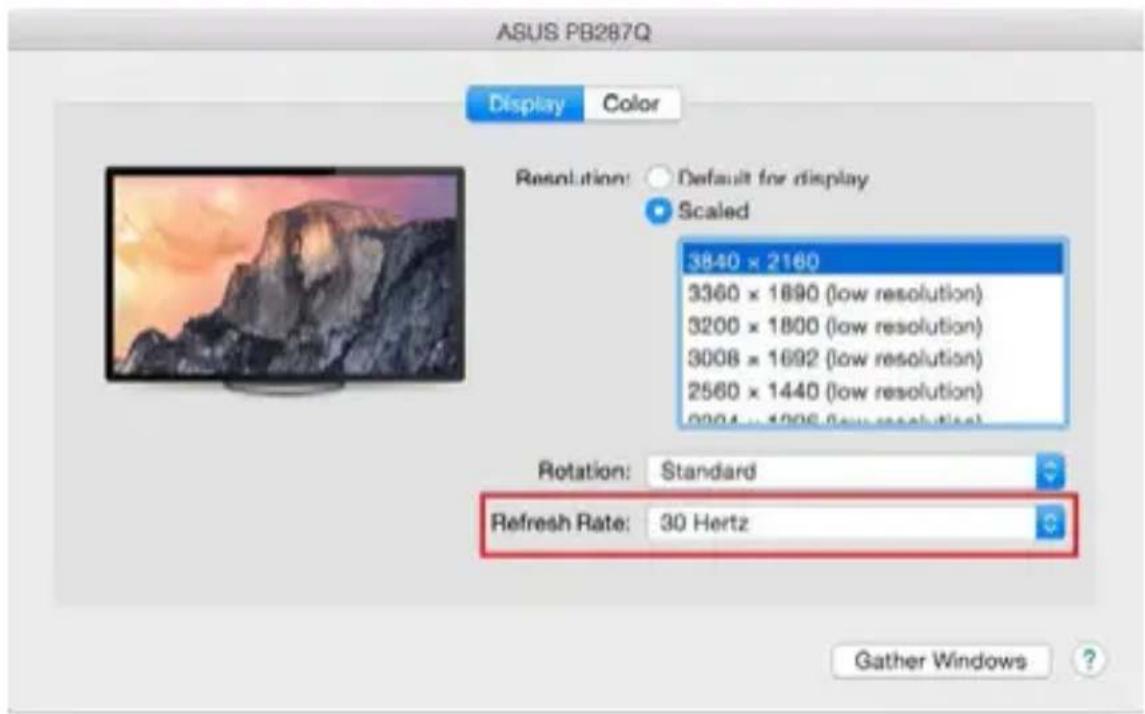
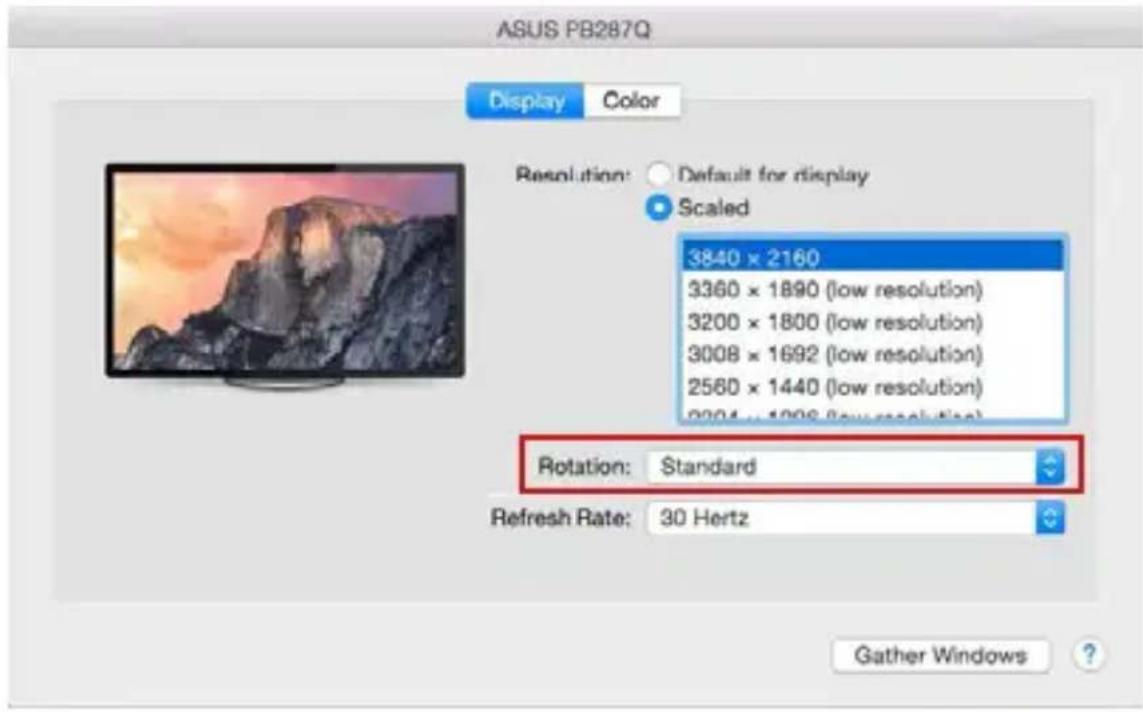
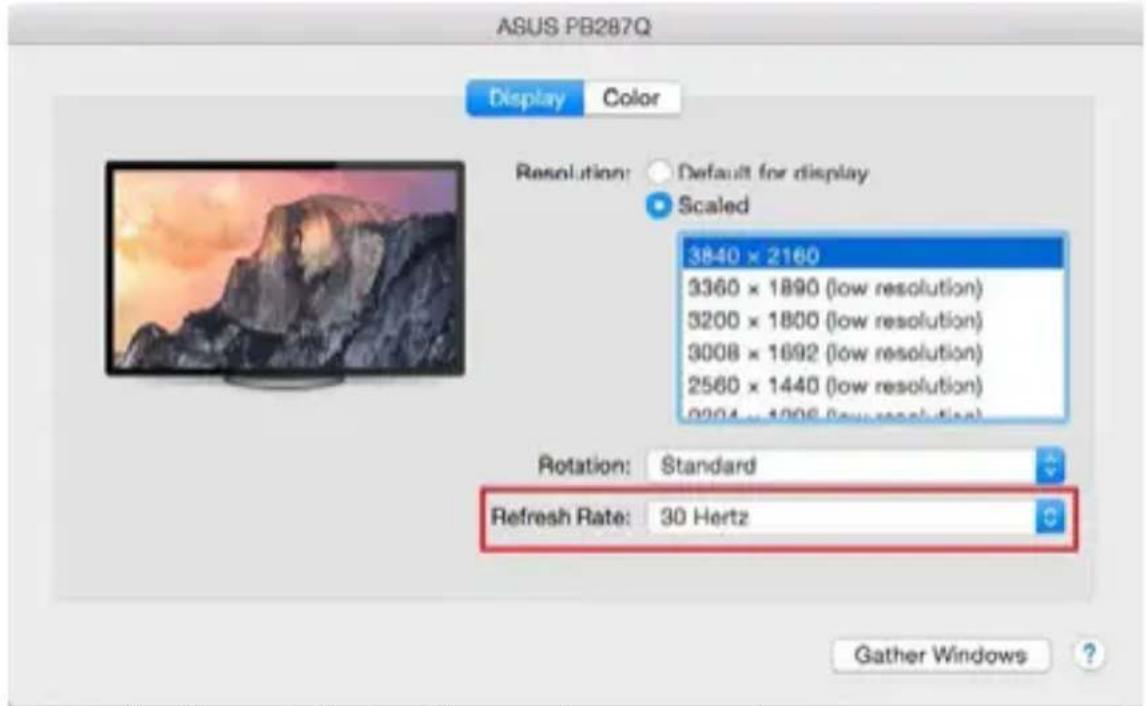
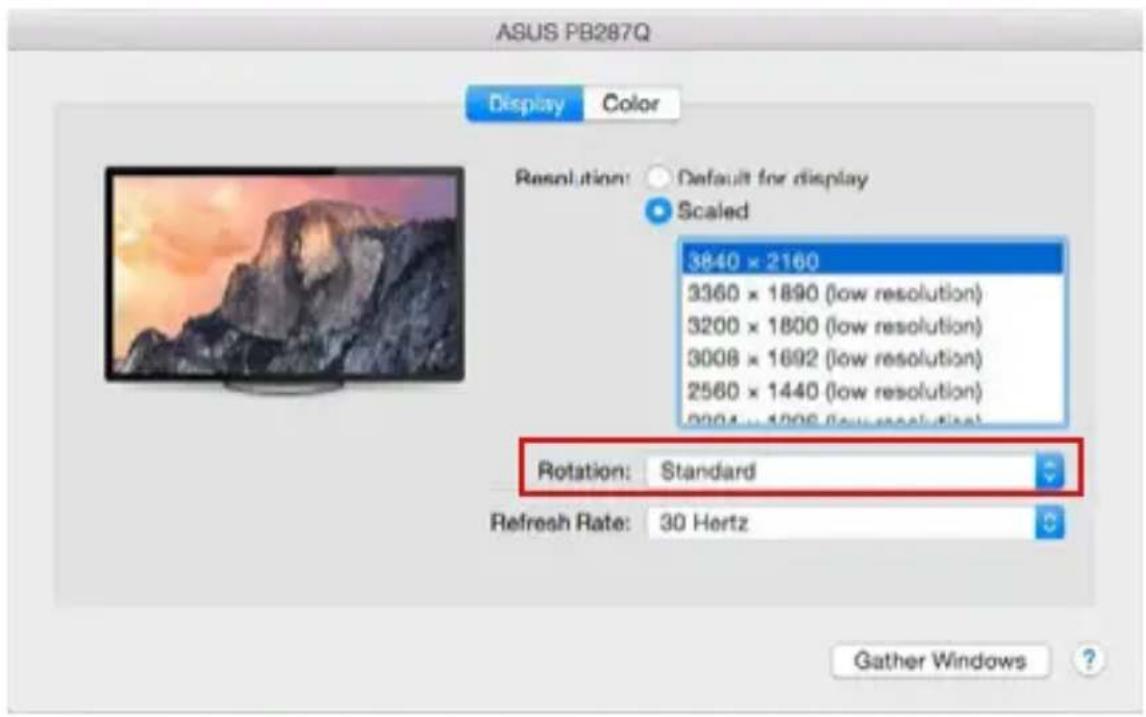
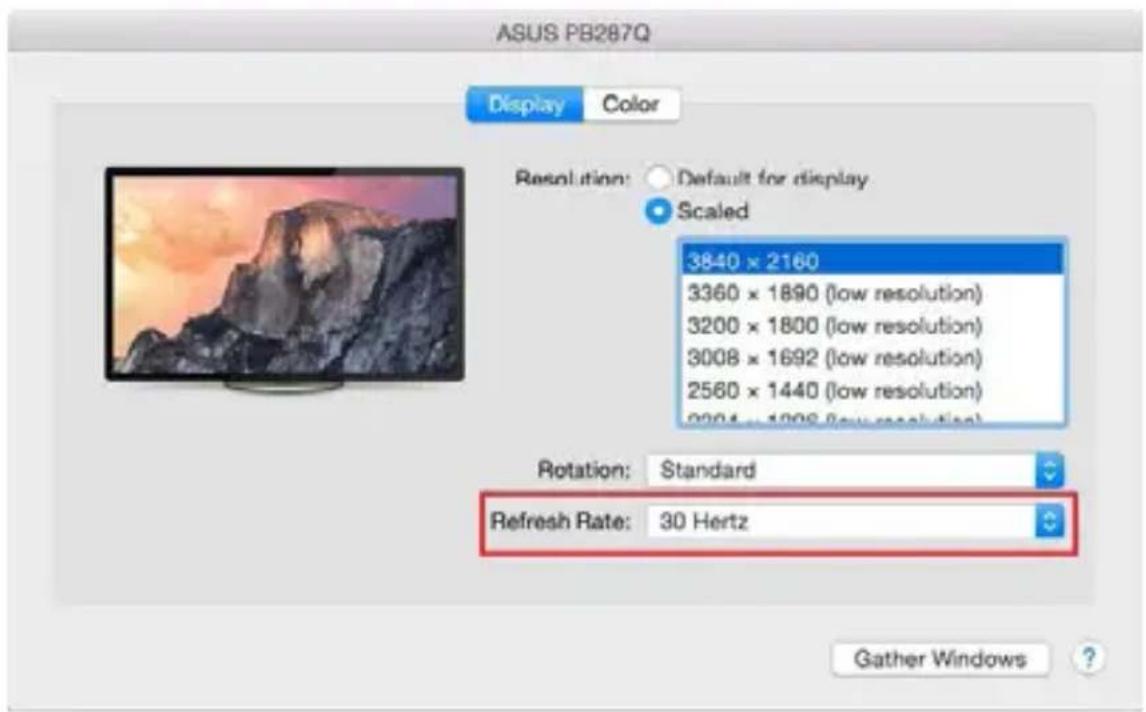
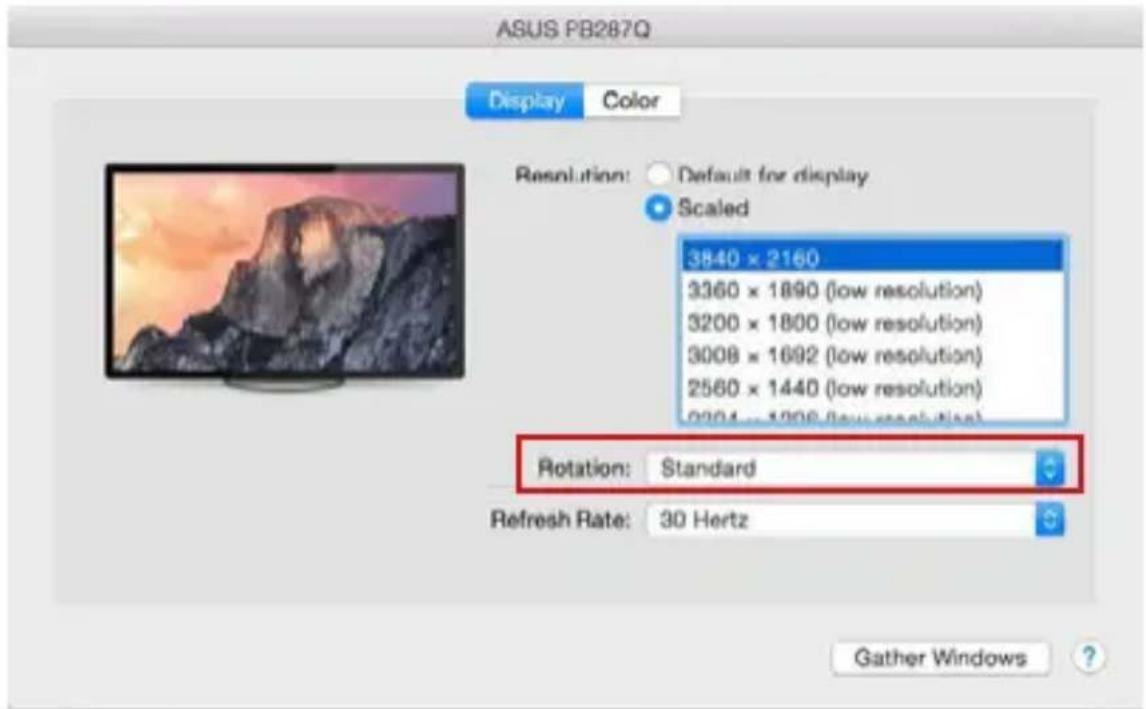
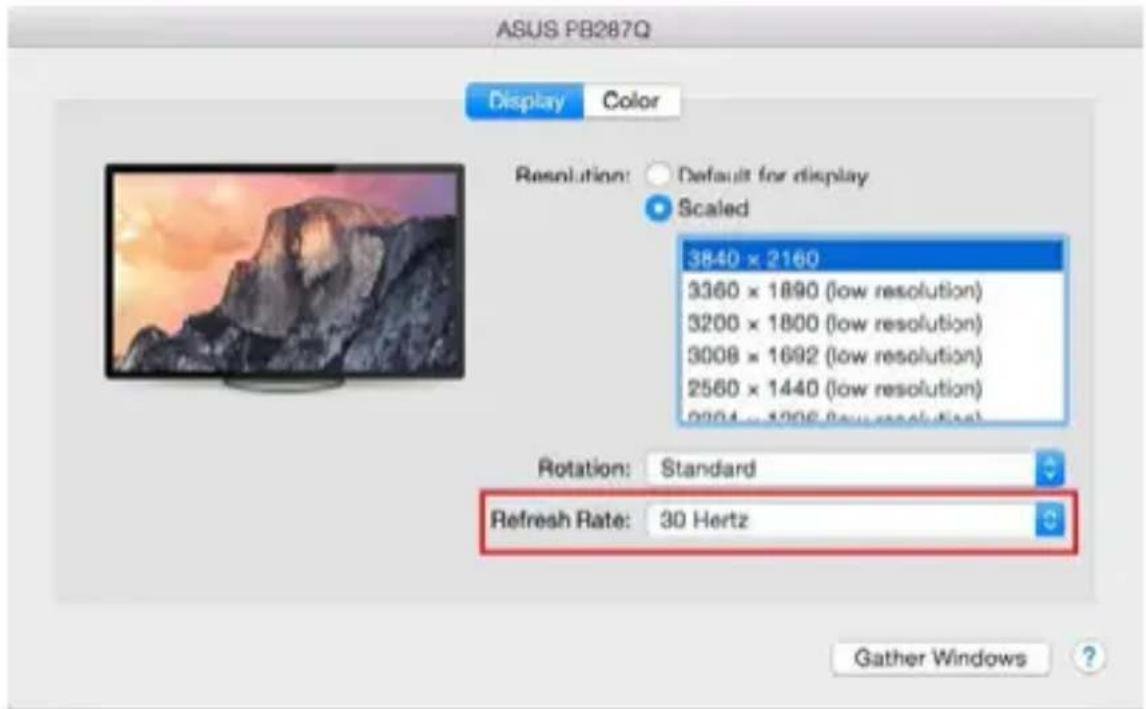
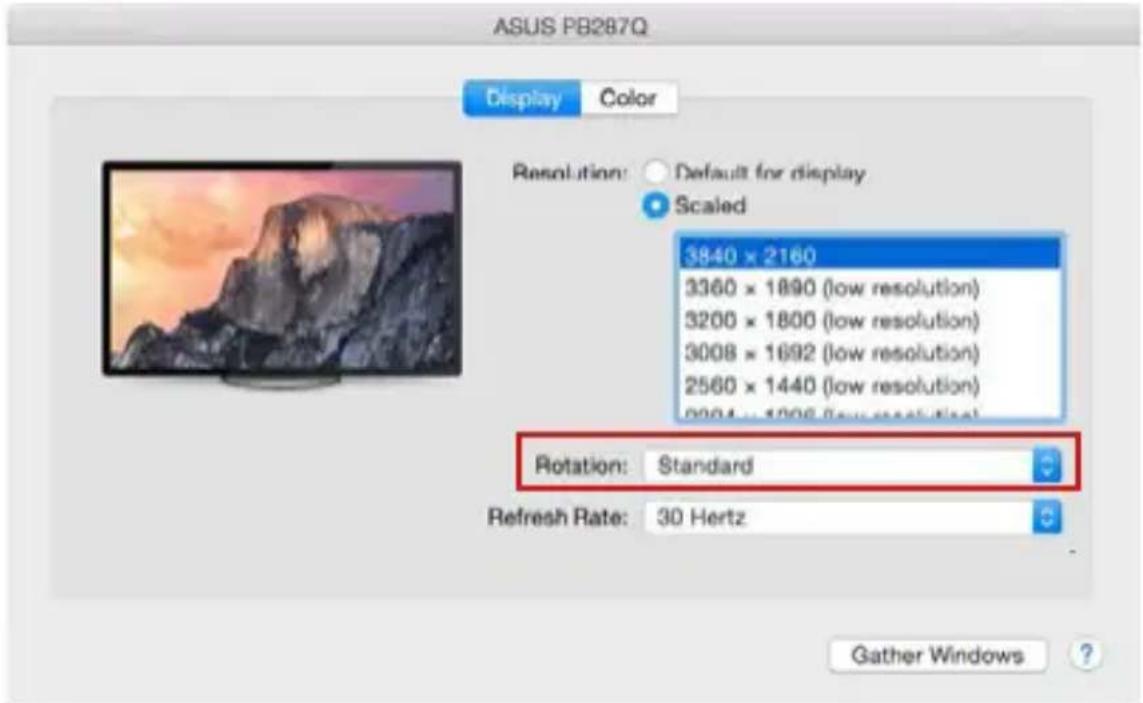
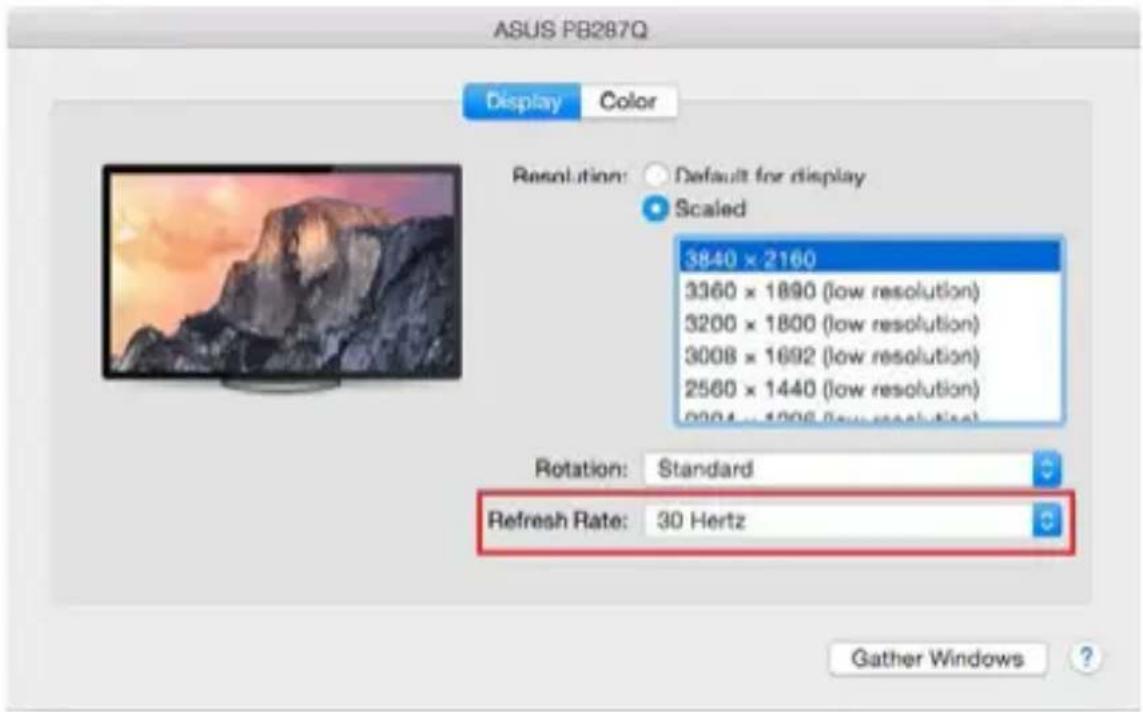
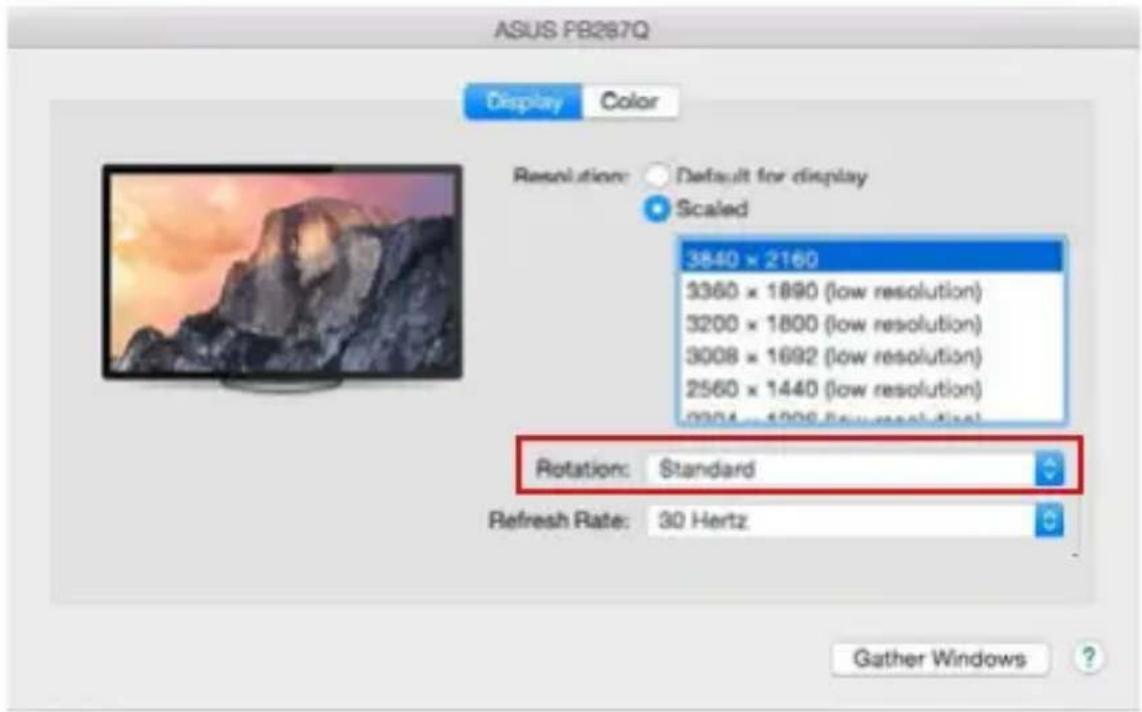
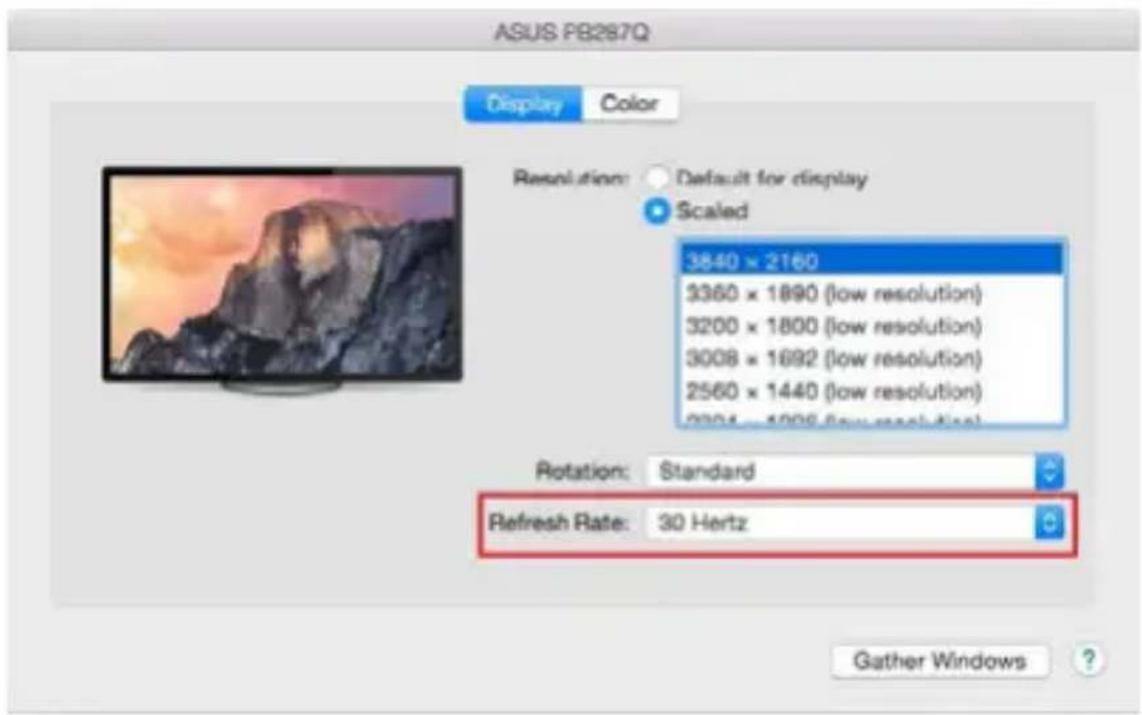
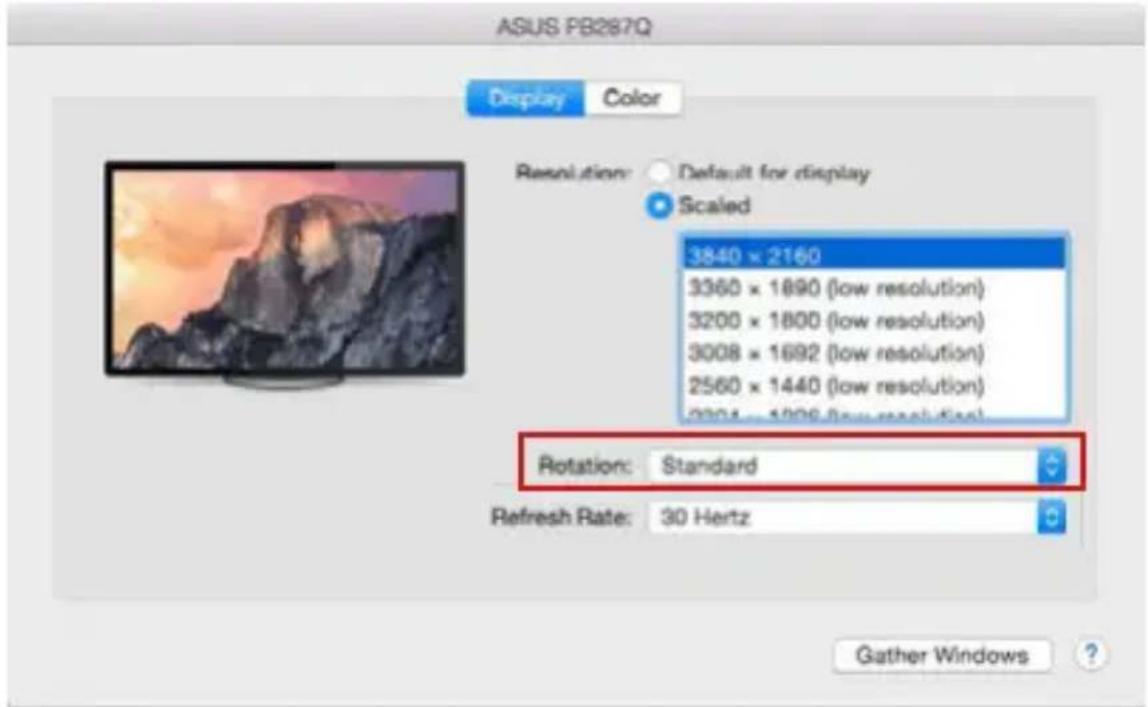
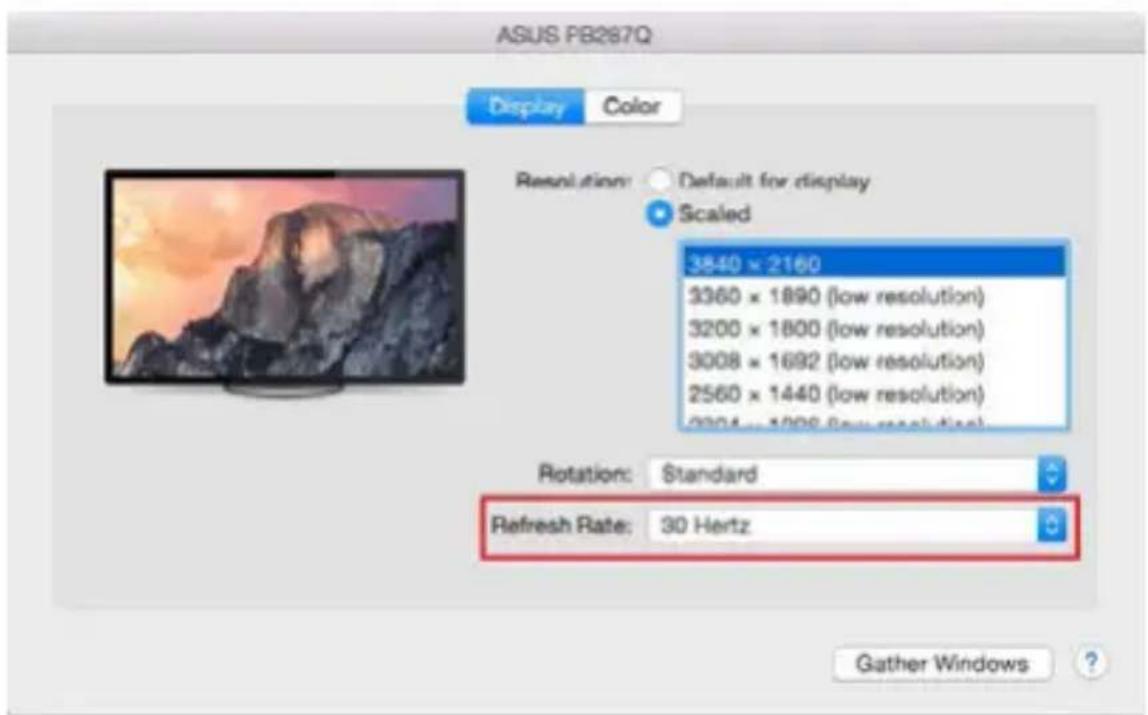
Click on Gather Windows: using this option you can choose the settings of the corresponding monitor – Scaled (offers available resolutions), Rotation (Standard, 90°, 180° and 270°) and Refresh rate (if offered).
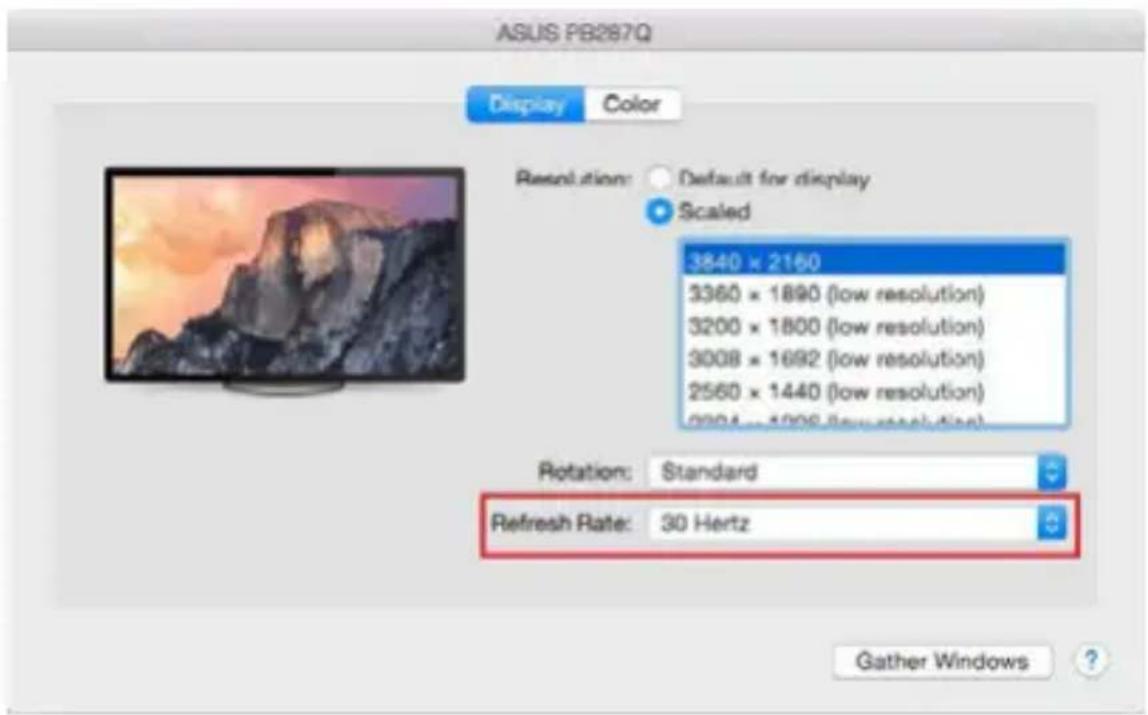
Notes for using the docking station with monitors:
- Working on the connected monitor when the Mac monitor is closed is possible with the power supply from the grid (there are some limitations when using a HDMI monitor on older versions of Mac). When the power supply is from the battery, the use of a HDMI monitor is limited by the Mac (in some situations in case of problems with displaying it is possible to use the method described in the following paragraph).
- Most problems with renewing the screen on the connected monitor after hibernation of the Mac, after using screensaver, after restarting the Mac, after turning the Mac OFF / ON can be solved by disconnecting the USB-C cable of the docking station from the USB-C port on the Mac and reconnecting it after approximately 10 s. Please wait for completion of connection of all peripherals.
USB-C Metal Nano 3x Display Docking Station + Power Delivery 100 W
B: After connecting other USB devices to the USB 3.0 port of docking station (e.g. USB external HDD, USB keyboard, USB mouse, USB Hub, USB graphic adapter) these devices are used in a standard way. If the device is not charged or does not work, connect the original USB-C power adaptor to the USB-C port of the docking station for support of charging.
The majority of problems with the docking station and the connected peripheral devices can be solved by disconnecting the USB-C cable of the docking station from the USB-C port of the PC / Mac / smartphone and reconnecting after approximately 10 s.
CHARGING
The docking station supports charging of the connected USB mobile devices such as smart phones, e-book readers, multimedia players, navigation devices, and tablets. Simply connect the device that you want to charge using the original cable to the USB port of the docking station. If the device is not charged or does not work, connect the original USB-C power adapter to the USB-C port of the docking station for support of charging.
AUDIO
- Audio output devices, for listening through HDMI, need to be set / verified here: System Preferences-Sound-Output – select HDMI Audio Device.
- Setting the audio output device to both the earphones and the monitor simultaneously can be done in Open-Applications-Utilities-Audio settings MIDI.app – click on „+“ on the left at the bottom – Create device with multiple outputs and select the desired outputs from the offered options on the Device with multiple outputs.
In case of problems with the product contact our technical support: support@itecproduct.com
SAFETY INSTRUCTIONS
- Do not expose to extreme temperatures and air humidity
- Use the device on flat surfaces – you will prevent it from slipping and falling to the ground.
- Save the user manual for a possible use later.
In cooperation with the service department:
- Check functionality after falling to water or to the ground.
- Check functionality when the cover is broken.
- Send the device back if it does not work in accordance with the user manual.
FREQUENTLY ASKED QUESTIONS
Available on our website www.i-tec.cz/en/ on the "FAQ" tab of this product.
BEGRIFFSWÖRTERBUCH
USB-C Metal Nano 3x Display Docking Station + Power Delivery 100 W
$$ \begin{array}{l} 2 \text { Bildschirme } - 1 x (\text { DP }, \text { HDMI }, \text { VGA }) + 1 x (\text { DP }, \text { HDMI }, \text { VGA }) \rightarrow \text { bis } 2 x 1 0 8 0 p / 6 0 \text { Hz } \ 3 \text { Bildschirme } - 1 x \text { Display Port } + 1 x \text { HDMI } + 1 x \text { VGA } \rightarrow \text { bis } 3 x 1 0 8 0 \text { p / 30 Hz } * \ 3 \text { Bildschirme } - 1 x \text { Display Port } + 1 x \text { HDMI } + 1 x \text { VGA } \ \rightarrow \text { bis } 1 x 1 0 8 0 p / 6 0 H z + ^ {*} 2 x 7 2 0 p / 6 0 H z \ \end{array} $$
USB-C Metal Nano 3x Display Docking Station + Power Delivery 100 W
Toneinstellung
USB-C Metal Nano 3x Display Docking Station + Power Delivery 100 W

USB-C Metal Nano 3x Display Docking Station + Power Delivery 100 W
USB-C Metal Nano 3x Display Docking Station + Power Delivery 100 W
- Résolution :
1 moniteur – 1x Display Port/HDMI → jusqu'à 4K/30Hz
1 moniteur – 1x VGA → jusqu'à 1080p/60Hz
2 moniteurs – 1x (DP,HDMI, VGA) + 1x (DP,HDMI, VGA) → jusqu'à 2x 1080p/60Hz
3 moniteurs – 1x Display Port + 1x HDMI + 1x VGA → jusqu'à 3x 1080p/30Hz *
3 moniteurs – 1x Display Port + 1x HDMI + 1x VGA → jusqu'à 1x 1080p/60Hz
+ 2x 720p/60Hz
DESCRIPTION DE LA STATION D'ACCUEIL
USB-C Metal Nano 3x Display Docking Station + Power Delivery 100 W
Paramètres audios
USB-C Metal Nano 3x Display Docking Station + Power Delivery 100 W
USB-C Metal Nano 3x Display Docking Station + Power Delivery 100 W
INSTRUCTIONS DE SÛRETÉ
USB-C Metal Nano 3x Display Docking Station + Power Delivery 100 W
USB-C Metal Nano 3x Display Docking Station + Power Delivery 100 W
Ajustes de sonido
USB-C Metal Nano 3x Display Docking Station + Power Delivery 100 W
USB-C Metal Nano 3x Display Docking Station + Power Delivery 100 W
USB-C Metal Nano 3x Display Docking Station + Power Delivery 100 W
Impostazione audio
USB-C Metal Nano 3x Display Docking Station + Power Delivery 100 W
USB-C Metal Nano 3x Display Docking Station + Power Delivery 100 W
USB-C Metal Nano 3x Display Docking Station + Power Delivery 100 W
USB-C Metal Nano 3x Display Docking Station + Power Delivery 100 W
USB-C Metal Nano 3x Display Docking Station + Power Delivery 100 W
Důležité:
Nastavení zvuku
USB-C Metal Nano 3x Display Docking Station + Power Delivery 100 W
USB-C Metal Nano 3x Display Docking Station + Power Delivery 100 W
USB-C Metal Nano 3x Display Docking Station + Power Delivery 100 W
USB-C Metal Nano 3x Display Docking Station + Power Delivery 100 W
UŻYTKOWANIE W MACOS
USB-C Metal Nano 3x Display Docking Station + Power Delivery 100 W
USB-C Metal Nano 3x Display Docking Station + Power Delivery 100 W
USB-C Metal Nano 3x Display Docking Station + Power Delivery 100 W
• 1x USB-C port PD (iba power delivery)
- 2x USB 3.0 port s podporou rýchleho nabíjania (BC 1.2)
- 2x USB 2.0 port
• 1x Ethernet GLAN RJ-45 port (Realtek RTL8153)
- 1x SD slot
- 1x microSD slot
• 1x 3,5mm Audio kombo konektor
- OS: Windows 10, macOS X, Android, Chrome OS Google, Linux s najnovšími aktualizáciami
USB-C Metal Nano 3x Display Docking Station + Power Delivery 100 W
Nastavenie zvuku
USB-C Metal Nano 3x Display Docking Station + Power Delivery 100 W
USB-C Metal Nano 3x Display Docking Station + Power Delivery 100 W
USB-C Metal Nano 3x Display Docking Station + Power Delivery 100 W
USB-C Metal Nano 3x Display Docking Station + Power Delivery 100 W
USB-C Metal Nano 3x Display Docking Station + Power Delivery 100 W
Garso nustatymas
USB-C Metal Nano 3x Display Docking Station + Power Delivery 100 W
USB-C Metal Nano 3x Display Docking Station + Power Delivery 100 W
USB-C Metal Nano 3x Display Docking Station + Power Delivery 100 W
2 monitoren - 1x (DP, HDMI, VGA) + 1x (DP, HDMI, VGA) → max. 2x 1080p/60Hz
3 monitoren - 1x Display Port + 1x HDMI + 1x VGA → max. 3x 1080p/,30Hz*
3 monitoren - 1x Display Port + 1x HDMI + 1x VGA → max. 1x 1080p/60Hz + 2x 720p/,60Hz*
- 1x USB-C poort PD (alleen power delivery)
- 2x USB 3.0-poort met ondersteuning van snelle lading (BC 1.2)
- 2x USB 2.0-poort
• 1x Ethernet GLAN RJ-45 poort (Realtek RTL8153) - 1x slot SD
- 1x slot microSD
- 1x 3,5mm Audio combo connector
- OS: Windows 10, macOS X, Android, Chrome OS Google, Linux met de nieuwste updates
USB-C Metal Nano 3x Display Docking Station + Power Delivery 100 W
natural_image
Two computer monitors displaying a racing scene with riders on a lake (no visible text or symbols)Extended Mode
natural_image
Two computer monitors displaying a photo of a cyclist and a laptop, both in outdoor setting (no visible text or symbols)Audio-instellingen - Windows → Systeem → Geluid.
Audio-instellingen
Monitorbediening in Windows 10
GEBRUIK IN MACOS X
USB-C Metal Nano 3x Display Docking Station + Power Delivery 100 W
Note: Marking is in compliance with EU WEEE Directive
ENGLISH
This equipment is marked with the above recycling symbol. It means that at the end of the life of the equipment you must dispose of it separately at an appropriate collection point and not place it in the normal domestic unsorted waste stream. This will benefit the environment for all. (European Union only)
DEUTSCH
We declare under our sole responsibility that the above named product is in conformity with the following European Union directives:
This equipment has been tested and found to comply within the limits of a Class B digital device pursuant to Part 15 of the FCC Rules. These limits are designed to provide reasonable protection against harmful interference in a residential installation.