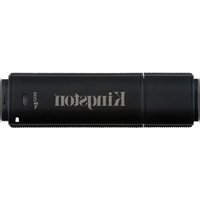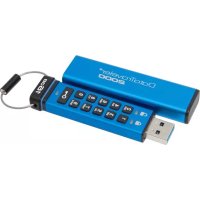
DataTraveler 2000 - USB Drive KINGSTON - Free user manual and instructions
Find the device manual for free DataTraveler 2000 KINGSTON in PDF.

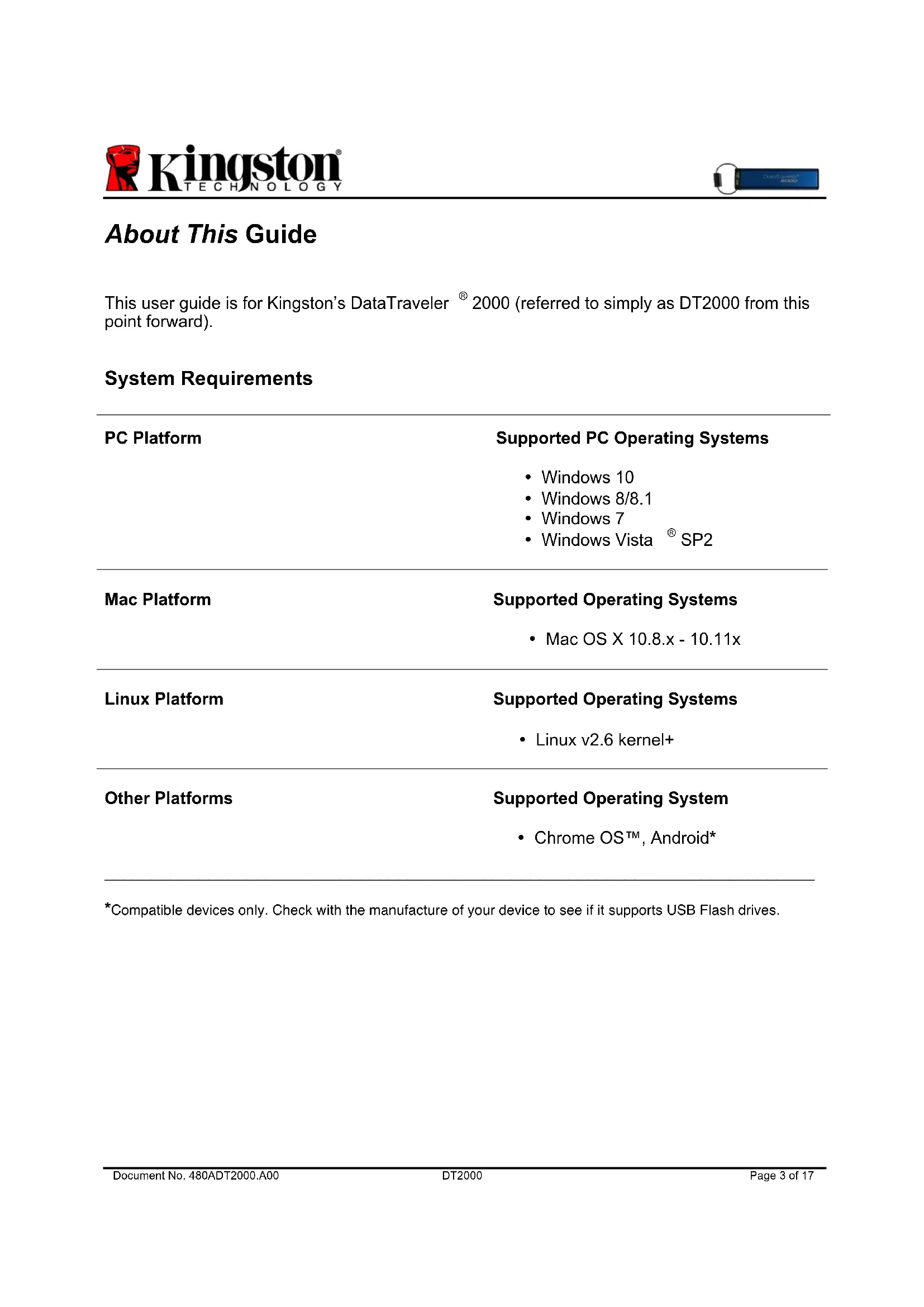


| Product Type | Encrypted USB Drive with Integrated Keypad |
| Brand | Kingston |
| Model | DataTraveler 2000 |
| Interface | USB 3.0 |
| Power Supply | Integrated rechargeable battery, charges via USB port (60 minutes for full charge) |
| Main Functions | Hardware encryption XTS-AES 256-bit, PIN code protection (7-15 digits), Read-Only and Read/Write modes, timed lock (1-99 minutes), brute force attack detection (10 attempts), reset, integrated keypad for unlocking, operating system independent |
| Security | Hardware encryption XTS-AES 256-bit, PIN code protection, data erasure after 10 incorrect attempts, automatic lock, rechargeable battery for offline operation |
| Spare Parts and Repairability | No user-serviceable parts, non-removable battery |
| Supported Operating Systems | Windows 10/8.1/8/7/Vista SP2, Mac OS X 10.8.x - 10.11x, Linux v2.6 kernel+, Chrome OS, Android (compatibility depends on device) |
| Encryption Technology | DataLock licensed by ClevX, LLC |
| Maintenance and Cleaning | Clean with a soft, dry cloth. Avoid liquids and abrasive products. |
| General Information | Limited warranty, see Kingston website for details. Manual available in multiple languages at kingston.com/support |
Frequently Asked Questions - DataTraveler 2000 KINGSTON
User questions about DataTraveler 2000 KINGSTON
0 question about this device. Answer the ones you know or ask your own.
Ask a new question about this device
Download the instructions for your USB Drive in PDF format for free! Find your manual DataTraveler 2000 - KINGSTON and take your electronic device back in hand. On this page are published all the documents necessary for the use of your device. DataTraveler 2000 by KINGSTON.
USER MANUAL DataTraveler 2000 KINGSTON
Find the language and latest documentation for DT2000 here.
DT2000 Installation Guide
For instructions in English
Para instrucciones en Español
Für Anleitungen in Deutsch
Pour des instructions en Français
...... Per le istruzioni in Italiano
Por as instruções em Português
Instrukcje w języku Polskim
Для инструкции на русском
Turkce talimatlar icin
Japanese
Thai
Vietnamese
Simplified Chinese ..... 中文说明
Traditional Chinese ....中文說明
DataTraveler® 2000 - User Manual
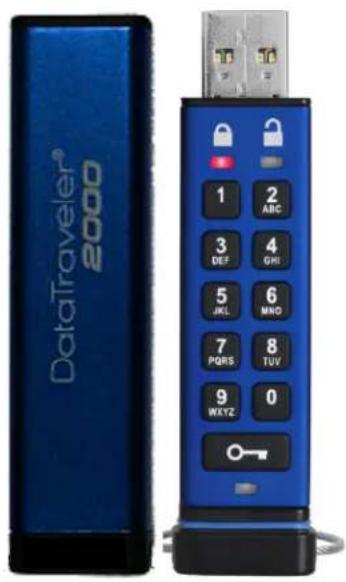
text_image
DataTraveler® 2000 1 2 ABC 3 4 DEF GHI 5 6 JKL MNO 7 8 PQRS TUV 9 0 WXYZ
Remember to save your PIN in a safe place. If you lose or forget your PIN, there is no way to access the data stored on the Kingston DataTraveler®.
If you are having difficulty, please refer to this complete user guide loaded on your DT2000, also available at Kingston's website: kingston.com/support
DataTraveler ^® 2000 incorporates DataLock ^® Technology licensed from ClevX, LLC.
©2016 Kingston Technology Europe Co LLP and Kingston Digital Europe Co LLP, Kingston Court, Brooklands Close, Sunbury-on-Thames, Middlesex, TW16 7EP, England. Tel: +44 (0) 1932 738888 Fax: +44 (0) 1932 785469. All rights reserved. All trademarks and registered trademarks are the property of their respective owners.
Table of Contents
System Requirements.... 3
Introduction......4
- DT2000 layout....5
- LED indicators and their actions.... 5
- How to use the DT2000 for the first time....6
- How to change the User PIN....6
- How to enable Options....7
- How to enable Read-Only Mode 8
- How to enable Read/Write Mode 8
- How to set the Timeout Lock Mode....9
- How to disable the Timeout Lock Mode 9
- How to determine the DT2000 version number.... 10
- Brute force hacking detection.... 10
- How to reset the DT2000 .... 11
- How to configure the DT2000 with Windows OS 12
- How to configure the DT2000 with Mac OS 15
About This Guide
This user guide is for Kingston's DataTraveler ^® 2000 (referred to simply as DT2000 from this point forward).
System Requirements
| PC Platform | Supported PC Operating Systems |
| • Windows 10 | |
| • Windows 8/8.1 | |
| • Windows 7 | |
| • Windows Vista ^ SP2 | |
| Mac Platform | Supported Operating Systems |
| • Mac OS X 10.8.x - 10.11x | |
| Linux Platform | Supported Operating Systems |
| • Linux v2.6 kernel+ | |
| Other Platforms | Supported Operating System |
| • Chrome OS ^TM , Android* |
*Compatible devices only. Check with the manufacture of your device to see if it supports USB Flash drives.
Introduction

Note: The DT2000 rechargeable battery is not fully charged out of the box. We recommend that you charge the battery prior to first use. To charge, plug the DT2000 in to a powered USB port for 60 minutes to fully charge the battery.
Thank you for purchasing the DataTraveler ^® 2000, an ultra-secure and easy-to-use hardware-encrypted USB 3.0 PIN-activated flash drive.
The DT2000 uses military-grade XTS-AES 256-bit hardware encryption, which encrypts all data stored on the drive in real time. The DT2000 requires no software and is OS and host independent.
The DT2000 incorporates a rechargeable battery that allows you to enter a 7-15 digit PIN (Personal Identification Number) using the on-board keypad before connecting the drive to a USB port.
Should the drive be lost or stolen, you can rest assured that all data held on the DT2000 is safe and cannot be accessed by any unauthorised person.
The DT2000 unlocks using the on-board keypad and is not unlocked by a host computer. It is not vulnerable to software/hardware-based key loggers or brute force attacks.

Caution: The DT2000 is shipped with a default PIN of User PIN of 1-1-2-2-3-3-4-4
and, although it can be used straight out of the box with the default PIN, for security reasons we highly recommend that you create a new User PIN immediately by following the instructions under section 4 'How to change User PIN'.
If you forget your PIN, all data will be inaccessible.
1. DT2000 layout
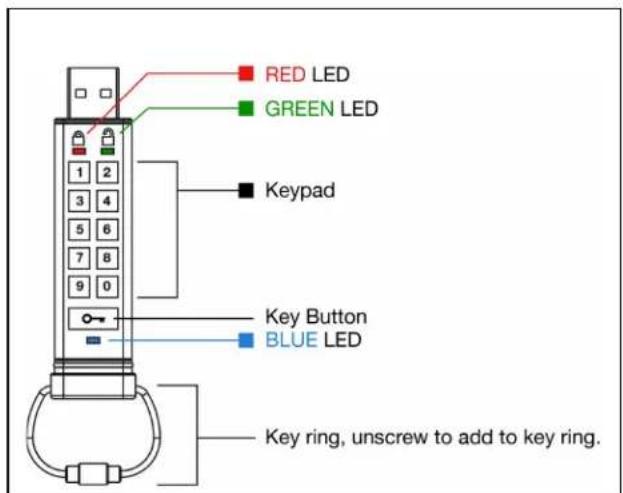
text_image
RED LED GREEN LED Keypad Key Button BLUE LED Key ring, unscrew to add to key ring.2. LED indicators and their actions
| LED | LED State | Description | LED State | Description | Description |
| (YZTH) | Red Black fade out | Locking down/incorrect PIN entry | Red and Green blinking alternately | ||
| (HC3S) | Red blinking | Locked and awaiting factory default PIN or defined PIN entry | |||
| (BYWC) | Green solid | DT2000 is unlocked | Green and Blue blinking together | User option mode | |
| (OTW6) | Green blinking | When connected to a USB port, if Green LED blinks every 2 seconds this indicates the DT2000 has been set as ‘Read Only’ | |||
| (CESW) | Blue solid | Connected to a USB port | |||
| (GTT7) | Blue blinking | Data exchange with host/changing User PIN | |||
3. How to use the DT2000 for the first time
The DT2000 is shipped with a default PIN of 11223344 and although it can be used straight out of the box with the default PIN, for security reasons we highly recommend that you create a new User PIN immediately by following the instructions under section 4 'How to change the User PIN'.
Follow the 3 simple steps in the table below to unlock the DT2000 with the default PIN.
| Instructions (first time use) | LED | LED State |
| 1. Press KEY button once [IMAGE] | [30x47] | Red, Green & Blue LEDs will flash together once and then the Red LED will continue to blink |
| 2. Within 10 seconds, enter the User PIN (default - 11223344) to unlock the DT2000 |  | Red LED will continue to blink |
| 3. Press KEY button once [IMAGE] |  [IMAGE] [IMAGE] | Red solid LED changes to Green solid LED indicating successful default User PIN entry |

Note: Once the DT2000 has been successfully unlocked, the Green LED will remain on and in a solid state for 30 seconds only, during which time the DT2000 needs to be connected to a USB port. It can be locked down immediately by pressing and holding down the KEY button for 3 seconds, or waiting for the 30 seconds to expire or by clicking the 'Safely Remove Hardware and Eiect Media' icon within your operating system.
4. How to change the User PIN
PIN requirements:
- Must be between 7-15 digits in length
- Must not contain only repetitive numbers, e.g. (3-3-3-3-3-3-3-3)
- Must not contain only consecutive numbers, e.g. (1-2-3-4-5-6-7), (7-8-9-0-1-2-3-4), (7-6-5-4-3-2-1)
Password tip: You can create a memorable word, name, phrase or any other alphanumeric PIN combination simply by pressing the key with the corresponding letters on it.
Examples of these types of alphanumeric PINs are:
- For "password", you would press the following keys:
7 (pqrs) 2 (abc) 7 (pqrs) 7 (pqrs) 9 (wxyz) 6 (mno) 7 (pqrs) 3 (def)
• For "kingston", you would press:
5 (jkl) 4 (ghi) 6 (mno) 4 (ghi) 7 (pqrs) 8 (tuv) 6 (mno) 6 (mno)
This method enables you to create long PINs that are easy to remember.
Instructions
LED
LED State
| 1. Press KEY button once |  | Red, Green & Blue LEDs will flash together once and then the Red LED will continue to blink |
| 2. Within 10 seconds, start to enter the User PIN (default - 11223344) to unlock the DT2000 | [###] | Red LED will continue to blink |
| 3. Press KEY button once | [###] | Red solid LED changes to Green solid LED indicating successful default User PIN entry |
| 4. Press the KEY button twice (double-click) | [###] | Blue LED blinks |
| 5. Within 10 seconds, begin to enter the new User PIN | [###] | Blue LED continues to blink |
| 6. Press the KEY button twice (double-click) | [###] | Green LED blinks |
| 7. Within 10 seconds, begin to re-enter the new User PIN | [###] | Green LED continues to blink |
| 8. Press the KEY button twice (double-click) | [###] | Red solid LED changes to Green solid LED, indicating that the User PIN change was successful |

Note: If you make a mistake while defining a new User PIN or do not complete the procedure, the drive will retain the old PIN.
5. How to enable Options
Options Mode allows you to perform different functions, such as enabling or disabling the DT2000 as 'Read-Only', setting a 'Timeout' automatic lock and determining the version of the device.
The table below illustrates how to access the Options mode, sections 6 - 9 describe how to perform the various functions.
The table below illustrates how to access the Options mode, sections 6 - 9 describe how to perform the various functions.
| Instructions | LED | LED State |
| 1. Press KEY button once | [6078] | Red, Green & Blue LEDs will flash together once and then the Red LED will continue to blink |
| 2. Within 10 seconds, enter the User PIN (default - 11223344) to unlock the DT2000 | [6087] | Red LED will continue to blink |
| 3. Press KEY button once | [6250] | Red solid LED changes to Green solid LED indicating successful User PIN entry |
| 4. Press the KEY button 3 times (triple-click) | [7668] | Green and Blue LEDs blink together – awaiting new instructions in OPTIONS Mode. |
6. How to enable Read-Only Mode
The DT2000 has a read-only mode that restricts write access to the drive. This is enabled by performing the following steps.
| Instructions | LED | LED Status |
| 1. Unlock DT2000 with the User PIN |  | Red solid LED changes to Green solid LED indicating successful User PIN entry |
| 2. Enable Options by pressing the KEY button 3 times (triple-click) 🎨 🎨 🎨 |  | Green and Blue LEDs blink together – awaiting new instructions in OPTIONS Mode. |
| 3. Within 10 seconds, begin to press number 7 (pqrs) followed by the number 6 (mno) button (76) |  | Green and Blue LEDs continue to blink together |
| 4. Press KEY button once 🎨 |  | Blue LED quickly fades out to a solid Green - when DT2000 is inserted into a USB port, the Green LED blinks every two seconds indicating the drive is in Read-Only Mode |
Once activated, access is limited to read-only until write protect is disabled.

Note: We have applied a naming convention to make it easy for you to remember the keystrokes for each optional setting. In the table, above we have used numbers that represent the 'first letters' of the optional feature name. For example, Read-Only = 7 (pqrs) 6 (mno).
7. How to enable Read/Write Mode
Restricted write protect (read-only) access can be turned off with access restored to read/write. This is enabled by performing the following steps.
| Instructions | LED | LED Status |
| 1. Unlock DT2000 with the User PIN |  | Red solid LED changes toGreensolid LED indicating successful User PIN entry |
| 2. Enable Options by pressing the KEY button 3 times (triple-click) [IMAGE] |  | Green and Blue LEDs blink together – awaiting new instructions in OPTIONS Mode. |
| 3. Within 10 seconds, enter the number 7 (pqrs) followed by the number 9 (wxyz) button (79) |  | Green and Blue LEDs continue to blink together |
| 4. Press KEY button once [IMAGE] |  | Blue LED quickly fades out to a solidGreen- when DT2000 is inserted into a USB port, the Green LED blinks every two seconds indicating the drive is in Read/Write Mode |
Once activated, access is restored to the default read/write state.
8. How to set the Timeout Lock Mode
To protect against unauthorised access when the DT2000 is connected to a host and unattended, the DT2000 can be set to lock automatically after a pre-set amount of time.
In its default state, the DT2000 Timeout Lock feature is turned off. The Timeout Lock feature can be set to activate (lock) anywhere between 1 and 99 minutes.
To set the Timeout Lock, follow steps in the table below.
| Instructions | LED | LED Status |
| 1. Unlock the DT2000 with the User PIN | Red solid LED changes to Green solid LED indicating successful User PIN entry | |
| 2. Enable Options by pressing the KEY 3 button times (triple-click) | Green and Blue LEDs blink together – awaiting new instructions in OPTIONS Mode | |
| 3. Within 10 seconds, enter the number 8 (tuv) followed by the number 5 (jkl) button - (85) | Green and Blue LEDs continue to blink together | |
| 4. Press KEY button once | Blinking Green LED | |
| 5. Within 10 seconds, enter the length of User Timeout in 2 digits:00 = 0 minutes (default)01 = 1 minute99 = 99 minutes, etc. | Green LED continues to blink | |
| 6. Press the KEY button once | Green solid LED - Timeout Lock has been enabled |
9. How to disable the Timeout Lock Mode
To disable the Timeout Lock, follow steps in the table below.
| Instructions | LED | LED Status |
| 1. Unlock the DT2000 with the User PIN | Red solid LED changes to Green solid LED indicating successful User PIN entry | |
| 2. Enable Options by pressing the KEY 3 times (triple-click) 🎨○→○→ | & | |
| 3. Within 10 seconds, enter the number 8 (tuv) followed by the number 5 (jkl) button - (85) | Green and Blue LEDs blink together – awaiting new instructions in OPTIONS Mode | |
| 4. Press KEY button once 🎨 | Blinking Green LED | |
| 5. Within 10 seconds, enter the number 0 button twice (double-click) (zero zero) - (00) | Green LED continues to blink | |
| 6. Press the KEY button once 🎨 | Green solid LED - Timeout Lock has been disabled |
10. How to determine the DT2000 version number
| Instructions | LED | LED Status |
| 1. Unlock the DT2000 with the User PIN | Red solid LED changes toGreensolid LED indicating successful User PIN entry | |
| 2. Enable Options by pressing the KEY button 3 times (triple-click) | Green and Blue LEDs blink together – awaiting new instructions in OPTIONS Mode | |
| 3. Within 10 seconds, enter the number8 (tuv) followed by the number6(mno) button - (86) | Green and Blue LEDs continue to blink together | |
| 4. Press KEY button once | Red, Green & Blue LEDs will quickly blink together once followed by theRed LED blinking to the first significant digit of the revision, then theGreen LED will blink according to the second significant digit of the revision number | |
| For example, if the revision is number ‘1.8’, theRed LED will blink once (1) and theGreen LED will blink eight (8) times. When the sequence has ended, theRed, Green and Blue LEDs will blink together once and then theGreenwill be solid. | ||
11. Brute force hacking detection
 | Caution: If you enter an incorrect User PIN 10 (ten) consecutive times, the DT2000's brute force mechanism will trigger and the User PIN, the encryption key and all data will be deleted and lost forever. |
| PIN used to unlock DT2000 | What happens after 10 consecutive incorrect PIN entries? |
| User PIN | The DT2000 brute force mechanism will trigger and the User PIN, the encryption key and all data will be deleted and lost forever. |
If you enter an incorrect PIN 10 (ten) consecutive times, the encryption key and all data will be deleted and lost forever. The DT2000 will then revert to the factory default User PIN of 11223344 - see section 4 on page 6 on how to change the User PIN. Also, since this will force the creation of a new encryption key, the DT2000 will have to be reformatted (see section 13 or 14).
Unlike other similar drives, the DT2000 incorporates a random number generator. Once the drive is reset, a new encryption key is randomly generated.
12. How to reset the DT2000
If you forget the User PIN or want to delete all data stored on the DT2000, follow the instructions below.
The reset process will clear all cryptographic parameters, including the User PIN. This means that the DT2000 will revert to the default User PIN of 11223344 - see section 4 on page 6 on how to change the User PIN. Also, since this will force the creation of a new encryption key, the DT2000 will have to be reformatted (see section 13 or 14).

Caution: Resetting the DT2000 will delete all data stored on the drive.
| Instructions | LED | LED Status |
| 1. Press and hold down the number 7 (pqrs) button and then press the KEY ➕ button. Release buttons (7 & ➕) | Red and Green LEDs blink alternately | |
| 2. Within 10 seconds, press the number 9 (wxyz) button three times (triple-click) (999) | Red and Green LEDs continue to blink alternately | |
| 3. Press and hold down number 7 (pqrs) button and then Press the KEY ➕ button. Release buttons (7 & ➕) | Red LED fades out to complete the reset process |
13. How to configure the DT2000 with Windows OS
If hacking detection has been triggered by entering the incorrect PIN 10 times in succession, or the drive has been reset, all data on the drive will be lost forever.
Once a new User PIN has been created, the DT2000 will need to be initialised and formatted.
To initialise your DT2000, do the following:
- Create a new User PIN (see section 4).
- Unlock the DT2000 by entering the new User PIN and connect it to a computer's USB port.
- The computer should display the following message:
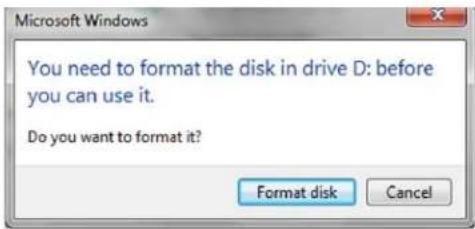
text_image
Microsoft Windows You need to format the disk in drive D: before you can use it. Do you want to format it? Format disk Cancel- Proceed by clicking on Format disk. Select FAT32 or NTFS depending on your needs, enter a Volume Label and click Start.
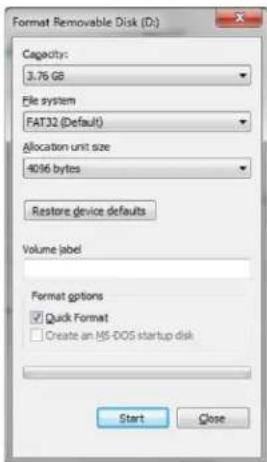
text_image
Format Removable Disk (D:) Capacity: 3.76 GB File system FAT32 (Default) Allocation unit size 4096 bytes Restore device defaults Volume label Format options ✓ Quick Format ☐ Create an MS-DOS startup disk Start Close- Click OK to continue with formatting the drive.
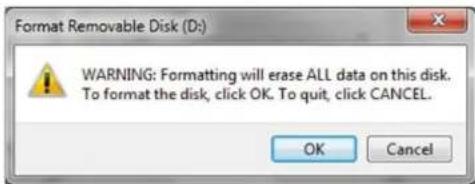
text_image
Format Removable Disk (D:) WARNING: Formatting will erase ALL data on this disk. To format the disk, click OK. To quit, click CANCEL. OK Cancel
Warning: This procedure will erase all data stored on the drive.
- The computer will finish formatting the drive and confirm that formatting has been completed. While the DT2000 is formatting, the Blue LED will flash.
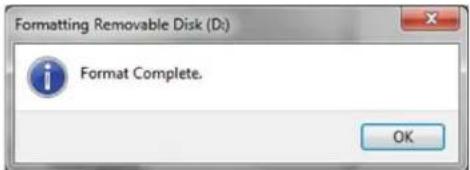
text_image
Formatting Removable Disk (D:) Format Complete. OKOnce finished, the Blue LED becomes solid and your DT2000 is ready for use.
If the formatting wizard does not appear, follow the procedure below:
- Right-click My Computer or Computer and then click Manage.
- In the Computer Management window under the Disk Management tab, the DT2000 is recognised as a removable device in raw format.
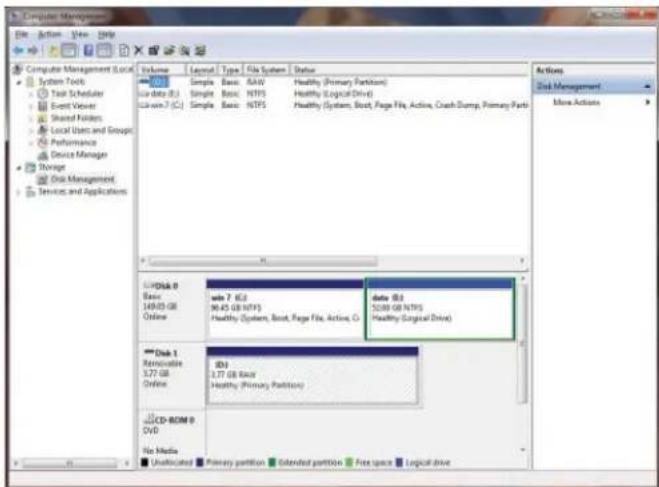
text_image
Computer Management System Tools Test Scheduler Event Viewer Shared Folders Local Users and Groups Performance Device Manager Storage Disk Management Services and Applications Disk 0 Basic 149.05 GB Online Disk 1 Renewable 3.77 GB Online Disk ROM 0 DVD Volume Layout Type File System Status S10 Simple Basic RAVO Healthy (Primary Partition) S10 data (S1) Simple Basic NTFS Healthy (Logical Drive) S10 win-7 (C:) Simple Basic NTFS Healthy (System, Boot, Page File, Active, Crash Dump, Primary Part) data (S2) S208 GB NTFS Healthy (Logical Drive) Disk 0 Basic 149.05 GB Online Disk 1 Renewable 3.77 GB Online Disk ROM 0 DVD Unallocated Primary partition Extended partition Fixed space Logical drive- In the blank area under the unallocated section, right-click Removable Raw Drive and select Format.
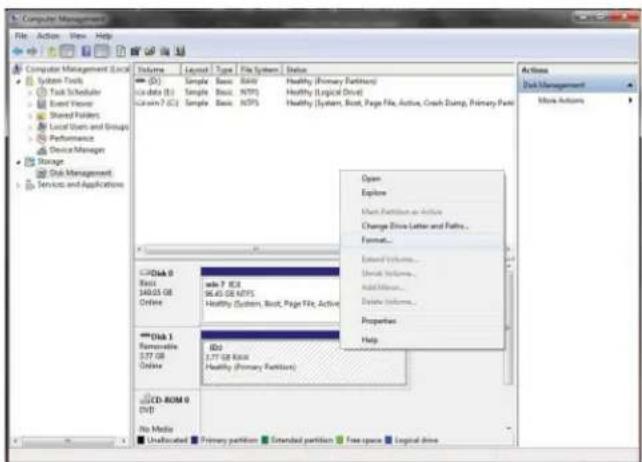
text_image
Computer Management File Action View Help Volume Layout Type File System Status System Tools Task Scheduler Board Server Shared Holders Local Users and Groups Performance Device/Management Storage Disk Management Services and Applications Open Explore Main Partition as Active Change Drive Letter and Paths... Format... Lateral Options... Show Options... Add Options... Delete Options... Properties Help CD Disk 0 Basic 149.03 GB Online Wide 7 KB 56.43 GB KPTS Healthy System, Boot, Page File, Active CD Disk 1 Numericable 2.77 GB Online Basic 1.77 GB Basic Healthy (Primary Partition) CD-ROM 0 (D) No Media Unallocated Primary partition Extended partition Free space Logical drive- The Format window will open.
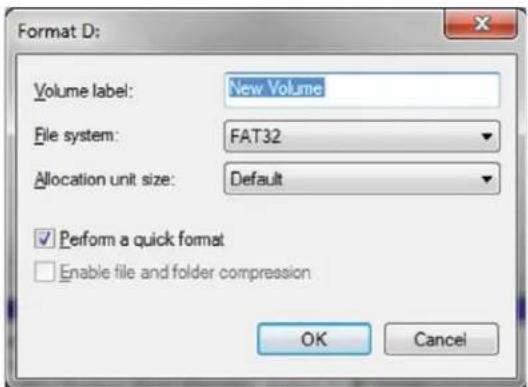
Enter a new Volume Label.
Select FAT32 or NTFS depending on your needs and click OK.
text_image
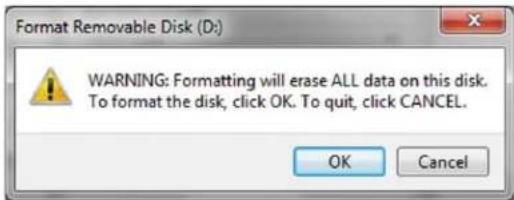
Format D: Volume label: New Volume File system: FAT32 Allocation unit size: Default ✓ Perform a quick format ☐ Enable file and folder compression OK Cancel- Click OK on the Format warning window to continue with formatting the drive.
text_image
Format Removable Disk (D:) WARNING: Formatting will erase ALL data on this disk. To format the disk, click OK. To quit, click CANCEL. OK Cancel
Warning: This procedure will erase all data stored on the drive.
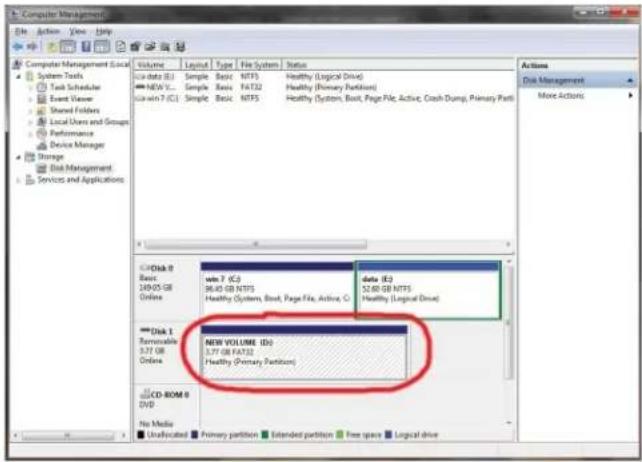
- The computer will finish formatting and return to the Disk Management window.
While the DT2000 is formatting, the Blue LED will start flashing.
text_image
Computer Management File Actions View Help Volume Layout Type File System Status Local data (E) Simple Basic NTFS Healthy (Logical Drive) NDS's: Simple Basic FAT32 Healthy (Primary Partition) Local win 7 (C): Simple Basic NTFS Healthy (System, Boot, Page File, Active, Crash Dump, Primary Part) Disk Management Services and Applications Disk 0 Basic 349-05 GB Online new 7 (C) 96.45 GB NTFS Healthy (System, Boot, Page File, Active, C) data (E) 52.60 GB NTFS Healthy (Logical Drive) Disk 1 Removable 3.77 GB Online NEW VOLUME (ID) 3.77 GB FAT32 Healthy (Primary Partition) CD-ROM 0 DVD No Media Unallocated Primary partition Extended partition Free space Logical driveOnce finished, the Blue LED becomes solid and your DT2000 is ready for use.
14. How to configure the DT2000 with Mac OS
If hacking detection has been triggered by entering the incorrect PIN 10 times in succession, or the drive has been reset, all data on the drive will be lost forever.
Once a new User PIN has been created, the DT2000 will need to be initialised and formatted.
To format your DT2000 on Mac OS computers, do the following:
-
Create a new User PIN (see section 4).
-
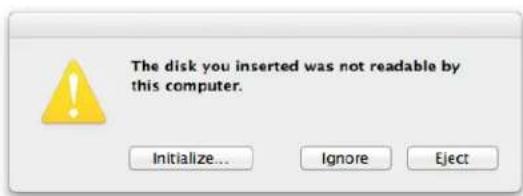
Unlock the DT2000 by entering the new User PIN and connect to a Mac computer's USB port. The system will prompt you with an INITIALIZE window.
text_image
The disk you inserted was not readable by this computer. Initialize... Ignore Eject- Press INITIALIZE and select the DT2000 in the Disk Utility window.
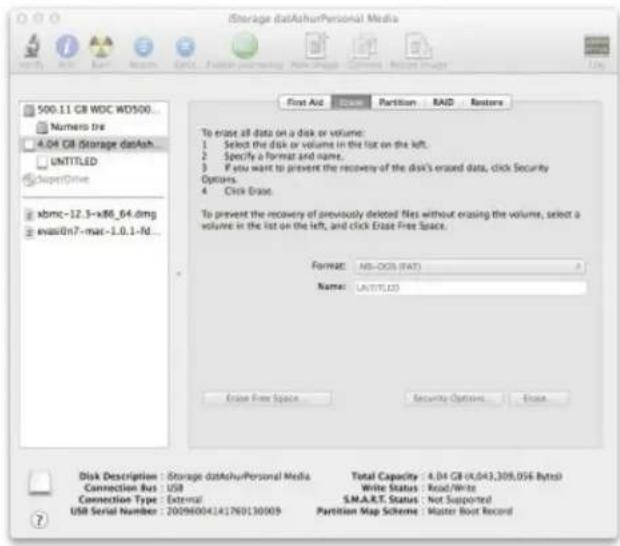
text_image
iStorage dataAshurPersonal Media 500.11 GB WDC WD500... Numero tre 4.04 GB Storage dataAsh UNITITLED SuperDrive xbmc-12.3-x86_64.dmg evasOn7-max-1.0.1-fd... First Aid Name: Partition RAID Restore To erase all data on a disk or volume: 1 Select the disk or volume in the list on the left. 2 Specify a format and name. 3 If you want to prevent the recovery of the disk's erased data, click Security Options. 4 Click Erase. To prevent the recovery of previously deleted files without erasing the volume, select a volume in the list on the left, and click Erase Free Space. Format: MS-OCS (DAT) Name: LATTITLED Erase Free Space Security Options Erase Disk Description : Storage dataAshurPersonal Media Connection Bus : USB Connection Type : External USB Serial Number : 20096004141760130009 Total Capacity : 4.04 GB (4.043.308.056 Bytes) Write Status : Read/Write S.M.A.R.T. Status : Not Supported Partition Map Scheme : Master Boot Record- Click on the DT2000 on the left side of the Disk Utility window.
- Choose Erase from the contextual menu on the right side of the window. Select MS-DOS for the Volume Format.
- Click Erase.
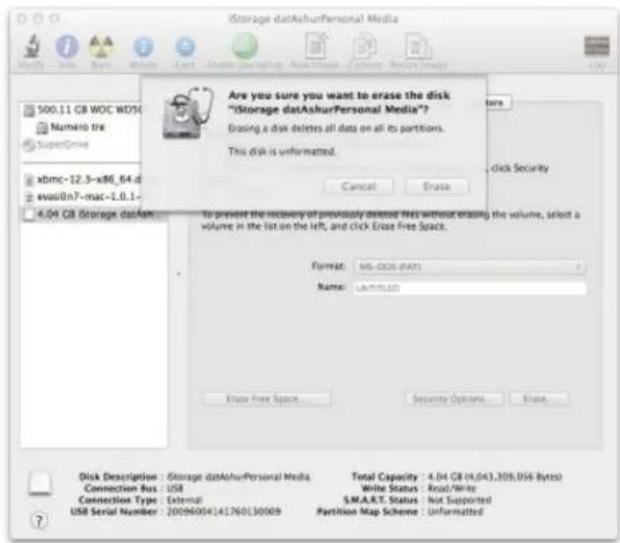
text_image
iStorage dataAshurPersonal Media 500.11 GB WOC WD56 Numero tre SuperDrive xbmc-12.3-x86_64.d evas0n7-mac-1.0.1- 4.04 GB Storage data4am Are you sure you want to erase the disk "iStorage dataAshurPersonal Media"? Grasing a disk deletes all data on all its portions. This disk is unformatted. Cancel Erase To prevent the recovery of previously deleted files without erasing the volume, select a volume in the list on the left, and click Erase Free Space. Format: MS-005 (DAT) Name: LIMITED Error Free Space Security Options Erase Disk Descriptions : Storage dataAshurPersonal Media Total Capacity : 4.04 GB (4,043,309,056 Bytes) Connection Bus : USB Write Status : Read/Write Connection Type : External S.M.A.R.T. Status : Not Supported USB Serial Number : 20094004141760130009 Partition Map Scheme : Unformatted- The formatted DT2000 will appear in the Disk Utility window and will mount onto the desktop.
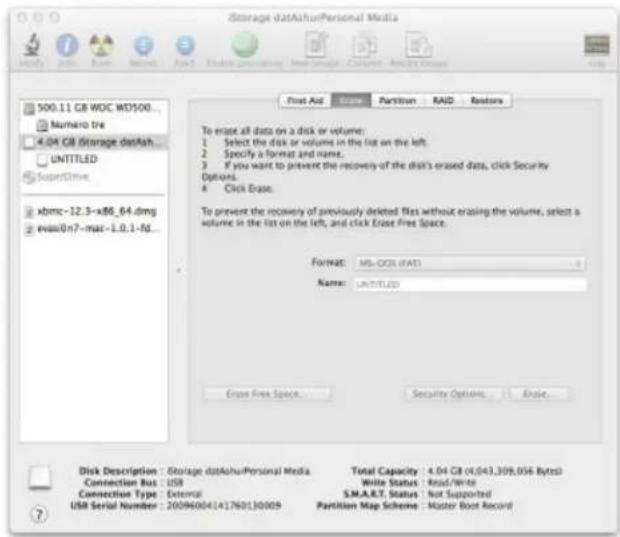
text_image
iStorage dataAssetPersonal Media 500.11 GB WOC MD500... Numero tre 4.04 GB Storage dataAsh... UNTITLED SuperDrive xbmc-12.3-x86_64.dmg evsnOn7-maz-1.0.1-fd... First Aid Name: Partition RAID Restor To erase all data on a disk or volume: 1 Select the disk or volume in the list on the left. 2 Specify a format and name. 3 If you want to prevent the recovery of the disk's erased data, click Security Options. 4 Click Erase. To prevent the recovery of previously deleted files without erasing the volume, select a volume in the list on the left, and click Erase Five Space. Format: MS-OOL (FAT) Name: UNTITLED Erase Free Space Security Options Erase Disk Description: Storage dataAssetPersonal Media Connection Bus: USB Connection Type: External USB Serial Number: 20094004141760130009 Total Capacity: 4.04 GB (4,043,309,056 Bytes) Write Status: Read/Write S.M.A.R.T. Status: Not Supported Partition Map Scheme: Master Boot RecordBattery Information/ Product Disposal
Please do not dispose of your electrical or battery containing product waste with your normal household waste. Electronic products must be disposed of responsibly to minimise the environmental impact. Please do not try to remove the battery from the product, it may be removed only by Kingston or a professional service provider. Please contact us for more information on the battery and how to recycle the product responsibly.
DataTraveler ^® 2000 incorporates DataLock ^® Technology licensed from ClevX, LLC.
text_image
Microsoft Windows You need to format the disk in drive D: before you can use it. Do you want to format it? Format disk Canceltext_image
Format Removable Disk (D:) WARNING: Formatting will erase ALL data on this disk. To format the disk, click OK. To quit, click CANCEL. OK Cancel
text_image
Formatting Removable Disk (D:) Format Complete. OKtext_image
Computer Management File Action View Date Volume Legend Type File System Status MSI Simple Basic RAW Healthy (Primary Partition) Data (B) Simple Basic NTFS Healthy (Logical Drive) Windows 7 (C) Simple Basic NTFS Healthy (System, Boot, Page File, Active, Crash Dump, Primary Park) Disk 0 Basic 149.05 GB Online Disk 1 Renewable 3.77 GB Online Disk ROM 0 DVD No Media Unallocated Primary partition Extended partition Free space Logical drive Disk Management More Actionstext_image
Computer Management File Action View Help Volume Layout Type File System Status System Tools Sample Basic Build Healthy (Primary Partition) Task Schedules Sample Basic NTFS Healthy (Logical Drive) Event Visitor Sample Basic NTFS Healthy (System, Boot, Page File, Active, Dash Dump, Primary Part) Shared Folders Sample Basic NTFS Healthy (System, Boot, Page File, Active, Dash Dump, Primary Part) Local Users and Groups Performance Device Manager Storage Disk Management Services and Applications Open Explore Mask Partition and Active Change Drive Letter and Paths... Format... Extend Volume... Extend Volume... Add Volume... Delete Volume... Properties Help Disk 0 Back 49.03 GB Online Wide 7 KB 96.45 GB NTFS Healthy (System, Boot, Page File, Active) Disk 1 Remainable 3.77 GB Online Dil 1.77 GB MAX Healthy (Primary Partition) CD-ROM 0 DVD No Media Unallocated Primary partition Extended partition Free space Logical drivetext_image
Format D: Volume label: New Volume File system: FAT32 Allocation unit size: Default Perform a quick format Enable file and folder compression OK Canceltext_image
Computer Management File Edit View Help Volume Layout Type File System Status System Tools Task Scheduler Event Views Shared Folders Local Users and Groups Performance Device Manager Storage Disk Management Services and Applications Lid data (E) Sample Basic NTFS Healthy (Logical Drive) NEW 7 (C) Sample Basic FAT32 Healthy (Primary Partition) Lid data (F) Sample Basic NTFS Healthy (System, Boot, Page File, Active, Cash Dump, Primary Part) Disk 0 Basic NTFS (E) 16905 GB Online New 7 (C) 86.40 GB NTFS data (E) Healthy System, Boot, Page File, Active, G Healthy (Logical Drive) Disk 1 Removable 5.27 GB Online NEW VOLUME (D) 1.77 GB FAT32 Healthy (Primary Partition) CD-ROM 0 DVD No Media Undelocated Primary partition Extended partition Free space Logical drivetext_image
The disk you inserted was not readable by this computer. Initialize... Ignore Ejecttext_image
iStorage dataAssetPersonal Media 500.11 GB WDC WD500... Numero tre 4.04 GB Storage data UNTITLED SuperDrive xbmc-12.3-x86_64.dmg evas0n7-mac-1.0.1-fd... First Aid Partition RAID Restore To erase all data on a disk or volume: 1 Select the disk or volume in the list on the left. 2 Specify a format and name. 3 If you want to prevent the recovery of the disk's erased data, click Security Options. 4 Click Erase. To prevent the recovery of previously deleted files without erasing the volume, select a volume in the list on the left, and click Erase Free Space. Format: MS-DQL (FAT) Name: UNTITLED Erase Free Space Security Options Erase Disk Description: Storage dataAssetPersonal Media Connection Bus: USB Connection Type: External USB Serial Number: 20096004/41760130009 Total Capacity: 4.04 GB (4,843,309,056 Bytes) Write Status: Read/Write S.M.A.R.T. Status: Not Supported Partition Map Scheme: Master Root Recordtext_image
iStorage dataAshurPersonal Media 500.11 GB WOC WD56 Numero tre SuperDrive kbmc-12.3-x86_64.d evos0n7-maz-1.0.1- 4.04 GB Storage data Are you sure you want to erase the disk "iStorage dataAshurPersonal Media"? Grasing a disk deletes all data on all its portions. This disk is unformatted. Cancel Erase Click Security To prevent the recovery of previously detected files without copying the volume, select a volume in the list on the left, and click Erase Free Space. Format: MS-DOS (FAT) Name: LIMITED Engr Free Space... Security Options... Engr Disk Description : Storage dataAshurPersonal Media Connection Bus : USB Connection Type : External USB Serial Number : 20096004141760130009 Total Capacity : 4.04 GB (4.042,309,056 Bytes) Write Status : Read/Write S.M.A.R.T. Status : Not Supported Partition Map Scheme : Unformattedtext_image
iStorage data共享Personal Media 500.11 GB WDC MD500... Numero tre 4.04 GB Storage dataSh UNTITLED SuperDrive xbmc-12.3-x86_64.dmg evas8n7-mac-1.0.1-fd... First Aid Options Partition RAID Restore To erase all data on a disk or volume: 1 Select the disk or volume in the list on the left. 2 Specify a format and name. 3 If you want to prevent the recovery of the disk's erased data, click Security Options. 4 Click Erase. To prevent the recovery of previously deleted files without erasing the volume, select a volume in the list on the left, and click Erase Free Space. Format: MS-COL (FAT) Name: LASTRZD Error Free Space Security Options Stop Disk Description : Storage data共享Personal Media Total Capacity : 4.04 GB (4.043,309,056 Bytes) Connection Bus : USB Write Status : Read/Write Connection Type : External S.M.A.R.T. Status : Not Supported USB Serial Number : 2009b004141760130009 Partition Map Scheme : Master Boot Recordtext_image
Microsoft Windows You need to format the disk in drive D: before you can use it. Do you want to format it? Format disk Canceltext_image
Format Removable Disk (D:) WARNING: Formatting will erase ALL data on this disk. To format the disk, click OK. To quit, click CANCEL. OK Cancel
text_image
Formatting Removable Disk (D:) Format Complete. OKtext_image
Computer Management File Action View Help Volume Layout Type File System Status Simple Basic RAW Healthy (Primary Partition) win Data (B) Simple Basic NTFS Healthy (Logical Drive) win 7 (C) Simple Basic NTFS Healthy (System, Boot, Page File, Active, Crash Dump, Primary Park) win 7 (C) B3 data (B) b200 GB NTFS Healthy (Logical Drive) win 7 (C) B3 B1.5 GB NTFS Healthy (System, Boot, Page File, Active, C) Healthy (Logical Drive) win 7 (C) B3 B1.5 GB NTFS Healthy (System, Boot, Page File, Active, C) Healthy (Logical Drive) win 7 (C) B3 B1.5 GB NTFS Healthy (System, Boot, Page File, Active, C) Healthy (Logical Drive) win 7 (C) B3 B1.5 GB NTFS Healthy (System, Boot, Page File, Active, Healthy (Logical Drive) win 7 (C) B3 B1.5 GB NTFS Healthy (System, Boot, Page File, Active, Healthy (Logical Drive) win 7 (C) B3 B1.5 GB NTFS Healthy (System, Boot, Page File, Active, Healthy (Logical Drive) win 7 (C) B3 B1.5 GB NTFS Healthy (System, Boot, Page File, Active, Healthy (Logical Drve) win 7 (C) B3 B1.5 GB NTFS Healthy (System, Boot, Page File, Active, Healthy (Logical Drive) win 7 (C) B3 B1.5 GB NTFS Healthy (System, Boot, Page File, Active, Healthy (Logical Drive) win 7 (C) B3 B1.5 GB NTFS Healthy (System, Boot, Page File, Active, Healthy (Logical Drive) win 1 Reversible IDJ 3.77 GB Max Healthy (Primary Partition) LCD ROM 0 DVD No Media Unallocated Primary partition Extended partition Free space Logical drivetext_image
Computer Management File View Help Volume Layout Type File System Status System Tools Task Schedules Board Vases Shared robust Local Users and Groups Performance Device Manager Storage Disk Management Services and Applications Open Explore Host Partition as Action Change Drive Letter and Paths... Format... External Volume... Remove Volume... Add Volume... Delete Volume... Properties Help Disk 0 Box 148.05 GB Online add 7 KB 96.43 GB MTS Healthy System, Root, Page File Active Disk 1 Removable 2.77 GB Online Box 1.77 GB Base Healthy (Primary Partition) CD-ROM 0 D:0 No Media Unallocated Primary partition Extended partition Free space Logical drivetext_image
Format D: Volume label: New Volume File system: FAT32 Allocation unit size: Default Perform a quick format Enable file and folder compression OK Canceltext_image
Format Removable Disk (D:) WARNING: Formatting will erase ALL data on this disk. To format the disk, click OK. To quit, click CANCEL. OK Cancel
text_image
Computer Management File Edit View Help Volume Layout Type File System Status Local data (E) Sample Basic NTFS Healthy (Logical Drive) NWSV: Sample Basic FAT52 Healthy (Primary Partition) win7 (C) Sample Basic NTFS Healthy (System, Boot, Page File, Active, Crash Dump, Primary Parts) Disk 0 Basic FAT52 349.05 GB Online New Volume (D3) 3.77 GB FAT52 Healthy (Primary Partition) data (E) 32.60 GB NTFS Healthy (Logical Drive) Disk 1 Removable 3.77 GB Online CD-ROM 0 SUD No Media Unallocated Primary partition Extended partition Free space Logical drivetext_image
The disk you inserted was not readable by this computer. Initialize... Ignore Ejecttext_image
iStorage dataAirPersonal Media 500.11 GB WDC WD500... Numero tre 4.04 GB Storage dataAir UNITITLED SuperDrive xbmc-12.3-x86_64.dmg evasOn7-max-1.0.1-fd... First Aid Name: Partition RAID Restore To erase all data on a disk or volume: 1 Select the disk or volumes in the list on the left. 2 Specify a format and name. 3 If you want to prevent the recovery of the disk's erased data, click Security Options. 4 Click Erase. To prevent the recovery of previously deleted files without erasing the volume, select a volume in the list on the left, and click Erase Free Space. Format: MS-OGU (FAT) Name: UNITITLED Erase Free Space Security Options Erase Disk Description: Storage dataAirPersonal Media Connection Bus: USB Connection Type: External USB Serial Number: 20096004141760130009 Total Capacity: 4.04 GB (X,043,309,056 Bytes) Write Status: Read/Write S.M.A.R.T. Status: Not Supported Partition Map Scheme: Master Boot Recordtext_image
iStorage dataAshurPersonal Media Are you sure you want to erase the disk "iStorage dataAshurPersonal Media"? Erasing a disk deletes all data on all its partitions. This disk is unformatted. Cancel Cancel 4.04 GB Storage dataAshur To prevent the recovery of previously deleted files without erasing the volume, select a volume in the list on the left, and click Erase Free Space. Format: MS-005 (DATA) Name: UNSTLED Exuse Free Space Securety Options... Cancel Disk Description : Storage dataAshurPersonal Media Connection Bus : USB Connection Type : External USB Serial Number : 20096004141760130009 Total Capacity : 4.04 GB (4,043,309,056 Bytes) Write Status : Read/Write S.M.A.R.T. Status : Not Supported Partition Map Scheme : Unformattedtext_image
iStorage dataAssetPersonal Media 500.11 GB WOC MD500... Numero tre 4.04 GB Storage dataAsh... UNTITLED SuperDrive xbmc-12.3-x86_64.dmg evsnOn7-maz-1.0.1-fd... First Aid Name: Partition RAID Restor To erase all data on a disk or volume: 1 Select the disk or volume in the list on the left. 2 Specify a format and name. 3 If you want to prevent the recovery of the disk's erased data, click Security Options. 4 Click Erase. To prevent the recovery of previously deleted files without erasing the volume, select a volume in the list on the left, and click Erase Five Space. Format: MS-OOL (FAT) Name: UNTITLED Erase Free Space Security Options Erase Disk Description: Storage dataAssetPersonal Media Connection Bus: USB Connection Type: External USB Serial Number: 20094004141760130009 Total Capacity: 4.04 GB (4,043,309,056 Bytes) Write Status: Read/Write S.M.A.R.T. Status: Not Supported Partition Map Scheme: Master Boot Recordtext_image
Microsoft Windows You need to format the disk in drive D: before you can use it. Do you want to format it? Format disk Canceltext_image
Format Removable Disk (D:) Capacity: 3.76 GB File system FAT32 (Default) Allocation unit size 4096 bytes Restore device defaults Volume label Format motions ✓ Quick Format ☐ Create an MS-DOS startup disk Start Closetext_image
Format Removable Disk (D:) WARNING: Formatting will erase ALL data on this disk. To format the disk, click OK. To quit, click CANCEL. OK Cancel
text_image
Formatting Removable Disk (D:) Format Complete. OKtext_image
Computer Management File Action View Help Volume Layout Type File System Status Disk 0 Basic Basic RAW Healthy (Primary Partition) Disk 1 Removable disk 7.0 GB NTFS data 83 320 GB NTFS Healthy (Logical Drive) Disk ROM 6 DVD No Media Unallocated Primary partition Extended partition Free space Logical drivetext_image
Computer Management File Action View Help Actions Disk Management More Actions Volume Layout Type File System Status (D) Sample Basic BIM Healthy (Primary Partition) Data file (B) Sample Basic NTFS Healthy (Logical Drive) Data 7 BIC Sample Basic NTFS Healthy (System, Boot, Page File, Active, Crash Dump, Primary Part) Open Explore Main Partition as Active Change Drive Letter and Paths... Format... Extend Volume... Extend Volume... Add Minutes... Delete Volume... Properties Help CD-ROM 0 DVD No Media Unallocated Primary partition Extended partition Free space Logical Drivetext_image
Format D: Volume label: New Volume File system: FAT32 Allocation unit size: Default ✓ Perform a quick format ☐ Enable file and folder compression OK Canceltext_image
Format Removable Disk (D:) WARNING: Formatting will erase ALL data on this disk. To format the disk, click OK. To quit, click CANCEL. OK Cancel
text_image
Computer Management File Actions View Help Volume Layout Type File System Status Local data (E) Simple Basic NTFS Healthy (Logical Drive) NDS's: Simple Basic FAT32 Healthy (Primary Partition) Local win 7 (C): Simple Basic NTFS Healthy (System, Boot, Page File, Active, Crash Dump, Primary Part) Disk Management Services and Applications Disk 0 Basic 349-05 GB Online new 7 (C) 96.45 GB NTFS Healthy (System, Boot, Page File, Active, C) data (E) 52.60 GB NTFS Healthy (Logical Drive) Disk 1 Removable 3.77 GB Online NEW VOLUME (DO) 3.77 GB FAT32 Healthy (Primary Partition) CD-ROM 0 DVD No Media Unallocated Primary partition Extended partition Free space Logical drivetext_image
The disk you inserted was not readable by this computer. Initialize... Ignore Ejecttext_image
iStorage dataAirPersonal Media 500.11 GB WDC WD500... Numero tre 4.04 GB Storage dataAir UNITITLED SuperDrive xbmc-12.3-x86_64.dmg evasOn7-max-1.0.1-fd... First Aid Name: Partition RAID Restore To erase all data on a disk or volume: 1 Select the disk or volumes in the list on the left. 2 Specify a format and name. 3 If you want to prevent the recovery of the disk's erased data, click Security Options. 4 Click Erase. To prevent the recovery of previously deleted files without erasing the volume, select a volume in the list on the left, and click Erase Free Space. Format: MS-OGU (FAT) Name: UNITITLED Erase Free Space Security Options Erase Disk Description: Storage dataAirPersonal Media Connection Bus: USB Connection Type: External USB Serial Number: 20096004141760130009 Total Capacity: 4.04 GB (X,043,309,056 Bytes) Write Status: Read/Write S.M.A.R.T. Status: Not Supported Partition Map Scheme: Master Boot Recordtext_image
iStorage dataAshurPersonal Media 500.11 GB WDC MD56 Numero tre SuperDrive Kbmc-12.3-x86_64.d evo0n7-mac-1.0.1- 4.04 GB Storage dataAshur Are you sure you want to erase the disk "Storage dataAshurPersonal Media"? Erasing a disk deletes all data on all its partitions. This disk is unformatted. Cancel Cancel click Security To prevent the recovery of previously deleted files without erasing the volume, select a volume in the list on the left, and click Erase Free Space. Format: MS-005 (DAT) Name: LATTUJID Extrate Free Space Securety Options Cancel Disk Description: Storage dataAshurPersonal Media Connection Bus: USB Connection Type: External USB Serial Number: 20090004141760130009 Total Capacity: 4.04 GB (4,043,309,056 Bytes) Write Status: Read/Write S.M.A.R.T. Status: Not Supported Partition Map Scheme: Unformattedtext_image
iStorage dataAssetPersonal Media 500.11 GB WOC MD500... Numero tre 4.04 GB Storage dataAsh... UNTITLED SuperDrive xbmc-12.3-x86_64.dmg evsnOn7-maz-1.0.1-fd... First Aid Name: Partition RAID Restor To erase all data on a disk or volume: 1 Select the disk or volume in the list on the left. 2 Specify a format and name. 3 If you want to prevent the recovery of the disk's erased data, click Security Options. 4 Click Erase. To prevent the recovery of previously deleted files without erasing the volume, select a volume in the list on the left, and click Erase Five Space. Format: MS-OOL (FAT) Name: UNTITLED Erase Free Space Security Options Erase Disk Description: Storage dataAssetPersonal Media Connection Bus: USB Connection Type: External USB Serial Number: 20094004141760130009 Total Capacity: 4.04 GB (4,043,309,056 Bytes) Write Status: Read/Write S.M.A.R.T. Status: Not Supported Partition Map Scheme: Master Boot Recordkingston.com/support
DataTraveler ^® 2000 incorpora la tecnologia DataLock ^® su licenza di ClevX, LLC.
text_image
Microsoft Windows You need to format the disk in drive D: before you can use it. Do you want to format it? Format disk Canceltext_image
Format Removable Disk (D:) WARNING: Formatting will erase ALL data on this disk. To format the disk, click OK. To quit, click CANCEL. OK Cancel
text_image
Formatting Removable Disk (D:) Format Complete. OKtext_image
Computer Management File Action View Tools Volume Layout Type File System Status Win Sample Basic RAW Healthy (Primary Partition) Win data (B) Simple Basic NTPS Healthy (Logical Drive) Win win-7 (C) Simple Basic NTPS Healthy (System, Boot, Page File, Active, Crack Dump, Primary Parts) Disk Disk 0 Basic 14/85 GB Online win 7 GB 36.45 GB NTPS Healthy (System, Boot, Page File, Active, C) data (B) 52.88 GB NTPS Healthy (Logical Drive) Disk 1 Renewable 3.77 GB Online Dy 3.77 GB Back Healthy (Primary Partition) CD-ROM 0 DVD No Media Unallocated Primary partition Extended partition Fire spces Logical drivetext_image
Computer Management File Action View Help Volume Layout Type File System Status System Tools Task Schedule Brand Viewer Shared Folders Local Users and Groups Performance Device Manager Storage Disk Management Services and Applications Disk 0 Basic 149.53 GB Online Disk 1 Removable 3.77 GB Online Disk 80M 0 DVD Open Explore Mark Partition as Active Change Drive Letter and Paths... Format... Extend Volumes... Show Volumes... Add Minutes... Delete Volumes... Properties Help CD-ROM 0 DVD No Media Unallocated Primary partition Extended partition Free space Logical drivetext_image
Format D: Volume label: New Volume File system: FAT32 Allocation unit size: Default ✓ Perform a quick format ☐ Enable file and folder compression OK Canceltext_image
Format Removable Disk (D:) WARNING: Formatting will erase ALL data on this disk. To format the disk, click OK. To quit, click CANCEL. OK Cancel
text_image
Computer Management File Action View Help Volume Layout Type File System Status System Tools Task Scheduler Event Viewer Shared Folders Local Users and Groups Performance Device Manager Storage Disk Management Services and Applications U- Disk 0 Basic 34925 GB Online OLE Disk 0 Basic 34925 GB Online OLE Disk 1 Removable 3.77 GB Online NEW VOLUME (D:) 5.77 GB FAT32 Healthy (Primary Partition) data: 8.0 32.60 GB NTFS Healthy (Logical Drive) My Media Unallocated Primary partition Extended partition Free space Logical drive Actions Disk Management More actionstext_image
The disk you inserted was not readable by this computer. Initialize... Ignore Ejecttext_image
iStorage dataAshPersonal Media 500.11 GB WOC WD500... Numero tre 4.04 GB Storage dataAsh UNTITLED SuperDrive xbmc-12.3-x86_64.dmg evas0n7-max-1.0.1-Nd... First Aid Search Partition RAID Restore To erase all data on a disk or volume: 1 Select the disk or volume in the list on the left. 2 Specify a format and name. 3 If you want to prevent the recovery of the disk's erased data, click Security Options. 4 Click Erase. To prevent the recovery of previously deleted files without erasing the volume, select a volume in the list on the left, and click Erase Free Space. Format: MS-DOS (FAT) Name: AUTITLED Erase Free Space... Security Options... Erase Disk Description : Storage dataAshPersonal Media Connection Bus : USB Connection Type : External USB Serial Number : 20094004141760130009 Total Capacity : 4.04 GB (4,043,309,056 Bytes) Write Status : Root/Write S.M.A.R.T. Status : Not Supported Partition Map Scheme : Master Boot Recordtext_image
iStorage dataAshurPersonal Media 500.11 GB WOC WDSC Numero tre superDrive xbmc-12.3-x86_64.d evas0n7-mac-1.0.1- 4.04 GB Storage dataA Are you sure you want to erase the disk "Storage dataAshurPersonal Media"? Erasing a disk deletes all data on all its partitions. This disk is unformatted. Cancel Erase click Security To prevent the recovery of previously deleted files without erasing the volume, select a volume in the list on the left, and click Erase free Space. Format: MS-DOS (FAT) Name: LIMITED Enase Free Space Security Options Enase Disk Descripriem : Storage dataAshurPersonal Media Connection Bus : USB Connection Type : External USB Serial Number : 20096004141760130009 Total Capacity : 4.04 GB (4.043,309,056 Bytes) Write Status : Read/Write S.M.A.R.T. Status : Not Supported Partition Map Scheme : Unformattedtext_image
iStorage dataAshurPersonal Media 500.11 GB WDC WD500... Numero tre 4.04 GB Storage dataAsh UNTITLED SuperDrive xbmc-12.3-x86_64.dmg evas8n7-mac-1.0.1-NL... First Aid Order Partition RAID Restore To erase all data on a disk or volume: 1 Select the disk or volume in the list on the left. 2 Specify a format and name. 3 If you want to prevent the recovery of the disk's erased data, click Security Options. 4 Click Erase. To prevent the recovery of previously deleted files without erasing the volume, select a volume in the list on the left, and click Erase Free Space. Format: MS-OCOS (DAT) Name: UNTITLED Erase Free Space Security Options... Slate Disk Description : Storage dataAshurPersonal Media Connection Bus : USB Connection Type : External USB Serial Number : 20094004141760130009 Total Capacity : 4.04 GB (4.043,309,056 Bytes) Write Status : Read/Write S.M.A.K.T. Status : Not Supported Partition Map Scheme : Master Boot Recordtext_image
Microsoft Windows You need to format the disk in drive D: before you can use it. Do you want to format it? Format disk Canceltext_image
Format Removable Disk (D:) WARNING: Formatting will erase ALL data on this disk. To format the disk, click OK. To quit, click CANCEL. OK Cancel
text_image
Formatting Removable Disk (D:) Format Complete. OKtext_image
Computer Management File Edit View Help Volume Layout Type File System Status 01 Sample Basic RAW Healthy (Primary Partition) 02 data (E:) Sample Basic NTFS Healthy (Logical Drive) 03 new-7 (E:) Sample Basic NTFS Healthy (System, Boot, Page File, Active, Crack Dump, Primary Part) Disk 9 Basic 14835 GB Online Disk 1 Removable 327 GB Online Disk ROM 6 DVD For Media Unallocated Primary partition Extended partition Free space Logical drive Disk Management More Actionstext_image
Computer Management File Action View Help Volume Layout Type File System Status System Tools Task Scheduler Board Server Shared Holders Local Users and Groups Performance Device Manager Storage Disk Management Services and Applications Open Explore Main Partition as Active Change Drive Letter and Paths... Format... Lateral Options... Show Options... Add Options... Delete Options... Properties Help CD Disk 0 Basic 149.03 GB Online Wid: 7 KB 56.43 GB KPTS Healthy System, Boot, Page File, Active CD Disk 1 Numericable 2.77 GB Online BID 1.77 GB Basic Healthy (Primary Partition) CD-ROM 0 (D) No Media Unallocated Primary partition Extended partition Free space Logical drive- A janela Formatar irá se abrir.
text_image
Format D: Volume label: New Volume File system: FAT32 Allocation unit size: Default ✓ Perform a quick format ☐ Enable file and folder compression OK Canceltext_image
Computer Management File Actions View Help Volume Layout Type File System Statusdata (E) Simple Basic NFTS Healthy (Logical Drive)
NFS 7... Simple Basic FAT32 Healthy (Primary Partition)
data (E) Simple Basic NFTS Healthy (Options, Bout, Page File, Active, Crash Dump, Primary Part)
new Volume (DIO)
3.77 GB FAT32 Healthy (Primary Partition) Disk 0 Basic 1995-08 Online Disk 1 Removable 3.77 GB Online CD-ROM 0 DVD No Media Unallocated Primary partition Extended partition Free space Logical drive Disk Management More Actionstext_image
The disk you inserted was not readable by this computer. Initialize... Ignore Ejecttext_image
iStorage dataAirPersonal Media 500.11 GB WDC WD500... Numero tre 4.04 GB Storage dataAir UNITITLED SuperDrive xbmc-12.3-x86_64.dmg evasOn7-max-1.0.1-fd... First Aid Name: Partition RAID Restore To erase all data on a disk or volume: 1 Select the disk or volumes in the list on the left. 2 Specify a format and name. 3 If you want to prevent the recovery of the disk's erased data, click Security Options. 4 Click Erase. To prevent the recovery of previously deleted files without erasing the volume, select a volume in the list on the left, and click Erase Free Space. Format: MS-OGU (FAT) Name: UNITITLED Erase Free Space Security Options Erase Disk Description: Storage dataAirPersonal Media Connection Bus: USB Connection Type: External USB Serial Number: 20096004141760130009 Total Capacity: 4.04 GB (X,043,309,056 Bytes) Write Status: Read/Write S.M.A.R.T. Status: Not Supported Partition Map Scheme: Master Boot Recordtext_image
iStorage dataAshurPersonal Media 500.11 GB WDC WD56 Numero tre SuperDrive kbmc-12.3-x86_64.d svos0n7-mac-1.0.1- 4.04 GB Storage dataAshur Are you sure you want to erase the disk "iStorage dataAshurPersonal Media"? Erasing a disk deletes all data on all its partitions. This disk is unformatted. Cancel Cancel click Security To prevent the recovery of previously deleted files without erasing the volume, select a volume in the list on the left, and click Erase Free Space. Format: MS-005 (DAT) Name: LATTUJID Exuse Free Space Security Options Cancel Disk Description : Storage dataAshurPersonal Media Connection Bus : USB Connection Type : External USB Serial Number : 20090004141760130009 Total Capacity : 4.04 GB (4,043,309,056 Bytes) Write Status: Read/Write S.M.A.R.T. Status: Not Supported Partition Map Scheme : Unformattedtext_image
iStorage dataAssetPersonal Media 500.11 GB WOC MD500... Numero tre 4.04 GB Storage dataAsh... UNTITLED SuperDrive xbmc-12.3-x86_64.dmg evsnOn7-maz-1.0.1-fd... First Aid Name: Partition RAID Restor To erase all data on a disk or volume: 1 Select the disk or volume in the list on the left. 2 Specify a format and name. 3 If you want to prevent the recovery of the disk's erased data, click Security Options. 4 Click Erase. To prevent the recovery of previously deleted files without erasing the volume, select a volume in the list on the left, and click Erase Five Space. Format: MS-OOL (FAT) Name: UNTITLED Erase Free Space Security Options Erase Disk Description: Storage dataAssetPersonal Media Connection Bus: USB Connection Type: External USB Serial Number: 20094004141760130009 Total Capacity: 4.04 GB (4,043,309,056 Bytes) Write Status: Read/Write S.M.A.R.T. Status: Not Supported Partition Map Scheme: Master Boot Recordtext_image
Microsoft Windows You need to format the disk in drive D: before you can use it. Do you want to format it? Format disk Canceltext_image
Format Removable Disk (D:) WARNING: Formatting will erase ALL data on this disk. To format the disk, click OK. To quit, click CANCEL. OK Cancel
text_image
Formatting Removable Disk (D:) Format Complete. OKtext_image
Computer Management File Action View Help Volume Legend Type File System Status Sample Basic RAW Healthy (Primary Partition) use data (E3) Sample Basic NTFS Healthy (Logical Drive) use w7 (C3) Sample Basic NTFS Healthy (System, Boot, Page File, Active, Crash Dump, Primary Part) Disk 0 Basic 14835 GB Online use 7 (E3) MACS (GB NTFS) Healthy (System, Boot, Page File, Active, C) data (E3) DC86 GB NTFS Healthy (Logical Drive) Disk 1 Removable 1.77 GB Online ID3 1.77 GB basic Healthy (Primary Partition) CD-ROM 6 DVD No Media Unallocated Primary partition Extended partition First space Logical drivetext_image
Computer Management File Action View Help Volume Layout Type File System Status System Tools Task Scheduler Board Server Shared Holders Local Users and Groups Performance Device/Management Storage Disk Management Services and Applications Open Explore Main Partition as Active Change Drive Letter and Paths... Format... Lateral Options... Show Options... Add Options... Delete Options... Properties Help CD Disk 0 Basic 149.03 GB Online Wide 7 KB 56.43 GB KPTS Healthy System, Boot, Page File, Active CD Disk 1 Numericable 2.77 GB Online Basic 1.77 GB Basic Healthy (Primary Partition) CD-ROM 0 (D) No Media Unallocated Primary partition Extended partition Free space Loginal drivetext_image
Format D: Volume label: New Volume File system: FAT32 Allocation unit size: Default ✓ Perform a quick format ☐ Enable file and folder compression OK Canceltext_image
Computer Management File Actions View Help Compute Management Local System Tools Task Schedule Event Viewer Shared Folders Local Users and Groups Performance Device Manager Storage Disk Management Services and Applications Volume Layout Type File System Status Local data (E): Simple Basic NTFS Healthy (Logical Drive) NDS: Simple Basic NTFS Healthy (Primary Partition) Local win 7 (E): Simple Basic NTFS Healthy System, Boot, Page File, Active, Crash Dump, Primary Partti Disk 0 Basic 349.05 GB Online win 7 (E) 36.45 GB NTFS Healthy System, Boot, Page File, Active, C data (E) 32.60 GB NTFS Healthy Logical Drive) Disk 1 Removable 3.77 GB Online NEW VOLUME (D1): 3.77 GB FAT32 Healthy (Primary Partition) CD-ROM 0 DVD No Media Unallocated Primary partition Extended partition Free space Logical drivetext_image
The disk you inserted was not readable by this computer. Initialize... Ignore Ejecttext_image
iStorage dataAshurPersonal Media 500.11 GB WDC MD500... Numeros tre 4.04 GB Storage dataAsh UNTITLED SuperDrive xbmc-12.3-x86_64.dmg evasOn7-max-1.0.1-fd... First Aid Name: Partition RAID Restore To erase all data on a disk or volume: 1. Select the disk or volumes in the list on the left. 2. Specify a format and name. 3. If you want to prevent the recovery of the disk's erased data, click Security Options. 4. Click Erase. To prevent the recovery of previously deleted files without erasing the volume, select a volume in the list on the left, and click Erase Free Space. Format: MS-DOS (FAT) Name: UNTITLED Enase Free Space Security Options... Enase Disk Description: Storage dataAshurPersonal Media Connection Bus: USB Connection Type: External USB Serial Number: 20096004141260130009 Total Capacity: 4.04 GB (x.043,308,056 Bytes) Write Status: Read/Write S.M.A.R.T. Status: Not Supported Partition Map Scheme: Master Boot Recordtext_image
iStorage dataAshurPersonal Media 500.11 GB WDC WDSC Numero tre SugorDrive kbmc-12.3-x86_64.d evo8n7-mac-1.0.1- 4.04 GB Storage dataAshur... Are you sure you want to erase the disk "iStorage dataAshurPersonal Media"? Grasing a disk deletes all data on all its partitions. This disk is unformatted. Cancel Erase click Security To prevent the recovery of previously deleted files without erasing the volume, select a volume in the list on the left, and click Erase Free Space. Format: MS-DOS (DAT) Name: LANTOSO Erase Free Space Security Options Erase Disk Description: Storage dataAshurPersonal Media Connection Bus: USB Connection Type: External USB Serial Number: 20098004(417601)0009 Total Capacity: 4.04 GB (4,043,309,056 Bytes) Write Status: Read/Write S.M.A.R.T. Status: Not Supported Partition Map Scheme: Unformattedtext_image
iStorage dataAssetPersonal Media 500.11 GB WOC MD500... Numero tre 4.04 GB Storage dataAsh... UNTITLED SuperDrive xbmc-12.3-x86_64.dmg evsnOn7-maz-1.0.1-fd... First Aid Name: Partition RAID Restor To erase all data on a disk or volume: 1 Select the disk or volume in the list on the left. 2 Specify a format and name. 3 If you want to prevent the recovery of the disk's erased data, click Security Options. 4 Click Erase. To prevent the recovery of previously deleted files without erasing the volume, select a volume in the list on the left, and click Erase Five Space. Format: MS-OOL (FAT) Name: UNTITLED Erase Free Space Security Options Erase Disk Description: Storage dataAssetPersonal Media Connection Bus: USB Connection Type: External USB Serial Number: 20094004141760130009 Total Capacity: 4.04 GB (4,043,309,056 Bytes) Write Status: Read/Write S.M.A.R.T. Status: Not Supported Partition Map Scheme: Master Boot Recordtext_image
Microsoft Windows You need to format the disk in drive D: before you can use it. Do you want to format it? Format disk Canceltext_image
Format Removable Disk (D:) WARNING: Formatting will erase ALL data on this disk. To format the disk, click OK. To quit, click CANCEL. OK Cancel
text_image
Formatting Removable Disk (D:) Format Complete. OKtext_image
Computer Management File Action View Help Computer Management (Local System Tools) Test Schedules Event View Shared Patterns Local Uses and Groups Performance Device Manager Storage Disk Management Services and Applications Volume Layout Type File System Status 010 Sample Basic RAW Healthy (Primary Partition) 02 data (B) Sample Basic NTPS Healthy (Logical Drive) 03 data (C) Sample Basic NTPS Healthy (System, Boot, Page File, Active, Crash Clump, Primary Park) Disk 0 Basic 14/05 GB Online win 7 BCL 96.05 GB NTPS Healthy (System, Boot, Page File, Active, G) Disk 1 Removable 3.77 GB Online Data (B)3 12.08 GB NTPS Healthy (Logical Drive) Disk ROM 0 DVD No Media Unallocated Primary partition Extended partition Free space Logical drivetext_image
Computer Management File Action View Help Volume Layout Type File System Status (D) Sample Basic Add Dx: Data (E) Sample Basic NTFS Healthy (Primary Partition) Dx: Data (F) Sample Basic NTFS Healthy (Logical Drive) Dx: Data (G) Sample Basic NTFS Healthy (System, Boot, Page File, Active, Crash Clamp, Primary Parts) Open Explore Main Partition as Active Change Drive Letter and Paths... Format... Extend Volume... Extend Volume... Add Minutes... Delete Volume... Properties Help CD-ROM 0 (19) No Media Unallocated Primary partition Extended partition Free space Logical Drivetext_image
Format D: Volume label: New Volume File system: FAT32 Allocation unit size: Default ✓ Perform a quick format ☐ Enable file and folder compression OK Canceltext_image
Format Removable Disk (D:) WARNING: Formatting will erase ALL data on this disk. To format the disk, click OK. To quit, click CANCEL. OK Cancel
text_image
Computer Management File Edit View Help Volume Layout Type File System Status Use data (E) Simple Basic NTFS Healthy (Logical Drive) NEW YEARSimple Basic FAT2 Healthy (Primary Partition) Use test (E) Simple Basic NTFS Healthy (System, Boot, Page File, Active, Cash Dump, Primary Part) Disk Management Services and Applications Disk 0 Basic 24/05 GB Online New Volume (Dx) 3.77 GB FAT12 Healthy (Primary Partition) data (E) 32.60 GB NTFS Healthy (Logical Drive) Disk 1 Removable 3.77 GB Online CD-ROM 0 DVD No Media Unallocated Primary partition Extended partition Free space Logical drivetext_image
The disk you inserted was not readable by this computer. Initialize... Ignore Ejecttext_image
iStorage dataAirPersonal Media 500.11 GB WDC WD500... Numero tre 4.04 GB Storage dataAir UNITITLED SuperDrive xbmc-12.3-x86_64.dmg evasOn7-max-1.0.1-fd... First Aid Name: Partition RAID Restore To erase all data on a disk or volume: 1 Select the disk or volumes in the list on the left. 2 Specify a format and name. 3 If you want to prevent the recovery of the disk's erased data, click Security Options. 4 Click Erase. To prevent the recovery of previously deleted files without erasing the volume, select a volume in the list on the left, and click Erase Free Space. Format: MS-OGU (FAT) Name: UNITITLED Erase Free Space Security Options Erase Disk Description: Storage dataAirPersonal Media Connection Bus: USB Connection Type: External USB Serial Number: 20096004141760130009 Total Capacity: 4.04 GB (X,043,309,056 Bytes) Write Status: Read/Write S.M.A.R.T. Status: Not Supported Partition Map Scheme: Master Boot Recordtext_image
iStorage dataAshurPersonal Media 500.11 GB WDC WD56 Numero tre SuperDrive kbmc-12.3-x86_64.d svz0/n7-mac-1.0.1- 4.04 GB Storage dataAshur Are you sure you want to erase the disk "iStorage dataAshurPersonal Media"? Erasing a disk deletes all data on all its partitions. This disk is unformatted. Cancel Cancel click Security To prevent the recovery of previously deleted files without erasing the volume, select a volume in the list on the left, and click Erase Free Space. Format: MS-005 (DATA) Name: UNSTLED Exuse Free Space Securety Options... Cancel Disk Description : Storage dataAshurPersonal Media Connection Bus : USB Connection Type : External USB Serial Number : 20096004141760130009 Total Capacity : 4.04 GB (4,043,309,056 Bytes) Write Status : Read/Write S.M.A.R.T. Status : Not Supported Partition Map Scheme : Unformattedtext_image
iStorage dataAssetPersonal Media 500.11 GB WOC MD500... Numero tre 4.04 GB Storage dataAsh... UNTITLED SuperDrive xbmc-12.3-x86_64.dmg evsnOn7-maz-1.0.1-fd... First Aid Name: Partition RAID Restor To erase all data on a disk or volume: 1 Select the disk or volume in the list on the left. 2 Specify a format and name. 3 If you want to prevent the recovery of the disk's erased data, click Security Options. 4 Click Erase. To prevent the recovery of previously deleted files without erasing the volume, select a volume in the list on the left, and click Erase Five Space. Format: MS-OOL (FAT) Name: UNTITLED Erase Free Space Security Options Erase Disk Description: Storage dataAssetPersonal Media Connection Bus: USB Connection Type: External USB Serial Number: 20094004141760130009 Total Capacity: 4.04 GB (4,043,309,056 Bytes) Write Status: Read/Write S.M.A.R.T. Status: Not Supported Partition Map Scheme: Master Boot Recordtext_image
Microsoft Windows You need to format the disk in drive D: before you can use it. Do you want to format it? Format disk Canceltext_image
Format Removable Disk (D:) Capacity: 3.76 GB File system FAT32 (Default) Allocation unit size 4096 bytes Restore device defaults Volume label Format options ✓ Quick Format □ Create an iJS-005 startup disk Start Closetext_image
Format Removable Disk (D:) WARNING: Formatting will erase ALL data on this disk. To format the disk, click OK. To quit, click CANCEL. OK Cancel
text_image
Formatting Removable Disk (D:) Format Complete. OKtext_image
Computer Management File Action View Tools Computer Management (Local System Tools) Task Scheduler Event Viewer Shared Folders Local Users and Groups Performance Device Manager Storage Disk Management Services and Applications Volume Layout Type File System Status 01s Simple Basic RAW Healthy (Primary Partition) 02 data 8.0 Simple Basic HTTPS Healthy (Logical Drive) 03 mini-7 (C:) Simple Basic HTTPS Healthy (System, Boot, Page File, Active, Cache Dump, Primary Park) Disk 0 Basic 149/05 GB Online win 7 (C:) 86.45 GB NTFS Healthy (System, Boot, Page File, Active, G:) data (E:) SUM GR NTFS Healthy (Logical Drive) Disk 1 Renewable 1.72 GB Online D1 1.72 GB RAW Healthy (Primary Partition) LCD-ROM 0 DVD My Media Unallocated Primary partition Extended partition Fire space Logical drivetext_image
Computer Management File Action View Help Volume Layout Type File System Status System Tools Task Scheduler Board Server Shared Holders Local Users and Groups Performance Device/Management Storage Disk Management Services and Applications Open Explore Main Partition as Active Change Drive Letter and Paths... Format... Lateral Options... Show Options... Add Options... Delete Options... Properties Help CD Disk 0 Basic 149.03 GB Online Wid 7 KB 56.43 GB KPTS Healthy System, Boot, Page File, Active CD Disk 1 Numericable 2.77 GB Online BID 1.77 GB Basic Healthy (Primary Partition) CD-ROM 0 (D) No Media Unallocated Primary partition Extended partition Free space Loginal drivetext_image
Format D: Volume label: New Volume File system: FAT32 Allocation unit size: Default ✓ Perform a quick format ☐ Enable file and folder compression OK Canceltext_image
Computer Management File Edit View Help Volume Layout Type File System Status User data (E) Simple Basic NTFS Healthy (Logical Drive) NEW C... Simple Basic FAT32 Healthy (Primary Partition) User win 7 (C) Simple Basic NTFS Healthy (System, Boot, Page File, Active, Cash Dump, Primary Part) Disk 0 Basic 16/05 GB Online win 7 (C) 96.45 GB NTFS healthy System, Boot, Page File, Active, C data (E) $2.80 GB NTFS healthy (Logical Drive) Disk 1 Removable $7 GB Online NEW VOLUME (E) LTI7 GB FAT32 Healthy (Primary Partition) CD-ROM 5 DVD File Media Unallocated Primary partition Extended partition Free space Logical drivetext_image
The disk you inserted was not readable by this computer. Initialize... Ignore Ejecttext_image
iStorage dataAshurPersonal Media 500.11 GB WDC WD500... Numeric tre 4.04 GB Storage dataAsh... UNTITLED SuperDrive xbmc-12.3-x86_64.dmg evss0n7-mas-1.0.1-fd... First Aid Partition RAID Restore To erase all data on a disk or volume: 1 Select the disk or volume in the list on the left. 2 Specify a format and name. 3 If you want to prevent the recovery of the disk's erased data, click Security Options. 4 Click Erase. To prevent the recovery of previously deleted files without erasing the volume, select a volume in the list on the left, and click Erase Free Space. Format: MS-COS (EAT) Name: UNTITLED Exuse Free Space Security Options... Exuse Disk Description: Storage dataAshurPersonal Media Connection Bus: USB Connection Type: External USB Serial Number: 20096004/141760130009 Total Capacity: 4.04 GB (4,043,309,056 Bytes) Write Status: Read/Write S.M.A.R.T. Status: Not Supported Partition Map Scheme: Master Boot Recordtext_image
iStorage db AshurPersonal Media 500.11 GB WDC WDSC Numeric tre SuperDrive xbmc-12.3-x86_64.d evas0n7-mac-1.0.1- 4.04 GB Storage db Ashur... Are you sure you want to erase the disk. "iStorage db AshurPersonal Media"? Grasing a disk deletes all data on all its partitions. This disk is unformatted. Cancel Erase click Security To prevent the recovery of previously dmets files without erasing the volume, select a volume in the list on the left, and click Erase Free Space. Format: MS-005 (DAT) Name: UNTITLED Erase Free Space Security Options Enase Disk Description: Storage db AshurPersonal Media Total Capacity: 4.04 GB (4.043.309.056 Bytes) Connection Bus: USB Write Status: Read/Write Connection Type: External S.M.A.R.T. Status: Not Supported USB Serial Number: 20096004141760130009 Partition Map Scheme: Unformattedtext_image
iStorage dataAssetPersonal Media 500.11 GB WOC MD500... Numero tre 4.04 GB Storage dataAsh... UNTITLED SuperDrive xbmc-12.3-x86_64.dmg evsnOn7-maz-1.0.1-fd... First Aid Name: Partition RAID Restor To erase all data on a disk or volume: 1 Select the disk or volume in the list on the left. 2 Specify a format and name. 3 If you want to prevent the recovery of the disk's erased data, click Security Options. 4 Click Erase. To prevent the recovery of previously deleted files without erasing the volume, select a volume in the list on the left, and click Erase Five Space. Format: MS-OOL (FAT) Name: UNTITLED Erase Free Space Security Options Erase Disk Description: Storage dataAssetPersonal Media Connection Bus: USB Connection Type: External USB Serial Number: 20094004141760130009 Total Capacity: 4.04 GB (4,043,309,056 Bytes) Write Status: Read/Write S.M.A.R.T. Status: Not Supported Partition Map Scheme: Master Boot Record©2016 Kingston Technology Far East Co. Ltd (Asia Headquarters) No. 1-5, Li-Hsin Rd. 1, Science Park, Hsin Chu, Taiwan, R.O.C. All rights
目次
システム要件....3
はじめに....4
text_image
Microsoft Windows You need to format the disk in drive D: before you can use it. Do you want to format it? Format disk Canceltext_image
Format Removable Disk (D:) WARNING: Formatting will erase ALL data on this disk. To format the disk, click OK. To quit, click CANCEL. OK Cancel
text_image
Formatting Removable Disk (D:) Format Complete. OKtext_image
Computer Management File Active View Help Computer Management Local System Tools Task Scheduler Event Viewer Shared Folders Local Users and Groups Performance Device Manager Storage Disk Management Services and Applications Volume Layout Type File System Status Basic Raw Healthy (Primary Partition) Data (B2) 32.89 GB NTFS Healthy (Logical Drive) Disk 0 Basic 34.05 GB Online Disk 1 Removable 377 GB Online Disk ROM 0 DVD File Media Unallocated Primary partition Extended partition Free space Logical drivetext_image
Computer Management File Action View Help Volume Layout Type File System Status System Tools Task Schedules Event View Shared Folder Local Items and Groups Performance Device Manager Storage Disk Management Services and Applications Open Explore Mark Portfolio to Active Change Drive Letter and Paths... Format... Ecoed Volumes... Stream Volumes... Add Volume... Delete Volume... Properties Help Disk Management More Actions Disk 0 Basic 149.03 GB Online Disk 1 Removable 3.77 GB Online Disk ROM 0 DVD No Media Unallocated Primary partition Extended partition Free space Logical drivetext_image
Format D: Volume label: New Volume File system: FAT32 Allocation unit size: Default Perform a quick format Enable file and folder compression OK Canceltext_image
Computer Management File Action View Help Volume Layout Type File System Status Use data (E) Simple Basic NTFS Healthy (Logical Drive) NEW V... Simple Basic FAT32 Healthy (Primary Partition) Use win 7 (C) Simple Basic NTFS Healthy (System, Root, Page File, Active, Crash Dump, Primary Part) Disk 0 Basic 49.05 GB Online wire 7 (C) 96.45 GB NTFS healthy (System, Root, Page File, Active, C) data (E) 52.66 GB NTFS healthy (Logical Drive) Disk 1 Removable 3.77 GB Online NEW VOLUME (D:) 5.77 GB FAT32 Healthy (Primary Partition) CD-ROM 0 DVD No Media Unallocated Primary partition Extended partition Free space Logical drivetext_image
The disk you inserted was not readable by this computer. Initialize... Ignore Ejecttext_image
Storage dataAshurPersonal Media 500.11 GB WOC WD500... Numero trie 4.04 GB Storage dataAsh. UNTTLED superDrive xbmc-12.3-x88_64.dmg evos8m7-mac-1.0.1-fd... First Aid... Partition... RAID... Restore... To erase all data on a disk or volume: 1 Select the disk or volume in the list on the left. 2 Specify a format and name. 3 If you want to prevent the recovery of the disk's erased data, click Security Options. 4 Click Erase. To prevent the recovery of previously deleted files without erasing the volume, select a volume in the list on the left, and click Erase Free Space. Format: MS-OOS (RAT) Name: Lunt1LDS Erase Free Space... Security Options... Erase... Disk Description: Storage dataAshurPersonal Media Connection Bus: USB Connection Type: External USB Serial Number: 20096004(4)1760130009 Total Capacity: 4.04 GB (4,043,309,056 Bytes) Write Status: Read/Write S.M.A.R.T. Status: Not Supported Partition Map Scheme: Master Boot Recordtext_image
iStorage dataAshurPersonal Media Are you sure you want to erase the disk "iStorage dataAshurPersonal Media"? Erasing a disk deletes all data on all its partitions. This disk is unformatted. Cancel Erase click Security 4.04 GB Storage disk To prevent the recovery of previously deleted Nets without erasing the volume, select a volume in the list on the left, and click Erase Free Space. Format: MS-005 (EAD) Name: LIMITED Enase Free Space Security Options Enase Disk Description: Storage dataAshurPersonal Media Connection Bus: USB Connection Type: External USB Serial Number: 20090004141760130009 Total Capacity: 4.04 GB (4.043.309.056 Bytes) Write Status: Read/Write S.M.A.R.T. Status: Not Supported Partition Map Scheme: Unformattedtext_image
iStorage dataAirhurPersonal Media 500.11 GB WDC WD500... Numero tre 4.04 GB iStorage dataAsh UNITITLED SuperOrigin xbmc-12.3-x86_64.dmg evaiOn7-mac-1.0.1-hd... First Aid Status Partition RAID Restore To erase all data on a disk or volume: 1 Select the disk or volume in the list on the left. 2 Specify a format and name. 3 If you want to prevent the recovery of the disk's erased data, click Security Options. 4 Click Erase. To prevent the recovery of previously deleted files without erasing the volume, select a volume in the list on the left, and click Erase Free Space. Format: MS-DOS (FAD) Name: LASTED Exxon Free Space Security Options... Exxon Disk Description: Storage dataAirhurPersonal Media Connection Bus: USB Connection Type: External USB Serial Number: 20090004141760130009 Total Capacity: 4.04 GB (4.043.309.056 Bytes) Write Status: Read/Write S.M.A.R.T. Status: Not Supported Partition Map Scheme: Master Boot Record©2016 Kingston Technology Corporation, 17600 Newhope Street, Fountain Valley, CA 92708 USA.
text_image
Microsoft Windows You need to format the disk in drive D: before you can use it. Do you want to format it? Format disk Canceltext_image
Format Removable Disk (D:) Capacity: 3.76 GB File system PAT32 (Default) Allocation unit size 4096 bytes Restore device defaults Volume label Format options ✓ Quick Format □ Create an iS-005 startup disk Start Closetext_image
Format Removable Disk (D:) WARNING: Formatting will erase ALL data on this disk. To format the disk, click OK. To quit, click CANCEL. OK Cancel
text_image
Formatting Removable Disk (D:) Format Complete. OKtext_image
Computer Management File Action View Help Computer Management Social System Tools Task Schedule Event Viewer Shared Folders Local Users and Groups Performance Device Manager Storage Disk Management Services and Applications Volume Layout Type File System Status Edit Simple Basic BASIC Healthy (Primary Partition) Data (B1) Simple Basic NTPS Healthy (Logical Drive) Data (B2) Simple Basic NTPS Healthy System, Boot, Page File, Active, Crack Dump, Primary Parts Disk-0 Basic Data:B1 14930 GB Data:B1 Orders 12.80 GB NETFS Healthy System, Boot, Page File, Active, C Healthy (Logical Drive) Disk-1 Removable IDJ 3.77 GB IDJ Orders 1.77 GB Rate Healthy (Primary Partition) Disk ROM 6 DVD No Media Unallocated Primary partition Extended partition Free space Logical drivetext_image
Computer Management File Action View Help Volume Legend Type File System Status System Tools Task Schedules Event Viewer Shared Holders Local Shrs and Simups Performance Device Manager Storage Disk Management Services and Applications Open Explore Mark Partition as Active Change Drive Letter and Paths... Format... Extend Volume... Extend Volume... Add History... Delete Volume... Properties Help Disk 0 Edit 400.05 GB Online with T-IC3 36.41 GB MTS Healthy Systems, Boot, Page File, Active Disk 1 Perceivable 2.77 GB Online Edit 2.77 GB Module Healthy (Primary Partition) Disk ROM 0 DVD No Media Unallocated Primary partition Extended partition Free space Logical drivetext_image
Format D: Volume label: New Volume File system: FAT32 Allocation unit size: Default ✓ Perform a quick format ☐ Enable file and folder compression OK Canceltext_image
Computer Management File Edit View Help Volume Layout Type File System Status Local data (E) Simple Basic NTFS Healthy (Logical Drive) NEW V1.1. Simple Basic FAT32 Healthy (Primary Partition) Local win 7 (C) Simple Basic NTFS Healthy (System, Boot, Page File, Active, Crash Dump, Primary Part) Disk Management Services and Applications Disk 0 Basic 18905 GB Online data (E) 96.42 GB NTFS Healthy System, Boot, Page File, Active, C: Healthy (Logical Drive) new T (C) 96.42 GB NTFS Healthy System, Boot, Page File, Active, C: Healthy (Logical Drive) Disk 1 Removable 3.77 GB Online NEW VOLUME (D): 3.77 GB FAT32 Healthy (Primary Partition) CD-ROM 0 DVD No Media Unallocated Primary partition Extended partition Free space Logical drivetext_image
The disk you inserted was not readable by this computer. Initialize... Ignore Ejecttext_image
iStorage dataAshurPersonal Media 500.11 GB WOC MD500... Numeric tre 4.04 GB Storage dataAsh UNTITLED SuperDrive x8mc-12.3-x8M_64.dmg evall0n7-maz-1.0.1-fd... First Aid Status Partition RAID Restore To erase all data on a disk or volume: 1 Select the disk or volume in the list on the left. 2 Specify a format and name. 3 If you want to prevent the recovery of the disk's erased data, click Security Options. 4 Click Erase. To prevent the recovery of previously deleted files without erasing the volume, select a volume in the list on the left, and click Erase Free Space. Format: MS-COOL (VAT) Name: UNTITLED Excess Free Space Security Options... Excess Disk Description : Storage dataAshurPersonal Media Connection Bus : USB Connection Type : External USB Serial Number : 20294004141768130069 Total Capacity : 4.04 GB (4,043,309,056 Bytes) Write Status : Read/Write S.M.A.R.T. Status : Not Supported Partition Map Scheme : Master Boot Recordtext_image
iStorage dataAshurPersonal Media 500.11 GB WDC WDSC Numero tre SuperDrive xbmc-12.3-x86_64.d evos0n7-mac-1.0.1- 4.04 GB Storage datash Are you sure you want to erase the disk "iStorage dataAshurPersonal Media"? Erasing a disk deletes all data on all its partitions. This disk is unformatted. Cancel Erase Click Security To prevent the recovery of previously deleted files without erasing the volume, select a volume in the list on the left, and click Erase Free Space. Format: MS-003 (DATA) Name: LIMITED Enase Free Space Security Options Enase Disk Description: Storage dataAshurPersonal Media Total Capacity: A.04 GB (4.043,309,056 Bytes) Connection Bus: USB Write Status: Read/Write Connection Type: External S.M.A.R.T. Status: Not Supported USB Serial Number: 20096004141760130009 Partition Map Scheme: Unformattedtext_image
iStorage data Arthur Personal Media 500.11 GB WDC WD500... Numero tre 4.04 GB storage dataAsh UNITITLED SuperDrive xbmc-12.3-x86_64.dmg evosOn7-mac-1.0.1-fd... First Aid Share Partition RAID Restore To erase all data on a disk or volume: 1 Select the disk or volume in the list on the left. 2 Specify a format and name. 3 If you want to prevent the recovery of the disk's erased data, click Security Options. 4 Click Erase. To prevent the recovery of previously deleted files without erasing the volume, select a volume in the list on the left, and click Erase Five Space. Format: MS-OCOS (FAT) Name: UNITITLED Extrast Five Space Security Options Extrast Disk Description : Storage data Arthur Personal Media Connection Bus : USB Connection Type : External USB Serial Number : 2009400414176013009 Total Capacity : 4.04 GB (4,043,309,056 Bytes) Write Status : Read/Write S.M.A.R.T. Status : Not Supported Partition Map Scheme : Master Boot Recordtext_image
Microsoft Windows You need to format the disk in drive D: before you can use it. Do you want to format it? Format disk Canceltext_image
Format Removable Disk (D): Capacity: 3.76 GB File system FAT32 (Default) Allocation unit size 4096 bytes Restore device defaults Volume label Format options ✓ Quick Format □ Create an MS-DOS startup disk Start Closetext_image
Format Removable Disk (D:) WARNING: Formatting will erase ALL data on this disk. To format the disk, click OK. To quit, click CANCEL. OK Cancel
text_image
Formatting Removable Disk (D:) Format Complete. OKtext_image
Computer Management File Action View Help Volume Layout Type File System Status 1000 Simple Basic RAID Healthy (Primary Partition) Line data (B:) Simple Basic NTFS Healthy (Logical Drive) Line width (C:) Simple Basic NTFS Healthy (System, Root, Page File, Active, Crash Dump, Primary Part) Disk 0 mini 7 B23 data (B:) Basic 148.05 GB NLDS (GB NTFS) 52.68 GB NTFS Online Healthy (System, Root, Page File, Active, C) Healthy (Logical Drive) Disk 1 (B:) Removable 1.77 GB Local S27 GB Healthy (Primary Partition) CD-ROM 6 DVD For Media Unallocated Primary partition Extended partition Free space Logical drivetext_image
Computer Management File Action View Help Volume Layout Type File System Status (D) Sample Basic RAW Healthy (Primary Partition) Local data (E1) Sample Basic NTFSI Healthy (Logical Drive) Local data (E2) Sample Basic NTFSI Healthy (System, Boot, Page File, Active, Crash Dump, Primary Part) Open Explore Mark Partition as Active Change Drive Letter and Paths... Format... Extend Volume... Show Volume... And Miner... Delete Volume... Properties Help Disk 0 Basic 146.05 GB Online Wide 7 KB 96.45 GB NTFS Healthy (System, Boot, Page File, Active) Disk 1 Ferricable 3.77 GB Online 8KB 3.77 GB ASIR Healthy (Primary Partition) CD-ROM 0 (NTS) No Media Unallocated Primary partition Extended partition Free space Logical drivetext_image
Format D: Volume label: New Volume File system: FAT32 Allocation unit size: Default ✓ Perform a quick format ☐ Enable file and folder compression OK Canceltext_image
Format Removable Disk (D:) WARNING: Formatting will erase ALL data on this disk. To format the disk, click OK. To quit, click CANCEL. OK Cancel
text_image
Computer Management File Actions View Help Volume Layout Type File System Status Data (E) Simple Basic NTFS Healthy (Logical Drive) NEW V... Simple Basic FAT32 Healthy (Primary Partition) win-7 (C) Simple Basic NTFS Healthy (System, Root, Page File, Active, Crash Dump, Primary Part) Disk 0 Basic 49.05 GB Online win 7 (C) 36.45 GB NTFS Healthy (System, Root, Page File, Active, C) data (E) 52.80 GB NTFS Healthy (Logical Drive) Disk 1 Removable 3.77 GB Online NEW VOLUME (D) 3.77 GB FAT32 Healthy (Primary Partition) CD-ROM 0 DVD No Media Unallocated Primary partition Extended partition Free space Logical drivetext_image
The disk you inserted was not readable by this computer. Initialize... Ignore Ejecttext_image
iStorage dataAssetPersonal Media 500.11 GB WDC WD500... Numero tre 4.04 GB Storage dataAsh... UNITITLED SuperDrive xbmc-12.3-x86_64.dmg evs0n7-mac-1.0.1-fd... First Aid Partition RAID Restore To erase all data on a disk or volume: Select the disk or volume in the list on the left. Specify a format and name. If you want to prevent the recovery of the disk's erased data, click Security Options. Click Erase. To prevent the recovery of previously deleted files without erasing the volume, select a volume in the list on the left, and click Erase Free Space. Format: MS-DOS (DAT) Name: UNITITLED Erase Free Space Security Options Erase Disk Description : Storage dataAssetPersonal Media Connection Bus : USB Connection Type : External USB Serial Number : 20096004141760130009 Total Capacity : 4.04 GB (4,043,309,056 Bytes) Write Status : Read/Write S.M.A.R.T. Status : Not Supported Partition Map Scheme : Master Boot Recordtext_image
iStorage dataAshurPersonal Media 500.11 GB WDC MD56 Numero trie SuperDrive xbmc-12.3-x86_64.d was0n7-mac-1.0.1- 4.04 GB Storage dataAmm Are you sure you want to erase the disk "iStorage dataAshurPersonal Media"? Erasing a disk deletes all data on all its portions. This disk is unformatted. Cancel Erase Disk Security To prevent the recovery of previously deleted files without erasing the volume, select a volume in the list on the left, and click Erase Free Space. Format: MS-OCS (DAT) Name: UNTITLED Ensize Free Space Security Options Ensize Disk Description: Storage dataAshurPersonal Media Total Capacity: 4.04 GB (4.043,309,056 Bytes) Connection Bus: USB Write Status: Read/Write Connection Type: External S.M.A.R.T. Status: Not Supported USB Serial Number: 20096004141760130009 Partition Map Scheme: Unformattedtext_image
iStorage data Ashur Personal Media 500.11 GB WOC WD500... Numero tre 4.04 GB Storage data Ash... UNITITLED SuperOffice xbmc-12.3-x86_64.dmg evas0n7-mac-1.0.1-fd... First Aid Status Partition RAID Restor To erase all data on a disk or volume: 1 Select the disk or volume in the list on the left. 2 Specify a format and name. 3 If you want to prevent the recovery of the disk's erased data, click Security Options. 4 Click Erase. To prevent the recovery of previously deleted files without erasing the volume, select a volume in the list on the left, and click Erase Free Space. Format: NOS-GOS (FAT) Name: UNITITLED Erase Free Space... Security Options... Erase Disk Description : Storage data Ashur Personal Media Connection Bus : USB Connection Type : External USB Serial Number : 20094004(417601)30009 Total Capacity : 4.04 GB (4.04),308,056 Bytes Write Status : Read/Write S.M.A.R.T. Status : Not Supported Partition Map Scheme : Master Boot Recordtext_image
Microsoft Windows You need to format the disk in drive D: before you can use it. Do you want to format it? Format disk Cancel- 单击格式化磁盘继续。
text_image
Format Removable Disk (D:) WARNING: Formatting will erase ALL data on this disk. To format the disk, click OK. To quit, click CANCEL. OK Cancel
text_image
Formatting Removable Disk (D:) Format Complete. OKtext_image
Computer Management File Edit View Help Volume Layout Type File System Status Disk 0 Basic Basic RAW Healthy (Primary Partition) win 7 Disk 36.45 GB NTFS Healthy (Logical Drive) Disk 1 Removable 1.77 GB Healthy (Primary Partition) Disk ROM 0 DVD No Media Unallocated Primary partition Extended partition Free space Logical drive Disk Management More Actionstext_image
Computer Management File Action View Help Volume Layout Type File System Status [0] Sample Basic Auto Healthy (Primary Partition) C:\data (0) Sample Basic NOTS Healthy (Logical Drive) C:\data (0) Sample Basic NOTS Healthy (System, Boot, Page File, Active, Cash Drop, Primary Part) Open Explore Show Partition on Active Change Drive Letter and Paths... Format... Extend Volume... Extend Volume... Add Now... Delete Volume... Properties Help Disk 0 Edit 149.05 GB Delete Wide T ICS 96.45 GB MTIS Healthy System, Boot, Page File, Active Disk 1 Removable 3.77 GB Delete Red: ROM 0 D:0 No Media Unallocated Primary partition Standard partition Free space Logical drive- 格式化窗口将打开。
输入新卷标。
text_image
Format D: Volume label: New Volume File system: FAT32 Allocation unit size: Default Perform a quick format Enable file and folder compression OK Canceltext_image
Format Removable Disk (D:) WARNING: Formatting will erase ALL data on this disk. To format the disk, click OK. To quit, click CANCEL. OK Cancel
text_image
Computer Management File Actions Date Help Compute Management Local System Tools Task Scheduler Event Viewer Shared Folders Local Users and Groups Performance Device Manager Storage Disk Management Services and Applications Volume Layout Type File System Status Local data (L): Simple Basic NTFS Healthy (Logical Drive) NEW DATA: Simple Basic FAT32 Healthy (Primary Partition) Local win 7 (C): Simple Basic NTFS Healthy (System, Boot, Page File, Active, Crush Dump, Primary Part) Disk 0 Basic 3695 GB Online site 7 (C) 96.45 GB NTFS Healthy Systems, Boot, Page File, Active, C data (E) 52.60 GB NTFS Healthy (Logical Drive) Disk 1 Removable 3.77 GB Online NEW VOLUME (D): 3.77 GB FAT32 Healthy (Primary Partition) CD-ROM 0 DVD No Media Unallocated Primary partition Extended partition Free space Logical drivetext_image
The disk you inserted was not readable by this computer. Initialize... Ignore Ejecttext_image
iStorage dataAshurPersonal Media 500.11 GB WOC WD500... Numero tri 4.04 GB Storage dataAsh... UNTITLED superDrive xbmc-12.5-x86_64.dmg evos8n7-max-1.0.1-fd... First Aid Partition RAID Restore To erase all data on a disk or volume: 1 Select the disk or volume in the list on the left. 2 Specify a format and name. 3 If you want to prevent the recovery of the disk's erased data, click Security Options. 4 Click Erase. To prevent the recovery of previously deleted files without erasing the volume, select a volume in the list on the left, and click Erase Free Space. Format: MS-DOS (EAT) Name: LASTTITLED Erase Free Space Security Options Erase Disk Description : Storage dataAshurPersonal Media Connection Bus : USB Connection Type : External USB Serial Number : 20096004141760130009 Total Capacity : 4.04 GB (4,043,309,056 Bytes) Write Status : Read/Write S.M.A.R.T. Status : Not Supported Partition Map Scheme : Master Boot Recordtext_image
iStorage datAshurPersonal Media 500.11 GB WDC WDSC Numero tre SuperDrive xbmc-12.3-x86_64.d evas0n7-mac-1.0.1- 4.04 GB Storage datAshur Are you sure you want to erase the disk "Storage datAshurPersonal Media"? Grasing a disk deletes all data on all its partitions. This disk is unformatted. Cancel Erase click Security To present the recovery of previously devices Yes without erasing the volume, select a volume in the list on the left, and click Erase Free Space. Format: MS-DOS (DAT) Name: UNTITLED Erase Free Space... Security Options... Erase Disk Description: Storage datAshurPersonal Media Total Capacity: 4.04 GB (4,043,309,056 Bytes) Connection Bus: USB Write Status: Read/Write Connection Type: External S.M.A.R.T. Status: Not Supported USB Serial Number: 20096004341760130009 Partition Map Scheme: Unformattedtext_image
iStorage dataAshurPersonal Media 500.11 GB WDC WD500... Numero tre 4.04 GB Storage dataAsh UNTITLED SuperDrive xbmc-12.3-x86_64.dmg evan0n7-mac-1.0.1-fd... First Asp Name Partition RAID Restore To erase all data on a disk or volume: 1 Select the disk or volume in the list on the left. 2 Specify a format and name. 3 If you want to prevent the recovery of the disk's erased data, click Security Options. 4 Click Erase. To prevent the recovery of previously deleted files without erasing the volume, select a volume in the list on the left, and click Erase free Space. Format: MS-DOS (FAT) Name: INTITLED Estee Free Space Security Options Estee Disk Description : Storage dataAshurPersonal Media Connection Bus : USB Connection Type : External USB Serial Number : 20090004141760130009 Total Capacity : 4.04 GB (4,043,309,058 Bytes) Write Status : Read/Write S.M.A.R.T. Status : Not Supported Partition Map Scheme : Master Boot Record电池信息/产品处理
text_image
Microsoft Windows You need to format the disk in drive D: before you can use it. Do you want to format it? Format disk Cancel- 按一下格式化磁碟以繼續。
text_image
Format Removable Disk (D:) WARNING: Formatting will erase ALL data on this disk. To format the disk, click OK. To quit, click CANCEL. OK Cancel
text_image
Formatting Removable Disk (Dt) Format Complete. OKtext_image
Computer Management System Tools Task Scheduler Event Views Shared Folders Local Users and Groups Performance Device Manager Storage Disk Management Services and Applications Volume Layout Type File System Status BAS Simple Basic RAW Healthy (Primary Partition) Data (E1) Use data (E2) Basic NTFS Healthy (Logical Drive) C:\Users\7\C1\Sample Basic NTFS Healthy (System, Boot, Page File, Active, Crash Dump, Primary Parts) Disk 0 Basic NTFS 14855 GB Online win 7 E2 NCLS GB NTFS Healthy (System, Boot, Page File, Active, C) Disk 1 Removable 3.27 GB Online DIN LTT GB Error Healthy (Primary Partition) Disk ROM 0 DVD No Media Unallocated Primary partition Extended partition Free space Logical drive Actions Disk Management More Actionstext_image
Computer Management File Action View Help Volume Legend Type File System Status System Tools Fast Scheduler Round Viewer Shared Files Local Users and Groups Performance Device Manager Storage Disk Management Services and Applications Disk 0 Basic 148.05 GB Online Disk 1 Perpendicular 3.27 GB Online Disk 80M 0 DVD No Media Unallocated Primary partition Extended partition Free space Logical drive Healthy (Primary Partition) Healthy (Logical Drive) Healthy (System, Root, Page File, Active, Coach Dump, Primary Part) Open Explore Mark Partition as Active Change Drive Letter and Paths... Format... External Volume... External Volume... Add Minutes... Delete Volume... Properties Help- 格式化視窗隨即開啟。
輸入新的磁碟區標籤。