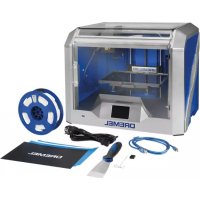
DigiLab 3D40 - 3D Printer DREMEL - Free user manual and instructions
Find the device manual for free DigiLab 3D40 DREMEL in PDF.



| Product Type | Filament Extrusion 3D Printer |
| Brand | Dremel |
| Model | DigiLab 3D40 |
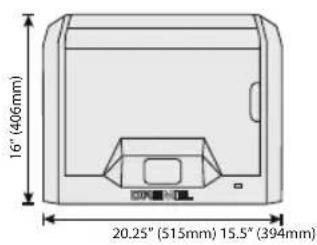
| Dimensions (W × D × H) | 515 mm × 406 mm × 394 mm |
| Weight | 16 kg (without spool) |
| Power Supply | 100-240 V, 47-60 Hz, 0.8-1.8 A |
| Max Build Volume | 255 mm × 155 mm × 170 mm |
| Layer Thickness | 100 microns (0.1 mm) |
| Max Extrusion Temperature | 230 °C |
| Compatible Filament | Dremel PLA filament 1.75 mm only |
| User Interface | 3.5-inch IPS color touchscreen |
| Internal Storage | 4 GB |
| Connectivity | WiFi, Ethernet, USB (USB flash drive, computer) |
| Software Included | Dremel Digilab 3D Slicer for Windows/Mac |
| Sensors | Jam sensor, filament runout sensor, leveling sensor |
| Operating Temperature | 16-29 °C |
| Build Plate Material | Adhesive build film (included) |
| Platform Leveling | Automatic with sensor, manual adjustment via knobs |
| Routine Maintenance | External cleaning with soft cloth, nozzle cleaning with tweezers, unclogging with provided tool |
| Repairability | Authorized Dremel service center, genuine parts |
| Warranty | Limited warranty in accordance with applicable laws |
| Safety | Do not touch hot extruder, do not use unauthorized filaments, do not leave unattended |
| Kit Contents | Quick start guide, power cable, build film, spatula, USB key, unclogging tool |
Frequently Asked Questions - DigiLab 3D40 DREMEL
User questions about DigiLab 3D40 DREMEL
0 question about this device. Answer the ones you know or ask your own.
Ask a new question about this device
Download the instructions for your 3D Printer in PDF format for free! Find your manual DigiLab 3D40 - DREMEL and take your electronic device back in hand. On this page are published all the documents necessary for the use of your device. DigiLab 3D40 by DREMEL.
USER MANUAL DigiLab 3D40 DREMEL
natural_image
Technical illustration of a DREMEL 3D printer internal structure (no text or symbols on the device itself)GB Original instructions 2
AND USE. FAILURE TO COMPLY WITH THE WARNINGS AND INSTRUCTIONS MAY RESULT IN FIRE, EQUIPMENT DAMAGE, PROPERTY DAMAGE, OR PERSONAL INJURY. SAVE ALL WARNINGS AND INSTRUCTIONS FOR FUTURE REFERENCE
WORK AREA SAFETY
a. Keep work area clean and well lit. Cluttered or dark areas invite accidents.
b. Do not operate Dremel 3D40 in the presence of flammable liquids, gases or dust. Dremel 3D40 creates high temperatures which may ignite the dust or fumes.
c. Store idle 3D40s out of reach of children and other untrained persons. Injury can occur in hands of untrained users.
ELECTRICAL SAFETY
a. Always use the Dremel 3D40 with a properly grounded outlet. Do not modify Dremel 3D40 plug. Improper grounding and modified plugs increase risk of electric shock.
b. Do not use Dremel 3D40 in damp or wet locations. Do not expose Dremel 3D40 to rain. Presence of moisture increases risk of electric shock.
c. Do not abuse the cord. Never use the cord for pulling or unplugging the Dremel 3D40. Keep cord away from heat, oil, sharp edges or moving parts. Damaged or entangled cords increase the risk of electric shock.
d. Avoid using this product during an electric storm. There may be a remote risk of a power surge from lightning that may result in an electric shock.
e. In case of emergency unplug Dremel 3D40 from outlet.
PERSONAL SAFETY
a. Stay alert, watch what you are doing and use common sense when operating a Dremel 3D40. Do not use Dremel 3D40 while you are tired or under the influence of drugs, alcohol or medication. A moment of inattention while operating Dremel 3D40 may result in personal injury.
b. Use personal protective equipment. The use of protective equipment such as heat resistant gloves and safety glasses will reduce the risk of personal injuries.
c. Dress properly. Do not wear loose clothing or Jewellery. Keep your hair, clothing and gloves away from moving parts. Loose clothes, Jewellery or long hair can be caught in moving parts.
DREMEL 3D40 USE AND CARE
a. Before every use check Dremel 3D40 for misalignment or binding of moving parts, breakage of parts and any other condition
that may affect the Dremel 3D40's operation. If damage is suspected then have the Dremel 3D40 repaired by an authorised Dremel service centre before use. Use of Dremel 3D40 when damaged may result in poor quality of object creation, further equipment damage, property damage or personal injury.
b. Do not touch the extruder tip during Dremel 3D40 operation or until it has cooled down to at least 60°C (140°F). Contact with the extruder tip during or after operation before tip has cooled may result in personal injury.
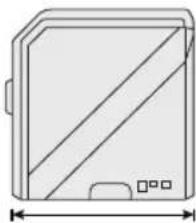
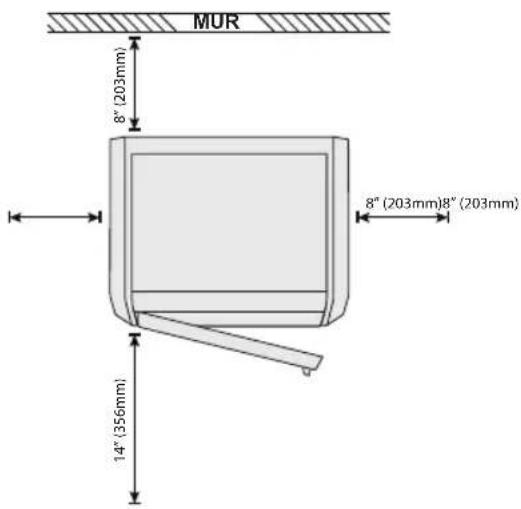
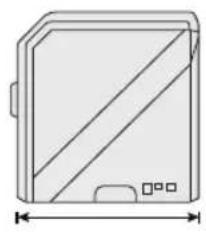
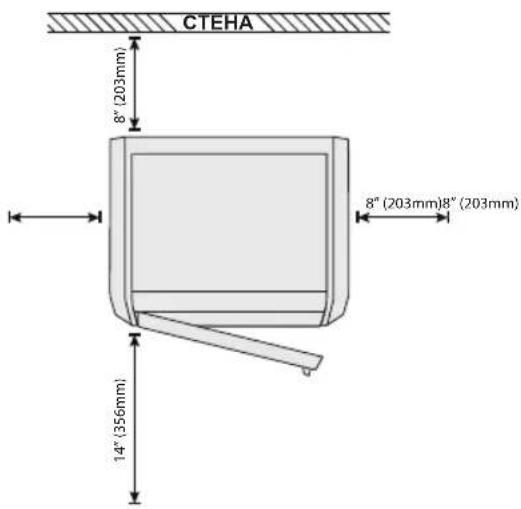
c. Set up the Dremel 3D40 in a well-ventilated area. Provide at least 8 inches of unobstructed spacing around Dremel 3D40. Dremel 3D40 melts plastic during building. Plastic odours emitted during Dremel 3D40 operation may irritate eyes and airways. Locating Dremel 3D40 close to surrounding objects prevents proper ventilation.
d. Do not reach inside the Dremel 3D40 while it is in operation. Contact with Dremel 3D40 moving parts during operation may result in poor build quality, equipment damage or personal injury.
e. Do not leave the Dremel 3D40 unattended during operation. Use of Dremel 3D40 by persons unfamiliar with these warnings and instructions may result equipment or property damage and personal injury.
f. Use only DREMEL PLA filament. Use of filament not authorized by Dremel may result in equipment and property damage.
g. Ensure small objects created by Dremel 3D40 are not accessible to young children. Small objects are potential choking hazards for young children.
h. Do not create illegal or inappropriate objects using Dremel 3D40.
i. Do not use Dremel 3D40 to create objects intended for use with candles, liquid fuels, and other heat sources. Plastic may melt when exposed to fire or other heat sources. Such use of objects created by Dremel 3D40 may result in fire, property damage and personal injury.
j. Do not use Dremel 3D40 to create objects intended for food or drink applications such as preparation, decoration, storage, or consumption. Such use of objects created by Dremel 3D40 may result in illness or personal injury.
k. Do not use Dremel 3D40 to create objects intended with use with electrical components or housings of electrical components. PLA plastic is not suitable for electrical applications. Such use of objects created by Dremel 3D40 may result in property damage and personal injury.
I. Do not put plastic objects in or around your mouth. PLA plastic is not suitable for food or drink preparation and food utensils. Such use of objects created by Dremel 3D40 may result in illness or personal injury.
m. Do not use Dremel 3D40 to create objects intended for chemical storage. PLA plastic is not suitable for chemical storage. Such use of objects created by Dremel 3D40 may result in property damage and personal injury.
n. Do not modify Dremel 3D40 or alter factory settings. Modifications may result in equipment and property damage, and personal injury.
o. Do not expose Dremel 3D40 to temperatures exceeding 70°C (158°F). Dremel 3D40 may become damaged. Dremel 3D40 is intended to operate in temperature between 16-29°C (60 - 85°F).
p. Do not move or bump Dremel 3D40 or the extruder during operation. The object may build incorrectly.
q. Do not change colour of filament or spool during building. Doing so will cancel the object and may damage the extruder.
r. Do not pull the filament out until instructed by the touch screen. Doing so may damage the extruder.
s. Use extra care not to damage the extruder tip when clearing debris. Dremel 3D40 will not work properly with damaged extruder tip and will require replacement.
t. Before every build make sure that the build platform is covered with Dremel specified build tape. Use of improper build tape may result in equipment damage and poor object build quality.
u. Be aware of your body position when using hand tools to remove objects from the build platform. Sudden tool slip and improper body position during object removal from the build platform may result in personal injury.
v. Avoid scratching the build platform when removing objects. Scratches in the build platform will result in improper object creation.
w. Do not drop the build platform. Tempered glass plate may break and result in personal injury.
x. Do not remove tempered glass plate from plastic holder. Contact with tempered glass plate edge may result in personal injury.
y. Do not twist or bend the build platform while removing objects. Tempered glass plate may separate from plastic holder and result in personal injury.
z. Dremel is not responsible for structural integrity or utility of objects created using Dremel 3D40. Structural models created by inexperienced designers may result in property damage and personal injury.
SERVICE
a. Always unplug Dremel 3D40 from its power before performing any service procedures.
Failure to do so may result in personal injury and equipment damage.
b. Have your Dremel 3D40 serviced only by an authorized Dremel service centre using only Dremel replacement parts. This will ensure that proper operation and safety of Dremel 3D40 is maintained.
c. Use only Dremel approved materials and components. Use of object materials, or 3D objects other than Dremel ^® approved object materials and genuine Dremel ^® components may void warranty.
TABLE OF CONTENTS
General safety warnings ....2
Table of contents....3
Used symbols....4
Information on Intellectual Property......4
Functional Description and Specifications ..... 4
3D40 Resources ....5
Glossary of Terms......6
Getting to know your 3D40....7
Introduction....9
Kit Contents*......9
Touch Screen....11
Touch Screen Icons 16
Initial Setup....17
Getting Ready to Build....18
Building 22
Removing Your Object....24
Best Practices ....25
Maintenance....26
Maintenance and Service....28
Open Source Software 29
Dremel ^® Consumer Limited Warranty....30

USED SYMBOLS
Symbol Name Designation/
Explanation

WARNING
Warning symbol
Alerts user to warning messages

Read manual symbol
Alerts user to read manual

WARNING
THIS IS A CLASS A PRODUCT. IN A DOMESTIC ENVIRONMENT THIS
PRODUCT MAY CAUSE RADIO INTERFERENCE IN WHICH CASE THE USER MAY BE REQUIRED TO TAKE ADEQUATE MEASURES.
INFORMATION ON INTELLECTUAL PROPERTY
The Dremel 3D40 is intended for 3D printing objects from digital files that you create or own, or have the right to print using the Dremel 3D40. When making objects using the Dremel 3D40, it is your responsibility to ensure that you do not infringe any third party intellectual property rights or violate any applicable laws or regulations, such as U.S. or foreign intellectual property laws. The Dremel 3D40 may not be used to make objects protected by intellectual property rights owned by third parties without such third parties' permission. Using the Dremel 3D40 to do any of the following may require the permission of third parties: to make a duplicate or facsimile (in whole or in part) of any object not created by you, to make an object from a digital file you do not own, or to make an object from a scan of a physical object that you did not create. It is your responsibility to obtain such permission. In some cases, you may not be able to obtain such permission. Where such permission cannot be obtained, you should not 3D print such object, or you do so at your own risk. You may not modify, reverse engineer, decompile, or disassemble the Dremel 3D40 or its software or firmware, except as permitted by applicable law. If you use the Dremel 3D40 in any way other than as recommended and described in these Operating/Safety Instructions, you do so at your own risk. Using the Dremel 3D40 to make objects that infringe any intellectual property rights owned by third parties could result in civil or criminal prosecution and penalties, and you could be liable for money damages, fines, or imprisonment.
FUNCTIONAL DESCRIPTION AND SPECIFICATIONS
BUILDING
Extruder: Single extrusion
Extruder temperature: Up to 230°C (397°F)
Operating Interface: 3.5" full color IPS touch screen Maximum Build Volume: 10" x 6" x 6.7" (255mm x 155mm x 170mm)
Layer Thickness: 4 mil | 0.004 inches 100 microns | 0.10 mm
Filament Colors: See Dremel3D.com for color choices Internal Storage: 4GB
External Storage: USB Flash Drive
WEIGHT & DIMENSIONS
Weight (without spool): 16kg (35lbs)
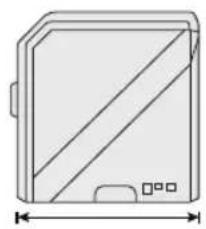
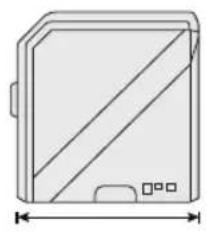
Dimensions: 20.25" x 16" x 15.9" (515mm x 406mm x 394mm)
FILAMENT
ONLY works with Dremel 1.75mm filament
FILAMENT STORAGE
All polymers degrade with time. Do not unpack until filament is needed. Filament should be stored at room temperature: 16-29°C (60-85°F) and in dry conditions.
SOFTWARE
Dremel 3D40 comes with complimentary Dremel Digilab 3D Slicing software for Windows and Mac OSX. This application converts your 3D digital files into buildable files.
• CPU: 64-bit processor (32-bit not supported)
• Memory: 3 GB RAM (4 GB or more recommended)
- Disk space: \~2 GB free disk space for installation
- Display card: 1,024 MB GDDR RAM or more. Microsoft® Direct3D® 11 capable graphics card or higher
- Pointing device: Three-button mouse
ELECTRICAL REQUIREMENTS
3D40 input rating: 100-240V, 47-60Hz, 0.8A-1.8A
OPERATING ENVIRONMENT
Room Temperature: 16-29°C (60 - 85°F)
Level workspace
Dry workspace environment
natural_image
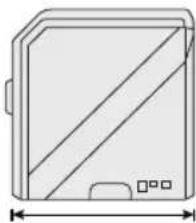
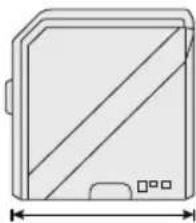
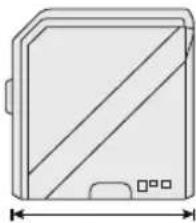
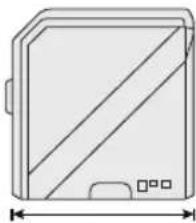
Simple line drawing of a rectangular device with diagonal stripes and a small protrusion at the bottom (no text or symbols)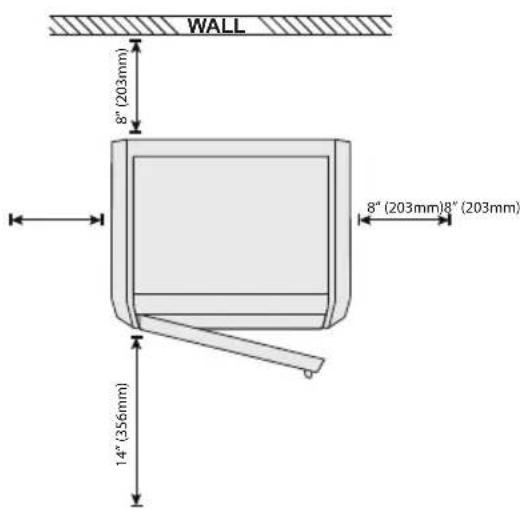
3D40 RESOURCES
| Resource | Description | Location |
| Quick Start Guide | Provides illustrated walk through of how to un-box your 3D40 and start building out of the box. | Printed version of the Quick Start Guide is located in the rectangular component carton. It is also available on www.dremel3d.com |
| Dremel 3D Website | Provides the latest 3D40 software, product information, customer support, and 3D model and project downloads. | www.dremel3d.com |
| Dremel 3D Customer Support | Contact Dremel for product support, maintenance, and service. | www.dremel3d.com |
| File Slicing Software | Allows you to upload, edit, and build 3D files. | Installed from www.dremel3d.com or from USB flash drive provided with the Dremel 3D40. |
GLOSSARY OF TERMS
| Term Definition | |
| Build Platform | The flat surface used by your Dremel 3D40 to build objects. |
| Build Platform Clip | Clip located at the front of the build platform base that is used to secure the build platform in place. |
| Build Tape Adhesive tape that improves the consistency of your objects and helps them stick to the build plate surface. | |
| Build Volume | The three dimensional (3D) amount of space that an object will use once it is completed. Your Dremel 3D40 has a maximum build volume which means that objects with a larger build volume cannot be built unless they are resized or broken into subobjects. |
| Door Your Dremel 3D40 has a door located on the front panel. This allows for easy access to the build platform, extruder, filament, and your objects. This door is made with a transparent material so you can monitor the progress of your objects while keeping the build environment stable. | |
| Ethernet Port A | local area wired networking technology that allow electronic devices to communicate. |
| Extruder An assembly that uses gears to pull filament through the extruder intake, heat the filament to the build temperature, and push the heated filament out of the extruder tip. | |
| Extruder Fan A | fan used to cool the outer assembly of the extruder and gear motor. |
| Extruder Fan Baffle | A plastic piece that directs air from the extruder fan onto the build platform to assist in cooling the active build. |
| Extruder Intake | An opening located at the top of the extruder where filament is inserted for building. |
| Extruder Lever A | lever located on the side of the extruder that is used to loosen the grip of the extruder gear motor. |
| Extruder Tip A | nozzle located at the bottom of the extruder where heated filament is forced out for building. |
| Filament | A threadlike strand of plastic material. |
| Filament Guide Tube | A plastic piece that guides the filament from the filament spool through a passage in the outer housing of your Dremel 3D40. |
| Filament Jam Sensor | A sensor in the extruder that pauses your printer if filament stops extruding properly. |
| Filament Runout Sensor | A sensor in the extruder intake that pauses your printer if it runs out of filament during a build. |
| Filament Spool | A cylindrical piece on which a long strand of filament is wound for storage and continuous use. |
| .G3Drem/.G4Drem | A buildable file format compatible with your Dremel 3D40. |
| Leveling Knobs | Knobs located under the build platform base that are used to create proper spacing between the extruder tip and the build platform. |
| Leveling Sensor | A sensor that detects the height of the build platform and assists in proper leveling. |
| Lid | Your Dremel 3D40 has a pivoting lid on the top. This allows for more access to the build platform, extruder, filament, and objects when necessary. |
| Needle Nose Pliers | Common tool used to hold small objects and to grab excess material that may be too hot to touch directly. |
| OBJ File | A common digital file format used in a wide range of 3D model software. This file is created in 3rd party 3D software or downloaded from Dremel3D.com. |
| Object Removal Tool | A tool used to separate your objects from the build platform. |
| PLA. A bioplastic derived from renewable resources such as corn starch | |
| Spool Holder A | plastic piece located to the left of the build platform inside your Dremel 3D40 build area that is designed to hold a filament spool. |
| Spool Door | A removable door which locks the filament spool to the spool holder. |
| Stepper Motor | A brushless DC electric motor used to drive the guide rails and extruder gears. |
| .STL File | A common digital file format used in a wide range of 3D model software. This file is created in 3rd party 3D software or downloaded from Dremel3D.com. |
| Touch Screen | Full color display that is touch activated. It allows you to monitor your Dremel 3D40 and objects while also providing commands directly to your Dremel 3D40 without the use of a computer. |
| USB Flash Drive | A portable memory card used on a wide array of devices. |
| WIFI | A local area wireless networking technology that allow electronic devices to communicate. |
| X-Axis Guide Rails | A set of rails on either side of the extruder that allow a stepper motor to move the extruder to the left or right side of the build area. |
| Y-Axis Guide Rails | A set of rails on either side of the build area that allow a stepper motor to move the extruder to the front or back of the build area. |
| Z-Axis Guide Rails | A set of rails located at the back of the build area that allow a stepper motor to move the build platform up or down. |
GETTING TO KNOW YOUR 3D40
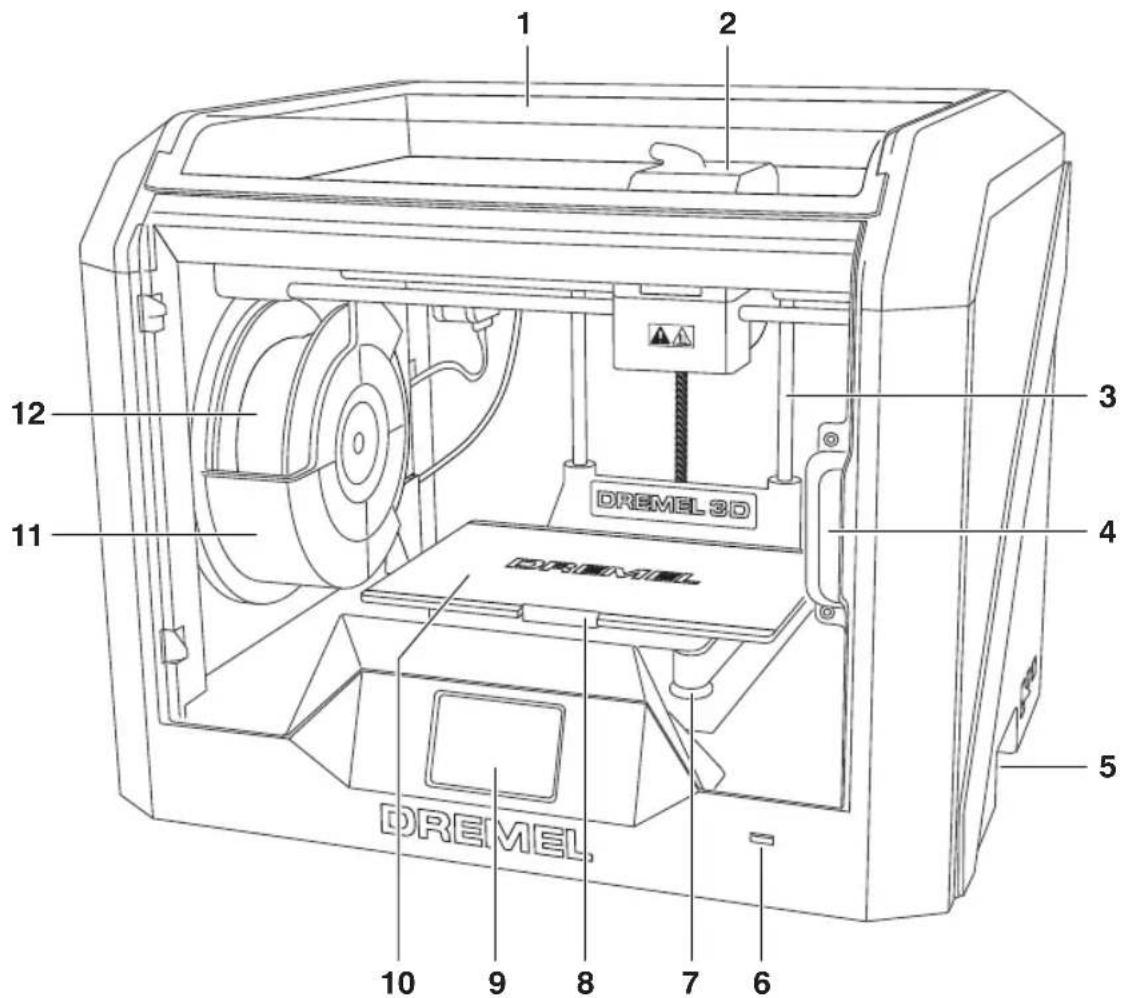
- Lid
- Extruder
- Z-Axis Guide rail
- Door
- Gripping Handles
- USB A Port
- Leveling Knobs
- Build Platform Clip
- Touch Screen
- Build Platform
- Filament Spool Holder
- Filament Spool
- Y-Axis Guide Rail
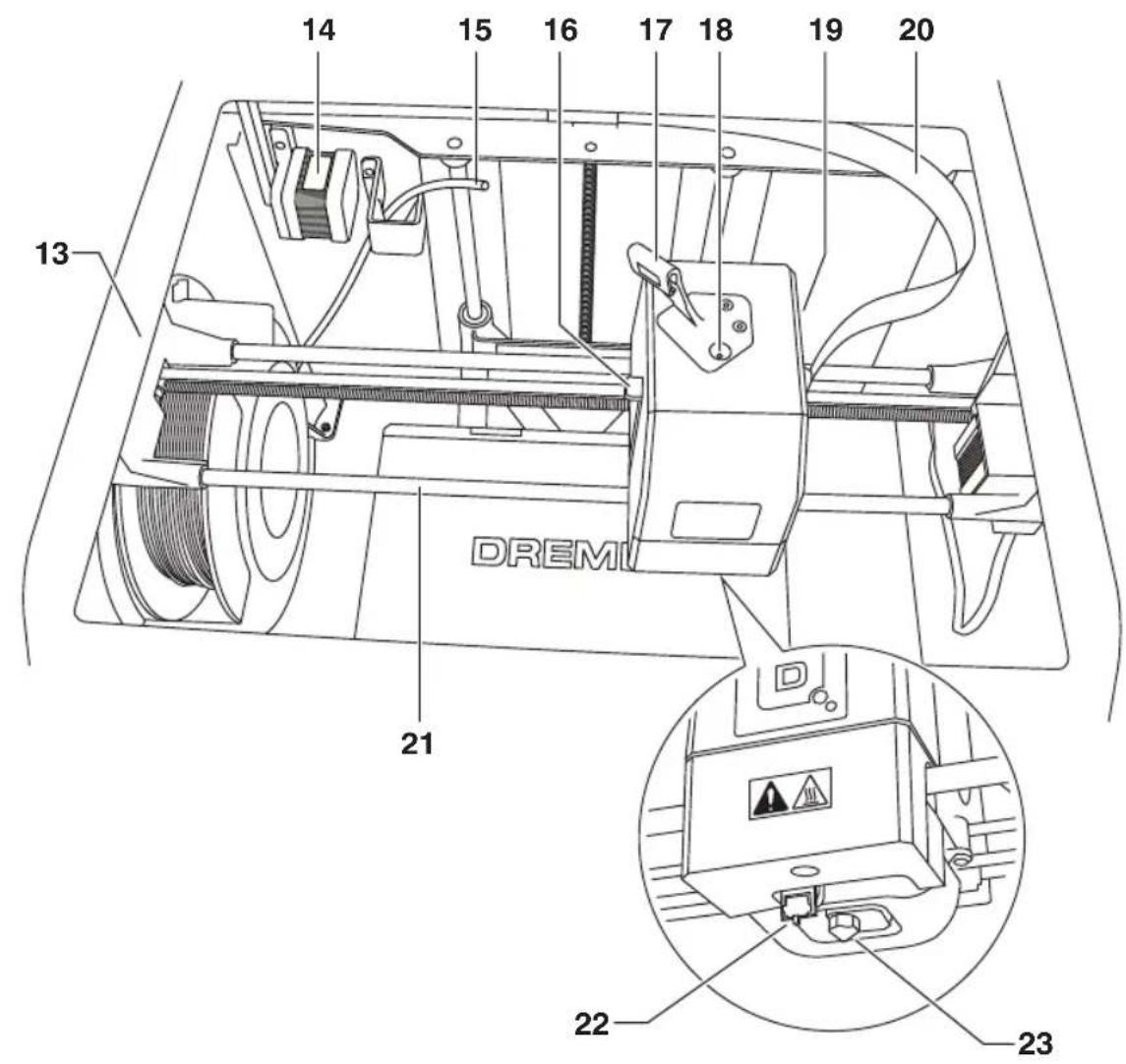
-
Stepper motor
-
Filament Guide Tube
- Extruder Lever
- Filament Guide Clip
- Extruder Intake
- Extruder Fan
- Ribbon Cable
- X-Axis Guide Rail
- Leveling Sensor
- Extruder Tip
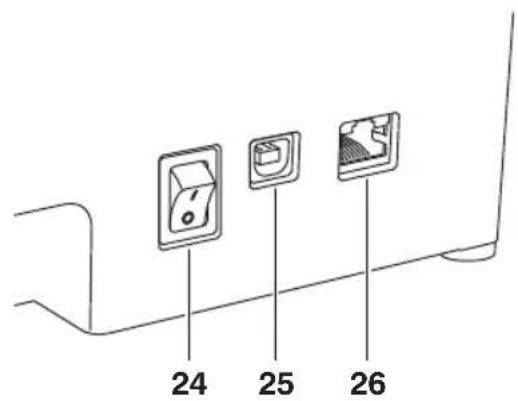
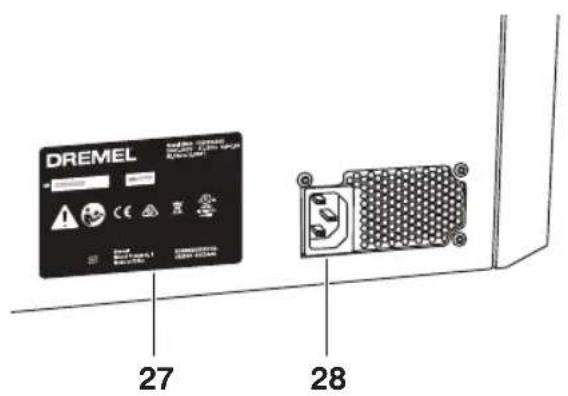
- Power Switch
- USB B Port
- Ethernet Port
- Nameplate
- Power Input
INTRODUCTION
Welcome to the world of Dremel 3D. Our mission is to mentor you through the 3D building process and share best practices for bringing your ideas to life. 3D building is a process that will involve experimentation and persistence. Thankfully, the Dremel experts are here to make your job easier with online tips and support. With Dremel, you can build on your own ideas, build them better and make them yours.
KIT CONTENTS\*
natural_image
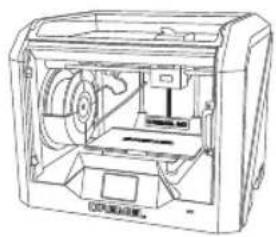
Technical line drawing of a mechanical device with internal components (no text or symbols)Dremel 3D40

Instruction Manual
Quick Start Guide
natural_image
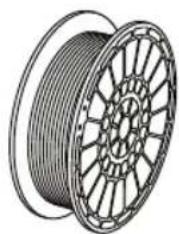
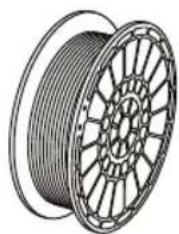
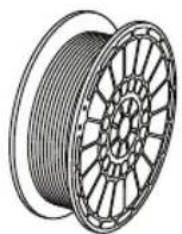
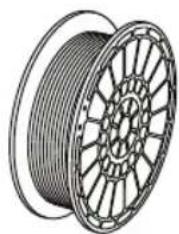
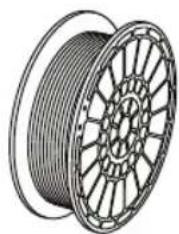
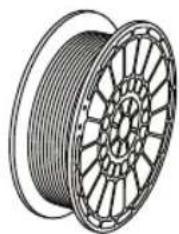
Illustration of a coiled cable with spool, showing internal structure (no text or symbols)Filament Spool**
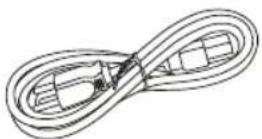
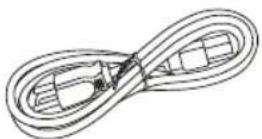
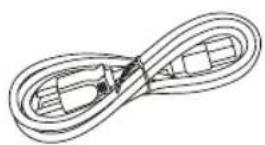
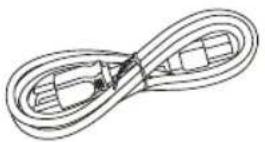
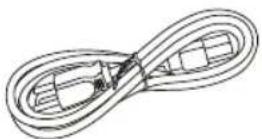
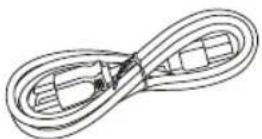
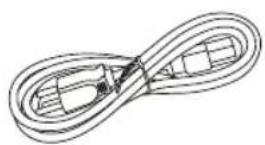
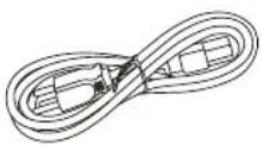
Power Cable
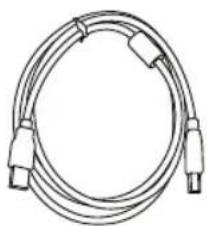
natural_image
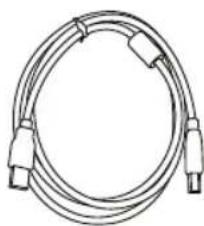
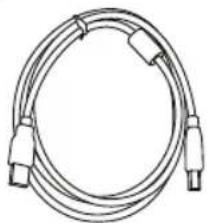
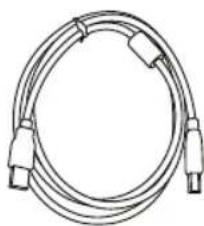
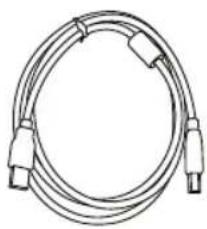
Coiled cable with connectors and connectors (no text or symbols visible)USB Cable
Build Tape
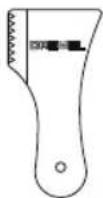
Object Removal Tool
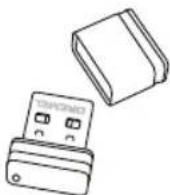
USB Flash Drive
* Quantities may vary depending on kit.
**Do not store in moist or hot environment.
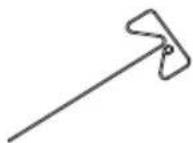
Unclog Tool
UNPACKING
- Place box on table, cut tape, and open.
- Remove top insert.
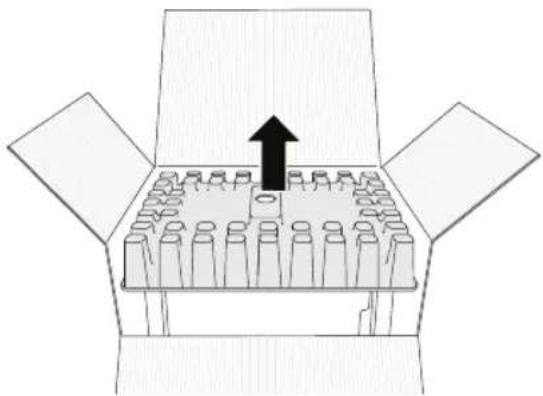
natural_image
Diagram of a box with multiple test tubes and an upward arrow, no text or symbols present- Remove 3D40 and place on table.
- Open lid and remove top insert.
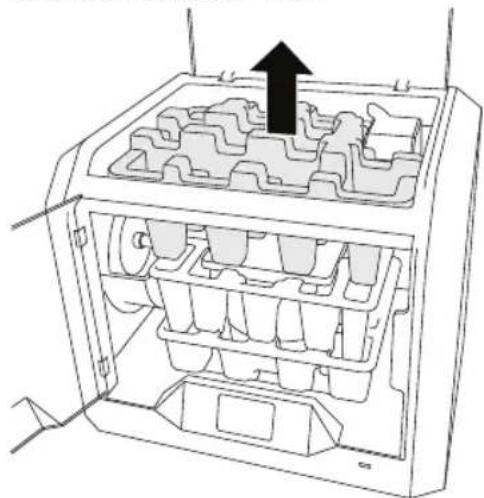
natural_image
Technical line drawing of a mechanical component with internal cavities and an upward arrow indicating motion (no text or symbols)- Raise build plate by lifting from both sides.
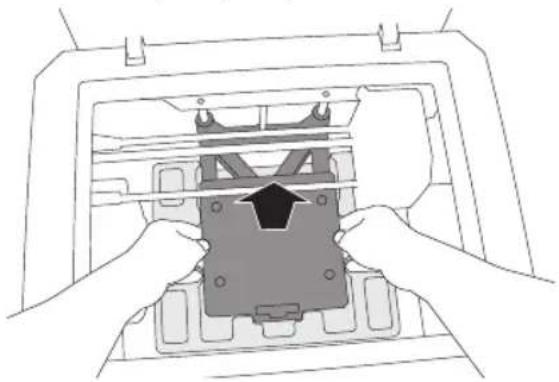
natural_image
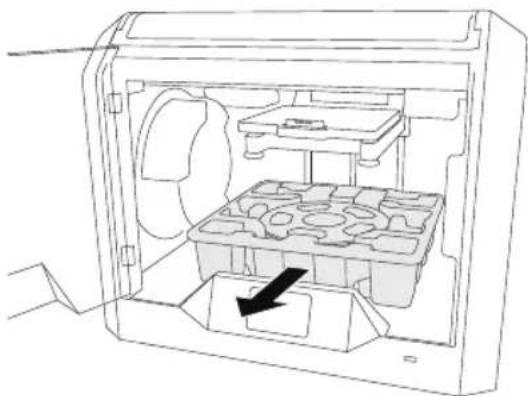
Line drawing of hands installing a component into a device inside a container (no text or symbols visible)- Open door and remove middle insert.
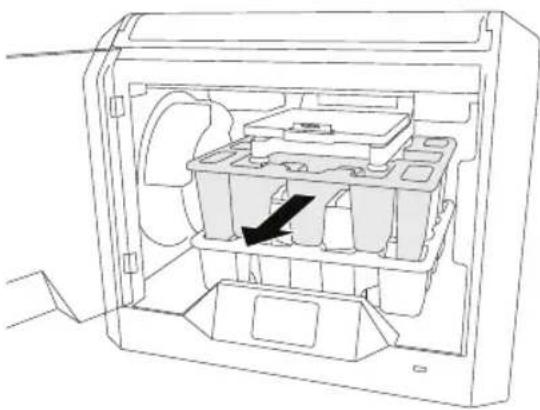
natural_image
Technical line drawing of an open computer case with internal compartments and a black arrow indicating a specific component (no text or symbols present)- Remove bottom insert.
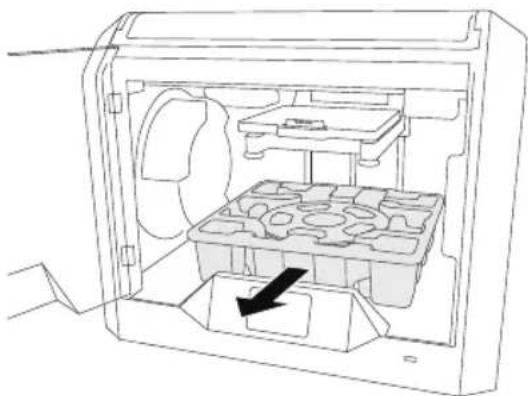
natural_image
Technical line drawing of an open mechanical device with internal compartments and a black arrow indicating a component (no text or symbols present)Tip: Keep packaging for future transportation and storage.
TOUCH SCREEN
Using your Dremel 3D40 without a computer is easy with the onboard software and full colour touch screen. Before building your model we want to familiarize you with the touch screen menu structure and options.

WARNING
OBSERVE ALL PROVIDED WARNINGS AND SAFETY INSTRUCTIONS WHEN USING THE DREMEL 3D40. FAILURE TO DO SO MAY RESULT IN FIRE, EQUIPMENT DAMAGE, GE OR PERSONAL INJURY.
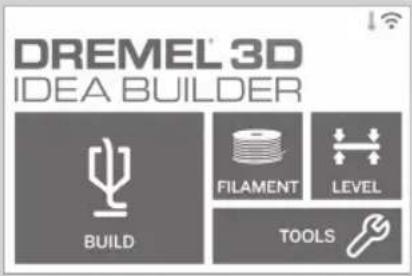
BUILD
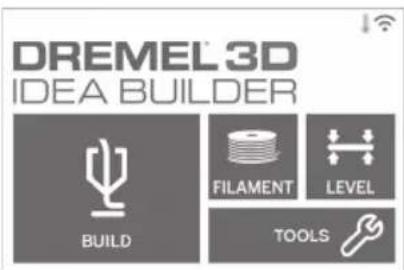
Tap to select a 3D model and begin build process. (See page 22 for detailed build instructions)
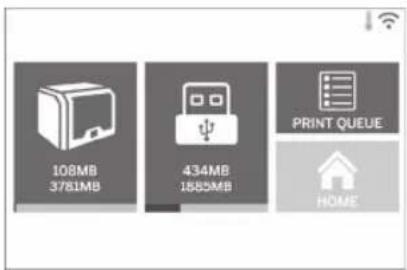
BUILD MENU
Tap Printer, USB Flash Drive, or Print Queue to choose the destination of your desired file.
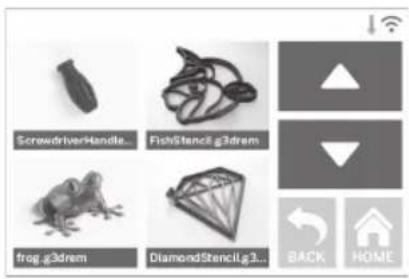
MODEL MENU
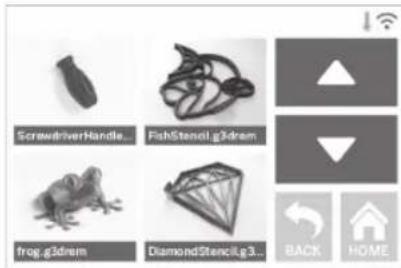
Tap to select the desired model or use arrows to scroll through pages to find your model.
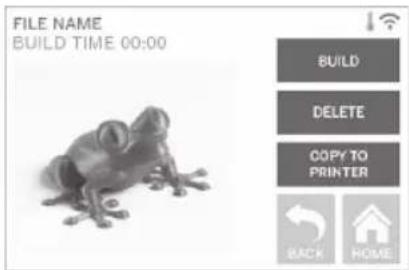
FILE DETAILS
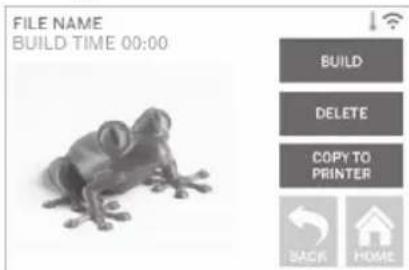
BUILD – Tap to begin build process.
DELETE – Tap to remove model file from on- printer storage or USB flash drive.
COPY TO PRINTER – From USB flash drive, tap to copy model file to on-printer storage.
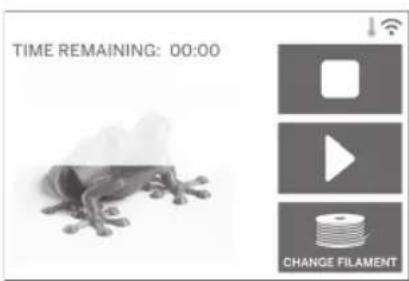
BUILD STATUS
STOP - Tap to cancel the current build process.
PAUSE/PLAY – Tap to pause or resume the current build process. Pause will allow you to access the filament button.
CHANGE FILAMENT – Tap to change filament during the current build process to add more filament or change colors.
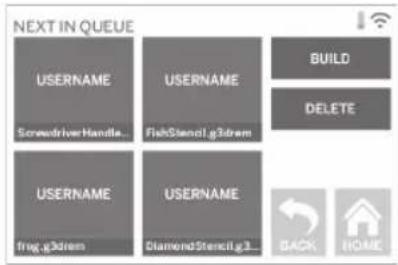
PRINT QUEUE MENU
BUILD – Tap to view details of next build.
DELETE – Tap to remove next build from queue.
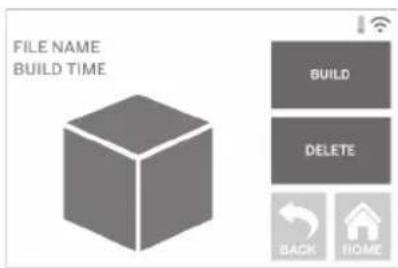
PRINT QUEUE MODEL DETAILS
BUILD – Tap to begin build process.
DELETE – Tap to remove model file from queue.
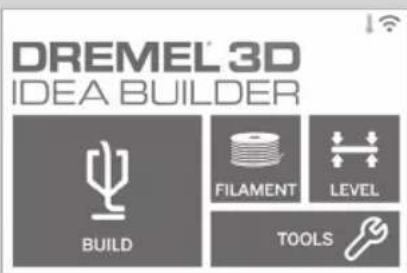
FILAMENT
Tap to begin heating and start filament load/change process. (See page 18 for instructions on filament load/change process)
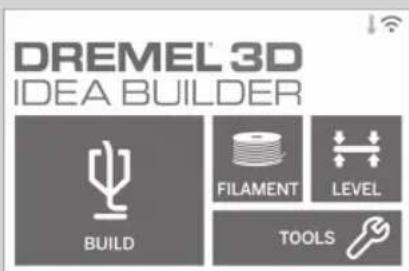
LEVEL
Tap to begin build platform leveling process.
(See page 21 for instructions on leveling the build platform)
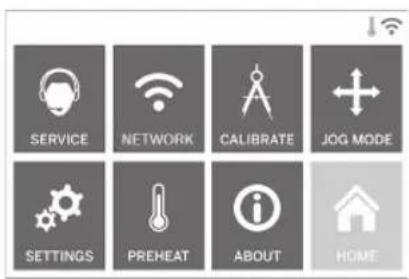
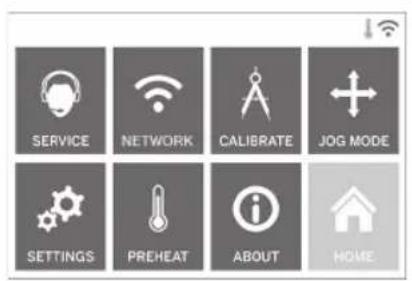
TOOLS
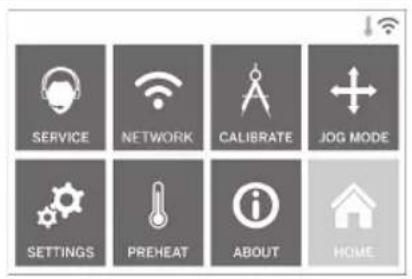
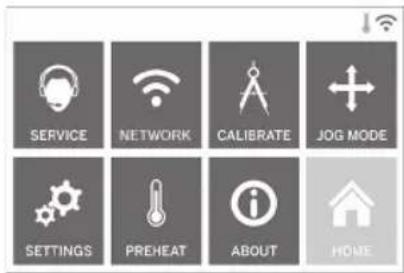
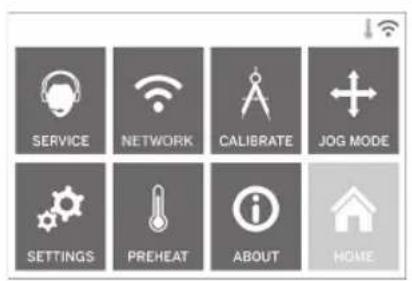
Tap to access the following individual printer functions and settings.
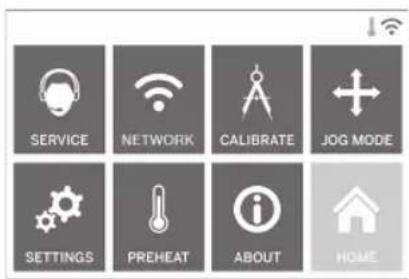
SERVICE
Tap to enter service menu to see customer service contact information.
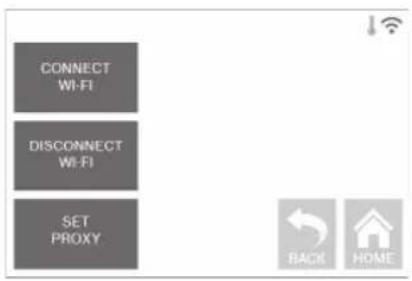
NETWORK
Tap to enter Network menu to connect or disconnect WiFi and Set Proxy.
CONNECT WIFI – Tap to connect to WiFi.
DISCONNECT WIFI – Tap to turn Wifi off.
SET PROXY – Tap to set manual proxy.
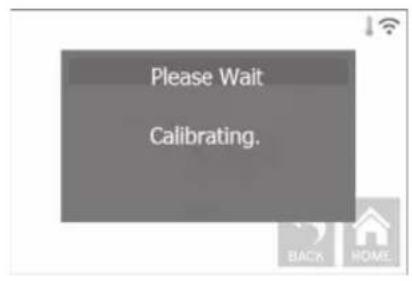
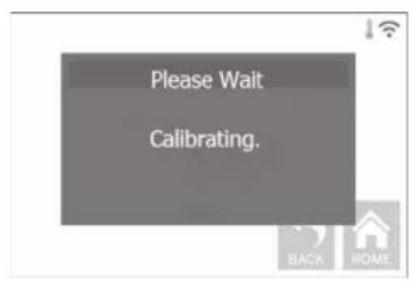
CALIBRATE
Tap to move extruder and build platform to zero position.
flowchart
graph TD
    A["EXTRUDER"] --> B["Y+ FORWARD"]
    B --> C["X- LEFT"]
    B --> D["X+ RIGHT"]
    D --> E["Y- BACK"]
    F["BUILD PLATFORM"] --> G["RAISE"]
    F --> H["LOWER"]
    I["BACK"] --> J["HOME"]
    K["HOME"] --> L["Back"]
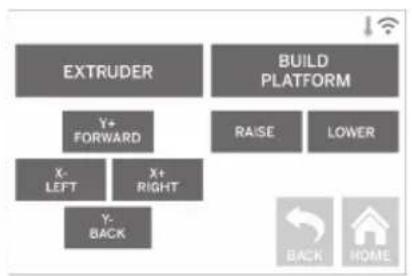
JOG MODE
Tap to display options to move extruder and build platform along the X, Y, and Z-axis.
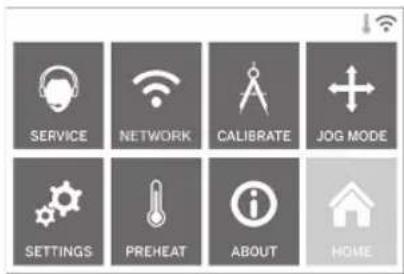
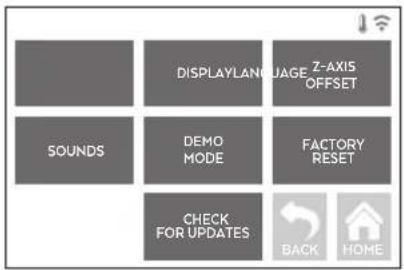
SETTINGS
LANGUAGE – Tap to pick alternate menu language.
DISPLAY – Tap to customize cabinet LEDs or main menu hotkeys.
Z-AXIS OFFSET – Used to calibrate build plate height during assembly.
SOUNDS – Tap to turn 3D40 sounds On/Off. DEMO MODE – Tap to turn retail demo mode On/Off.
FACTORY RESET – Tap to remove all information stored on 3D40 and return it to factory defaults.
CHECK FOR UPDATES – Tap to check for new firmware version when connected to Wifi or Ethernet.
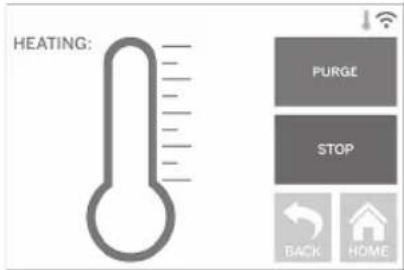
PREHEAT
Tap to automatically begin preheating the extruder for building or removing excess debris. PURGE – Once extruder is hot, tap to manually extrude filament.
STOP/START – Tap to stop or start preheating.
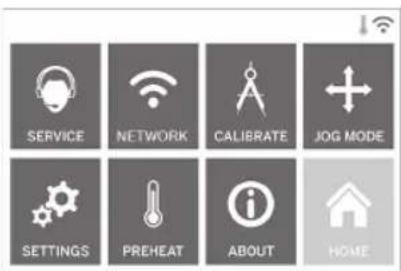
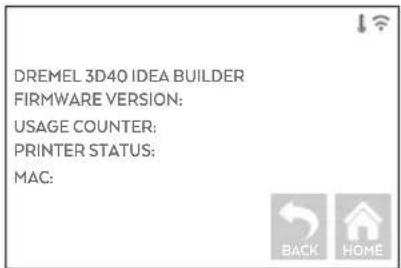
ABOUT
Tap to see 3D40 information such as firmware version, usage counter, printer status, and MAC address.
TOUCH SCREEN ICONS

Indicates that there is an error such as filament empty or door open.
Indicates that Ethernet is connected.
Indicates WiFi signal strength and if connected to WiFi symbol will be blue.

Indicates that the extruder is cool.

Indicates that the extruder is warm.
Indicates that the extruder is hot.
INITIAL SETUP
The first time you power on your Dremel 3D40 you will be prompted to perform an initial setup of network. Completing this process will give you access to notifications of firmware updates.
- To complete initial setup, tap "Yes" when prompted on the initial setup screen. If you decline this setup you can always setup network later.
- If you choose "Yes", 3D40 will automatically connect to your ethernet or search for available wireless networks.
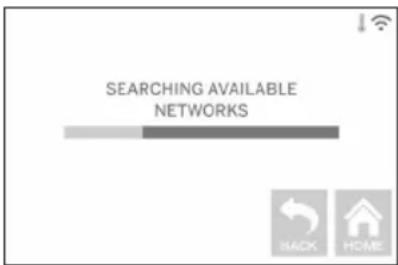
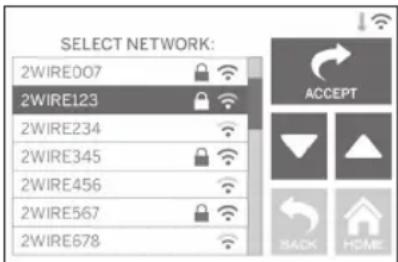
- Choose your wireless network using the touchscreen. Use the arrows to scroll through the list of available wireless networks. When your wireless network name is highlighted, tap "Accept".
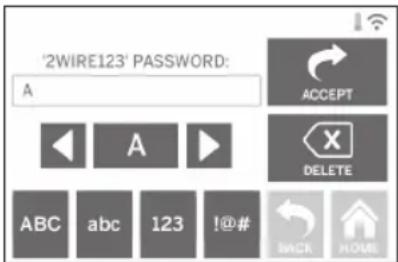
- Enter your wireless network password and tap "Accept".
GETTING READY TO BUILD

WARNING
OBSERVE ALL PROVIDED
WARNINGS AND SAFETY
INSTRUCTIONS WHEN USING THE DREMEL 3D40.
Failure to do so may result in fire, equipment damage, property damage or personal injury.

WARNING
UNTIL IT HAS COOLED DOWN TO AT LEAST 60°C (140°F). Contact with the extruder tip during or after operation before tip has cooled may result in personal injury.

WARNING
USE ONLY DREMEL FILAMENT.
Use of filament not authorized by
Dremel may result in equipment and property damage.

WARNING
DO NOT PULL THE FILAMENT
OUT. Doing so may damage the
extruder.
LOADING/CHANGING FILAMENT
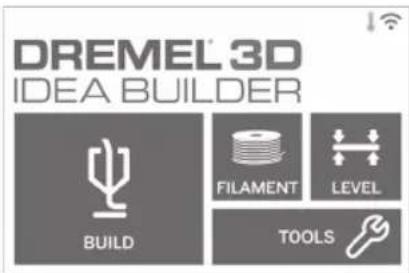
- Start filament load/change process by tapping "Filament" button on touchscreen. Extruder will move to front right corner of print area and extruder tip will begin to heat.
- After extruder stops moving, open the 3D40 Lid for better access to extruder.
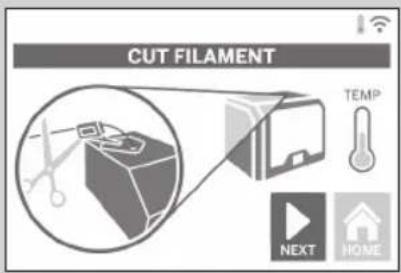
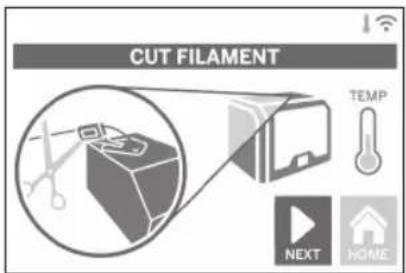
- If existing filament is loaded, cut existing filament near extruder intake and tap "Next" button on touchscreen.
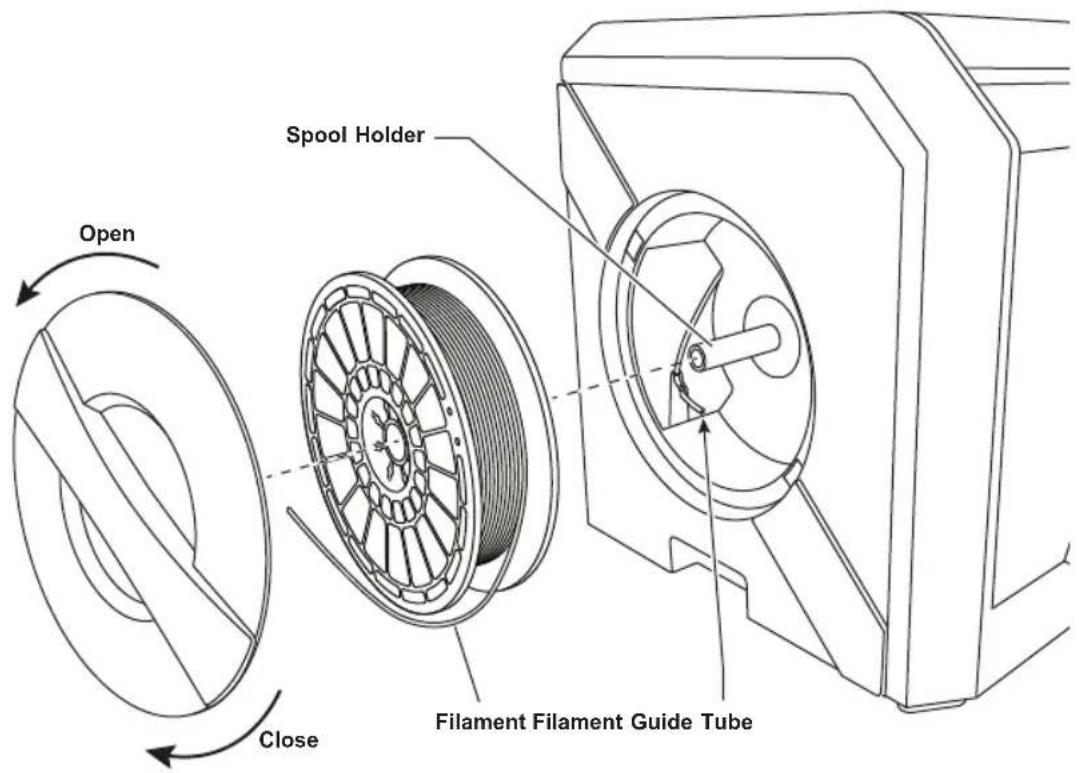
- Remove Spool door by rotating it counter clockwise and remove existing spool if one is present, see figure1.
FIG. 1
Guide Tube Filament Filament Guide Extruder intake
FIG. 2
natural_image
Technical line drawing of a mechanical assembly with no visible text or symbols- Thread tip of new filament through guide tube, place spool on spool holder, replace spool door by aligning locking tabs and rotating clockwise, see figure 1.
Tap "Next" on touchscreen. - If changing existing filament, 3D40 will automatically purge existing filament.
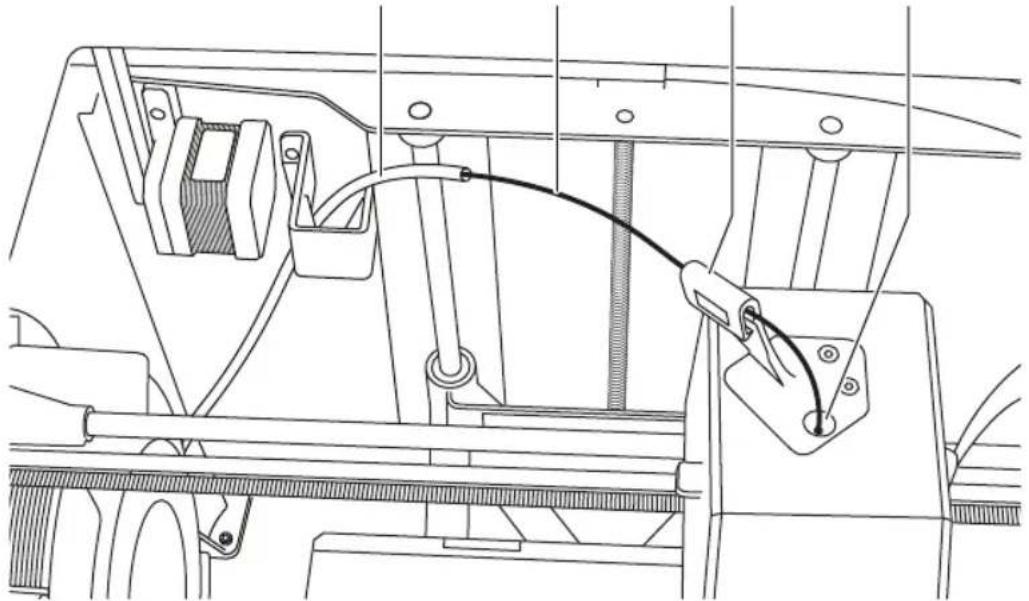
- When Feed Filament screen appears, tap "Next" on touchscreen and thread filament coming from guide tube into extruder intake until extruder feeds through on its own, see figure 2.
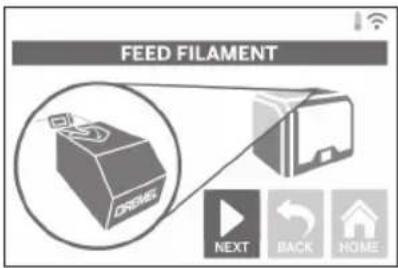
- Filament will be drawn into the extruder and begin to exit from the hot extruder tip.
NOTE: Your Dremel 3D40 was tested by building objects before leaving the factory. These test objects may have been made with a different filament color than you are using. Therefore, a small amount of filament may be remaining in the extruder.
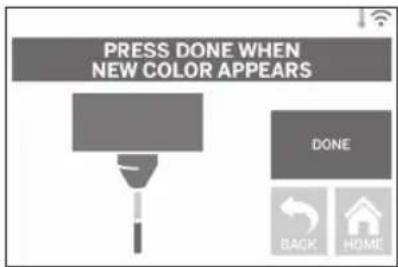
- When new filament appears from extruder tip, tap "done" on touchscreen to complete filament load process, return to main menu, and calibrate extruder. Carefully remove excess filament without touching hot extruder tip. If necessary, carefully remove debris from extruder tip with needle nose pliers.
USE EXTRA CARE NOT TO
DAMAGE THE EXTRUDER TIP
WHEN CLEARING DEBRIS. DREMEL 3D40 WILL NOT WORK PROPERLY WITH A DAMAGED EXTRUDER TIP AND WILL REQUIRE REPLACEMENT.
- Close 3D40 lid and door.
PREPARING BUILD PLATFORM

WARNING
DO NOT DROP THE BUILD PLATFORM. TEMPERED GLASS
PLATE MAY BREAK AND RESULT IN PERSONAL INJURY.

WARNING
DO NOT REMOVE TEMPERED GLASS PLATE FROM PLASTIC
HOLDER. CONTACT WITH TEMPERED GLASS PLATE EDGE MAY RESULT IN PERSONAL INJURY.

WARNING
BEFORE EVERY BUILD MAKE SURE THAT THE BUILD
PLATFORM IS COVERED WITH DREMEL SPECIFIED BUILD TAPE. USE OF IMPROPER BUILD TAPE MAY RESULT IN EQUIPMENT DAMAGE AND POOR OBJECT BUILD QUALITY.
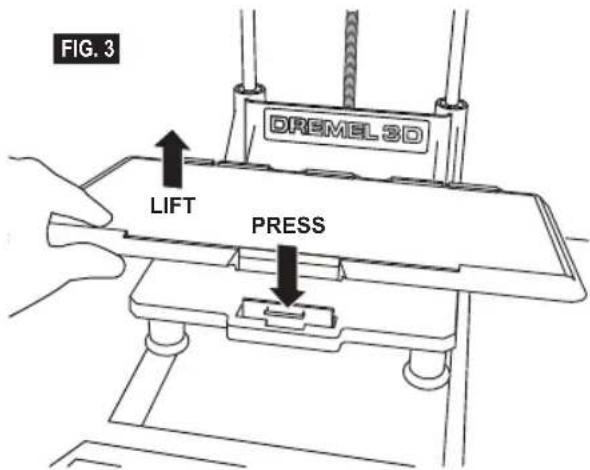
- If build platform is installed, remove by pinching the clip located at the front of the build platform and lifting the build platform off the base, figure 3.
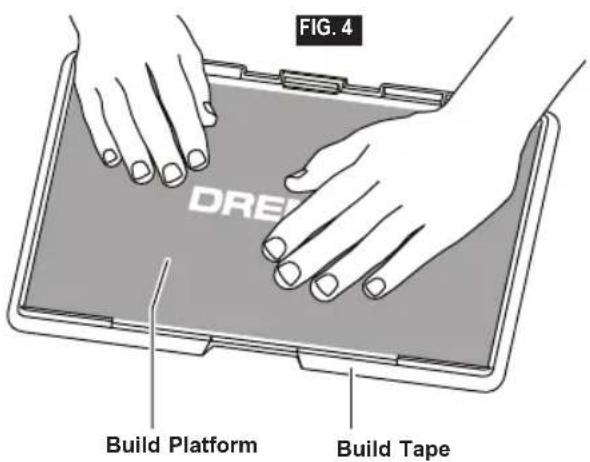
- Remove adhesive liner from Build Tape and place Build Tape over Build Platform. For best results, apply Build Tape at center of Build Platform first and smooth outward to remove any air bubbles, figure 4.
- Install the build platform using the build platform clips.
LEVELING BUILD PLATFORM

WARNING
DO NOT TOUCH THE EXTRUDER TIP DURING DREMEL 3D40
OPERATION OR UNTIL IT HAS COOLED DOWN TO 60°C (140°F). CONTACT WITH THE EXTRUDER TIP DURING OR AFTER OPERATION BEFORE TIP HAS COOLED MAY RESULT IN PERSONAL INJURY.
It is important you level the build platform every time you replace the build tape or reinstall the build platform to ensure that the build platform is evenly spaced from the extruder head. Make sure to remove any air bubbles from between the build platform and the build tape. Not leveling the build platform or eliminating air bubbles may cause objects to not build properly.
-
Make sure you have placed Build Tape on Build Platform and no objects are present. Applying Build Tape after leveling may effect the consistency of your object.
-
Tap "Level" on 3D40's touchscreen.
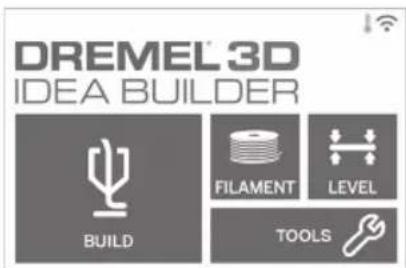
-
The extruder and build platform will move into position to level the build platform. 3D40 will first check level at the back center of the build platform. The two knobs under the build platform are used to raise and lower the build platform on the left and right. The extruder contains a sensor that detects if the bed is level, no additional tools are necessary.
-
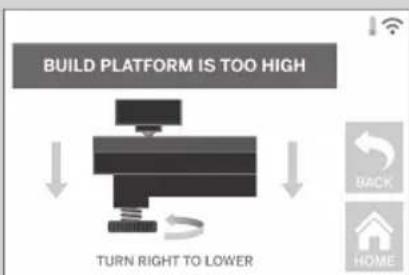
The touchscreen will indicate if your build platform is too high or too low. If the build platform is too high, adjust the appropriate knob by rotating right until you hear a "beep" and the touchscreen indicates that it is ready to verify that the bed is level.
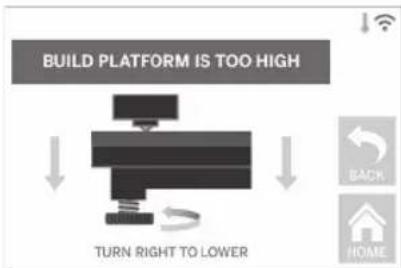
flowchart
graph TD
    A["TIMUTH RIGHT TO LOWER"] --> B["BUILD PLATFORM IS TOO HIGH"]
    B --> C["BACK"]
    B --> D["HOME"]
    B --> E["HOME"]
- If the build platform is too low, adjust the knob by rotating left until you hear a "beep" and the touchscreen indicates that it is ready to verify that the bed is level.
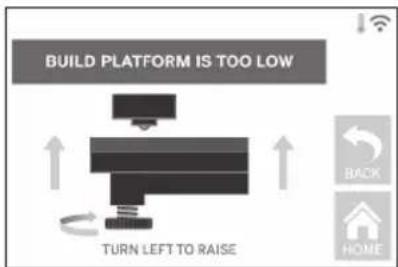
- Tap "Verify" to check the bed level. If further adjustment is needed the touchscreen will indicate the direction, if the level is correct, the extruder will move to the next point and the level process can be repeated.
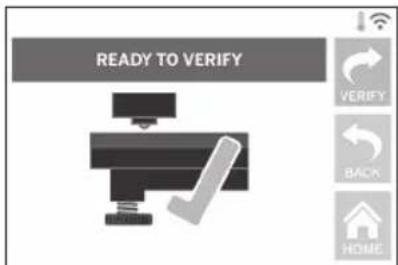
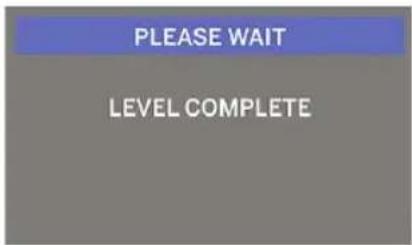
- Repeat steps 4-6 for the second position, when you bed is fully level the extruder will automatically move to the calibration position and complete the leveling process.
CONNECTING USB CABLE
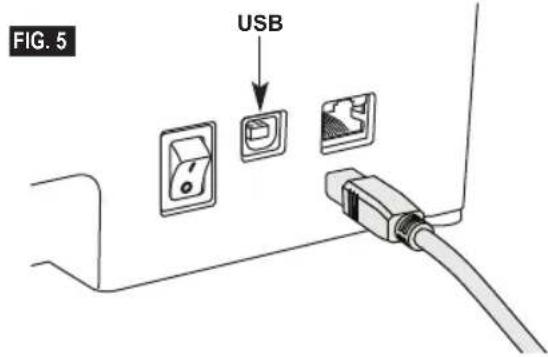
- Ensure 3D40 power switch is in the off position.
- Connect the included USB cable to your 3D40 and computer, figure 5.
- Open software.
- Turn your Dremel 3D40 on using the power switch to sync your computer to your Dremel 3D40.
CONNECTING ETHERNET
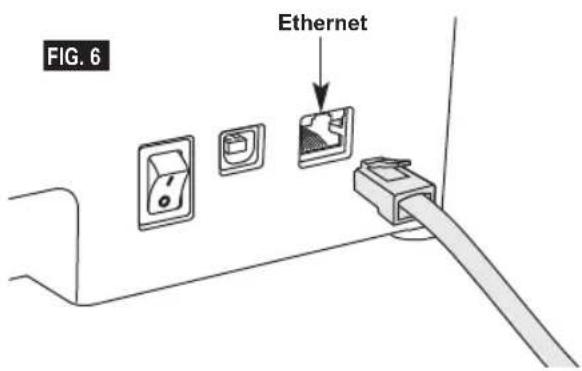
- Ensure 3D40 power switch is in the off position.
- Plug ethernet cable into your 3D40, figure 6.
- Turn your Dremel 3D40 on using the power switch. Ethernet connection should be detected automatically. Tap "Accept" to confirm connection.
BUILDING
WARNING
OBSERVE ALL PROVIDED
WARNINGS AND SAFETY
INSTRUCTIONS WHEN USING THE DREMEL 3D40.
Failure to do so may result in fire, equipment damage, property damage or personal injury.
WARNING
DO NOT REACH INSIDE THE
DREMEL 3D40 WHILE IT IS IN
OPERATION. Contact with Dremel 3D40 moving parts during operation may result in poor build quality, equipment damage or personal injury.
NOTE: Your Dremel 3D40 will build test objects before leaving the factory. These test objects may have been made with a different filament color than you are using. Therefore, a small amount of filament may be remaining in the extruder. The start of your first object may have some of this filament color until it transitions over to your filament color.
You have several options when building on your 3D40:
1) On-Printer Storage
2) USB Flash Drive
3) Computer
BEFORE YOU BUILD
- Ensure an adequate amount of filament is loaded (see page 18).
TIP: You can determine whether you have enough filament to complete your object before building by comparing the length of filament needed as displayed by Dremel Digilab 3D Slicer to the length of filament on spool indicated by the length gauge. If 3D40 runs out of filament during a build, it will pause until more filament is added. - Ensure build tape is applied, build platform is level and clear of objects.
BUILDING FROM ON-PRINTER STORAGE
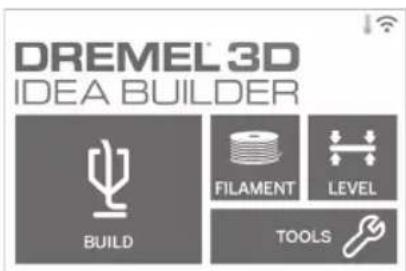
- On the main menu tap "Build".
- On the build menu tap the printer icon.
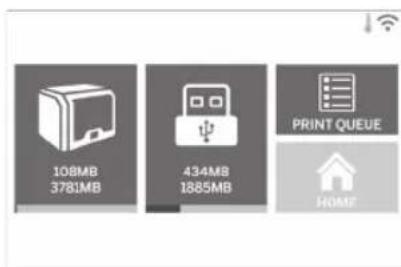
- Tap the model file you would like to build. (Use arrows to scroll through pages)
- In the model detail page tap "Build" to begin building process.
- Your 3D40 will first align the extruder and build platform to their zero positions then the level sensor will lightly touch the build platform to complete alignment. Your extruder tip will begin to heat which may take a few minutes. Once the proper temperature is reached your model will begin to build.
- Once your object is finished your 3D40 will automatically align the extruder and build platform to their calibration positions and cool the extruder tip.
- Wait until the touch screen indicates that the extruder is "cool" to remove your object. See section for removing object from build platform below for object removal instructions.
BUILDING FROM USB FLASH DRIVE
- On main menu tap "Build".
- Tap USB icon to access contents of USB flash drive.
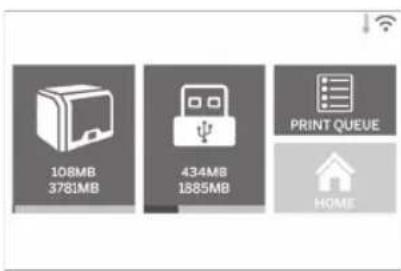
- Follow steps 3-7 from Build from On-Printer storage to complete build from USB flash drive.
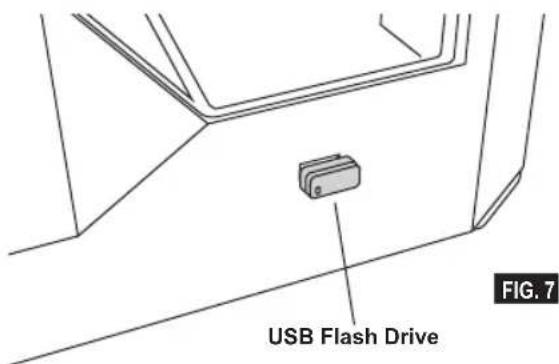
BUILD FROM COMPUTER
Dremel 3D40 is compatible with Dremel Digilab 3D Slicer. Follow the instructions that came with this software to complete a Build from your computer.
CANCELING YOUR BUILD ON 3D40
To cancel your object during preheating or building, tap "Stop" on the touch screen. If you confirm "Yes" the extruder and build platform will move to their calibration positions.
REMOVING YOUR OBJECT
REMOVING YOUR OBJECT FROM THE BUILD PLATFORM
WARNING DO NOT TOUCH THE EXTRUDER TIP DURING DREMEL 3D40 OPERATION OR UNTIL IT HAS COOLED DOWN TO AT LEAST 60°C (140°F). Contact with the extruder tip during or after operation before tip has cooled may result in personal injury.
WARNING USE PERSONAL PROTECTIVE EQUIPMENT. The use of protective equipment such as heat resistant gloves and safety glasses will reduce personal injuries.
WARNING BE AWARE OF YOUR BODY POSITION WHEN USING HAND TOOLS TO REMOVE OBJECTS FROM THE BUILD PLATFORM. Sudden tool slip and improper body position during object removal from the build platform may result in personal injury.
WARNING DO NOT DROP THE BUILD PLATFORM. Tempered glass plate may break and result in personal injury.
A WARNING DO NOT TWIST OR BEND THE BUILD PLATFORM WHILE REMOVING OBJECTS. Tempered glass plate may separate from plastic holder and result in personal injury.
WARNING AVOID SCRATCHING THE BUILD PLATFORM WHEN REMOVING OBJECTS. SCRATCHES IN THE BUILD PLATFORM WILL RESULT IN IMPROPER OBJECT CREATION.
- Wait for the extruder to cool before removing your object.
- With the object still attached, remove build platform from the build area.
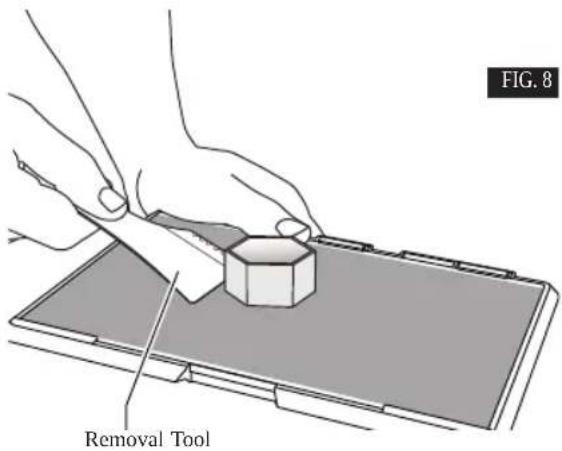
- Peel your object from the build platform. If needed, gently use the object removal tool to remove object from build platform (figure 8). If desired, remove the build tape from the build platform while separating the object from the build platform. The build tape can then be removed from the object.
REMOVING SUPPORTS (IF REQUIRED)
Use needle nose pliers to remove supports that are inside your object or hard to reach.
BEST PRACTICES
-
ALWAYS USE BUILD TAPE.
-
Ensure your build platform is level before every object.
-
Ensure spool is installed properly and can rotate freely.
-
When using your Dremel 3D40 for the 1st time or after changing lament, allow Dremel 3D40 to extrude until material is consistent with the installed lament color.
-
It is important to watch your Dremel 3D40 begin building objects. Your object is most likely to experience difficulty in the beginning. Thankfully, this is also the most convenient time to cancel the object, clean the build platform, and start your object again. Remain near the Dremel 3D40 during the building process.
-
It is important to save your Dremel 3D40 packaging as it will make re-boxing and transporting your Dremel 3D40 easier.
-
Ensure that you store lament spools in an environment that is not moist or too hot. It is recommended that you do not remove the lament spool from its airtight packaging until use.
-
Use object removal tool gently to avoid damaging the build platform or object.
-
Whenever possible, it is best to locate your object in the center of the build platform. Using the best orientation for your object is critical. Ensure that your object is located on the build platform and that you are using the best orientation for building.
-
For steep overhangs (Less than 45 degree angle) it is recommended to build with support.
-
Always remove the build platform before removing the object.
-
Low speed sanding is recommended to prevent remelting of the object.
-
The Dremel Digilab 3D Slicer software will display the length of lament required for each object. Compare this to the length indicated on the spool length gauge.
MAINTENANCE
UNCLOGGING THE EXTRUDER
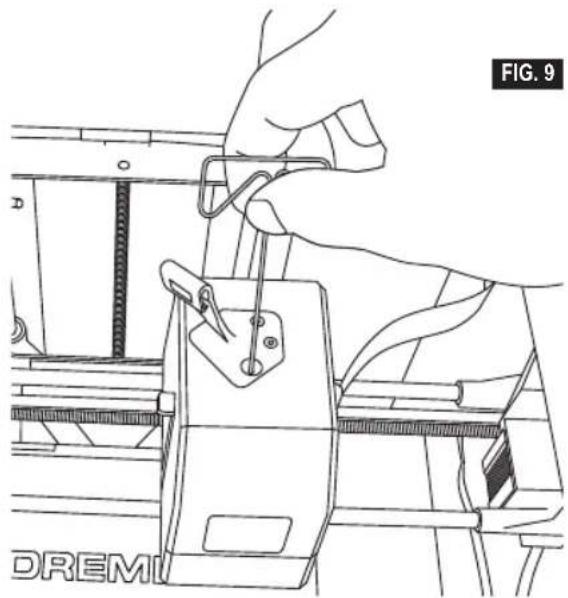
Use the unclogging tool to clean the extruder and unclog built up filament.
- Wait for extruder to heat up insert the unclog tool into the extruder intake (top).
- Clogged debris will be pushed down and will extrude from the extruder tip.
natural_image
Line drawing of a hand using a tool to adjust or install a component, no text or symbols presentUPDATING FIRMWARE VIA NETWORK
If your 3D40 is registered and added to your Dremel3D profile, you can update its firmware directly from the touchscreen. To update firmware:
- Tap "Tools", "Settings", "Check for Updates".
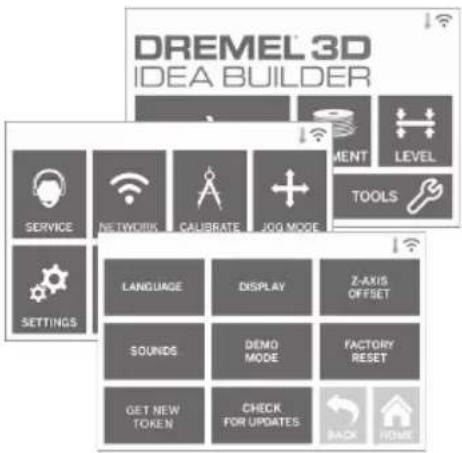
- Your 3D40 will check to see if it has the latest firmware installed and ask if you would like to update if one is needed.
- Choose accept to download and install the latest firmware.
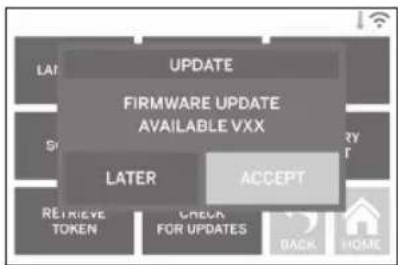
- When the 3D40 starts up and returns to the Home Screen, firmware update is complete.
UPDATING FIRMWARE MANUALLY
If your 3D40 is not connected to a network, you can update firmware directly from a USB Flashdrive.
- On your web browser go to www.dremel3d.com/support and download the latest 3D40 firmware file.
- Add the 3D40 firmware file to an empty, FAT32 formatted, USB flashdrive.
- Turn off your 3D40 using the ON/OFF switch.
- Insert the USB flashdrive into the USB-A port.
- Turn on your 3D40 and it should automatically detect and install the new firmware.
- Turn your 3D40 OFF, remove the USB flashdrive, and turn ON again to complete the update.
CLEANING THE EXTERIOR
Clean the 3D40's exterior with a lint free cloth. Clear the outer surfaces of any debris that is visible. To avoid damaging your Dremel 3D40 do not use water, chemicals or other cleaners on the 3D40.
CLEANING THE EXTRUDER TIP

WARNING
USE EXTRA CARE NOT TO DAMAGE THE EXTRUDER TIP
WHEN CLEARING DEBRIS. DREMEL 3D40 WILL NOT WORK PROPERLY WITH DAMAGED EXTRUDER TIP AND WILL REQUIRE REPLACEMENT.

WARNING
DO NOT TOUCH THE EXTRUDER TIP DURING DREMEL 3D40
OPERATION OR UNTIL IT HAS COOLED DOWN TO 60°C (140°F). Contact with the extruder tip during or after operation before tip has cooled may result in personal injury.
Using small needle nose pliers, pull away any plastic debris from the extruder tip.
If the debris is stubborn, the extruder may need to be heated.
Wipe the touch screen with the soft, lint-free cloth. Do not spray cleaners on the touch screen.
MAINTENANCE AND SERVICE
Problem Cause Corrective Action
| Extruder head building off center. Dremel 3D40 has lost track of the extruder head's exact location and is failing to build. | Sending the extruder head to the home position will recalibrate the Dremel 3D40. Cancel your object, clear build platform, send the extruder head to the home position, and restart the object. | |
| PLA is not extruding or sticking to the build tape properly. | This can be caused by the build platform not being leveled with the extruder head. | Leveling the build platform will align the extruder head and ensure a better object quality. Cancel your object, clear build platform, level the build platform, and restart the object. |
| Dremel 3D40 froze before my object started. | Dremel 3D40 may have received conflicting commands. | Turn power switch off, wait 30 seconds, and turn power switch on. |
| Support material does not break away during cleaning and results in decreased quality of the final object. | Orientation of the part is not optimized. | Reorient the position of the 3D file in your file slicing software to minimize the support material or place the support material on a non-critical surface. |
| Spaghetti mess at end of build. A layer of your object did not stick properly, model was saved with minimal surface area contacting the build platform, or object was built floating above the build platform with no support selected. | Use your file slicing software to see the first layer height and position. Build with supports when necessary. | |
| Part only built halfway. Filament ran out. Filament clogged during build. | Replace filament and resume build. See “No filament coming out”. | |
| No filament coming out. Clogged extruder. Contact customer service. | ||
| Extruder will not home. Contact customer service. | ||
| Stringy or fraying plastic layers on steep overhangs. | Object overhangs are too far apart or too steep (<45 degree angle). | Build with supports. |
| 3D40 will not find my Wi-Fi network. | Printer too far from wireless router. | Reposition 3D40 to be closer to your router. Connect to network with Ethernet. |
| 3D40 will not connect to my network. | Printer too far from wireless router. | Reposition 3D40 to be closer to your router. |
| Network password incorrect. Re-enter your password or verify your password with your network owner. | ||
OPEN SOURCE SOFTWARE
Open Source Software used in this Dremel product
This product contains software components that are licensed by the holder of the rights under any version of the GNU General Public License (GPL), GNU Lesser General Public License (LGPL) or any other open source software license which requires that source code be made available. You can receive a complete machine-readable copy of the corresponding source code by sending a written request to:
Dremel
Attn: Open Source Software Officer
P.O Box 081126
Racine, WI USA 53408-1126
Your request should include: (i) the name of the Dremel product, (ii) the serial number (if applicable), (iii) the software version (if applicable), (iv) your name, (v) your company name (if applicable) and (vi) your return mailing and email address (if available).
We may charge you a nominal fee to cover the cost of the physical media and distribution.
You may send your request (i) within three (3) years of the date you received the product that included the software which is subject of your request or (ii) in the case of code licensed under the GPL version 3 for as long as Dremel offers spare parts or customer support for that product.
Warranty regarding further use of the Open Source Software:
DREMEL provides no warranty for the Open Source Software programs contained in this device, if such programs are used in any manner other than the program execution intended by DREMEL. The licenses listed below define the warranty, if any, from the authors or licensors of the Open Source Software. DREMEL specifically disclaims any warranties for defects caused by altering any Open Source Software program or the product's configuration. You have no warranty claims against DREMEL in the event that the Open Source Software infringes the intellectual property rights of a third party. Technical support, if any, will only be provided for unmodified software.
DREMEL® CONSUMER LIMITED WARRANTY
This DREMEL product is guaranteed in accordance with statutory/country-specific regulations; damage due to normal wear and tear, overload or improper handling are excluded from the warranty.
In the event of the product fails to conform to this written warranty, please take the following action:
- DO NOT return your product to the place of purchase.
- Please contact customer service via www.dremel.com for further instructions.
DISPOSAL
The machine, accessories and packaging should be sorted for environmental-friendly recycling.
ONLY FOR EC COUNTRIES

Do not dispose of power tools with household waste!
According to the European Guideline 2012/19/EC for Waste Electrical and Electronic
Equipment and its implementation into national law, power tools that are no longer usable must be collected separately and disposed of in an environmentally-correct manner.
CONTACT DREMEL
For more information on the Dremel product range, support and hotline, go to www.dremel.com.
Dremel, Konijnenberg 60, 4825 BD Breda, The Netherlands.
natural_image
Simple line drawing of a rectangular device with diagonal stripes and a small protrusion at the bottom (no text or symbols)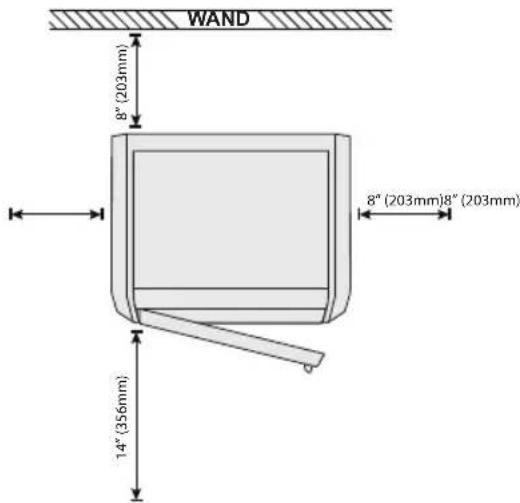
INFORMATIONSQUELLEN ZUM 3D40
natural_image
Technical line drawing of a mechanical device with internal components (no text or symbols)Dremel 3D40
Betriebshandbuch
Kurzanleitung
natural_image
Illustration of a wire spool with metal frame and mesh pattern (no text or symbols)Filamentspule**
Netzkabel
natural_image
Coiled cable with connectors and connectors (no text or symbols visible)USB-Kabel
Druckmatte
natural_image
Diagram of a box with multiple test tubes and an upward arrow, no text or symbols presentnatural_image
Technical line drawing of a mechanical device interior with internal compartments and a black arrow indicating upward motion (no text or symbols)natural_image
Illustration of hands installing a device into a machine frame (no text or symbols visible)natural_image
Line drawing of an open computer case with internal components and a black arrow indicating a specific area (no text or symbols present)natural_image
Line drawing of an open refrigerator interior showing internal compartments and a black arrow indicating a location (no text or symbols)FILAMENT WECHSELN (CHANGE
NETZWERK (NETWORK)
KALIBRIEREN (CALIBRATE)
NACH UPDATES SUCHEN (CHECK FOR
natural_image
Technical line drawing of a mechanical assembly with no visible text or symbolsnatural_image
Line drawing of a hand using a tool to adjust or install a component, no text or symbols presentFIRMWARE-UPDATE ÜBER DAS NETZWERK
OPEN SOURCE-SOFTWARE
Attn: Open Source Software Officer
PO Box 081126
Racine, WI USA 53408-1126
Introduction......69
Contenu du kit* 69
Écran tactile....71
RESSOURCES POUR L'ÉQUIPEMENT 3D40
natural_image
Technical line drawing of a mechanical device with internal components (no text or symbols)Dremel 3D40
Mode d'emploi
natural_image
Illustration of a coiled cable or wire spool with no visible text or symbolsBobine de filament**
natural_image
Coiled cable with connectors and connectors (no text or symbols visible)Câble USB
natural_image
Diagram of a box containing multiple test tubes with an upward arrow indicating growth (no text or symbols present)natural_image
Technical line drawing of a mechanical component with internal cavities and an upward arrow indicating motion (no text or symbols)natural_image
Line drawing of hands installing a component into a device frame (no text or symbols visible)natural_image
Technical line drawing of an open computer case with internal compartments and a black arrow indicating a specific component (no text or symbols present)natural_image
Technical line drawing of a mechanical device interior showing internal components and a black arrow indicating a specific part (no text or symbols present)CALIBRER (CALIBRATE)
RECHERCHER DES MISES À JOUR (CHECK
CONSTRUCTION, ASSUREZ-
VOUS QUE LA PLATEFORME DE CONSTRUCTION EST COUVERTE PAR DU FILM DE CONSTRUCTION TEL QUE SPÉCIFIÉ PAR DREMEL. L'EMPLOI DE FILM DE CONSTRUCTION INCORRECT POURRAIT ENDOMMAGER L'ÉQUIPEMENT ET CAUSER LA CONSTRUCTION D'OBJETS DE MAUVAISE QUALITÉ.
AVANT LA CONSTRUCTION
natural_image
Illustration of hands using a tool to apply a small object onto a flat surface, labeled 'FIG. 8' (no text or symbols on the diagram itself)natural_image
Line drawing of a hand using a tool to adjust or install a component, no text or symbols presentMISE À JOUR DU FIRMWARE PAR LE RÉSEAU
Attn: Open Source Software Officer
P.O Box 081126
natural_image
Simple line drawing of a rectangular device with diagonal stripes and a small protrusion at the bottom (no text or symbols)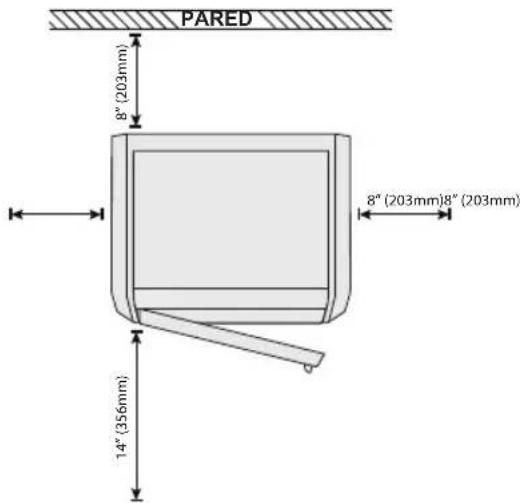
RECURSOS PARA LA 3D40
natural_image
Technical line drawing of a mechanical device with internal components (no text or symbols)Dremel 3D40
natural_image
Illustration of a coiled cable with spool pattern (no text or symbols)Bobina de filamento**
natural_image
Coiled cable with connectors and connectors (no text or symbols visible)Cable USB
natural_image
Diagram of a box containing multiple test tubes with an upward arrow indicating growth (no text or symbols present)natural_image
Technical line drawing of a mechanical component with internal cavities and an upward arrow indicating motion (no text or symbols)natural_image
Illustration of hands installing a component into a device frame (no text or symbols visible)natural_image
Technical line drawing of an open computer case with internal components and a black arrow indicating a specific part (no text or symbols present)natural_image
Technical line drawing of an open mechanical device showing internal components and a black arrow indicating a specific part (no text or symbols present)RED (NETWORK)
CALIBRAR (CALIBRATE)
ANTES DE CONSTRUIR
natural_image
Illustration of hands using a tool to apply a small object onto a flat surface, labeled 'FIG. 8' (no text or symbols on the diagram itself)natural_image
Line drawing of a hand using a tool to adjust or install a component, no text or symbols presentAttn: Open Source Software Officer
P.O Box 081126
Racine, WI USA 53408-1126
Procedure consigliate....145
Manutenzione....146
natural_image
Simple line drawing of a rectangular device with diagonal stripes and a small protrusion at the bottom (no text or symbols)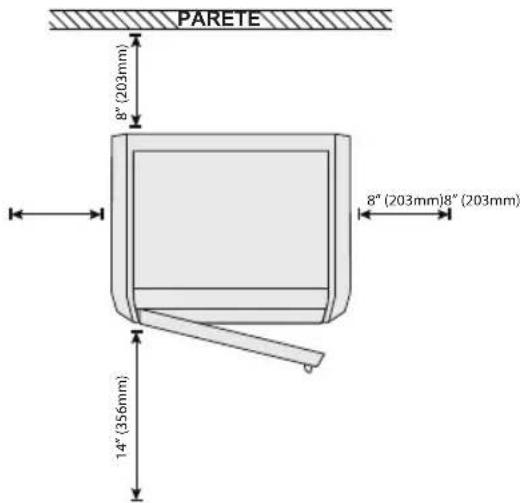
RISORSE DI 3D40
natural_image
Technical line drawing of a mechanical device with internal components (no text or symbols)Dremel 3D40
natural_image
Illustration of a wire spool with mesh structure (no text or symbols)natural_image
Coiled cable with connectors, no text or symbols visibleCavo USB
natural_image
Diagram of a box containing multiple test tubes with an upward arrow indicating growth (no text or symbols present)natural_image
Technical line drawing of a mechanical component with internal cavities and an upward arrow indicating motion (no text or symbols)natural_image
Illustration of hands installing a component into a device frame (no text or symbols visible)natural_image
Technical line drawing of an internal device housing with a black arrow indicating a component (no text or symbols present)natural_image
Technical line drawing of an open mechanical device with internal compartments and a black arrow indicating a component (no text or symbols present)ASSISTENZA (SERVICE)
RETE (NETWORK)
CALIBRARE (CALIBRATE)
MODALITÀ SBALZO (JOG MODE)
natural_image
Line drawing of a hand using a tool to adjust or install a component, no text or symbols presentAGGIORNAMENTO DEL FIRMWARE DALLA RETE
SOFTWARE OPEN SOURCE
Attn: Open Source Software Officer
P.O Box 081126
Racine, WI USA 53408-1126
SOLO PER I PAESI DELLA CE

ALGEMENE VEILIGHEIDSWAARSCHUWINGEN

LET OP LEES ALLE GEBRUIKS-EN VEILIGHEIDS-INSTRUCTIES IN DE HANDLEIDING EN ZORG DAT U VERTROUWD RAAKT MET DE
DREMEL 3D40 VOORDAT U HET APPARAAT INSTALLEERT EN GEBRUIKT. HET NIET IN ACHT NEMEN VAN DE WAARSCHUWINGEN EN INSTRUCTIES KAN BRAND, SCHADE AAN HET APPARAAT, MATERIÈLE SCHADE OF PERSOONLIJK LETSEL TOT GEVOLG HEBBEN. BEWAAR ALLE WAARSCHUWINGEN EN INSTRUCTIES ALS REFERENTIEMATERIAAL
VEILIGHEID VAN DE WERKPLEK
Open Source Software ....179
DIT IS EEN KLASSE A PRODUCT. IN EEN HUISELIJKE OMGEVING
KAN DIT PRODUCT RADIOSTORING VEROORZAKEN. IN DAT GEVAL KUNNEN AANVULLENDE MAATREGELEN VEREIST ZIJN.
INFORMATIE M.B.T. INTELLECTUELE- EIGENDOMSRECHTEN
natural_image
Simple line drawing of a rectangular device with diagonal stripes and a small protrusion at the bottom (no text or symbols)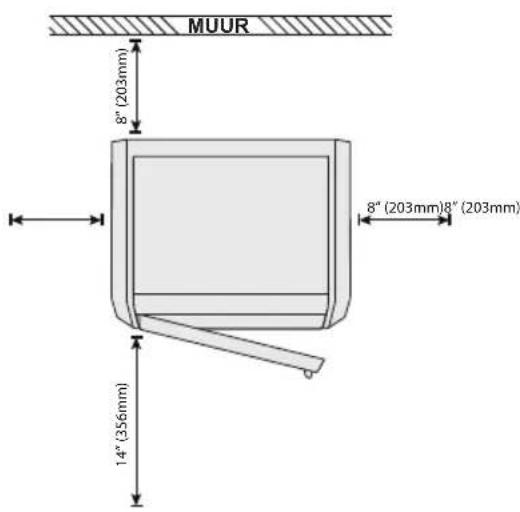
3D40-HULPBRONNEN
natural_image
Technical line drawing of a mechanical device with internal components (no text or symbols)Dremel 3D40
Handleiding
natural_image
Illustration of a coiled cable with spool pattern (no text or symbols)Filamentspoel**
Voedingskabel
natural_image
Coiled cable with connectors and connectors (no text or symbols visible)USB-kabel
Printbedtape
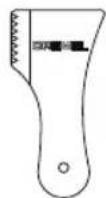
Objectgrijper
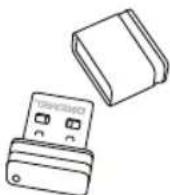
USB-stick
natural_image
Diagram of a box containing multiple test tubes with an upward arrow indicating growth (no text or symbols present)natural_image
Technical line drawing of a mechanical device with internal cavities and an upward arrow indicating motion (no text or symbols)natural_image
Illustration of hands installing a mechanical component into a device (no text or symbols visible)natural_image
Technical line drawing of a computer case with internal compartments and a black arrow indicating a component (no text or symbols present)natural_image
Technical line drawing of an open mechanical device with internal compartments and a black arrow indicating a component (no text or symbols)KALIBRER. (CALIBRATE)
WAARSCHUWINGEN EN VEILIGHEIDSINSTRUCTIES
natural_image
Technical line drawing of a mechanical assembly with no visible text or symbols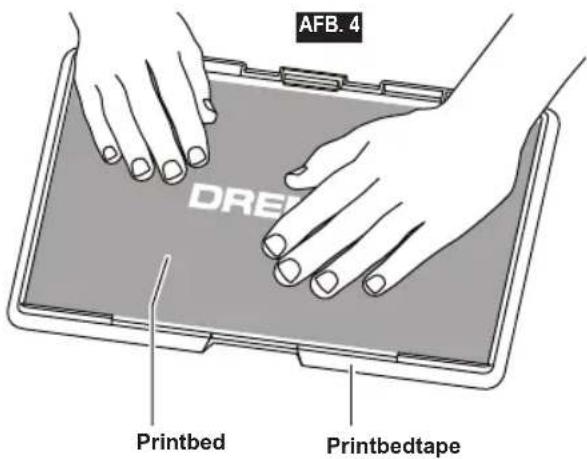
PRINTBED NIVELLEREN

LET OP
RAAK DE EXTRUDERMOND VAN DE DREMEL 3D40 NIET AAN TIJDENS GEBRUIK OF TOTDAT DE MOND IS AFGEKOELD TOT EEN TEMPERATUUR VAN 60°C (140°F). AANRAKING VAN DE EXTRUDERMOND TIJDENS GEBRUIK OF VOORDAT DE MOND NA GEBRUIK IS AFGEKOELD, KAN LEIDEN TOT PERSOONLIJK LETSEL.
BOUWEN
LET OP
NEEM BIJ GEBRUIK VAN DE DREMEL 3D40 ALLE
VOORDAT U BEGINT TE BOUWEN
BOUWEN VANAF COMPUTER
natural_image
Line drawing of a hand using a tool to adjust or install a component, no text or symbols presentFIRMWARE UPDATEN VIA HET NETWERK
OPEN SOURCE SOFTWARE
Attn: Open Source Software Officer
P.O Box 081126
Racine, WI USA 53408-1126
DETTE ER ET KLASSE A PRODUKT. I HJEMLIGE
OMGIVELSER KAN DETTE PRODUKT FORÅRSAGE RADIOINTERFERENS, I HVILKET TILFÆLDE BRUGEREN KAN VÆRE N∅DT TIL AT TRÆFFE PASSENDE FORANSTALTNINGER.
INFORMATION OM INTELLEKTUEL EJENDOMSRET
natural_image
Simple line drawing of a rectangular device with diagonal stripes and a small protrusion at the bottom (no text or symbols)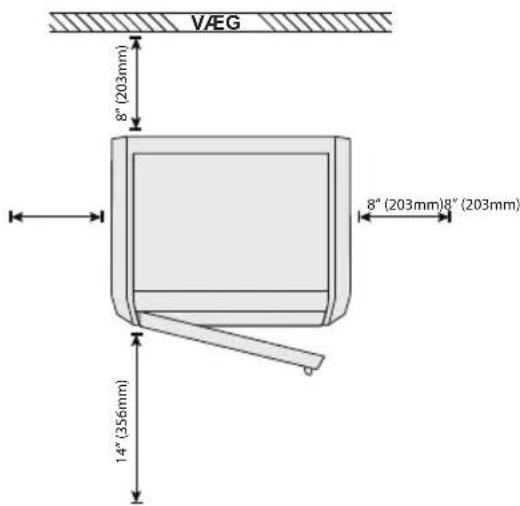
3D40 RESSOURCER
natural_image
Technical line drawing of a mechanical device with internal components (no text or symbols)Dremel 3D40
Instruktionsmanual
Quick start guide
natural_image
Illustration of a wire spool with mesh structure (no text or symbols)Filament Spool**
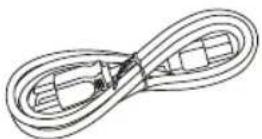
Strømkabel
natural_image
Coiled cable with connectors and connectors (no text or symbols visible)USB-kabel
Byggetape
natural_image
Diagram of a box with multiple test tubes and an upward arrow, no text or symbols presentnatural_image
Technical line drawing of a mechanical component with internal cavities and an upward arrow indicating motion (no text or symbols)natural_image
Line drawing of hands installing a component into a device frame (no text or symbols visible)natural_image
Technical line drawing of an open computer case with internal compartments and a black arrow indicating a specific component (no text or symbols present)natural_image
Technical line drawing of an open mechanical device with internal compartments and a black arrow indicating a component (no text or symbols)NETVÆRK [NETWORK]
AFBRYD WIFI [DISCONNECT WIFI] – Tryk for at slå Wifi fra.
INDSTIL PROXY [SET PROXY] – Tryk for at indstille manuel proxy.
KALIBRÉR [CALIBRATE]
G∅R KLAR TIL AT BYGGE

ADVARSEL
OVERHOLD ALLE GIVNE ADVARSLER OG
NIVELLERING AF BYGGEPLATFORM
ADVARSEL R∅R IKKE VED EKSTRUDERSPIDSEN, MENS DREMEL 3D40 K∅RER, ELLER VENT TIL DEN ER K∅LET NED TIL 60°C (140°F). KONTAKT MED EKSTRUDERSPIDSEN UNDER ELLER EFTER DRIFT F∅R SPIDSEN ER AFK∅LET, KAN F∅RE TIL PERSONSKADE.
F∅R DU BYGGER [BEFORE YOU BUILD]
BYGNING FRA USB-FLASHDREV
BYGNING FRA COMPUTEREN [BUILD FROM COMPUTER]
natural_image
Line drawing of a hand using a tool to adjust or install a component, no text or symbols presentOPDATERING AF FIRMWAREN VIA NETVÆRKET
RENG∅RING AF DEN BER∅RINGSF∅LSOMME SKÆRM
OPEN SOURCE SOFTWARE
Open source software, der anvendes i dette Dremel-produkt
Att.: Open Source Software Officer
P.O Box 081126
Racine, WI USA 53408-1126
INNEHÅLLSFÖRTECKNING
DETTA ÄR EN KLASS A-PRODUKT.
I EN HEMMILJÖ KAN DENNA
PRODUKT ORSAKA RADIOSTÖRNINGAR OCH ANVÄNDAREN KAN BEHÖVA VIDTA PASSANDE ÅTGÄRDER.
INFORMATION OM IMMATERIALRÄTT
Externminne: USB-flashminne
VIKT & MÄTT
Vikt (utan spole): 16 kg (35 lbs)
Mätt: 515mm x 406mm x 394mm (20.25" x 16" x 15.9")
FILAMENT
Fungerar ENDAST med Dremel 1,75 mm-filament
FILAMENTFÖRVARING
natural_image
Simple line drawing of a rectangular device with diagonal stripes and a small protrusion at the bottom (no text or symbols)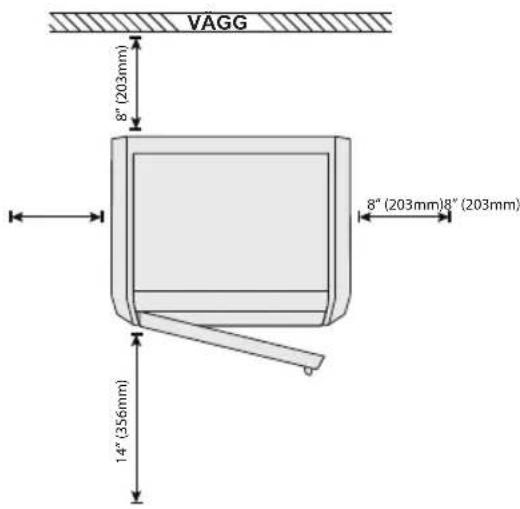
3D40 RESURSER
natural_image
Technical line drawing of a mechanical device with internal components (no text or symbols)Dremel 3D40
Bruksanvisning
Snabbstartguide
natural_image
Illustration of a coiled cable with spool pattern (no text or symbols)Filamentspole**
Eisladd
natural_image
Coiled cable with connectors and connectors (no text or symbols visible)USB-kabel
Byggtejp
natural_image
Diagram of a box with multiple test tubes and an upward arrow, no text or symbols presentnatural_image
Technical line drawing of a mechanical device interior with internal compartments and a black arrow indicating upward motion (no text or symbols)natural_image
Illustration of hands installing a mechanical component into a device frame (no text or symbols visible)natural_image
Technical line drawing of an open computer case with internal compartments and a black arrow indicating a specific component (no text or symbols present)natural_image
Technical line drawing of an open mechanical device with internal compartments and a black arrow indicating a component (no text or symbols)NÄTVERK
KALIBRERA
INLEDANDE INSTALLATION
natural_image
Technical line drawing of a mechanical assembly with no visible text or symbolsFÖRBEREDA BYGGPLATTAN

WARNING
TAPPA INTE BYGGPLATTAN.
GLASPLATTAN AV HÄRDAT GLAS
KAN SPRICKA OCH RESULTERA I PERSONSKADA.

WARNING
TA INTE BORT GLASPLATTAN AV HÄRDAT GLAS FRÄN
PLASTHÄLLAREN. KONTAKT MED GLASPLATTAN AV HÄRDAT GLAS KAN RESULTERA I PERSONSKADA.

WARNING
BYGGPLATTAN SKA ALLTID
TÄCKAS MED DREMELS
SPECIELLA BYGGTEJP, FÖRE VARJE BYGGPROCESS PÅBÖRJAS. ANVÄNDNING AV FEL BYGGTEJP KAN RESULTERA I UTRUSTNINGSSKADA OCH DÅLIG FÖREMÅLSKVALITET.
BYGGA FRÅN MINNET I SKRIVAREN
BYGGA FRÅN USB-FLASHMINNE
natural_image
Line drawing of a hand using a tool to adjust or install a component, with no visible text or symbols.UPPDATERA FIRMWARE VIA NÄTVERK
OPEN SOURCE-PROGRAMVARA
Att.: Open Source Software Officer
P.O Box 081126
Racine, WI USA 53408-1126
DETTE ER ET KLASSE A-PRODUKT. DETTE PRODUKTET
KAN F∅RE TIL RADIOFORSTYRRELSER I ET HUSHOLDNINGSMILJ∅, NOE SOM KAN F∅RE TIL AT BRUKEREN MÅ SETTE I VERK PASSENDE TILTAK.
INFORMASJON OM ÁNDSRETT
Vekt (uten spole): 16 kg (35 lbs)
Dimensjoner: 515mm x 406mm x 394mm (20,25" x 16" x 15,9")
FILAMENT
natural_image
Simple line drawing of a rectangular device with diagonal stripes and a small protrusion at the bottom (no text or symbols)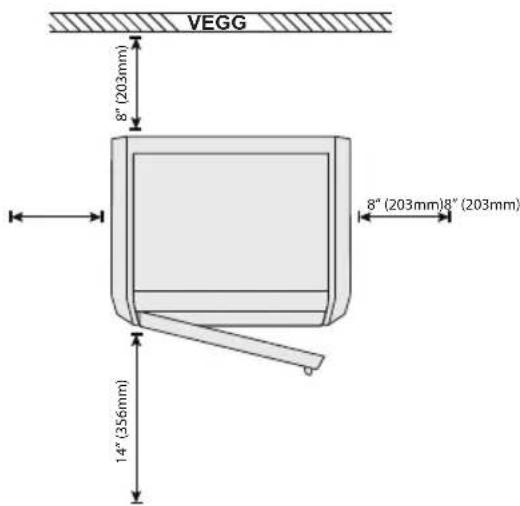
3D40-RESSURSER
natural_image
Technical line drawing of a mechanical device with internal components (no text or symbols)Dremel 3D40
Instruksjonshåndbok
Hurtigstartguide
natural_image
Illustration of a wire spool with metal frame and mesh pattern (no text or symbols)Filamentspole**
Strømledning

natural_image
Coiled cable with connectors and connectors (no text or symbols visible)USB-ledning
Byggetape
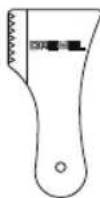
Objektfjerningsverktøy
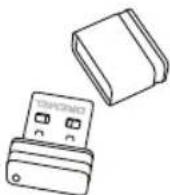
USB-flash-stasjon
natural_image
Diagram of a box with multiple test tubes and an upward arrow, no text or symbols presentnatural_image
Technical line drawing of a mechanical component with internal cavities and an upward arrow indicating motion (no text or symbols)natural_image
Line drawing of hands installing a component into a device frame (no text or symbols)natural_image
Technical line drawing of an open computer case with internal compartments and a black arrow indicating a specific component (no text or symbols present)natural_image
Technical line drawing of an open mechanical device with internal compartments and a black arrow indicating a component (no text or symbols)NETTVERK (NETWORK)
STILL PROXY (SET PROXY) – Trykk for å stille proxy manuelt.
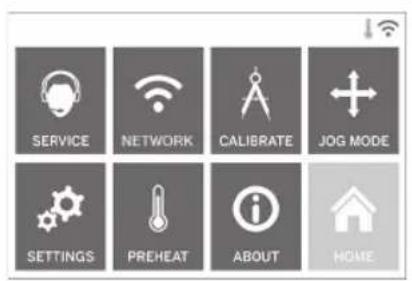
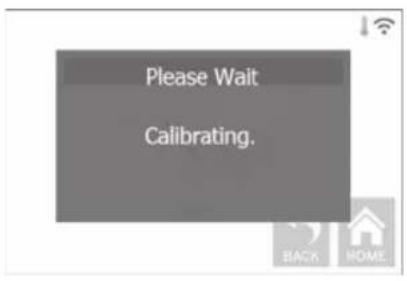
KALIBRER (CALIBRATE)
natural_image
Technical line drawing of a mechanical assembly with no visible text or symbolsHERDET GLASSPLATE KAN KNUSES OG
FORÅRSAKE PERSONSKADE.

ADVARSEL
IKKE FJERN HERDET
GLASSPLATE FRA
PLASTHOLDER. KONTAKT MED KANTEN PÅ
HERDET GLASSPLATE KAN FORÅRSAKE
PERSONSKADE.

ADVARSEL
F∅R HVER BYGGING MÅ DU
S∅RGE FOR AT PLATTFORMEN
ER DEKKET MED DREMEL-SPESIFISERT
BYGGETAPE. BRUK AV FEIL BYGGETAPE KAN
F∅RE TIL SKADE PÅ UTSTYR OG DÅRLIG
BYGGEKVALITET.
F∅R DU BYGGER
natural_image
Line drawing of a hand using a tool to adjust or install a component, no text or symbols presentOPPDATER FATSVARE VIA NETTVERK
OPPDATERER FASTVARE MANUELT
VEDLIKEHOLD OG SERVICE
Att: Open Source Software Officer
P.O Box 081126
Racine, WI USA 53408-1126
Din forespørsel bør inneholde: (i) navnet på Dremel-produktet, (ii) serienummeret (hvis aktuelt),
(iii) programvareversjonen (hvis aktuelt), (iv) ditt navn, (v) firmanavnet (hvis aktuelt) og (vi) postadresse og e-postadresse (hvis du har en).
TOIMINNAN KUVAUS JA TEKNISET TIEDOT
RAKENTAMINEN
Pursotin: Yksi pursotus
natural_image
Simple line drawing of a rectangular device with diagonal stripes and a small protrusion at the bottom (no text or symbols)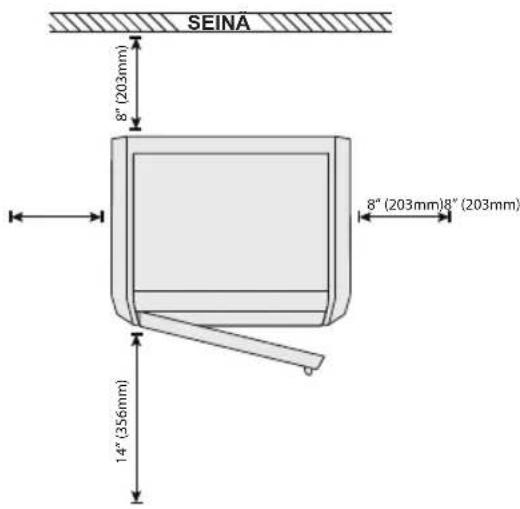
3D40-RESURSSIT
natural_image
Technical line drawing of a mechanical device with internal components (no text or symbols)Dremel 3D40
Käyttöopas
Pikaopas
natural_image
Illustration of a wire spool with mesh structure (no text or symbols)Filamenttikela**
Virtakaapeli

natural_image
Coiled cable with connectors and connectors (no text or symbols visible)USB-kaapeli
Rakennusteippi
natural_image
Diagram of a box with multiple test tubes and an upward arrow, no text or symbols presentnatural_image
Technical line drawing of a mechanical device with internal cavities and a black arrow indicating upward motion (no text or symbols)natural_image
Illustration of hands installing a mechanical component into a device (no text or symbols visible)natural_image
Technical line drawing of an open computer case with internal compartments and a black arrow indicating a specific component (no text or symbols present)- Poista alatuki.
natural_image
Technical line drawing of an open mechanical device with internal compartments and a black arrow indicating a component (no text or symbols)MALLI (MODEL) -VALIKKO
KALIBROI (CALIBRATE)
TARKISTA PÄIVITYKSET (CHECK
FOR UPDATES) – Tarkista uusien
Attn: Open Source Software Officer
P.O Box 081126
Racine, WI USA 53408-1126
РЕСУРСЫ 3D40
natural_image
Technical line drawing of a mechanical device with internal components (no text or symbols)Dremel 3D40
Инструкция
natural_image
Illustration of a coiled cable with spool pattern (no text or symbols)Катушка с нитью**
Кабель питания
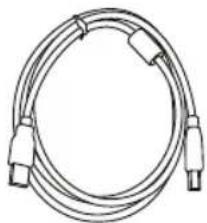
natural_image
Coiled cable with connectors and connectors (no text or symbols visible)Кабель USB
Пленка
natural_image
Diagram of a box containing multiple test tubes with an upward arrow indicating growth (no text or symbols present)natural_image
Technical line drawing of a mechanical component with internal cavities and an upward arrow indicating motion (no text or symbols)natural_image
Illustration of hands installing a component into a device frame (no text or symbols visible)natural_image
Technical line drawing of an open refrigerator internal compartments, showing no text or symbolsnatural_image
Technical line drawing of an open mechanical device showing internal components and a black arrow indicating a specific part (no text or symbols present)CALIBRATE (КАЛИБРОВКА)
natural_image
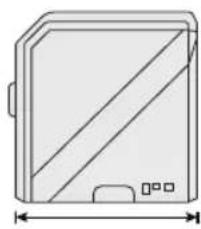
Simple line drawing of a rectangular device with diagonal stripes and a small protrusion at the bottom (no text or symbols)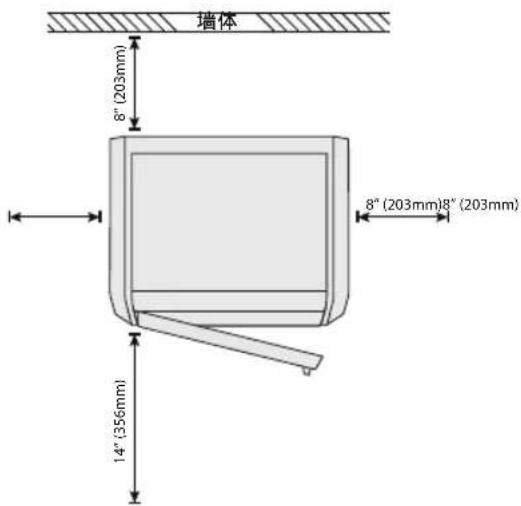
3D40 资源
资源说明路径
natural_image
Technical line drawing of a mechanical device with internal components (no text or symbols)Dremel 3D40
说明手册
快速启动指南
natural_image
Illustration of a coiled cable or wire spool with no visible text or symbols打印线盘**
电源线
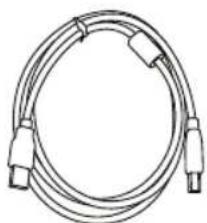
natural_image
Line drawing of a coiled cable with connectors (no text or symbols)USB线缆
打印贴纸
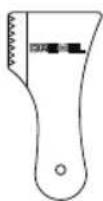
模型移除工具
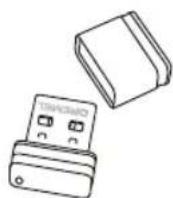
USB 闪存驱动器
natural_image
Diagram of a box with multiple test tubes and an upward arrow, no text or symbols presentnatural_image
Technical line drawing of a mechanical device with internal compartments and a black arrow indicating upward motion (no text or symbols)- 从两侧抬起打印平台。
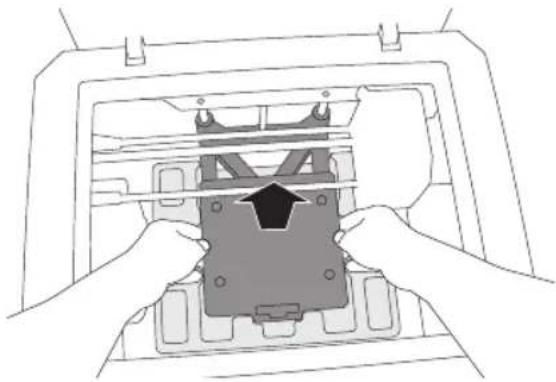
natural_image
Line drawing of hands installing a device into a machine (no text or symbols visible)- 打开前门,移除中部内衬。
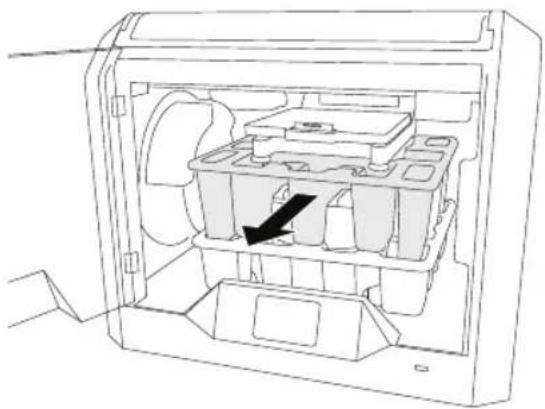
natural_image
Technical line drawing of an open refrigerator internal compartments, showing no text or symbols- 移除底部内衬。
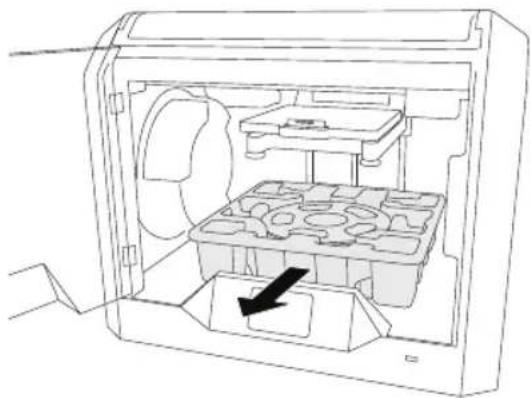
natural_image
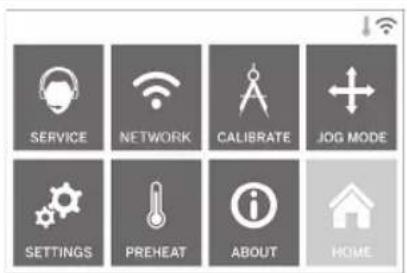
Technical line drawing of an open mechanical device with internal compartments and a black arrow indicating a component (no text or symbols)校准
轻击将喷头和打印平台移动到零点位置。
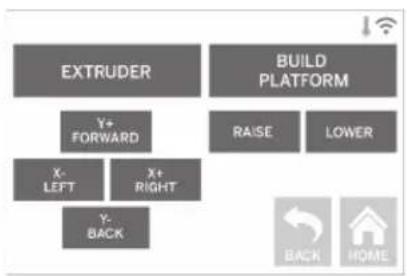
flowchart
graph TD
    A["EXTRUDER"] --> B["Y+ FORWARD"]
    B --> C["X- LEFT"]
    B --> D["Y- BACK"]
    E["BUILD PLATFORM"] --> F["RAISE"]
    E --> G["LOWER"]
    H["BACK"] --> I["HOME"]
JOG 模式
natural_image
Technical line drawing of a mechanical assembly with no visible text or symbolsnatural_image
Line drawing of a hand using a tool to adjust or install a component on a machine (no text or symbols visible)通过网络更新固件
READ ALL INSTRUCTIONS IN THIS
MANUAL AND FAMILIARIZE YOURSELF WITH THE DREMEL 3D40 BEFORE SETUP
AND USE. FAILURE TO COMPLY WITH THE WARNINGS AND INSTRUCTIONS MAY RESULT IN FIRE, EQUIPMENT DAMAGE, PROPERTY DAMAGE, OR PERSONAL INJURY. SAVE ALL WARNINGS AND INSTRUCTIONS FOR FUTURE REFERENCE
WORK AREA SAFETY
d. Keep work area clean and well lit. Cluttered or dark areas invite accidents.
e. Do not operate Dremel 3D40 in the presence of flammable liquids, gases or dust. Dremel 3D40 creates high temperatures which may ignite the dust or fumes.
f. Store idle 3D40s out of reach of children and other untrained persons. Injury can occur in hands of untrained users.
ELECTRICAL SAFETY
a. Always use the Dremel 3D40 with a properly grounded outlet. Do not modify Dremel 3D40 plug. Improper grounding and modified plugs increase risk of electric shock.
b. Do not use Dremel 3D40 in damp or wet locations. Do not expose Dremel 3D40 to rain. Presence of moisture increases risk of electric shock.
c. Do not abuse the cord. Never use the cord for pulling or unplugging the Dremel 3D40. Keep cord away from heat, oil, sharp edges or moving parts. Damaged or entangled cords increase the risk of electric shock.
d. Avoid using this product during an electric storm. There may be a remote risk of a power surge from lightning that may result in an electric shock.
e. In case of emergency unplug Dremel 3D40 from outlet.
PERSONAL SAFETY
a. Stay alert, watch what you are doing and use common sense when operating a Dremel 3D40. Do not use Dremel 3D40 while you are tired or under the influence of drugs, alcohol or medication. A moment of inattention while operating Dremel 3D40 may result in personal injury.
b. Use personal protective equipment. The use of protective equipment such as heat resistant gloves and safety glasses will reduce the risk of personal injuries.
c. Dress properly. Do not wear loose clothing or Jewellery. Keep your hair, clothing and gloves away from moving parts. Loose clothes, Jewellery or long hair can be caught in moving parts.
DREMEL 3D40 USE AND CARE
a. Before every use check Dremel 3D40 for misalignment or binding of moving parts, breakage of parts and any other condition
AUS
that may affect the Dremel 3D40's operation. If damage is suspected then have the Dremel 3D40 repaired by an authorised Dremel service centre before use. Use of Dremel 3D40 when damaged may result in poor quality of object creation, further equipment damage, property damage or personal injury.
b. Do not touch the extruder tip during Dremel 3D40 operation or until it has cooled down to at least 60°C (140°F). Contact with the extruder tip during or after operation before tip has cooled may result in personal injury.
c. Set up the Dremel 3D40 in a well-ventilated area. Provide at least 8 inches of unobstructed spacing around Dremel 3D40. Dremel 3D40 melts plastic during building. Plastic odours emitted during Dremel 3D40 operation may irritate eyes and airways. Locating Dremel 3D40 close to surrounding objects prevents proper ventilation.
d. Do not reach inside the Dremel 3D40 while it is in operation. Contact with Dremel 3D40 moving parts during operation may result in poor build quality, equipment damage or personal injury.
e. Do not leave the Dremel 3D40 unattended during operation. Use of Dremel 3D40 by persons unfamiliar with these warnings and instructions may result equipment or property damage and personal injury.
f. Use only DREMEL PLA filament. Use of filament not authorized by Dremel may result in equipment and property damage.
g. Ensure small objects created by Dremel 3D40 are not accessible to young children. Small objects are potential choking hazards for young children.
h. Do not create illegal or inappropriate objects using Dremel 3D40.
i. Do not use Dremel 3D40 to create objects intended for use with candles, liquid fuels, and other heat sources. Plastic may melt when exposed to fire or other heat sources. Such use of objects created by Dremel 3D40 may result in fire, property damage and personal injury.
j. Do not use Dremel 3D40 to create objects intended for food or drink applications such as preparation, decoration, storage, or consumption. Such use of objects created by Dremel 3D40 may result in illness or personal injury.
k. Do not use Dremel 3D40 to create objects intended with use with electrical components or housings of electrical components. PLA plastic is not suitable for electrical applications. Such use of objects created by Dremel 3D40 may result in property damage and personal injury.
I. Do not put plastic objects in or around your mouth. PLA plastic is not suitable for food or drink preparation and food utensils. Such use of objects created by Dremel 3D40 may result in illness or personal injury.
m. Do not use Dremel 3D40 to create objects intended for chemical storage. PLA plastic is not suitable for chemical storage. Such use of objects created by Dremel 3D40 may result in property damage and personal injury.
n. Do not modify Dremel 3D40 or alter factory settings. Modifications may result in equipment and property damage, and personal injury.
o. Do not expose Dremel 3D40 to temperatures exceeding 70°C (158°F). Dremel 3D40 may become damaged. Dremel 3D40 is intended to operate in temperature between 16-29°C (60 - 85°F).
p. Do not move or bump Dremel 3D40 or the extruder during operation. The object may build incorrectly.
q. Do not change colour of filament or spool during building. Doing so will cancel the object and may damage the extruder.
r. Do not pull the filament out until instructed by the touch screen. Doing so may damage the extruder.
s. Use extra care not to damage the extruder tip when clearing debris. Dremel 3D40 will not work properly with damaged extruder tip and will require replacement.
t. Before every build make sure that the build platform is covered with Dremel specified build tape. Use of improper build tape may result in equipment damage and poor object build quality.
u. Be aware of your body position when using hand tools to remove objects from the build platform. Sudden tool slip and improper body position during object removal from the build platform may result in personal injury.
v. Avoid scratching the build platform when removing objects. Scratches in the build platform will result in improper object creation.
w. Do not drop the build platform. Tempered glass plate may break and result in personal injury.
x. Do not remove tempered glass plate from plastic holder. Contact with tempered glass plate edge may result in personal injury.
y. Do not twist or bend the build platform while removing objects. Tempered glass plate may separate from plastic holder and result in personal injury.
z. Dremel is not responsible for structural integrity or utility of objects created using Dremel 3D40. Structural models created by inexperienced designers may result in property damage and personal injury.
SERVICE
a. Always unplug Dremel 3D40 from its power before performing any service procedures. Failure to do so may result in personal injury and equipment damage.
b. Have your Dremel 3D40 serviced only by an authorized Dremel service centre using only Dremel replacement parts. This will ensure that proper operation and safety of Dremel 3D40 is maintained.
c. Use only Dremel approved materials and components. Use of object materials, or 3D objects other than Dremel ^® approved object materials and genuine Dremel ^® components may void warranty.
TABLE OF CONTENTS
General safety warnings ....355
Table of contents....356
Used symbols....357
Information on Intellectual Property 357
Functional Description and Specifications .... 357
3D40 Resources 358
Glossary of Terms....359
Getting to know your 3D40....360
Introduction....362
Kit Contents*......362
Touch Screen 364
Touch Screen Icons 369
Initial Setup....370
Getting Ready to Build....371
Building 375
Removing Your Object....377
Best Practices ....378
Maintenance....379
Maintenance and Service 381
Open Source Software 382
Warranty 383
USED SYMBOLS
Symbol Name Designation/
Explanation

WARNING
Warning symbol
Alerts user to warning messages

Read manual symbol
Alerts user to read manual

WARNING
THIS IS A CLASS A PRODUCT. IN A DOMESTIC ENVIRONMENT THIS
PRODUCT MAY CAUSE RADIO INTERFERENCE IN WHICH CASE THE USER MAY BE REQUIRED TO TAKE ADEQUATE MEASURES.
INFORMATION ON INTELLECTUAL PROPERTY
The Dremel 3D40 is intended for 3D printing objects from digital files that you create or own, or have the right to print using the Dremel 3D40. When making objects using the Dremel 3D40, it is your responsibility to ensure that you do not infringe any third party intellectual property rights or violate any applicable laws or regulations, such as U.S. or foreign intellectual property laws. The Dremel 3D40 may not be used to make objects protected by intellectual property rights owned by third parties without such third parties' permission. Using the Dremel 3D40 to do any of the following may require the permission of third parties: to make a duplicate or facsimile (in whole or in part) of any object not created by you, to make an object from a digital file you do not own, or to make an object from a scan of a physical object that you did not create. It is your responsibility to obtain such permission. In some cases, you may not be able to obtain such permission. Where such permission cannot be obtained, you should not 3D print such object, or you do so at your own risk. You may not modify, reverse engineer, decompile, or disassemble the Dremel 3D40 or its software or firmware, except as permitted by applicable law. If you use the Dremel 3D40 in any way other than as recommended and described in these Operating/Safety Instructions, you do so at your own risk. Using the Dremel 3D40 to make objects that infringe any intellectual property rights owned by third parties could result in civil or criminal prosecution and penalties, and you could be liable for money damages, fines, or imprisonment.
FUNCTIONAL DESCRIPTION AND SPECIFICATIONS
BUILDING
Extruder: Single extrusion
Extruder temperature: Up to 230°C (397°F)
Operating Interface: 3.5" full color IPS touch screen Maximum Build Volume: 10" x 6" x 6.7" (255mm x 155mm x 170mm)
Layer Thickness: 4 mil | 0.004 inches 100 microns | 0.10 mm
Filament Colors: See Dremel3D.com for color choices Internal Storage: 4GB
External Storage: USB Flash Drive
WEIGHT & DIMENSIONS
Weight (without spool): 16kg (35lbs)
Dimensions: 20.25" x 16" x 15.9" (515mm x 406mm x 394mm)
FILAMENT
ONLY works with Dremel 1.75mm filament
FILAMENT STORAGE
All polymers degrade with time. Do not unpack until filament is needed. Filament should be stored at room temperature: 16-29°C (60-85°F) and in dry conditions.
SOFTWARE
Dremel 3D40 comes with complimentary Dremel Digilab 3D Slicing software for Windows and Mac OSX. This application converts your 3D digital files into buildable files.
• CPU: 64-bit processor (32-bit not supported)
• Memory: 3 GB RAM (4 GB or more recommended)
- Disk space: \~2 GB free disk space for installation
- Display card: 1,024 MB GDDR RAM or more. Microsoft® Direct3D® 11 capable graphics card or higher
- Pointing device: Three-button mouse
ELECTRICAL REQUIREMENTS
3D40 input rating: 100-240V, 47-60Hz, 0.8A-1.8A
OPERATING ENVIRONMENT
Room Temperature: 16-29°C (60 - 85°F)
Level workspace
Dry workspace environment
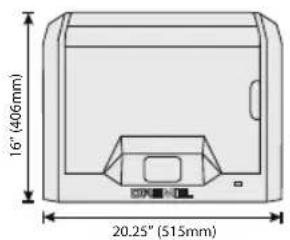
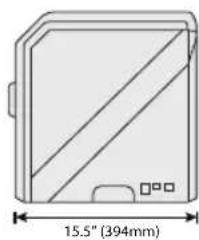
natural_image
Technical line drawing of a rectangular device with diagonal stripes and a 15.5" height dimension (394mm), no text or symbols present.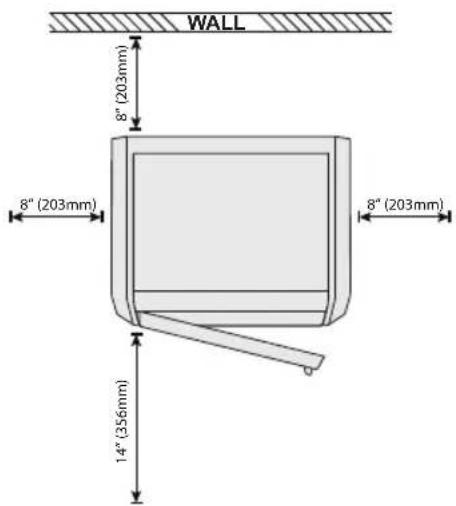
3D40 RESOURCES
| Resource | Description | Location |
| Quick Start Guide | Provides illustrated walk through of how to un-box your 3D40 and start building out of the box. | Printed version of the Quick Start Guide is located in the rectangular component carton. It is also available on www.dremel3d.com |
| Dremel 3D Website | Provides the latest 3D40 software, product information, customer support, and 3D model and project downloads. | www.dremel3d.com |
| Dremel 3D Customer Support | Contact Dremel for product support, maintenance, and service. | www.dremel3d.com |
| File Slicing Software | Allows you to upload, edit, and build 3D files. | Installed from www.dremel3d.com or from USB flash drive provided with the Dremel 3D40. |
GLOSSARY OF TERMS
| Term Definition | |
| Build Platform | The flat surface used by your Dremel 3D40 to build objects. |
| Build Platform Clip | Clip located at the front of the build platform base that is used to secure the build platform in place. |
| Build Tape Adhesive tape that improves the consistency of your objects and helps them stick to the build plate surface. | |
| Build Volume | The three dimensional (3D) amount of space that an object will use once it is completed. Your Dremel 3D40 has a maximum build volume which means that objects with a larger build volume cannot be built unless they are resized or broken into subobjects. |
| Door Your Dremel 3D40 has a door located on the front panel. This allows for easy access to the build platform, extruder, filament, and your objects. This door is made with a transparent material so you can monitor the progress of your objects while keeping the build environment stable. | |
| Ethernet Port A | local area wired networking technology that allow electronic devices to communicate. |
| Extruder An assembly that uses gears to pull filament through the extruder intake, heat the filament to the build temperature, and push the heated filament out of the extruder tip. | |
| Extruder Fan A | fan used to cool the outer assembly of the extruder and gear motor. |
| Extruder Fan Baffle | A plastic piece that directs air from the extruder fan onto the build platform to assist in cooling the active build. |
| Extruder Intake | An opening located at the top of the extruder where filament is inserted for building. |
| Extruder Lever A lever located on the side of the extruder that is used to loosen the grip of the extruder gear motor. | |
| Extruder Tip A | nozzle located at the bottom of the extruder where heated filament is forced out for building. |
| Filament A threadlike strand of plastic material. | |
| Filament Guide Tube | A plastic piece that guides the filament from the filament spool through a passage in the outer housing of your Dremel 3D40. |
| Filament Jam Sensor | A sensor in the extruder that pauses your printer if filament stops extruding properly. |
| Filament Runout Sensor | A sensor in the extruder intake that pauses your printer if it runs out of filament during a build. |
| Filament Spool | A cylindrical piece on which a long strand of filament is wound for storage and continuous use. |
| .G3Drem/.G4Drem | A buildable file format compatible with your Dremel 3D40. |
| Leveling Knobs | Knobs located under the build platform base that are used to create proper spacing between the extruder tip and the build platform. |
| Leveling Sensor | A sensor that detects the height of the build platform and assists in proper leveling. |
| Lid | Your Dremel 3D40 has a pivoting lid on the top. This allows for more access to the build platform, extruder, filament, and objects when necessary. |
| Needle Nose Pliers | Common tool used to hold small objects and to grab excess material that may be too hot to touch directly. |
| OBJ File | A common digital file format used in a wide range of 3D model software. This file is created in 3rd party 3D software or downloaded from Dremel3D.com. |
| Object Removal Tool | A tool used to separate your objects from the build platform. |
| PLA. A bioplastic derived from renewable resources such as corn starch | |
| Spool Holder A | plastic piece located to the left of the build platform inside your Dremel 3D40 build area that is designed to hold a filament spool. |
| Spool Door | A removable door which locks the filament spool to the spool holder. |
| Stepper Motor | A brushless DC electric motor used to drive the guide rails and extruder gears. |
| .STL File | A common digital file format used in a wide range of 3D model software. This file is created in 3rd party 3D software or downloaded from Dremel3D.com. |
| Touch Screen | Full color display that is touch activated. It allows you to monitor your Dremel 3D40 and objects while also providing commands directly to your Dremel 3D40 without the use of a computer. |
| USB Flash Drive | A portable memory card used on a wide array of devices. |
| WIFI | A local area wireless networking technology that allow electronic devices to communicate. |
| X-Axis Guide Rails | A set of rails on either side of the extruder that allow a stepper motor to move the extruder to the left or right side of the build area. |
| Y-Axis Guide Rails | A set of rails on either side of the build area that allow a stepper motor to move the extruder to the front or back of the build area. |
| Z-Axis Guide Rails | A set of rails located at the back of the build area that allow a stepper motor to move the build platform up or down. |
GETTING TO KNOW YOUR 3D40
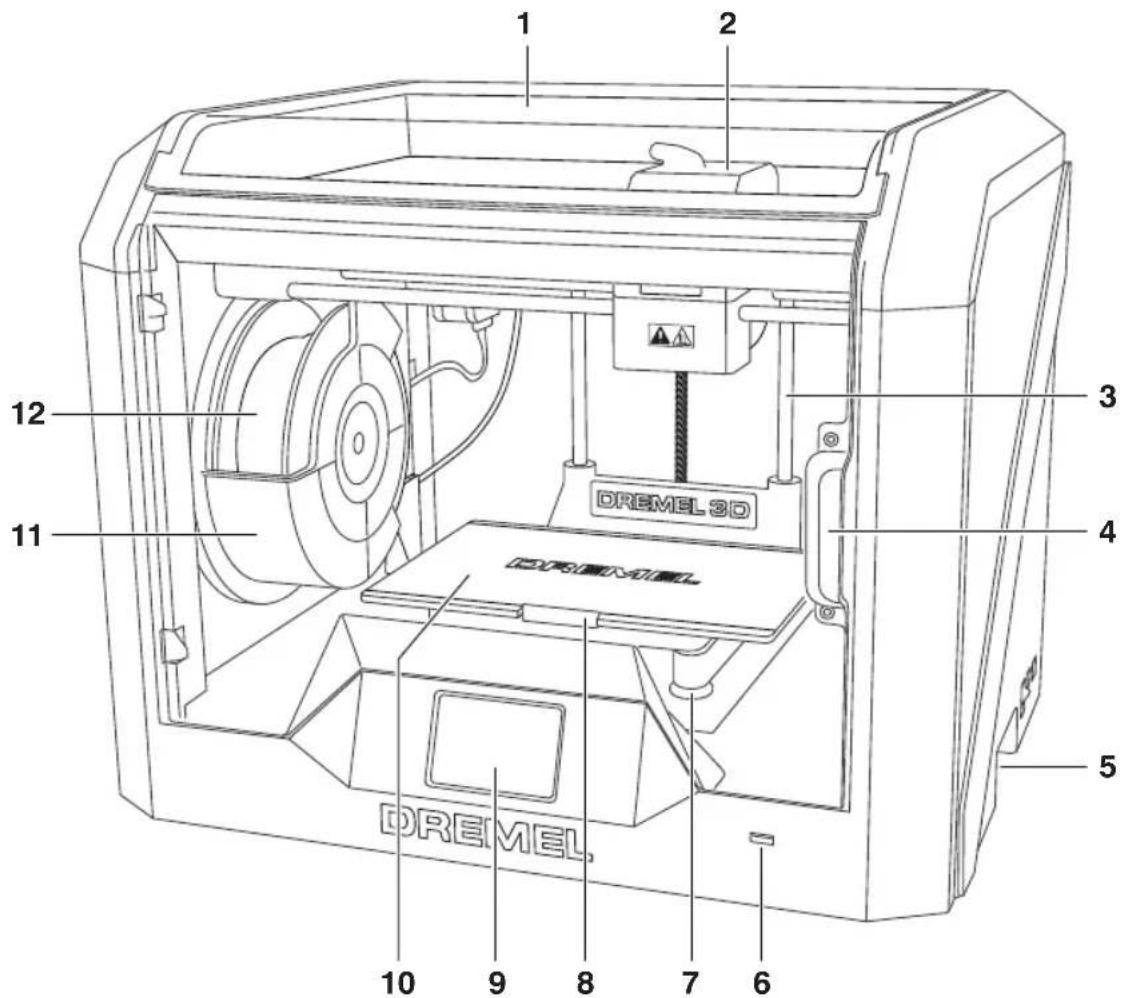
- Lid
- Extruder
- Z-Axis Guide rail
- Door
- Gripping Handles
- USB A Port
- Leveling Knobs
- Build Platform Clip
- Touch Screen
- Build Platform
- Filament Spool Holder
- Filament Spool
- Y-Axis Guide Rail
-
Stepper motor
-
Filament Guide Tube
- Extruder Lever
- Filament Guide Clip
- Extruder Intake
- Extruder Fan
- Ribbon Cable
- X-Axis Guide Rail
- Leveling Sensor
- Extruder Tip
- Power Switch
- USB B Port
- Ethernet Port
- Nameplate
- Power Input
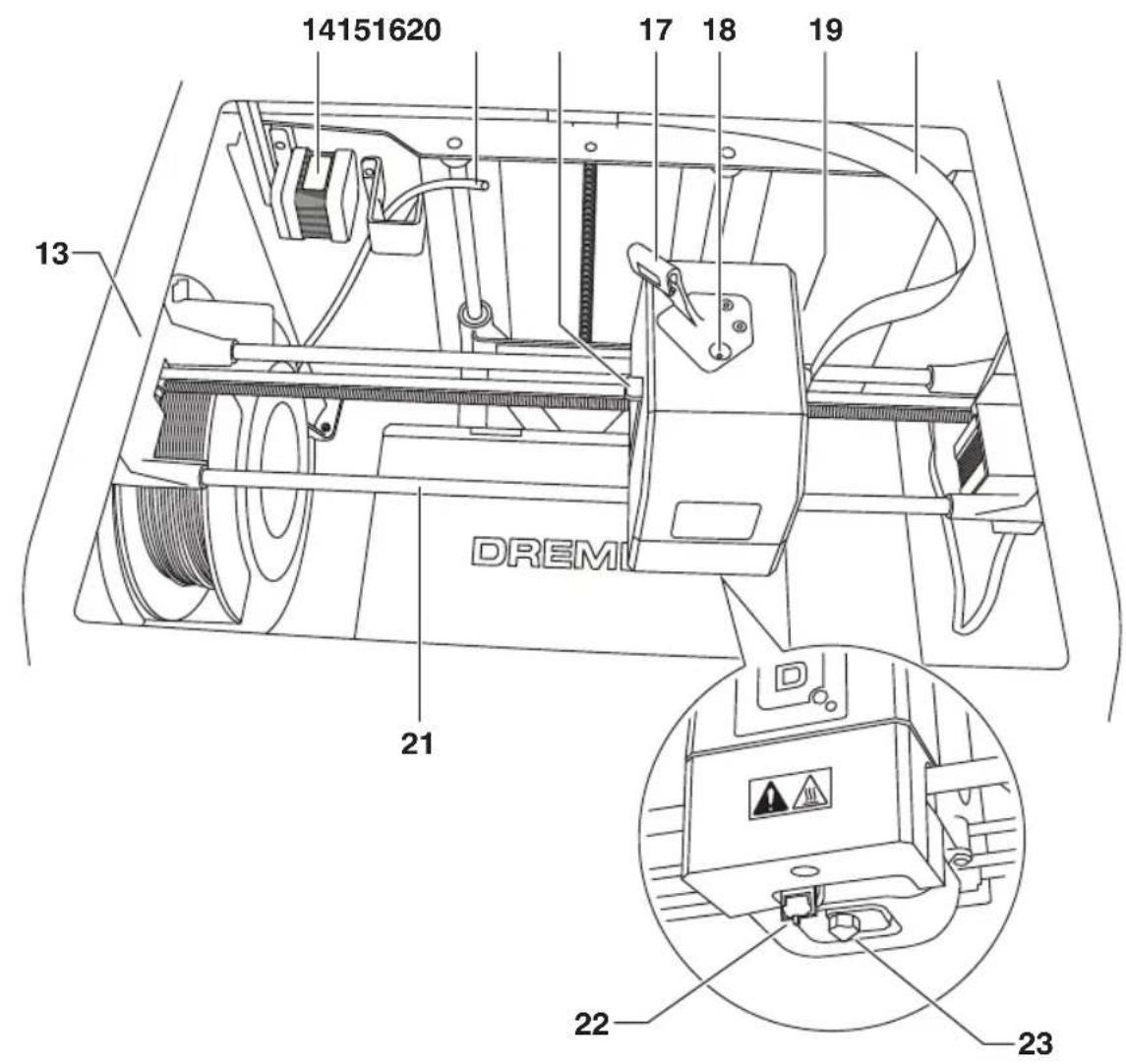
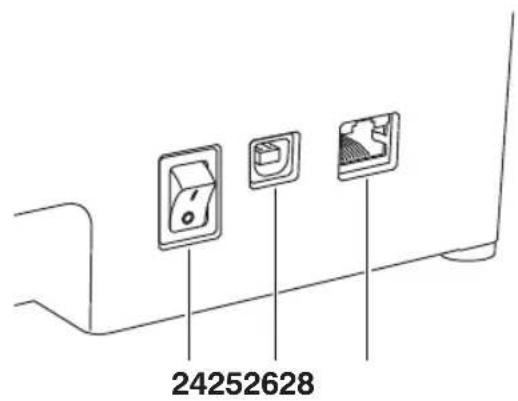
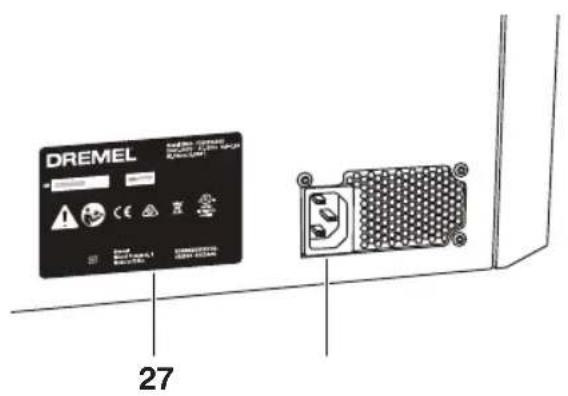
INTRODUCTION
Welcome to the world of Dremel 3D. Our mission is to mentor you through the 3D building process and share best practices for bringing your ideas to life. 3D building is a process that will involve experimentation and persistence. Thankfully, the Dremel experts are here to make your job easier with online tips and support. With Dremel, you can build on your own ideas, build them better and make them yours.
KIT CONTENTS\*
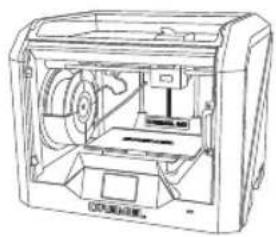
natural_image
Technical line drawing of a mechanical device with internal components (no text or symbols)Dremel 3D40
Instruction Manual
Quick Start Guide
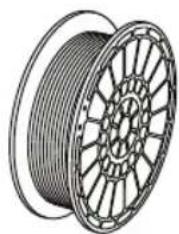
natural_image
Illustration of a coiled cable with spool, showing internal structure (no text or symbols)Filament Spool**
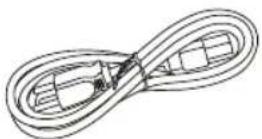
Power Cable
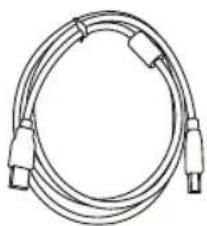
natural_image
Coiled cable with connectors and connectors (no text or symbols visible)USB Cable
Build Tape
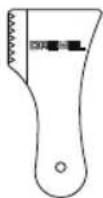
Object Removal Tool
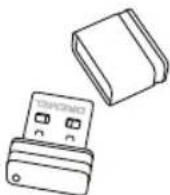
USB Flash Drive
* Quantities may vary depending on kit.
**Do not store in moist or hot environment.
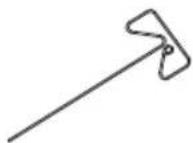
Unclog Tool
UNPACKING
- Place box on table, cut tape, and open.
- Remove top insert.
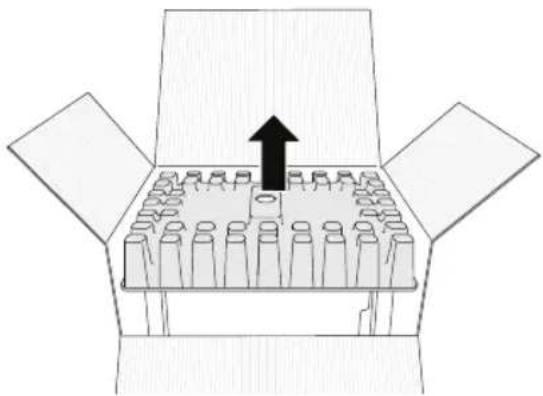
natural_image
Diagram of a box with multiple test tubes and an upward arrow, no text or symbols present- Remove 3D40 and place on table.
- Open lid and remove top insert.
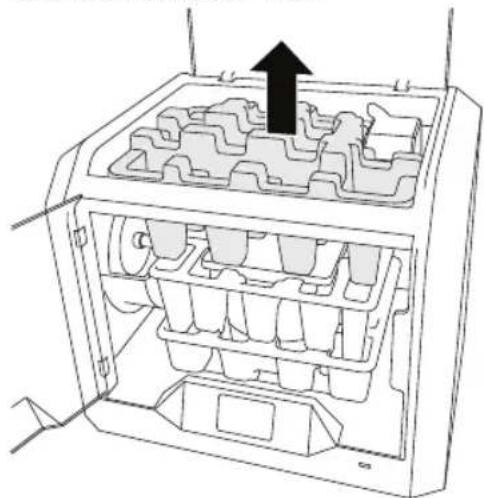
natural_image
Technical line drawing of a mechanical device with internal compartments and a black arrow indicating upward motion (no text or symbols)- Raise build plate by lifting from both sides.
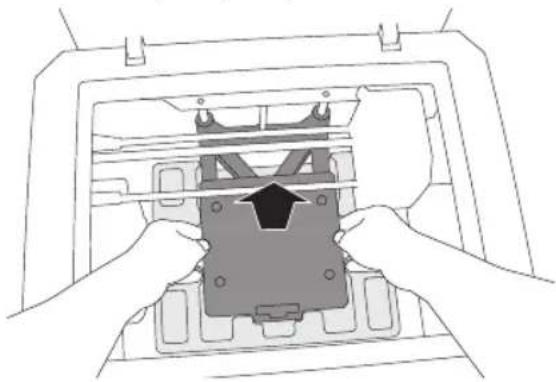
natural_image
Line drawing of hands installing a component into a device frame (no text or symbols visible)- Open door and remove middle insert.
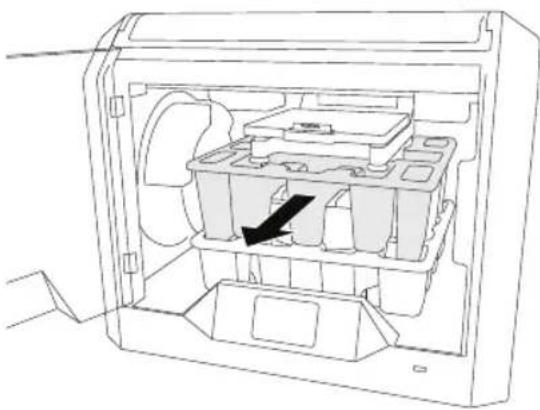
natural_image
Technical line drawing of an open computer case with internal compartments and a black arrow indicating a specific component (no text or symbols present)- Remove bottom insert.
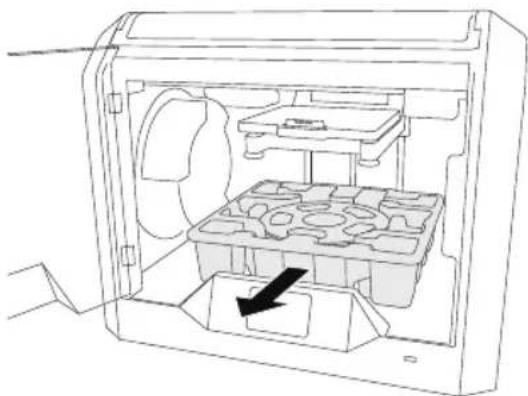
natural_image
Technical line drawing of an open mechanical device with internal compartments and a black arrow indicating a component (no text or symbols)Tip: Keep packaging for future transportation and storage.
TOUCH SCREEN
Using your Dremel 3D40 without a computer is easy with the onboard software and full colour touch screen. Before building your model we want to familiarize you with the touch screen menu structure and options.

WARNING
OBSERVE ALL PROVIDED WARNINGS AND SAFETY INSTRUCTIONS WHEN USING THE DREMEL 3D40. FAILURE TO DO SO MAY RESULT IN FIRE, EQUIPMENT DAMAGE, GE OR PERSONAL INJURY.
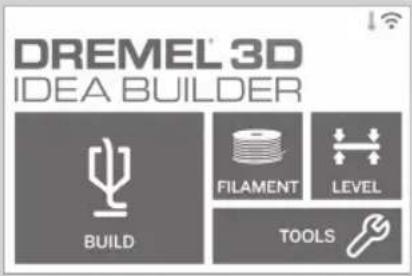
BUILD
Tap to select a 3D model and begin build process. (See page 375 for detailed build instructions)
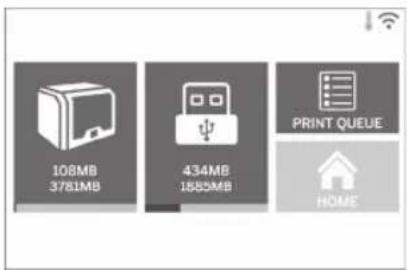
BUILD MENU
Tap Printer, USB Flash Drive, or Print Queue to choose the destination of your desired file.
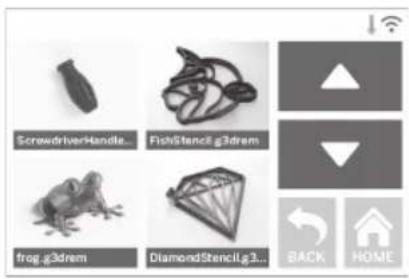
MODEL MENU
Tap to select the desired model or use arrows to scroll through pages to find your model.
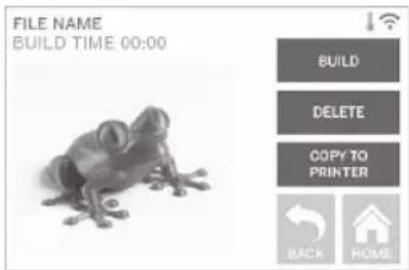
FILE DETAILS
BUILD – Tap to begin build process.
DELETE – Tap to remove model file from on- printer storage or USB flash drive.
COPY TO PRINTER – From USB flash drive, tap to copy model file to on-printer storage.
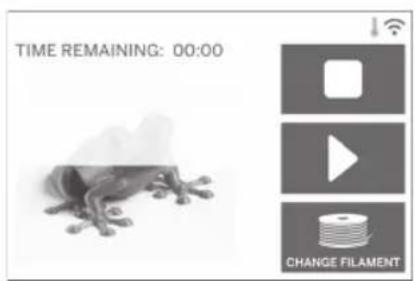
BUILD STATUS
STOP - Tap to cancel the current build process.
PAUSE/PLAY – Tap to pause or resume the current build process. Pause will allow you to access the filament button.
CHANGE FILAMENT – Tap to change filament during the current build process to add more filament or change colors.
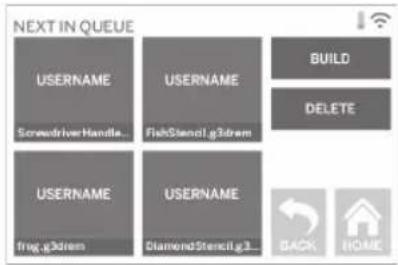
PRINT QUEUE MENU
BUILD – Tap to view details of next build.
DELETE – Tap to remove next build from queue.
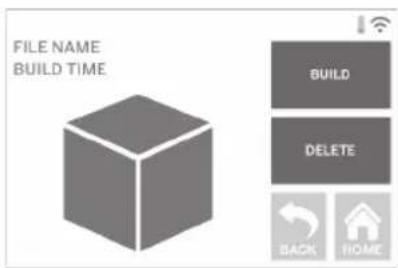
PRINT QUEUE MODEL DETAILS
BUILD – Tap to begin build process.
DELETE - Tap to remove model file from queue.
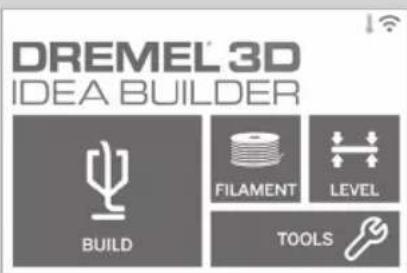
FILAMENT
Tap to begin heating and start filament load/change process. (See page 371 for instructions on filament load/change process)
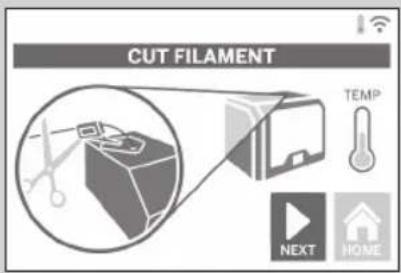
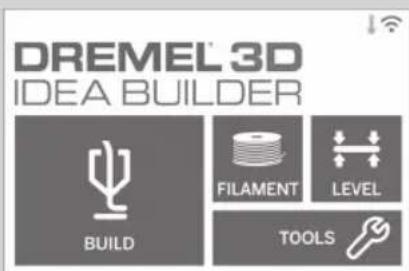
LEVEL
Tap to begin build platform leveling process.
(See page 374 for instructions on leveling the build platform)
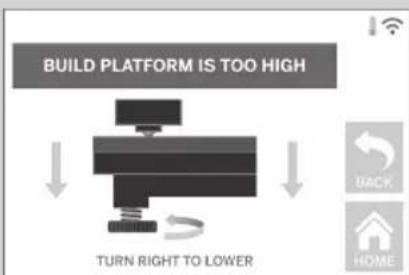
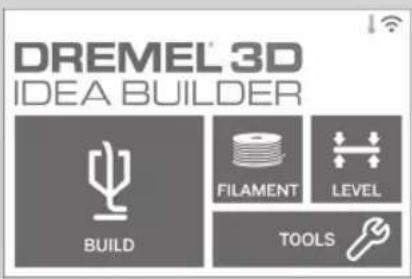
TOOLS
Tap to access the following individual printer functions and settings.
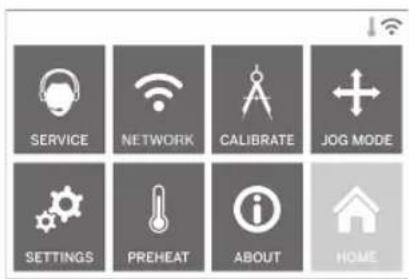
SERVICE
Tap to enter service menu to see customer service contact information.
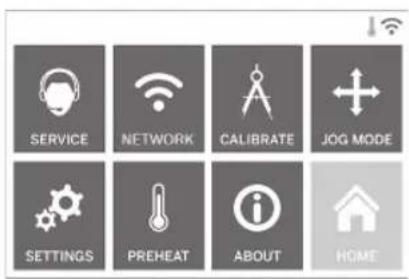
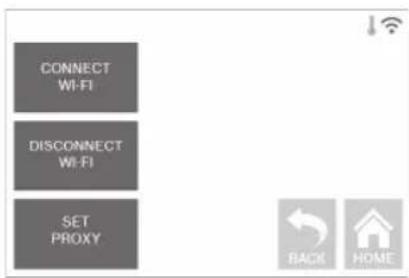
NETWORK
Tap to enter Network menu to connect or disconnect WiFi and Set Proxy. CONNECT WIFI – Tap to connect to WiFi. DISCONNECT WIFI – Tap to turn Wifi off. SET PROXY – Tap to set manual proxy.
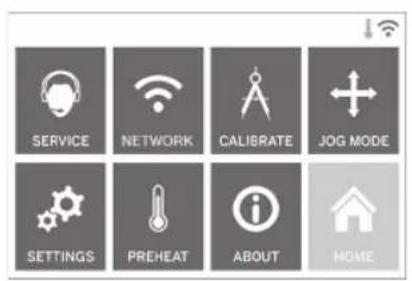
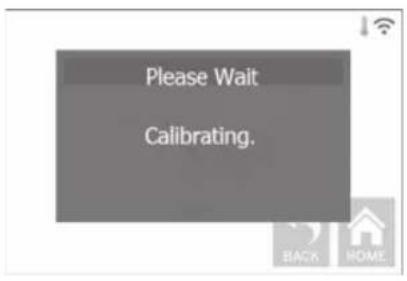
CALIBRATE
Tap to move extruder and build platform to zero position.
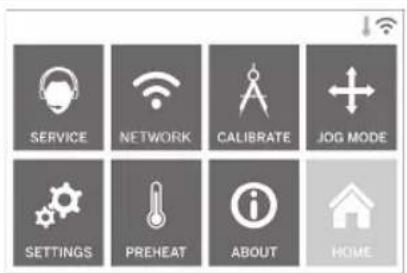
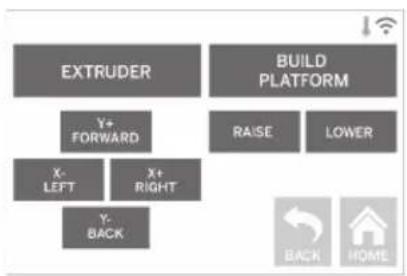
flowchart
graph TD
    A["EXTRUDER"] --> B["Y+ FORWARD"]
    B --> C["X- LEFT"]
    B --> D["Y- BACK"]
    E["BUILD PLATFORM"] --> F["RAISE"]
    E --> G["LOWER"]
    H["BACK"] --> I["HOME"]
JOG MODE
Tap to display options to move extruder and build platform along the X, Y, and Z-axis.
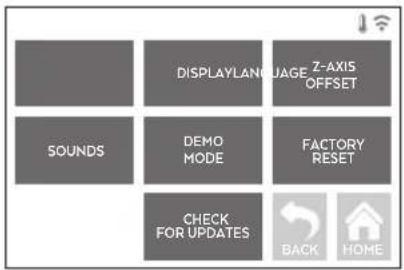
SETTINGS
LANGUAGE – Tap to pick alternate menu language.
DISPLAY – Tap to customize cabinet LEDs or main menu hotkeys.
Z-AXIS OFFSET – Used to calibrate build plate height during assembly.
SOUNDS – Tap to turn 3D40 sounds On/Off. DEMO MODE – Tap to turn retail demo mode On/Off.
FACTORY RESET – Tap to remove all information stored on 3D40 and return it to factory defaults.
CHECK FOR UPDATES – Tap to check for new firmware version when connected to Wifi or Ethernet.
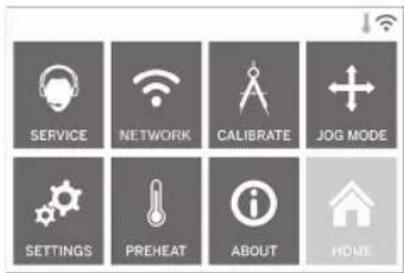
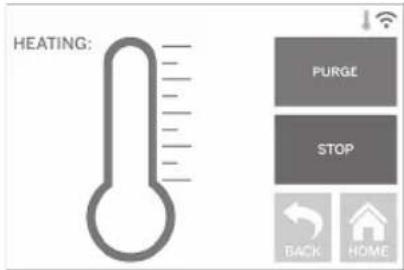
PREHEAT
Tap to automatically begin preheating the extruder for building or removing excess debris. PURGE – Once extruder is hot, tap to manually extrude filament.
STOP/START – Tap to stop or start preheating.
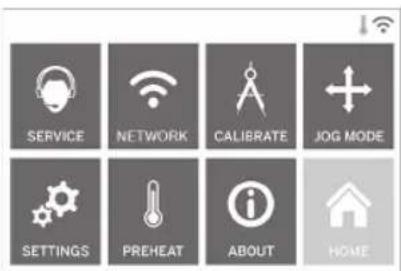
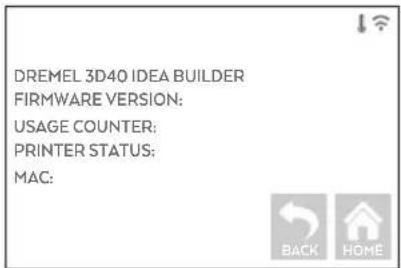
ABOUT
Tap to see 3D40 information such as firmware version, usage counter, printer status, and MAC address.
TOUCH SCREEN ICONS

Indicates that there is an error such as filament empty or door open.
Indicates that Ethernet is connected.
Indicates WiFi signal strength and if connected to WiFi symbol will be blue.

Indicates that the extruder is cool.

Indicates that the extruder is warm.
Indicates that the extruder is hot.
INITIAL SETUP
The first time you power on your Dremel 3D40 you will be prompted to perform an initial setup of network. Completing this process will give you access to notifications of firmware updates.
- To complete initial setup, tap "Yes" when prompted on the initial setup screen. If you decline this setup you can always setup network later.
- If you choose "Yes", 3D40 will automatically connect to your ethernet or search for available wireless networks.
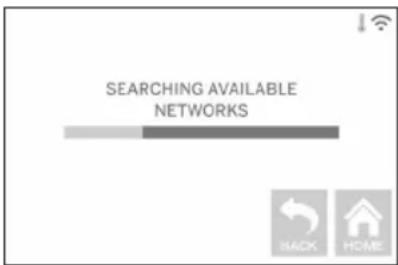
- Choose your wireless network using the touchscreen. Use the arrows to scroll through the list of available wireless networks. When your wireless network name is highlighted, tap "Accept".
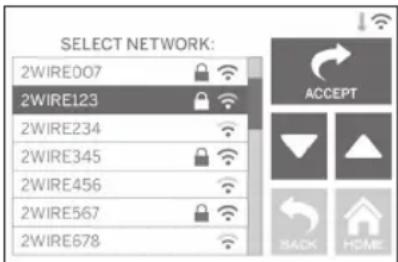
- Enter your wireless network password and tap "Accept".
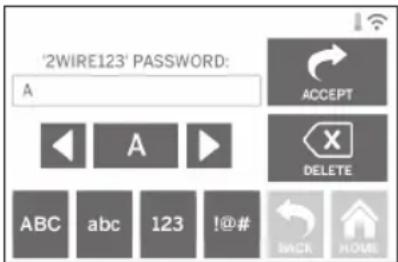
GETTING READY TO BUILD

WARNING
OBSERVE ALL PROVIDED
WARNINGS AND SAFETY
INSTRUCTIONS WHEN USING THE DREMEL 3D40.
Failure to do so may result in fire, equipment damage, property damage or personal injury.

WARNING
UNTIL IT HAS COOLED DOWN TO AT LEAST 60°C (140°F). Contact with the extruder tip during or after operation before tip has cooled may result in personal injury.

WARNING
USE ONLY DREMEL FILAMENT.
Use of filament not authorized by
Dremel may result in equipment and property damage.

WARNING
DO NOT PULL THE FILAMENT
OUT. Doing so may damage the
extruder.
LOADING/CHANGING FILAMENT
- Start filament load/change process by tapping "Filament" button on touchscreen. Extruder will move to front right corner of print area and extruder tip will begin to heat.
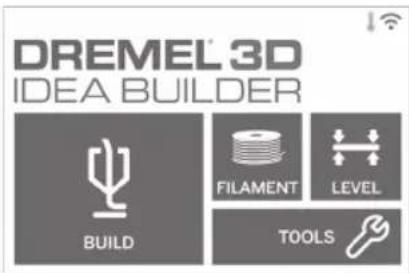
- After extruder stops moving, open the 3D40 Lid for better access to extruder.
- If existing filament is loaded, cut existing filament near extruder intake and tap "Next" button on touchscreen.
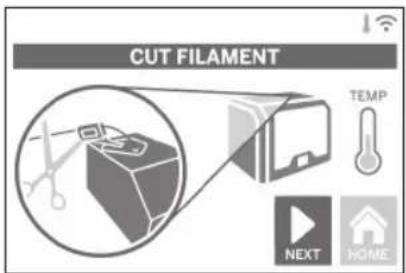
- Remove Spool door by rotating it counter clockwise and remove existing spool if one is present, see figure1.
FIG. 1
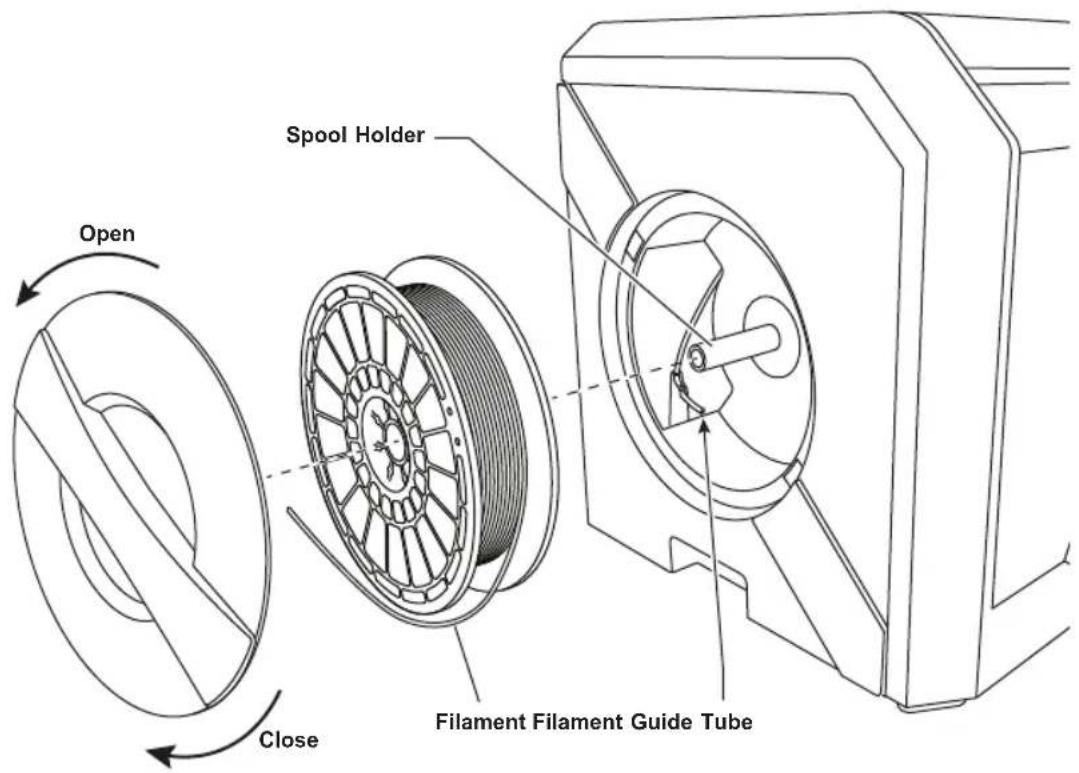
Guide Tube Filament Filament Guide Extruder intake
FIG. 2
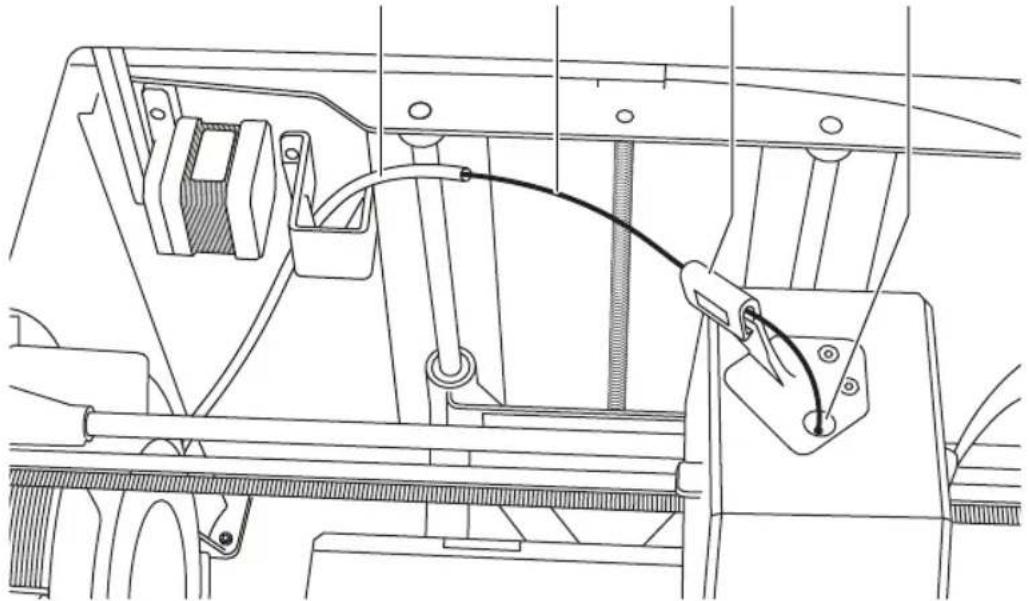
natural_image
Technical line drawing of a mechanical assembly with no visible text or symbols- Thread tip of new filament through guide tube, place spool on spool holder, replace spool door by aligning locking tabs and rotating clockwise, see figure 1.
Tap "Next" on touchscreen. - If changing existing filament, 3D40 will automatically purge existing filament.
- When Feed Filament screen appears, tap "Next" on touchscreen and thread filament coming from guide tube into extruder intake until extruder feeds through on its own, see figure 2.
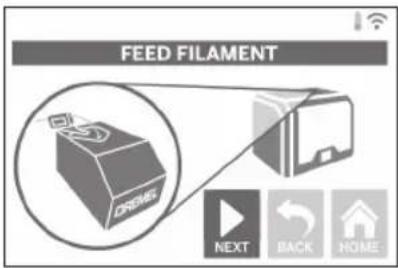
- Filament will be drawn into the extruder and begin to exit from the hot extruder tip.
NOTE: Your Dremel 3D40 was tested by building objects before leaving the factory. These test objects may have been made with a different filament color than you are using. Therefore, a small amount of filament may be remaining in the extruder.
- When new filament appears from extruder tip, tap "done" on touchscreen to complete filament load process, return to main menu, and calibrate extruder. Carefully remove excess filament without touching hot extruder tip. If necessary, carefully remove debris from extruder tip with needle nose pliers.
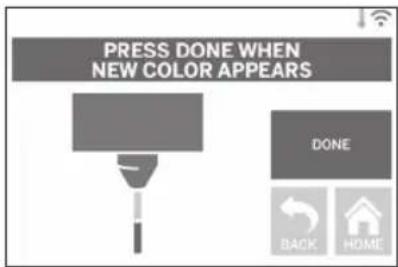
USE EXTRA CARE NOT TO
DAMAGE THE EXTRUDER TIP
WHEN CLEARING DEBRIS. DREMEL 3D40 WILL NOT WORK PROPERLY WITH A DAMAGED EXTRUDER TIP AND WILL REQUIRE REPLACEMENT.
- Close 3D40 lid and door.
PREPARING BUILD PLATFORM

WARNING
DO NOT DROP THE BUILD PLATFORM. TEMPERED GLASS
PLATE MAY BREAK AND RESULT IN PERSONAL INJURY.

WARNING
DO NOT REMOVE TEMPERED GLASS PLATE FROM PLASTIC WITH TEMPERED GLASS PLATE IN PERSONAL INJURY.
HOLDER. CONTACT WITH TEMPERED GLASS PLATE EDGE MAY RESULT IN PERSONAL INJURY.

WARNING
BEFORE EVERY BUILD MAKE SURE THAT THE BUILD
PLATFORM IS COVERED WITH DREMEL SPECIFIED BUILD TAPE. USE OF IMPROPER BUILD TAPE MAY RESULT IN EQUIPMENT DAMAGE AND POOR OBJECT BUILD QUALITY.
- If build platform is installed, remove by pinching the clip located at the front of the build platform and lifting the build platform off the base, figure 3.
- Remove adhesive liner from Build Tape and place Build Tape over Build Platform. For best results, apply Build Tape at center of Build Platform first and smooth outward to remove any air bubbles, figure 4.
- Install the build platform using the build platform clips.
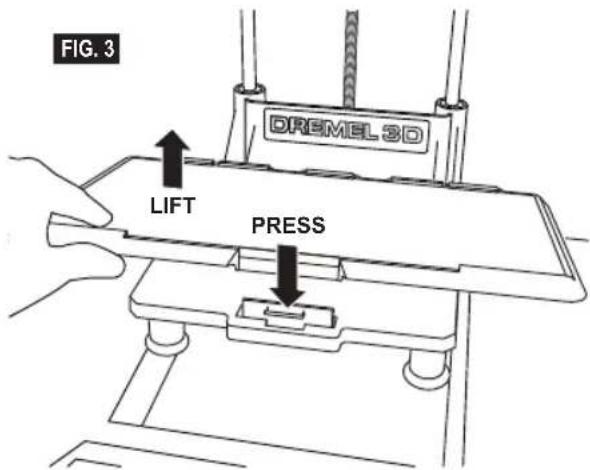
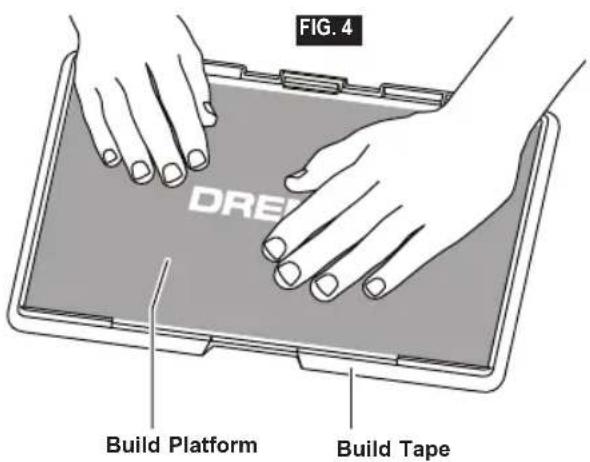
LEVELING BUILD PLATFORM

WARNING
DO NOT TOUCH THE EXTRUDER TIP DURING DREMEL 3D40
OPERATION OR UNTIL IT HAS COOLED DOWN TO 60°C (140°F). CONTACT WITH THE EXTRUDER TIP DURING OR AFTER OPERATION BEFORE TIP HAS COOLED MAY RESULT IN PERSONAL INJURY.
It is important you level the build platform every time you replace the build tape or reinstall the build platform to ensure that the build platform is evenly spaced from the extruder head. Make sure to remove any air bubbles from between the build platform and the build tape. Not leveling the build platform or eliminating air bubbles may cause objects to not build properly.
-
Make sure you have placed Build Tape on Build Platform and no objects are present. Applying Build Tape after leveling may effect the consistency of your object.
-
Tap "Level" on 3D40's touchscreen.
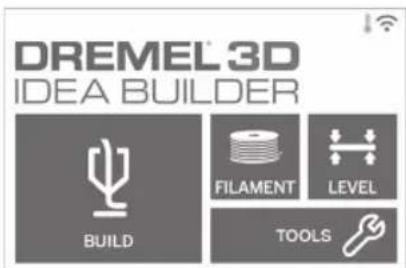
-
The extruder and build platform will move into position to level the build platform. 3D40 will first check level at the back center of the build platform. The two knobs under the build platform are used to raise and lower the build platform on the left and right. The extruder contains a sensor that detects if the bed is level, no additional tools are necessary.
-
The touchscreen will indicate if your build platform is too high or too low. If the build platform is too high, adjust the appropriate knob by rotating right until you hear a "beep" and the touchscreen indicates that it is ready to verify that the bed is level.
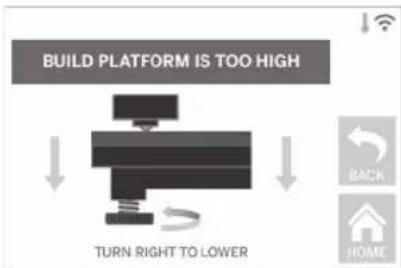
flowchart
graph TD
    A["TURN RIGHT TO LOWER"] --> B["BUILD PLATFORM IS TOO HIGH"]
    B --> C["Back"]
    B --> D["HOME"]
- If the build platform is too low, adjust the knob by rotating left until you hear a "beep" and the touchscreen indicates that it is ready to verify that the bed is level.
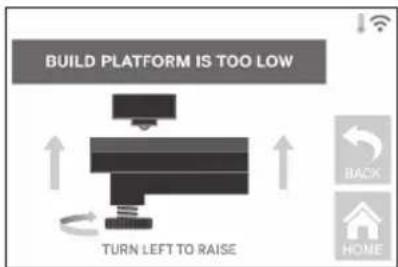
- Tap "Verify" to check the bed level. If further adjustment is needed the touchscreen will indicate the direction, if the level is correct, the extruder will move to the next point and the level process can be repeated.
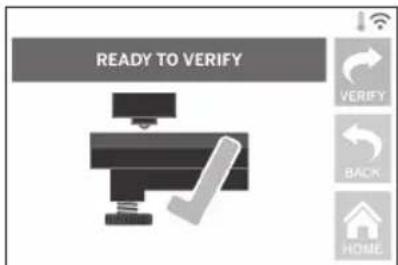
- Repeat steps 4-6 for the second position, when you bed is fully level the extruder will automatically move to the calibration position and complete the leveling process.
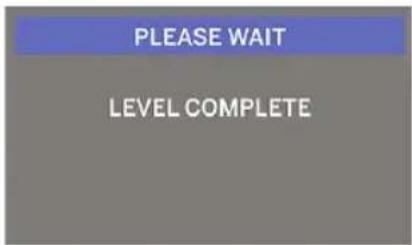
CONNECTING USB CABLE
- Ensure 3D40 power switch is in the off position.
- Connect the included USB cable to your 3D40 and computer, figure 5.
- Open software.
- Turn your Dremel 3D40 on using the power switch to sync your computer to your Dremel 3D40.
CONNECTING ETHERNET
- Ensure 3D40 power switch is in the off position.
- Plug ethernet cable into your 3D40, figure 6.
- Turn your Dremel 3D40 on using the power switch. Ethernet connection should be detected automatically. Tap "Accept" to confirm connection.
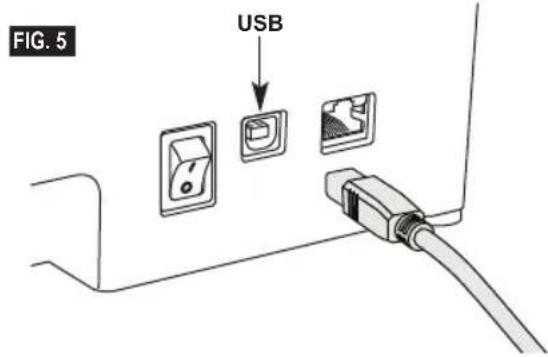
BUILDING
WARNING
OBSERVE ALL PROVIDED
WARNINGS AND SAFETY
INSTRUCTIONS WHEN USING THE DREMEL 3D40.
Failure to do so may result in fire, equipment damage, property damage or personal injury.
WARNING
DO NOT REACH INSIDE THE
DREMEL 3D40 WHILE IT IS IN
OPERATION. Contact with Dremel 3D40 moving parts during operation may result in poor build quality, equipment damage or personal injury.
NOTE: Your Dremel 3D40 will build test objects before leaving the factory. These test objects may have been made with a different filament color than you are using. Therefore, a small amount of filament may be remaining in the extruder. The start of your first object may have some of this filament color until it transitions over to your filament color.
You have several options when building on your 3D40:
1) On-Printer Storage
2) USB Flash Drive
3) Computer
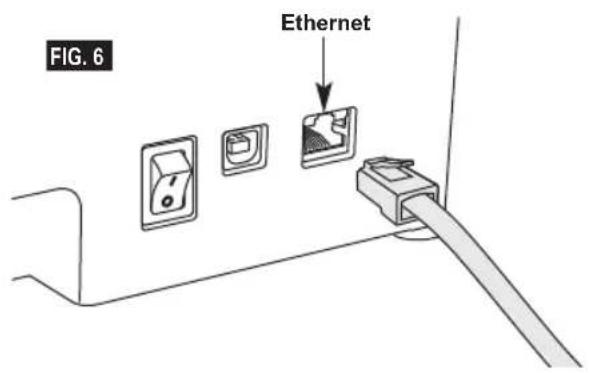
BEFORE YOU BUILD
- Ensure an adequate amount of filament is loaded (see page 371).
TIP: You can determine whether you have enough filament to complete your object before building by comparing the length of filament needed as displayed by Dremel Digilab 3D Slicer to the length of filament on spool indicated by the length gauge. If 3D40 runs out of filament during a build, it will pause until more filament is added. - Ensure build tape is applied, build platform is level and clear of objects.
BUILDING FROM ON-PRINTER STORAGE
- On the main menu tap "Build".
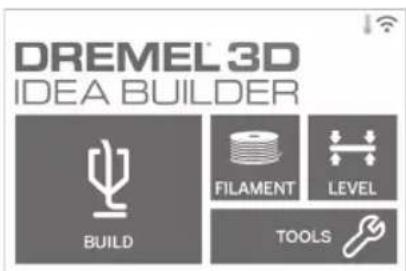
- On the build menu tap the printer icon.
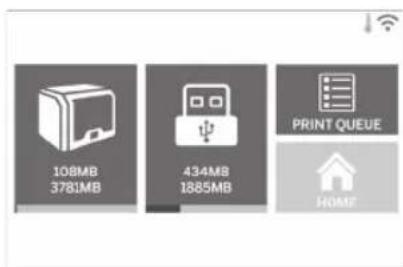
- Tap the model file you would like to build. (Use arrows to scroll through pages)
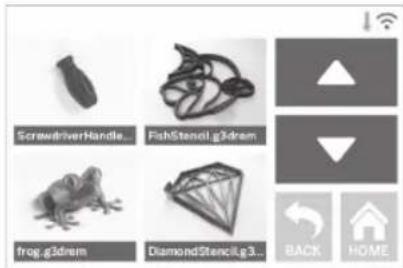
- In the model detail page tap "Build" to begin building process.
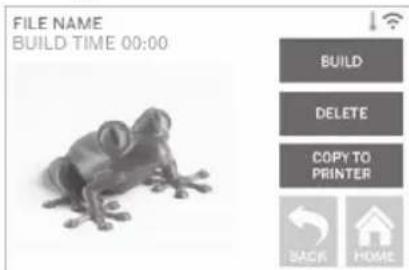
- Your 3D40 will first align the extruder and build platform to their zero positions then the level sensor will lightly touch the build platform to complete alignment. Your extruder tip will begin to heat which may take a few minutes. Once the proper temperature is reached your model will begin to build.
- Once your object is finished your 3D40 will automatically align the extruder and build platform to their calibration positions and cool the extruder tip.
- Wait until the touch screen indicates that the extruder is "cool" to remove your object. See section for removing object from build platform below for object removal instructions.
BUILDING FROM USB FLASH DRIVE
- On main menu tap "Build".
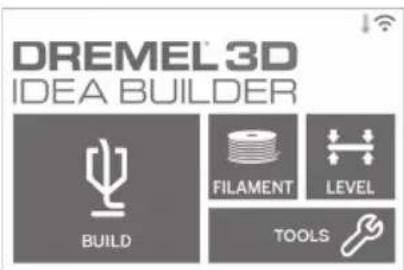
- Tap USB icon to access contents of USB flash drive.
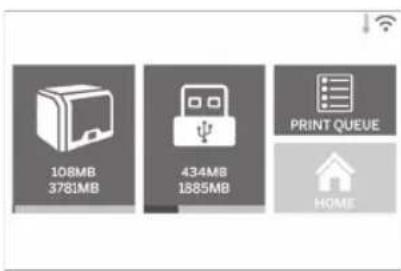
- Follow steps 3-7 from Build from On-Printer storage to complete build from USB flash drive.
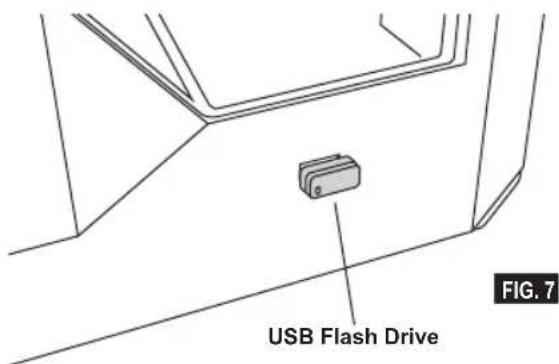
BUILD FROM COMPUTER
Dremel 3D40 is compatible with Dremel Digilab 3D Slicer. Follow the instructions that came with this software to complete a Build from your computer.
CANCELING YOUR BUILD ON 3D40
To cancel your object during preheating or building, tap "Stop" on the touch screen. If you confirm "Yes" the extruder and build platform will move to their calibration positions.
REMOVING YOUR OBJECT
REMOVING YOUR OBJECT FROM THE BUILD PLATFORM
WARNING DO NOT TOUCH THE EXTRUDER TIP DURING DREMEL 3D40 OPERATION OR UNTIL IT HAS COOLED DOWN TO AT LEAST 60°C (140°F). Contact with the extruder tip during or after operation before tip has cooled may result in personal injury.
WARNING USE PERSONAL PROTECTIVE EQUIPMENT. The use of protective equipment such as heat resistant gloves and safety glasses will reduce personal injuries.
WARNING BE AWARE OF YOUR BODY POSITION WHEN USING HAND TOOLS TO REMOVE OBJECTS FROM THE BUILD PLATFORM. Sudden tool slip and improper body position during object removal from the build platform may result in personal injury.
WARNING DO NOT DROP THE BUILD PLATFORM. Tempered glass plate may break and result in personal injury.
A WARNING DO NOT TWIST OR BEND THE BUILD PLATFORM WHILE REMOVING OBJECTS. Tempered glass plate may separate from plastic holder and result in personal injury.
WARNING AVOID SCRATCHING THE BUILD PLATFORM WHEN REMOVING OBJECTS. SCRATCHES IN THE BUILD PLATFORM WILL RESULT IN IMPROPER OBJECT CREATION.
- Wait for the extruder to cool before removing your object.
- With the object still attached, remove build platform from the build area.
- Peel your object from the build platform. If needed, gently use the object removal tool to remove object from build platform (figure 8). If desired, remove the build tape from the build platform while separating the object from the build platform. The build tape can then be removed from the object.
REMOVING SUPPORTS (IF REQUIRED)
Use needle nose pliers to remove supports that are inside your object or hard to reach.
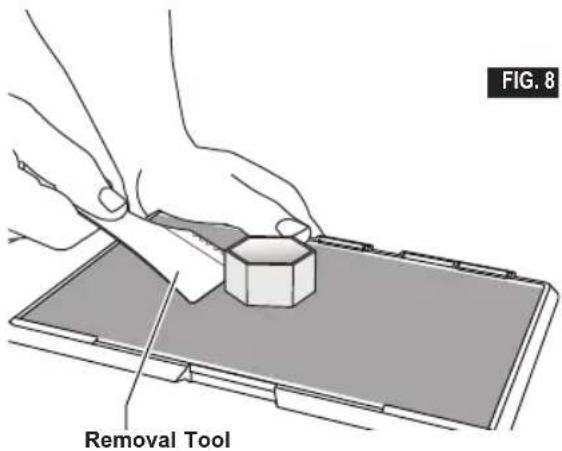
BEST PRACTICES
- ALWAYS USE BUILD TAPE.
- Ensure your build platform is level before every object.
- Ensure spool is installed properly and can rotate freely.
- When using your Dremel 3D40 for the first time or after changing filament, allow Dremel 3D40 to extrude until material is consistent with the installed filament color.
- It is important to watch your Dremel 3D40 begin building objects. Your object is most likely to experience difficulty in the beginning. Thankfully, this is also the most convenient time to cancel the object, clean the build platform, and start your object again. Remain near the Dremel 3D40 during the building process.
- It is important to save your Dremel 3D40 packaging as it will make re-boxing and transporting your Dremel 3D40 easier.
- Ensure that you store filament spools in an environment that is not moist or too hot. It is recommended that you do not remove the filament spool from its airtight packaging until use.
- Use object removal tool gently to avoid damaging the build platform or object.
- Whenever possible, it is best to locate your object in the center of the build platform. Using the best orientation for your object is critical. Ensure that your object is located on the build platform and that you are using the best orientation for building.
- For steep overhangs (Less than 45 degree angle) it is recommended to build with support.
- Always remove the build platform before removing the object.
- Low speed sanding is recommended to prevent remelting of the object.
- The Dremel Digilab 3D Slicer software will display the length of filament required for each object. Compare this to the length indicated on the spool length gauge.
MAINTENANCE
UNCLOGGING THE EXTRUDER
Use the unclogging tool to clean the extruder and unclog built up filament.
- Wait for extruder to heat up insert the unclog tool into the extruder intake (top).
- Clogged debris will be pushed down and will extrude from the extruder tip.
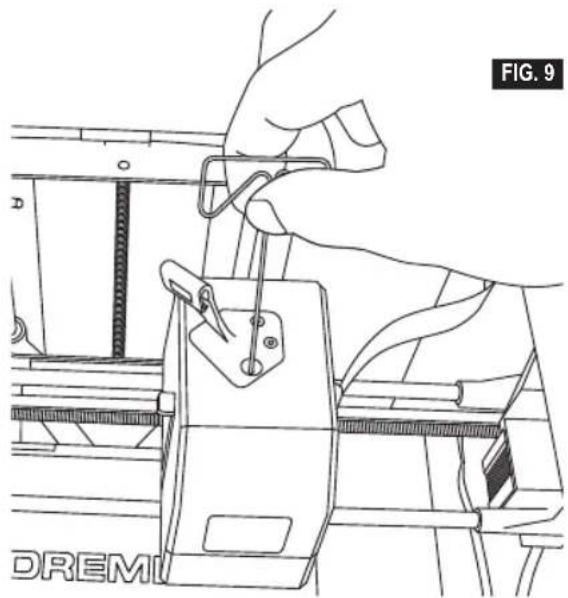
natural_image
Line drawing of a hand using a tool to adjust or install a component, no text or symbols presentUPDATING FIRMWARE VIA NETWORK
If your 3D40 is registered and added to your Dremel3D profile, you can update its firmware directly from the touchscreen. To update firmware:
- Tap "Tools", "Settings", "Check for Updates".
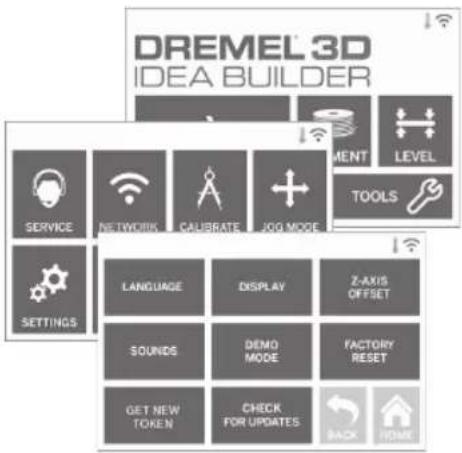
- Your 3D40 will check to see if it has the latest firmware installed and ask if you would like to update if one is needed.
- Choose accept to download and install the latest firmware.
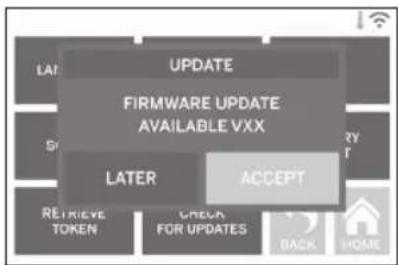
- When the 3D40 starts up and returns to the Home Screen, firmware update is complete.
UPDATING FIRMWARE MANUALLY
If your 3D40 is not connected to a network, you can update firmware directly from a USB Flashdrive.
- On your web browser go to www.dremel3d.com/support and download the latest 3D40 firmware file.
- Add the 3D40 firmware file to an empty, FAT32 formatted, USB flashdrive.
- Turn off your 3D40 using the ON/OFF switch.
- Insert the USB flashdrive into the USB-A port.
- Turn on your 3D40 and it should automatically detect and install the new firmware.
- Turn your 3D40 OFF, remove the USB flashdrive, and turn ON again to complete the update.
CLEANING THE EXTERIOR
Clean the 3D40's exterior with a lint free cloth. Clear the outer surfaces of any debris that is visible. To avoid damaging your Dremel 3D40 do not use water, chemicals or other cleaners on the 3D40.
CLEANING THE EXTRUDER TIP

WARNING
USE EXTRA CARE NOT TO DAMAGE THE EXTRUDER TIP
WHEN CLEARING DEBRIS. DREMEL 3D40 WILL NOT WORK PROPERLY WITH DAMAGED EXTRUDER TIP AND WILL REQUIRE REPLACEMENT.

WARNING
DO NOT TOUCH THE EXTRUDER TIP DURING DREMEL 3D40
OPERATION OR UNTIL IT HAS COOLED DOWN TO 60°C (140°F). Contact with the extruder tip during or after operation before tip has cooled may result in personal injury.
Using small needle nose pliers, pull away any plastic debris from the extruder tip.
If the debris is stubborn, the extruder may need to be heated.
Wipe the touch screen with the soft, lint-free cloth. Do not spray cleaners on the touch screen.
MAINTENANCE AND SERVICE
| Problem Cause Corrective Action | ||
| Extruder head building off center. Dremel 3D40 has lost track of the extruder head's exact location and is failing to build. | Sending the extruder head to the home position will recalibrate the Dremel 3D40. Cancel your object, clear build platform, send the extruder head to the home position, and restart the object. | |
| PLA is not extruding or sticking to the build tape properly. | This can be caused by the build platform not being leveled with the extruder head. | Leveling the build platform will align the extruder head and ensure a better object quality. Cancel your object, clear build platform, level the build platform, and restart the object. |
| Dremel 3D40 froze before my object started. | Dremel 3D40 may have received conflicting commands. | Turn power switch off, wait 30 seconds, and turn power switch on. |
| Support material does not break away during cleaning and results in decreased quality of the final object. | Orientation of the part is not optimized. | Reorient the position of the 3D file in your file slicing software to minimize the support material or place the support material on a non-critical surface. |
| Spaghetti mess at end of build. A layer of your object did not stick properly, model was saved with minimal surface area contacting the build platform, or object was built floating above the build platform with no support selected. | Use your file slicing software to see the first layer height and position. Build with supports when necessary. | |
| Part only built halfway. Filament ran out. Filament clogged during build. | Replace filament and resume build. See “No filament coming out”. | |
| No filament coming out. Clogged extruder. Contact customer service. | ||
| Extruder will not home. Contact customer service. | ||
| Stringy or fraying plastic layers on steep overhangs. | Object overhangs are too far apart or too steep (<45 degree angle). | Build with supports. |
| 3D40 will not find my Wi-Fi network. | Printer too far from wireless router. | Reposition 3D40 to be closer to your router. Connect to network with Ethernet. |
| 3D40 will not connect to my network. | Printer too far from wireless router. | Reposition 3D40 to be closer to your router. |
| Network password incorrect. Re-enter your password or verify your password with your network owner. | ||
OPEN SOURCE SOFTWARE
Open Source Software used in this Dremel product
This product contains software components that are licensed by the holder of the rights under any version of the GNU General Public License (GPL), GNU Lesser General Public License (LGPL) or any other open source software license which requires that source code be made available. You can receive a complete machine-readable copy of the corresponding source code by sending a written request to:
Dremel
Attn: Open Source Software Officer
P.O Box 081126
Racine, WI USA 53408-1126
Your request should include: (i) the name of the Dremel product, (ii) the serial number (if applicable), (iii) the software version (if applicable), (iv) your name, (v) your company name (if applicable) and (vi) your return mailing and email address (if available).
We may charge you a nominal fee to cover the cost of the physical media and distribution.
You may send your request (i) within three (3) years of the date you received the product that included the software which is subject of your request or (ii) in the case of code licensed under the GPL version 3 for as long as Dremel offers spare parts or customer support for that product.
Warranty regarding further use of the Open Source Software:
DREMEL provides no warranty for the Open Source Software programs contained in this device, if such programs are used in any manner other than the program execution intended by DREMEL. The licenses listed below define the warranty, if any, from the authors or licensors of the Open Source Software. DREMEL specifically disclaims any warranties for defects caused by altering any Open Source Software program or the product's configuration. You have no warranty claims against DREMEL in the event that the Open Source Software infringes the intellectual property rights of a third party. Technical support, if any, will only be provided for unmodified software.
WARRANTY
Robert Bosch (Australia) Pty Ltd (Bosch) Power Tools
Voluntary Repair or Replacement Warranty
Applicable for purchases of specified power tools, garden tools, rotary tools, 3D printing systems, pneumatic tools and measuring tools after 1 September 2015
All Bosch power tools, garden tools, rotary tools, 3D printing systems, pneumatic tools and measuring tools are carefully checked, tested and are subject to the stringent quality controls of Bosch Quality Assurance.
Important Note: Consumer Protections
If you have purchased your product in Australia, you should be aware that:
This warranty is provided in addition to other rights and remedies held by a consumer at law. Our goods come with guarantees that cannot be excluded under the Australian Consumer Law. You are entitled to a replacement or refund for a major failure and for compensation for any other reasonably foreseeable loss or damage. You are also entitled to have the goods repaired or replaced if the goods fail to be of acceptable quality and the failure does not amount to a major failure.
If you have purchased your product in New Zealand, you should be aware that:
This warranty is supplemental to any other rights and remedies you have under the Consumer Guarantees Act 1993 NZ, unless your purchase is made for commercial purposes, in which case Bosch excludes all consumer guarantees implied in the Consumer Guarantees Act 1993 NZ in respect of your product.
(A reference to “Bosch” in this Voluntary Repair or Replacement Warranty is a reference to Robert Bosch (Australia) Pty Ltd, unless from the particular context it is obvious that it is being used as a trade mark or brand name.)
Warranty
Bosch warrants, at its option, to repair or exchange those ranges of power tools, garden tools, rotary tools, 3D printing systems, pneumatic tools and measuring tools described below (Products) if such Products are faulty or defective in manufacture or materials during the warranty period which is also specified below.
Repair or replacement under this warranty does not extend to repair or replacement, or any cost of replacement, of consumables or accessories incorporated into or supplied with the Products (for example, drill bits or jigsaw blades).
This warranty only extends to repair or replacement of the Products. It does not extend to cover:
- any costs incurred by the end user in normal or scheduled maintenance of the Products; or
- any damage to property, personal injury, direct or indirect loss, consequential losses or other expenses arising from breach of this warranty. Any end user concerned with this exclusion should consider the “Important Note: Consumer Protections” above.
Warranty Period and Coverage
The following warranty period will apply in respect of the following Products in Australia and New Zealand.
- Bosch Green Tools (including measuring tools) used solely for DIY / domestic purposes: 2 years
- Bosch Professional (Blue) Tools (including measuring tools) used for commercial / professional purposes: 1 year
- Bosch Lawn and Garden Tools: 2 years
- Skil Tools: 2 years
• Dremel Corded Rotary Tools: 5 years
• Dremel Cordless Rotary Tools: 2 years
• Dremel Non-Rotary Tools: 2 years
• Dremel 3D Printers: used solely for DIY / domestic purposes: 1 year
• Dremel 3D Printers: used for commercial / professional purposes: 60 days
The warranty period commences on the date of purchase of the Product by the end user of the Product.
Optional Extended Warranty – Bosch Professional (Blue) Tools
The warranty period for Bosch Professional (Blue) Tools (details of which are available at www.bosch-pt.com.au/warranty) may be extended from 12 months to 3 years and the warranty period for Bosch Professional (Blue) Lithium Ion batteries and chargers (details of which are available at www.bosch-pt.com.au/warranty) (collectively, Extended Warranty Products) may be extended from 12 months to 2 years if registered with Bosch, as follows:
- The Extended Warranty Products must be registered with Bosch within 12 months of the date of purchase by the end user.
- Registration can only be made at www.bosch-pt.com.au/warranty or www.bosch-pt.co.nz/warranty.
- This warranty extension is not available for Bosch Professional (Blue) high frequency tools, production cordless screwdrivers, air tools, supplied accessories and normal wear items and consumables such as jig saw blades, drill bits etc.
Warranty Conditions
- The warranty period is not renewed or extended as a result of a warranty repair or replacement.
- The warranty is not transferable and is only offered to the original end user of the Product.
- The warranty does not extend to any Products that have been completely or partially disassembled.
• These warranty terms cannot be amended except in writing by an authorised representative of Bosch. - The warranty only applies to Products purchased by an end user in Australia or New Zealand from Bosch or from a reseller where the Products have been originally sold by Bosch.
- The warranty claim must meet the requirements below in respect to "How to Make a Warranty Claim."
Warranty Exclusions
This warranty will not apply to a defect or fault to the extent to which it arises:
- due to storage, handling or installation of the Products otherwise than in accordance with instructions provided for the Products by Bosch or without reasonable care;
- due to operation, use or maintenance of the Products otherwise than in accordance with instructions provided for the Products by Bosch or without reasonable care;
- due to accidental damage or to use of the Products
for a purpose or in environmental conditions for which the Products were not designed or sold, or use of the products outside the specified or normal operating ranges for such Products (such as commercial / professional use of Green Tools or Dremel 3D printers);
- as a result of changes which occur in the condition or operational qualities of the Products due to climate or other environmental influence, foreign material contamination or water entry or as a result of exposure to excessive heat or solvents;
- from normal wear and tear or when replacement or repair of parts would be part of normal maintenance or service of the Products (for example, carbon brushes, o-rings, cords, build platforms or build tape) or where the damage is only to surface coating, varnish or enamel;
- as a result of repairs, alterations or modifications to the Product which have been performed by a third party; or
• from the use of any spare parts not manufactured, sold or approved by Bosch in connection with the repair or replacement of the Product.
Neither will this warranty apply to products where damage has been caused by continued use of the products after it is known they are defective.
Wrong Deliveries and Transit Damage
Wrong deliveries, incorrect or damaged packing and transit damage claims are not warranty claims. Such cases should be directed to Bosch's Customer Service line in Australia on 1300 307 044 or in New Zealand on 0800 543 353.
How to Make a Warranty Claim
If a Product fails within the warranty period, the end user must stop using the Product and store the Product in a safe, dry environment.
The Product must be returned before the end of the Warranty Period (see Deadlines for Submitting Warranty Claims below) to the place of purchase or to a Bosch Silver Service Dealer or other Bosch Authorised Service Dealer together with proof of purchase and documentation detailing facts relevant to the claim. To locate a Bosch Silver Service Dealer or other Bosch Authorised Service Dealer, please call 1300 307 044.
For claims under the Optional Extended Warranty in respect of the Extended Warranty Products, a copy of the warranty confirmation certificate must also be provided with the warranty claim.
Costs of Submitting a Warranty Claim
For invalid claims under this voluntary warranty, Bosch will not be liable for the end user's costs in making the warranty claim, including transport or return freight.
In respect of valid claims under this supplementary voluntary warranty, the end user will not be charged for costs associated with making a warranty claim, including warranty processing costs, the cost of replacement parts or freight. Reimbursement for necessary and reasonably incurred costs or expenses in making valid warranty claims under this manufacturer's warranty may be sought from Bosch. To enquire how to make a claim for reimbursement for costs incurred in submitting a warranty claim, please call 1300 307 044 in Australia or 0800 543 353 in New Zealand. Documentary evidence in support of such claim will be required.
Deadlines for Submitting Warranty Claims
Bosch aims to rectify genuine quality problems as a priority. This is generally achieved by investigating why defective products have failed and by introducing immediate corrective action measures to prevent reoccurring warranty failures. It is therefore critical that all warranty claims are promptly submitted to Bosch as soon as the product fails, and in any event before the end of the warranty period.
Packaging
Products do not need to be returned with the original packaging to make a warranty claim.
Product Liability and Product Safety
Bosch should be informed immediately about any potential product safety concerns within and outside the warranty period. Bosch is well aware of its product liability and product safety obligations and responsibilities. It is our aim to ensure appropriate product safety standards are met in order to avoid injury, loss and damage caused by defects in any Products.
Privacy
Bosch is required to seek personal information from an end user who seeks to make a claim under this warranty.
Such personal information may be used by Bosch and/or any Authorised Service Dealer (who is authorised to process warranty claims and/or carry out warranty repairs on behalf of Bosch) for the purpose of processing such warranty claim and also for the provision of customer support and further information about Bosch's products and services (Purpose).
If an end user does not wish to provide Bosch and/or its Authorised Service Dealer with personal information, Bosch may be unable to process the end user's warranty claim or to provide the end user with additional customer support, services and information.
Bosch is committed to protecting the privacy of personal information and will act in compliance with applicable privacy laws, including the National Privacy Principles under the Australian Privacy Act 1988 (Cth) (as amended) and New Zealand's Information Privacy Principles described in the Privacy Act 1993 (NZ).
Bosch takes security measures in order to protect any personal information collected in the warranty claim process against manipulation, loss, destruction, access by unauthorized persons or unauthorized disclosure.
Bosch will not disclose any personal information to third parties other than for the Purpose or except as required by law.
An end user has the right to access the personal information Bosch or its Authorised Service Dealers hold about them. The end user can request to see, change or modify the personal information held about them, or withdraw consent for its usage, by contacting Bosch at the Bosch Contact Details below.
Bosch Contact Details
This warranty is offered by Robert Bosch (Australia) Pty Ltd (ACN 004 315 628) of 1555 Centre Road, Clayton, Victoria 3168. Please call Robert Bosch (Australia) Pty Ltd on 1300 307 044 in Australia or 0800 543 353 in New Zealand or email at
customerservice.pt@au.bosch.com if you have any queries in relation to this warranty.
DISPOSAL
The machine, accessories and packaging should be sorted for environmental-friendly recycling.
ONLY FOR EC COUNTRIES

Do not dispose of power tools with household waste!
According to the European Guideline 2012/19/EC for Waste Electrical and Electronic
Equipment and its implementation into national law, power tools that are no longer usable must be collected separately and disposed of in an environmentally-correct manner.
CONTACT DREMEL
For more information on the Dremel product range, support and hotline, go to www.dremel.com.
ROBERT BOSCH AUSTRALIA
1555 CENTRE RD
CLAYTON, VIC 3168
Australia
1300 30 70 44
New Zealand
0800 54 33 53
AR
natural_image
Technical line drawing of a mechanical device with internal components (no text or symbols)Dremel 3D40
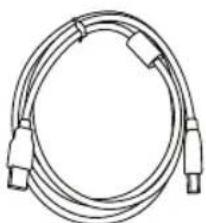
natural_image
Coiled cable with connectors and connectors (no text or symbols visible)USB كابل
كابل الطاقة
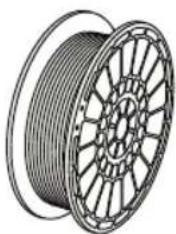
natural_image
Illustration of a coiled cable with spool pattern (no text or symbols)مسلكة الملك**
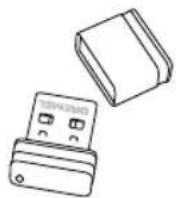
USB محرك فلاش
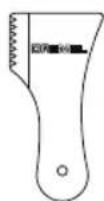
اداة إخراج الأغراض
شريط الإنشاء
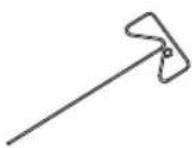
أداة إزالة العوانق
natural_image
Technical line drawing of an open computer case with internal compartments and a black arrow indicating a specific component (no text or symbols present)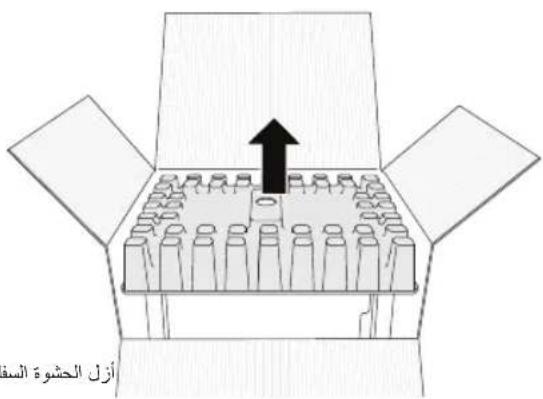
natural_image
Technical line drawing of an open mechanical device showing internal components and a black arrow indicating a specific part (no text or symbols present)natural_image
Technical line drawing of a mechanical device with internal compartments and a black arrow indicating upward motion (no text or symbols)natural_image
Illustration of hands installing a device into a computer case (no text or symbols visible)شاشة المس
الإن (((ي) في إن (((ي)-en (((ي)-en (((ي)-en (((ي)-en (((ي)-en (((ي)-en (((ي)-en (((ي)-en (((ي)-en (((ي)-en (((ي)-en (((ي)-en (((ي)-en (((ي)-en (((ي)-en (((ي)-en (((ي)-en (((ي)-en (((ي)-en (((ي)-en (((ي)-en (((ي)-en (((ي)-en (((ي)-en (((ي)-en (((ي)En
Attn Open Source Software Officer:
P.O Box 081126
Racine, WI USA 53408-1126
natural_image
Pure geometric lines and symbols without any text, numbers, or labels
natural_image
Two isolated circular markers with crosshairs on a white background, no text or symbols present.
natural_image
Pure geometric lines forming a crosshair symbol (no text or labels)Dremel
Konijnenberg 60
4825 BD Breda
The Netherlands

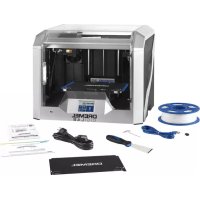
- WORK AREA SAFETY
- ELECTRICAL SAFETY
- PERSONAL SAFETY
- DREMEL 3D40 USE AND CARE
- SERVICE
- TABLE OF CONTENTS
- USED SYMBOLS
- INFORMATION ON INTELLECTUAL PROPERTY
- FUNCTIONAL DESCRIPTION AND SPECIFICATIONS
- BUILDING
- WEIGHT & DIMENSIONS
- FILAMENT
- FILAMENT STORAGE
- SOFTWARE
- ELECTRICAL REQUIREMENTS
- OPERATING ENVIRONMENT
- 3D40 RESOURCES
- GETTING TO KNOW YOUR 3D40
- INTRODUCTION
- KIT CONTENTS\*
- UNPACKING
- TOUCH SCREEN
- WARNING
- BUILD
- BUILD MENU
- MODEL MENU
- FILE DETAILS
- BUILD STATUS
- PRINT QUEUE MENU
- PRINT QUEUE MODEL DETAILS
- LEVEL
- TOOLS
- NETWORK
- CALIBRATE
- JOG MODE
- SETTINGS
- PREHEAT
- ABOUT
- TOUCH SCREEN ICONS
- INITIAL SETUP
- GETTING READY TO BUILD
- LOADING/CHANGING FILAMENT
- PREPARING BUILD PLATFORM
- LEVELING BUILD PLATFORM
- CONNECTING USB CABLE
- CONNECTING ETHERNET
- BEFORE YOU BUILD
- BUILDING FROM ON-PRINTER STORAGE
- BUILDING FROM USB FLASH DRIVE
- BUILD FROM COMPUTER
- CANCELING YOUR BUILD ON 3D40
- REMOVING YOUR OBJECT
- REMOVING YOUR OBJECT FROM THE BUILD PLATFORM
- REMOVING SUPPORTS (IF REQUIRED)
- BEST PRACTICES
- MAINTENANCE
- UNCLOGGING THE EXTRUDER
- UPDATING FIRMWARE VIA NETWORK
- UPDATING FIRMWARE MANUALLY
- CLEANING THE EXTERIOR
- CLEANING THE EXTRUDER TIP
- MAINTENANCE AND SERVICE
- OPEN SOURCE SOFTWARE
- Open Source Software used in this Dremel product
- Warranty regarding further use of the Open Source Software:
- DREMEL® CONSUMER LIMITED WARRANTY
- DISPOSAL
- ONLY FOR EC COUNTRIES
- CONTACT DREMEL
- INFORMATIONSQUELLEN ZUM 3D40
- FILAMENT WECHSELN (CHANGE
- NETZWERK (NETWORK)
- KALIBRIEREN (CALIBRATE)
- NACH UPDATES SUCHEN (CHECK FOR
- FIRMWARE-UPDATE ÜBER DAS NETZWERK
- OPEN SOURCE-SOFTWARE
- CALIBRER (CALIBRATE)
- RECHERCHER DES MISES À JOUR (CHECK
- AVANT LA CONSTRUCTION
- MISE À JOUR DU FIRMWARE PAR LE RÉSEAU
- RECURSOS PARA LA 3D40
- RED (NETWORK)
- CALIBRAR (CALIBRATE)
- ANTES DE CONSTRUIR
- RISORSE DI 3D40
- ASSISTENZA (SERVICE)
- RETE (NETWORK)
- CALIBRARE (CALIBRATE)
- MODALITÀ SBALZO (JOG MODE)
- AGGIORNAMENTO DEL FIRMWARE DALLA RETE
- SOFTWARE OPEN SOURCE
- SOLO PER I PAESI DELLA CE
- ALGEMENE VEILIGHEIDSWAARSCHUWINGEN
- LET OP LEES ALLE GEBRUIKS-EN VEILIGHEIDS-INSTRUCTIES IN DE HANDLEIDING EN ZORG DAT U VERTROUWD RAAKT MET DE
- VEILIGHEID VAN DE WERKPLEK
- INFORMATIE M.B.T. INTELLECTUELE- EIGENDOMSRECHTEN
- 3D40-HULPBRONNEN
- KALIBRER. (CALIBRATE)
- PRINTBED NIVELLEREN
- LET OP
- BOUWEN
- VOORDAT U BEGINT TE BOUWEN
- BOUWEN VANAF COMPUTER
- FIRMWARE UPDATEN VIA HET NETWERK
- INFORMATION OM INTELLEKTUEL EJENDOMSRET
- 3D40 RESSOURCER
- NETVÆRK [NETWORK]
- KALIBRÉR [CALIBRATE]
- G∅R KLAR TIL AT BYGGE
- ADVARSEL
- NIVELLERING AF BYGGEPLATFORM
- ADVARSEL R∅R IKKE VED EKSTRUDERSPIDSEN, MENS DREMEL 3D40 K∅RER, ELLER VENT TIL DEN ER K∅LET NED TIL 60°C (140°F). KONTAKT MED EKSTRUDERSPIDSEN UNDER ELLER EFTER DRIFT F∅R SPIDSEN ER AFK∅LET, KAN F∅RE TIL PERSONSKADE.
- F∅R DU BYGGER [BEFORE YOU BUILD]
- BYGNING FRA USB-FLASHDREV
- BYGNING FRA COMPUTEREN [BUILD FROM COMPUTER]
- OPDATERING AF FIRMWAREN VIA NETVÆRKET
- RENG∅RING AF DEN BER∅RINGSF∅LSOMME SKÆRM
- Open source software, der anvendes i dette Dremel-produkt
- INNEHÅLLSFÖRTECKNING
- INFORMATION OM IMMATERIALRÄTT
- VIKT & MÄTT
- FILAMENTFÖRVARING
- 3D40 RESURSER
- NÄTVERK
- KALIBRERA
- INLEDANDE INSTALLATION
- FÖRBEREDA BYGGPLATTAN
- BYGGA FRÅN MINNET I SKRIVAREN
- BYGGA FRÅN USB-FLASHMINNE
- UPPDATERA FIRMWARE VIA NÄTVERK
- OPEN SOURCE-PROGRAMVARA
- INFORMASJON OM ÁNDSRETT
- 3D40-RESSURSER
- NETTVERK (NETWORK)
- KALIBRER (CALIBRATE)
- F∅R DU BYGGER
- OPPDATER FATSVARE VIA NETTVERK
- OPPDATERER FASTVARE MANUELT
- TOIMINNAN KUVAUS JA TEKNISET TIEDOT
- RAKENTAMINEN
- 3D40-RESURSSIT
- MALLI (MODEL) -VALIKKO
- KALIBROI (CALIBRATE)
- TARKISTA PÄIVITYKSET (CHECK
- CALIBRATE (КАЛИБРОВКА)
- 3D40 资源
- 校准
- JOG 模式
- 通过网络更新固件
- AUS
- WARRANTY
- Robert Bosch (Australia) Pty Ltd (Bosch) Power Tools
- Voluntary Repair or Replacement Warranty
- Applicable for purchases of specified power tools, garden tools, rotary tools, 3D printing systems, pneumatic tools and measuring tools after 1 September 2015
- Important Note: Consumer Protections
- Warranty Period and Coverage
- Optional Extended Warranty – Bosch Professional (Blue) Tools
- Warranty Conditions
- Warranty Exclusions
- Wrong Deliveries and Transit Damage
- How to Make a Warranty Claim
- Costs of Submitting a Warranty Claim
- Deadlines for Submitting Warranty Claims
- Packaging
- Product Liability and Product Safety
- Privacy
- Bosch Contact Details
- AR
- شاشة المس
Brand : DREMEL
Model : DigiLab 3D40
Category : 3D Printer