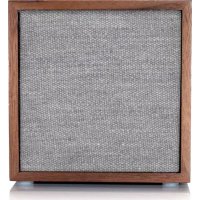
Cube - Speaker TIVOLI AUDIO - Free user manual and instructions
Find the device manual for free Cube TIVOLI AUDIO in PDF.



User questions about Cube TIVOLI AUDIO
0 question about this device. Answer the ones you know or ask your own.
Ask a new question about this device
Download the instructions for your Speaker in PDF format for free! Find your manual Cube - TIVOLI AUDIO and take your electronic device back in hand. On this page are published all the documents necessary for the use of your device. Cube by TIVOLI AUDIO.
USER MANUAL Cube TIVOLI AUDIO
CUBE Wireless WiFi & Bluetooth speaker
Multi-language manual
- English 3
- Español 40
- Dansk 78
- Deutsch 115
- Français 154
- Italiano 192
- Nederlands
- Norsk 267
- Suomi 304
- Svenska 341
230
Table of Contents
- Welcome 4
- Guide to Features 5
- Function modes:
a. Wireless Mode
i. Setup for Android devices 6
ii. Setup for iOS (Apple) devices 11
iii. Changing Speaker Configuration
- Name 17
- Stereo/Left/Right 19
iv. Group Configuration
- Adding/dropping speakers 21
- Selecting a Music Source 22
- Naming the Group 25
- Volume adjustment of Group 26
- Volume adjustment of individual speakers 26
- Speaker Configuration Shortcut 27
-
Releasing a group of speakers 28
-
Releasing all speakers 28
v. Add/Drop Button 29
vi. Party Mode Button 29
vii. DDMS Mode 30
b. Bluetooth Mode
i. Pairing 31
ii. Bluetooth over WiFi 31
c. Auxiliary Mode 32
- Battery 33
- Updating Firmware 34
- Care 36
- Troubleshooting 37
- Frequently Asked Questions 38
Welcome
Congratulations on your purchase! ART by Tivoli Audio mixes classic design and the latest technology to create a simple solution to wireless audio in the home. Encased in a furniture grade wood cabinet and finished with a high-quality Gabriel® fabric grill, this collection elevates the craftsmanship and technology of the Tivoli Audio product line.
These wireless and Bluetooth® enabled speakers allow for a variety of configurations to meet your playback preferences. Whether it's a single speaker playing Spotify in your kitchen, a stereo pair in your dining room, or your party playlist throughout your home, ART by Tivoli Audio speakers offer simple and flexible solutions to best fit your surroundings and enhance your world through music. Start with one and learn how simple it is to build on and match your style in each room.
We know you are eager to begin listening to your new purchase, but in order to take full advantage of what it is capable of, please take a moment to read this owner's manual and the safety instructions. If you have any questions, please do not hesitate to contact your dealer or Tivoli Audio.
Please save the original packing should you ever need to ship your radio.
Packed with your Cube you should find:
(1) External Power Supply and accompanying plugs
Please contact your dealer or Tivoli Audio if any of these items are missing.
Guide to Features


text_image
CUBE Tiroli Audio SETUP ADJAMOR PART VIDE MODES + - AUX 100 REDACT CE Receivati/Verka/Verka/Verka/Verka/Verka/Verka/Verka/Verka/Verka/Verka/Verka/Verka/Verka/Verka/Verka/Verka/Verka/Verka/Verka/Verka/Verka/Verka/Verka/Verka/Verka/Verka/Verka/Verka/Verka/Verka/Verka/Verka/Verka/Verka/ RCA RCA RCA RCA RCA RCA RCA RCA RCA RCA RCA RCA RCA RCA RCA RCA RCA RCA RCA RCA RCA RCA RCA RCA RCA RCA RCA RCA RCA RCA RCA RCA RCA RCA N/ATivoli Audio LOGO: This is a capacitive touch control beneath the wood. In wireless mode, it will Pause/Play the music stream. In Bluetooth mode, it will Mute the speaker.

POWER: Press to turn on the unit. Hold to turn off.
SETUP: Press to enable your speaker to be connected to your home network
PARTY MODE: Hold to send the music from this speaker to all other connected speakers. More information can be found in the "Party Mode" section of this manual.
ADD/DROP: If the speaker is connected to a group, holding this button removes it from the group. If the speaker is not connected to a group, pressing this button connects it to the next available group. More information can be found in the "Add/Drop" section of this manual
SOURCE: Tap to switch between audio sources. Audio source is indicated by the color of the LED. When in Bluetooth mode, hold this button for one second if it is already flashing or, if solid, until it starts flashing to enable pairing mode.
- Green LED color – Wireless mode
- Blue LED color – Bluetooth streaming mode
- Purple LED Color – Auxiliary mode
VOLUME -: Press to decrease the volume.
VOLUME +: Press to increase the volume.
DC Power: Plug in your Tivoli power adapter to charge the battery or power your speaker. Use only the power supply provided with this product. If the power supply becomes damaged or misplaced, use only a like replacement. Any DC adapter used must be rated at 15VDC 1500mA.
AUX: Plug in music directly for a standalone experience.
Service: Service port. Only for use by an Authorized Tivoli service center
Wireless Mode
Setup for Android
Before setting up your new wireless speaker, you need to download the Tivoli Audio Wireless App in order to control your speakers. This is available on both the Google Play and Apple App stores.
- Turn on the speaker using the POWER button.
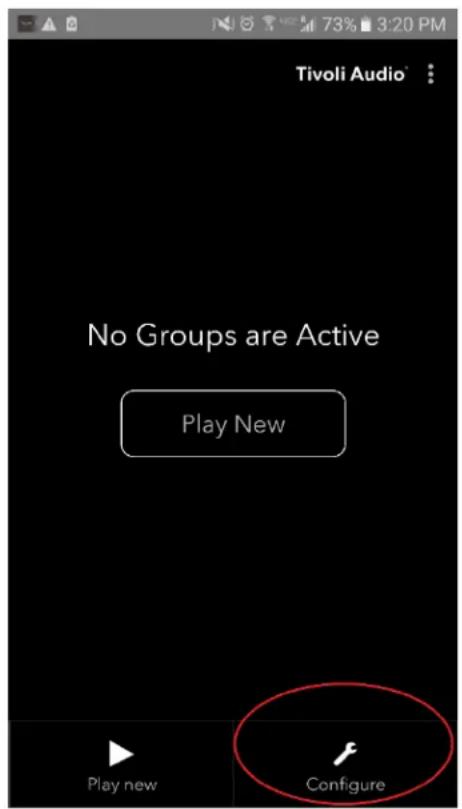
- In the Tivoli Audio Wireless App, press the Configure button, and then press "Add more speakers".
text_image
Tivoli Audio No Groups are Active Play New Play new Configure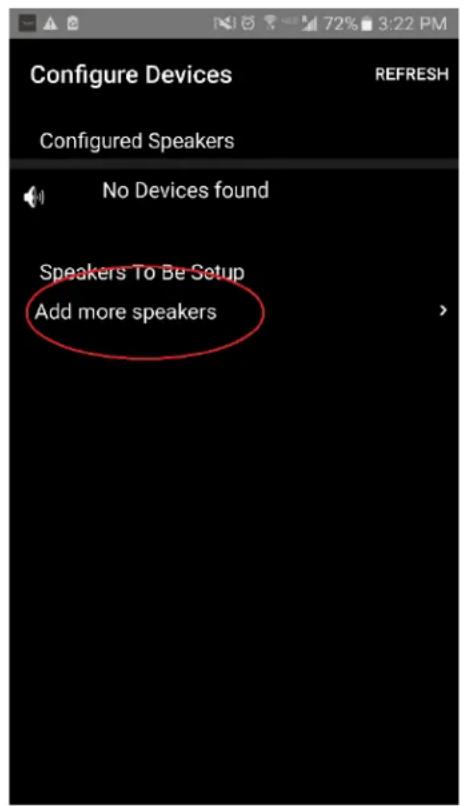
text_image
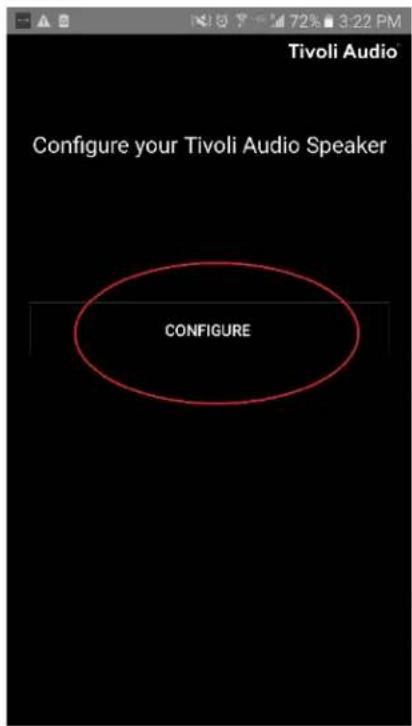
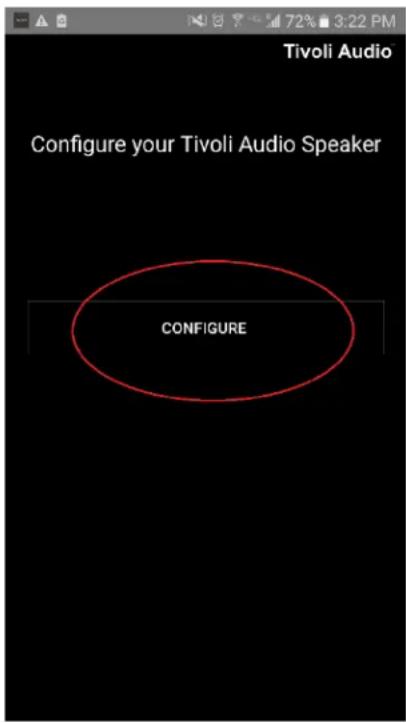
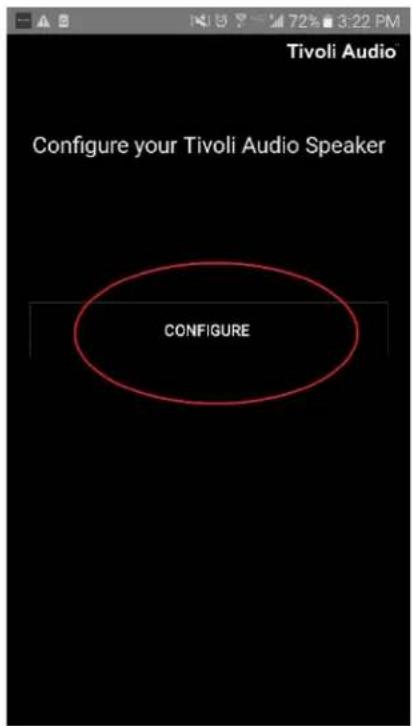
Configure Devices REFRESH Configured Speakers No Devices found Speakers To Be Setup Add more speakers- Press the large Configure button.
text_image
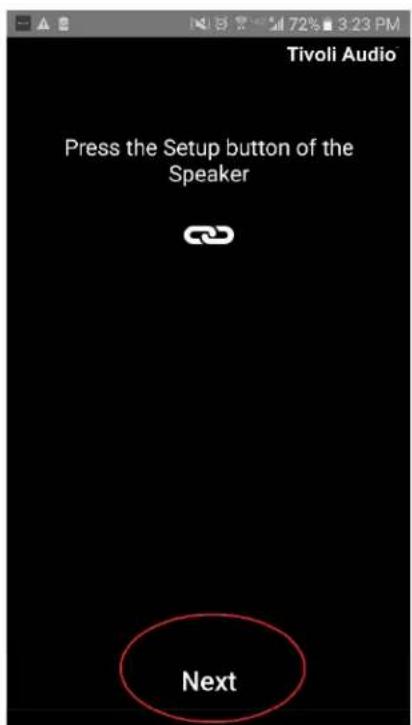
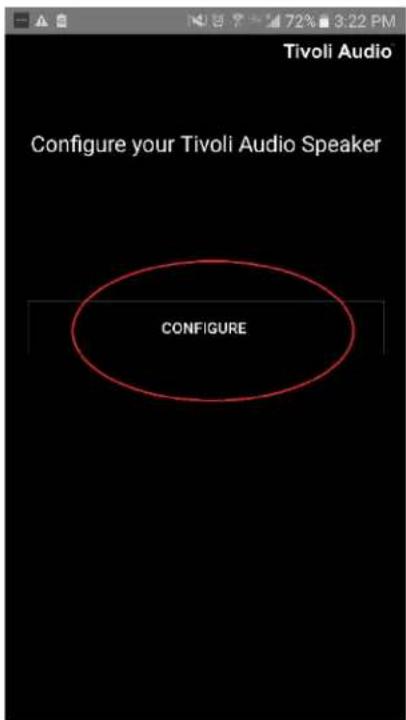
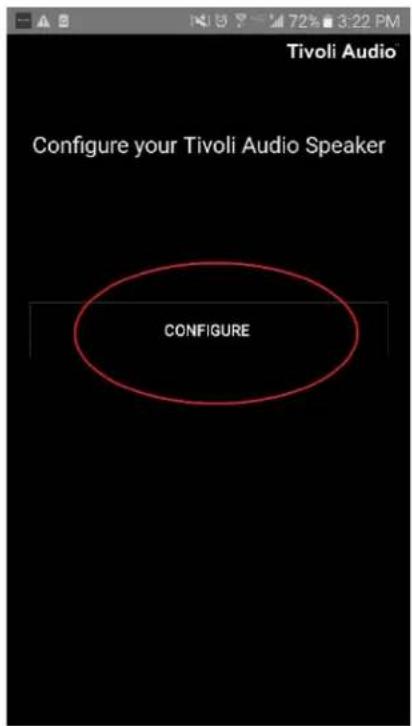
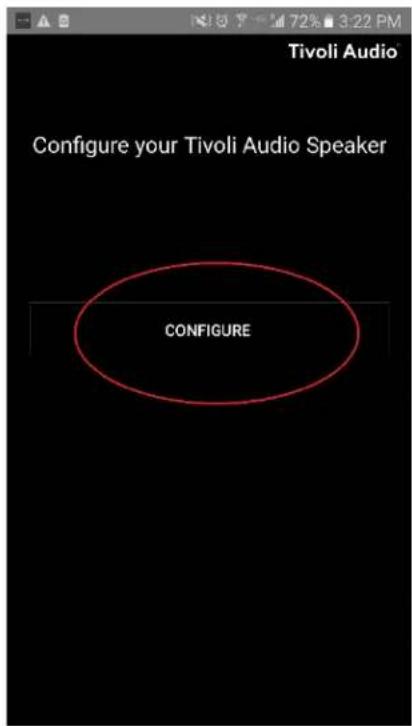
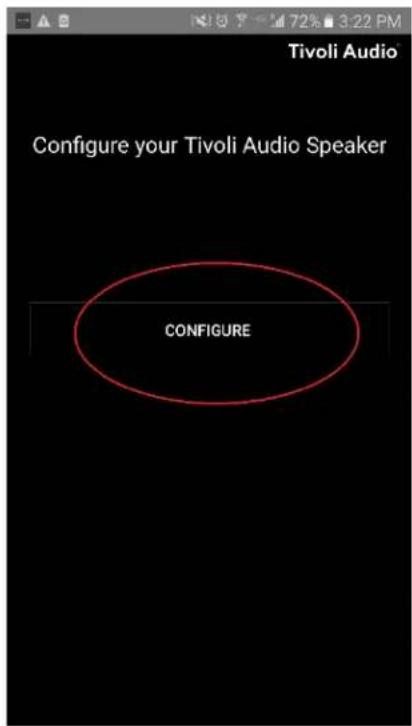
Tivoli Audio Configure your Tivoli Audio Speaker CONFIGURE- On your speaker, press the SETUP button. The LED should be green and start rapidly flashing. After, press "Next" in the App.
text_image
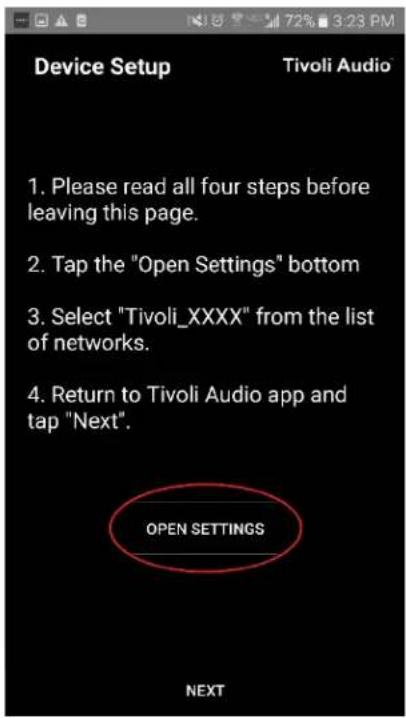
Tivoli Audio Press the Setup button of the Speaker Next- Press the Open Settings button in the App.
text_image
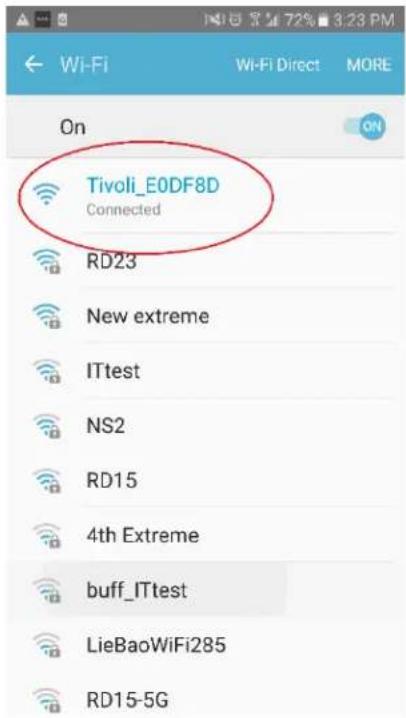
Device Setup Tivoli Audio 1. Please read all four steps before leaving this page. 2. Tap the "Open Settings" bottom 3. Select "Tivoli_XXXX" from the list of networks. 4. Return to Tivoli Audio app and tap "Next". OPEN SETTINGS NEXT- You have been taken to your wireless settings screen. Now select the network which is a combination of Tivoli and numbers and letters, for example Tivoli_E0DF8D.
text_image
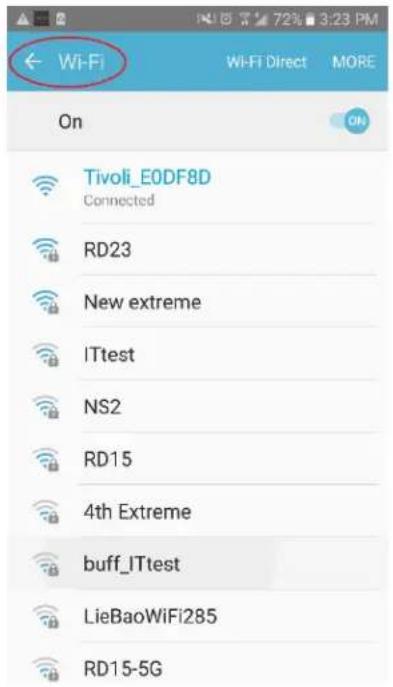
Tivoli_E0DF8D Connected On RD23 New extreme ITtest NS2 RD15 4th Extreme buff_ITtest LieBaoWiFi285 RD15-5G- Return to the Tivoli Audio Wireless App, either by using the back button on your phone, the arrow in the upper left-hand corner, or selecting "Back to Tivoli Audio".
text_image
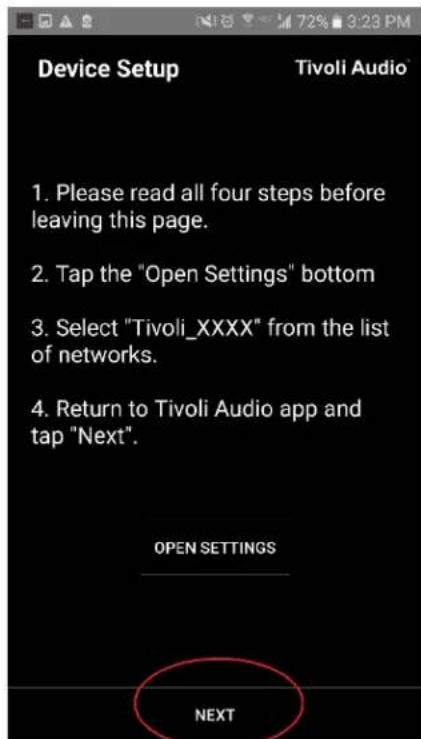
Wi-Fi On Tivoli_E0DF8D Connected RD23 New extreme ITtest NS2 RD15 4th Extreme buff_ITtest LieBaoWiFi285 RD15-5G- Once you've returned to the Tivoli Audio Wireless App, select "Next".
text_image
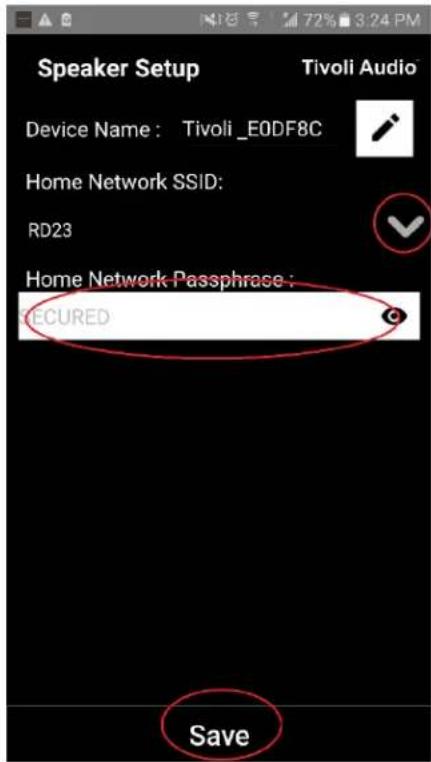
Device Setup Tivoli Audio 1. Please read all four steps before leaving this page. 2. Tap the "Open Settings" bottom 3. Select "Tivoli_XXXX" from the list of networks. 4. Return to Tivoli Audio app and tap "Next". OPEN SETTINGS NEXT- Select your desired Wireless Network and input your network password. After you've entered your password correctly, press "Save".
text_image
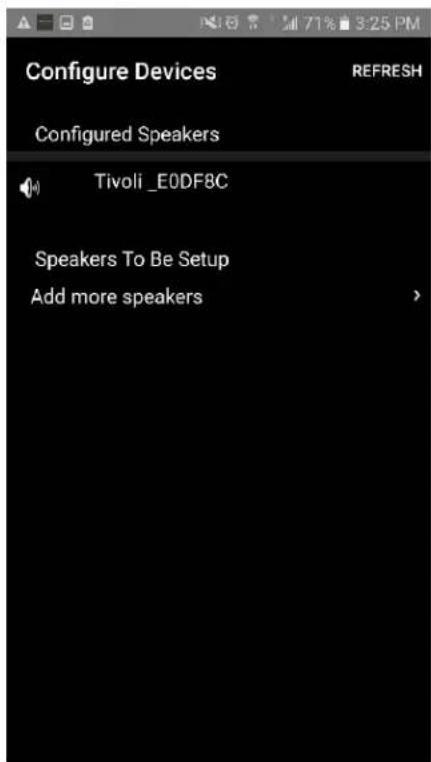
Speaker Setup Device Name: Tivoli_E0DF8C Home Network SSID: RD23 Home Network Passphrase: ECURED Save- Congratulations! Your Cube is now configured and ready to stream music.
text_image
Configure Devices REFRESH Configured Speakers Tivoli _E0DF8C Speakers To Be Setup Add more speakersSetup for iOS (Apple) devices
Before setting up your new wireless speaker, you need to download the Tivoli Audio Wireless App in order to control your speakers. This is available on the Apple App store.
- Turn on the speaker using the POWER button.
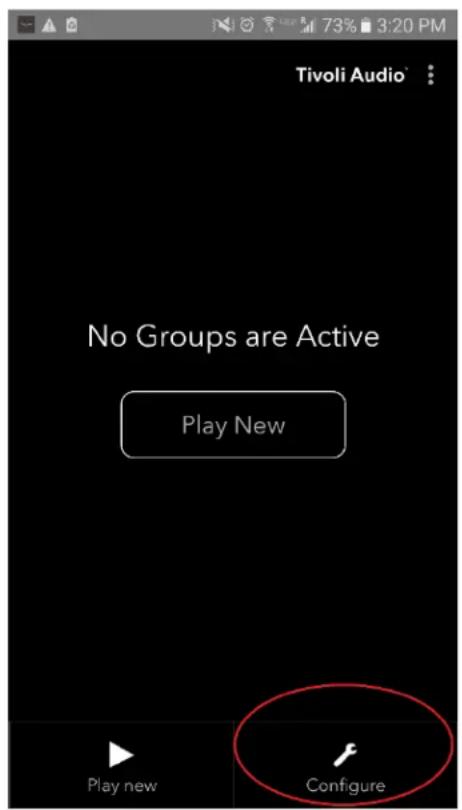
- In the Tivoli Audio Wireless App, press the Configure button, and then press "Add more speakers".
text_image
Tivoli Audio No Groups are Active Play New Play new Configure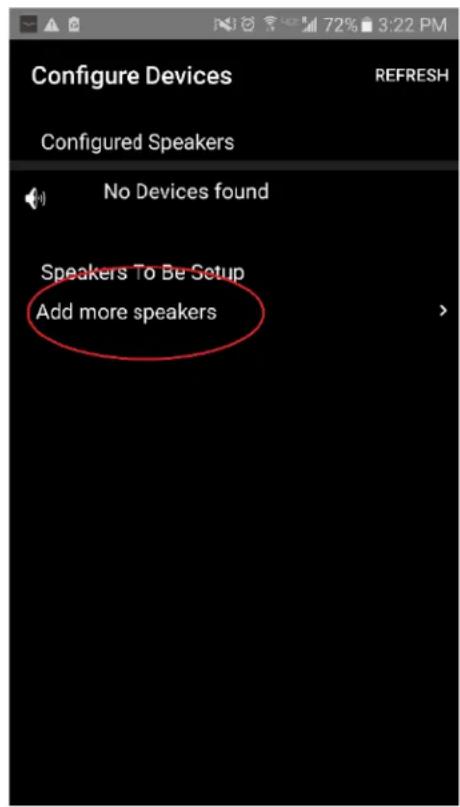
text_image
Configure Devices REFRESH Configured Speakers No Devices found Speakers To Be Setup Add more speakers- Press the large Configure button.
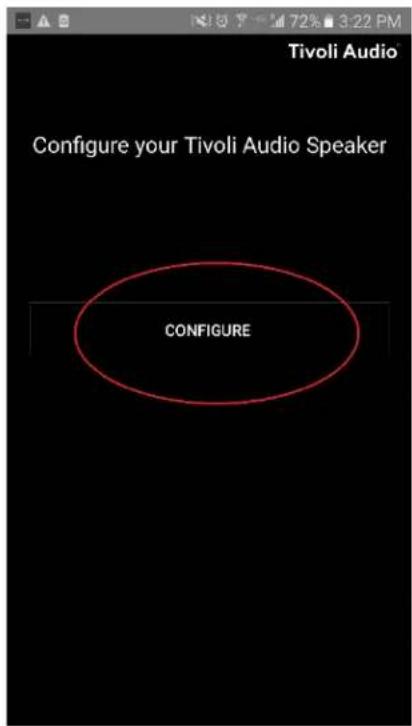
text_image
Tivoli Audio Configure your Tivoli Audio Speaker CONFIGURE- On your speaker, press the SETUP button. The LED should be green and start rapidly flashing. After, press "Next" in the App.
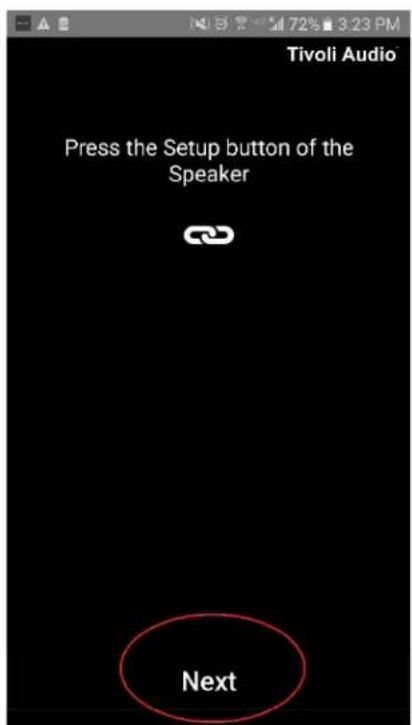
text_image
Tivoli Audio Press the Setup button of the Speaker Next- On your Apple Device, press the Home button (the button located at the bottom of your device).

natural_image
Close-up of a black rectangular device with a circular button and square indicator (no text or symbols)- Open your Apple device's Settings and go to your Wi-Fi settings.

text_image
App Store Settings Music Safari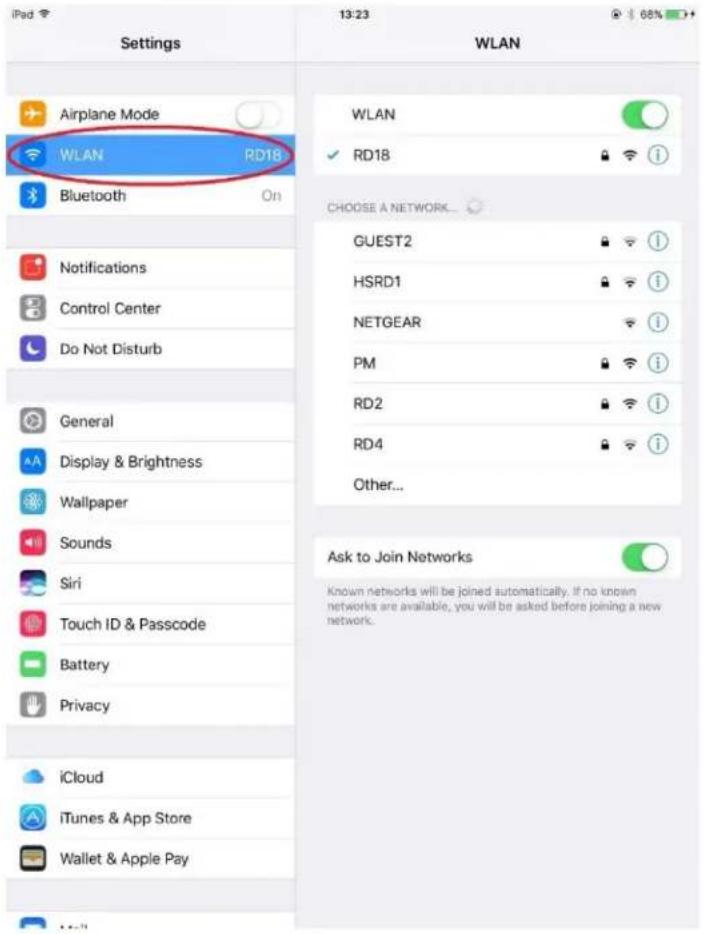
text_image
Settings Airplane Mode WLAN RD18 Bluetooth On Notifications Control Center Do Not Disturb General Display & Brightness Wallpaper Sounds Siri Touch ID & Passcode Battery Privacy iCloud iTunes & App Store Wallet & Apple Pay WLAN RD18 CHOOSE A NETWORK... GUEST2 HSRD1 NETGEAR PM RD2 RD4 Other... Ask to Join Networks Known networks will be joined automatically. If no known networks are available, you will be asked before joining a new network.- Now select the network which is a combination of Tivoli and numbers and letters, for example Tivoli_E0DF8D.
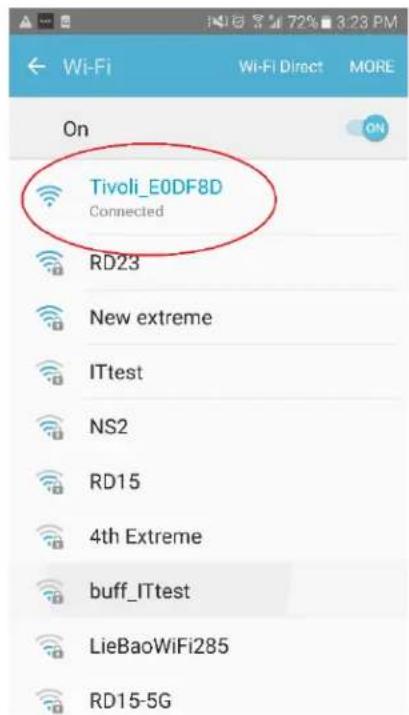
text_image
Tivoli_E0DF8D Connected RD23 New extreme ITtest NS2 RD15 4th Extreme buff_ITtest LieBaoWiFi285 RD15-5G- Once connected, open the Tivoli Audio Wireless app again.
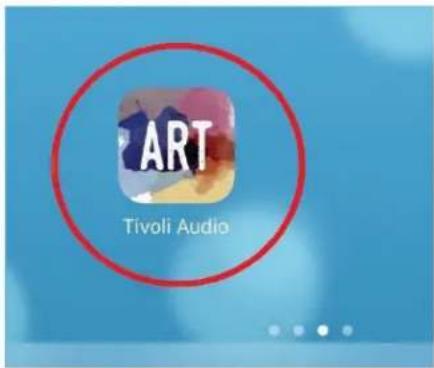
text_image
ART Tivoli Audio- Once you've returned to the Tivoli Audio Wireless App, select "Next".
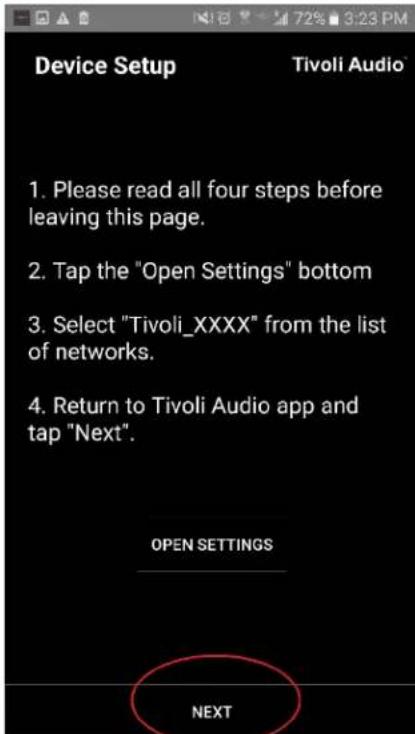
text_image
Device Setup Tivoli Audio* 1. Please read all four steps before leaving this page. 2. Tap the "Open Settings" bottom 3. Select "Tivoli_XXXX" from the list of networks. 4. Return to Tivoli Audio app and tap "Next". OPEN SETTINGS NEXT- Select your desired Wireless Network and input your network password. After you've entered your password correctly, press "Save".
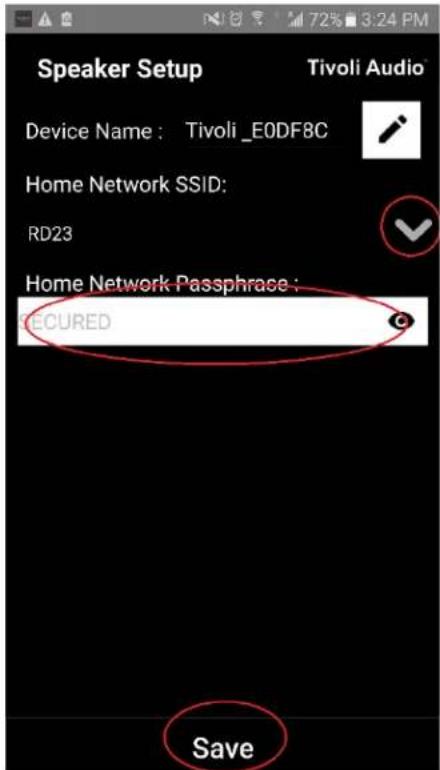
text_image
Speaker Setup Device Name : Tivoli _E0DF8C Home Network SSID: RD23 Home Network Passphrase : SECURED Save- Congratulations! Your Cube is now configured and ready to stream music.
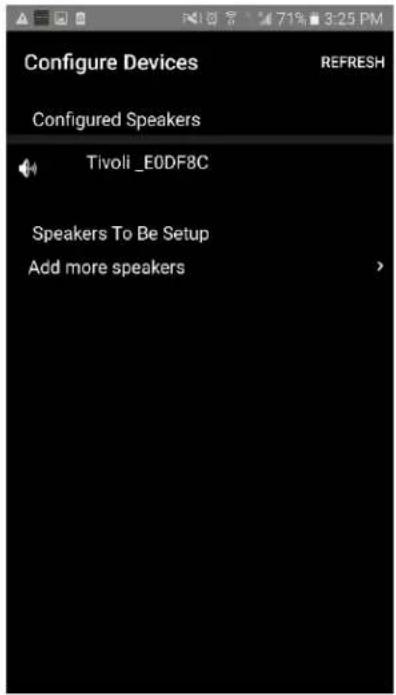
text_image
Configure Devices REFRESH Configured Speakers Tivoli_E0DF8C Speakers To Be Setup Add more speakers >Speaker Configuration Settings - Name
You'll probably want to personalize the name of your Cube. This can be done quite easily.
- On the opening screen of the App, select "Configure".

text_image
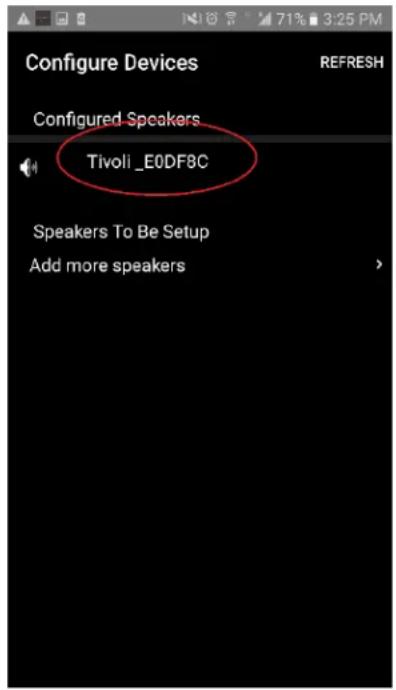
Tivoli Audio No Groups are Active Play New Play new Configure- Select the speaker which you wish to change the name.
text_image
Configure Devices REFRESH Configured Speakers Tivoli _E0DF8C Speakers To Be Setup Add more speakers- To change the name, select the "pencil" icon next to the name of the speaker. Press the "X" to remove the current name, then type what you would like to name the speaker.

text_image
Speaker Setup REFRESH Speaker Name : Tivoli_E0DF8C Audio Output (Assigned): Stereo (S) IP Address : 192.168.10.39 Firmware Version : pPB1430.113.1000 Network Configuration > Save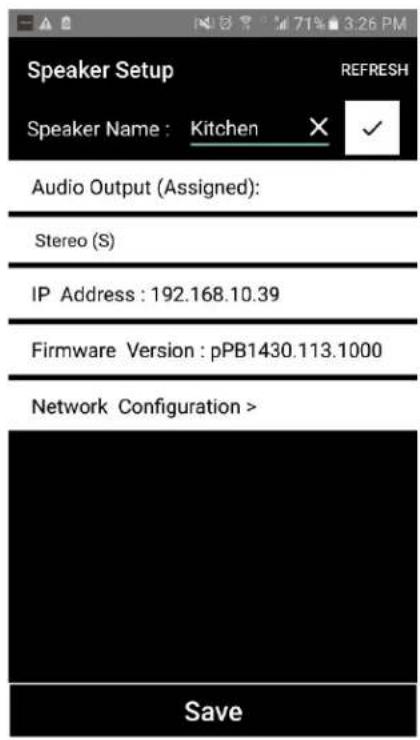
text_image
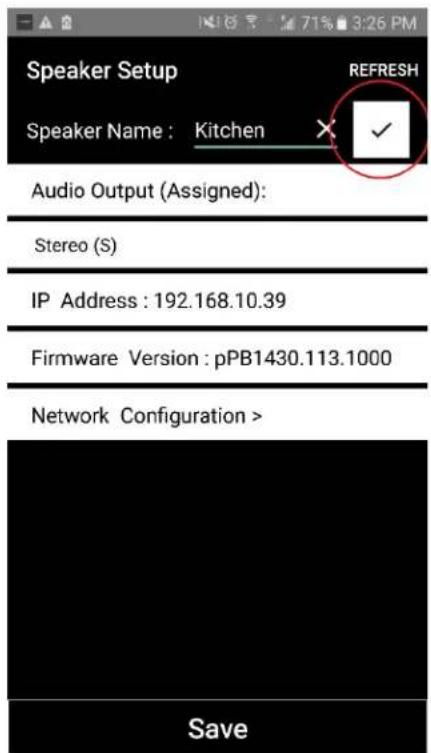
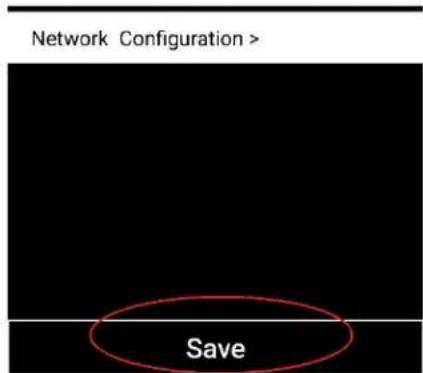
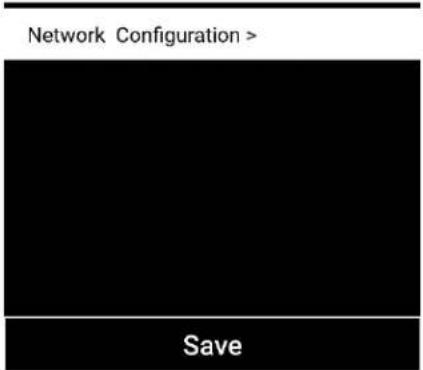
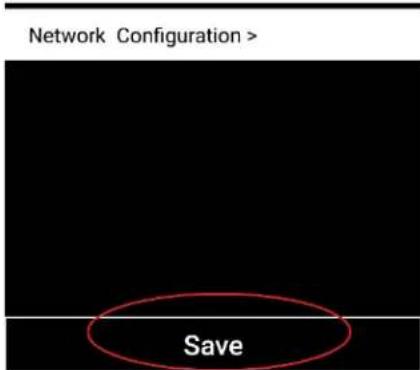
Speaker Setup RefRESH Speaker Name : Kitchen Audio Output (Assigned): Stereo (S) IP Address : 192.168.10.39 Firmware Version : pPB1430.113.1000 Network Configuration > Save- To save the name change, press the "checkmark" icon, and then press "Save".
text_image
Speaker Setup RefRESH Speaker Name : Kitchen Audio Output (Assigned): Stereo (S) IP Address : 192.168.10.39 Firmware Version : pPB1430.113.1000 Network Configuration > Save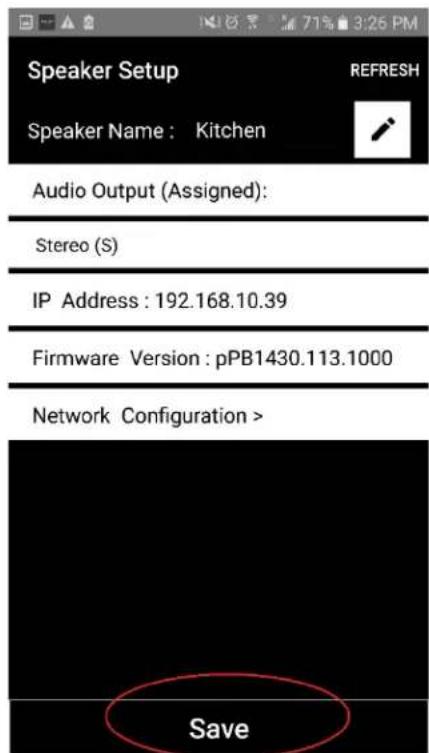
text_image
Speaker Setup Speaker Name : Kitchen Audio Output (Assigned): Stereo (S) IP Address : 192.168.10.39 Firmware Version : pPB1430.113.1000 Network Configuration > SaveSpeaker Configuration Settings - Audio
If you have more than one Cube, you may want to set two speakers up in a Left and Right pair.
- On the opening screen of the App, select "Configure".
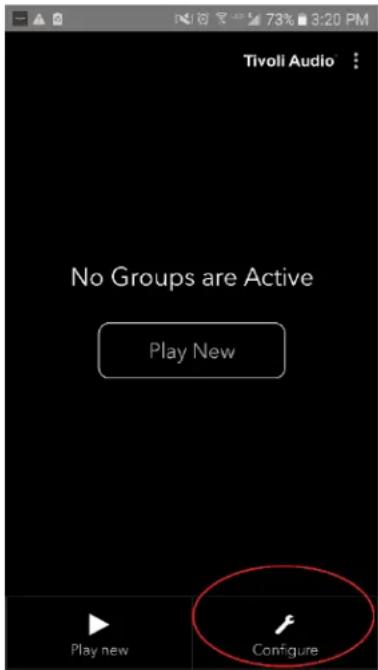
text_image
Tivoli Audio No Groups are Active Play New Play new Configure- Select the speaker which you wish to change the audio configuration.
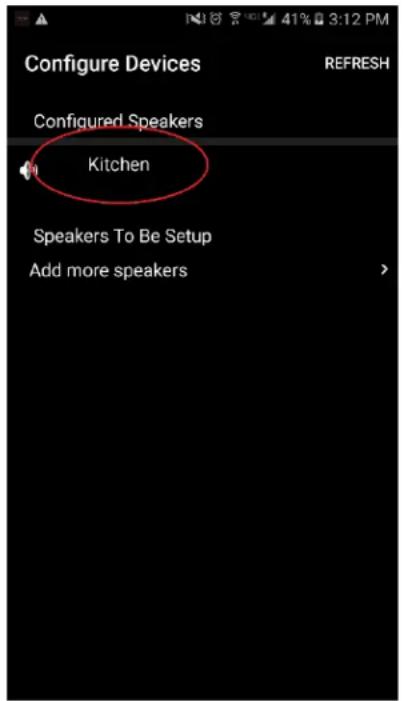
text_image
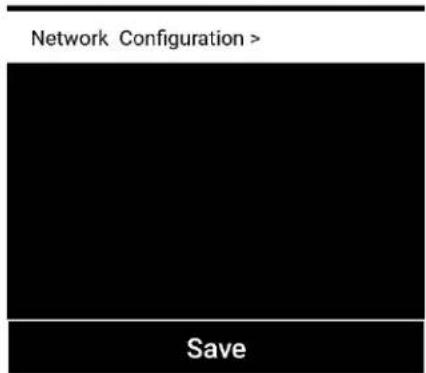
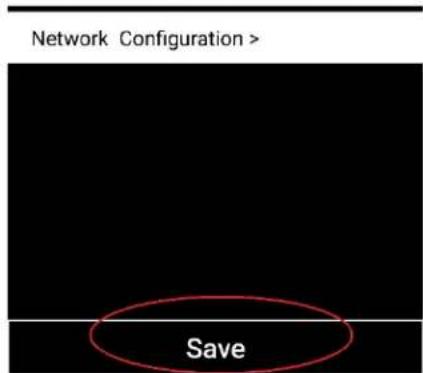
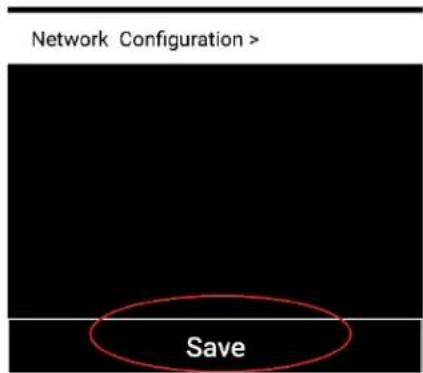
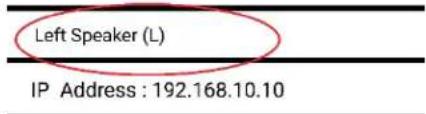
Configure Devices REFRESH Configured Speakers Kitchen Speakers To Be Setup Add more speakers- In the Speaker Setup window, select the area that says "Stereo (S)" and change it to "Left (L)" or "Right (R)", then press "Save".
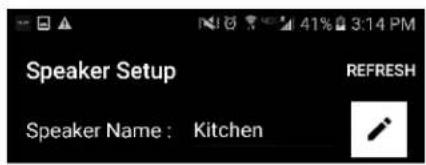
text_image
Speaker Setup Speaker Name : Kitchen REFRESHAudio Output (Assigned):
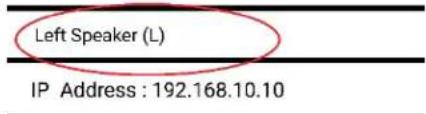
text_image
Left Speaker (L) IP Address : 192.168.10.10Firmware Version : p6098.218.1000
text_image
Network Configuration > Save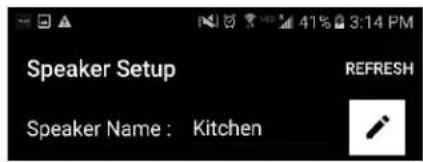
text_image
Speaker Setup Speaker Name : Kitchen REFRESHAudio Output (Assigned):
| Left Speaker (L) |
| IP Address : 192.168.10.10 |
Firmware Version : p6098.218.1000
text_image
Network Configuration > SaveTip: If you are looking at your speakers in the Group window, you can easily go to that speaker's configuration section. Go to the Group Configuration section for more information.
Group Configuration Settings – Adding/Dropping Speakers
Now that you've set up your speakers and named them, it's time to listen to some tunes. Let's set up a group and add an additional speaker first.
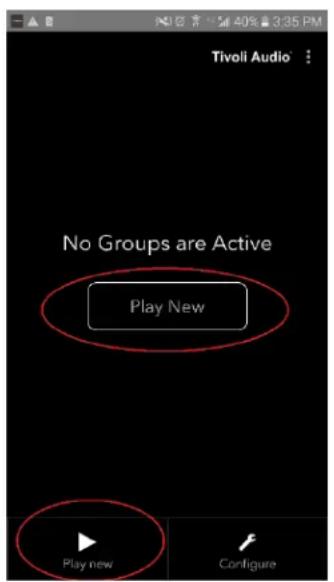
- Select "Play New" on the home screen, and then select which of your speakers you would like to be the "source" speaker (also known as the "master" speaker). It does not matter which speaker is selected as the source speaker. However, if this speaker is removed from the group, then the group will be deleted.
text_image
Tivoli Audio No Groups are Active Play New Play new Configure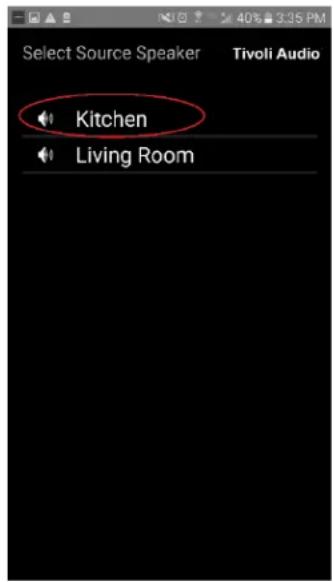
text_image
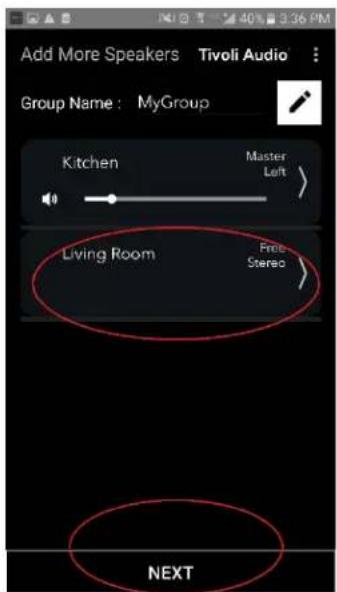
Select Source Speaker Tivoli Audio Kitchen Living Room- You can add any additional speakers you would like to play the same music. In the list of speakers, just tap on the speaker's name. You will see the speaker change to a "slave" speaker. You can select the dots in the upper right corner in order to add all "free" speakers, or "all" speakers if you wish. Once you are finished, or if you do not wish to add any speakers, select "Next".
text_image
Add More Speakers Tivoli Audio Group Name: MyGroup Kitchen Master Left Living Room Free Stereo NEXT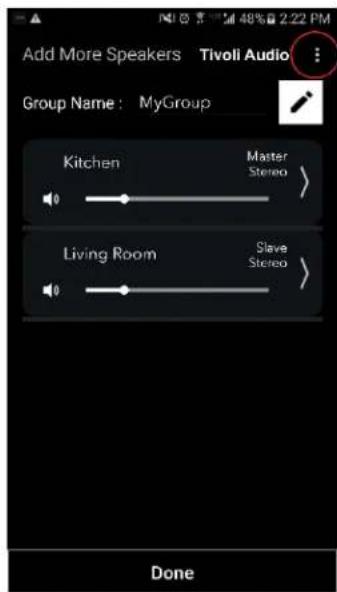
text_image
Add More Speakers Tivoli Audio Group Name: MyGroup Kitchen Master Stereo Living Room Slave Stereo DoneGroup Configuration Settings – Selecting a Music Source
Now that you've set up the group, we can select the music source for the group.
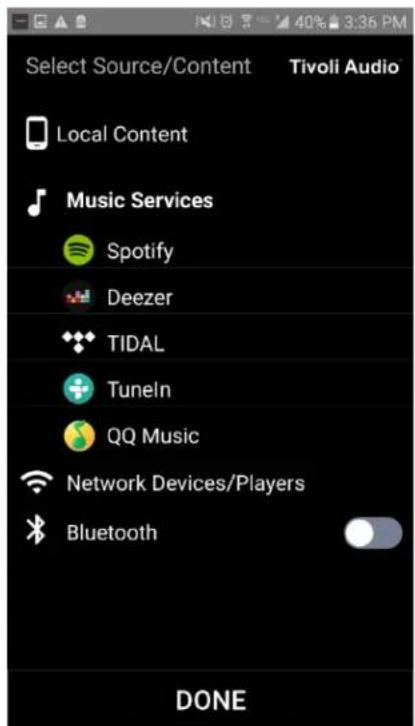
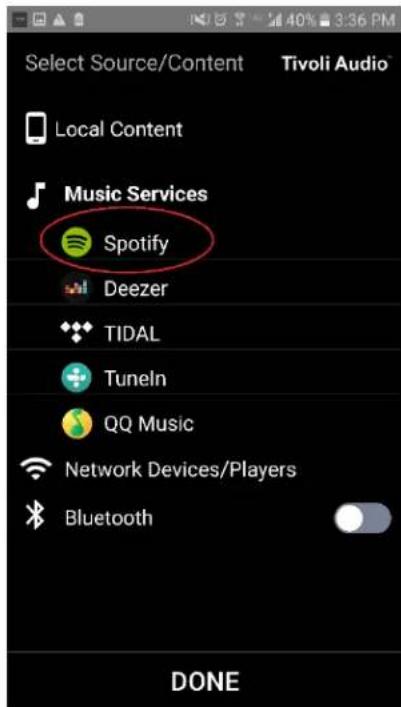
- Select the source of music you would like to listen to. Certain sources like Tidal and Deezer require you to enter your log-in information in the Tivoli Audio Wireless App and control your music through the Tivoli Audio Wireless App. Other sources, such as Spotify, require you to use an outside App for login and selecting your initial music content. If you have content saved onto your phone or tablet, you can select Local Content to listen to it.
text_image
Select Source/Content Tivoli Audio Local Content Music Services Spotify Deezer TIDAL Tuneln QQ Music Network Devices/Players Bluetooth DONE- For an example of using a music service that must also use an outside App, let's select Spotify. After you select Spotify, a pop-up window will appear which will let you open up the Spotify App.
text_image
Select Source/Content Tivoli Audio® Local Content Music Services Spotify Deezer TIDAL Tuneln QQ Music Network Devices/Players Bluetooth DONE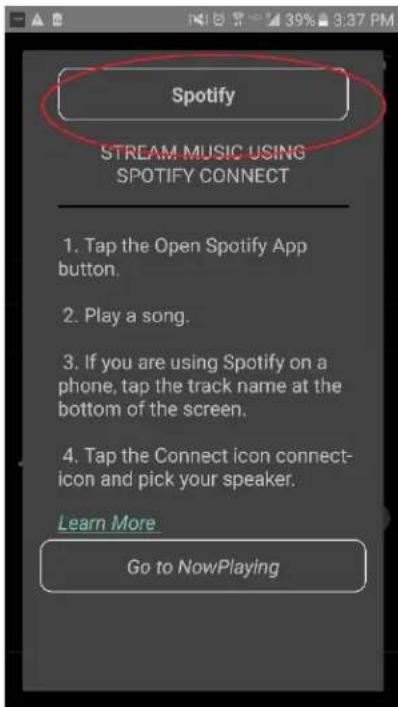
text_image
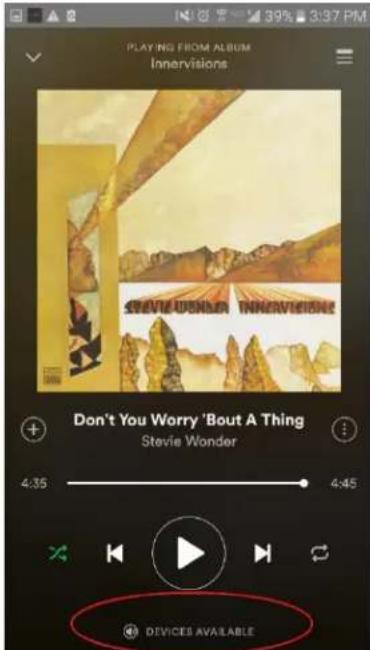
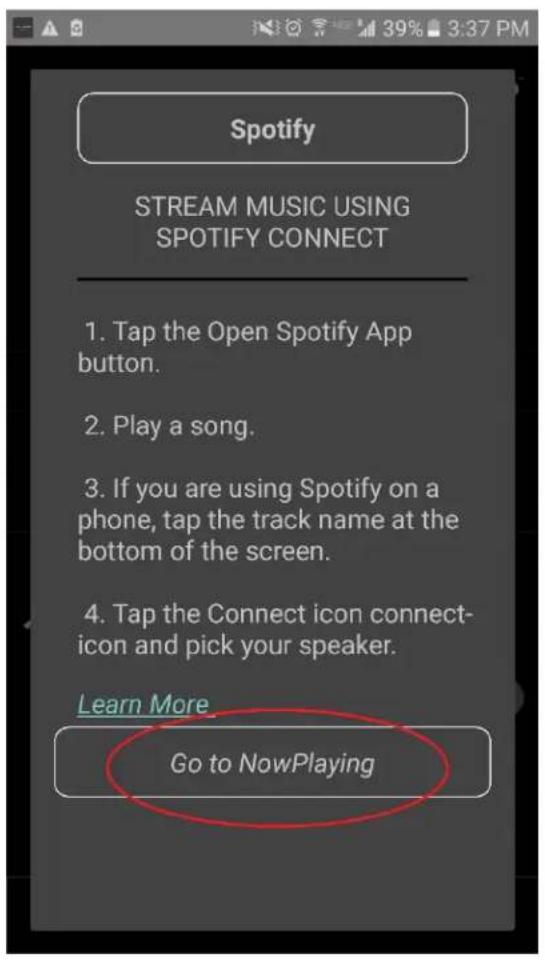
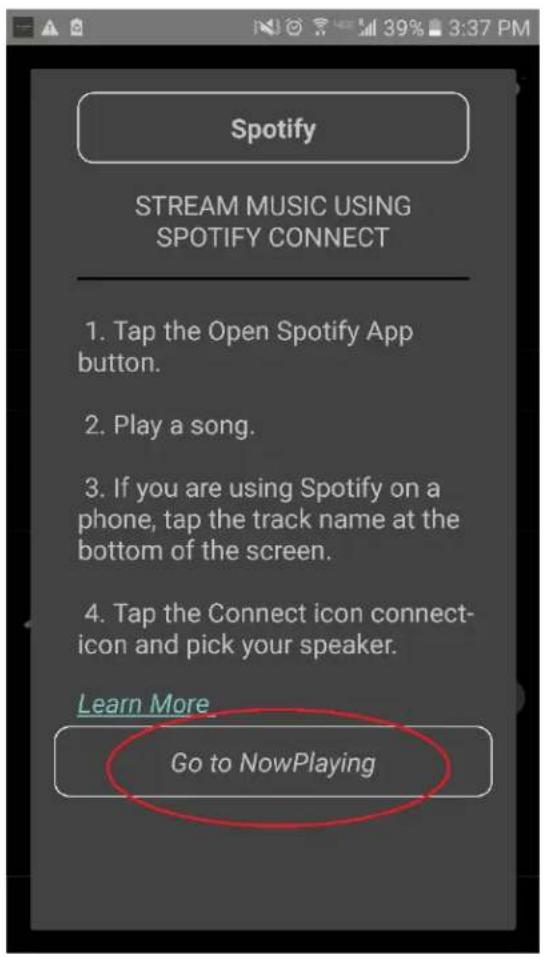
Spotify STREAM MUSIC USING SPOTIFY CONNECT 1. Tap the Open Spotify App button. 2. Play a song. 3. If you are using Spotify on a phone, tap the track name at the bottom of the screen. 4. Tap the Connect icon connect- icon and pick your speaker. Learn More Go to NowPlaying- Once you have opened the Spotify App, make sure you are logged into your Spotify Premium account. Spotify Connect only works with a Spotify Premium account. Play music content so you can see the "Devices Available" symbol below the music. Then tap on "Devices Available" to be able to select your group.
text_image
PLAYING FROM ALBUM Innervisions STEVE WONDER INNERVISH Don't You Worry 'Bout A Thing Stevie Wonder 4:35 4:45 DEVICES AVAILABLE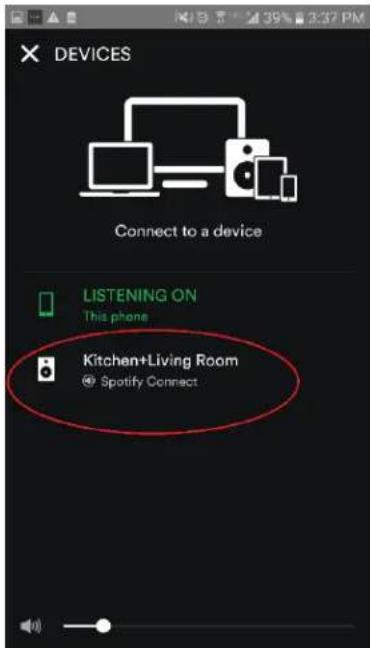
text_image
× DEVICES Connect to a device LISTENING ON This phone Kitchen+Living Room Spotify Connect- After selecting your music, return to the Tivoli Audio Wireless App, and go to the Now Playing screen, either by selecting "Now Playing" or pressing the "Back" button on your phone or tablet. Now you'll see your Group playing music.
text_image
Spotify STREAM MUSIC USING SPOTIFY CONNECT 1. Tap the Open Spotify App button. 2. Play a song. 3. If you are using Spotify on a phone, tap the track name at the bottom of the screen. 4. Tap the Connect icon connect- icon and pick your speaker. Learn More Go to NowPlaying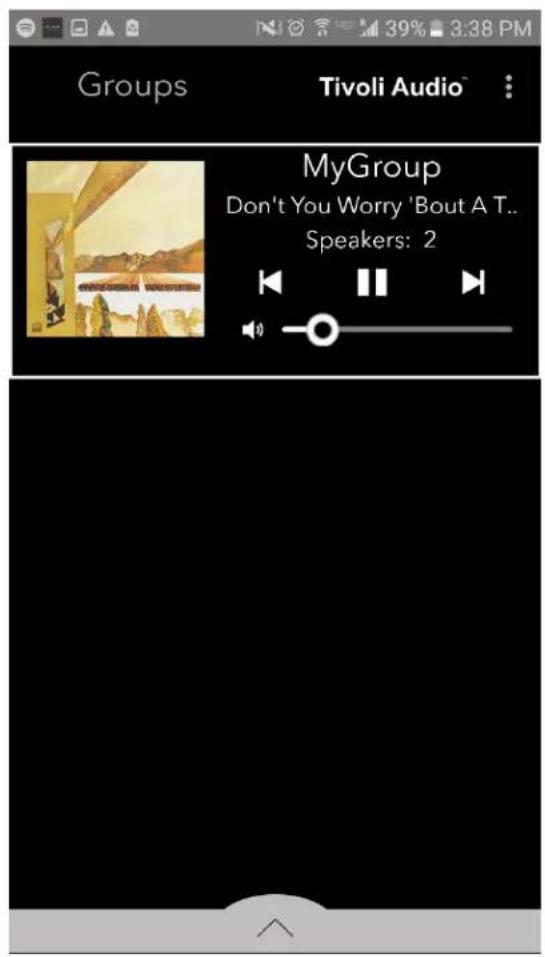
text_image
Groups Tivoli Audio™ MyGroup Don't You Worry 'Bout A T.. Speakers: 2Group Configuration Settings – Naming the Group
Now that you've set up the group and you're playing music, we can name the group.
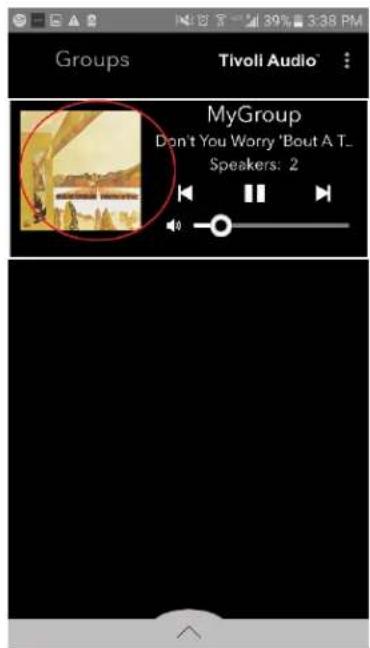
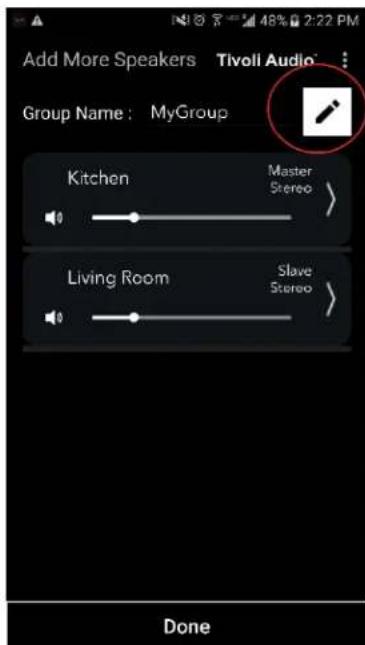
- Select the Group you want to change the name of in the Groups window, and then select the Speakers area towards the bottom of the screen.
text_image
Groups Tivoli Audio™ MyGroup Don't You Worry 'Bout A T... Speakers: 2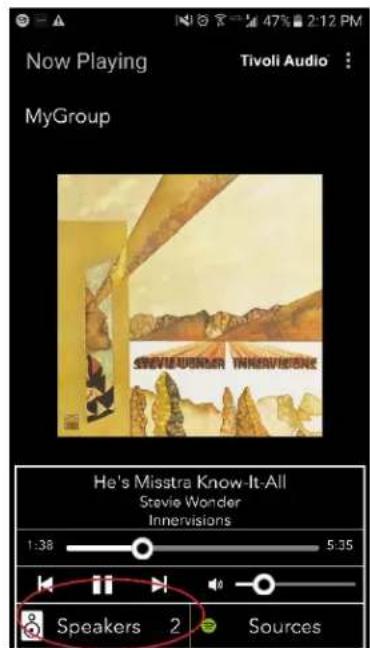
text_image
Now Playing Tivoli Audio : MyGroup Steve Wonder Innervisions He's Misstra Know-It-All Stevie Wonder Innervisions 1:38 5:35 Speakers 2 Sources- Select the "pencil" icon and then the "X" icon to clear the default name. Enter your desired group name, select the "checkmark" icon, and then select "Done" at the bottom of the screen.
text_image
Add More Speakers Tivoli Audio Group Name: MyGroup Kitchen Master Stereo Living Room Slave Stereo Done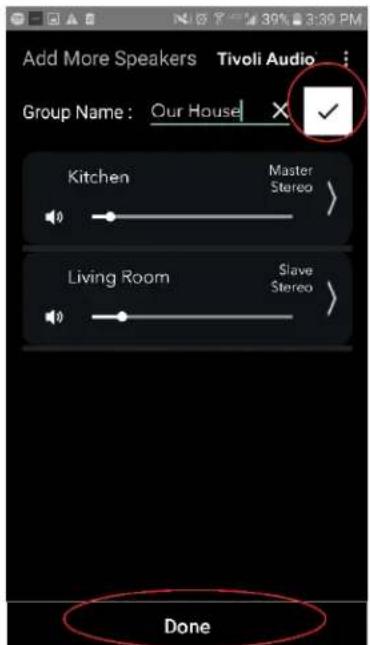
text_image
Add More Speakers Tivoli Audio Group Name: Our House Kitchen Master Stereo Living Room Slave Stereo DoneGroup Configuration Settings – Volume adjustment of Group
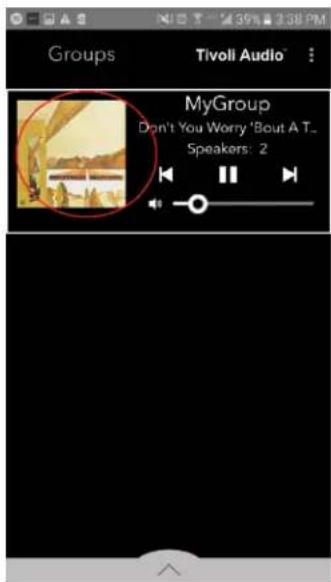
Select the Group you would like to change the volume of the speakers in. In the Now Playing window, use the volume slider to adjust the volume or use the volume buttons on your phone or tablet.
text_image
Groups Tivoli Audio MyGroup Don't You Worry 'Bout A T... Speakers: 2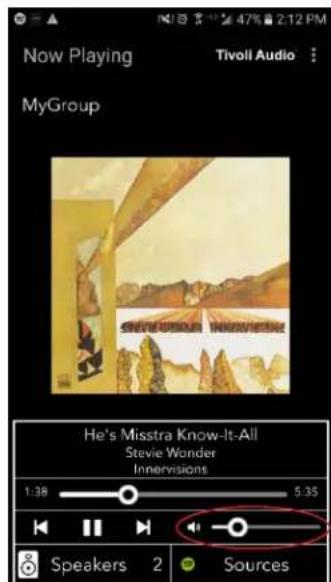
text_image
Now Playing MyGroup Tivoll Audio : SHEVLEPSKIN INKREVISIONS He's Misstra Know-It-All Stevie Wonder Innervisions 1:38 5:35 Speakers 2 SourcesGroup Configuration Settings – Volume adjustment of individual speakers
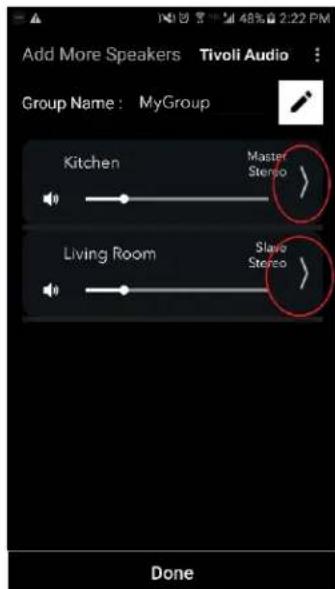
Select the Group you would like to change the volume of the speakers in. In the Now Playing window, select the Speakers section towards the bottom. In the Add More Speakers section, you can adjust the volume slider of the individual speakers or you can use the volume buttons on the bottom of the Cube.
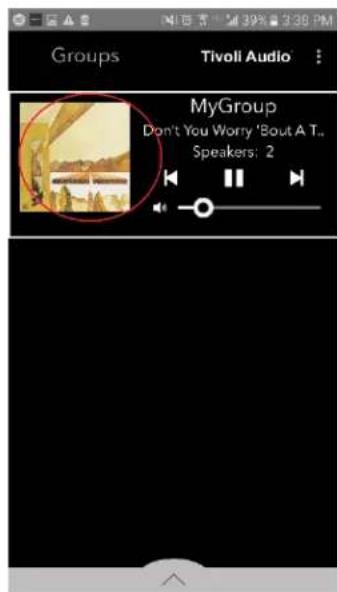
text_image
Groups Tivoli Audio MyGroup Don't You Worry 'Bout A T.. Speakers: 2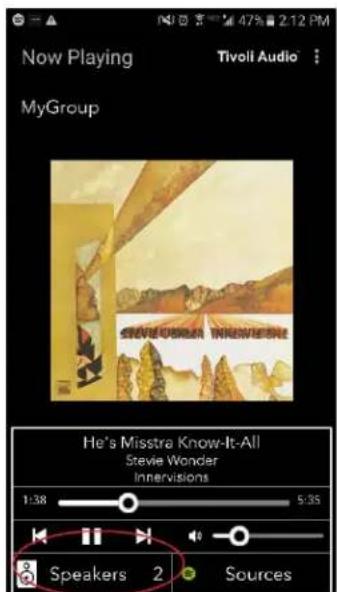
text_image
Now Playing MyGroup Tivoll Audio Steve Israel Newspire He's Misstra Know-It-All Stevie Wonder Innervisions 1:38 5:35 Speakers 2 Sources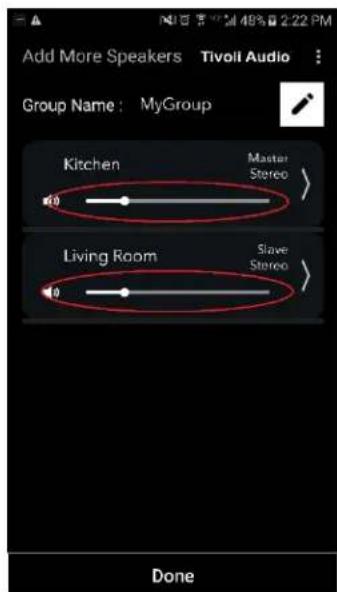
text_image
Add More Speakers Tivoll Audio Group Name: MyGroup Kitchen Master Stereo Living Room Slave Stereo DoneGroup Configuration Settings – Speaker Configuration Shortcut
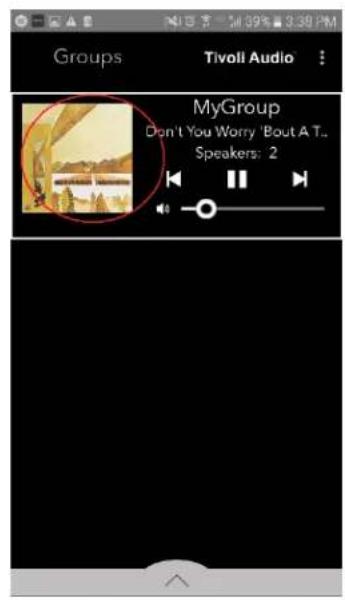
While you are listening to music, you may want to change the name or audio configuration of speakers as you add speakers, drop speakers, or move them around your home. You can get to the Speaker Configuration window quickly to change these settings via the Groups screen.
- Select the Group that contains the speakers you wish to adjust. Then select the Speakers section towards the bottom of the screen.
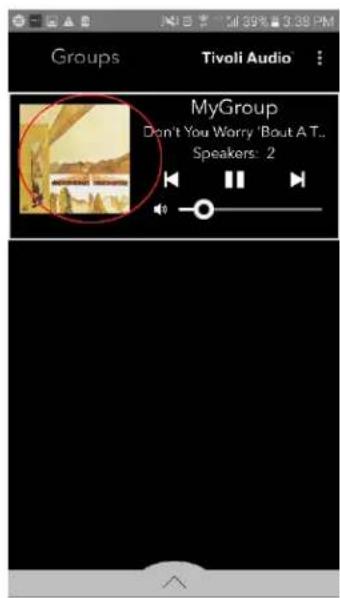
text_image
Groups Tivoli Audio MyGroup Don't You Worry 'Bout A T.. Speakers: 2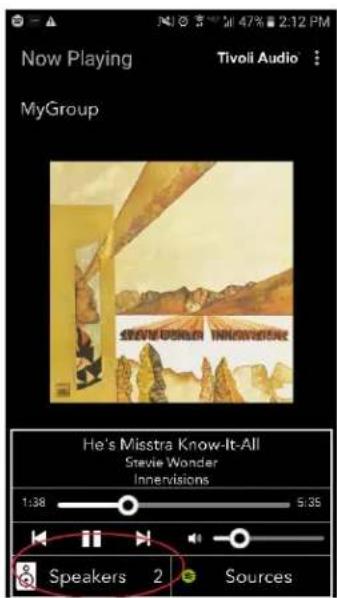
text_image
Now Playing MyGroup Tivoli Audio He's Misstra Know-It-All Stevie Wonder Innervisions 1:38 5:35 Speakers 2 Sources- On the Add More Speakers page, you can select the symbol to take you directly to that speaker's configuration page, where you can change the name and audio configuration of the speaker. Take care to only select the symbol, otherwise you may accidentally drop the speaker from the Group.
text_image
Add More Speakers Tivoli Audio Group Name: MyGroup Kitchen Master Stereo Living Room Slave Stereo Done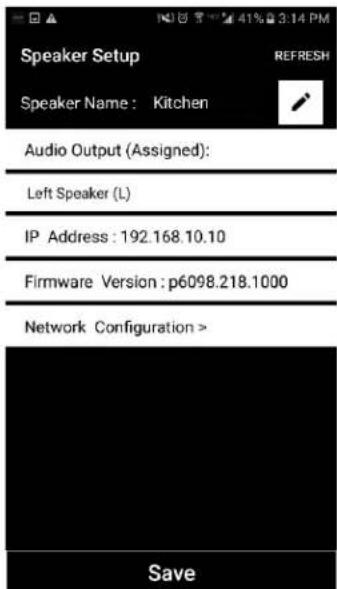
text_image
Speaker Setup Speaker Name: Kitchen Audio Output (Assigned): Left Speaker (L) IP Address: 192.168.10.10 Firmware Version: p6098.218.1000 Network Configuration > SaveGroup Configuration Settings – Releasing a group of speakers
Select the Group that contains the speakers you wish to release. Select the dots in the upper right corner of the Now Playing Screen, then select "Release This Scene". This will free all of the speakers from the group, including the master speaker.
text_image
Groups Tivoli Audio MyGroup Don't You Worry 'Bout A T.. Speakers: 2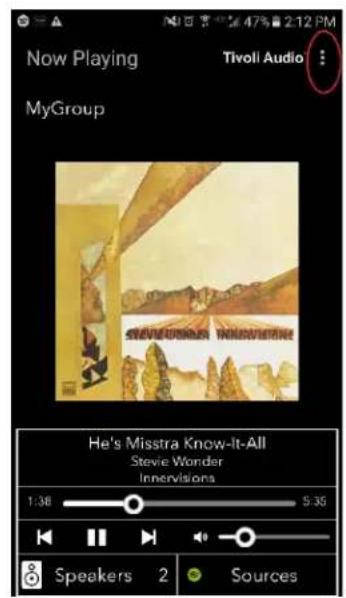
text_image
Now Playing MyGroup Tivoll Audio : STEVE WORNEE WORNEE He's Misstra Know-It-All Stevie Wonder Innervisions 1:38 5:35 Speakers 2 SourcesGroup Configuration Settings – Releasing all speakers
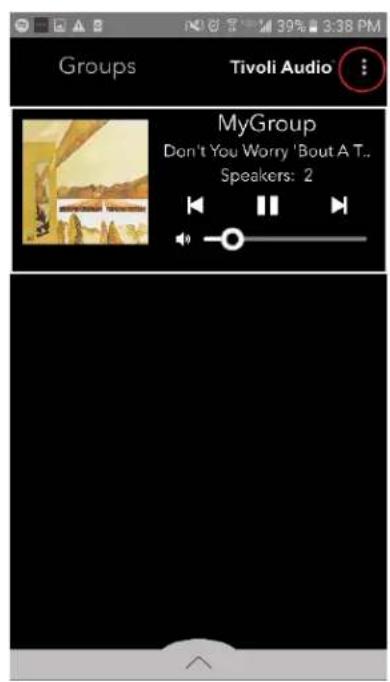
If you want to release all speakers from all groups in your home, select the dots in the upper right corner on the Groups screen, then select "Drop All". This will free all speakers in all groups, and you will see no groups are active.
text_image
Groups Tivoli Audio MyGroup Don't You Worry 'Bout A T.. Speakers: 2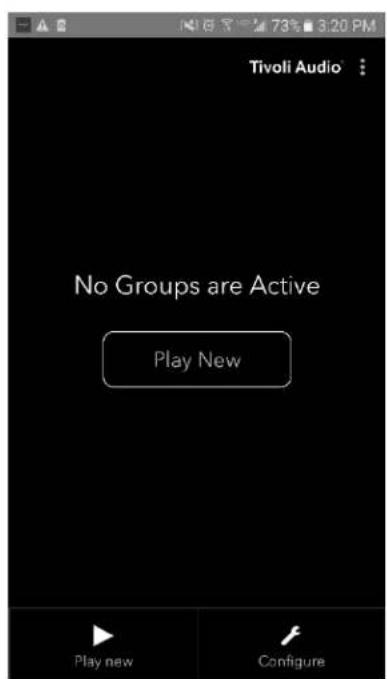
text_image
Tivoli Audio No Groups are Active Play New Play new ConfigureAdd/Drop Button
text_image
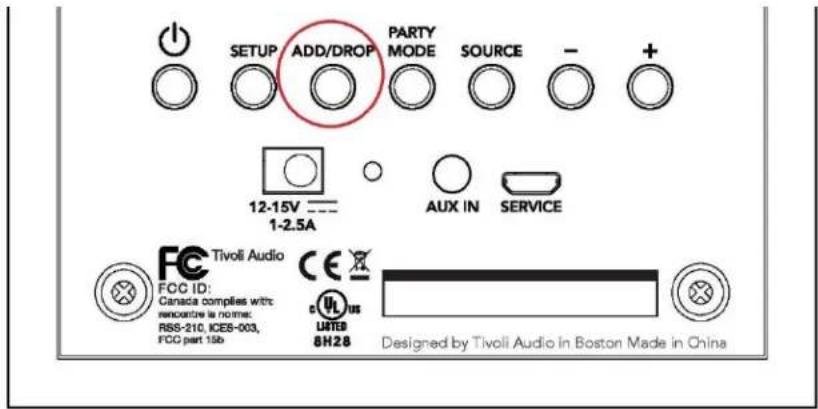
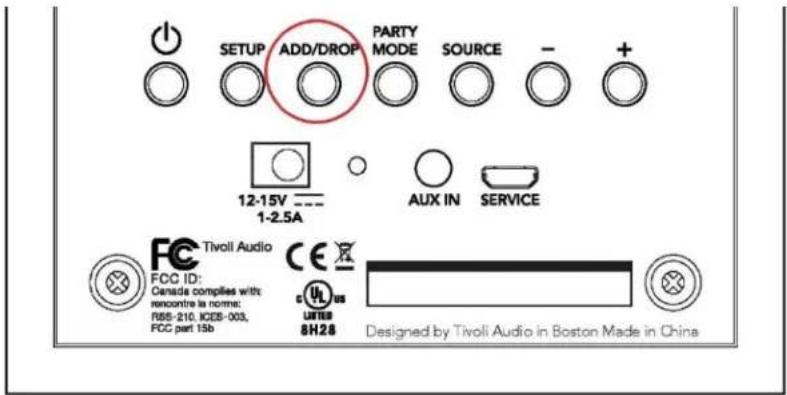
SETUP ADD/DROP PARTY MODE SOURCE - + 12-15V 1-2.5A AUX IN SERVICE FCC ID: Canaccia complies with: renocentre is norme: RSS-210, ICE8-003, FOG part 15b c us LUTES 8H28 Designed by Tivoli Audio in Boston Made in ChinaThe Add/Drop button allows you to quickly change which group your speaker is in or remove the speaker from all groups completely. It is similar to tapping on the name of a speaker in the App.
Add the speaker to a Group: Tap the Add/Drop button on the speaker to add it to the next available group. Keep pressing the Add/Drop button to cycle through all groups.
Remove the speaker from all Groups: Hold the Add/Drop button on the speaker for approximately two seconds, or until there is no music playing from that speaker.
Party Mode Button
text_image
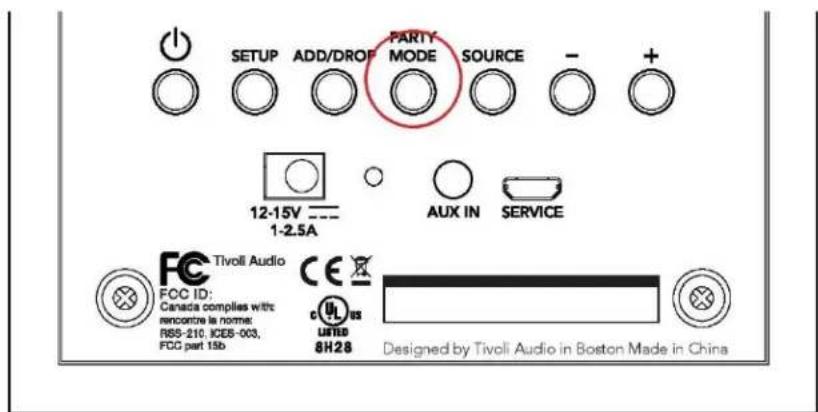
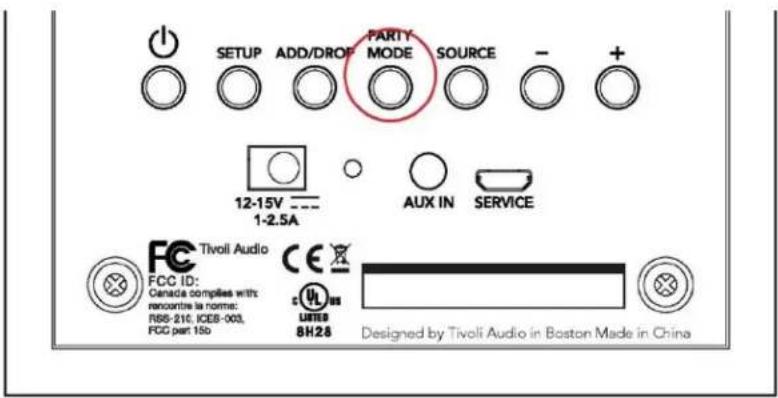
SETUP ADD/DROP PARTY SOURCE 12-15V --- AUX IN SERVICE 1-2.5A FCC ID: Tivoli Audio Canada complies with rencontre la norme R88-210, ICES-003, FDC part 15b CE UNITED 8H28 Designed by Tivoli Audio in Boston Made in ChinaThe Party Mode button allows you to quickly send music to all of the ART by Tivoli Audio products in your home. The music from the speaker you press the Party Mode button on will be the music that is sent to the other speakers. This is similar to the “Join All Speakers” function available in the App on the Add More Speakers page.
Send music to all speakers: On the speaker that is playing the music you would like to be on all speakers, hold the Party Mode button for 3 seconds. All speakers will then join the group of that speaker and play that music. Any groups that were previously made will be released.
DDMS Mode
If you are using your Cube in an area where there is no internet connection but you wish to play Local Content from your phone or tablet, you can connect to the Cube via DDMS mode.
- On your speaker, press the SETUP button for three seconds.
- Go to the Wireless Networks Settings screen on your phone or tablet, and select "DIRECT-LBTivoli"
- Be sure to restart your Tivoli Audio Wireless App after you have joined the "DIRECT-LBTivoli" network.
- You may now play local content from your phone or tablet on a single speaker. Note that music streaming services or anything requiring an internet or data connection will not function.
Bluetooth Mode
Pairing
Your Cube can act as a standalone Bluetooth speaker.
- On your speaker, short press the SOURCE button until the LED is blue.
- If the LED is flashing blue, then your speaker is already in pairing mode. If it is not flashing, hold the SOURCE button until it starts to flash.
- Go to the Bluetooth settings screen on your phone or tablet.
- Select the device that has a name similar to "Tivoli Cube | ####X#".
- Once the LED turns solid blue, your phone or tablet is paired to the speaker.
- You can begin playing your music via Bluetooth.
Bluetooth over WiFi
Bluetooth over WiFi enables you to use any music service you can use via Bluetooth on all of your ART by Tivoli Audio speakers. This allows you to play music over multiple speakers even if a music service is not listed in the Source screen.
- Pair normally to the speaker which will be the "master" speaker. If you have never paired to any of your speakers before, it helps to turn off all speakers except the speaker that will be master until you've paired. Then turn all other speakers back on.
- Open the Tivoli Audio Wireless App and make a group with the speaker you have paired to set as the "master" speaker, adding any other speakers you want to play the Bluetooth stream.
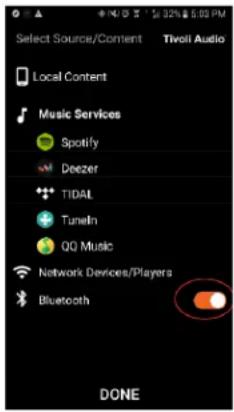
- On the Sources page, make sure the Bluetooth slider is enabled.
text_image
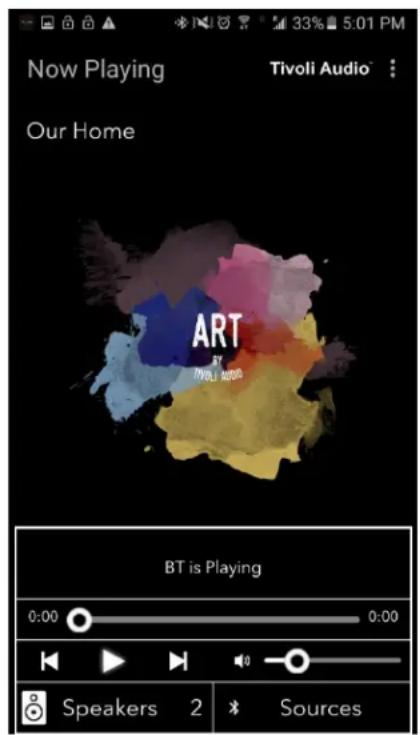
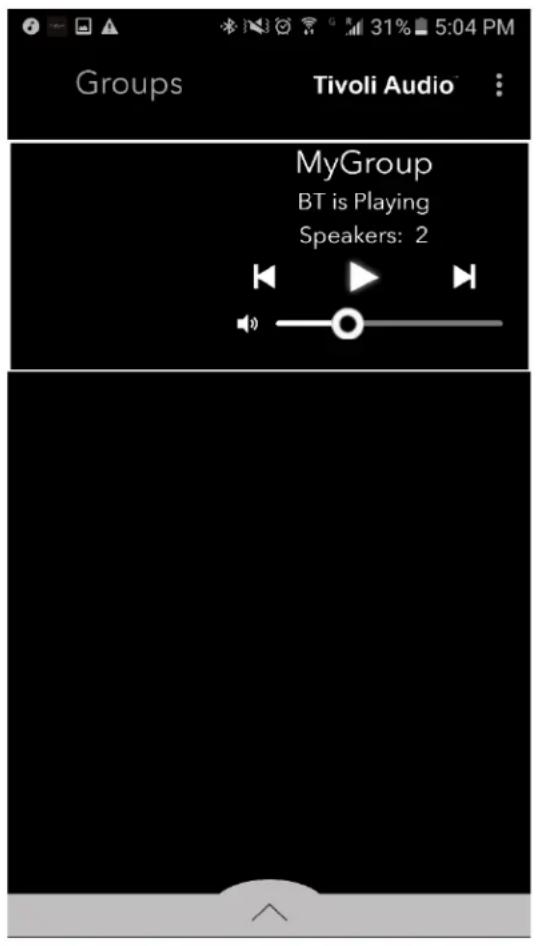
Select Source/Content Local Content Music Services Spotify Deezer TIDAIL Tuneln QQ Music Network Devices/Players Bluetooth DONE- You will now see that Bluetooth is playing in the group, and should hear your music on all speakers included in the group.
text_image
Groups Tivoli Audio MyGroup BT is Playing Speakers: 2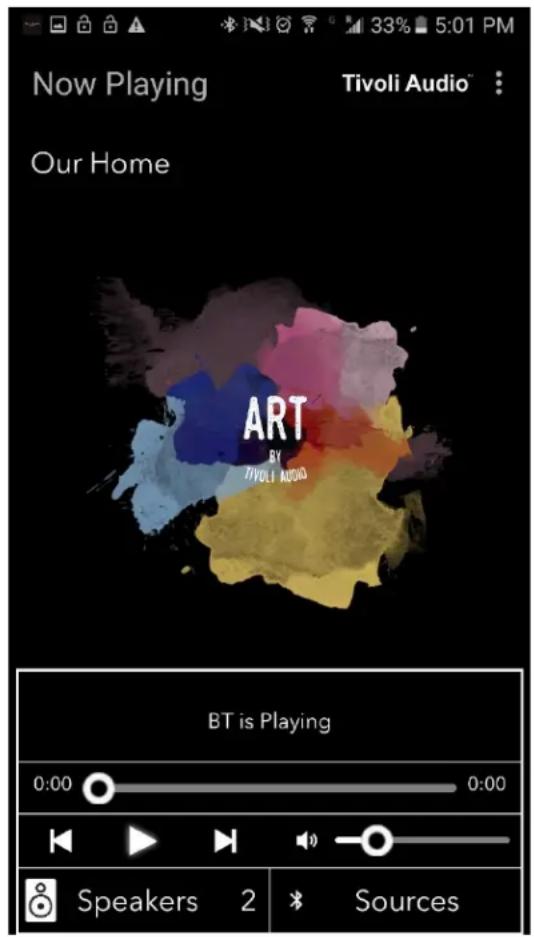
text_image
Now Playing Tivoli Audio™ Our Home ART BY TIVOLI AUDIO BT is Playing 0:00 0:00 Speakers 2 SourcesAuxiliary Mode
Your Cube can be used as a standalone speaker. Simply use an 1/8" stereo cable to attach any line or headphone level source into the AUX input on your speaker. You can control the volume of the speaker using the volume buttons on the Cube or using the Tivoli Audio Wireless App. Please note the Cube cannot send the signal going into the AUX input to any other speakers. If you wish to do this, refer to the Bluetooth over WiFi section of the Cube manual.
Battery
An optional battery is available for purchase for your Cube. To install the battery:
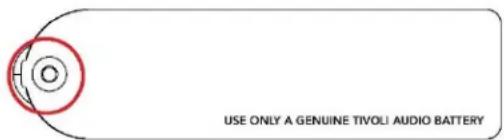
- Use a Phillips screwdriver to remove the screw securing the battery cover.
text_image
USE ONLY A GENUINE TIVOLI AUDIO BATTERY-
Lift the battery cover up and remove from the speaker.
-
Plug in the cable from the battery into the socket in the radio. Note the grooves on both the socket in the speaker and on the end of the battery cable. The male grooves of the cable should fit inside the female grooves of the battery socket. Do not insert backwards, the battery will not work and the unit may become damaged.
-
Place the battery in the battery compartment.
-
Reinstall the battery cover by first inserting the groove on the right side of the cover into the groove in the battery compartment of the unit, and then resting on the compartment so it sits flush with the back panel.
-
Re-secure the compartment using the screw, ensuring no wires are pinched.
-
Plug the DC adapter into your Cube to begin charging. The unit will charge while it is on, but at a slower rate than charging in stand-by mode. While charging in stand-by mode, the red status LED will pulse. When charging is complete, the red status LED will be steady.
Note: The Orb/Cube battery is specifically designed for use with the Orb and Cube. Never use an Orb/Cube battery with any other Tivoli Product or other device. If you have any questions about the proper installation of the battery pack, please contact your authorized Tivoli Audio dealer or Tivoli Audio directly.
Updating Firmware
Your Cube will have periodic software updates. It is best to check for these updates when you first use the product, and about every 4 months after.
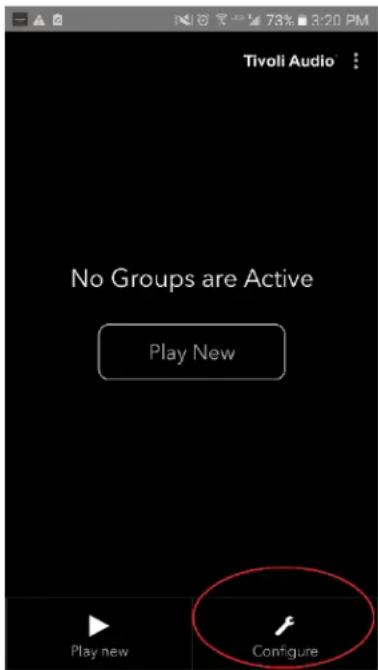
- On the opening screen of the App, select "Configure".
text_image
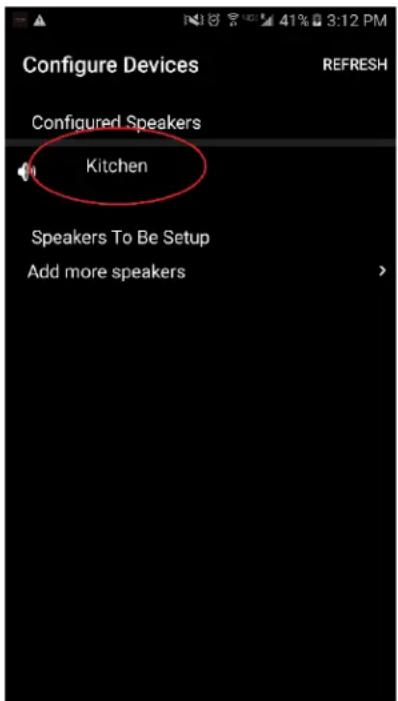
Tivoli Audio No Groups are Active Play New Play new Configure- Select the speaker which you wish to check the software version.
text_image
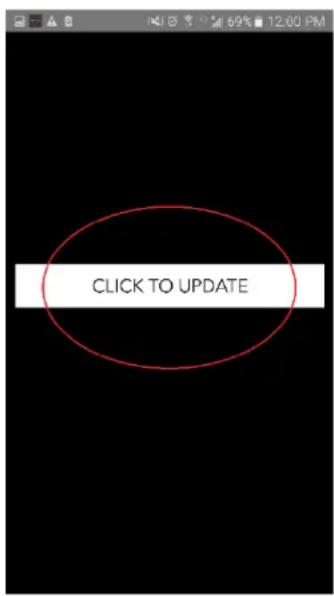
Configure Devices REFRESH Configured Speakers Kitchen Speakers To Be Setup Add more speakers- Select the "Version Check" button. If you are told "Software is up to date!", then your unit has the latest software. If you see the screen below, then select "Click to update" to receive the latest software.
text_image
CLICK TO UPDATE- Your Cube will now download and install the latest software. This process may take up to 10 minutes depending on the speed of your internet connection.
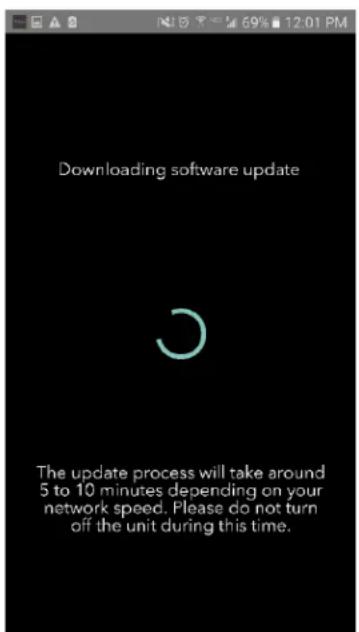
text_image
Downloading software update The update process will take around 5 to 10 minutes depending on your network speed. Please do not turn off the unit during this time.- Once the update is complete, your Cube will be in standby mode. Please press the power button on your Cube. Once your Cube has turned on, it is ready to use.
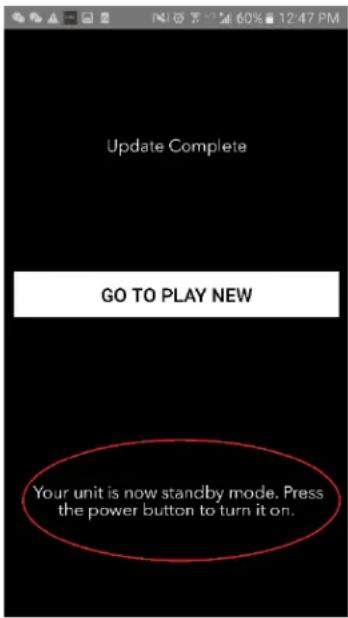
text_image
Update Complete GO TO PLAY NEW Your unit is now standby mode. Press the power button to turn it on.Care
A dry cloth is recommended to clean the back and wooden sides of your Cube. A lint roller can be used to clean the fabric on the front. Do not expose to water.
Legal
The Spotify software is subject to third party licenses found here: www.spotify.com/connect/third-party-licenses
Troubleshooting
-
The LED is blinking green slowly. Your speaker is having trouble connecting to a network it was previously set up for. Check to make sure the network is still active. If the network is still active, try turning off the speaker and turning it back on. If that does not work, perform a factory reset (hold down the Setup and Party Mode buttons for 3 seconds) and repeat the setup process for the speaker.
-
The LED is blinking green fast. Your speaker has not been set up for a wireless network and it is in setup mode. Refer to the setup directions in either the Quick Setup Guide or the Online Manual.
-
The LED is blinking blue. Your speaker is in Bluetooth pairing mode. Refer to the Bluetooth pairing directions in either the Quick Setup Guide or the Online Manual.
-
I can't find my Wireless Network (WiFi) listed in the Tivoli App. Make sure your Wireless Access Point or Wireless Router is powered on and connected to the internet. Verify that your WiFi band is set to the standard 2.4GHz. The ART system does not support 5GHz. Make sure your device is connected to your Wireless Network. Close the Tivoli Audio App and then re-open the App. You should be able to see the Wireless Network now.
-
The music sounds unbalanced through my speaker. To check balance, open the Tivoli App, select Group and select Speakers. Select the speaker(s) you are using. If you are using only one speaker, verify that the speaker is set to Stereo. If you are using two speakers, confirm the volume levels are the same and that they are both set to Stereo or Left/Right if you are listening to them as a stereo pair. If you are using more than two speakers, make sure all Left and Right speakers are set up in pairs (for example, do not have 2 Lefts and 1 Right).
-
I have set up the speakers, but I can't find the Cube/Orb listed in the App. Make sure the LED in the back of the speaker is a solid green color. Power off the unit by holding down the power button on the back of the unit until the LED turns red, then press the power button again to turn the speaker on. Restart the App and once the LED on speaker is solid green again, look for the speaker again in the "Play New" window. If green LED is flashing, refer to Troubleshooting tip #1 or #2.
-
I'm playing Spotify, but the speaker is coming through my phone. Open the Spotify App. While playing a song, at the bottom of the App, click where it says "Available Devices". Select name of the master speaker of your Tivoli Cube/Orb/Group and the sound will switch to the Tivoli system. Refer to the Spotify Connect guide that accompanies your speaker for more information, as well as your Cube/Orb Quick Setup Guide and Online Manual.
-
I'm playing Spotify, but I cannot see where it says "Available Devices" at the bottom of the App. Make sure you are using a Spotify Premium account. For more information, refer to the Spotify Connect guide that accompanies your speaker or visit Spotify.com. If you are using a Spotify Premium account, make sure the speaker is connected to your Wireless Network, and restart your Spotify App.
- I don't see Apple Music or Google Play listed in the App. Not a problem! Set your Cube/Orb to Bluetooth mode. Pair your media device via Bluetooth to your desired Cube/Orb. If you want to hear the music on more than one speaker, use the Bluetooth over WiFi feature.
- My Cube/Orb is on and connected but no sound is coming from the system. Increase the volume on your Cube/Orb using the + and – volume buttons located on the back of the unit. You can also check the volume on the Tivoli App. Next check the media volume on your phone. Make sure it is turned on and try raising the volume. Make sure nothing is touching the top of your Cube/Orb on the touch-sensitive area that may be pausing the system. Pause and then play your audio source, as your wireless network may have had issues affecting all of your devices.
- My speaker is non-responsive. Perform a factory reset. Hold the Setup and Party Mode buttons on the speaker at the same time for 3 seconds. The LED will turn red. Press the Power button. The speaker has now been restored to factory default settings. If it is still non-responsive, remove the power source (either battery or adapter) and then re-connect the power source.
Frequently Asked Questions
- How can I play music on my new Cube/Orb? You can play music on your Cube/Orb by streaming music over WiFi via the Tivoli App, pair to the Cube/Orb via Bluetooth, or use the auxiliary input on the back of the unit. Refer to your Quick Setup Guide or Online Manual for more information.
- Where can I find the App? The Tivoli Audio Wireless App can be found in both the iOS App Store and the Google Play Store.
-
How do I get an AM/FM radio signal on my Cube/Orb? You can use the Tuneln radio service in the Tivoli App. You can use any radio App on your device and connect to your speaker via Bluetooth. You can also use our ConX to stream the radio from your original Tivoli Audio product or any other audio product with a radio. Refer to your ConX Quick Setup Guide or Online Manual for more information on this option.
-
What kind of power does the Cube/Orb require? The Cube/Orb is packaged with a 12 Volt DC power supply. The unit can also be powered by an optional rechargeable battery pack (sold separately).
- If I purchase a rechargeable battery pack, how long does the battery play for? A fully charged battery can play up to 10 hours, on 50% volume.
- Can I use my Cube/Orb on a public WiFi network? Yes, but the strength of the WiFi signal and streaming capabilities may vary depending on the number of other devices using the network.
- Can I connect my non-WiFi enabled Tivoli products to the new ART Line? Yes! Using the new ConX, you can turn any Tivoli Audio product into a WiFi speaker. It can then be connected wirelessly to your Cube/Orb system.
- Can I connect my laptop or desktop computer via WiFi to my Cube/Orb? At this time, the Tivoli Audio App is only optimized for phone and tablet use. However, this may change in the future. You can still connect via Bluetooth or using the Auxiliary port.
- What services are supported by the ART by Tivoli Audio system? The App supports Spotify, Deezer, Tidal, and Tuneln. Other music services are still available to use, but via Bluetooth and the Bluetooth over WiFi feature. Refer the Bluetooth over WiFi section of your Online Manual for more information.
- How do I clean my Cube/Orb? We recommend cleaning the wood finish with a dry cloth. The fabric can be cleaned with a lint roller.
- Can I connect separate Cubes/Orbs together wirelessly? Yes! Once all desired Cubes/Orbs have been properly set up on your WiFi network, the speakers will be available for you to connect. These selected systems will be part of a group which you can play music to simultaneously. Refer to your Quick Setup Guide and Online Manual for more information.
- Can I play multiple sources at the same time? Yes! You can have as many sources as you have speakers. Each group can play a different source if you wish.
- Do I need a special internet speed or router to use my Cube/Orb? You will need a basic broadband connection connected to a 2.4GHz capable router/wireless access point. This is the common setup in many homes. The Cube/Orb does not support 5GHz routers/wireless access points at this time
Índice
text_image
Tivoli Audio No Groups are Active Play New Play new Configure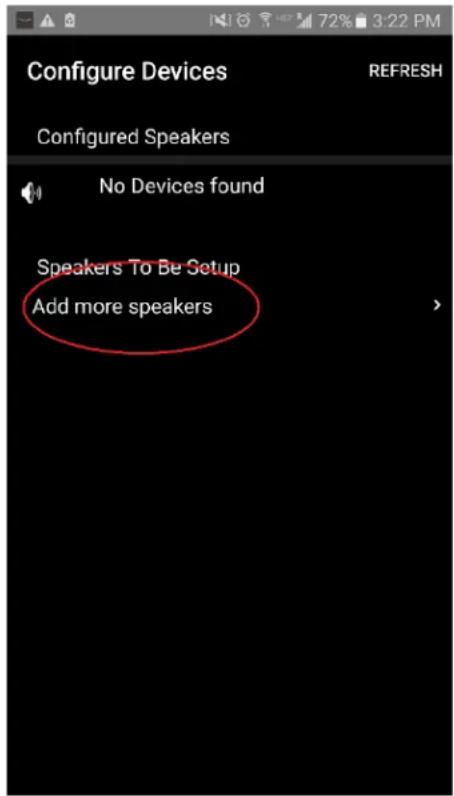
text_image
Configure Devices REFRESH Configured Speakers No Devices found Speakers To Be Setup Add more speakers- Pulse el botón grande «Configure» (Configurar).
text_image
Tivoli Audio Configure your Tivoli Audio Speaker CONFIGUREtext_image
Tivoli Audio Press the Setup button of the Speaker Nexttext_image
Device Setup Tivoli Audio 1. Please read all four steps before leaving this page. 2. Tap the "Open Settings" bottom 3. Select "Tivoli_XXXX" from the list of networks. 4. Return to Tivoli Audio app and tap "Next". OPEN SETTINGS NEXTtext_image
On Tivoli_E0DF8D Connected RD23 New extreme ITtest NS2 RD15 4th Extreme buff_ITtest LieBaoWiFi285 RD15-5Gtext_image
Wi-Fi On Tivoli_E0DF8D Connected RD23 New extreme ITtest NS2 RD15 4th Extreme buff_ITtest LieBaoWiFi285 RD15-5Gtext_image
Device Setup Tivoli Audio 1. Please read all four steps before leaving this page. 2. Tap the "Open Settings" bottom 3. Select "Tivoli_XXXX" from the list of networks. 4. Return to Tivoli Audio app and tap "Next". OPEN SETTINGS NEXTtext_image
Tivoli Audio No Groups are Active Play New Play new Configure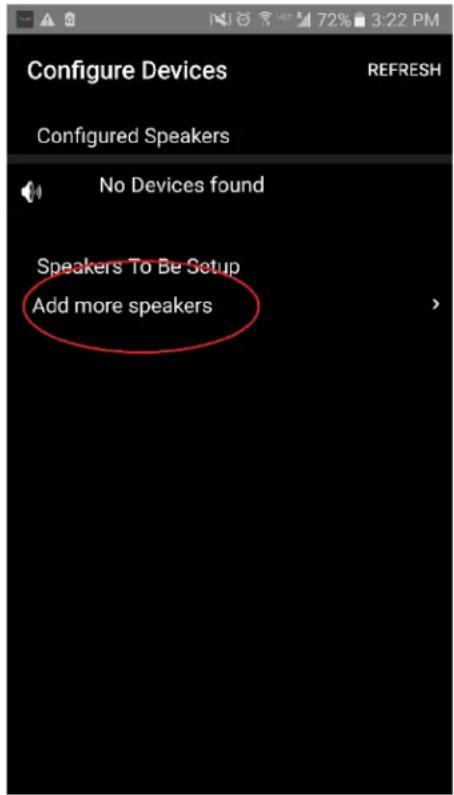
text_image
Configure Devices REFRESH Configured Speakers No Devices found Speakers To Be Setup Add more speakers- Pulse el botón grande «Configure» (Configurar).
text_image
Tivoli Audio Configure your Tivoli Audio Speaker CONFIGUREtext_image
Tivoli Audio Press the Setup button of the Speaker Nextnatural_image
Close-up of a black rounded rectangular device with a square button on the top (no text or symbols visible)text_image
App Store Settings Music Safari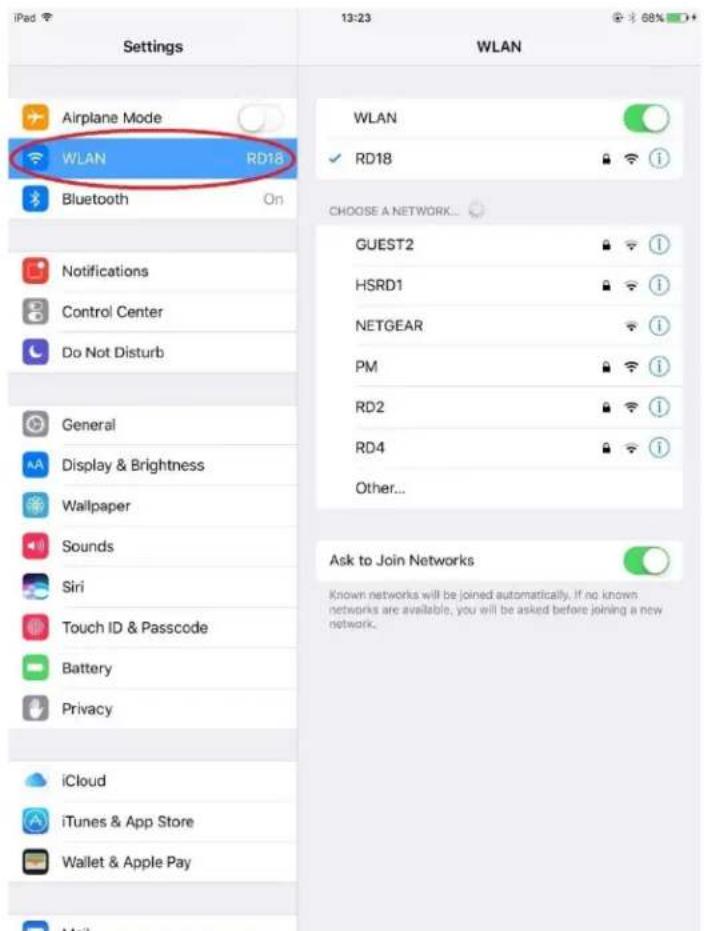
text_image
Settings Airplane Mode WLAN RD18 Bluetooth On Notifications Control Center Do Not Disturb General Display & Brightness Wallpaper Sounds Siri Touch ID & Passcode Battery Privacy iCloud iTunes & App Store Wallet & Apple Pay WLAN RD18 CHOOSE A NETWORK... GUEST2 HSRD1 NETGEAR PM RD2 RD4 Other... Ask to Join Networks Known networks will be joined automatically. If no known networks are available, you will be asked before joining a new network.text_image
On Tivoli_E0DF8D Connected RD23 New extreme ITtest NS2 RD15 4th Extreme buff_ITtest LieBaoWiFi285 RD15-5Gtext_image
ART Tivoli Audiotext_image
Device Setup Tivoli Audio™ 1. Please read all four steps before leaving this page. 2. Tap the "Open Settings" bottom 3. Select "Tivoli_XXXX" from the list of networks. 4. Return to Tivoli Audio app and tap "Next". OPEN SETTINGS NEXTtext_image
Tivoli Audio No Groups are Active Play New Play new Configuretext_image
Speaker Setup RefRESH Speaker Name: Kitchen Audio Output (Assigned): Stereo (S) IP Address: 192.168.10.39 Firmware Version: pPB1430.113.1000 Network Configuration > Savetext_image
Speaker Setup RefRESH Speaker Name : Kitchen Audio Output (Assigned): Stereo (S) IP Address : 192.168.10.39 Firmware Version : pPB1430.113.1000 Network Configuration > Save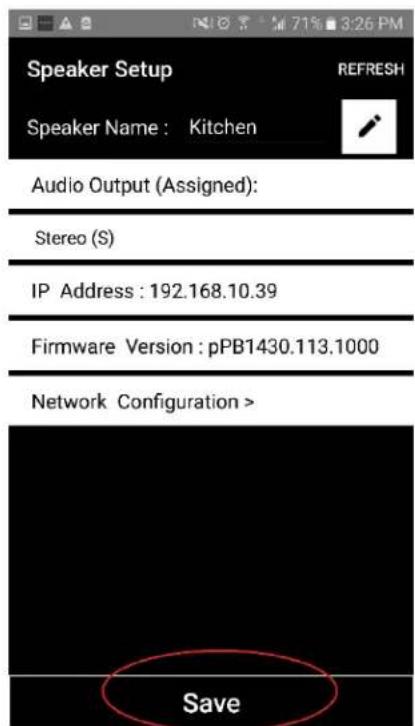
text_image
Speaker Setup Speaker Name : Kitchen Audio Output (Assigned): Stereo (S) IP Address : 192.168.10.39 Firmware Version : pPB1430.113.1000 Network Configuration > Savetext_image
Tivoli Audio No Groups are Active Play New Play new Configuretext_image
Configure Devices REFRESH Configured Speakers Kitchen Speakers To Be Setup Add more speakerstext_image
Speaker Setup Speaker Name : Kitchen REFRESHAudio Output (Assigned):
Left Speaker (L)
IP Address : 192.168.10.10
Firmware Version : p6098.218.1000
Network Configuration >

text_image
Save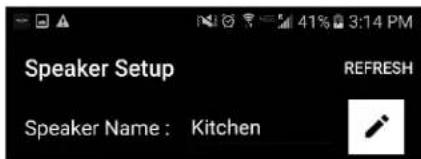
text_image
Speaker Setup REFRESH Speaker Name : KitchenAudio Output (Assigned):
Left Speaker (L)
IP Address: 192.168.10.10
Firmware Version : p6098.218.1000
Network Configuration >

text_image
Savetext_image
Tivoli Audio No Groups are Active Play New Play new Configure
text_image
Select Source Speaker Tivoli Audio Kitchen Living Roomtext_image
Add More Speakers Tivoli Audio Group Name: MyGroup Kitchen Master Left Living Room Free Stereo NEXT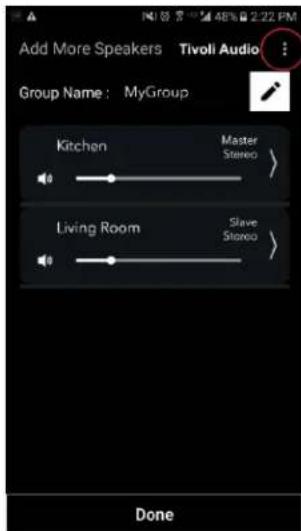
text_image
Add More Speakers Tivoli Audio Group Name: MyGroup Kitchen Master Stereo > Living Room Slave Stereo > Donetext_image
Select Source/Content Tivoli Audio™ Local Content Music Services Spotify Deezer TIDAL Tuneln QQ Music Network Devices/Players Bluetooth DONEtext_image
Select Source/Content Tivoli Audio Local Content Music Services Spotify Deezer TIDAL Tuneln QQ Music Network Devices/Players Bluetooth DONE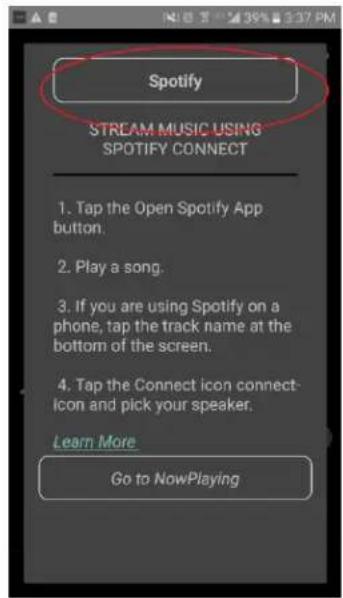
text_image
Spotify STREAM MUSIC USING SPOTIFY CONNECT 1. Tap the Open Spotify App button. 2. Play a song. 3. If you are using Spotify on a phone, tap the track name at the bottom of the screen. 4. Tap the Connect icon connect-icon and pick your speaker. Learn More Go to NowPlayingtext_image
DEVICES Connect to a device LISTENING ON This phone Kitchen+Living Room Spotify Connecttext_image
Spotify STREAM MUSIC USING SPOTIFY CONNECT 1. Tap the Open Spotify App button. 2. Play a song. 3. If you are using Spotify on a phone, tap the track name at the bottom of the screen. 4. Tap the Connect icon connect- icon and pick your speaker. Learn More Go to NowPlaying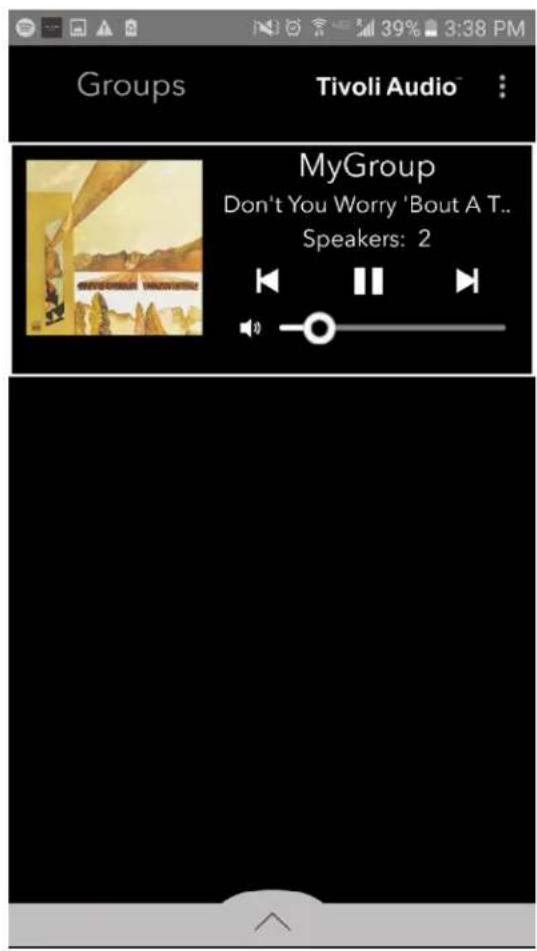
text_image
Groups Tivoli Audio™ MyGroup Don't You Worry 'Bout A T.. Speakers: 2text_image
Groups Tivoli Audio MyGroup Don't You Worry 'Bout A T... Speakers: 2 Now Playing Tivoli Audio MyGroup He's Misstra Know-It-All Stevie Wonder Innervisions 1:38 5:35 Speakers 2 Sourcestext_image
Add More Speakers Tivoli Audio Group Name: MyGroup Kitchen Master Stereo > Living Room Slave Stereo > Done Add More Speakers Tivoli Audio Group Name: Our House Kitchen Master Stereo > Living Room Slave Stereo > Donetext_image
Groups Tivoli Audio MyGroup Don't You Worry 'Bout A T.. Speakers: 2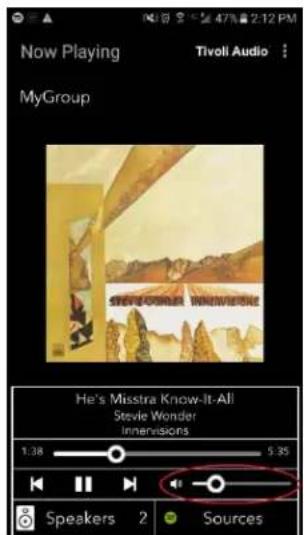
text_image
Now Playing MyGroup Tivoli Audio STEVIOBERI WINNERSIDE He's Misstra Know-It-All Stevie Wonder Innervisions 1:38 5:35 Speakers 2 Sourcestext_image
Groups Tivoll Audio MyGroup Don't You Worry 'Bout A T.. Speakers: 2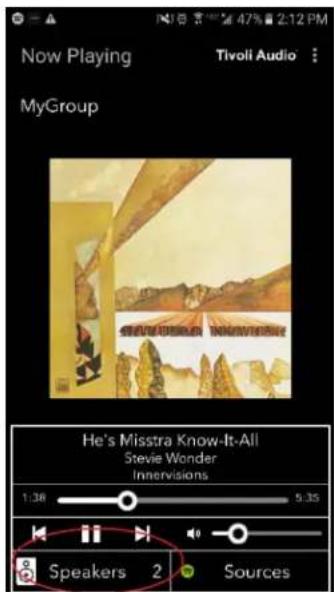
text_image
Now Playing MyGroup Tivoli Audio He's Misstra Know-It-All Stevie Wonder Innervisions 1:38 5:35 Speakers 2 Sources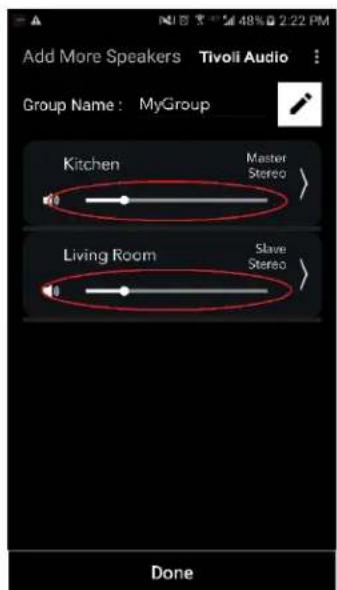
text_image
Add More Speakers Tivoli Audio Group Name: MyGroup Kitchen Master Stereo Living Room Slave Stereo Donetext_image
Groups Tivoli Audio MyGroup Don't You Worry 'Bout A T... Speakers: 2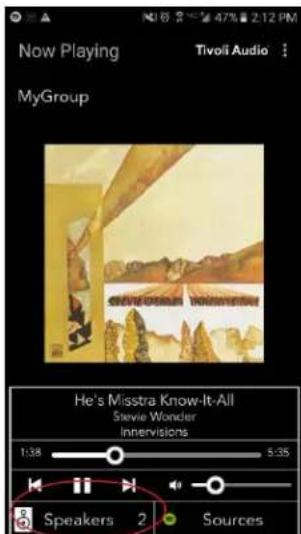
text_image
Now Playing Tivoli Audio MyGroup He's Misstra Know-It-All Stevie Wonder Innervisions 1:38 5:35 Speakers 2 Sourcestext_image
Add More Speakers Tivoli Audio Group Name: MyGroup Kitchen Master Stereo > Living Room Slave Stereo > Done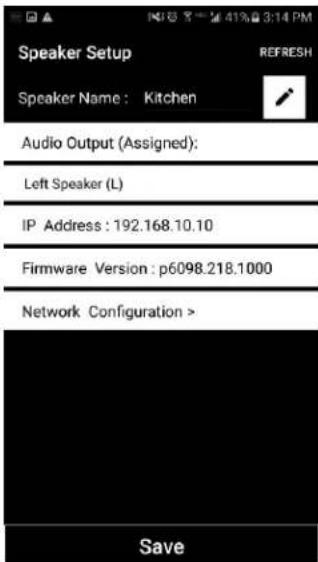
text_image
Speaker Setup Speaker Name: Kitchen Audio Output (Assigned): Left Speaker (L) IP Address: 192.168.10.10 Firmware Version: p6098.218.1000 Network Configuration > Savetext_image
Groups Tivoli Audio MyGroup Don't You Worry: Bout A T.. Speakers: 2 Now Playing Tivoli Audio MyGroup He's Misstra Know-It-All Stevie Wonder Innovisions 1:38 5.35 Speakers 2 Sourcestext_image
Groups Tivoli Audio MyGroup Don't You Worry 'Bout A T... Speakers: 2 Tivoli Audio No Groups are Active Play New Play new Configuretext_image
SETUP ADD/DROP PARTY MODE SOURCE - + 12-15V 1-2.5A AUX IN SERVICE FC Tivoli Audio FCC ID: Canada complies with necrostrs to norme; RSS-210, ICEB-003; FCO part 15b 8H28 Designed by Tivoli Audio in Boston Made in Chinatext_image
SETUP ADD/DROP PARTY MODE SOURCE - + 12-15V 1-2.5A AUX IN SERVICE Tivoli Audio Cance ID: Canesia complies with renocorte le norme: R68-210, ICEB-003, FDD part 15b. CE US units 8H28 Designed by Tivoli Audio in Boston Made in Chinatext_image
Select Source/Content Troll Audio Local Content Music Services Spotify Dexzor TIDAL Tandem QQ Music Network Devices/Players Bluetooth DONEtext_image
Groups Tivoli Audio™ MyGroup BT is Playing Speakers: 2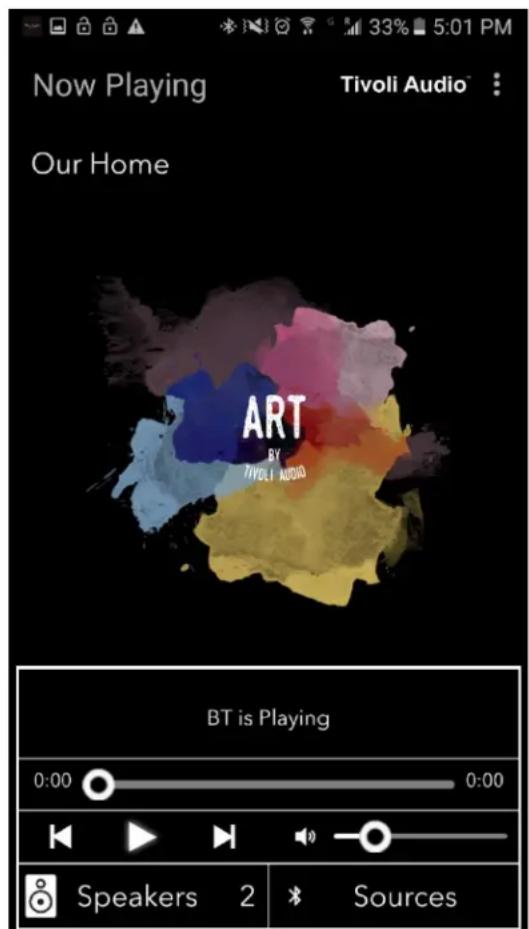
text_image
Now Playing Our Home Tivoli Audio ART BY TIVOLI AUDIO BT is Playing 0:00 0:00 Speakers 2 SourcesModo auxiliar
text_image
Tivoli Audio No Groups are Active Play New Play new Configuretext_image
Configure Devices Configured Speakers Kitchen Speakers To Be Setup Add more speakerstext_image
Downloading software update The update process will take around 5 to 10 minutes depending on your network speed. Please do not turn off the unit during this time.text_image
Update Complete GO TO PLAY NEW Your unit is now standby mode. Press the power button to turn it on.Cuidado
v. Knappen "Add/Drop"
vi. Knappen "Party Mode" 104
vii. DDMS-tilstand 105
b. Bluetooth-tilstand
i. Parring 106
ii. Bluetooth over wi-fi 106
c. Auxiliary-tilstand 107
text_image
CUBE Thrott Audiotext_image
Tivoli Audio No Groups are Active Play New Play new Configure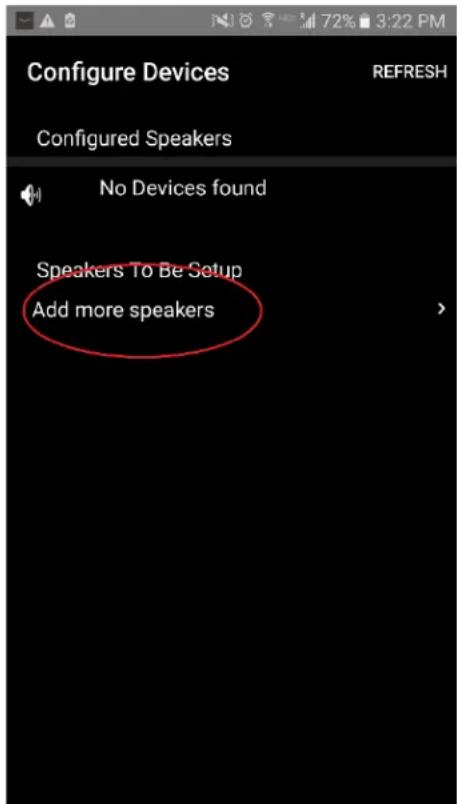
text_image
Configure Devices REFRESH Configured Speakers No Devices found Speakers To Be Setup Add more speakers- Tryk på den store knap "Configure".
text_image
Tivoli Audio Configure your Tivoli Audio Speaker CONFIGUREtext_image
Tivoli Audio Press the Setup button of the Speaker Nexttext_image
Device Setup Tivoli Audio 1. Please read all four steps before leaving this page. 2. Tap the "Open Settings" bottom 3. Select "Tivoli_XXXX" from the list of networks. 4. Return to Tivoli Audio app and tap "Next". OPEN SETTINGS NEXTtext_image
Tivoli_E0DF8D Connected RD23 New extreme ITtest NS2 RD15 4th Extreme buff_ITtest LieBaoWiFi285 RD15-5Gtext_image
Wi-Fi On Tivoli_E0DF8D Connected RD23 New extreme ITtest NS2 RD15 4th Extreme buff_ITtest LieBaoWiFi285 RD15-5Gtext_image
Device Setup Tivoli Audio* 1. Please read all four steps before leaving this page. 2. Tap the "Open Settings" bottom 3. Select "Tivoli_XXXX" from the list of networks. 4. Return to Tivoli Audio app and tap "Next". OPEN SETTINGS NEXTtext_image
Tivoli Audio No Groups are Active Play New Play new Configure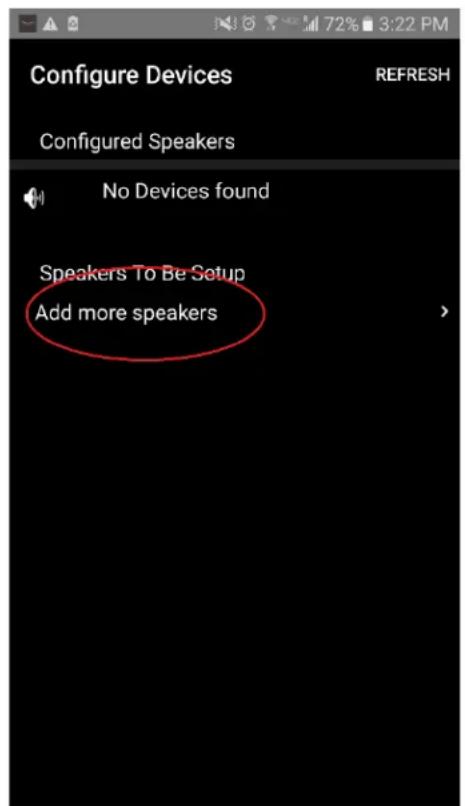
text_image
Configure Devices REFRESH Configured Speakers No Devices found Speakers To Be Setup Add more speakers- Tryk på den store knap "Configure".
text_image
Tivoli Audio Configure your Tivoli Audio Speaker CONFIGUREtext_image
Tivoli Audio Press the Setup button of the Speaker Nextnatural_image
Close-up of a black rounded rectangular device with a square button on the top (no text or symbols visible)text_image
App Store Settings Music Safari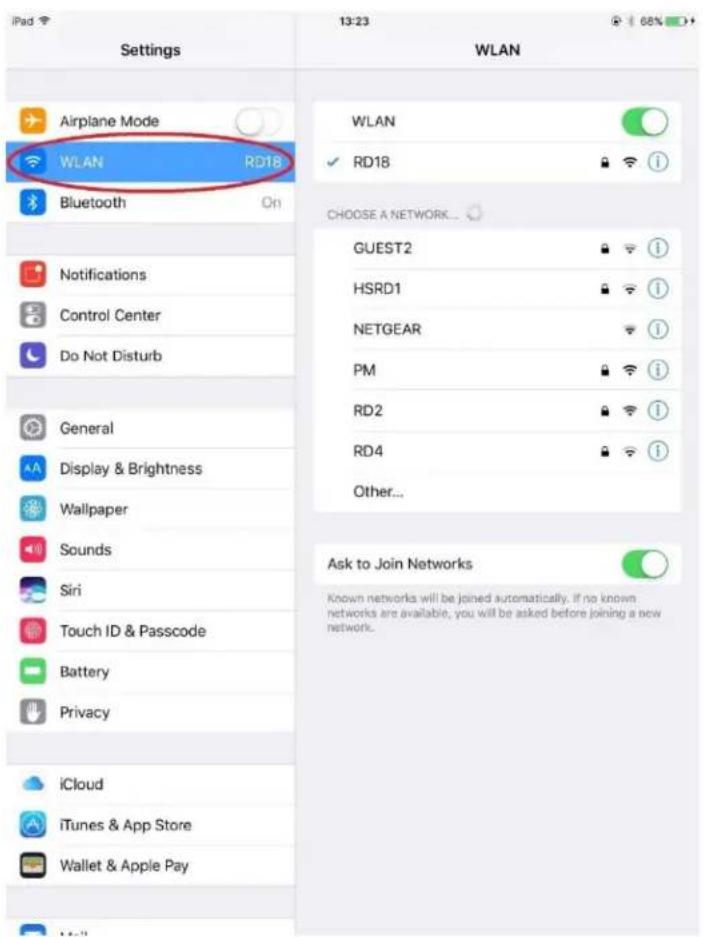
text_image
iPad Settings Airplane Mode WLAN RD18 Bluetooth On Notifications Control Center Do Not Disturb General Display & Brightness Wallpaper Sounds Siri Touch ID & Passcode Battery Privacy iCloud iTunes & App Store Wallet & Apple Pay WLAN RD18 CHOOSE A NETWORK... GUEST2 HSRD1 NETGEAR PM RD2 RD4 Other... Ask to Join Networks Known networks will be joined automatically. If no known networks are available, you will be asked before joining a new network.text_image
On Tivoli_E0DF8D Connected RD23 New extreme ITtest NS2 RD15 4th Extreme buff_ITtest LieBaoWiFi285 RD15-5Gtext_image
ART Tivoli Audiotext_image
Device Setup Tivoli Audio 1. Please read all four steps before leaving this page. 2. Tap the "Open Settings" bottom 3. Select "Tivoli_XXXX" from the list of networks. 4. Return to Tivoli Audio app and tap "Next". OPEN SETTINGS NEXTtext_image
Tivoli Audio No Groups are Active Play New Play new Configuretext_image
Configure Devices REFRESH Configured Speakers Tivoli_E0DF8C Speakers To Be Setup Add more speakerstext_image
Speaker Setup REFRESH Speaker Name: Tivoli_E0DF8C Audio Output (Assigned): Stereo (S) IP Address : 192.168.10.39 Firmware Version : pPB1430.113.1000 Network Configuration > Save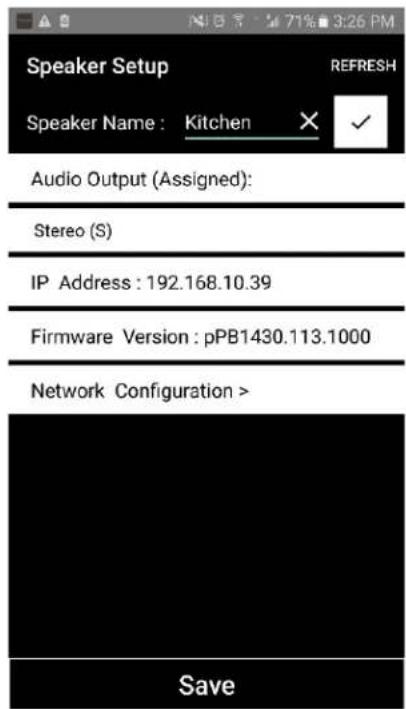
text_image
Speaker Setup RefRESH Speaker Name : Kitchen ✗ ✓ Audio Output (Assigned): Stereo (S) IP Address : 192.168.10.39 Firmware Version : pPB1430.113.1000 Network Configuration > Savetext_image
Speaker Setup RefRESH Speaker Name : Kitchen ✗ ✓ Audio Output (Assigned): Stereo (S) IP Address : 192.168.10.39 Firmware Version : pPB1430.113.1000 Network Configuration > Save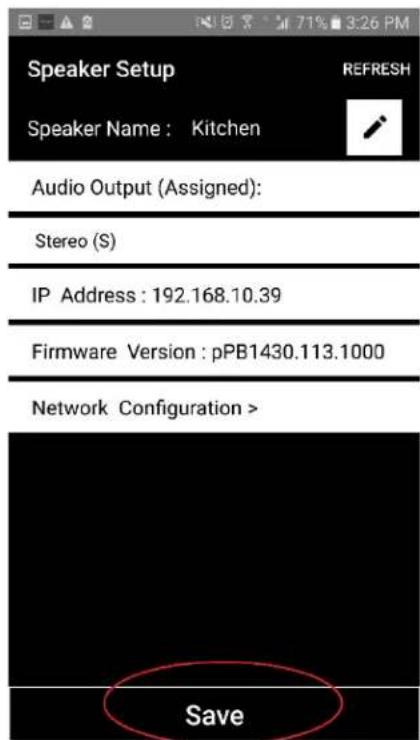
text_image
Speaker Setup Speaker Name : Kitchen Audio Output (Assigned): Stereo (S) IP Address : 192.168.10.39 Firmware Version : pPB1430.113.1000 Network Configuration > Savetext_image
Tivoli Audio No Groups are Active Play New Play new Configuretext_image
Configure Devices REFRESH Configured Speakers Kitchen Speakers To Be Setup Add more speakers- I vinduet "Speaker Setup" skal du vælge det område, der viser "Stereo (S)" og ændre det til "Left (L)" eller "Right (R)", og tryk derefter på "Save".
text_image
Speaker Setup RefRESH Speaker Name : KitchenAudio Output (Assigned):

text_image
Left Speaker (L) IP Address : 192.168.10.10Firmware Version : p6098.218.1000
text_image
Network Configuration > Save
text_image
Speaker Setup Speaker Name : Kitchen REFRESHAudio Output (Assigned):
| Left Speaker (L) |
| IP Address : 192.168.10.10 |
Firmware Version: p6098.218.1000
text_image
Network Configuration > Savetext_image
Tivoli Audio No Groups are Active Play New Play new Configure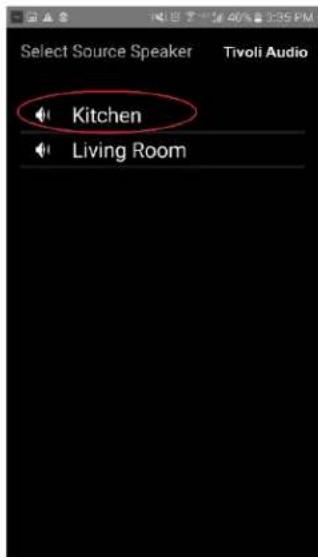
text_image
Select Source Speaker Tivoli Audio Kitchen Living Roomtext_image
Add More Speakers Tivoli Audio Group Name: MyGroup Kitchen Master Left > Living Room Free Stereo > NEXT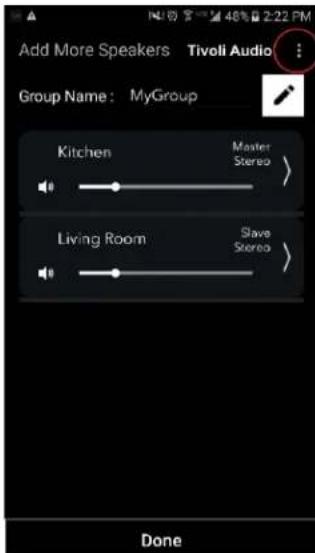
text_image
Add More Speakers Tivoli Audio Group Name: MyGroup Kitchen Master Stereo > Living Room Slave Stereo > Donetext_image
Select Source/Content Tivoli Audio Local Content Music Services Spotify Deezer TIDAL Tuneln QQ Music Network Devices/Players Bluetooth DONEtext_image
Select Source/Content Tivoli Audio® Local Content Music Services Spotify Deezer TIDAL Tuneln QQ Music Network Devices/Players Bluetooth DONE
text_image
Spotify STREAM MUSIC USING SPOTIFY CONNECT 1. Tap the Open Spotify App button. 2. Play a song. 3. If you are using Spotify on a phone, tap the track name at the bottom of the screen. 4. Tap the Connect icon connect- icon and pick your speaker. Learn More Go to NowPlayingtext_image
× DEVICES Connect to a device LISTENING ON This phone Kitchen+Living Room Spotify Connect- Når du har valgt din musik, skal du vende tilbage til Tivoli Audio Wireless-appen og gå til skærmen "Now Playing", enten ved at vælge "Now Playing" eller ved at trykke på knappen "Back" på din telefon eller tablet. Nu kan du se din gruppe afspille musik.
text_image
Spotify STREAM MUSIC USING SPOTIFY CONNECT 1. Tap the Open Spotify App button. 2. Play a song. 3. If you are using Spotify on a phone, tap the track name at the bottom of the screen. 4. Tap the Connect icon connect- icon and pick your speaker. Learn More Go to NowPlaying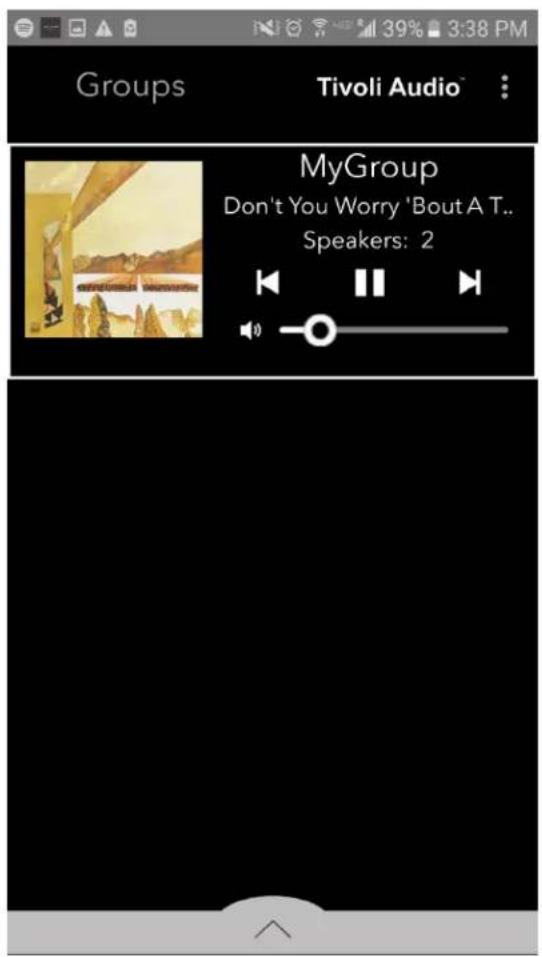
text_image
Groups Tivoli Audio™ MyGroup Don't You Worry 'Bout A T.. Speakers: 2text_image
Groups Tivoli Audio™ MyGroup Don't You Worry 'Bout A T... Speakers: 2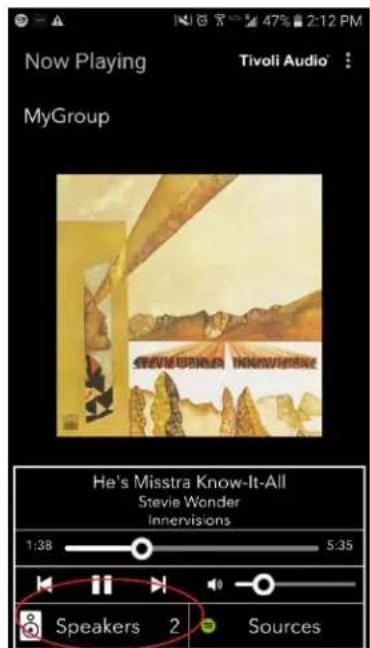
text_image
Now Playing Tivoli Audio MyGroup He's Misstra Know-It-All Stevie Wonder Innervisions 1:38 5.35 Speakers 2 Sourcestext_image
Add More Speakers Tivoli Audio Group Name: MyGroup Kitchen Master Stereo > Living Room Slave Stereo > Done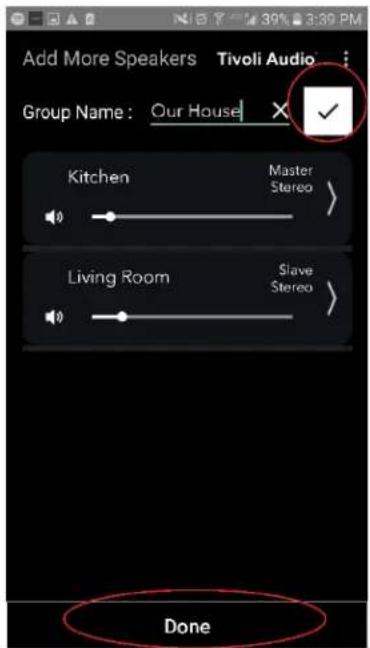
text_image
Add More Speakers Tivoli Audio Group Name: Our House Kitchen Master Stereo > Living Room Slave Stereo > Donetext_image
Groups Tivoli Audio MyGroup Don't You Worry 'Bout A T., Speakers: 2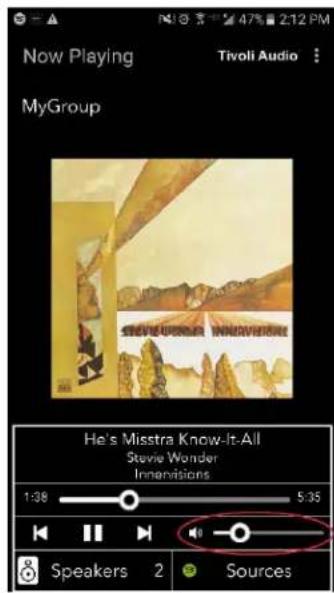
text_image
Now Playing MyGroup Tivoli Audio : Steve Wonder Innervisions He's Misstra Know-It-All Steve Wonder Innovisions 1:38 5:35 Speakers 2 Sourcestext_image
Groups Tivoli Audio MyGroup Don't You Worry: 'Bout A T.. Speakers: 2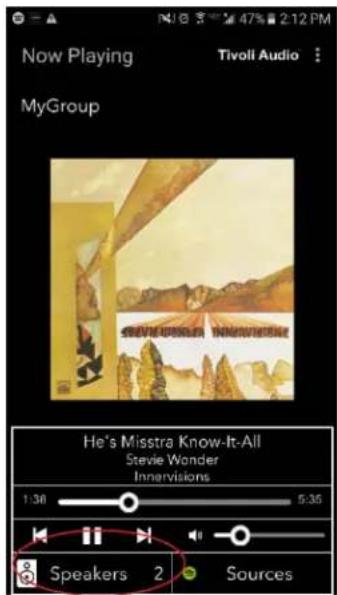
text_image
Now Playing Tivoli Audio MyGroup He's Misstra Know-It-All Stevie Wonder Innervisions 1:38 5:35 Speakers 2 Sources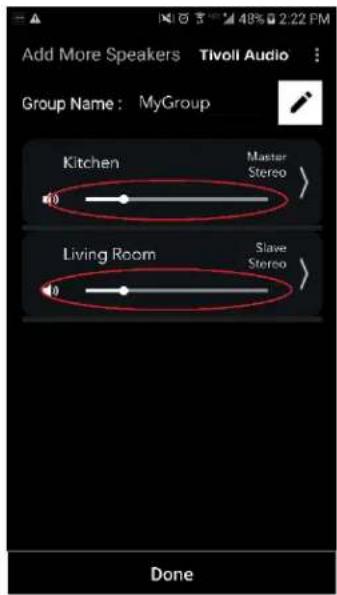
text_image
Add More Speakers Tivoll Audio Group Name: MyGroup Kitchen Master Stereo Living Room Slave Stereo Donetext_image
Groups Tivoli Audio MyGroup Don't You Worry 'Bout A T.. Speakers: 2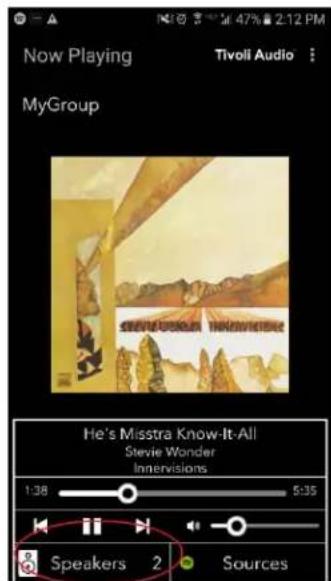
text_image
Now Playing MyGroup Tivoli Audio : He's Misstra Know-It-All Stevie Wonder Innervisions 1:38 5:35 Speakers 2 Sourcestext_image
Add More Speakers Tivoli Audio Group Name: MyGroup Kitchen Master Stereo > Living Room Slave Stereo > Done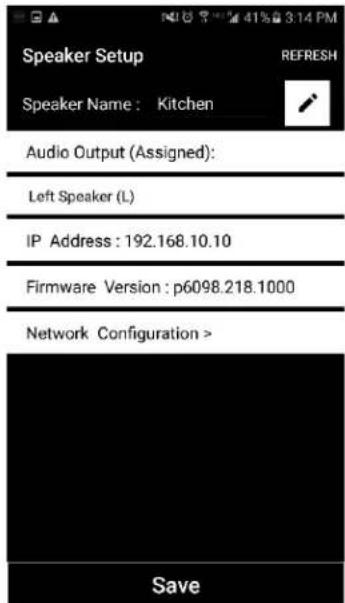
text_image
Speaker Setup Speaker Name: Kitchen Audio Output (Assigned): Left Speaker (L) IP Address: 192.168.10.10 Firmware Version: p6098.218.1000 Network Configuration > Savetext_image
Groups Tivoli Audio MyGroup Don't You Worry 'Bout A T... Speakers: 2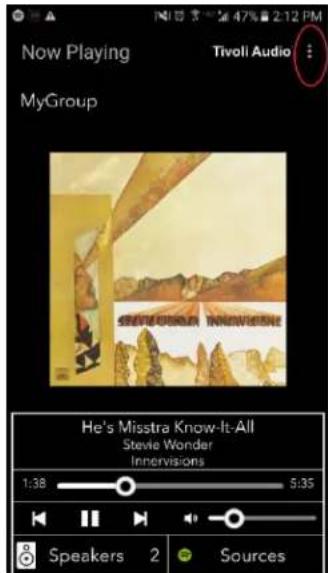
text_image
Now Playing MyGroup Tivoli Audio STEVLOVER INNIVISIONS He's Misstra Know-It-All Stevie Wonder Innervisions 1:38 5:35 Speakers 2 Sourcestext_image
Groups Tivoli Audio MyGroup Don't You Worry 'Bout A T.. Speakers: 2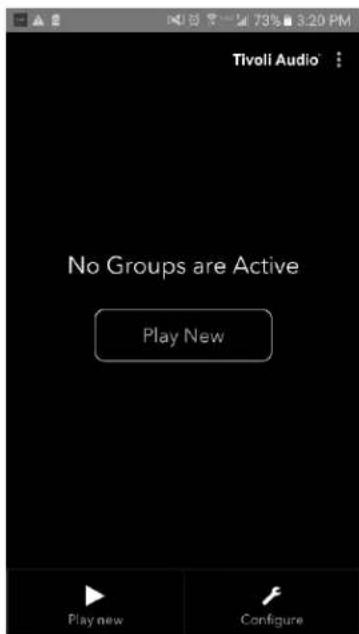
text_image
Tivoli Audio No Groups are Active Play New Play new ConfigureKnappen "Add/Drop"
text_image
SETUP ADD/DROP PARTY MODE SOURCE - + 12-15V 1-2.5A AUX IN SERVICE FCC ID: Canada complies with: rencontre la norma: RBS-210, ICDS-003, FCC part 15b c US 8H28 Designed by Tivoli Audio in Boston Made in ChinaKnappen "Party Mode"
text_image
SETUP ADD/DROP PARTY MODE SOURCE - + 12-15V 1-2.5A AUX IN SERVICE FCC ID: Canada complies with: rencontre la norme: RSB-210, ICES-003, FCC part 15b 8H28 Designed by Tivoli Audio in Boston Made in Chinatext_image
Select Source/Content Tivoli Audio Local Content Music Services Spotify Deezer TIDAL TuneIn QQ Music Network Devices/Players Bluetooth DONEtext_image
Groups Tivoli Audio MyGroup BT is Playing Speakers: 2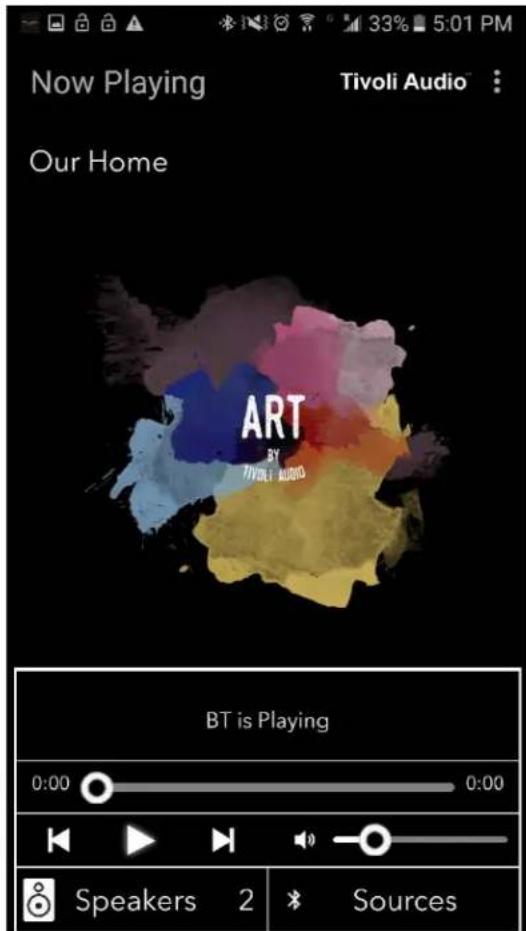
text_image
Now Playing Tivoli Audio Our Home ART BY TIVOLI AUDIO BT is Playing 0:00 0:00 Speakers 2 SourcesAuxiliary-tilstand
text_image
Tivoli Audio No Groups are Active Play New Play new Configuretext_image
Configure Devices REFRESH Configured Speakers Kitchen Speakers To Be Setup Add more speakerstext_image
Downloading software update The update process will take around 5 to 10 minutes depending on your network speed. Please do not turn off the unit during this time.text_image
Update Complete GO TO PLAY NEW Your unit is now standby mode. Press the power button to turn it on.Vedligeholdelse
text_image
Tivoli Audio No Groups are Active Play New Play new Configure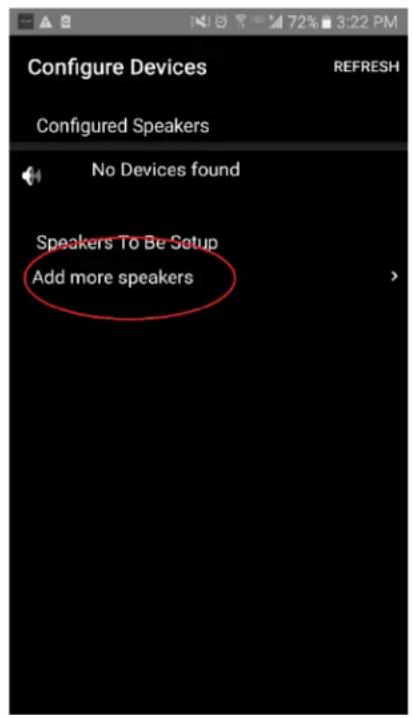
text_image
Configure Devices REFRESH Configured Speakers No Devices found Speakers To Be Setup Add more speakerstext_image
Tivoli Audio Press the Setup button of the Speaker Nexttext_image
Device Setup Tivoli Audio 1. Please read all four steps before leaving this page. 2. Tap the "Open Settings" bottom 3. Select "Tivoli_XXXX" from the list of networks. 4. Return to Tivoli Audio app and tap "Next". OPEN SETTINGS NEXTtext_image
On Tivoli_E0DF8D Connected RD23 New extreme ITtest NS2 RD15 4th Extreme buff_ITtest LieBaoWiFi285 RD15-5Gtext_image
Wi-Fi On Tivoli_E0DF8D Connected RD23 New extreme ITtest NS2 RD15 4th Extreme buff_ITtest LieBaoWiFi285 RD15-5Gtext_image
Device Setup Tivoli Audio 1. Please read all four steps before leaving this page. 2. Tap the "Open Settings" bottom 3. Select "Tivoli_XXXX" from the list of networks. 4. Return to Tivoli Audio app and tap "Next". OPEN SETTINGS NEXTtext_image
Tivoli Audio No Groups are Active Play New Play new Configure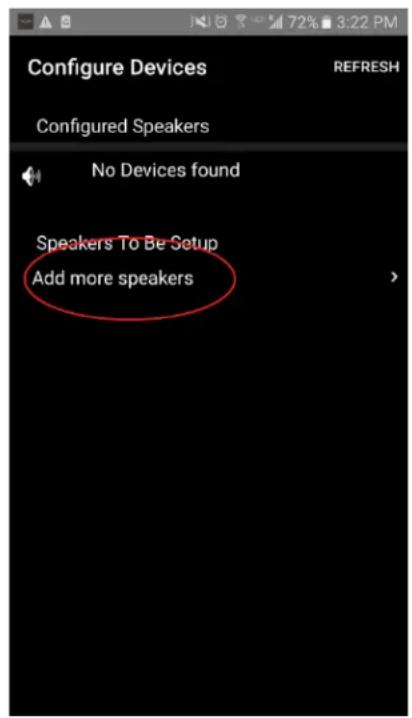
text_image
Configure Devices REFRESH Configured Speakers No Devices found Speakers To Be Setup Add more speakerstext_image
Tivoli Audio Press the Setup button of the Speaker Nextnatural_image
Close-up of a black smartphone control panel with a square button (no text or symbols visible)text_image
App Store Settings Music Safari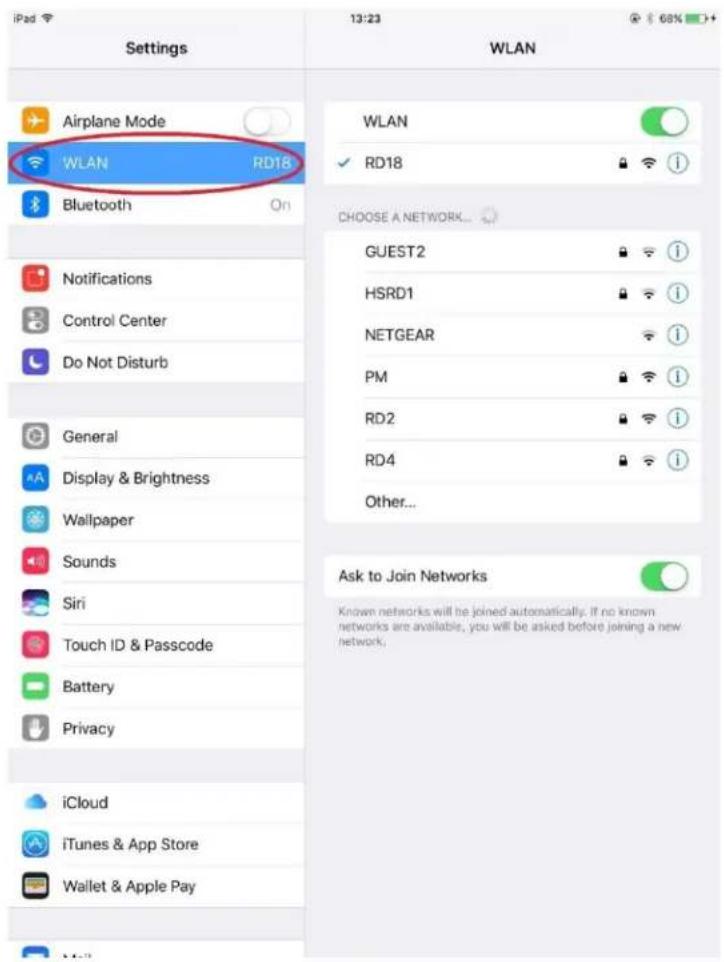
text_image
Settings Airplane Mode WLAN RD18 Bluetooth On Notifications Control Center Do Not Disturb General Display & Brightness Wallpaper Sounds Siri Touch ID & Passcode Battery Privacy iCloud iTunes & App Store Wallet & Apple Pay WLAN RD18 CHOOSE A NETWORK... GUEST2 HSRD1 NETGEAR PM RD2 RD4 Other... Ask to Join Networks Known networks will be joined automatically. If no known networks are available, you will be asked before joining a new network;text_image
Tivoli_E0DF8D Connected RD23 New extreme ITtest NS2 RD15 4th Extreme buff_ITtest LieBaoWiFi285 RD15-5Gtext_image
ART Tivoli Audiotext_image
Device Setup Tivoli Audio 1. Please read all four steps before leaving this page. 2. Tap the "Open Settings" bottom 3. Select "Tivoli_XXXX" from the list of networks. 4. Return to Tivoli Audio app and tap "Next". OPEN SETTINGS NEXTtext_image
Tivoli Audio No Groups are Active Play New Play new Configuretext_image
Speaker Setup RefRESH Speaker Name : Kitchen Audio Output (Assigned): Stereo (S) IP Address : 192.168.10.39 Firmware Version : pPB1430.113.1000 Network Configuration > Savetext_image
Speaker Setup REFRESH Speaker Name : Kitchen Audio Output (Assigned): Stereo (S) IP Address : 192.168.10.39 Firmware Version : pPB1430.113.1000 Network Configuration > Save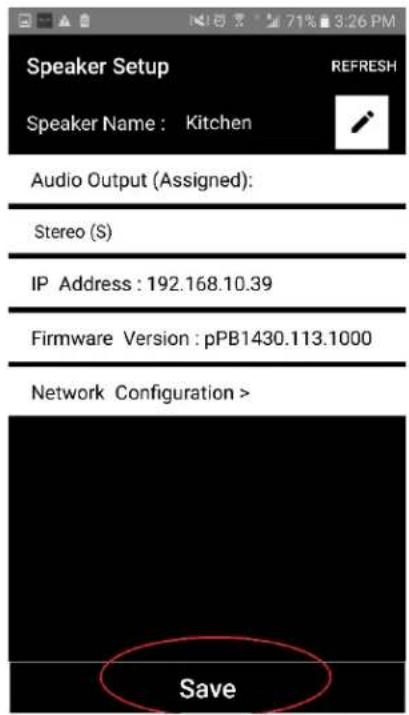
text_image
Speaker Setup Speaker Name : Kitchen Audio Output (Assigned): Stereo (S) IP Address : 192.168.10.39 Firmware Version : pPB1430.113.1000 Network Configuration > Savetext_image
Tivoli Audio No Groups are Active Play New Play new Configuretext_image
Configure Devices REFRESH Configured Speakers Kitchen Speakers To Be Setup Add more speakers >text_image
Speaker Setup RefRESH Speaker Name: Kitchen Audio Output (Assigned): Left Speaker (L) IP Address: 192.168.10.10 Firmware Version: p6098.218.1000 Network Configuration > Save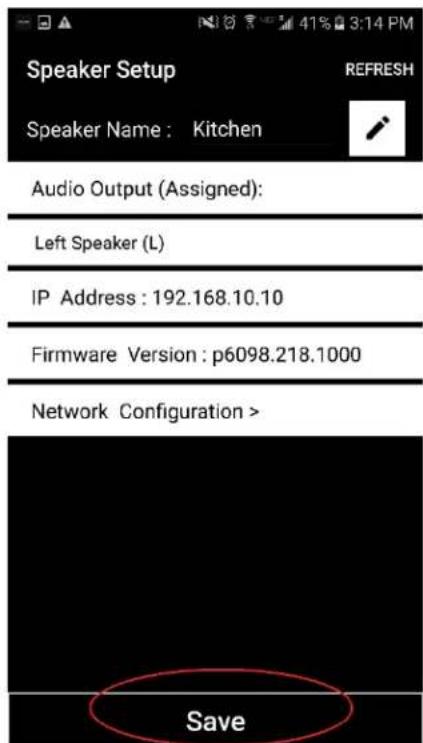
text_image
Speaker Setup Speaker Name: Kitchen Audio Output (Assigned): Left Speaker (L) IP Address : 192.168.10.10 Firmware Version : p6098.218.1000 Network Configuration > Savetext_image
Tivoli Audio No Groups are Active Play New Play new Configure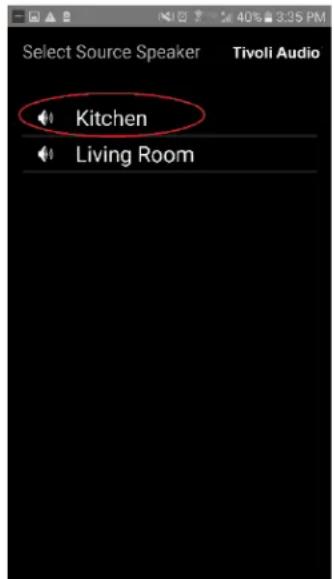
text_image
Select Source Speaker Tivoli Audio Kitchen Living Roomtext_image
Add More Speakers Tivoli Audio Group Name: MyGroup Kitchen Master Left Living Room Free Stereo NEXT
text_image
Add More Speakers Tivoli Audio Group Name: MyGroup Kitchen Master Stereo Living Room Slave Stereo Donetext_image
Select Source/Content Tivoli Audio Local Content Music Services Spotify Deezer TIDAL Tuneln QQ Music Network Devices/Players Bluetooth DONEtext_image
Select Source/Content Tivoli Audio™ Local Content Music Services Spotify Deezer TIDAL Tuneln QQ Music Network Devices/Players Bluetooth DONE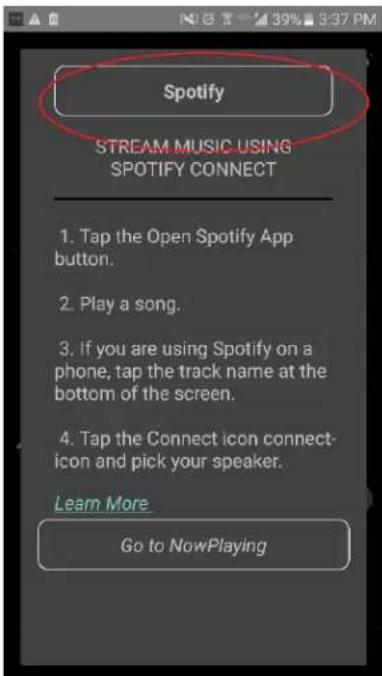
text_image
Spotify STREAM MUSIC USING SPOTIFY CONNECT 1. Tap the Open Spotify App button. 2. Play a song. 3. If you are using Spotify on a phone, tap the track name at the bottom of the screen. 4. Tap the Connect icon connect- icon and pick your speaker. Learn More Go to NowPlayingtext_image
× DEVICES Connect to a device LISTENING ON This phone Kitchen+Living Room Spotify Connecttext_image
Spotify STREAM MUSIC USING SPOTIFY CONNECT 1. Tap the Open Spotify App button. 2. Play a song. 3. If you are using Spotify on a phone, tap the track name at the bottom of the screen. 4. Tap the Connect icon connect- icon and pick your speaker. Learn More Go to NowPlaying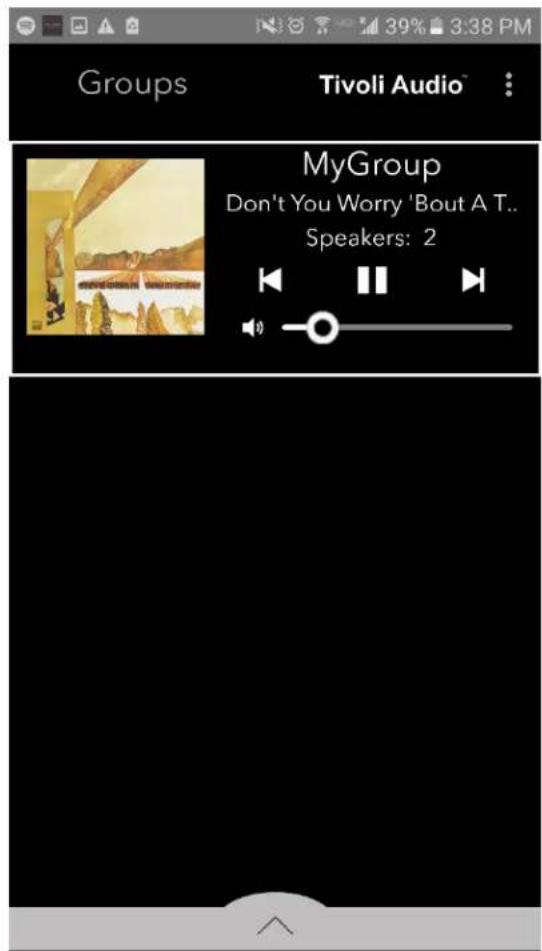
text_image
Groups Tivoli Audio™ MyGroup Don't You Worry 'Bout A T.. Speakers: 2text_image
Groups Tivoli Audio™ MyGroup Don't You Worry 'Bout A T_ Speakers: 2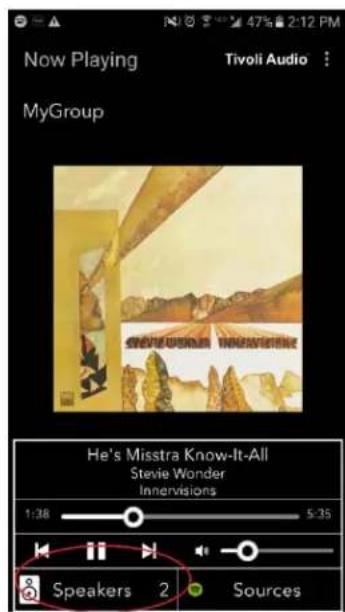
text_image
Now Playing Tivoli Audio MyGroup He's Misstra Know-It-All Stevie Wonder Innervisions 1:38 5:35 Speakers 2 Sourcestext_image
Add More Speakers: Tivoli Audio Group Name: MyGroup Kitchen Master Stereo Living Room Slave Stereo Done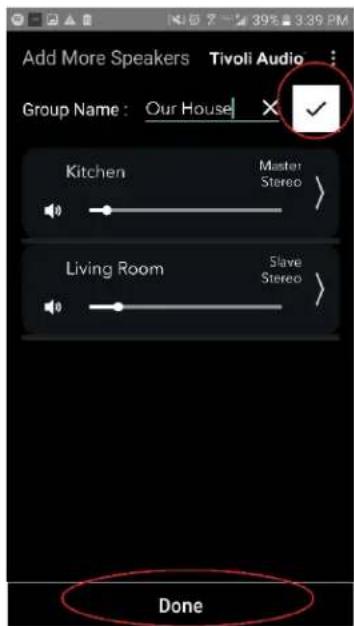
text_image
Add More Speakers Tivoli Audio Group Name: Our House Kitchen Master Stereo Living Room Slave Stereo Donetext_image
Groups Tivoli Audio MyGroup Don't You Worry 'Bout A T... Speakers: 2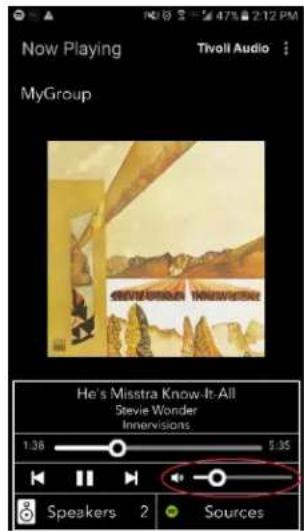
text_image
Now Playing MyGroup Tivoli Audio He's Misstra Know It: All Stevie Wonder Innervisions 1:38 5:35 Speakers 2 Sourcestext_image
Groups Tivoli Audio MyGroup Don't You Worry 'Bout A T., Speakers: 2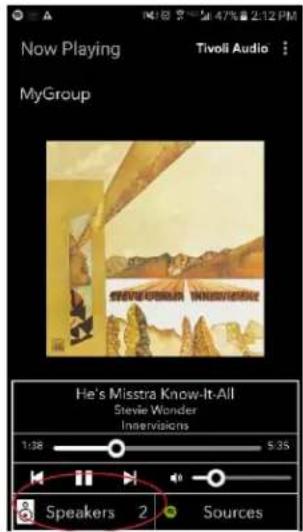
text_image
Now Playing MyGroup Tivoli Audio Steven Goodwin He's Misstra Know-It-All Stevie Wonder Interviews 1:38 $ 35 Speakers 2 Sources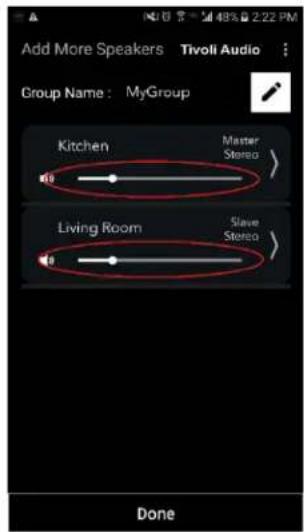
text_image
Add More Speakers Tivoli Audio Group Name: MyGroup Kitchen Master Stereo Living Room Slave Stereo Donetext_image
Groups Tivoli Audio MyGroup Don't You Worry 'Bout A T. Speakers: 2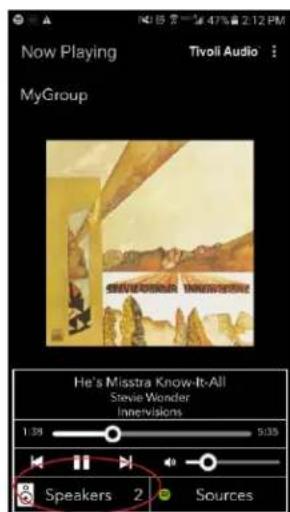
text_image
Now Playing Tivoli Audio MyGroup He's Misstra Know-It-All Stevie Wonder Innervisions 1.39 5:39 Speakers 2 Sourcestext_image
Add More Speakers Tivoli Audio Group Name: MyGroup Kitchen Master Stereo > Living Room Step Stereo > Done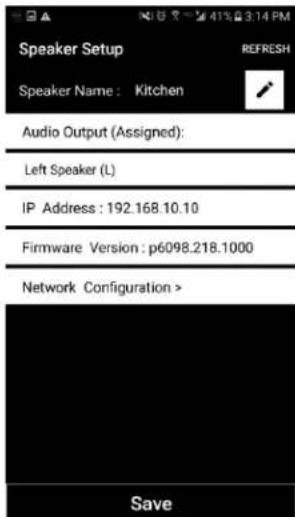
text_image
Speaker Setup Speaker Name: Kitchen Audio Output (Assigned): Left Speaker (L) IP Address: 192.168.10.10 Firmware Version: p6098.218.1000 Network Configuration > Savetext_image
Groups Tivoli Audio MyGroup Don't You Worry 'Bout A T... Speakers: 2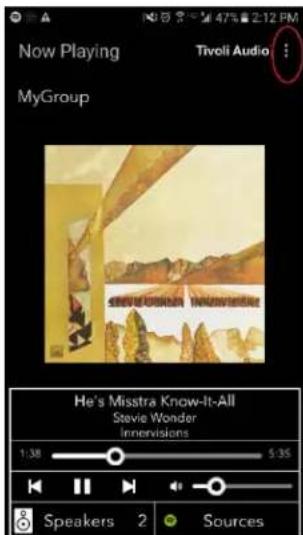
text_image
Now Playing MyGroup Tivoli Audio He's Misstra Know-It-All Stevie Wonder Innervisions 1:38 5:35 Speakers 2 Sourcestext_image
Groups Tivoli Audio MyGroup Don't You Worry 'Bout A T.. Speakers: 2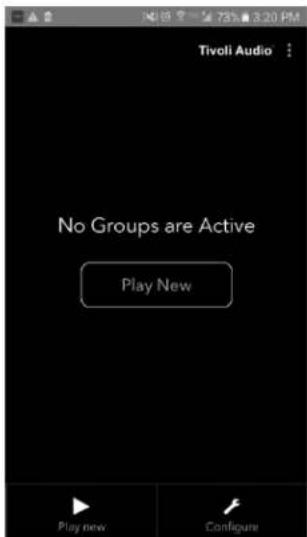
text_image
Tivoli Audio No Groups are Active Play New Play new Configuretext_image
SETUP ADD/DROP PARTY MODE SOURCE - + 12-15V 1-2.5A AUX IN SERVICE Tivoli Audio FCC ID: Canacle complies with: renocine in norme: RBS-210, EC68-003, FCC part 15b LITER 8H28 Designed by Tivoli Audio in Boston Made in Chinatext_image
SETUP ADD/DROP PARTY MODE SOURCE - + 12-15V 1-2.5A AUX IN SERVICE FC Tivoll Audio FOG ID: Canada complies with renovada to norme: RSB-210, ICEB-003, FOG part 15b CE US USSB 8H28 Designed by Tivoll Audio in Boston Made in Chinatext_image
Select Source/Content Tivoli Audio Local Content Music Services Spotify Deezer TIDAL Tuneln QQ Music Network Devices/Players Bluetooth DONEtext_image
Groups Tivoli Audio MyGroup BT is Playing Speakers: 2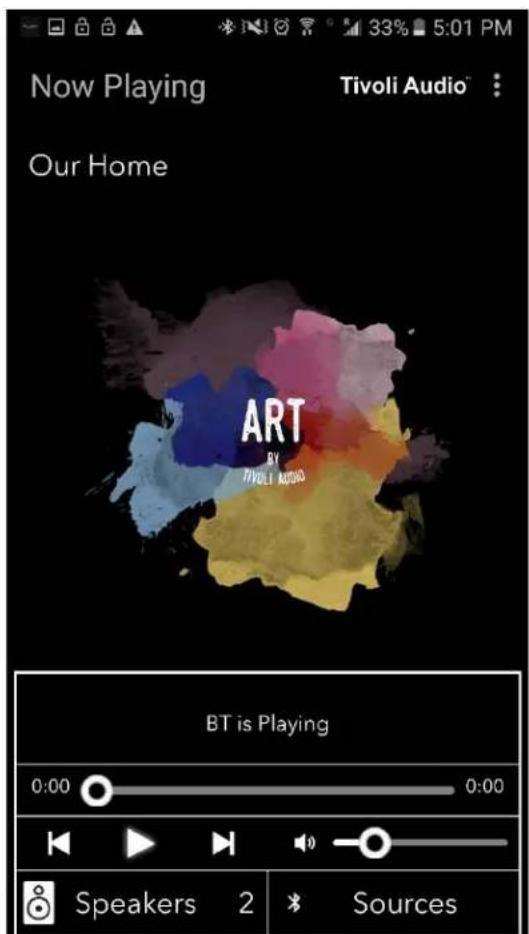
text_image
Now Playing Tivoli Audio Our Home ART BY TIVOLI AUDIO BT is Playing 0:00 0:00 Speakers 2 SourcesAUX-Modus
text_image
Tivoli Audio No Groups are Active Play New Play new Configuretext_image
Configure Devices REFRESH Configured Speakers Kitchen Speakers To Be Setup Add more speakerstext_image
Downloading software update The update process will take around 5 to 10 minutes depending on your network speed. Please do not turn off the unit during this time.text_image
Update Complete GO TO PLAY NEW Your unit is now standby mode. Press the power button to turn it on.Pflege
text_image
CUBE Tivoli Audio DCUVE & AC/AC/AC/AC/AC/AC/AC/AC/AC/AC/AC/AC/AC/AC/AC/AC/AC/AC/AC/AC/AC/AC/AC/AC/AC/AC/AC/AC/AC/AC/AC/AC/AC/AC/AC/AC/AC/AC/AC/AC/AC/AC/AC/AC/AC/AC/AC/AC/AC/AC/AC/CAV DCUVE DCUVE DCUVE DCUVE DCUVE DCUVE DCUVE DCUVE DCUVE DCUVE DCUVE DCUVE DCUVE DCUVE DCUVE DCUVE DCUVE DCUVE DCUVE DCUVE DCUVE DCUVE DCUVE DCUVE DCUVE DCUVO DCUVO DCUVO DCUVO DCUVO DCUVO DCUVO DCUVO DCUVO DCUVO DCUVO DCUVO DCUVO DCUVO DCUVO DCUVO DCUVO DCUVO DCUVO DCUVO DCUVO DCUVO DCUVO DCUVO DCUVO DCUCO DCUCO DCUCO DCUCO DCUCO DCUCO DCUCO DCUCO DCUCO DCUCO DCUCO DCUCO DCUCO DCUCO DCUCO DCUCO DCUCO DCUCO DCUCO DCUCO DCUCO DCUCO DCUCO DCUCO DCUCO DCUO DCUO DCUO DCUO DCUO DCUO DCUO DCUO DCUO DCUO DCUO DCUO DCUO DCUO DCUO DCUO DCUO DCUO DCUO DCUO DCUO DCUO DCUO DCUO DCUO DCU0text_image
Tivoli Audio No Groups are Active Play New Play new Configure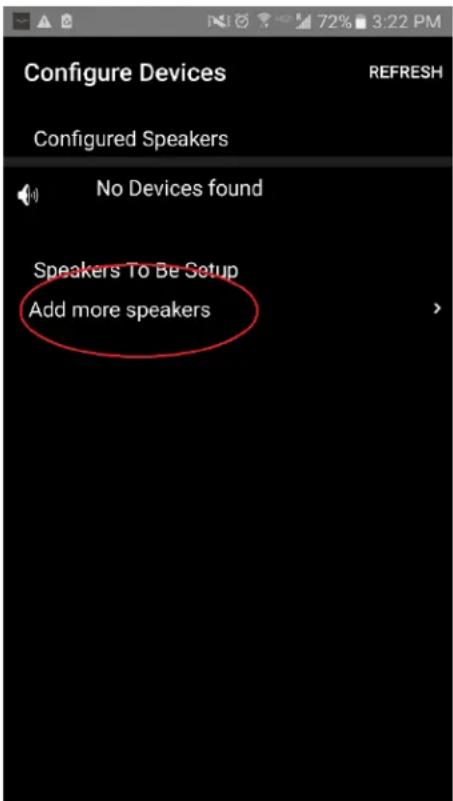
text_image
Configure Devices REFRESH Configured Speakers No Devices found Speakers To Be Setup Add more speakerstext_image
Tivoli Audio Press the Setup button of the Speaker Nexttext_image
Device Setup Tivoli Audio 1. Please read all four steps before leaving this page. 2. Tap the "Open Settings" bottom 3. Select "Tivoli_XXXX" from the list of networks. 4. Return to Tivoli Audio app and tap "Next". OPEN SETTINGS NEXTtext_image
On Tivoli_E0DF8D Connected RD23 New extreme ITtest NS2 RD15 4th Extreme buff_ITtest LieBaoWiFi285 RD15-5Gtext_image
Wi-Fi On Tivoli_E0DF8D Connected RD23 New extreme ITtest NS2 RD15 4th Extreme buff_ITtest LieBaoWiFi285 RD15-5Gtext_image
Device Setup Tivoli Audio 1. Please read all four steps before leaving this page. 2. Tap the "Open Settings" bottom 3. Select "Tivoli_XXXX" from the list of networks. 4. Return to Tivoli Audio app and tap "Next". OPEN SETTINGS NEXTtext_image
Tivoli Audio No Groups are Active Play New Play new Configure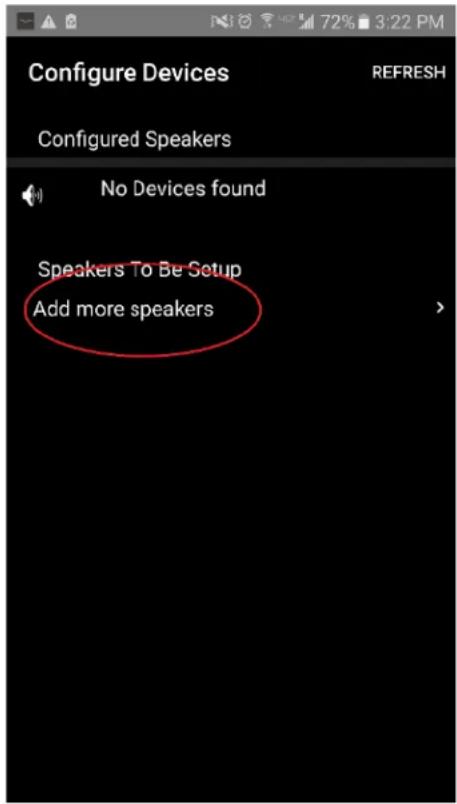
text_image
Configure Devices REFRESH Configured Speakers No Devices found Speakers To Be Setup Add more speakerstext_image
Tivoli Audio Press the Setup button of the Speaker Nextnatural_image
Close-up of a black smartphone control panel with a square button (no text or symbols visible)text_image
App Store Settings Music Safari iPad Settings WLAN Airplane Mode WLAN RD18 Bluetooth On Notifications Control Center Do Not Disturb General Display & Brightness Wallpaper Sounds Siri Touch ID & Passcode Battery Privacy iCloud iTunes & App Store Wallet & Apple Pay WLAN RD18 CHOOSE A NETWORK... GUEST2 HSRD1 NETGEAR PM RD2 RD4 Other... Ask to Join Networks Known networks will be joined automatically. If no known networks are available, you will be asked before joining a new network.text_image
Tivoli_E0DF8D Connected RD23 New extreme ITtest NS2 RD15 4th Extreme buff_ITtest LieBaoWiFi285 RD15-5Gtext_image
ART Tivoli Audiotext_image
Device Setup Tivoli Audio 1. Please read all four steps before leaving this page. 2. Tap the "Open Settings" bottom 3. Select "Tivoli_XXXX" from the list of networks. 4. Return to Tivoli Audio app and tap "Next". OPEN SETTINGS NEXTtext_image
Tivoli Audio No Groups are Active Play New Play new Configuretext_image
Configure Devices REFRESH Configured Speakers Tivoli_E0DF8C Speakers To Be Setup Add more speakerstext_image
Speaker Setup RefRESH Speaker Name : Kitchen Audio Output (Assigned): Stereo (S) IP Address : 192.168.10.39 Firmware Version : pPB1430.113.1000 Network Configuration > Savetext_image
Speaker Setup RefRESH Speaker Name : Kitchen ✗ Audio Output (Assigned): Stereo (S) IP Address : 192.168.10.39 Firmware Version : pPB1430.113.1000 Network Configuration > Save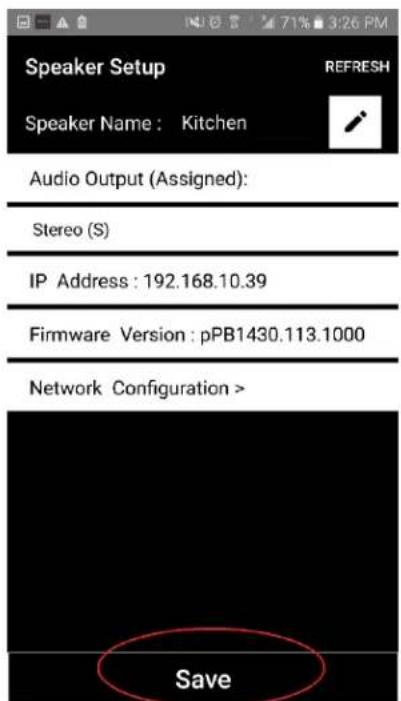
text_image
Speaker Setup Speaker Name : Kitchen Audio Output (Assigned): Stereo (S) IP Address : 192.168.10.39 Firmware Version : pPB1430.113.1000 Network Configuration > Savetext_image
Tivoli Audio No Groups are Active Play New Play new Configuretext_image
Configure Devices REFRESH Configured Speakers Kitchen Speakers To Be Setup Add more speakerstext_image
Speaker Setup RefRESH Speaker Name : KitchenAudio Output (Assigned):
text_image
Left Speaker (L) IP Address : 192.168.10.10Firmware Version : p6098.218.1000
text_image
Network Configuration > Save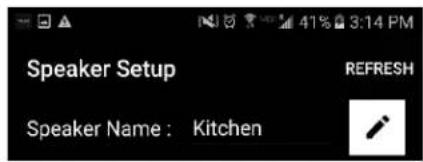
text_image
Speaker Setup RefRESH Speaker Name : KitchenAudio Output (Assigned):
| Left Speaker (L) |
| IP Address : 192.168.10.10 |
Firmware Version : p6098.218.1000
text_image
Network Configuration > Savetext_image
Tivoli Audio No Groups are Active Play New Play new Configure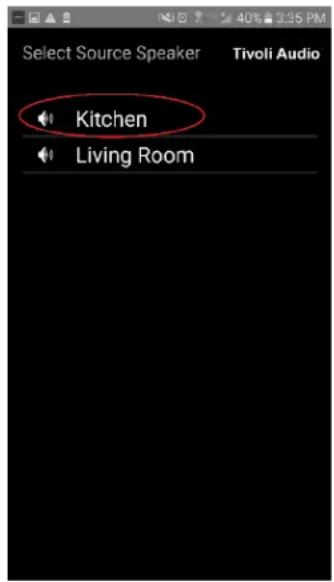
text_image
Select Source Speaker Tivoli Audio Kitchen Living Roomtext_image
Add More Speakers Tivoli Audio Group Name: MyGroup Kitchen Master Left Living Room Free Stereo NEXT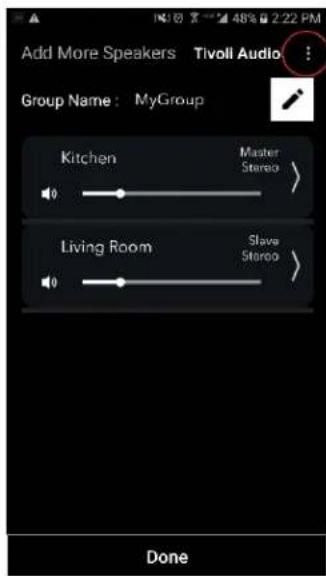
text_image
Add More Speakers Tivoll Audio Group Name: MyGroup Kitchen Master Stereo Living Room Slave Stereo Donetext_image
Select Source/Content Tivoli Audio Local Content Music Services Spotify Deezer TIDAL Tuneln QQ Music Network Devices/Players Bluetooth DONEtext_image
Select Source/Content Tivoli Audio® Local Content Music Services Spotify Deezer TIDAL Tuneln QQ Music Network Devices/Players Bluetooth DONE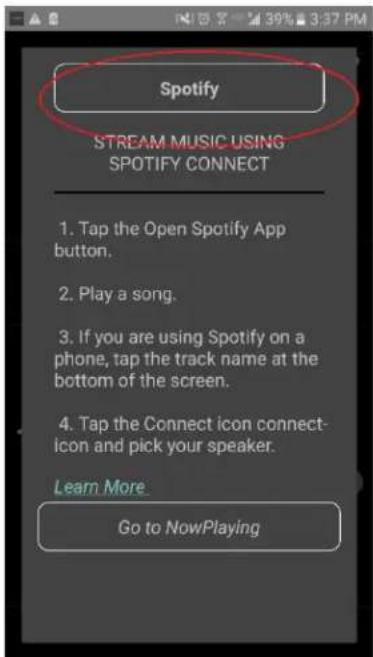
text_image
Spotify STREAM MUSIC USING SPOTIFY CONNECT 1. Tap the Open Spotify App button. 2. Play a song. 3. If you are using Spotify on a phone, tap the track name at the bottom of the screen. 4. Tap the Connect icon connect- icon and pick your speaker. Learn More Go to NowPlayingtext_image
× DEVICES Connect to a device LISTENING ON This phone Kitchen+Living Room Spotify Connecttext_image
Spotify STREAM MUSIC USING SPOTIFY CONNECT 1. Tap the Open Spotify App button. 2. Play a song. 3. If you are using Spotify on a phone, tap the track name at the bottom of the screen. 4. Tap the Connect icon connect- icon and pick your speaker. Learn More Go to NowPlaying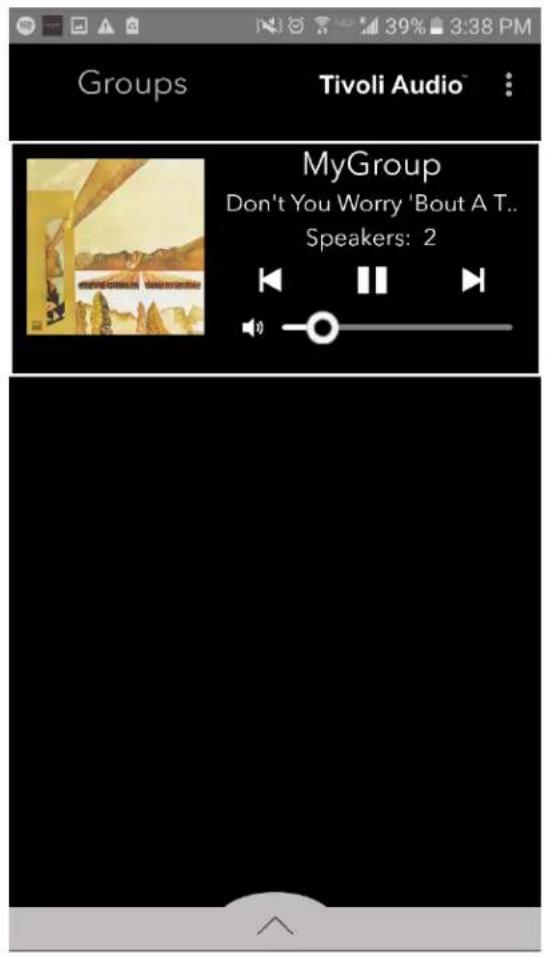
text_image
Groups Tivoli Audio™ MyGroup Don't You Worry 'Bout A T.. Speakers: 2text_image
Groups Tivoli Audio MyGroup Don't You Worry 'Bout A T... Speakers: 2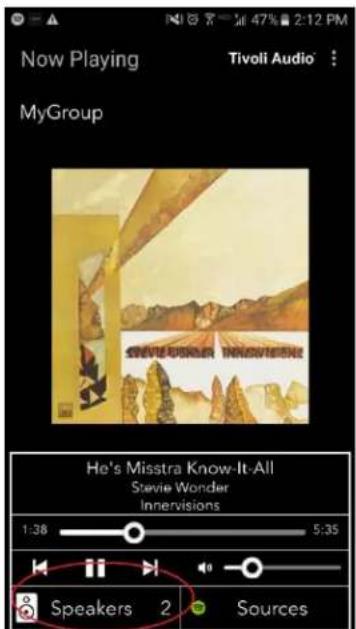
text_image
Now Playing MyGroup Tivoli Audio He's Misstra Know-It-All Stevie Wonder Innervisions 1:38 5:35 Speakers 2 Sourcestext_image
Add More Speakers Tivoli Audio Group Name: MyGroup Kitchen Master Stereo > Living Room Slave Stereo > Done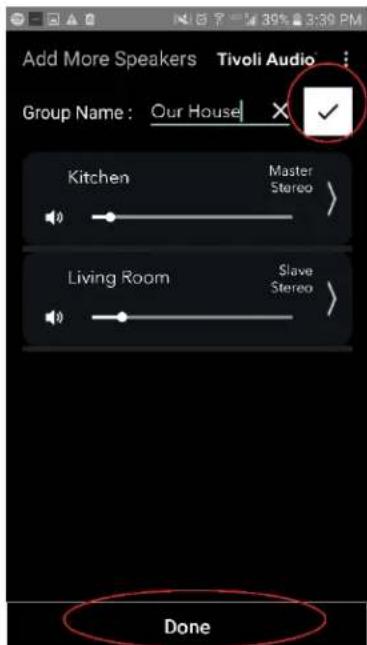
text_image
Add More Speakers Tivoli Audio Group Name: Our House Kitchen Master Stereo Living Room Slave Stereo Donetext_image
Groups Tivoli Audio MyGroup Don't You Worry 'Bout A T... Speakers: 2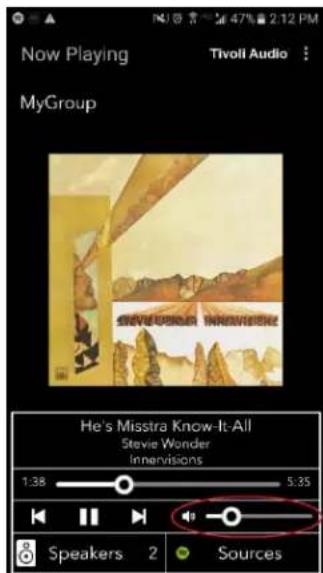
text_image
Now Playing MyGroup Tivoll Audio Steve Wonder Innervisions He's Misstra Know-It: All Stevie Wonder Innervisions 1:38 5:35 Speakers 2 Sourcestext_image
Groups Tivoli Audio MyGroup Don't You Worry 'Bout A T.. Speakers: 2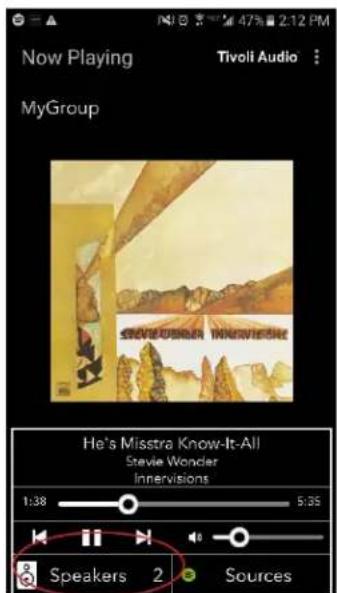
text_image
Now Playing MyGroup Tivoli Audio SteveFoster Know-It-All Stevie Wonder Innervisions 1:38 5:35 Speakers 2 Sources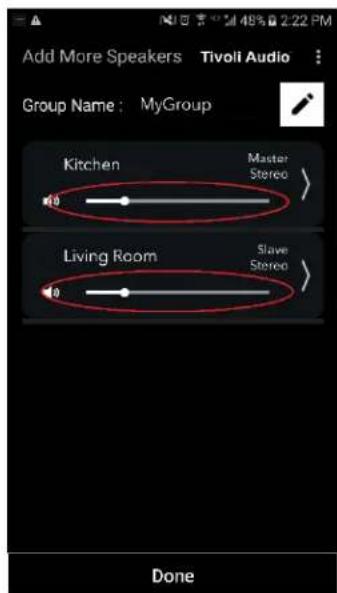
text_image
Add More Speakers Tivoli Audio Group Name: MyGroup Kitchen Master Stereo Living Room Slave Stereo Donetext_image
Groups Tivell Audio MyGroup Don't You Worry 'Bout A T.. Speakers: 2
text_image
Now Playing Tivoli Audio MyGroup He's Misstra Know-It-All Stevie Wonder Innovisions 1:38 5:38 Speakers 2 Sourcestext_image
Add More Speakers Tivoli Audio Group Name: MyGroup Kitchen Master Stereo > Living Room Slave Stereo > Done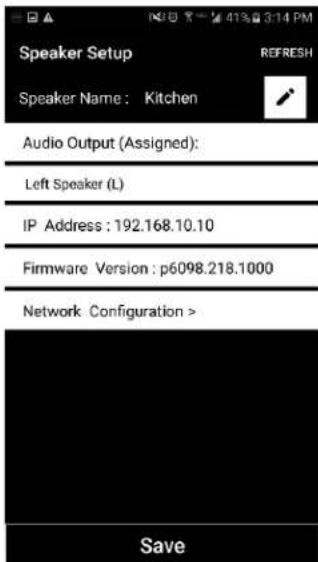
text_image
Speaker Setup Speaker Name: Kitchen Audio Output (Assigned): Left Speaker (L) IP Address: 192.168.10.10 Firmware Version: p6098.218.1000 Network Configuration > Savetext_image
SETUP ADD/DROP PARTY MODE SOURCE - + 12-15V 1-2.5A AUX IN SERVICE Tivoli Audio FCC ID: Cenada complies with: necroite in norme: R68-310, ICEB-000, FCG part 15b 8H28 Designed by Tivoli Audio in Boston Made in Chinatext_image
SETUP ADD/DROP PARTY MODE SOURCE - + 12-15V 1-2.5A AUX IN SERVICE FC Tivoli Audio FCC ID: Canada complies with encounters to name: RBS-210, ICD8-003, FCO part 15b CE UWES 8H28 Designed by Tivoli Audio in Boston Made in Chinatext_image
Select Source/Content Tivoli Audio Local Content Music Services Spotify Deezer TiDAL Tuneln QQ Music Network Devices/Players Bluetooth DONEtext_image
Groups Tivoli Audio MyGroup BT is Playing Speakers: 2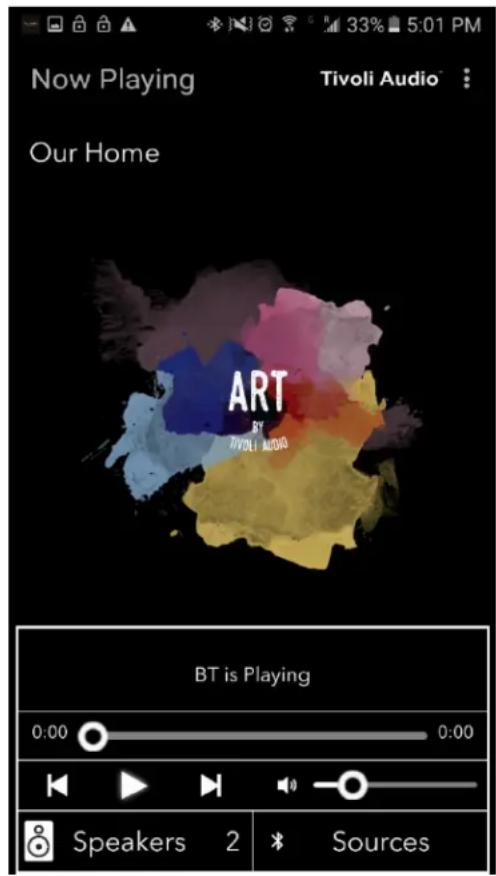
text_image
Now Playing Tivoli Audio Our Home ART BY TIVOLI AUDIO BT is Playing 0:00 0:00 Speakers 2 SourcesMode auxiliaire
text_image
Tivoli Audio No Groups are Active Play New Play new Configuretext_image
Configure Devices REFRESH Configured Speakers Kitchen Speakers To Be Setup Add more speakerstext_image
Downloading software update The update process will take around 5 to 10 minutes depending on your network speed. Please do not turn off the unit during this time.text_image
Update Complete GO TO PLAY NEW Your unit is now standby mode. Press the power button to turn it on.Entretien
text_image
Tivoli Audio No Groups are Active Play New Play new Configure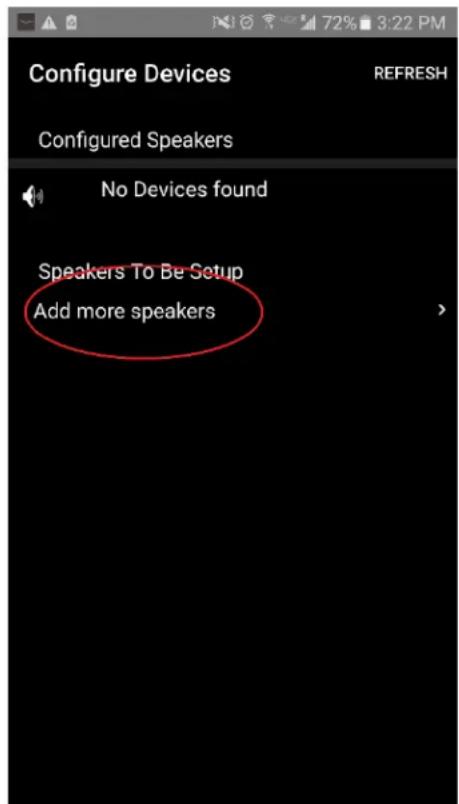
text_image
Configure Devices REFRESH Configured Speakers No Devices found Speakers To Be Setup Add more speakers- Premi il pulsante 'Configure' grande.
text_image
Tivoli Audio Configure your Tivoli Audio Speaker CONFIGUREtext_image
Tivoli Audio Press the Setup button of the Speaker Nexttext_image
Device Setup Tivoli Audio 1. Please read all four steps before leaving this page. 2. Tap the "Open Settings" bottom 3. Select "Tivoli_XXXX" from the list of networks. 4. Return to Tivoli Audio app and tap "Next". OPEN SETTINGS NEXTtext_image
Tivoli_E0DF8D Connected On RD23 New extreme ITtest NS2 RD15 4th Extreme buff_ITtest LieBaoWiFi285 RD15-5Gtext_image
Wi-Fi On Tivoli_E0DF8D Connected RD23 New extreme ITtest NS2 RD15 4th Extreme buff_ITtest LieBaoWiFi285 RD15-5Gtext_image
Device Setup Tivoli Audio 1. Please read all four steps before leaving this page. 2. Tap the "Open Settings" bottom 3. Select "Tivoli_XXXX" from the list of networks. 4. Return to Tivoli Audio app and tap "Next". OPEN SETTINGS NEXTtext_image
Tivoli Audio * No Groups are Active Play New Play new Configure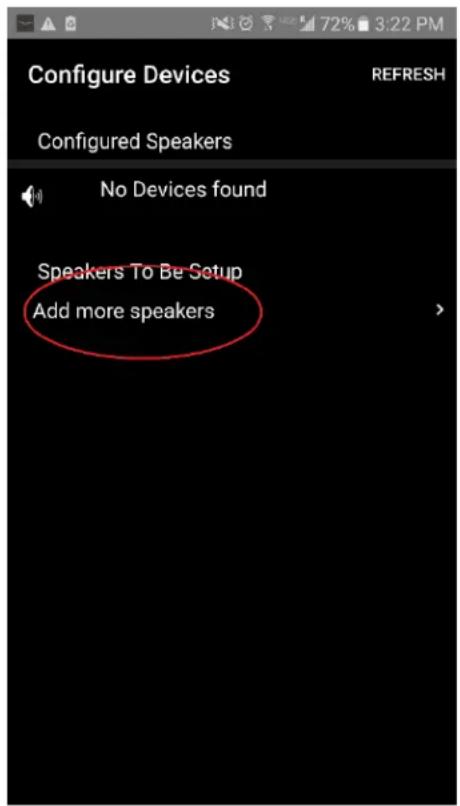
text_image
Configure Devices REFRESH Configured Speakers No Devices found Speakers To Be Setup Add more speakers- Premi il pulsante 'Configure' grande.
text_image
Tivoli Audio Configure your Tivoli Audio Speaker CONFIGUREtext_image
Tivoli Audio Press the Setup button of the Speaker Nextnatural_image
Close-up of a black smartphone control panel with a square button (no text or symbols visible)text_image
App Store Settings Music Safari iPad Settings 13:23 WLAN Airplane Mode WLAN RD18 Bluetooth On Notifications Control Center Do Not Disturb General Display & Brightness Wallpaper Sounds Siri Touch ID & Passcode Battery Privacy iCloud iTunes & App Store Wallet & Apple Pay WLAN RD18 CHOOSE A NETWORK... GUEST2 HSRD1 NETGEAR PM RD2 RD4 Other... Ask to Join Networks Known networks will be joined automatically. If no known networks are available, you will be asked before joining a new network.text_image
On Tivoli_E0DF8D Connected RD23 New extreme ITtest NS2 RD15 4th Extreme buff_ITtest LieBaoWiFi285 RD15-5Gtext_image
ART Tivoli Audiotext_image
Device Setup Tivoli Audio 1. Please read all four steps before leaving this page. 2. Tap the "Open Settings" bottom 3. Select "Tivoli_XXXX" from the list of networks. 4. Return to Tivoli Audio app and tap "Next". OPEN SETTINGS NEXTtext_image
Configure Devices REFRESH Configured Speakers Tivoli_E0DF8C Speakers To Be Setup Add more speakers >text_image
Tivoli Audio No Groups are Active Play New Play new ConfigureAudio Output (Assigned):
Stereo (S)
IP Address: 192.168.10.39
Firmware Version : pPB1430.113.1000
Network Configuration >

text_image
Save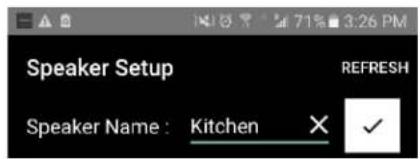
text_image
Speaker Setup REFRESH Speaker Name : Kitchen ✗ ✓Audio Output (Assigned):
Stereo (S)
IP Address : 192.168.10.39
Firmware Version: pPB1430.113.1000
Network Configuration >

text_image
Savetext_image
Speaker Setup RefRESH Speaker Name : Kitchen ✗Audio Output (Assigned):
Stereo (S)
IP Address : 192.168.10.39
Firmware Version : pPB1430.113.1000
Network Configuration >

text_image
Save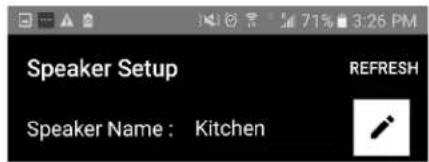
text_image
Speaker Setup REFRESH Speaker Name : KitchenAudio Output (Assigned):
Stereo (S)
IP Address : 192.168.10.39
Firmware Version : pPB1430.113.1000
Network Configuration >

text_image
Savetext_image
Tivoli Audio No Groups are Active Play New Play new Configuretext_image
Configure Devices REFRESH Configured Speakers Kitchen Speakers To Be Setup Add more speakers >text_image
Speaker Setup Speaker Name : Kitchen REFRESHAudio Output (Assigned):

text_image
Left Speaker (L) IP Address : 192.168.10.10Firmware Version : p6098.218.1000
text_image
Network Configuration > Save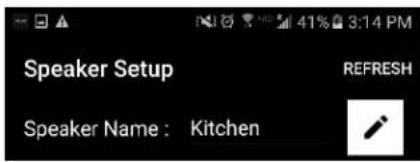
text_image
Speaker Setup Speaker Name : Kitchen REFRESHAudio Output (Assigned):
| Left Speaker (L) |
| IP Address : 192.168.10.10 |
Firmware Version : p6098.218.1000
text_image
Network Configuration > Savetext_image
Tivoli Audio No Groups are Active Play New Play new Configure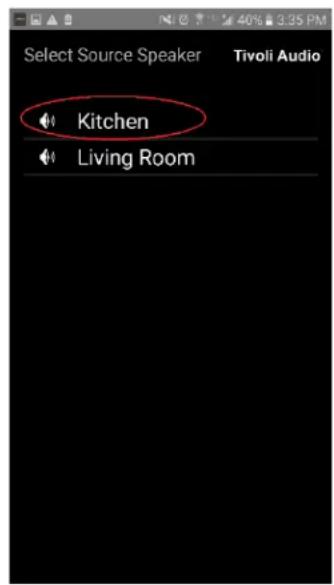
text_image
Select Source Speaker Tivoli Audio Kitchen Living Roomtext_image
Add More Speakers Tivoli Audio Group Name: MyGroup Kitchen Master Left Living Room Free Stereo NEXT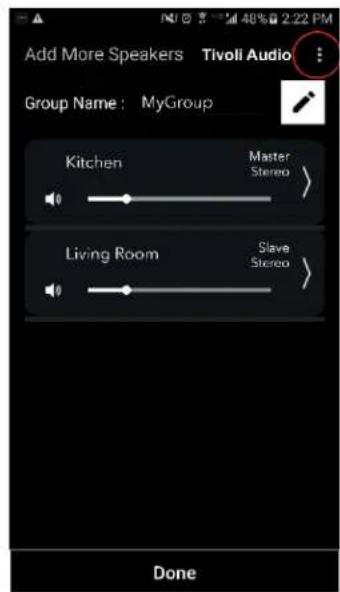
text_image
Add More Speakers Tivoll Audio Group Name: MyGroup Kitchen Master Stereo Living Room Slave Stereo Donetext_image
Select Source/Content Tivoli Audio™ Local Content Music Services Spotify Deezer TIDAL Tuneln QQ Music Network Devices/Players Bluetooth DONEtext_image
Select Source/Content Tivoli Audio™ Local Content Music Services Spotify Deezer TIDAL Tuneln QQ Music Network Devices/Players Bluetooth DONE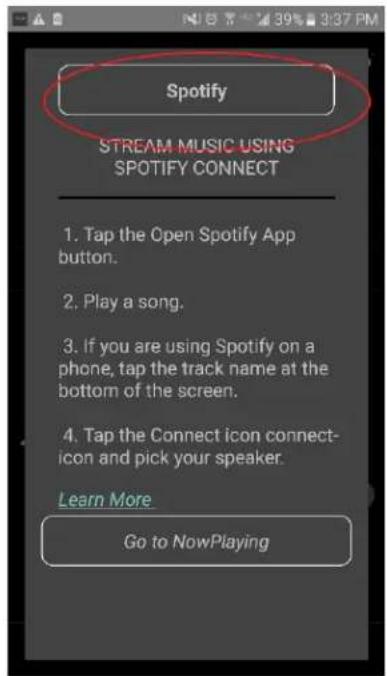
text_image
Spotify STREAM MUSIC USING SPOTIFY CONNECT 1. Tap the Open Spotify App button. 2. Play a song. 3. If you are using Spotify on a phone, tap the track name at the bottom of the screen. 4. Tap the Connect icon connect- icon and pick your speaker. Learn More Go to NowPlayingtext_image
× DEVICES Connect to a device LISTENING ON This phone Kitchen+Living Room Spotify Connecttext_image
Spotify STREAM MUSIC USING SPOTIFY CONNECT 1. Tap the Open Spotify App button. 2. Play a song. 3. If you are using Spotify on a phone, tap the track name at the bottom of the screen. 4. Tap the Connect icon connect- icon and pick your speaker. Learn More Go to NowPlaying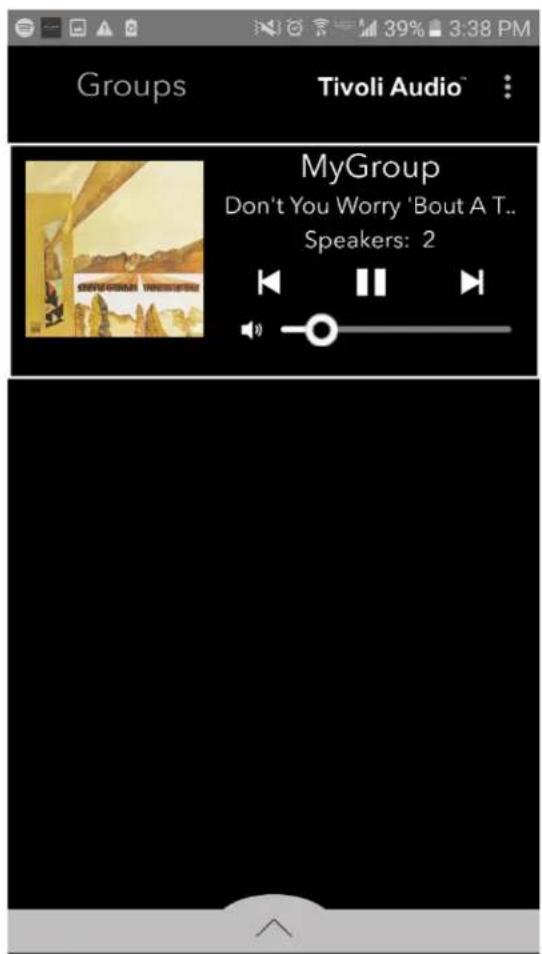
text_image
Groups Tivoli Audio™ MyGroup Don't You Worry 'Bout A T.. Speakers: 2text_image
Groups Tivoli Audio MyGroup Don't You Worry 'Bout A T.. Speakers: 2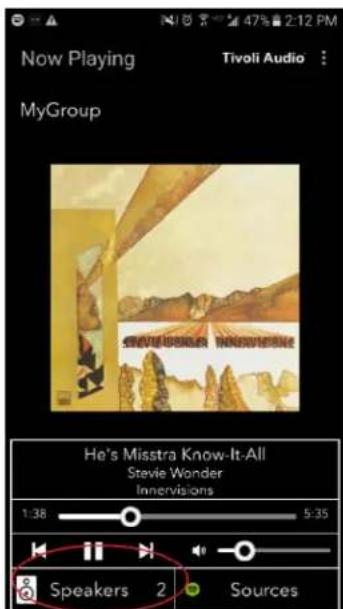
text_image
Now Playing MyGroup Tivoli Audio : He's Misstra Know-It-All Stevie Wonder Innervisions 1:38 5:35 Speakers 2 Sourcestext_image
Add More Speakers Tivoli Audio Group Name: MyGroup Kitchen Master Stereo Living Room Slave Stereo Done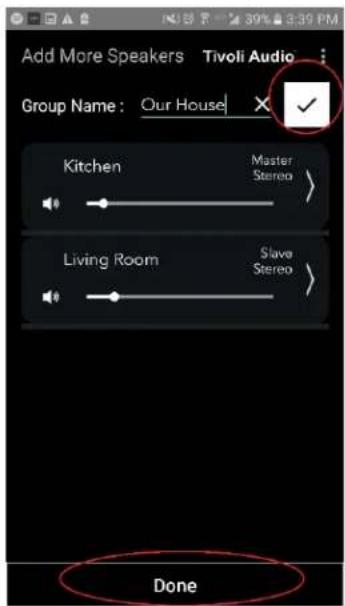
text_image
Add More Speakers Tivoli Audio Group Name: Our House Kitchen Master Stereo Living Room Slave Stereo Donetext_image
Groups Tivoli Audio MyGroup Don't You Worry 'Bout A T.. Speakers: 2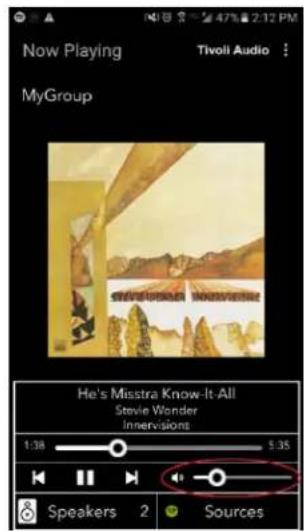
text_image
Now Playing MyGroup Tivoli Audio He's Misstra Know-It All Stevie Wonder Innervisions 1:38 5:35 Speakers 2 Sourcestext_image
Groups Tivoli Audio MyGroup Don't You Worry 'Bout A T.. Speakers: 2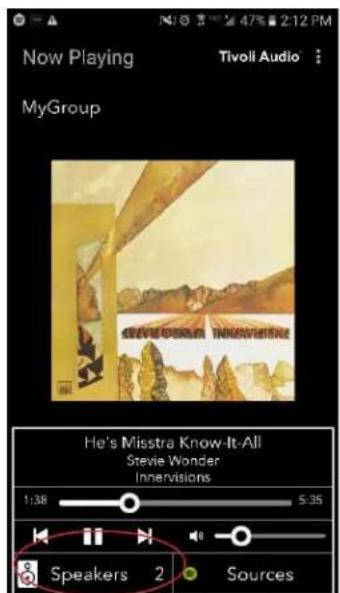
text_image
Now Playing MyGroup Tivoli Audio Steve Wonder Innervisions He's Misstra Know-It-All Stevie Wonder Innervisions 1:38 5:35 Speakers 2 Sources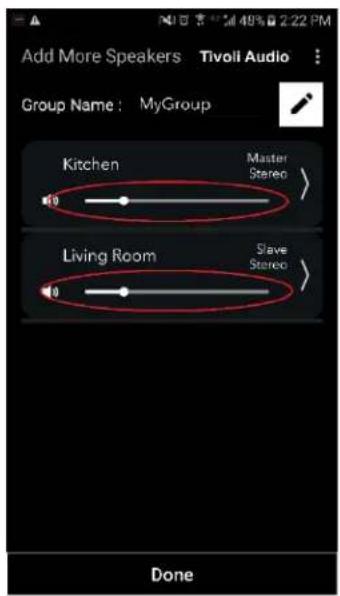
text_image
Add More Speakers Tivoli Audio Group Name: MyGroup Kitchen Master Stereo Living Room Slave Stereo Donetext_image
Groups Tivoli Audio MyGroup Don't You Worry 'Bout A T... Speakers: 2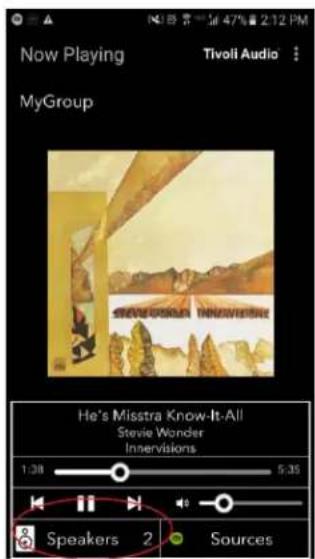
text_image
Now Playing MyGroup Tivoli Audio He's Misstra Know-It-All Stevie Wonder Intervisions 1:38 5:35 Speakers 2 Sourcestext_image
Add More Speakers Tivoli Audio Group Name: MyGroup Kitchen Master Stereo Living Room Slave Stereo Done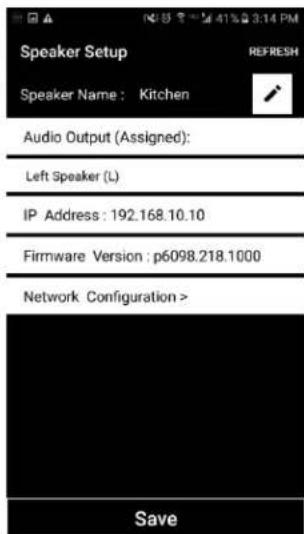
text_image
Speaker Setup Speaker Name: Kitchen Audio Output (Assigned): Left Speaker (L) IP Address: 192.168.10.10 Firmware Version: p6098.218.1000 Network Configuration > Savetext_image
Groups Tivoli Audio MyGroup Don't You Worry 'Bout A T.. Speakers: 2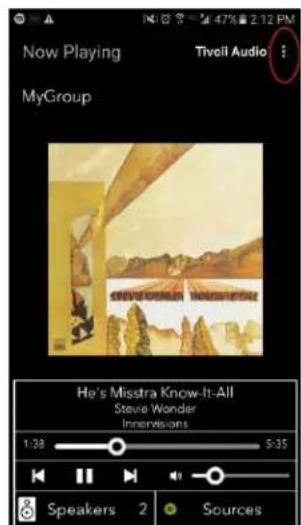
text_image
Now Playing MyGroup Tiveli Audio He's Misstra Know-It-All Steve Wonder Innervisions 1:38 5:35 Speakers 2 Sourcestext_image
Groups Tivoli Audio MyGroup Don't You Worry 'Bout A.T.. Speakers: 2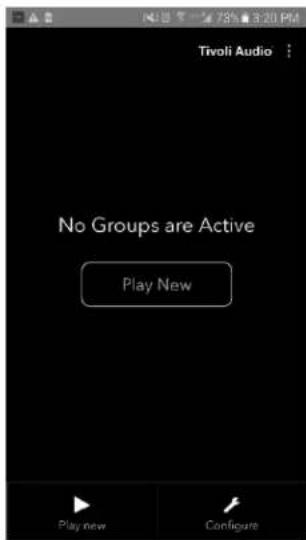
text_image
Tivoli Audio No Groups are Active Play New Play new ConfigurePulsante Add/Drop
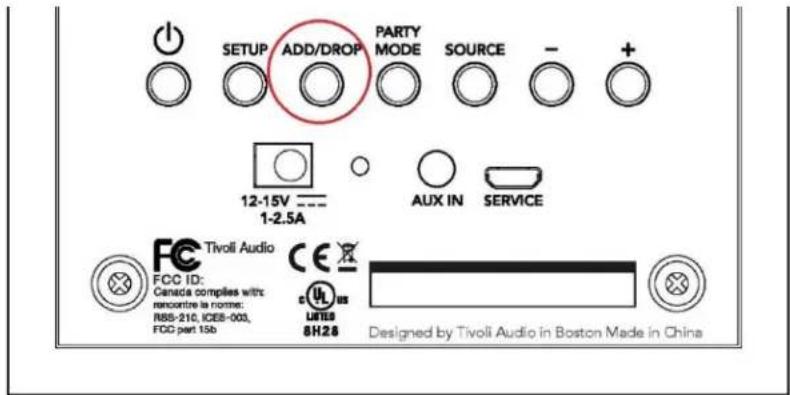
text_image
SETUP ADD/DROP PARTY MODE SOURCE - + 12-15V 1-2.5A AUX IN SERVICE FCC ID: Canada complies with: rencontre la norme: RBB-210, ICEB-003, FCC part 15b C US LIMITED 8H28 Designed by Tivoli Audio in Boston Made in Chinatext_image
SETUP ADD/DROP PARTY MODE SOURCE - + 12-15V 1-2.5A AUX IN SERVICE FCC ID: Canada complies with: rencontre to norme: RSS-210, ICES-003, FCC part 15b CE US UNITS 8H28 Designed by Tivoli Audio in Boston Made in Chinatext_image
Select Source/Content Tivoli Audio Local Content Music Services Spotify Deezer TIDAL Tuneln QQ Music Network Devices/Players Bluetooth DONEtext_image
Groups Tivoli Audio MyGroup BT is Playing Speakers: 2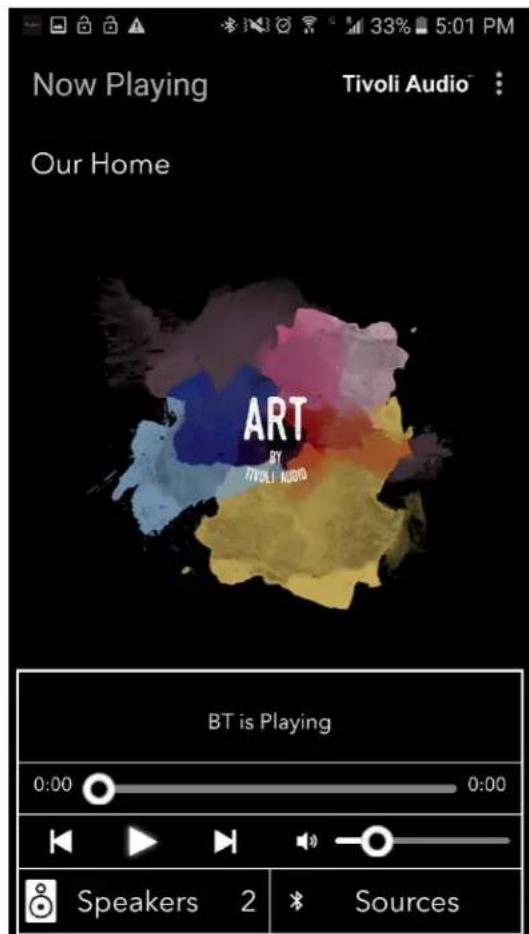
text_image
Now Playing Tivoli Audio Our Home ART BY TIVOLI AUDIO BT is Playing 0:00 0:00 Speakers 2 SourcesModalità Aux
text_image
Tivoli Audio No Groups are Active Play New Play new Configuretext_image
Configure Devices REFRESH Configured Speakers Kitchen Speakers To Be Setup Add more speakerstext_image
Downloading software update The update process will take around 5 to 10 minutes depending on your network speed. Please do not turn off the unit during this time.text_image
Update Complete GO TO PLAY NEW Your unit is now standby mode. Press the power button to turn it on.Manutenzione
v. 'Add/Drop'-knop 256
vi. 'Party Mode'-knop 256
vii. DDMS-modus 257
b. Bluetooth modus
i. Verbinden 258
ii. Bluetooth via wifi 258
c. Aux-modus 259
text_image
Tivoli Audio No Groups are Active Play New Play new Configure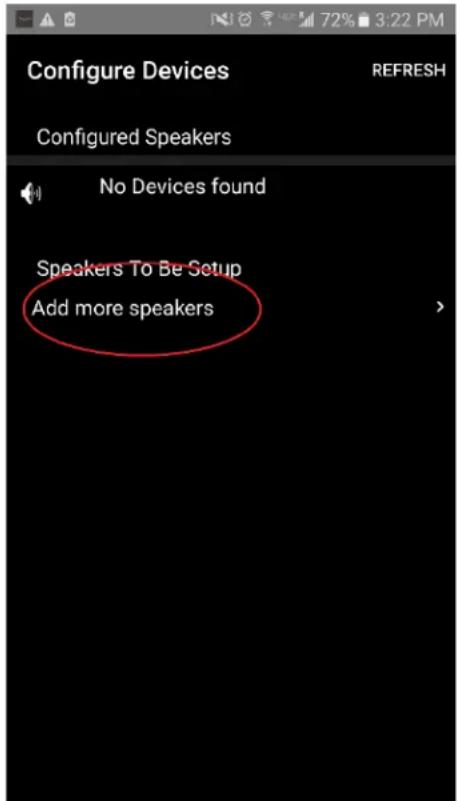
text_image
Configure Devices REFRESH Configured Speakers No Devices found Speakers To Be Setup Add more speakerstext_image
Tivoli Audio Press the Setup button of the Speaker Nexttext_image
Device Setup Tivoli Audio 1. Please read all four steps before leaving this page. 2. Tap the "Open Settings" bottom 3. Select "Tivoli_XXXX" from the list of networks. 4. Return to Tivoli Audio app and tap "Next". OPEN SETTINGS NEXTtext_image
On Tivoli_E0DF8D Connected RD23 New extreme ITtest NS2 RD15 4th Extreme buff_ITtest LieBaoWiFi285 RD15-5Gtext_image
Wi-Fi On Tivoli_E0DF8D Connected RD23 New extreme ITtest NS2 RD15 4th Extreme buff_ITtest LieBaoWiFi285 RD15-5Gtext_image
Device Setup Tivoli Audio 1. Please read all four steps before leaving this page. 2. Tap the "Open Settings" bottom 3. Select "Tivoli_XXXX" from the list of networks. 4. Return to Tivoli Audio app and tap "Next". OPEN SETTINGS NEXTtext_image
Tivoli Audio No Groups are Active Play New Play new Configure
text_image
Configure Devices REFRESH Configured Speakers No Devices found Speakers To Be Setup Add more speakerstext_image
Tivoli Audio Press the Setup button of the Speaker Nextnatural_image
Close-up of a black smartphone control panel with a square button (no text or symbols visible)text_image
Settings Airplane Mode WLAN RD18 Bluetooth On Notifications Control Center Do Not Disturb General Display & Brightness Wallpaper Sounds Siri Touch ID & Passcode Battery Privacy iCloud iTunes & App Store Wallet & Apple Pay WLAN RD18 CHOOSE A NETWORK... GUEST2 HSRD1 NETGEAR PM RD2 RD4 Other... Ask to Join Networks Known networks will be joined automatically. If no known networks are available, you will be asked before joining a new network.text_image
Tivoli_E0DF8D Connected RD23 New extreme ITtest NS2 RD15 4th Extreme buff_ITtest LieBaoWiFi285 RD15-5Gtext_image
ART Tivoli Audiotext_image
Device Setup Tivoli Audio 1. Please read all four steps before leaving this page. 2. Tap the "Open Settings" bottom 3. Select "Tivoli_XXXX" from the list of networks. 4. Return to Tivoli Audio app and tap "Next". OPEN SETTINGS NEXTtext_image
Tivoli Audio No Groups are Active Play New Play new Configuretext_image
Configure Devices REFRESH Configured Speakers Tivoli_E0DF8C Speakers To Be Setup Add more speakerstext_image
Speaker Setup RefRESH Speaker Name : Kitchen Audio Output (Assigned): Stereo (S) IP Address : 192.168.10.39 Firmware Version : pPB1430.113.1000 Network Configuration > Savetext_image
Speaker Setup RefRESH Speaker Name : Kitchen Audio Output (Assigned): Stereo (S) IP Address : 192.168.10.39 Firmware Version : pPB1430.113.1000 Network Configuration > Save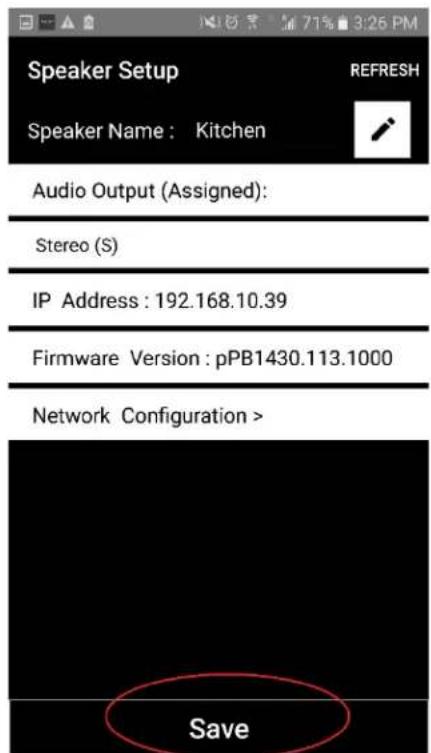
text_image
Speaker Setup Speaker Name : Kitchen Audio Output (Assigned): Stereo (S) IP Address : 192.168.10.39 Firmware Version : pPB1430.113.1000 Network Configuration > SaveConfiguratie-instellingen speaker - Geluid
text_image
Tivoli Audio No Groups are Active Play New Play new Configuretext_image
Configure Devices REFRESH Configured Speakers Kitchen Speakers To Be Setup Add more speakerstext_image
Speaker Setup Speaker Name: Kitchen Audio Output (Assigned): Left Speaker (L) IP Address : 192.168.10.10 Firmware Version : p6098.218.1000 Network Configuration > Savetext_image
Tivoli Audio No Groups are Active Play New Play new Configure
text_image
Select Source Speaker Kitchen Living Roomtext_image
Add More Speakers Tivoli Audio Group Name: MyGroup Kitchen Master Left Living Room Real Stereo NEXT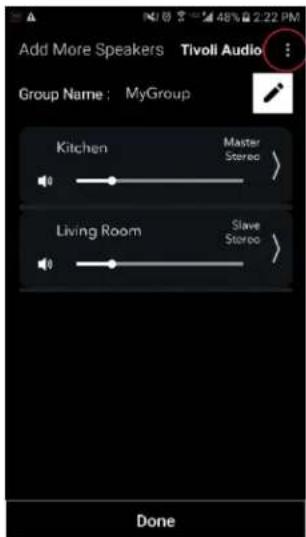
text_image
Add More Speakers Tivoli Audio Group Name: MyGroup Kitchen Master Stereo > Living Room Slave Stereo > Donetext_image
Select Source/Content Tivoli Audio Local Content Music Services Spotify Deezer TIDAL Tuneln QQ Music Network Devices/Players Bluetooth DONEtext_image
Select Source/Content Tivoli Audio Local Content Music Services Spotify Deezer TIDAL Tuneln QQ Music Network Devices/Players Bluetooth DONE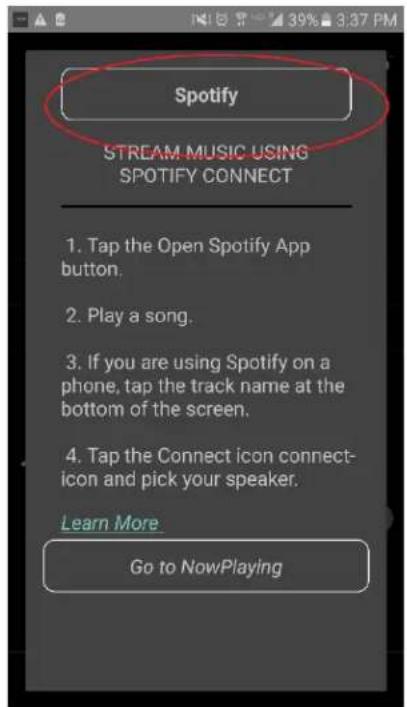
text_image
Spotify STREAM MUSIC USING SPOTIFY CONNECT 1. Tap the Open Spotify App button. 2. Play a song. 3. If you are using Spotify on a phone, tap the track name at the bottom of the screen. 4. Tap the Connect icon connect- icon and pick your speaker. Learn More Go to NowPlayingtext_image
× DEVICES Connect to a device LISTENING ON This phone Kitchen+Living Room Spotify Connecttext_image
Spotify STREAM MUSIC USING SPOTIFY CONNECT 1. Tap the Open Spotify App button. 2. Play a song. 3. If you are using Spotify on a phone, tap the track name at the bottom of the screen. 4. Tap the Connect icon connect- icon and pick your speaker. Learn More Go to NowPlaying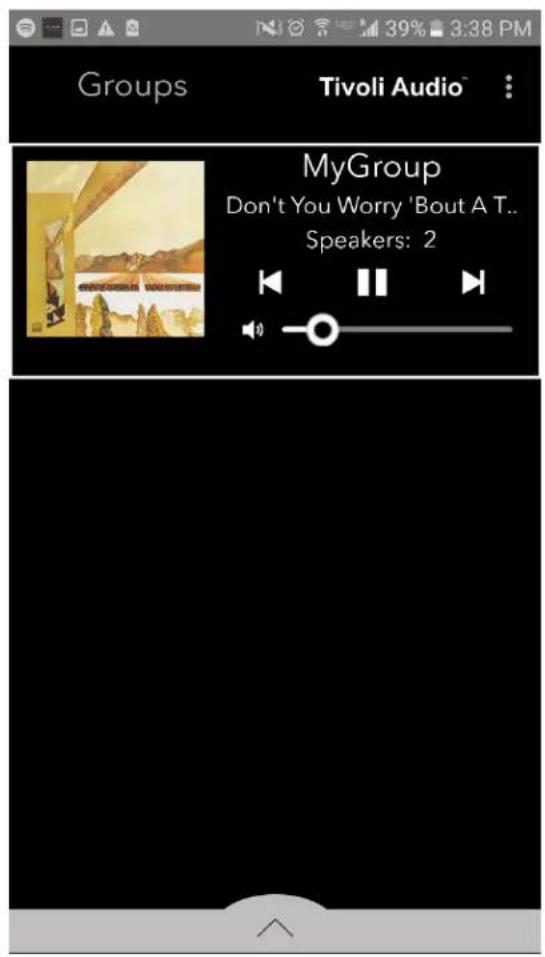
text_image
Groups Tivoli Audio™ MyGroup Don't You Worry 'Bout A T.. Speakers: 2text_image
Groups Tivoli Audio™ MyGroup Don't You Worry 'Bout A T... Speakers: 2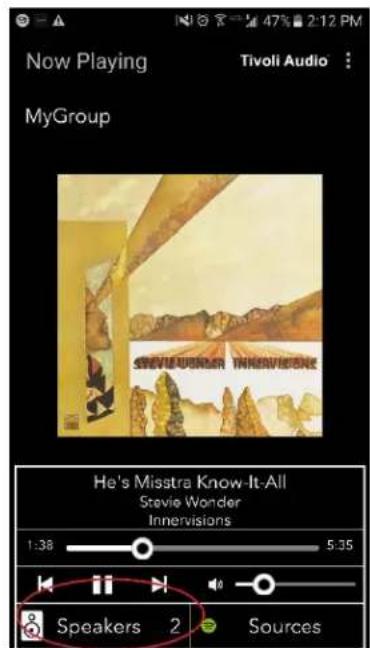
text_image
Now Playing Tivoli Audio : MyGroup Steve Wonder Innervisions He's Misstra Know-It-All Stevie Wonder Innervisions 1:38 5:35 Speakers 2 Sourcestext_image
Add More Speakers Tivoli Audio Group Name: MyGroup Kitchen Master Stereo Living Room Slave Stereo Done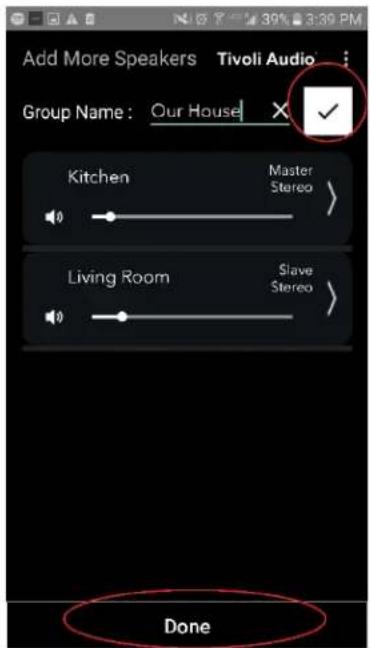
text_image
Add More Speakers Tivoli Audio Group Name: Our House Kitchen Master Stereo Living Room Slave Stereo Donetext_image
Groups Tivoli Audio MyGroup Don't You Worry 'Bout A T... Speakers: 2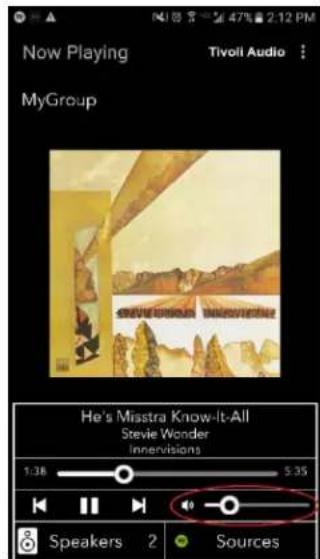
text_image
Now Playing MyGroup Tivoli Audio : He's Misstra Know-It-All Stevie Wonder Innervisions 1:38 5:35 Speakers 2 Sourcestext_image
Groups Tivoli Audio MyGroup Don't You Worry 'Bout A T.. Speakers: 2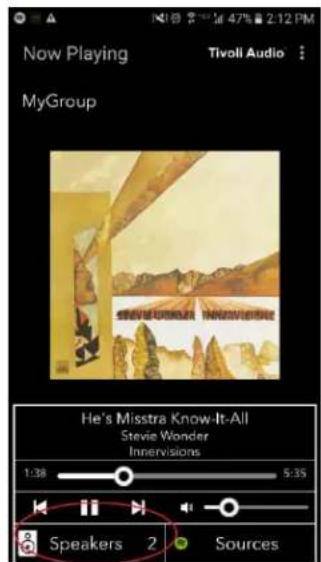
text_image
Now Playing MyGroup Tivoli Audio He's Misstra Know-It-All Stevie Wonder Innervisions 1:38 5:35 Speakers 2 Sources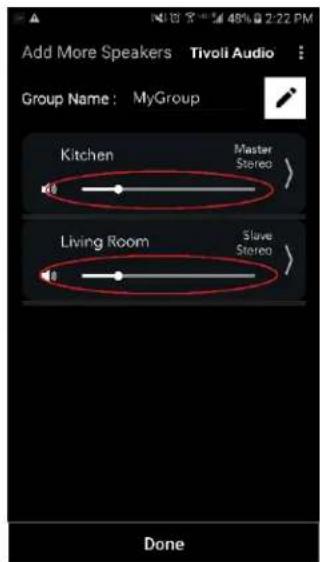
text_image
Add More Speakers Tivoli Audio Group Name: MyGroup Kitchen Master Stereo Living Room Slave Stereo Donetext_image
Groups Tivoli Audio MyGroup Don't You Worry 'Bout A T.. Speakers: 2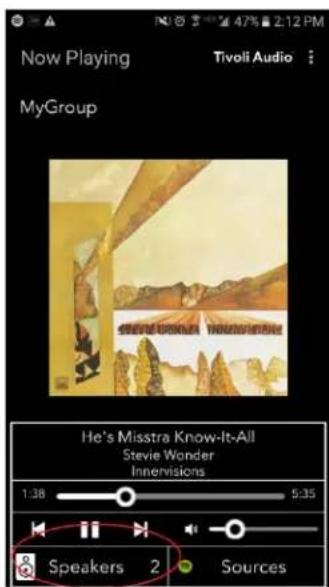
text_image
Now Playing Tivoli Audio : MyGroup He's Misstra Know-It-All Stevie Wonder Innervisions 1:38 5:35 Speakers 2 Sourcestext_image
Add More Speakers Tivoli Audio Group Name: MyGroup Kitchen Master Stereo > Living Room Slave Stereo > Done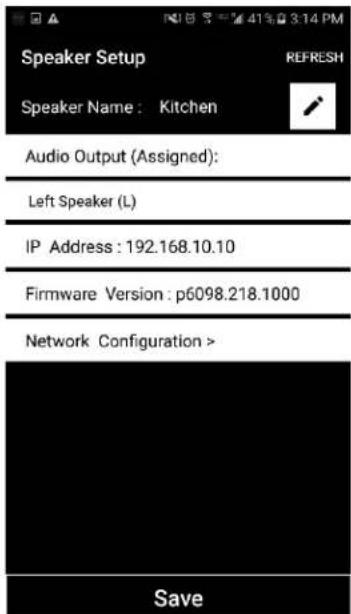
text_image
Speaker Setup Speaker Name: Kitchen Audio Output (Assigned): Left Speaker (L) IP Address: 192.168.10.10 Firmware Version: p6098.218.1000 Network Configuration > Savetext_image
Groups Tivoli Audio MyGroup Don't You Worry 'Bout A T.. Speakers: 2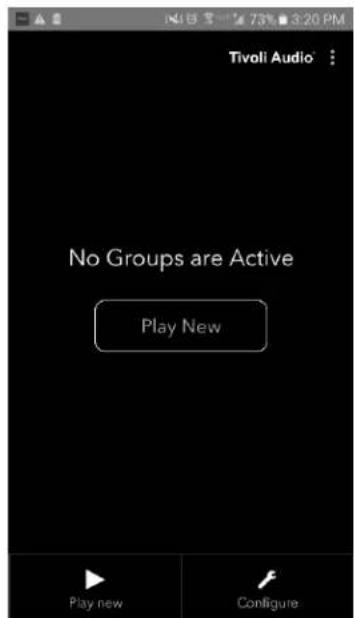
text_image
Tivoli Audio No Groups are Active Play New Play new Configure'Add/Drop'-knop
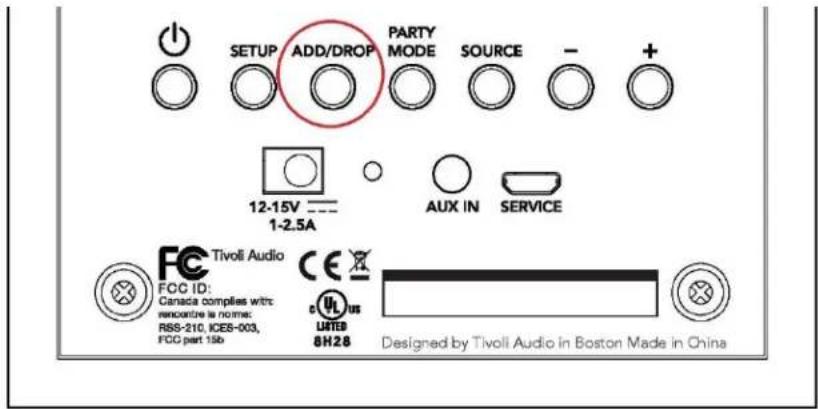
text_image
SETUP ADD/DROP PARTY MODE SOURCE - + 12-15V 1-2.5A AUX IN SERVICE FCC ID: Canaccia complies with: renocentre is norme: RSS-210, ICEB-003, FOC part 15b c us LUTES 8H26 Designed by Tivoli Audio in Boston Made in Chinatext_image
SETUP ADD/DROP PARTY SOURCE 12-15V 1-2.5A AUX IN SERVICE Tivoli Audio FCC ID: Canada complies with: renconce la norme: RBS-210, ICEB-003, FDC part 15b C US UNITED 8H26 Designed by Tivoli Audio in Boston Made in Chinatext_image
Select Source/Content Troll Audio Local Content Music Services Spotify Deezer TIDAL TuneIn QQ Music Network Devices/Players Bluetooth DONEtext_image
Groups Tivoli Audio MyGroup BT is Playing Speakers: 2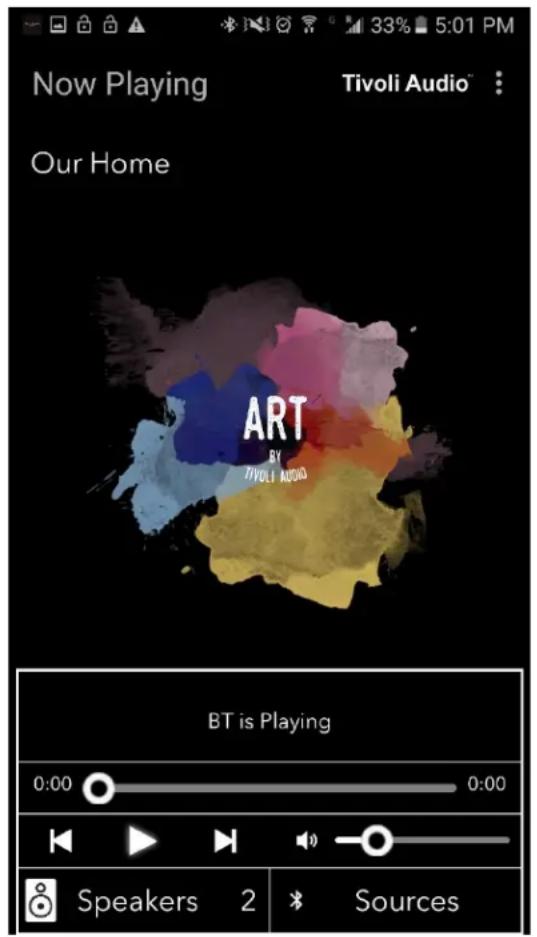
text_image
Now Playing Tivoli Audio™ Our Home ART BY TIVOLI AUDIO BT is Playing 0:00 0:00 Speakers 2 SourcesAux-modus
text_image
Tivoli Audio No Groups are Active Play New Play new Configuretext_image
Configure Devices REFRESH Configured Speakers Kitchen Speakers To Be Setup Add more speakerstext_image
Downloading software update The update process will take around 5 to 10 minutes depending on your network speed. Please do not turn off the unit during this time.text_image
Update Complete GO TO PLAY NEW Your unit is now standby mode. Press the power button to turn it on.Verzorging
ii. Serup for iOS 275
ii. Bluetooth over WiFi 295
c. AUX-modus 296
text_image
Tivoli Audio No Groups are Active Play New Play new Configure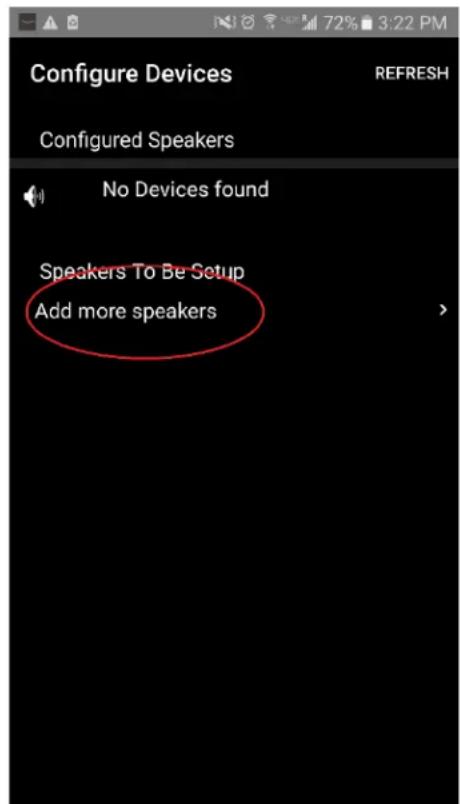
text_image
Configure Devices REFRESH Configured Speakers No Devices found Speakers To Be Setup Add more speakers- Trykk på den store Konfigurer-knappen.
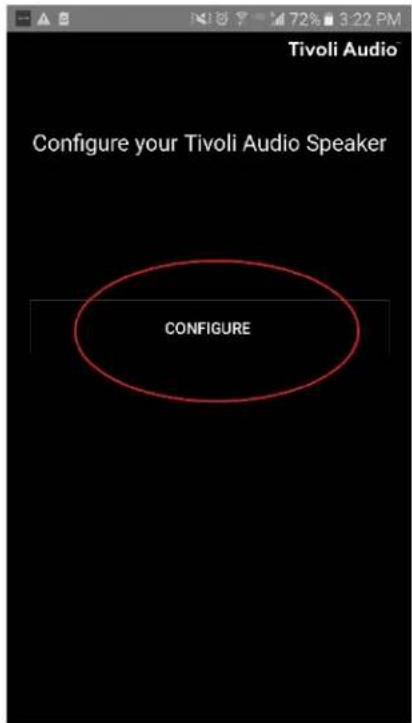
text_image
Tivoli Audio Configure your Tivoli Audio Speaker CONFIGUREtext_image
Tivoli Audio Press the Setup button of the Speaker Nexttext_image
Device Setup Tivoli Audio 1. Please read all four steps before leaving this page. 2. Tap the "Open Settings" bottom 3. Select "Tivoli_XXXX" from the list of networks. 4. Return to Tivoli Audio app and tap "Next". OPEN SETTINGS NEXTtext_image
Tivoli_E0DF8D Connected On RD23 New extreme ITtest NS2 RD15 4th Extreme buff_ITtest LieBaoWiFi285 RD15-5Gtext_image
Wi-Fi On Tivoli_E0DF8D Connected RD23 New extreme ITtest NS2 RD15 4th Extreme buff_ITtest LieBaoWiFi285 RD15-5G- Når du har kommet tilbake til Tivoli Audio Wireless App, velger du "Next".
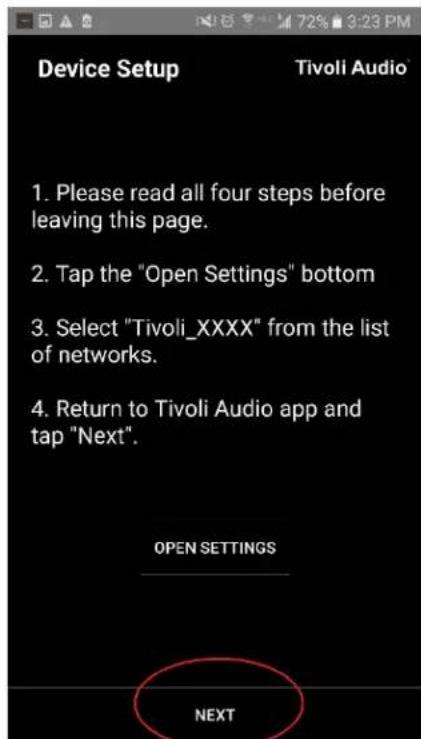
text_image
Device Setup Tivoli Audio 1. Please read all four steps before leaving this page. 2. Tap the "Open Settings" bottom 3. Select "Tivoli_XXXX" from the list of networks. 4. Return to Tivoli Audio app and tap "Next". OPEN SETTINGS NEXTtext_image
Tivoli Audio No Groups are Active Play New Play new Configure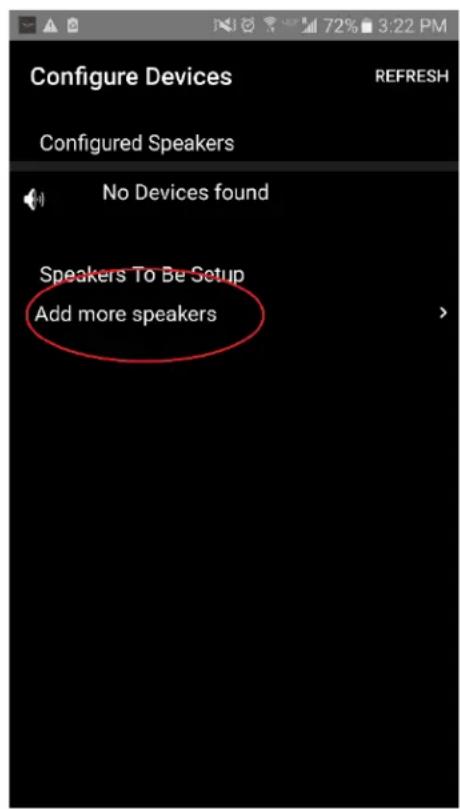
text_image
Configure Devices REFRESH Configured Speakers No Devices found Speakers To Be Setup Add more speakers- Trykk på den store Konfigurer-knappen.
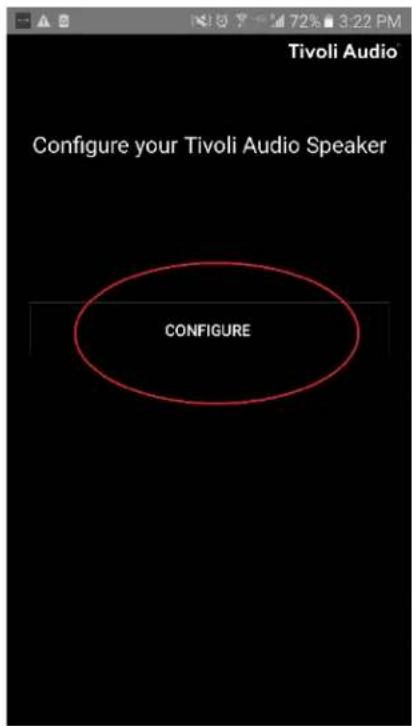
text_image
Tivoli Audio Configure your Tivoli Audio Speaker CONFIGUREtext_image
Tivoli Audio Press the Setup button of the Speaker Nextnatural_image
Close-up of a black smartphone control panel with a square button (no text or symbols visible)text_image
App Store Settings Music Safari iPad Settings 13:23 WLAN Airplane Mode WLAN RD18 Bluetooth On Notifications Control Center Do Not Disturb General Display & Brightness Wallpaper Sounds Siri Touch ID & Passcode Battery Privacy iCloud iTunes & App Store Wallet & Apple Pay WLAN RD18 CHOOSE A NETWORK... GUEST2 HSRD1 NETGEAR PM RD2 RD4 Other... Ask to Join Networks Known networks will be joined automatically. If no known networks are available, you will be asked before joining a new network.text_image
Tivoli_E0DF8D Connected RD23 New extreme ITtest NS2 RD15 4th Extreme buff_ITtest LieBaoWiFi285 RD15-5Gtext_image
ART Tivoli Audio- Når du har kommet tilbake til Tivoli Audio Wireless App, velger du "Next".
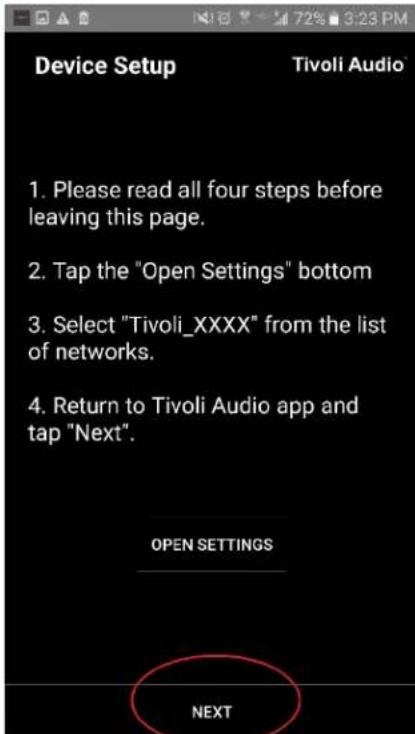
text_image
Device Setup Tivoli Audio* 1. Please read all four steps before leaving this page. 2. Tap the "Open Settings" bottom 3. Select "Tivoli_XXXX" from the list of networks. 4. Return to Tivoli Audio app and tap "Next". OPEN SETTINGS NEXTtext_image
Tivoli Audio No Groups are Active Play New Play new Configuretext_image
Speaker Setup RefRESH Speaker Name : Kitchen Audio Output (Assigned): Stereo (S) IP Address : 192.168.10.39 Firmware Version : pPB1430.113.1000 Network Configuration > Savetext_image
Speaker Setup RefRESH Speaker Name : Kitchen ✗ Audio Output (Assigned): Stereo (S) IP Address : 192.168.10.39 Firmware Version : pPB1430.113.1000 Network Configuration > Save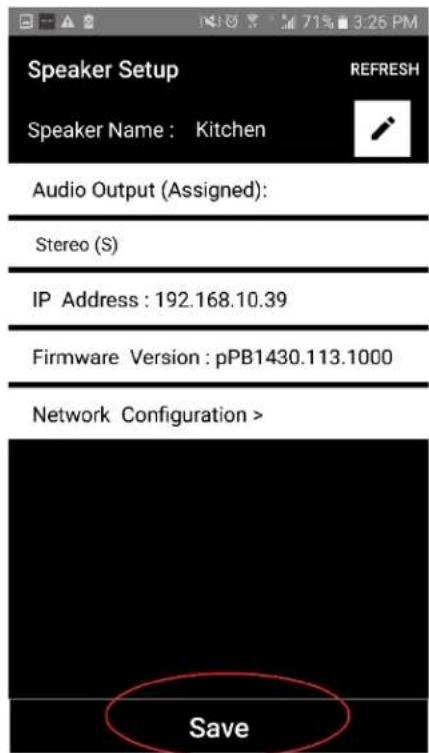
text_image
Speaker Setup Speaker Name : Kitchen Audio Output (Assigned): Stereo (S) IP Address : 192.168.10.39 Firmware Version : pPB1430.113.1000 Network Configuration > Savetext_image
Tivoli Audio No Groups are Active Play New Play new Configuretext_image
Configure Devices REFRESH Configured Speakers Kitchen Speakers To Be Setup Add more speakerstext_image
Speaker Setup Speaker Name : Kitchen REFRESHAudio Output (Assigned):
Left Speaker (L)
IP Address: 192.168.10.10
Firmware Version : p6098.218.1000
Network Configuration >

text_image
Save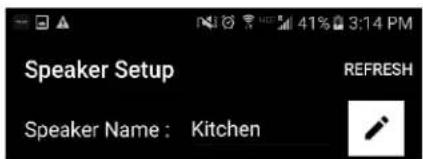
text_image
Speaker Setup Speaker Name : Kitchen REFRESHAudio Output (Assigned):
Left Speaker (L)
IP Address: 192.168.10.10
Firmware Version : p6098.218.1000
Network Configuration >

text_image
Savetext_image
Tivoli Audio No Groups are Active Play New Play new Configure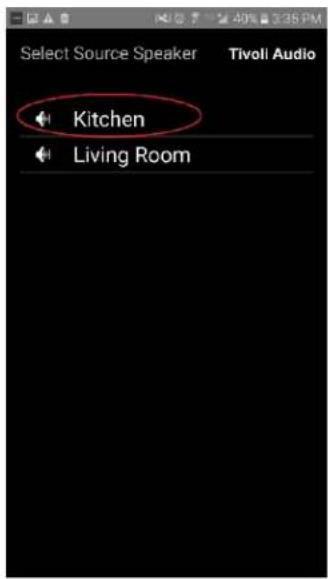
text_image
Select Source Speaker Tivoli Audio Kitchen Living Roomtext_image
Add More Speakers Tivoli Audio Group Name: MyGroup Kitchen Master Left Living Room Free Stereo NEXT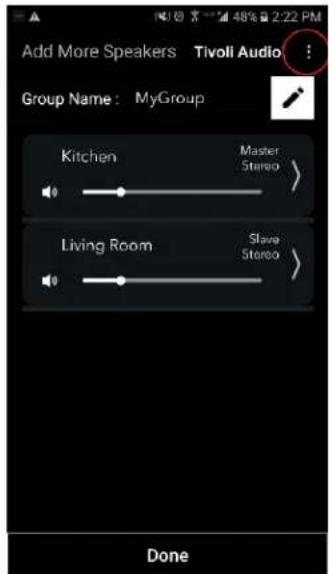
text_image
Add More Speakers Tivoli Audio Group Name: MyGroup Kitchen Master Stereo > Living Room Slave Stereo > DoneGruppekonfigurasjonsinnstillinger – velge en musikkilde
Nå som du har satt opp gruppen, kan vi velge musikkilden for gruppen.
text_image
Select Source/Content Tivoli Audio Local Content Music Services Spotify Deezer TIDAL Tuneln QQ Music Network Devices/Players Bluetooth DONEtext_image
Select Source/Content Tivoli Audio® Local Content Music Services Spotify Deezer TIDAL Tuneln QQ Music Network Devices/Players Bluetooth DONE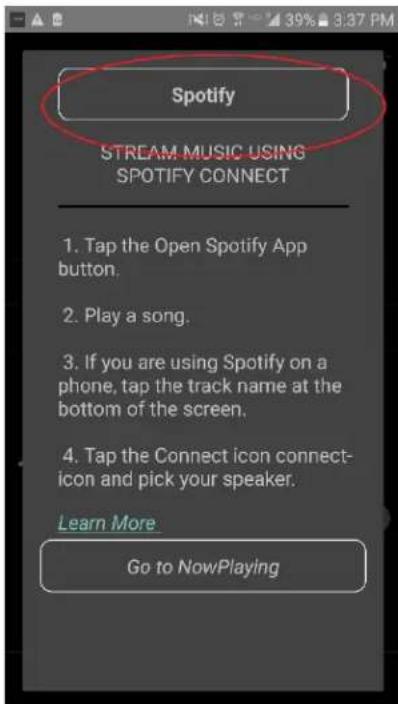
text_image
Spotify STREAM MUSIC USING SPOTIFY CONNECT 1. Tap the Open Spotify App button. 2. Play a song. 3. If you are using Spotify on a phone, tap the track name at the bottom of the screen. 4. Tap the Connect icon connect- icon and pick your speaker. Learn More Go to NowPlayingtext_image
X DEVICES Connect to a device LISTENING ON This phone Kitchen+Living Room Spotify Connecttext_image
Spotify STREAM MUSIC USING SPOTIFY CONNECT 1. Tap the Open Spotify App button. 2. Play a song. 3. If you are using Spotify on a phone, tap the track name at the bottom of the screen. 4. Tap the Connect icon connect- icon and pick your speaker. Learn More Go to NowPlaying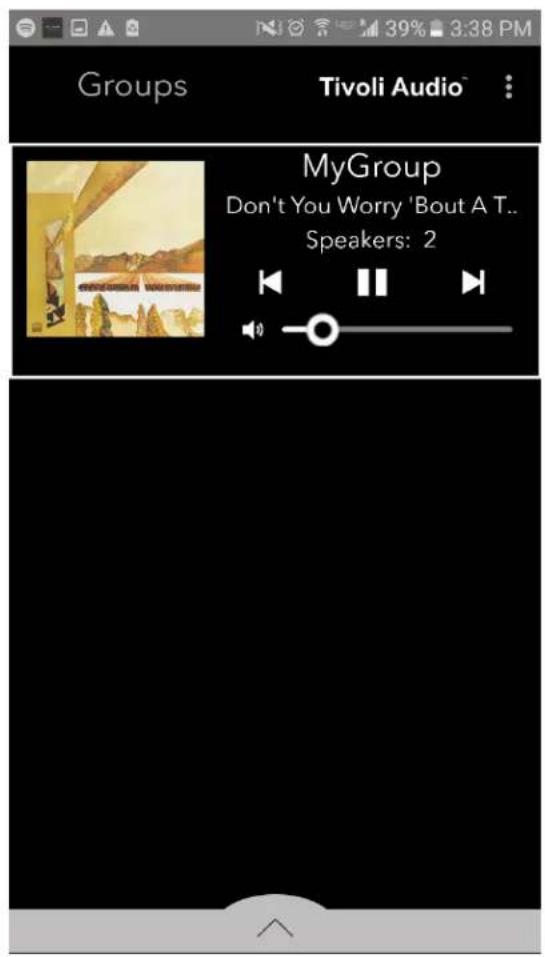
text_image
Groups Tivoli Audio™ MyGroup Don't You Worry 'Bout A T.. Speakers: 2text_image
Groups Tivoli Audio™ MyGroup Don't You Worry 'Bout A T... Speakers: 2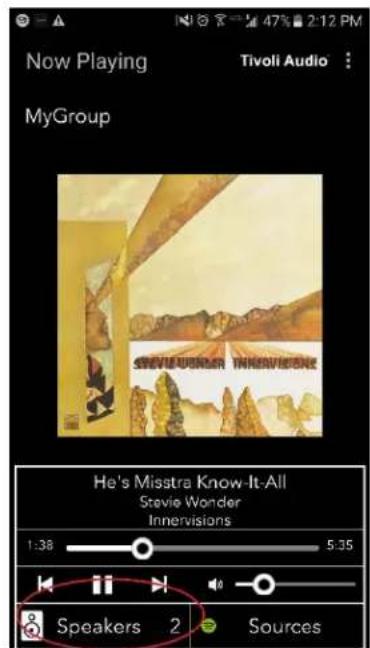
text_image
Now Playing Tivoli Audio : MyGroup Steve Wonder Innervisions He's Misstra Know-It-All Stevie Wonder Innervisions 1:38 5:35 Speakers 2 Sourcestext_image
Add More Speakers Tivoli Audio Group Name: MyGroup Kitchen Master Stereo Living Room Slave Stereo Done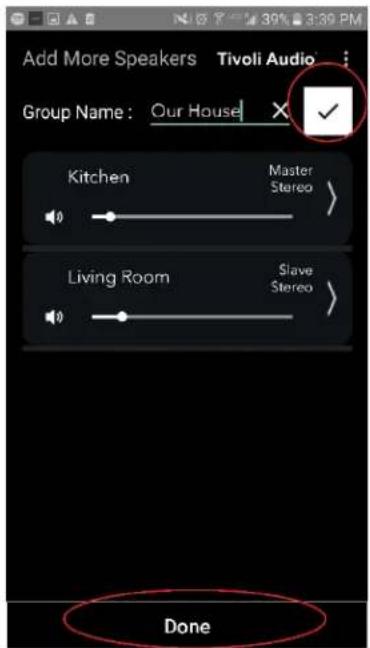
text_image
Add More Speakers Tivoli Audio Group Name: Our House Kitchen Master Stereo Living Room Slave Stereo Donetext_image
Groups Tivoli Audio MyGroup Don't You Worry 'Bout A T... Speakers: 2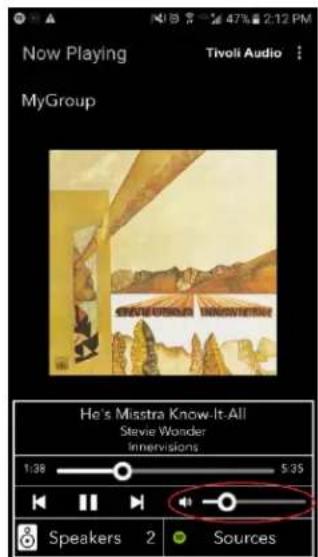
text_image
Now Playing MyGroup Tivoli Audio He's Misstra Know-It-All Stevie Wander Innervisions 1:38 5:35 Speakers 2 Sourcestext_image
Groups Tivoli Audio MyGroup Don't You Worry 'Bout A T.. Speakers: 2
text_image
Now Playing MyGroup Steve Wonder Know-It-All Stevie Wonder Innervisions 1:38 5:35 Speakers 2 Sources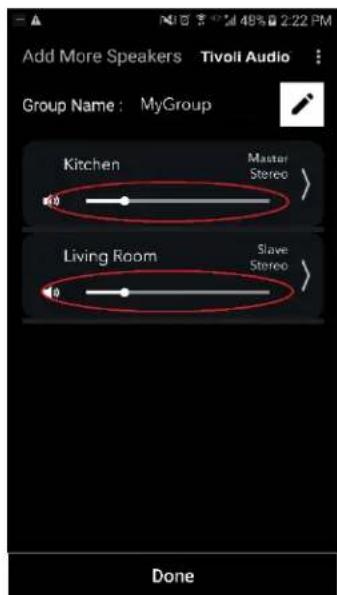
text_image
Add More Speakers Tivoil Audio Group Name: MyGroup Kitchen Master Stereo Living Room Slave Stereo Donetext_image
Groups Tivoli Audio MyGroup Don't You Worry 'Bout A T.. Speakers: 2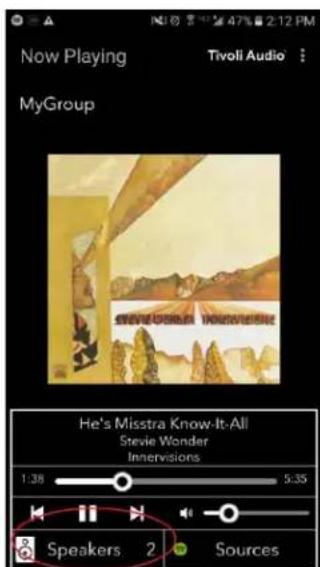
text_image
Now Playing MyGroup Tivoli Audio Steve Wonder Innervisions He's Misstra Know-It-All Steve Wonder Innervisions 1:38 5:35 Speakers 2 Sourcestext_image
Add More Speakers Tivoli Audio Group Name: MyGroup Kitchen Master Stereo > Living Room Slave Stereo > Done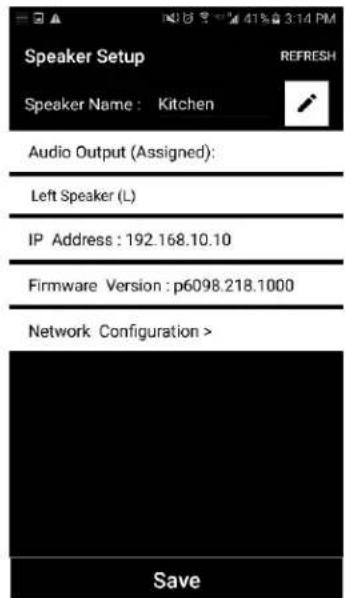
text_image
Speaker Setup Speaker Name : Kitchen Audio Output (Assigned): Left Speaker (L) IP Address : 192.168.10.10 Firmware Version : p6098.218.1000 Network Configuration > Savetext_image
Groups Tivoll Audio MyGroup Don't You Worry 'Bout A T.. Speakers: 2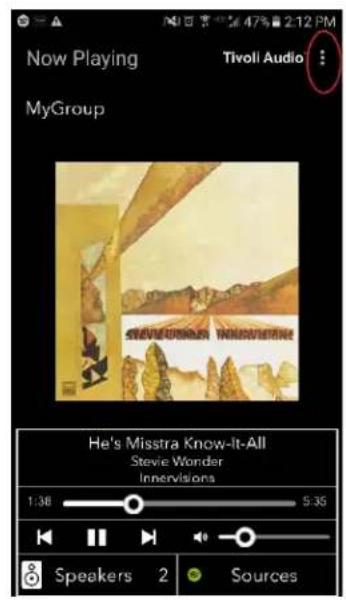
text_image
Now Playing MyGroup Tivoll Audio : STEVE WORNEE WORNEE He's Misstra Know-It-All Stevie Wonder Innervisions 1:38 5:35 Speakers 2 Sourcestext_image
Groups Tivoli Audio MyGroup Don't You Worry 'Bout A T.. Speakers: 2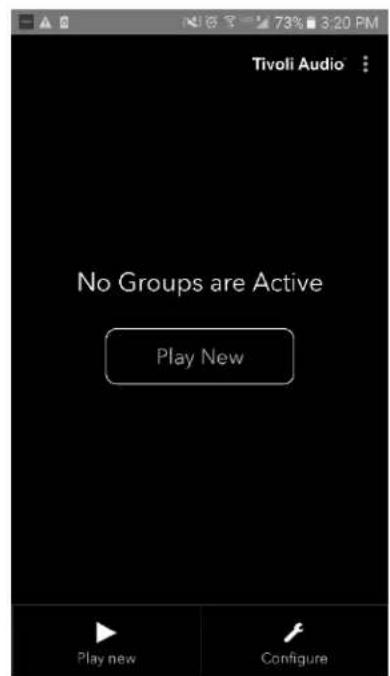
text_image
Tivoli Audio No Groups are Active Play New Play new Configuretext_image
SETUP ADD/DROP PARTY MODE SOURCE - + 12-15V 1-2.5A AUX IN SERVICE FCC ID: Canaccia complies with: renocentre is norme: RSS-210, ICEB-003, FOC part 15b c us LUTES 8H26 Designed by Tivoli Audio in Boston Made in Chinatext_image
SETUP ADD/DROP PARTY SOURCE 12-15V 1-2.5A AUX IN SERVICE Tivoli Audio FCC ID: Canada complies with renocice la norme: RBS-210, ICEB-003, FDC part 15b C US UNITED 8H28 Designed by Tivoli Audio in Boston Made in Chinatext_image
Select Source/Content Tivoli Audio Local Content Music Services Spotify Deezer TIDAL Tuneln QQ Music Network Devices/Players Bluetooth DONEtext_image
Groups Tivoli Audio MyGroup BT is Playing Speakers: 2
text_image
Now Playing Tivoli Audio™ Our Home ART BY TIVOLI AUDIO BT is Playing 0:00 0:00 Speakers 2 SourcesAUX-modus
text_image
Tivoli Audio No Groups are Active Play New Play new Configuretext_image
Configure Devices REFRESH Configured Speakers Kitchen Speakers To Be Setup Add more speakers- Velg knappen "Version Check". Hvis du får en meldingen "Software is up to date!, har enheten din den nyeste programvaren. Hvis du ser skjermen under, velg "Click to update" for å motta nyeste programvaren.
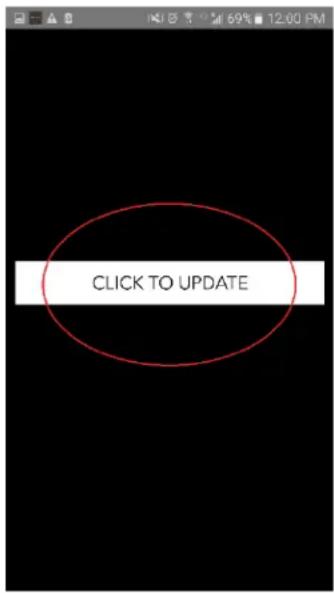
text_image
CLICK TO UPDATEtext_image
Downloading software update The update process will take around 5 to 10 minutes depending on your network speed. Please do not turn off the unit during this time.text_image
Update Complete GO TO PLAY NEW Your unit is now standby mode. Press the power button to turn it on.Pleie
v. ADD/DROP-painike 330
vi. PARTY MODE -painike 330
vii. DDMS-fila 331
b. Bluetooth-tila
text_image
CUBE Thrott Audiotext_image
Tivoli Audio No Groups are Active Play New Play new Configure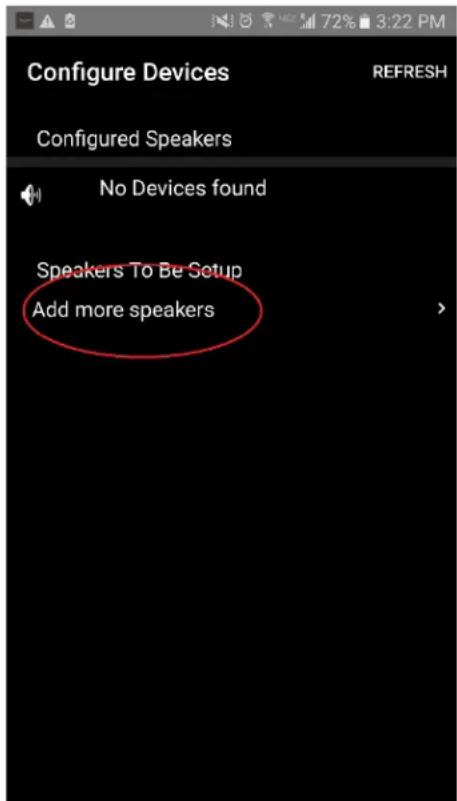
text_image
Configure Devices REFRESH Configured Speakers No Devices found Speakers To Be Setup Add more speakerstext_image
Tivoli Audio Press the Setup button of the Speaker Nexttext_image
Device Setup Tivoli Audio 1. Please read all four steps before leaving this page. 2. Tap the "Open Settings" bottom 3. Select "Tivoli_XXXX" from the list of networks. 4. Return to Tivoli Audio app and tap "Next". OPEN SETTINGS NEXTtext_image
Tivoli_E0DF8D Connected On RD23 New extreme ITtest NS2 RD15 4th Extreme buff_ITtest LieBaoWiFi285 RD15-5Gtext_image
Wi-Fi On Tivoli_E0DF8D Connected RD23 New extreme ITtest NS2 RD15 4th Extreme buff_ITtest LieBaoWiFi285 RD15-5G- Kun olet palannut Tivoli Audio Wireless App -sovellukseen, paina painiketta "Next".
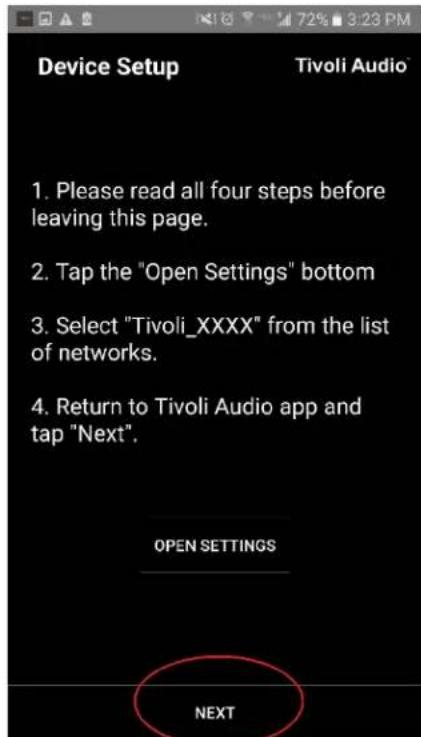
text_image
Device Setup Tivoli Audio 1. Please read all four steps before leaving this page. 2. Tap the "Open Settings" bottom 3. Select "Tivoli_XXXX" from the list of networks. 4. Return to Tivoli Audio app and tap "Next". OPEN SETTINGS NEXTtext_image
Tivoli Audio No Groups are Active Play New Play new Configure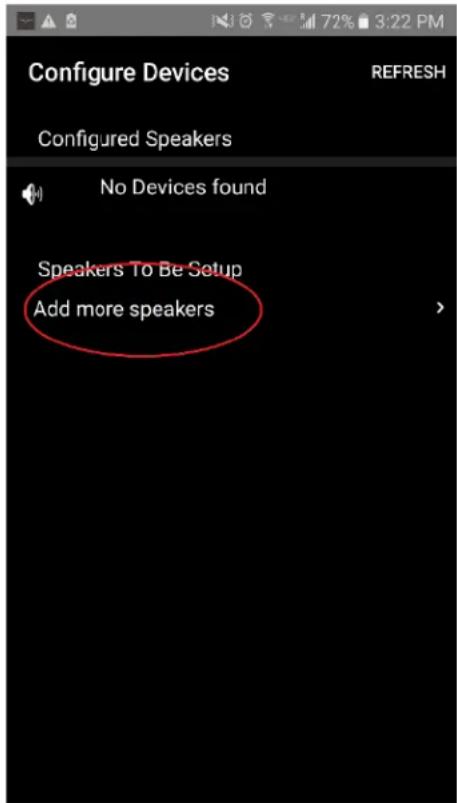
text_image
Configure Devices REFRESH Configured Speakers No Devices found Speakers To Be Setup Add more speakerstext_image
Tivoli Audio Press the Setup button of the Speaker Nextnatural_image
Close-up of a black smartphone control panel with a square button (no text or symbols visible)text_image
App Store Settings Music Safari iPad Settings 13:23 WLAN Airplane Mode WLAN RD18 Bluetooth On Notifications Control Center Do Not Disturb General Display & Brightness Wallpaper Sounds Siri Touch ID & Passcode Battery Privacy iCloud iTunes & App Store Wallet & Apple Pay WLAN RD18 CHOOSE A NETWORK... GUEST2 HSRD1 NETGEAR PM RD2 RD4 Other... Ask to Join Networks Known networks will be joined automatically. If no known networks are available, you will be asked before joining a new network.text_image
On Tivoli_E0DF8D Connected RD23 New extreme ITtest NS2 RD15 4th Extreme buff_ITtest LieBaoWiFi285 RD15-5Gtext_image
ART Tivoli Audio- Kun olet palannut Tivoli Audio Wireless App -sovellukseen, paina painiketta "Next".
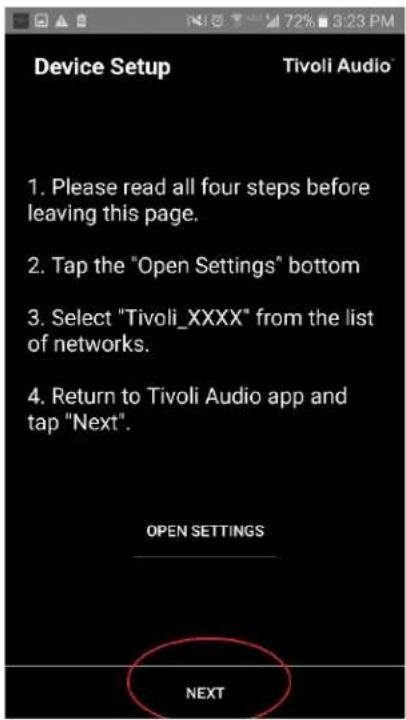
text_image
Device Setup Tivoli Audio 1. Please read all four steps before leaving this page. 2. Tap the "Open Settings" bottom 3. Select "Tivoli_XXXX" from the list of networks. 4. Return to Tivoli Audio app and tap "Next". OPEN SETTINGS NEXTtext_image
Tivoli Audio No Groups are Active Play New Play new Configuretext_image
Speaker Setup RefRESH Speaker Name : Kitchen Audio Output (Assigned): Stereo (S) IP Address : 192.168.10.39 Firmware Version : pPB1430.113.1000 Network Configuration > Savetext_image
Speaker Setup RefRESH Speaker Name : Kitchen Audio Output (Assigned): Stereo (S) IP Address : 192.168.10.39 Firmware Version : pPB1430.113.1000 Network Configuration > Save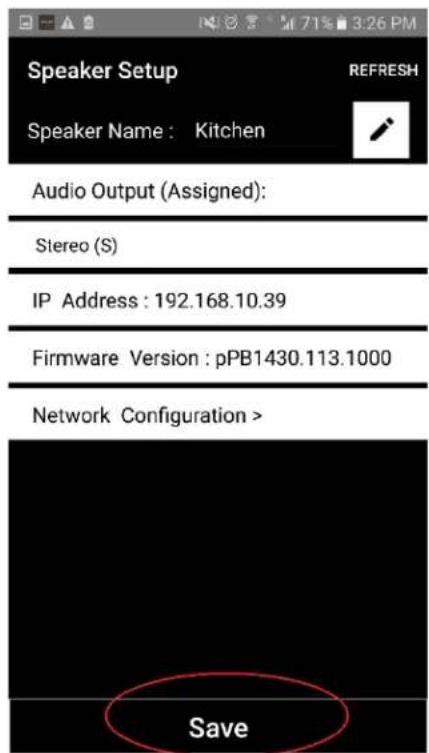
text_image
Speaker Setup Speaker Name : Kitchen Audio Output (Assigned): Stereo (S) IP Address : 192.168.10.39 Firmware Version : pPB1430.113.1000 Network Configuration > Savetext_image
Tivoli Audio No Groups are Active Play New Play new Configuretext_image
Configure Devices REFRESH Configured Speakers Kitchen Speakers To Be Setup Add more speakerstext_image
Speaker Setup RefRESH Speaker Name : KitchenAudio Output (Assigned):

text_image
Left Speaker (L) IP Address : 192.168.10.10Firmware Version : p6098.218.1000
text_image
Network Configuration > Save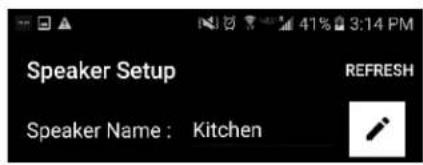
text_image
Speaker Setup Speaker Name : Kitchen REFRESHAudio Output (Assigned):
| Left Speaker (L) |
| IP Address : 192.168.10.10 |
Firmware Version : p6098.218.1000
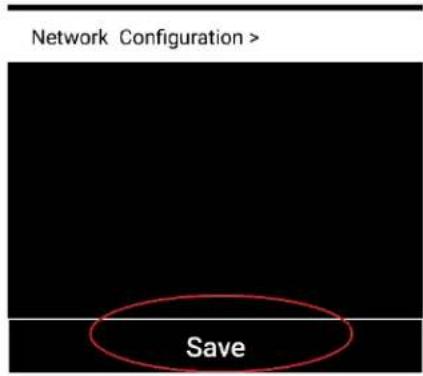
text_image
Network Configuration > Savetext_image
Tivoli Audio No Groups are Active Play New Play new Configure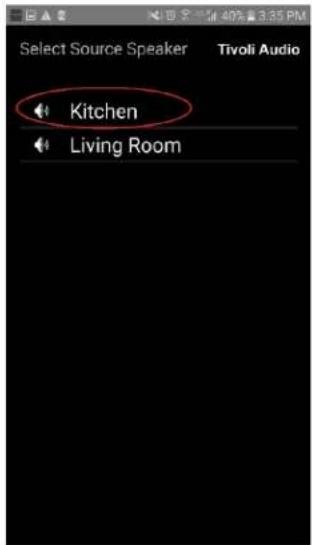
text_image
Select Source Speaker Kitchen Living Room Tivoli Audiotext_image
Add More Speakers Tivoli Audio Group Name: MyGroup Kitchen Master Left Living Room Free Stereo NEXT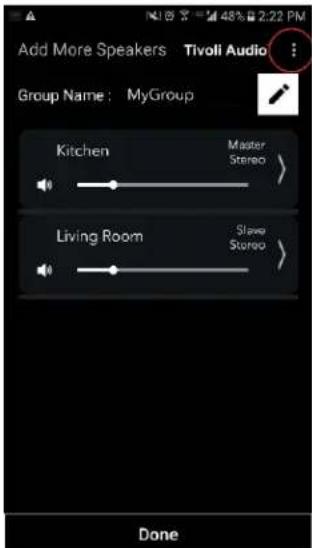
text_image
Add More Speakers Tivoli Audio Group Name: MyGroup Kitchen Master Stereo > Living Room Slave Stereo > Donetext_image
Select Source/Content Tivoli Audio™ Local Content Music Services Spotify Deezer TIDAL Tuneln QQ Music Network Devices/Players Bluetooth DONEtext_image
Select Source/Content Tivoli Audio™ Local Content Music Services Spotify Deezer TIDAL Tuneln QQ Music Network Devices/Players Bluetooth DONE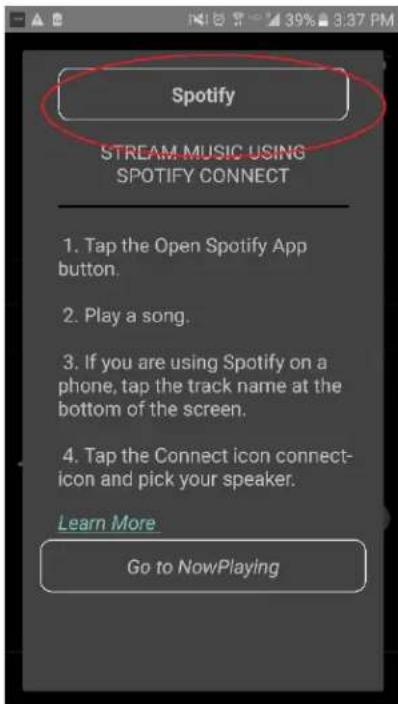
text_image
Spotify STREAM MUSIC USING SPOTIFY CONNECT 1. Tap the Open Spotify App button. 2. Play a song. 3. If you are using Spotify on a phone, tap the track name at the bottom of the screen. 4. Tap the Connect icon connect- icon and pick your speaker. Learn More Go to NowPlayingtext_image
× DEVICES Connect to a device LISTENING ON This phone Kitchen+Living Room Spotify Connecttext_image
Spotify STREAM MUSIC USING SPOTIFY CONNECT 1. Tap the Open Spotify App button. 2. Play a song. 3. If you are using Spotify on a phone, tap the track name at the bottom of the screen. 4. Tap the Connect icon connect- icon and pick your speaker. Learn More Go to NowPlaying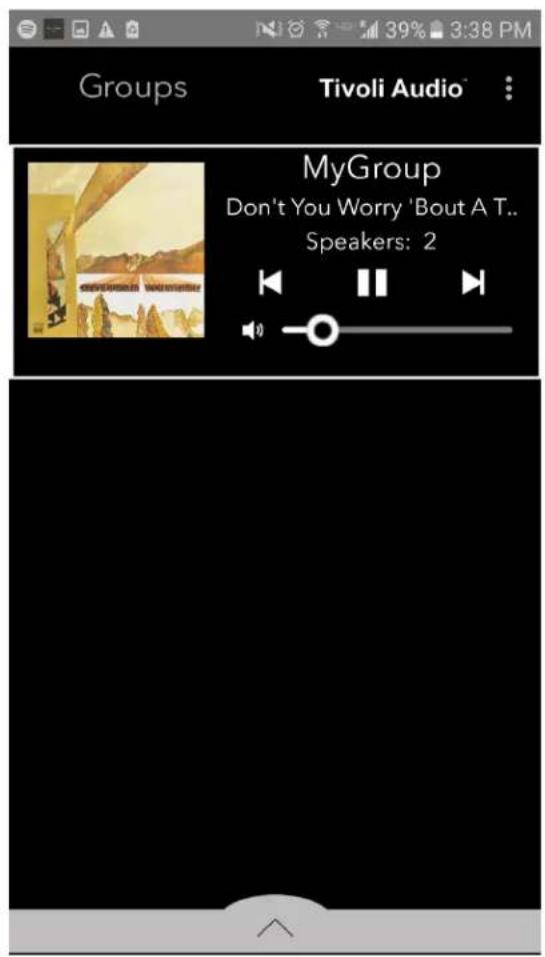
text_image
Groups Tivoli Audio™ MyGroup Don't You Worry 'Bout A T.. Speakers: 2text_image
Groups Tivoli Audio MyGroup Don't You Worry 'Bout A T... Speakers: 2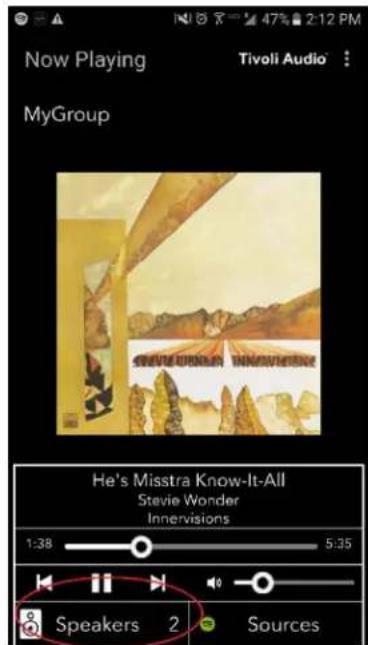
text_image
Now Playing Tivoli Audio MyGroup He's Misstra Know-It-All Stevie Wonder Innervisions 1:38 5:35 Speakers 2 Sourcestext_image
Add More Speakers Tivoli Audio Group Name: MyGroup Kitchen Master Stereo Living Room Slave Stereo Done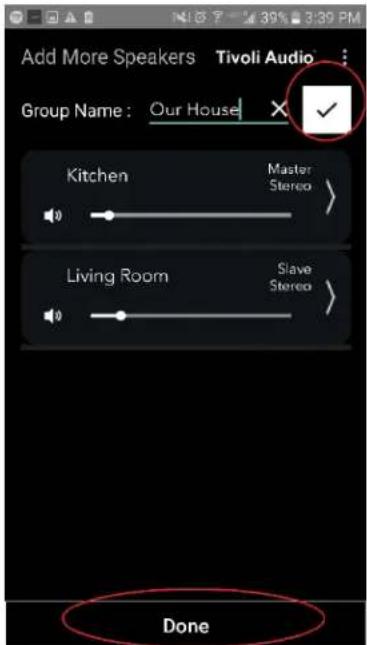
text_image
Add More Speakers Tivoli Audio Group Name: Our House Kitchen Master Stereo Living Room Slave Stereo Donetext_image
Groups Tivoli Audio MyGroup Don't You Worry 'Bout A T.. Speakers: 2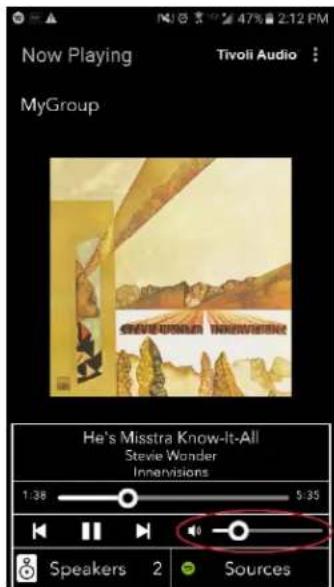
text_image
Now Playing Tivoli Audio MyGroup He's Misstra Know-It-All Stevie Wonder Innervisions 1:38 5:35 Speakers 2 Sourcestext_image
Groups Tivoli Audio MyGroup Don't You Worry 'Bout A T... Speakers: 2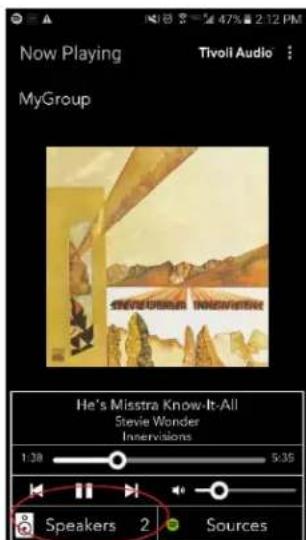
text_image
Now Playing MyGroup Tivoli Audio He's Misstra Know-It-All Stevie Wonder Innervisions 1:30 5:35 Speakers 2 Sources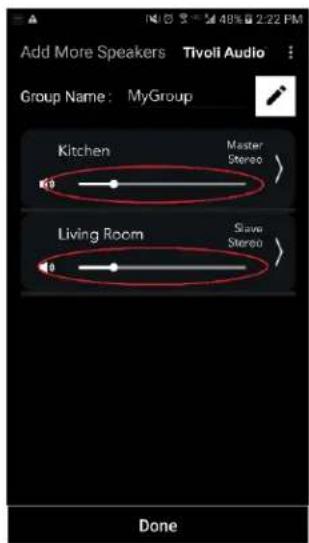
text_image
Add More Speakers Tivoli Audio Group Name: MyGroup Kitchen Master Stereo Living Room Slave Stereo Donetext_image
Groups Tivoli Audio MyGroup Don't You Worry 'Bout A T., Speakers: 2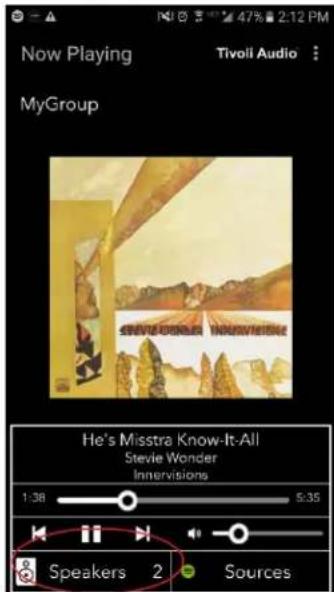
text_image
Now Playing MyGroup Tivoli Audio : Steve Pioneer Innovation He's Misstra Know-It-All Stevie Wonder Innervisions 1:38 5:35 Speakers 2 Sourcestext_image
Speaker Setup Speaker Name: Kitchen Audio Output (Assigned): Left Speaker (L) IP Address : 192.168.10.10 Firmware Version : p6098.218.1000 Network Configuration > Savetext_image
Groups Tivoli Audio MyGroup Don't You Worry 'Bout A T... Speakers: 2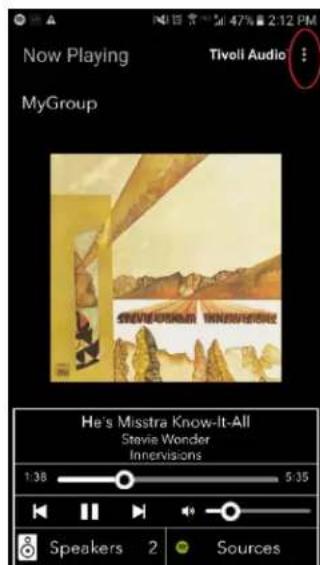
text_image
Now Playing MyGroup Tivoli Audio He's Misstra Know-It-All Stevia Wonder Innervisions 1:38 5:35 Speakers 2 Sourcestext_image
Groups Tivoli Audio MyGroup Don't You Worry 'Bout A T.. Speakers: 2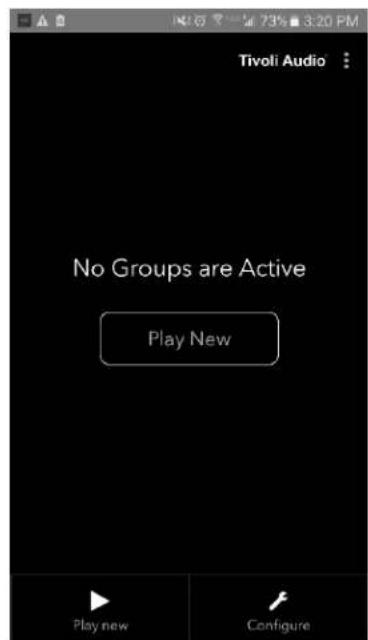
text_image
Tivoli Audio No Groups are Active Play New Play new ConfigureADD/DROP-painike
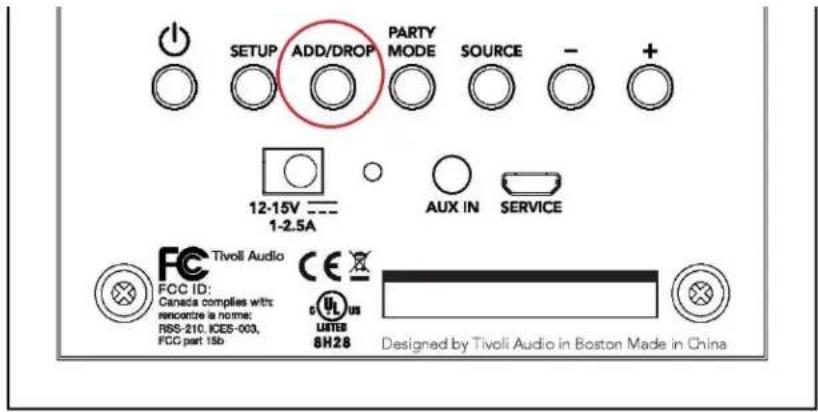
text_image
SETUP ADD/DROP PARTY MODE SOURCE - + 12-15V 1-2.5A AUX IN SERVICE FCC ID: Tivoli Audio Canada complies with: rencontre is norme: RSS-210, ICES-003, FCC part 15b CE US LISTED 8H28 Designed by Tivoli Audio in Boston Made in Chinatext_image
SETUP ADD/DROP PARTY SOURCE 12-15V 1-2.5A AUX IN SERVICE Tivoli Audio FCC ID: Canada complies with: rencorre is normer RBS-210, ICEB-003, FCC part 15b C L US LISTED 8H28 Designed by Tivoli Audio in Boston Made in Chinatext_image
Select Source/Content Tivoli Audio Local Content Music Services Spotify Deezer TIDAL Tuneln QQ Music Network Devices/Players Bluetooth DONEtext_image
Groups Tivoli Audio MyGroup BT is Playing Speakers: 2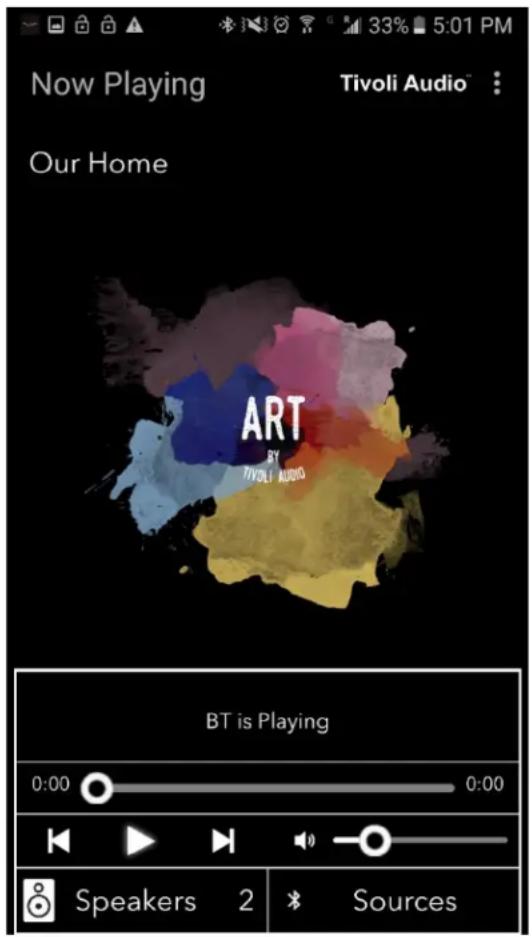
text_image
Now Playing Tivoli Audio™ Our Home ART BY TIVOLI AUDIO BT is Playing 0:00 0:00 Speakers 2 SourcesLisälaitetila
text_image
Tivoli Audio No Groups are Active Play New Play new Configuretext_image
Configure Devices REFRESH Configured Speakers Kitchen Speakers To Be Setup Add more speakerstext_image
Downloading software update The update process will take around 5 to 10 minutes depending on your network speed. Please do not turn off the unit during this time.text_image
Update Complete GO TO PLAY NEW Your unit is now standby mode. Press the power button to turn it on.Hoito
v. Add/drop-knapp 367
vi. Party mode-knapp 367
vii. DDMS-läge 368
b. Bluetooth-läge
i. Sammankoppling 369
ii. Bluetooth via WiFi 369
c. AUX-läge 370
text_image
CUBE Tiroli Audio SETUP ADAMSUNG TIROLI AUDIO SWITCH PARTY VIOSE RIOSEL + - AUX 100 RIOSEL CE Receivati/Coel/Coel/Coel/Coel/Coel/Coel/Coel/Coel/Coel/Coel/Coel/Coel/Coel/Coel/Coel/Coel/Coel/Coel/Coel/Coel/Coel/Coel/Coel/Coel/Coel/Coel/Coel/Coel/Coel/Coel/Coel/Coel/Coel/Coeltext_image
Tivoli Audio No Groups are Active Play New Play new Configure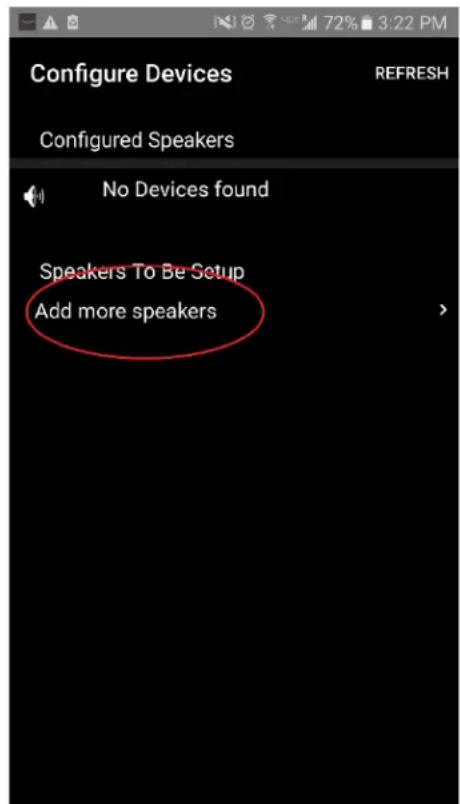
text_image
Configure Devices REFRESH Configured Speakers No Devices found Speakers To Be Setup Add more speakers- Tryck på den stora "Configure"-knappen.
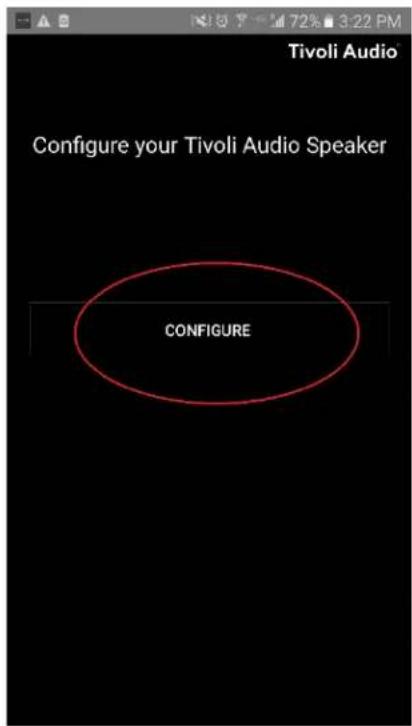
text_image
Tivoli Audio Configure your Tivoli Audio Speaker CONFIGUREtext_image
Tivoli Audio Press the Setup button of the Speaker Nexttext_image
Device Setup Tivoli Audio 1. Please read all four steps before leaving this page. 2. Tap the "Open Settings" bottom 3. Select "Tivoli_XXXX" from the list of networks. 4. Return to Tivoli Audio app and tap "Next". OPEN SETTINGS NEXTtext_image
Tivoli_E0DF8D Connected On RD23 New extreme ITtest NS2 RD15 4th Extreme buff_ITtest LieBaoWiFi285 RD15-5Gtext_image
Wi-Fi On Tivoli_E0DF8D Connected RD23 New extreme ITtest NS2 RD15 4th Extreme buff_ITtest LieBaoWiFi285 RD15-5Gtext_image
Device Setup Tivoli Audio 1. Please read all four steps before leaving this page. 2. Tap the "Open Settings" bottom 3. Select "Tivoli_XXXX" from the list of networks. 4. Return to Tivoli Audio app and tap "Next". OPEN SETTINGS NEXTtext_image
Tivoli Audio No Groups are Active Play New Play new Configure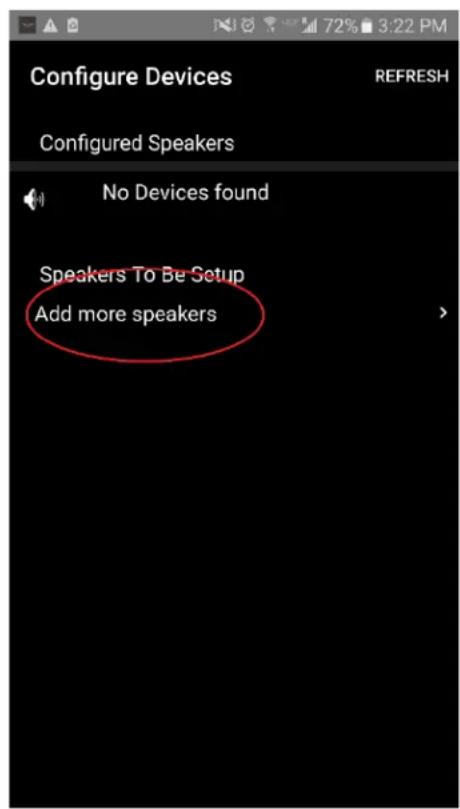
text_image
Configure Devices REFRESH Configured Speakers No Devices found Speakers To Be Setup Add more speakers- Tryck på den stora "Configure"-knappen.
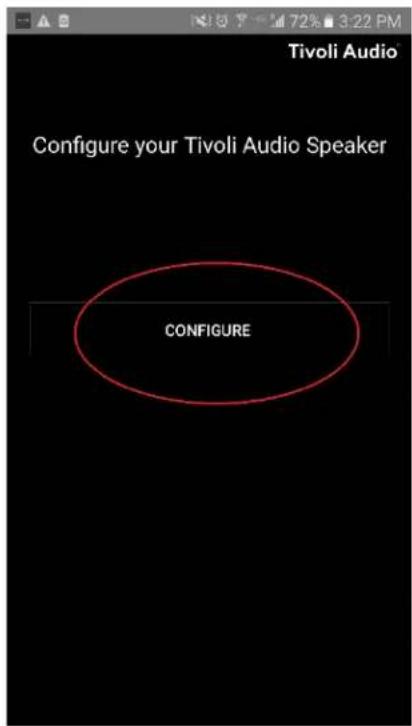
text_image
Tivoli Audio Configure your Tivoli Audio Speaker CONFIGUREtext_image
Tivoli Audio Press the Setup button of the Speaker Nextnatural_image
Close-up of a black rectangular device with a circular button and square indicator (no text or symbols)text_image
App Store Settings Music Safari iPad Settings 13:23 WLAN Airplane Mode WLAN RD18 Bluetooth On Notifications Control Center Do Not Disturb General Display & Brightness Wallpaper Sounds Siri Touch ID & Passcode Battery Privacy iCloud iTunes & App Store Wallet & Apple Pay WLAN RD18 CHOOSE A NETWORK... GUEST2 HSRD1 NETGEAR PM RD2 RD4 Other... Ask to Join Networks Known networks will be joined automatically. If no known networks are available, you will be asked before joining a new network.text_image
Tivoli_E0DF8D Connected RD23 New extreme ITtest NS2 RD15 4th Extreme buff_ITtest LieBaoWiFi285 RD15-5Gtext_image
ART Tivoli Audiotext_image
Device Setup Tivoli Audio 1. Please read all four steps before leaving this page. 2. Tap the "Open Settings" bottom 3. Select "Tivoli_XXXX" from the list of networks. 4. Return to Tivoli Audio app and tap "Next". OPEN SETTINGS NEXTtext_image
Tivoli Audio No Groups are Active Play New Play new Configuretext_image
Speaker Setup RefRESH Speaker Name : Kitchen Audio Output (Assigned): Stereo (S) IP Address : 192.168.10.39 Firmware Version : pPB1430.113.1000 Network Configuration > Savetext_image
Speaker Setup RefRESH Speaker Name : Kitchen ✗ Audio Output (Assigned): Stereo (S) IP Address : 192.168.10.39 Firmware Version : pPB1430.113.1000 Network Configuration > Save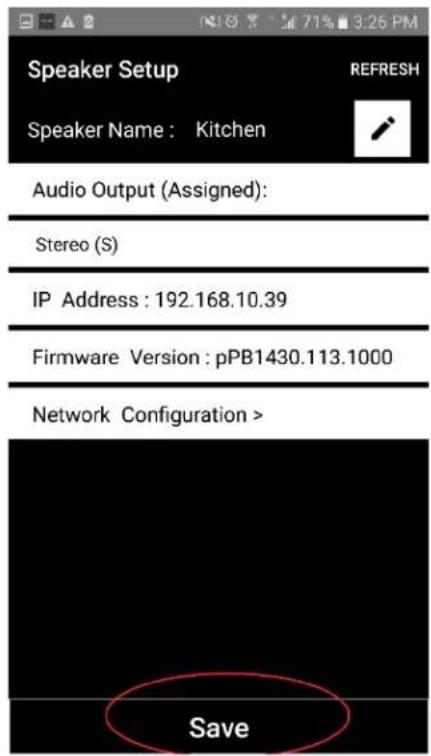
text_image
Speaker Setup Speaker Name : Kitchen Audio Output (Assigned): Stereo (S) IP Address : 192.168.10.39 Firmware Version : pPB1430.113.1000 Network Configuration > Savetext_image
Tivoli Audio™ No Groups are Active Play New Play new Configuretext_image
Configure Devices REFRESH Configured Speakers Kitchen Speakers To Be Setup Add more speakerstext_image
Speaker Setup Speaker Name: Kitchen Audio Output (Assigned): Left Speaker (L) IP Address : 192.168.10.10 Firmware Version : p6098.218.1000 Network Configuration > Savetext_image
Tivoli Audio No Groups are Active Play New Play new Configure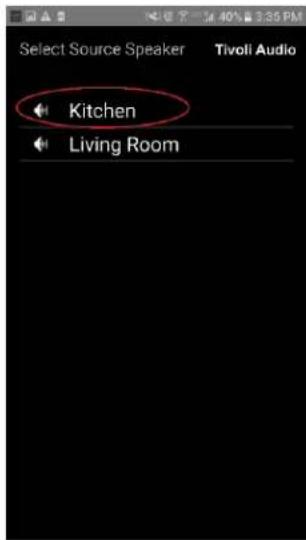
text_image
Select Source Speaker Tivoli Audio Kitchen Living Roomtext_image
Add More Speakers Tivoli Audio Group Name: MyGroup Kitchen Master Left Living Room Free Stereo NEXT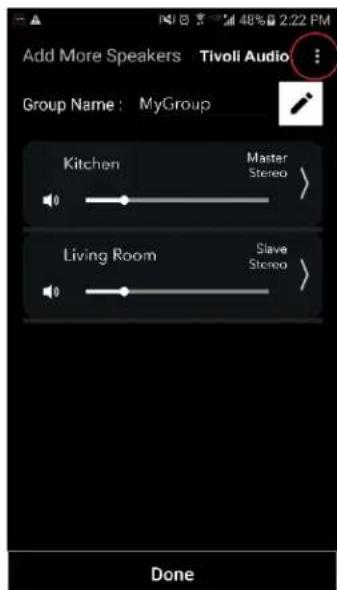
text_image
Add More Speakers Tivoli Audio Group Name: MyGroup Kitchen Master Stereo Living Room Slave Stereo Donetext_image
Select Source/Content Tivoli Audio™ Local Content Music Services Spotify Deezer TIDAL Tuneln QQ Music Network Devices/Players Bluetooth DONEtext_image
Select Source/Content Tivoli Audio™ Local Content Music Services Spotify Deezer TIDAL Tuneln QQ Music Network Devices/Players Bluetooth DONE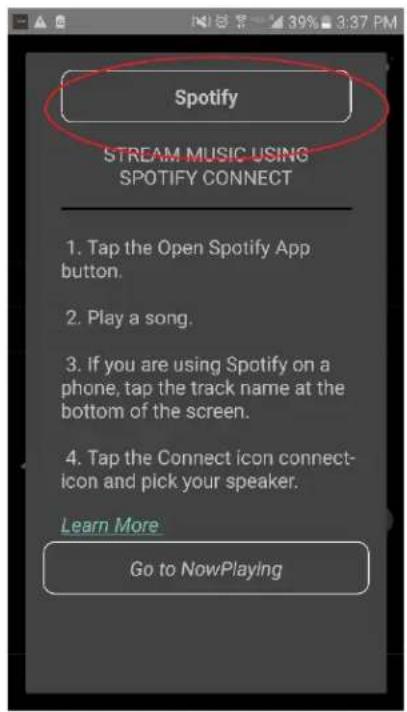
text_image
Spotify STREAM MUSIC USING SPOTIFY CONNECT 1. Tap the Open Spotify App button. 2. Play a song. 3. If you are using Spotify on a phone, tap the track name at the bottom of the screen. 4. Tap the Connect icon connect- icon and pick your speaker. Learn More Go to NowPlayingtext_image
× DEVICES Connect to a device LISTENING ON This phone Kitchen+Living Room Spotify Connecttext_image
Spotify STREAM MUSIC USING SPOTIFY CONNECT 1. Tap the Open Spotify App button. 2. Play a song. 3. If you are using Spotify on a phone, tap the track name at the bottom of the screen. 4. Tap the Connect icon connect- icon and pick your speaker. Learn More Go to NowPlaying
text_image
Groups Tivoli Audio™ MyGroup Don't You Worry 'Bout A T.. Speakers: 2text_image
Groups Tivoli Audio™ MyGroup Don't You Worry 'Bout A T... Speakers: 2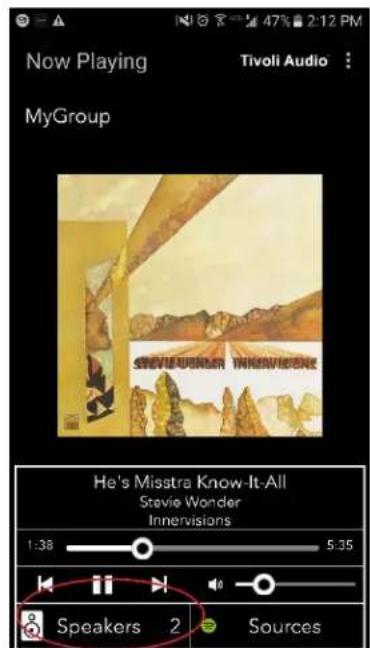
text_image
Now Playing Tivoli Audio : MyGroup Steve Wonder Mir He's Misstra Know-It-All Stevie Wonder Innervisions 1:38 5:35 Speakers 2 Sourcestext_image
Add More Speakers Tivoli Audio Group Name: MyGroup Kitchen Master Stereo Living Room Slave Stereo Done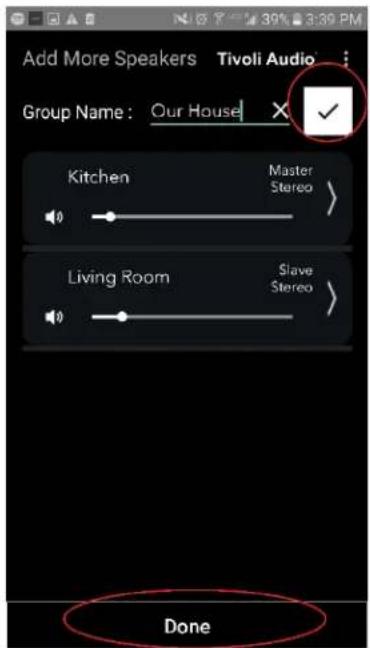
text_image
Add More Speakers Tivoli Audio Group Name: Our House Kitchen Master Stereo Living Room Slave Stereo Donetext_image
Groups Tivoli Audio MyGroup Don't You Worry 'Bout A T.. Speakers: 2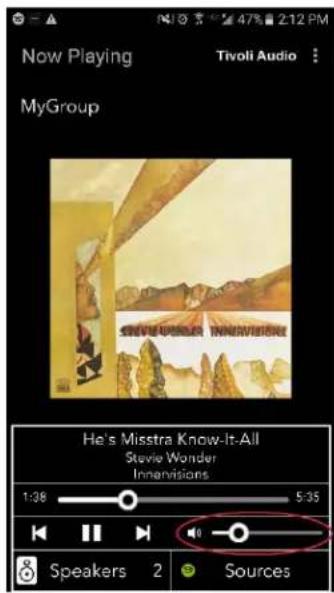
text_image
Now Playing MyGroup Tivoli Audio : Steve Wonder Innervisions He's Misstra Know-It-All Stevie Wonder Innervisions 1:36 5:35 Speakers 2 Sourcestext_image
Groups Tivoli Audio MyGroup Don't You Worry 'Bout A T.. Speakers: 2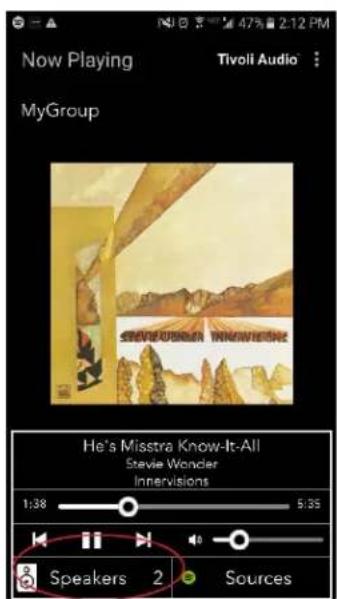
text_image
Now Playing MyGroup Tivoli Audio Steve Wonder Know-It-All Stevie Wonder Innervisions 1:38 5:35 Speakers 2 Sources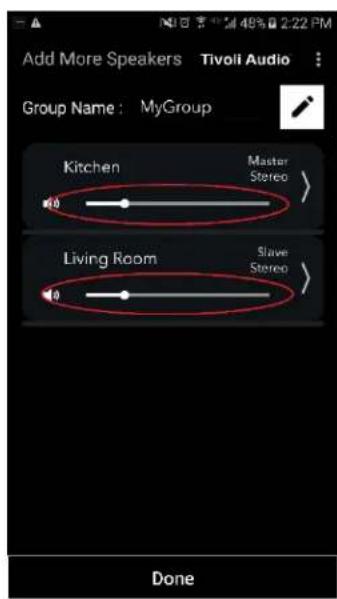
text_image
Add More Speakers Tivoli Audio Group Name: MyGroup Kitchen Master Stereo Living Room Slave Stereo Donetext_image
Groups Tivoli Audio MyGroup Don't You Worry 'Bout A T.. Speakers: 2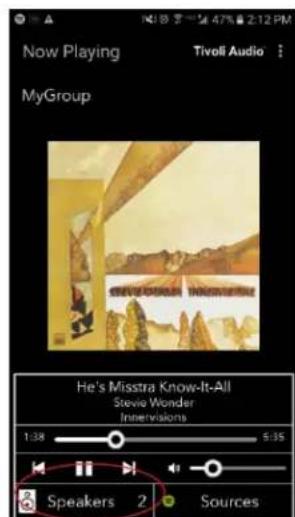
text_image
Now Playing Tivoli Audio MyGroup He's Misstra Know-It-All Stevio Wonder Invertivations 1:38 5:35 Speakers 2 Sourcestext_image
Speaker Setup Speaker Name: Kitchen Audio Output (Assigned): Left Speaker (L) IP Address : 192.168.10.10 Firmware Version : p6098.218.1000 Network Configuration > Savetext_image
Groups Tivoli Audio MyGroup Don't You Worry 'Bout A T.. Speakers: 2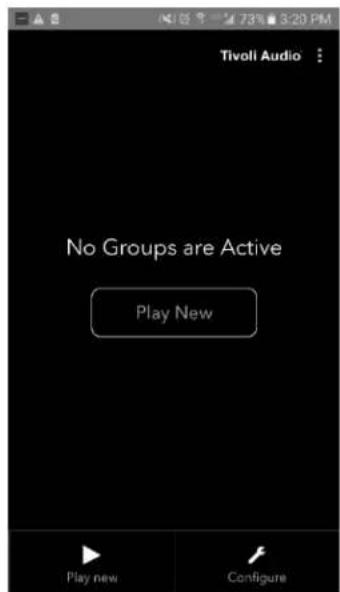
text_image
Tivoli Audio No Groups are Active Play New Play new ConfigureAdd/drop-knapp
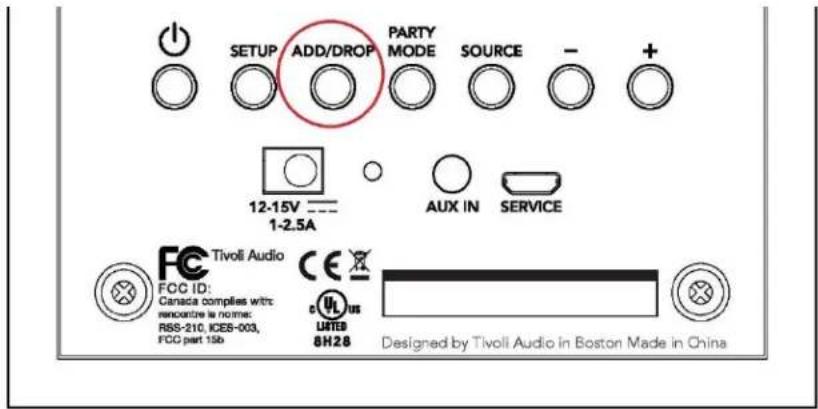
text_image
SETUP ADD/DROP PARTY MODE SOURCE - + 12-15V 1-2.5A AUX IN SERVICE FCC ID: Canaccia complies with: renocentre is norme: RSS-210, ICEB-003, FOC part 15b c us LUTES 8H28 Designed by Tivoli Audio in Boston Made in Chinatext_image
SETUP ADD/DROP PARTY SOURCE 12-15V 1-2.5A AUX IN SERVICE Tivoli Audio FCC ID: Canada complies with renocore in norme. RBS-210, ICEB-003, FCC part 15b LISTED 8H28 Designed by Tivoli Audio in Boston Made in Chinatext_image
Select Source/Content Local Content Music Services Spotify Deezer TIDAL Tuneln QQ Music Network Devices/Players Bluetooth DONEtext_image
Groups Tivoli Audio MyGroup BT is Playing Speakers: 2