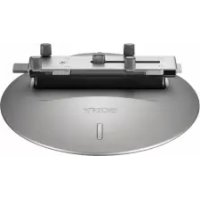
IPTDS2 - Other camera accessories SONY - Free user manual and instructions
Find the device manual for free IPTDS2 SONY in PDF.



| Product Type | Party-shot Intelligent Station for Sony Cyber-shot cameras |
| Brand and Model | Sony IPTDS2 |
| Dimensions (W x H x D) | 128 x 47 x 128 mm (tilt arm raised, without protrusions) |
| Weight (without batteries) | 210 g |
| Power Supply | 2 LR6 (AA) alkaline or Ni-MH batteries (not included) |
| Battery Life (at 25°C) | Approx. 11 h (alkaline) or 12 h (Ni-MH) |
| Main Features | Automatic shooting with face detection, 360° rotation, on-demand shooting, settings for rotation angle, shooting frequency and flash |
| Camera Compatibility | Sony Cyber-shot models DSC-H70, HX7, HX9, W515PS, W560, W570, W570D, W580, WX7, WX9, WX10, TX100, TX100V (non-exhaustive list) |
| Operating Temperature | 5°C to 40°C |
| Storage Temperature | -20°C to +60°C |
| Care and Cleaning | Clean with a soft dry cloth. Avoid exposure to dust, sand, water and extreme temperatures. |
| Safety | Do not expose to rain or moisture. Use on a stable, flat surface. Keep away from faces to avoid injury in case of fall. Do not force mechanical parts. |
| Spare Parts and Repairability | Standard AA batteries, special stand included. Contact Sony dealer for repairs. No specific spare parts listed. |
| Included Accessories | Special stand, protective cover, instruction manual |
Frequently Asked Questions - IPTDS2 SONY
User questions about IPTDS2 SONY
0 question about this device. Answer the ones you know or ask your own.
Ask a new question about this device
Download the instructions for your Other camera accessories in PDF format for free! Find your manual IPTDS2 - SONY and take your electronic device back in hand. On this page are published all the documents necessary for the use of your device. IPTDS2 by SONY.
USER MANUAL IPTDS2 SONY
© 2011 Sony Corporation Printed in China
4274319020

IPT-DS2IPT-DS2
「オーダー撮影」で撮りたい写真を残す
4 バッテリーカバーを閉じる。
④ ご注意
カメラを取りはずすには
④ ご注意
ご注意
Before operating the product, please read this manual thoroughly and retain it for future reference.
WARNING
To reduce fire or shock hazard, do not expose the unit to rain or moisture.
CAUTION
RISK OF EXPLOSION IF BATTERY IS REPLACED BY AN INCORRECT TYPE.
DISPOSE OF USED BATTERIES ACCORDING TO THE INSTRUCTIONS.
For Customers in the U.S.A.
CAUTION
You are cautioned that any changes or modifications not expressly approved in this manual could void your authority to operate this equipment.
Note:
This equipment has been tested and found to comply with the limits for a Class B digital device, pursuant to Part 15 of the FCC Rules. These limits are designed to provide reasonable protection against harmful interference in a residential installation. This equipment generates, uses, and can radiate radio frequency energy and, if not installed and used in accordance with the instructions, may cause harmful interference to radio communications. However, there is no guarantee that interference will not occur in a particular installation. If this equipment does cause harmful interference to radio or television reception, which can be determined by turning the equipment off and on, the user is encouraged to try to correct the interference by one or more of the following measures:
- Reorient or relocate the receiving antenna.
- Increase the separation between the equipment and receiver.
- Connect the equipment into an outlet on a circuit different from that to which the receiver is connected.
- Consult the dealer or an experienced radio/TV technician for help.
For Customers in Europe
Notice for the customers in the countries applying EU Directives
The manufacturer of this product is Sony Corporation, 1-7-1 Konan Minato-ku Tokyo, 108-0075 Japan.
The Authorized Representative for EMC and product safety is Sony Deutschland GmbH, Hedelfinger Strasse 61, 70327 Stuttgart, Germany. For any service or guarantee matters please refer to the addresses given in separate service or guarantee documents.
Attention
The electromagnetic field at the specific frequencies may influence the picture and sound of this unit.
Disposal of Old Electrical & Electronic Equipment (Applicable in the European Union and other European countries with separate collection systems)
This symbol on the product or on its packaging indicates that this product shall not be treated as household waste. Instead it shall be handed over to the applicable collection point for the recycling of electrical and electronic equipment. By ensuring this product is disposed of correctly, you will help prevent potential negative consequences
for the environment and human health, which could otherwise be caused by inappropriate waste handling of this product. The recycling of materials will help to conserve natural resources. For more detailed information about recycling of this product, please contact your local Civic Office, your household waste disposal service or the shop where you purchased the product.
Table of contents
Notes on using the Intelligent Pantilter....4
Compatible camera models and functions ....4
Enjoy with Party-shot ....5
Identifying parts ....6
Preparing the unit....7
Inserting batteries....7
Attaching the camera to this unit....8
Starting automatic shooting.... 10
Shooting using On-demand shot function.... 11
Changing the settings 12
Settings.... 12
Attaching the dedicated stand 13
Troubleshooting.... 14
Specifications 15
Notes on using the Intelligent Pantilter
Refer to the operating instructions for your camera as well as this manual.
This unit is not dust-proof, splash-proof, or waterproof.
Precautions on use and storage locations
Do not use or keep this unit in locations subject to the following conditions. Otherwise, this unit could malfunction.
Locations subject to extreme high temperature
Temperatures in a hot sun or closed automobiles during summer may be extremely high, causing
deformation or malfunction of this unit.
Locations under direct sunlight or near heaters
This may cause deformation or a malfunction of this unit.
Locations subject to vibration •
Locations subject to strong magnetism •
Locations subject to dust particles in a sandy place or the beach •
Precautions on recorded data
Please note that Sony will not be liable for recorded data such as images and audio data if you cannot record or play back due to a malfunction of the camera, memory cards, or this unit and its accessories.
About installation
Use this unit where:
it is stable and flat.
the camera has a clear view of people's faces. •
there are no objects nearby that may fall over.
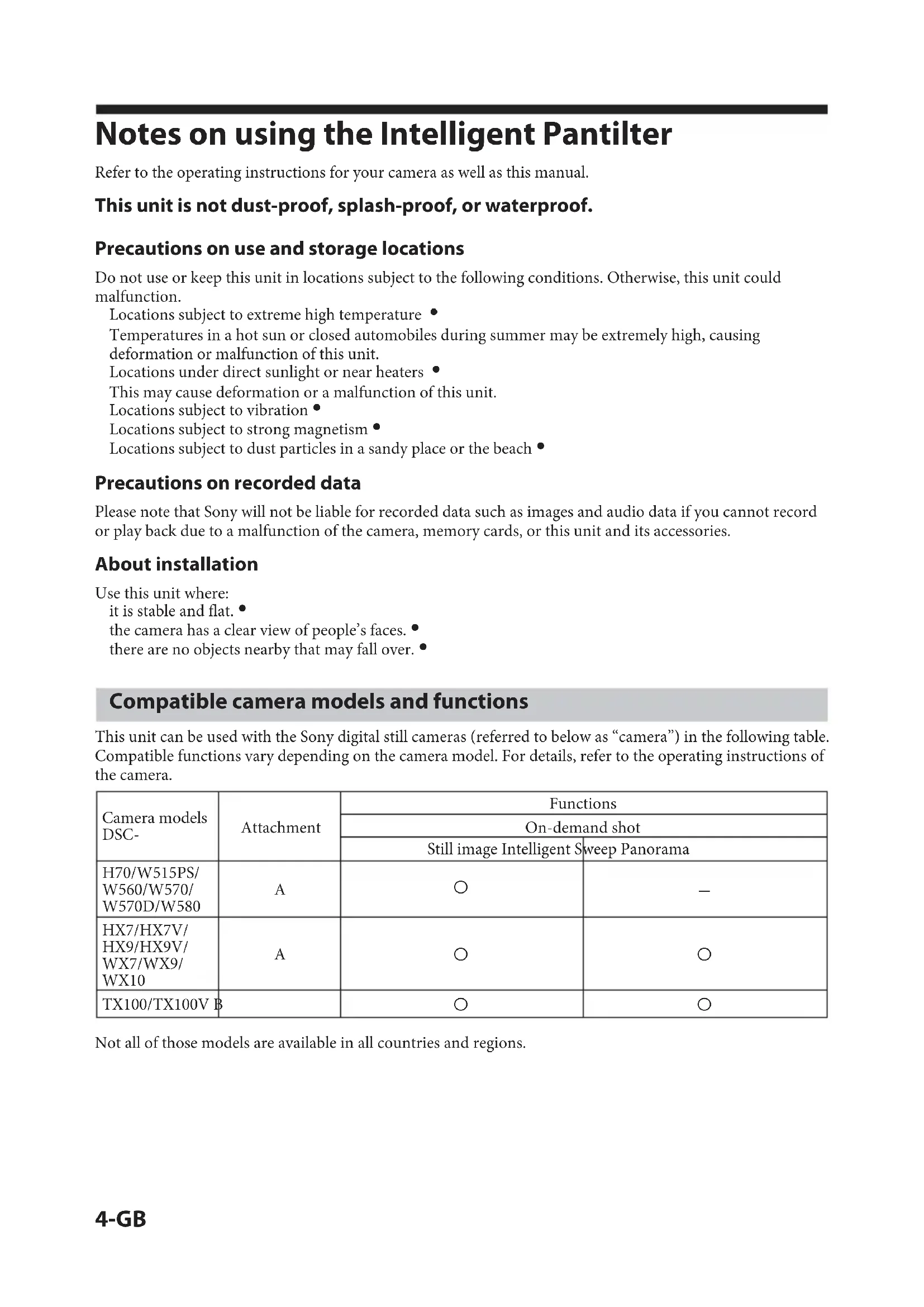
Compatible camera models and functions
This unit can be used with the Sony digital still cameras (referred to below as “camera”) in the following table. Compatible functions vary depending on the camera model. For details, refer to the operating instructions of the camera.
| Camera models DSC- | Attachment | Functions | |
| On-demand shot | |||
| Still image Intelligent Sweep Panorama | |||
| H70/W515PS/W560/W570/W570D/W580 | A | ○ | — |
| HX7/HX7V/HX9/HX9V/WX7/WX9/WX10 | A | ○ | ○ |
| TX100/TX100VB | ○ | ○ | |
Not all of those models are available in all countries and regions.
Enjoy with Party-shot
Party-shot rotates and shoots photos automatically. It detects the faces of subjects using the function of the Cyber-shot camera and adjusts the composition automatically.
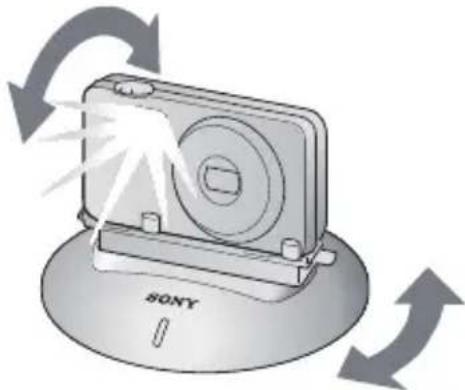
Capture natural photos of everyone using "Automatic shooting" function
The automatic shooting function captures everyone since no one has to be the photographer. Because people are less aware of the camera, Party-shot makes it easier to shoot more natural, smiling faces.

Capture photos at a time of your choice using "On-demand shot" function
If you press the On-demand shot button during automatic shooting, the camera shoots photos at the timing of your choice. This lets people pose for photos and lets you be in photos, too.
Identifying parts
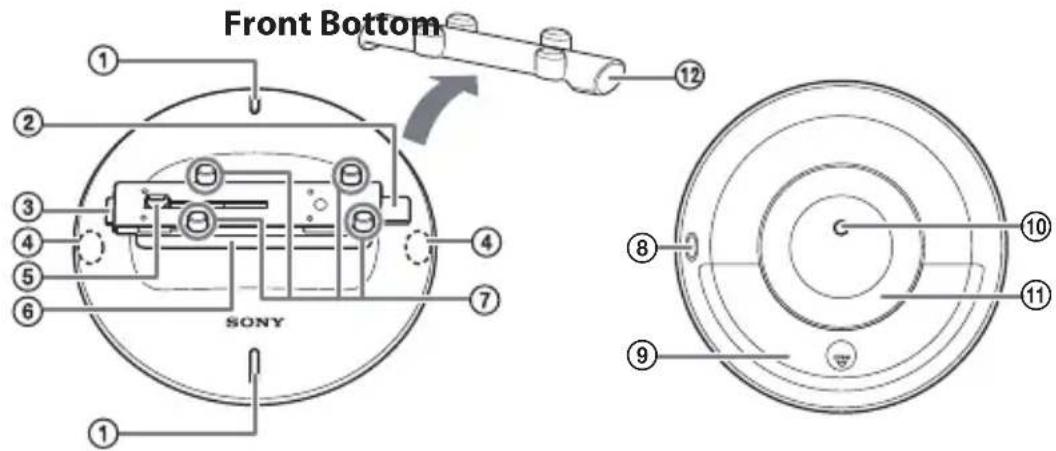
① On-demand shot button or MENU (stop) button
② Release button (dark gray)
③ Lock button (light gray)
④ Operation/battery indicator
⑤ Multi connector
⑥ Tilt arm
⑦ Camera clips
⑧ ON/OFF (power) switch
⑨ Battery cover
⑩ Tripod receptacle
Use a commercially available tripod with 5.5 mm or shorter screws.
⑪ Foot
⑫ Protective cover
On-demand shot button and MENU (stop) button
Button function assignment varies depending on your camera. You can tell which button has which function from whether it is lit or not.
Lit: On-demand shot button •
Not lit: MENU (stop) button •
Operation/battery indicator
Indicators light up or flash depending on the status of this unit.
| Color Indicator status This unit status | ||
| White On | Automatic shooting | |
| Flashes once When a shot is taken | ||
| Flashes slowly When the ON/OFF (power) switch of this unit is used* / During setting screen display | ||
| Flashes rapidly The memory of the camera is full. / Lens cover is closed. | ||
| Red Flashes | slowly Battery level is low. | |
| Flashes rapidly Abnormal condition / Batteries have run out. / Some force is being applied to this unit. | ||
* The indicator may not flash depending on the status of this unit.
Preparing the unit
Inserting batteries
You can use the following batteries.
Two LR6 (size AA) alkaline batteries •
Two AA Nickel-Metal Hydride batteries •
1 Turn this unit off by sliding the ON/OFF (power) switch to OFF.
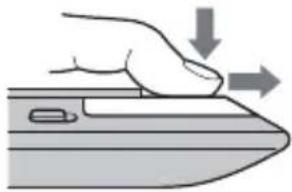
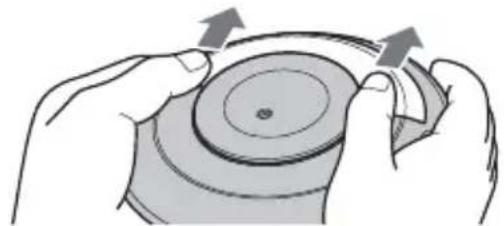
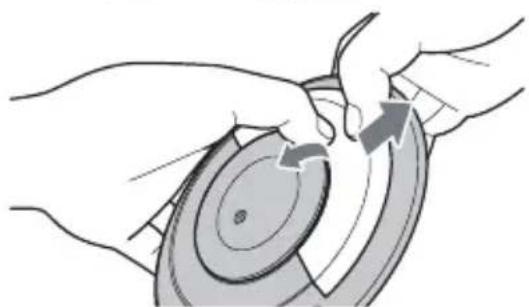
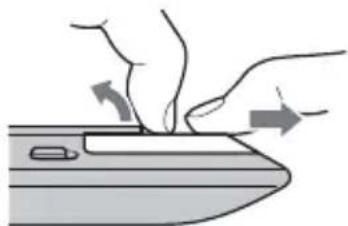
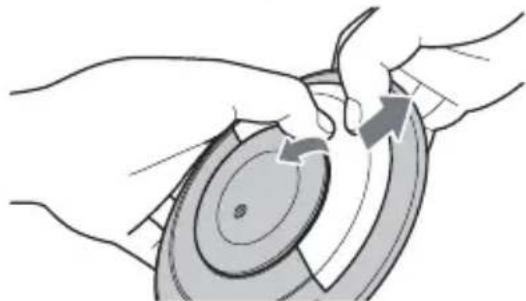
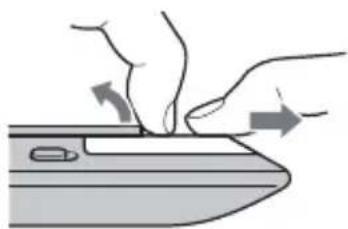
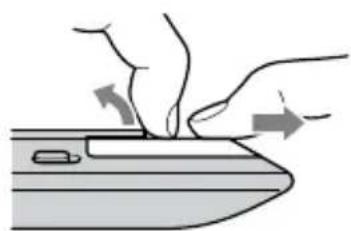
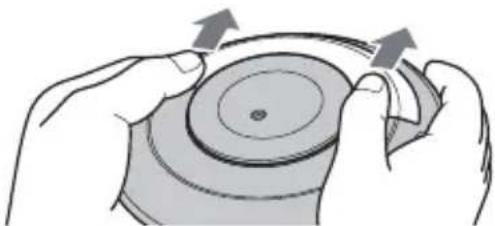
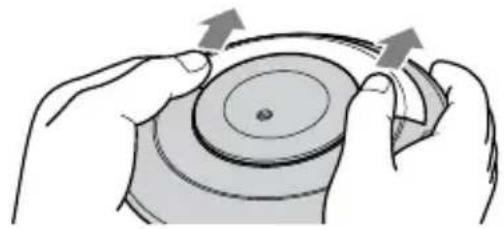
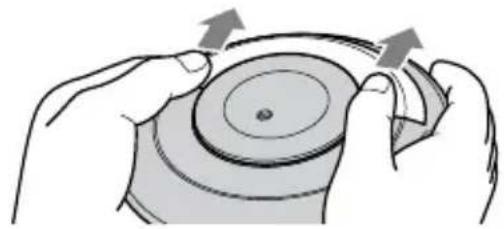
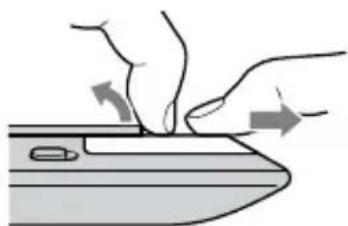
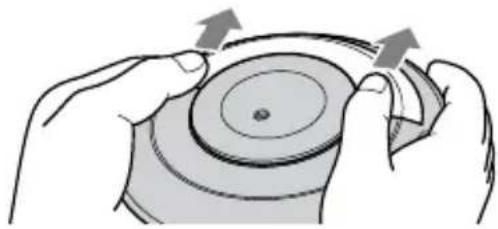
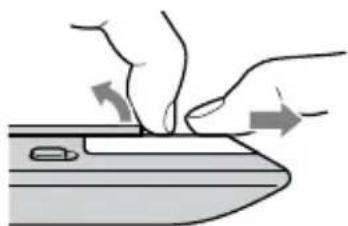
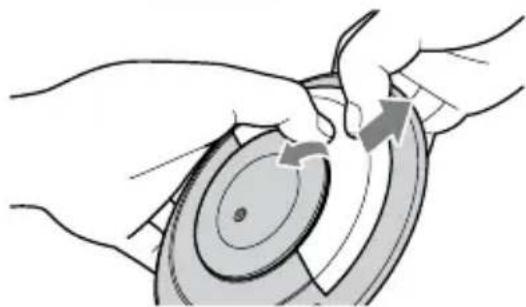
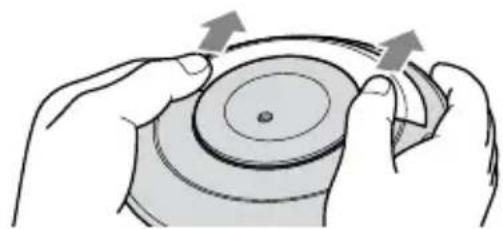
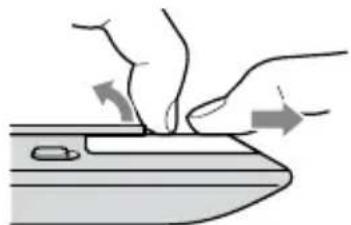
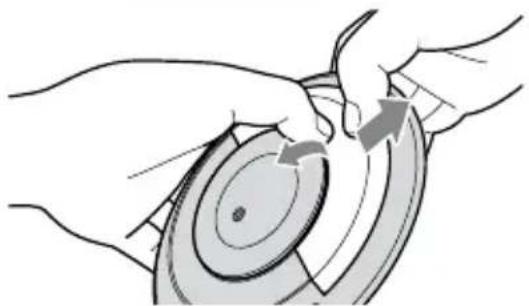
2 Open the battery cover.
OK
(no text)

Note
Be careful not to pull or exert a force on the foot of this unit when opening the battery cover. Doing so can cause a malfunction.
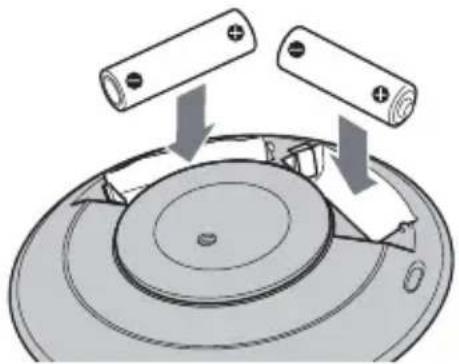
3 Insert the batteries into the battery compartment according to the marks inside the compartment.
4 Close the battery cover.
Notes
The batteries inserted in this unit only power this unit. They cannot power or charge the camera. Be careful not to touch the multi connector when holding this unit.
You cannot use manganese batteries.
Always use the same kind of batteries together.
Check the polarities of the batteries when inserting them into this unit. If you insert the batteries in the wrong direction, this unit does not work.
Do not use a new or charged battery together with a dead battery.
To remove batteries
Turn this unit off and then remove the batteries.
Note
When removing the batteries, be careful they do not fall and cause injury.

Remove the batteries if this unit will not be used for a long period of time.
Battery level
If the battery level is low, the operation/battery indicator flashes slowly. If the battery level gets lower, indicator flashes more rapidly and this unit automatically enters standby mode.
Attaching the camera to this unit
Before attaching the camera
The internal memory and memory card have sufficient free space.
Install a fully charged battery pack into the camera.
Turn off the power of the camera.
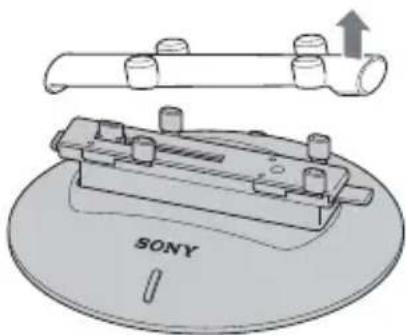
1 Remove the protective cover.
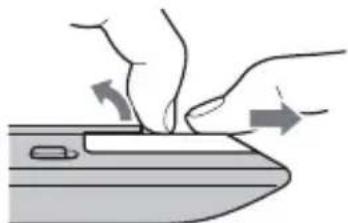
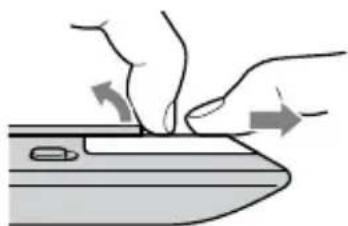
2 Press the release button (dark gray) of this unit to open the camera clips.
3 Check the "Attachment" item in the table of compatible functions (page 4). Turn the camera to face in the desired direction.
Attachment A models according to the table of compatible models
Position the camera with its lens facing the SONY logo on this unit.
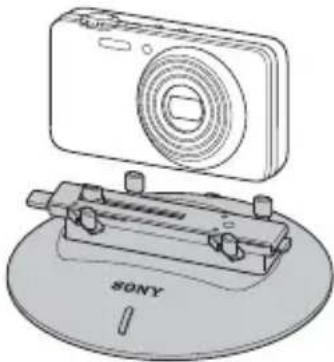
Attachment B models according to the • table of compatible models
Position the camera with its LCD screen facing the SONY logo on this unit.

4 Align the multi connector at the bottom of the camera with the multi connector on this unit. Attach the camera perpendicularly to the tilt arm of this unit.
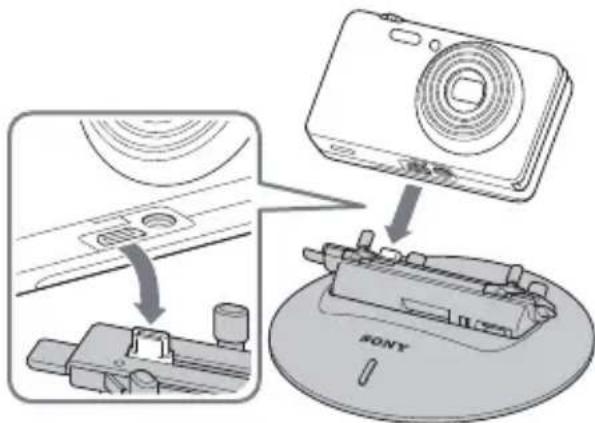
5 Slide the camera slowly until it is positioned almost at the center of this unit.
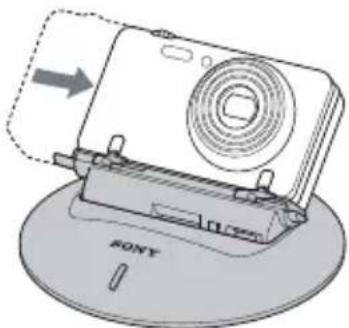
6 Press the lock button (light gray) of this unit to close the camera clips.
Notes
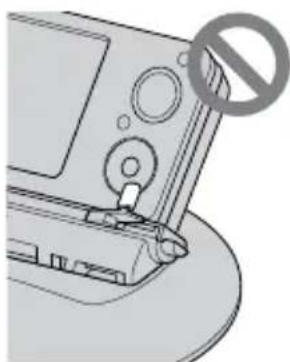
Do not slide the camera with the camera clips closed. Doing so may cause a malfunction.
Make sure that the camera clips do not touch the lens or operating buttons of the camera.
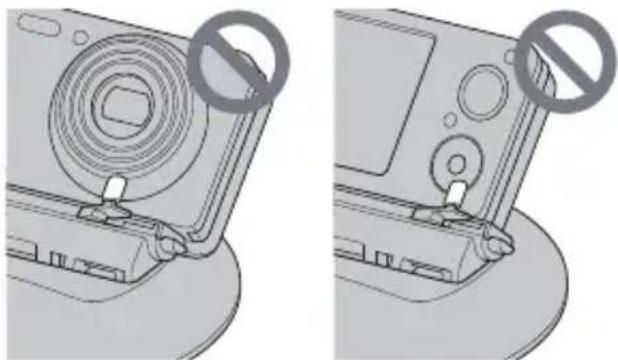
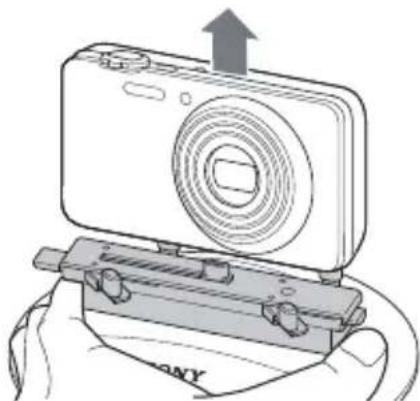
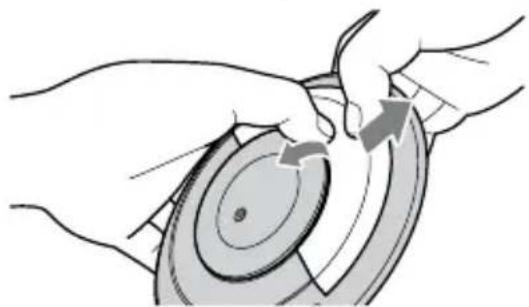
To remove the camera
① Turn off the power of the camera.
② After this unit stops, turn it off.
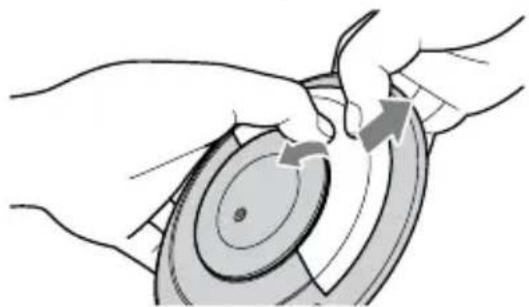
③ Press the release button of this unit to open the camera clips.
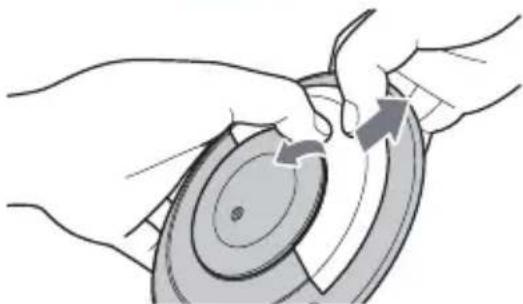
④ Lift up the camera with one hand while supporting the tilt arm with the other.
⑤ Press the lock button of this unit to close the camera clips.
Notes
When removing the camera, always lift it • perpendicular to the tilt arm.
Forcibly removing the camera at an angle or sliding it sideways may damage it.
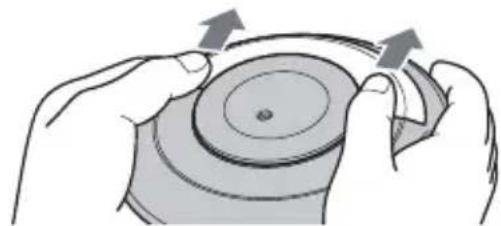
If you carry this unit somewhere, or if you do not intend to use it for a long time, reattach the protective cover.
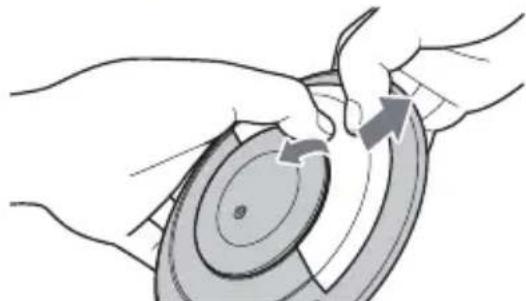
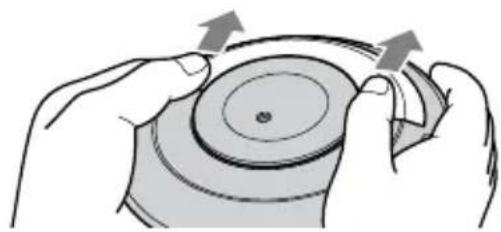
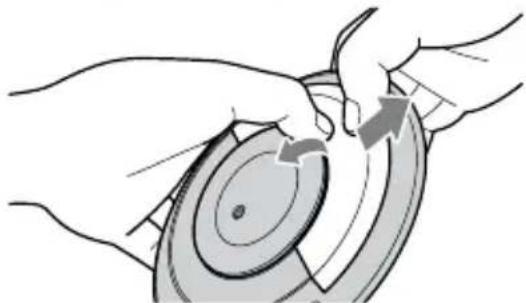
Attach the protective cover to this unit from the side of the lock button (light gray).
Starting automatic shooting
1 Slide the ON/OFF (power) switch of this unit to ON.
This unit enters standby mode.
2 Set the power switch of the camera to ON.
Automatic shooting starts after initialization*.
* This unit rotates approximately 180 degrees left and 180 degrees right from the internal basing position before returning to the original position.
To finish automatic shooting
① Press the MENU (stop) button of this unit to stop automatic shooting.
② Turn off the power of the camera.
Notes
Turning this unit off during automatic shooting • forcibly turns off the power to this unit. Do not do this except in an emergency.
If you lift this unit up during automatic shooting, the unit may determine it to be an abnormal condition and its motor may stop and automatic shooting may temporarily stop. In this case, automatic shooting is resumed when you put this unit back in place.
The operation/battery indicator rapidly flashes red if you forcibly stop the rotation or if an external force is applied to this unit during automatic shooting. In this case, remove the force and then turn this unit off and back on.
When using this unit in public, be considerate of other people around you.
You cannot change the camera to play mode during • automatic shooting.
Face detection function
Depending on the shooting environment, • sometimes the camera may not detect faces or may detect things other than faces.
If the camera does not detect any faces for a period of time, operation of this unit may pause to save power.
The camera cannot detect faces that are too close or too far away. The appropriate distance between a face and the camera is between 1 m and 2 m.
This unit automatically turns back on from pause • status when a face is detected or if you press the MENU (stop) button or lift the unit up.
Note
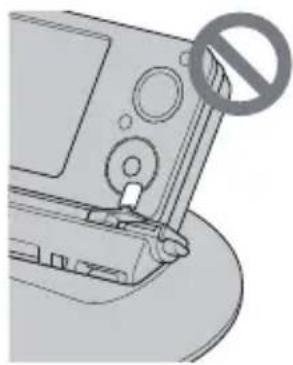
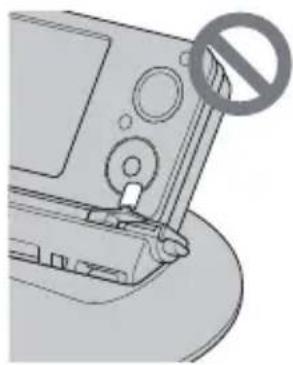
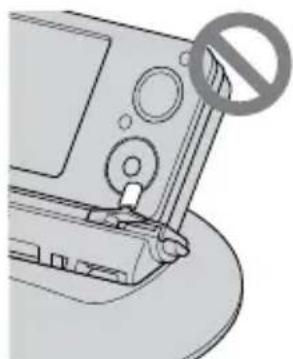
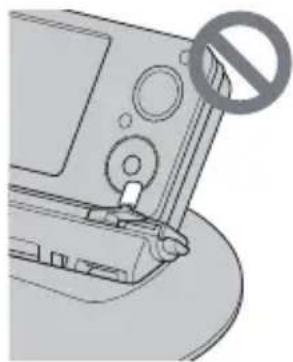
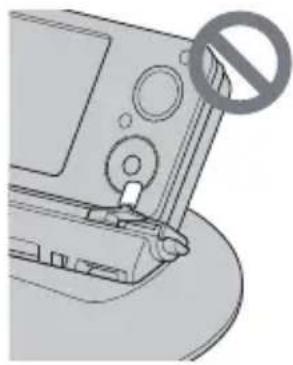
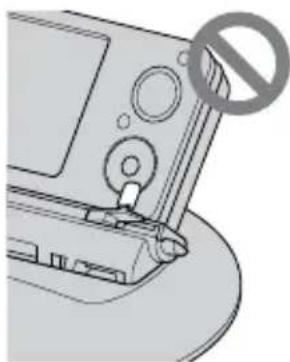
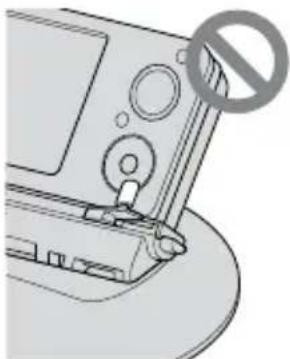
Pressing the button too strongly may cause this unit to fall off the dedicated stand.
Tip
When “To stop shooting, press Shooting button on Party-shot” is displayed on the LCD of your camera, press the On-demand shot button of this unit.
Shooting using On- demand shot function
On-demand shot is a function that lets you send recording instructions to the unit at any time you like.
You can send instructions to record not only still images but also Intelligent Sweep Panorama shots using the pan function of this unit. (Only with compatible camera models)
Press the On-demand shot button during automatic shooting or setting screen display.
The self-timer lamp of the camera flashes and face detection begins. When the camera detects a face and finishes choosing the composition, there is a fast beeping and shooting begins.
After finishing the On-demand shot, this unit returns to automatic shooting mode.
Notes
There is no beep if the camera is set to mute. • Pressing the button too strongly may cause this • unit to fall off the dedicated stand.
Tips
Even if the camera cannot find a face, it takes a shot.
To cancel On-demand shot during operation, press the On-demand shot button once more.
On panorama shooting, you cannot cancel On- demand shot after the composition is set.
The camera may not be able to capture panoramic images properly if the subject or camera moves too much. For details, refer to the user's manual of your camera.
Changing the settings
1 During automatic shooting, press the MENU button on this unit.
This unit stops rotating and tilts the camera forward. Then the setting screen is displayed on the LCD screen of the camera.
2 Select a setting item on the camera.
The settings vary depending on the camera model.
Automatic shooting is resumed after you change the settings.
Tips
Operation varies depending on the camera model. For details refer to the operating instructions of the camera.
The camera automatically turns off to save its • battery pack when not operated for more than 2 minutes during setting screen display. In this case, turn on the camera again.
Settings
If you change the default setting, a setting value icon is displayed on the LCD of the camera. An underline indicates the default setting.
Rotation angle setting

(No Limit)
Rotates unlimited to follow a subject.

(180°)
Limits the face detection range to 180 degrees (90 degrees left and right from the central position).

(90°)
Limits the face detection range to 90 degrees (45 degrees left and right from the central position).
Tip
The forward position (the central point of rotation) is reset after the following operations.
When the power is turned on — When the rotation angle is changed — When this unit is lifted up and relocated
Shooting frequency setting

(High)
High shooting frequency. A large number of pictures will be taken.

(Standard)
Standard shooting frequency. An average number of pictures will be taken.

(Low)
Low shooting frequency. A small number of pictures will be taken.
Flash setting

(Auto)
Automatically flashes according to shooting conditions.

(Off)
Does not flash in any conditions.
Intelligent Sweep Panorama shot setting
(Only camera models that support Intelligent Sweep Panorama shooting)

(Still image)
Shoot still images during On-demand shot.

(iSweep Panorama)
Shoot Intelligent Sweep Panorama images during On-demand shot.
Panorama image size setting (Only camera models that support Intelligent Sweep Panorama shooting)

(Standard)
Shoot panorama images in standard size.

(Wide)
Shoot panorama images in wide size.
Attaching the dedicated stand
1 Insert the legs of the dedicated stand firmly into the mount.
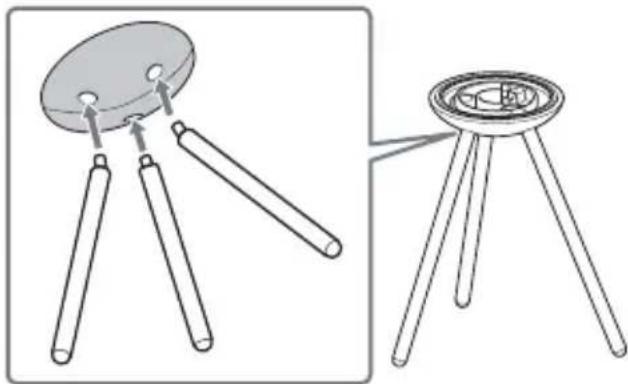
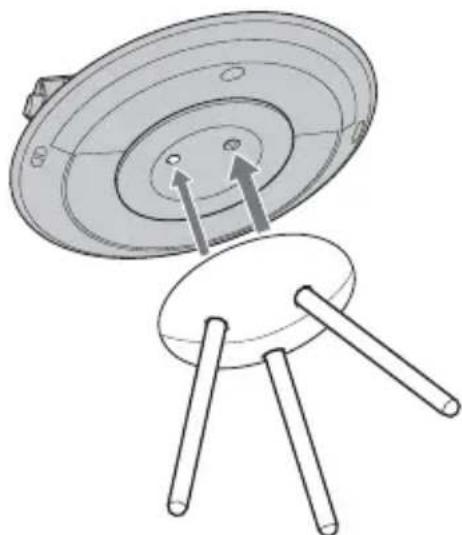
2 To set this unit on the dedicated stand, align the projections on the mount of the dedicated stand with the tripod receptacle of this unit.
Notes
Attach the camera to this unit before setting the • unit on the dedicated stand.
Use the dedicated stand in a level place.
Do not apply a strong force to the dedicated stand.
Pressing the button too strongly may cause this • unit to fall off the dedicated stand.
Hold the camera when operating it to prevent it • from falling and causing injury.
Keep this unit away from people's faces, especially children's faces, to prevent injury in case it falls.
To use a commercially available tripod
You can use a commercially available tripod instead of the dedicated stand. However, some tripods cannot be used depending on the shape of the camera platform.
Notes
Do not use force to tighten the tripod screw.
When this unit is attached to a tripod, do not lift the unit or swing the tripod around.
Be careful not to pull or exert a force on the foot of this unit. Doing so can cause a malfunction.
Troubleshooting
If any problems occur with your products, refer to the following solutions. If the problem persists, contact your Sony dealer.
| Symptom Cause/Solution | |
| The operation/battery indicator flashes rapidly in white. | The camera has no more available memory. Remove the camera from this unit and delete some images. →The lens cover of the camera is closed. Open the lens cover. → |
| The operation/battery indicator slowly flashes in red. | The batteries are low. Prepare new batteries. → |
| The operation/battery indicator continues to flash rapidly in red. | The camera is not attached to this unit. Attach the camera to this unit. →Something is caught on the tilt arm, or your hand is pressing against this unit. |
| The operation/battery indicator rapidly flashes red and then goes out. | The batteries inserted in this unit have run out. Replace the batteries. (page 7) → |
| This unit does not work. | The batteries inserted in this unit have run out. Replace the batteries. (page 7) →The battery pack installed in the camera has run out. Install a fully charged battery pack into the camera. |
| The camera does not turn on. | The camera is not properly attached to this unit. Attach the camera properly to this unit. (page 8)The camera's battery level is low. Install charged battery pack in the camera. |
| The camera cannot be attached properly to this unit or is unstable. | The camera is not fixed properly. Attach the camera properly. (page 8) |
| No images are shot. | The camera is set too far from or too close to the subject. Set the camera within the face detection range of the camera.→If there is only a small change in facial expression or composition, a shot may not be taken right away even when a face is detected.The camera is in [Set to on for demo mode].→Change the setting of the camera. For details, refer to the user's manual of the camera. |
| This unit stops moving during use. | If the camera does not detect any faces, this unit may stop operating. Press the MENU (stop) button twice.The batteries inserted in this unit have run out. Replace the batteries. (page 7) →The camera is not attached properly. Attach the camera correctly. (page 8) |
Specifications
Intelligent Pantilter
Input/Output connectors
Multi connector
General
Dimensions (approx.):
128 mm × 47 mm × 128 mm (w/h/d) (5 1/8 in. × 1 7/8 in. × 5 1/8 in.)
(excluding projecting parts) (when the tilt arm is erect)
Mass (approx.):
210 g (7.4 oz) (without batteries)
Batteries in continuous use (at 25 °C)
Approx. 11 hours with Sony LR6 (size AA) alkaline batteries
Approx. 12 hours with Sony AA Nickel-Metal Hydride batteries
* Using this unit in a cold place may shorten the life of the alkaline batteries. In that case, we recommend using nickel-metal hydride batteries.
Operating temperature:
5°C to 40°C (41°F to 104°F)
Storage temperature:
-20°C to +60°C (-4°F to +140°F)
Power supply:
Two LR6 (size AA) alkaline batteries or two AA Nickel-Metal Hydride batteries (sold separately)
Accessories
Dedicated stand (1) •
Protective cover (1) •
Set of printed documentation •
Design and specifications are subject to change without notice.
Trademarks
"Party-shot" are trademarks of Sony Corporation.
- In addition, system and product names used in this manual are, in general, trademarks or registered trademarks of their respective developers or manufacturers. However, the TM or ® marks are not used in all cases in this manual.
Français
Prenez des photos naturelles de tous en utilisant la «Prise de vue automatique»
(no
Remarque
Remarques
Remarques
(no text)
Hinweis
Hinweise
Hinweise
(no text)
Nota
Notas
Notas
Opmerking
Opmerkingen
Opmerkingen
Hur kameran tas ur
Observera
Observera
Note
Note
Para retirar as pilhas
Notas
Notas
Sony Corporation 1-7-1, Konan, Minato-ku, Tokyo, Japan, 108-0075
(no text)
Примітка
Зняття камери
Примітки
Примітки
Для снятия камеры
Примечания
Примечания
(no text)
備註
4 關上電池蓋。
備註
依據相容機型表的固定件B·
卸下相機
備註
備註
(no text)
注
4 关闭电池舱盖。
注意
附件 B 型号(参照兼容功能表)·
卸下相机
注意
注意
(no text)
참고
4 배터리 커버를 닫습니다.
참고
카메라를 제거하려면
참고
참고
اغلق غطاء البطارية.
4
ملاحظات
(no
ملاحظة
لنزع الكاميرا
ملاحظات
ملاحظات
- 「オーダー撮影」で撮りたい写真を残す
- カメラを取りはずすには
- ④ ご注意
- Warning
- Caution
- For customers in the u.s.a
- Note
- For customers in europe
- Notice for the customers in the countries applying eu directives
- Attention
- Table of contents
- Notes on using the intelligent pantilter
- Precautions on use and storage locations
- Precautions on recorded data
- About installation
- Compatible camera models and functions
- Enjoy with party-shot
- Capture natural photos of everyone using "automatic shooting" function
- Capture photos at a time of your choice using "on-demand shot" function
- Identifying parts
- On-demand shot button and menu (stop) button
- Operation/battery indicator
- Preparing the unit
- Inserting batteries
- Note
- 4 Close the battery cover
- Notes
- To remove batteries
- Battery level
- Attaching the camera to this unit
- Before attaching the camera
- 1 Remove the protective cover
- Attachment b models according to the • table of compatible models
- 6 Press the lock button (light gray) of this unit to close the camera clips
- To remove the camera
- Starting automatic shooting
- 1 Slide the on/off (power) switch of this unit to on
- 2 Set the power switch of the camera to on
- To finish automatic shooting
- Face detection function
- Tip
- Shooting using on- demand shot function
- Press the on-demand shot button during automatic shooting or setting screen display
- Tips
- Changing the settings
- 1 During automatic shooting, press the menu button on this unit
- 2 Select a setting item on the camera
- Settings
- Rotation angle setting
- (No limit)
- (180°)
- (90°)
- Shooting frequency setting
- (High)
- (Standard)
- (Low)
- Flash setting
- (Auto)
- (Off)
- Intelligent sweep panorama shot setting
- (Only camera models that support intelligent sweep panorama shooting)
- (Still image)
- (Isweep panorama)
- Panorama image size setting (only camera models that support intelligent sweep panorama shooting)
- (Wide)
- Attaching the dedicated stand
- To use a commercially available tripod
- Troubleshooting
- Specifications
- Intelligent pantilter
- Input/output connectors
- General
- Accessories
- Trademarks
- Français
- Prenez des photos naturelles de tous en utilisant la «prise de vue automatique
- Remarque
- Remarques
- Hinweis
- Hinweise
- Nota
- Notas
- Opmerking
- Opmerkingen
- Hur kameran tas ur
- Observera
- Para retirar as pilhas
- Примітка
- Зняття камери
- Примітки
- Для снятия камеры
- Примечания
- 備註
- 4 關上電池蓋。
- 卸下相機
- 注
- 4 关闭电池舱盖。
- 注意
- 卸下相机
- 참고
- 카메라를 제거하려면
Brand : SONY
Model : IPTDS2
Category : Other camera accessories