
TML90II LFC - Printer EPSON - Free user manual and instructions
Find the device manual for free TML90II LFC EPSON in PDF.
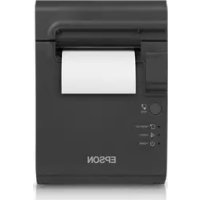



| Brand | Epson |
| Model | TML90II LFC |
| Product type | Thermal printer |
| Printing method | Thermal line |
| Resolution | 203 × 203 dpi |
| Print width | 72 mm (80 mm paper), 52.5 mm (58 mm paper), 35 mm (40 mm paper) |
| Supported paper widths | 80 mm, 58 mm, 40 mm |
| Max roll diameter | 102 mm |
| Dimensions (W × D × H) | 140 × 203 × 148 mm |
| Weight | Approximately 1.9 kg |
| Power supply | DC +24 V ±7%, consumption approx. 1.8 A |
| Operating temperature | 5 to 45 °C |
| Operating humidity | 10 to 90% RH |
| Main functions | Ticket printing, self-test, automatic paper cutting |
| Maintenance and cleaning | Clean the casing with a dry or damp cloth; clean interior (thermal head, platen roller) with a cotton swab moistened with isopropyl alcohol every six months |
| Safety | Immediately disconnect power if smoke or odor; do not disassemble; use a compliant power supply |
| Spare parts and repairability | Removable paper guide, roll cover; contact a qualified technician for any repair |
| General information | Manual available in multiple languages; registered trademark Epson |
Frequently Asked Questions - TML90II LFC EPSON
User questions about TML90II LFC EPSON
0 question about this device. Answer the ones you know or ask your own.
Ask a new question about this device
Download the instructions for your Printer in PDF format for free! Find your manual TML90II LFC - EPSON and take your electronic device back in hand. On this page are published all the documents necessary for the use of your device. TML90II LFC by EPSON.
USER MANUAL TML90II LFC EPSON
Most of the illustrations are at the beginning of this manual. See the list below for the meaning of the numbers in the illustrations.
- Control panel label
- Paper guides
- Lever 7. Slot 3. Hole A 8. Knob
- Notch 9. Triangle mark 5. Hole B
Restriction of Use
When this product is used for applications requiring high reliability/safety, such as transportation devices related to aviation, rail, marine, automotive, etc.; disaster prevention devices; various safety devices, etc.; or functional/precision devices, etc.; you should use this product only after giving consideration to including fail-safes and redundancies into your design to maintain safety and total system reliability. Because this product was not intended for use in applications requiring extremely high reliability/safety, such as aerospace equipment, main communication equipment, nuclear power control equipment, or medical equipment related to direct medical care, etc., please make your own judgment on this product's suitability after a full evaluation.
Caution
No part of this publication may be reproduced, stored in a retrieval system, or transmitted in any form or by any means, electronic, mechanical, photocopying, recording, or otherwise, without the prior written permission of Seiko Epson Corporation. No patent liability is assumed with respect to the use of the information contained herein. While every precaution has been taken in the preparation of this book, Seiko Epson Corporation assumes no responsibility for errors or omissions. Neither is any liability assumed for damages resulting from the use of the information contained herein.
Neither Seiko Epson Corporation nor its affiliates shall be liable to the purchaser of this product or third parties for damages, losses, costs, or expenses incurred by purchaser or third parties as a result of: accident, misuse, or abuse of this product or unauthorized modifications, repairs, or alterations to this product, or (excluding the U.S.) failure to strictly comply with Seiko Epson Corporation's operating and maintenance instructions.
Depending on the area, the interface cable may be included with the product. If so, use that cable.
Seiko Epson Corporation shall not be liable against any damages or problems arising from the use of any options or any consumable products other than those designated as Original Epson Products or Epson Approved Products by Seiko Epson Corporation.
EPSON is a registered trademark of Seiko Epson Corporation. Exceed Your Vision is a registered trademark or trademark of Seiko Epson Corporation. All other trademarks are the property of their respective owners and used for identification purposes only.
NOTICE: The contents of this manual are subject to change without notice.
©Seiko Epson Corporation 2013-2019. All rights reserved.
Important Safety Information
This section contains important information intended to ensure safe and effective use of this product. Please read this section carefully and store it in an accessible location.
Key to Symbols
The symbols in this manual are identified by their level of importance, as defined below. Read the following carefully before handling the product.

WARNING:
Warnings must be observed carefully to avoid serious bodily injury.

CAUTION:
Cautions must be observed to avoid minor injury to yourself, damage to your equipment, or loss of data.
Safety Precautions

WARNING:
Shut down your equipment immediately if it produces smoke, a strange odor, or unusual noise. Continued use may lead to fire. Immediately unplug the equipment and contact qualified service personnel.
Never attempt to repair this product yourself. Improper repair work can be dangerous. Never disassemble or modify this product. Tampering with this product may result in injury or fire.
Be sure to use the specified power source. Connection to an improper power source may cause fire.
Do not allow foreign matter to fall into the equipment. Penetration by foreign objects may lead to fire.
If water or other liquid spills into this equipment, unplug the power cord immediately, and then contact qualified service personnel. Continued usage may lead to fire.
Do not use aerosol sprayers containing flammable gas inside or around this product. Doing so may cause fire.

CAUTION:
Do not connect cables in ways other than those mentioned in this manual. Different connections may cause equipment damage and burning.
Be sure to set this equipment on a firm, stable, horizontal surface. The product may break or cause injury if it falls.
Do not use in locations subject to high humidity or dust levels. Excessive humidity and dust may cause equipment damage or fire.
Do not place heavy objects on top of this product. Never stand or lean on this product. Equipment may fall or collapse, causing breakage and possible injury.
Take care not to injure your fingers on the manual cutter.
- When you remove printed paper,
- When you perform other operations such as loading/replacing roll paper,
To ensure safety, unplug this product before leaving it unused for an extended period.
Caution Labels
The caution labels on the product indicate the following precautions.


CAUTION:
The thermal head can be very hot during printing and immediately after printing. Touching it may cause burns.
Downloading Drivers, Utilities, and Manuals
The latest versions of drivers, utilities, and manuals can be downloaded from one of the following URLs.
For customers in North America, go to the following web site: www.epson.com/support/
For customers in other countries, go to the following web site: www.epson-biz.com/
Printer Parts

Control Panel
①LED
Lights when the power is on, and is off when the power is off.
! (Error) LED
Off when the printer is online, lights when the printer is offline, and flashes when an error occurs.
(Paper) LED
Lights when roll paper is out.
(Feed) button
Feeds the roll paper.
Installing the Printer Horizontally or Vertically
You can install the printer horizontally (with the paper exit on top) or vertically (with the paper exit at the front).
When installing the printer vertically, attach the included control panel label to the printer case, and install it on a flat surface. (See illustration A.)
Removing or Installing the Paper Guide
Install or remove the paper guide to match the width of the roll paper in use.
For the 65* model
A 40 mm paper guide is installed.
- When using a roll paper that is 40 mm wide, use the printer as it is.
- When using a roll paper that is 80 mm wide, remove the installed guide.
For the 66* / 67* / 68* model
A 58 mm paper guide is installed.
- When using a roll paper that is 58 mm wide, use the printer as it is.
- When using a roll paper that is 80 mm wide, remove the installed guide.
- When using a roll paper that is 40 mm wide, remove the installed guide, and install the included 40 mm paper guide.

CAUTION:
Changing to a roll paper that is wider than the roll paper in use can cause decreased print quality.
Removing the Paper Guide
- Open the roll paper cover using the cover open lever. (See illustration B.)
- Pull the paper guide in the direction of the arrow in illustration C while pulling the lever of the paper guide to remove it.
Installing the Paper Guide

CAUTION:
Installation position of the paper guide varies depending on the width of the paper guide. Do not install the 58 mm paper guide in the position for the 40 mm paper guide.
- Open the roll paper cover using the cover open lever. (See illustration B.)
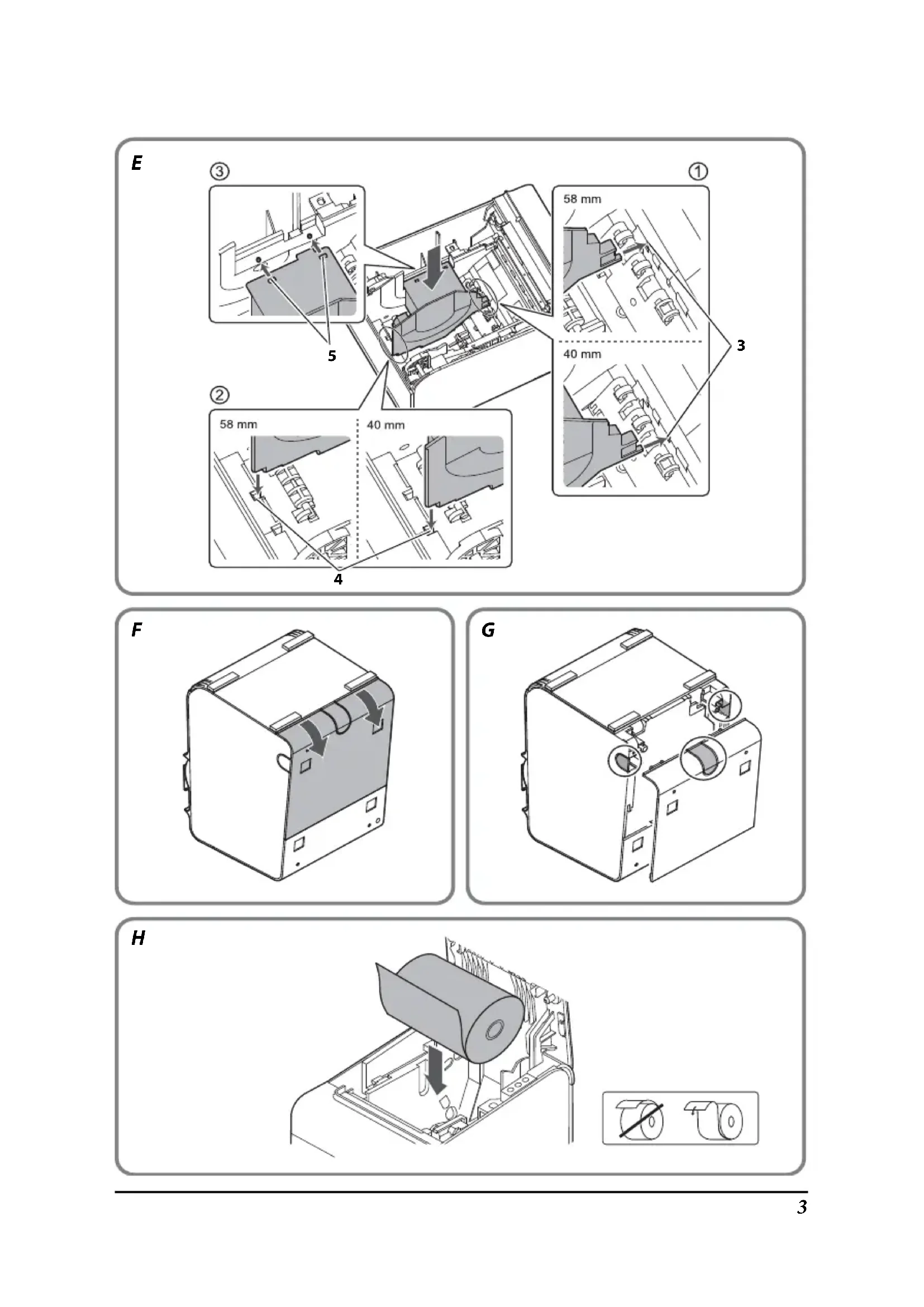
- Align the projection of the paper guide with the hole (Illustration E3) in the roll paper holder.
- Align the corner of the paper guide with the notch (Illustration E4) in the roll paper holder.
- Align 2 holes (Illustration E5) in the paper guide with 2 projections of the roll paper holder.
- Push the lever of the paper guide down until the paper guide clicks into place. (See illustration D.)
Connecting Cables
- Place the printer as shown in illustration F, and pull the cover in the direction of the arrow in the illustration to remove the cover.
- Break off by hand any of the three portions indicated by circles in illustration G to pass the cables through.
- Connect the cables to the printer.
- Attach the cover while passing the cables through the holes.
Installing or Replacing the Roll Paper

CAUTION:
Be sure to use roll paper that meets the specifications.
If you change the paper type from linerless label paper to thermal roll paper, cleaning around the paper path is recommended. (See "Cleaning Inside the Printer" on page 11.)
- Open the roll paper cover using the cover open lever. (See illustration B.)
- Remove the used roll paper core if there is one.
- Insert a roll of paper in the correct direction. (See illustration H.)
- Pull out a small amount of paper, aligning the paper with the paper guides on both sides. (See illustration 1.)
- Close the roll paper cover.
When the printer is powered on, the paper will feed and cut automatically.
Note:
Be sure to close the roll paper cover completely by pushing on the middle of the cover.
Cleaning
Cleaning the Printer Case
When cleaning the printer case, be sure to turn off the printer, and wipe the dirt off the printer case with a dry or damp cloth.

CAUTION:
Never clean the product with alcohol, benzine, thinner, or other such solvents. Doing so may damage or break the parts made of plastic and rubber.
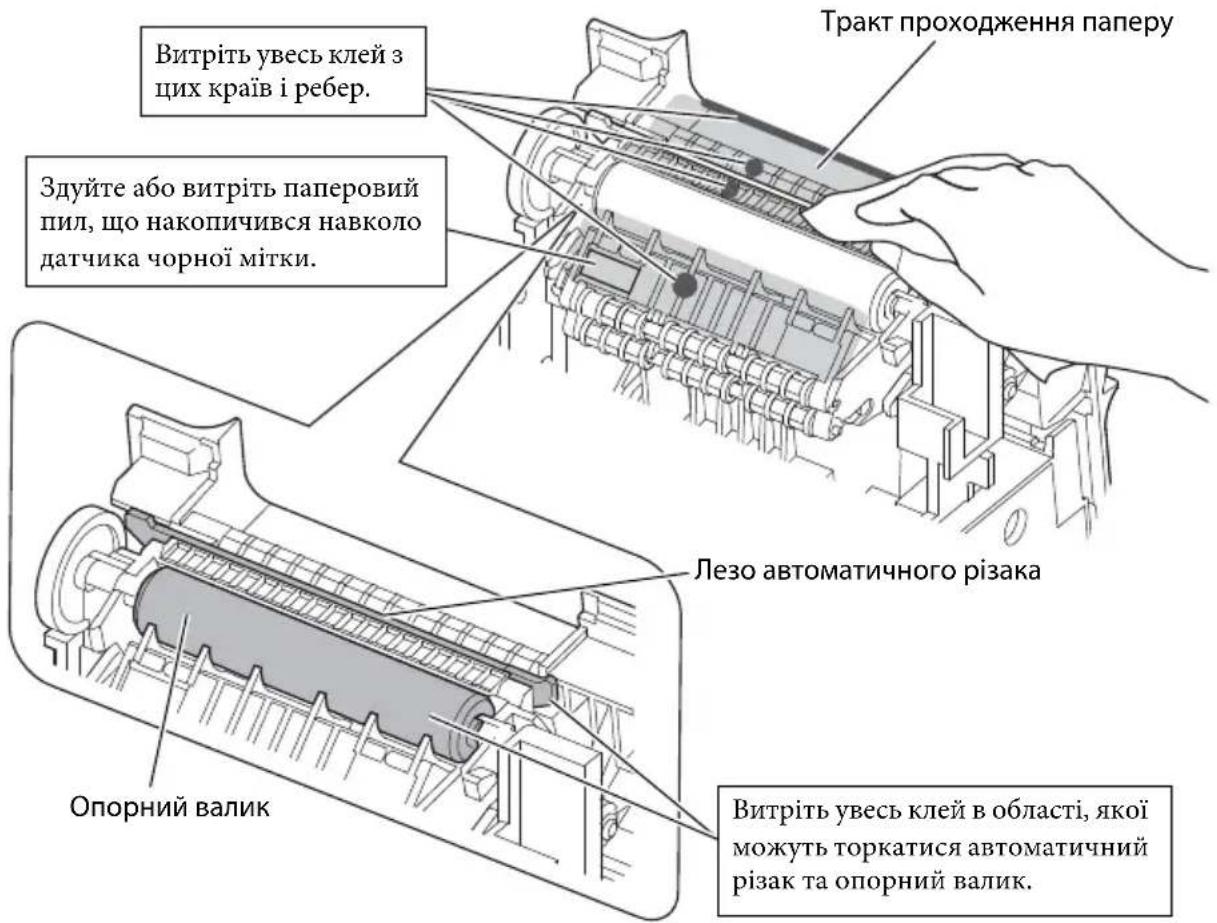
Cleaning Inside the Printer
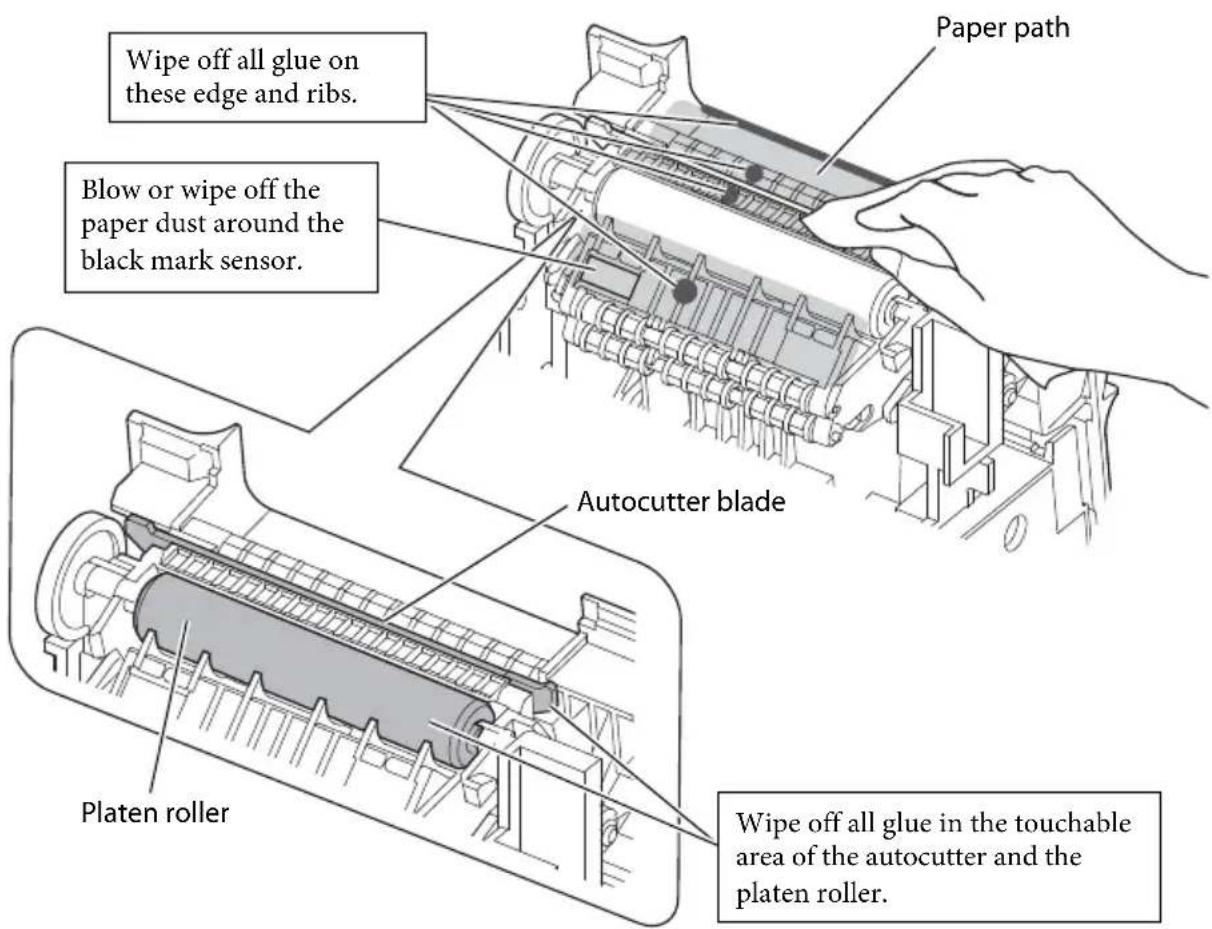
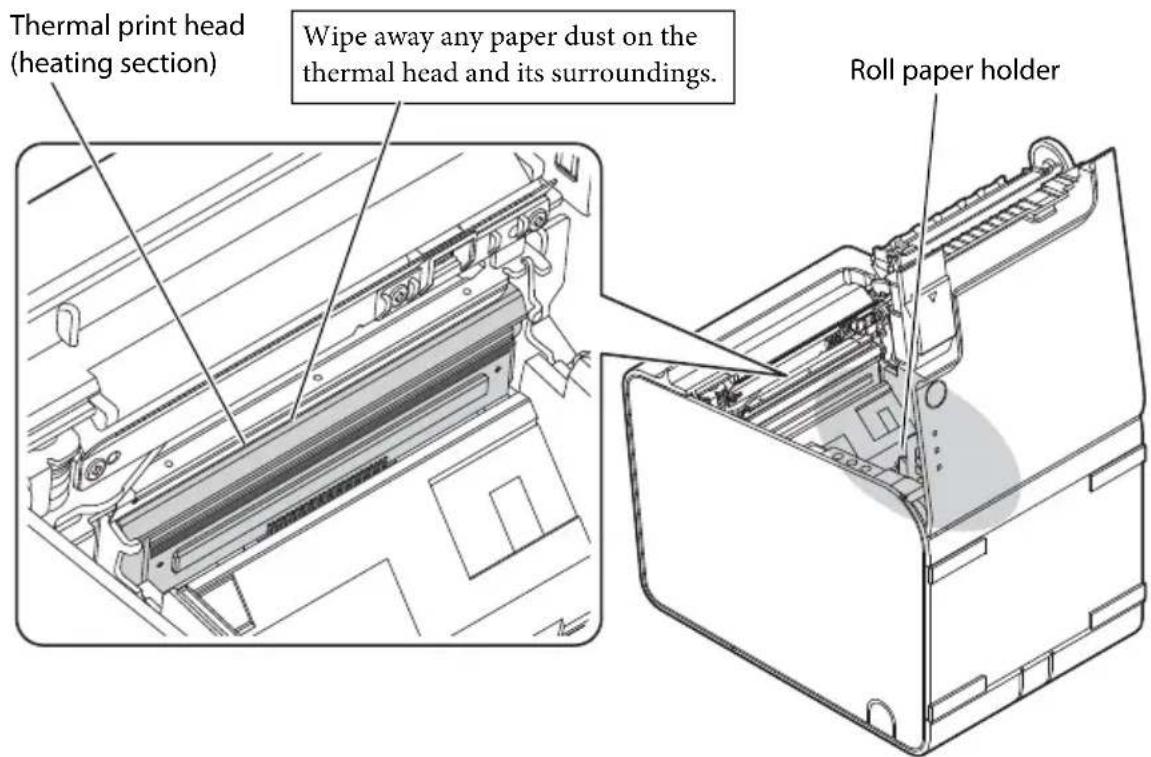
Clean and care for the parts inside the printer (autocutter blade, platen roller, thermal head and surrounding area, roll-paper holder, etc.) in order to maintain good print quality. Clean and care for parts periodically approximately once every six months.
To clean these parts, turn off the printer, unplug the AC cable, open the roll paper cover, and remove the paper dust, adherent glue, or other foreign substance with a cotton swab or cloth moistened with an alcohol solvent (ethanol or IPA).
If paper dust adheres around the black mark sensor, blow or wipe it off to keep the operation of the printer normal.
For the locations of each part, see the illustration.

CAUTION:
If adherent glue is attached, be sure to wipe it all off.
Take care not to injure your fingers on the manual cutter when cleaning.
Before turning on the printer after cleaning, allow alcohol on the printer to dry completely.


CAUTION:
The thermal head can be very hot after printing. Be careful not to touch it and let it cool before cleaning. Do not damage the thermal head by touching it with your fingers or any hard object.
Running a Self-test
In self-test mode, the printer will perform a series of internal diagnostics and then provide a listing of printer settings.
Having a printed self-test in hand when calling for technical support can help speed up the troubleshooting process.
Use the following procedure to start a self-test.
- Close the roll paper cover.
- While pressing the Feed button on the control panel, turn on the printer. (Keep pressing the Feed button until the printer starts printing.)
The printer prints out the various printer states.
- When all printer states have been printed, make sure that the following message is displayed and the Paper LED flashes.
"If you want to continue SELF-TEST printing, please press Feed button." The printer is now in the self-test wait mode.
- To start a test print, press the Feed button when the printer is in the self-test wait mode.
- Check that the following has been printed.
" completed "
This indicates that the printer has been initialized and made the transition to the normal mode.
Resetting the Printer
Certain error conditions can be reset by turning the printer off then back on. Not all error conditions can be reset using this method. For further details, see "Troubleshooting" on page 14.
Troubleshooting
Printout is faint
When printout is faint, adhesive glue or another foreign substance may be present on the thermal head, platen roller, or paper path of the printer.
In such case, first clean the thermal head by following the instructions described in "Cleaning Inside the Printer" on page 11.
If the print quality does not improve, clean the platen roller and paper path of the printer by following the instructions described in "Cleaning Inside the
Printer" on page 11.
Printed character size is not appropriate for 40 mm / 58 mm width paper
When using 40 mm / 58 mm width roll paper, if the printed character size is not appropriate or if the printout does not fit within the paper width, the paper guide may not be installed correctly.
See "Installing the Paper Guide" on page 9 for installation instructions.
! (Error) LED on or flashing
Check to see that the roll paper cover is closed and check the ◇ (Paper) LED. Close the cover or replace the roll paper if necessary. If the printer has been printing a lot, the thermal head may be hot. Wait for the head to cool. Printing will resume automatically. Open the roll paper cover, and check to see if the paper is jammed. If a paper jam occurs or if the roll paper cover will not open, see the section below. Turn the printer off and back on. If the LED is still flashing, notify your manager. The printer may require servicing.
Paper jam
Turn off the power and open the roll paper cover to remove the jammed paper. After that, install the roll paper correctly. If the roll paper cover will not open, see the section below.
If glue or another foreign substance is present on the autocutter blade, platen roller, or the paper path, a paper jam is likely to occur. See "Cleaning Inside the Printer" on page 11 for cleaning instructions.
Note:
Use of the printer for long periods can result in platen roller wear, resulting in linerless label paper readily adhering to the platen roller. If the printer is left for a long period with linerless label paper set in the printer, a paper jam may occur due to the label paper adhering to the roller.
If a paper jam occurs, clean inside the printer. ("Cleaning Inside the Printer" on page 11)
If paper jams occur frequently even after cleaning inside the printer, the platen roller must be replaced. Contact qualified service personnel.
You can also prevent paper jams in advance by re-setting the roll paper. ("Installing or Replacing the Roll Paper" on page 10)
For 68* specifications: This printer is equipped with a function that periodically feeds paper if the printer's power is on for a long period (approx. 12 hours) without printing in order to prevent label paper from adhering to the platen roller. The top margin for the next printed page after this paper feeding will be large, even if back feeding is enabled.
The roll paper cover will not open
Follow the steps below when the roll paper cover will not open.
- Turn off the printer.
- Insert a tool such as a screwdriver into the slots on both sides of the printer, and lift the cover in the direction of the arrow to remove it. (See illustration J.)
- Turn the knob in the direction of the arrow, by using a ballpoint pen or tweezers, until you see a triangle mark in the opening. (See illustration K.)
TM-L90 Specifications
| 80 mm paper width 58 | mm paper width 40 mm paper width | |||
| Print method Thermal line printing | ||||
| Dot density 203×203 dpi [dots per 25.4 mm {1"}] | ||||
| Print width 72 mm {2.84}", 57" | 6 dot positions | 65*/66*/68* model: 52.5 mm {2.07}", 420 dot positions 67* model: 50.0 mm {1.97}", 400 dot positions | 35 mm {1.38}", 280 dot positions | |
| Paper dimensions 79.5 ± 0.5 | × max. Φ102 mm {3.13 ± 0.02 × 4"} | 57.5 ± 0.5 × max. Φ102 mm {2.26 ± 0.02 × 4"} | 39.5 ± 0.5 × max. Φ102 mm {1.56 ± 0.02 × 4"} | |
| Paper type Thermal paper | NTP080-80 NTP058-80 - (do not use) | |||
| Linerless label paper | 9023 - 1274 (6 rolls) 9023 - 1253 (12 rolls) | 9023 - 1823 (12 rolls) 9023 - 1397 (30 rolls) | 9023 - 1275 (6 rolls) 9023 - 1257 (12 rolls) | |
| Power supply*1 | DC + 24 V ± 7% | |||
| Current consumption Approximately | ||||
| Temperature/ Humidity | Thermal paper | Operating: 5 to 45°C {41 to 113°F}, 10 to 90% RH Storage: -10 to 50°C {14 to 122°F}, 10 to 90% RH (except for paper) | ||
| Linerless label paper | Operating: 5 to 35°C {41 to 95°F}, 20 to 80% RH Storage: -10 to 50°C {14 to 122°F}, 10 to 90% RH (except for paper) | |||
| Humidity 10 to 90% | ||||
| Overall dimensions 140 × 203 | × 148 mm {5.51 × 7.99 × 5.83"} (W × D × H) | |||
| Weight (mass) Approximately | 1.9 kg {4.19 lb} | |||
dpi: dots per 25.4mm (dots per inch) *1: Be sure to use a safety-standards-applied power source that meets the following specifications.
Rated output: 24V / 2.0 - 10.0A Maximum output: 240 VA or less
French
Illustrations
www.epson.com/support/
www.epson.com/support/
www.epson.com/support/
www.epson.com/support/
Improper use of the equipment may cause a fire. Immediately
disconnect the equipment and contact qualified service personnel.
Never attempt to repair this equipment yourself.
Incorrect repair may lead to a dangerous situation.
Never disassemble the equipment or modify its construction.
Improper handling of the equipment may result in injury or fire.
Connect the equipment only to the specified power source. Connecting the equipment to an incorrect power source may cause a fire.
Do not allow foreign objects to enter the equipment.
Foreign objects entering the equipment may cause a fire.
If liquid is spilled on this device,
immediately disconnect the power cable and contact qualified service personnel. Continued use may cause a fire.
Do not use aerosol sprays containing flammable gas inside or near this product. This may cause a fire.

WARNING:
Connect cables only in accordance with the instructions provided in this manual. Other cable connections may cause damage and ignition of the equipment.
Install the equipment only on a stable, solid, horizontal surface. Dropping the equipment may cause damage and injury to personnel.
Do not use the equipment in rooms with high humidity and dust. Excessive humidity and dust may cause damage and ignition of the equipment.
Do not place heavy objects on the equipment. Never stand on or lean against the equipment. The equipment may fall and break; in such cases, injury to personnel is possible.
Caution: Do not touch the blade with your fingers.
- Pull out the tray
- Perform maintenance work, e.g., installing/replacing the paper roll
To ensure safety, disconnect the equipment from the power supply if it will not be used for an extended period.
The following precautions are indicated on the labels attached to the device.


WARNING:
During operation and immediately after it is turned off, the print head is very hot. Touching it can cause burns.
Downloading drivers, utilities, and manuals
Drivers, utilities, and manuals of the latest versions can be downloaded from the following websites:
www.epson-biz.com/
http://support.epson.ru
Control panel
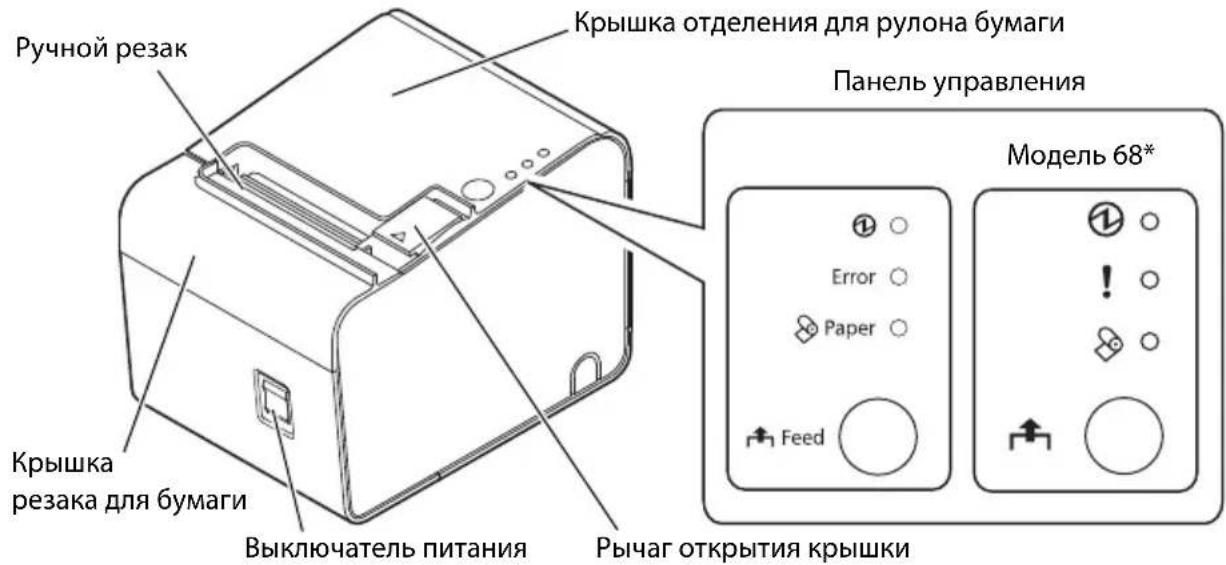
Control panel
①POWER
Lights when the power is on, and goes off when the power is off.
!CN(Error)
Off when the printer is connected to the network, on when the printer is not connected to the network, and blinks when an error occurs.
CNJ(Paper)
Top of the paper.
Khonka (Feed)
Paper guide.
Horizontal and vertical installation of the printer
You can install the printer horizontally (when paper comes out from the top) or vertically (when paper comes out from the front).
When installing the printer vertically, attach the stand to the printer body and place it on a flat surface. (See figure A.)
Setting the paper guide
Install or remove the paper guide according to the width of the paper roll being used.
Model 65*
Paper guide for 40 mm paper installed.
- When using a paper roll with a width of 40 mm, use the printer as is.
- When using a paper roll with a width of 80 mm, remove the installed guide.
Models 66*/67*/68*
Paper guide for 58 mm paper installed.
- When using a paper roll with a width of 58 mm, use the printer as is.
- When using a paper roll 80 mm wide, remove the installed guide.
- When using a paper roll 40 mm wide, remove the installed guide and install the guide for 40 mm paper supplied with the kit.

CAUTION:
Using a paper roll of a size other than the specified one may lead to a decrease in print quality.
Removing the paper guide
- Open the cover of the paper roll compartment using the cover open lever. (See figure B.)
- Pull the paper guides in the direction indicated by the arrows in figure C, pulling the paper guide levers to remove them.
Installing the paper guide

CAUTION:
The installation position of the paper guide differs depending on the width of the guide. Do not install the 58 mm guide in the position for the 40 mm guide.
- Open the cover of the paper roll compartment using the cover open lever. (See figure B.)
- Align the protrusions of the paper guide with the holes (figure E3) in the paper roll holder.
- Align the corner of the paper guide with the slot (figure E4) in the paper roll holder.
- Align the 2 holes (figure E5) in the paper guide with the 2 protrusions in the paper roll holder.
- Press the paper guide levers down until they click, indicating that the paper guides are installed in place. (See figure D.)
- Install the printer as shown in Figure F, and pull the cover in the direction of the arrow as shown in the figure to remove the cover.
- Tear off by hand any of the three tabs outlined with circles G in the figure to route the cable through them. 3. Connect the cables to the printer.
- Install the cover, passing the cables through the openings.
Installing or replacing the paper roll

CAUTION:
Make sure that the paper roll you are using meets all specifications.
When changing the paper type, from paper for plain paper without liner to thermal roll paper, it is recommended to clean the paper path. (See "Cleaning the printer interior" on page 91.)
- Open the roll paper cover using the cover open lever. (See Figure B.)
- Remove any used paper roll if present.
- Install the paper roll in the lower direction. (See Figure H.)
- Pull out some paper, and align the paper with the paper guides on both sides. (See Figure I.)
- Close the roll paper cover. When it clicks, the paper is fed and cut automatically.
Note:
Make sure that you have completely closed the roll paper cover, and that the paper is not caught in the cover.
Printer body
When cleaning the printer body, make sure that the printer is turned off and wipe the printer body with a dry or slightly damp cloth.

CAUTION:
Do not use alcohol, benzene, paint thinner, or other solvents. This may damage parts made of plastic or rubber.
Cleaning the printer inside
Clean the printhead and the inside of the printer (the automatic cutter blade, the platen roller, the thermal head and the surrounding area, the paper roll holder, etc.) to ensure good print quality. Periodically clean the printhead about once every six months.
To clean these parts, turn off the printer, disconnect the power cord, open the paper roll cover, and remove paper dust and lint using a cotton swab or a soft cloth moistened with alcohol (ethanol or isopropyl alcohol).
If dirt has accumulated around the black mark sensor, wipe it off to restore normal printer operation.
The location of these parts can be seen in the illustration below.

CAUTION:
If there is ink, make sure it is completely dry.
Be careful not to cut your fingers with the cutter blade during cleaning.
Before turning the printer back on after cleaning, allow the alcohol on the printer to dry completely.


CAUTION:
The printhead may become very hot during use. Do not touch the printhead and start cleaning it only after it has cooled down. Touching the hot printhead with fingers or a hard object may cause injury.
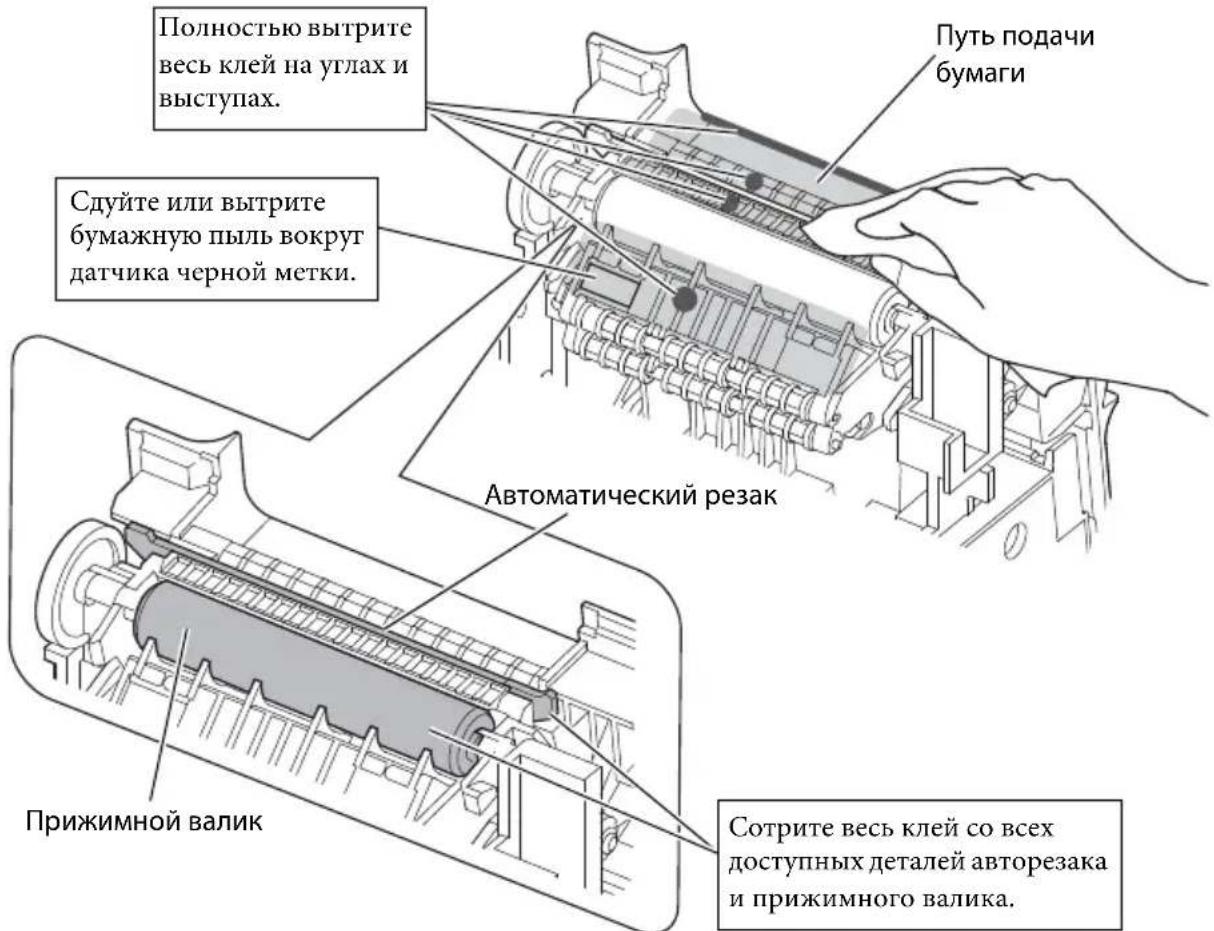
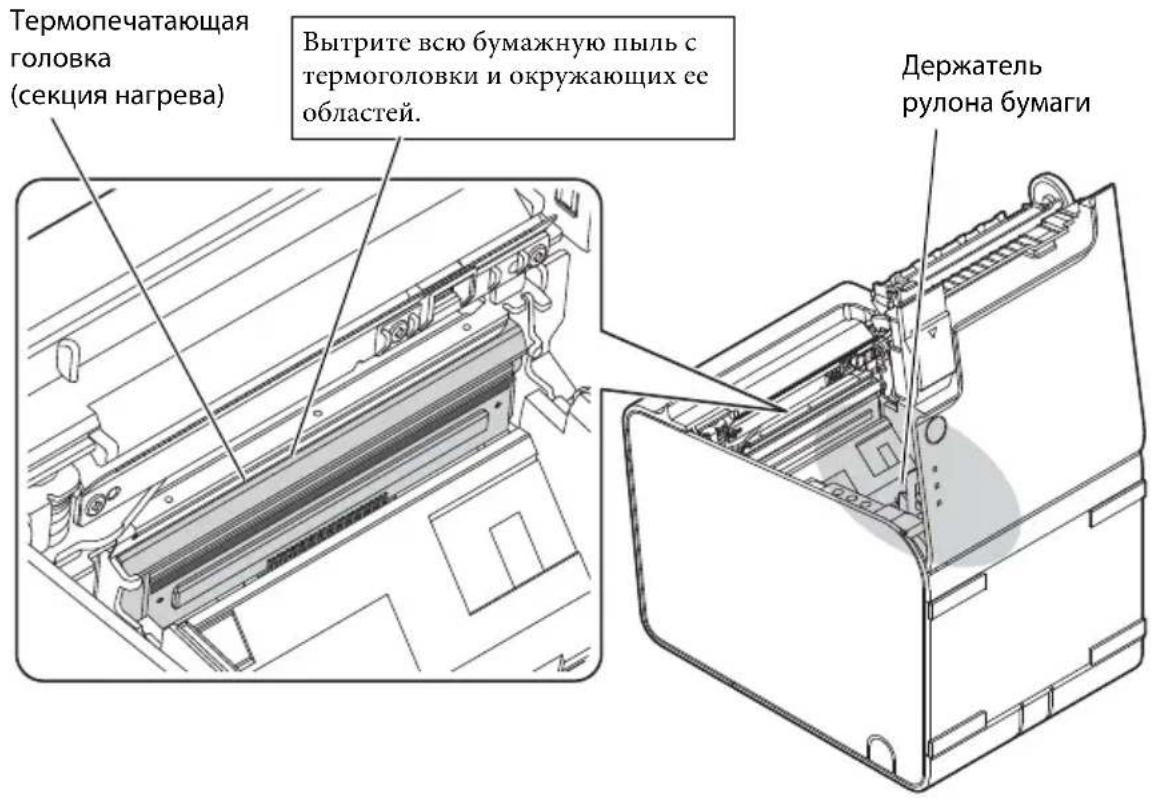
Running self-test
During the self-test, the printer will perform a series of external checks, then provide a printout with printer parameters.
When contacting technical support, the printed self-test results will help speed up problem resolution.
To run the self-test, the following procedure must be followed.
1. Close the paper roll cover. 2. Hold down the Feed button and turn on the printer. (Continue holding the Feed button until the printer starts printing.) The printer will start printing various test sheets. 3. When all printer statuses have been printed, make sure that the following message is displayed and the Paper LED is blinking: "If you want to continue SELF-TEST printing, please press Feed button." The printer will enter self-test standby mode. 4. To start test printing, press the Feed button while the printer is in self-test standby mode.
- Make sure that the following has been printed.
*** completed ***
This means that the printer is ready and has switched to normal mode.
Printer reset
Some errors can be fixed by turning the printer off and on.
Not all errors can be fixed with this method. More detailed information is in the "Troubleshooting" section on page 94.
Troubleshooting
Printing is faint
If printing is faint, there may be dust or other debris on the printhead, platen roller, or paper feed path of the printer.
Clean the thermal head, following the instructions described in "Cleaning the Printer from the Inside" on page 91.
If the print quality has not improved, clean the platen roller and the paper feed path according to the instructions described in "Cleaning the Printer from the Inside" on page 91.
The size of the printed characters does not match the paper width of 40/58 mm.
If the paper roll width of 40/58 mm does not match the printed character size or the print does not match the paper width, then the paper guide may be installed incorrectly.
Paper LED indicator
Lights up to indicate that the paper roll is about to run out.
Feed button
Used to feed the paper roll.
Setting the printer horizontally or vertically
The printer can be installed horizontally (with the paper exit facing up) or vertically (with the paper exit facing forward).
When installing the printer vertically, cover the control panel with the cover, then place it on a flat surface. (See illustration A.)
Removing or installing the paper roll cover
Install or remove the cover for the paper roll that matches the paper width being used.
Model 65
The paper cover is set to 40 mm.
When using a roll of paper 40 mm wide, use, for example, a. When using a roll of paper 80 mm wide, remove the installed tension.
For models 66 /67 /68*
The tension for the paper guide is set to 58 mm.
- When using a roll of paper 58 mm wide, use, for example, a. When using a roll of paper 80 mm wide, remove the installed tension. When using a roll of paper 40 mm wide, remove the installed tension and install the tension for the paper guide at 40 mm, which is included in the kit.

CAUTION:
Cutting the roll paper while it is in use may lead to a decrease in print quality.
Remove the paper guide
- Open the paper guide lock lever using the lock release key. (See illustration B.)
- Push the paper guide in the direction shown by the arrow in illustration C, while pulling the paper guide lock lever to release it.
Installing the paper guide

CAUTION:
The installation position of the paper guide depends on the paper width. Do not install the paper guide at 58 mm in the position for 40 mm.
- Open the paper guide lock lever using the lock release key. (See illustration B.)
- Insert the paper guide protrusion (illustration D3) into the roll paper slot.
- Insert the paper guide tab (illustration E4) into the roll paper slot.
- Insert the 2 tabs (illustration E5) into the holes on the paper guide with the 2 protrusions facing the roll paper guide.
- Press down on the roll paper guide shaft until the roll paper guide is secured with a click. (See illustration D.)
Connecting the cable
- Insert the connector as shown in the illustration, and turn the knob in the direction indicated by the arrow on the illustration to remove it.
- Remove the three screws marked with circles on the illustration to pass the cable through the opening. 3. Connect the cable to the printer. 4. Attach the cover, routing the cable through the opening.
Installing or replacing the roll paper

CAUTION:
Be sure to use roll paper that meets the technical specifications.
When switching from paper for printing labels without liner to roll thermal paper, it is recommended to clean the paper path after each roll. (See "Cleaning the internal parts of the printer" on page 103.)
- Open the cover by lifting the roll paper guide using the knob. (See illustration B.)
- Remove the core from the roll paper, if any.
- Insert the roll paper in the correct direction. (See illustration H.)
- Pull out a small amount of paper, feeding it under the paper guides on both sides. (See illustration I.)
- Open the front cover of the roll paper. When the printer is turned on, the cover is released automatically.
Note:
Be sure to close the front cover of the roll paper compartment by pressing its center.
Cleaning
Cleaning the printer body
To clean the printer body, be sure to turn off the printer and wipe the body with a dry or slightly damp cloth.

CAUTION:
Never use cleaning products such as alcohol, benzene, thinner, or similar solvents. This may cause damage or malfunction of the rollers and rubber parts.
Cleaning the internal parts of the printer
To ensure print quality, it is recommended to clean the internal parts of the printer (the auto cutter blade, the platen roller, the thermal head and its surroundings, and the roll paper holder) and to inspect them. Cleaning the parts and inspecting them should be performed approximately once every six months.
To clean these parts, turn off the printer, unplug the AC adapter from the electrical outlet, open the front cover of the roll paper compartment, and remove the paper roll. Then, wipe the parts and other areas with a soft cloth or a cloth moistened with alcohol-based solvent (ethanol or isopropyl alcohol).
If paper dust is stuck to the thermal head, blow it off or wipe it away to ensure normal printer operation.
The locations of all parts are shown in the figure.

CAUTION:
If glue adheres to the parts, be sure to wipe it off.
Read the user manual carefully before using the device to avoid damaging the print head. We recommend using the example of the user manual to understand the operation of the device.


WARNING:
The print head can become very hot. Be careful not to touch it; allow it to cool down, then clean it. Do not touch the hot head with your fingers or any hard object.
Thermal print head (self-diagnostic)
Insert the entire roll of paper into the thermal print head and its slot.
Paper roll holder
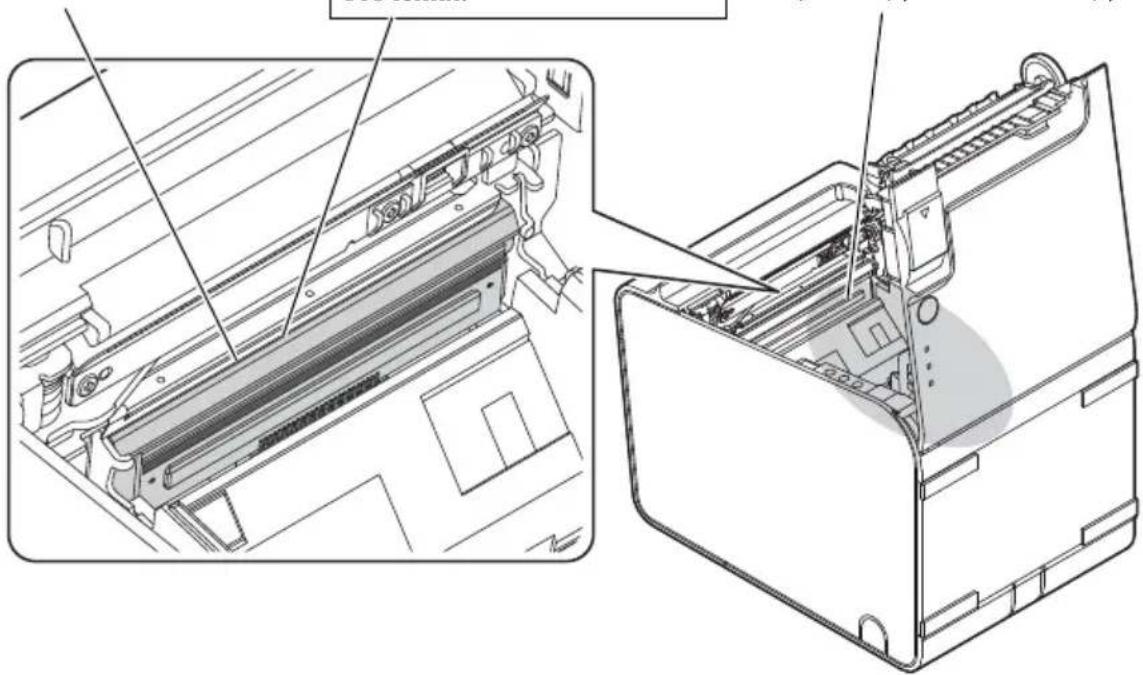
Performing self-test
In self-test mode, the printer performs a series of internal diagnostics and then prints a list of printer parameters.
If you need technical support, have the self-test results at hand; this can speed up the process of resolving any discrepancies.
To start the self-test, perform the procedure described below.
- Close the cover of the paper roll holder.
- Press and hold the Feed button on the control panel to turn on the printer. (Keep the Feed button pressed until the printer starts printing.) The printer prints information about various printer states. 3. After printing information about all printer states, the printer will pause and wait for the following prompt and the Paper indicator will blink. "If you want to continue SELF-TEST printing, please press Feed button." The printer will then enter the self-test waiting mode.
- To start the test print, press the Feed button while the printer is in self-test waiting mode.
- Check that the following message is printed: "completed" which indicates that the printer has been initialized and is in normal operation mode.
Open the rear cover of the paper feed roller. If there is no paper jam, or if the rear cover of the paper feed roller does not open, see the troubleshooting section.
Turn off the printer, then turn it on again. If the indicator light still blinks, contact your service representative. The printer may require servicing.
Paper jam
Turn off the printer and open the rear cover of the paper feed roller to remove the jammed paper. Install the paper correctly. If the rear cover of the paper feed roller does not open, see the troubleshooting section.
If the paper jam occurs at the automatic cutter, the paper feed roller, or the paper path, it may be due to a paper jam. See the instructions in the "Cleaning the Internal Parts of the Printer" section on page 103.
Note:
Using the printer for an extended period may cause the paper to stick to the paper feed roller due to the adhesive from labels without backing. If the printer is left for a long time with label paper without backing installed, paper jams may occur due to the paper sticking to the roller. If a paper jam occurs, clean the internal parts of the printer. (See "Cleaning the Internal Parts of the Printer" on page 103.) If paper jams occur frequently even after cleaning the internal parts, the paper feed roller may need to be replaced. Contact your qualified service personnel.
You can also prevent paper jams by using the paper feed roller with the paper roll installed correctly. (See "Installing or Replacing the Paper Roll" on page 102.)
Technical specifications for model 68*: This printer is equipped with a function that automatically feeds paper without a paper roll when the printer is turned on for a long period (approximately 12 hours) to prevent the paper from sticking to the paper feed roller. The top edge of the paper printed on the next page will be larger, even if the paper is fed in the reverse direction.
The rear cover of the paper feed roller does not open.
If the paper jam occurs at the paper feed roller, remove the jammed paper.
65* model
40 mm paper feed roller.
If the paper jam occurs at the 40 mm paper feed roller, remove the jammed paper. If the paper jam occurs at the 80 mm paper feed roller, remove the jammed paper.
58 mm paper jam indicator.
If the 58 mm paper jam indicator is lit, the printer is out of paper. If the 80 mm paper jam indicator is lit, replace the paper roll. If the 40 mm paper jam indicator is lit, replace the paper roll and the 40 mm paper jam indicator.

CAUTION:
It is possible to accidentally feed paper from the roll that has been inserted incorrectly.
Removing the paper jam
- Open the cover and remove the jammed paper. (See Figure B).
- To remove the paper jam, pull the paper roll in the direction shown in Figure C.
Paper jam indicator

CAUTION:
The paper jam indicator lights up when the paper roll is not inserted correctly. Replace the 58 mm paper roll with the 40 mm paper roll.
- Open the cover and remove the jammed paper. (See Figure B).
- Align the paper roll with the slot on the paper guide (see Figure D).
- Align the paper roll with the slot on the paper guide (see Figure E).
- Align the 2 slots on the paper roll with the 2 slots on the paper guide (see Figure E).
- Insert the paper with the printable side facing down. (See figure D).
Cable connection
- Connect the printer to the computer or network using the appropriate cable.
- To connect the cable, use the appropriate port on the back of the device.
- Connect the cable to the printer.
- Do not connect the cable while the device is turned on.
Loading or replacing paper

CAUTION:
Be careful not to touch the thermal print head when loading paper.
If you are using paper with a thermal coating, be careful not to touch the print head. (See "Cleaning the printer" on page 114).
- Open the paper cover and insert the paper roll. (See figure B).
- If necessary, remove the used paper roll.
- Insert the paper as shown in the figure. (See figure C).
- Align the paper with the two paper guides and pull the paper forward. (See figure F).
- Close the paper cover. The printer will automatically feed the paper and begin printing.
EckepTne:
KaKnaK opTacbIH 6acbl, opam KaFa3bIHbIH KaKNaFbIH TObnIK Xa6bIHbI3.
Ta3aIay
Приптор Кабын Тазалay
IpnHep Ka6bIH Ta3aHaFAn Ke3e npHTepei oipin, npHTepe Ka6bIHdaFbl NaCTbl Kypfak Hemece DbIMKbl Wybepeken CyptiHi3.

HA3AP AYdAPbIHbI3:
O himdi aankorolbmeH, 6eH30lmH, epitkiuHHeMece 3re yKcac epitihimn MyIem Ta3aJamaHbI3. ByI apeket nlaactMaCcaH JxHe pe3ehKeJeH XacaIHaH 6oikTepi 3akbIMdaybl HeMece cbIHdbipybl MymKiH.
Приптор iшin Тазалay
Kakcbi 6acbin uibfapy canacih caTay yuH npntep iwiHderi 6oikTepe
(aBTOkeckiW KY3, TIpeK 6NIikwe, TEPMO 6acbIn WbIFapy 6acbIXeH aINHaIaCbIHdaFbI ayMaK, KaFa3 opaMbH YCTaFBiW, T.6.) Ta3aIaNbI3 XeH e KytIi3. BoliKTePdi Ke3eHdi TYPDe, WaMaMeH aNTbI aN caBbH Ta3aIaNbI3 XeH e KytIi3.
ByI 6oJIkTepei Ta3anay ywiH, npInTepdi oWipiHi3, aHbImaIbI TOK Ka6eIH aXbIpaTbIHbI3, opam KaFa3bIHbIH KaKNaFbIH aWbIHbI3 XHe Iapan epiTkiiHe
(3TaHOL Hemece n3Opponn cnpTi) MaIbIHFaH MaKta dKececimeH Hemece
Uy6eperimEn KaFa3 7aHbIn, Xa6bickan XeJIIMdi Hemece 03re 6rpeHapceHi cyptin Ta3anaHbI3.
Erep KaFa3 7aHbI Kapa 6acBInFaH cHcOp aHaHaacbHa XnHaIca, npntepdiH KaIbINTbI XyMbICbIH KaMTaMaCbI3 ety yuH OHbl Ypin Hemece CypTin Xi6epiHi3.
Op6ip 6JIik opHbIH cpeTTe KapaHbI3.

CAUTION:
Do not touch the thermal print head or the surrounding metal parts immediately after printing.
Do not touch the print head or the surrounding metal parts immediately after printing.
After printing, do not touch the print head or the surrounding metal parts immediately after printing.


CAUTION:
After printing, the print head may be very hot. Do not touch it immediately after printing. If you touch the print head with your hand or any other part of your body, you may get burned.
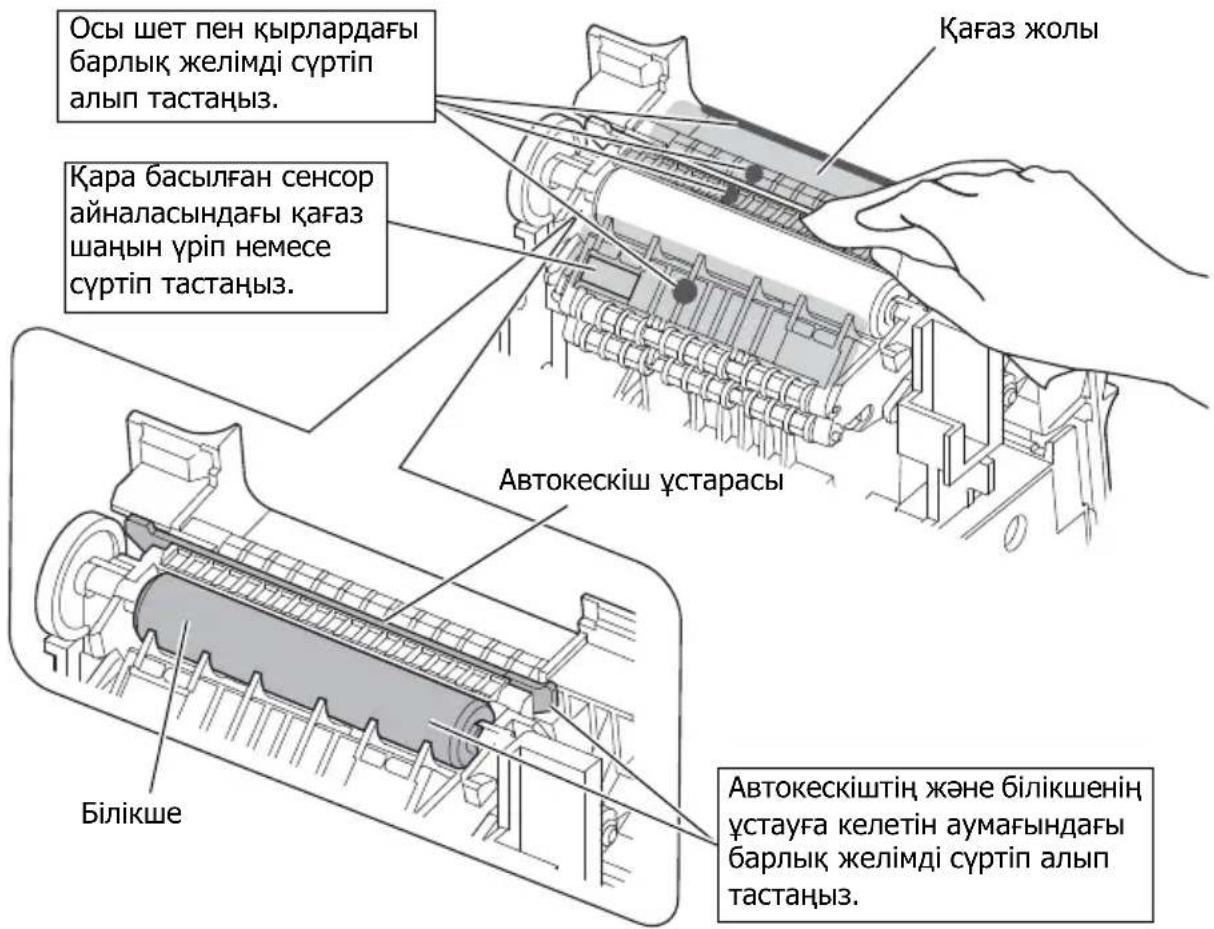
Thermal print head (heating element)
Remove the paper and the ink ribbon from the thermal print head and its surroundings.
Installing the paper roll
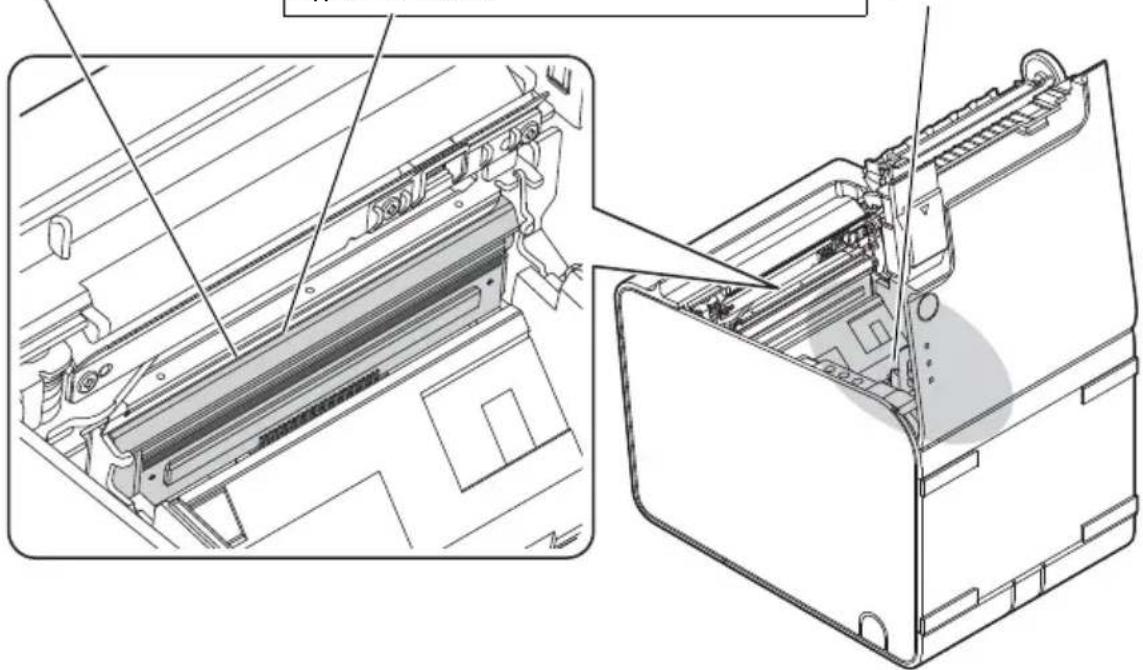
Automatic cutter replacement
In the automatic cutter mode, the printer performs the automatic cutting operation and takes up the printer labels.
If the automatic cutter blade becomes dull after repeated use, contact your dealer for maintenance. To replace the automatic cutter, follow the procedure below.
- Remove the paper roll.
- Press the Feed button and turn on the printer. (Press the Feed button while the printer is starting up.)
The printer will feed the paper and cut it.
- Check the paper feed path and the paper roll. If you want to continue SELF-TEST printing, please press the Feed button. The printer is currently in automatic test mode.
- To start the test printing, press the Feed button to put the printer into test mode.
- Check the test print result. *** completed *** The printer has been started and is in test mode.
Print test
The printer can print various test patterns. This function may not print all test patterns. For additional information, see "Appendix" on page 117.
Appendix
No paper
When there is no paper, the printer may beep or the paper feed may stop. In this case, see "Troubleshooting" on page 114 to replace the ink ribbon and clean the paper feed.
If the print quality is poor, see "Troubleshooting" on page 114 to clean the print head and paper feed.
The print test pattern is not suitable for 40 mm/58 mm paper.
If the print test pattern is not suitable for 40 mm/58 mm paper or the print does not fit the paper width, the paper guide may not be adjusted properly.
See "Adjusting the paper guide" on page 113.
! (Error) When adding or replacing
Check that the paper roll cover is closed and the paper roll is loaded. If the cover is open or the paper is jammed, remove the paper. If the printer continues to print, the print head may be hot. Let it cool down. The printer will remain in automatic mode. Open the paper roll cover and check the paper feed. If the paper is jammed or the cover is open, see the information below. Turn off the printer and add paper. If the LED blinks, check the error. The printer may need service.
Paper feed
If the paper is jammed, remove the jammed paper carefully. If the paper is torn, remove all pieces. If you cannot remove the paper, refer to the instructions in the manual.
If the paper is jammed or if there is a paper jam in the printer, the paper may be damaged. Refer to "Clearing Paper Jams" on page 13 for instructions.
Caution:
If the printer has been unused for a long time, the paper may be curled. If the paper is curled, it may cause paper jams. If the paper is curled, it may be necessary to replace it with new paper.
If paper jams occur frequently, clean the printer. (Refer to "Cleaning the Printer" on page 114)
If paper jams still occur after cleaning the printer, the printer may need to be serviced. Contact your service representative.
Finally, the paper feed roller may be worn. (Refer to "Replacing or Cleaning the Paper Feed Roller" on page 113) For technical specifications: this printer is designed to use paper that meets the specifications. If the printer is not used for a long time (more than 12 hours), the paper may become curled. If the paper is curled, it may cause paper jams. If the paper is curled, it may be necessary to replace it with new paper.
Removing Jammed Paper
If paper jams occur, follow the steps below.
- Turn off the printer.
- Open the front cover and remove the jammed paper by pulling it out. (See figure J)
- If the paper is torn, remove all pieces. (See figure K)
TM-L90 Technical Specifications
| 80 MM kaFA3 eHI | 58 MM kaFA3 eHI | 40 MM kaFA3 eHI | ||
| Басьишы�ару anecdici | Жозлма-жол тетмо басьишы�ару | |||
| Нуктелер тыIFыЗдIFыI | 203 × 203 H/Д [нукт/25,4 ММ] | |||
| Басьишы�ару anecdi | 72 MM, 576 НУкт eОпьI | 65*/66*/68* улгici:52,5 MM, 420 НУкт oрьI67* улгici:50,0 MM, 400 НУкт oрьI | 35 MM, 280 НУкт oрьI | |
| КаFaЗ салшемерi | 79,5 ± 0,5 × eн кeбiΦ102 MM{3.13 ± 0.02 × 4"} | 57,5 ± 0,5 × eн кeбiΦ102 MM{2.26 ± 0.02 × 4"} | 39,5 ± 0,5 × eн кeбiΦ102 MM{1.56 ± 0.02 × 4"} | |
| КаFaЗ typi Термияльк KaFA3 | NTP080-80 NTP058-80 - (пайдаланбаньИ) | |||
| Аctынфыka6aТсызжалсырma KaFA3bl | 9023 - 1274 (6 opam)9023 - 1253 (12 opam) | 9023 - 1823 (12 opam)9023 - 1397 (30 opam) | 9023 - 1275 (6 opam)9023 - 1257 (12 opam) | |
| Куат кeзi*1 | TT + 24 B ± 7% | |||
| АfыIMдаfbI TUTbIHY | Шамамен 1,8 A | |||
| Temneyратура/bILFaДыIlbIK | Тер_mяльк KaFA3 | Жуmbic kezihde: 5 - 45°C, 10 - 90% RHСакту кeзihde: -10 - 50°C, 10 - 90% RH (kaFA3du kocspaHaДa) | ||
| Аctынфыka6aТсызжалсырma KaFA3bl | Жуmbic kezihde: 5 - 35°C, 20 - 80% RHСакту кeзihde: -10 - 50°C, 10 - 90% RH (kaFA3du kocspaHaДa) | |||
| bILFaДыIlbIK 10 - 90% | ||||
| Жалны салшемерi | 140 × 203 × 148 MM (E × D × B) | |||
| Салмafы (maccabI) | Шамамен 1,9 кr | |||
H/D: 25.4 mm (1 inch) *1: Specifications are subject to change without notice. Nominal output: 24 V/2.0-10.0 A, Maximum output: 240 VA or less
Indonesian
Illustration
Printer Parts
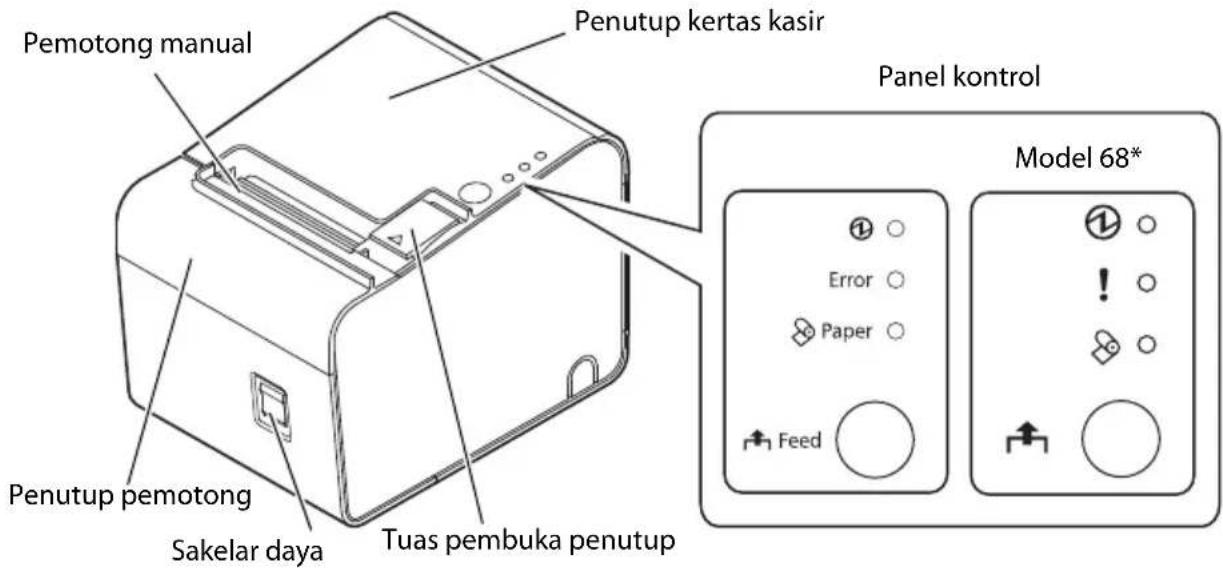
Control Panel
①LED
Lights up when power is on, and goes off when power is off.
!LED (Error)
1.
6.
- mu
7.
- A8.1 u
4.
9.
- B
1
May 2, 2017
Seiko Epson Corporation
www.epson.com/support/
www.epson-biz.com/
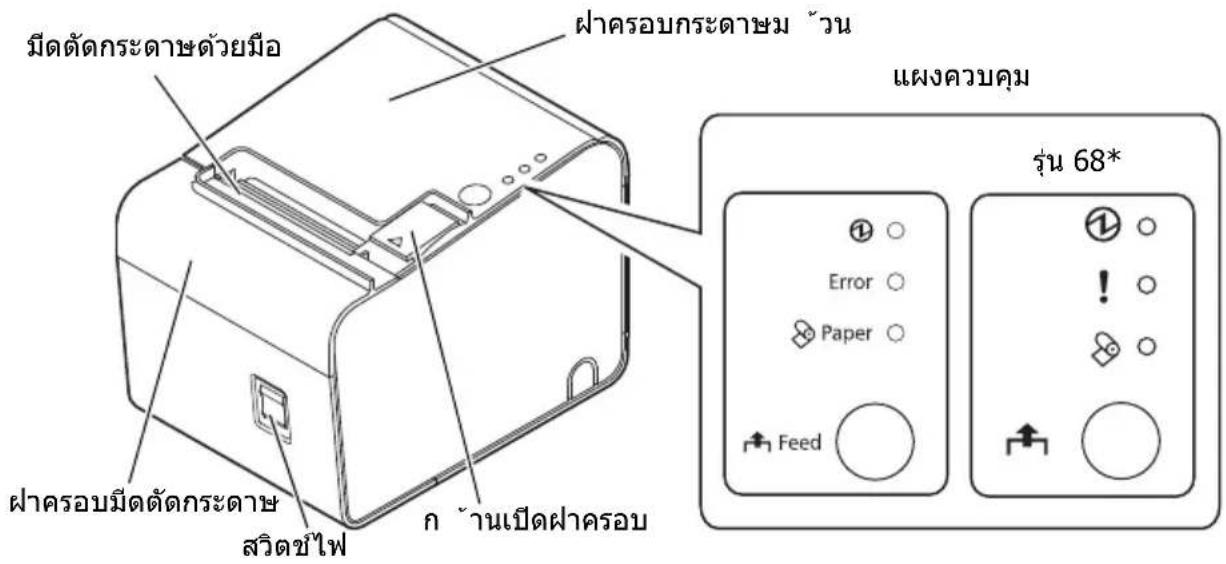
1 W LED
! ?w LED (Error)
InLED(Paper)
u (Feed)
Juaunn7
750vWwUuuu
□a 65*
40 m.
- 40 u. aan
□a 66 /67 /68*
58 HJ
- 58 u. aan
- 40 uu. nauuunrnnnnaa an uan uan uan uan uan uan

220755
nssnnnsnnnnnnnnnnnnnnnnnnnnnnnnnnnnnnnnnnnnnnnnnnnnnnnnnnnnnnnnnnnnnn
75nauuun5274
- (Feed) uuuuunnnn nn (Feed) (Feed) (Feed)
- 1 W LED (Paper) n W "If you want to continue SELF-TEST printing, please press Feed button."
- 4.
- completed ***
775216aVW
www.epson.com/support/
For users in other countries, please visit the following website:
www.epson-biz.com/
Printer Parts
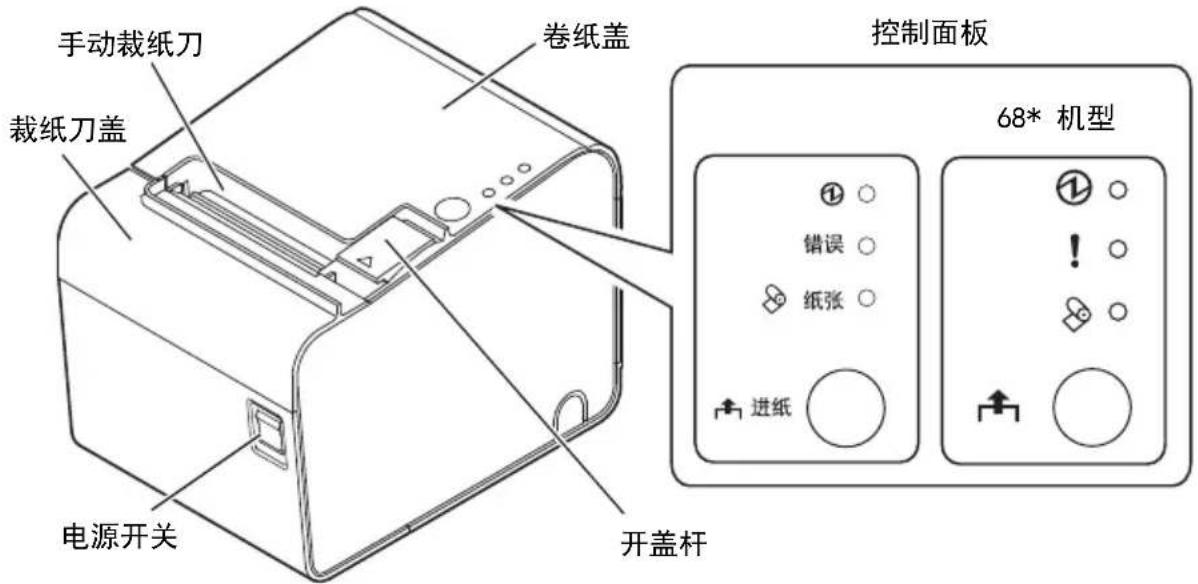
Control Panel
① Power indicator
Lights up when the power is on, and goes off when the power is off.
Error indicator
www.epson.com/support/
For customers in other countries, please visit the following website:
www.epson-biz.com/
Printer Parts
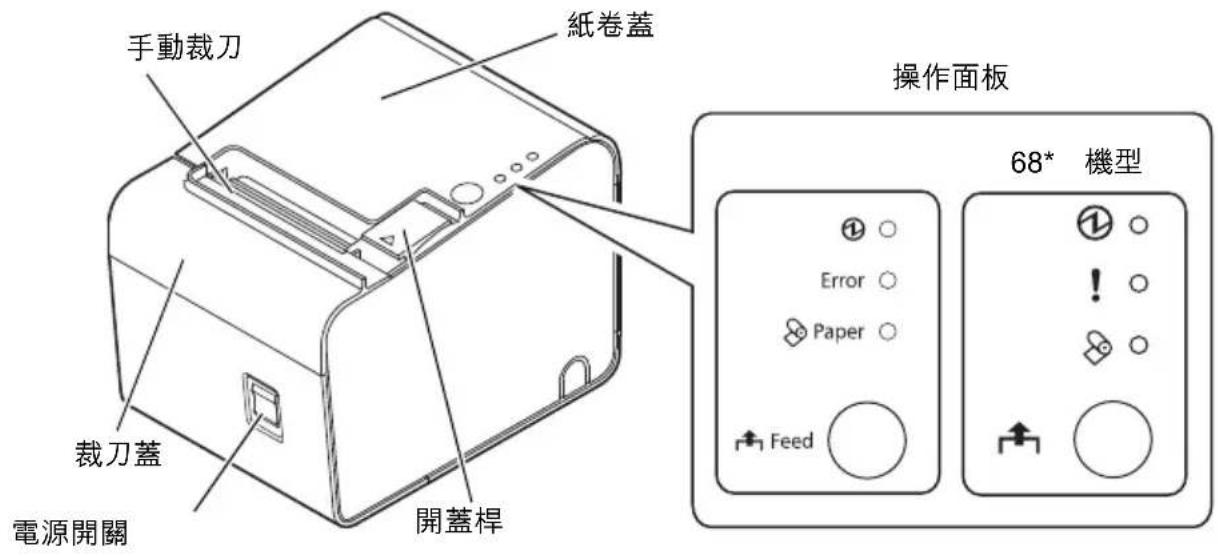
Control Panel
① Indicator light
Lights up when the power is on, and goes out when the power is off.
! (Error) indicator light
- RESTRICTION OF USE
- CAUTION
- IMPORTANT SAFETY INFORMATION
- KEY TO SYMBOLS
- WARNING
- SAFETY PRECAUTIONS
- CAUTION LABELS
- DOWNLOADING DRIVERS, UTILITIES, AND MANUALS
- PRINTER PARTS
- CONTROL PANEL
- INSTALLING THE PRINTER HORIZONTALLY OR VERTICALLY
- REMOVING OR INSTALLING THE PAPER GUIDE
- REMOVING THE PAPER GUIDE
- INSTALLING THE PAPER GUIDE
- CONNECTING CABLES
- INSTALLING OR REPLACING THE ROLL PAPER
- NOTE
- CLEANING
- CLEANING THE PRINTER CASE
- CLEANING INSIDE THE PRINTER
- RUNNING A SELF-TEST
- RESETTING THE PRINTER
- TROUBLESHOOTING
- PRINTOUT IS FAINT
- PRINTED CHARACTER SIZE IS NOT APPROPRIATE FOR 40 MM / 58 MM WIDTH PAPER
- (ERROR) LED ON OR FLASHING
- PAPER JAM
- THE ROLL PAPER COVER WILL NOT OPEN
- FRENCH
- ILLUSTRATIONS
- ①POWER
- !CN(ERROR)
- CNJ(PAPER)
- KHONKA (FEED)
- HORIZONTAL AND VERTICAL INSTALLATION OF THE PRINTER
- SETTING THE PAPER GUIDE
- INSTALLING OR REPLACING THE PAPER ROLL
- PRINTER BODY
- CLEANING THE PRINTER INSIDE
- RUNNING SELF-TEST
- PRINTER RESET
- PRINTING IS FAINT
- THE SIZE OF THE PRINTED CHARACTERS DOES NOT MATCH THE PAPER WIDTH OF 40/58 MM
- SETTING THE PRINTER HORIZONTALLY OR VERTICALLY
- REMOVING OR INSTALLING THE PAPER ROLL COVER
- REMOVE THE PAPER GUIDE
- CONNECTING THE CABLE
- CLEANING THE PRINTER BODY
- CLEANING THE INTERNAL PARTS OF THE PRINTER
- PERFORMING SELF-TEST
- THE REAR COVER OF THE PAPER FEED ROLLER DOES NOT OPEN
- REMOVING THE PAPER JAM
- PAPER JAM INDICATOR
- CABLE CONNECTION
- LOADING OR REPLACING PAPER
- ECKEPTNE
- TA3AIAY
- ПРИПТОР КАБЫН ТАЗАЛAY
- HA3AP AYDAPBIHBI
- ПРИПТОР IШIN ТАЗАЛAY
- AUTOMATIC CUTTER REPLACEMENT
- PRINT TEST
- APPENDIX
- NO PAPER
- THE PRINT TEST PATTERN IS NOT SUITABLE FOR 40 MM/58 MM PAPER
- (ERROR) WHEN ADDING OR REPLACING
- PAPER FEED
- REMOVING JAMMED PAPER
- INDONESIAN
- ILLUSTRATION
- MAY
- VWWUUUU
- NAUUUN
- AVW
- ① POWER INDICATOR
- ERROR INDICATOR
- ① INDICATOR LIGHT
- (ERROR) INDICATOR LIGHT
Brand : EPSON
Model : TML90II LFC
Category : Printer