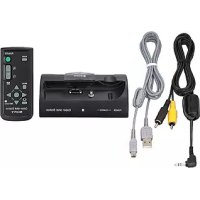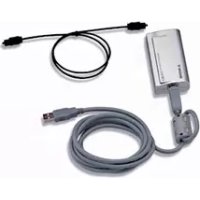
PCLKU5 - Other camera accessories SONY - Free user manual and instructions
Find the device manual for free PCLKU5 SONY in PDF.



| Product Type | PC Connection Converter |
| Brand | Sony |
| Model | PCLKU5 |
| Dimensions (L x H x D) | 43 x 23 x 80 mm |
| Weight | Approximately 40 g |
| Power | USB bus (power consumption approx. 80 mA) |
| Connectivity | USB Type B, optical digital output (rectangular connector, wavelength 660 nm) |
| Main functions | Connect a computer to a stereo system via USB and optical digital output to play CD audio or MIDI files |
| Compatible operating systems | Windows 98, 98SE, Me, 2000 Professional |
| Minimum system requirements | Pentium II 233 MHz, USB port, E-IDE (ATAPI) CD-ROM drive |
| Box contents | CAV-U5 converter, USB cable, optical digital connection cable, instruction manual, warranty card |
| Care and cleaning | Clean with a dry, soft cloth. Do not use solvents. |
| Safety | Do not expose to moisture, shocks, or extreme temperatures. Disconnect before cleaning. |
| Spare parts and repairability | The supplied cables are specific; if lost, contact Sony customer service. No spare parts are planned. |
| General information | This product is an accessory for Sony cameras allowing digital audio connection to a computer. |
Frequently Asked Questions - PCLKU5 SONY
User questions about PCLKU5 SONY
0 question about this device. Answer the ones you know or ask your own.
Ask a new question about this device
Download the instructions for your Other camera accessories in PDF format for free! Find your manual PCLKU5 - SONY and take your electronic device back in hand. On this page are published all the documents necessary for the use of your device. PCLKU5 by SONY.
USER MANUAL PCLKU5 SONY
USB Digital Audio Converter
Operating Instructions GB
Mode d'emploi FR
Bedienungsanleitung
Manual de instrucciones ES
Gebruiksaanwijzing NL
Bruksanvisning
Istruzioni per l'uso IT
Instruções de Uso PT
Table of contents
System requirements 3
Checking the supplied items 3
Connections 4
Installing the USB driver 5
Verifying the status of the installed device. 5
Setting the multimedia parameters on the PC 5
Troubleshooting 7
Specifications 7
For the customers in the U.S.A.
WARNING
This equipment has been tested and found to comply with the limits for a Class B digital device, pursuant to Part 15 of the FCC Rules. These limits are designed to provide reasonable protection against harmful interference in a residential installation. This equipment generates, uses, and can radiate radio frequency energy and, if not installed and used in accordance with the instructions, may cause harmful interference to radio communications. However, there is no guarantee that interference will not occur in a particular installation. If this equipment does cause harmful interference to radio or television reception, which can be determined by turning the equipment off and on, the user is encouraged to try to correct the interference by one or more of the following measures:
- Reorient or relocate the receiving antenna.
- Increase the separation between the equipment and receiver.
- Connect the equipment into an outlet on a circuit different from that to which the receiver is connected.
- Consult the dealer or an experienced radio/TV technician for help.
CAUTION
You are cautioned that any changes or modification not expressly approved in this manual could void your authority to operate this equipment.
The shielded interface cable recommended in this manual must be used with this equipment in order to comply with The limits for a digital device pursuant to Subpart B of Part 15 of FCC Rules.
If you have any questions about this product, you may call; Sony customer Information Center 1-800-488-7669. The number below is for the FCC related matters only.
Regulatory Information
Declaration of Conformity
Trade name: SONY
Model No.: CAV-U5
Responsible Party: Sony Electronics Inc.
Address: 680 Kinderkamack Road, Oradell, NJ 07649 USA
Telephone No.: 201-930-6972
This device complies with Part 15 of the FCC Rules. Operation is subject to the following two conditions: (1) This device may not cause harmful interference, and (2) this device must accept any interference received, including interference that may cause undesired operation.
- Microsoft, MS-DOS and Windows are the registered trademarks of Microsoft Corporation.
- IBM and PC/AT are the registered trademarks of International Business Machines Corporation.
- Macintosh is the registered trademark of Apple Computer Inc.
- Other companies and product names are the trademarks or the registered trademarks of each company.
System requirements
The following hardware is necessary to use the PCLK-U5 kit.
□IBM PC/AT or compatible (This software does not run on the Apple Macintosh.)
□CPU*: Intel Pentium II 233 MHz/ Celeron 300A or higher
- The operation of PCLK-U5 is not guaranteed on some computers with Pentium-compatible CPU chips, such as the AMD K6 (e.g., sound skipping may occur during playing of an audio file).
□CD-ROM drive with E-IDE (ATAPI) compliant*
- Make sure your CD-ROM drive is E-IDE (ATAPI) compliant. If it is not, audio CDs may not play properly through the USB connection, even if the Windows settings are correct. For more details, contact the manufacturer of the respective CD-ROM drive.
□USB port: 1 or more
OS: Windows 98/Windows 98SE/ Windows Me/Windows 2000 Professional (This product does not work on Microsoft Windows 3.1, Windows 95, or Windows NT.)
Checking the supplied items
Make sure all of the following items are included in your PCLK-U5 kit. If anything is missing, contact the shop where you purchased this unit or your nearest Sony dealer.
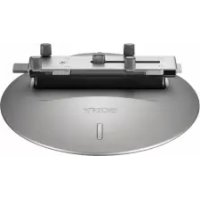
PC connecting converter CAV-U5 (1)
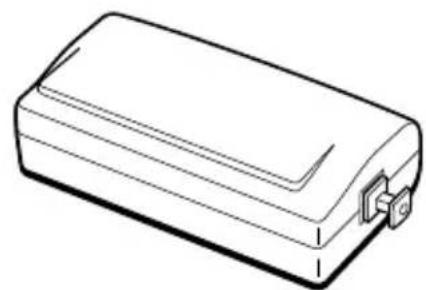
- USB cable (1)
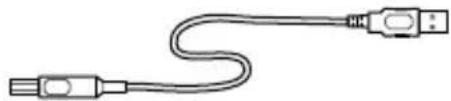
Optical digital connecting cable (fitted with rectangular connectors) (1)
- Operating instructions (1)
Warranty card (1)
Connections
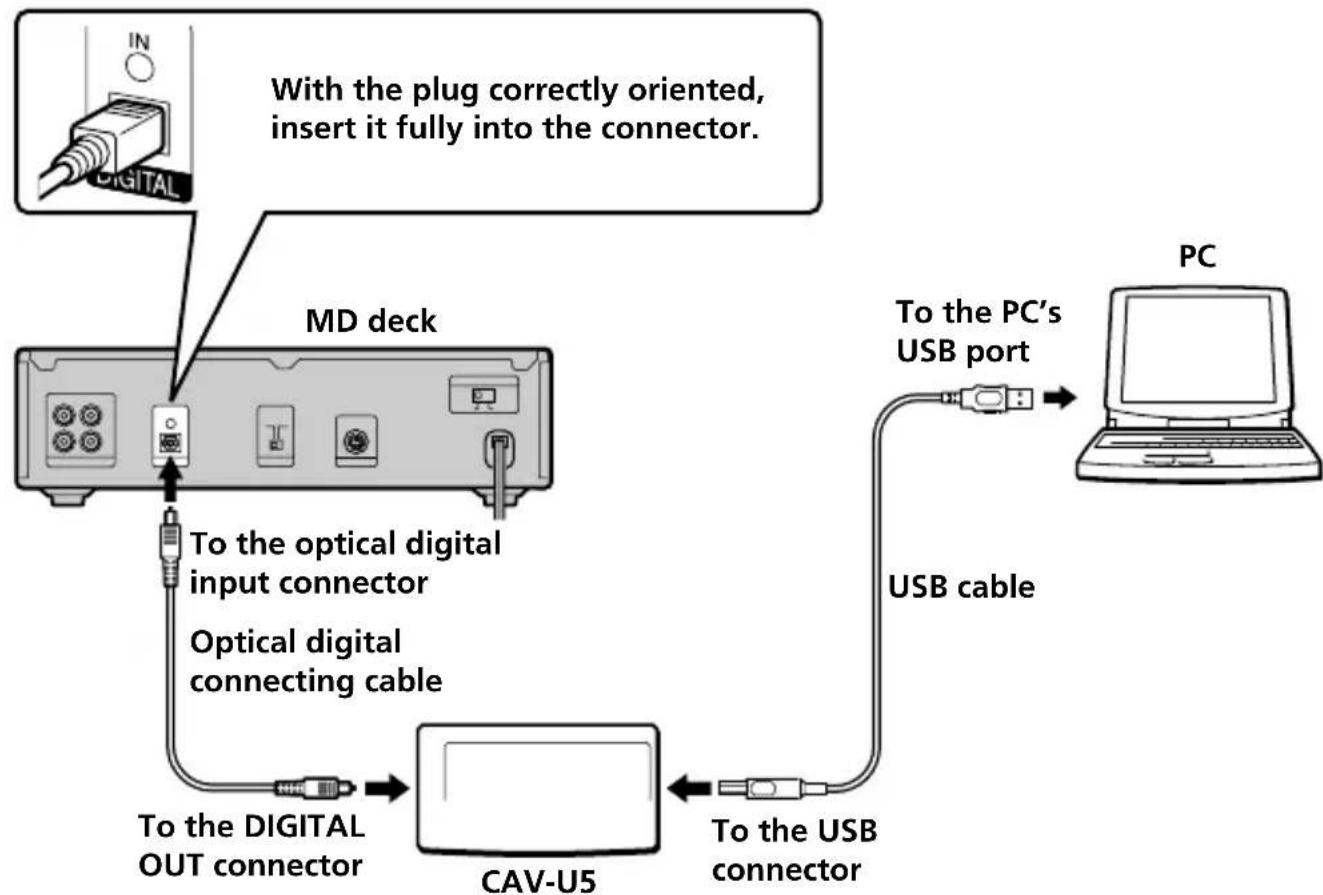
Use the supplied CAV-U5, USB cable, and optical digital connecting cable to connect your PC to a system stereo component.
Be sure to start up Windows before making connections for the first time. For details, see "Installing the USB driver" on the next page.
Notes
- Make sure the plug is straight when you insert it. Inserting it at an angle may damage the connector parts.
- Connect the DIGITAL OUT connector on the CAV-U5 to the optical digital input connector on an MD deck or a system stereo component, using the supplied optical digital connecting cable. For more information on connections and how to change the input selection, refer to the instruction manual of the component that you use.
- Connect the CAV-U5 to the PC directly, using the supplied USB cable. If a USB hub is used for connections, the CAV-U5 may not work properly.
Installing the USB driver
Note
The following instructions are for Windows 98. Some parts of the installation procedure may differ depending on which operating system you are installing the driver to.
1 Start up Windows, and quit any active applications.
2 Connect the CAV-U5 to the PC, using the supplied USB cable. "Add New Hardware Wizard" appears.
3 Follow the instructions of the wizard.
Verifying the status of the installed device
Be sure to check the status of the installed device after you have installed the driver.
1 Open the Control Panel. In the Start menu, select "Settings", then "Control Panel."
2 Double-click the System icon. The "System Properties" dialog box appears.
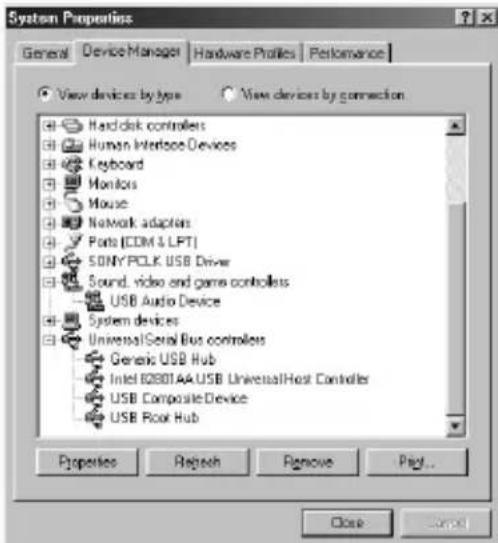
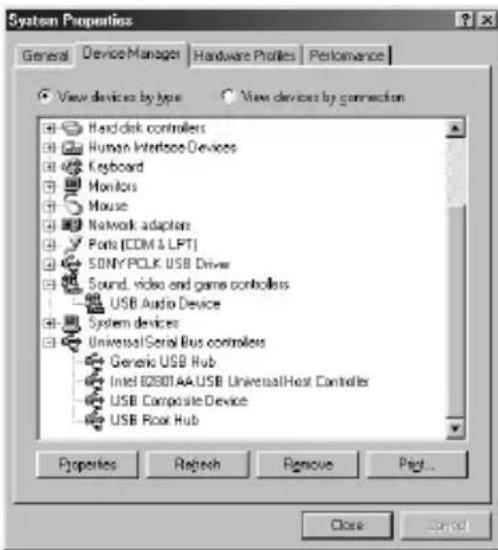
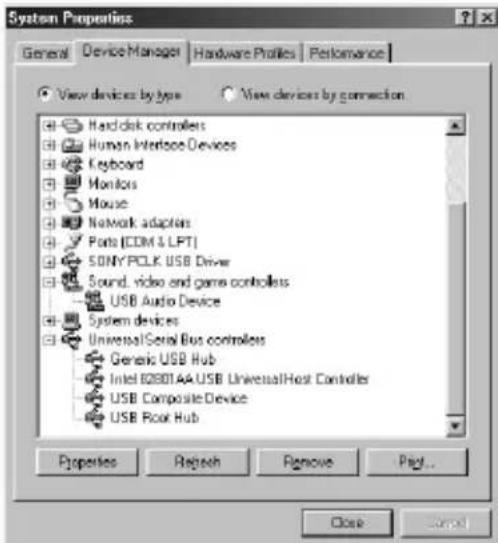
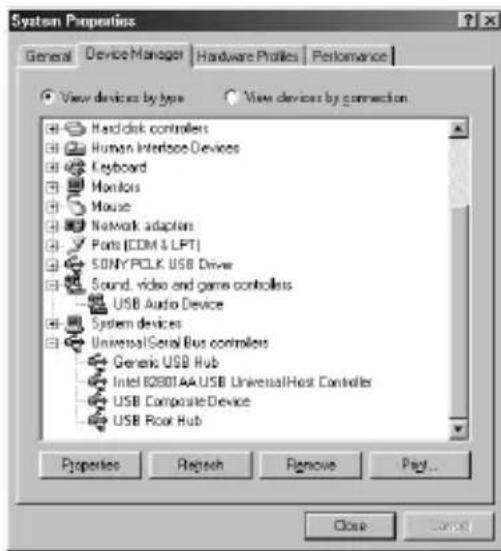
3 Click the "Device Manager" tab. Make sure that the following items are listed in the "Device Manager" window.
"USB Audio Device" under "Sound, video and game controllers"
"USB Composite Device" under "Universal Serial Bus controllers"
Note on Windows Me
Depending on the configuration of your PC, may appear before "USB Composite Device". This, however, does not affect the operation of the system (the PC and system stereo component).
4 Click "OK" to close the "System Properties" dialog box.
Setting the multimedia parameters on the PC
You must set the multimedia parameters on the PC before you can output audio from a CD in the CD-ROM drive or a MIDI file stored on the hard disk of the PC through the system stereo component connected to the PC.
1 Open the Control Panel. In the Start menu, select "Settings", then "Control Panel."
2 Double-click the Multimedia icon. The "Multimedia Properties" dialog box appears.
continued
3 Click the "Audio" tab, then select "USB Audio Device" in "Preferred device:"
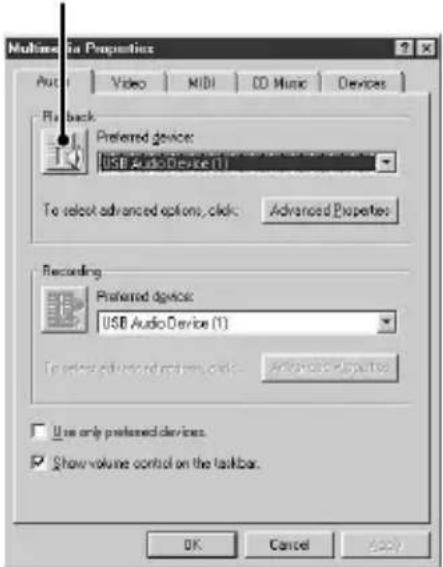
Option setting button
4 Click the option setting button. The "Speaker" dialog box appears.
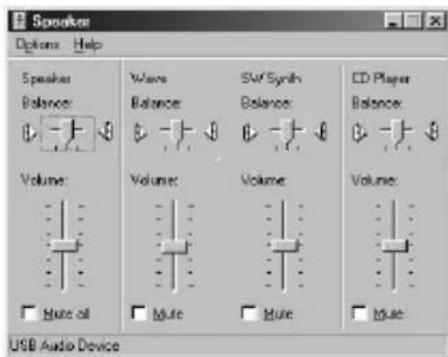
5 Adjust all the volume sliders to the full volume.
Note
You can not adjust the volume of the playback sound of the PC with the slider under "Speaker". Adjust the volume, balance, and mute the sound with the appropriate slider and check box under "CD Player," "Wave," or "SW Synth."
6 Click the "CD Music" tab and check "Enable digital CD audio for the CD-ROM device."
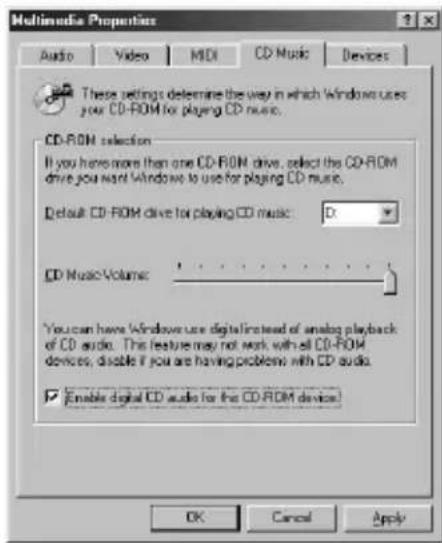
Note
Depending on your version of Windows 98, this item may be grayed out and therefore inaccessible. If this is the case, restart the PC.
7 Click "OK" to close the "Multimedia Properties" dialog box.
Note
Depending on your CD-ROM drive, audio CD may not play. For details, consult the CD-ROM drive manufacturer.
Troubleshooting
System sounds (warning alarm/mail arrival notice) are not output.
System sounds are not output from the PC while the PC is recognizing the CAV-U5 as a playback device.
"Din Unlock" appears in the display or no sound is output or recorded on the connected system stereo component when you start playback (CD, MIDI file, etc.) on the PC.
Check the USB connector connection.
If the problem occurred just after installing the driver, restart the PC.
- Check the status of the installed device and the setting of the Multimedia Properties.
Some noise is heard during playback on the PC.
If you are running a large application, quit the application to reduce the system load. A temporary deficiency in system resources may also cause the sound output to stop.
Specifications
Description
PC connecting adaptor
Sampling frequency
44.1 kHz
USB connector
Series B receptacle, bus power mode (in compliance with USB Ver. 1.1)
Output
DIGITAL OUT: rectangular connector, wavelength: 660nm
Power consumption
Approx. 80mA
Dimensions (w/h/d)
Approx. 43· 23· 80mm (not incl. projecting parts)
Mass
Approx. 40g
Table des matières
"USB Audio Device" sous "Sound, video and game controllers"
"USB Composite Device" sous Universal Serial Bus controllers
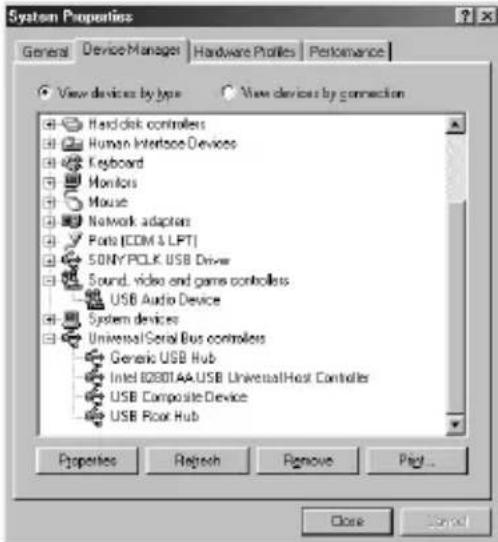
"USB Audio Device" unter "Sound, video and game controllers"
"USB Composite Device" unter Universal Serial Bus controllers
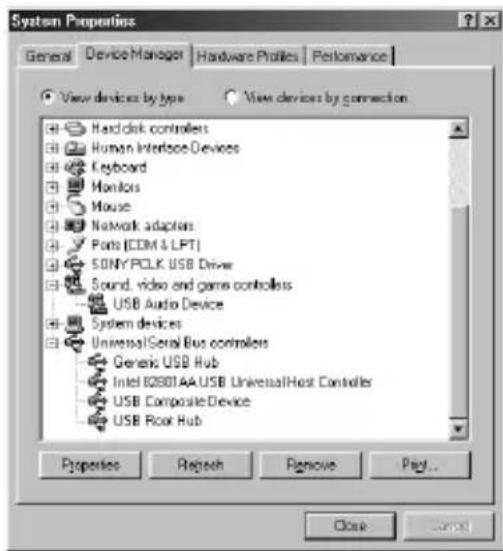
"USB Audio Device" bajo "Sound, video and game controllers
"USB Composite Device" bajo "Universal Serial Bus controllers"
NotasobreWindowsMe
DIGITAL OUT: conector rectangular,
"USB Audio Device" under "Sound, video and game controllers"
"USB Composite Device" under Universal Serial Bus controllers
Observera om Windows Me
- "USB Audio Device" gotta
- "Sound, video and game controllers"
- "USB Composite Device" gotta
- "Universal Serial Bus controllers"
Notasu Windows Me
Sony Corporation Printed in Japan