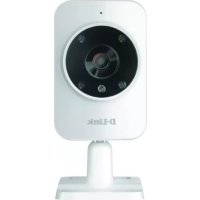
DCS935L - Surveillance Camera D-LINK - Free user manual and instructions
Find the device manual for free DCS935L D-LINK in PDF.



| Product type | Surveillance camera |
| Brand | D-Link |
| Model | DCS-935L |
| Network connection | Wi-Fi 802.11g/n/ac, WPS |
| Power supply | DC 5V adapter |
| Video resolution | HD 720p (1280 x 720) |
| Night vision | Yes, with infrared LED |
| Audio | Built-in microphone and speaker (two-way audio) |
| Viewing angle | 130° diagonal |
| Mobile app | mydlink Home (iOS and Android) |
| System compatibility | Windows 8/7/Vista/XP, Mac OS X 10.6+, iOS, Android |
| Supported browsers | Internet Explorer 7+, Firefox 12+, Safari 6+, Chrome 20+ (with Java) |
| Security | User password, WEP/WPA encryption, hardware reset |
| Maintenance and cleaning | Clean with a soft, dry cloth. Avoid liquids. |
| Spare parts and repairability | Power adapter included. Accessible reset button. |
| Technical support | Phone: 01 76 54 84 17 (Mon-Fri 9am-7pm), Website: www.dlink.com |
| Warranty | 2 years (depending on retailer) |
Frequently Asked Questions - DCS935L D-LINK
User questions about DCS935L D-LINK
0 question about this device. Answer the ones you know or ask your own.
Ask a new question about this device
Download the instructions for your Surveillance Camera in PDF format for free! Find your manual DCS935L - D-LINK and take your electronic device back in hand. On this page are published all the documents necessary for the use of your device. DCS935L by D-LINK.
USER MANUAL DCS935L D-LINK
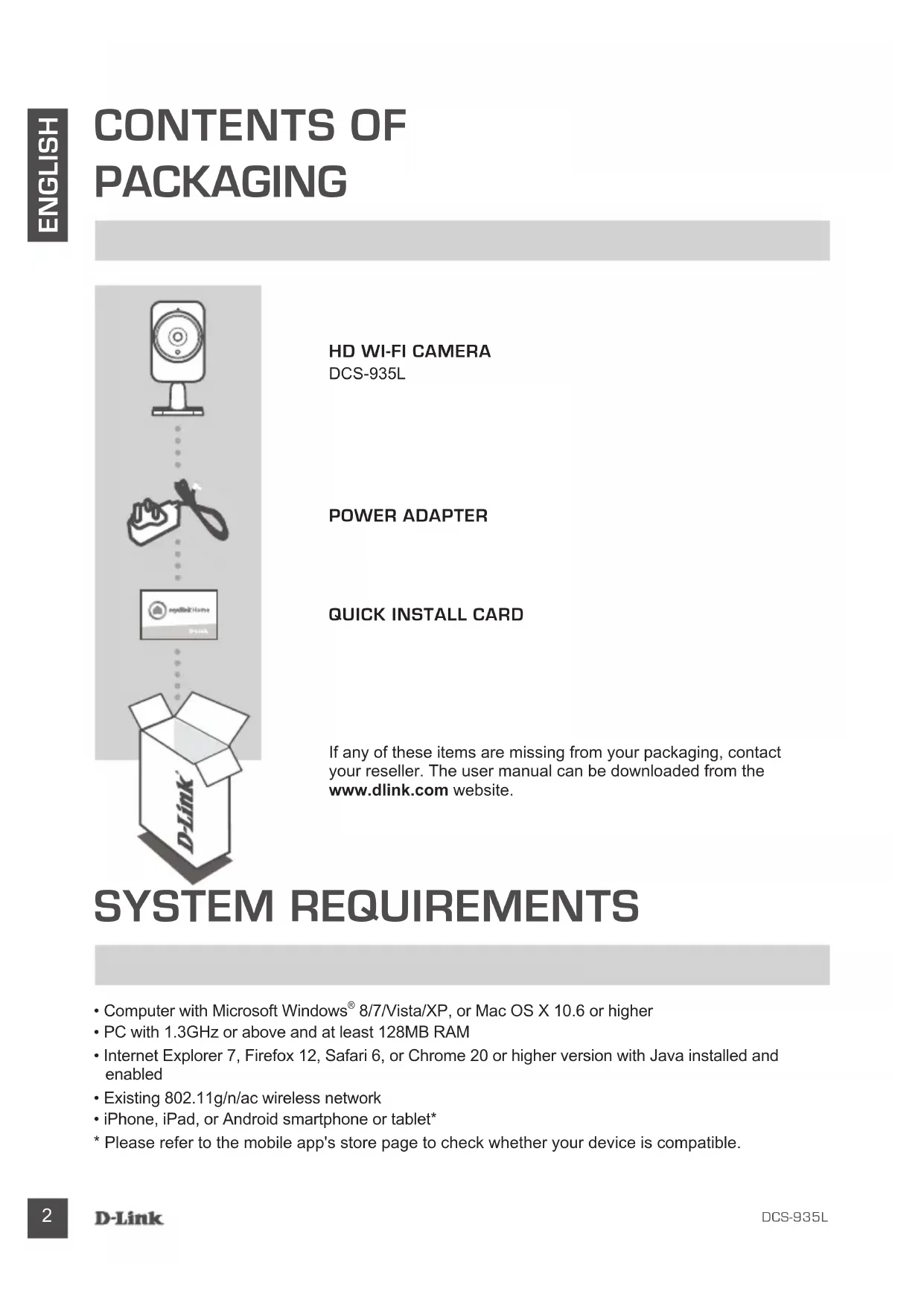
If any of these items are missing from your packaging, contact your reseller. The user manual can be downloaded from the www.dlink.com website.
SYSTEM REQUIREMENTS
- Computer with Microsoft Windows® 8/7/Vista/XP, or Mac OS X 10.6 or higher
PC with 1.3GHz or above and at least 128MB RAM - Internet Explorer 7, Firefox 12, Safari 6, or Chrome 20 or higher version with Java installed and enabled
- Existing 802.11g/n/ac wireless network
- iPhone, iPad, or Android smartphone or tablet*
- Please refer to the mobile app's store page to check whether your device is compatible.
PRODUCT SETUP
MOBILEAPP
Step 1:
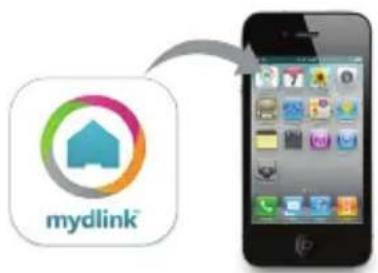
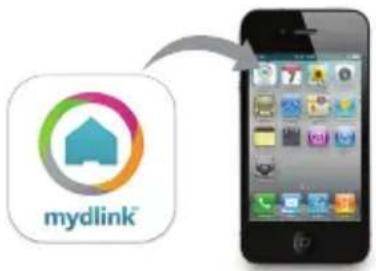
Download the free mydlinkTM Home app by searching for mydlink Home from the App Store (iOS) or Google Play (Android).
Step 2:
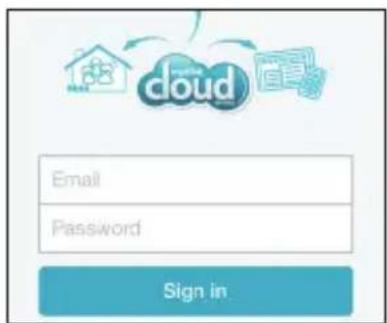
Launch the app and log into your mydlink account. If you don't have one, sign up for a free mydlink account by clicking the Sign Up! link.
Step 3:
If there are no other mydlink devices in your account, tap Add a new device.
OR
If there are existing mydlink devices in your account, tap the gear icon in the upper-left hand corner and then tap Add a new device.
Follow the on-screen instructions. The wizard will guide you through the configuration process for your DCS-935L.
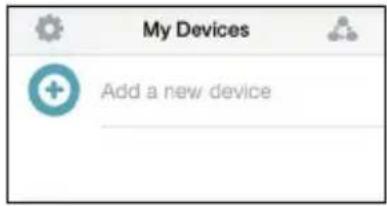
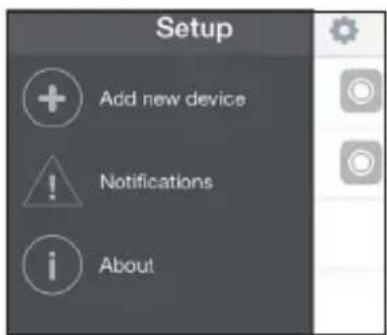
Once the configuration process is complete, you may then use the mydlink Home app to always know what is happening at home.
WPS SETUP
Alternatively, you may create a WPS connection if your router or access point supports WPS. To create a WPS connection:
Step 1:
Press and hold the WPS button on the back of the camera for three seconds. The blue WPS status LED above the button will blink.
Step 2:
Press the WPS button on your wireless router or access point within 60 seconds. On some routers, you may need to log into the web interface and then click an onscreen button to activate the WPS feature. If you are not sure where the WPS button is on your router or access point, please refer to your router's user manual.
The DCS-935L will automatically create a wireless connection to your router. While connecting, the green LED will flash and your camera will reboot.
mydlink PORTAL
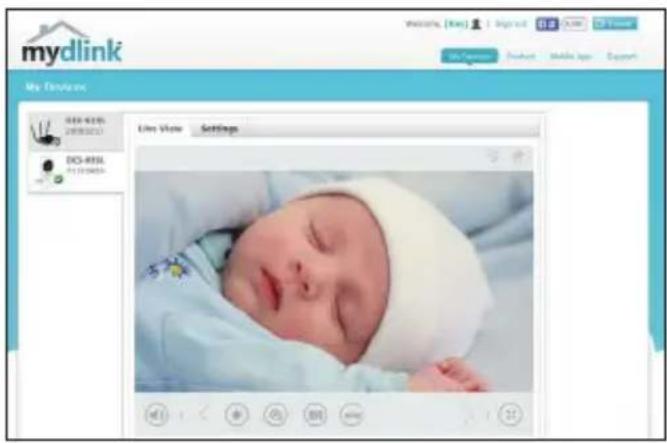
After registering your DCS-935L camera with a mydlink account in the mydlink Home mobile app, you will be able to remotely access your camera from the www.mydlink.com website. After signing in to your mydlink account, you will see a screen similar to the following:
Step 1:
Open Internet Explorer and go to http://www.mydlink.com, then sign into mydlink.
Step 2:
Select your camera from the device list, and your camera's Live View will appear.
TROUBLESHOOTING
SETUP AND CONFIGURATION PROBLEMS
1. WHAT CAN I DO IF I FORGET MY CAMERA PASSWORD?
- If you forget your camera password, you will need to perform a hard reset of your camera. This process will change all your settings back to the factory defaults.
- To reset your camera, please use an unfolded paperclip to press and hold the RESET button for at least 10 seconds while your camera is plugged in.
2. WHY DOES THE LED NOT LIGHT UP?
- The power supply might be faulty. Confirm that you are using the provided DC 5V power supply for this network camera. Verify that the power supply is correctly connected. If the camera is functioning normally, the LED may have been disabled.
3. WHY CAN'T I CONNECT TO MY WIRELESS ROUTER?
- If you are having trouble connecting to your wireless router, try locating the DCS-935L into a location that is closer to your router. After the Power LED turns solid green, you can move it to the desired location.
4. WHAT APP DOES THE DCS-935L WORK WITH?
- The DCS-935L works with the mydlink Home app.
5. WHERE CAN I FIND THE MYDLINK HOME APP?
- You may download the free mydlink Home app from the App store (iOS) or Google Play Store (Android). Search for the mydlink Home app by typing in "mydlink" or "mydlink home".
6. HOW DOES THE CAMERA WORK WHILE I AM AWAY FROM HOME?
- Remote access of the DCS-935L is enabled once you have registered and linked your Camera through mydlink. You will be able to control your Camera from anywhere using your iOS or Android device.*
*Your DCS-935L must be connected to your home Wi-Fi network for remote access.
TECHNICAL SUPPORT
United Kingdom (Mon-Fri), Website: http://www.dlink.com
Home Wireless/Broadband 0871 873 3000 (9.00am-06.00pm, Sat 10.00am-02.00pm)
Managed, Smart, & Wireless Switches, or Firewalls 0871 873 0909 (09.00am- 05.30pm)
(BT 10ppm, other carriers may vary.)
Ireland (Mon-Fri), Website: http://www.dlink.com
All Products 1890 886 899 (09.00am-06.00pm, Sat 10.00am-02.00pm)
Phone rates: €0.05ppm peak, €0.045ppm off peak times
PACKUNGSHALT
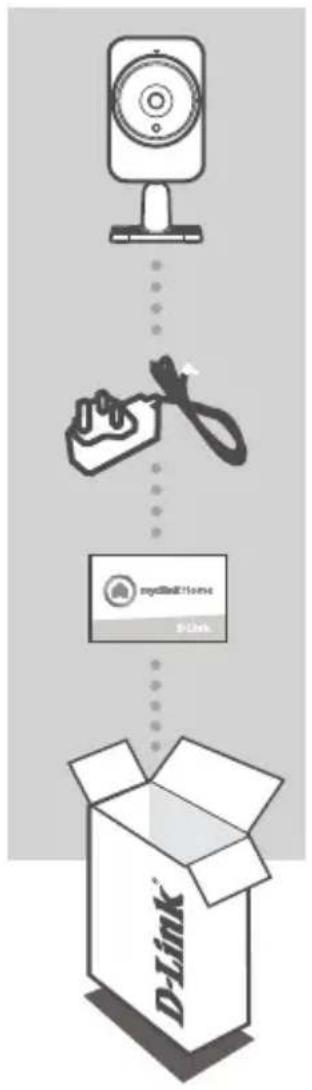
HD WI-FI CAMERA
DCS-935L
STROMADAPTER/NETZTEIL
GERÄTE-KONFIGURATIONSKARTE
CONFIGURATION DU PRODUIT
APPLICATION MOBILE
4. S JAKYMI APLIKACEMI ZARIZENI DCS-935L SPOLUPRACUJE?
INDSTILLING AF PRODUKTET
MOBIL-APPEN
Trin 1: Download den gratis mydlink™ Home-app ved at违法犯罪 after mydlink Home fra App Store (iOS) eller Google Play (Android).
D-Link Hellas Support Center
http://www.dlink.com
KaIuvou 12, 112 51, Aenva
CONFIGURAREA CONEXIUNII WPS
Wireless Network Name (SSID)
Wireless Network Password
TECHNICAL SUPPORT
UK
IRELAND
GERMANY
FRANCE
SPAIN
ITALY
NETHERLANDS
BELGIUM
LUXEMBURG
POLAND
CZECH
HUNGARY
NORWAY
DENMARK
FINLAND
SWEDEN
GREECE
PORTUGAL
www.dlink.com
www.dlink.com
www.dlink.com
www.dlink.com
www.dlink.com
www.dlink.com
www.dlink.com
www.dlink.com
www.dlink.com
www.dlink.com
www.dlink.com
www.dlink.com
www.dlink.com
www.dlink.com
www.dlink.com
www.dlink.com
www.dlink.com
www.dlink.com

- SYSTEM REQUIREMENTS
- PRODUCT SETUP
- Step 1:
- Step 2:
- Step 3:
- WPS SETUP
- mydlink PORTAL
- TROUBLESHOOTING
- WHAT CAN I DO IF I FORGET MY CAMERA PASSWORD?
- WHY DOES THE LED NOT LIGHT UP?
- WHY CAN'T I CONNECT TO MY WIRELESS ROUTER?
- WHAT APP DOES THE DCS-935L WORK WITH?
- WHERE CAN I FIND THE MYDLINK HOME APP?
- HOW DOES THE CAMERA WORK WHILE I AM AWAY FROM HOME?
- TECHNICAL SUPPORT
- PACKUNGSHALT
- CONFIGURATION DU PRODUIT
- S JAKYMI APLIKACEMI ZARIZENI DCS-935L SPOLUPRACUJE?
- INDSTILLING AF PRODUKTET
- CONFIGURAREA CONEXIUNII WPS
Brand : D-LINK
Model : DCS935L
Category : Surveillance Camera