LIFE S2000 - Sports Watch MEDION - Free user manual and instructions
Find the device manual for free LIFE S2000 MEDION in PDF.



| Product type | Sports watch (activity tracker) |
| Brand | MEDION |
| Model | LIFE S2000 |
| Dimensions | 52 × 18 × 12.5 mm |
| Weight | 25 g |
| Power supply | Built-in 60 mAh battery, charging via USB port |
| Battery life | 5 to 10 days on standby |
| Water resistance | IP67 (protected against temporary immersion) |
| Display | Touchscreen |
| Connectivity | Bluetooth 4.0 (2.4 GHz) |
| Sensors | Heart rate monitor, pedometer |
| Main functions | Heart rate measurement, distance, calories, sleep, notifications, music control, alarm, remote photo trigger |
| Companion app | MEDION Fitness (iOS and Android) |
| Operating temperature | -10°C to +45°C |
| Package contents | Bracelet with sensor, user manual, warranty documents |
| Maintenance | Soft dry cloth, avoid chemicals |
| Safety | Do not use by children under 8 without supervision; choking hazard with small parts |
| Spare parts and repairability | Contact MEDION customer service |
| General information | Private use only, do not use in industrial or explosive environments |
| Warranty | See terms in the manual |
Frequently Asked Questions - LIFE S2000 MEDION
User questions about LIFE S2000 MEDION
0 question about this device. Answer the ones you know or ask your own.
Ask a new question about this device
Download the instructions for your Sports Watch in PDF format for free! Find your manual LIFE S2000 - MEDION and take your electronic device back in hand. On this page are published all the documents necessary for the use of your device. LIFE S2000 by MEDION.
USER MANUAL LIFE S2000 MEDION
natural_image
Icon of an open book with a lowercase 'i' inside, enclosed in a black circle (no text or symbols)natural_image
Warning symbol: black exclamation mark inside a triangle (no text or numbers)natural_image
Warning symbol with exclamation mark inside a triangle (no text or numbers)natural_image
Black circular warning symbol with an exclamation mark (no text or numbers)natural_image
Black circular icon with a white lowercase 'i' in the center, commonly used to denote information (no additional text or symbols)HINWEIS!
natural_image
Icon of an open book with a lowercase 'i' inside, enclosed in a black circle (no text or symbols)HINWEIS!
WARNUNG!
WARNUNG!
Erstickungsgefahr!
Es besteht
Erstickungsgefahr
durch Verschlucken
oder Einatmen von
natural_image
Black circular icon with a white lowercase 'i' in the center, representing information (no additional text or symbols)HINWEIS!
natural_image
Black circular icon with a white lowercase 'i' in the center, commonly used to denote information (no additional text or symbols)HINWEIS!
natural_image
Simple line drawings of running figures, crescent moon, and a bird (no text or symbols)natural_image
Three black-and-white icons: a folder with an upward arrow, a heart with mountain and stars, and a power button (no text or symbols)natural_image
Three black-and-white icons: a battery with an upward arrow, a heart with a waveform, and a power button (no text or symbols)natural_image
Three stylized icons: a running figure, a crescent moon, and a bird with wings (no text or symbols)natural_image
Simple line drawings of running figures, crescent moon, and a bird (no text or symbols)natural_image
Black circular icon with a white lowercase 'i' in the center, representing information (no additional text or symbols)HINWEIS!
natural_image
Black circular icon with a white lowercase 'i' in the center, representing information (no additional text or symbols)HINWEIS!
natural_image
Black circular icon with a white lowercase 'i' in the center, representing information (no additional text or symbols)HINWEIS!
8. Technische Daten
DE
natural_image
Symbol of a trash bin crossed with two crossed lines, no text or numbers presentnatural_image
Simple line drawing of a recycling symbol with three chasing arrows (no text or labels)1. About these operating
instructions......39
EN
1.1. Warning symbols
and signal words
used in these
instructions ......40
FR
NL
-
Proper use ......ES..4
-
Safety information ......4
1.2. People not per- mitted to use this device......47
PT
PL
-
Application......49 CZ
-
Package contents ......5
-
Overview of the device ....52 SK
-
Using the device for the fi rst time ....53 HR
4.1. Charging the device 53
RO
4.2. Setting up and switching on the device and connecting it via
Bluetooth ....54
4.3. Switching off the device....55
4.4. Rotating the display 56
4.5. Starting the pulse measurement......57
4.6. Do not disturb mode ....58
4.7. Automatic switch-on function .....59
4.8. Functions ......60
4.9. Fitness app ......65
-
Technical data ......66
-
Declaration of conformity 67
-
Information on the frequency used ....68
-
Legal notice ......69
-
Recycling and disposal .....70
1. About these operating instructions

natural_image
Icon of an open book with a lowercase 'i' inside, enclosed in a black circle (no text or symbols)Ensure that you read these operating instructions carefully and follow all instructions given. The instructions will help you to operate the device reliably and help increase its service life. Always store these operating instructions near the device. Keep these operating instructions so that you can pass them on with the device if you sell it.
1.1. Warning symbols and signal words used in these instructions

natural_image
Warning symbol with exclamation mark inside a triangle (no text or numbers)DANGER!
Warning of immediate mortal danger!

natural_image
Warning symbol with exclamation mark inside a triangle (no text or numbers)WARNING!
Warning of possible risk of fatal injury and/or serious irreversible injuries!

CAUTION!
Warning: risk of minor or moderate injuries!

natural_image
Black circular warning symbol with an exclamation mark (no text or numbers)ATTENTION!
Please follow the instructions to avoid property damage!

natural_image
Black circular icon with a white lowercase 'i' in the center, representing information (no additional text or symbols)NOTICE!
Additional information on using the device!

natural_image
Icon of an open book with an information symbol inside, enclosed in a circular border (no text or numbers)NOTICE!
Please follow the instructions in the operating instructions!
WARNING!
Warning: risk of electric shock!
Bullet point/information on operating steps and results

Instructions to be carried out

Declaration of conformity (see section "Declaration of conformity"): Products that feature this symbol meet the requirements of the EC directives.
2. Proper use
Your device offers a number of options for usage:
- Heart rate monitor
- Step counter
- Calorie counter
- Sleep monitor
- Remote shutter release for photos (MEDION Fitness app required)
• Alarm (MEDION Fitness app required) - Message function for incoming messages (MEDION Fitness app required)
• Music control function (MEDION Fitness app required)
- This device is intended to be used in private households and similar household applications, such as:
– in kitchens for employees in shops, offices and other commercial areas;
– on agricultural estates;
– by customers in hotels, motels and other residential facilities;
- in bed & breakfast accommodation.
- The device is not suitable for commercial or industrial use.
- The device is intended for private use only and not for industrial/commercial use.
Please note that we shall not be
liable in cases of improper use: Do not modify the device without our consent and do not use any auxiliary equipment that we have not approved or supplied.
- Use only spare parts and accessories that we have supplied or approved.
- Heed all the information in these operating instructions, especially the safety information. Any other use is deemed improper and can cause personal injury or property damage.
- Do not use the product in areas where there is a risk of explosion, e.g. tank systems, fuel storage depots, or areas
in which solvents are being used. It is also not permitted to use this device in areas where the air is contaminated with fine particles (e.g. flour dust or sawdust).
- Do not use the device out-doors.
- Do not expose the device to any extreme conditions. The following should be avoided:
– High humidity or moisture - Extremely high or low temperatures
- Direct sunlight
- Naked fl ames
3. Safety information
1.2. People not permitted to use this device
▶ Keep the device and its accessories out of the reach of children.
These devices may be used by children over the age of 8 and by persons with reduced physical, sensory or mental abilities or by those without experience and/or knowledge, if they are supervised or have been instructed in the safe use of the device and have understood the potential risks.
▶ Children must not be allowed to play with the device.
▶ Cleaning and user maintenance must not be carried out by children, unless they are aged 8 or over and are supervised.
▶ Keep children younger than 8 years of age away from the device.

WARNING!
Risk of suff ocation!
There is a risk of suff oca- tion through swallowing or inhaling small parts or plastic fi lm.
▶ Keep plastic fi Im out of the reach of children.
4. Application
- This fitness bracelet is intended to monitor various body measurements or vital signs (pulse, calorie consumption, etc.) and is not designed for making a diagnosis, treating a patient, healing or preventing
diseases.
- Extended contact with the skin can cause skin irritations or allergic reactions in some people.
- This fitness bracelet contains electrical components that could cause injuries in the event of improper use.
- Do not continue to use the fitness bracelet if:
- You experience pain,
- tingling,
- burning,
- numbness or stiff ness in your hands or wrists while or after wearing the fitness bracelet.
5. Package contents
Please check your purchase to ensure that all the items are included and contact us within 14 days of purchase if any parts are missing.
- Bracelet with inserted sensor unit
- Operating instructions and warranty documents
6. Overview of the device
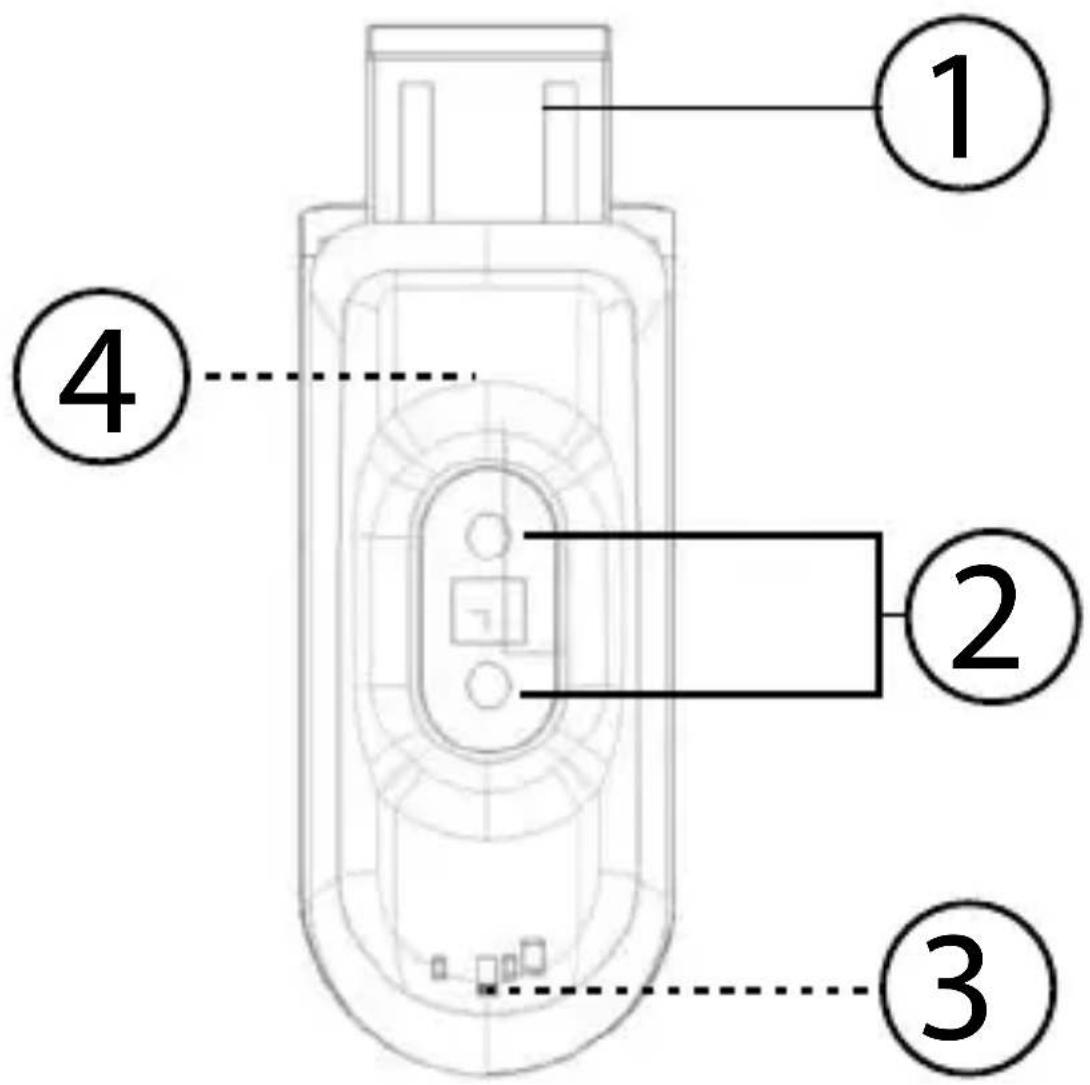
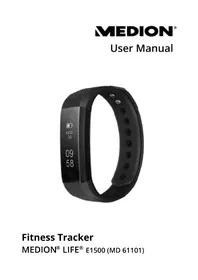
1) USB connection
2) Pulse sensors
3) Charging indicator LED (only lights up during the charging process)
4) Touch display (front)
7. Using the device for the first time
4.1. Charging the device
▶ Remove the sensor unit from the bracelet.
Connect the fitness bracelet to a free USB port on your PC or notebook.
▶ Ensure that the contacts on the USB connector on the fi tness bracelet match the contacts on the USB port on your PC or notebook.

natural_image
Black circular icon with a white lowercase 'i' in the center, commonly used to denote information (no additional text or symbols)NOTE!
If the charging indicator LED does not light up in red, the fitness bracelet has no contact to the USB port and cannot be charged.
Use a USB extension cable to make it easier to charge the fitness bracelet.
The charging indicator LED will go out as soon as the sensor unit is fully charged.
Insert the sensor unit back into the bracelet with the sensors pointing towards the inside of the bracelet.
4.2. Setting up and switching on the device and connecting it via Bluetooth
▶ Insert the sensor unit into the supplied bracelet.
Place the fitness bracelet around your wrist and close the fitness bracelet.

natural_image
Black circular icon with a white lowercase 'i' in the center, commonly used to denote information (no additional text or symbols)NOTE!
The fi tness bracelet should be neither too tight nor too loose around your wrist.
DE
EN
▶ Use one finger to swipe across the display until the display lights up.
FR
Download the corresponding MEDION Fitness app for the fitness bracelet free of charge from the Apple App Store or Google Play Store and start the app.
NL
ES
PT
▶ Follow the subsequent instructions.
PL
4.3. Switching off the device
CZ
SK
▶ Use one finger to swipe across the display until the display lights up.
HR
▶ Press and hold down on the display with your finger and then swipe your finger over the display until the following menu appears.
RO
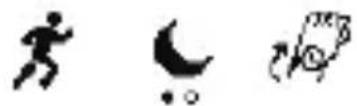
Now swipe your finger over the display until the following menu appears.
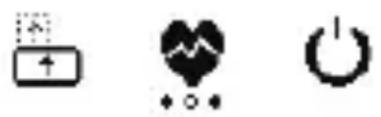
natural_image
Three black-and-white icons: battery, heart with upward arrow, and power button (no text or symbols)Now press the symbol. The following menu will be displayed:
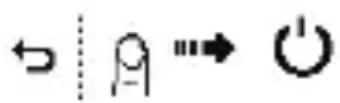
Now follow the instructions on the display and swipe your finger as shown in the direction of 📍
▶ Press the symbol if you want to cancel this action.
4.4. Rotating the display
▶ Use one finger to swipe across the display until the display lights up.
▶ Use your finger to scroll through the menus until the following menu appears.
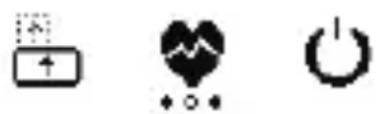
natural_image
Three simple icons: a battery with an upward arrow, a heart with a waveform, and a power button (no text or symbols)Now press the symbol. The following menu will be displayed:

▶ Press the symbol to switch between a horizontal and vertical display.
▶ Press the symbol to switch between a horizontal and vertical display.
▶ Press the ← symbol to save the setting and return to the menu.
4.5. Starting the pulse measurement
▶ Use one finger to swipe across the display until the display lights up.
▶ Press and hold down on the display with your finger until the display lights up.
▶ Use your finger to scroll through the menus until the following
menu appears.
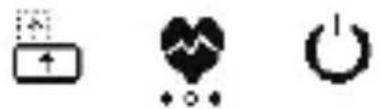
natural_image
Three black-and-white icons: a battery with an upward arrow, a heart with a waveform, and a power button (no text or symbols)Now press the symbol to change the mode to pulse measurement. -Measurement every 15 minutes -Measurement during activity (when registering steps).
4.6. Do not disturb mode
- Press and hold down on the display with your finger until the display lights up. - Use your finger to scroll through the menus until the following menu appears.
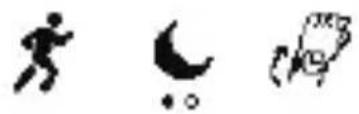
natural_image
Three abstract black-and-white icons: a running figure, a crescent moon, and a checkmark (no text or symbols)Now press the symbol. The following menu will be displayed.


OFF
Now press OFF or ON to switch the mode on or off OFF
▶ Press the symbol if you want to cancel this action.
4.7. Automatic switch-on function
In order to activate the automatic switch-on function for the display, press and hold down on the display with your finger until the display lights up.
▶ Use your finger to scroll through the menus until the following menu appears.
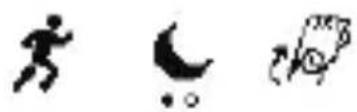
natural_image
Three abstract black-and-white icons: a running figure, a crescent moon, and a rocket (no text or symbols)Now press the symbol. The following menu will be displayed.
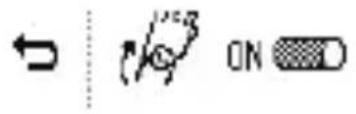
Now press OFF or ON to switch automatic mode on or off
▶ Press the symbol if you want to cancel this action.
4.8. Functions
You can use the fi tness bracelet to record your fi tness habits and activity. For example, the “step counter”, “distance measurement” and “calorie counter” modes can be used to view how many calories you have consumed or how many metres you have already covered on foot. The fi tness bracelet has the following functions:
Time mode
01:56 AM 16/11
Step counter
6,000
Calorie counter

600.
DE
Message mode

SMS

EN
Music mode

Wating for
FR
Pulse measurement

67
NL
Distance measurement

6.00km
ES
Alarm mode

01:56AM TUE
PT
PL
4.8.1. Time mode
Time mode displays the current time and current date.
▶ Swipe to the left or right on the display with your finger to switch to time mode.
CZ
SK
HR
RO
4.8.2. Step counter
The step counter counts the steps that you have taken.
▶ Swipe to the left or right on the display with your finger to switch to the step counter !
4.8.3. Calorie counter
The fi tness bracelet calculates and displays the calories you have burnt.
▶ Swipe to the left or right on the display with your finger to switch to the calorie counter 🔍.
4.8.4. Message mode
In message mode, the fitness bracelet will display your incoming messages.
▶ Swipe to the left or right on the display with your finger to switch to message mode.

natural_image
Black circular icon with a white lowercase 'i' in the center, representing information (no additional text or symbols)NOTE!
You must install the MEDION Fitness app in order to use the message feature.
4.8.5. Music mode
Music mode enables you to control music playback from your smartphone via the fi tness bracelet.
▶ Swipe to the left or right on the display with your finger to switch to music mode.

natural_image
Black circular icon with a white lowercase 'i' in the center, representing information (no additional text or symbols)NOTE!
You must install the MEDION Fitness app in order to use music mode.
4.8.6. Pulse measurement
The fitness bracelet displays your current pulse.
▶ Swipe to the left or right on the display with your finger to switch to pulse mode ♥.
4.8.7. Distance measurement
The fitness bracelet displays the distance you have covered.
▶ Swipe to the left or right on the display with your finger to switch to distance measurement 🔒.
4.8.8. Alarm
The fi tness bracelet displays the currently set alarm.
▶ Swipe to the left or right on the display with your finger to switch to alarm mode 🔊.

natural_image
Black circular icon with a white lowercase 'i' in the center, representing information (no additional text or symbols)NOTE!
You must install the MEDION Fitness app in order to use the alarm.
4.9. Fitness app
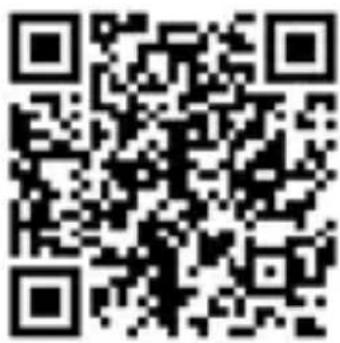
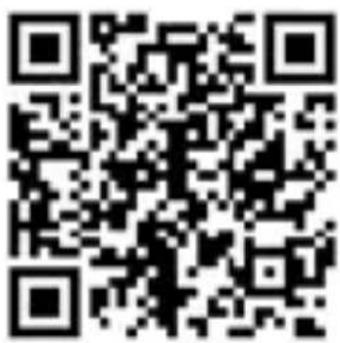
Download the corresponding MEDION Fitness app for the fitness bracelet free of charge from iTunes or the Google Play Store.
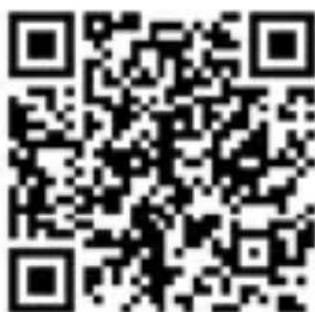
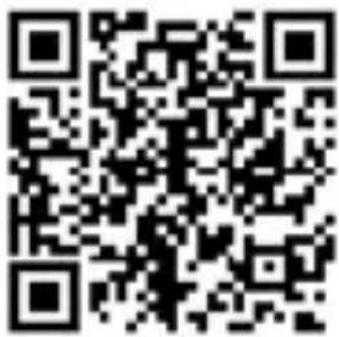
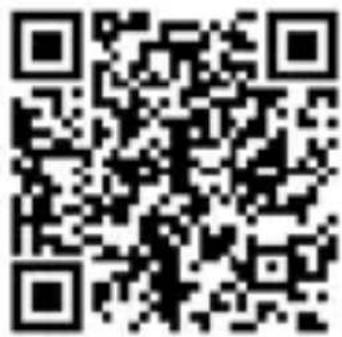
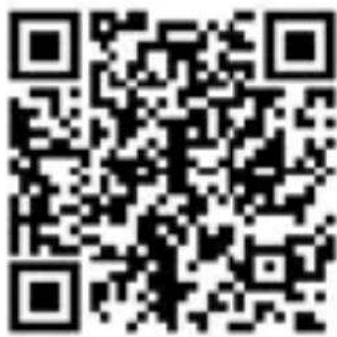
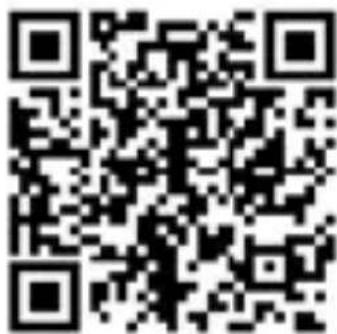
Alternatively, you can automatically download the app with the aid of the QR Code printed below.
iTunes
Google Play Store
8. Technical data
| CPU | NordicnRF51822 |
| Battery | Built-in li-ionrechargeablebattery 60mAh |
| Blue-tooth | 4.0 LE |
| Operatingtemperature | -10°C ~ +45°C |
| Storage temperature | -10°C ~ +45°C |
| Standby 5 - 10 days | |
| Protection class IP 67 |
Dimensions
52 × 18 × 12.5
mm
Weight 25g
9. Declaration of conformity
This device is supplied with the following wireless features:
- Bluetooth
Medion AG hereby declares that this device conforms to the fundamental requirements and the remaining relevant regulations of:
• RE Directive 2014/53/EU
• Ecodesign Directive 2009/125/EC
• RoHS Directive 2011/65/EU
Full declarations of conformity are available at www.medion.com/conformity.
10. Information on the frequency used
Frequency range: 2.4 GHz
| Frequency range/MHz | Wireless technology | Max. transmission power/dBm |
| 2402 - 2480 MHz | Bluetooth 0 | dBm |
11. Legal notice
Copyright © 2017
All rights reserved.
These operating instructions are pro- tected by copyright.
Mechanical, electronic and any other forms of reproduction are prohibited without the written permission of the manufacturer.
Copyright is owned by the company:
Medion AG
Am Zehnthof 77
45307 Essen
Germany
The instructions are available to download from the service portal www.medionservice.de.
12. Recycling and disposal
If you have any questions about disposal, please contact your sales agent or our service centre.
Device
natural_image
Symbol of a trash bin crossed with two crossed lines, no text or numbers presentDo not dispose of the device in the household rubbish at the end of its service life. Please enquire about the options for environmentally friendly disposal.
Packaging

natural_image
Recycling symbol composed of three arrows forming a triangle (no text or labels)The product has been packaged to protect it from damage in transit. The packaging is made of materials that can be recycled in an environmentally friendly manner.
Sommaire
DE
natural_image
Icon of an open book with an information symbol inside, enclosed in a black circle (no text or numbers)natural_image
Warning symbol with exclamation mark inside a triangle (no text or numbers)DANGER!
natural_image
Warning symbol with exclamation mark inside a triangle (no text or numbers)AVERTISSEMENT!
natural_image
Black circular warning symbol with an exclamation mark (no text or numbers)ATTENTION !
natural_image
Black circular icon with a white lowercase 'i' in the center, representing information (no additional text or symbols)REMARQUE!
natural_image
Icon of an open book with an information symbol inside a circle (no text or numbers)REMARQUE!
AVERTISSEMENT!
natural_image
Symbolic icon of a person moving with arrows, enclosed in a circle (no text or symbols)AVERTISSEMENT!
natural_image
Black circular icon with a white lowercase 'i' in the center, commonly used to denote information (no additional text or symbols)REMARQUE!
natural_image
Black circular icon with a white lowercase 'i' in the center, commonly used to denote information (no additional text or symbols)REMARQUE!
natural_image
Black circular icon with a white lowercase 'i' in the center, representing information (no additional text or symbols)REMARQUE!
natural_image
Three black-and-white icons: running figure, crescent moon, and flying airplane (no text or symbols)natural_image
Three black-and-white icons: battery, heart with upward arrow, and power button (no text or symbols)natural_image
Three black-and-white icons: a battery with upward arrow, a heart with a waveform, and a power button (no text or symbols)natural_image
Three black-and-white icons: battery, heart with upward arrow, and power button (no text or symbols)natural_image
Three black-and-white pictograms: running figure, crescent moon, and checkmark (no text or symbols)natural_image
Three black-and-white icons: running figure, crescent moon, and rocket (no text or symbols)natural_image
Black circular icon with a white lowercase 'i' in the center, representing information (no additional text or symbols)REMARQUE!
natural_image
Black circular icon with a white lowercase 'i' in the center, representing information (no additional text or symbols)REMARQUE!
natural_image
Black circular icon with a white lowercase 'i' in the center, representing information (no additional text or symbols)REMARQUE!
Google Play Store
| Blue-tooth | 4.0 LE | PI |
natural_image
Simple line drawing of a recycling symbol with three chasing arrows (no text or labels)EMBALLAGE
natural_image
Symbol of a trash bin crossed with a diagonal line, no text or numbers presentAPPAREIL
natural_image
Icon of an open book with a lowercase 'i' inside, enclosed in a black circle (no text or symbols)natural_image
Warning symbol: black exclamation mark inside a triangle (no text or numbers)GEVAAR!
natural_image
Warning symbol with exclamation mark inside a triangle (no text or numbers)WAARSCHUWING!
natural_image
Black circular warning symbol with an exclamation mark (no text or numbers)LET OP!
natural_image
Black circular icon with a white lowercase 'i' in the center, commonly used to denote information (no additional text or symbols)OPMERKING!
natural_image
Icon of an open book with an information symbol inside, enclosed in a black circular border (no text or numbers)OPMERKING!
- in bed & breakfasts.
WAARSCHUWING! Verstikkingsgevaar!
natural_image
Black circular icon with a white lowercase 'i' in the center, representing information (no additional text or symbols)OPMERKING!
▶ Start de app Fitness.
natural_image
Black circular icon with a white lowercase 'i' in the center, commonly used to denote information (no additional text or symbols)OPMERKING!
natural_image
Black circular icon with a white lowercase 'i' in the center, representing information (no additional text or symbols)OPMERKING!
natural_image
Simple line drawings of running figures, crescent moon, and a bird (no text or symbols)natural_image
Three black-and-white icons: a battery with upward arrow, a mountain peak with heart symbol, and a power button (no text or labels)natural_image
Three black-and-white icons: battery, heart with upward arrow, and power button (no text or symbols)natural_image
Three simple icons: bidirectional arrow, battery with plus sign, and circular refresh symbol (no text or labels)natural_image
Three black-and-white icons: a battery with upward arrow, a heart with mountain peak, and a power button (no text or symbols)natural_image
Three stylized human silhouettes: running figure, crescent moon, and checkmark (no text or symbols)natural_image
Black circular icon with a white lowercase 'i' in the center, commonly used to denote information (no additional text or symbols)OPMERKING!
natural_image
Black circular icon with a white lowercase 'i' in the center, representing information (no additional text or symbols)OPMERKING!
natural_image
Black circular icon with a white lowercase 'i' in the center, representing information (no additional text or symbols)OPMERKING!
Google Play Store
natural_image
Recycling symbol composed of three arrows forming a triangle (no text or labels)VERPAKKING
natural_image
Symbol of a trash bin crossed with no text or labels
TOESTEL
natural_image
Icon of an open book with a lowercase 'i' inside, enclosed in a black circle (no text or symbols)natural_image
Black circular warning symbol with an exclamation mark (no text or numbers)iATENCIÓN!
natural_image
Black circular icon with a white lowercase 'i' in the center, commonly used to denote information (no additional text or symbols)iNOTA!
natural_image
Icon of an open book with a lowercase 'i' inside, enclosed in a black circle (no text or symbols)iNOTA!
iADVERTENCIA!
natural_image
Black circular icon with a white lowercase 'i' in the center, commonly used to denote information (no additional text or symbols)iNOTA!
natural_image
Black circular icon with a white lowercase 'i' in the center, representing information (no additional text or symbols)iAVISO!
natural_image
Three black-and-white icons: a running figure, a crescent moon, and a stylized bird (no text or symbols)natural_image
Three black-and-white icons: battery, heart with mountain, and power button (no text or symbols)natural_image
Simple line drawings of running figures and a crescent moon (no text or symbols)natural_image
Three abstract black-and-white icons: a running figure, a crescent moon, and a stylized bird (no text or symbols)natural_image
Black circular icon with a white lowercase 'i' in the center, representing information (no additional text or symbols)iNOTA!
natural_image
Black circular icon with a white lowercase 'i' in the center, commonly used to denote information (no additional text or symbols)iNOTA!
natural_image
Black circular icon with a white lowercase 'i' in the center, representing information (no additional text or symbols)iNOTA!
Google Play Store
natural_image
Symbol of a trash bin crossed with no text or numbers, representing environmental protection (no text present)natural_image
Recycling symbol composed of three arrows forming a triangle (no text or labels)natural_image
Icon of an open book with a lowercase 'i' inside, enclosed in a black circle (no text or symbols)natural_image
Warning symbol with exclamation mark inside a triangle (no text or numbers)PERIGO!
natural_image
Warning symbol with exclamation mark inside a triangle (no text or numbers)AVISO!
natural_image
Black circular warning symbol with an exclamation mark (no text or numbers)ATENÇÃO!
natural_image
Black circular icon with a white lowercase 'i' in the center, commonly used to denote information (no additional text or symbols)INDICAÇÃO!
natural_image
Icon of an open book with a lowercase 'i' inside, enclosed in a black circle (no text or symbols)INDICAÇÃO!
AVISO!
AVISO!
Perigo de asfi xia!
natural_image
Black circular icon with a white lowercase 'i' in the center, representing information (no additional text or symbols)INDICAÇÃO!
natural_image
Black circular icon with a white lowercase 'i' in the center, representing information (no additional text or symbols)INDICAÇÃO!
natural_image
Simple line drawings of a person, a crescent moon, and a small figure with a number 19 (no text or symbols)natural_image
Three black-and-white icons: battery, heart with mountain, and power button (no text or symbols)natural_image
Three black-and-white icons: a battery with upward arrow, a heart with a downward arrow, and a power button (no text or symbols)natural_image
Three black-and-white icons: a running figure, a crescent moon, and a bird with wings (no text or symbols)natural_image
Black circular icon with a white lowercase 'i' in the center, representing information (no additional text or symbols)INDICAÇÃO!
natural_image
Black circular icon with a white lowercase 'i' in the center, representing information (no additional text or symbols)INDICAÇÃO!
natural_image
Black circular icon with a white lowercase 'i' in the center, representing information (no additional text or symbols)INDICAÇÃO!
Google Play Store
8. Dados técnicos
| CPU | NordicnRF51822 |
| Bateria | Bateria Li-Ionde 60 mAhinstalada |
| Blue-tooth | 4.0 LE |
| Temperatura de serviço | -10 ircC +45 ircC |
| Temperatura de armazenamento | -10 °C ~ +45 °C |
| Standby 5 - 10 dias |
natural_image
Symbol of a trash bin crossed with two crossed lines, no text or numbers presentnatural_image
Recycling symbol composed of three arrows forming a triangle (no text or labels)natural_image
Icon of an open book with a lowercase 'i' inside, enclosed in a black circle (no text or symbols)natural_image
Black circular warning symbol with a white exclamation mark (no text or numbers)natural_image
Black circular icon with a white lowercase 'i' in the center, representing information (no additional text or symbols)WSKAZÓWKA!
natural_image
Symbol of an open book with an information icon inside, enclosed in a black circle (no text or numbers present)WSKAZÓWKA!
natural_image
Black circular icon with a white lowercase 'i' in the center, representing information (no additional text or symbols)WSKAZÓWKA!
natural_image
Black circular icon with a white lowercase 'i' in the center, representing information (no additional text or symbols)WSKAZÓWKA!
natural_image
Three abstract black-and-white icons: running figure, crescent moon, and bird (no text or symbols)natural_image
Three black-and-white icons: a battery with upward arrow, a heart with a waveform, and a power button (no text or symbols)natural_image
Three black-and-white icons: a battery with plus sign, a heart with upward arrow, and a power button (no text or symbols)natural_image
Three abstract black-and-white icons: a running figure, a crescent moon, and a rocket with a circular symbol (no text or labels)natural_image
Three black-and-white pictograms: running figure, crescent moon, and walking figure (no text or symbols)natural_image
Black circular icon with a white lowercase 'i' in the center, representing information (no additional text or symbols)WSKAZÓWKA!
natural_image
Black circular icon with a white lowercase 'i' in the center, representing information (no additional text or symbols)WSKAZÓWKA!
natural_image
Black circular icon with a white lowercase 'i' in the center, representing information (no additional text or symbols)WSKAZÓWKA!
Sklep Google Play
8. Dane techniczne
| CPU | NordicnRF51822 |
| Akumulator | Wbudowanyakumulatorlitowo-jonowy60 mAh |
| Blue-tooth | 4.0 LE |
| Temperatura otoczenia | -10°C ~ +45°C |
natural_image
Symbol of a trash bin crossed with diagonal lines, no text or numbers presentnatural_image
Simple line drawing of a recycling symbol with three chasing arrows (no text or labels)natural_image
Icon of an open book with a lowercase 'i' inside, enclosed in a black circle (no text or symbols)natural_image
Warning symbol with exclamation mark inside a triangle (no text or numbers)natural_image
Warning symbol with exclamation mark inside a triangle (no text or numbers)natural_image
Black circular warning symbol with an exclamation mark (no text or numbers)OPATRNĚ!
natural_image
Black circular icon with a white lowercase 'i' in the center, representing information (no additional text or symbols)POKYN!
natural_image
Icon of an open book with an information symbol inside, enclosed in a black circle (no text or numbers)POKYN!
VAROVÁNÍ!
VAROVÁNÍ!
Nebezpečí zadušení
Hrozí nebezpečí
zadušení polknutím
nebo vdechnutím
natural_image
Black circular icon with a white lowercase 'i' in the center, representing information (no additional text or symbols)POKYN!
natural_image
Three abstract black-and-white icons: a running figure, a crescent moon, and a stylized rocket (no text or symbols)natural_image
Three black-and-white icons: battery, heart with mountain, and power button (no text or symbols)natural_image
Three black-and-white icons: a battery with upward arrow, a heart with a waveform, and a power button (no text or symbols)natural_image
Three simple black-and-white icons: a running figure, a crescent moon, and a bird with wings (no text or symbols)natural_image
Three abstract silhouettes: a running figure, a crescent moon, and a small geometric symbol (no text or symbols present)natural_image
Black circular icon with a white lowercase 'i' in the center, representing information (no additional text or symbols)UPOZORNĚNÍ!
natural_image
Black circular icon with a white lowercase 'i' in the center, representing information (no additional text or symbols)POKYN!
natural_image
Black circular icon with a white lowercase 'i' in the center, representing information (no additional text or symbols)POKYN!
Google Play Store
8. Technická data
DE
CPU Nordic nRF51822
EN
www.medion.com/conformity.
natural_image
Symbol of a trash bin crossed with a diagonal line, no text or numbers presentnatural_image
Recycling symbol composed of three arrows forming a triangle (no text or labels)natural_image
Icon of an open book with a lowercase 'i' inside, enclosed in a black circle (no text or symbols)natural_image
Warning symbol with exclamation mark inside a triangle (no text or numbers)natural_image
Warning symbol with exclamation mark inside a triangle (no text or numbers)natural_image
Black circular warning symbol with an exclamation mark (no text or numbers)Dbajte na upozornenia, aby ste sa vyhli vecným škodám!

natural_image
Black circular icon with a white lowercase 'i' in the center, representing information (no additional text or symbols)UPOZORNENIE!
natural_image
Icon of an open book with a lowercase 'i' inside, enclosed in a black circle (no text or symbols)UPOZORNENIE!
Dbajte na pokyny uvedené v návode na obsluhu!
VÝSTRAHA!
VÝSTRAHA!
Nebezpečenstvo zadusenia!
natural_image
Black circular icon with a white lowercase 'i' in the center, representing information (no additional text or symbols)UPOZORNENIE!
natural_image
Three black-and-white icons: battery, heart with mountain, and power button (no text or symbols)natural_image
Three simple black-and-white icons: a running figure, a crescent moon, and a bird with wings (no text or symbols)natural_image
Three black-and-white icons: a running figure, a crescent moon, and a bird with wings (no text or symbols)natural_image
Black circular icon with a white lowercase 'i' in the center, representing information (no additional text or symbols)UPOZORNENIE!
natural_image
Black circular icon with a white lowercase 'i' in the center, representing information (no additional text or symbols)UPOZORNENIE!
natural_image
Black circular icon with a white lowercase 'i' in the center, representing information (no additional text or symbols)UPOZORNENIE!
Obchod Google Play Store
8. Technické údaje
natural_image
Symbol of a trash bin crossed with no text or numbers, representing environmental protection (no text present)natural_image
Recycling symbol composed of three arrows forming a triangle (no text or labels)natural_image
Icon of an open book with a lowercase 'i' inside, enclosed in a black circle (no text or symbols)Upozorenje na neposrednu životnu opasnost!
UPOZORENJE!

natural_image
Warning symbol with exclamation mark inside a triangle (no text or numbers)natural_image
Black circular warning symbol with an exclamation mark (no text or numbers)PAŽNJA!
natural_image
Black circular icon with a white lowercase 'i' in the center, representing information (no additional text or symbols)NAPOMENA!
natural_image
Icon of an open book with an information symbol inside, enclosed in a black circle (no text or numbers)NAPOMENA!
Slijedite napomene u uputama za upotrebu!
UPOZORENJE!
UPOZORENJE! Opasnost od gušenja!
natural_image
Black circular icon with a white lowercase 'i' in the center, representing information (no additional text or symbols)NAPOMENA!
Ako LED indikator za nadzor punjenja nije crvene boje, znači da fi tness narukvica nema kontakt s USB priključkom i da se ne može napuniti.
Kako biste jednostavnije napunili fi tness narukvicu, upotrijebite USB produžetak.
LED indikator za nadzor punjenja gasi se nakon što se senzorska jedinica potpuno napuni.
▶ Senzorsku jedinicu ponovno umetnite u narukvicu tako da senzori gledaju u smjeru unutrašnjosti rukavice.
7.2. Spajanje uređaja pu- tem Bluetootha®
▶ Pokrenite aplikaciju za fi tness.
Aplikacija prikazuje sve pametne narukvice na popisu uređaja koje se nalaze u dosegu.
▶ Odaberite jednu pametnu narukvicu (S2000) na popisu uređaja u aplikaciji.
Na pametnoj narukvici sad se 10 sekundi prikazuje pametni krug.
▶ U roku od 10 sekundi prijeđite preko dodirnog polja pametne narukvice kako biste spojili uređaje.
natural_image
Three black-and-white icons: a running figure, a crescent moon, and a stylized rocket (no text or symbols)▶ Jednim prstom prelazite preko zaslona dok se ne pojavi sljedeći izbornik.
natural_image
Three black-and-white icons: a battery with upward arrow, a heart with mountain and lightning bolt, and a power button (no text or symbols)Zatim pritisnite simbol. Prikazuje se sljedeći izbornik:
natural_image
Three black-and-white icons: a battery with upward arrow, a heart with a heartbeat line, and a power button (no text or symbols)Zatim pritisnite simbol. Prikazuje se sljedeći izbornik:

▶ Pritisnite simbol za prelazak s vodoravnog na okomiti prikaz i obrnuto.
▶ Pritisnite simbol za prelazak s vodoravnog na okomiti prikaz i
obrnuto.
▶ Pritisnite simbol za spremanje postavke i povratak na izbornik.
natural_image
Three black-and-white icons: a battery with an upward arrow, a heart with a waveform, and a power button (no text or symbols)natural_image
Three black-and-white icons: running figure, crescent moon, and snowflake (no text or symbols)Zatim pritisnite simbol. Prikazuje se sljedeći izbornik.
natural_image
Simple line drawings of running figures, a crescent moon, and a soccer ball (no text or symbols)Zatim pritisnite simbol. Prikazuje se sljedeći izbornik.
natural_image
Black circular icon with a white lowercase 'i' in the center, representing information (no additional text or symbols)NAPOMENA!
Za uporabu funkcije prikaza poruka morate instalirati aplikaciju MEDION Fitness.
natural_image
Black circular icon with a white lowercase 'i' in the center, commonly used to denote information (no additional text or symbols)NAPOMENA!
Za uporabu načina rada s glazbom morate instalirati aplikaciju MEDION Fitness.
7.8.6. Mjerač pulsa
natural_image
Black circular icon with a white lowercase 'i' in the center, representing information (no additional text or symbols)NAPOMENA!
Za uporabu načina rada s alarmom morate instalirati aplikaciju MEDION Fitness.
7.9. Fitness aplikacija
Preuzmite besplatnu odgovarajuću aplikaciju za fi tness narukvicu MEDION Fitness iz trgovine iTunes ili Google Play Store i pokrenite je.
Google Play Store
8. Tehnički podaci
| Procesor | NordicnRF51822 |
| Baterija | Ugrađena litij-ionska baterija od 60 mAh |
| Blue-tooth | 4.0 LE |
| Radna temperatura | - 10 °C ~ - 45 °C |
| Temperatura skladištenja | |
| Način rada mirovanja | 5 – 10 dana |
| Stupanj mehaničke zaštite | IPx67 |
Dimenzije
52 × 18 × 12,5
mm
Težina 25 g
9. Informacije o suklad- nosti
S ovim se uređajem isporučuje sljedeća bežična oprema:
- Bluetooth
Ovime društvo Medion AG izjavljuje da ovaj uređaj odgovara osnovnim zahtjevima i ostalim relevantnim odredbama:
• Direktiva o radijskoj opremi 2014/53/EU -
Direktiva 2009/125/EZ o uspostavi okvira za utvrđivanje zahtjeva za ekološki dizajn proizvoda
-
Direktiva 2011/65/EU o ograničenju uporabe određenih opasnih tvari u električnoj i elektroničkoj opremi.
Cjelovite izjave o sukladnosti dostupne su na
www.medion.com/conformity.
10. Informacije o upotri-jebljenim frekvenci-jama
natural_image
Symbol of a trash bin crossed with two diagonal lines, no text or numbers presentUređaj kojem je istekao vijek trajanja nikako ne bacajte u obični kućni otpad. Raspitajte se o mogućnostima njegovog ekološki prihvatljivog zbrinjavanja.
Pakiranje

natural_image
Simple line drawing of a recycling symbol with three chasing arrows (no text or labels)natural_image
Icon of an open book with a lowercase 'i' inside, enclosed in a black circle (no text or symbols)natural_image
Black circular warning symbol with an exclamation mark (no text or numbers)ATENTIE!
natural_image
Black circular icon with a white lowercase 'i' in the center, representing information (no additional text or symbols)INDICATIE!
natural_image
Icon of an open book with a lowercase 'i' inside, enclosed in a black circle (no text or symbols)INDICATIE!
AVERTISMENT!
Avertisment de pericol de electrocutare!
AVERTIZARE! Pericol de asfi xiere!
natural_image
Black circular icon with a white lowercase 'i' in the center, representing information (no additional text or symbols)INDICATIE!
natural_image
Simple line drawings of a person running, a crescent moon, and a bird (no text or symbols)natural_image
Three black-and-white icons: a battery with upward arrow, a heart with a waveform, and a power button (no text or symbols)natural_image
Three black-and-white icons: a battery with plus sign, a heart with upward arrow, and a power button (no text or symbols)natural_image
Three black-and-white icons: battery, heart with upward arrow, and power button (no text or symbols)natural_image
Three abstract icons: a running figure, a crescent moon, and a partial circular symbol (no text or labels)natural_image
Simple line drawings of running figures, crescent moon, and a bird (no text or symbols)natural_image
Black circular icon with a white lowercase 'i' in the center, representing information (no additional text or symbols)INDICATIE!
natural_image
Black circular icon with a white lowercase 'i' in the center, representing information (no additional text or symbols)INDICATIE!
natural_image
Black circular icon with a white lowercase 'i' in the center, representing information (no additional text or symbols)INDICATIE!
Google Play Store
8. Date tehnice
natural_image
Symbol of a trash bin crossed with a diagonal line, representing waste sorting or disposal (no text or labels)
natural_image
Recycling symbol composed of three arrows forming a triangle (no text or labels)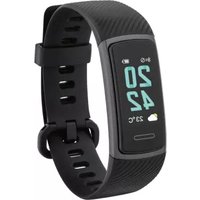
- HINWEIS!
- WARNUNG!
- Erstickungsgefahr!
- Technische Daten
- About these operating
- instructions......39
- About these operating instructions
- Warning symbols and signal words used in these instructions
- DANGER!
- WARNING!
- CAUTION!
- ATTENTION!
- NOTICE!
- Proper use
- Safety information
- People not permitted to use this device
- Risk of suff ocation!
- Application
- Package contents
- Overview of the device
- Using the device for the first time
- Charging the device
- NOTE!
- Setting up and switching on the device and connecting it via Bluetooth
- Switching off the device
- Rotating the display
- Starting the pulse measurement
- Do not disturb mode
- Automatic switch-on function
- Functions
- Time mode
- Step counter
- Calorie counter
- Message mode
- Music mode
- Pulse measurement
- Distance measurement
- Alarm
- Fitness app
- Technical data
- Declaration of conformity
- Information on the frequency used
- Legal notice
- Medion AG
- Am Zehnthof 77
- Essen
- Germany
- Recycling and disposal
- Device
- Packaging
- Sommaire
- AVERTISSEMENT!
- ATTENTION !
- REMARQUE!
- EMBALLAGE
- APPAREIL
- GEVAAR!
- WAARSCHUWING!
- LET OP!
- OPMERKING!
- WAARSCHUWING! Verstikkingsgevaar!
- VERPAKKING
- TOESTEL
- iATENCIÓN!
- iNOTA!
- iADVERTENCIA!
- iAVISO!
- PERIGO!
- AVISO!
- ATENÇÃO!
- INDICAÇÃO!
- Perigo de asfi xia!
- Dados técnicos
- WSKAZÓWKA!
- Dane techniczne
- OPATRNĚ!
- POKYN!
- VAROVÁNÍ!
- Nebezpečí zadušení
- UPOZORNĚNÍ!
- Technická data
- UPOZORNENIE!
- VÝSTRAHA!
- Nebezpečenstvo zadusenia!
- Technické údaje
- UPOZORENJE!
- PAŽNJA!
- NAPOMENA!
- UPOZORENJE! Opasnost od gušenja!
- Spajanje uređaja pu- tem Bluetootha®
- Mjerač pulsa
- Fitness aplikacija
- Tehnički podaci
- Informacije o suklad- nosti
- Informacije o upotri-jebljenim frekvenci-jama
- Pakiranje
- ATENTIE!
- INDICATIE!
- AVERTISMENT!
- AVERTIZARE! Pericol de asfi xiere!
- Date tehnice
Brand : MEDION
Model : LIFE S2000
Category : Sports Watch