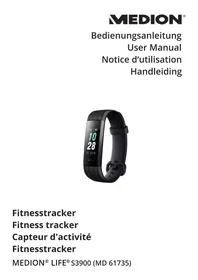
Life S3900 (MD 61735) - Sports Watch MEDION - Free user manual and instructions
Find the device manual for free Life S3900 (MD 61735) MEDION in PDF.



| Product Type | Sports Watch / Activity Tracker |
| Model | Life S3900 (MD 61735) |
| Brand | Medion |
| Display | Color touchscreen |
| Sensors | Accelerometer, heart rate sensor, SpO2 |
| Main Functions | Pedometer, calorie counter, heart rate, SpO2, sleep monitoring, alarm, notifications, multisport modes (walking, running, cycling, swimming, etc.), stopwatch, timer, weather |
| Connectivity | Bluetooth 4.2 LE |
| Compatibility | iOS 9.0+ / Android 4.4+ |
| Application | Medion Fitness (free) |
| Power Source | Built-in 3.8 V, 100 mAh lithium-ion battery |
| Battery Life | Up to 7 days |
| Charging Time | Approximately 120 minutes |
| Charging | USB charging dock (5 V, 500 mA) |
| Protection Rating | IP68 (waterproof up to 1.5 m for 30 min) |
| Operating Temperature | 0 °C to +40 °C |
| Storage Temperature | -10 °C to 45 °C |
| Strap Material | Silicone (hypoallergenic) |
| Dimensions (approx.) | 40 x 36 x 11 mm (case) |
| Weight (approx.) | 40 g (with strap) |
| Package Contents | Activity tracker, USB charging dock, quick start guide, warranty documents |
| Cleaning and Maintenance | Damp cloth; after chlorinated/salt water, rinse with clear water; do not use abrasive products |
| Safety | Do not use for medical purposes; keep at least 20 cm from pacemakers; do not expose to extreme temperatures; do not open the case |
| Spare Parts and Repairability | Built-in battery not user-replaceable; repair by qualified personnel only |
| General Information | Statutory warranty; Medion after-sales service; firmware update via application |
Frequently Asked Questions - Life S3900 (MD 61735) MEDION
User questions about Life S3900 (MD 61735) MEDION
0 question about this device. Answer the ones you know or ask your own.
Ask a new question about this device
Download the instructions for your Sports Watch in PDF format for free! Find your manual Life S3900 (MD 61735) - MEDION and take your electronic device back in hand. On this page are published all the documents necessary for the use of your device. Life S3900 (MD 61735) by MEDION.
USER MANUAL Life S3900 (MD 61735) MEDION
natural_image
Technical line drawing of a mechanical device with attached components (no text or symbols)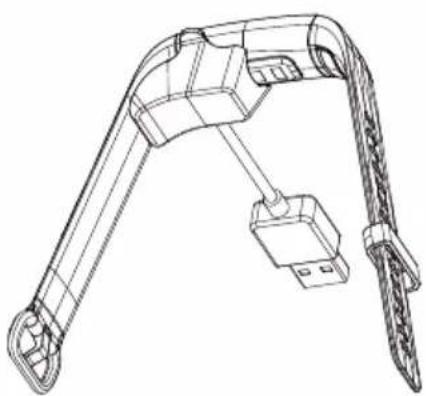
natural_image
Technical line drawing of a mechanical device with articulated arms and cable (no text or symbols)natural_image
Three circular icons with upward and downward arrows, no text or symbols present
natural_image
Simple graphic with a red heart inside a curved arc and a teal triangle, set against a black background (no text or symbols)1. Information about this user manual 32
1.1. Explanation of symbols 32
EN
2. Proper use
3. Safety information
3.1. Unauthorised persons ....NL3
3.2. General information ....3
4. Package contents
5. Device overview
5.1. Front and back ....37
5.2. Charging station....37
6. Getting started
6.1. Charging and using the device 38
6.2. Setting up the fitness tracker 39
6.3. MEDION® Fitness app 39
6.4. Connecting the device to the app via Bluetooth 40
7. Operation 4
7.1. Operating functions 4
7.2. Home screen....42
8. Main menu
9. Device settings
10. Sport mode 4
10.1. Special features in swimming mode....46
10.2. Calibration for certain sport modes ....46
10.3. Activity recording....46
10.4. Data view during activity 47
10.5. Data view after ending the activity 49
10.6. Notifications....49
10.7. Incoming calls 50
10.8. Switching off the fitness tracker....50
11. Additional functions with the MEDION® Fitness app. 50
12. Cleaning and care 50
13. Storing the device when not in use....51
14. Troubleshooting 51
15. EU Declaration of Conformity.... 52
15.1. Trademark information ....52
16. Disposal....52
17. Technical specifications .... 53
18. Service information....54
19. Legal Notice 55
20. Privacy statement....56
1. Information about this user manual

Thank you for choosing our product. We hope you enjoy using this device.
Please read the safety instructions and the user manual carefully before using the device for the first time. Note the warnings on the device and
in the user manual.
The user manual is provided as a digital file. If applicable, save it on an external storage medium so that it is always available as reference material. The user manual is an integral part of the product.
1.1. Explanation of symbols
If a block of text is marked with one of the warning symbols listed below, the hazard described in that text must be avoided to prevent the potential consequences described there from occurring.

DANGER!
Warning: risk of fatal injury!

WARNING!
Warning: risk of possible fatal injury and/or serious irreversible injuries!

NOTICE!
Follow these instructions to prevent damage to the device!

More detailed information about using the device!

Follow the instructions in the user manual!
This symbol means that the packaging and/or device contains lithium batteries or rechargeable batteries.

Declaration of conformity (see "Declaration of conformity" section): Products that feature this symbol meet the requirements of the EC directives.
- Bullet point/information on steps during operation
▶ Instruction to be carried out
■ Safety instructions to be performed
2. Proper use
This fitness tracker is an information technology device and can be used in many different ways:
- Heart rate monitor
- Step counter
• Calorie consumption calculation
• Blood oxygen saturation measurement - Multi-sport mode (e.g. for walking, running, cycling)
- Sleep monitoring*
- Alarm clock
- Notification when a message is received *
The device is only intended for private use and not for industrial/commercial use. Please note that we shall not be liable in cases of improper use:
Comply with all the information in this user manual, especially the safety information. Any other use is considered improper and can cause personal injury or property damage.
3. Safety information
3.1. Unauthorised persons
- Keep the device and its accessories out of the reach of children.
This device can be used by children aged 8 years and above, by people with reduced physical, sensory or mental capabilities, or people who lack experience and/or knowledge, if proper supervision is provided or if these people have been instructed in how to use the device safely and have fully understood the possible dangers.
■ Children must not be allowed to play with the device.
■ Do not allow children to clean the device or perform maintenance tasks on it unless they are aged 8 years or older and properly supervised.
- Keep the device out of reach of children under the age of 8.
3.2. General information
■ Do not modify the device without our prior consent.
■ Only use replacement parts or accessories that we have supplied or approved.
■ The device is designed to illustrate a range of physical data (e.g. heart rate, calorie consumption). It must not be used for medical diagnoses or the treatment or prevention of illness.
■ Do not expose the device to extreme conditions.
Avoid:
– extremely high or low temperatures
- direct sunlight
- open flames.
■ Do not use the device if there is visible damage to its housing or the display.
■ The device contains no user-maintainable parts. Never open the device housing.
■ The rechargeable battery is an integral component of the device and users must not replace it themselves.
■ Use only the supplied USB charging station to charge the battery.
■ Never use optical equipment to look at the LEDs on the underside of the device.
■ To prevent the device from being damaged by excessive heat during charging, do not cover it.
■ Never put anything on top of the device and never exert any pressure on the display, as it might break.
■ Avoid touching the display with sharp objects.
■ Do not take the device apart or deform it. You could injure your hands or fingers, or battery fluid could get into your eyes or onto your skin. If you do come into contact with the battery fluid, rinse the affected area with plenty of water and contact your doctor immediately.
■ When using the device, keep it at least 20 cm from implanted pacemakers or defibrillators, for safety reasons, to prevent them being affected by it.
■ Prolonged contact with the skin may cause skin irritation or allergic reactions in some people.
■ Stop using the device if:
– your hands or wrists hurt
- i t c h
- burn
- or are numb or stiff, either while wearing it or afterwards.

WARNING! Risk of explosion!
Never throw the device into the fire! Risk of explosion!
■ Do not use the device in potentially explosive atmospheres. This includes petrol stations, fuel storage areas and areas where solvents are processed, for example. This device must also not be used in areas with particle-laden air (for example flour or wood dust).

WARNING! Risk of fire!
Risk of fire caused by an unintentional short-circuit.
■ Stop using the device immediately and, if necessary, disconnect it from the USB power supply:
- if the device produces unusual noises or smoke;
- if the device is damaged by a liquid or high moisture levels;
– in emergency situations.
■ Repairs to your device should only be carried out by qualified specialists.
4. Package contents

DANGER! Risk of choking and suffocation!
There is a risk of choking and suffocation if plastic film or small parts are breathed in or swallowed.
- Keep packaging away from children.
■ Do not allow children to play with the packaging material.
■ The packaging material is not a toy!
Remove the product from the packaging and remove all packaging material.
▶ Check your purchase to ensure that all items are included. If anything is missing, please contact our Service Centre within 14 days of purchase.
Before each use, check the device for any damage. Contact our Service Centre if you find any damage.
The following items are supplied with your product:
• Fitness tracker (strap with sensor unit)
- USB charging station
- Quick start guide and warranty documents
5. Device overview
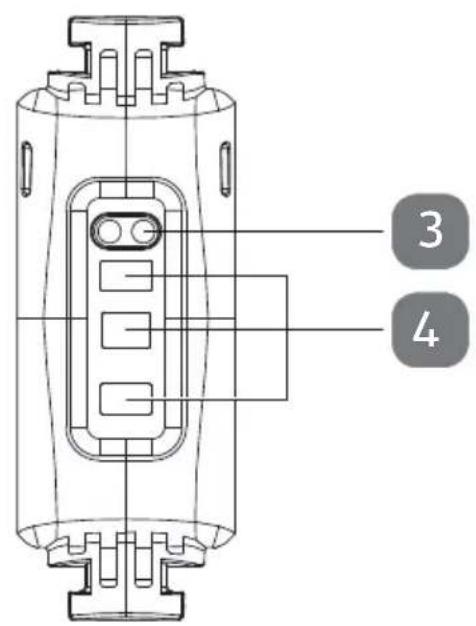
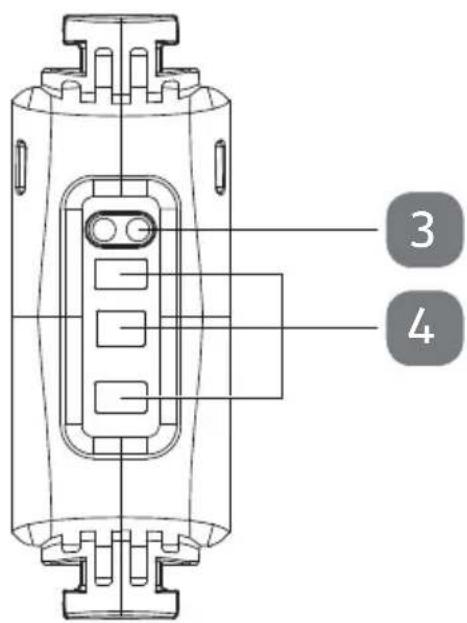
5.1. Front and back
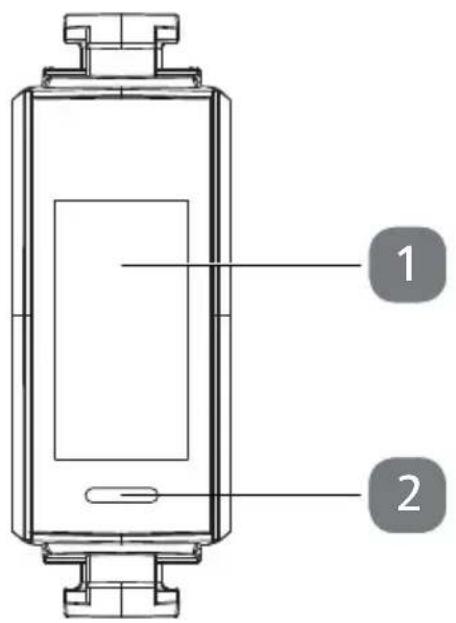
1) Touchscreen display
2) Touch field
3) Charging contacts
4) Pulse sensors
5.2. Charging station
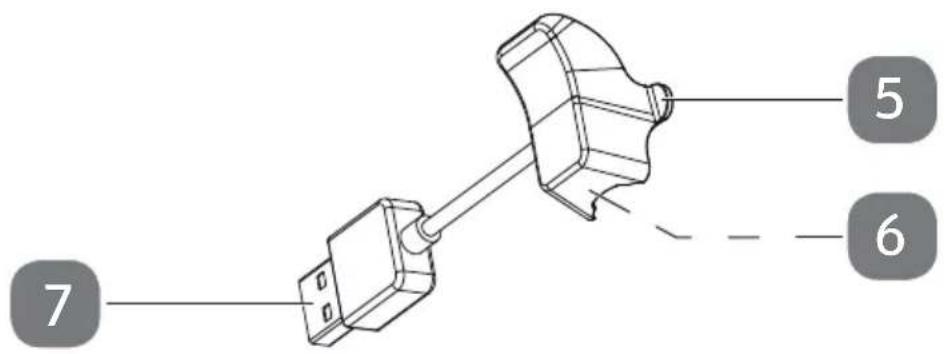
5) Fixing clips
6) Charging contacts
7) USB plug
6. Getting started
Remove all packaging materials.
Remove the protective film from the device display.

DANGER!
Risk of choking and suffocation!
There is a risk of choking and suffocation if plastic film or small parts are breathed in or swallowed.
- Keep packaging away from children.
■ Do not allow children to play with the packaging material.
■ The packaging material is not a toy!
6.1. Charging and using the device

NOTICE!
Risk of damage!
There is a risk of damage to the device if the fitness tracker is handled incorrectly.
■ The rechargeable battery is an integral component of the device and users must not replace it themselves.
Connect the USB charging station to a free USB port on your PC or laptop.
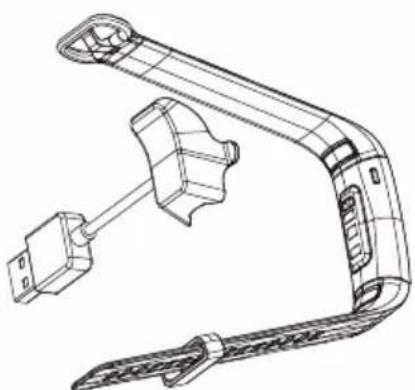
Place the fitness tracker on the charging station as shown in the following illustration. Ensure that the charging contacts on the underside of the fitness tracker are correctly seated on the contacts on the charging station.
natural_image
Technical line drawing of a mechanical device with articulated arms and connectors (no text or symbols)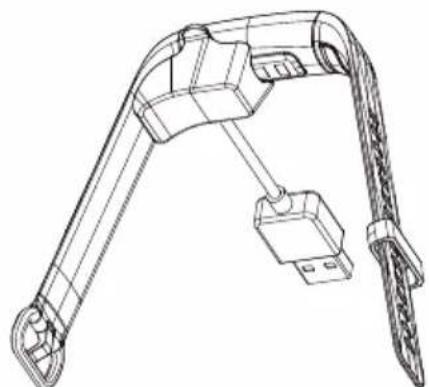
natural_image
Technical line drawing of a robotic arm with attached cable and connector (no text or symbols)Gently press the fitness tracker downwards until you hear it click into place.

The device needs approximately 120 minutes to charge.
A few seconds after being inserted in the charging station, the fitness tracker vibrates and automatically switches on.
The current charge level in per cent is shown in the display.
Tap the touch field during charging to view the current charge level.
To release the fitness tracker from the charging station and to remove the device, gently press the side fixing clips on the charging station outwards.
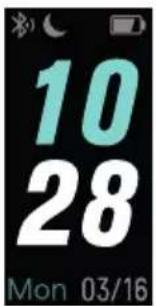
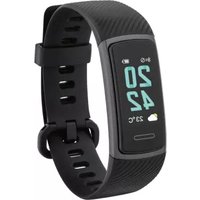
Once it has been removed from the charging station, the fitness tracker is now switched on and the home screen with the time is shown on the display (see Fig.)
6.2. Setting up the fi tness tracker
Place the activity tracker around your wrist and fasten the strap.

The fitness tracker should not be too tight or too loose for your wrist. It is worn in the same way as a conventional wristwatch.
To obtain the most accurate heart rate measurement, the fitness tracker should be close to your wrist so that it cannot slip when you move.
6.3. MEDION® Fitness app
Download the associated MEDION® Fitness app to your smartphone/tablet free of charge from the Apple App Store or Google Play Store.
Alternatively, use the QR code below to download the app automatically:
Apple App Store/Google Play Store

6.4. Connecting the device to the app via Bluetooth®
A Bluetooth ® connection is an unencrypted wireless data transfer system which is unprotected against unauthorised third parties.
Bluetooth pairing must be carried out when you first set up the device.
▶ Enable Bluetooth on your smartphone/tablet.
▶ Start the MEDION® Fitness app.
▶ Select the desired language in the app.
The fitness tracker menu language is adapted to your selection automatically.

You can now create a user account with MEDION® Fitness to take full advantage of all the app's functions and to save your activities and data in the history so that this information can be retrieved again at a later date.
To create a user account, tap REGISTER WITH MEDION FITNESS and then SIGN UP.
Then enter your personal information such as gender, age, weight, height etc. to enable the calculations (for calorie consumption etc.) to be made using your personal data.
Now log into your MEDION Fitness user account or continue without registering.
▶ Activate the fitness tracker by tapping the touch field so that the display lights up.
▶ Press CONNECT in the app to start searching for devices.
A shortlist of various device models is now shown on the display.
▶ Select the fitness tracker that you primarily use, in this case it is model S3900.
The app then starts to search for Bluetooth devices within range and displays a list of the devices found.
▶ Select your fitness tracker S3900 from the list of devices.
A connection prompt is now displayed on your fitness tracker for 10 seconds.
Tap √ within 10 seconds to establish a connection between the devices.
▶ To cancel the connection set-up, tap ✗.

If you do not confirm the connection on the fitness tracker within 10 seconds, you must repeat the connection process using the app.
Once the connection is successful, √ will appear on your fitness tracker and the following text will be displayed in the app:
THE DEVICE IS CONNECTED AND READY TO USE.
▶ Press FINISH to finish establishing the connection.
If the fitness tracker is connected to a smartphone/tablet, the Bluetooth symbol ✝ lights up white on the display.
All measured data is synchronised with the MEDION® Fitness app automatically or manually, if necessary.

If you would like further information or advice on using the MEDION® Fitness app, please use the feedback function within the app. You can also download the user manual for the MEDION® Fitness app from within the app.
7. Operation
7.1. Operating functions
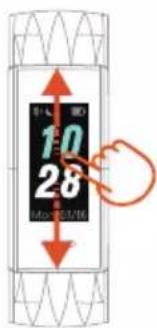 | ► Swipe your finger upwards or downwards over the display to scroll up or down within the menu. |
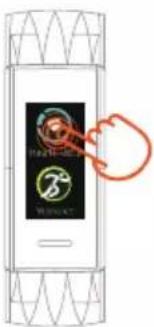 | ► Tap on the respective symbol to select or confirm the menu item. |
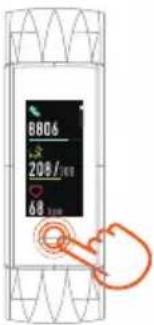 | ► When the display is switched off, tap the touch field to switch it on. ► Tap the touch field to return to the previous display/higher-level menu. |
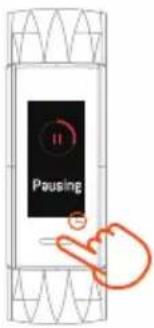 | ► Tap and hold the touch field for 3 seconds while recording an activity to pause the recording. |
7.1.1. Gestures
▶ Raise your wrist to automatically switch on the display on your fitness tracker.
▶ Lower your wrist to switch off the display on your fitness tracker.
Rotate your wrist while recording an activity in "Swimming" mode to switch between the data views without touching the display.

To use gestures, the corresponding function must be enabled in the MEDION® Fitness app (ENABLE "HAND UP" GESTURE) or alternatively in the device settings on the fitness tracker.
7.2. Home screen
Once switched on, the fitness tracker display starts on the home screen. You can select different home screen designs in the device settings. The following descriptions refer to the use of the default design (Fig. A).
Various information is collated and displayed on the home screen:
1) "Do not disturb" mode active
(All notifications on the fitness tracker are switched off)
2) Battery charge level
3) Time
4) Date
5) Weekday
6) Bluetooth connection status
(If the Bluetooth connection is inactive, the Bluetooth symbol is displayed in grey.)
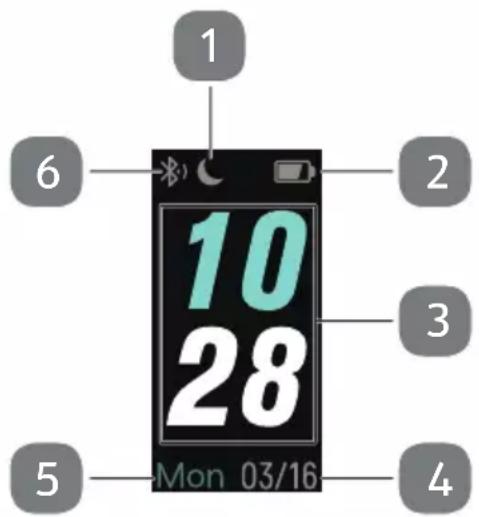
Fig. A
Tap on the home screen display to switch between the data for the weekday/date, step count and calories consumed on the lower area of the display.
8. Main menu
Starting on the home screen, swipe upwards on the display to scroll through the menu items.
Tap on the required menu item to access the associated submenu.

Tap this symbol to open the data display for the following daily values:
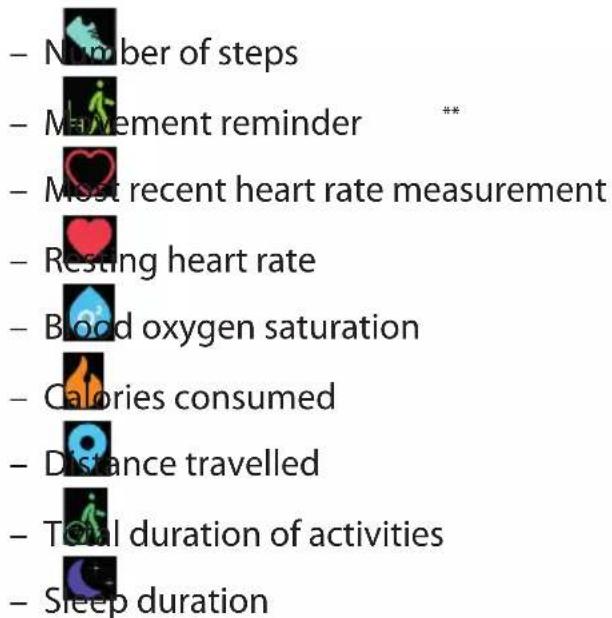

Tap here to select a sport for your activity recording (see "10.3. Activity recording" on page 46).

Tap here to perform a current heart rate measurement.

Tap here to perform a current blood oxygen saturation measurement.

Tap this symbol to perform a breathing relaxation exercise.
- Swipe to the left or right on the display to select an exercise duration of 1–5 minutes.
▶ Tap▶to start the exercise.
You will now receive display and tactile vibration notifications to indicate when you should breath in and out to achieve a state of relaxation.
Tap on the touch field to pause the exercise. In the subsequent prompt tap √ end the exercise or to continue the exercise.
 | ▸ Tap here to view an alarm previously programmed on the MEDION® Fit-ness app.▸ Tap the respective alarm to switch it on or off.Alarms are shown in grey when switched off. Use the MEDION® Fitness app to add or edit an alarm. Use the MEDION® Fitness app to add or edit an alarm. |
 | ▸ Tap here to use the stop watch function.▸ Tap▶to start the stop watch.▸ Tap▶to stop the stop watch.▸ Tap▶to resume the stop watch or ⬆to restart the stop watch.▸ Tap the touch field to return to the main menu. |
 | ▸ Tap here to select the timer function.▸ Tap the minutes display to select the desired timer time using gestures.▸ Tap▶to start the timer.▸ Tap▶to stop the timer.▸ Tap▶to resume the timer or ⬆to restart the timer.▸ Tap the touch field to return to the main menu. |
 | ▸ Tap here to display current weather data on the fitness tracker. An active Bluetooth connection is required in order to use this function. An active Bluetooth connection is required in order to use this function. |
 | You can configure the device settings and view device information in this menu (see “9. Device settings” on page 45). |
9. Device settings
In the main menu, tap open the settings menu.
You can configure the following device settings here:
- Select a home screen design
- Set the display brightness
- Activate/deactivate heart rate measurement
(When this function is active, heart rate measurements are automatically performed at regular intervals. Use the MEDION® Fitness app to define advance settings such as the measurement start and end time.)

Active continuous heart rate measurements reduces the battery life. To obtain the most accurate heart rate measurement, the fitness tracker should be close to your wrist so that it cannot slip when you move.
- Switch on/off "do not disturb" mode
(Switch this mode on to disable all notifications on your fitness tracker.) - Switch the display on/off when raising/lowering your arm
- Re-start the device
- Switch off the device
- Delete your user data from the device.

Attention! All data on the fitness tracker is deleted during this process!
Make sure that you have first synchronised your data with the MEDION® Fitness app, if you would like to store this under your profile and continue to display it in the history.
Under ABOUT, you can view detailed information about your device such as the device name, firmware version and MAC address.
10. Sport mode
The fitness tracker already provides you with a selection of different sport modes by default.

Use the MEDION® Fitness app to select an activity from an extended range (e.g. badminton, climbing, dancing etc.)***.
10.1. Special features in swimming mode
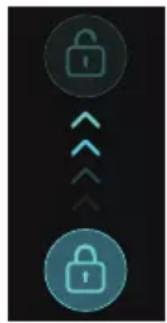
The display lock is active when using swimming mode.
To lock the display, first tap the touch field, then swipe upwards on the touch field and after that swipe downwards on the display.
When recording an activity, you can switch between the data views in swimming mode by rotating your wrist.
natural_image
Three circular icons with upward and downward arrows, no text or symbols present
To use gestures, the corresponding function must be enabled in the MEDION® Fitness app (ENABLE
"HAND UP" GESTURE) or alternatively in the device settings on the fitness tracker.
10.2. Calibration for certain sport modes
For activities using static sports equipment, e.g. a treadmill or cross trainer, you are required to enter the displayed distance covered on the equipment into your fitness tracker to adapt the measurements accordingly.
In "Swimming in a pool" mode, you are prompted to enter the length of the pool in metres before starting so that the measurements can be adapted accordingly.
10.3. Activity recording
Tap Select a sport mode to record your activity.
To set a time or calorie consumption goal for your activity before starting the activity recording, first tap on the flag symbol that has the desired sport.
▶ Use gestures to select the desired time or calorie consumption goal and then tap on your selection to confirm.
The goal you have defined is now shown beneath the sport in place of the flag symbol.
Tap on the desired type of sport to start activity recording.
Activity recording starts once the three-second countdown has elapsed.
To pause the activity, press and hold the touch field until the corresponding red circle on the display is filled in completely and the fitness tracker vibrates briefly.
▶ Tap▶to continue the activity or □ to end the activity.
The fitness tracker vibrates and a prompt appears on the display to ask if you really want to end the activity.
▶ Tap √ to end the activity or tap ✗ to continue recording the activity.

Activities of less than 1 minute can not be saved.
10.4. Data view during activity
During an activity, swipe upwards or downwards on the display to switch between the various information displays.
The following data is displayed during the activity:
| 10:52 | Time |
 | Activity duration |
 | Calorie consumption |
 | Current heart rate and heart rate zone (see section “10.4.1. Heart rate zones” on page 48) |
 | Average speed |
 | Average lap time (average time required per kilometre during the current activity) |
 | Number of steps |
 | Distance travelled |
▶ Swipe upwards or downwards on the display to switch between the various information displays.
10.4.1. Heart rate zones
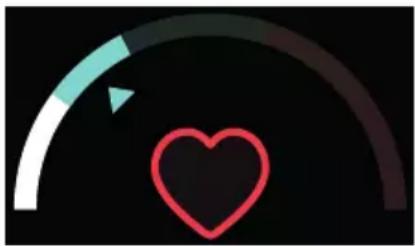
Standardised heart rate zones are used to help optimally control the intensity and effect of your training. The heart rate zones may vary depending on the type of sport, since the number of active muscle groups and the number of heartbeats per minutes differs.
During the activity, your fitness tracker indicates the heart rate zone you are currently in (see Fig.).
natural_image
Simple graphic with a red heart inside a curved arc and a small triangle on the left (no text or symbols)The following overview provides a rough guide:
| Zone 1 Very light • Warm-up phase during exercise• Everyday activity such as walking/climbing stairs |
| Zone 2 Light • Develops aerobic endurance• Increases fat burn• Improves overall fitness• Prepares for more intensive exercise |
| Zone 3 Moderate • Improves cardiovascular performance• Improves aerobic fitness |
| Zone 4 Hard • Improves anaerobic performance |
| Zone 5 Maximum • Improves anaerobic high intensity performance during short training phases |

We strongly recommend that you inform yourself about this topic before undertaking training based on heart rate zones to prevent training mistakes and consequential damage to health!
10.5. Data view after ending the activity
After ending the activity, the following data is displayed:
 | Time |
 | Activity duration |
 | Calorie consumption |
 | Average heart rate |
 | Average speed |
 | Average lap time (average time required per kilometre during the current activity) |
 | Number of steps |
 | Distance travelled |
Tap √ at the very bottom of the data view to return to the home screen.
10.6. Notifications
Using the MEDION® Fitness app you can specify which applications should be permitted to send you notifications on the fitness tracker.
For example, you can specify that you would like to receive notifications for incoming e-mails, WhatsApp messages, Facebook messages, SMS or calls. Equally the opposite also applies, you can deselect unwanted notifications in the app settings.
New notifications are signalled by vibrations on the fitness tracker.
Starting on the home screen, swipe downwards on the display to view new notifications.

Take care to ensure that "Do not disturb" mode is switched off to receive notifications on the fitness tracker.
10.7. Incoming calls
Once you have given the necessary permissions in the MEDION® Fitness app, incoming calls are indicated on the fitness tracker.
▶ You can tap 📋 to ignore or tap 🙏 reject an incoming call.
10.8. Switching off the fitness tracker
Starting on the home screen, use your finger to swipe upwards on the display five times.
▶ Tap 📋 open the device settings.
Swipe upwards on the display three times and tap
▶ Swipe upwards on the display once and tap POWER OFF.
A message appears stating that the device must be reconnected to the charging station after switching off in order to switch it on again.
▶ Swipe upwards on the display once and tap √ in the prompt.
The device vibrates and switches off.
11. Additional functions with the MEDION® Fitness app.
Additional functions are available for your fitness tracker with the MEDION® Fitness app, such as the option to set an alarm, movement reminder or process daily goals.

For more information on using the MEDION® Fitness app, refer to the user manual within the app. If you have any questions, use the integrated feedback function.
12. Cleaning and care

NOTICE!
Risk of damage!
■ Do not use any aggressive chemical agents, scouring agents or hard sponges for cleaning.
The heart rate measurement sensor surfaces on the underside of the fitness tracker must always be kept clean, since dirt may, if applicable, affect the measurement.
Clean the fitness tracker's external surfaces regularly with a damp cloth.
▶ After use in chlorinated or salty water, rinse the fitness tracker thoroughly under clean running water to prevent permanent damage.
13. Storing the device when not in use
▶ Switch off the fitness tracker when it is not in use and store it in a dry, dust-free environment.
Carry out a complete discharging and charging cycle each month. This prevents the battery from completely discharging and becoming permanently damaged making it unable to be charged again.
- Troubleshooting
| Problem Possible cause Solution | ||
| The device cannot be switched on. | The device battery is not charged.The device was not connected to the USB charging station first. | ▸ Charge the fitness tracker.▸ First connect the fitness tracker to the USB charging station until it turns on automatically. |
| No/incorrect pulse measurement | The sensor surfaces are dirty.The strap is too loose around the wrist. | ▸ Clean the sensor surfaces.▸ Make sure that the strap is not fastened too loosely around your wrist. |
| Data transfer between the fitness tracker and smart-phone/tablet is faulty. | No Bluetooth connection | ▸ Perform the Bluetooth pairing again.▸ If necessary, uninstall the MEDION® Fitness app and then reinstall it with subsequent Bluetooth pairing. |
| Distance determined does not seem right | The step length has been set incorrectly. | ▸ Check the step length that has been set in the app and correct this if necessary. |
| The calculation of calories burned is incorrect/implausible. | Your personal data has been stored incorrectly. | ▸ In the app, check the gender, weight and height entered in your personal data. |
15. EU Declaration of Conformity

MEDION AG hereby declares that this device complies with the fundamental requirements and the other relevant provisions of:
• Radio Equipment Directive 2014/53/EU
• RoHS Directive 2011/65/EU.
You can download the complete EU Declaration of Conformity at www.medion.com/conformity.
15.1. Trademark information
The Bluetooth ® word mark and logos are registered trademarks of Bluetooth SIG, Inc. and are used by MEDION under licence.
The Android ™ word mark and logos are registered trademarks of Google LLC and are used by MEDION under licence.
Other trademarks are the property of their respective owners.
16. Disposal

PACKAGING
Your device has been packaged to protect it from damage in transit. The packaging is made of materials that can be recycled in an environmentally friendly manner.
DEVICE
Old devices that carry the symbol illustrated may not be disposed of in ordinary household waste.
In accordance with Directive 2012/19/EU, these devices must be disposed of correctly at the end of their service life.
This involves separating the materials in the devices for the purpose of recycling and minimising the environmental impact.
Take old devices to a collection point for electrical scrap or a recycling centre.
The integrated battery cannot be removed. Take the entire device for disposal.
Contact your local waste disposal company or your local authority for more information on this subject.
17. Technical specifications
CPU: Nordic nRF52840
Integrated battery: Li-Ion battery 3.8 V / 100 mAh
Operating temperature: 0°C to +40°C, max. 90% RH
Storage temperature: -10°C to 45°C
Battery charging time: Approx. 120 minutes
Battery capacity: Up to 7 days
Charge connection: USB 2.0
Power supply: 5 V = 500 mA
Bluetooth ® version: 4.2 LE
Bluetooth range: Approx. 10 m
Bluetooth frequency range: 2402 to 2480 MHz
Max. Bluetooth transmission power: -2.75 dBm
Protection class: IP68
Dimensions (W x H x D): 41 mm x 19 mm x 12.5 mm
Wrist circumference: Max. 220 mm
Weight incl. strap (cannot be removed): 23 g
18. Service information
Please contact our Customer Service team if your device ever stops working the way you want or expect it to. There are several ways for you to contact us:
- In our Service Community, you can meet other users, as well as our staff, and you can exchange your experiences and pass on your knowledge there. You will find our Service Community at community.medion.com.
• Alternatively, use our contact form at www.medion.com/contact. - You can also contact our Service team via our hotline or by post.
| Opening times Hotline number UK | |
| Mon – Fri: 08.00 – 20.00Sat – Sun: 10.00 – 16.00 | 0333 3213106 |
| Service address | |
| MEDION Electronics Ltd.120 Faraday Park, Faraday Road, DorcanSwindon SN3 5JF, WiltshireUnited Kingdom | |
You can download this and many other sets of operating instructions from our service portal at www.medion.com/gb/service/start/.
You will also find drivers and other software for a wide range of devices there.
You can also scan the QR code on the side of the screen, to download the operating instructions onto your mobile device from the service portal.
19. Legal Notice
Copyright © 2020
Date: 14.04.2020
All rights reserved.
These operating instructions are protected by copyright.
Mechanical, electronic and any other forms of reproduction are prohibited without the written permission of the manufacturer.
Copyright is owned by the company:
MEDION AG
Am Zehnthof 77
45307 Essen
Germany
Please note that you cannot use the address above for returns. Please always contact our Customer Service team first.
20. Privacy statement
Dear customer,
We wish to inform you that we, MEDION AG, Am Zehnthof 77, 45307 Essen, Germany process your personal data as a data controller.
For matters regarding data protection, we are supported by our company data protection officer who can be contacted at MEDION AG, Datenschutz, Am Zehnthof 77, D – 45307 Essen; datenschutz@medion.com. We process your data for the purpose of warranty processing and associated processes (e.g. repairs) and therefore rely on processing your data for the sales contract concluded with us.
Your data will be provided to repairers contracted to us for the purpose of warranty processing and associated processes. We generally store your personal data for a period of three years in order to fulfil your legal warranty rights.
You have the right to be informed of the personal data concerned as well as the right to rectification, deletion, restriction of processing, the right to object to processing, as well as the right to data portability.
In case of access and cancellation rights, restrictions apply according to S 34 and S 35 of BDSG (Federal Data Protection Act) (Art. 23 GDPR). In addition, there is a right of appeal to a competent data protection supervisory authority (Article 77 GDPR in conjunction with S 19 BDSG). The state official for data protection and freedom of information for MEDION AG is Nordrhein Westfalen, P box 200444, 40212 Düsseldorf, Germany. www.ldi.nrw.de.
The processing of your data is necessary for warranty processing: it is not possible to process the warranty without the provision of the required data.
Sommaire
natural_image
Technical line drawing of a mechanical device with attached components (no text or symbols)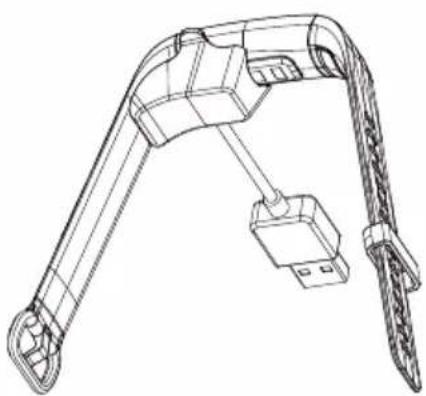
natural_image
Technical line drawing of a mechanical device with articulated arm and cable (no text or symbols)natural_image
Three circular icons with arrows pointing up and down on a dark background (no text or symbols)
natural_image
Simple graphic with a red heart inside a curved arc and a teal triangle, set against a black background (no text or symbols)Dimensions (I x H x P):
41 mm x 19 mm x 12,5 mm
Tour de poignet :
220 mm max.
5.2. Laadstation....94
6. Ingebruikname
natural_image
Technical line drawing of a mechanical device with attached components (no text or symbols)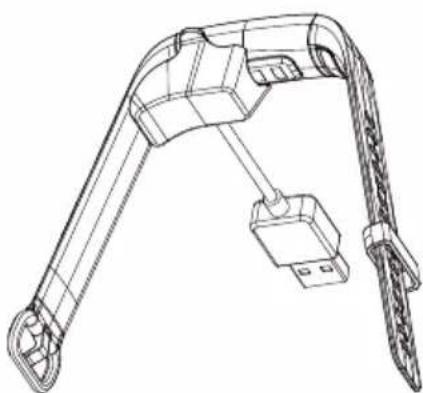
natural_image
Technical line drawing of a robotic arm with attached sensor and connector (no text or symbols)natural_image
Three circular icons with lock symbols: one with an upward arrow, one with a downward arrow, and one with a solid teal circle (no text or labels)
natural_image
Simple graphic with a red heart inside a curved arc and a small triangle on the left (no text or symbols)Voeding: 5 V 500 mA ---
Bluetooth ® -versie: 4.2 LE
- Information about this user manual 32
- Proper use
- Safety information
- Package contents
- Device overview
- Getting started
- Operation 4
- Main menu
- Device settings
- Sport mode 4
- Additional functions with the MEDION® Fitness app. 50
- Cleaning and care 50
- Storing the device when not in use....51
- Troubleshooting 51
- EU Declaration of Conformity.... 52
- Disposal....52
- Technical specifications .... 53
- Service information....54
- Legal Notice 55
- Privacy statement....56
- Information about this user manual
- Explanation of symbols
- DANGER!
- WARNING!
- NOTICE!
- Unauthorised persons
- General information
- WARNING! Risk of explosion!
- WARNING! Risk of fire!
- DANGER! Risk of choking and suffocation!
- Front and back
- Charging station
- Risk of choking and suffocation!
- Charging and using the device
- Risk of damage!
- Setting up the fi tness tracker
- MEDION® Fitness app
- Connecting the device to the app via Bluetooth®
- THE DEVICE IS CONNECTED AND READY TO USE.
- Operation
- Operating functions
- Gestures
- Home screen
- Sport mode
- Special features in swimming mode
- Calibration for certain sport modes
- Activity recording
- Data view during activity
- Heart rate zones
- Data view after ending the activity
- Notifications
- Incoming calls
- Switching off the fitness tracker
- Additional functions with the MEDION® Fitness app.
- Cleaning and care
- Storing the device when not in use
- EU Declaration of Conformity
- Trademark information
- Disposal
- PACKAGING
- DEVICE
- Technical specifications
- Service information
- Legal Notice
- MEDION AG
- Privacy statement
- Sommaire
- Ingebruikname
Brand : MEDION
Model : Life S3900 (MD 61735)
Category : Sports Watch