LIFE S3750 (MD 61613) - Sports Watch MEDION - Free user manual and instructions
Find the device manual for free LIFE S3750 (MD 61613) MEDION in PDF.


| Product Type | Sports Watch / Fitness Tracker |
| Brand | Medion |
| Model | LIFE S3750 (MD 61613) |
| Display | 1.3-inch LCD color touchscreen |
| Dimensions | Approx. 45 x 38 x 11 mm |
| Weight | Approx. 50 g (including strap) |
| Battery Type | Rechargeable lithium-ion battery |
| Battery Life | Up to 7 days with typical use |
| Charging Time | Approx. 2 hours |
| Water Resistance | IP68 (suitable for swimming, up to 50m) |
| Connectivity | Bluetooth 5.0 |
| Sensors | Heart rate monitor, accelerometer, Gyroscope |
| Health Monitoring | Heart rate, blood oxygen, sleep tracking |
| Sport Modes | Walking, running, cycling, swimming, and more |
| GPS | Built-in GPS (via phone or standalone) |
| Compatibility | iOS 10.0+ / Android 6.0+ |
| Notifications | Call, SMS, app notifications |
| Strap Material | Silicone, adjustable |
| Operating Temperature | 0°C to 40°C |
| Care and Cleaning | Wipe with a soft, dry cloth. Avoid chemicals. |
| Safety | Do not disassemble. Keep away from children under 3 years. |
| Spare Parts and Repairability | Battery and strap replaceable; contact Medion support. |
| General Information | For personal fitness use, not a medical device. |
Frequently Asked Questions - LIFE S3750 (MD 61613) MEDION
User questions about LIFE S3750 (MD 61613) MEDION
0 question about this device. Answer the ones you know or ask your own.
Ask a new question about this device
Download the instructions for your Sports Watch in PDF format for free! Find your manual LIFE S3750 (MD 61613) - MEDION and take your electronic device back in hand. On this page are published all the documents necessary for the use of your device. LIFE S3750 (MD 61613) by MEDION.
USER MANUAL LIFE S3750 (MD 61613) MEDION
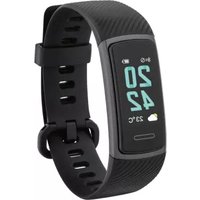
natural_image
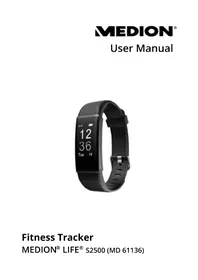
Black fitness tracker with digital display showing 20:42 and date 04/26 (no text or symbols on the device itself)Contents
About this user manual....5
Explanation of symbols ....5
Proper use 6
Safety information 7
Unauthorised persons ....7
General information 7
Package contents ....10
Device overview....11
Getting started 12
Charging and using the device 12
Setting up the fitness tracker ....13
Switching the device on 14
MEDION® Fitness app....14
Connecting the device to the app via Bluetooth ® .....14
Operation....16
Basic functions.... 16
Automatically switching the display on/off 16
Home screen ....17
Main menu 18
Sport modes ....19
Activity recording ....20
Notifications 21
Incoming calls 21
Switching off the fitness tracker....21
Additional functions with the MEDION® Fitness app ......22
Cleaning and care 22
Storing the device when not in use 22
Troubleshooting....23
EU Declaration of Conformity ....23
Trademark information ....24
Disposal 24
Technical specifications....25
Service information 26
Contents
Privacy statement ......27
Legal Notice 28
About this user manual

Thank you for choosing our product. We hope you enjoy using this device.
Read the safety instructions carefully before using the device for the first time. Note the warnings on the device and in the user manual.
Always keep the user manual close to hand. If you sell the device or give it away, please ensure that you also pass on this user manual. It is an essential component of the product.
Explanation of symbols
If a block of text is marked with one of the warning symbols listed below, the hazard described in that text must be avoided to prevent the potential consequences described there from occurring.

DANGER!
This keyword denotes a high-risk hazard situation which will result in death or serious injury if it is not avoided.

WARNING!
This keyword denotes a medium-risk hazard situation which can result in death or a serious injury if it is not avoided.
NOTICE!
This keyword serves as a warning for possible damage to property.

Follow the instructions in the user manual!

This symbol provides useful additional information for assembling or operating the device.

Products that feature this symbol meet the requirements of the EU directives (see chapter entitled “Declaration of conformity”).
This symbol means that the packaging and/or device contains lithium batteries or rechargeable batteries.
Proper use
This fi tness tracker is an information technology device and can be used in many different ways:
- Heart rate monitor
- Step counter
• Calorie consumption calculation - Multi-sport mode (e.g. for walking, running, cycling)
- Sleep monitoring
- Alarm clock
- Notification when a message is received
The device is only intended for private use and not for industrial/commercial use. Please note that we shall not be liable in cases of improper use:
Comply with all the information in this user manual, especially the safety information. Any other use is considered improper and can cause personal injury or property damage.
Safety information
Unauthorised persons
- Keep the device and its accessories out of the reach of children.
- This device can be used by children aged 8 years and above, by people with reduced physical, sensory or mental capabilities, or people who lack experience and/or knowledge, if proper supervision is provided or if these people have been instructed in how to use the device safely and have fully understood the possible dangers.
- Children must not be allowed to play with the device.
- Do not allow children to clean the device or perform maintenance tasks on it unless they are aged 8 years or older and properly supervised.
- Keep the device out of reach of children under the age of 8.
General information
- Do not modify the device without our prior consent.
- Only use replacement parts or accessories that we have supplied or approved.
- The device is designed to illustrate a range of physical data (e.g. heart rate, calorie consumption). It must not be used for medical diagnoses or the treatment or prevention of illness.
- Do not expose the device to extreme conditions.
Avoid:
- extremely high or low temperatures
- direct sunlight
- naked fl ames.
- Do not use the device if there is visible damage to its housing or the display.
- The device contains no user-maintainable parts. Never open the device housing.
- The rechargeable battery is an integral component of the device and users must not replace it themselves.
- Never use optical equipment to look at the LEDs on the underside of the device.
- To prevent the device from being damaged by excessive heat during charging, do not cover it.
- Never put anything on top of the device and never exert any pressure on the display, as it might break.
- Avoid touching the display with sharp objects.
- Do not take the device apart or deform it. You could injure your hands or fingers, or battery fluid could get into your eyes or onto your skin. If you do come into contact with the battery fluid, rinse the affected area with plenty of water and contact your doctor immediately.
- When using the device, keep it at least 20 cm from implanted pacemakers or defi brillators, for safety reasons, to prevent them being affected by it.
- Prolonged contact with the skin may cause skin irritation or allergic reactions in some people.
- Stop using the device if:
- your hands or wrists hurt
- itch
- burn
– or are numb or stiff, either while wearing it or afterwards.

WARNING!
Risk of explosion!
Never throw the device into the fire! Risk of explosion!
- Do not use the device in potentially explosive atmospheres. This includes petrol stations, fuel storage areas and areas where solvents are processed, for example. This device must also not be used in areas with particle-laden air (for example flour or wood dust).

WARNING!
Risk of fi re!
Risk of fire caused by an unintentional short-circuit.
- Stop using the device immediately and, if necessary, disconnect it from the USB power supply:
- if the device produces unusual noises or smoke;
- if the device is damaged by a liquid or high moisture levels;
– in emergency situations.
- Repairs to your device should only be carried out by qualified specialists.
Package contents

DANGER!
Risk of choking and suffocation!
There is a risk of choking and suffocation if plastic film or small parts are breathed in or swallowed.
- Keep packaging away from children.
- Do not allow children to play with the packaging material.
-
The packaging material is not a toy!
-
Remove the product from the packaging and remove all packaging material.
- Check your purchase to ensure that all items are included. If anything is missing, please contact our Service Centre within 14 days of purchase.
- Before each use, check the device for any damage. Contact our Service Centre if you find any damage.
The following items are supplied with your product:
- Fitness tracker (strap with sensor unit)
- Quick start guide and warranty documents
Device overview


1 Display
2 Touch fi eld
3 Fitness tracker holders
4 Pulse sensors
5 USB charging connection
Getting started
▶ Remove all packaging materials.
- Remove the protective film from the display 1.

DANGER!
Risk of choking and suffocation!
There is a risk of choking and suffocation if plastic film or small parts are breathed in or swallowed.
- Keep packaging away from children.
- Do not allow children to play with the packaging material.
- The packaging material is not a toy!
Charging and using the device
NOTICE!
Risk of damage!
There is a risk of damage to the device if the fitness tracker is handled incorrectly.
- The rechargeable battery is an integral component of the device and users must not replace it themselves.
- Remove the sensor unit from the tracker by pulling it firmly if necessary.
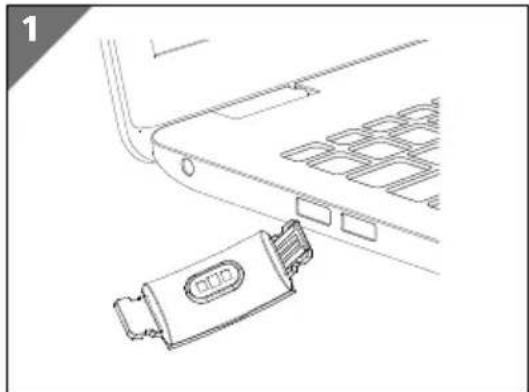
- Connect the fitness tracker to a free USB port on your PC or laptop.

If necessary, use a USB extension (not included) to make it more convenient to charge the fi tness tracker.
natural_image
Line drawing of a car interior showing a connector attached to the window (no text or symbols)- Make sure that the USB connection contacts 5 on the fitness tracker match the contacts on the USB port on your PC or laptop (see Fig. 1).
The fitness tracker vibrates briefly and the charging progress is shown on the display 1.
If the device does not charge, turn the display unit over if necessary and check the operating state of your PC or laptop.

The device needs approximately 120 minutes to charge.
Tap the touch fi el? during charging to view the current charge level.
Setting up the fitness tracker

natural_image
Line drawing of a mechanical device with two curved arms and a central connector (no text or symbols)Insert the charged sensor unit with the pulse sensors 4 facing the inside of the fi tness tracker strap back into the holders on the strap 3 (see Fig. 2).
Place the fitness tracker around your wrist and fasten the strap.

The fi tness tracker should not be too tight or too loose for your wrist. It is worn in the same way as a conventional wristwatch.
To obtain the most accurate heart rate measurement, the fitness tracker should be close to your wrist so that it cannot slip when you move.
Switching the device on
- Press and hold the touch fi eld 2 on the fi tness tracker for approx. 3 seconds until the device vibrates and the display lights up.
The device is now switched on and the home screen with the time is shown on the display 1 (see "Home screen" on page 17, Fig. 4).
MEDION® Fitness app
- Download the associated MEDION® Fitness app to your smartphone/tablet free of charge from the Apple App Store or Google Play Store.
Alternatively, use the QR code below to download the app automatically:
Apple App Store/Google Play Store

Connecting the device to the app via Bluetooth®
A Bluetooth ® -connection is an unencrypted wireless data transfer system which is unprotected against unauthorised third parties.
Bluetooth pairing must be carried out when you first set up the device:
- Enable Bluetooth on your smartphone/tablet.
- Start the MEDION® Fitness app.
- Select the desired language in the app.
The fitness tracker menu language is adapted to your selection automatically.

You can now create a user account with MEDION® Fitness to take full advantage of all the app's functions and to save your activities and data in the history so that this information can be retrieved again at a later date. To create a user account, tap REGISTER WITH MEDION FITNESS and then SIGN UP.
Then enter your personal information such as gender, age, weight, height etc. to enable the calculations (for calorie consumption etc.) to be made using your personal data.
- Now log into your MEDION Fitness user account or continue without registering.
- Activate the fitness tracker by tapping the touch field 2 so that the display lights up.
- Press CONNECT in the app to start searching for devices.
A shortlist of various device models is now shown on the display.
- Select the fitness tracker that you primarily use, in this case it is model S3750.
The app then starts to search for Bluetooth devices within range and displays a list of the devices found.
- Select your fitness tracker S3750 from the list of devices.
A rotating circle is now displayed on your fitness tracker for 10 seconds.
- Within these 10 seconds, press and hold the touch fi eld for at least 2 seconds to confirm the connection between the devices.
Once the connection is successful, a green check mark √ is shown on the fitness tracker display 1.

If you do not confirm the connection on the fitness tracker within 10 seconds, you must repeat the connection process using the app.
Once the connection is successful, √ will appear on your fitness tracker
and the following text will be displayed in the app: THE DEVICE IS CONNECTED AND READY TO USE.
- Tap FINISH to finish establishing the connection.
If the fitness tracker is connected to a smartphone/tablet, the Bluetooth symbol lights up white on the display 1.
All measured data is synchronised with the MEDION® Fitness app automatically or manually, if necessary.

If you would like further information or advice on using the MEDION® Fitness app, please use the feedback function within the app. You can also download the user manual for the MEDION® Fitness app from within the app.
Operation
Basic functions
- When the display is switched off, tap the touch fi eld 2 to switch it on.
- Tap the touch fi eld to scroll through the menu items.
- Tap and hold the touch fi eld to open a submenu, confi rm your selection or switch a function on/off.
Automatically switching the display on/off
- Raise your wrist to automatically switch on the display on your fitness tracker.
- Lower your wrist to switch off the display on your fitness tracker.
You can enable or disable this function under ENABLE "HAND UP" GESTURE in the device settings within the MEDION® Fitness app.
Homescreen
Once switched on, the fitness tracker display starts on the home screen.
You can choose between various different home screen designs in the device settings in the MEDION® Fitness app (see Fig. 3).
3

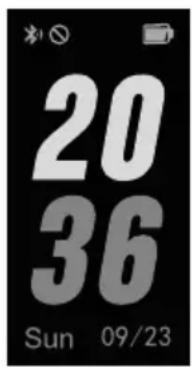

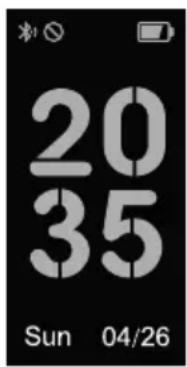

The following descriptions refer to the use of the default design (see Fig. 4).
The following information is displayed on the home screen:
1 Battery charge level
2 Time
3 Weather forecast (Bluetooth connection with the MEDION® Fitness app and an active internet connection on the smartphone/tablet PC required)
4 Bluetooth connection status
(If the Bluetooth connection is active, the Bluetooth symbol is constantly displayed in white).
5 "Do not disturb" mode active (All notifications on the fitness tracker are switched off)
Main menu
- Tap the touch fi eld 2 to scroll through the menu items.
- Tap and hold the touch fi eld to open the respective submenu.

The current daily step count is displayed under this menu item.
- On the step count display, tap and hold the touch screen to open the data views for the following additional daily values:
• Number of steps
- Distance travelled
• Calories consumed
• Activity duration

- Scroll to this menu item to perform a current heart rate measurement.
Measurement starts automatically.
Once completed, the measurement result is shown on the display 1.

- Scroll to this or another available sport mode menu item to start activity recording in the selected sport mode (see “Activity recording” on page 20).

Additional sport modes are available for selection via the MEDION® Fitness app (see "Sport modes" on page 19).

- Scroll to this menu item to use the stop watch function.
- Tap and hold the touch fi eld 2 for 2 seconds to open the stop watch function.
- Tap the touch fi eld to start the stop watch.
- Tap the touch fi eld while the stop watch is running to pause the stop watch. Tap again to resume use of the stop watch.
- Press and hold the touch fi eld for 2 seconds to exit the stop watch function and to return to the main menu.
 | This menu item appears if an alarm has previously been programmed on the MEDION® Fitness app. The programmed wake-up time and week day for the next alarm is displayed.-Press and hold the touch fi eld 2 for 3 seconds to switch the wake-up alarm on/off via the fi tness tracker.Alarms are shown in grey when switched off. Use the MEDION® Fitness app to add or edit an alarm. Use the MEDION® Fitness app to add or edit an alarm. |
 | -Scroll to this menu item to switch off the fi tness tracker.-Press and hold the touch fi eld 2 for approximately 4 seconds.The countdown to switch off is shown on the display 1. The device switches off after 3 seconds. |
Sportmodes
The fi tness tracker already provides you with a selection of different sport modes by default.

Use the MEDION® Fitness app to select an activity from an extended range (e.g. badminton, climbing, dancing etc.)**.

To measure the speed and distance travelled during cycling mode, the fitness tracker must be connected to the app. Start your activity at the same time as starting activity recording on the app.
** The range offered varies depending on the device model.
Activityrecording
- Select the desired sport mode on the fitness tracker menu, e.g. .
- Tap and hold the touch fi eld 2 for 2 seconds to start activity recording.
Recording starts once the three-second countdown has elapsed.

If the battery level is too low to start activity recording, you will see a corresponding message on the fitness tracker. In this case, fully charge the battery straight away.
- During the activity, tap the touch fi eld to switch between the following value views:
• Number of steps, Calories consumed
- Distance travelled, Speed (required time per kilometre)
- Heart rate
- Tap and hold the touch fi eld for 2 seconds to end activity recording.

Activities of less than 1 minute cannot be saved.

The fi tness tracker automatically ends sport mode if no activity has been detected for 15 minutes.

You can also simply pause activity recording via the MEDION® Fitness app and then resume activity at the same point.
After ending the activity, the following values are shown once on the fitness tracker.
• Number of steps, Calories consumed
• Distance travelled, Average speed (required time per kilometre)
• Heart rate, Activity duration
- Tap the touch fi eld 2 to switch between the various value views. After viewing the values, you return back to the main menu automatically.

ATTENTION! It is not possible to subsequently call up the values again on the fi tness tracker!
If the fitness tracker is connected to the MEDION® Fitness app, all measured values are automatically transferred to the app or can be manually synchronised with the app.
Notifi cations
Using the MEDION® Fitness app you can specify which applications should be permitted to send you notifications on the fitness tracker.
This enables you to specify that you would like to receive notifications for incoming e-mails, WhatsApp messages, SMS or calls. Equally the opposite also applies, you can deselect unwanted notifications in the app settings.
- Tap the touch fi eld 2 to view outstanding new notifi cations one by one.

Take care to ensure that "Do not disturb" mode is switched off in the MEDION® Fitness app to receive notifications on the fitness tracker.
Incoming calls
Once you have given the necessary permissions in the MEDION® Fitness app, incoming calls are indicated on the fitness tracker.
- Tap the touch fi eld 2 to ignore an incoming call.
- While there is an incoming call, press and hold the touch fi eld to reject the incoming call via the fi tness tracker.
Switching off the fitness tracker
- Tap on the touch fi eld 2 until the switch-off icon is displayed.
- Press and hold the touch fi eld for 4 seconds.
The countdown to switch off is shown on the display 1. The device switches off after 3 seconds.
Additional functions with the MEDION® Fitness app
Additional functions are available for your fitness tracker with the MEDION® Fitness app, such as the option to set an alarm, movement reminder or process daily goals.

For more information on using the MEDION® Fitness app, refer to the user manual within the app. If you have any questions, use the integrated feedback function.
Cleaning and care
NOTICE!
Risk of damage!
- Do not use any aggressive chemical agents, scouring agents or hard sponges for cleaning.
- The heart rate measurement sensor surfaces 4 on the underside of the fitness tracker must always be kept clean, since dirt may, if applicable, affect the measurement.
- Clean the fitness tracker's external surfaces regularly with a damp cloth.
- After use in chlorinated or salty water, rinse the fitness tracker thoroughly under clean running water to prevent permanent damage.
Storing the device when not in use
- Switch off the fitness tracker when it is not in use and store it in a dry, dust-free environment.
- Carry out a complete discharging and charging cycle each month. This prevents the battery from completely discharging and becoming permanently damaged making it unable to be charged again.
Troubleshooting
| Problem Possible cause Solution | ||
| The device cannot be switched on. | The device battery is not charged. | - Charge the fi tness tracker. |
| No/incorrect pulse measurement | The sensor surfaces are dirty.The strap is too loose around the wrist. | - Clean the sensor surfaces4.- Make sure that the strap is not fastened too loosely around your wrist. |
| Data transfer between the fi tness tracker and smartphone/tablet is faulty. | No Bluetooth connection | - Perform the Bluetooth pairing again.- If necessary, uninstall the MEDION® Fitness app and then reinstall it with subsequent Bluetooth pairing. |
| Distance determined does not seem right | The step length has been set incorrectly. | - Check the step length that has been set in the app and correct this if necessary. |
| The calculation of calories burned is incorrect/implausible. | Your personal data has been stored incorrectly. | - In the app, check the gender, weight and height entered in your personal data. |
EU Declaration of Conformity
CE MEDION AG hereby declares that this device complies with the fundamental requirements and the other relevant provisions of:
• Radio Equipment Directive 2014/53/EU
• RoHS Directive 2011/65/EU.
You can download the complete EU Declaration of Conformity at www.medion.com/conformity.
Trademark information
The Bluetooth® word mark and logos are registered trademarks of Bluetooth SIG, Inc. and are used by MEDION under licence.
The Android ™ word mark and logos are registered trademarks of Google LLC and are used by MEDION under licence.
The USB ™ word mark and logos are registered trademarks of the USB Implementers Forum, Inc. and are used by MEDION under licence.
Other trademarks are the property of their respective owners.
Disposal

PACKAGING
Your device has been packaged to protect it from damage in transit. The packaging is made of materials that can be recycled in an environmentally friendly manner.

DEVICE
Old devices that carry the symbol illustrated may not be disposed of in ordinary household waste.
In accordance with Directive 2012/19/EU, these devices must be disposed of correctly at the end of their service life.
This involves separating the materials in the devices for the purpose of recycling and minimising the environmental impact.
Take old devices to a collection point for electrical scrap or a recycling centre.
The integrated battery cannot be removed. Take the entire device for disposal.
Contact your local waste disposal company or your local authority for more information on this subject.
Technical specifications
CPU: Nordic NRF52832
Integrated battery: Li-Ion battery 3.7 V / 90 mAh
Operating temperature: 0°C to +40°C, max. 90% RH
Storage temperature: -10°C to 45°C
Battery charging time: Approx. 120 minutes
Battery capacity: Up to 7 days
Charge connection: USB 2.0
Power supply: 5 V = 500 mA
Bluetooth® version: 4.0 LE
Bluetooth range: Approx. 10 m
Bluetooth frequency range: 2402 to 2480 MHz
Max. Bluetooth transmission power: -1.99 dBm
Protection class: IP68, immersion depth max. 1.5 m for max. 30 minutes
Dimensions: 42 mm x 21 mm x 13 mm
Wrist circumference: Max. 220 mm
Weight incl. strap: 24 g
Service information
Please contact our Customer Service team if your device ever stops working the way you want or expect it to. There are several ways for you to contact us:
- In our Service-Community, you can meet other users, as well as our staff, and you can exchange your experiences and pass on your knowledge there. You will find our Service-Community at community.medion.com.
• Alternatively, use our contact form at www.medion.com/contact. - You can also contact our Service team via our hotline or by post.
| Opening times Hotline number UK | |
| Mon – Fri: 08.00 – 20.00Sat – Sun: 10.00 – 16.00 | 0333 3213106 |
| Service address | |
| MEDION Electronics Ltd.120 Faraday Park, Faraday Road, DorcanSwindon SN3 5JF, WiltshireUnited Kingdom | |
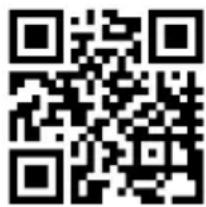
You can download this and many other sets of operating instructions from our service portal at www.medionservice.com.
You will also find drivers and other software for a wide range of devices there.
You can also scan the QR code on the side of the screen, to download the operating instructions onto your mobile device from the service portal.
Privacy statement
Dear customer,
We wish to inform you that we, MEDION AG, Am Zehnthof 77, D-45307 Essen, Germany process your personal data as a data controller.
For matters regarding data protection, we are supported by our company data protection officer who can be contacted at MEDION AG, Datenschutz, Am Zehnthof 77, D-45307 Essen; datenschutz@medion.com. We process your data for the purpose of warranty processing and associated processes (e.g. repairs) and therefore rely on processing your data for the sales contract concluded with us.
Your data will be provided to repairers contracted to us for the purpose of warranty processing and associated processes. We generally store your personal data for a period of three years in order to fulfil your legal warranty rights.
You have the right to be informed of the personal data concerned as well as the right to rectifi cation, deletion, restriction of processing, the right to object to processing, as well as the right to data portability.
In case of access and cancellation rights, restrictions apply according to S 34 and S 35 of BDSG (Federal Data Protection Act) (Art. 23 GDPR). In addition, there is a right of appeal to a competent data protection supervisory authority (Article 77 GDPR in conjunction with S 19 BDSG). The state official for data protection and freedom of information for MEDION AG is Nordrhein Westfalen, P box 200444, 40212 Düsseldorf, Germany. www.ldi.nrw.de.
The processing of your data is necessary for warranty processing: it is not possible to process the warranty without the provision of the required data.
Legal Notice
Copyright © 2021
Date: 01.09.2021
All rights reserved.
These operating instructions are protected by copyright.
Mechanical, electronic and any other forms of reproduction are prohibited without the written permission of the manufacturer.
Copyright is owned by the distributing company:
MEDION AG
Am Zehnthof 77
45307 Essen
Germany
Please note that you cannot use the address above for returns. Please always contact our Customer Service team first.
Great care has gone into the manufacture of this product and it should therefore provide you with years of good service when used properly. In the event of product failure within its intended use over the course of the first 3 years after date of purchase, we will remedy the problem as quickly as possible once it has been brought to our attention. In the unlikely event of such an occurrence, or if you require any information about the product, please contact us via our helpline support services, details of which are to be found both in this manual and on the product itself.
Appliances can be used by persons with reduced physical, sensory or mental capabilities or lack of experience and knowledge if they have been given supervision or instruction concerning use of the appliance in a safe way and understand the hazards involved.
GB IE
PRODUCED IN CHINA FOR:
MEDION AG
AM ZEHNTHOF 77
45307 ESSEN
GERMANY
AFTER SALES SUPPORT
718034


0333 3213106 1 800 992508
Standard local land-line call rate Free hotline
www.medion.co.uk
MODEL:
MD 61613
12/2021
3
YEAR
WARRANTY
- Contents
- About this user manual....5
- Proper use 6
- Safety information 7
- Package contents ....10
- Device overview....11
- Getting started 12
- Operation....16
- Main menu 18
- Sport modes ....19
- Additional functions with the MEDION® Fitness app ......22
- Cleaning and care 22
- Storing the device when not in use 22
- Troubleshooting....23
- EU Declaration of Conformity ....23
- Disposal 24
- Technical specifications....25
- Service information 26
- About this user manual
- Explanation of symbols
- DANGER!
- WARNING!
- NOTICE!
- Proper use
- Safety information
- Unauthorised persons
- General information
- Avoid:
- Risk of explosion!
- Risk of fi re!
- Package contents
- Risk of choking and suffocation!
- Device overview
- Getting started
- Charging and using the device
- Risk of damage!
- Setting up the fitness tracker
- Switching the device on
- MEDION® Fitness app
- Connecting the device to the app via Bluetooth®
- Operation
- Basic functions
- Automatically switching the display on/off
- Homescreen
- Main menu
- Sportmodes
- Activityrecording
- Notifi cations
- Incoming calls
- Switching off the fitness tracker
- Additional functions with the MEDION® Fitness app
- Cleaning and care
- Storing the device when not in use
- EU Declaration of Conformity
- Trademark information
- Disposal
- PACKAGING
- DEVICE
- Technical specifications
- Service information
- Privacy statement
- Legal Notice
- MEDION AG
- Am Zehnthof 77
- Essen
- Germany
- GB IE
- PRODUCED IN CHINA FOR:
Brand : MEDION
Model : LIFE S3750 (MD 61613)
Category : Sports Watch