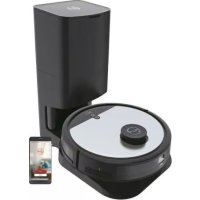
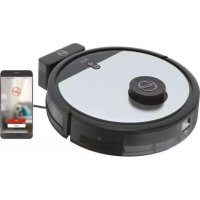
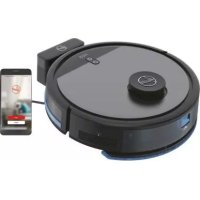
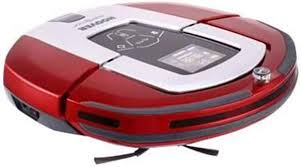
HGO 300 HYDRO PRO HGO330HC 011 - Robot vacuum HOOVER - Free user manual and instructions
Find the device manual for free HGO 300 HYDRO PRO HGO330HC 011 HOOVER in PDF.
| Technical Specifications | HOOVER HGO 300 HYDRO PRO HGO330HC 011 Robot Vacuum Cleaner |
|---|---|
| Vacuum Type | Robot Vacuum |
| Tank Capacity | Not specified |
| Battery Life | Not specified |
| Charging Time | Not specified |
| Cleaning Modes | Not specified |
| Connectivity | Not specified |
| Dimensions | Not specified |
| Weight | Not specified |
| Usage | Ideal for hard floors and light carpets |
| Maintenance | Regular cleaning of brushes and filters recommended |
| Safety | Equipped with obstacle and fall sensors |
| General Information | Check compatibility with your floor type before purchase |
Frequently Asked Questions - HGO 300 HYDRO PRO HGO330HC 011 HOOVER
Download the instructions for your Robot vacuum in PDF format for free! Find your manual HGO 300 HYDRO PRO HGO330HC 011 - HOOVER and take your electronic device back in hand. On this page are published all the documents necessary for the use of your device. HGO 300 HYDRO PRO HGO330HC 011 by HOOVER.
USER MANUAL HGO 300 HYDRO PRO HGO330HC 011 HOOVER
MANUAL DE INSTRUÇÕES (PT) ....42
This appliance should only be used for domestic cleaning, as described in this user guide. Please ensure that this guide is fully understood before operating the appliance. Always switch off and remove the charger from the socket before cleaning the appliance or any maintenance task. This appliance can be used by children aged from 8 years and above and persons with reduced physical, sensory or mental capabilities or lack of experience and knowledge if they have been given supervision or instruction concerning use of the appliance in a safe way and understand the hazards involved. Children shall not play with the appliance. Cleaning and user maintenance shall not be made by children without supervision. If the power cord is damaged stop using the appliance immediately. To avoid a safety hazard, an authorised Hoover service engineer must replace the power cord. If the area to be cleaned contains a balcony or stairs, a physical barrier should be used to prevent access to the balcony or stairs and ensure safe operation. Small children and pets must be supervised while the Robot is cleaning. Always store the appliance indoors. Do not use outdoors or expose the appliance to the elements, humidity or heating sources (oven, replace, wet oor). Do not expose the Robot or accessories to excessive heat / cold (keep between 0-30°C). Do not drop the Robot or use any accessory if it has been dropped, damaged, left outdoors or dropped in water. Never unplug or pull the mains power adaptor by the power cord. Do not use to clean stairs. Battery Charging Use only the original charger supplied with the appliance. Check that your supply voltage is the same as that stated on the charger. Never charge the batteries in temperatures above 30°C or below 0°C. Plug the charger delivered with this appliance into a suitable socket. Leaks from battery cells can occur under extreme usage or temperature conditions. If the liquid gets on skin, wash quickly with water. If the liquid gets into the eyes, ush them immediately with clean water for a minimum of 10 minutes. Seek medical attention. It is normal for the charger to become warm to the touch when charging. Use only attachments, consumables or spares recommended or supplied by Hoover. Do not pick up hard or sharp objects, matches, hot ashes, cigarette ends or other similar items. Do not spray with or pick up ammable liquids, cleaning uids, aerosols or their vapours. Do not continue to use your appliance or charger if it appears faulty. Hoover service: To ensure the continued safe and efcient operation of this appliance we recommend that any servicing or repairs are only carried out by an authorised Hoover service engineer. Do not use the appliance to clean animals or people. Do not replace the Robot batteries with non-rechargeable batteries. If the Robot will not be used for a long time (several weeks), unplug the mains power adaptor. End of life battery removal If the appliance is to be disposed of the batteries must rst be removed. The appliance must be disconnected from the supply mains when removing the battery. Dispose of the batteries safely. Run the appliance until it stops because the batteries are fully discharged. Used batteries should be taken to a recycling station and not disposed of with household waste. To remove the batteries, please contact the Hoover Customer Centre or proceed according to the following instructions. Unplug the charger and switch off the Robot. Turn the Robot over and place on a level surface. Remove the screws and battery compartment cover. Remove the battery pack. [Fig. 7] NOTE: Should you experience any difculty in dismantling the unit or for more detailed information on treatment, recovery and recycling of this appliance, please contact your local city ofce or your household waste disposal service.
- Certain Models Only ** May vary according to model GB3 Robot Cleaner Charger Base Remote Control Mains Power Adaptor X4 Edge Cleaning Brush X1 Additional Filter X2 AAA Batteries Cleaning Brush Water tank and X2 Mops
IMPORTANT NOTES BEFORE USE
Please read the following information carefully before using your Robot or its accessories. Do not disassemble the Robot and do not attempt to repair it yourself. If a fault occurs, please contact the Hoover after Sales Service for professional advice. Stairs: The Robot uses sensors to avoid falling down steps, stairs or over an edge. In some situations the sensors can become confused. The Robot cannot detect steps that are less than 8cm in height. Steps less than 8cm may cause the Robot to fall down. If available, use the Virtual Barrier to protect your Robot from falling. Highly reective or very dark surfaces used on some steps or stairs, such as glass or polished ceramics may cause the Robot to fall down.
available use the Virtual Barrier or place a carpet on the lower step to protect your Robot from falling. Using your Robot on mezzanines, landings or raised areas without borders should be avoided. If available use the Virtual Barrier to prevent your Robot entering these areas. Battery Use: Your Robot is powered by rechargeable, high capacity lithium ion batteries. These rechargeable batteries are guaranteed for a period of 6 months if they are maintained and operated according to this User Manual. In the event of a signicant drop in the Robot’s performance, replacement batteries can be obtained from your Hoover retailer. Only use Hoover approved replacement parts for your Robot. Use of parts that are not approved by Hoover are dangerous and will invalidate your warranty. Only use the supplied charging station and mains power adaptor to recharge your Robot. Use of the incorrect charging station or mains power adaptor is dangerous and will invalidate your warranty. The Environment The symbol on this appliance indicates that this appliance may not be treated as household waste. Instead it must be handed over to the applicable collection point for the recycling of electrical and electronic equipment. Disposal must be carried out in accordance with local environmental regulations for waste disposal. For more detailed information about treatment, recovery and recycling of this appliance, please contact your local city ofce, your household and waste disposal service or the shop where you purchased the appliance. This appliance complies with the European Directives 2014/53/EU and 2011/65/EU . To receive a copy of the declaration of conformity, please contact the manufacturer through the website: www.candy-group.com CANDY HOOVER GROUP Srl Via Privata Eden Fumagalli, 20861 Brugherio (MB) Italy Frequency bands 2412Mhz ~ 2472Mhz Maximum RF power transmitted in the frequency band
1 On/ Standby Switch with Power LED 2 Front Bumper 3 Dust Container Release Button 4 Dust Container 5 HEPA Filter 6 Filter Holder 7 DC Jack, vacuum Robot 8 Charging Contacts 9 Charger Base 10 Mains Power Adaptor 11 Charge Control LED 12 DC Jack, Charger Base 13 Agitator 14 Drive wheel 15 Edge Cleaning Brush 16 Robot Charging Contacts 17 Anti-Fall Sensor 18 On/Off Switch 19 Water Tank 20 Mop
- Certain Models Only ** May vary according to model GB5
PACKAGING Do not dispose of your Robot packaging. It may be required the validity of your guarantee in the future. When unpacking your Robot and its accessories, take care to keep plastic bags away from babies, young children and animals to avoid the risk of suffocation. Before rst use, charge your appliance for 8 hours. [Fig. 1] From the second charge, it will take 4-5 hours to be fully recharged. Do not expose the Robot’s mains power adaptor to temperatures below 0°C or above 30°C as this may damage the battery. The mains power adaptor must only be connected to a standard mains power outlet. BATTERY For optimum battery performance it is recommended that you keep your robot batteries fully charged. When the robot is not in use it should be left connected to the mains power adaptor. The robot has an intelligent charging system. this prevents the batteries from becoming overcharged. To avoid accidents, make sure that every person in the room is aware of the presence of the robot. Charging Station Setup Before use, remove obstacles that may get in the path of the Robot. Pay attention to:
- Objects that can be easily knocked over.
- Edges of carpets or rugs that it may get caught on.
- Floor length curtains and tablecloths.
- Heat sources or ammable items.
- Power cords and cables.
- Fragile objects. Plug in the mains power adaptor and connect to the charging station. [Fig. 2]
1. Make sure the power cord is not caught underneath the charging station.
2. Place the charging station on a non-reective level oor, preferably against a wall. If the oor
surface is too reective, it will interfere with the Robot navigation system and it may have difculty locating the charging station.
3. There should not be any objects in the area around the charging station for 2 meters in front and 1
meter to each side. [Fig. 2]
4. Make sure the power cord is not tangled or stretched. If there is an excess, use the power cord tie
5. Check that the dust container is inside on Robot.
6. Press the two rotary brushes labelled L and R onto the brackets until they click into place. Pay
attention to the designation L and R on the device as well as the brushes. [Fig. 3]
7. Guide your Robot into the charging station to begin. During normal use, it will take approximately
4/5 hours to complete a full recharge. NOTE: Before rst time use the batteries must be charged for at least 8 hours.
- Certain Models Only ** May vary according to model GB6
USING YOUR ROBOT CLEANER
Set time To use the timer, the rst time must be set on the remote control. [Fig. 8] Press the time button. Press the Left/Right buttons to select the current day. Press the Play/Pause button to set the day. The hours will then start ashing. Press the Up/Down buttons to set the hour. Press the Left/Right buttons to select the minutes. Press the Up/Down buttons to set the minutes. Press the Left/Right buttons to select the minutes. Press the Up/Down buttons to set the minutes. Press the Play/Pause button to set the time. An audible signal is given from the robot signifying that the time has been set. If the audible signal is not given, Press the ‘AUTO’ button on the robot, then press the time button on the remote control. Power On
1. Press the ON/OFF power switch on the bottom robot. [Fig. 9]
2. Press the on/ standby button on the device or the start/ pause button on the remote control to start
the cleaning process. [Fig. 10] In standby mode, the LED is off. To activate the vacuum robot press the on/ standby button on the device or the start/ pause button on the remote control. When the battery level is low, the robot automatically returns to the charging station. [Fig. 11] Remote Control Setup Open the battery compartment on the back of the remote control. Insert two AAA / LR03 batteries into the battery compartment. [Fig. 4] Observe the correct polarity (+/-). Charging the battery Switch on the vacuum robot with the on/off switch on the bottom ( I ). [Fig. 9] Set it down in front of the charging station. Press the on/ standby switch on the vacuum robot or the charging base button on the remote control and then immediately the charging station button. Make sure the robotic vacuum cleaner is moving to the charging station. [Fig. 5] NOTE: Make sure that the charging contacts of the robot vacuum cleaner and charging base are not dirty. Clean the contacts if necessary. It is normal for the charging base and vacuum cleaner to become warm during charging. Remove the water tank before charging the robot vacuum cleaner. When the battery is charging, the on/ standby switch LED ashes blue. if the battery is charged, the LED is on permanently. [Fig. 6] LED indicator
PEMANENTLY BLUE Battery is fully charged BLUE FLASHING During charging
Product is swithced off PEMANENTLY RED Error Battery Over time the capacity of your robot battery will diminish and it will need to be replaced. A replacement battery can be purchased from an approved Hoover retailer. Only use genuine Hoover spares and accessories. Removal and replacement Ensure the robot is switched OFF. Locate the battery compartment cover on the underside of the robot and remove the two screws. Remove the battery from the compartment and disconnect the connector. Ret a new battery and reconnect the connector. Pay attention to correct alignment of the connector. Ret the battery cover and the two screws. [Fig. 7]
- Certain Models Only ** May vary according to model Fig. 5Fig. 4Fig. 7Fig. 6Fig. 8Fig. 9Fig. 11Fig. 10 GB7 MAX Setting up the Cleaning Schedule [Fig. 12] Press the schedule button. Press the Left/Right buttons to select a day. Press the Up/Down buttons to select or deselect that day, several days can be selected. When all required days are selected, Press the Play/Pause button to set. The hours will then start ashing. Set the time you want to start the scheduled cleaning. Press the Up/ Down buttons to set the hours. Press the Play/Pause button to set the hours. The minutes will then start ashing. Press the Up/Down buttons to set the minutes. Press the Play/Pause button to set the minutes. An audible signal is given from the robot signifying that the schedule has been set. If the audible signal is not given, Press the ‘AUTO’ button on the robot, then press the schedule button on the remote control. The LED of the control lamp ashes. At the set time, the cleaning process starts. To deactivate the start time, press the Schedule button for approx. 3 seconds. The Schedule symbol in the display of the remote control turns off. Setting Power Level Press POWER LEVEL button on the remote control to select the desired power level. Choose between Normal Power and Turbo Power . Setting Cleaning Mode AUTO : Press the on/ standby button on the device or the start/ pause button on the remote control to start the cleaning process. Robot will automatically choose the best cleaning mode to clean you room. PARALLEL: Press MODE button on the remote control for the robot to start cleaning under this mode . SPOT: Press MODE button on the remote control. It cleans a intensively conned area following a circular path . EDGE: Press MODE button on the remote control, It will automatically start cleaning along walls, around furniture etc . MANUAL: the robot can be controlled using the arrows on the remote control. RETURN TO BASE: Press the button on the remote control to send the robot to the charging base. This mode can be activated during any cleaning cycle and the robot will automatically return to the charging base. When a cleaning cycle has been completed or the robot’s battery is low, the robot will also return to the charging base automatically.
WARNING: If there are obstacles in the room being cleaned, the robot might not be able to reach the
charging base. In this case, take the robot manually. WI-FI SETUP In order to access all the robot’s functions from anywhere, it is suggested to download the Hoover H-GO 300 App. You will be able to control the robot in the most efcient way. App advantages:
- Control your robot in an easy and intuitive way.
- Activate the cleaning process from anywhere.
- Carry out settings and daily scheduling.
- Choose between its different cleaning modes. Instructions:
3. Press the on/ standby button on the device until the button ashes.
4. Open the APP, create an account with your e-mail and a password.
6. Turn on the WIFI on your smartphone, input the WIFI password and connect the robot.
- The Wi-Fi name and password cannot exceed 32 characters.
- If the network conguration fails to connect, follow the below steps: a) The robot is too far away from the router. b) The Wi-Fi password is incorrect. c) The Wi-Fi networks is not 2.4G Hz. Fig. 12
- Certain Models Only ** May vary according to model GB8 MAX MOPPING FUNCTION OPERATION
1. Remove the mopping cloth from the bottom part of the water tank. [Fig. 13]
2. Open the water tank’s rubber cap, ll it up with water and close it again. [Fig. 14]
Add some cleaning agent if considered necessary.
3. Align the water tank with the Robot’s bottom part and push it into its correct position until you hear a
click indicating it is properly xed. [Fig. 15] NOTE: remove the water tank when the robot is charging or not in use. NOTE: To enhance the cleaning result and to achieve an equal distribution of water onto the oor, it is necessary to soak the cleaning cloth under running water and slightly wring it out, before attaching it to the water tank. This enhances equal ow of water from the water tank through the cleaning cloth.
WARNING: Water will start to drip out of the attachment, as soon as the water tank has been inserted.
Start the cleaning process immediately after inserting the water tank, so avoid possible damages to the oor. Due to the same reason, remove the water tank directly after the cleaning process has ended. Always supervise the product during the cleaning, to prevent water damages to the ooring, in case the robot should get stuck.
4. After mopping, remove the water tank and the mop. Open the rubber cap and pour remaining water
out of the tank. [Fig. 16]
5. Remove the mop from the water tank and wash it with delicate detergent and rinse it off. Wring the
After vacuuming, remove the dust container.
1. Press the release button and pull it out. [Fig. 17]
2. Hold the dust container over a dust bin. [Fig. 18]
3. Use the cleaning brush when necessary to remove any excess dust from the internal surface of the
CLEANING THE FILTERS
The robot is tted with a pre-motor lter. To maintain optimum cleaning performance, regularly clean the lter cover, the pre-motor lter. They should be cleaned every 5 dust container empties and should not be washed.
1. Turn the robot off and remove from the charging station.
2. Press the dust container release button and remove the dust container from the robot. [Fig. 17]
3. Remove all lter components and clean them separately. The assembly is done in reverse
order. [Fig. 19] Make sure, that the lter insert is correctly assembled. To ensure this, press the shorter side wall into the tting rst, before pushing in the lter on the other sides by pressing down on the edges. IMPORTANT: Regularly check and maintain the lters by following the lter maintenance instructions. This will maintain your robot’s performance.
CLEANING ANTI FALL SENSORS
To maintain the safe operation of your robot it is important to keep the Anti fall sensors clean. There are 3 sensors are located on the underside of the robot. Turn the robot upside down and clean them with a soft brush to remove any accumulation of dust, dirt or debris. [Fig. 20] Fig. 19Fig. 17Fig. 18Fig. 13Fig. 14Fig. 16Fig. 15Fig. 20 GB9
CLEANING THE AGITATOR
Regularly clean the agitator to maintain maximum cleaning performance.
1. Turn the Robot off.
2. Turn the Robot over. [Fig. 21]
3. Press the clips on the sole plate, remove the cap and then remove the agitator. Remove hair and
lint, etc. by hand or with a brush.
CLEANING THE EDGE SIDE BRUSHES
The edge cleaning brushes can be easily worn from heavy use so you should check them regularly to monitor their condition.
1. Switch the Robot off and turn it over.
2. Remove any dirt or hair trapped in the wheels.
3. Clean the wheels with a dry cloth. [Fig. 22]
IMPORTANT NOTICE Only use approved replacement parts for your Robot. Using parts not validated by Hoover are dangerous and will invalidate your guarantee. If the Robot will not to be used for several months, please remove the batteries and store in cool a dry location. IMPORTANT: Always make sure your device is switched off before changing. Always use two hands to lift and carry, and ensure the robot is held level. [Fig. 23] When lifting the robot cleaner, ensure you do not grip the lter compartment to avoid accidental opening. [Fig. 24] You should avoid using your robot cleaner in direct sunlight or on dark polished surfaces as these conditions will adversely affect the behaviour of your robot. [Fig. 25] Fig. 22 Fig. 21 IMPORTANT INFORMATION Hoover Spares and Consumables Always replace parts with genuine Hoover spares. These are available from your local Hoover dealer or direct from Hoover. When ordering parts always quote your model number. Quality Hoover’s factories have been independently assessed for quality. Our products are made using a quality system which meets the requirements of ISO 9001. Your Guarantee The guarantee conditions for this appliance are as dened by our representative in the country in which it is sold. Details regarding these conditions can be obtained from the dealer from whom the appliance was purchased. The bill of sale or receipt must be produced when making any claim under the terms of this guarantee. Subject to change without notice. TROUBLESHOOTING The following is a list of commonly encountered problems and solutions. If any of these problems persist contact your local Hoover representative. The Robot does not work
- Robot requires attention.
- Check that the Robot is switched on.
- Check that the dust container, filter are clean.
- Check if the Robot needs to be charged. Cleaning power is weak
- Turn power off and empty dust container.
- Check and clean the filter and motor.
- Check and clean the Floor Brushes.
- Check and clean the sensors.
- Check and clean the drive wheels. The Robot is very noisy while cleaning
- Clean the dust container and filter.
- Check the brushes and drive wheels for dirt and debris. the Robot does not automatically charge
- Make sure there are no barriers between the Robot and the charger station. Robot is trapped
BOKSENS INNHOLD NO12
PÖLYSÄILIÖN TYHJENNYS
- Preverite in očistite filter in motor.
ManualGo.com