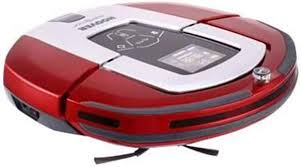
RBC040 ROBO.COM3 - Robot vacuum HOOVER - Free user manual and instructions
Find the device manual for free RBC040 ROBO.COM3 HOOVER in PDF.



| Brand | HOOVER |
| Model | RBC040 ROBO.COM3 |
| Product type | Robot vacuum |
| Power supply | Rechargeable Ni-MH batteries, mains adapter and charging station |
| Battery | High capacity Ni-MH (rechargeable) |
| Initial charging time | Approximately 6 hours |
| Filtration system | Washable pre-motor filter (clean every 5 empties) |
| Cleaning modes | Auto, Spot, Manual navigation, Full & Go, Scheduled, Turbo |
| Navigation | AAI™ Infrared (advanced navigation system) |
| Additional functions | Automatic return to base, UV lamp (on some models), buffering pad |
| Remote control | Included (2 AAA batteries) – range up to 10 m through walls |
| Virtual wall (optional) | Included on some models (2 AA batteries) – range 2/4/6 m |
| Sensors | Floor sensors, drop sensors, front bumper, wall sensors |
| Safety | Stair detection (steps <8 cm not detected), indoor use only |
| Maintenance | Emptying dustbin, cleaning filter, brushes, wheels and sensors |
| Available spare parts | Filter (RB208), battery (RB201), floor brushes (RB202), remote control, etc. |
| Warranty | According to conditions of the country of purchase (battery guaranteed 6 months) |
| Standards | ISO 9001 quality, WEEE compliance |
Frequently Asked Questions - RBC040 ROBO.COM3 HOOVER
User questions about RBC040 ROBO.COM3 HOOVER
0 question about this device. Answer the ones you know or ask your own.
Ask a new question about this device
Download the instructions for your Robot vacuum in PDF format for free! Find your manual RBC040 ROBO.COM3 - HOOVER and take your electronic device back in hand. On this page are published all the documents necessary for the use of your device. RBC040 ROBO.COM3 by HOOVER.
USER MANUAL RBC040 ROBO.COM3 HOOVER
This Robo.com² vacuum cleaner should only be used for domestic cleaning, as described in this User Manual. Please ensure that this User Manual is fully understood before operating the appliance. Please keep this User Manual for reference. Use only consumables or spares recommended or supplied by Hoover.
WARNING:
Electricity can be extremely dangerous. This appliance is powered by rechargeable Ni-MH batteries and is provided with a Charger Base Station. Please ensure the voltage marked on the mains power adapter is suitable for connection to standard mains power outlet voltage.
REMARKERS:
- Always store the appliance indoors. Do not use outdoors or expose the appliance to the elements, humidity or heating sources (oven, fireplace, wet floor).
- Do not expose the Robo.com² or accessories to excessive heat / cold (Keep between 0-30°C).
- Do not drop the Robo.com² or use any accessory if it has been dropped, damaged, left outdoors or dropped in water.
- Never unplug or pull the mains power adaptor by the power cord.
- Never pick up matches, hot ash, cigarette ends, or sharp objects.
- Do not spray with, or pick up flammable liquids, cleaning fluids, aerosols, or their vapours, as this may cause risk of fire/explosion.
- Do not continue to use your Robo.com² if it appears to be faulty. If the mains power adaptor power cord is damaged, stop using it IMMEDIATELY: to avoid a safety hazard, only an authorised Hoover Service engineer must replace the Power Cord.
- This Robo.com² is for use on wooden flooring, rubber, ceramic tile, linoleum and short pile carpet.
- Do not use to clean stairs.
After Use:
Return the Robo.com² to the Charger Base Station. Always switch off and disconnect the mains power adaptor before cleaning or attempting any maintenance task. If the Robo.com² will not be used for a long time (several weeks), unplug the Charger Base Station according to the instructions in this User Manual.
Safety with children, the elderly or infirm:
This cleaner is not a toy.
Do not let children play with the appliance or its controls. Please supervise the use of the appliance by older children, the elderly or the infirm.
IMPORTANT NOTES BEFORE USE
Please read the following information carefully before using your Robo.com² or its accessories.
Do not disassemble the Robo.com² and do not attempt to repair it yourself. If a fault occurs, please contact the Hoover After Sales Service for professional advice.
Stairs: The Robo.com uses sensors to avoid falling down steps, stairs or over an edge. In some situations the sensors can become confused.
The Robo.com² cannot detect steps that are less than 8cm in height. Steps less than 8cm may cause the Robo.com² to fall down. If available, use the Virtual Barrier* to protect your Robo.com² from falling.
Highly reflective or very dark surfaces used on some steps or stairs, such as glass or polished ceramics may cause the Robo.com² to fall down. If available use the Virtual Barrier* or place a carpet on the lower step to protect your Robo.com² from falling.
Using your Robo.com² on mezzanines, landings or raised areas without borders should be avoided. If available use the Virtual Barrier* to prevent your Robo.com² entering these areas.
Battery Use: Your Robo.com ^2 is powered by rechargeable, high capacity NiMh batteries. These rechargeable batteries are guaranteed for a period of 6 months if they are maintained and operated according to this User Manual.
In the event of a significant drop of the Robo.com² performance, replacement batteries can be obtained from your Hoover retailer.
Only use Hoover approved replacement parts for your Robo.com. Use of parts that are not approved by Hoover are dangerous and will invalidate your warranty.
Only use the supplied Charger Base Station and mains power adaptor to recharge your Robo.com². Use of the incorrect Charger Base Station or mains power adaptor is dangerous and will invalidate your warranty.
- Certain Models Only
** May vary according to model
CONTENTS OF THE BOX
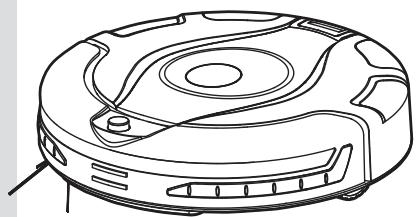
Robo.com²
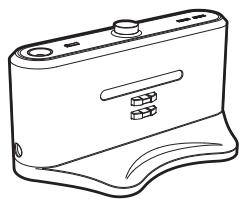
Charger Base Station
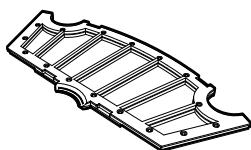
Filter**
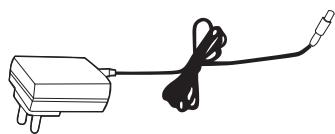
Mains Power adaptor
User Manual
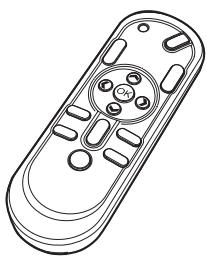
Remote Control**
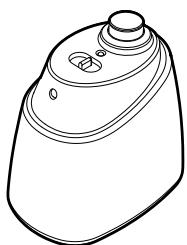
Virtual Barrier*
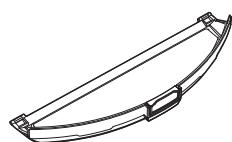
Floor Polisher Pad Holder*
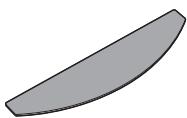
Floor Polisher Pad*
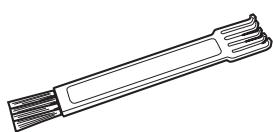
Multi-purpose Cleaning Brush
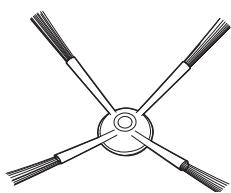
Edge Cleaning Brush
- Certain Models Only
** May vary according to model
GETTING TO KNOW YOUR ROBO.COM CLEANER
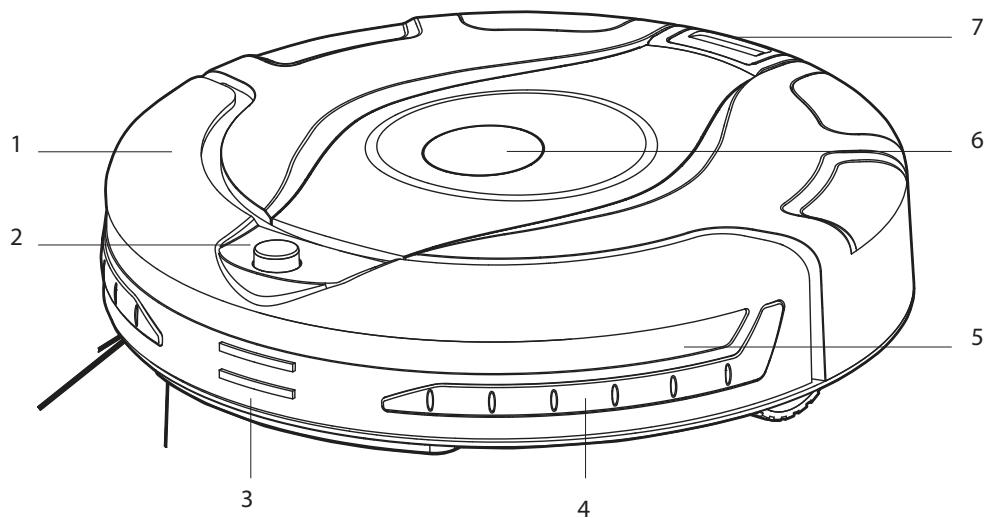
Robo.com² Top View
| 1 | Front Bumper |
| 2 | Infra Red Receiver |
| 3 | Auto Charge Contacts |
| 4 | Soft Furniture Protector |
| 5 | Sensor Window |
| 6 | Display Screen |
| 7 | Dust Container Release Button |
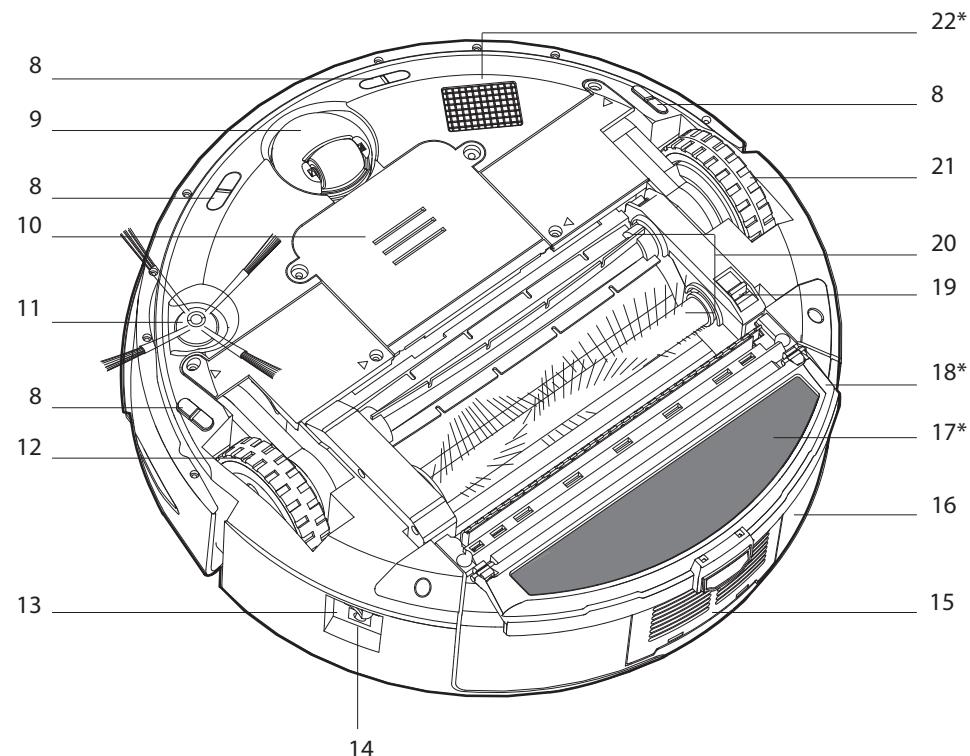
| 8 | Floor Sensor |
| 9 | Front Wheel |
| 10 | Battery Cover |
| 11 | Edge Cleaning Brush |
| 12 | Right Drive Wheel |
| 13 | Power Switch |
| 14 | Charging Connector |
| 15 | Exhaust Grille |
| 16 | Dust Container |
| 17 | Floor Polisher Pad* |
| 18 | Floor Polisher Pad Holder* |
| 19 | Floor Brushes Release Latch |
| 20 | Floor Brushes |
| 21 | Left Drive Wheel |
| 22 | UV Lamp* |
Robo.com² Bottom View
Certain Models Only
* May vary according to model
GETTING TO KNOW YOUR ROBO.COM² CLEANER
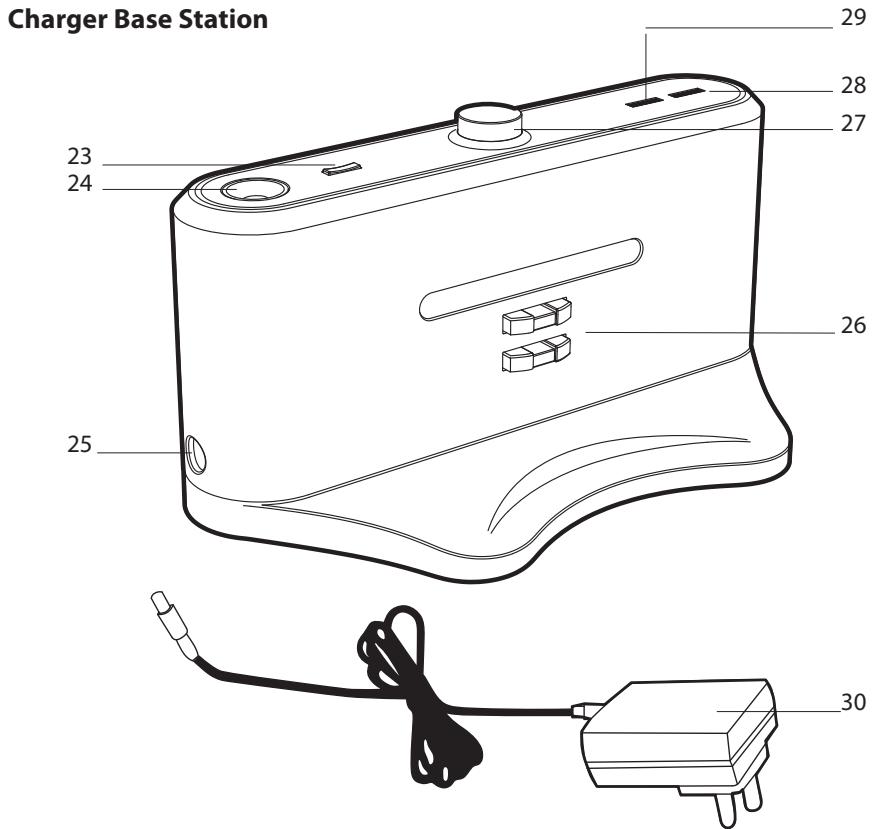
| 23 | Night Light Switch |
| 24 | Night Light |
| 25 | Power Supply Connector |
| 26 | Charging Contacts |
| 27 | Infra Red Transmitter |
| 28 | Charge Indicator |
| 29 | Power Indicator |
| 30 | Mains Power Adaptor |
| 31 | Virtual Barrier* Set Switch |
| 32 | OFF |
| 33 | Short Range Barrier- 2m |
| 34 | Medium Range Barrier - 4m |
| 35 | Long Range Barrier - 6m |
| 36 | Infra red Transmitter |
| 37 | Power Indicator |
| 38 | Near Infra red Transmitter |
Virtual Barrier*
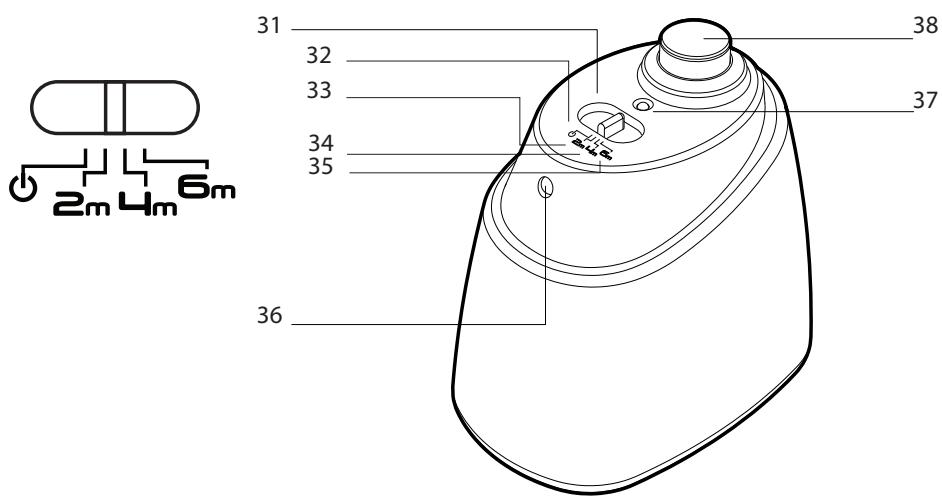
- Certain Models Only
** May vary according to model
GETTING TO KNOW YOUR ROBO.COM CLEANER
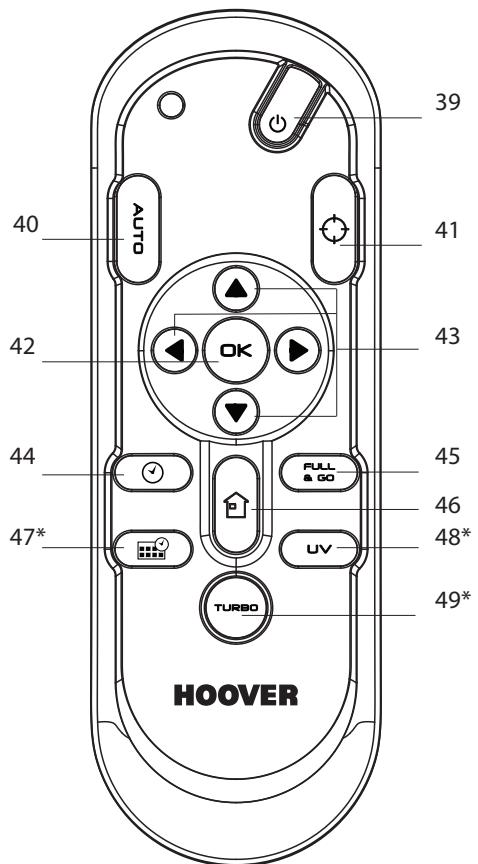
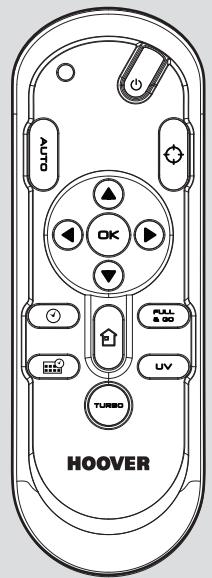
Remote Control**
| 39 | On / Off Power Button |
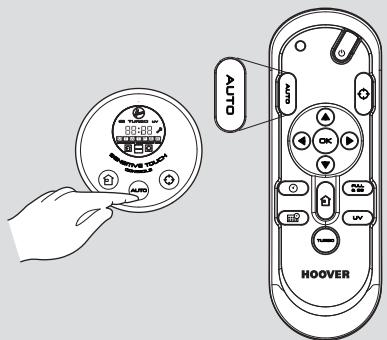
| 40 | Automatic Cleaning Mode Button |
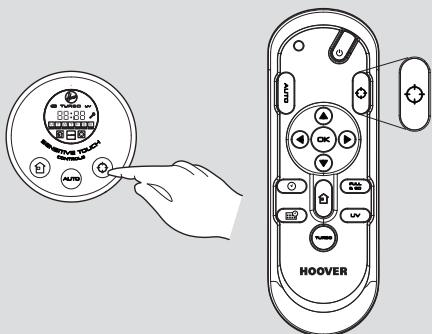
| 41 | Spot Cleaning Mode Button |
| 42 | OK Confirmation Button |
| 43 | Arrow Buttons |
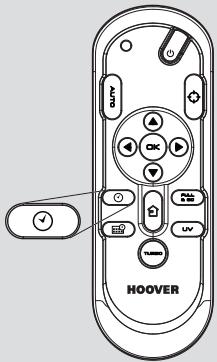
| 44 | Local Time Setting Button |
| 45 | Full & Go Button |
| 46 | Automatic Return to Charger Base Station Button |
| 47 | Scheduling Function Button* |
| 48 | UV Lamp Button* |
| 49 | Turbo Speed Button* |
| 50 | Battery Charge Level Indicator |
| 51 | Clock |
| 52 | Day Indicator (Scheduling Function)* |
| 53 | Automatic Return to Charger Base Station Indicator |
| 54 | Automatic Cleaning Mode Indicator |
| 55 | Spot Cleaning Mode Indicator |
| 56 | Maintenance Indicator |
| 57 | UV Lamp Indicator* |
| 58 | Turbo Speed Indicator* |
| 59 | Automatic Return to Charger Base Station Sensitive Touch Control |
| 60 | Automatic Cleaning Mode Sensitive Touch Control |
| 61 | Spot Cleaning Mode Sensitive Touch Control |
Robo.com Control Panel
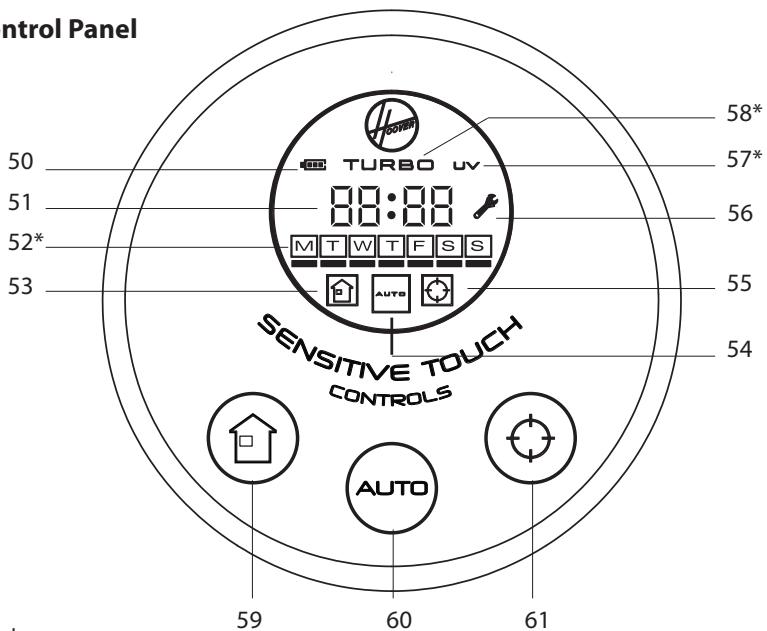
Certain Models Only
* May vary according to model
PREPARING YOUR ROBO.COM CLEANER
Packaging
Do not dispose of your Robo.com ^2 packaging. It may be required in the future for storing or transporting your Robo.com ^2 .
When unpacking your Robo.com² and its accessories, take care to keep plastic bags away from babies, young children and animals to avoid the risk of suffocation.
Before using your Robo.com² for the first time, you must fully charge it. This will take approximately 6 hours. Do not expose the Robo.com², Mains power adaptor or Charger Base Station to temperatures below 0^ or above 30^ as this may damage the Battery. The Mains power adaptor must only be connected to a standard mains power outlet.
Batteries
For optimum Battery performance it is recommended that you keep your Robo.com2 batteries fully charged. When the Robo.com2 is not in use it should be left connected to the Charger Base Station or the Mains power adaptor. The Robo.com2 has an intelligent charging system that ensures the batteries stay fully charged whilst preventing them from becoming overcharged.
To avoid accidents, make sure that every person in the room is aware of the presence of Robo.com². If the Robo. com² becomes lost, place the Robo.com² on the Charger Base Station manually.
Charger Base Station Setup
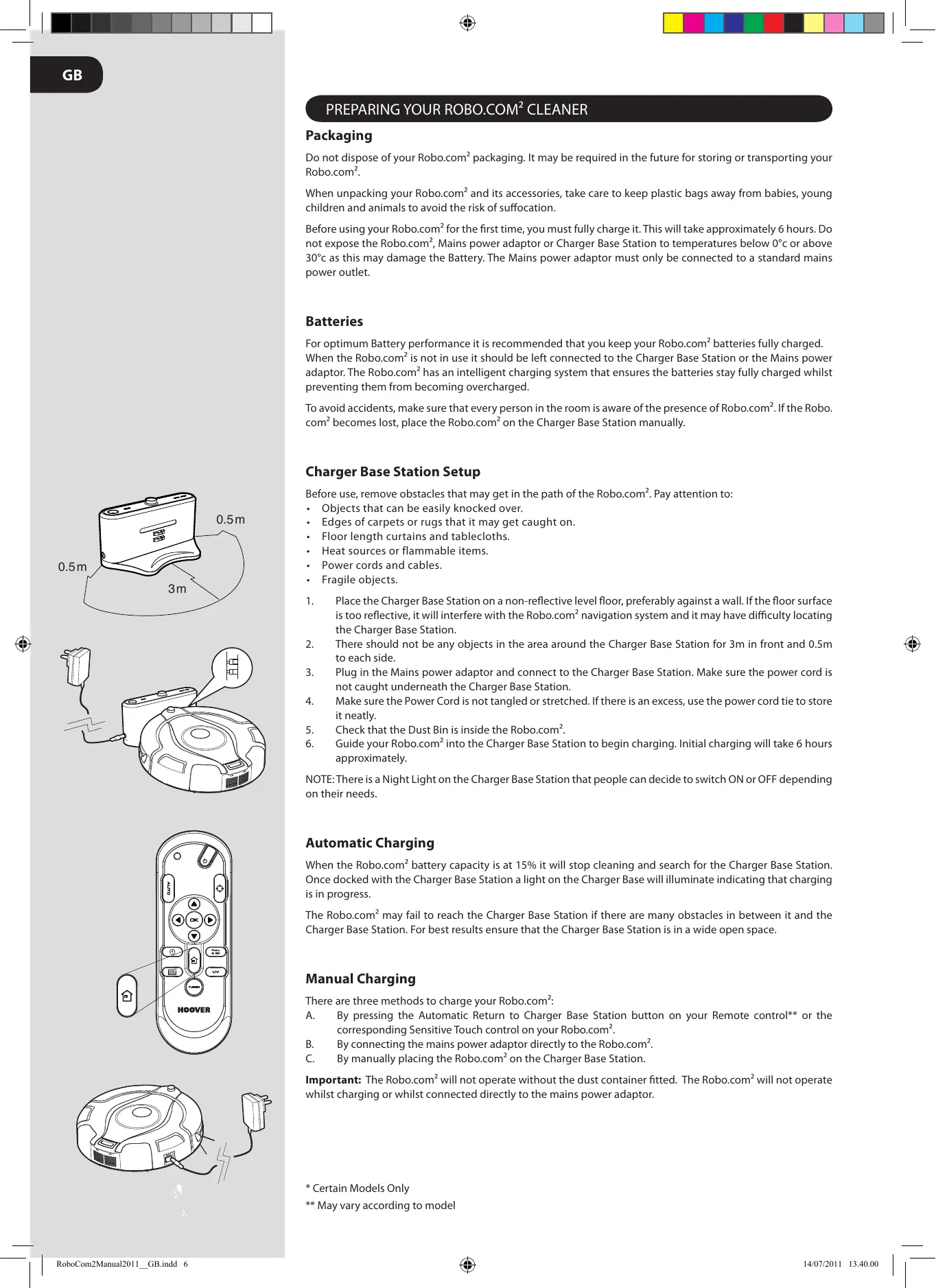
Before use, remove obstacles that may get in the path of the Robo.com². Pay attention to:
- Objects that can be easily knocked over.
- Edges of carpets or rugs that it may get caught on.
- Floor length curtains and tablecloths.
- Heat sources or flammable items.
Power cords and cables. -
Fragile objects.
-
Place the Charger Base Station on a non-reflective level floor, preferably against a wall. If the floor surface is too reflective, it will interfere with the Robo.com² navigation system and it may have difficulty locating the Charger Base Station.
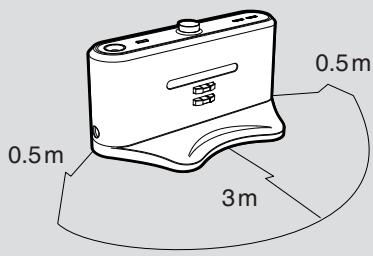
- There should not be any objects in the area around the Charger Base Station for 3m in front and 0.5m to each side.
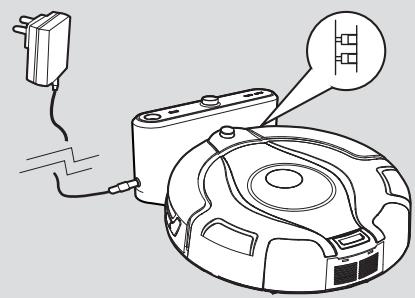
- Plug in the Mains power adaptor and connect to the Charger Base Station. Make sure the power cord is not caught underneath the Charger Base Station.
- Make sure the Power Cord is not tangled or stretched. If there is an excess, use the power cord tie to store it neatly.
- Check that the Dust Bin is inside the Robo.com².
- Guide your Robo.com² into the Charger Base Station to begin charging. Initial charging will take 6 hours approximately.
NOTE: There is a Night Light on the Charger Base Station that people can decide to switch ON or OFF depending on their needs.
Automatic Charging
When the Robo.com² battery capacity is at 15% it will stop cleaning and search for the Charger Base Station. Once docked with the Charger Base Station a light on the Charger Base will illuminate indicating that charging is in progress.
The Robo.com2 may fail to reach the Charger Base Station if there are many obstacles in between it and the Charger Base Station. For best results ensure that the Charger Base Station is in a wide open space.
Manual Charging
There are three methods to charge your Robo.com:
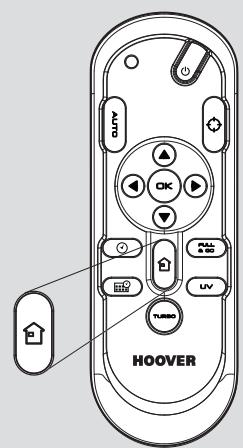
A. By pressing the Automatic Return to Charger Base Station button on your Remote control** or the corresponding Sensitive Touch control on your Robo.com2.
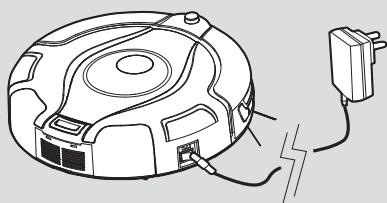
B. By connecting the mains power adaptor directly to the Robo.com².
C. By manually placing the Robo.com² on the Charger Base Station.
Important: The Robo.com² will not operate without the dust container fitted. The Robo.com² will not operate whilst charging or whilst connected directly to the mains power adaptor.
- Certain Models Only
** May vary according to model
PREPARING YOUR ROBO.COM² CLEANER
Remote Control** Set Up
To install batteries see Cleaner Maintenance - Replacing the batteries.
Note: The Remote Control** can be used through walls because it works on radio waves not infrared.
Virtual Barrier* Set Up
To install batteries see Cleaner Maintenance - Replacing the batteries.
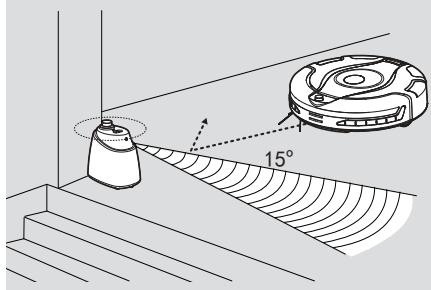
The Virtual Barrier is used to prevent the Robo.com² cleaning certain rooms or areas such as in front of fireplaces. Before setting the Virtual Barrier remember to:
- Remove any obstacles from the area that you want to block.
- The Virtual Barrier* should be placed on the same surface that the Robo.com² is operating on.
-
Ensure the Virtual Barrier* is more than 3m away from the Charger Base Station.
-
Position the Virtual Barrier* so that the infra red transmitter is pointing across the area you want to create the barrier.
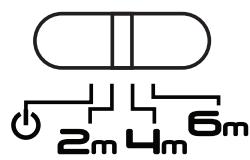
- Slide the toggle switch to the desired length of the barrier.
| ICON | BARRIER TYPE | BARRIER LENGTH |
| Off | 0m | |
| 2m | Short | 2m |
| 4m | Medium | 4m |
| 6m | Long | 6m |
- Check the Virtual Barrier* provides adequate cover whilst the Robo.com² is running.
NOTE: The battery power usage relates directly to the infra red level. For longer battery life chose the correct length of infra red beam.
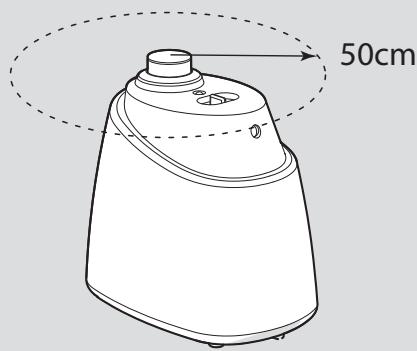
NOTE: The near Infra red transmitter will stop the Robo.com² coming any closer than 50cm to the Virtual Barrier*.
- Certain Models Only
** May vary according to model
GB


USING YOUR ROBO.COM CLEANER
Power On
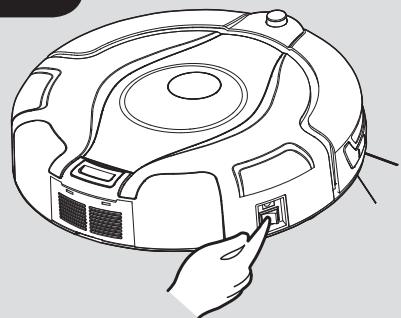
- Press the on / off switch on the side of the Robo.com².
- The LCD screen will illuminate.
NOTE: If your robot is already switched On, but in standby mode, it can be activated from the remote control** or pressing one of the touch sensitive keys.
NOTE: The touch sensitive controls on the Robo.com² can be unreliable if your hands are wet.
Setting the Day /Time on the Robo.com
- Using the Remote Control** press the time set button. A flashing line will appear below the day.
- Use the up and down arrow on the Remote Control** until the line appears below the correct day. Press the OK Confirmation Button.
- The hour display will flash. Press the up and down arrow on the Remote Control** until the correct hour is displayed. Press the OK Confirmation Button.
- The minute display will flash. Press up and down arrow on the Remote Control** until the correct minute is displayed. Press the OK Confirmation Button.
- Day and time are now set.
Cleaning Programs
Robo.com2 uses AAITM Infrared Navigation, an advanced navigation system that uses the algorithmic calculation to define the best path to efficiently clean your room.
Press the AUTO Sensitive touch control on the robot or press the AUTO button on the remote control to activate the Automatic cleaning mode. Robo.com² will automatically choose the best cleaning mode to clean your room. It will use 4 different cleaning patterns:
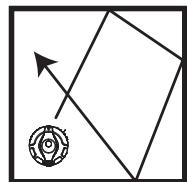
ZIG ZAG
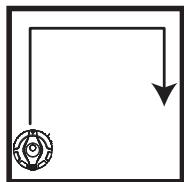
EDGE
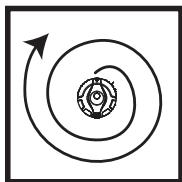
ELLiptICAL
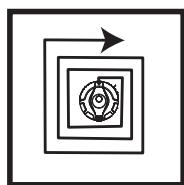
SQUARE
Press the SPOT Sensitive touch control on the robot or press the SPOT button on the remote control to activate the SPOT cleaning mode. Use this mode to intensively clean a confined area. Robo.com² will move following a elliptical pattern, where the radius will continuously increase for approximately 3 minutes.
With the Remote Control**, you can also activated all the other cleaning programs:
Manual Navigation:
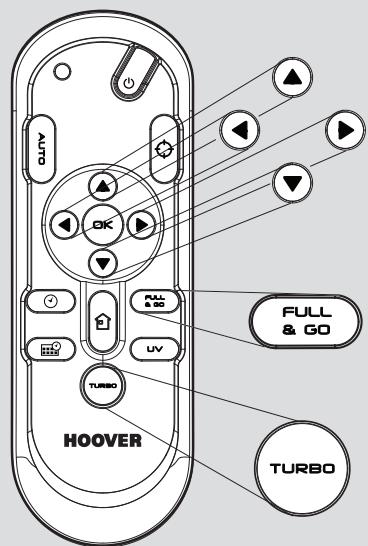
The Robot can be controlled manually at any time during a cleaning program. The navigation arrow keys in the remote control will move the Robot in the desired direction with the suction activated. With the remote control, the Robo.com2 can be controlled up to a distance of 10m, even behind a wall.
Full & GO:
When the robot is charging, press the FULL & GO button on the remote control to activate this cleaning mode. On the display the AUTO indicator will start flashing. When the battery is fully charged, the Robo.com² will automatically start a cleaning cycle. Once complete, the Robo.com² will automatically return to the Charger Base Station.
TURBO*:
Press the TURBO button on the remote control to activate the TURBO speed. The TURBO* indicator will light on in the LCD display. Robo.com² will start to work at a faster speed, covering quicker the area to clean.
Scheduled Cleaning*:
You can decide what time the Robo.com² will start cleaning, daily or weekly. To set a cleaning schedule follow see 'Setting Up The Cleaning Schedule'.
- Certain Models Only
** May vary according to model







GB
USING YOUR ROBO.COM CLEANER
Setting up the Cleaning Schedule*
The Robo.com2 can be programmed to automatically clean each day or on specific days as desired. Once set up this will occur at the same time on each day specified. To set up a cleaning schedule over one week complete the following:
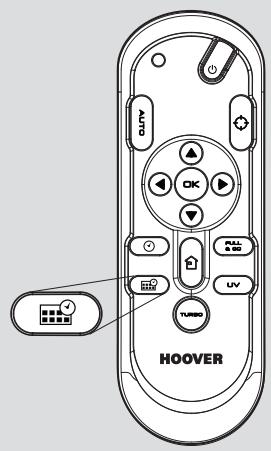
- Press the Scheduling Function button on the Remote Control**. A flashing box will appear around M (Monday).
- Use the up and down arrow keys to select the desired day and then press the OK Confirmation Button to confirm that day. You can also choose multiple days (up to 7 days).
- Once each day of the week have been selected, you can decide the hour of the cleaning schedule: the hour will start flashing on the display. Use the up and down arrow keys to select the desired hour. Press the OK Confirmation Button.
- The minute display will flash, use the up and down arrow keys to select the desired minute. Press the OK Confirmation Button.
- The cleaning schedule for the days has been selected.
This bar below the letter of the day indicates the 'Current day'
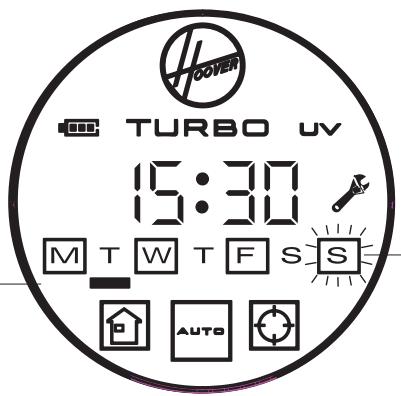
The fixed box around the letter of the day indicates that day has a cleaning schedule set.
NOTE: The cleaning hour will be the same each day scheduled for cleaning.
Additional Features
Automatic Return to the Charger Base Station:
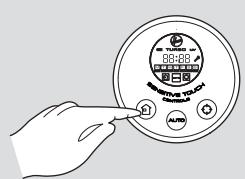
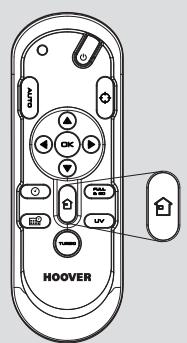
Press the Sensitive touch control on the robot or press the button on the remote control, this will activate the Automatic Return to the Charger Base Station
UV Lamp*:
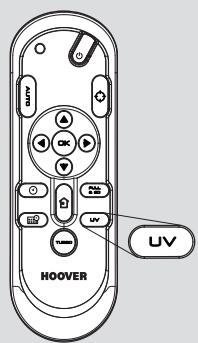
Press the UV button on the remote control** to activate the UV lamp* for more hygienic cleaning. The UV indicator will light on in the LCD display. To deactivate the UV lamp*, just repress the UV button on the remote control**.
Floor Polisher Pad*:
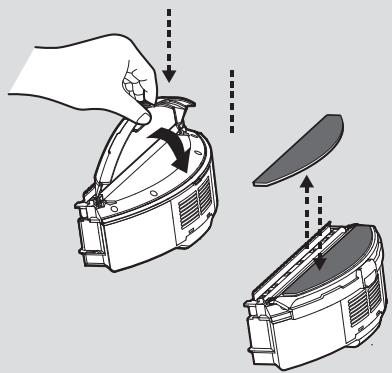
Attached via the Floor Polisher Pad Holder * to the underside of the cleaner, the Floor Polisher Pad* is used to polish marble, parquet, wooden and other delicate flooring.
NOTE: Do not use on a carpeted Surface.

- Certain Models Only
** May vary according to model


GB
MAINTAINING YOUR ROBO.COM² CLEANER
Before performing any maintenance task, ensure the Robo.com ^2 is switched off.
- Turn the Robo.com2 off and remove from the Charger Base Station.
- Use a damp cloth with a little soap to clean all surfaces. DO NOT allow water into any part of the product whilst cleaning.
- Dry with a soft Cloth.
Emptying the dust container
Empty the dust container every cleaning cycle or when the dust container is full.
- Turn the Robo.com2 off and remove from the Charger Base Station.
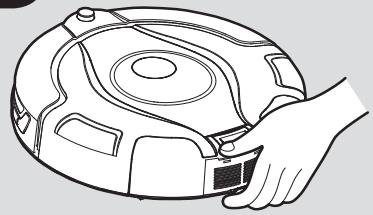
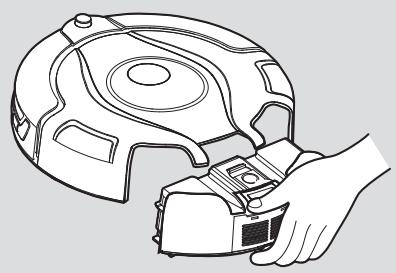
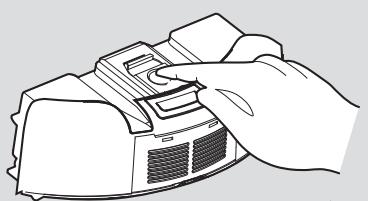
- Press the dust container release button and remove the Dust Container from the Robo.com².
- Hold the dust container over a bin to empty.
- Use the Multi-purpose Cleaning Brush when necessary to remove any excess dust from the internal surface of the dust container.
- Refit the dust container to the Robo.com2.
Cleaning the filters
The Robo.com² is fitted with a pre-motor filter. To maintain optimum cleaning performance, regularly clean the filter. The filters should be cleaned every 5th dust container empty and should be washed.
IMPORTANT: The filter should be cleaned and washed after the dust container has been emptied 5 times. Failure to clean your filter may result in air blockage, overheating and product failure. This may invalidate your guarantee.
- Turn the Robo.com2 off and remove from the Charger Base Station.
- Press the dust container release button and remove the Dust Container from the Robo.com2.
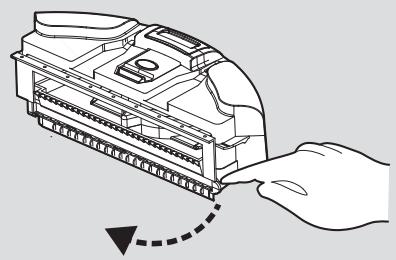
- Pull the filter drawer tab to open the filter drawer.
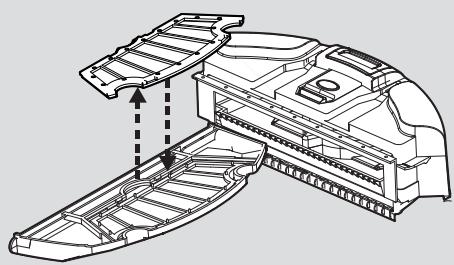
- Push the underside of the filter to pop it out of the bracket.
- Gently tap and wash the filter using hand warm water. Remove excess water from the filter with a dry cloth and leave to dry.
- Reassemble once completely dry and refit to the cleaner. DO NOT use the Robo.com² without a filter fitted.
IMPORTANT - Regularly check and maintain the filters by following the filter maintenance instructions, it is also recommended that you purchase new filters after every 3rd filter wash. This will maintain your cleaners performance.
CLEAN FILTER REGULARLY PULL TO ACCESS THE FILTER
Cleaning the Motor Assembly
Under normal conditions of use, the motor assembly will not require any maintenance unless the pre motor filter has not been fitted correctly.
- Turn Robo.com off and remove from the Charger Base Station.
- Press the dust container release button and remove the Dust Container from the Robo.com2.
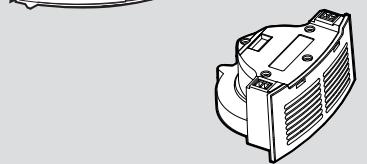
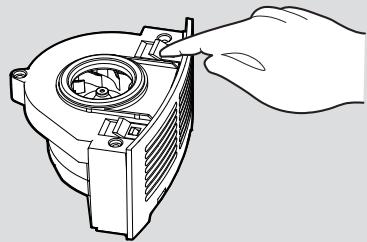
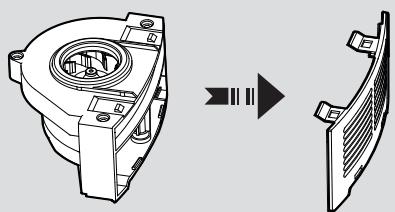
- Press the motor release button, the motor will pop out.
- Turn the motor over and unclip the exhaust cover.
- Clean using the Multi-purpose Cleaning Brush provided.
IMPORTANT: Never use water to clean the motor.
- Certain Models Only
** May vary according to model
MAINTAINING YOUR ROBO.COM² CLEANER
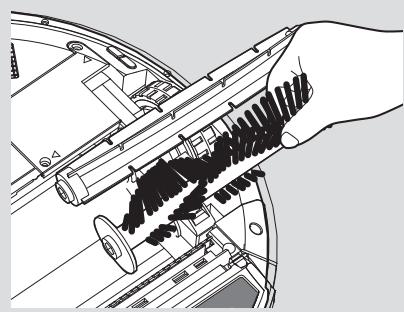
Cleaning the Floor Brushes
Clean the Floor Brushes regularly to maintain maximum cleaning performance.
- Turn Robo.com off and remove from the Charger Base Station.
- Turn the Robo.com over.
- Rotate the Floor Brush assembly carefully and using scissors cut and remove any tangled threads or hair etc.
- Use the Multi-purpose Cleaning Brush to remove any excess dust.
Replacing the Floor Brushes
- Switch the Robo.com2 off and turn the Robo.com2 over.
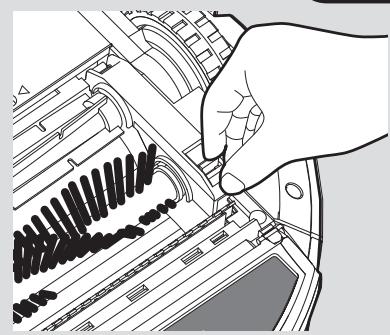
- Pull the Floor Brush Release Latch.
- Lift the Floor Brushes Retainer.
- Remove both Floor Brushes.
- Clean the recess that the Floor Brushes sit.
- Refit the new Floor Brushes, ensuring they sit correctly.
- Close the retainer ensuring it locks.
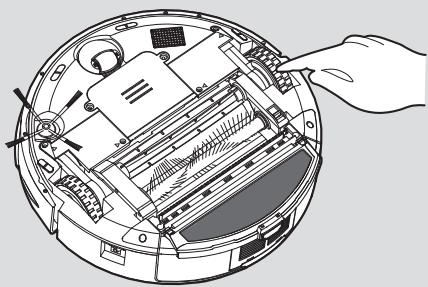
Cleaning the Drive Wheels
- Switch the Robo.com2 off and turn the Robo.com2 over.
- Remove any dirt or hair trapped in the wheels.
- Clean the wheels with a dry cloth.
-
Check that the wheels can rotate freely.
-
Certain Models Only
** May vary according to model
MAINTAINING YOUR ROBO.COM² CLEANER
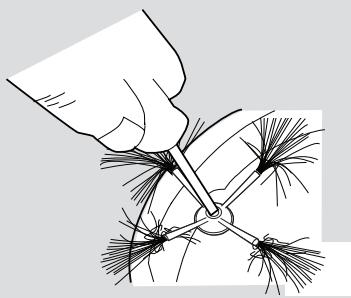
Cleaning the Edge Cleaning Brush
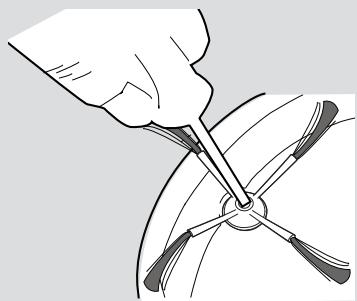
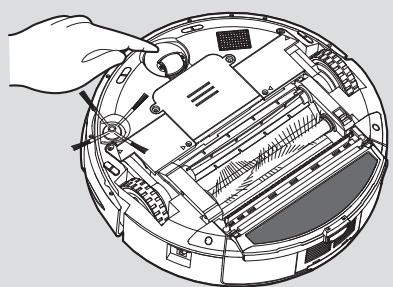
The Edge Cleaning Brush can be easily worn from heavy use so you should check it regularly to monitor its condition.
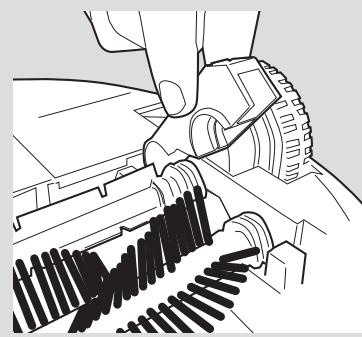
- Switch the Robo.com2 off and turn the Robo.com2 over.
- Remove the retaining screw with a screwdriver.
- Use a pair of scissors to remove any trapped hair or debris.
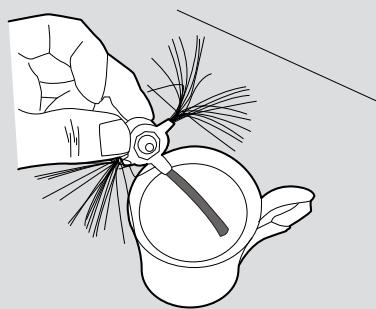
Correcting Edge Cleaning Brush Deformation
The Edge Cleaning Brush can sometimes be deformed during transportation or when the product is used under particular conditions. If this happens it is possible to return to the original shape by putting the bristles in hot water.
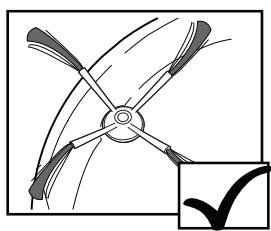
GOOD
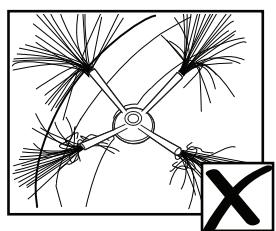
RECOVERABLE
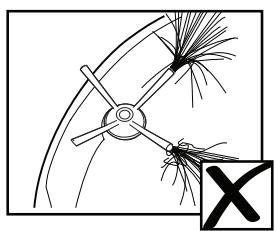
REQUIRES REPLACEMENT
- Switch the Robo.com2 off and turn the Robo.com2 over.
- Remove the retaining screw with a screwdriver. Remove the Edge Cleaning Brush.
- Gently lower the bristles in hot water.
- Hold each set of bristles until they have recovered and straightened. Then remove and leave to dry.
- Once completely dry reassemble and screw in place.
Replacing the Edge Cleaning Brush
If the Edge Cleaning Brush is damaged it will need to be replaced. Replacement Edge Cleaning Brushes can be obtained from your Hoover retailer.
- Switch the Robo.com2 off and turn the Robo.com2 over.
- Remove the retaining screw with a screwdriver.
- Remove the old Edge Cleaning Brush and push the new one in place.
- Replace and tighten the screw.
Cleaning the Front Wheel
- Switch the Robo.com2 off and turn the Robo.com2 over.
- Remove any dirt or hair trapped in the wheel.
- Clean the wheel with a dry cloth.
- Check that the wheel can rotate freely.
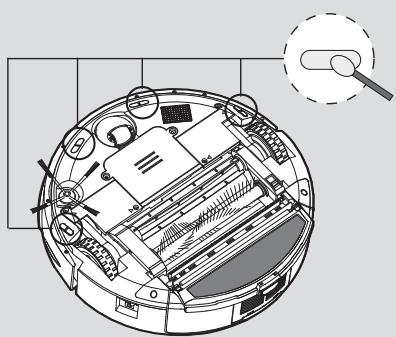
Cleaning the Floor Sensors
The floor detection sensors are located in the base of the Robo.com². Clean the sensors each time the dust container is emptied. Frequent cleaning is recommended to ensure optimum cleaning performance and safe operation of your Robo.com².
- Turn the Robo.com off and remove from the Charger Base Station.
- Turn the Robo.com over.
-
Use a dry soft cloth or cotton swab to wipe the sensors.
-
Certain Models Only
** May vary according to model
MAINTAINING YOUR ROBO.COM² CLEANER
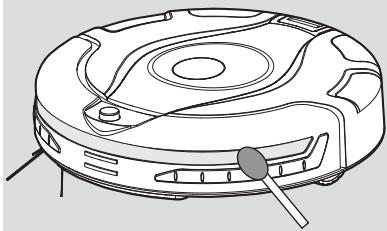
Cleaning the Sensor Window
The wall detection sensors are located in the front of Robo.com². Clean the sensor window each time the dust container is emptied. Frequent cleaning is recommended to ensure optimum performance of your Robo. com².
Use a dry soft cloth or cotton swab to wipe the sensor window.
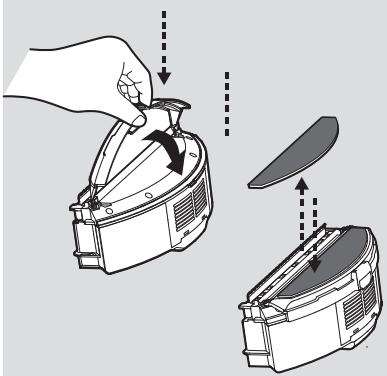
Cleaning the Floor Polisher Pad*
- Turn the Robo.com2 off.
- Press the dust container release button and and remove the dust container from the Robo.com².
- Press the Floor Polisher Pad Holder* release button and unclip from the dust container.
- Tear the Floor Polisher Pad from the Floor Polisher Pad Holder and wash using hand warm water. Remove excess water and leave to dry before re-using.
- Re-assemble when fully dry.
Replacing the batteries
Only use approved replacement parts for your Robo.com. Using parts not validated by Hoover are dangerous and will invalidate your guarantee.
If the Robo.com², Virtual Barrier and Remote Control* is not to be used for several months please remove the batteries and store in a dry location.
IMPORTANT: Always make sure your device is switched off before changing your batteries.
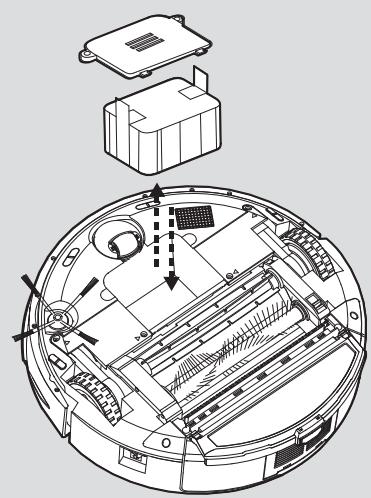
Replacing the Robo.com² batteries
The Robo.com ^2 is fitted with a rechargeable battery pack.
- Turn the Robo.com² over and place on a level surface. Remove the screws from the battery cover and then remove the battery cover.
- Remove the old battery pack and replace with the new battery pack ensuring the polarity is correct. Replace the cover.
- Recharge the Robo.com2.
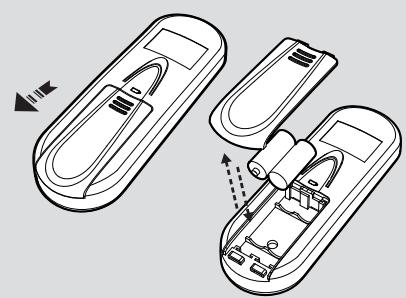
Replacing the Remote Control\*\* batteries
The Remote Control** is fitted with 2 × AAA batteries.
- Slide the battery cover open.
- Remove the old batteries and replace with the new batteries ensuring the polarity is correct. Replace the cover.
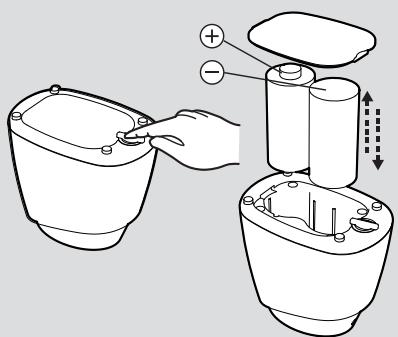
Replacing the Virtual Barrier* batteries
The Virtual Barrier* is fitted with 2 x D batteries.
- Turn the Virtual Barrier* over and rotate the retaining clip. Remove the battery cover.
-
Remove the old batteries and replace with the new batteries ensuring the polarity is correct. Replace the cover.
-
Certain Models Only
** May vary according to model
TROUBLESHOOTING
The following is a list of commonly encountered problems and solutions.
If any of these problems persist contact your local Hoover representative.
| The Robo.com2 does not work | ·Check that the Robo.com2 is switched on. ·Check that the dust container, filter and motor are clean. ·Check if the Robo.com2 needs to be charged. |
| Cleaning power is weak | Turn power off and: ·Empty dust container. ·Check and clean the filter and motor. ·Check and clean the Floor Brushes ·Check and clean the sensors. ·Check and clean the drive wheels. |
| The Remote Control** does not work | ·Check the batteries. ·Check the battery of the Robo.com2. ·Move the Remote Control** closer to the Robo.com2. |
| TheRobo.com2doesnotautomatically charge | ·Make sure there are no barriers between the Robo.com2 and the Charger Base. |
| The Robo.com2 is very noisy while cleaning | ·Clean the dust container and filter. ·Check the brushes and drive wheels for dirt and debris. |
| Robo.com2 stops working/ cleans intermittently | ·Check the cleaning times set. |
| Robo.com2 fails to detect stairs | ·Check and clean the sensors. |
| Robo.com2 is trapped | ·The Robo.com2 will attempt to free itself but in some cases assist the Robo.com2 manually. |
| Robo.com2 is not working but there is no error code display | ·Contact your local Hoover representative |
Error Codes
The following codes may appear during use or on start up.
| Failure Code | Explanation |
| Er01 | Debris trapped in the Edge Cleaning Brush. See‘Cleaning the Edge Cleaning Brush |
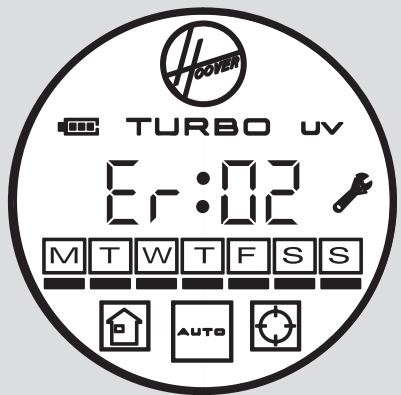
| Er02 | Debris trapped in the Floor Brushes. See‘Cleaning the Floor Brushes’ |
| Er04 | Left Drive Wheel motor overloaded. See‘Cleaning the Drive Wheels’ |
| Er05 | Right Drive Wheel motor overloaded. See‘Cleaning the Drive Wheels’ |
| Er06 | Both Drive Wheel motors overloaded. See‘Cleaning the Drive Wheels’ |
| Er07 | Left or Right Drive Wheel not making contact with the ground. See‘Cleaning the Drive Wheels’ |
| Er08 | Robo.com2battery is too hot. Switch off and leave Robo.com2to cool for 30mins. |
| Er09 | Dust container is absent. Replace Dust Container. |
ATTENTION: If any of these failures persist. Contact your local Hoover representative. DO NOT try to disassemble the Robo.com² by yourself.
- Certain Models Only
** May vary according to model
IMPORTANT INFORMATION
Hoover Spares and Consumables
Always replace parts with genuine Hoover spares. These are available from your local Hoover dealer or direct from Hoover. When ordering parts always quote your model number.
Consumables
Pre-Motor Filter: RB 208 35601261
Spares
Robo.com² Battery Pack: RB 201 35601254
FloorBrushes: RB202 35601255
Virtual Barrier Battery Pack: RB 203 35601256
Remote Control (RBC003) RB 210 35601274
Remote Control (RBC006) RB 211 35601275
Remote Control* (RBC009) RB 204 35601257
- Charger Base Station and Mains Power Adaptor RB 205 35601258
· Edge Cleaning Brush: RB 206 35601259
Floor Floor Polisher Holder (1 off) and Pad (4 off) RB 207 35601260
- Dust Container, Filter and Motor (RBC003) RB 212 35601276
- Dust Container, Filter and Motor (RBC 006) RB 213 35601277
Dust Container, Filter and Motor (RBC 009) RB 209 35601262
Quality
Hoover's factories have been independently assessed for quality. Our products are made using a quality system which meets the requirements of ISO 9001.
The Environment
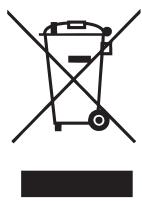
This appliance is marked according to the European Directive 2002/96/EC on Waste Electrical and Electronic Equipment (WEEE).
By ensuring this product is disposed of correctly you will help prevent potential negative consequences for the environment and human health, which could otherwise be caused by inappropriate waste handling of this product.
The symbol on the product indicates that this product may not be treated as household waste. Instead it shall be handed over to the appliance collection point for recycling of electrical and electronic equipment.
Disposal must be carried out in accordance with the local environmental regulations for waste disposal. For more detailed information about treatment, recovery and recycling of this product, please contact your local city office, your household waste disposal service or the shop where you purchased the product.
Your Guarantee
The guarantee conditions for this appliance are as defined by our representative in the country in which it is sold. Details regarding these conditions can be obtained from the dealer from whom the appliance was purchased. The bill of sale or receipt must be produced when making any claim under the terms of this guarantee.
Subject to change without notice.
- Certain Models Only
** May vary according to model
REMARQUES IMPORTANTES CONCERNANT LA SÉCURITÉ
Batteries rechargeables NiMh
Programmierfungknt*:

- WARNING:
- REMARKERS:
- After Use:
- Safety with children, the elderly or infirm:
- IMPORTANT NOTES BEFORE USE
- CONTENTS OF THE BOX
- GETTING TO KNOW YOUR ROBO.COM CLEANER
- GETTING TO KNOW YOUR ROBO.COM² CLEANER
- Virtual Barrier*
- PREPARING YOUR ROBO.COM CLEANER
- Packaging
- Batteries
- Charger Base Station Setup
- Automatic Charging
- Manual Charging
- PREPARING YOUR ROBO.COM² CLEANER
- Remote Control** Set Up
- Virtual Barrier* Set Up
- USING YOUR ROBO.COM CLEANER
- Power On
- Setting the Day /Time on the Robo.com
- Cleaning Programs
- Manual Navigation:
- Full & GO:
- TURBO*:
- Scheduled Cleaning*:
- Setting up the Cleaning Schedule*
- Additional Features
- GB
- MAINTAINING YOUR ROBO.COM² CLEANER
- Emptying the dust container
- Cleaning the filters
- Cleaning the Motor Assembly
- Cleaning the Floor Brushes
- Replacing the Floor Brushes
- Cleaning the Drive Wheels
- Cleaning the Edge Cleaning Brush
- Correcting Edge Cleaning Brush Deformation
- Replacing the Edge Cleaning Brush
- Cleaning the Front Wheel
- Cleaning the Floor Sensors
- Cleaning the Sensor Window
- Cleaning the Floor Polisher Pad*
- Replacing the batteries
- Replacing the Robo.com² batteries
- Replacing the Remote Control\*\* batteries
- Replacing the Virtual Barrier* batteries
- TROUBLESHOOTING
- Error Codes
- IMPORTANT INFORMATION
- Hoover Spares and Consumables
- Consumables
- Spares
- Quality
- The Environment
- Your Guarantee
- REMARQUES IMPORTANTES CONCERNANT LA SÉCURITÉ
- Batteries rechargeables NiMh
- Programmierfungknt*:
Brand : HOOVER
Model : RBC040 ROBO.COM3
Category : Robot vacuum