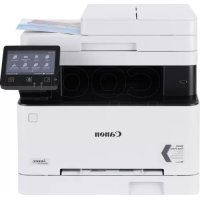
iSensys MF643Cdw - Printer CANON - Free user manual and instructions
Find the device manual for free iSensys MF643Cdw CANON in PDF.



| Product type | Color laser multifunction printer |
| Functions | Print, copy, scan, fax |
| Print speed | Up to 28 ppm (A4, black and color) |
| Print resolution | 600 x 600 dpi, Fine 1,200 x 1,200 dpi (equivalent) |
| Paper sizes | A4, A5, A6, B5, Letter, Legal, Envelopes, etc. |
| Paper capacity | 250-sheet cassette, 1-sheet manual feed |
| Connectivity | Ethernet 10/100/1000, Wi-Fi 802.11 b/g/n, USB 2.0 Host |
| Display | 5-inch color touchscreen |
| Toner cartridges | Canon Cartridge 054 (black, cyan, magenta, yellow) / 054 H (high capacity) |
| Scanning | Automatic duplex scanning, up to 600 x 600 dpi |
| Fax | Super G3, 512-page memory, sequential broadcasting |
| Power supply | 220-240 V AC, 50/60 Hz, max consumption 1,200 W |
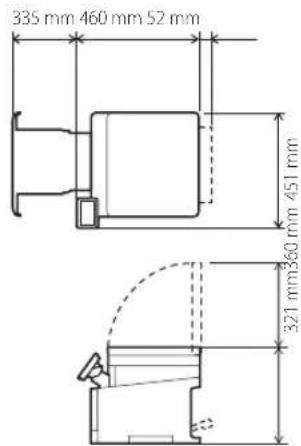
| Dimensions (W × D × H) | 451 × 460 × 415 mm |
| Weight | Approx. 20 kg |
| Maintenance | Clean with a damp cloth, do not use solvents |
| Safety | Class 1 laser, auto power-off, mandatory grounding |
| Spare parts | Toner cartridges, drum, battery (not applicable) |
| General information | Manual available in multiple languages, free updates |
Frequently Asked Questions - iSensys MF643Cdw CANON
User questions about iSensys MF643Cdw CANON
0 question about this device. Answer the ones you know or ask your own.
Ask a new question about this device
Download the instructions for your Printer in PDF format for free! Find your manual iSensys MF643Cdw - CANON and take your electronic device back in hand. On this page are published all the documents necessary for the use of your device. iSensys MF643Cdw by CANON.
USER MANUAL iSensys MF643Cdw CANON
Please read "Important Safety Instructions" before operating this product. After you finish reading this guide, store it in a safe place for future reference.
The information in this document is subject to change without notice.


canonical/oip-manual
Quick Setup
Getting Started
Please read "Important Safety Instructions" before operating this product.
P.78
After you finish reading this guide, store it in a safe place for future reference.
The information in this document is subject to change without notice.
Mise en route
```bash canon.com/oip-manual to read the User's Guide that describes all functions of this machine.
Items Included with the Machine Installing the Machine
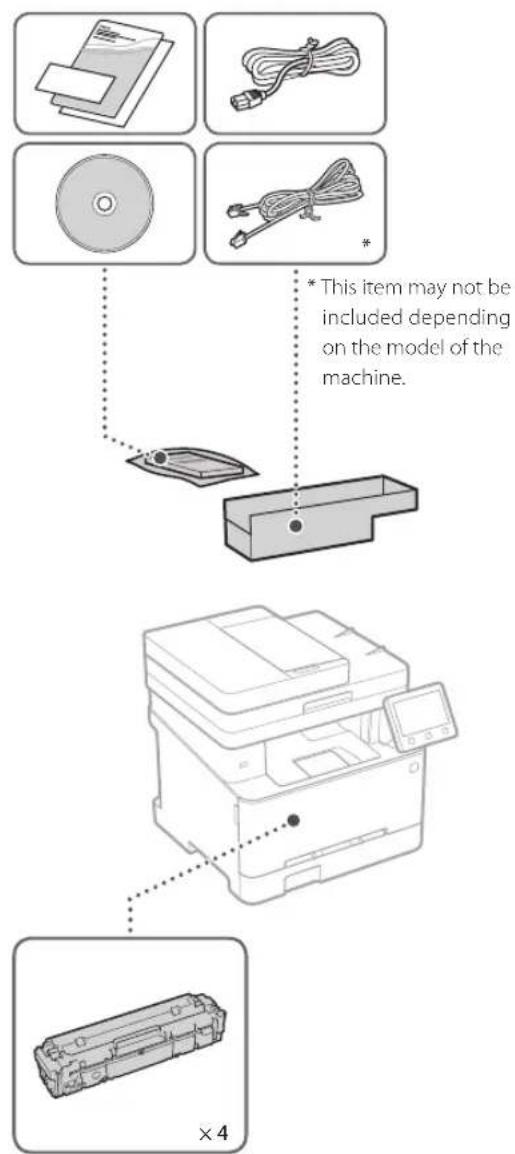
Starter toner cartridges are included.
Before starting the installation
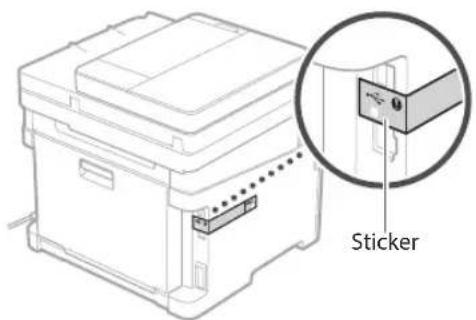
- Remove all of the tape.

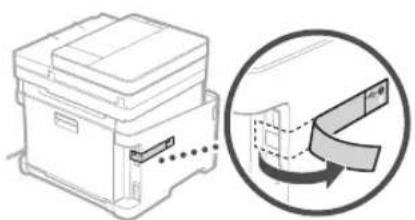
- Do not remove the sticker that covers the USB port.
Installation Requirements
Provide a space of 100mm or more around the machine.
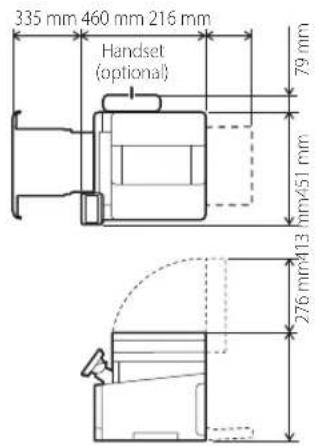
MF645Cx/MF643Cdw
MF641Cw
1
4
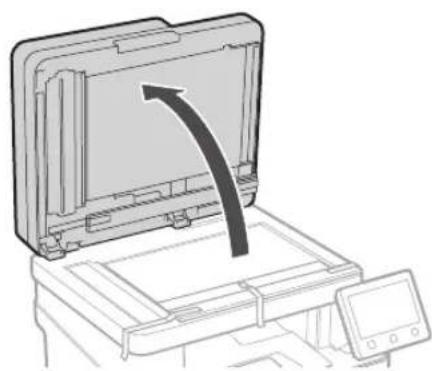
2
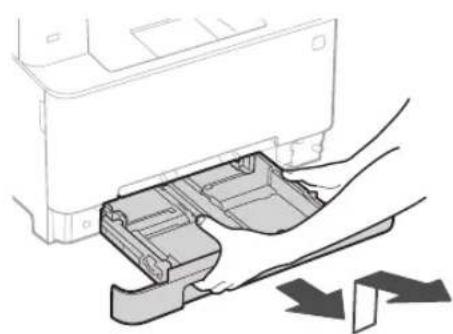
5
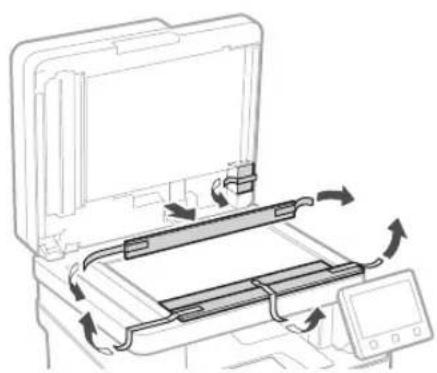
3
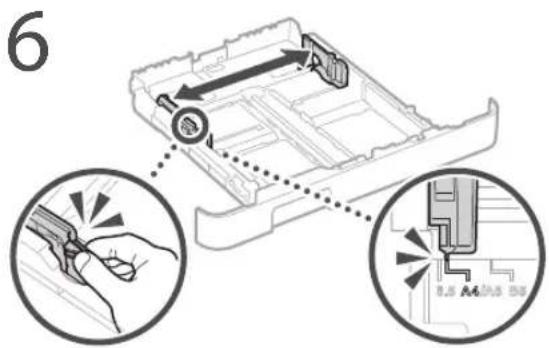
6
11 Attach the handset (optional).
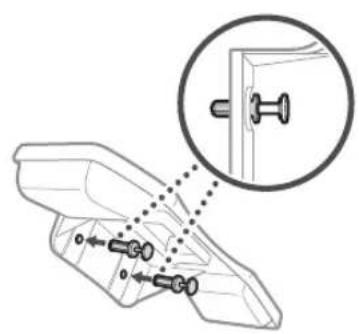
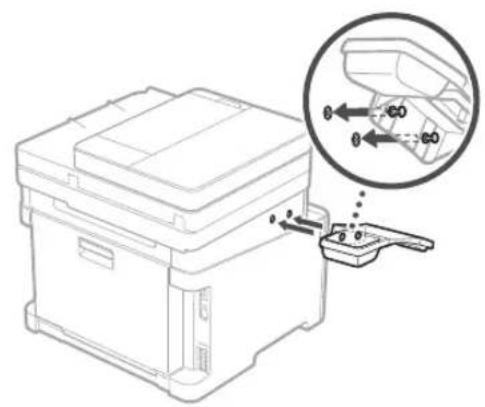
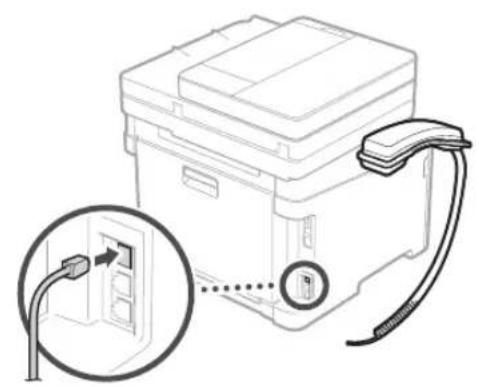
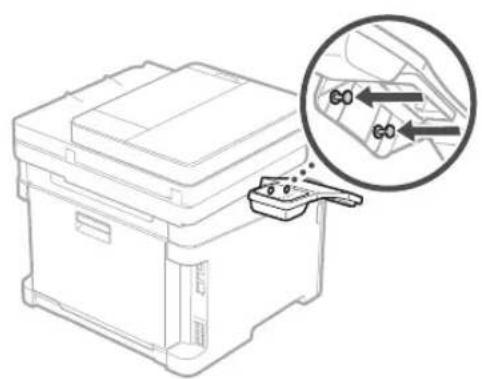
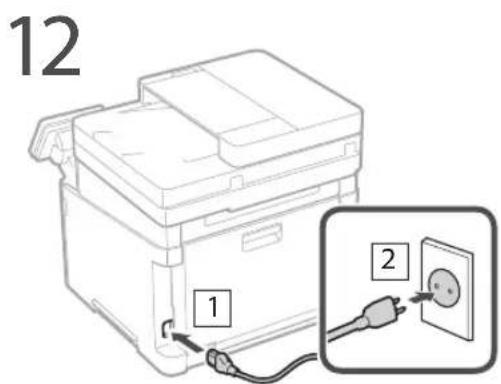
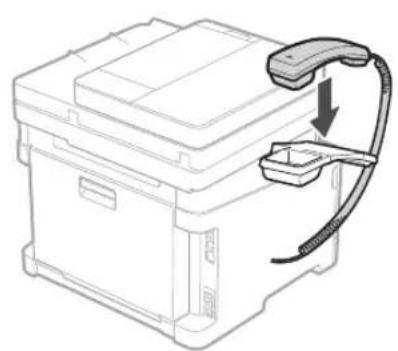
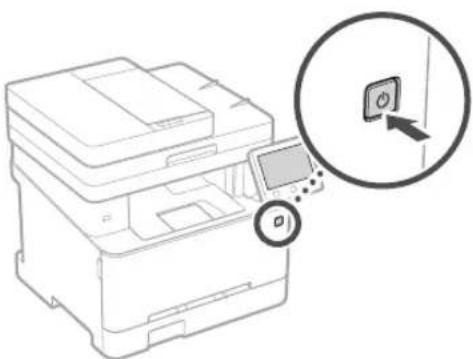
Next, proceed to configure the machine.
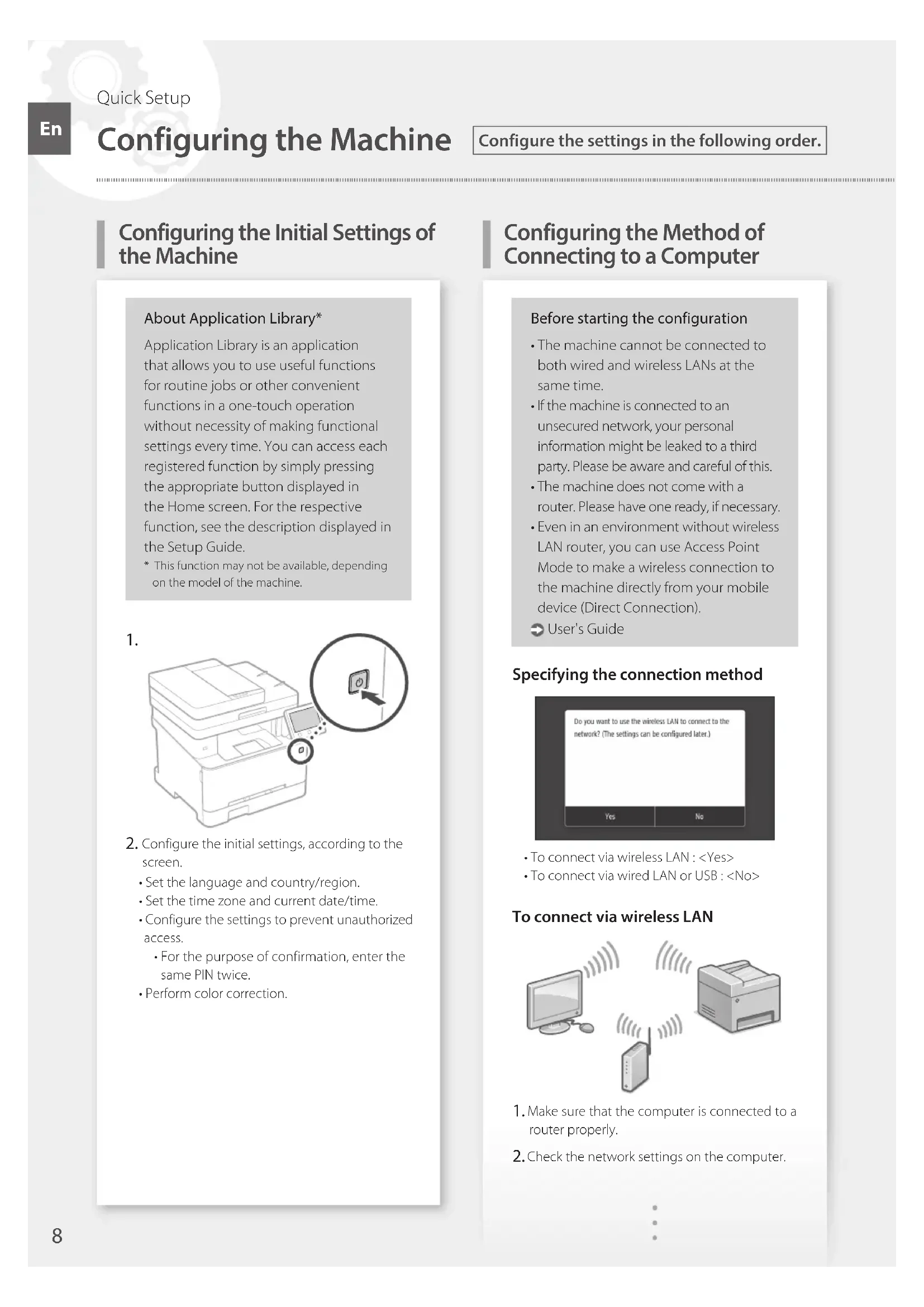
Configuring the Initial Settings of the Machine
About Application Library*
Application Library is an application that allows you to use useful functions for routine jobs or other convenient functions in a one-touch operation without necessity of making functional settings every time. You can access each registered function by simply pressing the appropriate button displayed in the Home screen. For the respective function, see the description displayed in the Setup Guide.
- This function may not be available, depending on the model of the machine.
1.
-
Configure the initial settings, according to the screen.
-
Set the language and country/region.
- Set the time zone and current date/time.
- Configure the settings to prevent unauthorized access.
For the purpose of confirmation, enter the same PIN twice.
Perform color correction.
Configuring the Method of Connecting to a Computer
Before starting the configuration
The machine cannot be connected to both wired and wireless LANs at the same time.
If the machine is connected to an unsecured network, your personal information might be leaked to a third party. Please be aware and careful of this.
The machine does not come with a router. Please have one ready, if necessary.
- Even in an environment without wireless LAN router, you can use Access Point Mode to make a wireless connection to the machine directly from your mobile device (Direct Connection).
User's Guide
**Specifying the connection method**
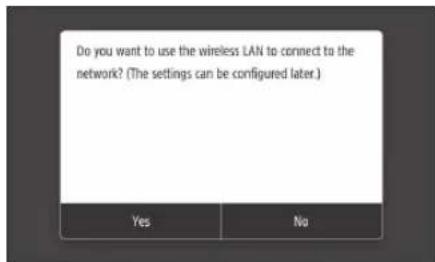
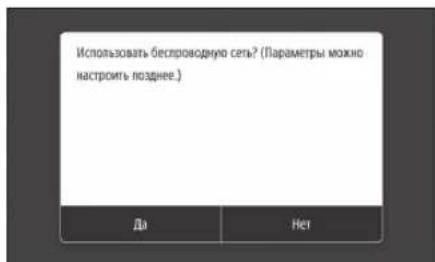
To connect via wireless LAN:
To connect via wired LAN or USB:
To connect via wireless LAN
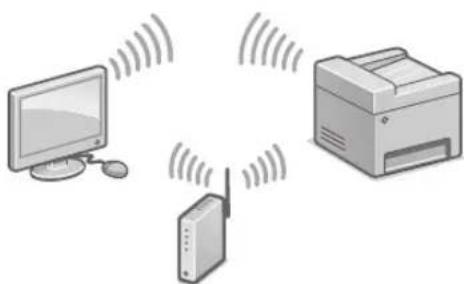
- Make sure that the computer is connected to a router properly.
-
Check the network settings on the computer.
-
Take note of the SSID and network key.
-
Check the label on the router. User's Guide
-
The setting operation is easier if the router is provided with a WPS mark. User's Guide
-
Set the access point and network key according to the screen below.
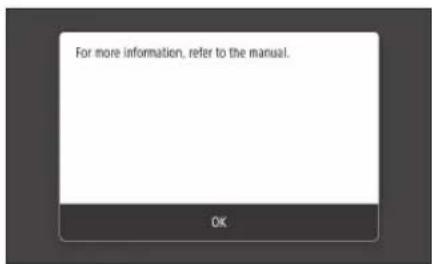
- Select OK>
- Select
. - Select
- Select the access point (SSID), and select
. - Enter a WEP key (network key), and select
. - Select
. - Wait until message
is displayed. -
Select
.
The IP address will be automatically configured in a few minutes. -
Install the driver and software.
P.10 "Installing the software"
Now you are finished with the configuration of the initial settings. If your machine is provided with the fax function, proceed to configuring the fax settings. P.11
To connect via wired LAN
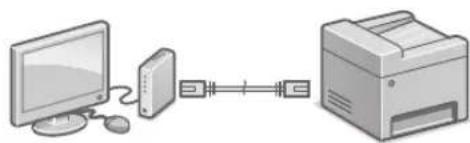
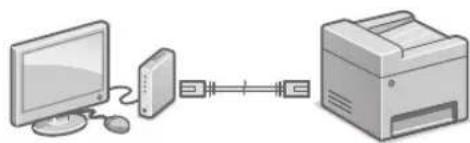
The machine does not come with a LAN cable. Please have one ready, if necessary.
- Make sure that the computer is connected to a router properly.
- Check the network settings on the computer.
- Connect the LAN cable.
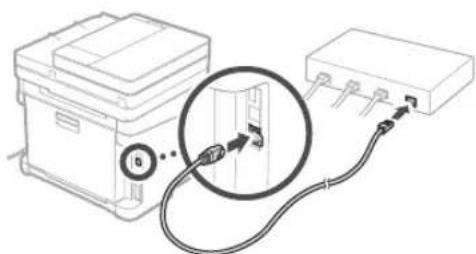
After connecting the cable, wait a few minutes (until the IP address is set automatically).
If a static IP address has been set on the computer, set the machine's IP address manually.
4.Install the driver and software.
P.10 "Installing the software"
Now you are finished with the configuration of the initial settings. If your machine is provided with the fax function, proceed to configuring the fax settings. P.11
To connect via USB
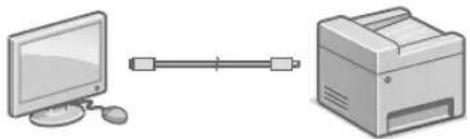
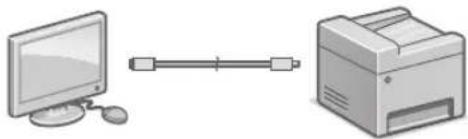
The machine does not come with a USB cable. Please have one ready, if necessary.
Make sure that the USB cable you use has the following mark.
- Do not connect the USB cable before installing the driver. If you did, disconnect the USB cable from the computer, close the dialog box, and then perform the following procedure from step 1.
- Install the driver and software.
P.10 "Installing the software"
- When a screen with instructions for connecting the USB cable to the machine is displayed, remove the sticker that covers the USB port.
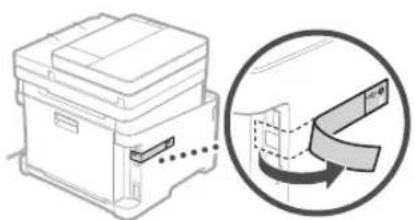
Now you are finished with the configuration of the initial settings.
If your machine is provided with the fax function, proceed to configuring the fax settings. P.11
Installing the software
The procedure described here is only applicable when your computer runs on the Windows OS. For more details on the software installation procedure, see the driver's manual.
- For the installation when your computer runs on the macOS, see the driver's manual.
- Your machine may not come with the driver for the macOS, depending on the time of purchase. New drivers are uploaded to the Canon website, and you can download and use the latest one.
1.
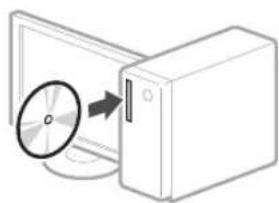
2.
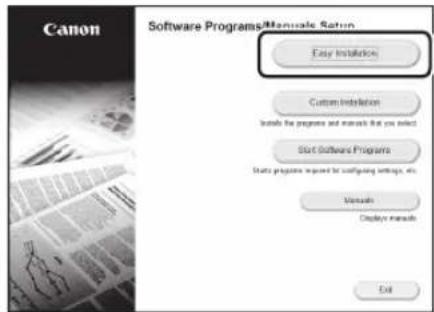
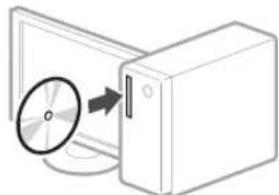
If the screen is not displayed properly, reinsert the CD-ROM/DVD-ROM or search for "D:\Minst.exe" on the Windows platform (This description assumes that "D:" is the CD-ROM/DVD-ROM drive name).
Using the scanner conveniently
Configuring the network settings with "Send Function Setting Tool" allows you to directly send scanned originals with e-mail or I-Fax or store them in a shared folder or on the FTP server.
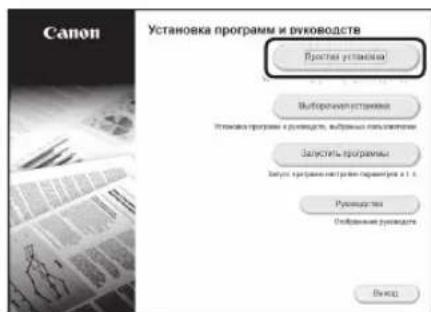
In the screen displayed in step 2, select [Start Software Programs] [Send Function Setting Tool] to start the Send Function Setting Tool.
Configuring Fax Settings
Before starting the configuration:
If your machine does not come with a telephone cable, have one ready, as necessary.
Configure the fax settings, according to the screen below.
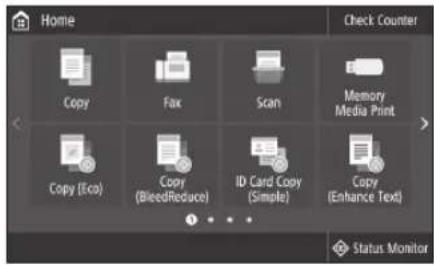
- Select
. - Select
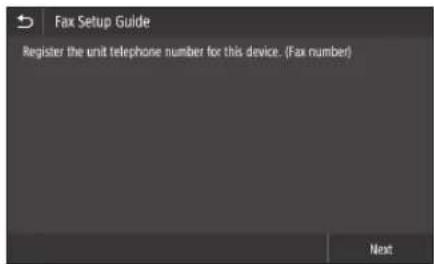
- Register the machine's telephone number (fax number) and abbreviated user name.
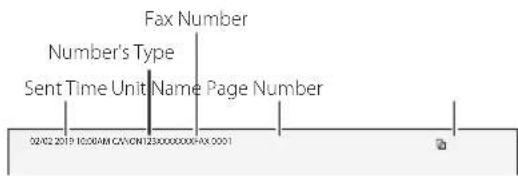
- The information below will be printed at the top part of the paper output from the destination machine as sender information.
- Set the reception mode.
Make the setting by answering the questions on your purposes of using the fax function. - Connect to a telephone line.
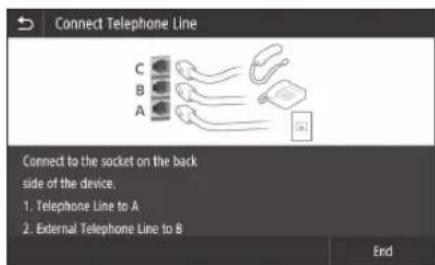
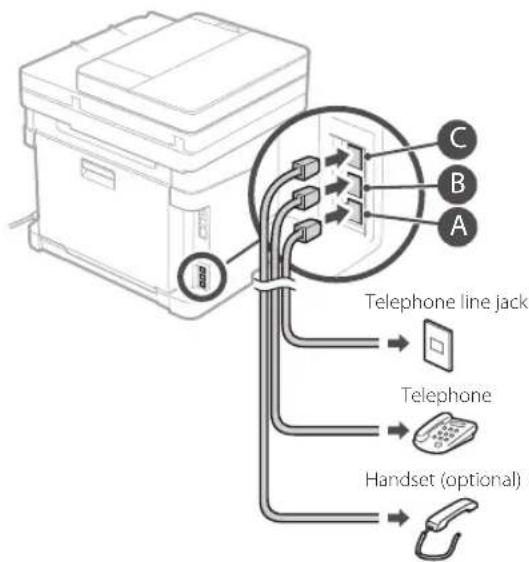
- Select
- Select
Now you are finished with the configuration.
U's adequat de I'escanner
Pnpoopoeic yia to Application Library (B1BIOOeKnEpaoync)*
S.46 "Installation of software"
S.46 "Installation of softwares"
Installation of softwares
Verbinding makes via bedraad LAN
- Selecteer
. - Selecteer
.
IpeepHaayanomHacTroyn
OndHOBpeMeHHoe NOKJIouHne annapaTa K npOBdHoN 6ecnpoBOHcETAM HeBO3MOxHO.
Ecn annapat noKluoyen K He6e3oNaChOH CETN, Bawa nepcoHaJIbHaI INHOpMaun MOxET nonactb K TpeTbIM JInzam. IOMHnTe 06 3Tom n CO6nDaIte OCTOPOXHOCTb.
MappyTu3aTOp He BXOJIT B KOMnIeK TIOCTaBKn annapaTa. PnHc06XoIMOCtN NOIROTOBbTe ero 3apaHee.
JaKeB CpeJe, B KOTOpO IOTcyTCTBye TMapuPyTu3atop 6ecnpoBoHOH CeTN,MOxHo NcNoB3OBaTb peKIM TOUKNIOCTyNA DIA BEcnpoBOHO NOKnIOueHnK AnnapaTy HAnpMyIO C MoNtBHOYcTPOIcTBa (PpAmoe IOKnIOueHne).
PykoBODCTBOIIOb3OBaTeJIa
yKa3aHne cno6a noKJIuOeHnA
-ⅡnnoKlnuHEnNo 6ecnpoBHOJ nokalbHOcTn;
-Длг�нкюченno npOBODHcNoKaIbHOn cetn nnn USB:
PoiKJIoueHne no 6ecnpoBODHOcTn
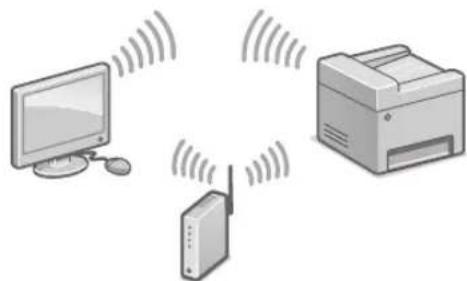
1.Y6eNTecbBTOM,HTO KOMNbIOTep npabINbHO NOKJIIOHcK MapuPyTu3aTOpY.
2.Поверпье Настpoи сети Ha komпьотеpe.
- 3aHHHTe IeHTnФKATop SSID n KIOUcETN.
PpOBepeTe 3TNKeTky Ha MapIpyTu3aTope.
PykoBODCTBOIb3OBaTeJIa
Pa60a no HactpoKe ynpoaeTc,ecnHa Mapwpytn3aTope nMeetc 3HaHOK WPS.
PykoBOCTBO NIOB3OBATEJI
4.3aainTeTOKHyIOCTyHnKIOHcETNBCOOTBETCTBNC 3KpaHOM,INPBBeEHbIM HIXe.
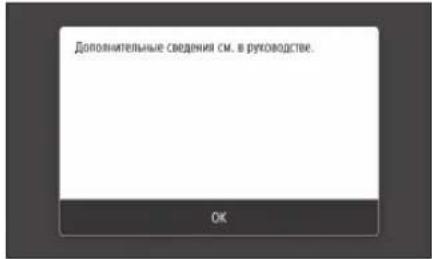
- BbI6epuTe OK>
- BbI6epuTe
. - Bb6epnte
- Bb6epnte ToKy IocTyna (SSID) n Bb6epnte
.
5.BBeHNTe KIOU WEP (KIOU cETn) n BbIbePHTe. - BbIbepuTe
-Дохдnteсь отбраженя cooшени<ПодклчeyHo.>
7. Bb6epnte<3akpbTb>
- IP-aippec HactpansBaetc ABTomatueckn B TeceHHe HECKOJIbKIN MHNHT.
5.YctaHOBtTe npaIBep nnporpaMMHoe 06ccneueHne.
Ctp.66《VCTaHOBKa nporpaMMHOrO 06ecneueHn
Tenepb 3aDaanHe NcXoHbIX HAcTpoek 3aBepseHo.
EcnB annapate npedymotpeha aKcmmnbHag yHKnna, nepexoJte K 3aHaHIO HAcTpoek aKaCa.
Ctrp.67
IopKJIoueHne no npoBOHOcTn
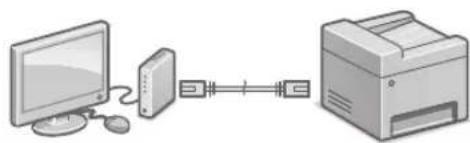
Kabenb nokaibhoi cetn He BXoNT B KOMnneKT annapata.
PnHHeo6xOaMIOCTN NOIgROTOBbTe Ka6eNb.
1.Y6eNTecbBTOM,HTO KOMNbIOTep npabINbHO NOKJIIOHcK MapuPyTu3aTOpY.
2.Поверпге Настpoик сети На КOMьTepe.
3. Npoknouhte ka6ebnb nokaibHOI cTe.
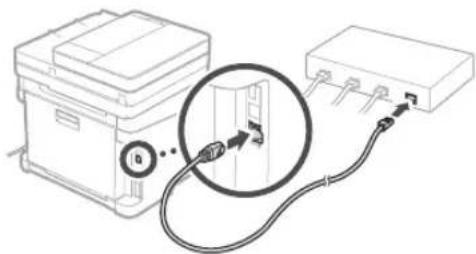
-Подклочьkaбь,нодожиte Heckoьko MNHyT (noka IP-aIpec He 6ydt 3aHa ABTomaTNueCKN).
- Ecnn Ha KOMmbIope 3aHa CTaTneckn IP-aDpec, 3aJaTe IP-aDpec annapata BpyHyIO.
- yctaHOBNTe npaBep n nporpaMMHoe oecneueHne.
Ctp.66《YCTaHOBKa nporpaMMHOrO 06ecneueHH
Tenepb 3aJaHHe nCXoHNbIX HAcTpoek 3aBepSeHo.
EcnnBannapate npedycmotpeha aKcmmnIbHa yHKun, nepexoJnte K 3aDaHnIO HAcTpoE kakca.
Crp.67
PoiKnIoueHne no USB
Ka6eNB USB He BXoNT B KOMnneKt annpaTa. Pn Heo6xOmoCTN NOrTOOBTe Ka6eNb.
- Y6eNTecbBTOM,TO nCnoIb3yEmbKabEB USB Nmee TcNeDyUOuO MapKnipOBky.

He nooknouaKe Ka6eNB USD do yctaHOBKn npaBepa. EcnB bTo cenann, oTcoeHNHTe Ka6eNB USB OT KOMNIOTEpa, 3akpoTne DnaIoroBoe OKHO N BbINONHITe npuBeHHyIO Hnke npoueDpyc wara 1.
1.YcTaHOBnTe DpaIbep N nporpaMMHoe o6ecneueHHe.
Ctp.66《YctaHOBKa nporpaMMHO 06ecneueHn
- Ecnn OTo6paKaEeTcA KpaH c yka3aHHeM noKIOUHTb Ka6eNB USB K annpaTy, CHMNTe HAKIeKy, 3akpbBaOuSyIO npT USB.
Tenepb 3aandaHne mCXoNbIX HacTpoek 3aBepweHo.
EcnB aannapate npedymotpeha akcmmnbna yHKnna, nepexoute K 3aHaHIO Hactpoek aKa ca.
Ctp.67
yctahOBka nporpamMHor0 06ecneueHn
-Пивденинaria 3дecь поцуда рпимеима TONьк ДЯ KOMьОТеров,Ha KOTOPbie yctahOBJIeHa OC Windows.Поюбkee o npocdupe yctahOBKn nporpaMMHoro obecneueHn CM.В pyKOBODCTBE KДраBepy.
-TopaOKyCTaHOBKnHaKOMbIbTebpIC OC macOScm.BpyKOBOdCTBe KdpaBepy.
B3abncnmoCTOn BpemeHnpno6pehennaappapa, OH MOKeT NOCTaBnTbC 6e3 npaBepaDn OC macOS.HOBBe DpaBepb pa3MeauioTcHa Be6-caTe Canon, noTOMy MoXHO 3aRpy3ntbN nCNONb3ObaTb HOBeWn dpaBep.
1.
2.
Ecnn EkapaH He OTo6paXaETc HndIeKaUIM
0bpa3OM, 3aHOBO yCTaHOBNTe nck CD-ROM/
DVD-ROM mnn BbIOINHTe nOncK faIIa
«D:MInst.exe» Ha nIaTΦopMe Windows (B
OTOM ONICAHN INpeDNONARAEcT, UTO «D»-
3TO IIMn DnCKOBOna CD-ROM/DVD-ROM).
Ydo6Hoe nCnoJb3ObaHne cKaHepa
3aHaHHe HAcTpoek CeTn C NOMOuBIO
cpeCTBa «NHCtpymeHT HaCtpoiKn
fYHKUIN OTnpaBKNI NO3BOJAE THaPmMyIO TNPaBnAIBoT OCKAHpOBaHHBe OpuHnHaJIbIO 3NeKTPoHHo NooTe IIN-ΦakCy IIn60 CoXpaHrTB IN COBMecTHO NCNoB3yEmoN NaKe IIN HA cepBepe FTP.
Ha 3kPaHe, oTo6paKaemom Ha Ware 2, BbIbepnte [3anyCTnTb nporpaMMbl] [NHCtpymeHT HAcTpoiKn fYHKUIN OTnpaBKn], YTO6b3anyCTnTb NHCtpymeHT HaCtpoiKn fYHKUIN OTnpaBtB.
3aahanne hactpoek kaKca
Ipeed NaaJOM HacTpoiKn:
Ecn TelefoHHb Ka6eHb He BXoNT B KOMJIeK TnOCTaBKn aannapata, npn HEO6XoIMOCtN NOIROTOBbTe erO.
3aJaTe HAcTpoKn 0akBa CootBcTCTBmC 3kpaHOM, npuBeHeHHbIM HIXKe.
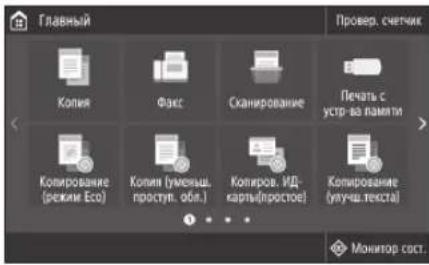
- BbIepeTe<ΦaKc>
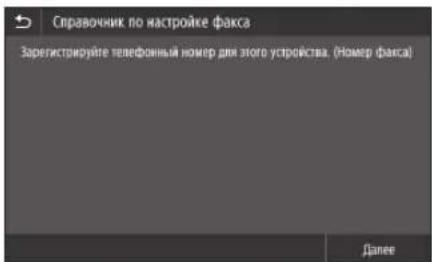
2.BbI6epuTe - 3apeHnCTpnpyTe HOpE TenefoHa (HOpE pKaCa) annapata n cokpaueHHoe mI NOIb30BATEJI.
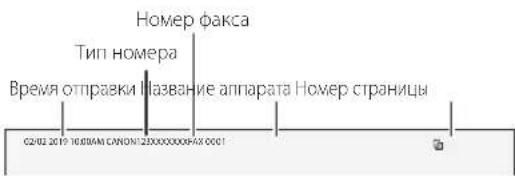
JaHbIe, npBedeHbIe HNKe, 6yDyT neaTaTbCBA BExpy NcSta 6ymarH, BbBOIMORo Ha annapate nonuataTeA, B kayectBe CbeHn 06 OTnpabntene.
4.3aJaTepeXKIMnpEma.
-ⅡHACTPOKNIOTBeTBTe HA BONPOcBIOueJIAX NCIOIb3OBAHnFAKCMUNIBHOHfYHKUIN.
- NpoknquHTEcK TeneoHHNINHIN
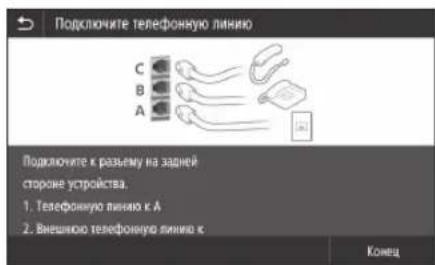
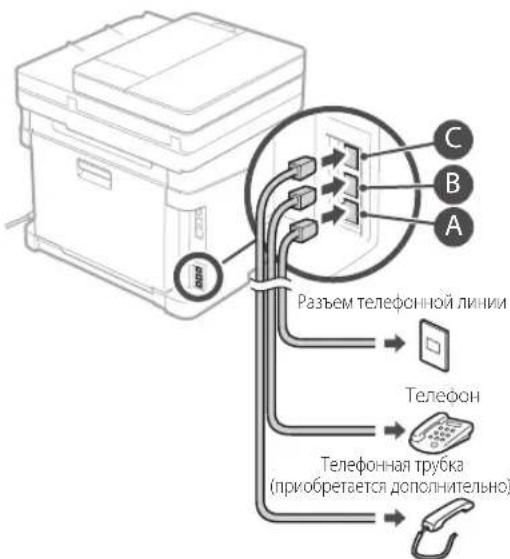
- BbIepeNTe
. - BbIepeTe
KpaTkoe pykoBODCTBO NO 3KcnIyatauIN
Ru
Ubnkaekcnnyataia
UK
Place the Original Properly
Remember before You Start Operation
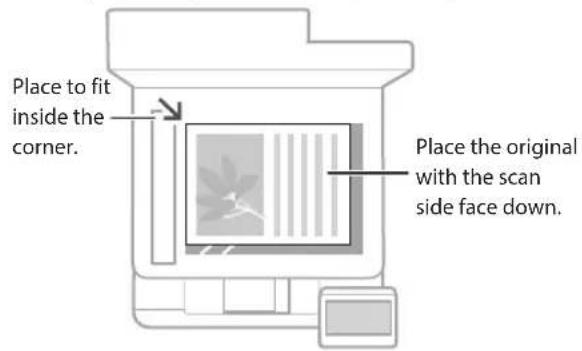
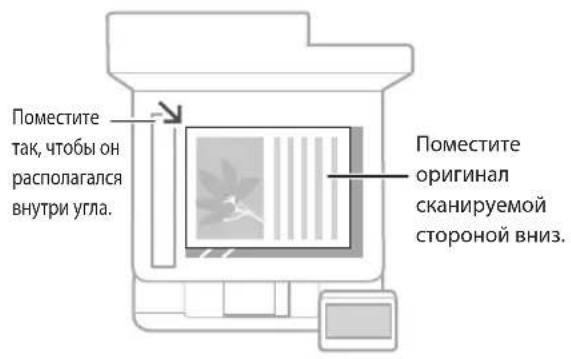
Place your original on the platen glass


Suitable for scanning book pages, magazine pages and newspaper clips.
- This function may not be included depending on the model of the machine.
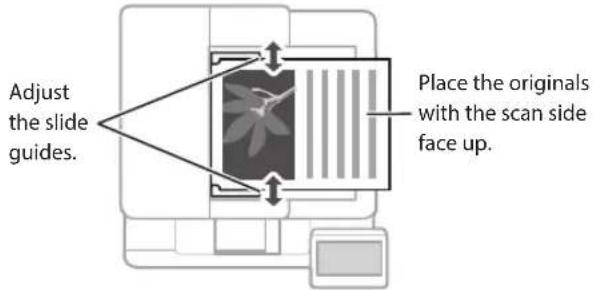
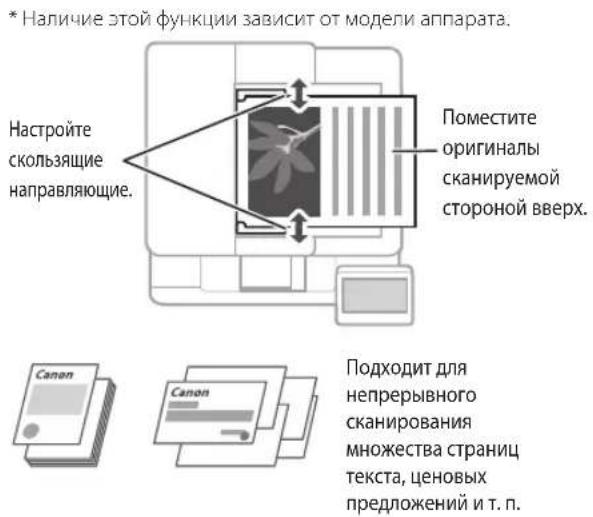
Place your originals into the feeder*

Suitable for continuously scanning many pages of literature, quotation, etc.
Start the Operation from the Operation Panel
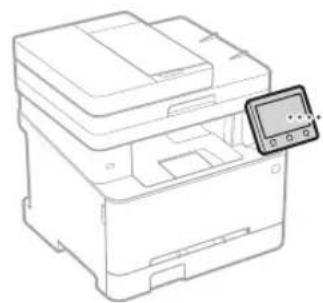
Machine (MF645Cx)
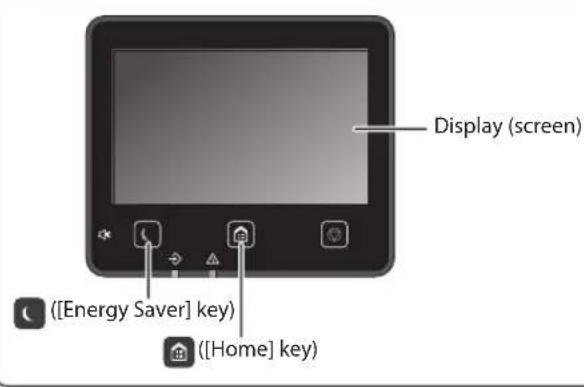
Operation Panel

Scanning
- Place the original.
- Press, and select
. - Select the type of scan, and enter the necessary information.
- Select
, .
Types of scan
Store in USB memory device
Send e-mail
Send to file server
To scan from a computer
MF Scan Utility
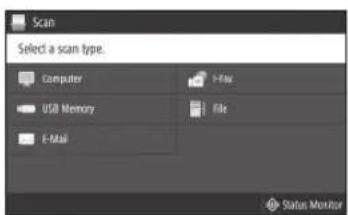
For details
"Scanning" in the User's Guide

Copying
- Place the original.
- Press, and then select <Copy> .
- Specify the copy settings, as necessary.
- Enter the desired number of copies.
- Select
.
Useful copy settings
Non 1
2-Sided or 1-Sided*
Enlarging or reducing
- Copying ID cards
Passport Copy
- This function may not be available, depending on the model of the machine.

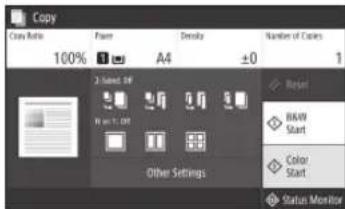
For details
"Copying" in the User's Guide

Faxing*
- Place the original.
- Press and select
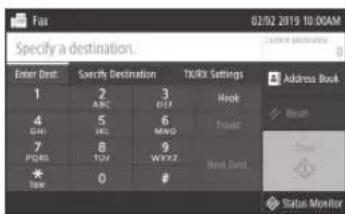
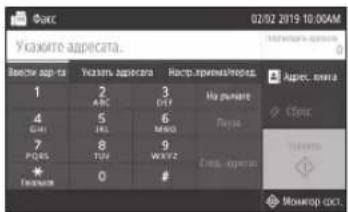
. - Enter the destination information.
- Specify the fax settings, as necessary.
-
Select
. -
This function may not be available, depending on the model of the machine.
Useful fax functions
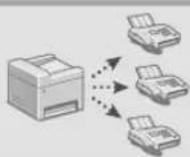
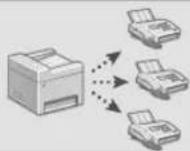
Sequential Broadcast
Memory Reception
PC Fax
For details
"Faxing" in the User's Guide

Printing
- Open the document to print, and select the print function of the application.
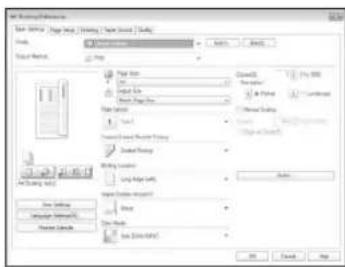
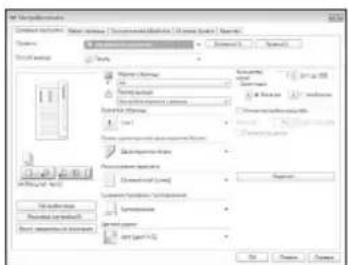
- Select the printer driver for the machine, and select [Preferences] or [Properties].
- Specify the paper size.
- Specify the paper source and paper type.
- Specify the print settings, as necessary.
- Select [OK].
- Select [Print] or [OK].
Useful print settings
2-sided
Non1
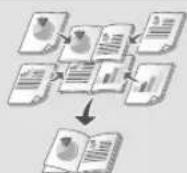
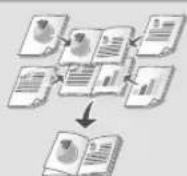
■ Booklet Printing
- This function may not be available, depending on the model of the machine.
For details
"Printing" in the User's Guide
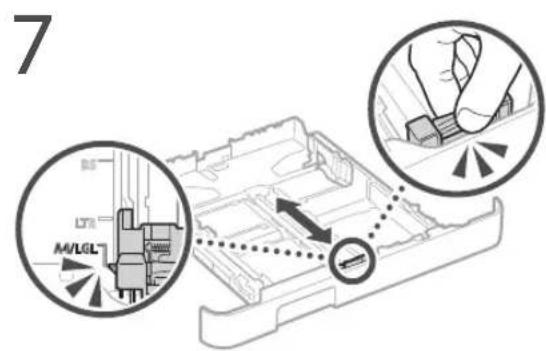
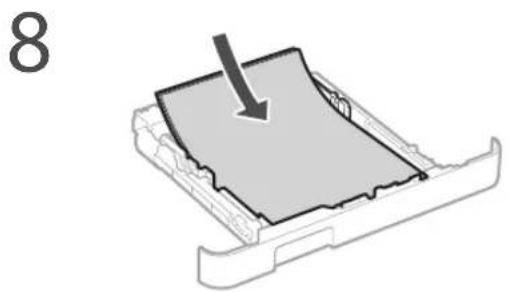
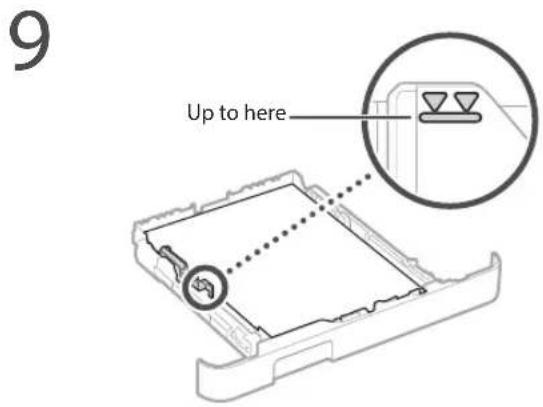
Pull out the paper drawer.
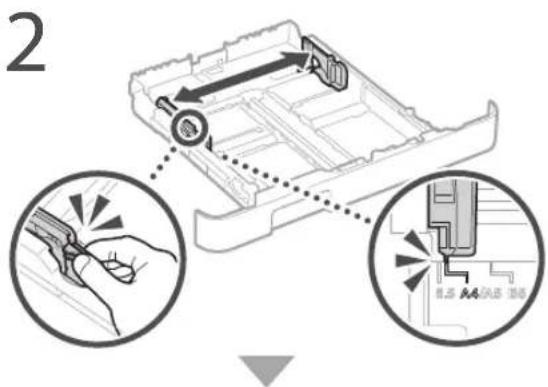
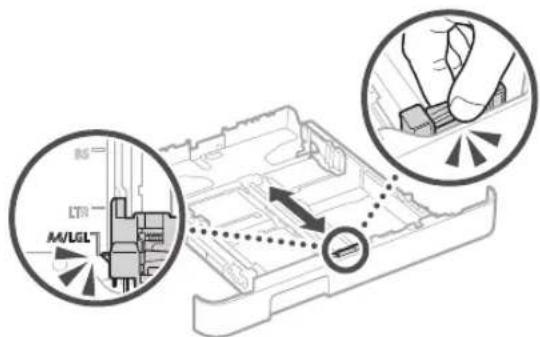
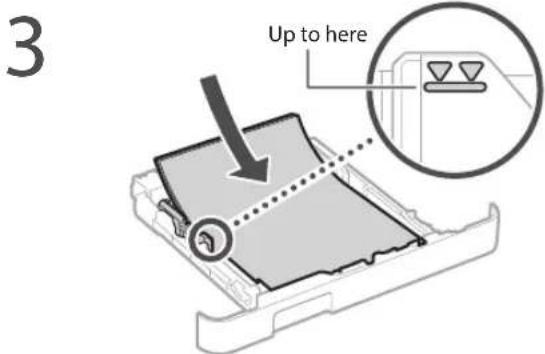
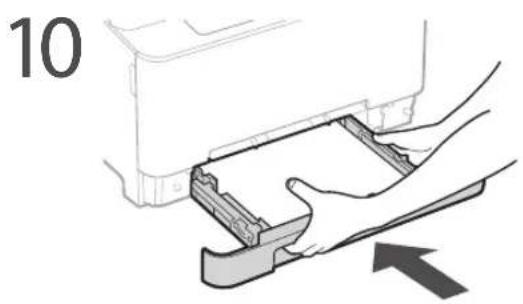
4 Insert the paper drawer into the machine.
If you load a different size or type of paper from the one before, make sure to change the settings.
Press nd select
6 Specify the size and type of paper, according to the screen.
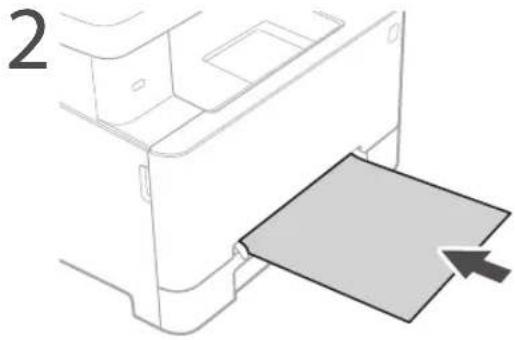
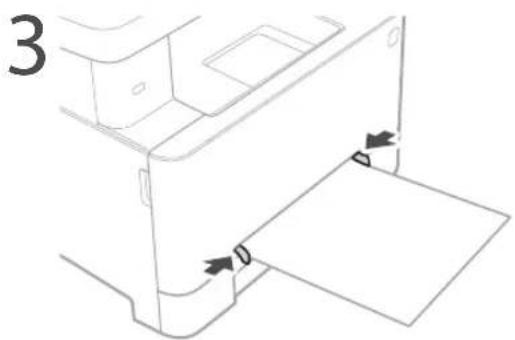
Loading in the Manual Feed SlotLoading
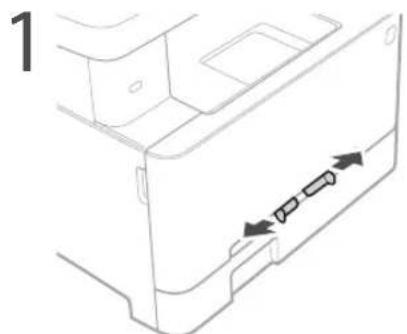
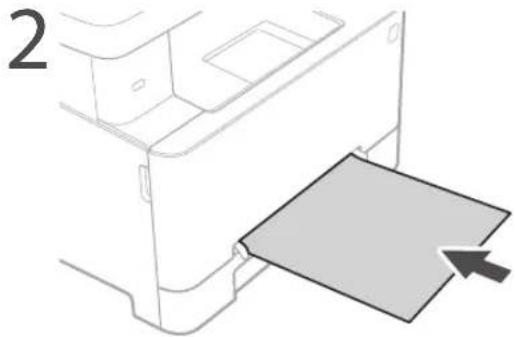
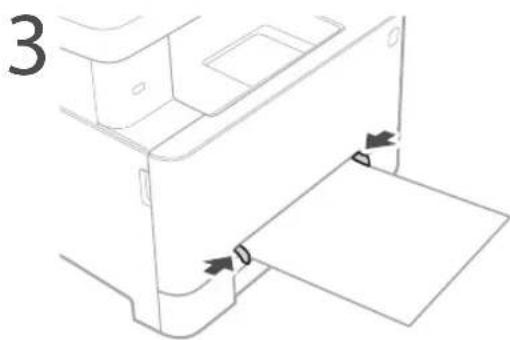
Insert the paper slowly into the manual feed slot until it reaches the back of the slot.
5 Specify the size and type of paper, according to the screen.
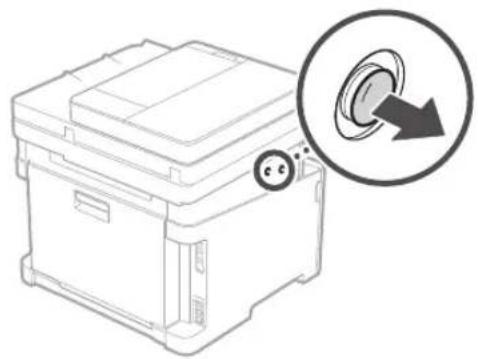
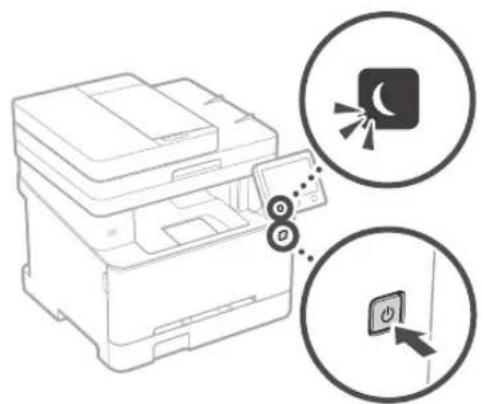
The Machine Does Not Seem to Work
Check the following.
Is the power turned ON?
Is the machine out of sleep mode?
If both the display and are not lit, press the power switch.
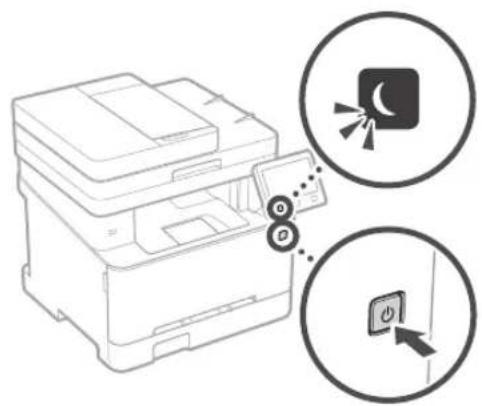
Is the power cord connected correctly?
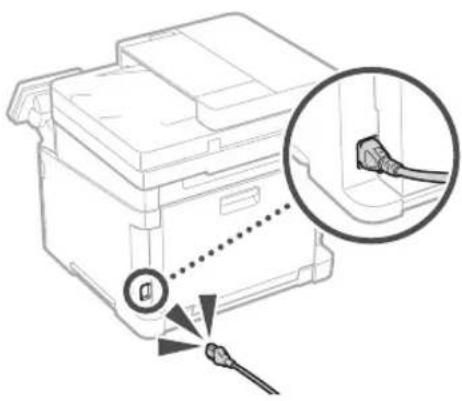
If the problem persists, see the User's Guide.
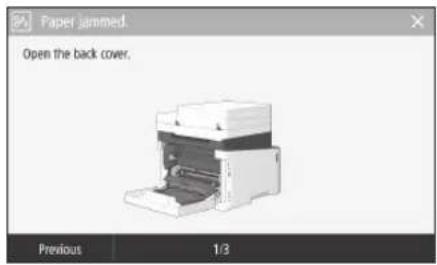
Paper Jams Have Occurred
Clear the paper jams, according to the on-screen instructions.
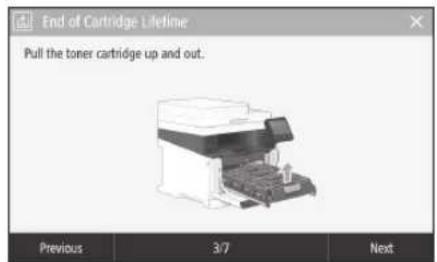
Replacing the Toner Cartridge
Replace the toner cartridge, according to the onscreen instructions.
Model number of replacement toner cartridge
- Canon Cartridge 054 Black
- Canon Cartridge 054 Cyan
- Canon Cartridge 054 Magenta
-
Canon Cartridge 054 Yellow
-
Canon Cartridge 054 H Black
- Canon Cartridge 054 H Cyan
- Canon Cartridge 054 H Magenta
- Canon Cartridge 054 H Yellow
Appendix
Important Safety Instructions
This chapter describes important safety instructions for the prevention of injury to users of this machine and others, and damage to property. Read this chapter before using the machine, and follow the instructions to use the machine properly. Do not perform any operations not described in this manual. Canon will not be responsible for any damages resulting from operations not described in this manual, improper use, or repair or changes not performed by Canon or a third party authorized by Canon. Improper operation or use of this machine could result in personal injury and/or damage requiring extensive repair that may not be covered under your Limited Warranty.
WARNING
Indicates a warning concerning operations that may lead to death or injury to persons if not performed correctly. To use the machine safely, always pay attention to these warnings.
CAUTION
Indicates a caution concerning operations that may lead to injury to persons if not performed correctly. To use the machine safely, always pay attention to these cautions.
OIMPORTANT
Indicates operational requirements and restrictions. Be sure to read these items carefully to operate the machine correctly and avoid damage to the machine or property.
Installation
To use this machine safely and comfortably, carefully read the following precautions and install the machine in an appropriate location.
WARNING
Do not install in a location that may result in a fire or electrical shock
- A location where the ventilation slots are blocked (too close to walls, beds, sofas, rugs, or similar objects)
A damp or dusty location - A location exposed to direct sunlight or outdoors
A location subject to high temperatures
A location exposed to open flames
Near alcohol, paint thinners or other flammable substances
Other warnings
- Do not connect unapproved cables to this machine. Doing so may result in a fire or electrical shock.
- Do not place necklaces and other metal objects or containers filled with liquid on the machine. If foreign substances come in contact with electrical parts inside the machine, it may result in a fire or electrical shock.
- When installing and removing the optional accessories, be sure to turn OFF the power, unplug the power plug, and then disconnect all the interface cables and power cord from the machine. Otherwise, the power cord or interface cables may be damaged, resulting in a fire or electrical shock.
If any foreign substance falls into this machine, unplug the power plug from the AC power outlet and contact your local authorized Canon dealer.
CAUTION
Do not install in the following locations
The machine may drop or fall, resulting in injury.
An unstable location
A location exposed to vibrations
Other cautions
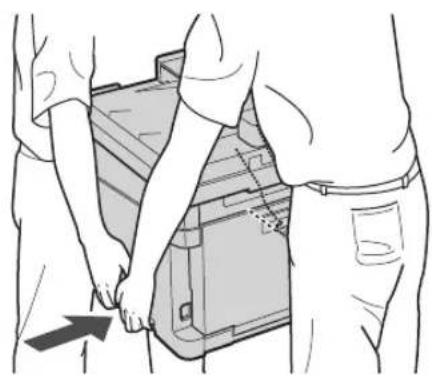
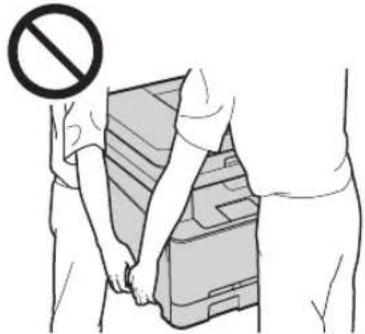
- When carrying this machine, follow the instructions in this manual. If carried improperly, it may fall, resulting in injury
- When installing this machine, be careful not to get your hands caught between the machine and the floor or walls. Doing so may result in injury.
0IMPORTANT
Do not install in the following locations
Doing so may result in damage to the machine.
- A location subject to temperature and humidity extremes, whether low or high
- A location subject to dramatic changes in temperature or humidity
- A location near equipment that generates magnetic or electromagnetic waves
A laboratory or location where chemical reactions occur - A location exposed to corrosive or toxic gases
- A location that may warp from the weight of the machine or where the machine is liable to sink (a carpet, etc.)
Avoid poorly ventilated locations
This machine generates a slight amount of ozone and other emissions during normal use. These emissions are not harmful to health. However, they may be noticeable during extended use or long production runs in poorly ventilated rooms. To maintain a comfortable working environment, it is recommended that the room where the machine operates be appropriately ventilated. Also avoid locations where people would be exposed to emissions from the machine.
Do not install in a location where
condensation occurs
Water droplets (condensation) may form inside the machine when the room where the machine is installed is heated rapidly, and when the machine is moved from a cool or dry location to a hot or humid location. Using the machine under these conditions may result in paper jams, poor print quality, or damage to the machine. Let the machine adjust to the ambient temperature and humidity for at least 2 hours before use.
In altitudes of above sea level 3,000 m or higher
Machines with a hard disk may not operate properly when used at high altitudes of about 3,000 meters above sea level, or higher.
Connecting the Telephone Line
This machine conforms to a analog telephone line standard. The machine can be connected to the public switched telephone network (PSTN) only. If you connect the machine to a digital telephone line or a dedicated telephone line, it might impede proper operation of the machine and could be the cause of damage. Make sure to confirm a type of telephone line before connecting the machine. Contact your optical fiber line or IP telephone line service providers if you want to connect the machine to those telephone lines.
When using wireless LAN
Install the machine at a distance of 50 meters or less from the wireless LAN router.
- As far as possible, install in a location where communication is not blocked by intervening objects. The signal may be degraded when passing through walls or floors.
- Keep the machine as far as possible from digital cordless phones, microwave ovens, or other equipment that emits radio waves.
- Do not use near medical equipment. Radio waves emitted from this machine may interfere with medical equipment, which may result in malfunctions and accidents.
If the operating noise concerns you
Depending on the use environment and operating mode, if the operating noise is of concern, it is recommended that the machine be installed in a place other than the office.
Power Supply
WARNING
- Use only a power supply that meets the specified voltage requirements. Failure to do so may result in a fire or electrical shock.
The machine must be connected to a socket-outlet with grounding connection by the provided power cord. - Do not use power cords other than the one provided, as this may result in a fire or electrical shock.
The provided power cord is intended for use with this machine. Do not connect the power cord to other devices. - Do not modify, pull, forcibly bend, or perform any other act that may damage the power cord. Do not place heavy objects on the power cord. Damaging the power cord may result in a fire or electrical shock.
- Do not plug in or unplug the power plug with wet hands, as this may result in an electrical shock.
- Do not use extension cords or multi-plug power strips with the machine. Doing so may result in a fire or electrical shock.
- Do not wrap the power cord or tie it in a knot, as this may result in a fire or electrical shock.
- Insert the power plug completely into the AC power outlet. Failure to do so may result in a fire or electrical shock.
- Remove the power plug completely from the AC power outlet during a thunder storm. Failure to do so may result in a fire, electrical shock, or damage to the machine.
Make sure that the power supply for the machine is safe, and has a steady voltage. - Keep the power cord away from a heat source; failure to do this may cause the power cord coating to melt, resulting in a fire or electrical shock.
Avoid the following situations:
If excessive stress is applied to the connection part of the power cord, it may damage the power cord or the wires inside the machine may disconnect. This could result in a fire.
-
Connecting and disconnecting the power cord frequently.
-
Tripping over the power cord.
The power cord is bent near the connection part, and continuous stress is being applied to the power outlet or the connection part. - Applying excessive force on the power plug.
CAUTION
- Install this machine near the power outlet and leave sufficient space around the power plug so that it can be unplugged easily in an emergency.
0IMPORTANT
When connecting power
- Do not connect the power cord to an uninterrupted power source. Doing so may result in malfunction of or damage to the machine at power failure.
If you plug this machine into an AC power outlet with multiple sockets, do not use the remaining sockets to connect other devices.
- Do not connect the power cord to the auxiliary AC power outlet on a computer.
Other precautions
Electrical noise may cause this machine to malfunction or lose data.
Handling

WARNING
- Immediately unplug the power plug from the AC power outlet and contact an authorized Canon dealer if the machine makes an unusual noise, emits an unusual smell, or emits smoke or excessive heat. Continued use may result in a fire or electrical shock.
- Do not disassemble or modify this machine. There are high-voltage and high-temperature components inside the machine. Disassembly or modification may result in a fire or electrical shock.
- Place the machine where children will not come in contact with the power cord and other cables or gears and electrical parts inside the machine. Failure to do so may result in unexpected accidents.
- Do not use flammable sprays near this machine. If flammable substances come into contact with electrical parts inside this machine, it may result in a fire or electrical shock.
- When moving this machine, be sure to turn OFF the power of this machine, and then unplug the power plug and interface cables. Failure to do so may damage the power cord or interface cables, resulting in a fire or electrical shock.
- When plugging or unplugging a USB cable when the power plug is plugged into an AC power outlet, do not touch the metal part of the connector, as this may result in an electrical shock.
If you are using a cardiac pacemaker
This machine generates a low level magnetic flux and ultrasonic waves, if you use a cardiac pacemaker and feel abnormalities, please move away from this machine and consult your physician immediately.
CAUTION
- Do not place heavy objects on this machine as they may fall, resulting in injury.
- For your safety, please unplug the power cord if the machine will not be used for a long period of time.
- Use caution when opening and closing covers to avoid injury to your hands.
- Keep hands and clothing away from the rollers in the output area. If the rollers catch your hands or clothing, this may result in personal injury.
The inside of the machine and the output slot are very hot during and immediately after use. Avoid contact with these areas to prevent burns. Also, printed paper may be hot immediately after being output, so use caution when handling it. Failure to do so may result in burns.

- Be careful not to drop a heavy object, such as a dictionary, on the platen glass. Doing so may damage the platen glass and result in injury.
- Do not carry the machine with any of the paper drawer or optional paper feeder installed. Otherwise, they may fall, resulting in injury.
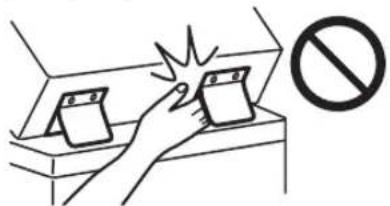
Feeder or platen glass cover
- Do not press down hard on the feeder or the platen glass cover when using the platen glass to make copies of thick books. Doing so may damage the platen glass and result in personal injury.
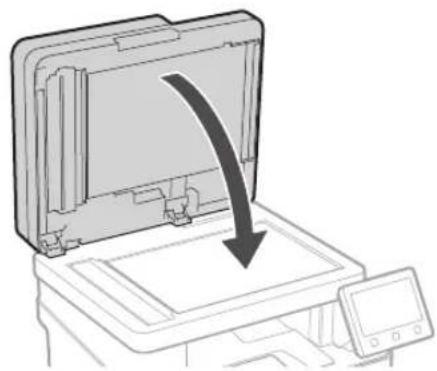
- Close the feeder or the platen glass cover gently to avoid catching your hands, as this may result in personal injury.
- Be careful not to put your hands or fingers into the feeder or the platen glass cover. Otherwise, you may be injured.
Paper drawer
- Do not insert your hand into the machine while the paper drawer is removed, as this may result in personal injury.
Energy Saver key
Press (Energy Saver) for safety when the machine will not be used for a long period of time, such as overnight. Also, turn OFF the main power switch, and disconnect the power cord for safety when the machine will not be used for an extended period of time, such as during consecutive holidays.
Laser Safety
This product is confirmed as a Class 1 laser product in IEC60825-1:2014 and EN60825-1:2014.
CLASS 1 LASER PRODUCT
LASER KLASSE 1
APPAREL A LASER DE CLASSE 1
APPARECCHIO LASER DI CLASSE 1
PRODUCTO LASER DE CLASE 1
APARELHO A LASER DE CLASSE 1
LUOKAN1 LASER-TUOTE
LASERPRODUKT KCLASS 1
The laser beam can be harmful to human bodies. Since radiation emitted inside the product is completely confined within protective housings and external covers, the laser beam cannot escape from the machine during any phase of user operation. Read the following remarks and instructions for safety.
- Never open covers other than those instructed in the manuals for this machine.
If the laser beam should escape and enter your eyes, exposure may cause damage to your eyes.
Use of controls, adjustments, or performance of procedures other than those specified in this manual may result in hazardous radiation exposure.
Laser Safety Caution
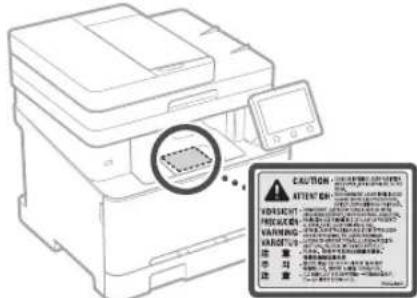
0IMPORTANT
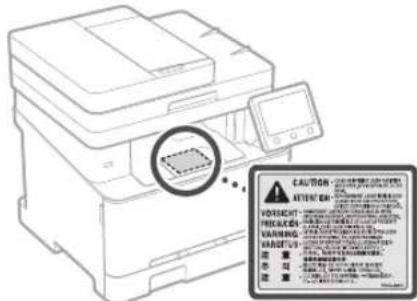
- Follow the instructions on the caution label attached to this machine.
- Do not subject the machine to strong shocks or vibration.
- Do not forcibly open and close doors, covers, and other parts. Doing so may result in damage to the machine.
- Do not turn the main power switch OFF or open the covers while the machine is in operation. This may result in paper jams.
- Use a modular cable that is shorter than 3 meters.
Use a USB cable that is shorter than 3 meters.
Appendix
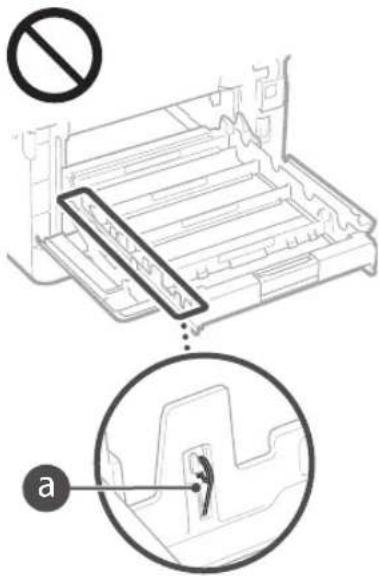
- Do not touch the contacts ( ) inside the machine. Doing so may result in damage to the machine.
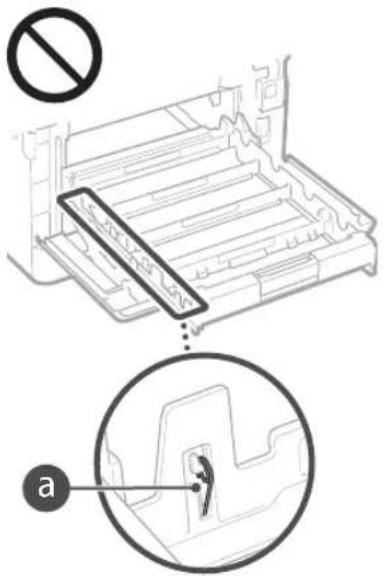
When transporting the machine
To prevent damage to the machine during transport, perform the following.
- Remove the toner cartridges.
- Securely pack the machine in the original box with packing materials.
Safety-Related Symbols
Power switch: "ON" position
Power switch: "OFF" position
Power switch: "STAND-BY" position
Push-push switch "ON" "OFF"
Protective earthing terminal
Dangerous voltage inside. Do not open covers other than instructed.
CAUTION: Hot surface. Do not touch.
Classl equipment
Moving parts:Keep body parts away from moving parts
CAUTION: An electrical shock may occur. Remove all the power plugs from the power outlet.
There are sharp edges. Keep body parts away from sharp edges.
[NOTE]
Some of symbols shown above may not be affixed depending on the product.
Maintenance and Inspections
Clean this machine periodically. If dust accumulates, the machine may not operate properly. When cleaning, be sure to observe the following. If a problem occurs during operation, see "Troubleshooting" in the User's Guide. If the problem cannot be resolved or you feel the machine requires an inspection, see "When a Problem Cannot Be Solved" in the User's Guide.
WARNING
-
Before cleaning, turn OFF the power and unplug the power plug from the AC power outlet. Failure to do so may result in a fire or electrical shock.
-
Unplug the power plug periodically and clean with a dry cloth to remove dust and grime. Accumulated dust may absorb humidity in the air and may result in a fire if it comes into contact with electricity.
- Use a damp, well wrung-out cloth to clean the machine. Dampen cleaning cloths with water only. Do not use alcohol, benzine, paint thinner, or other flammable substances. Do not use tissue paper or paper towels. If these substances come into contact with electrical parts inside the machine, they may generate static electricity or result in a fire or electrical shock.
- Check the power cord and plug periodically for damage. Check the machine for rust, dents, scratches, cracks, or excessive heat generation. Use of poorly-maintained equipment may result in a fire or electrical shock.
CAUTION
The inside of the machine has high-temperature and high-voltage components. Touching these components may result in burns. Do not touch any part of the machine that is not indicated in the manual.
- When loading paper or removing jammed paper, be careful not to cut your hands with the edges of the paper.
Consumables
WARNING
- Do not dispose of used toner cartridges or the like in open flames. Also, do not store toner cartridges or paper in a location exposed to open flames. This may cause the toner to ignite, and result in burns or fire.
If you accidentally spill or scatter toner, carefully gather the toner particles together or wipe them up with a soft, damp cloth in a way that prevents inhalation. Never use a vacuum cleaner that does not have safeguards against dust explosions to clean up spilled toner. Doing so may cause a malfunction in the vacuum cleaner, or result in a dust explosion due to static discharge.
CAUTION
Use caution not to inhale any toner. If you should inhale toner, consult a physician immediately.
Use caution so that toner does not get into your eyes or mouth. If toner should get into your eyes or mouth, immediately wash with cold water and consult a physician.
- Use caution so that toner does not come into contact with your skin. If it should, wash with soap and cold water. If there is any irritation on your skin, consult a physician immediately.
- Keep the toner cartridges and other consumables out of the reach of small children. If toner is ingested, consult a physician or poison control center immediately.
- Do not disassemble or modify the toner cartridge or the like. Doing so may cause the toner to scatter.
- When removing the sealing tape from the toner cartridge, pull it out completely but without using excessive force. Doing otherwise may cause the toner to scatter.
0IMPORTANT
Handling the toner cartridge
- Be sure to hold the toner cartridge using the handle.
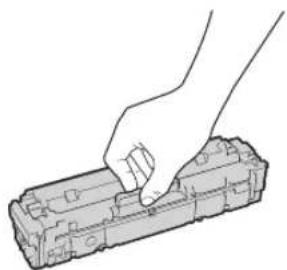
- Do not touch the toner cartridge memory (a) or the electrical contacts (b). To avoid scratching the surface of the drum inside the machine or exposing it to light, do not open the drum protective shutter (c).
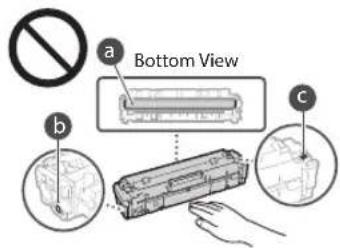
Except when necessary, do not take out the toner cartridge from the packing material or from this machine.
The toner cartridge is a magnetic product. Do not move it close to products susceptible to magnetism including floppy disks and disk drives. Doing so may result in data corruption.
Storing the toner cartridge
- Store in the following environment to ensure safe and satisfactory use. Storage temperature range: 0 to 35^ Storage humidity range: 35 to 85% RH (relative humidity/no condensation)*
- Store without opening until the toner cartridge is to be used.
- When removing the toner cartridge from this machine for storage, place the removed toner cartridge in the original packing material.
- When storing the toner cartridge, do not store it upright or upside down. The toner will solidify and may not return to its original condition even if it is shaken.
- Even within the storable humidity range, water droplets (condensation) may develop inside the toner cartridge if there is a difference of temperature inside and outside the toner cartridge. Condensation will adversely affect the print quality of toner cartridges.
Do not store the toner cartridge in the following locations
- Locations exposed to open flames
- Locations exposed to direct sunlight or bright light for five minutes or more
- Locations exposed to excessive salty air
- Locations where there are corrosive gases (i.e. aerosol sprays and ammonia)
- Locations subject to high temperature and high humidity
- Locations subject to dramatic changes in temperature and humidity where condensation may easily occur
- Locations with a large amount of dust
- Locations within the reach of children
Be careful of counterfeit toner cartridges
- Please be aware that there are counterfeit Canon toner cartridges in the marketplace. Use of counterfeit toner cartridge may result in poor print quality or machine performance. Canon is not responsible for any malfunction, accident or damage caused by the use of counterfeit toner cartridge. For more information, see global.canon/ctc.
Availability period of repairing parts and toner cartridges and the like
The repairing parts and toner cartridges and the like for the machine will be available for at least seven (7) years after production of this machine model has been discontinued.
Toner cartridge packing materials
- Save the packing materials for the toner cartridge. They are required when transporting this machine.
- The packing materials may be changed in form or placement, or may be added or removed without notice.
After you pull out the sealing tape from the toner cartridge, dispose of it in accordance with the applicable local regulations.
When disposing of a used toner cartridge or the like
- When discarding a toner cartridge or the like, place it in the original packing material to prevent toner from scattering from inside, and dispose of it in accordance with the applicable local regulations.
Notice
Product Name
Safety regulations require the product's name to be registered. In some regions where this product is sold, the following name(s) in parentheses () may be registered instead.
MF645Cx(F175002)
MF643Cdw / MF641Cw (F175000)
EMC requirements of EC Directive
This equipment conforms with the essential EMC requirements of EC Directive. We declare that this product conforms with the EMC requirements of EC Directive at nominal mains input 230V 50Hz although the rated input of the product is 220 to 240V 50 / 60Hz . Use of shielded cable is necessary to comply with the technical EMC requirements of EC Directive.
EU WEEE and Battery Directives
You can see the WEEE and Battery Directives information in the latest User's Guide (HTML manual) from the Canon website (canon.com/ oip-manual).
Wireless LAN Regulatory Information
Regulatory information for users in Jordan MF645Cx/MF643Cdw/MF641Cw includes approved Wireless LAN Module (Model name: Type1KA). Contains Wireless LAN Module approved by TRC/LPD/2017/19
Regulatory information for users in UAE
MF645Cx / MF643Cdw / MF641Cw includes approved Wireless LAN Module (Model name: Type1KA).
TRA
REGISTERED No: ER51217/17
DEALER No: DA0073692/11
RE Directive
(Only for European radio equipment)
RE Declaration of Conformity
English (EN) Hereby, Canon Inc. declares that this equipment is in compliance with Directive 2014/53/EU. The full text of the EU declaration of conformity is available at the following internet address: http://www.canon-europe.com/ce-documentation/Wireless LAN Specifications Frequency band(s):2412-2472MHz Maximum radio-frequency power: 15.9 dBm
Legal Limitations on the Usage of Your Product and the Use of Images
Using your product to scan, print or otherwise reproduce certain documents, and the use of such images as scanned, printed or otherwise reproduced by your product, may be prohibited by law and may result in criminal and/or civil liability. A non-exhaustive list of these documents is set forth below. This list is intended to be a guide only. If you are uncertain about the legality of using your product to scan, print or otherwise reproduce any particular document, and/or of the use of the images scanned, printed or otherwise reproduced, you should consult in advance with your legal advisor for guidance.
Paper Money
Travelers Checks
Money Orders
Food Stamps
Certificates of Deposit
Passports
Postage Stamps (canceled or uncanceled)
Immigration Papers
- Identifying Badges or Insignias
- Internal Revenue Stamps (canceled or uncancelled)
- Selective Service or Draft Papers
Bonds or Other Certificates of Indebtedness
- Checks or Drafts Issued by Governmental Agencies
Stock Certificates
Motor Vehicle Licenses and Certificates of Title
Copyrighted Works/Works of Art without Permission of Copyright Owner
Disclaimers
The information in this document is subject to change without notice.
CANON INC. MAKES NO WARRANTY OF ANY KIND WITH REGARD TO THIS MATERIAL, EITHER EXPRESS OR IMPLIED, EXCEPT AS PROVIDED HEREIN, INCLUDING WITHOUT LIMITATION, THEREOF, WARRANTY AS TO MARKETABILITY, MERCHANTABILITY, FITNESS FOR A PARTICULAR PURPOSE OF USE, OR NON-INFRINGEMENT. CANON INC. SHALL NOT BE LIABLE FOR ANY DIRECT, INCIDENTAL, OR CONSEQUENTIAL DAMAGES OF ANY NATURE, OR LOSSES OR EXPENSES RESULTING FROM THE USE OF THIS MATERIAL.
About This Manual
Keys and Buttons Used in This Manual The following symbols and key names are a few examples of how keys to be pressed are expressed in this manual.
Operation panel keys: [Key icon] Example:
- Display:
- Buttons and items on the computer display: [Preferences]
Illustrations and Displays Used in This Manual Illustrations and displays used in this manual are which of MF645Cx unless specified.
Trademarks
Mac is a trademark of Apple Inc.
Microsoft, Windows, Windows Vista, Windows Server, Internet Explorer, Excel, and PowerPoint are either registered trademarks or trademarks of Microsoft Corporation in the United States and/or other countries.
Other product and company names herein may be the trademarks of their respective owners.
Third Party Software
This Canon product (the "PRODUCT") includes third-party software modules. Use and distribution of these software modules, including any updates of such software modules (collectively, the "SOFTWARE") are subject to license conditions (1) through (9) below.
(1) You agree that you will comply with any applicable export control laws, restrictions or regulations of the countries involved in the event that this PRODUCT including the SOFTWARE is shipped, transferred or exported into any country.
(2) Rights holders of the SOFTWARE retain in all respects the title, ownership and intellectual property rights in and to the SOFTWARE. Except as expressly provided herein, no license or right, expressed or implied, is hereby conveyed or granted by rights holders of the SOFTWARE to you for any intellectual property of rights holders of the SOFTWARE.
(3) You may use the SOFTWARE solely for use with the PRODUCT.
(4) You may not assign, sublicense, market, distribute, or transfer the SOFTWARE to any third party without prior written consent of rights holders of the SOFTWARE.
(5) Notwithstanding the foregoing, you may transfer the SOFTWARE only when (a) you assign all of your rights to the PRODUCT and all rights and obligations under the license conditions to transferee and (b) such transferee agrees to be bound by all these conditions.
(6) You may not decompile, reverse engineer, disassemble or otherwise reduce the code of the SOFTWARE to human readable form.
(7) You may not modify, adapt, translate, rent, lease or loan the SOFTWARE or create derivative works based on the SOFTWARE.
(8) You are not entitled to remove or make separate copies of the SOFTWARE from the PRODUCT.
(9) The human-readable portion (the source code) of the SOFTWARE is not licensed to you.
Notwithstanding (1) through (9) above, the PRODUCT includes third-party software modules accompanying the other license conditions, and these software modules are subject to the other license conditions. Please refer to the other license conditions of third-party software modules described in Appendix of Manual for the corresponding the PRODUCT. This Manual is available at http://conon.com/oip-manual.
By using the PRODUCT, you shall be deemed to have agreed to all applicable license conditions. If you do not agree to these license conditions, please contact your service representative.
V_180517
CLASS 1 LASER PRODUCT
LASER KLASSE 1
APPAREL A LASER DE CLASSE 1
APPARECCHIO LASER DI CLASSE 1
PRODUCTO LASER DE CLASE 1
APARELHO A LASER DE CLASSE 1
LUOKAN1 LASER-TUOTE
LASERPRODUKT KCLASS 1
MF643Cdw / MF641Cw (F175000)
Exigences CEM de la directive europeenne
Regulatory information for users in Jordan MF645Cx/MF643Cdw/MF641Cw includes approved Wireless LAN Module (Model name: Type1KA).
Contains Wireless LAN Module approved by TRC/ LPD/2017/19
Regulatory information for users in UAE MF645Cx/MF643Cdw/MF641Cw includes approved Wireless LAN Module (Model name: Type1KA).
TRA
REGISTERED No: ER51217/17
DEALER No: DA0073692/11
RE Directive
(Only for European radio equipment)
RE Declaration of Conformity
English (EN) Hereby, Canon Inc. declares that this equipment is in compliance with Directive 2014/53/EU.
The full text of the EU declaration of conformity is available at the following internet address: http://www.canon-europe.com/cedocumentation
Wireless LAN Specifications
Frequency band(s):2412-2472MHz
Maximum radio-frequency power: 15.9 dBm
Czech (CS) Timto spelecnost Canon Inc. prohlasej, ze toto zafneni je v souladu se smemici 2014/53/EU.
Uplne zneni EU prohlasei o shode je k dispocici na teo internetové adrese:
http://www.canon-europe.com/cedocumentation
Technické udaje bezdrátov LAN
Pásmo(a) frekvence: 2412-2472 MHz
Maximánlí vykon rádiove frekvence: 15.9 dBm
CLASS 1 LASER PRODUCT
LASER KLASSE 1
APPARELÀ LASER DE CLASSE 1
APPARECCHIO LASER DI CLASSE 1
PRODUCTO LASER DE CL
APARELHO A LASER DE CLASSE 1
LUOKAN 1 LASER-TUOTE
LASERPRODUKT KCLASS 1
MF643Cdw / MF641Cw (F175000)
Regulatory information for users in Jordan MF645Cx/MF643Cdw/MF641Cw includes approved Wireless LAN Module (Model name Type1KA). Contains Wireless LAN Module approved by T LPD/2017/19
Regulatory information for users in UAE MF645Cx/MF643Cdw/MF641Cw includes approved Wireless LAN Module (Model name: Type1KA).
TRA
REGISTERED No: ER51217/17
DEALER No: DA0073692/11
RE Directive
(Only for European radio equipment)
RE Declaration of Conformity
English (EN) Hereby, Canon Inc. declares that this equipment is in compliance with Directive 2014/53/EU. The full text of the EU declaration of conformity is available at the following internet address: http://www.canon-europe.com/ce-documentation/Wireless LAN Specifications Frequency band(s):2412-2472MHz Maximum radio-frequency power: 15.9 dBm
CLASS 1 LASER PRODUCT
LASER KLASSE 1
APPAREL A LASER DE CLASSE 1
APPARECCHIO LASER DI CLASSE 1
PRODUCTO LASER DE CLASE
APARELHO A LASER DE CLASSE 1
LUOKAN 1 LASER-TUOTE
LASERPRODUKT KCLASS 1
MF643Cdw / MF641Cw (F175000)
Regulatory information for users in Jordan
MF645Cx / MF643Cdw / MF641Cw includes approved Wireless LAN Module (Model name: Type1KA). Contains Wireless LAN Module approved by TRC/ LPD/2017/19
Regulatory information for users in UAE
MF645Cx / MF643Cdw / MF641Cw includes approved Wireless LAN Module (Model name: Type1KA).
TRA
REGISTERED No: ER51217/17
DEALER No: DA0073692/11
RE Directive
(Only for European radio equipment)
RE Declaration of Conformity
English (EN) Hereby, Canon Inc. declares that this equipment is in compliance with Directive 2014/53/EU. The full text of the EU declaration of conformity is available at the following internet address: http://www.canon-europe.com/ce-documentation/Wireless LAN Specifications Frequency band(s):2412-2472MHz Maximum radio-frequency power: 15.9 dBm
Czech (CS) Timto spelecnost Canon Inc. prohlasej, ze toto zafrzeni je v souladu se smemici 2014/53/FU. Uplne zneni FU prohlaseni o shode je k dispozici na teo internetové adrese: http://www.canon-europe.com/ce-documentation Technicke udaje bezdratové LAN Pásmo(a) frekcvence:2412-2472 MHz Maximálny fon kárové frekvence:15.9 dBm
Danish (DA) Hermed erklærer Canon Inc., at dette udstyr er i overensstemmelse med direktiv 2014/53/EU. EU-overensstemmelseserklaeringens fulde tekst kan findes pa fologende internetadresse: http://www.canon-europe.com/ce-documentation Trads LAN specifikationer Frekvensband: 2412-2472 MHz Maks. radio-frekvenseffekt: 15.9 dBm
CLASS 1 LASER PRODUCT
LASER KLASSE 1
APPAREL A LASER DE CLASSE 1
APPARECCHIO LASER DI CLASSE 1
PRODUCTO LASER DE CLASE
APARELHO ALASER DE CLASSE 1
LUOKAN1 LASER-TUOTE
LASERPRODUKT KCLASS 1
MF643Cdw / MF641Cw (F175000)
Directiva de la CE sobre compatibiliad electromagnética
Regulatory information for users in Jordan MF645Cx/MF643Cdw/MF641Cw includes approved Wireless LAN Module (Model name Type1KA).
Contains Wireless LAN Module approved by TRC/LPD/2017/19
Regulatory information for users in UAE MF645Cx/MF643Cdw/MF641Cw includes approved Wireless LAN Module (Model name: Type1KA).
TRA
REGISTERED No: ER51217/17
DEALER No: DA0073692/11
RE Directive
(Only for European radio equipment)
RE Declaration of Conformity
English (EN) Hereby, Canon Inc. declares that this equipment is in compliance with Directive 2014/53/EU.
The full text of the EU declaration of conformity is available at the following internet address: http://www.canon-europe.com/ce-documentation Wireless LAN Specifications Frequency band(s):2412-2472MHz Maximum radio-frequency power: 15.9 dBm
CLASS 1 LASER PRODUCT
LASER KLASSE 1
APPAREL A LASER DE CLASSE 1
APPARECCHIO LASER DI CLASSE 1
PRODUCTO LASER DE CLASE 1
APARELHO ALASER DE CLASSE 1
LUOKAN 1 LASER-TUOTE
LASERPRODUKT KCLASS1
MF643Cdw / MF641Cw (F175000)
Regulatory information for users in Jordan
MF645Cx/MF643Cdw/MF641Cw includes approved Wireless LAN Module (Model name: Type1KA). Contains Wireless LAN Module approved by TRC/ LPD/2017/19
Regulatory information for users in UAE
MF645Cx / MF643Cdw / MF641Cw includes approved Wireless LAN Module (Model name: Type1KA).
TRA
REGISTERED No: ER51217/17
DEALER No: DA0073692/11
RE Directive
(Only for European radio equipment)
RE Declaration of Conformity
English (EN) Hereby, Canon Inc. declares that this equipment is in compliance with Directive 2014/53/EU. The full text of the EU declaration of conformity is available at the following internet address: http://www.canon-europe.com/ce-documentation/Wireless LAN Specifications Frequency band(s):2412-2472MHz Maximum radio-frequency power: 15.9 dBm
Czech (CS) Timto spelecnost Canon Inc. prohlasej, ze toto zafrzeni je v souladu se smemici 2014/53/FU. Uplne zneni FU prohlaseni o shode je k dispozici na teo internetové adrese: http://www.canon-europe.com/ce-documentation Technicke udaje bezdratovi LAN Pasma(a) frekcvc:2412-2472 MHz Maximaliy kon radiove frekvence:15.9 dBm
Danish (DA) Hermed erklærer Canon Inc., at dette udsty er i overensstemmelse med direktiv 2014/53/EU. EU-overensstemmelseserklaeringens fulde tekst kan vindes paf folgende internetadresse: http://www.canon-europe.com/ce-documentation Trads LAN specifikationer Frekvensband: 2412-2472 MHz Maks. radio-frekvenseffekt: 15.9 dBm
CLASS 1 LASER PRODUCT
LASER KLASSE 1
APPAREL A LASER DE CLASSE 1
APPARECCHIO LASER DI CLASSE 1
PRODUCTO LASER DE CLASE 1
APARELHO A LASER DE CLASSE 1
LUOKAN 1 LASER-TUOTE
LASERPRODUKT KCLASS 1
Regulatory information for users in Jordan
MF645Cx/MF643Cdw/MF641Cw includes approved Wireless LAN Module (Model name: Type1KA). Contains Wireless LAN Module approved by TRC/ LPD/2017/19
Regulatory information for users in UAE
MF645Cx/MF643Cdw/MF641Cw includes approved Wireless LAN Module (Model name: Type1KA).
TRA
REGISTERED No: ER51217/17
DEALER No: DA0073692/11
RE Directive
(Only for European radio equipment)
RE Declaration of Conformity
English (EN) Hereby, Canon Inc. declares that this equipment is in compliance with Directive 2014/53/EU. The full text of the EU declaration of conformity is available at the following internet address: http://www.canon-europe.com/ce-documentation/Wireless LAN Specifications Frequency band(s):2412-2472MHz Maximum radio-frequency power: 15.9 dBm
Czech (CS) Timto spelecnost Canon Inc. prohlasej, ze toto zafrzeni je v souladu se smemici 2014/53/FU. Upine zneni FU prohlaseni o shode je k dispozici na teo internetové adrese: http://www.canon-europe.com/ce-documentation Technicke udaje bezdratovi LAN Pasma(a) frekcvc:2412-2472 MHz Maximaliy kon radiove frekvence:15.9 dBm
Danish (DA) Hermed erklærer Canon Inc., at dette udsty er i overensstemmelse med direktiv 2014/53/EU. EU-overensstemmelseserklaeringens fulde tekst kan vindes paf folgende internetadresse: http://www.canon-europe.com/ce-documentation Trads LAN specifikationer Frekvensband: 2412-2472 MHz Maks. radio-frekvenseffekt: 15.9 dBm
CLASS 1 LASER PRODUCT
LASER KLASSE 1
APPAREL A LASER DE CLASSE 1
APPARECCHIO LASER DI CLASSE 1
PRODUCTO LASER DE CLASE
APARELHO A LASER DE CLASSE 1
LUOKAN 1 LASER-TUOTE
LASERPRODUKT KCLASS 1
MF643Cdw / MF641Cw (F175000)
Regulatory information for users in Jordan MF645Cx/MF643Cdw/MF641Cw includes approved Wireless LAN Module (Model name Type1KA).
Contains Wireless LAN Module approved by TRC/LPD/2017/19
Regulatory information for users in UAE MF645Cx/MF643Cdw/MF641Cw includes approved Wireless LAN Module (Model name: Type1KA).
TRA
REGISTERED No: ER51217/17
DEALER No: DA0073692/11
RE Directive
(Only for European radio equipment)
RE Declaration of Conformity
English (EN) Hereby, Canon Inc. declares that this equipment is in compliance with Directive 2014/53/EU.
The full text of the EU declaration of conformity is available at the following internet address: http://www.canon-europe.com/ce-documentation Wireless LAN Specifications Frequency band(s):2412-2472MHz Maximum radio-frequency power: 15.9 dBm
CLASS 1 LASER PRODUCT
LASER KLASSE 1
APPARELÀ LASER DE CLASSE 1
APPARECCHIO LASER DI CLASSE 1
PRODUCTO LASER DE CLASE
APARELHO A LASER DE CLASSE 1
LUOKAN1 LASER-TUOTE
LASERPRODUKT KCLASS 1
Haiepeuivai eivai embaicvi to avpwnvo oua. Epoov n aktiofoia nou ekuetai oewtepiok tov npoiavtoe iepoietai evtoc wupoateutikuv nepaunw kai twv ewtepikw kaumpatuw, n aktiofoia laeepd evmoepu vexEaebei an to tn ouakeui katn diapkeia tnc letoupyiac, Tn tvn apaleia aac, diqbaete tic akoloubec napaypaouekai akolouohne tic obnyiec.
Not e nvofoyete kaumuata aaa ano auta nou npoBEnovta ota eyxepidia yia autn Tn ouakeun.
Eav n akiva aeicep diaquykei kai epoei e Etaqn me ta maia oac, n ekbeon autv Evexetai va npokalaei baa n ota paia oac.
Hxonn xepiopntpov kaipuheaeuv n EKTEAEON evpeyiv dxapopetikov anotautec Nou npypapovta o npov eyepidio, Evexeiia va onnyoe ae Ekeon oe ENIKVUyn CKITVOBIO.
Ppoooh-Aktiofoiaaieiep
OEHMANTIKO
AkoouoTheTICOdyieCOTNVETIKETO npopuaenou evai koannevOn OOKeun.
MnyekTeTe Tn ouakeun ae loxupa Xtuunmuata npkaaouc
Mny avoyokkeivete npotkia, kaiumuata kai daaa eapntiata aakovtac utepBoaikn dovamn Mnpoe va npokAnB1Aanr atn oovokeun.
Mny kAivete tov biakonn n Aetoupylac kmuyn ovoyiete ta kauuupata otav n ouakeun eliva ae Aetoupya. Mnpoe va npokAnBouv EpiAokc, xaptIO.
XpnoiOnoiote evo anoonuwevo kawio 1e npKoc iipotepo ano 3 tpa.
Xpnoiionoiote kaiwio USB nKoc pikoepo ano 3 eTpa.
Papáρτημα
Mny ayviteTe tic enaepc ( pto eawteapko tnc ouakeun, Mnopei va npoknbei 5aBn otuakeun.
Kata t n metapopat nC ouakeunc
Tva anopoyete BAdn Tnc oukeunc kata n metapopo, npoBeTe Oa Eng.
Apaipoeotic kooetec yopim
ZUOKEUAOTINOUKEUNOTNYOPXIKNUOKEUAODI XPOIATOIAVTAQUAIAUOKUEAOIAC
Regulatory information for users in Jordan
MF645Cx / MF643Cdw / MF641Cw includes approved Wireless LAN Module (Model name: Type1KA).
Contains Wireless LAN Module approved by TRC/ LPD/2017/19
Regulatory information for users in UAE MF645Cx/MF643Cdw/MF641Cw includes approved Wireless LAN Module (Model name: Type1KA).
TRA
REGISTERED No: ER51217/17
DEALER No: DA0073692/11
RE Directive
(Only for European radio equipment)
RE Declaration of Conformity
English (EN) Hereby, Canon Inc. declares that this equipment is in compliance with Directive 2014/53/EU. The full text of the EU declaration of conformity is available at the following internet address: http://www.canon-europe.com/ce-documentation/Wireless LAN Specifications Frequency band(s):2412-2472MHz Maximum radio-frequency power: 15.9 dBm
Czech (CS) Timto spelecnost Canon Inc. prohlasej, ze toto zafrzeni je v souladu se smemici 2014/53/FU. Uplne zneni FU prohlaseni o shode je k dispozici na teo internetové adrese: http://www.canon-europe.com/ce-documentation Technicke udaje bezdratovi LAN Pasma(a) frekcvc:2412-2472 MHz Maximaliy kon radiove frekvence:15.9 dBm
Danish (DA) Hermed erklærer Canon Inc., at dette udstyr er i overensstemmelse med direktiv 2014/53/EU. EU-overenstemmelseserklaeringens fulde tekst kan findes pa folgende internetadresse: http://www.canon-europe.com/ce-documentation Trdlos LAN specoficationer Frekvensband: 2412-2472 MHz Maks. radio-frekvenseffekt: 15.9 dBm
Ved drug at tradost LAN
CLASS 1 LASER PRODUCT
LASER KLASSE 1
APPARELÀ LASER DE CLASSE 1
APPARECCHIO LASER DI CLASSE 1
PRODUCTO LASER DE CLASE
APARELHO A LASER DE CLASSE 1
LUOKAN 1 LASER-TUOTE
LASERPRODUKT KCLASS 1
Under transport of maskinen
MF645Cx (F175002)
MF643Cdw / MF641Cw (F175000)
EMC-kravene i EU-direktivet
Regulatory information for users in Jordan
MF645Cx / MF643Cdw / MF641Cw includes approved Wireless LAN Module (Model name: Type1KA).
Contains Wireless LAN Module approved by TP LPD/2017/19
Regulatory information for users in UAE MF645Cx/MF643Cdw/MF641Cw includes approved Wireless LAN Module (Model name: Type1KA).
TRA
REGISTERED No: ER51217/17
DEALER No: DA0073692/11
RE Directive
(Only for European radio equipment)
RE Declaration of Conformity
English (EN) Hereby, Canon Inc. declares that this equipment is in compliance with Directive 2014/53/EU. The full text of the EU declaration of conformity is available at the following internet address: http://www.canon-europe.com/ce-documentation Wireless LAN Specifications Frequency band(s):2412-2472MHz Maximum radio-frequency power: 15.9 dBm
Czech (CS) Timto spelecnost Canon Inc. prohlasej, ze toto zafrzeni je v souladu se smemici 2014/53/FU. Uplne zneni FU prohlaseni o shode je k dispozici na teo internetové adrese: http://www.canon-europe.com/ce-documentation Technicke udaje bezdratovi LAN Pasma(a) frekcvce:2412-2472 MHz Maximaliy kon radiove frekvence:15.9 dBm
Danish (DA) Hermed erklærer Canon Inc., at dette udsty er i overensstemmelse med direktiv 2014/53/EU. EU-overensstemmelseserklaeringens fulde tekst kan vindes paf folgende internetadresse: http://www.canon-europe.com/ce-documentation Trads LAN specifikationer Frekvensband: 2412-2472 MHz Maks. radio-frekvenseffekt: 15.9 dBm
CLASS 1 LASER PRODUCT
LASER KLASSE 1
APPAREL A LASER DE CLASSE 1
APPARECCHIO LASER DI CLASSE 1
PRODUCTO LASER DE CLASE
APARELHO A LASER DE CLASSE 1
LUOKAN 1 LASER-TUOTE
LASERPRODUKT KCLASS 1
MF643Cdw / MF641Cw (F175000)
Regulatory information for users in Jordan
MF645Cx/MF643Cdw/MF641Cw includes approved Wireless LAN Module (Model name: Type1KA). Contains Wireless LAN Module approved by TP LPD/2017/19
Regulatory information for users in UAE
MF645Cx / MF643Cdw / MF641Cw includes approved Wireless LAN Module (Model name: Type1KA).
TRA
REGISTERED No: ER51217/17
DEALER No: DA0073692/11
RE Directive
(Only for European radio equipment)
RE Declaration of Conformity
English (EN) Hereby, Canon Inc. declares that this equipment is in compliance with Directive 2014/53/EU. The full text of the EU declaration of conformity is available at the following internet address: http://www.canon-europe.com/ce-documentation/Wireless LAN Specifications Frequency band(s):2412-2472MHz Maximum radio-frequency power: 15.9 dBm
Czech (CS) Timto spelecnost Canon Inc. prohlasej, ze toto zafrzeni je v souladu se smemici 2014/53/FU. Uplne zneni FU prohlaseni o shode je k dispozici na teo internetové adrese: http://www.canon-europe.com/ce-documentation Technicke udaje bezdratovi LAN Pasma(a) frekcvc:2412-2472 MHz Maximaliy kon radiove frekvence:15.9 dBm
Danish (DA) Hermed erklærer Canon Inc., at dette udsty er i overensstemmelse med direktiv 2014/53/EU. EU-overensstemmelseserklaeringens fulde tekst kan vindes paf folgende internetadresse: http://www.canon-europe.com/ce-documentation Trads LAN specifikationer Frekvensband: 2412-2472 MHz Maks. radio-frekvenseffekt: 15.9 dBm
CLASS 1 LASER PRODUCT
LASER KLASSE 1
APPAREL A LASER DE CLASSE 1
APPARECCHIO LASER DI CLASSE 1
PRODUCTO LASER DE CLASE
APARELHO A LASER DE CLASSE 1
LUOKAN 1 LASER-TUOTE
LASERPRODUKT KCLASS 1
Laserstralen kan vaere skadelig for messnesker. Da straling som strales inni produkt skjer innenfor et beskyttet kabinett og eksterne deskler, kan ikke laserstralen komme ut fra maskinen mens brukeren benyttter den. Les folgende merknader og instruktjoner for sikkerhet.
MF643Cdw / MF641Cw (F175000)
Krav til elektromagnetisk kompatilitet (EMC) i EU-direktivet
Dette utstyret er i overensstemmelse med vesentlige krav til elektromagnetisk kompatibilitet (EMC) i EU-direktivet. Vi erklær at detteprodukter er i samsvar med EMC-kravene i EU-direktivet ved nominell spunning pa 230 V, 50 Hz selv om angitt spunning pa produitet er 220 til 240 V, 50/60 Hz. Bruk av skjemet kabel keves for a etterkomme de tekniske EMC-kravene i EU-direktivet.
WEEE-ogbatteridirektiver, EU
Regulatory information for users in Jordan MF645Cx/MF643Cdw/MF641Cw includes approved Wireless LAN Module (Model name: Type1KA).
Contains Wireless LAN Module approved by TRC/ LPD/2017/19
Regulatory information for users in UAE
MF645Cx / MF643Cdw / MF641Cw includes approved Wireless LAN Module (Model name: Type1KA).
TRA
REGISTERED No: ER51217/17
DEALER No: DA0073692/11
RE Directive
(Only for European radio equipment)
RE Declaration of Conformity
English (EN) Hereby, Canon Inc. declares that this equipment is in compliance with Directive 2014/53/EU.
The full text of the EU declaration of conformity is available at the following internet address: http://www.canon-europe.com/ce-documentation Wireless LAN Specifications Frequency band(s):2412-2472MHz Maximum radio-frequency power: 15.9 dBm
Czech (CS) Timto spelecnost Canon Inc. prohlasej, ze toto zafrzeni je v souladu se smernici 2014/53/FU. Uplne zneni FU prohlaseni o shode je k dispozici na teo internetové adrese: http://www.canon-europe.com/ce-documentation Technické udaje bezdratovi LAN Pásmo(a) frekcvce: 2412-2472 MHz Maximálny fon kárové frekvence: 15.9 dBm
CLASS 1 LASER PRODUCT
LASER KLASSE 1
APPAREL A LASER DE CLASSE 1
APPARECCHIO LASER DI CLASSE 1
PRODUCTO LASER DE CLASE 1
APARELHO A LASER DE CLASSE 1
LUOKAN1 LASER-TUOTE
LASERPRODUKT KCLASS 1
MF643Cdw / MF641Cw (F175000)
EMC-krav iEG-direktiven
Regulatory information for users in Jordan
MF645Cx / MF643Cdw / MF641Cw includes approved Wireless LAN Module (Model name: Type1KA).
Contains Wireless LAN Module approved by TRC/LPD/2017/19
Regulatory information for users in UAE
MF645Cx/MF643Cdw/MF641Cw includes approved Wireless LAN Module (Model name: Type1KA).
TRA
REGISTERED No: ER51217/17
DEALER No: DA0073692/11
RE Directive
(Only for European radio equipment)
RE Declaration of Conformity
English (EN) Hereby, Canon Inc. declares that this equipment is in compliance with Directive 2014/53/EU.
The full text of the EU declaration of conformity is available at the following internet address: http://www.canon-europe.com/ce-documentation Wireless LAN Specifications Frequency band(s):2412-2472MHz Maximum radio-frequency power: 15.9 dBm
Czech (CS) Timto spelecnost Canon Inc. prohlasej, ze toto zafrzeni je v souladu se smemici 2014/53/FU. Uplne zneni FU prohlaseni o shode je k dispozici na teo internetové adrese: http://www.canon-europe.com/ce-documentation Technicke udaje bezdratovi LAN Pasma(a) frekcvc:2412-2472 MHz Maximaliy kon radiove frekvence:15.9 dBm
CLASS 1 LASER PRODUCT
LASER KLASSE 1
APPAREL A LASER DE CLASSE 1
APPARECCHIO LASER DI CLASSE 1
PRODUCTO LASER DE CLASE 1
APARELHO A LASER DE CLASSE 1
LUOKAN1 LASER-TUOTE
LASERPRODUKT KCLASS 1
MF643Cdw / MF641Cw (F175000)
Regulatory information for users in Jordan MF645Cx/MF643Cdw/MF641Cw includes approved Wireless LAN Module (Model name: Type1KA).
Contains Wireless LAN Module approved by TRC/ LPD/2017/19
Regulatory information for users in UAE
MF645Cx / MF643Cdw / MF641Cw includes approved Wireless LAN Module (Model name: Type1KA).
TRA
REGISTERED No: ER51217/17
DEALER No: DA0073692/11
RE Directive
(Only for European radio equipment)
RE Declaration of Conformity
English (EN) Hereby, Canon Inc. declares that this equipment is in compliance with Directive 2014/53/EU. The full text of the EU declaration of conformity is available at the following internet address: http://www.canon-europe.com/ce-documentation/Wireless LAN Specifications Frequency band(s):2412-2472MHz Maximum radio-frequency power: 15.9 dBm
Czech (CS) Timto spelecnost Canon Inc. prohlasej, ze toto zafrzeni je v souladu se smemici 2014/53/FU. Upine zneni FU prohlaseni o shode je k dispozici na teo internetové adrese: http://www.canon-europe.com/ce-documentation Technicke udaje bezdratovi LAN Pasma(a) frekcvce:2412-2472 MHz Maximaliy kon radiove frekvence:15.9 dBm
Danish (DA) Hermed erklærer Canon Inc., at dette udsty er i overensstemmelse med direktiv 2014/53/EU. EU-overensstemmelseserklaeringens fulde tekst kan findes paf folgende internetadresse: http://www.canon-europe.com/ce-documentation Tradios LAN specoficationer Frekvensband:2412-2472 MHz Maks. radio-frekvenseffekt: 15.9 dBm
yctaHObTeOpuHnHaI npaBnIbHo
3aHOMHnTe npeed hauaIom 3KcPnyatau
IomeCTnte opuHnHaHa CTeKIO 3KcnoHnpoBaHnA


IopxodnT nIaKAnHpOBaHnCTpaHnU n3KNHn JxypHaJIOB,aTaKaXeBbpe3OK n3 ra3ET.
IomeCTnTe opuHnHaBb BycTPOiCTBO nOaH*
3anyctnte onepaunoc naneyn ynpablenna
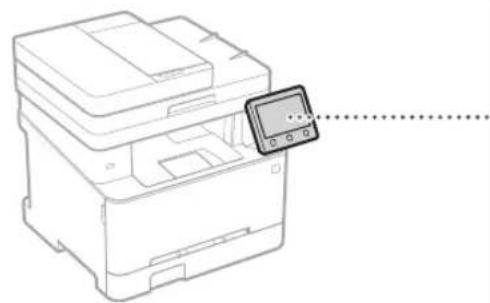
Annapat (MF645Cx)
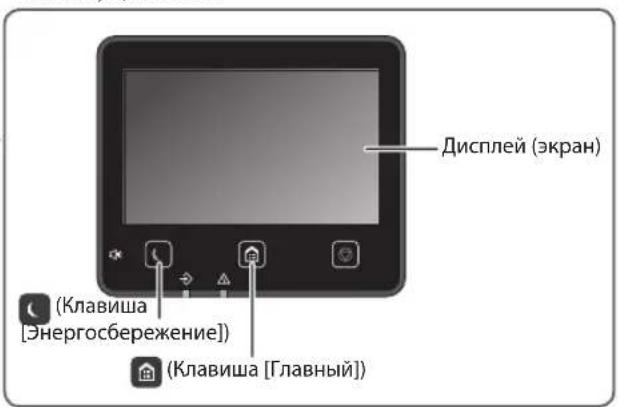
PAnHeJynpaBnHn

Сан上诉布ане
1.YCTaHOBtEOpuHnHaI.
2.HaXMMTe u BBb6epuTe
3. BbIepeTe TIN cKaHIpOBaHn IN BBeJInTe Heo6xoJIMMbIe CBeJeHN.
4. Bb6epnte
TnblcKaHnpOBaHn
CoxpaHbB USB-namrTn
Otnpabntb no 3n. noute
OtnpaBtHa faaiIObBcepBep
CkaHnpoBaHne C
KOMNbIOTepa
MF Scan Utility
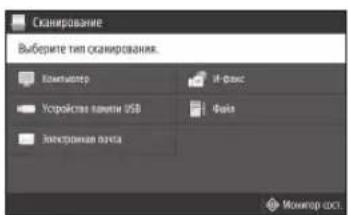
Poiop6Hee
CkaHPOBaHne B
PyKOBOCTBE NIOJB3OBaTeJIa

KoNiPoBaHne
1.YCTaHOBtEOpHnHaI.
2. Haxmte a 3aTe M bI6epnte
3.YkaKnte Tpe6yeMbte HAcTpOyKn KOnnIpOBaHa.
4. BBeInTe Tpe6yEmoe HcNo KOnn.
5. Bb6epuTe </6 Haanyo> nn
Pone3HbIe HAcTpoiKn KOnuPoBaHnA
NHa1
2-CTopoHHee IIN1-CTopoHHee*
yBennueHne nn yMeHbWeHne
KoNipOBaHne IД-kaP
Konna nacnpota
HaHnue 3tof yHKuIN 3aBcNt OT moEn aPapata.

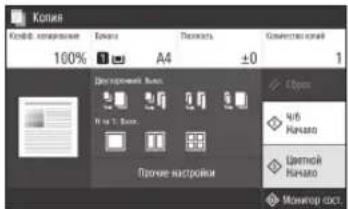
IpoDpo6Hne
«KoNipobaHne»B
PykoBODCTBE NOnb3OBaTeNa

Qakc*
1.YctahOBHTeOpunHnHa.
2. HaxMMTe n BbI6epnTe
3. BbeInTe HhOpMaunio O nonyataene.
4. Yukakinte Tpe6yeMbte HacptoKn paKa ca.
5. BbIepeTe
Ione3HbIe yHKuIN aKaCa
PocneoBaTeBHaPaaccBlnka
PnemB narnTb
■PK-φakc
Tpo6Hee

DakcB PykoBoDCTBe
Nolb3OBaTeTn

Neuatab
- OtkpoIte DokymeHT dIa neaTn Bbl6epTe yHKUIO neaTnB npuJoxKeHn.
- Bb6epnte npaBep npnHTepa nna annapata, 3aTeM Bb6epnte [Hactpoka] nn [CboiCTba].
3.Ykaxnte fopmat6yma.
4.YkakKHeNCTOCHNKbymaHnNTmBcymaHn.
5.YkaKNTe Tpe6yemble HacTPOKNI neaTN. - BbIepeNTE [OK].
- BbIepeNTe [IeuaTb] nn [OK].
Pone3HbIe HacTpoKn neaTu
2-CTOPOHHRA
NHa1
- Pechatb 6poaohop*
Hannue 3tof yHKn 3abncit OT moen annapata.
Pdpo6Hee

TeeatbB PykoBoDCTBE
N0JIb3O8aTeTnA
3arpy3ka B kaccety dny 6ymarn
1 BbIbHbTe Kaccety Iy6ymn.
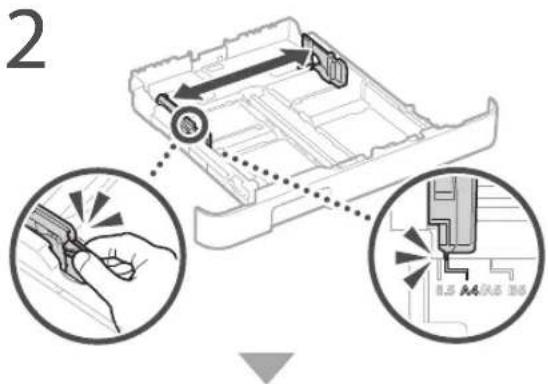
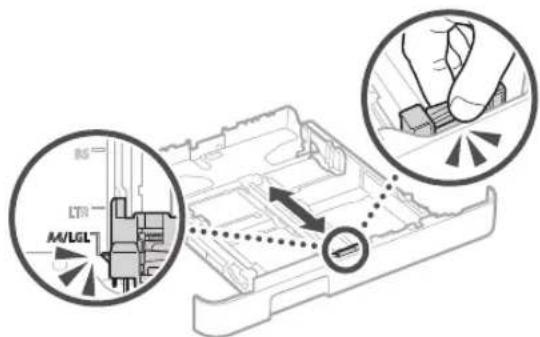
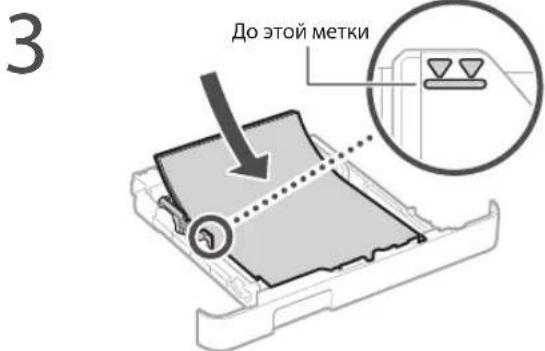
4 YcTaHOBInTe Kaccety dny 6ymarN Bannapat.
Ecnn opmat nnn TnN 6ymarn OTnnaTcra ot
oopmata nn Tnna pahee NcnoB3OBaBwee
6ymarn, o83aTeNbHO n3MeHInTe HaCTPOkN.
HaKMTe Bb6epnte
6 YkaxnTeΦopMaT N TnBymarN B COOTBETCTBm C kpaHOM.
3a rgy3ka B loTOK ryHoi noDaun
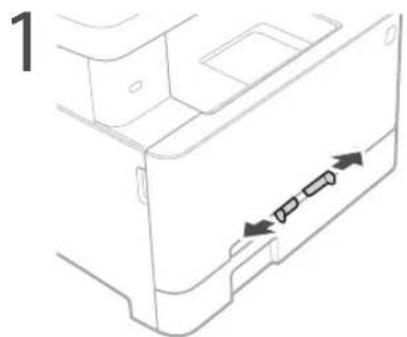
4 MeHnHO BCTaBnIe 6yMary B OTBepCTne IpyHoi nOaHu, noka OHa He DocTnHET TbIbHO CTOpOHb OTBepCTn.
5 YkaxnTe opMat n TnB yMaHn B COOTBeTCTBn C kpaHOM.
Annapat He pa6otaet 3amjaacb 6ymara
PpOBepeTcneJeUoee.
BkIIOUeHOIINITAHne?
BbIeNn annapaT n3 cnaero pekma?
Ecnn nncnnn HnHnKaTOp BbIKIOueHbl, HaxMNTe BbIKIOUaTeNb NITAHIA.
HeYCTAHAB/HBAAIte YCTPOIcTBO BYK3aHbIX HNKeMeCTax.
UcTbO BOJMeT yIaCTb, YIO pINBBeJT K TpaBMe. HeyTOUIHBA NOEHPXHOCT.
- MeCTO, NOIDBepxKeHHoe Bn6paun.
Ipoyne MepbipedeOCTOPOXHOCTH
- Pn nepemeeHnn daHHoro yctpoNCTBa CNEyIte HNCTpyKUINH, INPBEJENHBIM B HAcTOniE m pyKOBOCTBe. Pn HEnpaaNBbHom nepemeeHnn ycTPOINCTBO MOKeT yNaCTb, TTO NpBEdET K TPABE.
PnYCTAHOBKeYCTPOINCTBAI36EaHIE 3aEEMeHHaPYK MEyDyCTPOINCTBOM INIOOM INN CTEHAMN.3TO MOXET NpRBeCTN KTPABMM
OBAXHC
HeYCTAHAB/HaBteYCTPOCTBOYyKa3aHHbIX HNHexMeCTax.
3To MoKeT npBecTn K NOBpeKdeHIO yCTpoCTBa.
- Meça C bIbCOKO NIIH H3K0I TEMPePaTPOY INI BNJXHOCTBIO.
MeCTa, noBBeJpeKHeHbIe pe3KM npEpenaDAM TEmpePAtybln IIN BnaJXHOCTN.
- Mecta B6N3n6O6OpOBaHAna, 3aCoiJIoero MATIHTHBIE NINI 3eKTPOMAHTNHTE BOHNb.
Ja6bopatornHnDpyrHeMeCTa,rgE npOcXoHITXMNHccknepeaknHn
Meça, nojBpeKHeHbIe 8OBeJcHbIIO paBaIbaIOXIN TO KOKUHbIXpTaOB.
Mecta, KOtOpBie MoryT DEQPOMPOBATCBN NOI MaccOyCTpoiCTBa NINrIgE yCTpoiCTBO MOKET OCEcTB (HanPIMeP, HA KOBpe T. n.).
H36eraaTe MeCT yCTaHOBKn C IIOXOHNBEHTNIAUHei.
BoBpMaHNCIOb3OBAHINTOyCTPOINCTBO
ReHeppyeO3OHN DpyHn BbMPOCbB MabHx
OBbMeXm OHHe BBAIROTCH OANChIMN 13JDP0BB.
TEMHE MeHHe BBbPOCbMOYr CTaTB OUYTMbIMN
B TcEHMe DnITBeHBOHO NcNOB3oBaHnB B INNOXo
PnOBETPBnAEMHBNOMoeHEHnAXI NnNDpePKaHnM
KOWOpBTbXyCNoBNPAoBtO PEKOMeHcyETer
OBeCTeHTb BEHTNIAUMIO NOMEeHnB, B KOTOPOM
yCTaHOBn Hannapat. TaKke CneDyET N3eRaTb MecT,
B KOTOPbX IIOaN HAnBOeJe NOBepKeHb
BO3dECTBIO BbPOCoB UcTPOINCTBa.
He yctahabJHbAte yctpoIcTB0 B MeCTe C NOBbUeHHoKOHdHcauNei
Pn INHTEHBNBHOMOBORpeBE NOMEeHINB KOTOPOM yCTAHOBNEHOYCTPONCTBOA TAKAE B CYUaHX
nepeMeueHInyCTPOINCTBA NcpeDb C Boonee npXnAdHBMnC CYXM BO3NYXOMB N OMEeHHNc H
boee BbCOKoTempehAtypOn MnN NOBbIEHNbY
yoBPHEBnBAAKHOCTN, BYHTpyNCTPOINCTBA MOryt
ObaPbBaTCKaIINBODBy (KOHeDc)
VCnONB0BHeNyeCTPOINCTBA B NOJOCHBx YCNOBHX
MOKeT pNBecTeK 3aMmTHO6yMaTn, PNOXOMy
KaeCTBY NeATn INN NOPEKJeHIOYcPTOINCTBA.
PepeHaHAnOM EKnPiYatauNcYPTOINTOIKNHO
B TceHMe He MeHNe D8y NaCOS AADITTIPOBABCBK
TEMepaTy n BlaxHoCTNs OKpyKaJIeCpeDbl.
Ia CpeHa BbICote 3000 MetpoB H6JIbHHe Ha ypOBHE MOpA
YCTPOCTBA C JECTKIM D NCKOM MORYT PABOTb HeIpaBnHbHO Ha Bicote OKOJIO 3000 MePTOB IN BoJIbHe HAI yPBOHEMOPA
PiokKIOueHHe KTeJIeOHOHoiIHHN
3TOT annapat COOTBETCTBye CTAndapty
aHAnorOBo TeneFOHON JINHH. 3TOT annapat
MOKeT 6bIb IOKIOUeH TOJIbKO K TENEFOHON
ceTHOeero NOns3oAHNA (TCOIT). PNOKIOUeHne
annapata K UINPPOBOH INN BvIDeEHHO
TeneFOHON IINHH MOKeT HApuHTb ERO paobTy
INPiBcTn K NOBpeXdeHIO. PpeXde Yem
IOKnIOuHTb ANAPAT K TENEFOHON IINHH,
PnoBepbTe ee TIN. ECNN Bb XOTITE NOKIOUHTb
annapat K ONTOBONOHOH JINHH INN
IP-TENEFOHIN, OBPaTIteCB K NOCTABUHKAM
COOTBECTBYOHNx yCNYr.
PnHIOJIbOBAHHBcIPOBOJHOJOKAIHOI cTH
YCTaHOBNTeYCTPOINCTBOHaPacCTOHNHE60one 50 METPOBOT6ECNPOBOHORoMAPuPYTn3atopa.
- YCTAHOBYTEYCTPOINCTBOBMETE,IECEBAHbHe6dyT HApuyuTBJpyTNBEbExbTIe(cENI30TOBMOKHO). MoIOHOCTB CnHAlaMoKeT 3HAVeHTbHO NaTaTS PnIPROOXDEHNYepe3CTHeHINNoN.
YCTAHOSHTYECPONCTSOKAKMOKHDAJNBIEOT LIPPOBBOB6CPCPBOODBHbXTENEFOHOCB, MKNPOBOHOBXNEeNpyrTOOOPyOBaHN, RBNHOOTOCYTOHKMOPaJNOBOH.
He nolbyte annapat pamC meHnckm OcbpyoBaoHMe. PAnOBoBnIbI, mNyuaMeBe HannapaTOM, MOrY cOzdaabT oNOMEXI JIpaobTbI MEuHcKcOIO OcbpyoBaHMe, ITO MOKeT IINPBECTI KIOBpeXJeHNOI HecCACTHOMY CITyaKo.
PnCJINIKOM BbICOKOM ypOBHe pa6Oyero Wyma
Ecnn Bac 6ecnokonpa0ouy m,TO B 3aBNCIMoCTN OT yCNOBNI KcKNpyTAULIN paOohero peKmAppeKOMeHdyTeTc yTaHOBNt bannapat 3a npedeJAmOfNCA.
IcToUHHK IITaHn
AOCTOPXHO
VcnoBbtyTeTbKO TOT HCTOHNKNTAHNA,KOTOPaI OBeBaAeTpe6oBAHmK HANPAKEHNO. Hec6oNIOEHE OTOrnpaBnMaMOeTcTaBpnnHO B0rOPOHaHmNPOpaXHeH NkETPKeCCKM TKOM.
Annapat JopJeHcBbT NOpKnueH C NOnouIbI npoeOCTaBHeHO IHHpy PNTAHMa K p3b5My 3aEweHHO O03TKU.
He nCnOlb3yIe npYIe UHpyb HHTAHN, KPOMe LHypa, BXOJIeEBOKOMIIeKIT PnIHTEpA,TaK KaTTOMOKeTcTaBtPOuHNOB03OPaHNAI NIOPAKEHNIEKTPMHECKNM TOXOM.
Bxodm BOMNNEKIHTYPNTAHNIPeDHAHEnHINNCHOB3CBAHNA TOBKO C DAAHBM ANPATAM. HeNOJIOHOAHTTEOTIHTPOITNTHANK JDPYTM YCTPCBJTBM
He 3MENHE He TAHHTe HE CTB6AHTe Hn He deOpMPyIte KAKIM-1NBOHBM BEDYUMK nonONMK cncocOBm THyp NITAHN. He CTABtBe TIKXeIbe IpeDMetI Ha UHP NTAHIA. NIOBXeJHHe NHpMAHNA MOKETPnBcCTK NIOXAPyMI NIOPAKHEPOEIEKIPINCKTOMK
He 3abHnAte IeIcENb Hypa TnTHANB aP03eky H He 3aBnEKeAte ero MOKpBM pyKaMA —TO MOKET npVECTN KnpAKeHN BIEKTPuHECKIM TOKOM.
HeHcnoBcyIte ydyHNHTeBbIe LHybpI INyDHNHTENm C HeckIOBcKIMPOEaKMCAHbYMCYTOPOCTOBM. HecobIOeHEH3TOrO TpeBOBaHINMOKeT pNBeCTV NOKeKpy INNPOPAKHeAIENkEToA/NECKHM TOKOM
He CbopaHbAaBaeIuHp NpHnHa, He 3abAbBaBaeTeero B y3e1, TAK KAK 3TO MOKETPMBECTKBO30PAOHAHNI IIOPOAKHEHNO 3EKNKTPOAACKM TOK
BCTABNPAI WITENCENb HYPa NITAHIN B PO3ETKy CENPeMENHORTOKToNNOHCTIO.HecO6NIPOHEHNE 3T0PnPaBNIA MoKET CTbN PnPHCNHOB3OPAHIN NINPOAPKEHHN3EKNTHNCKHM TOKOM.
PONHOCTBOOTCOOEINHITTEWNTENCBUHYPAHTAHAROTPO3ETKNCETNPEMEHCHOTOKBOBPEMRO3bHeBaIPOHEHNEATOPOPABMAOKeTCTaTPNPHOHBOBOPAHN,NOPAKENEIAEKEPTPNCKAMTOKOMNIOPOBPEXDEHNYUCPTOCTBA.
Y6eHNTecb, YoNCTOCHNK NITAHNAIAPAPA pabotaet CTaMbHO Hne NoJIepKeHN nepenadHnHapKeHnA.
He noDBeprAte UHyp nHTAHnHarpeBy.
HcnoBIOdHEme 3TOrTOpeBOAHmMOKET pNBECTN K TOMY, HTO NOKpbTHe UHpya NHTAHn ORnABNTC.
3TO MOKET CTb PnPHHO B03OPAHn INI
NcpaKeHn ENEKTPnueCKM TOKOM.
H36eraireCJeDyUouxxCnTuayu:
EcnnnpmehnHbpe3MeepHyO CnyKobactn CooeHHNEHN HpyaPiTANAHN,ET0MOKetNPINBECNTKN EIOBpexdHNO NIKOTCOeOEHNHOIPCBOIOB BHTPN Anapnata.30MOKetCTbPnPHNOHOBCTOPAHN.
-actoe noncoeHHeHne nOTcoeHNHTe HpypaNtAHr;
aedeBaHHe Uhypa nHTAHNA
-CTMBAH NTHPNAITNHA BOJIIE ITO hAOTK, KOTOPAR BCTBANETB 8PO3TEK, INPODQNTKNHIOHE
PpMHeHHe CnK KAnEeKtpuecko po3e H
actn Hypa nHTAHN, KOTOPA BCTABTRETCBPOSETKY
- npMaHeHMe A3nHcHcNbK WTeNCeIC HHypa NHTAHRA
BHIMAHNE
PaMeCTe annapat PAnOM C ceteBOI PO3EKo, OCTABN DOCTOHO MeCTa BOKpy UTenCENI UHypa NITAHN, YTObI ERO MOKHO 6bNo NERK BoBdEPHyTB CnYae ABAPINHO cnTyauu.
OBAXHC
Pn noKluoyen 3JektpoNTaHn
He noKJUHte HYP nHTAHN K NCTOCHNY 6ecnepeoHOrn HTHAHN.3To MoKET npHBcTn K NOBPEeHIO YCTPOCTBA HApuyEHHIO pa60bTb CNCTEmbl 3NEKTPoCHA6KeHHI.
EcnnyCTpoCTBO NOKIOUeHO K PO3eTKe cTeN nepeMeHHOFO TOKA C HECKOBKMMI HHe NIOJIb3yIe TpyJHcHE3dJa IIOJIKNIOHEnIPOOIMX yCToOCTB.
He noKINHouYIe HHP nHTAHN K BCNOOMaTeBHO HOPEK cETn nepeMeHHOR TOKA HA KOMbIbOTpe.
PpOue MepbI npEIOCTOpOXHOCTHI
3NeKTPnueckne NOMEXN MORYT PNUBecTN K HENONaKaM B paOte YeCTPOINCTBA INH NoTepe DaHHbX.
06paueHne cannapaTOM
A OCTOPXHC
He3aMeIITeBHOOTcoEINHITE HYP NtAHNOT PO3EKNI OOBATNECB K yIIOHOMOeHOMHYINEPyCAn0,ecn yCTPOINCTBOU3AET HeoBHbNHUYB, BIDENAEHT HePnIBbHb3BaTAX NIM DBM NIM Ype3MEpHO HarpeBaETc. PPOJKeHN EKCIpyATAUN B TAKNXY CTOBIVX MOKET CTAtB PPINHOBOTOPAHN INNOPaXEHNIAEKTPIeCKM TOKOM.
HeHb C BbOCKM HApPae pa36paTe aannapatn He NpTaTecb TOp-NoBIO m3MeHTB bero yctpoCTBe. BHyTPn HaxoTcT Ropnue KOMTOHEHMe.Pa36bp nONbTIKA m3MeHTB yctpoIcTBO annapata MOrY npBeCTN K NOkApy uIN NoPapaKeHHIO 3NEKtPnueckm TKOM.
PamcHTHe yCTPOCTBO TAK,THO6blHyp
NITAHINKABENI DpyTNBEHYTpEHNE IN
BNTKPTUeCKHe KOMIOENTHEHAXOJIMCb BHE
DIOCHrAEMoCTn peTei. HeBbONHHeHne 3toro
yCIOBnMoKET PnBECTn HecuactHBM
CNYAAm.
He paCnBnIte 6bnHy cTpoNCTBa JIKKOBOCIIAMHEHOUINEBEUcEIBTa.KoHTAKI JIKKOBOCIIAMHEHOUIXNCBEUcETB C3IEKTPuueCKMN KOMIOHEHTAMN BHTPN YcTPOINCTBA MOKeT CTaB pNCHIOB BO3ROPaHN HIN NpApaeHn EJIeKTpuueCKM TOKOM.
-ПипелемшЕнуctpoiCTBaOBaTeJIbHo BKNIOHTepeKIOUaTeENI NITAHN,3ATEM OTcoeINHATE WTeTcENB bHypa NTAHN u INTEPoeCHbIe KaBEn. B npToHaBHOM CNYAe BO3MOxHO NOBPEKJeHMe U HpTaHnA HIN INTEPoeCHbIX KaBEn, YTO MOKeT pNBeCtN K BO3ropAHIO NIN NopaxeHIO 3NEKTPuueckIM TOKOM.
PcOeINHnnnNtOcEINHnKabeNBUSB, KOJa 7TEnCenB KabeNnNTAHTA BCTABHeB P03ETK CEN TNEPEMEHNTOKHe HpNKACAIEB K METANNECKOH NACTH FHE3Ja, TaK KaTTOMOKET NpBeCTN KnpaKeHHo 3NEKTPmuecklAM TOKOM.
PnncnoB3oBaHmKapnOCTMnyTota PTOAnnapaC0aAeT CnaOoe MaHHTHOe Nne H yIbTp3ByKOBBe BONHc EecBbNcNpNb3yeTe KApDIOCTMnyTOpNHyCByTe HEKOTOpBle HApuyHHeEro paOToI, OTOniTe O Tannapata N HeMeJeHNo 6opatnteck BpaCy.
BHIMAHHE
He Knadnhe Ha yctpoCTBO TAKENBE npMeTn, TaK KOH MOY IyNtB nnpBcN T KpABe.
Buenoxco6ctBeHHo8be3nacHOCTOcEOHNHReIHypNITAHNOOTNEKTOCETN,ecnn annapat He nCnONb3yETCB TteHEHEmDIOI ORO BPEMEH.
Bybte OTOPOXHNI PNOKPTNIM 3AQPbTIIN KpbIWeK,HTO6Bl He TpABMIOPBoT pykN.
I36eRaTe KOHaTa pyK OeJdkBc BaNkAMn B oBaCTn BbBOda. IOnaJaHMe pyK mnn OeJdkMeku BANKAMM MoKeT PnBeCt N KONyHeHNO TpaBM.
B npocce c np3y jne nocpe pabotb BHTpyHnne KOMnoHETb INoAcbT BOKpyr BBBOHO TOTKa YCTPOeA OCHe RopHne. He npKACaIIEcB KSTM OOBACTM, 406bl He noLyuHTb OKOrn. KpOme TORO, OTNeYaTaHaHaa Bymara Cpa3y NocE BbBODa MoXet 6bTB rOpAH, NoTOMy OpaAaIeTcB C Hei AKkypaTHo. B IpOTNBOM Cnyae MOXHO nONyHtB OKOrn.
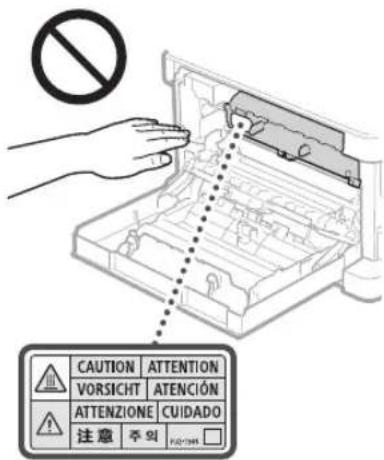
CneIte 3a TEM,HTO6b Hye ypoHnB Ha CTKIO 3KNOHNPoBAHNA TRKEnB IpeMeT,HaNPiMep CIOApaB.ETO MOKeT PnBecNT K NOBpeKeDeHIO CTKNa 3KNOHNPoBAHNA TpaBMaM.
Hepehocate annapat cytaHOBneHHbIMKaccetamnIy bymarHnnDOnJHHTeNBHMycTPOCTBMNOaA. BnpOTNHOMCnyaeOHN MOrY BtNaCTbN NpPBeCTN K TpaMBe.
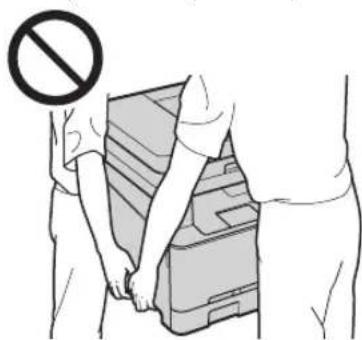
YcTPOUCTBO NOaUNKpbIka CTeKla 3KcNoHPOBaHn
- Pn KONHPOBAHIN TOCTbX KHIN CO CTeKNa 3KcNOHPOBAHIN HE HAKIMaTe Ha YCTPOICTBO NOAaHN NIKPbUHKY CTeKNa 3KcNOHPOBAHIN CNIJKOM CNJIbHO. To MOKeT PnBBeCTN KIOBpExdHIO CTeKNa 3KcNOHPOBAHIN TpaBAMM.
3aKpbBn yCTPOINTOIHN Kpblkcy CTKeJIA 3KcNOHPOBAHNI, CO6NIOaHTe OCToPXXHOCTb,HTObHe npniueEMNTbNaIbU H He NJIYUMTb TpaMBy.
He nomeuaiyepknnnnaibcbyBycpOCHBO NOJAAHNNKpbIbHKCTeKnAeknoHPOBAHNA 3TO MOKETnpINBeCTN KTPaME.
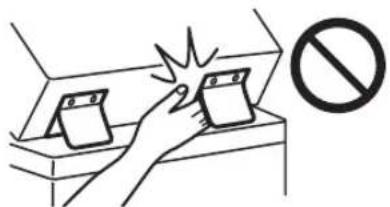
Kacceta 6ymaru
He nomeuate pykB aannapat, KOra Kaaccetra dhyamn 13neHc.3To MoKeT npueCTN KtpaMe.
KlaBnHa «3Hepc6epeKeHne»
Haknme KnaBmU (3Hepeoc6pekehne), ecnn annapat He 6ydtncnonb3oBaTcB Taee Hne dnttnbHO rnpno, Hanpmpnep Ha Hoo. Ecn annapat He 6ydtncnnonb3oBaTcB B Teue Hoee npdoonKtebHO rnpno, Hanpnpem BO Bpem npa3nKnOB, BbknOHTe annapat n 13BcknE tIeencel IIHypa nITAHN M pOeTK.
B30nacnoctb npa6oTe cnaepamn DaHHeoe nDenee cepTnPcnpoBaHO KaK naepHoe nDenee KNaCaI B COOTBeCTBm co CTAnpTaMIEC60825-1:2014 IEN60825-1:2014.
CLASS1LASERPRODUCT LASERKLASSE1
APPARELÀLASER DE CLASSE1 APPARECCHIO LASER DI CLASSE 1 PRODUCTO LASER DE CLASE 1 APARELHO LASER DE CLASSE 1 LUOKAN 1 LASER-TUOTE LASERPRODUKT KCLASS 1
Ja3epHbI NyMoket 6bIb onaceH Ia3dopOBBa
yHeBeka. NocKoIbKy 3NlyeHne, rHepePpyEmoe
BHyrpanapata, nonHOCTbIO nOIIPOBaHO
3aHTbIMN KoxyXAMn BHEuHN MKnBkAMn,
Ja3epHbI LyH He MOYr paNpOcTpaHrTaCBn
annapata Ha KaKOM-Nbo 3tane erO EKcNluyataun
nonb0aTelem. CndyIte HxKePNBeHHbIM
yKa3aHm No coBIOdeHN ToTexHKn
beOncnoCTn.
HINBKOEMCNYaHeOOTKpbBaTeKaKne-NIOKpblkAnnapata,NOMM0yka3aHHbIXDaHHOMpyKOBOCTBE.
IpoHnKHOeHe NaepHOro N3nyeHnHa npHy n er KOHTaC rnaAM MoKeT HaeCTn yuepeb3peHnO.
IcnoB3oBaHHe HnCTpyMeHTOB ynpAbeHHn HAcTPOKA nKcNpTaTALn AnnapaT C HApuiHHeM nPipeBHeHHbX BHaCToAHe pyKOBdCTBe HnCTpyKuMOrI pNpBectn KBO3dEChBnO nAChTOHnJUyHeHN.
PpeDynpexJeHneNoTexHnke6e3oNaChocTn npnO6paueHNcJa3epom
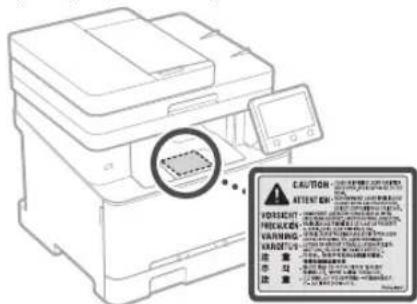
OBAXHO
CnelyyTe yka3aHmHa HakneKe C npedyPexdeHMe, npKpennHHOY cYCTPOYCTBY.
He noDBepraIe annapat cunhBM MEXAHUeCKIM Harpy3kAM N Bu6paUN.
He OTKpbIaBnHe He 3aKpbIaBnTe DBepuB, KpIbIK NpOcHcKOMIOHEHTBC nPmpeHemnCnTbTO MoKet PnBecTN K NOBpeJENHOYCTPOINCTBA.
HeOTKIOUaHTIATAHNE HeOTKpbBAAITE KpblkBOBPEMAPObTbYcPOnCTBA.10 MOKETIPINBECTN K3AMATNO bDMrA
IVCTIOJIb3yIeMoJyIbHbI Ka6JIb IIMHOI MEHbIe 3 METPOB.
- NCTIOJIb3yIe USB-Ka6eJIb DINHOI MeHbIe 3 METPOB.
Приложке
He kacaiTebc KOHTaKTOB (B) BHTpN anapaa.3To MOKeT npBcETK NOBpeKJeHIO anapaa.
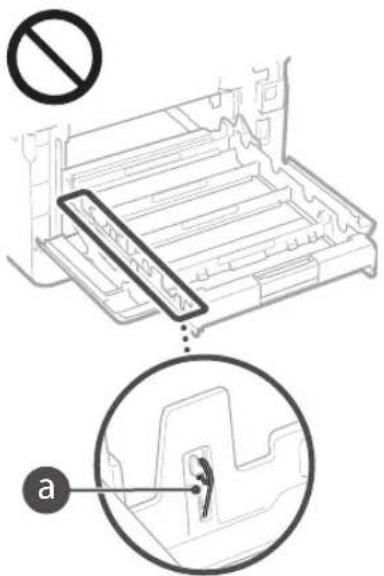
Ipn TpahcnopTnpOBKe yctpoiCTBa
HINPepoTbpAeHHNIOBpeKHeHHyycpOcIBA BO BPOM TpaHCnOpTnpOBKmBbIOnIHne CnElyKuee.
BbHbTe KapTnDKN CToHepom.
HaeKnoynyIeYcTpoTHBbO BpyrnnnHbHyIO KOp60ky CysIaKOBOHbIMMATEPMAIAM
3NaKn, CBA3aHHbIe Cco6IOJeHNEm TEXHKn 6e3oNaCHOCTN
IpeeknooyateIb nHTaHn: noJooKeHeeB"BKJI.
Opeeknioatebnitana:nnonkne "BbIKI."
PepeknoyateNBNTAHNA:noNKeHNE OOKDAHNE
KHOHnOuHnepeKnIOUaTeHbKJ"
KJEMMA3aunTHORO3aemJeH
BHytpn onacHoe HapxieHe.3anpeaetc otKpbibTa 1no6e Kpbikm, kpmykaaHHbIX BnHCTOyKm.
BHIMAHHE Topaay noBepxHocTb. He npukacaiTecb.
06opyDnBaHne KlaacCaII
BnKyuueca DetanHe npHuaTecb K DnKyuumcDetaaM
BHVMAHME Bo3MOKHO NOPAXHEHNE 3NEKTPNHECKM TOKOM,OTcoeHNHTE BCE BUNKN UHPya NITAHNAOT OPOETKI.
He np6nixkaiTecbKocTpbM.KpaM.
[ПИМЕЧАНО]
HeKOTOpbe Nyka3aHHbX BblIe CmBBOIOB MOrYT OTCYCTOB0BaTb HaONpeJeHHbX YcTPOINCBax.
Texnueckoe 6cbnykBaHne nOcmToPbI
BbnonHnre nepKOHeckyO HcKy annapata. Pnp
hakonTHeHNbTNnIaNpAT moKer paoBtA HENaTeXaAMn
obpason.Bo Bpemn HcKKnPipeepKaBaTec CneDkyux
PpAnm.Bo TBNHKOHeHn IpoBnE m Pabote cx. paqien
EcnI npOBeMy HeBcMOKHO yCtpanBtCamaOCTeFbHO n
anpat Heo6xMIMO Ocmotpt, 03HAKOMbTEc ppaedom
noJIb3oBATEA.
AOCTOPXHO
Ipeep OHCTKOn OTKnIOHTe NtAHMe IOTCOEHNITe HHP NtAHArOHTo POzEKINNepemEHHOTo KA.Hec6nIOHeMe3TORnpaBnNA MOKTe CTb PnHNOHOB3OPaHNNIpopakChnAnEneKTpueckmTOKOM.
PepnoDnueckn otcoeHnHnTe hUp np nTaHnN OuHnAte Wntencnb cyxohTKaHbOy dyaeneHn HnI n rpa3n. HcKnnBuaacr pR3b MoKeT BnTbRaB bNAty HAcBdyXnBOCnMaMeHtBc np cOnpNKoCHOBENm CAnekTPnEChEBOM.
IINOHCTKAnnapataHcNOnb3yIteBnaKHyIOXPOOOTKATYIOTKaHB.CMaHIBaTbTKaHBdIgONCTKHeOBxNDMOToNTkoBBOe.HNCNOnb3yIteCHIPT,6EH3HN,PACTBOpHTENKPACKINDPyRnEnerKOBCnPaMeHIOUpeCEBeVECTBa.HeNCNOnb3yIteBymaxHBeCAHETKINHOJIOENTHaECIN3nBEeCTBaBCTYITBPEAKUICKONTAKTAMNI INN2NEKTPnHECKMnAACTAMNI BYHTPnYCTPOJCTBaOHMYTPNBECTN KCOZDAHIOCTAHTHECKOR0NEKTPnHECTBaNNPiNBECTNKBO3ROPAHIOINNNOPAKeHHIONEKTPnHECKMNTOKOM
- PepnoDnueckn npoBepnne Hhpy nntaHn H TnTcEnb Ha otcyTCTNBE NOpeKxdeHn. IpoBepnre annapat Ha otcyTCTBne pXkABHHb, BMrTHN, LpAHH, TpeuHn Upe3MePHO rBOblEeHN HTeNn. NcNoIbOaHHe O6OpyOaHn, KOtOpoe He 06CnyKnaIaOTc DOJHKbIM Opa3OM, Moket npBecTI K NoKApY Nn NOPaxEHNO EJIeKTPueckm TOKOM.
BHIMAHNE
HeKoTOpBie KOMNoHEHb BHyTpAnnapaTa CnBHO HArpeBaIOrCA INHAXOATC NO BcKOMHNapRKeHM.KoHTAKCT3TNMI KOMNoHEHTAMMOKETnpINBeCTN KOxKOrAM He npKAcAteCb KACTM Annapata,He NepueuCJIeHHBM D DaHHom pyKOBOJCTBE.
- Pn3a4py3kebymHmHnycpAeHm HAMNAydybteOcTOPOKHN,HToBHe Nope3aBy pynO KpaBbymr.
PacxOaHbIe MaTepnaJIbI
AOCTOPXHO
He 6pocaiTe OtpabotAHbIe KaptnpJnC ToHepom BOTKpBtBOrOHTb. KpMeToro, He xpaHnite KaTpPnC TO HOpemnn Dymary B MeCTax, NODBEPKHNHBO3EJICTBNIO OTKpBtTOrO rHa. 10 MoXET PmBcTeN K BOCIIAMHEHIO TOHEPAu, KAK CNECTBVE, K NOYyehHIO OKOROB NIN BO3HKnHO3EHIO NOkApA.
PnCnyHOMpaccBnAHmTOhepa cOTOPXHO C0epeHrAChBnTOhepa HnO CTPOI INX MANKOB BAAKHO TKAHIO, He BbIXaERo. H B KOEM CNYae HE NcNtB3yIe IIN C6opa npocBnAHORToHEPA nIEcOC, He O6OpYD0BAHHB 3aIIITOn OT B3pBaNBn. B pOTHBnOM CNYae BO3MOKHO NOBpEKeJHeHn NBIEcOCA INN B3pBIBN, Bb3BaHHB CTATUNCKM P43PRDM.
BHIMAHHE
- HsEgAaIe Tbe bHbAnaToHepe.BcIyae erO bBbXAHnHEMeJIeHNHO bpaTneTBCbPaY.
-Ⅲ6beraIte nonaaHnTohepaBrrna3nn pot. B CnyaHne nnonaHnTcHepaBrrna3nn pot HEmdHeHHnpomoe INXxOIOHOBOOnIO NOBpatntecbKBPAA.
HeIOnyckaiTe nonaHaTHoHepa Ha KoxHbte nokpoBb. B cnuyae ero tonaHaHHa Koxy npomOte ee XoIOHO BDOcMbIOm.Pn Hauuyn paazpaeHHKON HeMeJIeHHO 06paTneBcKbpvy.
XpaHNTe KapTnDnC ToHepOM nDpyrne paXOJIHbE MaTePpAaBb B MeCTax, HeIOCTyIHbIX pAnDeTcB CnHyae IporIaTbBAHN TOhepa HEMeJInHeoBpaTHeCB KbpAuyN B TOKCKNOJOrueckn CEHTp.
He pa36paTne Kaptpnck CTohepomn CXOJIe KOMPOHEHbI He NIMMeHReIe KOHCTpyKUNIO. BnpOTNBOMCnyae ToheP MOKeT NPocBnATBCa
Ydann3aunthyJeHTyN3KapTpnuKa C TOHepOM, BbTIRBaIte ee NIOHOCTbKO, HO He npKnadBaIte Ype3MepHoe ycInne. B npOTNBOM cnYae ToHep Moket nPOCBnATcA.
OBAXKHO
06pa6oTKa KapTpndja cToHepom
- YJepKINBa KaPTpNJck CTOHePOM, 0683aTeIbHo BepeNTcB 3a erO pyKy.
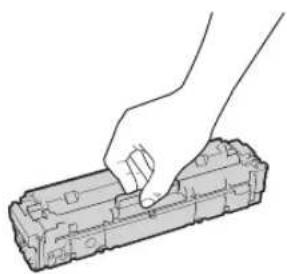
He npKacaiTecb kyctpoiCTby nAMrtn (a)nn3eKTPnueckm KONTAKTam (b)Kaprrnka c ToHEpOM.Bo 66xHAnne NOBLeHnHaapanHH NoBepXHOCTn 6apabaha BBytpn annapa Hn BO3JeCTBn HA Hee CebTa HE OTKpbBaIte 3aunTHyIO UTOPKy 6apabha (c
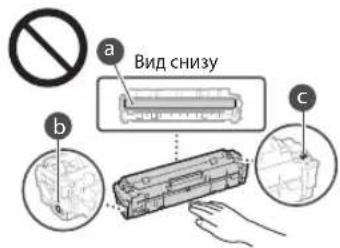
He 3nBekaike KAPrpnx CToHepom n3 yIaKOBovHO ratopepnaIa Hn n3 annapata Be3 Heo6OdoMOnCTn.
Kaptpnck CTHePOM RnIeTc MaHHTbIM
M3NEm, He np6nKaIre Ero KINeJIaM,
yBCTBnIEbHM K MAtHEtNMy, B TOM NcIE K
RbKM N XecTKM DNCKAM. B nPoTbHM
Cnyae BO3MOKHO NOBpExDeHne DaHHbIX.
XpaHeHne KapTpndJa cTohepOM
XpAHNTe KaPTPNK B PnVBeDEHbIX HNKe
YC0BHX DnO bcEneHn ENy 6e3oNaCHO
HNADKEAaero NCTOnb3oBAHn.
mna3OH TemnepaTy pr XpAHEnHa:OT O 35°C
mna3OH BnXhHOCTn DnR XpAHEnHa:OT 35%
do 85% oTHOCHTeBHn BnXhHOCTn (6e3
KOHHeCAuIN)*
XpaHnTE KAPTINIK,OKTPKBYyNAKOBKY TOIkoNEPEJ CAMIM YCNTOB3OBAHmE.
PnIaBHeHbKAPrDkaCToHEpOMN3ATO anppata dprXpaHHeHn moeuaTe HbneHeHHb KAPrDkBNCXOHyyAknOBoHbMATEpeNl.
He xpaHnTe KapTpAnK BepTNKaJIbHOM INnnepeBepHyTom COCTOHN.3To pINBEJET KOTBePnBaHNO Tohepa, n erO nCXoHnaHOHCHTEHNMOKeT HE BOCTaHOBNITcDaJe NocLe BCTpXnBaHn.
JaKe npxpaehHn Bnpedan DnyCTHMo 1aNa30A BlaxHOCTN KANNN BOBn (KOHDeHCAT) MoYr O6pa3OBeBaBcBn SHTPNKapTnKa np Pa3Hnue TemHepatyp SHTPNn CHAPyKn KapTnJka C TOHEPOM.KOHJeCAuIN OKa3bBAe HetATNBHOE Bo3dECTBnHa KaHeCTBOKAPTNDKEC TOHEPCM.
He xpaHnTe KaPtpnJck ToHepom B nepeuCHeHHbIX HnKe MeCTax:
B6n3nOTKpbTc0rOOnH;
B MECTA,NOBEPKENHb B03dEJIcTBIOI IpAMORO COJHEHORO CBETA INI INPYTORO RPKOROBCTBA,BOOE TNIINMHTY
- Pn noBbIeHHoKcHcHTpaun CoeN B Bo3dyxe;
B MeCtax, noDBepKHeHHbIX Bo3dEeCTBIO pa3bEaOHXI Xa3CB (a3pO30NI N aMMIAK); IoN Bo3dEeCTBmE BcOOKX TemnepaTy n NOBblueHHO BlxHOXOCTN;
B MECTA C P E KMM NEPENANAM TEmepaTpyN BnKHOCTN,PNBOADHMKN BO3NHKKOBHEHIO KOHDHCATA;
B6n3n cKoJIeHn nIIN;
BMectax,DOCTyINHbIXIJIaTei;

U36eraTe nCNoB3OBAHnna NOdEeNbHbIX KapTpNiJKe C TOHePOM
BnpaKBe BcpekaTcA KaptpJnckn C ToHepom, RnRIOJIeNcNOIJIeKAMn KaptpnkEan Canon, NcnoIb3oBaHne NOdEhBHX KapTpNKeJ MoKET nPnBecTn K yXuDHeHIO KaeeCTBa NeHaTI INI paBOtBi YcTOpCtBa. KomiHaHn Canon He Hecet OTBCTBEHHOCTNa KaKHe-NIO6 HoNOnaDNK, HecACTHbE Clyau NINNIuEp6, RnBIOJIeNcpe3yIbTaOM NcNoB3OBAHn NOIeBHOrKaPtpNkCa TToHepom. DOnONHInTeNbHbce CBeDEHnCM.Ha Be6-ctPAnie global.can/ctc.
IepnoJ HanuJy 3anaChbIx qaTei n KaptPrnJck J C ToHepO, a TAKe IpoUHX paXoHNbIX MATEpMaIOB
3aNaChbYe HcHn KAPrPdKn CTOHEPOA, a TaKaKe npOue paCXoHbIe MaTePmaJIbIa Iannapapa 6yDyt HxOJNTC B HAnHIN 3 TeYHeHne NO MeHbWe Mepe cEMn (7) JET NocNE CHTIN CnpO3BOCTBa DaHHoN MoEJI nnnapata.
YnakoBOUHbIe MaTePnaJIbI KapTpIaJka TOHepa
CoxpaHHTe ynakOBOCHHe MaTePnAnIs JnA KapTpNJa c ToHepom. OHn NotpebYictc npn TpaHCnoptnpoBeA annPapa.
KoJIHcEeBO,ΦOpMa pa3MeueHHe ynaKOBOUYbIX MaTePnOy BOTM 13MeHHTbC8 Be3 npBapntEnbHOYbEOJOMHeH.
BbTHyBa3aHTHpyHeIyN3KAPTPnDxCA TTOHEPOm, yTNIMNHPyTe ee B COOTBETCTBNC n PIPMNEHMMSMM MECTHbIM HOPMAHBAM.
Ptpytni3aunncnloxb3oBaHoroKapTpuaCTOHEPOMCNCXOXKHXKOMPOHEHTOB
YTNIN3pyaKapTnX C TOHEpOM CXOXNc E YHM KOMIOHEnbI, NOMEaJIe INB NCXOHNbI YNAKOBOUH MATEPuaN BO H6EXaHKeHnpocBaHnA ToHEpaN OOTnpaBIARe Ha YTNIN3aLIIO B COOTBeCTBNI C pPmEHHbIMMeCHtBIMH HOPMATBAM.
PpmeuHne
Ha3BaHne n3dennr
B cenax 6e3onacHocn n3dene dOnKHO 6bTb
3aperntpOBOHO.
B hekotopbX CTpaHx paccnoctpaHeHHN 3dEHH
BMcTo OPunHaNbHOro Ha3BaHHM OMyr 6bTb
3aperntpOBOHbCneDyUIO He3BaHH,
yka3aHHBe B KpyTbX CKoKax.
MF645Cx (F175002)
MF643Cdw / MF641Cw (F175000)
Tpe6oBaHnEMC DnpeKtNbBbE C
DAHHeOobopyoBaHHe yDOBnTeBOPaET
OCHOBHM Tpe6oBAHnM No 3MC DnpeKTHBB EC.
MbYTBepkJaAe,HTO daHHeNo n3dEne
COOTBeTCTByET Tpe6oBAHnM No 3MC,yKa3AHbHM
BJIpkeKTHBE EC,pni HOMHaHbHM BXoHOM
HaPpKeHHN 230 B Nactote 50 tXoTH
HnAnaON pabOHN XapaKTepmCTNK DaHORO
n3dEHHn COCTABnET OT 220 Do 240 B,50/60 tU.
JINObOEcNeueHHN COOTBeTCTBn TEXNHecKHM
Tpe6oBAHnM NO 3MC DnpeKTHBnEC Tpe6yEtca
NCIOJIbOBAHHe kApAHPOBAHO KarbEnA.
Hopmatubhna nHΦopmaunno Iocnlo3bOaHnO oecnpoBDOHOJokalbhoCetu
Regulatory information for users in Jordan
MF645Cx / MF643Cdw / MF641Cw includes approved Wireless LAN Module (Model name: Type1KA). Contains Wireless LAN Module approved by TRC/ LPD/2017/19
Regulatory information for users in UAE MF645Cx/MF643Cdw/MF641Cw includes approved Wireless LAN Module (Model name: Type1KA).
TRA
REGISTERED No: ER51217/17
DEALER No: DA0073692/11
RE Directive
(Only for European radio equipment)
RE Declaration of Conformity
English (EN) Hereby, Canon Inc. declares that this equipment is in compliance with Directive 2014/53/EU. The full text of the EU declaration of conformity is available at the following internet address: http://www.canon-europe.com/ce-documentation/Wireless LAN Specifications Frequency band(s):2412-2472MHz Maximum radio-frequency power: 15.9 dBm
Czech (CS) Timto spelecnost Canon Inc. prohlasej, ze toto zafrzeni je v souladu se smemici 2014/53/FU. Uplne zneni FU prohlaseni o shode je k dispozici na teo internetové adrese: http://www.canon-europe.com/ce-documentation Technicke udaje bezdratovi LAN Pasma(a) frekcvc:2412-2472 MHz Maximaliy kon radiove frekvence:15.9 dBm
1 BnTnHtB Notok nnaepy.
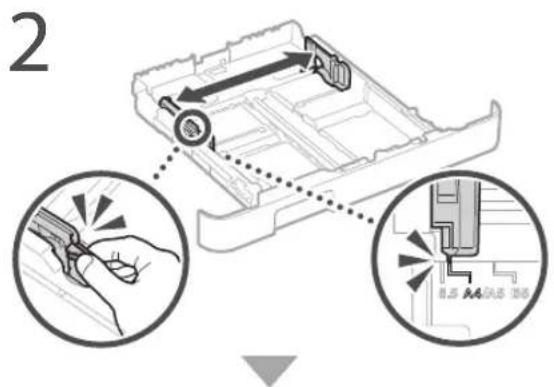
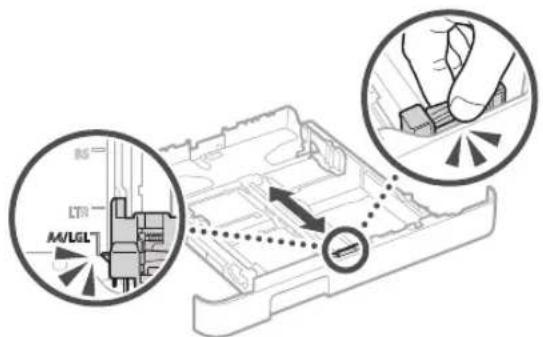
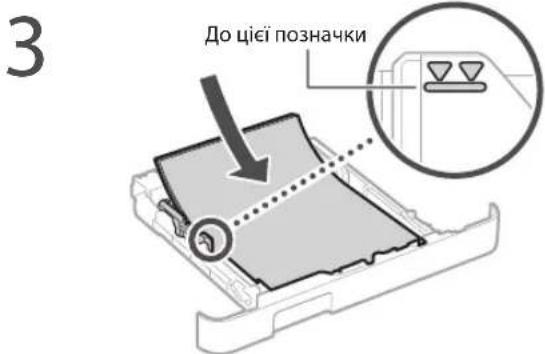
4 BCTaBTe IOTOK dIa nanepy b anapat.
Kkuo 3aBaHTaxyEtbc iHm npO3mip a60 Tnnpanepy, Hx paHiwe, o6OB'ra3koBO 3miHtbpapametpn.
5 Hatachitb knaBiy 6n6epiB
6 Bkaxitb po3mip i Tn nanepy BiinobiIdno iHctpyKui Ha ekpaHi.
3aBaHTaJKeHnB npiNcTpiI pyuHOro nOdaBaHHa
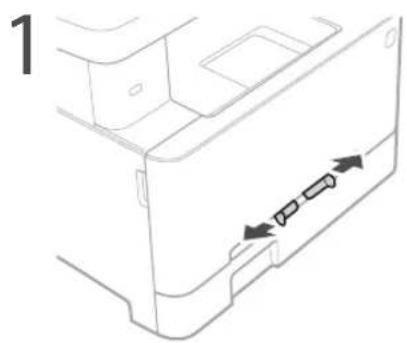
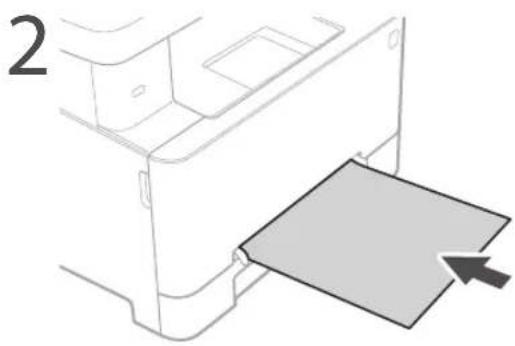
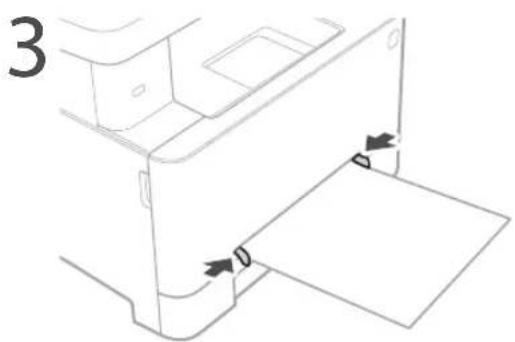
4 NobinbHO BCTaTe nanip y npucpi pyuHoro noDaBaHH, oKu BiH neocarHe Ioro 3aHbOro 60ky.
5 Bkajitb po3mip i tnn nanepy BiinobiIdno do IHctpyKni Ha ekpaHi.
Y pa3i BnHnKHeHЯ npo6JIeMn
IodatkoByIHΦopMaizIO,INB.B po3aJIi
«UcHHeHHeIOnaJOK»YPioc6HnkyKOpNCTyBaHa
Anapat He npaioe 3actpraHHn panepy
IpepeBipTe HacTyHHe.
UyIMKHeHO KIBNEHH?
- YIN BUNBEDEHO anapat 3 pekmy cHy?
Kuo dncnne Ta iHnkatop He cbitbca, HATNCHTb nepemukay XNBHeHH.
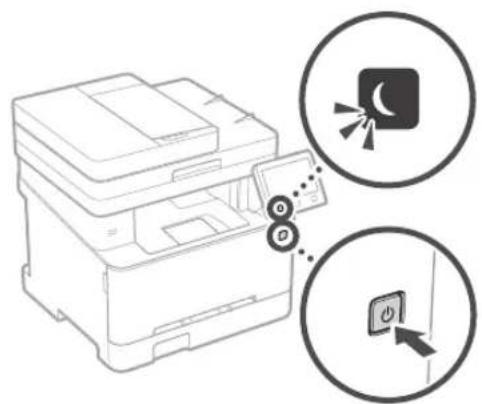
- Yu npabilbHO nipKIOUeHO SHyP XINBneHHa?
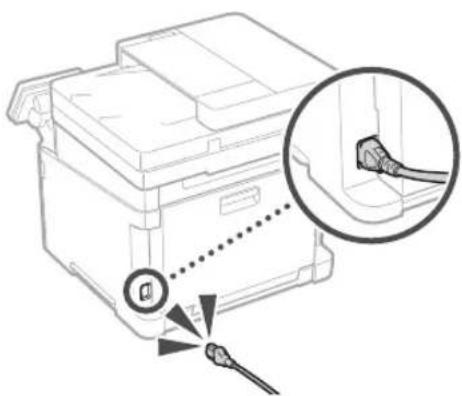
Kpno np6nema 3aHnaactbca, nB. Noci6nK Kopncybaa.
YcyhTe 3acTpyraHHn nanepy BiINOBiDHO iHCTpykuHn Ha ekpaHi.
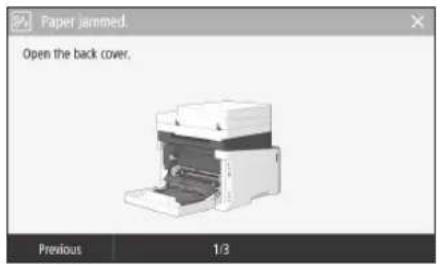
3amHa KapTpndka i3 TohepOM
3amHITb KaptpnIXk i3 TohepOM BiINOBiDHO 00 IHCTpyKui Ha ekpaHi.
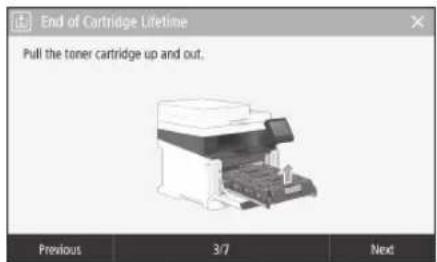
Homep mojeni kaptpnja i3 Tohepom Ha 3amiHy
-Canon Cartridge 054 Black (chopn)
- Canon Cartridge 054 Cyan (6nakntn)
- Canon Cartridge 054 Magenta (nypnypobu)
-Canon Cartridge 054 Yellow (KOBtni)
-Canon Cartridge 054 H Black (chopn)
-Canon Cartridge 054 H Cyan (6lnaKTHn)
- Canon Cartridge 054 H Magenta (nypnpoov)
-Canon Cartridge 054 H Yellow (KobTni)
ДодаТOK
Baxklnbi iHctpyku3i 3Texhik6e3nekn
Ybomy po3dini HabeJeHO BaxJinbi IHcIpyKuII 3
TexIKH6BcIeKN,IOO JOIOOMOxyTB aIIOBIITn
TpaBMyaHIO KOpNCTyBaHIB UBOrO anapara
IHIXXOCiA TAKOX NIOKOKeHNMOHaJIa. Iepi
HX BkOPNCTOByBaTH Anapat, O3HAnOMTeC3 LIM
pOJIINOMI DOTPMYNTECB IHcPkyU,IO6
HAJIeKHM YHOM BnKOpNCTOByBaTH Anapat. He
BbOKHyTIe XoDNHX ONePAUH, KI He OnNCaH B
LbOMy Noc6HNY. KomNAH Canon He Hece
BiNDOBiDANSHOCTI 3a XoONI NIOKOKeHNH,
CIPNHHEI bKOHOHAM ONePAUH, IPO KI He
HeETbB bYOmy Noc6HNY. HenpABNIhBOHO
ekCNlyATAICIO, PemOHToM ABO 3MIHAM,
3DIcHEHHMe HE KMOnAHIO CoON ABO TpeBoIO
CTOPHOHO, YNOHBaXeHOIO KMOnAHIO Canon.
HenpABINbHa EKCNYATAICl bOro Anapata MoKE
PiINBaECTN IO TpaBMYaBHNA Ta/aBO
NOKoKeHNH, IO NOptpeByBatmme TpBNaIoro
PEMOHTy, Ha JIK MOKe HE NoWPIOBaNTCA DIA
OBMeKHOI rapaHTII.
AIOPEPEJXEHHH
IIO3Haue nonepedkeHHCTOCBHO Onpaui,kiMOyTBnPnBcTNO TpABMyBaHHBa paiix HenpaBnHBO BIKOHNH. 3 MTOO6eNCHo BIKOPINCTAHAnapata3a8KJIN3BAKaJIte Ha iI nipepeKeHH
A YBAΓ
No3Hauac 3actepexehnCTOCOBHO OHepaui, AkiMOxyb np3BcTn DO TpAByAHn B pasi HENPABnBHorO BUNOHHH. 3 MeTOI Be3NeHoro BOKOpNCaTHHa anapaTa 3aXKn 3BaXaKeHTe Ha 1i 3actepexehnH.
OBAXJIINBO
I03Haae DoaTkoBI BVMOIT Ta OMeKeHHA.
YBaXHO PnOHTAIe TLI NIOJOKHeHHA DIA
3a63NeEHHa NpABuHbIo PObOt a anapata
Ta YNHKeHHa NOro HecnPabHcOCTI a60
NOKoKoXeHHa MaHa.
YCTaHOBHeHH
ДлбБЗнHOrOТа3pyHOrOВИКOPHTDAHnApaTaYbAxBIObOHAHOMTeBcI3aCTepeKeHHAMnHnKHeTbBCTaHOHBITanapAtYbIINOBIDHYMMCIL.
ANONEPEDXEHH
He BCTaHOBIOIte anapat y Mici, de Ioro
po6oTa MoKe npu3BecTu Do noKexi a6o
BpaxeHH eNeKTPnHMM CTpyMOM,3OKpeMa:
yMCUJI,DEIOKYYKCTBCBHTMNJIUHIOTBOPN (HADTOOINBKOIOCTIH,NIKOKDINBAHIB, KINIMMBTAIINHXNNOIDHINXPEDMETIR)
yBonornxabo3anneneHIXMicuaX;
yMICU,KYDNOTPANNEPRAIMECOHHE POMHHA,ABOHAOBPO
- y MicuaX 13 BnCOKOK TeMnepaTPOKO;
- NOPYU 13 BIDKOUTIM BOHEm;
NOPYI 13A KIOFCLEN, POHUNHIMKAMU INIHUMNI JIETKO3AHMCTVMI NPOBUBHIMAI
Hni nonepdkeHH
HeHJIKKNUHaeIe duoborOAnapata HepeKOMeHOBaHI Kabeni. Lc MoKe Pn3BecTIO NoekxI aoo ypaKeHHA EJIeKTPNHIM CTPYMOM
HeKaTihHa anapat HAMCTa, HuiMetaeBi npMeTHn a6o MICTKcI 3 pINHOK. KOHTAK CTOPOHIXpeOHIN 3JEEPLPVHMMIETANIMB BCEpENH anapata Moke npN3Ectn DO
NojeklaaboypaKeHHeNEKtpnHmCTpyMOM.
YCTAHOHIOKOH TANBIAIHOHO DODATKOBE
O6nADHHN,OB0'3KOBO BIMKHHTB KINBEHNHBAITHRHT WITENCENBI IIBKNQHTbYCI IIEPPOECHIK
KaBcTIa HHPJXMBNEHHBID anapata.HAKUe
HHPXMBNEHHA BOI HTEPPOEHCHIK KaCeni
MOKyTB NIOKOANTIC,MO MOe PnBECTIN DO
NOXEKl ABO ypaKeHH ENEKTPNHMMCTPMOM.
BnapntoPnnaCTopoHNApeOBnA, BNTeCenbHypaXnBHeHH3 PO3eTKMepex3MHHO CTpyMa T3BpHtCBd MICeBOrBO N0BHOBAKeHOrO DInlepa Canon.
YBATA
He BCTaHOBIOIe anapat y 3a3HaueHnx HIXKcE MIC4RX
AnapatMOkeBnactnaboNepeKHyTNC, CnHnHbMTPaBMyBaHHRAIO BCTAHOBHTN:
HaHeckiiKIOBepxH; yMICiNIDcIOcINbHXBipau.
HwJ3acTepeKeHH
PnHac nepheceHHHb0rAnapata
DIOHNMYTEcHCTpyKUYbOmyNoc6HNY,
ypa3HeNAeKHO nepheceHHAnapat
MOKe BnACTnIp2BcETNo Tp3aMByAHn.
PnHACBCTaOBENHHZbTOAnapata6yDBe 0epeKHI,IIOBHe3aouEMITpyKNMIK anapatomTaTnIOPOAOabCHAM.LcMoKe npINBCTNOTOaBMyBOHHN.
OBAXJIINBO
He BCTaHOBIOIe anapAT y 3a3HaueHnx HIXKye MIC48X
UEMOXEPNp3BecTNDOPOWKOKeHHaapapaTa:
MICU3DyKeBnCOKOQHUYdKeHN3bKOIO
TEMnepaTPOK npBHEM BONOROCTI;
MCIJI,JeMOKNIIBI p3IKI KOINBAHNA TEMHPATyIu BOFOROTc
nopyi IB o67aHNAH, IIO BUNPOMIHOE MaHTHI CHI EJEKTPOMAHTHI XBUJI
yna6opatopiax npnpiuieHHnx,de BIDbyaoktbcXIMHPeakii
yMiCiJI,JeBIOIITPiHABHI KOPO3IHI YU TOKCNIHrA3n;
HaNoepexHX,IOMOKyTbDeOpMyBatNCIa Baro anapata, ao Hc NoepxHx, De MOKnBe npocuaHHa npapata (HanpKuAJI, KIMMTOU).
He BCTaHOBJIIOte anapaty noraHO npoBITPOBaHmnpuMIeHHAX
Piac 3BnHOro BVKOpCTAHIe anapat
BHeHrHc HeHaHnY KInbCtB OsoHy HINHXpeOBHN.
LppeOBHNbEs3neuH dyOPOB'PiOte BnKnDn
nxpeOBHN MoE ByN OOCBNBO NmHOPiNAC
TpBnAIOB BVKOpCTAHNAn APATA a60No
eknpyaui Tnporo npobITpOBHX
npimuiHHX.Lc63ae3neHTn 3pye hpooe
cepeoHue, peKOMeHDoBAHO HaneKHMMHOM
npobITpOBATn pnniMeHHN, de BCTAOBNEHO anapat.
Takox Cnd yHKAtmic, De Ha JIOeM NoKe
noHnPKBaONd riepeOBHN, RaBIDN Anapat.
He bctahOBIOte anapat y npmiueHHi, de yTBOPIOETcK KOHeHCAT
Rkio Tempepatya pNIMUHHe, DE BCTAHOBNEHO anapat, WbMDKO CIRAE BVCOKIN NO3HaQK aBO RkIO anapAT nepeHCNT 3 XOJNOHFO CYCPO MICA B TENTe abo BORe MUCe BCEpenHI anapata Moxyt yTBOPOSA/C KpanI BODI (KOHeCAt), PeytaTOM BOKPCTAH ANAPATA B TAKX yMOCB MOKE CTATM 3MNHAHHANPEpy, NoraHA RKICTbDpykAo BOIOKOJKeHHAn apata. Ipeep BIKOPCTAH NAMDe NTApApy PNCTOCYBAHTICn TO TEMpepTa Ta BOLORCi HABKONHBO CopeboHNa PNOTHMn PnHaMHn 2 ROHN
He BCTAHOBNIOTe anapat Ha BENKIN BNCOTI (3000 MeTPIB HAD pIBHem MOpA a6o BNue).
Ha Bennikin Bincoti (3000 metpiH Haid pibHem Mopn a6o BVIIe) anapatni 3 KOpCkIM DACKCM MOkyTb npcaCIOH HeKOpEKTHO.
PiiknHueHHrTelefoHHoi NiHii
Le anapat biogiaac taHapam hAnorobix
TeneoHHN xHHI. Lc anapat moHa nkiKIOaHTn
TbHKo KOwYBOaHI TeneoHOH MEpeK3aBbHO
kopctyBaHH (PSTN). KIOIO NIKIOuHTn anapat do
NpOBo BO AO CNEUABHO TeneoHOH FIHI, LE MoKE
3abAHTNO HAO HENKIOyHbHAHO a0
npINBCTDO IO NOKOxHEH. OOBKHOBO PebeIPO
TNI TENEoHOH IINI nepei NIKIOeHNM DO HE
anapata. KIOIO notPHIO NIKIOHmCIO TO XIK
TeneoHHN HII, 3eBHtCB no POCTAHNBHk
nocryr ORTOBcOKOHHO HII ABO NHI IP-TeneoHII.
BnKOpuTahHna 6e3pOToBOI JOKaJIbHOI MepeXi
YCTAHOHNIIE ANAPAT HA BCTTANI GO 50 M BID MaupuyTtHaTOpA Be3dPOToBIO NokanBHOI Mepexi.
3aMOXNBOCTAETAHOBNCNEATAPAY MTCLKDECTOPOHNI pEmDNHeBCKIOBTB383OK.CurHanMOKE CNABHNY,NPQOXIN KPIB CTHNI NIIITNOI.
Tpmae anapat kKOMora dani iid uKPOBx be3dpotOBx TeneoHOB, mikoXmblOBx nee qiu HUoro oobJHaHH, 100 BnnpomKoe paqjcxBwn.
HeBnKOpNCTOByIte anapat NobHcy MeDnUHOro
bOaJHaHH. PaoIOBXnRI, KAI BnPOMIHoe CEi
anapat, MoKyTB HeATNBHO BnIMBaTn Ha
MeDnUHe 0bAHaHH, IO MOePiN3BcTe DO
HOrO HecnpABHcTi a6o HeuachNX BnADKIB.
AkoBac HnokoItb poobun yM
AIOBAC HENOKOITb POOCHU WIM,TO 3JANHO BIDMOB EKCTNUATAU T a POOCHOR peKAMy aIapat peKOMeHIOBOHABO BCTAHOBUTN 3a MEXAMN OOFICY.
JKepeJIO JnBHeHHa
TIOPEDEKEHH
BukopncTobyTe Nmwe Te JkepeNo KnBneHHA, HanyrTa IkoTo BIDNOBIAe BK3AHIM BUMORAM. RaIO To He 3pObTuM, MoKe CTaHcN NoKekx ABO ypaKHeHH eKeKTPINHM CTpyOM.
Anapat Mae 6ytn NIIKNIOHcHO 3a donOMORO HanaHOro HUHHpa JXMBNEHn HO p03'emy 3a3emNHOPO3ETKn.
He BnKOpNCToBByTe HlHUIUHypn 3aMictb HyaJXKBJIeHHN 3 KOMNIKETKY NOCTAKN, OCKINbKNeMeMOKeIpn3BcTNOIOKekQy UpaKaHEHNEENCKTPNUHMMCTPYMOM.
HadaHHUHPXINBNEHHPn3HAeHOJINBVKOpNCtAHN3UmApaTOM.He npneHyTeUHPXINBEHHOIOHUMNXPNCTPOIB.
He MoJNDIkyH, He TIRHb, CnHbHO He 3nHaHTe HHy KINBNEHH Ta He BKOHYte 3 Hm6byRkIHII JI, XI KMOxyTb NOrO NIOKoHNJr. He CTABe HaHy KINBNEHH BAKK npdMeT, NIOKOpKeHHIhya KINBHEHMOxpeNp3BcTDo NOxkeiA60 ypaexHH enEeKpnHmCPTyMOM
He BCTABTRE Ta He BMAHTEI TENTENB.3 POSETKMOKPMNpykAMO,CKINbKNE MOKePnPI3BeCTNOyapexHHNEEKETNCHIMCTPymOM
HeBnKopcTObyIe 3 cHm anapatom uhypnHIOIOO8KyBaU Hn pO3ranyBauH cyINbEHHa3 KInbKOMa pO3rKAM. Lc MoKe np3BecHToNoKoKeJI a60 ypaKeHH ENEkTPnHHM CTyOMM.
He 3a3ayte shyp xinaneHH y BYsON, OckbKcIe MOKe IpnBScEo JIO noKeKcIy UpaKeHH ENEKTPNHN CTPYMOM
NobHCTIO BCTABNIte UENTCenb Hypa XMBNEHHB POSEKTI MEPEKI 3MHNOTO CTpyM. JIIOU BOHO HE 3POBNTMOKE CTaONC NOEKA BOO ypAXEHHE ENEETPNHNM CTPYMOM.
P1IaHrpoNIOBHeCTO BmWnAte WtencBbHypa
JIeNEH3 p0eTn. RIOo bOro He 3pO6MTN,
MOKE CTATMn NOKeka, ypaKeHH eEeKTPuHM
CTPYOM ABO NOUKOxKeHH anApata.
PepeKoHaTeTcI, 0xJpeKeJIO JXnBHeHnAnapata 6e3neHu T MaC CTaBbHny HAnpyr.
TpmaTe HHP KINBEHNNRCNBI Dkepena Tnna; RIOIIO BIMORO 3HEXYBaTN, LIE MOKE npnBecrTO DO pO3NIABENH IONJIINHO NOKPMTTHUHPa, IO MOKE CTATn PnHHNO NOXKJY UPAKHNH ENEKTPNHHM CTPMOM.
3an06iraaiTe HabeHn HxKue CNTyaIaIM.
KIOO3HyBbHoiactHHIHypaXnBHeHHA 3AcTOcYbATnHaIMPHEyCINN,IEMOKe 0yMOBNTNOIKoKJxHeHHUHPaXnBHeHHA60 npOBOBNCBepeHNiAnapataMOKyTB po3EHaTNC.1eMOKe npInBecnIOIOxkei
- Nacte pcncnHAnH TaBcDcnHb Hhyba JyBHeHH. -NpeceinnoBHAnH neep3 hHyph jxHeHH
-3HnHaHHuHpyKaHNCHNHO6n3y 3CHyBaBHOACTNNTaTPOBnTHNCK HA 0oE9y a60 3CHyBaBnHYaCTNH.
-3aactocyaBHnHADmipHO CINN DC UTENCER UHPyXKREHH
A YBAI
YctahOBIOJIe ue anapat no63y enektpuHOT pOeTKN, 3aIIaWauOIO DOCTAH IOCB BILbHOIOPOCTOPy, 106 3a NpOT6n WBNKo BNIHATN IHTENCebI hHPa XINBNEHH 3 POETKH.
BAJINBO
ПдкнчehнжИьнннH
He npnHnyte Hpy KINBNEHH NOxkepea HeanepepbHoro ENKTPPOKMBNEHH. L Me moe npn3BCTNO HeHaENXHO FOHKIOHYBaHH NnNoONMKn Anapara B paa 360p KINBEHH.
Y pa3i niknoueHH anapata do po3eTKI MEpeKl 3MHHcO CTpyMy 3 KInbKOma rH3dAMn He BkOpncTocBye Uc H3da JINB BBmKHeHH HINIX pnnJabJ.
He npueHyte uHyp kNBIENHHJIOdoaTKBOIpo3eKMIpeKi 3MHORO CTpyMy HA KOMTIOTepi.
Hw3acTepeKHi 3axoDn
EeKtpuHnpepuKoMmOkyb np3Bectn do HecnpaBHOci anapata H BpTa n daHX.
TobodkeHH
PONIEPEIXKENHH
ПOMITINHINHADMIPHe HarpiBaHHAnapata abo DM, He3BnHIM 3aNax NH Wm BID HbO, HaeHIO BNIIMt bTncenbI 3po3eTK Ta 3BepHTBCrdo BNOHBaKeHOro DInepa Canon. PdAJIbSe BIKOPcTahH MoKe npzBeCTn do NoxexI abo ypaXeHH eNEKTPNHCM CTpyMOM.
He po3bpaTae Ha MoDnOkiyIte anapat. YcepeiHni anapata e detani,pi nepe6ybaIO TB ndi BACOKoH HAnpyrO ao 0o p3irpITIO boBcOKnx Temnepatyp. Po3b4nHHa 3MHeHH a npAATA MOKyTB pnn3BcETIN DO noXeHH a 0o ypaKeHH ENEKTPNCHIM CTpyOM.
Po3a7yIe anapat y Mci, y komy dHn He 3MOkyTb DICTATCA DO IHHpyKa KMBneHHy nIHnx Ka6ebiB a6o BHTpiHix MexaH3MIB i enektpnHxDetae. HeotpmaHHu ciE BmOtn MoXe npInBcTe n Do HepepeBaeHHx HuaNCH X BnAKnB.
He KopnctyItecJIeKo3aMmCTHMn aepooHMMIOBm3y anapata.Rkuo IeKo3aMmNt peOvBNHn notpauHTb Ha enektpuHNI deani BCEpednHi anapata,ue MOKE pnpBBeCTn IOIOKeKki aO bypaeHHn ENEKTPNHMM CTpyMOM.
IpeepepeheceHHm anapata 06oB'3KoBO BmKHTb KINBEHnAanpata, a ToDj BIMMtb IhteppechKi Kabeni ta Wtncenb Ib po3etkn. Raio He BIKOHATN Li DII MOKH NaWKODITN Uhp JkneHn ABO IhteppechKi Kabeni, yHaCNIOK QTO MOKe CTaTcNA POKeKa ABO BpaKeHHA ENEKTPNHMMCTPymOM.
PnncnhyoohaoBicnHyocnKa6enbUSB, KOHJHpyKJKBNEHHIINKIOeHOpo03eKN MEpeki 3MHNOHorO CTpyMy,HeTOKaITecr MetaneBoiYactHNI3cHyBaHa,OCkInbKyCe MOKe cnpuHNHTypaKeHHN eekTpnuHm CTpyMOM.
AkuO BuKOpNCToBvETbcN KApIOCTmMyTnTOp
Lle anapat yTBopoe cnaekn MarHITHM notik nynbtpaBkyoBI XBNI. RIO Bn KOpNcyTecR kApIOCTMmYrAToPOM iBHyBaTe noripuHnramOONoyTTy npoueci pOBoTn 3 anapatom, BiDIIIBiHbTO Ta HeraHO 3BepHI5CBJIOknap.
yB4A
He CtaTe BaKki npemMeHa anapat, OCKIbKn BOHMOXYtB nactn, pN3BIBUNTO TaBMN.
JaapnepnepaHb
ObepekHo BijkpanBaIte Ta 3aKpmbIe KpnK,IO6 He TpaBmyBat npyKn.
TpmaIe pykn OaIr POnai BID pONKIB 8
6nacti BvBedeHN. NotpanHNNpy a60
OaIy B pONKn MoKe npNBeCTIO tinechnx
TPaM
BHyptiHnHaCTHHnAnapataN BvBIDHnIOTOK dyKe rapaHnIid Yac BVKOpCTAHnTaBip3y nCnA HbOe.106 yHNkHTOniKIB, yHKnKaTe KOHTAKTy 3 UMM CaCTNHAMn.KpIM TOrO, Opa3y nCnA BvBeDEHHoPzPyKBMOxMyTb Byt npRnOBoTEc3 HMM oBepeXHO HeoepexHCTb MoKe npABeCTn DoonikB
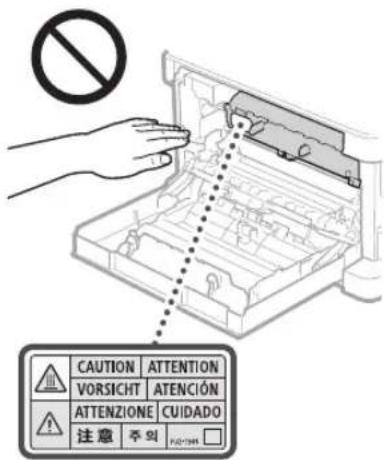
Bydbte oobepekhi, 06 He BnyctHn HaCKIO eKNOHYBaHHa BaKKI npEeMTe, HApNKnAd cNoBHK. Ze Moke NOWKODIT NCKIO eKNOHYBaHHa Ta CnPnHHTN TpaBMyBaHH.
He nepeHcBte anapat 3i BCTaHOBnEHMMIOKAMIN na npepy nOdoaTKOSMNPIpCTPOMnOdaaHHnapey BOHNMOkybBINACTN Ta pnp3eCTNO TpABM.
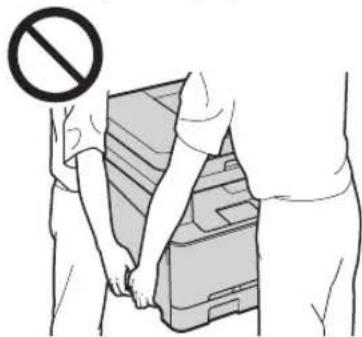
Pnpctpi noabaHHa 60 KpUka cKa ekCnoHyBaHHa
IⅡIaC KONIOBAHNA TOCTHX KNH 3a DOnOMoFOO CKNK EKCNOHYBAHH He HATNCKAHTE 3 HAdMIPOHM 3cYnIM HA pNCTpI NOAbaHH ABO KPNkU CKNa EKCNOHYBAHH. Te MoKe NtKOJNTN CKnIO EKCNOHYBAHH Ta cPNIHNITn TpaMByAHNA
PnactpnoaabaHbAoKpnuKcNkAeknOhyaHHn3d3aKnpaBAtbcepeKHO,106Be3aueMmTpyK,OKtBbkeJeMOe npaeCTDoTpa3yBaHH.
Bydtye yaaKHi Ta pTMAIte pykn nanbui npani di npnctpoio npabahnnapey a60 Kpwnck cknke kcnOhyBaHH. HAKwe BN MOKeTe TpaBMyBaNTbc.
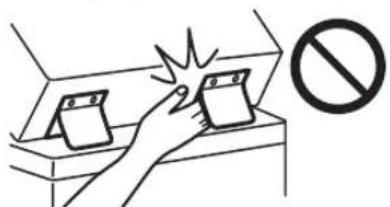
Uxyna da nanepy
He BCTaBnIe pyK b anapat, KOH BUNHTo UyXnYd nIaNepy, OckIbKu CE MOKe PnI3BeTn DO TzABMyBaHJI.
Klouehepro36pekeHH
HaTnCHbKhONky (HeeroRo3epepeXHH) B UInxB 6e3neKn, kIIO apaH He BNkOpCtOByBaTMETcBn pOITROM TpBNaTOO YAcH (HApNkNAd HnH). TaOK BmIKKaIte ToCBHN NepemKuA KINBNEHH Ta BImaTe UTeNCBIL hYpa KINAEHH 3 PO3ETKn B UINX Be3neKn, kIIO apaH He BNkOpCtOByBATMETcBn pOTROM D0BIOrO nepioNy Acy (HApNkNAd HnXiD).
3axuieicbnaepnnpctpoib 3riH03i cTaNaptaml IEC60825-1:2014 EN60825-1:2014 ueBupi6zhaueho k naepnBvip6knacy1.
CLASS 1 LASER PRODUCT
LASER KLASSE 1
APPARELÀ LASER DE CLASSE 1
APPARECCHIO LASER DI CLASSE 1
PRODUCTO LASER DE CLASE
APARELHO A LASER DE CLASSE 1
LUOKAN 1 LASER-TUOTE
LASERPRODUKT KCLASS 1
Ja3epHn npomHb MoKe 3aDaT NKOJnIOcbkOMOprAHmMy,OckIbKnBnPOMIHOBAHn BcepeHHI BpOby NOBHCTNOHNHaETCB3axCHMH KOpTYCOMTa 30BHIHINOKPHTTM,naepHn pOpmHb He MoKePOHKNyHn HAcBnHnac6yB-AKOi CtaIIPO6OTn POnyntAHe HabeDeHn HNKeH pNIMTKInHCTpykU3 texHKnBe3neKn.
Hikonn He BIDKPNBaIte naHEnI,AnOe He Bk3aHO 8 noc6HnKax Do boro anapata.
Jaio naepnH npoMHb BnHe HaoShi NoTpanNTB CCHI,HOrO dJe MOKe NcKOJITN 3ip.
BnKopncTaHHoprAHIKB KepyBaHHa, petyHnTOpIB a6o BnKoHaHHonepaui, He ONcaHNx yLbOMy nociHky, MoKe npNBeCTnNo HebeNeuHOr Na3epHOrO ONpOMHeHH.
3acTepeXeHHI pO npAun 6e3neKn iN qac po60Tu 3 na3epom
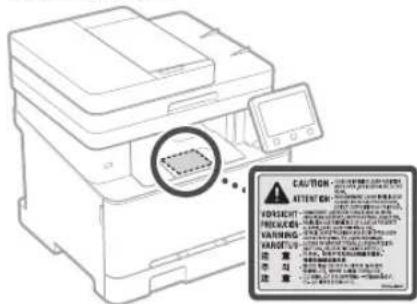
OBANKINBO
DOTPMYNECBHCTPYKU,UO3aHaHEHHa HAKNei3I nonepdkeHHM,po3aOBOAHHa 云cmy anapati.
- He niiandaabaie anapaat ctpycam abo biipauii.
He HamaraiTeca CunomiIbDkPnBAtTa 3akPnBAtn DBepuTAt, KpNkTu HHiHaCTNH. Lc MoKe npN3BcTn Do noNkoJxehn anapata.
He BIMnKaIe rONOBHNI nepeMnKau XINBENHa T He BiIKPbNAITE KPNIIKNJ,DOKN Anapat npaioe.Lie MoKe cnpNHNHT MmHAHHN Panepy.
BukopncOByIeMoDyHnKa6JIb IO8KHOIO MeHue 3 MetpiB.
BukopncOByte USBKa6eIbIOBxHOKo MeHwe 3 metpiB.
ДодаТOK
He TopkaTeCA KOHTAKTIB (BcepeDnH anapata. Lc MoKe np3Becn do no rO NOWKODKEHHA
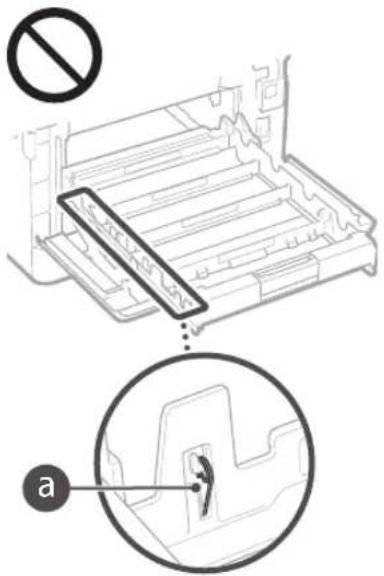
Piic TpaHcnpTyBaHH anapata
Ioo3an06fHnOoKoDxHHIO anapata nID cac TnpchopTyBaHH, BOKHOte HaeBeyHHXyJII. BmHt KaTPONIX 3 TOHEOP.
HadiinHO 3aoripitb anapat y naKyBaBHI MatepiAIN NOKnAdPi Horo B Kopo6ky 3 KOMTNEkTy NOCTAHHH.
CmB0NJ, NOB'3aHI 3TexhikoO6e3neKI Nepemikau kNkBnHHe: NNOKeHHa"yBIMK.
OpeemkaqKbneHHa:noTokeHHa"BMK
Nepemukau knuBneHHa:nonokehnH"PeKMM oukyBaHHa
KHOKNKOBNIpeMNAKAI
3axncha kneMa 3aemeHHH
He6e3neuHa Hanyra BCEpeHNI He BIKpVAIte KPMK,AKIO HA LIE He 6yIO BKA3IBOK.
YBAIITapra naoepxHa. He topkaTnA.
O6nHaHHKnaCyI
Pyxomi uactHIN:TPMMAIe uactHIN TINA noJani BID HIX
YBAIAt MoKmBepyapKeHH eEeKtpnHmCtpymOM.BuMItbyci utencen3 po3eKn.
Tocpi kpal. Tpmaite hactnHina nana ndi nix
[IPVIMITKA]
Ja33aHaeHHBnue CmBONIBMOyTHe BkayBaTncaIanekHOBIINbPOby.
Texhiue 06cnyrobybaHH Ta orna
IpeioHNO HcTbe anapat. KIO HAKONUyEcbra NIN, anapat moke He npauoBATn HaneKHM uHOM. NII cHAC uHHH NOPTPMYeTCE HABeEHNHX HIXe IHOCTpyKJi, KIO IOHAC POBOTN BANHKe IPO6LMA, DIB. POzDl YCyHNHE HENONAOy HIOscIKyKOKPcTByBA, RIO BOH E BAnOcR BnUIHTN IPO6NeMy, ABO BN BNEBHeI, OIO anapat notpOeYE cepEICHO 06CtROyBaHH, DIB. POzDl RAtoPp6NeMy HE BnAOnoB BnUIHTN I BocIObIKy KOpCITByBA.
TIOIPEPEDXEHH
IpeidNoaTcKMOUeHHBIMKHTbJKBnEHH Ta BmMItb tncenb uhypa KINBEHH 3 po3eTK Mepexi 3MHHO CTpyM. RIOuLBO He 3pO6HTM MOKe CTAtCA NPOEKA a60 ypaKeHH eNEKTPVHMMCTpyOM.
YacBIDaCyBIMMaTeTtencbI3poTeKnTa BHTnpaIe CYXIO TKAHHOIO NIN I6pyd. HAKONUHeNNIINNNOHNHeBOIORY 3 NOBITPA, IIKO BuB BCTyNTB B DIO 3 eNEKTpKIOO,MOKe CTATNCNoXeKa.
OuHuaTe anapat BoIoroIO dope BnKpyHeHOIO TKAHHIO.3BOnkoyIe 10 TKaHHy Iiue BOIO. He BnKopncToByte Cnpt,BeHN30,poCHHHNK Ta HHIJIeKO3aMNCI peoBHIN.He BnKopncTOByIe KcMeTHNn nanip abo nanepoBI pyuHHNI. Raio ci peoBHNI nortpannBHa eIEKtpnHi detani BCEpEINI Anapata,BOHNMOkyTb YTBOPNT CTAnHHy EIEKTPNKU,IO MOKe CTPNHNI NNOKekyH yypakhen HNEKTPNHAM CPYMOM.
Perynpho nepebipriTe hypxHneneHHa
HTENCEB Ha HABBHCTb NOKKoJKeHB.
PiepbiRrnaaparHa HApMIPHe HarpBaHHa
abo HABHCTb ipk, 3aay6mH, NoDpnnH,
TpiuH. BIKOPnCTHa OBnADHaHHB
norahOMy cTAH MoKe npnBecn Do NoXeKl
abo ypaKeHH eekTPnHMM CTpyMOM.
YBARA
YcepeHHI anapatae Detani, kni nepebyaotb nID BVCKOHO HANpyo 60 ap3irpiti do BcOKXn TEMNepatyp. RIO TOKHTNCIHX detanei, MOKyTB BNHNKHyTN oIKi. He TOpKaTecn TXqactHn anapata, kI He No3HaHeHO Bcbomy NocibNKy.
3aBHTaKyBatn nanip cn BnAMTn 3mFTn nanip cn nyke o6epekHo, u6 he npi3atn pykni kpaHAn apKyuiis.
BntpaTHi MaTepiAn
ANIOPEEDKEHH
He Kua Te Bkopcta H Kapt Pnki 3 Tohepom
Too y BiKpntn BOrOb. TaKoK He
3epirare Kapnpki 3 Tohepom nn npip y
Micx nobnBy BiKpntoro BOrHIO.Je MoKe
CTPnuHn 3aMaHH N pN3BcTn Do onikib
a6o NokeKi.
Rkto Tohep BnndkoBo po3nnmbcA abo
po3cnnaBc, o6epeKHO 36epitb Hn 3iipitb
P3CNNAHIN NPOOOK BONORO MAKKO
TKAHNOK, yNHKaOHu BnXnAHn. HIKON He
np6npaTe po3cnnaHn ToHe pNNOCocm, y
yKOMy He npede6bueHo 3anobkHex 3axoJIB
npOTn Bn6xiv Npy. Lc MoKe Pn3BeCTn Do
HeCNPABHncti nnococa ABO BV6xy Nny B
pe3ynbTaI CTaNTHOro PO3pdy.
YBARA
Bynbte obepeKHI, 06 He BmNHytn npoioK Tohepa. JkiO ue cTanoC, HeraHNo 3eepHtbcra Jo likapar.
Bybte o6eepkhi, 06 tohe He noTpann8 do Oeyi pOBoI npOoKHHH. RkuO ue CTanoc, HeraHcPOMNTe ix XoNOHOIO BOIO Ta 3eepHITBCdIO kApA.
Bybte oobepkhi, 06 TOHep He NotpannHa shkiy. RaKIO ce CTANOc3 MInTe Noro XoNHOIO BOIOO 3 MNOM. Y pa3i NOBn CmTTOMIB NOp3AHeHH HIKPi HeraHo 3eepHITBCdo NiKapr.
36epiraIte KapTpiKJi 3ToHepOM Ta IIHI BnPaTHII MATEPIINB MICUx,HEOCTyHHN DnI dTe. Y pasi KOBtaHH ToHepa HeraiHO 3eepHbCdo NkapA a60 TokcKoONHOr OHTpy.
- He po36bmpaIte Ta He moDfipkiyIe KaprrnxiKi ToHepoMn 6byj-kky IHyJ TuacHny IApapata. Lie MoKe Ipn3BecTeNo pOcSnHaHnToHepa.
3HIMAOHN3AXNCHyCTPikky3KAPTPnKa 3 TOHEPOM,NOBHCTO BHTIHTbII,ane He DOKNAJATEHaDMIPHX3cynb.IHaKHe TOHE MOKE POZCNATNC.
OBAKJIMBO
BijnojioHO do npabnTexhikn 6e3neKn notpi6Ho 3apeecpyBat Na3By npOyKty.
YdEKnX perioHx npOaKy npOyKTy hAtomictb MoKe 6yTn 3apeeCTpoBaHO TaKi HaBn (B dyKKax):
MF645Cx (F175002)
MF643Cdw / MF641Cw (F175000)
BmOrndo enektpomarHHTHOcymichocti BiNObiHO do DnpeKTHBn EC
LepnpctpiBIDNobidae rONOBHM BMORAMdo eEeKpOMaHHTHO CYMHCOTI DnpeKTHNB CC.Mn OoHIO NITBETBPXyEMO, 0o cei Bnip6 BIDNObIAe BmOrAM 0oD eneKpOMaHHTHO CYMHCOTI BIDNObIHDO DnpeKTHNB CC,ykII 33AHueHo, 3HAeHHH HOMHaHbHO BxIHHO HApPyH MaC tAHOBTN 230 B,aactotn -50 T, xOa HOMHaHbHI KOKa3HNI KcMy Ha BXoJI dNl UBO Rn BOPOBy cTAHOBTB 220-240 B,50/60T, BVKnOpCTAHN EKpaHOBaHO KA6ENe HEO6XINHO YMBOX 3IHO 3BMORA MIO eNEKTPOMaHHTHO CYMHCOTI BKNJAEHMMB DnpeKTHBI EC.
HopmatnBHa inHopmaizy 0do 6e3poToboi IokalbHOI Mepexi
Regulatory information for users in Jordan
MF645Cx / MF643Cdw / MF641Cw includes approved Wireless LAN Module (Model name: Type1KA).
Contains Wireless LAN Module approved by TRC/ LPD/2017/19
Regulatory information for users in UAE MF645Cx/MF643Cdw/MF641Cw includes approved Wireless LAN Module (Model name: Type1KA).
TRA
REGISTERED No: ER51217/17
DEALER No: DA0073692/11
RE Directive
(Only for European radio equipment)
RE Declaration of Conformity
English (EN) Hereby, Canon Inc. declares that this equipment is in compliance with Directive 2014/53/EU. The full text of the EU declaration of conformity is available at the following internet address: http://www.canon-europe.com/ce-documentation Wireless LAN Specifications Frequency band(s):2412-2472MHz Maximum radio-frequency power: 15.9 dBm
Inoctpaui Ta 3o6paKeHH eKpaHa, BnKOpncTaH Bcbomy noci6Hmky
PnKnnaIIOCTpaT Ta 3o6paxeH ekpaHa, 10B NKOPNTOBYIObC B Ubomy NocihKy,BIaNOBaIbToB moDeni MF645Cx, AkoHe 3aHaHEHO IHue.
ToprobblnMapkn
Mac toproebelhoIO mapkoIO kOMnaiII Apple Inc.
Microsoft,Windows,Windows Vista,Windows
Server,Internet Explorer,ExcelIPowerPoint e
3apeCTpobAHMMTOPROBELHMMMMapkAMnabo
TOPROBEBHMMMMapkAMnKOPnpaui
MaIKpocodTy CnoNyuehenx IIatax Ta/ab0
B IHINIX KpaiahX.
3a3NaChEi B LbOmy DOKyMeHTI INHI HABBI
POnyTbi I kOMnaiH N to ProOBMM MapkAMn
BIDNOBIDHX BNACHNIK.
IporpamHe 3a6e3neueHHCTOPOHHX Bnpo6HnKIB
LcBnBp16Canon(BVPI5)BKnIOaCMoynI nporpAMHOrO 3aBe3NEeEHnCTopoHHIX po3oobHNb.BKApncTahHaTa pO3OBcOxJHHeHHUxMOyINIB nporpAMHOrO 3aBe3NEeHHN,3ckPemaByds-ANX OHOBnEh TaHXMoyNIISnporpAMHOrO 3aBe3NEeEHn (pa3om「IPORPAMHE 3AE3NEeHHN> BnHAaTeBcHymoABm,HabeJeHMn B IyHKtAX 3(1)NO(9)HnKHe.
(1)BnIIOJxkyETecNIOPTpMyBaTNC BcixYHHHX 3aKOHIBIODOKOHTPOIIO3aekCnOpTOM, 06MExeHbI HOpM KpaIH,HaTePnTOPII KIXN BBNIP3IPOPTPAMM3AEB3NEEHHRM BIDBaHTXyCTbc,NepeBO3NTBC aBO EKNOPTyETCBdo IHoOI KPAIH.
(2)Bnachnk npab Ha IPOPTAMHE 3AE3NEEHHBy C ybcIbHouHHx 3epiAot npaba MaHOBoTa iHTenekTayhHOI BnACHcOHa H IPOPTAMHE 3AE3NEEHHry. Bnachnk npab He HadaIOy bKoHNX liueH3i abo npab, BACNOBHeHX 6BeNocpeHbO aBO onocepEkoBaHo, Ha KODHy IHTenekTayhBu HbAcHCTb HA IPOPTAMHE 3AE3NEEHHBy OKpIM Tnx, npo RkBbKOHTIO NcETCBY UbOMy DOKYMHTI.
(3) IPOIPIAMHE 3AEB3IEEHHHMOXHA BIKOPINCTOByBAtNIMue 3 BIPOBOM.
(4) PPOPAMHE 3AEB3NEEHHH 3a6opohnctbB BIDyKByATN, HADabATN Ha hBo rCy6nueH3i, PpOABATN, NOuPiOBATn a6o nepeBADATN CTOPOHIM OOC6am Ge3 nonepdHboI NCMB0BOI 3IOJIN BNAChkIB IIpaB HA PPOPAMHE 3AEB3NEEHHH.
(5) He3BaXaOHnHa 3a3Hauehe BnIe, IPOPTPAMHE 3AE3NEEHHMoxHnapepebaTn, nIuue KcN (a) yci npasa H BAPI6 I Bc npaba Ta 3o6ob'3aHHnpepaKotcb npabHOACTyINHKy, (6) 3a3HaueHn BnIe npabOAcTyINHK 3rOednPiinHnTaKi 3o6ob'3aHH.
(6) He do3b0n3c7bc 3aHCHIOBAt NekomnlaHIO, peKoHCTpyOBAHH, DeacemNOBaaH H a60 INHM cNOHOM CKOpOHBaTH KOD IPOPAMHOHO 3AEB3NEEHHO Do fOpMn, yIKI NOMOE IPOOHTATINIOHNA.
(7) He do3B0n8TcBc 3MIHOBAtN, aDAnTyBaTn, nepeKnaDaTn, dAbaTn B opeHny Hnpokat abo no3uHn IPOPGAM 3AE63NEEHHR, abo CTBOB9aHn NOxIDH TBOpN, 100 b43yOHTbCn Ha IPOPGAMHOMY 3AE3NECHHII.
(8) He do3B0BnEeTbCnpeHocntn a6o po6BnTn okpem konii IPOITPAMHO 3ABe3IeEHHHa BINPOGY.
(9)IIueH3ie He pOaONBOckyTeBcHa TaeeTHNpyIPOPGAMHOHO 3ABE3IEeEHnHO,doctynHyDnPPOUHTHnIOHNOHO (BuxINHKOd).
He3bKaIOHnHa nyHKTN (1)-(9) BNIe, BNI5BKNUaC MODyI nporpamHoro 3abe3neueHHCTOPOHIX pOPO6HNIK, AIK cyNPoBxkyOTBCyOMoAMn IHINX IIeEH3i, I BVKOpNCTAHNcHXMOyII INpORpAMHO 3a6e3neueHHPERYIOEbCtCMn yMOBAMn IHINX IIeEH3i. YMOBnIHINX IIeEH3i 0DO BVKOpNCTAHNcHMOyII INpORpAMHO 3a6e3neueHHCTOPOHIXpOboHNk OINCAH BIOdAky DO Nci6HnKaBIINOBIDHO BVPO6Y, LJIe NCI6HKn DOctyrHnHa Be6-caiTihttp://canon.com/oip-manual.
BnKOpNCTOByOuYn Cei BNPI6, BN norOxyTeec 3 yCima 3aCtOCOBHMMyOBAMNIJIeH3II. JIIO Bn He norOxyTeec 3 cIMM yOBAMNIJIeH3II, 3BePHITcBO DO cBO rpeCTABHnKa CNyXbON TexHHORO OBCNYROBYAHNA.
V_180517
uk
Memo

Memo

Canon
CANON INC.
30-2, Shimomaruko 3-chome, Ohta-ku, Tokyo 146-8501, Japan
One Canon Park, Melville, NY 11747, U.S.A.
CANON EUROPA N.V.
Bovenkerwerweg 59, 1185 XB Amstelveen, The Netherlands
2F Jinbao Building No.89, Jinbao Street, Dongcheng District, Beijing 100005, PRC
CANON SINGAPORE PTE LTD
1 Fusionopolis Place, #15-10, Galaxis, Singapore 138522
CANON AUSTRALIA PTY LTD
Building A, The Park Estate, 5 Talavera Road, Macquarie Park, NSW 2113, Australia
CANON GLOBAL WORLDWIDE SITES
http://www.canon.com/