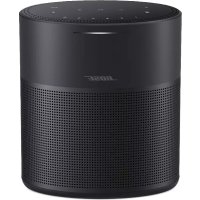
Home Speaker 300 - Speakers BOSE - Free user manual and instructions
Find the device manual for free Home Speaker 300 BOSE in PDF.



User questions about Home Speaker 300 BOSE
0 question about this device. Answer the ones you know or ask your own.
Ask a new question about this device
Download the instructions for your Speakers in PDF format for free! Find your manual Home Speaker 300 - BOSE and take your electronic device back in hand. On this page are published all the documents necessary for the use of your device. Home Speaker 300 by BOSE.
USER MANUAL Home Speaker 300 BOSE
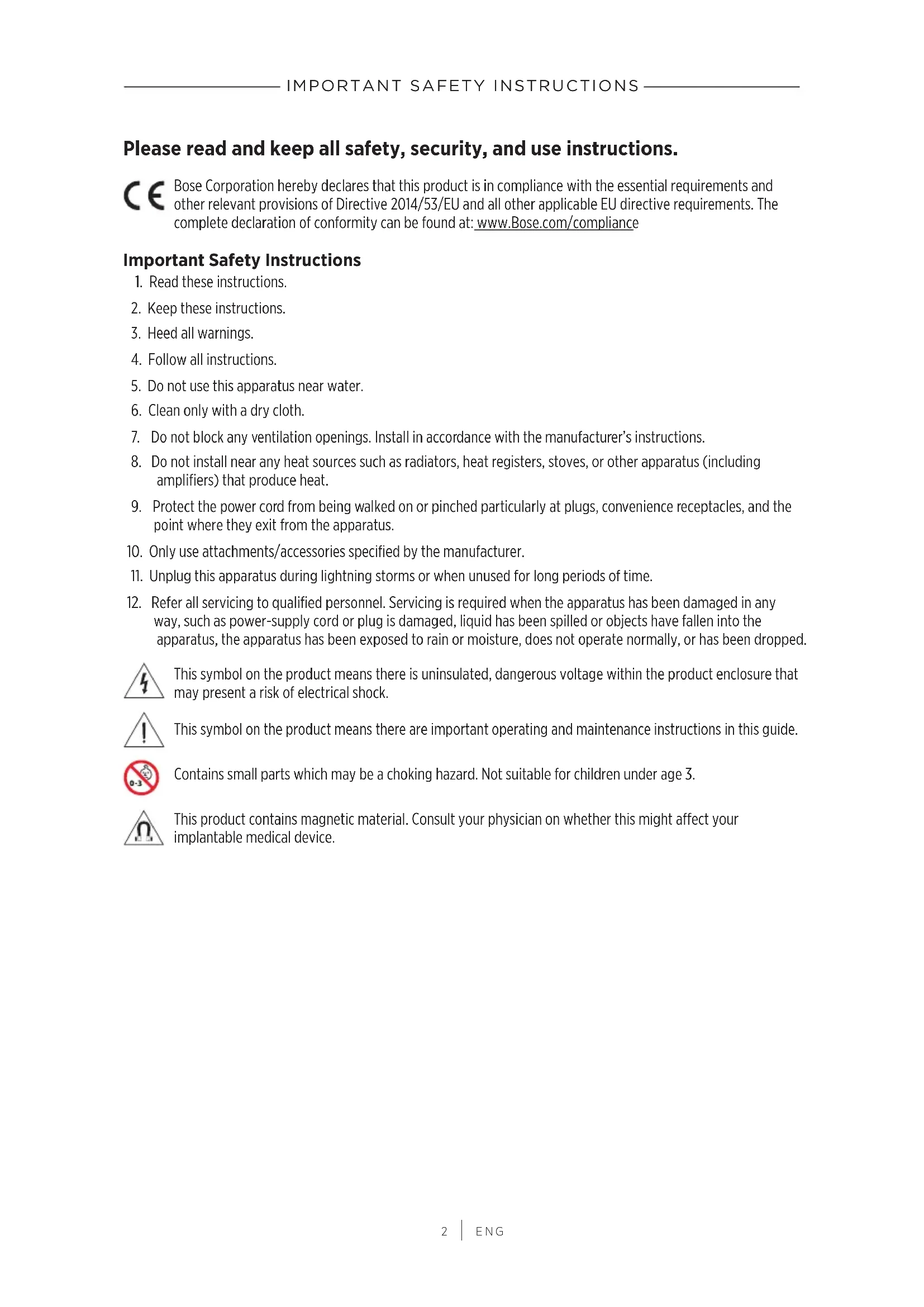
Please read and keep all safety, security, and use instructions.

Bose Corporation hereby declares that this product is in compliance with the essential requirements and other relevant provisions of Directive 2014/53/EU and all other applicable EU directive requirements. The complete declaration of conformity can be found at: www.Bose.com/compliance
Important Safety Instructions
- Read these instructions.
- Keep these instructions.
- Heed all warnings.
- Follow all instructions.
- Do not use this apparatus near water.
- Clean only with a dry cloth.
- Do not block any ventilation openings. Install in accordance with the manufacturer's instructions.
- Do not install near any heat sources such as radiators, heat registers, stoves, or other apparatus (including amplifiers) that produce heat.
- Protect the power cord from being walked on or pinched particularly at plugs, convenience receptacles, and the point where they exit from the apparatus.
- Only use attachments/accessories specified by the manufacturer.
- Unplug this apparatus during lightning storms or when unused for long periods of time.
- Refer all servicing to qualified personnel. Servicing is required when the apparatus has been damaged in any way, such as power-supply cord or plug is damaged, liquid has been spilled or objects have fallen into the apparatus, the apparatus has been exposed to rain or moisture, does not operate normally, or has been dropped.

This symbol on the product means there is uninsulated, dangerous voltage within the product enclosure that may present a risk of electrical shock.

This symbol on the product means there are important operating and maintenance instructions in this guide.

Contains small parts which may be a choking hazard. Not suitable for children under age 3.

This product contains magnetic material. Consult your physician on whether this might affect your implantable medical device.
- To reduce the risk of fire or electrical shock, do NOT expose this product to rain, liquids or moisture.
- Do NOT expose this product to dripping or splashing, and do not place objects filled with liquids, such as vases, on or near the product.
- Keep the product away from fire and heat sources. Do NOT place naked flame sources, such as lighted candles, on or near the product.
- Do NOT make unauthorized alterations to this product.
- Do NOT use in vehicles or boats.
- Use this product only with the power supply provided.
- Where the mains plug or an appliance coupler is used as the disconnect device, the disconnect device shall remain readily operable.
- Due to ventilation requirements, Bose does not recommend placing the product in a confined space such as in a wall cavity or in an enclosed cabinet.

- Do not place or install the bracket or product near any heat sources, such as fireplaces, radiators, heat registers or other apparatus (including amplifiers) that produce heat.
- The product label is located on the bottom of the product.
NOTE: This equipment has been tested and found to comply with the limits for a Class B digital device, pursuant to Part 15 of the FCC Rules. These limits are designed to provide reasonable protection against harmful interference in a residential installation. This equipment generates, uses, and can radiate radio frequency energy and, if not installed and used in accordance with the instructions, may cause harmful interference to radio communications. However, there is no guarantee that interference will not occur in a particular installation. If this equipment does cause harmful interference to radio or television reception, which can be determined by turning the equipment off and on, the user is encouraged to try to correct the interference by one or more of the following measures:
- Reorient or relocate the receiving antenna.
- Increase the separation between the equipment and receiver.
- Connect the equipment into an outlet on a circuit different from that to which the receiver is connected.
- Consult the dealer or an experienced radio/TV technician for help.
Changes or modifications not expressly approved by Bose Corporation could void the user's authority to operate this equipment.
This device complies with part 15 of the FCC Rules and with ISED Canada license-exempt RSS standard(s). Operation is subject to the following two conditions: (1) This device may not cause harmful interference, and (2) this device must accept any interference received, including interference that may cause undesired operation.
This equipment should be installed and operated with a minimum distance of 20cm between radiator and your body. This device for operation in the band 5150 - 5250 MHz is only for indoor use to reduce the potential for harmful interference to other co-channel systems.
CANICES-3(B)/NMB-3(B)
The product, in accordance with the Ecodesign Requirements for Energy Related Products Directive 2009/125/EC, is in compliance with the following norm(s) or document(s): Regulation (EC) No. 1275/2008, as amended by Regulation (EU) No. 801/2013.
| Required Power State Information | Power Modes | |
| Standby Networked Standby | ||
| Power consumption in specified power mode, at 230V/50Hz input | ≤ 0.5 W | Wi-Fi®, Bluetooth® ≤ 2.0 W |
| Time after which equipment is automatically switched into mode < 2 | .5 hours ≤ 20 minutes | |
| Power consumption in networked standby if all wired network ports are connected and all wireless network ports are activated, at 230V/50Hz input | N/A ≤ 2.0 W | |
| Network port deactivation/activation procedures. Deactivating all networks will enable standby mode. | Wi-Fi®: Deactivate by pressing and holding the Play/Pause and Bluetooth buttons simultaneously for at least 5 seconds. Repeat to activate.Bluetooth®: Deactivate by clearing the pairing list by pressing and holding the Bluetooth® button for 10 seconds. Activate by pairing with a Bluetooth source. | |
External Power Supply Technical Information
The external power supply provided with the product, in accordance with the Ecodesign Requirements for Energy Related Products Directive 2009/125/EC, is in compliance with the following norms(s) or documents(s): Commission Regulation (EU) 2019/1782.
| Manufacturer | Bose Products B.V. |
| Commercial registration number | 36037901 |
| Address | Gorslaan 601441 RG PurmerendThe Netherlands |
| Model identifier | F24V-0.9C-DC-WW |
| Input voltage | 100V-240V |
| Input AC frequency | 50Hz/60Hz |
| Output voltage | 24V DC |
| Output current | 0.9A |
| Output power | 21.6W |
| Average active efficiency | 87.4% |
| Efficiency at low load (10%) | 83.2% |
| No-load power consumption | 0.09W |
For Europe:
Frequency bands of operation 2400 to 2483.5 MHz, 5150 to 5350 MHz, and 5470 to 5725 MHz.
Maximum transmit power less than 20 dBm EIRP.
Maximum transmit power is below regulatory limits such that SAR testing is not necessary and exempt per applicable regulations.
This device is restricted to indoor use when operating in the 5150 to 5350 MHz frequency range in all EU Member States listed in the table.
| B | |||||||
| BE DK IE UK FR CY SK HU AT SE | |||||||
| BG DE PT EL HR LV LT MT PL | |||||||
| CZ EE FI ES IT RO LU NL SI | |||||||
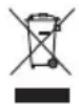
This symbol means the product must not be discarded as household waste, and should be delivered to an appropriate collection facility for recycling. Proper disposal and recycling helps protect natural resources, human health and the environment. For more information on disposal and recycling of this product, contact your local municipality, disposal service, or the shop where you bought this product.
Management Regulation for Low-power Radio-frequency Devices
Article XII
According to "Management Regulation for Low-power Radio-frequency Devices" without permission granted by the NCC, any company, enterprise, or user is not allowed to change frequency, enhance transmitting power or alter original characteristic as well as performance to an approved low power radio-frequency devices.
Article XIV
The low power radio-frequency devices shall not influence aircraft security and interfere legal communications; If found, the user shall cease operating immediately until no interference is achieved. The said legal communications means radio communications operated in compliance with the Telecommunications Act.
The low power radio-frequency devices must be susceptible with the interference from legal communications or ISM radio wave radiated devices.
China Restriction of Hazardous Substances Table
| Names and Contents of Toxic or Hazardous Substances or Elements | ||||||
| Toxic or Hazardous Substances and Elements | ||||||
| Part Name | Lead(Pb) | Mercury(Hg) | Cadmium(Cd) | Hexavalent(CR(VI)) | PolybrominatedBiphenyl(PBB) | Polybrominated diphenylether(PBDE) |
| PCBs X 0 0 0 0 0 | ||||||
| Metal Parts X 0 0 0 0 0 | ||||||
| Plastic Parts 0 0 0 0 0 | 0 | |||||
| Speakers X 0 0 0 0 0 | ||||||
| Cables X 0 0 0 0 0 | ||||||
| This table is prepared in accordance with the provisions of SJ/T 11364.O: Indicates that this toxic or hazardous substance contained in all of the homogeneous materials for this part is below the limit requirement of GB/T 26572. | 15 | |||||
| X: Indicates that this toxic or hazardous substance contained in at least one of the homogeneous materials used for this part is above the limit requirement of GB/T 26572. | ||||||
Taiwan Restriction of Hazardous Substances Table
| Equipment name: Powered Speaker, Type designation: 427374 | ||||||
| Restricted substances and its chemical symbols | ||||||
| Unit | Lead(Pb) | Mercury (Hg) | Cadmium (Cd) | Hexavalent chromium(Cr+6) | Polybrominated biphenyls (PBB) | Polybrominated diphenylethers (PBDE) |
| PCBs | -0 | ○○○○ | ||||
| Metal Parts | -0 | ○○○○ | ||||
| Plastic Parts | ○○ | ○○○○ | ○ | |||
| Speakers | -0 | ○○○○ | ||||
| Cables | -0 | ○○○○ | ||||
| Note 1:"○" indicates that the percentage content of the restricted substance does not exceed the percentage of reference value of presence.Note 2:The "−" indicates that the restricted substance corresponds to the exemption. | ||||||
Please complete and retain for your records
The serial and model numbers are located on the bottom of the speaker.
Serial number:
Model number:
Please keep your receipt with your owner's guide. Now is a good time to register your Bose product.
You can easily do this by going to global.Bose.com/register
Date of Manufacture: The eighth digit in the serial number indicates the year of manufacture; "0" is 2010 or 2020.
China Importer: Bose Electronics (Shanghai) Company Limited, Part C, Plant 9, No. 353 North Riying Road, China (Shanghai) Pilot Free Trade Zone
EU Importer: Bose Products B.V., Gorslaan 60, 1441 RG Purmerend, The Netherlands
Taiwan Importer: Bose Taiwan Branch, 9F-A1, No. 10, Section 3, Minsheng East Road, Taipei City 104, Taiwan Phone Number: +886-2-2514 7676
Mexico Importer: Bose de Mexico, S. de R.L. de C.V., Paseo de las Palmas 405-204, Lomas de Chapultepec, 11000 Mexico, D.F. Phone Number: +5255 (5202) 3545
Electrical Ratings:
Power supply: 100 - 240V 50/60Hz; 0.5A
Speaker: 24Vdc ---, 0.9A
Security Information

This product is capable of receiving automatic security updates from Bose. To receive automatic security updates, you must complete the product setup process in the Bose Music app and connect the product to the Internet. If you do not complete the setup process, you will be responsible for installing security updates that Bose makes available.
License Disclosures
To view the license disclosures that apply to the third-party software packages included as components of your Bose Home Speaker 300 product:
- On the speaker, tap and hold the Volume up button + and the Volume down button — for 5 seconds.
- Connect a micro-USB cable to the micro-USB connector on the bottom of the speaker.
- Connect the other end of the cable to a computer.
- On the computer, enter http://203.0.113.1/opensource in a browser window to display the EULA and license disclosure.
Amazon, Alexa, Amazon Music, and all related logos are trademarks of Amazon, Inc. or its affiliates.
Apple, the Apple logo, and AirPlay are trademarks of Apple Inc. registered in the U.S. and other countries. App Store is a service mark of Apple Inc.
Use of the Works with Apple badge means that an accessory has been designed to work specifically with the technology identified in the badge and has been certified by the developer to meet Apple performance standards.
The Bluetooth® word mark and logos are registered trademarks owned by Bluetooth SIG, Inc. and any use of such marks by Bose Corporation is under license.
Google and Google Play are trademarks of Google LLC.
This product contains the iHeartRadio service. iHeartRadio is a registered trademark of iHeartMedia, Inc.
This product is protected by certain intellectual property rights of Microsoft. Use or distribution of such technology outside of this product is prohibited without a license from Microsoft.
Pandora, the Pandora logo, and the Pandora trade dress are trademarks or registered trademarks of Pandora Media, Inc. used with permission.
This product incorporates Spotify software which is subject to 3rd party licenses found here:
www.spotify.com/connect/third-party-licenses
Spotify is a registered trademark of Spotify AB.
Wi-Fi is a registered trademark of Wi-Fi Alliance.
Bose, Bose Home Speaker, Bose Music, Bose Noise Cancelling Headphones, QuietComfort, SimpleSync, SoundLink, and SoundLink Revolve are trademarks of Bose Corporation.
Bose Corporation Headquarters: 1-877-230-5639
©2020 Bose Corporation. No part of this work may be reproduced, modified, distributed, or otherwise used without prior written permission.
WHAT'S IN THE BOX
Contents 13
SPEAKER PLACEMENT
Recommendations 14
POWER
Connect the speaker to power 15
Network standby. 15
Manually set the speaker to network standby 15
BOSE MUSIC APP SETUP
Download the Bose Music app 16
EXISTING BOSE MUSIC APP USERS
Add the speaker to an existing account 17
Connect to a different Wi-Fi® network 17
SPEAKER CONTROLS
Speaker functions 19
Media playback and volume 19
Voice assistant controls. 20
Presets 20
VOICE ASSISTANT
Voice assistant options 21
Set up your voice assistant 21
Access Alexa 22
Use your voice 22
Use the speaker controls 23
Access Google Assistant 24
Use your voice 24
Use the speaker controls 25
Play Music with Google Assistant 26
Choose a default audio service 26
PRESET PERSONALIZATION
Set a Preset 27
Play a Preset 27
BLUETOOTH CONNECTIONS
Connect a mobile device 28
Disconnect a mobile device 29
Reconnect a mobile device 29
Connect an additional mobile device 29
Clear the speaker device list. 29
STREAM AUDIO WITH AIRPLAY
Stream audio from the Control Center 30
Stream audio from an app 30
WIRED CONNECTIONS
Connect an audio cable. 31
SPEAKER STATUS
Wi-Fi status 32
Bluetooth connection status 33
AUX status 33
Voice Assistant status 34
Microphone off light 34
Media playback and volume 35
Update and error status 35
ADVANCED FEATURES
Update the speaker. 36
Disable/enable Wi-Fi 36
CONNECT BOSE PRODUCTS
Connect a Bose SoundLink Bluetooth speaker or Bose headphones. 37
Benefits 37
Compatible products 37
Connect using the Bose Music app 38
Reconnect a Bose SoundLink Bluetooth speaker or Bose headphones... 38
CARE AND MAINTENANCE
Clean the speaker 39
Replacement parts and accessories 39
Limited warranty 39
TROUBLESHOOTING
Try these solutions first 40
Other solutions 40
Reset the speaker 45
Restore the speaker network and audio settings 45
CONTENTS
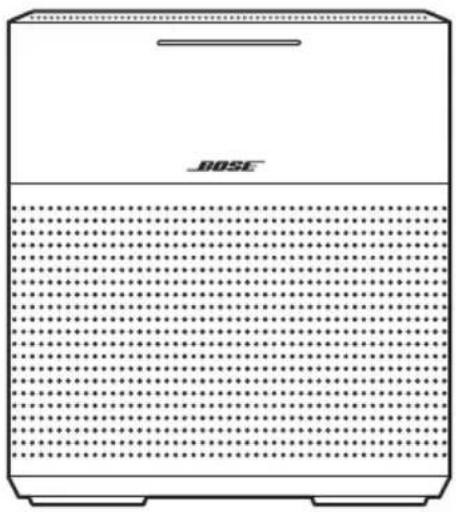
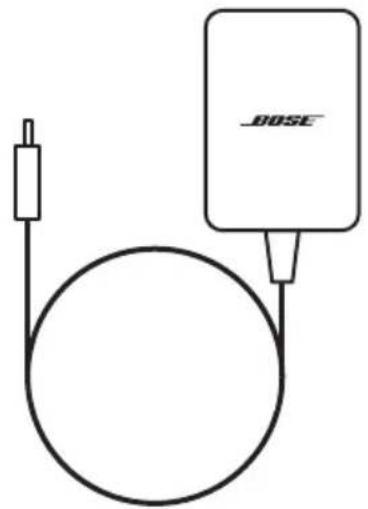
Confirm that the following parts are included:

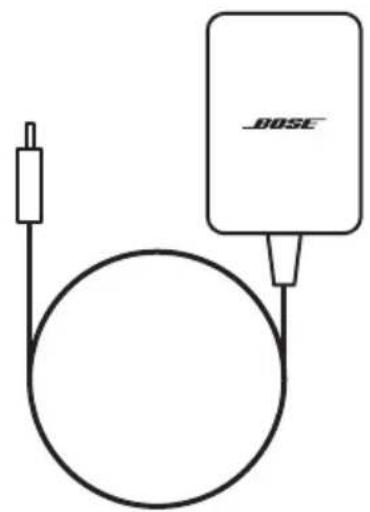
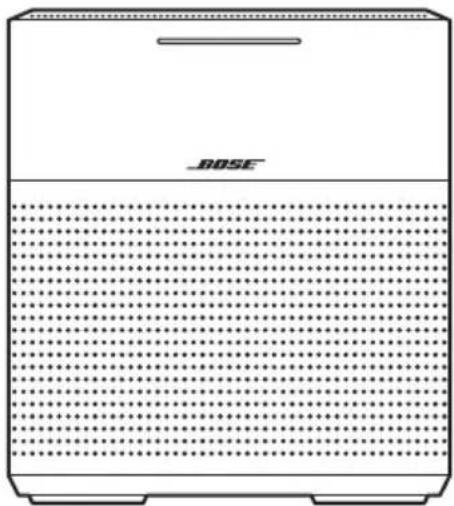
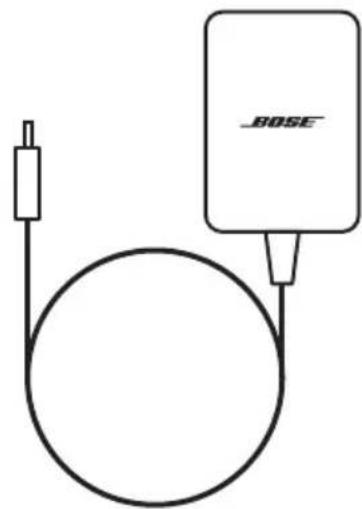
Bose Home Speaker 300 Power supply
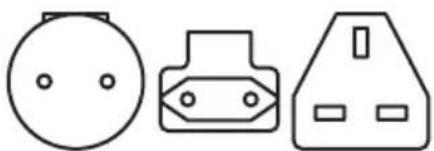
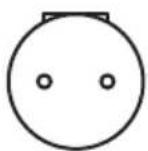
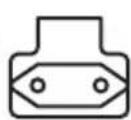
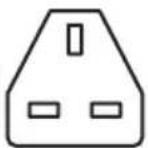
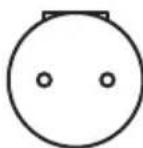
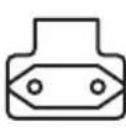
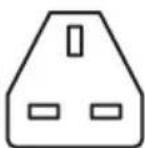
AC power adapters*
- May ship with multiple AC power adapters. Use the power adapter for your region.
NOTE: If any part of the product is damaged, do not use it. Contact your authorized Bose dealer or Bose customer service.
Visit: worldwide.Bose.com/Support/HS300
RECOMMENDATIONS
- Do NOT place the speaker on top of audio/video equipment (receivers, TVs, etc.), or any other object that may generate heat. Heat generated by these items may result in poor speaker performance.
- Do NOT place any objects on top of the speaker or in front of your speaker.
- To avoid interference, keep other wireless equipment 1 - 3 ft. (0.3 - 0.9 m) away from the speaker.
- Place the speaker outside of and away from metal cabinets and direct heat sources.
- Place the speaker so that the rubber feet are on a stable and level surface.
- Make sure there is an AC (mains) outlet nearby.
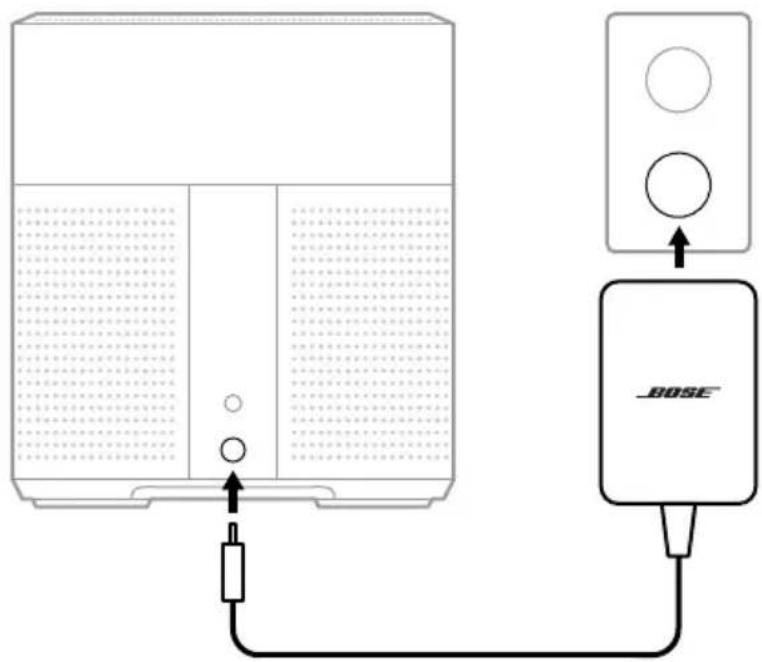
- Connect the power cord into the power port on the back of the speaker.
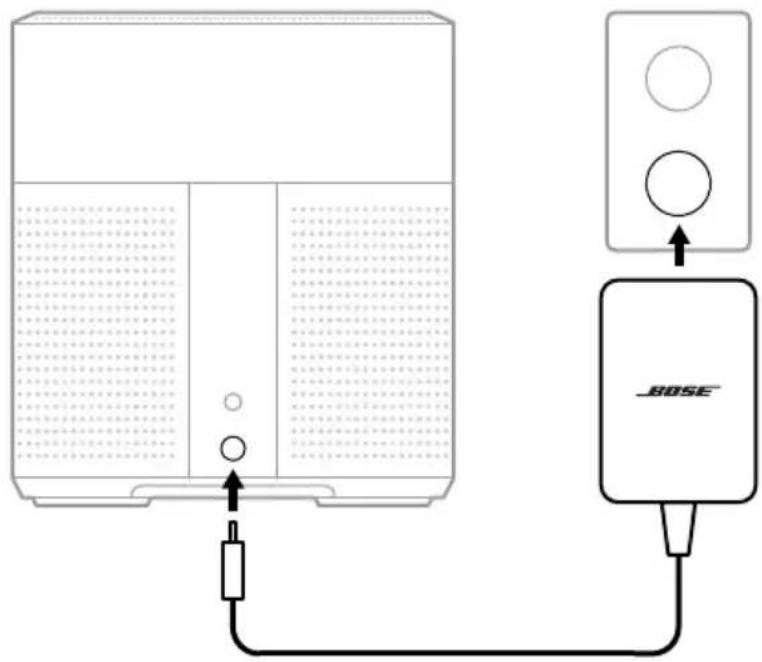
- Plug the power adapter into an AC (mains) power outlet.
The speaker powers on and the light bar glows solid amber.
NETWORK STANDBY
The speaker transitions to network standby when audio has stopped and you have not tapped any buttons or talked to your voice assistant for 20 or more minutes. To wake the speaker from network standby:
- Tap any button on the speaker.
- Play or resume audio using your mobile device or using the Bose Music app.
- Talk to Amazon Alexa or Google Assistant.
NOTE: To access your voice assistant in network standby, make sure the speaker is set up using the Bose Music app and the microphone is on (see page 21).
Manually set the speaker to network standby
Tap and hold the Play/Pause button until the light bar fades to black.
The Bose Music app lets you set up and control the speaker from any mobile device such as a smartphone or tablet.
From the app, you can stream music, set and change presets, add music services, explore internet radio stations, configure Amazon Alexa or Google Assistant, and manages speakersettings.
NOTE: If you have already created a Bose Music account in the Bose Music app for another product, see "Add the speaker to an existing account" on page 17.
DOWNLOAD THE BOSE MUSIC APP
- On your mobile device, download the Bose Music app.



- Follow the app instructions.
ADD THE SPEAKER TO AN EXISTING ACCOUNT
In the Bose Music app, go to the My Products screen and add your Bose Home Speaker 300.
CONNECT TO A DIFFERENT WI-FI NETWORK
Connect to a different network if your network name or password has changed, or if you want to change or add another network.
- On the speaker, press and hold the AUX button and the Play/Pause button until the light bar glows amber.
- On your mobile device, open your Wi-Fi settings.
- Select Bose Home Speaker 300.
- Open the Bose Music app and follow the app instructions.
NOTE: If the app doesn't prompt you for setup, go to the My Products screen and add your speaker.
SPEAKER FUNCTIONS
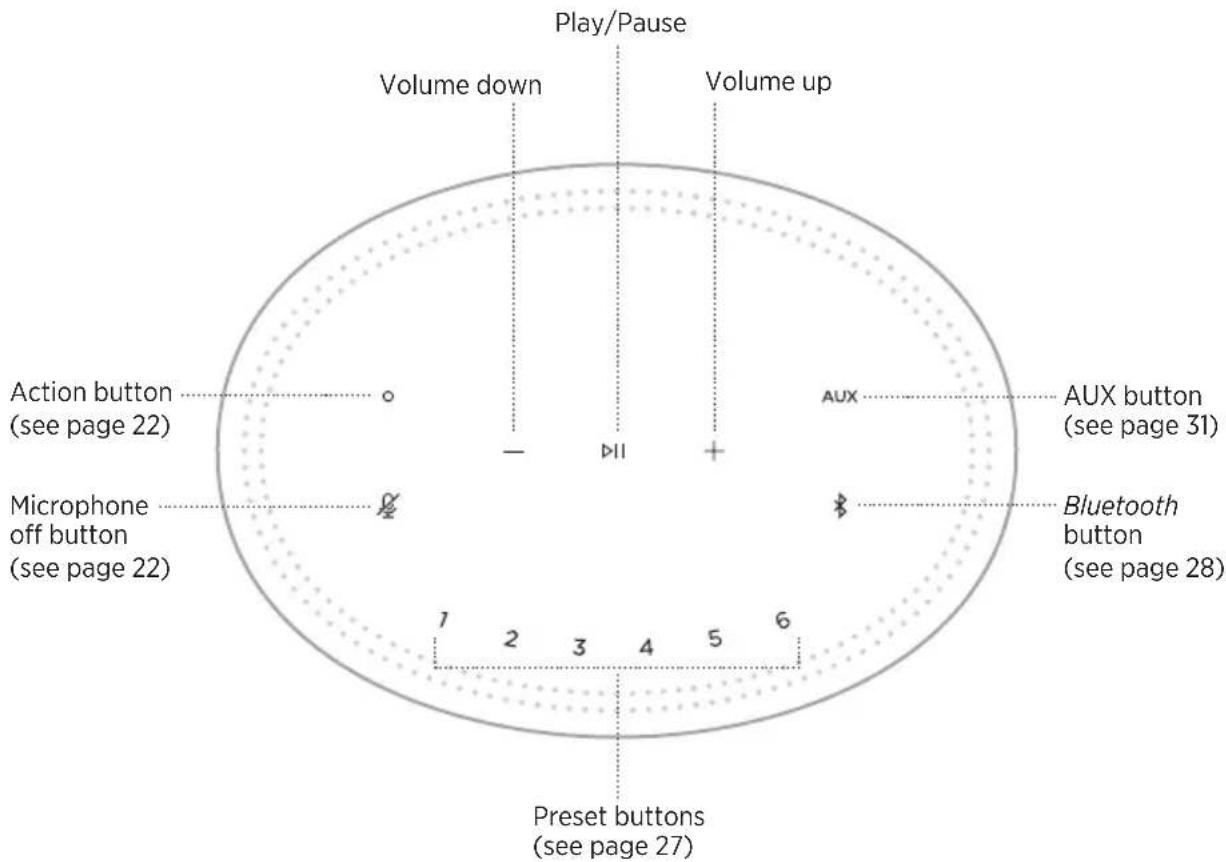
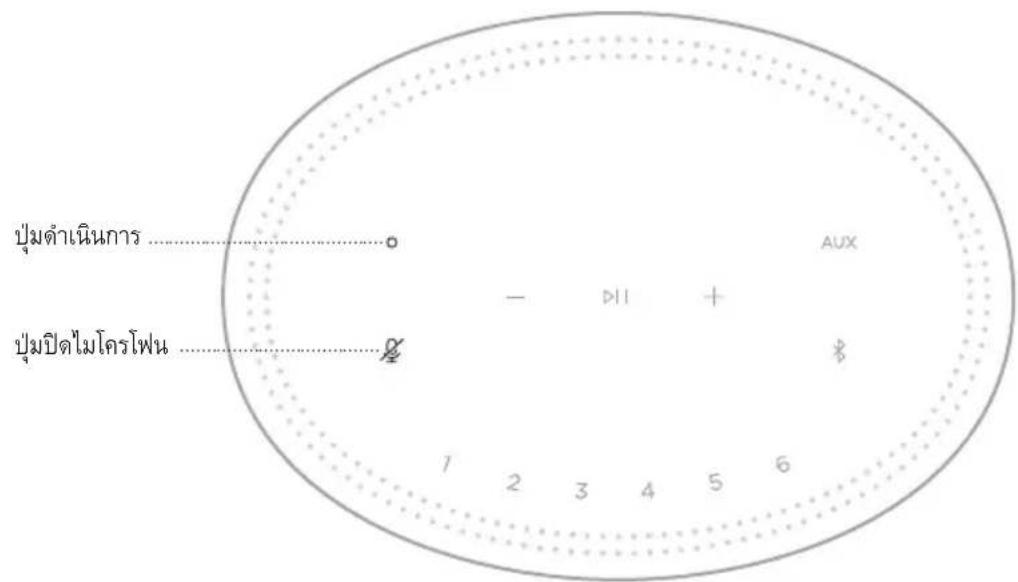
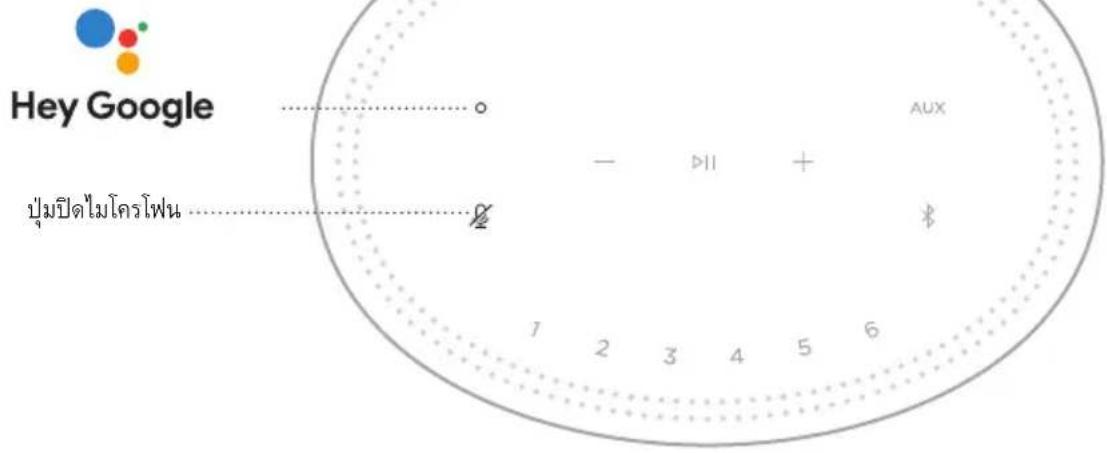
Speaker controls are located on the top of the speaker.
NOTE: You can also control your speaker using the Bose Music app.
Media playback and volume
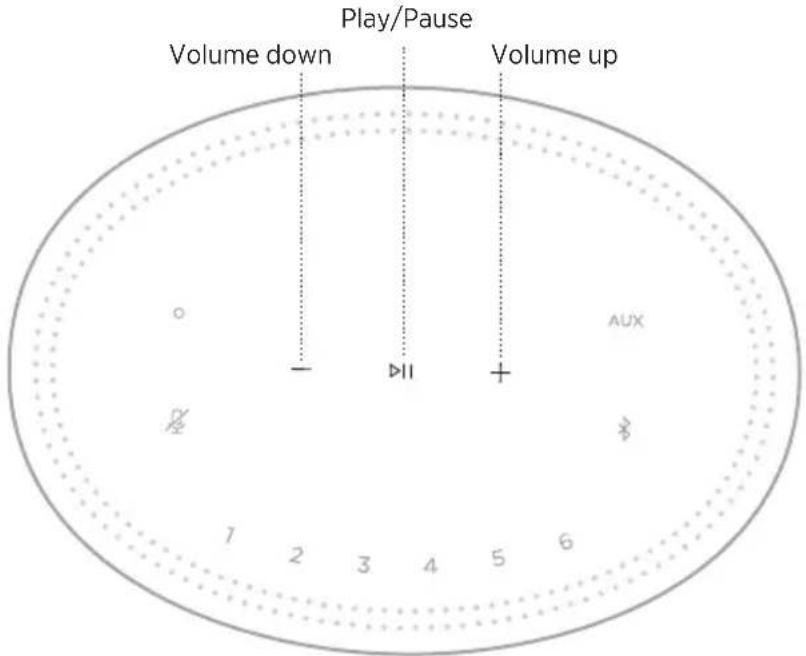
FUNCTION WHAT TO DO
| Play/Pause | Tap ▷II. The sides of the light bar glow solid white until audio resumes. |
| Skip forward | Double-tap ▷II. |
| Skip backward | Triple-tap ▷II. |
| Volume down | Tap —. NOTE: To quickly decrease the volume, tap and hold —. |
| Volume up | Tap +. NOTE: To quickly increase the volume, tap and hold +. |
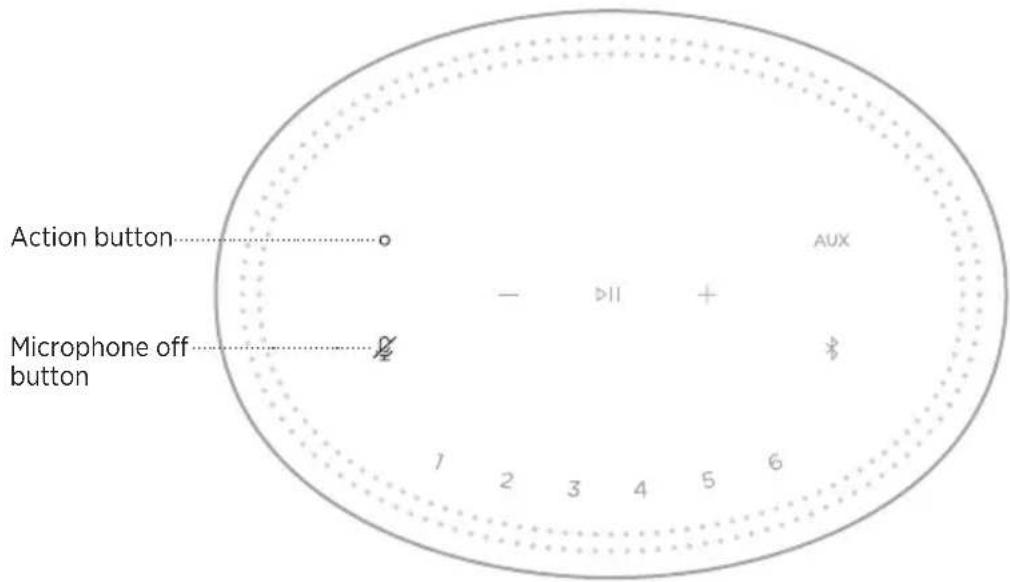
VOICE ASSISTANT CONTROLS
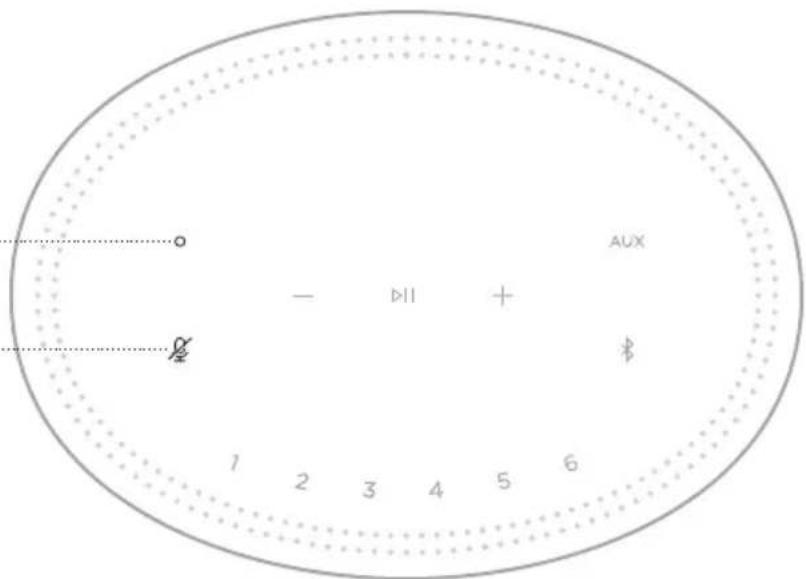
The Action button and Microphone off button are used to control Amazon Alexa (see page 23) or Google Assistant (see page 25).
PRESETS
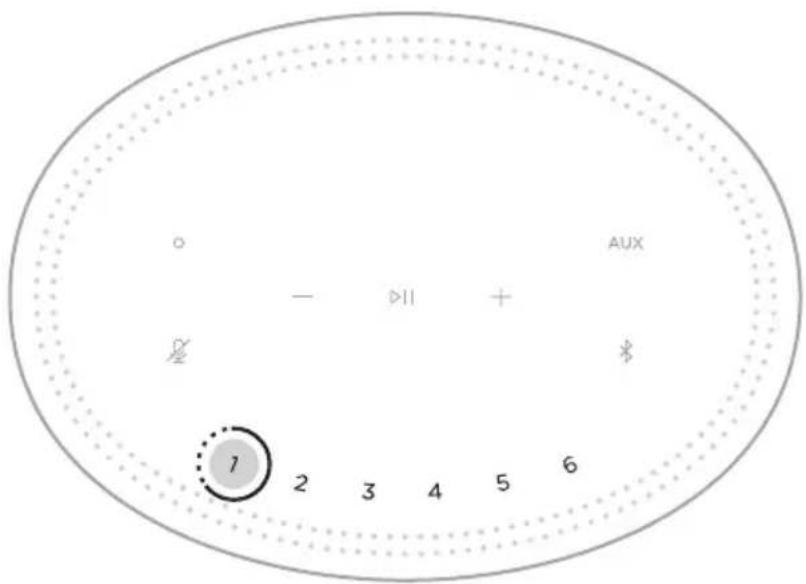
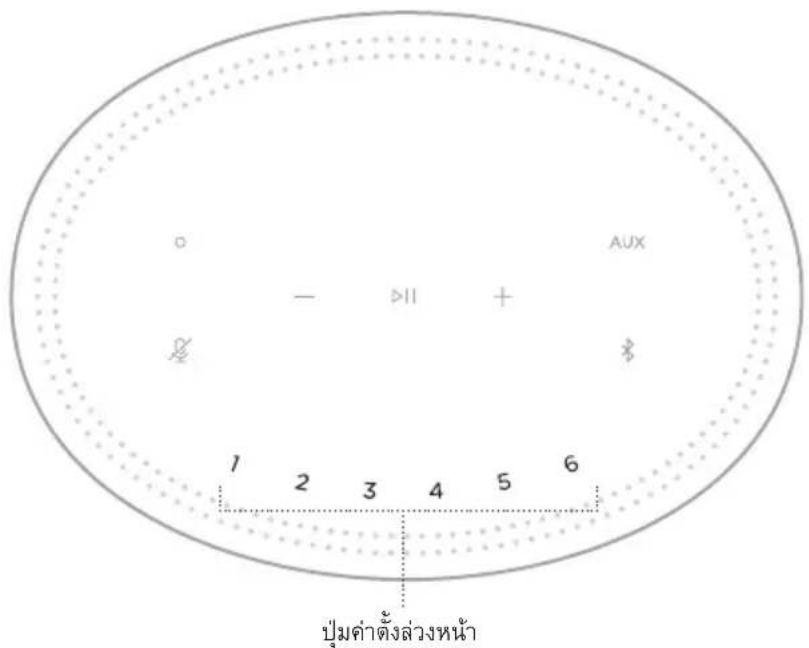
The speaker includes six presets that you can set to play audio from your favorite music services. Once set, you can access your music at any time, with a simple touch of a button or by using the Bose Music app.
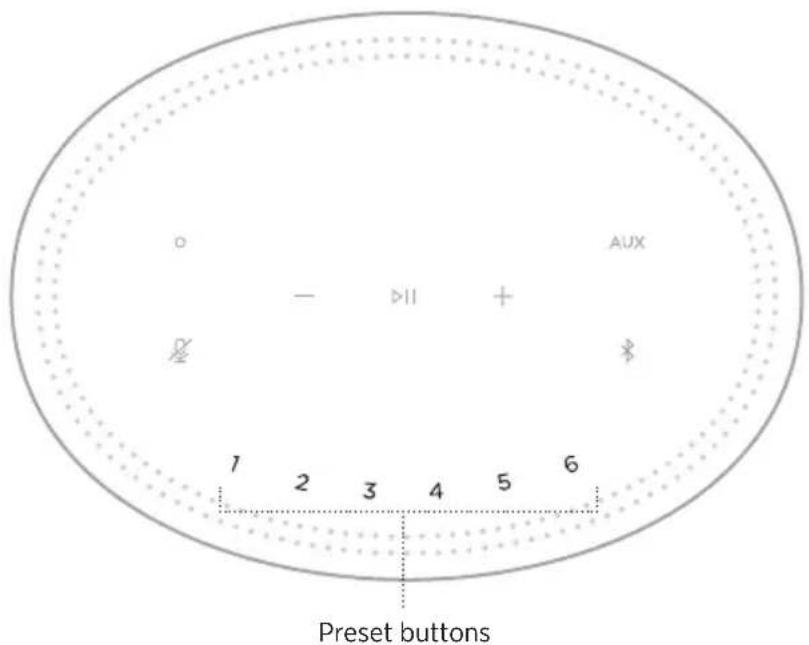
For more information about setting and using presets, see “Preset Personalization” on page 27.
VOICE ASSISTANT OPTIONS
You can program your speaker to quickly and easily access Amazon Alexa or Google Assistant.
NOTE: Amazon Alexa and Google Assistant aren't available in certain languages and countries.
OPTIONS HOW TO USE
| Amazon Alexa | Use your voice and/or the Action button O(see page 23). |
| Google Assistant | Use your voice and/or the Action button O(see page 25). |
NOTE: You cannot set the speaker to access Amazon Alexa and Google Assistant at the same time.
SET UP YOUR VOICE ASSISTANT
Before you begin, make sure your mobile device and speaker are connected to the same Wi-Fi network.
To set up your voice assistant, use the Bose Music app. You can access this option from the Settings menu.
NOTE: When setting up your voice assistant, make sure you use the same audio service account that you used in the Bose Music app.
ACCESS ALEXA
This speaker is Amazon Alexa enabled. With Alexa, you can ask to play music, hear the news, check the weather, control smart home devices, and more. Using Alexa on your speaker is as simple as asking. Just ask or use the Action button and Alexa responds instantly.
For more information about what Alexa can do, visit:
https://www.amazon.com/usealexa
NOTE: Alexa isn't available in certain languages and countries.
Use your voice
Start with "Alexa," then say:
THINGS TO TRY EXAMPLES OF WHAT TO SAY
| Talk to Alexa What's the weather? | |
| Play audio | Play Beethoven. NOTE: Amazon Music is set as the default music service. To change the default music service, use the Alexa app. |
| Control volume Turn the volume up. | |
| Play from a specific audio service Play | NPR on Tuneln. |
| Play on a specific speaker | Play funk in the living room. NOTE: Make sure you say the speaker name you assigned in the Bose Music app. If multiple speakers have the same name, use the name assigned in the Alexa app or change the name in the Bose Music app. |
| Skip to the next song Alexa, next song. | |
| Set a timer Set a timer for 5 minutes. | |
| Discover more skills What new skills do you have? | |
| Stop Alexa Stop. |
Use the speaker controls
The Action button and Microphone off button are used to control Alexa. They're located on the top of the speaker.
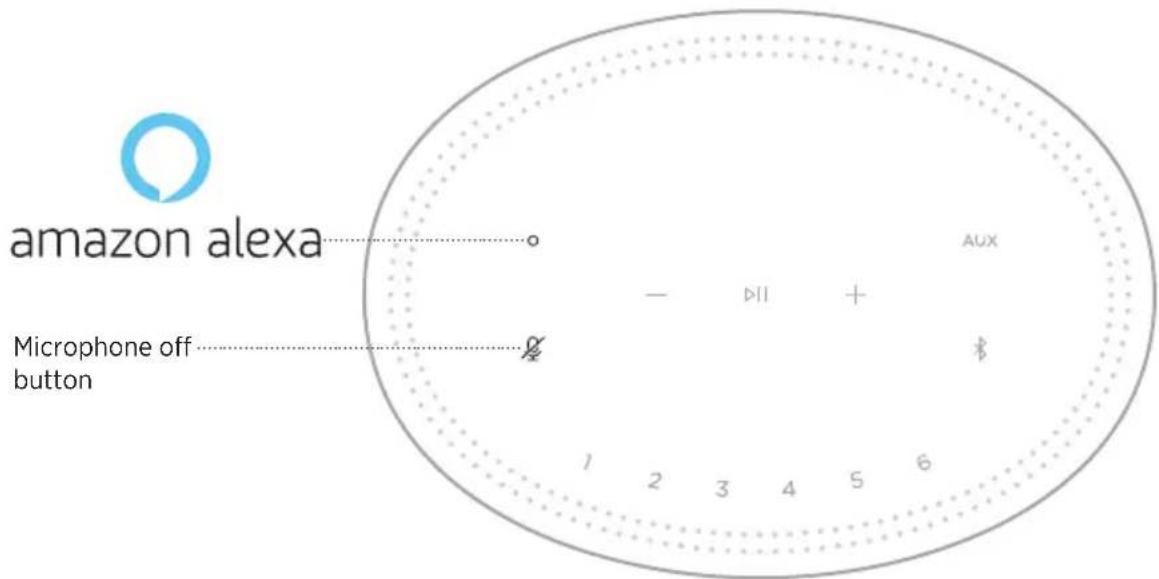
THINGS TO TRY WHAT TO DO
| Talk to Alexa | Tap O then say your request. For a list of things to try, visit: https://www.amazon.com/usealexa |
| Stop alarms and timers | Tap O. |
| Stop Alexa | Tap O. |
| Turn the microphone on/off | Tap ≅. NOTE: When the microphone is off, ≅ glows solid red, and you can’t access Alexa. |
ACCESS GOOGLE ASSISTANT
With your Bose Home Speaker 300, talk to Google to easily enjoy music at home; you can play your favorite music, control volume and find information about the song that you are listening to, hands-free. You can also plan your day, set alarms and control smart devices around your home - just by using your voice.
For more information about what Google Assistant can do, visit:
https://support.google.com/assistant
NOTES:
- Google Assistant isn't available in certain languages and countries.
- For more information about playing audio with Google Assistant, see page 26.
Use your voice
Start with "Hey Google," then say:
THINGS TO TRY EXAMPLES OF WHAT TO SAY
| Enjoy entertainment Play some music | |
| Plan your day What's on my calendar today? | |
| Manage tasks Set an alarm for 7am tomorrow | |
| Control your home Turn on the lights | |
| Get answers What's the latest news? | |
| Get things done Remind me to buy milk tonight | |
| Try fun things Tell me a fun fact |
Use the speaker controls
The Action button is used to control Google Assistant.
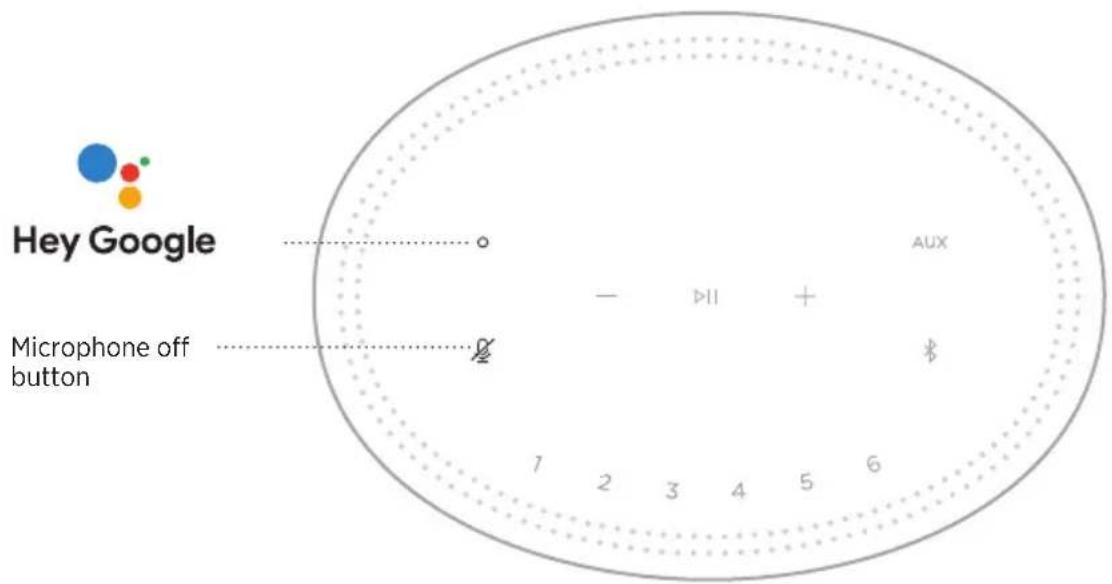
THINGS TO TRY WHAT TO DO
| Talk to Google Assistant | Tap O then say your request. For examples of questions and things you can do, visit: https://support.google.com/assistant |
| Stop alarms and timers | Tap O. |
| Stop Google Assistant | Tap O. |
| Turn the microphone on/off | Tap ⋅. When the microphone is off, ⋅ glows solid red, and you can't access Google Assistant. |
PLAY MUSIC WITH GOOGLE ASSISTANT
Ask Google to play music from your default audio service or from a specific audio service.
Start with "Hey Google," then say:
THINGS TO TRY EXAMPLES OF WHAT TO SAY
| Play music | Play some music. NOTE: Google Assistant uses your default audio service. If you hear an error message, you may need to change your default audio service. To change this setting, use the Google Assistant app. |
| Control your speaker Turn up the volume. | |
| Play from a specific audio service | Play NPR on Tuneln. NOTE: Google Assistant doesn’t support all audio services. |
| Play on a specific speaker | Play some jazz on the living room speakers. NOTE: Make sure you say the speaker name you assigned in the Bose Music app. If multiple speakers have the same name, use the name assigned in the Google Assistant app or change the name in the Bose Music app. |
Choose a default audio service
During initial setup for Google Assistant, the Google Assistant app prompts you to select a default audio service. When asking Google to play music on Bose products, only Pandora and Spotify are supported default services. Although other audio services are listed as available during setup, they are not supported.
For the best experience, choose Pandora or Spotify as your default audio service. If you choose an unsupported audio service, you hear an error message when requesting to play audio.
You can control presets using the Bose Music app or the buttons on the top of the speaker.
NOTES:
- You can't set presets in Bluetooth mode or AUX mode.
- Your voice assistant can't play or set a preset.
SETAPRESET
- Stream music using the Bose Music app.
- While the music is playing, tap and hold a preset button on the speaker until you hear a tone.
PLAYAPRESET
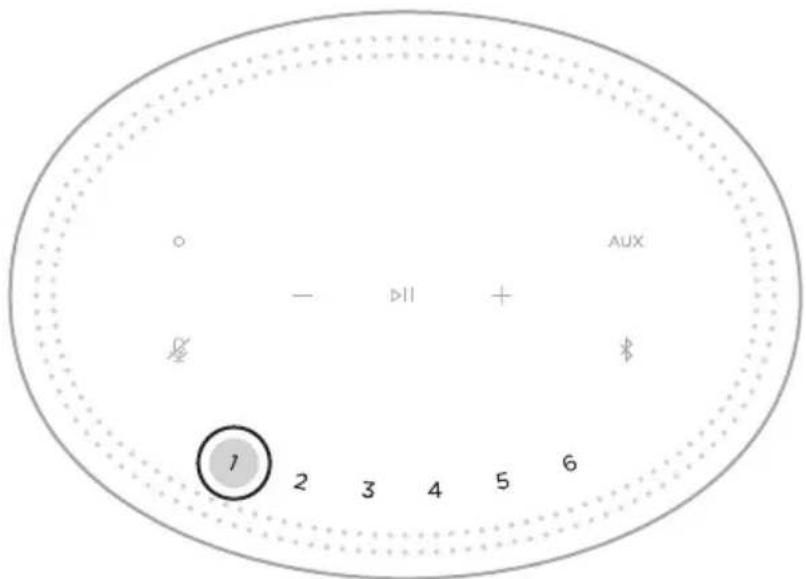
Once you personalize presets, tap a preset button to play music.
Bluetooth wireless technology lets you stream music from mobile devices such as smartphones, tablets and laptop computers. Before you can stream music from a device, you must connect your device to the speaker.
CONNECT A MOBILE DEVICE
- Tap the Bluetooth button 串
The light bar pulses blue.
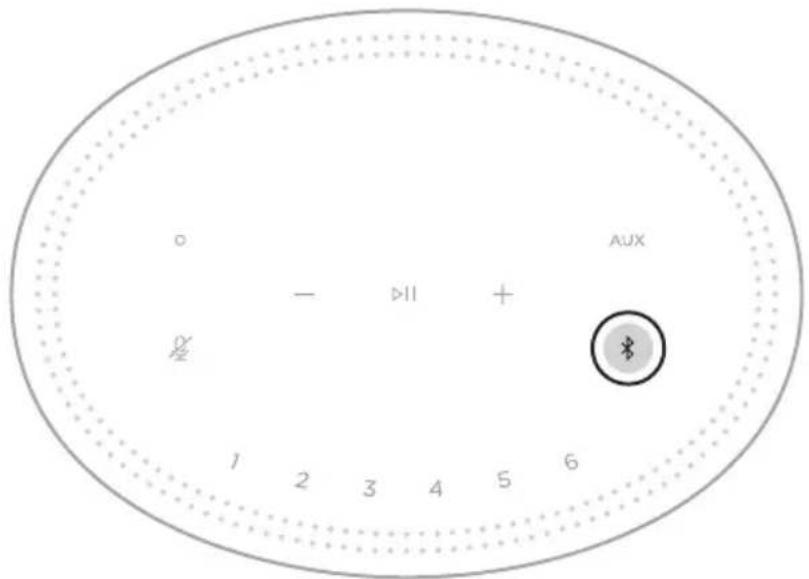
NOTE: You can also tap and hold the Bluetooth button × until the light bar pulses blue to connect another device.
- On your device, turn on the Bluetooth feature.
TIP: The Bluetooth menu is usually found in the settings menu.
- Select your speaker from the device list.
TIP: Look for the name you entered for your speaker in the Bose Music app. If you didn't name your speaker, the default name appears.
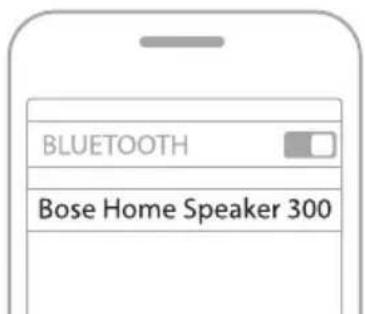
Once connected, you hear a tone and the light bar glows solid white then fades to black. Your speaker's name appears in the mobile device list.
DISCONNECT A MOBILE DEVICE
Use the Bose Music app to disconnect your mobile device.
TIP: You can also use Bluetooth settings to disconnect your device. Disabling the Bluetooth feature disconnects all other devices.
RECONNECT A MOBILE DEVICE
- Tap the Bluetooth button 串
NOTE: Make sure the Bluetooth feature is enabled on your mobile device.
Once connected, you hear a tone and the light bar glows solid white then fades to black.
- Play audio on the connected mobile device.
CONNECT AN ADDITIONAL MOBILE DEVICE
You can store up to eight devices in the speaker device list.
NOTE: You can play audio from only one device at a time.
- Touch and hold until the light bar pulses blue.
- On your mobile device, select the speaker from the device list.
NOTE: Make sure the Bluetooth feature is enabled on your mobile device.
CLEAR THE SPEAKER DEVICE LIST
- Touch and hold for 10 seconds until the light bar fills to the center, pulses white twice then fades to black.
The light bar pulses blue. - Delete the speaker from the Bluetooth list on your mobile device.
All devices are cleared, and the speaker is ready to connect (see page 28).
The speaker is capable of playing AirPlay 2 audio, which allows you to quickly stream audio from your Apple device to the speaker or multiple speakers.
NOTES:
- To use AirPlay 2, you need an Apple device running iOS 11.4 or later.
- Your Apple device and speaker must be connected to the same Wi-Fi network.
For more information about AirPlay, visit: https://www.apple.com/airplay
STREAM AUDIO FROM THE CONTROL CENTER
- On your Apple device, open the Control Center.
- Touch and hold the audio card in the top-right corner of the screen, then tap the AirPlay icon
- Select your speaker or speakers.
STREAM AUDIO FROM AN APP
- Open a music app (like Apple Music), and select a track to play.
- Tap
- Select your speaker or speakers.
CONNECT AN AUDIO CABLE
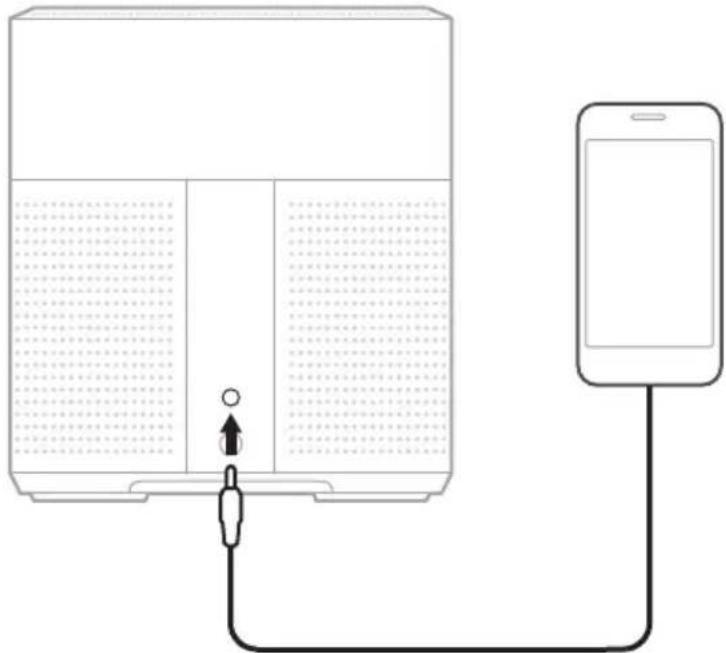
You can connect a smartphone, tablet, computer, or other type of mobile device to the speaker using a 3.5 mm audio cable (not provided).
- Using a 3.5mm audio cable, connect your audio device to the AUX port on the speaker.
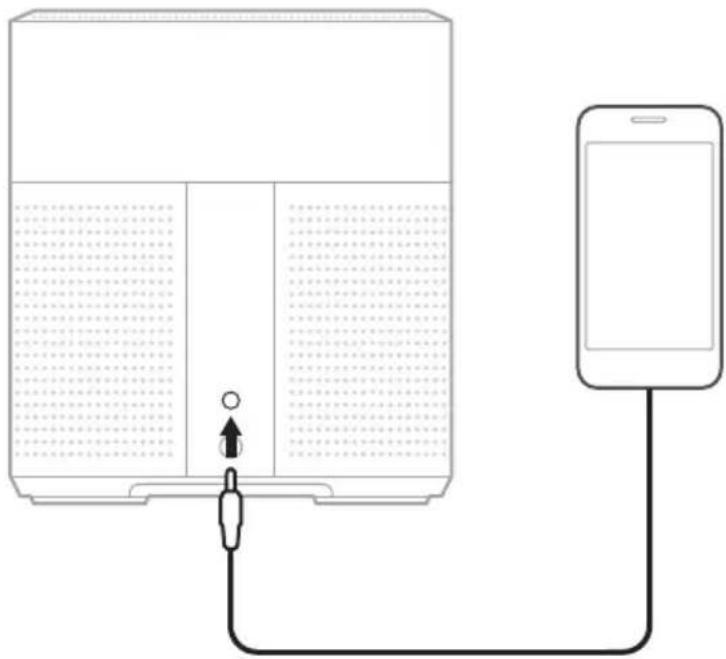
- On the top of the speaker, tap AUX.
The light bar glows solid white then fades to black.
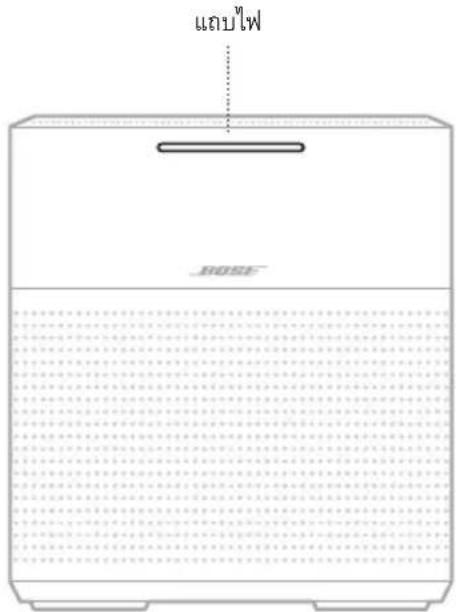
The LED light bar located on the front of the speaker shows the speaker status.
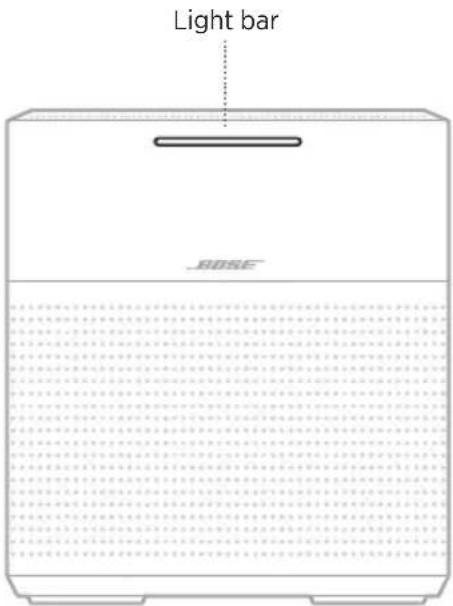
WI-FI STATUS
Shows the Wi-Fi connection status of the speaker.
LIGHT BAR ACTIVITY SYSTEM STATE
| Pulsing white | Connecting to Wi-Fi |
| Solid white then fades to black | Connected to Wi-Fi |
BLUETOOTH CONNECTION STATUS
Shows the Bluetooth connection status for mobile devices.
LIGHT BAR ACTIVITY SYSTEM STATE
| Pulsing blue | Ready to connect to mobile device | |
| Pulsing white | Connecting to mobile device | |
| Solid white then fades to black | Connected to mobile device | |
| White light fills to the center, pulses twice then fades to black | Clearing device list | |
AUX STATUS
Shows the connection status for devices connected using an AUX cable.
LIGHT BAR ACTIVITY SYSTEM STATE
| Solid white then fades to black | Connected to AUX source |
VOICE ASSISTANT STATUS
Shows the status of Amazon Alexa or Google Assistant.
| LIGHT BAR ACTIVITY | VOICE ASSISTANT STATE | |
| Off | Idle | |
| White light slides to the center then glows solid (full) | Listening | |
| White light slides to the sides | Thinking | |
| Pulsing white (full) Speaking | ||
| Pulsing yellow Notification |
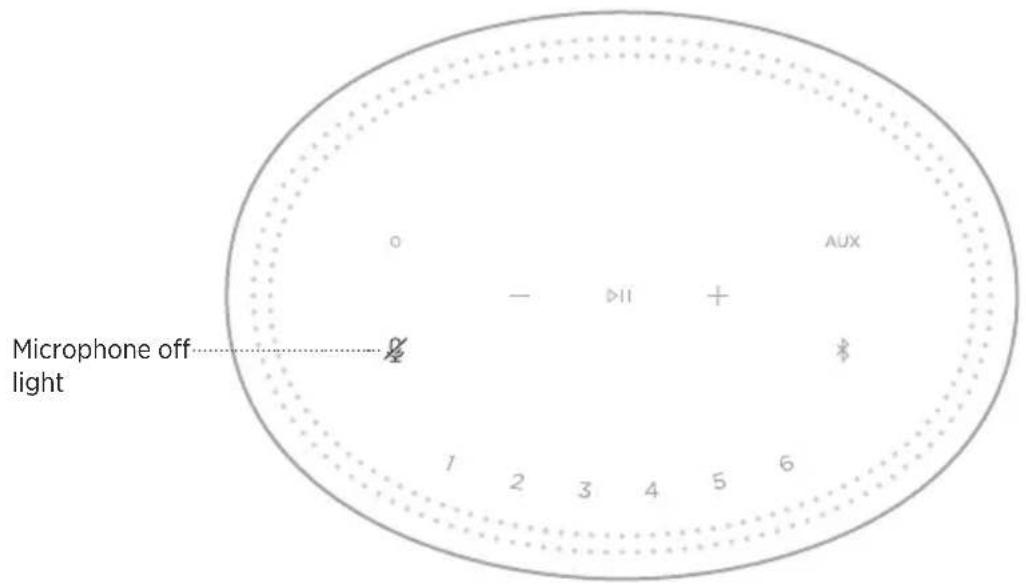
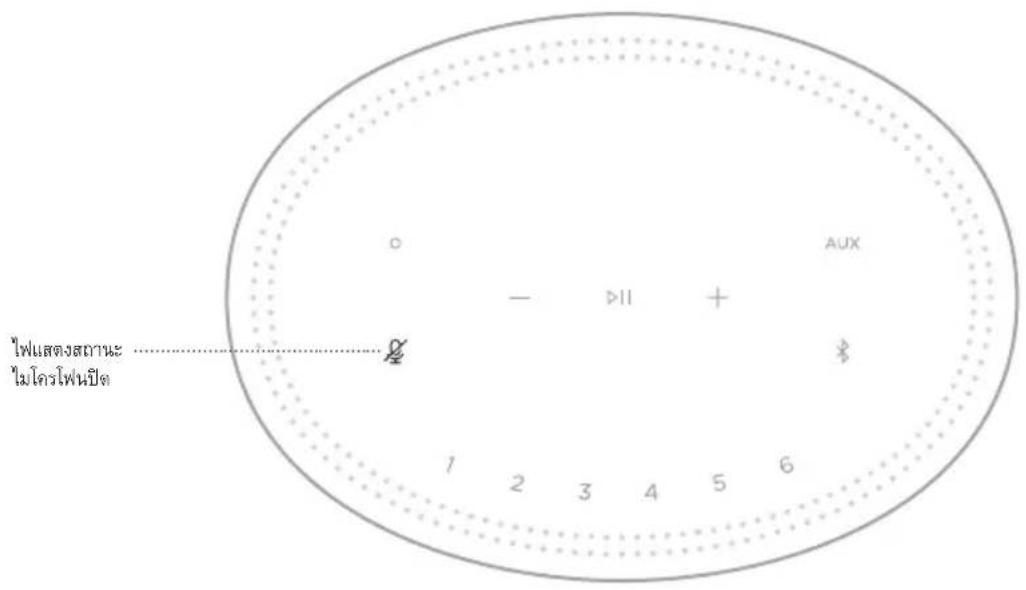
Microphone off light
LIGHT ACTIVITY SYSTEM STATE
| Solid red Microphone is off |
MEDIA PLAYBACK AND VOLUME
Shows the speaker status when controlling media playback and volume.
LIGHT BAR ACTIVITY SYSTEM STATE
| Two center lights glow solid white | Play/Pause |
| Right end of the light bar pulses white | Volume up |
| Left end of the light bar pulses white | Volume down |
UPDATE AND ERROR STATUS
Shows the status of the software updates and error alerts.
LIGHT BAR ACTIVITY SYSTEM STATE
| Solid amber | Wi-Fi setup in progress | |
| White light slides from right to left | ←→ | |
| White light slides from left to right | → | |
| Pulses amber four times | Error - refer to the Bose Music app | |
| Solid red | Error - contact Bose customerservice | |
UPDATE THE SPEAKER
The speaker updates automatically when connected to the Bose Music app and to your Wi-Fi network.
DISABLE/ENABLE WI-FI
Tap and hold Play/Pause and the Bluetooth button × until the light bar fills to the center, pulses twice, then fades to black.
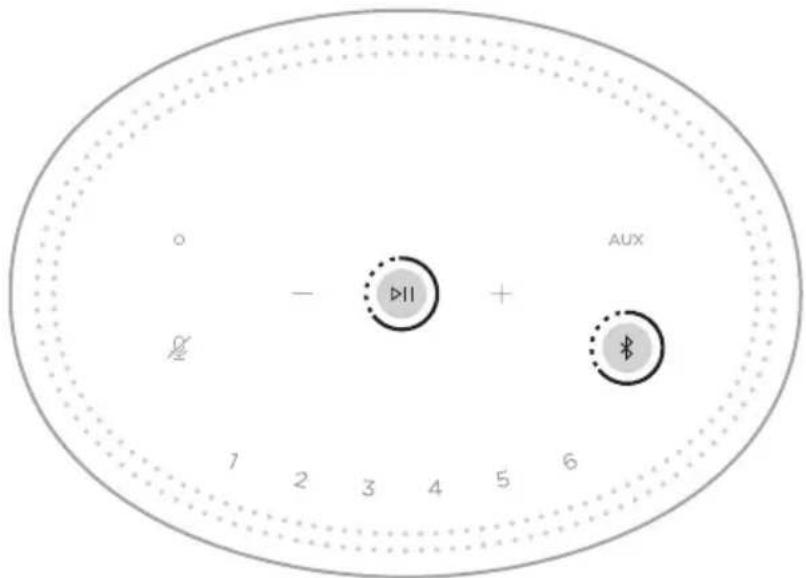
NOTE: When Wi-Fi is disabled, you can't use the Bose Music app or your voice assistant to control the speaker.
CONNECT A BOSE SOUNDLINK BLUETOOTH SPEAKER OR BOSE HEADPHONES
With Bose SimpleSync technology, you can connect certain Bose SoundLink Bluetooth speakers or Bose headphones to your Bose Home Speaker 300 for a new way to hear your music.
Benefits
- Another room of audio: Listen to the same song in two different rooms at the same time by connecting your Bose SoundLink Bluetooth speaker to your Bose Home Speaker 300.
- A personal listening experience: Hear your music clearly from the next room by connecting your Bose headphones to your Bose Home Speaker 300. Use independent volume controls on each product to lower or mute your speaker while you listen on your headphones around your home.
NOTE: SimpleSync technology has a Bluetooth range of 30 ft (9 m). Walls and construction materials can affect reception.
Compatible products
You can connect most Bose SoundLink Bluetooth speakers and select Bose headphones to your Bose Home Speaker 300.
Popular compatible products include:
- Bose SoundLink Revolve+ Bluetooth speaker
- Bose SoundLink Mini Bluetooth speaker
- Bose SoundLink Color Bluetooth speaker
- Bose Noise Cancelling Headphones 700
- Bose QuietComfort 35 wireless headphones
New products are added periodically. For a complete list and more information, visit: worldwide.Bose.com/Support/Groups
Connect using the Bose Music app
Use the Bose Music app to connect your Bose SoundLink Bluetooth speaker or Bose headphones to your Bose Home Speaker 300. For more information, visit: worldwide.Bose.com/Support/Groups
NOTES:
- Make sure that the product you're connecting to is powered on, within 30 ft (9 m) of your Bose Home Speaker 300, and ready to connect to another device. For more information, refer to your product owner's guide.
- You can connect only one product at a time to your Bose Home Speaker 300.
RECONNECT A BOSE SOUNDLINK BLUETOOTH SPEAKER OR BOSE HEADPHONES
Power on your Bose SoundLink Bluetooth speaker or Bose headphones.
Your speaker or headphones try to connect to the most recently-connected Bluetooth device, including your Bose Home Speaker 300.
NOTES:
- Your Bose Home Speaker 300 must be within range (30 ft or 9 m) and powered on.
- If your speaker or headphones don't connect, see "Speaker doesn't reconnect to a previously-connected Bose SoundLink Bluetooth speaker or Bose headphones" on page 44.
CLEAN THE SPEAKER
Clean the surface of the speaker with a soft, dry cloth.
CAUTIONS:
- Do NOT use any sprays near the speaker. Do NOT use any solvents, chemicals, or cleaning solutions containing alcohol, ammonia, or abrasives.
- Do NOT allow liquids to spill into any openings.
REPLACEMENT PARTS AND ACCESSORIES
Replacement parts and accessories can be ordered through Bose customer service.
Visit: worldwide.Bose.com/Support/HS300
LIMITED WARRANTY
The speaker is covered by a limited warranty. Visit our website at global.Bose.com/warranty for details of the limited warranty.
To register your product, visit global.Bose.com/register for instructions. Failure to register will not affect your limited warranty rights.
TRY THESE SOLUTIONS FIRST
If you experience problems with the speaker, try these solutions first:
- Make sure the speaker is connected to a live AC (mains) outlet (see page 15).
- Secure all cables.
- Verify the state of the speaker (see page 32).
- Download the Bose Music app and run available software updates.
- Move the speaker and mobile device away from possible interference (wireless routers, cordless phones, televisions, microwaves, etc.).
- Move the speaker within the recommended range of your wireless router or mobile device for proper operation.
OTHER SOLUTIONS
If you could not resolve your issue, see the table below to identify symptoms and solutions to common problems. If you are unable to resolve your issue, contact Bose customer service.
Visit: worldwide.Bose.com/Contact
SYMPTOM SOLUTION
| Speaker doesn't power on | Plug the power cord into a different AC (mains) outlet. Unplug the power cord, wait 30 seconds, and firmly plug it back in to the AC (mains) outlet. |
| Speaker doesn't respond during setup | Make sure you are using the Bose Music app for setup. NOTE: If the app doesn't prompt you for setup, go to the My Products screen and add your speaker. Unplug the power cord, wait 30 seconds, and firmly plug it back in to the AC (mains) outlet. |
| Bose Music app doesn't work on mobile device | Make sure your mobile device is compatible with the Bose Music app and meets minimum system requirements. For more information, refer to the app store on your mobile device. Uninstall the Bose Music app on your mobile device then reinstall the app (see page 16). |
SYMPTOM SOLUTION
| Speaker doesn’t connect to Wi-Fi network | In the Bose Music app, select the correct network name and enter network password. Make sure the speaker and your mobile device are connected to the same Wi-Fi network. If your Wi-Fi network information has changed, see page 17. Enable Wi-Fi on the device you are using for setup. Close other open applications on your mobile device. If your router supports both 2.4GHz and 5GHz bands, make sure both your mobile device and the speaker are connecting to the same band. NOTE: Bose recommends giving each band a unique name to make sure you’re connecting to the correct band. Reset the router. Uninstall the Bose Music app on your mobile device. Unplug the power cord, wait 30 seconds, and firmly plug it into the AC (mains) outlet. Download the Bose Music app and restart setup. |
| Intermittent or no audio | Increase the volume on the speaker and mobile device. Stop other audio or video streaming applications. Switch to a different source. Play audio from a different application or music service. Make sure you’re using a compatible Bluetooth mobile device. Restart your mobile device. Unplug the power cord, wait 30 seconds, and firmly plug it back in to the AC (mains) outlet. Move your speaker closer to your mobile device. Move your speaker closer to your router. |
| Speaker doesn’t connect to a Bluetooth device | On your device: • Turn the Bluetooth feature off and then on. • Delete the speaker from the Bluetooth list on your device. Connect again (see page 28). Connect a different mobile device (see page 28). Make sure you’re using a compatible Bluetooth mobile device. Remove the speaker from your mobile device Bluetooth list and connect again (see page 29). Clear the speaker device list (see page 29). |
SYMPTOM SOLUTION
| Speaker doesn't stream audio using AirPlay | Make sure your speaker is powered on and in range (see page 15). Update your Apple device and speaker. Make sure your Apple device and your speaker are connected to the same Wi-Fi network. If you can't find the AirPlay icon in the music app you are streaming from, stream audio from the control center (see page 30). For additional support, visit: https://www.apple.com/airplay/ |
| Speaker isn't visible to add to a nother Bose account | Make sure sharing is enabled on the speaker using the Bose Music app. Make sure the speaker and your mobile device are connected to the same Wi-Fi network. |
| Alexa doesn't respond | Make sure Alexa has been set up using the Bose Music app (see page 16). NOTE: The speaker must be set up and connected to your Wi-Fi network using the Bose Music app. Make sure you're in a country where Alexa is available. Make sure the Microphone off button is not glowing red. Tap to turn on the microphone. Make sure you say the name you assigned in the Bose Music app. If multiple speakers have the same name, use the name assigned in the Alexa app or change the name in the Bose Music app. Remove Alexa from the speaker using the Bose Music app. Add Alexa again. For additional support, visit: https://www.amazon.com/usealexa |
SYMPTOM SOLUTION
| Google Assistant doesn’t respond or play audio | Make sure Google Assistant has been set up using the Bose Music app (see page 16). Connect your mobile device to Wi-Fi. Make sure you’re in a country where Google Assistant is available. Make sure you are using the most up-to-date version of the Google Assistant app. Make sure your mobile device is compatible. Remove Google Assistant from the speaker using the Bose Music app. Then, add Google Assistant again. Choose Pandora or Spotify as your default audio service (see page 26). Make sure you use the same audio service account on the Bose Music app and the Google Assistant app. Google Assistant may not support your request. New features are added periodically. For additional support, visit: https://support.google.com/assistant |
| Change Google Assistant personal result settings | To turn off personal results or change the account for personal results, use the Settings menu in the Google Assistant app. |
| Speaker doesn’t connect to a Bose SoundLink Bluetooth speaker or Bose headphones | Make sure that your Bose SoundLink Bluetooth speaker or headphones are powered on, within 30 ft (9 m) of your Bose Home Speaker 300, and ready to connect to another device. For more information, refer to your product owner’s guide. |
SYMPTOM SOLUTION
| Speaker doesn’t reconnect to a previously-connected Bose SoundLink Bluetooth speaker or Bose headphones | On your Bose SoundLink Bluetooth speaker or headphones, use the product controls to cycle through the product device list until you hear the name for your Bose Home Speaker 300. For product-specific instructions, refer to your product owner’s guide. NOTE: Certain speakers and headphones, including Bose Noise Cancelling Headphones 700, don’t support the ability to cycle through the product device list. To reconnect those products, see “Connect using the Bose Music app” on page 38. |
| Delayed audio from a connected Bose SoundLinkBluetooth speaker or Boseheadphone | Not all Bose SoundLink Bluetooth speakers and headphones can play audio in perfect sync when connected to the speaker. To check if your product is compatible, visit: worldwide.Bose.com/Support/Groups Install any available software updates for your Bose SoundLink Bluetooth speaker or headphones. To check for updates, open the appropriate Bose app for your product on your mobile device or visit btu.Bose.com on your computer. |
RESET THE SPEAKER
Factory reset clears all source, volume, and network settings from the speaker and returns it to original factory settings.
Tap and hold the Volume down button — and the AUX button for 10 seconds until the light bar fills to the center, pulses white twice, then fades to black.
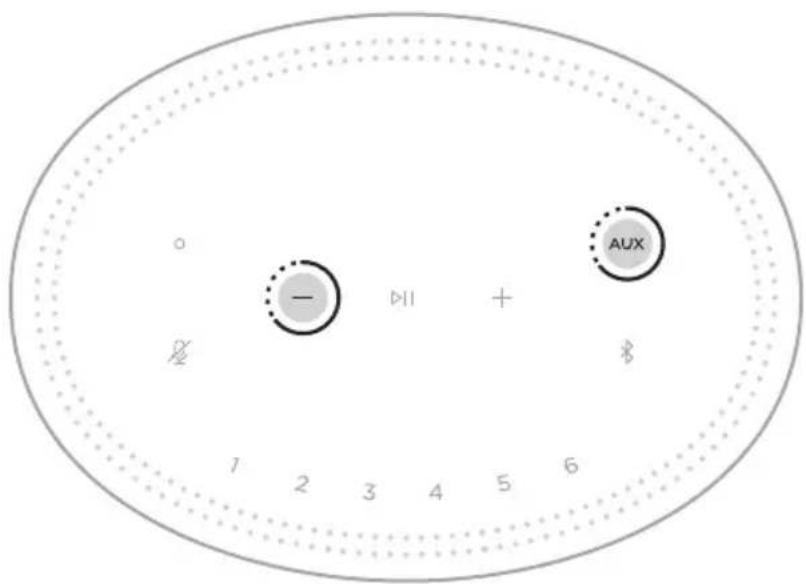
The speaker reboots. When the reset is complete, the light bar glows solid amber.
Restore the speaker network and audio settings
Set up the speaker using the Bose Music app (see page 16).
Management Regulation for Low-power Radio-frequency Devices
Article XII
Importar i Kina: Bose Electronics (Shanghai) Company Limited, Part C, Plant 9, No. 353 North Riying Road, Kina (Shanghai) Pilot Free Trade Zone
Importer EU: Bose Products B.V., Gorslaan 60, 1441 RG Purmerend, Holland
Importor i Taiwan: Bose Taiwan Branch, 9F-A1, No. 10, Section 3, Minsheng East Road, Taipei City 104, Taiwan
Telefonnummer: +886-2-2514 7676
Importar i Mexico: Bose de Mexico, S. de R.L. de C.V., Paseo de las Palmas 405-204, Lomas de Chapultepec, 11000 Mexico, D.F. Telefonummer: +5255 (5202) 3545
Elektriske data:
Strormforsyning:100-240V\~50/60Hz;0,5A
HVAD ER DER I AESKEN?
Indhold 13
HØJTTLERPLACERING
Anbefalinger 14
TAEND/SLUK
STREAM LYD MED AIRPLAY
TILSLUT PRODUKTER FRA BOSE
Tilslut en Bose SoundLink Bluetooth-hojttaler aller
Bose-hovedtelefoner 37
Fordele 37
Ko mpatible produkter 37
Tilslut ved hjaelp af Bose Music-appen 38
Tilslut en Bose SoundLink Bluetooth-hojttaler aller
Bose-hovedtelefonerigen 38
PLEJE OG VEDLIGEHOLDELS
Rengor hoojttaleren 39
Reservedele og tilbehør 39
Begraenset garanti 39
FEJLFINDING
Prove disse Iøsninger foorst 40
Andre Iøsninger 40
Nulstil hoojttaleren 45
https://www.amazon.com/usealexa
https://support.google.com/assistant
NOTER:
China-Import: Bose Electronics (Shanghai) Company Limited, Part C, Plant 9, No. 353 North Riying Road, China (Shanghai) Pilot Free Trade Zone
EU-Import: Bose Products B.V., Gorslaan 60, 1441 RG Purmerend, Niederlande
Taiwan-Import: Bose Taiwan Branch, 9F-A1, No. 10, Section 3, Minsheng East Road, Taipei City 104, Taiwan
Telefonnummer: +886-2-2514 7676
Mexiko-Import: Bose de Mexico, S. de R.L. de C.V., Paseo de las Palmas 405-204, Lomas de Chapultepec, 11000 Mexico, D.F. Telefonummer: +5255 (5202) 3545
Importeur in China: Bose Electronics (Shanghai) Company Limited, Part C, Plant 9, No. 353 North Riying Road, China (Shanghai) Pilot Free Trade Zone
Importeur in de EU: Bose Products B.V., Gorslaan 60, 1441 RG Purmerend, Nederland
Importeur in Taiwan: Bose Taiwan Branch, 9F-A1, No. 10, Section 3, Minsheng East Road, Taipei City 104, Taiwan Telefoonnummer: +886-2-2514 7676
Importeur in Mexico: Bose de Mexico, S. de R.L. de C.V., Paseo de las Palmas 405-204, Lomas de Chapultepec, 11000 Mexico, D.F. Telefoonnummer: +5255 (5202) 3545
Elektrische specificaties:
AUDIO STREAMAMEN MET AIRPLAY
Bose Home Speaker 300 Voeding
Wisselstroomadapters*
Gaaar: worldwide.Bose.com/Support/HS300
AANBEVELINGEN
Gaaar:worldwide.Bose.com/Support/HS300
BEPERKTE GARANTIE
Gaaar:worldwide.Bose.com/Contact
SYMPTOOM OPLOSSING
Importador en China: Bose Electronics (Shanghai) Company Limited, Part C, Plant 9, No. 353 North Riying Road, China (Shanghai) Pilot Free Trade Zone
Importador en UE: Bose Products B.V., Gorslaan 60, 1441 RG Purmerend, Paises Bajos
Importador en Taiwán: Sucursal de Bose en Taiwán, 9F-A1, No. 10, Section 3, Minsheng East Road, Taipei City 104, Taiwan Número de téléphone: +886-2-25147676
Importador en Mexico: Bose de Mexico, S. de R.L. de C.V., Paseo de las Palmas 405-204, Lomas de Chapultepec, 11000 Mexico, D.F.Numero de téléphone: +5255 (5202) 3545
Visite: worldwide.Bose.com/Support/HS300
RECOMENDACIONES
https://www.amazon.com/usealexa
Visite: worldwide.Bose.com/Support/HS300
GARANTÍA LIMITADA
Visite: worldwide.Bose.com/Contact
SINTOMA SOLUCIOn
Maahantuoja Kiinassa: Bose Electronics (Shanghai) Company Limited, Part C, Plant 9, No. 353 North Riying Road, China (Shanghai) Pilot Free Trade Zone
Maahantuoja EU:ssa: Bose Products B.V., Gorslaan 60, 1441 RG Purmerend, The Netherlands
Maahantuoja Taiwanissa: Bose Taiwan Branch, 9F-A1, No. 10, Section 3, Minsheng East Road, Taipei City 104, Taiwan Puhelin: +886-2-2514 7676
Maahantuoja Meksikossa: Bose de Mexico, S. de R.L. de C.V., Paseo de las Palmas 405-204, Lomas de Chapultepec, 11000 Mexico, D.F. Puhelinnummero: +5255 (5202) 3545
Sähköluokitukset:
Virtalahde: 100-240V 50/60 Hz, 0,5 A
Kaiutin: 24 V DC =, 0.9 A
Turvallisuustiedot

CONNEXIONS BLUETOOTH
CONNEXION DES PRODUITS BOSE
Importatore per la Cina: Bose Electronics (Shanghai) Company Limited, Part C, Plant 9, No. 353 North Riying Road, China (Shanghai) Pilot Free Trade Zone
STREAMING AUDIO CON AIRPLAY
Visitare: worldwide.Bose.com/Support/HS300
CONSIGLI
ACCEDERE AD ASSISTENTE GOOGLE
STREAMING AUDIO DAL CENTRO DI CONTROLLO
STREAMING AUDIO DA UN'APP
Visitare: worldwide.Bose.com/Support/HS300
GARANZIA LIMITATA
Visitare: worldwide.Bose.com/Contact
SINTOMO SOLUZIONE
Kinai importor: Bose Electronics (Shanghai) Company Limited, Part C, Plant 9, No. 353 North Riying Road, Kina (Shanghai) Pilot Free Trade Zone
EU-importor: Bose Products B.V., Gorslaan 60, 1441 RG Purmerend, Hollandia
Tajvani importor: Bose Taiwan Branch, 9F-A1, No. 10, Section 3, Minsheng East Road, Taipei City 104, Tajvan. Telefonszam: +886-2-2514 7676
Mexikó importo: Bose de México, S. de R.L. de C.V., Paseo de las Palmas 405-204, Lomas de Chapultepec, 11000 México, D.F. Telefonszám: +5255 (5202) 3545
Nevleges elektromossagi ertekek
Management Regulation for Low-power Radio-frequency Devices
Artikkel XII
Importor for Kina: Bose Electronics (Shanghai) Company Limited, Part C, Plant 9, No. 353 North Riying Road, Kina (Shanghai) Pilot Free Trade Zone
Importor for EU: Bose Products B.V., Gorslaan 60, NL-1441 RG Purmerend, Nederland
Importor for Taiwan: Bose Taiwan Branch, 9F-A1, No. 10, Section 3, Minsheng East Road, Taipei City 104, Taiwan
Telefonnummer: +886-2-2514 7676
Importor for Mexico: Bose de Mexico, S. de R.L. de C.V., Paseo de las Palmas 405-204, Lomas de Chapultepec, 11000 Mexico, D.F. Telefonummer: +5255 (5202) 3545
Starte Google Assistant 24
Bruke stemmen 24
Bruke hoyttalerkontrollene 25
STRØMME LYD MED AIRPLAY
KOBLE TIL BOSE-PRODUKTER
Koble til Bose SoundLink Bluetooth speaker erer Bose-hodeteleferer... 37
Fordeler 37
Ko m p a t i b l e p r o d u k t e r 37
Koble til med Bose Music-appen 38
Koble til Bose SoundLink Bluetooth speaker erer Bose-hodetelefoner
på nytt. 38
STELL OG VEDLIKEHOLD
KOBLE HØYTTALEREN TIL STRØM
KOBLE TIL EN LYDKABEL
Viser statusen for Bluetooth-tilkobling for mobilenheter.
LYSFELTAKTIVITET SYSTEMSTATUS
DEAKTIVERE/AKTIVERE WI-FI
- Bose SoundLink Revolve+ Bluetooth speaker
- Bose SoundLink Mini Bluetooth speaker
- Bose SoundLink Color Bluetooth speaker
- Bose Noise Cancelling Headphones 700
- Bose QuietComfort 35 wireless headphones
Nye produit ter legges til regelmessig. Her finner du en fullstendig liste og mer informasjon: worldwide.Bose.com/Support/Groups
Koble til med Bose Music-appen
Importer — Chiny: Bose Electronics (Shanghai) Company Limited, Part C, Plant 9, No. 353 North Riying Road, China (Shanghai) Pilot Free Trade Zone
Importer - UE: Bose Products B.V., Gorslaan 60, 1441 RG Purmerend, The Netherlands
Importer - Tajwan: Bose Taiwan Branch, 9F-A1, No. 10, Section 3, Minsheng East Road, Taipei City 104, Taiwan
Numer telefonu: +886-2-2514 7676
Importer - Meksyk: Bose de Mexico, S. de R.L. de C.V., Paseo de las Palmas 405-204, Lomas de Chapultepec, 11000 Mexico, D.F. Numer Telefonu: +5255 (5202) 3545
Zasilanie:
Zasilacz: 100 - 240V 50 / 60Hz;0,5A
Glosnik: 24 V DC ---, 0,9 A
LACZENIE Z INNA SIECIA WI-FI
WYŁACZANIE/WYŁACZANIE SIECI WI-FI
Importador na China: Bose Electronics (Shanghai) Company Limited, Part C, Plant 9, No. 353 North Riying Road, China (Shanghai) Pilot Free Trade Zone
Importador na CE: Bose Products B.V., Gorslaan 60, 1441 RG Purmerend, The Netherlands
Importador em Taiwan: Bose Taiwan Branch, 9F-A1, No. 10, Section 3, Minsheng East Road, Taipei City 104, Taiwan -Numero de téléphone: +886-2-2514 7676
Importador no Mexico: Bose de Mexico, S. de R.L. de C.V., Paseo de las Palmas 405-204, Lomas de Chapultepec, 11000 Mexico, D.F.Numero de téléphone: +5255 (5202) 3545
CONECTAR OS PRODutos BOSE
Visite: worldwide.Bose.com/Support/HS300
RECOMENDAQOs
Visit: worldwide.Bose.com/Support/HS300
GARANTIA LIMITADA
Visite: worldwide.Bose.com/Contact
SINTOMA SOLUÇAO
Kinainportor: Bose Electronics (Shanghai) Company Limited, Part C, Plant 9, No. 353 North Riying Road, China (Shanghai) Pilot Free Trade Zone
EU-importor: Bose Products B.V., Gorslaan 60, 1441 RG Purmerend, Nederländerna
Taiwanimportor: Bose Taiwan Branch, 9F-A1, No.10, Section 3, Minsheng East Road, Taipei City 104, Telefonummer Taiwan: +886-2-2514 7676
Mexikoimportor: Bose de Mexico, S. de R.L. de C.V., Paseo de las Palmas 405-204, Lomas de Chapultepec, 11000 Mexico, D.F. Telefonummer: +5255 (5202) 3545
Elektrisk märkning:
Natadapter: 100 - 240V 50 / 60Hz;0,5A
Högtalare: 24 VDC ---, 0,9 A
Sakerhetsinformation

DET FINNS I FÖRPACKNINGEN
Innehall 13
HÖGTALARPLACERING
Rekommendationer 14
STROM
Komma at Google Assistant 24
Rostkommandon 24
Anvanda hegtalarens kontroller 25
Spelaupp musikmed Google Assistant 26
Stalla in forvald ljudtjanst 26
EGNA FÖRVALSINSTÄLLNINGAR
ANSLUTA BOSE-PRODUKTER
Ansluta en Bose SoundLink Bluetooth-högtalare aller Bose-hörlurar...... 37
Fordelar 37
Kompatiblaprodukter 37
https://www.amazon.com/usealexa
https://support.google.com/assistant
TÄNK PÅ FÖLJANDE:
SPELA UPP ETT FÖRVAL
UPPDATERING OCH FELSTATUS
UPPDATERA HÖGTALAREN
global.Bose.com/register
wnnna: nnnnnn8 nnnuuunauuuuunnnn nnnuuun "0" nnnuuul 2010 waa 2020
Bose Electronics (Shanghai) Company Limited, Part C, Plant 9, No. 353 North Riying Road,
China (Shanghai) Pilot Free Trade Zone
EU: Bose Products B.V., Gorslaan 60, 1441 RG Purmerend, The Netherlands
Bose Taiwan Branch, 9F-A1, No. 10, Section 3, Minsheng East Road, Taipei City 104,
n7812011111111111111111111111111111111111111111111111111111111111111111
Bose de Mexico, S. de R.L. de C.V., Paseo de las Palmas 405-204, Lomas de Chapultepec,
11000 Mexico, D.F. wnnnwnn+5255 (5202) 3545
wnamolwith:
unw:100-240V/50/60Hz;0.5A
wnw:24Vdc-0.9A
20
1
muaaannnnaa
Bose Home Speaker 300
- 5
- micro-USB micro-USB
- http://203.0.113.1/opensource/ www.wu.edu.cn
mnuuwwu Works with Apple nuunnuuunnuuunnuu uuuuauu uuuuuuuuuuuuuuuuuuuuuuuuuuuuuuuuuuuuuuuuuuuuuuuuuuuuuuuuuuuuuuuuuuuuuuuuuuuuuuuuuuuuuuuuuuuuuuuuuuuuuuuuuuuuuuuuuuuuuuuuuuuuuuuuuuuuuuuuuuuuuuuuuuuuuuuuuuuuuuuuuuuuuuuuuuuuuuuuuuuuuuuuuuuuuuuuuUU
Google uaz Google Play 1
nHnHnHnHnHnHnHnHnHnHnHnHnHnHnHnHnHnHnHnHnHnHnHnHnHnHnHnHnHnHnHnHnHnHnHnHnHnHnHnHnHnHnHnHnHnHnHnHnHnHn H n H n H n H n H n H n H n H n H n H n H n H n H n H n H n H n H n H n H n H n H n H n H n H n H n H n H n H n H n H n H n H n H n H n H n H n H n H n H n H n H n H n H n H n H n H n H n H n H n H n H
mnnnnnnaannnnnnnnnnnnnnnnnnnnnnnnnnnnnnnnnnnnnnnnnnnnnnnnnnnnnnnnnnnnnnnnnnnnnnnnnnnnnnnnnnnnnnnnnnnnnnnnnnnnnnnnnnnnnnnnnnnnnnnnnnnnnnnnnnnnnnnn
PANDORA, PANDORA PANDORA PANDORA PANDORA PANDORA PANDORA Media, Inc.
www.spotify.com/connect/third-party-licenses
Spotify 1
Wi-Fi Wi-Fi Alliance
Bose, Bose Home Speaker, Bose Music, Bose Noise Cancelling Headphones, QuietComfort, SimpleSync, SoundLink SoundLink Revolve iuunnnnnaeBose Corporation
Bose Corporation: 1-877-230-5639
Bose Home Speaker 300
w
zuaunununwAC*
- 0701000000000000000000000000000000000000000000000000000000
Hn Hn Hn Hn Hn Hn Hn Hn Hn Hn Hn Hn Hn Hn Hn Hn Hn Hn Hn Hn Hn Hn Hn Hn Hn Hn Hn Hn Hn Hn Hn Hn Hn Hn Hn Hn Hn Hn Hn Hn Hn Hn Hn Hn Hn Hn Hn Hn Hn Hn Hn
J: worldwide.Bose.com/Support/HS300
777
- 1
· - 0.3 - 0.9 u
·
· - 陳國國:LILULUOLINJUNWANAC(A)LULUUN
1
1.
- 1000000000000000000000000000000AC(88888)
aIwOzIaonrnuuaunuWaaarouu
aennnnnnae
20 1
W
Bose Music
AmazonAlexa Google Assistant
Hn Hn Hn Hn Hn Hn Hn Hn Hn Hn Hn Hn Hn Hn Hn Hn Hn Hn Hn Hn Hn Hn Hn Hn Hn Hn Hn Hn Hn Hn Hn Hn Hn Hn Hn Hn Hn Hn Hn Hn Hn Hn Hn Hn Hn Hn Hn Hn Hn Hn Hn
y
11
Bose Music 1
mwnnnn nnnnnn Amazon Alexa
Bose Music 17
Jwnnnns O aazuunlwnlWu 2 Amazon Alexa (23) n Google Assistant (25)
y
Bose Music
27
AmazonAlexaGoogle Assistant
n: Amazon Alexa uGge Assistant w
AnwuyanwauwauwauwauwauwauwauwauwauwauwauwauwauwauwauwauwauwauwauwauwauwauwauwauwauwauwauwauwauwauwauwauwauwauwauwauwauwauwauwauwauwauwauwauwauwauwauwauwauwauwuuuW
nang: Alexaww
n
"Alexa"
| Alexa What's the weather? | |
| Play Beethoven. Amazon Music: Amazon Music Amazon Music Alexa | Play Beethoven. Amazon Music Amazon Music Alexa |
| Turn the volume up. | |
| Play NPR on Tuneln. | |
| Play funk in the living room. Alexa next song. Set a timer for 5 minutes. | |
| What new skills do you have? |
yuaanuuaaun
Lnnnns O aennnnnae nn nnnnne

iYiYiYiYiYiYiYiYi
aannnnnaa aannnnn
| Alexa | https://www.amazon.com/usealexa |
| Alexa | https://www.amazon.com/usealexa |
| Alexa | https://www.amazon.com/usealexa |
| Alexa | https://www.amazon.com/usealexa |
Google Assistant
Bose Home Speaker 300 Google
Google Assistant
WJNTB
Google Assistant
Google Assistant 26
n
“Ok Google”
a
| 成语 | 说明 |
w
Google Assistant
aannnnnnaa
| Google Assistant Google Assistant | https://support.google.com/assistant |
| Google Assistant | https://support.google.comassistant |
| Google Assistant | https://support.google.comassistant |
| Google Assistant | https://support.google.comassistant |
| Google Assistant | https://support.google.comassistant |
Google Assistant
"Ok Google"
a
| la hanoi | |
| la hanoi | Google Assistant: GoogleAssistant GoogleAssistant GoogleAssistant GoogleAssistant GoogleAssistant GoogleAssistant GoogleAssistant GoogleAssistant GoogleAssistant GoogleAssistant GoogleAssistant GoogleAssistant GoogleAssistant GoogleAssistant GoogleAssistant GoogleAssistant GoogleAssistant GoogleAssistant GoogleAssistant GoogleAssistant GoogleAssistant GoogleAssistant GoogleAssistant GoogleAssistant GoogleAssistant GoogleAssistant GoogleAssistant GoogleAssistant GoogleAssistant GoogleAssistant GoogleAssistant GoogleAssistant GoogleAssistant GoogleAssistant Googleassistant |
国
Google Assistant uawwngu Google Assistant azuaaunnnaan
uwrnnnnaeauuugu Google auewwuauuauuauuauuauuauuauuuuauuuuuuuuuuuuuuuuuuuuuuuuuuuuuuuuuuuuuuuuuuuuuuuuuuuuuuuuuuuuuuuuuuuuuuuuuuuuuuuuuuuuuuuuuuuuuuuuuuuuuuuuuuuuuuuuuuuuuuuuuuuuuuuuuuuuuuuuuuuuuuuuuuuuuuuuuuuuuuuuuuuuuuuuuuuuuuuuuuuuuuuuuuuuuuuuuuuUU
Pandora SpOyf
Bose Music
#
waaananaa anananaananaananaananaananaananaananaananaananaananaananaananaananaananaananaananaananaananaananaananaananaananaananaananaananaananaananaananaananaananaananaananaananaananaananaananaananaananaananaananaananaananaananaananaananaananaananaananaananaananaan ana
nannnnnnaaannnnnnae
Bose Music Waaanmraaayaaunrnnnnaa
Bau: uuvuunnuuulnbloutb wannnnnnaaunrnnn nnnnnn
1
1.Bluetooth
Nnna: nnnnne nnne nee nee nee nee nee nee nee nee nee nee nee nee nee nee nee nee nee nee nee nee nee nee nee nee nee nee nee nee nee nee nee nee nee nee nee nee nee nee nee nee nee nee nee nee nee nee nee nee nee nee neee
2.
12
W
:
- 1nnnnae nnne nnnnne ne nnnnne nnnnne
NNTT: 1nntnntn nnnnne Bttooth uanrnnnnaa
w
- 10 wunwnnwnwunwnnwnnwnnwnnwnnnnwn
- 2
AirPlay 2 AppleApple
WJIT
AirPlay 2 Apple iOS 11.4
Apple wwnnnn nn nnnn nn nnnn nn nnnn nn nnnn nn nnnn nn nnnn nn nnnn nn nnnn nn nnnn nn nnnn nn nnnn nn nnnn nn nnnn nn nnnn nn nnnn nn nnnn nn nnnn nn nnnn nn nnnn nn nnnn nn nnnn nn nnnn nn nnnn nn nnnn nn nnnn nn
AirPlay 2 https://www.apple.com/airplay
a
- Apple
- AirPlay
3.
- Apple Music
- 1
3.
T
nannnnnnaaennnnn nnnn nn nnnnnnnnnnnnnnnnnnnnnnnnnnnnnnnnnnnnnnnnnnnnnnnnnnnnnnnnnnnnnnnnnnnnnnnnnnnnnnnnnnnnnnnnnnn
- 3.5 uu. uuuuunnnnauuauuauuauuauuauuauuauu
- nnnnnaaannnnaaaux
W LED
Wl-Fl
W
nannnnnnnnn nn nnnnnnn
| jiangnanwen | jiangnanwen | jiangnanwen |
| jiangnanwen | jiangnanwen | jiangnanwen |
BLUETOOTH
Amazon Alexa Google Assistant
| noon节课时间 | ||
| ### | ||
| ### | ||
| ### | ||
| ### | ||
| ### | ||
Wuaanwunuuln
mnnnnaaannnnn
aannnnnnae
nnaa
1
mnnnnaaunw aneaa
- Wewawwewewewewewewewewewewewewewewewewewewewewewewewewewewewewewewewewewewewewewewewewewewewewewewewewewewewewewewewewewewewewewewewewewewewewewewewewewewewewewewewewewewewewew
Bose
Nnennnn: SimpleSync 9 nnnnnnnae
nannnnn nnnnnaa
Bose SoundLink Bluetooth 4.0 USB 1000000000000000000000000000000000000000000000000000000000000000000000000
aannnnnnaeennnnaeennnnaeennnnaeennnnaeennnnaeennnnaeennnnaeennnnaeennnnaeennnnaeennnnaeennnnaeennnnaeennnnaeennnnaeennnnaeennnnaeennnnaeennnnaeennnnaeennnnaeennnnaeennnnaeennnnaeennnnae
- Bose SoundLink Revolve+ Bluetooth
- Bose SoundLink Mini Bluetooth
- Bose SoundLink Color Bluetooth
- Bose Noise Cancelling Headphones 700
- Bose QuietComfort 35 wireless headphones
Iouwannnnnnaaunuunuunuunuunuunuunuunuunuunuunuunuunuunuunuunuunuunuunuunuunuunuunuunuunuunuunuunuunuunuunuunuunuunuunuunuunuunuunuunuunuunuunuunuunuunuunuunuunuunuun
Bose Music
LauwawwauuBose Music WawwauwauwBose SoundLink Bluetooth wauwBose nuBose Home Speaker 300 wauwauw uauwauwauwauwauwauwauwauwauwauwauwauwauwauwauwauwauwauwauwauwauwauwauwauwauwauwauwauwauwauwauwauwauwauwauwauwauwauwauwauwauwauwauwauwauwauwauwauwauwauwauwuWwwuuWwwuuWwwuuWwwuuWwwuuWwwuuWwwuuWwwuuWwwuuWwwuuWwwuuWwwuuWwwuuWwwuuWwwuuWwwuuWwwuuWwwuuWwwuuWwwuuWwwuuWwwuuWwwuuWwwuuWwwuuWwwuuWwwuuWwwuuWwwuuWwwuuWwwuuWwwuuWwwuuWwwuu
WJ7EJH
- 9 w. 9n Bose Home Speaker 300
Bose Home Speaker 300
BOSE SOUNDLINK BLUETOOTH BOSE
Bose SoundLink Bluetooth
Bose Home Speaker 300
WJITJH
J: worldwide.Bose.com/Support/HS300
n
global.Bose.com/warranty
nannnnnnaeennnnnneennnnnneennnnn ngnnneeennnnnneennnneennn nnnnnnneennnneennnneennn nnnnnnnnneennnneennn nnnnnnnnnnneennn nnnnnnnnnnneennn nnnnnnnnnnneennn nnnnnnnnnnneennn nnnnnnnnnnneennn nnnnnnnnnnneennn nnnnnnnnnnneennn nnnnnnnnnnneennn nnnnnnnnnnneennn nnnnnnnnnnneennn nnnnnnnnnnneennn nnnnnnnnnneennn nnnnnnnnneennn nnnnnnnnneennn nannnnnnnneennn nannnnnnnneennn nannnnnnnneennn nannnn
aunynnnae
ywnnynnnnnae nnne nnnnne ne nnnnne nnnnne
WAC (nunw) nwnw (wn 15)
: worldwide.Bose.com/Contact
mnnnnsu
中國國社:Bose Electronics (Shanghai) Company Limited, Part C, Plant 9, No. 353 North Riying Road, China (Shanghai) Pilot Free Trade Zone
EU Suill Ieel: Bose Products B.V., Gorslaan 60, 1441 RG Purmerend, The Netherlands
IiJeeepnEeTtAaRaiEeSsEeHcHbSpOtfy SFOFTrWoeHcHpUeHd www.spotify.com/connect/third-party-licensesoEeHcHbSpOtfy
Spotify是Spotify AB的登录上表日
Wi-Fi是Wi-Fi Alliance®的登录表符例。
Bose, Bose Home Speaker, Bose Music, Bose Noise Cancelling Headphones, QuietComfort, SimpleSync, SoundLink SoundLink Revolve is Bose Corporation's sign of its new brand.
Bose Corporation 基本社:1-877-230-5639
worldwide.Bose.com/Support/HS300e
图
DAIN WI-FI NELT WIFK EJ
NeTwJcIeHgAaBnHgAaBnHgAaBnHgAaBnHgAaBnHgAaBnHgAaBnHgAaBnHgAaBnHgAaBnHgAaBnHgAaBnHgAaBnHgAaBnHgAaBnHgAaBnHgAaBnHgAaaBnHgAaBnHgAaBnHgAaBnHgAaBnHgAaBnHgAaBnHgAaBnHgAaBnHgAaBnHgAaBnHgAaBnHgAaBnHgAaBnHgAaBnHgAaBnHgAaBnH
https://support.google.com/assistant上海
相卫:
| 부개의 majority => => => => => => => => => => => => => => => => => => => => => => => => => => => => => => => => => => => => => => => => => => => => => => => => => => => => => => => => => => => => => => => => => => => => => => => => => => => => => => => => => => => => => => => => => => => => => => => => => => => =>> => => => => => => => => => => => => => => => => => => => => => => => => => => => => => => => => => => => => => => => => => => => => => => => => => => => => => => => => => => => => => => => => => => => => => => => => => => => => => =>> => => => => => => => => => => => => => => => => => => => =>> => => => => => => => => => => => => => => => => => => => => => =>> => => => => => => => => => => => => => => => => => => =>> => => => => => => => => => => => => => => => => =>> => => => => => => => => => => => => => => => =>> => => => => => => => => => => => => => => =>> => => => => => => => => => => => => => =>> => => => => => => => => => => => => => =>> => => => => => => => => => => => => =>> => => => => => => => => => => => =>> => => => => => => => => => => =>> => => => => => => => => => =>> => => => => => => => => => =>> => => => => => => => => =>> => => => => => => => => =>> => => => => => => => => =>> => => => => => => => =>> => => => => => => => =>> =>> ->. ->. ->. ->. ->. ->. ->. ->. ->. ->. ->. ->. ->. ->. ->. ->. ->. ->. ->. ->. ->. ->. ->. ->. ->. -> ->. ->. ->. ->. ->. ->. ->. ->. ->. ->. ->. ->. ->. ->. ->. ->. ->. ->. ->. ->. ->. ->. ->. ->. ->? ->. ->. ->. ->. ->. ->. ->. ->. ->. ->. ->. ->. ->. ->. ->. ->. ->. ->. ->. ->. ->. ->. ->. ->. ->; ->. ->. ->. ->. ->. ->. ->. ->. ->. ->. ->. ->. ->. ->. ->. ->. ->. ->. ->. ->. ->. ->. ->. ->. ->> ->. ->. ->. ->. ->. ->. ->. ->. ->. ->. ->. ->. ->. ->. ->. ->. ->. ->. ->. ->. ->. ->. ->. ->. - > > > > > > > > > > > > > > > > > > > > > > > > > > > > > > > > > > > > > > > > > > > > > > > > > > > > > > > > > > > > > > > > > > > > > > > > > > > > > > > > > > > > > > > > > > > > > > > > > > > >> ->> ->> ->> ->. ->. ->. ->. ->. ->. ->. ->. ->. ->. ->. ->. ->. ->. ->. ->. ->. ->. ->. ->. ->. ->. ->. -> -> ->. ->. ->. ->. ->. ->. ->. ->. ->. ->. ->. ->. ->. ->. ->. ->. ->. ->. ->. ->. ->. ->. ->. -> ->> ->. ->. ->. ->. ->. ->. ->. ->. ->. ->. ->. ->. ->. ->. ->. ->. ->. ->. ->. ->. ->. ->. ->. ->> -> ->. ->. ->. ->. ->. ->. ->. ->. ->. ->. ->. ->. ->. ->. ->. ->. ->. ->. ->. ->. ->. ->. ->. ->> ->> ->. ->. ->. ->. ->. ->. ->. ->. ->. ->. ->. ->. ->. ->. ->. ->. ->. ->. ->. ->. ->. ->. -> ->. -> ->. ->. ->. ->. ->. ->. ->. ->. ->. ->. ->. ->. ->. ->. ->. ->. ->. ->. ->. ->. ->. ->. -> ->. ->> ->. ->. ->. ->. ->. ->. ->. ->. ->. ->. ->. ->. ->. ->. ->. ->. ->. ->. ->. ->. ->. ->. -> -> -> -> -> -> -> -> -> -> -> -> -> -> -> -> -> -> -> -> -> -> -> -> -> ->. -> -> -> -> -> -> -> -> -> -> -> -> -> -> -> -> -> -> -> -> -> -> -> ->. ->. -> -> -> -> -> -> -> -> -> -> -> -> -> -> -> -> -> -> -> -> -> -> ->. -> ->. -> -> -> -> -> -> -> -> -> -> -> -> -> -> -> -> -> -> -> -> -> -> ->. ->. ->. -> -> -> -> -> -> -> -> -> -> -> -> -> -> -> -> -> -> -> -> -> ->. -> -> ->. -> -> -> -> -> -> -> -> -> -> -> -> -> -> -> -> -> -> -> -> -> ->. -> ->. ->. -> -> -> -> -> -> -> -> -> -> -> -> -> -> -> -> -> -> -> -> -> ->. ->. -> ->. -> -> -> -> -> -> -> -> -> -> -> -> -> -> -> -> -> -> -> -> -> ->. ->. ->. ->. -> -> -> -> -> -> -> -> -> -> -> -> -> -> -> -> -> -> -> -> ->. > |
甲贝I
Só Fréte Wèr ér ān de Ieit ñi ng lóng gong sāng tāo 1
印社等
worldwide.Bose.com/Support/HS300上
朝江
Séchten je han bozenge prnng behns. hien hien anen nangn
| Stirrertrger AirPlay 내용어로만 AIRPlay AirPlay 내용어로만 AIRPlay AirPlay AIRPlay AirPlay AIRPlay AirPlay AIRPlay AirPlay AIRPlay AirPlay AIRPlay AirPlay AIRPlay AirPlay AIRPlay AirPlay AIRPlay AirPlay AIRPlay AirPlay AIRPlay AirPlay AIRPlay AirPlay AIRPlay AirPlay AIRPlay AirPlay AIRPlay AirPlay AIRPlay AirPlay AIRPlay AirPlay AIRPlay AirPlay AIRPlay AirPlay AIRPlay AirPlay AIRPlay Airplay AIRPlay AirPlay AIRPlay AirPlay AIRPlay AirPlay AIRPlay AirPlay AIRPlay AirPlay AIRPlay AirPlay AIRPlay AirPlay AIRPlay AirPlay AIRPlay AirPlay AIRPlay AirPlay AIRPlay AirPlay AIRPlay AirPlay AIRPlay AirPlay AIRPlay AirPlay AIRPlay AirPlay AIRPlay AirPlay AIRPlay AirPlay AIRPlay AirPlay AIRPlay AirPlay AIRPlay AirPay AIRPlay AirPlay AIRPlay AirPlay AIRPlay AirPlay AIRPlay AirPlay AIRPlay AirPlay AIRPlay AirPlay AIRPlay AirPlay AIRPlay AirPlay AIRPlay AirPlay AIRPlay AirPlay AIRPlay AirPlay AIRPlay AirPlay AIRPlay AirPlay AIRPlay AirPlay AIRPlay AirPlay AIRPlay AirPlay AIRPlay AirPlay AIRPlay AirPlay AIRPlay AirPlay AIRPlay AirRun AIRPlay AirPlay AIRPlay AirPlay AIRPlay AirPlay AIRPlay AirPlay AIRPlay AirPlay AIRPlay AirPlay AIRPlay AirPlay AIRPlay AirPlay AIRPlay AirPlay AIRPlay AirPlay AIRPlay AirPlay AIRPlay AirPlay AIRPlay AirPlay AIRPlay AirPlay AIRPlay AirPlay AIRPlay AirPlay AIRPlay AirPlay AIRPlay AirPlay AIRPlay AirPlay AIRPlay Air Play AIRPlay AirPlay AIRPlay AirPlay AIRPlay AirPlay AIRPlay AirPlay AIRPlay AirPlay AIRPlay AirPlay AIRPlay AirPlay AIRPlay AirPlay AIRPlay AirPlay AIRPlay AirPlay AIRPlay AirPlay AIRPlay AirPlay AIRPlay AirPlay AIRPlay AirPlay AIRPlay AirPlay AIRPlay AirPlay AIRPlay AirPlay AIRPlay AirPlay AIRPlay AirPlay AIRPlay Air play AIRPlay AirPlay AIRPlay AirPlay AIRPlay AirPlay AIRPlay AirPlay AIRPlay AirPlay AIRPlay AirPlay AIRPlay AirPlay AIRPlay AirPlay AIRPlay AirPlay AIRPlay AirPlay AIRPlay AirPlay AIRPlay AirPlay AIRPlay AirPlay AIRPlay AirPlay AIRPlay AirPlay AIRPlay AirPlay AIRPlay AirPlay AIRPlay AirPlay AIRPlay AirPlay AIRPlay Air-play AIRPlay AirPlay AIRPlay AirPlay AIRPlay AirPlay AIRPlay AirPlay AIRPlay AirPlay AIRPlay AirPlay AIRPlay AirPlay AIRPlay AirPlay AIRPlay AirPlay AIRPlay AirPlay AIRPlay AirPlay AIRPlay AirPlay AIRPlay AirPlay AIRPlay AirPlay AIRPlay AirPlay AIRPlay AirPlay AIRPlay AirPlay AIRPlay AirPlay AIRPlay AirPlay AIRPlay Air PLAY AIRPlay AirPlay AIRPlay AirPlay AIRPlay AirPlay AIRPlay AirPlay AIRPlay AirPlay AIRPlay AirPlay AIRPlay AirPlay AIRPlay AirPlay AIRPlay AirPlay AIRPlay AirPlay AIRPlay AirPlay AIRPlay AirPlay AIRPlay AirPlay AIRPlay AirPlay AIRPlay AirPlay AIRPlay AirPlay AIRPlay AirPlay AIRPlay AirPlay AIRPlay AirPlay AIRPlay AirPLAY AIRPlay AirPlay AIRPlay AirPlay AIRPlay AirPlay AIRPlay AirPlay AIRPlay AirPlay AIRPlay AirPlay AIRPlay AirPlay AIRPlay AirPlay AIRPlay AirPlay AIRPlay AirPlay AIRPlay AirPlay AIRPlay AirPlay AIRPlay AirPlay AIRPlay AirPlay AIRPlay AirPlay AIRPlay AirPlay AIRPlay AirPlay AIRPlay AirPlay AIRPlay AirPlay AIRPlay Air.Play AIRPlay AirPlay AIRPlay AirPlay AIRPlay AirPlay AIRPlay AirPlay AIRPlay AirPlay AIRPlay AirPlay AIRPlay AirPlay AIRPlay AirPlay AIRPlay AirPlay AIRPlay AirPlay AIRPlay AirPlay AIRPlay AirPlay AIRPlay AirPlay AIRPlay AirPlay AIRPlay AirPlay AIRPlay AirPlay AIRPlay AirPlay AIRPlay AirPlay AIRPlay AirPlay AIRPlay Air plays AIRPlay Air plays AIRPlay Air plays AIRPlay Air plays AIRPlay Air plays AIRPlay air play AIRPlay air play AIRPlay air play AIRPlay air play AIRPlay air play AIRPlay air play AIRPlay air play AIRPlay air play AIRPlay air play AIRPlay air play AIRPlay air play AIRPlay air play AIRPlay air play AIRPlay air play AIRPlay air play AIRPlay air play AIRPlay air play AIRPlay air play AIRPlay air play AIRPlay air play AIRPlay air plays AIRPlay air play AIRPlay air play AIRPlay air play AIRPlay air play AIRPlay air play AIRPlay air play AIRPlay air play AIRPlay air play AIRPlay air play AIRPlay air play AIRPlay air play AIRPlay air play AIRPlay air play AIRPlay air play AIRPlay air play AIRPlay air play AIRPlay air play AIRPlay air play AIRPlay air play AIRPlayair play AIRPlay air play AIRPlay air play AIRPlay air play AIRPlay air play AIRPlay air play AIRPlay air play AIRPlay air play AIRPlay air play AIRPlay air play AIRPlay air play AIRPlay air play AIRPlay air play AIRPlay air play AIRPlay air play AIRPlay air play AIRPlay air play AIRPlay air play AIRPlay air play AIRPlay air play AIRPlayair plays AIRPlay air play AIRPlay air play AIRPlay air play AIRPlay air play AIRPlay air play AIRPlay air play AIRPlay air play AIRPlay air play AIRPlay air play AIRPlay air play AIRPlay air play AIRPlay air play AIRPlay air play AIRPlay air play AIRPlay air play AIRPlay air play AIRPlay air play AIRPlay air play AIRPlay air play AIRPlayAir play AIRPlay air play AIRPlay air play AIRPlay air play AIRPlay air play AIRPlay air play AIRPlay air play AIRPlay air play AIRPlay air play AIRPlay air play AIRPlay air play AIRPlay air play AIRPlay air play AIRPlay air play AIRPlay air play AIRPlay air play AIRPlay air play AIRPlay air play AIRPlay air play AIRPlay air play AIRPlayAir plays AIRPlay air play AIRPlay air play AIRPlay air play AIRPlay air play AIRPlay air play AIRPlay air play AIRPlay air play AIRPlay air play AIRPlay air play AIRPlay air play AIRPlay air play AIRPlay air play AIRPlay air play AIRPlay air play AIRPlay air play AIRPlay air play AIRPlay air play AIRPlay air play AIRPlay air play AIRPlay a play AIRPlay a play AIRPlay a play AIRPlay a play AIRPlay a play AIRPlay a play AIRPlay a play AIRPlay a play AIRPlay a play AIRPlay a play AIRPlay a play AIRPlay a play AIRPlay a play AIRPlay a play AIRPlay a play AIRPlay a play AIRPlay a play AIRPlay a play AIRPlay a play AIRPlay a play AIRPlaya play AIRPlay a play AIRPlay a play AIRPlay a play AIRPlay a play AIRPlay a play AIRPlay a play AIRPlay a play AIRPlay a play AIRPlay a play AIRPlay a play AIRPlay a play AIRPlay a play AIRPlay a play AIRPlay a play AIRPlay a play AIRPlay a play AIRPlay a play AIRPlay a play AIRPlay a play AIRPlay A play AIRPlay a play AIRPlay a play AIRPlay a play AIRPlay a play AIRPlay a play AIRPlay a play AIRPlay a play AIRPlay a play AIRPlay a play AIRPlay a play AIRPlay a play AIRPlay a play AIRPlay a play AIRPlay a play AIRPlay a play AIRPlay a play AIRPlay a play AIRPlay a play AIRPlay a play AIRPlay 100% success rate AIRPlay 100% success rate AIRPlay 100% success rate AIRPlay 100% success rate AIRPlay 100% success rate AIRPlay 100% success rate AIRPlay 100% success rate AIRPlay 100% success rate AIRPlay 100% success rate AIRPlay 100% success rate AIRPlay 100% successrate AIRPlay 100% success rate AIRPlay 100% success rate AIRPlay 100% success rate AIRPlay 100% success rate AIRPlay 100% success rate AIRPlay 100% success rate AIRPlay 100% success rate AIRPlay 100% success rate AIRPlay 100% success rate AIRPlay 100% success rate AIRPlay 100% success rate AIRPlay 100% success rate AIRPlay 100% success rate AIRPlay 100% success rate AIRPlay 100% success rate AIRPlay 100% success rate AIRPlay 100% success rate AIRPlay 100% success rate AIRPlay 100% success rate AIRPlay 100% successrate AIRPlay 100% success rate AIRPlay 100% success rate AIRPlay 100% success rate AIRPlay 100% success rate AIRPlay 100% success rate AIRPlay 100% success rate AIRPlay 100% success rate AIRPlay 100% success rate AIRPlay 100% success rate AIRPlay 100%success rate AIRPlay 100% success rate AIRPlay 100% success rate AIRPlay 100% success rate AIRPlay 100% success rate AIRPlay 100% success rate AIRPlay 100% success rate AIRPlay 100% success rate AIRPlay 100% success rate AIRPlay 100% success rate AIRPlay 100%successrate AIRPlay 100% success rate AIRPlay 100% success rate AIRPlay 100% success rate AIRPlay 100% success rate AIRPlay 100% success rate AIRPlay 100% success rate AIRPlay 100% success rate AIRPlay 100% success rate AIRPlay 100% success rate AIRPlay 100%successrate AIRPlay 100% success rate AIRPlay 100% success rate AIRPlay 100% success rate AIRPlay 100% success rate AIRPlay 100% success rate AIRPlay 100% success rate AIRPlay 100% success rate AIRPlay 100% success rate AIRPlay 100% success rate AIRPlay 100% success rate AIRPlay 100% success rate AIRPlay 100% success rate AIRPlay 100% success rate AIRPlay 100% success rate AIRPlay 100% success rate AIRPlay 100% success rate AIRPlay 100% success rate AIRPlay 100% success rate AIRPlay 100% success rate AIRPlay 100% success rate AIRPlay 100% success rate AIRPlay 100% success rate AIRPlay 100% success rate AIRPlay 100% success rate AIRPlay 100% success rate AIRPlay 100% success rate AIRPlay 100% success rate AIRPlay 100% success rate AIRPlay 100% success rate AIRPlay 100% success rate AIRPlay 100% success rate AIRPlay 100% success rate AIRPlay 100% success rate AIRPlay 100% success rate AIRPlay 100% success rate AIRPlay 100% success rate AIRPlay 100% success rate AIRPlay 100% success rate AIRPlay 100% success rate AIRPlay 100% success rate AIRPlay 100% success rate AIRPlay 100% success rate AIRPlay 100% success rate AIRPlay 100% success rate AIRPlay 100% success rate AIRPlay 100% success rate AIRPlay 100% success rate AIRPlay 100% success rate AIRPlay 100% success rate AIRPlay 100% success rate AIRPlay 100% success rate AIRPlay 100% success rate AIRPlay 100% success rate AIRPlay 100% success rate AIRPlay 100% success rate AIRPlay 100% success rate AIRPlay 100% success rate AIRPlay 100% success rate AIRPlay 100% success rate AIRPlay 100% success rate AIRPlay 100% success rate AIRPlay 100% success rate AIRPlay 100% success rate AIRPlay 100% success rate AIRPlay 100% success rate AIRPlay 100% success rate AIRPlay 100% success rate AIRPlay 100% success rate AIRPlay 100% success rate AIRPlay 100% success rate AIRPlay 100% success rate AIRPlay 100% success rate AIRPlay 100% success rate AIRPlay 100% success rate AIRPlay 100% success rate AIRPlay 100% success rate AIRPlay 100% success rate AIRPlay 100% success rate AIRPlay 100% success rate AIRPlay 100% success rate AIRPlay 100% success rate AIRPlay 100% success rate AIRPlay 100% success rate AIRPlay 100% success rate AIRPlay 100% success rate AIRPlay 100% success rate AIRPlay 100% success rate AIRPlay 100% success rate AIRPlay 100% success rate AIRPlay 100% success rate AIRPlay 100% success rate AIRPlay 100% success rate AIRPlay 100% success rate AIRPlay 100% success rate AIRPlay 100% success rate AIRPlay 100% success rate AIRPlay 100% success rate AIRPlay 100% success rate AIRPlay 100% success rate AIRPlay 100% success rate AIRPlay 100% success rate AIRPlay 100% success rate AIRPlay 100% success rate AIRPlay 100% success rate AIRPlay 100% success rate AIRPlay 100% success rate AIRPlay 100% success rate AIRPlay 100% success rate AIRPlay 100% success rate AIRPlay 100% success rate AIRPlay 100% success rate AIRPlay 100% success rate AIRPlay 100% success rate AIRPlay 100% success rate AIRPlay 100% success rate AIRPlay 100% success rate AIRPlay 100% success rate AIRPlay 100% success rate AIRPlay 100% success rate AIRPlay 100% success rate AIRPlay 100% success rate AIRPlay 100% success rate AIRPlay 100% success rate AIRPlay 100% success rate AIRPlay 100% success rate AIRPlay 100% success rate AIRPlay 100% success rate AIRPlay 100% success rate AIRPlay 100% success rate AIRPlay 100% success rate AIRPlay 100% success rate AIRPlay 100% success rate AIRPlay 100% success rate AIRPlay 100% success rate AIRPlay 100% success rate AIRPlay 100% success rate AIRPlay 100% success rate AIRPlay 100% success rate AIRPlay 100% success rate AIRPlay 100% success rate AIRPlay 100% success rate AIRPlay 100% success rate AIRPlay 100% success rate AIRPlay 100% success rate AIRPlay 100% success rate AIRPlay 100% success rate AIRPlay 100% success rate AIRPlay 100% success rate AIRPlay 100% success rate AIRPlay 100% success rate AIRPlay 100% success rate AIRPlay 100% success rate AIRPlay 100% success rate AIRPlay 100% success rate AIRPlay 100% success rate AIRPlay 100% success rate AIRPlay 100% success rate AIRPlay 100% success rate AIRPlay 100% success rate AIRPlay 100% success rate AIRPlay 100% success rate AIRPlay 100% success rate AIRPlay 100% success rate AIRPlay 100% success rate AIRPlay 100% success rate AIRPlay 100% success rate AIRPlay 100% success rate AIRPlay 100% success rate AIRPlay 100% success rate AIRPlay 100% success rate AIRPlay 100% success rate AIRPlay 100% success rate AIRPlay 100% success rate AIRPlay 100% success rate AIRPlay 100% success rate AIRPlay 100% success rate AIRPlay 100% success rate AIRPlay 100% success rate AIRPlay 100% success rate AIRPlay 100% success rate AIRPlay 100% success rate AIRPlay 100% success rate AIRPlay 100% success rate AIRPlay 100% success rate AIRPlay 100% success rate AIRPlay 100% success rate AIRPlay 100% success rate AIRPlay 100% success rate AIRPlay 100% success rate AIRPlay 100% success rate AIRPlay 100% success rate AIRPlay 100% success rate AIRPlay 100% success rate AIRPlay 100% success rate AIRPlay 100% success rate AIRPlay 100% success rate AIRPlay 100% success rate AIRPlay 100% success rate AIRPlay 100% success rate AIRPlay 100% success rate AIRPlay 100% success rate AIRPlay 100% success rate AIRPlay 100% success rate AIRPlay 100% success rate AIRPlay 100% success rate AIRPlay 100% success rate AIRPlay 100% success rate AIRPlay 100% success rate AIRPlay 100% success rate AIRPlay 100% success rate AIRPlay 100% success rate AIRPlay 100% success rate AIRPlay 100% success rate AIRPlay 100% success rate AIRPlay 100% success rate AIRPlay 100% success rate AIRPlay 100% success rate AIRPlay 100% success rate AIRPlay 100% success rate AIRPlay 100% success rate AIRPlay 100% success rate AIRPlay 100% success rate AIRPlay 100% success rate AIRPlay 100% success rate AIRPlay 100% success rate AIRPlay 100% success rate AIRPlay 100% success rate AIRPlay 100% success rate AIRPlay 100% success rate AIRPlay 100% success rate AIRPlay 100% success rate AIRPlay 100% success rate AIRPlay 100% success rate AIRPlay 100% success rate AIRPlay 100% success rate AIRPlay 100% success rate AIRPlay 100% success rate AIRPlay 100% success rate AIRPlay 100% success rate AIRPlay 100% success rate AIRPlay 100% success rate AIRPlay 100% success rate AIRPlay 100% success rate AIRPlay 100% success rate AIRPlay 100% success rate AIRPlay 100% success rate AIRPlay 100% success rate AIRPlay 100% success rate AIRPlay 100% success rate AIRPlay 100% success rate AIRPlay 100% success rate AIRPlay 100% success rate AIRPlay 100% success rate AIRPlay 100% success rate AIRPlay 100% success rate AIRPlay 100% success rate AIRPlay 100% success rate AIRPlay 100% success rate AIRPlay 100% success rate AIRPlay 100% success rate AIRPlay 100% success rate AIRPlay 100% success rate AIRPlay 100% success rate AIRPlay 100% success rate AIRPlay 100% success rate AIRPlay 100% success rate AIRPlay 100% success rate AIRPlay 100% success rate AIRPlay 100% success rate AIRPlay 100% success rate AIRPlay 100% success rate AIRPlay 100% success rate AIRPlay 100% success rate AIRPlay 100% success rate AIRPlay 100% success rate AIRPlay 100% success rate AIRPlay 100% success rate AIRPlay 100% success rate AIRPlay 100% success rate AIRPlay 100% success rate AIRPlay 100% success rate AIRPlay 100% success rate AIRPlay 100% success rate AIRPlay 100% success rate AIRPlay 100% success rate AIRPlay 100% success rate AIRPlay 100% success rate AIRPlay 100% success rate AIRPlay 100% success rate AIRPlay 100% success rate AIRPlay 100% success rate AIRPlay 100% success rate AIRPlay 100% success rate AIRPlay 100% success rate AIRPlay 100% success rate AIRPlay 100% success rate AIRPlay 100% success rate AIRPlay 100% success rate AIRPlay 100% success rate AIRPlay 100% success rate AIRPlay 100% success rate AIRPlay 100% success rate AIRPlay 100% success rate AIRPlay 100% success rate AIRPlay 100% success rate AIRPlay 100% success rate AIRPlay 100% success rate AIRPlay 100% success rate AIRPlay 100% success rate AIRPlay 100% success rate AIRPlay 100% success rate AIRPlay 100% success rate AIRPlay 100% success rate AIRPlay 100% success rate AIRPlay 100% success rate AIRPlay 100% success rate AIRPlay 100% success rate AIRPlay 100% success rate AIRPlay 100% success rate AIRPlay 100% success rate AIRPlay 100% success rate AIRPlay 100% success rate AIRPlay 100% success rate AIRPlay 100% success rate AIRPlay 100% success rate AIRPlay 100% success rate AIRPlay 100% success rate AIRPlay 100% success rate AIRPlay 100% success rate AIRPlay 100% success rate AIRPlay 100% success rate AIRPlay 100% success rate AIRPlay 100% success rate AIRPlay 100% success rate AIRPlay 100% success rate AIRPlay 100% success rate AIRPlay 100% success rate AIRPlay 100% success rate AIRPlay 100% success rate AIRPlay 100% success rate AIRPlay 100% success rate AIRPlay 100% success rate AIRPlay 100% success rate AIRPlay 100% success rate AIRPlay 100% success rate AIRPlay 100% success rate AIRPlay 100% success rate AIRPlay 100% success rate AIRPlay 100% success rate AIRPlay 100% success rate AIRPlay 100% success rate AIRPlay 100% success rate AIRPlay 100% success rate AIRPlay 100% success rate AIRPlay 100% success rate AIRPlay 100% success rate AIRPlay 100% success rate AIRPlay 100% success rate AIRPlay 100% success rate AIRPlay 100% success rate AIRPlay 100% success rate AIRPlay 100% success rate AIRPlay 100% success rate AIRPlay 100% success rate AIRPlay 100% success rate AIRPlay 100% success rate AIRPlay 100% success rate AIRPlay 100% success rate AIRPlay 100% success rate AIRPlay 100% success rate AIRPlay 100% success rate AIRPlay 100% success rate AIRPlay 100% success rate AIRPlay 100% success rate AIRPlay 100% success rate AIRPlay 100% success rate AIRPlay 100% success rate AIRPlay 100% success rate AIRPlay 100% success rate AIRPlay 100% success rate AIRPlay 100% success rate AIRPlay 100% success rate AIRPlay 100% success rate AIRPlay 100% success rate AIRPlay 100% success rate AIRPlay 100% success rate AIRPlay 100% success rate AIRPlay 100% success rate AIRPlay 100% success rate AIRPlay 100% success rate AIRPlay 100% success rate AIRPlay 100% success rate AIRPlay 100% success rate AIRPlay 100% success rate AIRPlay 100% success rate AIRPlay 100% success rate AIRPlay 100% success rate AIRPlay 100% success rate AIRPlay 100% success rate AIRPlay 100% success rate AIRPlay 100% success rate AIRPlay 100% success rate AIRPlay 100% success rate AIRPlay 100% success rate AIRPlay 100% success rate AIRPlay 100% success rate AIRPlay 100% success rate AIRPlay 100% success rate AIRPlay 100% success rate AIRPlay 100% success rate AIRPlay 100% success rate AIRPlay 100% success rate AIRPlay 100% success rate AIRPlay 100% success rate AIRPlay 100% success rate AIRPlay 100% success rate AIRPlay 100% success rate AIRPlay 100% success rate AIRPlay 100% success rate AIRPlay 100% success rate AIRPlay 100% success rate AIRPlay 100% success rate AIRPlay 100% success rate AIRPlay 100% success rate AIRPlay 100% success rate AIRPlay 100% success rate AIRPlay 100% success rate AIRPlay 100% success rate AIRPlay 100% success rate AIRPlay 100% success rate AIRPlay 100% success rate AIRPlay 100% success rate AIRPlay 100% success rate AIRPlay 100% success rate AIRPlay 100% success rate AIRPlay 100% success rate AIRPlay 100% success rate AIRPlay 100% success rate AIRPlay 100% success rate AIRPlay 100% success rate AIRPlay 100% success rate AIRPlay 100% success rate AIRPlay 100% success rate AIRPlay 100% success rate AIRPlay 100% success rate AIRPlay 100% success rate AIRPlay 100% success rate AIRPlay 100% success rate AIRPlay 100% success rate AIRPlay 100% success rate AIRPlay 100% success rate AIRPlay 100% success rate AIRPlay 100% success rate AIRPlay 100% success rate AIRPlay 100% success rate AIRPlay 100% success rate AIRPlay 100% success rate AIRPlay 100% success rate AIRPlay 100% success rate AIRPlay 100% success rate AIRPlay 100% success rate AIRPlay 100% success rate AIRPlay 100% success rate AIRPlay 100% success rate AIRPlay 100% success rate AIRPlay 100% success rate AIRPlay 100% success rate AIRPlay 100% success rate AIRPlay 100% success rate AIRPlay 100% success rate AIRPlay 100% success rate AIRPlay 100% success rate AIRPlay 100% success rate AIRPlay 100% success rate AIRPlay 100% success rate AIRPlay 100% success rate AIRPlay 100% success rate AIRPlay 100% success rate AIRPlay 100% success rate AIRPlay 100% success rate AIRPlay 100% success rate AIRPlay 100% success rate AIRPlay 100% success rate AIRPlay 100% success rate AIRPlay 100% success rate AIRPlay 100% success rate AIRPlay 100% success rate AIRPlay 100% success rate AIRPlay 100% success rate AIRPlay 100% success rate AIRPlay 100% success rate AIRPlay 100% success rate AIRPlay 100% success rate AIRPlay 100% success rate AIRPlay 100% success rate AIRPlay 100% success rate AIRPlay 100% success rate AIRPlay 100% success rate AIRPlay 100% success rate AIRPlay 100% success rate AIRPlay 100% success rate AIRPlay 100% success rate AIRPlay 100% success rate AIRPlay 100% success rate AIRPlay 100% success rate AIRPlay 100% success rate AIRPlay 100% success rate AIRPlay 100% success rate AIRPlay 100% success rate AIRPlay 100% success rate AIRPlay 100% success rate AIRPlay 100% success rate AIRPlay 100% success rate AIRPlay 100% success rate AIRPlay 100% success rate AIRPlay 100% success rate AIRPlay 100% success rate AIRPlay 100% success rate AIRPlay 100% success rate AIRPlay 100% success rate AIRPlay 100% success rate AIRPlay 100% success rate AIRPlay 100% success rate AIRPlay 100% success rate AIRPlay 100% success rate AIRPlay 100% success rate AIRPlay 100% success rate AIRPlay 100% success rate AIRPlay 100% success rate AIRPlay 100% success rate AIRPlay 100% success rate AIRPlay 100% success rate AIRPlay 100% success rate AIRPlay 100% success rate AIRPlay 100% success rate AIRPlay 100% success rate AIRPlay 100% success rate AIRPlay 100% success rate AIRPlay 100% success rate AIRPlay 100% success rate AIRPlay 100% success rate AIRPlay 100% success rate AIRPlay 100% success rate AIRPlay 100% success rate AIRPlay 100% success rate AIRPlay 100% success rate AIRPlay 100% success rate AIRPlay 100% success rate AIRPlay 100% success rate AIRPlay 100% success rate AIRPlay 100% success rate AIRPlay 100% success rate AIRPlay 100% success rate AIRPlay 100% success rate AIRPlay 100% success rate AIRPlay 100% success rate AIRPlay 100% success rate AIRPlay 100% success rate AIRPlay 100% success rate AIRPlay 100% success rate AIRPlay 100% success rate AIRPlay 100% success rate AIRPlay 100% success rate AIRPlay 100% success rate AIRPlay 100% success rate AIRPlay 100% success rate AIRPlay 100% success rate AIRPlay 100% success rate AIRPlay 100% success rate AIRPlay 100% success rate AIRPlay 100% success rate AIRPlay 100% success rate AIRPlay 100% success rate AIRPlay 100% success rate AIRPlay 100% success rate AIRPlay 100% success rate AIRPlay 100% success rate AIRPlay 100% success rate AIRPlay 100% success rate AIRPlay 100% success rate AIRPlay 100% success rate AIRPlay 100% success rate AIRPlay 100% success rate AIRPlay 100% success rate AIRPlay 100% success rate AIRPlay 100% success rate AIRPlay 100% success rate AIRPlay 100% success rate AIRPlay 100% success rate AIRPlay 100% success rate AIRPlay 100% success rate AIRPlay 100% success rate AIRPlay 100% success rate AIRPlay 100% success rate AIRPlay 100% success rate AIRPlay 100% success rate AIRPlay 100% success rate AIRPlay 100% success rate AIRPlay 100% success rate AIRPlay 100% success rate AIRPlay 100% success rate AIRPlay 100% success rate AIRPlay 100% success rate AIRPlay 100% success rate AIRPlay 100% success rate AIRPlay 100% success rate AIRPlay 100% success rate AIRPlay 100% success rate AIRPlay 100% success rate AIRPlay 100% success rate AIRPlay 100% success rate AIRPlay 100% success rate AIRPlay 100% success rate AIRPlay 100% success rate AIRPlay 100% success rate AIRPlay 100% success rate AIRPlay 100% success rate AIRPlay 100% success rate AIRPlay 100% success rate AIRPlay 100% success rate AIRPlay 100% success rate AIRPlay 100% success rate AIRPlay 100% success rate AIRPlay 100% success rate AIRPlay 100% success rate AIRPlay 100% success rate AIRPlay 100% success rate AIRPlay 100% success rate AIRPlay 100% success rate AIRPlay 100% success rate AIRPlay 100% success rate AIRPlay 100% success rate AIRPlay 100% success rate AIRPlay 100% success rate AIRPlay 100% success rate AIRPlay 100% success rate AIRPlay 100% success rate AIRPlay 100% success rate AIRPlay 100% success rate AIRPlay 100% success rate AIRPlay 100% success rate AIRPlay 100% success rate AIRPlay 100% success rate AIRPlay 100% success rate AIRPlay 100% success rate AIRPlay 100% success rate AIRPlay 100% success rate AIRPlay 100% success rate AIRPlay 100% success rate AIRPlay 100% success rate AIRPlay 100% success rate AIRPlay 100% success rate AIRPlay 100% success rate AIRPlay 100% success rate AIRPlay 100% success rate AIRPlay 100% success rate AIRPlay 100% success rate AIRPlay 100% success rate AIRPlay 100% success rate AIRPlay 100% success rate AIRPlay 100% success rate AIRPlay 100% success rate AIRPlay 100% success rate AIRPlay 100% success rate AIRPlay 100% success rate AIRPlay 100% success rate AIRPlay 100% success rate AIRPlay 100% success rate AIRPlay 100% success rate AIRPlay 100% success rate AIRPlay 100% success rate AIRPlay 100% success rate AIRPlay 100% success rate AIRPlay 100% success rate AIRPlay 100% success rate AIRPlay 100% success rate AIRPlay 100% success rate AIRPlay 100% success rate AIRPlay 100% success rate AIRPlay 100% success rate AIRPlay 100% success rate AIRPlay 100% success rate AIRPlay 100% success rate AIRPlay 100% success rate AIRPlay 100% success rate AIRPlay 100% success rate AIRPlay 100% success rate AIRPlay 100% success rate AIRPlay 100% success rate AIRPlay 100% success rate AIRPlay 100% success rate AIRPlay 100% success rate AIRPlay 100% success rate AIRPlay 100% success rate AIRPlay 100% success rate AIRPlay 100% success rate AIRPlay 100% success rate AIRPlay 100% success rate AIRPlay 100% success rate AIRPlay 100% success rate AIRPlay 100% success rate AIRPlay 100% success rate AIRPlay 100% success rate AIRPlay 100% success rate AIRPlay 100% success rate AIRPlay 100% success rate AIRPlay 100% success rate AIRPlay 100% success rate AIRPlay 100% success rate AIRPlay 100% success rate AIRPlay 100% success rate AIRPlay 100% success rate AIRPlay 100% success rate AIRPlay 100% success rate AIRPlay 100% success rate AIRPlay 100% success rate AIRPlay 100% success rate AIRPlay 100% success rate AIRPlay 100% success rate AIRPlay 100% success rate AIRPlay 100% success rate AIRPlay 100% success rate AIRPlay 100% success rate AIRPlay 100% success rate AIRPlay 100% success rate AIRPlay 100% success rate AIRPlay 100% success rate AIRPlay 100% success rate AIRPlay 100% success rate AIRPlay 100% success rate AIRPlay 100% success rate AIRPlay 100% success rate AIRPlay 100% success rate AIRPlay 100% success rate AIRPlay 100% success rate AIRPlay 100% success rate AIRPlay 100% success rate AIRPlay 100% success rate AIRPlay 100% success rate AIRPlay 100% success rate AIRPlay 100% success rate AIRPlay 100% success rate AIRPlay 100% success rate AIRPlay 100% success rate AIRPlay 100% success rate AIRPlay 100% success rate AIRPlay 100% success rate AIRPlay 100% success rate AIRPlay 100% success rate AIRPlay 100% success rate AIRPlay 100% success rate AIRPlay 100% success rate AIRPlay 100% success rate AIRPlay 100% success rate AIRPlay 100% success rate AIRPlay 100% success rate AIRPlay 100% success rate AIRPlay 100% success rate AIRPlay 100% success rate AIRPlay 100% success rate AIRPlay 100% success rate AIRPlay 100% success rate AIRPlay 100% success rate AIRPlay 100% success rate AIRPlay 100% success rate AIRPlay 100% success rate AIRPlay 100% success rate AIRPlay 100% success rate AIRPlay 100% success rate AIRPlay 100% success rate AIRPlay 100% success rate AIRPlay 100% success rate AIRPlay 100% success rate AIRPlay 100% success rate AIRPlay 100% success rate AIRPlay 100% success rate AIRPlay 100% success rate AIRPlay 100% success rate AIRPlay 100% success rate AIRPlay 100% success rate AIRPlay 100% success rate AIRPlay 100% success rate AIRPlay 100% success rate AIRPlay 100% success rate AIRPlay 100% success rate AIRPlay 100% success rate AIRPlay 100% success rate AIRPlay 100% success rate AIRPlay 100% success rate AIRPlay 100% success rate AIRPlay 100% success rate AIRPlay 100% success rate AIRPlay 100% success rate AIRPlay 100% success rate AIRPlay 100% success rate AIRPlay 100% success rate AIRPlay 100% success rate AIRPlay 100% success rate AIRPlay 100% success rate AIRPlay 100% success rate AIRPlay 100% success rate AIRPlay 100% success rate AIRPlay 100% success rate AIRPlay 100% success rate AIRPlay 100% success rate AIRPlay 100% success rate AIRPlay 100% success rate AIRPlay 100% success rate AIRPlay 100% success rate AIRPlay 100% success rate AIRPlay 100% success rate AIRPlay 100% success rate AIRPlay 100% success rate AIRPlay 100% success rate AIRPlay 100% success rate AIRPlay 100% success rate AIRPlay 100% success rate AIRPlay 100% success rate AIRPlay 100% success rate AIRPlay 100% success rate AIRPlay 100% success rate AIRPlay 100% success rate AIRPlay 100% success rate AIRPlay 100% success rate AIRPlay 100% success rate AIRPlay 100% success rate AIRPlay 100% success rate AIRPlay 100% success rate AIRPlay 100% success rate AIRPlay 100% success rate AIRPlay 100% success rate AIRPlay 100% success rate AIRPlay 100% success rate AIRPlay 100% success rate AIRPlay 100% success rate AIRPlay 100% success rate AIRPlay 100% success rate AIRPlay 100% success rate AIRPlay 100% success rate AIRPlay 100% success rate AIRPlay 100% success rate AIRPlay 100% success rate AIRPlay 100% success rate AIRPlay 100% success rate AIRPlay 100% success rate AIRPlay 100% success rate AIRPlay 100% success rate AIRPlay 100% success rate AIRPlay 100% success rate AIRPlay 100% success rate AIRPlay 100% success rate AIRPlay 100% success rate AIRPlay 100% success rate AIRPlay 100% success rate AIRPlay 100% success rate AIRPlay 100% success rate AIRPlay 100% success rate AIRPlay 100% success rate AIRPlay 100% success rate AIRPlay 100% success rate AIRPlay 100% success rate AIRPlay 100% success rate AIRPlay 100% success rate AIRPlay 100% success rate AIRPlay 100% success rate AIRPlay 100% success rate AIRPlay 100% success rate AIRPlay 100% success rate AIRPlay 100% success rate AIRPlay 100% success rate AIRPlay 100% success rate AIRPlay 100% success rate AIRPlay 100% success rate AIRPlay 100% success rate AIRPlay 100% success rate AIRPlay 100% success rate AIRPlay 100% success rate |
中性 集合
| Smokeable Smokeable Smokeable Smokeable Smokeable Smokeable Smokeable Smokeable Smokeable Smokeable Smokeable Smokeable Smokeable Smokeable Smokeable Smokeable Smokeable Smokeable Smokeable Smokeable Smokeable Smokeable Smokeable Smokeable Smokeable Smokeable Smokeable Smokeable Smokeable Smokeable Smokeable Smokeable Smokeable Smokeable Smokeable Smokeable Smokeable Smokeable Smokeable Smokeable Smokeable Smokeable Smokeable Smokeable Smokeable Smokeable Smokeable Smokeable Smokeable Smokeable Smokeable smoke Smokeable Smokeable Smokeable Smokeable Smokeable Smokeable Smokeable Smokeable Smokeable Smokeable Smokeable Smokeable Smokeable Smokeable Smokeable Smokeable Smokeable Smokeable Smokeable Smokeable Smokeable Smokeable Smokeable Smokeable Smokeable Smokeable Smokeable Smokeable Smokeable Smokeable Smokeable Smokeable Smokeable Smokeable Smokeable Smokeable Smokeable Smokeable Smokeable Smokeable Smokeable Smokeable Smokeable Smokeable Smokeable Smokeable Smokeable Smokeable Smokeable SmokeABLE Smokeable Smokeable Smokeable Smokeable Smokeable Smokeable Smokeable Smokeable Smokeable Smokeable Smokeable Smokeable Smokeable Smokeable Smokeable Smokeable Smokeable Smokeable Smokeable Smokeable Smokeable Smokeable Smokeable Smokeable Smokeable Smokeable Smokeable Smokeable Smokeable Smokeable Smokeable Smokeable Smokeable Smokeable Smokeable Smokeable Smokeable Smokeable Smokeable Smokeable Smokeable Smokeable Smokeable Smokeable Smokeable Smokeable Smokeable Smokeable Smokeable SmokeABLESmokeable Smokeable Smokeable Smokeable Smokeable Smokeable Smokeable Smokeable Smokeable Smokeable Smokeable Smokeable Smokeable Smokeable Smokeable Smokeable Smokeable Smokeable Smokeable Smokeable Smokeable Smokeable Smokeable Smokeable Smokeable Smokeable Smokeable Smokeable Smokeable Smokeable Smokeable Smokeable Smokeable Smokeable Smokeable Smokeable Smokeable Smokeable Smokeable Smokeable Smokeable Smokeable Smokeable Smokeable Smokeable Smokeable Smokeable Smokeable Smokeable Smokeables Smokeable Smokeable Smokeable Smokeable Smokeable Smokeable Smokeable Smokeable Smokeable Smokeable Smokeable Smokeable Smokeable Smokeable Smokeable Smokeable Smokeable Smokeable Smokeable Smokeable Smokeable Smokeable Smokeable Smokeable Smokeable Smokeable Smokeable Smokeable Smokeable Smokeable Smokeable Smokeable Smokeable Smokeable Smokeable Smokeable Smokeable Smokeable Smokeable Smokeable Smokeable Smokeable Smokeable Smokeable Smokeable Smokeable Smokeable Smokeable Smokeable SmokeabilitySmokeableSmokeableSmokeableSmokeableSmokeableSmokeableSmokeableSmokeableSmokeableSmokeableSmokeableSmokeableSmokeableSmokeableSmokeableSmokeableSmokeableSmokeableSmokeableSmokeableSmokeableSmokeableSmokeableSmokeableSmokeableSmokeableSmokeableSmokeableSmokeableSmokeableSmokeableSmokeableSmokeableSmokeableSmokeableSmokeableSmokeableSmokeableSmokeableSmokeableSmokeableSmokeableSmokeableSmokeableSmokeableSmokeableSmokeableSmokeableSmokeableSmokeableSmokeABLESmokeableSmokeableSmokeableSmokeableSmokeableSmokeableSmokeableSmokeableSmokeableSmokeableSmokeableSmokeableSmokeableSmokeableSmokeableSmokeableSmokeableSmokeableSmokeableSmokeableSmokeableSmokeableSmokeableSmokeableSmokeableSmokeableSmokeableSmokeableSmokeableSmokeableSmokeableSmokeableSmokeableSmokeableSmokeableSmokeableSmokeableSmokeableSmokeableSmokeableSmokeableSmokeableSmokeableSmokeableSmokeableSmokeableSmokeableSmokeableSmokeableSmokeabilitySmokeableSmokeableSmokeableSmokeableSmokeableSmokeableSmokeableSmokeableSmokeableSmokeableSmokeableSmokeableSmokeableSmokeableSmokeableSmokeableSmokeableSmokeableSmokeableSmokeableSmokeableSmokeableSmokeableSmokeableSmokeableSmokeableSmokeableSmokeableSmokeableSmokeableSmokeableSmokeableSmokeableSmokeableSmokeableSmokeableSmokeableSmokeableSmokeableSmokeableSmokeableSmokeableSmokeableSmokeableSmokeableSmokeableSmokeableSmokeableSmokeable SmokeableSmokeableSmokeableSmokeableSmokeableSmokeableSmokeableSmokeableSmokeableSmokeableSmokeableSmokeableSmokeableSmokeableSmokeableSmokeableSmokeableSmokeableSmokeableSmokeableSmokeableSmokeableSmokeableSmokeableSmokeableSmokeableSmokeableSmokeableSmokeableSmokeableSmokeableSmokeableSmokeableSmokeableSmokeableSmokeableSmokeableSmokeableSmokeableSmokeableSmokeableSmokeableSmokeableSmokeableSmokeableSmokeableSmokeableSmokeableSmokeableSmokeable SmokeabilitySmokeabilitySmokeabilitySmokeabilitySmokeabilitySmokeabilitySmokeabilitySmokeabilitySmokeabilitySmokeabilitySmokeabilitySmokeabilitySmokeabilitySmokeabilitySmokeabilitySmokeabilitySmokeabilitySmokeabilitySmokeabilitySmokeabilitySmokeabilitySmokeabilitySmokeabilitySmokeabilitySmokeabilitySmokeabilitySmokeabilitySmokeabilitySmokeabilitySmokeabilitySmokeabilitySmokeabilitySmokeabilitySmokeabilitySmokeabilitySmokeabilitySmokeabilitySmokeabilitySmokeabilitySmokeabilitySmokeabilitySmokeabilitySmokeabilitySmokeabilitySmokeabilitySmokeabilitySmokeabilitySmokeabilitySmokeabilitySmokeabilitySmokeability smokeability smokeability smokeability smokeability smokeability smokeability smokeability smokeability smokeability smokeability smokeability smokeability smokeability smokeability smokeability smokeability smokeability smokeability smokeability smokeability smokeability smokeability smokeability smokeability smokeability smokeability smokeability smokeability smokeability smokeability smokeability smokeability smokeability smokeability smokeability smokeability smokeability smokeability smokeability smokeability smokeability smokeability smokeability smokeability smokeability smokeability smokeability smokeability smokeability smokeability smoking smokeability smokeability smokeability smokeability smokeability smokeability smokeability smokeability smokeability smokeability smokeability smokeability smokeability smokeability smokeability smokeability smokeability smokeability smokeability smokeability smokeability smokeability smokeability smokeability smokeability smokeability smokeability smokeability smokeability smokeability smokeability smokeability smokeability smokeability smokeability smokeability smokeability smokeability smokeability smokeability smokeability smokeability smokeability smokeability smokeability smokeability smokeability smokeability smokeability smokeaby smokeability smokeability smokeability smokeability smokeability smokeability smokeability smokeability smokeability smokeability smokeability smokeability smokeability smokeability smokeability smokeability smokeability smokeability smokeability smokeability smokeability smokeability smokeability smokeability smokeability smokeability smokeability smokeability smokeability smokeability smokeability smokeability smokeability smokeability smokeability smokeability smokeability smokeability smokeability smokeability smokeability smokeability smokeability smokeability smokeability smokeability smokeability smokeability smokeability smokeidentity smokeability smokeability smokeability smokeability smokeability smokeability smokeability smokeability smokeability smokeability smokeability smokeability smokeability smokeability smokeability smokeability smokeability smokeability smokeability smokeability smokeability smokeability smokeability smokeability smokeability smokeability smokeability smokeability smokeability smokeability smokeability smokeability smokeability smokeability smokeability smokeability smokeability smokeability smokeability smokeability smokeability smokeability smokeability smokeability smokeability smokeability smokeability smokeability smokeability smokeality smokeability smokeability smokeability smokeability smokeability smokeability smokeability smokeability smokeability smokeability smokeability smokeability smokeability smokeability smokeability smokeability smokeability smokeability smokeability smokeability smokeability smokeability smokeability smokeability smokeability smokeability smokeability smokeability smokeability smokeability smokeability smokeability smokeability smokeability smokeability smokeability smokeability smokeability smokeability smokeability smokeability smokeability smokeability smokeability smokeability smokeability smokeability smokeability smokeability smokebbay smokebbay smokebbay smokebbay smokebbay smokebbay smokebbay smokebbay smokebbay smokebbay smokebbay smokebbay smokebbay smokebbay smokebbay smokebbay smokebbay smokebbay smokebbay smokebbay smokebbay smokebbay smokebbay smokebbay smokebbay smokebbay smokebbay smokebbay smokebbay smokebbay smokebbay smokebbay smokebbay smokebbay |
山
请访问:worldwide.Bose.com/Support/HS300
建议
https://support.google.com/assistant
注意:
worldwide.Bose.com/Support/Groups
使用 Bose Music 应用连接
请访问:worldwide.Bose.com/Support/HS300
有限质保
请访问:worldwide.Bose.com/Contact
症状 解决方案
請瀏覽:worldwide.Bose.com/Support/HS300
建議
https://support.google.com/assistant
注意:
worldwide.Bose.com/Support/Groups
注意:
請瀏覽:worldwide.Bose.com/Support/HS300
有限保固
This's the way to use the rules of the rules.
中国におはし输入元:Bose Electronics (Shanghai) Company Limited, Part C, Plant 9, No. 353 North Riying Road, China (Shanghai) Pilot Free Trade Zone
EUにおる輸入元:BoseProductsB.V.,Gorslaan60,1441RG Purmerend,The Netherlands
台湾におる輸入元:Bose Taiwan Branch, 9F-A1, No.10, Section 3, Minsheng East Road, Taipei City 104, Taiwan Phone Number: +886-2-2514 7676
Meki h o 1000 Mx, D.F. Phone Number: +5255 (5202) 3545
電気的定格:
電源アダフタ一: 100 240V 50 / 60Hz, 0.5A
又匕一力一:24VDC=0.9A
七恵リテ情報

它的製品は、Boseから自動せんチリテアフフフフフフフフフフフフフフフフフフフフフフフフフフフフフフフフフフフフフフフフフフフフフフフFTFFTFTFTFTFTFTFTFTFTFTFTFTFTFTFTFTFTFTFTFTFTFTFTFTFTFTFTFTFTFTFTFTFTFTFTFTFTFTFTFTFTFTFTFTFTFTFTFTFTFTFTFTFTFTFTFTFTFTFTFTFTFTFTFTFTFTFTFTFTFTFTFTFTFTFTFTFTFTFTFTFTFTFTFTFTFTFTFTFTFTFTFTFTFTFTFTFTFTFTFT
☆ ライSenス開示情報
www.spotify.com/connect/third-party-licenses
Bose Corporation Headquarters: 1-877-230-5639
https://www.amazon.com/usealexa
- Bose SoundLink Revolve+ Bluetooth speaker
- Bose SoundLink Mini Bluetooth speaker
- Bose SoundLink Color Bluetooth speaker
- Bose Noise Cancelling Headphones 700
- Bose QuietComfort 35 wireless headphones
aallll llllllllllllllllllllllllllllllllllllllllllllllllllllllllllllllllllllllllllllllllllllllllllllllllll l l l l l l l l l l l l l l l l l l l l l l l l l l l l l l l l l l l l l l l l l l l l l l l l l l l l l l l l l l l l l l l lll
a 1
a a a a a a a a a a a a a a a a a a a a a a a a a a a a a a a a a a a a a a a a a a a a a a a a a a a a a a
aai jil oill
()aagaiil 1y y jlll 10 10 10 10 10 10 10 10 10 10 10
aaii aiee i 1
jglal
J 1 J 1 J 1 J 1 J 1 J 1 J 1 J 1 J 1 J 1 J 1 J 1 J 1 J 1 J 1 J 1 J 1 J 1 J 1 J 1 J 1 J 1 J 1 J 1 J 1 J 1 J 1 J 1 J 1 J 1 J 1 J 1 J 1 J 1 J
!
J
Bose Home
Speaker 300
5 5al aell -gall gssn jzj + gall gssn jzj
micro-USB
2.
3
y j 113.1/0npsourc 4
Amazon, Inc.
slll aal 1aal lal alalal "Works with Apple" 11
iHeartMedia, Inc. 45
Microsoft
Pandora 45
Bose Home Speaker 300
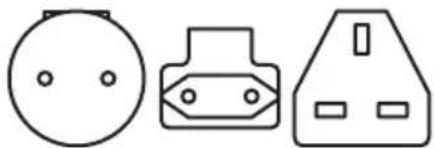
*
*
Bose 2000
Bose
worldwide.Bose.com/Support/HS300
#
aalglg (lll llog jalil s jaj g Jaiwll s jaj) aayrall/aaanll o jag aclawll 2
:
aee (0.9-0.3) 3-1 aee y s
a aal aal alaa aal aal aal aal aal
1
jwcbwgl aabllgwl jssy
命题成立
aBbllcLwll
1 .
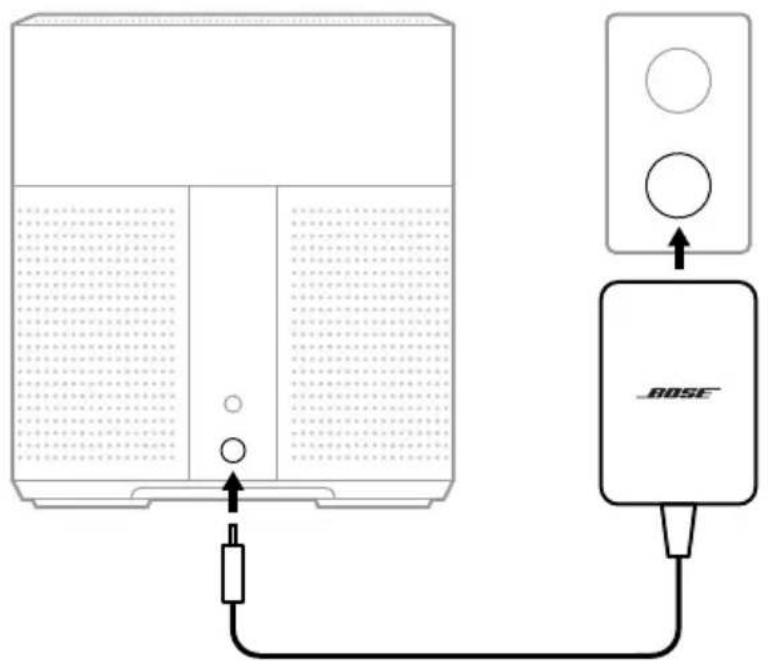
2
y
S
g 1 1 1 1 1 1 1 1 1 1 1 1 1 1 1 1 1 1 1 1 1 1 1 1 1 1 1 1 1
·aclaud
.Bose Music
. Google Assistant Amazon Alexa
:baXla gulj p
(21) Bose Music
y
1
I 1
G
BOSE MUSIC
. Bose Music 1



- ·s S_i 与 b 一致
1
Bose Music
WIFI FI J
a
1.
2..Wi-F
3 .Bose
Bose Music 4
:abila. stic law a
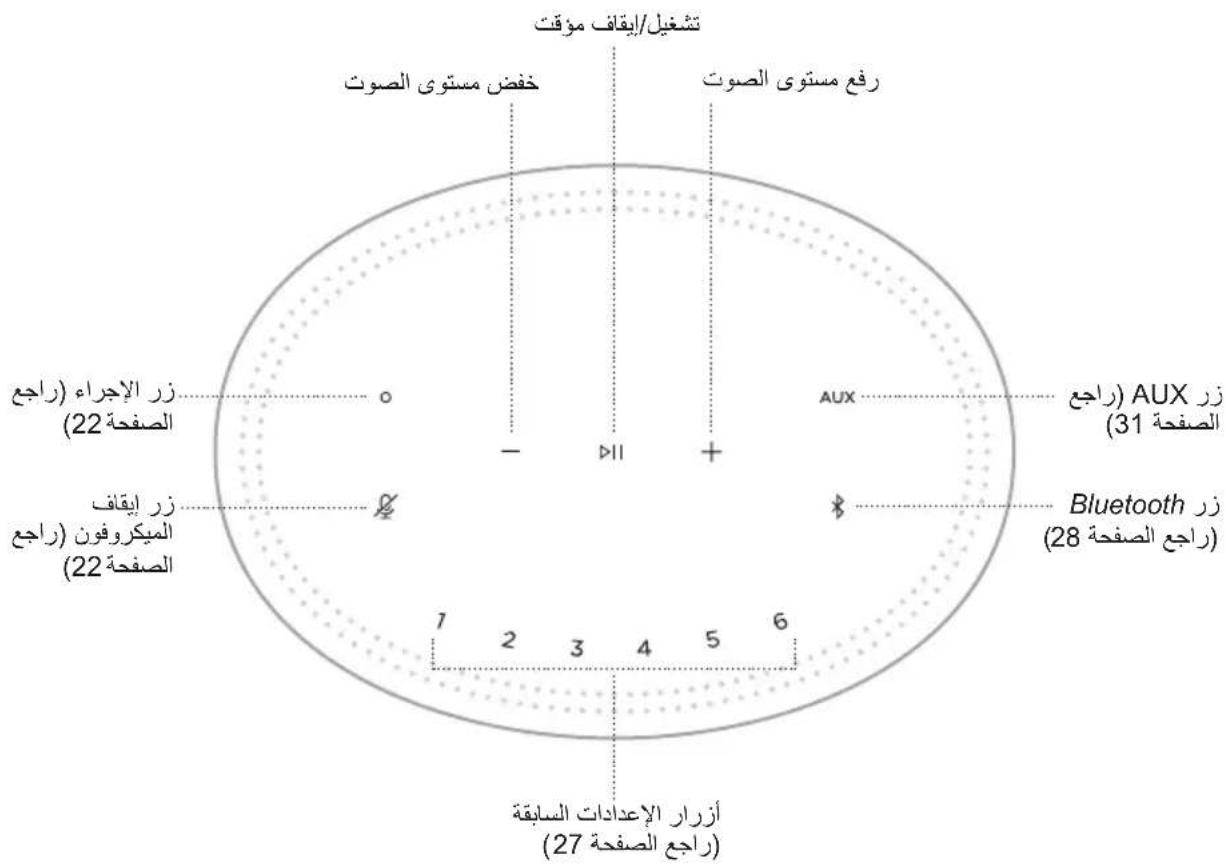
gai jia ailg
aclawl lclawly aalal jj
:abaa.Bose M
gall gssag bilwgl
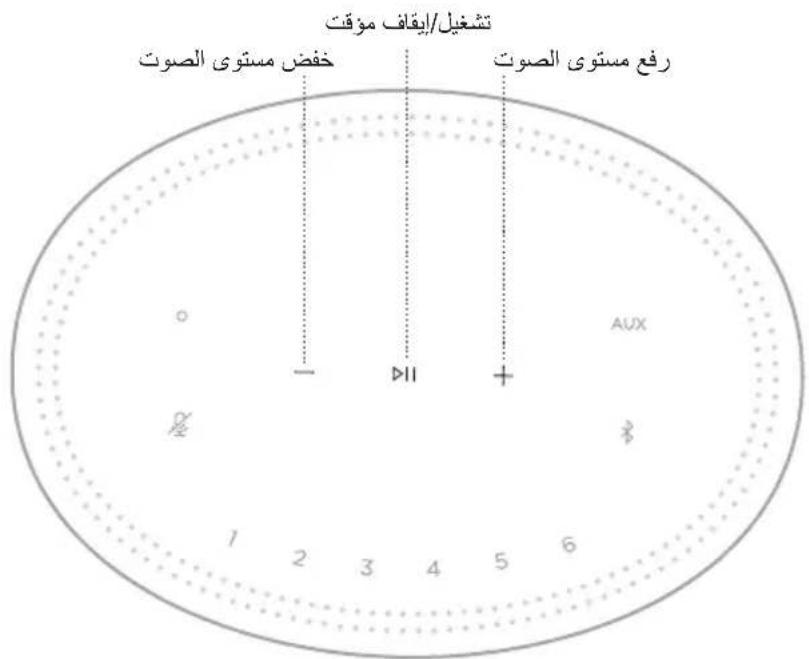
a
| .11 le biai .11 li li li li li li li li li li li li li li li li li li li li li li li li li li li li li li li li li li li li li li li li li li li li li li li li li li li li li li li li li li li li li li li li li li li li li li li li li li li li li li li li li li li li li li li li li li li li li li li li li li li li .11 jia jia jia jia jia jia jia jia jia jia jia jia jia jia jia jia jia jia jia jia jia jia jia jia jia jia jia jia jia jia jia jia jia jia jia jia jia jia jia jia jia jia jia jia jia jia jia jia jia jia jial li li li li li li li li li li li li li li li li li li li li li li li li li li li li li li li li li li li li li li li li li li li li li li li li li li li li li li li li li li li li li li li li li li li li li li li li li li li li li li li li li li li li li li li li li li li li li li li li li li li ll li li li li li li li li li li li li li li li li li li li li li li li li li li li li li li li li li li li li li li li li li li li li li li li li li li li li li li li li li li li li li li li li li li li li li li li li li li li li li li li li li li li li li li li li li li li li li li li li li li li lll lll lll lll lll lll lll lll lll lll lll lll lll lll lll lll lll lll lll lll lll lll lll lll lll lll lll lll lll lll lll lll lll lll lll lll lll lll lll lll lll lll lll lll lll lll lll lll lll lll lill lll lll lll lll lll lll lll lll lll lll lll lll lll lll lll lll lll lll lll lll lll lll lll lll lll lll lll lll lll lll lll lll lll lll lll lll lll lll lll lll lll lll lll lll lll lll lll lll lll lall lall lall lall lall lall lall lall lall lall lall lall lall lall lall lall lall lall lall lall lall lall lall lall lall lall lall lall lall lall lall lall lall lall lall lall lall lall lall lall lall lall lall lall lall lall lall lall lall lall lll lll lll lll lll lll lll lll lll lll lll lll lll lll lll lll lll lll lll lll lll lll lll lll lll lll lll lll lll lll lll lll lll lll lll lll lll lll lll lll lll lll lll lll lll lll lll lll lll lell lll lll lll lll lll lll lll lll lll lll lll lll lll lll lll lll lll lll lll lll lll lll lll lll lll lll lll lll lll lll lll lll lll lll lll lll lll lll lll lll lll lll lll lll lll lll lll lll lll lccg cgg gggggggggggggggggggggggggggggggggggggggggggggggggggggggggggggggggggggggggggggggggggggggggggggggggggggggggggggggggggggggggggggggggggggggggggggggggggggggggggggggggggggggggggggggggggggggggggggggggggggggggggggggggggggggggggggggggggggggggggggggggggggggggggggggggggggggggggggggggggggggggggggggggggggggggggggg |
(VOICE ASSISTANT)
(23 1) Amazon Alexa
.(25) Google Assistant
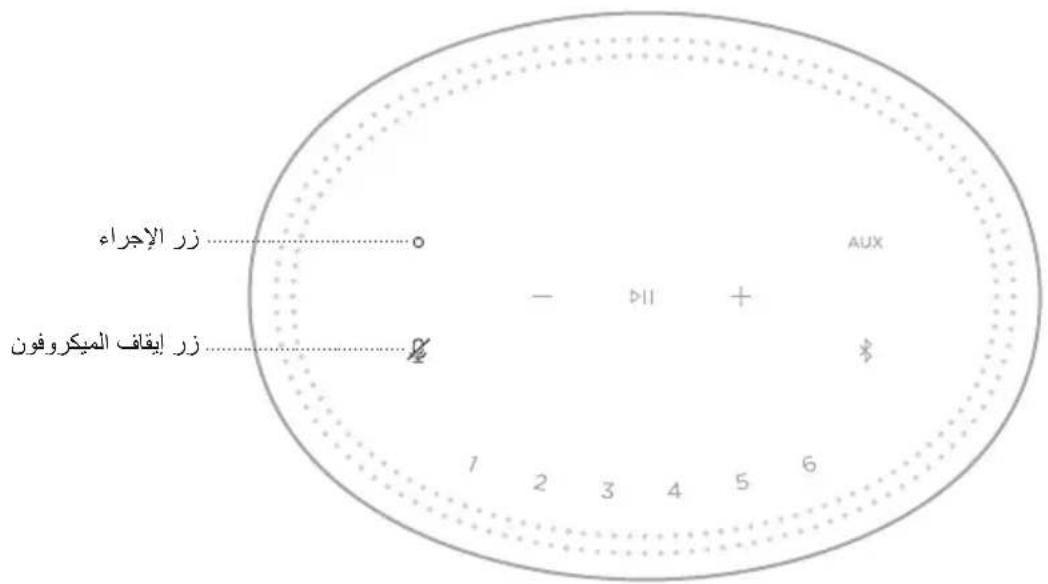
aai 1
Bose Music
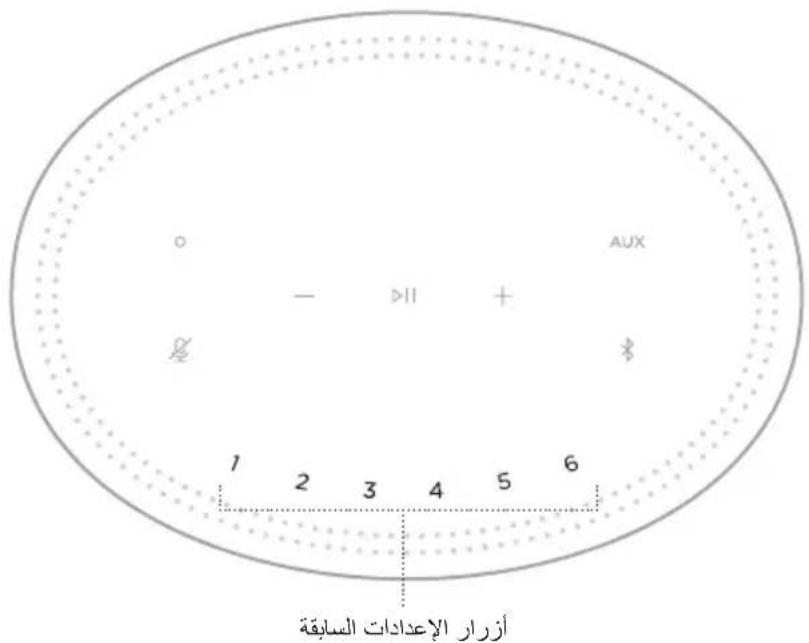
27 1
gall
. Google Assistant Amazon Alexa
Google Assistant, Amazon Alexa
1
| .(23 555) O .(25 555) | Amazon Alexa |
| .(25 555) | Google Assistant |
Google Assistant, Amazon Alexa
y jai y
Lwai Wi-Fi 4k w hieclaw g oonll jg Jn nn n
aBae JnJnJnJnJnJnJnJnJnJnJnJnJnJnJnJnJnJnJnJnJnJnJnJnJnJnJnJnJnJnJnJnJnJnJnJnJnJnJnJnJnJnJnJnJnJnJnJnJnJnJn
1
aaiiaaii iaiiaaiiaaiiaaiiaaiiaaiiaaiiaaiiaaiiaaiiaaiiaaiiaaiiaaiiaaiiaaiiaaiiaaiiaaiiaaiiaaiiaaiiaaiiaaiiaaiiaaiiaaiiaaiiaaiiaaiiaaiiaaiiaaiiaaiiaaiiaaiiaaiiaaiiaaiiaaiiaaiiaaiiaaiiaaiiaaiiaaiiaaiiaaiiaai
.Bose Music
ALEXA
Alexa Jia, Alexa Jia, Alexa Jia, Alexa Jia, Alexa Jia, Alexa Jia, Alexa Jia, Alexa Jia, Alexa Jia, Alexa Jia, Alexa Jia, Alexa Jia, Alexa Jia, Alexa Jia, Alexa Jia, Alexa Jia, Alexa Jia, Alexa Jia, Alexa Jia, Alexa Jia, Alexa Jia, Alexa Jia, Alexa Jia, Alexa Jia, Alexa Jia, Alexa Jia,
https://www.amazon.com/usealexaAlexa
:abaxla. cii, j
:Alexa"
1
Google Assistant https://support.google.com/assistant
= 1
.
.26 1Google Assistant
: Ok Google"
y j 1
aee aea eae ae aee aee aee aee aee aee aee aee aee aee aee aee aee aee aee aee aee aee aee aee aee aee aee aee aee aee aee aee aee aee aee aee aee aee aee aee aee aee aee aee aee aee aee aee aee aee aee aee aee aee aeee
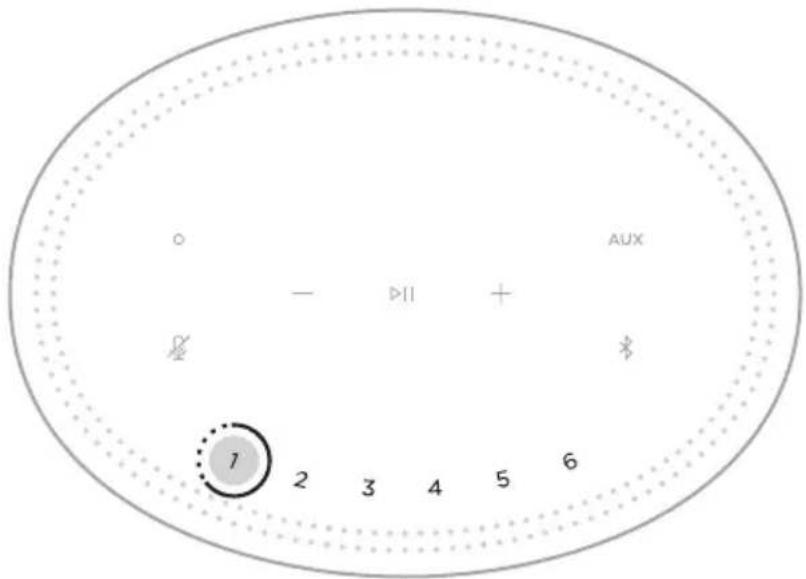
J 1
aagall jieeell 1y j jie e bai aaii
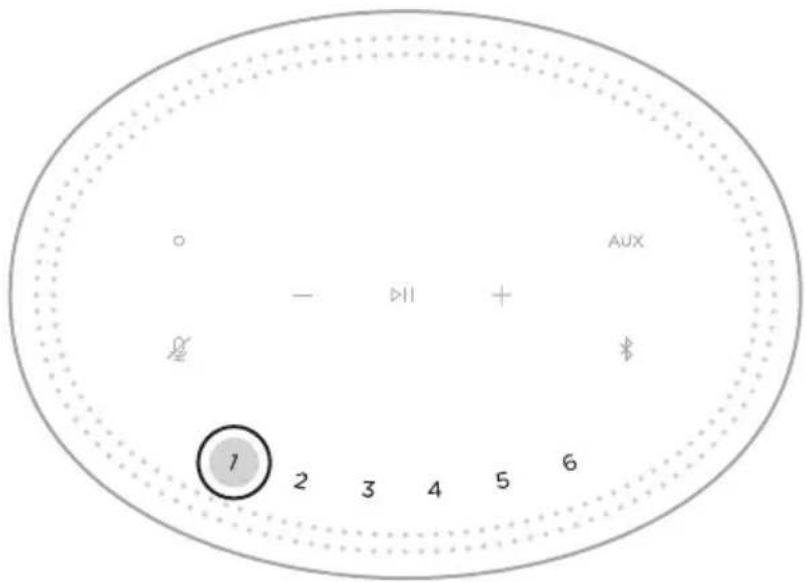
a jy 1 y
Jg JgJg
Bluetooth *jzbi 1
.
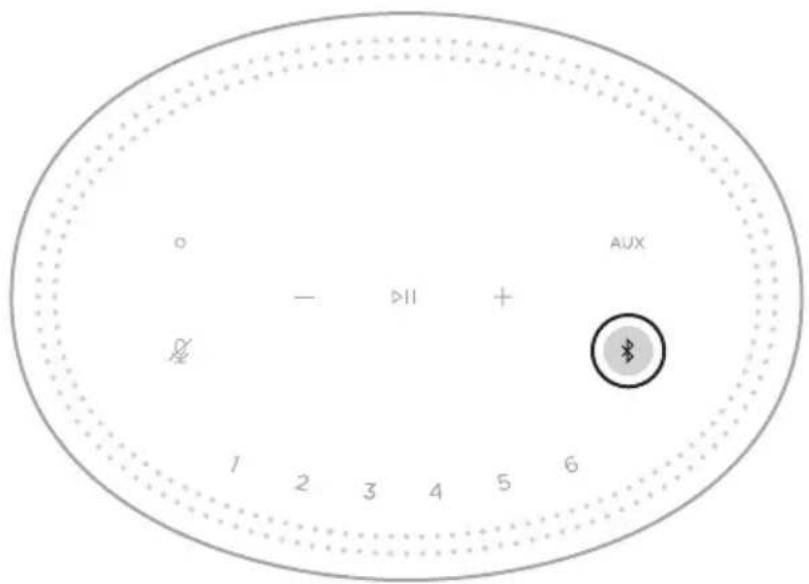
J 1
.2
Sn + 1 = 12 · Sn = 12 · 1n^2
aclawl aayy pI .Bose Musicgubbi y aalll aellwll ay jy cai:ayai
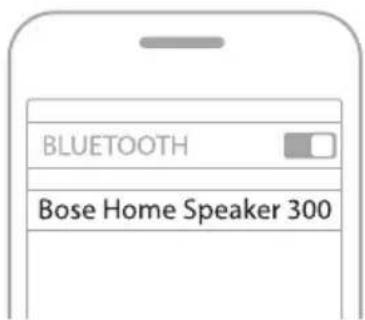
aclawly aalld 0 jgj yaiia g o jg jaiia jaiia jaiy
:
.1
2
:la.1gaoal j
aclawly aolil o jgla cwo
10 1
Jg 1
.
Jluu jLjue Bluetooth 2
(28 aJ) Jauu jol aocn jg jg jg
Jee Jn Jn Jn Jn Jn Jn Jn Jn Jn Jn Jn Jn Jn Jn Jn Jn Jn Jn Jn Jn Jn Jn Jn Jn Jn Jn Jn Jn Jn Jn Jn Jn Jn Jn Jn Jn Jn Jn Jn Jn Jn Jn Jn Jn Jn Jn Jn Jn Jn Jn J
dclawll no dall i clawll ldl Apple
= 1
iOS 11.4 Apple AirPlay 2
.
Wi-Fi Apple
AirPlay JgJolal .https://w
CONTROL CENTER
Apple 1
AirPlay 2
3
a
(Apple Music) 1
- 3.
gai jyj
i 1
.()3.5 1S Ls
AUX 3.5 1
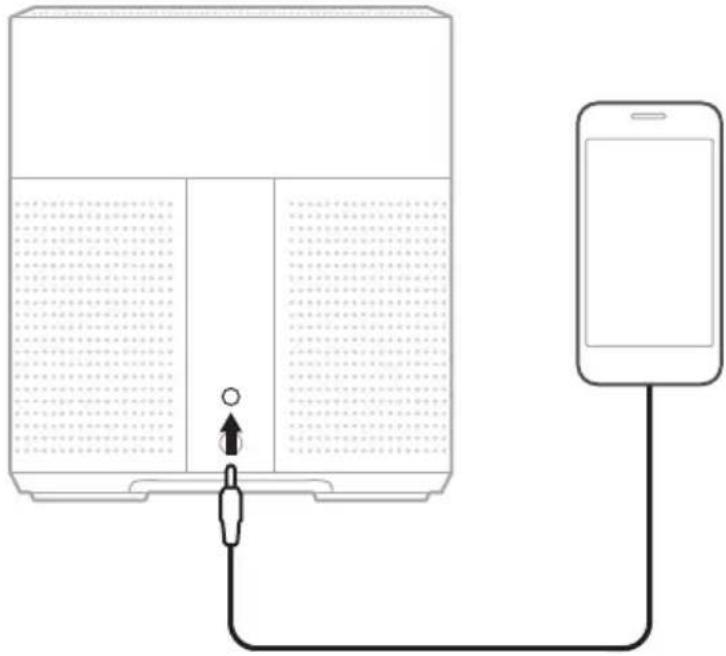
- a_4 = 8
y
cllll lclllled LED
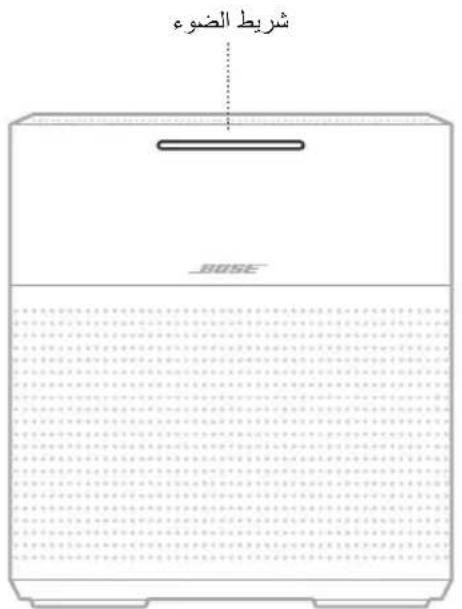
WI-FI
Wif
gai bui biui jiaai
Google Assistant Amazon Alexa
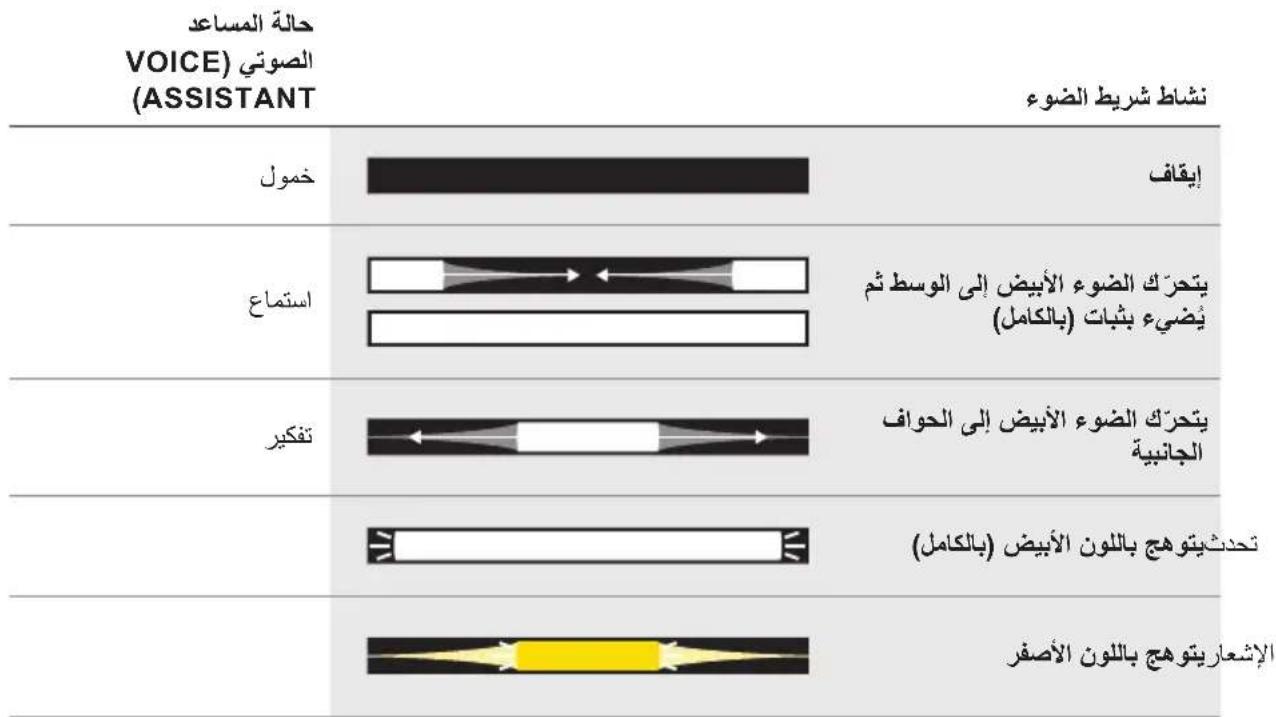
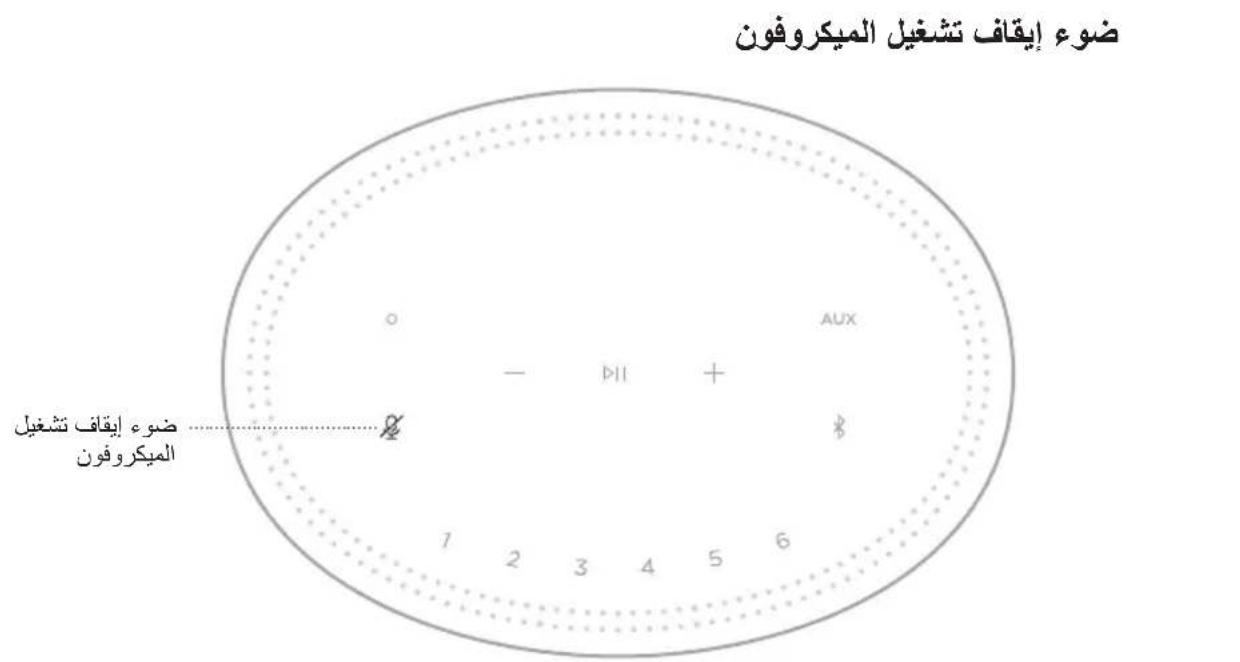
gai bui jia 1
y
gall by bui bui jglal
Bose Home Speaker 300 Bose
ylo aaiiaai aiaiaiaiai
-
Bose Sc
-
Bose Sc
-
Bose Sc
Bose Nois
worldwide.Bose.com/Support/Groups
Bose Music
Bose SoundLink Bluetooth Bose Music Worldwide.Bose.com/Support/Groups
c1 = d1
Bose cln (19) 30 30 30 30 30 30 30 30 30 30 30 30 30 30 30 30 30 30 30 30 30 30 30 30 30 30 30 30 30 30 30 30 30 30
Bose Home Speaker 300
j BOSE SOUNDLINK BLUETOOTH BOSE
.Bose wJBose SoundLink Bluetooth 200
.
= 1
worldwide.Bose.com/Support/HS300
#
Jgall global.Bose.com/warranty 1c 1000000000000000000000000000000000000000000000000000000000
worldwide.Bose.com/Contact:
| .(العربية) محيى بوراني بوراني بوراني بوراني بوراني بوراني بوراني بوراني العربية (العربية) بوراني بوراني بوراني بوراني بوراني العربية (العربية) بوراني بوراني العربية (العربية) بوراني العربية (العربية) بوراني العربية (العربية) بوراني العربية (العربية) بوراني العربية (العربية) بوراني العربية (العربية) بوراني العربية (العربية) بوراني العربية (العربية) بوراني العربية (العربية) بوراني |
| . . . . . . . . . . . . . . . . . . . . . . . . . . . . . . . . . . . . . . . . . . . . . . . . . . . . . . . . . . . . . . . . . . . . . . . . . . . . . . . . . . . . . . . . . . . . . . . . . . . . Bose Music Jazz Music Jazz Music Jazz Music Jazz Music Jazz Music Jazz Music Jazz Music Jazz Music Jazz Music Jazz Music Jazz Music Jazz Music Jazz Music Jazz Music Jazz Music Jazz Music Jazz Music Jazz Music Jazz Music Jazz Music Jazz Music Jazz Music Jazz Music Jazz Music Jazz Music Jaz Music Jaz Music Jaz Music Jaz Music Jaz Music Jaz Music Jaz Music Jaz Music Jaz Music Jaz Music Jaz Music Jaz Music Jaz Music Jaz Music Jaz Music Jaz Music Jaz Music Jaz Music Jaz Music Jaz Music Jaz Music Jaz Music Jaz Music Jaz Music Jaz Music Jas Music Jaz Music Jaz Music Jaz Music Jaz Music Jaz Music Jaz Music Jaz Music Jaz Music Jaz Music Jaz Music Jaz Music Jaz Music Jaz Music Jaz Music Jaz Music Jaz Music Jaz Music Jaz Music Jaz Music Jaz Music Jaz Music Jaz Music Jaz Music Jaz Music Joz Music Jaz Music Jaz Music Jaz Music Jaz Music Jaz Music Jaz Music Jaz Music Jaz Music Jaz Music Jaz Music Jaz Music Jaz Music Jaz Music Jaz Music Jaz Music Jaz Music Jaz Music Jaz Music Jaz Music Jaz Music Jaz Music Jaz Music Jaz Music Jaz Music JAZ Music Jaz Music Jaz Music Jaz Music Jaz Music Jaz Music Jaz Music Jaz Music Jaz Music Jaz Music Jaz Music Jaz Music Jaz Music Jaz Music Jaz Music Jaz Music Jaz Music Jaz Music Jaz Music Jaz Music Jaz Music Jaz Music Jaz Music Jaz Music Jaz Music J az Music Jaz Music Jaz Music Jaz Music Jaz Music Jaz Music Jaz Music Jaz Music Jaz Music Jaz Music Jaz Music Jaz Music Jaz Music Jaz Music Jaz Music Jaz Music Jaz Music Jaz Music Jaz Music Jaz Music Jaz Music Jaz Music Jaz Music Jaz Music Jaz Music JAz Music Jaz Music Jaz Music Jaz Music Jaz Music Jaz Music Jaz Music Jaz Music Jaz Music Jaz Music Jaz Music Jaz Music Jaz Music Jaz Music Jaz Music Jaz Music Jaz Music Jaz Music Jaz Music Jaz Music Jaz Music Jaz Music Jaz Music Jaz Music Jaz Music Jz Music Jaz Music Jaz Music Jaz Music Jaz Music Jaz Music Jaz Music Jaz Music Jaz Music Jaz Music Jaz Music Jaz Music Jaz Music Jaz Music Jaz Music Jaz Music Jaz Music Jaz Music Jaz Music Jaz Music Jaz Music Jaz Music Jaz Music Jaz Music Jaz Music Jazo Music Jaz Music Jaz Music Jaz Music Jaz Music Jaz Music Jaz Music Jaz Music Jaz Music Jaz Music Jaz Music Jaz Music Jaz Music Jaz Music Jaz Music Jaz Music Jaz Music Jaz Music Jaz Music Jaz Music Jaz Music Jaz Music Jaz Music Jaz Music Jaz Music Jazar Music Jaz Music Jaz Music Jaz Music Jaz Music Jaz Music Jaz Music Jaz Music Jaz Music Jaz Music Jaz Music Jaz Music Jaz Music Jaz Music Jaz Music Jaz Music Jaz Music Jaz Music Jaz Music Jaz Music Jaz Music Jaz Music Jaz Music Jaz Music Jaz Music Jax Music Jaz Music Jaz Music Jaz Music Jaz Music Jaz Music Jaz Music Jaz Music Jaz Music Jaz Music Jaz Music Jaz Music Jaz Music Jaz Music Jaz Music Jaz Music Jaz Music Jaz Music Jaz Music Jaz Music Jaz Music Jaz Music Jaz Music Jaz Music Jaz Music Jay Music Jaz Music Jaz Music Jaz Music Jaz Music Jaz Music Jaz Music Jaz Music Jaz Music Jaz Music Jaz Music Jaz Music Jaz Music Jaz Music Jaz Music Jaz Music Jaz Music Jaz Music Jaz Music Jaz Music Jaz Music Jaz Music Jaz Music Jaz Music Jaz Music Jav Music Jaz Music Jaz Music Jaz Music Jaz Music Jaz Music Jaz Music Jaz Music Jaz Music Jaz Music Jaz Music Jaz Music Jaz Music Jaz Music Jaz Music Jaz Music Jaz Music Jaz Music Jaz Music Jaz Music Jaz Music Jaz Music Jaz Music Jaz Music Jaz Music Jasz Music Jaz Music Jaz Music Jaz Music Jaz Music Jaz Music Jaz Music Jaz Music Jaz Music Jaz Music Jaz Music Jaz Music Jaz Music Jaz Music Jaz Music Jaz Music Jaz Music Jaz Music Jaz Music Jaz Music Jaz Music Jaz Music Jaz Music Jaz Music Jaz Music Jez Music Jaz Music Jaz Music Jaz Music Jaz Music Jaz Music Jaz Music Jaz Music Jaz Music Jaz Music Jaz Music Jaz Music Jaz Music Jaz Music Jaz Music Jaz Music Jaz Music Jaz Music Jaz Music Jaz Music Jaz Music Jaz Music Jaz Music Jaz Music Jaz Music Jazed Music Jaz Music Jaz Music Jaz Music Jaz Music Jaz Music Jaz Music Jaz Music Jaz Music Jaz Music Jaz Music Jaz Music Jaz Music Jaz Music Jaz Music Jaz Music Jaz Music Jaz Music Jaz Music Jaz Music Jaz Music Jaz Music Jaz Music Jaz Music Jaz Music Jed Music Jaz Music Jaz Music Jaz Music Jaz Music Jaz Music Jaz Music Jaz Music Jaz Music Jaz Music Jaz Music Jaz Music Jaz Music Jaz Music Jaz Music Jaz Music Jaz Music Jaz Music Jaz Music Jaz Music Jaz Music Jaz Music Jaz Music Jaz Music Jaz Music Jad Music Jaz Music Jaz Music Jaz Music Jaz Music Jaz Music Jaz Music Jaz Music Jaz Music Jaz Music Jaz Music Jaz Music Jaz Music Jaz Music Jaz Music Jaz Music Jaz Music Jaz Music Jaz Music Jaz Music Jaz Music Jaz Music Jaz Music Jaz Music Jaz Music J Yaz Music Jaz Music Jaz Music Jaz Music Jaz Music Jaz Music Jaz Music Jaz Music Jaz Music Jaz Music Jaz Music Jaz Music Jaz Music Jaz Music Jaz Music Jaz Music Jaz Music Jaz Music Jaz Music Jaz Music Jaz Music Jaz Music Jaz Music Jaz Music Jaz Music Jiaz Music Jaz Music Jaz Music Jaz Music Jaz Music Jaz Music Jaz Music Jaz Music Jaz Music Jaz Music Jaz Music Jaz Music Jaz Music Jaz Music Jaz Music Jaz Music Jaz Music Jaz Music Jaz Music Jaz Music Jaz Music Jaz Music Jaz Music Jaz Music Jaz Music Jace Music Jaz Music Jaz Music Jaz Music Jaz Music Jaz Music Jaz Music Jaz Music Jaz Music Jaz Music Jaz Music Jaz Music Jaz Music Jaz Music Jaz Music Jaz Music Jaz Music Jaz Music Jaz Music Jaz Music Jaz Music Jaz Music Jaz Music Jaz Music Jaz Music Jaze Music Jaz Music Jaz Music Jaz Music Jaz Music Jaz Music Jaz Music Jaz Music Jaz Music Jaz Music Jaz Music Jaz Music Jaz Music Jaz Music Jaz Music Jaz Music Jaz Music Jaz Music Jaz Music Jaz Music Jaz Music Jaz Music Jaz Music Jaz Music Jaz Music Jae Music Jaz Music Jaz Music Jaz Music Jaz Music Jaz Music Jaz Music Jaz Music Jaz Music Jaz Music Jaz Music Jaz Music Jaz Music Jaz Music Jaz Music Jaz Music Jaz Music Jaz Music Jaz Music Jaz Music Jaz Music Jaz Music Jaz Music Jaz Music Jaz Music Jal Music Jaz Music Jaz Music Jaz Music Jaz Music Jaz Music Jaz Music Jaz Music Jaz Music Jaz Music Jaz Music Jaz Music Jaz Music Jaz Music Jaz Music Jaz Music Jaz Music Jaz Music Jaz Music Jaz Music Jaz Music Jaz Music Jaz Music Jaz Music Jaz Music Jag Music Jaz Music Jaz Music Jaz Music Jaz Music Jaz Music Jaz Music Jaz Music Jaz Music Jaz Music Jaz Music Jaz Music Jaz Music Jaz Music Jaz Music Jaz Music Jaz Music Jaz Music Jaz Music Jaz Music Jaz Music Jaz Music Jaz Music Jaz Music Jaz Music Jab Music Jaz Music Jaz Music Jaz Music Jaz Music Jaz Music Jaz Music Jaz Music Jaz Music Jaz Music Jaz Music Jaz Music Jaz Music Jaz Music Jaz Music Jaz Music Jaz Music Jaz Music Jaz Music Jaz Music Jaz Music Jaz Music Jaz Music Jaz Music Jaz Music Jazz Music Jaz Music Jaz Music Jaz Music Jaz Music Jaz Music Jaz Music Jaz Music Jaz Music Jaz Music Jaz Music Jaz Music Jaz Music Jaz Music Jaz Music Jaz Music Jaz Music Jaz Music Jaz Music Jaz Music Jaz Music Jaz Music Jaz Music Jaz Music JAZMusic JazMusic JazMusic JazMusic JazMusic JazMusic JazMusic JazMusic JazMusic JazMusic JazMusic JazMusic JazMusic JazMusic JazMusic JazMusic JazMusic JazMusic JazMusic JazMusic JazMusic JazMusic JazMusic JazMusic JazMusic JazMusic JAZMusic JazMusic JazMusic JazMusic JazMusic JazMusic JazMusic JazMusic JazMusic JazMusic JazMusic JazMusic JazMusic JazMusic JazMusic JazMusic JazMusic JazMusic JazMusic JazMusic JazMusic JazMusic JazMusic JazMusic Jazmusic JazMusic JazMusic JazMusic JazMusic JazMusic JazMusic JazMusic JazMusic JazMusic JazMusic JazMusic JazMusic JazMusic JazMusic JazMusic JazMusic JazMusic JazMusic JazMusic JazMusic JazMusic JazMusic JazMusic JazMusic Jazmusic JAZMusic JazMusic JazMusic JazMusic JazMusic JazMusic JazMusic JazMusic JazMusic JazMusic JazMusic JazMusic JazMusic JazMusic JazMusic JazMusic JazMusic JazMusic JazMusic JazMusic JazMusic JazMusic JazMusic JazMusic Jaz music JazMusic JazMusic JazMusic JazMusic JazMusic JazMusic JazMusic JazMusic JazMusic JazMusic JazMusic JazMusic JazMusic JazMusic JazMusic JazMusic JazMusic JazMusic JazMusic JazMusic JazMusic JazMusic JazMusic JazMusic Jaz music JAZMusic JazMusic JazMusic JazMusic JazMusic JazMusic JazMusic JazMusic JazMusic JazMusic JazMusic JazMusic JazMusic JazMusic JazMusic JazMusic JazMusic JazMusic JazMusic JazMusic JazMusic JazMusic JazMusic JazMusic JazMusik JazMusic JazMusic JazMusic JazMusic JazMusic JazMusic JazMusic JazMusic JazMusic JazMusic JazMusic JazMusic JazMusic JazMusic JazMusic JazMusic JazMusic JazMusic JazMusic JazMusic JazMusic JazMusic JazMusic JazMusic JazMusik ZaMusic ZaMusic ZaMusic ZaMusic ZaMusic ZaMusic ZaMusic ZaMusic ZaMusic ZaMusic ZaMusic ZaMusic ZaMusic ZaMusic ZaMusic ZaMusic ZaMusic ZaMusic ZaMusic ZaMusic ZaMusic ZaMusic ZaMusic ZaMusic ZaMusic ZaLogic ZaLogic ZaLogic ZaLogic ZaLogic ZaLogic ZaLogic ZaLogic ZaLogic ZaLogic ZaLogic ZaLogic ZaLogic ZaLogic ZaLogic ZaLogic ZaLogic ZaLogic ZaLogic ZaLogic ZaLogic ZaLogic ZaLogic ZaLogic ZaLogic Za Logic ZaLogic ZaLogic ZaLogic ZaLogic ZaLogic ZaLogic ZaLogic ZaLogic ZaLogic ZaLogic ZaLogic ZaLogic ZaLogic ZaLogic ZaLogic ZaLogic ZaLogic ZaLogic ZaLogic ZaLogic ZaLogic ZaLogic ZaLogic ZaLogic Zalogic ZaLogic ZaLogic ZaLogic ZaLogic ZaLogic ZaLogic ZaLogic ZaLogic ZaLogic ZaLogic ZaLogic ZaLogic ZaLogic ZaLogic ZaLogic ZaLogic ZaLogic ZaLogic ZaLogic ZaLogic ZaLogic ZaLogic ZaLogic ZaLogic Za logic ZaLogic ZaLogic ZaLogic ZaLogic ZaLogic ZaLogic ZaLogic ZaLogic ZaLogic ZaLogic ZaLogic ZaLogic ZaLogic ZaLogic ZaLogic ZaLogic ZaLogic ZaLogic ZaLogic ZaLogic ZaLogic ZaLogic ZaLogic ZaLogic ZaLcLogic ZaLogic ZaLogic ZaLogic ZaLogic ZaLogic ZaLogic ZaLogic ZaLogic ZaLogic ZaLogic ZaLogic ZaLogic ZaLogic ZaLogic ZaLogic ZaLogic ZaLogic ZaLogic ZaLogic ZaLogic ZaLogic ZaLogic ZaLogic ZaLogic ZalcLogic ZalcLogic ZalcLogic ZalcLogic ZalcLogic ZalcLogic ZalcLogic ZalcLogic ZalcLogic ZalcLogic ZalcLogic ZalcLogic ZalcLogic ZalcLogic ZalcLogic ZalcLogic ZalcLogic ZalcLogic ZalcLogic ZalcLogic ZalCLogic ZalcLogic ZalcLogic ZalcLogic ZalcLogic ZalcLogic ZalcLogic ZalcLogic ZalcLogic ZalcLogic ZalcLogic ZalcLogic ZalcLogic ZalcLogic ZalcLogic ZalcLogic ZalcLogic ZalcLogic ZalcLogic ZalcLogic ZalzLogic ZalcLogic ZalcLogic ZalcLogic ZalcLogic ZalcLogic ZalcLogic ZalcLogic ZalcLogic ZalcLogic ZalcLogic ZalcLogic ZalcLogic ZalcLogic ZalcLogic ZalcLogic ZalcLogic ZalcLogic ZalcLogic ZalcLogic ZalcaLogic ZalcLogic ZalcLogic ZalcLogic ZalcLogic ZalcLogic ZalcLogic ZalcLogic ZalcLogic ZalcLogic ZalcLogic ZalcLogic ZalcLogic ZalcLogic ZalcLogic ZalcLogic ZalcLogic ZalcLogic ZalcLogic ZalcLogic ZalacLogic ZalcLogic ZalcLogic ZalcLogic ZalcLogic ZalcLogic ZalcLogic ZalcLogic ZalcLogic ZalcLogic ZalcLogic ZalcLogic ZalcLogic ZalcLogic ZalcLogic ZalcLogic ZalcLogic ZalcLogic ZalcLogic ZalcLogic ZalceLogic ZalcLogic ZalcLogic ZalcLogic ZalcLogic ZalcLogic ZalcLogic ZalcLogic ZalcLogic ZalcLogic ZalcLogic ZalcLogic ZalcLogic ZalcLogic ZalcLogic ZalcLogic ZalcLogic ZalcLogic ZalcLogic ZalcLogic ZalçLogic ZalcLogic ZalcLogic ZalcLogic ZalcLogic ZalcLogic ZalcLogic ZalcLogic ZalcLogic ZalcLogic ZalcLogic ZalcLogic ZalcLogic ZalcLogic ZalcLogic ZalcLogic ZalcLogic ZalcLogic ZalcLogic ZalcLogic ZalczLogic ZalcLogic ZalcLogic ZalcLogic ZalcLogic ZalcLogic ZalcLogic ZalcLogic ZalcLogic ZalcLogic ZalcLogic ZalcLogic ZalcLogic ZalcLogic ZalcLogic ZalcLogic ZalcLogic ZalcLogic ZalcLogic ZalcLogic ZalciLogic ZalcLogic ZalcLogic ZalcLogic ZalcLogic ZalcLogic ZalcLogic ZalcLogic ZalcLogic ZalcLogic ZalcLogic ZalcLogic ZalcLogic ZalcLogic ZalcLogic ZalcLogic ZalcLogic ZalcLogic ZalcLogic ZalcLogic ZalcsLogic ZalcLogic ZalcLogic ZalcLogic ZalcLogic ZalcLogic ZalcLogic ZalcLogic ZalcLogic ZalcLogic ZalcLogic ZalcLogic ZalcLogic ZalcLogic ZalcLogic ZalcLogic ZalcLogic ZalcLogic ZalcLogic ZalcLogic ZalciaLogic ZalciaLogic ZalciaLogic ZalciaLogic ZalciaLogic ZalciaLogic ZalciaLogic ZalciaLogic ZalciaLogic ZalciaLogic ZalciaLogic ZalciaLogic ZalciaLogic ZalciaLogic ZalciaLogic ZalciaLogic ZalciaLogic ZalciaLogic ZalciaLogic ZalciaLogic ZalcieLogic ZalciaLogic ZalciaLogic ZalciaLogic ZalciaLogic ZalciaLogic ZalciaLogic ZalciaLogic ZalciaLogic ZalciaLogic ZalciaLogic ZalciaLogic ZalciaLogic ZalciaLogic ZalciaLogic ZalciaLogic ZalciaLogic ZalciaLogic ZalciaLogic |
J
| . Bose Music . Wifi-Fi . 17 . 17 . 17 . 17 . 17 . 17 . 17 . 17 . 17 . 17 . 17 . 17 . 17 . 17 . 17 . 17 . 17 . 17 . 17 . 17 . 18 . 18 . 18 . 18 . 18 . 18 . 18 . 18 . 18 . 18 . 18 . 18 . 18 . 18 . 18 . 18 . 18 . 18 . 18 . 18 . 19 . 19 . 19 . 19 . 19 . 19 . 19 . 19 . 19 . 19 . 19 . 19 . 19 . 19 . 19 . 19 . 19 . 19 . 19 . 19 . 18 . 18 . 18 . 18 . 18 . 18 . 18 . 18 . 18 . 18 . 18 . 18 . 18 . 18 . 18 . 18 . 18 . 18 . 18 . 16 . 16 . 16 . 16 . 16 . 16 . 16 . 16 . 16 . 16 . 16 . 16 . 16 . 16 . 16 . 16 . 16 . 16 . 16 . 16 . 18 . 18 . 18 . 18 . 18 . 18 . 18 . 18 . 18 . 18 . 18 . 18 . 18 . 18 . 18 . 18 . 18 . 18 . 18 . 12 . 12 . 12 . 12 . 12 . 12 . 12 . 12 . 12 . 12 . 12 . 12 . 12 . 12 . 12 . 12 . 12 . 12 . 12 . 12 . 18 . 18 . 18 . 18 . 18 . 18 . 18 . 18 . 18 . 18 . 18 . 18 . 18 . 18 . 18 . 18 . 18 . 18 . 18 . 15 . 15 . 15 . 15 . 15 . 15 . 15 . 15 . 15 . 15 . 15 . 15 . 15 . 15 . 15 . 15 . 15 . 15 . 15 . 15 . 18 . 18 . 18 . 18 . 18 . 18 . 18 . 18 . 18 . 18 . 18 . 18 . 18 . 18 . 18 . 18 . 18 . 18 . 18 . 14 . 14 . 14 . 14 . 14 . 14 . 14 . 14 . 14 . 14 . 14 . 14 . 14 . 14 . 14 . 14 . 14 . 14 . 14 . 14 . 16 . 16 . 16 . 16 . 16 . 16 . 16 . 16 . 16 . 16 . 16 . 16 . 16 . 16 . 16 . 16 . 16 . 16 . 16 . 15 . 15 . 15 . 15 . 15 . 15 . 15 . 15 . 15 . 15 . 15 . 15 . 15 . 15 . 15 . 15 . 15 . 15 . 15 . 16 . 16 . 16 . 16 . 16 . 16 . 16 . 16 . 16 . 16 . 16 . 16 . 16 . 16 . 16 . 16 . 16 . 16 . 16 . 12 . 12 . 12 . 12 . 12 . 12 . 12 . 12 . 12 . 12 . 12 . 12 . 12 . 12 . 12 . 12 . 12 . 12 . 12 . 16 . 16 . 16 . 16 . 16 . 16 . 16 . 16 . 16 . 16 . 16 . 16 . 16 . 16 . 16 . 16 . 16 . 16 . 16 . 14 . 14 . 14 . 14 . 14 . 14 . 14 . 14 . 14 . 14 . 14 . 14 . 14 . 14 . 14 . 14 . 14 . 14 . 14 . 15 . 15 . 15 . 15 . 15 . 15 . 15 . 15 . 15 . 15 . 15 . 15 . 15 . 15 . 15 . 15 . 15 . 15 . 15 . 12 . 12 . 12 . 12 . 12 . 12 . 12 . 12 . 12 . 12 . 12 . 12 . 12 . 12 . 12 . 12 . 12 . 12 . 12 . 15 . 15 . 15 . 15 . 15 . 15 . 15 . 15 . 15 . 15 . 15 . 15 . 15 . 15 . 15 . 15 . 15 . 15 . 15 . 14 . 14 . 14 . 14 . 14 . 14 . 14 . 14 . 14 . 14 . 14 . 14 . 14 . 14 . 14 . 14 . 14 . 14 . 14 . 12 . 12 . 12 . 12 . 12 . 12 . 12 . 12 . 12 . 12 . 12 . 12 . 12 . 12 . 12 . 12 . 12 . 12 . 12 . 14 . 14 . 14 . 14 . 14 . 14 . 14 . 14 . 14 . 14 . 14 . 14 . 14 . 14 . 14 . 14 . 14 . 14 . 14 . 18 . 18 . 18 . 18 . 18 . 18 . 18 . 18 . 18 . 18 . 18 . 18 . 18 . 18 . 18 . 18 . 18 . 18 . 18 . 13 . 13 . 13 . 13 . 13 . 13 . 13 . 13 . 13 . 13 . 13 . 13 . 13 . 13 . 13 . 13 . 13 . 13 . 13 . 13 . 15 . 15 . 15 . 15 . 15 . 15 . 15 . 15 . 15 . 15 . 15 . 15 . 15 . 15 . 15 . 15 . 15 . 15 . 15 . 10 . 10 . 10 . 10 . 10 . 10 . 10 . 10 . 10 . 10 . 10 . 10 . 10 . 10 . 10 . 10 . 10 . 10 . 10 . 10 . 15 . 15 . 15 . 15 . 15 . 15 . 15 . 15 . 15 . 15 . 15 . 15 . 15 . 15 . 15 . 15 . 15 . 15 . 15 . 1. . . . . . . . . . . . . . . . . . . . . . . . . . . . . . . . . . . . . . . . . . . . . . . . . . . . . . . . . . . . . . . . . . . . . . . . . . . . . . . . . . . . . . . . . . . . . . . . . . . . ? . . . . . . . . . . . . . . . . . . . . . . . . . . . . . . . . . . . . . . . . . . . . . . . . . . . . . . . . . . . . . . . . . . . . . . . . . . . . . . . . . . . . . . . . . . . . . . . . . . . ; . . . . . . . . . . . . . . . . . . . . . . . . . . . . . . . . . . . . . . . . . . . . . . . . . . . . . . . . . . . . . . . . . . . . . . . . . . . . . . . . . . . . . . . . . . . . . . . . . . . ... . . . . . . . . . . . . . . . . . . . . . . . . . . . . . . . . . . . . . . . . . . . . . . . . . . . . . . . . . . . . . . . . . . . . . . . . . . . . . . . . . . . . . . . . . . . . . . . . . . . - - - - - - - - - - - - - - - - - - - - - - - - - - - - - - - - - - - - - - - - - - - - - - - - - - - - - - - - - - - - - - - - - - - - - - - - - - - - - - - - - - - - - - - - - - - - - - - - - - - - - - - # - - - # - - - # - - - # - - - # - - - # - - - # - - - # - - - # - - - # - - - # - - - # - - - # - - - # - - - # - - - # - - - # - - - # - - - # - - - # - - - # - - - # - - - # - - - # - - - # - - - # |
| .(15 5 3 2 4 6 8 9 10 11 12 13 14 15 16 17 18 19 20 21 22 23 24 25 26 27 28 29 30 31 32 33 34 35 36 37 38 39 40 41 42 43 44 45 46 47 48 49 50 51 52 53 54 55 56 57 58 59 60 61 62 63 64 65 66 67 68 69 70 71 72 73 74 75 76 77 78 79 80 81 82 83 84 85 86 87 88 89 90 91 92 93 94 95 96 97 98 99 100 101 102 103 104 105 106 107 108 109 110 111 112 113 114 115 116 117 118 119 120 121 122 123 124 125 126 127 128 129 130 131 132 133 134 135 136 137 138 139 140 141 142 143 144 145 146 147 148 149 150 151 152 153 154 155 156 157 158 159 160 161 162 163 164 165 166 167 168 169 170 171 172 173 174 175 176 177 178 179 180 181 182 183 184 185 186 187 188 189 190 191 192 193 194 195 196 197 198 199 200 201 202 203 204 205 206 207 208 209 210 211 212 213 214 215 216 217 218 219 220 221 222 223 224 225 226 227 228 229 230 231 232 233 234 235 236 237 238 239 240 241 242 243 244 245 246 247 248 249 250 251 252 253 254 255 256 257 258 259 260 261 262 263 264 265 266 267 268 269 270 271 272 273 274 275 276 277 278 279 280 281 282 283 284 285 286 287 288 289 290 291 292 293 294 295 296 297 298 299 300 301 302 303 304 305 306 307 308 309 310 311 312 313 314 315 316 317 318 319 320 321 322 323 324 325 326 327 328 329 330 331 332 333 334 335 336 337 338 339 340 341 342 343 344 345 346 347 348 349 350 351 352 353 354 355 356 357 358 359 360 361 362 363 364 365 366 367 368 369 370 371 372 373 374 375 376 377 378 379 380 381 382 383 384 385 386 387 388 389 390 391 392 393 394 395 396 397 398 399 400 401 402 403 404 405 406 407 408 409 410 411 412 413 414 415 416 417 418 419 420 421 422 423 424 425 426 427 428 429 430 431 432 433 434 435 436 437 438 439 440 441 442 443 444 445 446 447 448 449 450 451 452 453 454 455 456 457 458 459 460 461 462 463 464 465 466 467 468 469 470 471 472 473 474 475 476 477 478 479 480 481 482 483 484 485 486 487 488 489 490 491 492 493 494 495 496 497 498 499 500 501 502 503 504 505 506 507 508 509 510 511 512 513 514 515 516 517 518 519 520 521 522 523 524 525 526 527 528 529 530 531 532 533 534 535 536 537 538 539 540 541 542 543 544 545 546 547 548 549 550 551 552 553 554 555 556 557 558 559 560 561 562 563 564 565 566 567 568 569 570 571 572 573 574 575 576 577 578 579 580 581 582 583 584 585 586 587 588 589 590 591 592 593 594 595 596 597 598 599 600 601 602 603 604 605 606 607 608 609 610 611 612 613 614 615 616 617 618 619 620 621 622 623 624 625 626 627 628 629 630 631 632 633 634 635 636 637 638 639 640 641 642 643 644 645 646 647 648 649 650 651 652 653 654 655 656 657 658 659 660 661 662 663 664 665 666 667 668 669 670 671 672 673 674 675 676 677 678 679 680 681 682 683 684 685 686 687 688 689 690 691 692 693 694 695 696 697 698 699 700 701 702 703 704 705 706 707 708 709 710 711 712 713 714 715 716 717 718 719 720 721 722 723 724 725 726 727 728 729 730 731 732 733 734 735 736 737 738 739 740 741 742 743 744 745 746 747 748 749 750 751 752 753 754 755 756 757 758 759 760 761 762 763 764 765 766 767 768 769 770 771 772 773 774 775 776 777 778 779 780 781 782 783 784 785 786 787 788 789 790 791 792 793 794 795 796 797 798 799 800 801 802 803 804 805 806 807 808 809 810 811 812 813 814 815 816 817 818 819 820 821 822 823 824 825 826 827 828 829 830 831 832 833 834 835 836 837 838 839 840 841 842 843 844 845 846 847 848 849 850 851 852 853 854 855 856 857 858 859 860 861 862 863 864 865 866 867 868 869 870 871 872 873 874 875 876 877 878 879 880 881 882 883 884 885 886 887 888 889 890 891 892 893 894 895 896 897 898 899 900 901 902 903 904 905 906 907 908 909 910 911 912 913 914 915 916 917 918 919 920 921 922 923 924 925 926 927 928 929 930 931 932 933 934 935 936 937 938 939 940 941 942 943 944 945 946 947 948 949 950 951 952 953 954 955 956 957 958 959 960 961 962 963 964 965 966 967 968 969 970 971 972 973 974 975 976 977 978 979 980 981 982 983 984 985 986 987 988 989 990 991 992 993 994 995 996 997 998 999 |
| (rajee) Bose Music بستانم Google Assistant مساني !.(16الصفعة.Wi-Fi ب将持续 جبزد الحرفيةGoogle Assistant مساني وعاءةGoogle Assistant مساني نتات Google Assistant مساني نتات Google Assistant مساني نتات Google Assistant مساني نتات Google Assistant مساني نتات Google Assistant مساني نتات Google Assistant مساني نتات Google Assistant مساني نتات Google Assistant مساني نتات Google Assistant مساني نتات Google Assistant مساني نتات Google Assistant مساني نتات Google Assistant مساني نتات Google Assistant مس职业生涯 Google Assistant مس职业生涯 Google Assistant مس职业生涯 Google Assistant مس职业生涯 Google Assistant مس职业生涯 Google Assistant مس职业生涯 Google Assistant مس职业生涯 Google Assistant مس职业生涯 Google Assistant مس职业生涯 Google Assistant مس职业生涯 Google Assistant مس职业生涯 Google Assistant مس职业生涯 Google Assistant مس职业生涯 Google Assistant مس职业生涯 Google Assistant مس职业生涯 Google Assistant مس职业生涯 Google Assistant مس职业生涯 Google Assistant مس职业生涯 Google Assistant مس职业生涯 Google Assistant مس职业生涯 Google Assistant مس的职业 Google Assistant مس职业生涯 Google Assistant مس职业生涯 Google Assistant مس职业生涯 Google Assistant مس职业生涯 Google Assistant مس职业生涯 Google Assistant مس职业生涯 Google Assistant مس职业生涯 Google Assistant مس职业生涯 Google Assistant مس职业生涯 Google Assistant مس职业生涯 Google Assistant مس职业生涯 Google Assistant مس职业生涯 Google Assistant مس职业生涯 Google Assistant مس职业生涯 Google Assistant مس职业生涯 Google Assistant مس职业生涯 Google Assistant مس职业生涯 Google Assistant مس职业生涯 Google Assistant مس职业生涯 Google Assistant مسinezانم Google Assistant مس职业生涯 Google Assistant مس职业生涯 Google Assistant مس职业生涯 Google Assistant مس职业生涯 Google Assistant مس职业生涯 Google Assistant مس职业生涯 Google Assistant مس职业生涯 Google Assistant مس职业生涯 Google Assistant مس职业生涯 Google Assistant مس职业生涯 Google Assistant مس职业生涯 Google Assistant مس职业生涯 Google Assistant مس职业生涯 Google Assistant مس职业生涯 Google Assistant مس职业生涯 Google Assistant مس职业生涯 Google Assistant مس职业生涯 Google Assistant مس职业生涯 Google Assistant مس职业生涯 Google Assistant مسZRالعربيةGoogle Assistant مس职业生涯 Google Assistant مس职业生涯 Google Assistant مس职业生涯 Google Assistant مس职业生涯 Google Assistant مس职业生涯 Google Assistant مس职业生涯 Google Assistant مس职业生涯 Google Assistant مس职业生涯 Google Assistant مس职业生涯 Google Assistant مس职业生涯 Google Assistant مس职业生涯 Google Assistant مس职业生涯 Google Assistant مس职业生涯 Google Assistant مس职业生涯 Google Assistant مس职业生涯 Google Assistant مس职业生涯 Google Assistant مس职业生涯 Google Assistant مس职业生涯 Google Assistant مس职业生涯 Google Assistant مس职业生涯Google Assistant مس职业生涯 Google Assistant مس职业生涯 Google Assistant مس职业生涯 Google Assistant مس职业生涯 Google Assistant مس职业生涯 Google Assistant مس职业生涯 Google Assistant مس职业生涯 Google Assistant مس职业生涯 Google Assistant مس职业生涯 Google Assistant مس职业生涯 Google Assistant مس职业生涯 Google Assistant مس职业生涯 Google Assistant مس职业生涯 Google Assistant مس职业生涯 Google Assistant مس职业生涯 Google Assistant مس职业生涯 Google Assistant مس职业生涯 Google Assistant مس职业生涯 Google Assistant مس职业生涯 Google Assistant مسZRALGL | Google الصفعة الصفعة الصفعة الصفعة الصفعة الصفعة الصفaida الصفaida الصفaida الصفaida الصفaida الصفaida الصفaida الصفaida الصفaida الصفaida الصفaida الصفaida الصفaida الصفaida الصفaida الصفaida الصفaida الصفaida الصفaida الصفaida الصفIDA الصفIDA الصفIDA الصفIDA الصفIDA الصفIDA الصفIDA الصفIDA الصفIDA الصفIDA الصفIDA الصفIDA الصفIDA الصفIDA الصفIDA الصفIDA الصفIDA الصفIDA الصفIDA الصفIDA الصفaida الصفaida الصفaida الصفaida الصفaida الصفaida الصفaida الصفaida الصفaida الصفaida الصفaida الصفaida الصفaida الصفaida الصفaida الصفaida الصفaida الصفaida الصفaida الصفidia الصفidia الصفidia الصفidia الصفidia الصفidia الصفidia الصفidia الصفidia الصفidia الصفidia الصفidia الصفidia الصفidia الصفidia الصفidia الصفidia الصفidia الصفidia الصفidia الصفIDA الصفIDA الصفIDA الصفIDA الصفIDA الصفIDA الصفIDA الصفIDA الصفIDA الصفIDA الصفIDA الصفIDA الصفIDA الصفIDA الصفIDA الصفIDA الصفIDA الصفIDA الصفIDA الصفIPA الصفIPA الصفIPA الصفIPA الصفIPA الصفIPA الصفIPA الصفIPA الصفIPA الصفIPA الصفIPA الصفIPA الصフIPA الصフIPA الصフIPA الصフIPA الصフIPA الصフIPA الصフIPA الصフIPA الصフIPA الصフIPA الصフIPA الصフIPA الصフIPA الصフIPA الصフIPA الصフIPA الصフIPA الصフIPA الصフIPA الصフIPA الصFsIPA الصFsIPA الصFsIPA الصFsIPA الصFsIPA الصFsIPA الصFsIPA الصFsIPA الصFsIPA الصFsIPA الصFsIPA الصFsIPA الصFsIPA الصFsIPA الصFsIPA الصFsIPA الصFsIPA الصFsIPA الصFsIPA الصFsIPA الص FsIPA الص FsIPA الص FsIPA الص FsIPA الص FsIPA الص FsIPA الص FsIPA الص FsIPA الص FsIPA الص FsIPA الص FsIPA الص FsIPA الص FsIPA الص FsIPA الص FsIPA الص FsIPA الص FsIPA الص FsIPA الص FsIPA الص FsIPA الصFsIPA الص FsIPA الص FsIPA الص FsIPA الص FsIPA الص FsIPA الص FsIPA الص FsIPA الص FsIPA الص FsIPA الص FsIPA الص FsIPA الص FsIPA الص FsIPA الص FsIPA الص FsIPA الص FsIPA الص FsIPA الص FsIPA الصFsIPA الصFsIPA الص FsIPA الص FsIPA الص FsIPA الص FsIPA الص FsIPA الص FsIPA الص FsIPA الص FsIPA الص FsIPA الص FsIPA الص FsIPA الص FsIPA الص FsIPA الص FsIPA الص FsIPA الص FsIPA الص FsIPA الصFsIPA الص FsIPA الصFsIPA الص FsIPA الص FsIPA الص FsIPA الص FsIPA الص FsIPA الص FsIPA الص FsIPA الص FsIPA الص FsIPA الص FsIPA الص FsIPA الص FsIPA الص FsIPA الص FsIPA الص FsIPA الص FsIPA الص FsIPA الصFsIPA الصFsIPA الصFsIPA الص FsIPA الص FsIPA الص FsIPA الص FsIPA الص FsIPA الص FsIPA الص FsIPA الص FsIPA الص FsIPA الص FsIPA الص FsIPA الص FsIPA الص FsIPA الص FsIPA الص FsIPA الص FsIPA الصFsIPA الص FsIPA الص FsIPA الصFsIPA الص FsIPA الص FsIPA الص FsIPA الص FsIPA الص FsIPA الص FsIPA الص FsIPA الص FsIPA الص FsIPA الص FsIPA الص FsIPA الص FsIPA الص FsIPA الص FsIPA الص FsIPA الص FsIPA الصFsIPA الص FsIPA الصFsIPA الصFsIPA الص FsIPA الص FsIPA الص FsIPA الص FsIPA الص FsIPA الص FsIPA الص FsIPA الص FsIPA الص FsIPA الص FsIPA الص FsIPA الص FsIPA الص FsIPA الص FsIPA الص FsIPA الص FsIPA الصFsIPA الصFsIPA الص FsIPA الصFsIPA الص FsIPA الص FsIPA الص FsIPA الص FsIPA الص FsIPA الص FsIPA الص FsIPA الص FsIPA الص FsIPA الص FsIPA الص FsIPA الص FsIPA الص FsIPA الص FsIPA الص FsIPA الص FsIPA الصFsIPA الصFsIPA الصFsIPA الصFsIPA الص FsIPA الص FsIPA الص FsIPA الص FsIPA الص FsIPA الص FsIPA الص FsIPA الص FsIPA الص FsIPA الص FsIPA الص FsIPA الص FsIPA الص FsIPA الص FsIPA الص FsIPA الصFsIPA الص FsIPA الص FsIPA الص FsIPA الصFsIPA الص FsIPA الص FsIPA الص FsIPA الص FsIPA الص FsIPA الص FsIPA الص FsIPA الص FsIPA الص FsIPA الص FsIPA الص FsIPA الص FsIPA الص FsIPA الص FsIPA الص FsIPA الصFsIPA الص FsIPA الص FsIPA الصFsIPA الصFsIPA الص FsIPA الص FsIPA الص FsIPA الص FsIPA الص FsIPA الص FsIPA الص FsIPA الص FsIPA الص FsIPA الص FsIPA الص FsIPA الص FsIPA الص FsIPA الص FsIPA الص FsIPA الصFsIPA الص FsIPA الصFsIPA الص FsIPA الصFsIPA الص FsIPA الص FsIPA الص FsIPA الص FsIPA الص FsIPA الص FsIPA الص FsIPA الص FsIPA الص FsIPA الص FsIPA الص FsIPA الص FsIPA الص FsIPA الص FsIPA الص FsIPA الصFsIPA الص FsIPA الصFsIPA الصFsIPA الصFsIPA الص FsIPA الص FsIPA الص FsIPA الص FsIPA الص FsIPA الص FsIPA الص FsIPA الص FsIPA الص FsIPA الص FsIPA الص FsIPA الص FsIPA الص FsIPA الص FsIPA الص FsIPA الصFsIPA الصFsIPA الص FsIPA الص FsIPA الصFsIPA الص FsIPA الص FsIPA الص FsIPA الص FsIPA الص FsIPA الص FsIPA الص FsIPA الص FsIPA الص FsIPA الص FsIPA الص FsIPA الص FsIPA الص FsIPA الص FsIPA الص FsIPA الصFsIPA الصFsIPA الص FsIPA الصFsIPA الصFsIPA الص FsIPA الص FsIPA الص FsIPA الص FsIPA الص FsIPA الص FsIPA الص FsIPA الص FsIPA الص FsIPA الص FsIPA الص FsIPA الص FsIPA الص FsIPA الص FsIPA الص FsIPA الصFsIPA الصFsIPA الصFsIPA الص FsIPA الصFsIPA الص FsIPA الص FsIPA الص FsIPA الص FsIPA الص FsIPA الص FsIPA الص FsIPA الص FsIPA الص FsIPA الص FsIPA الص FsIPA الص FsIPA الص FsIPA الص FsIPA الص FsIPA الصFsIPA الصFsIPA الصFsIPA الصFsIPA الصFsIPA الصFsIPA الصFsIPA الصFsIPA الصFsIPA الصFsIPA الصFsIPA الصFsIPA الصFsIPA الصFsIPA الصFsIPA الصFsIPA الصFsIPA الصFsIPA الصFsIPA الص MsIPA الص MsIPA الص MsIPA الص MsIPA الص MsIPA الص MsIPA الص MsIPA الص MsIPA الص MsIPA الص MsIPA الص MsIPA الص MsIPA الص MsIPA الص MsIPA الص MsIPA الص MsIPA الص MsIPA الص MsIPA الص MsIPA الص MsIPA الصMsIPA الص MsIPA الص MsIPA الص MsIPA الص MsIPA الص MsIPA الص MsIPA الص MsIPA الص MsIPA الص MsIPA الص MsIPA الص MsIPA الص MsIPA الص MsIPA الص MsIPA الص MsIPA الص MsIPA الص MsIPA الص MsIPA الص MsIPA الص MrIPA الص MrIPA الص MrIPA الص MrIPA الص MrIPA الص MrIPA الص MrIPA The following are the main categories of the above-mentioned applications. |
| Bose SoundLink Bose SoundLink Bose SoundLink Bose SoundLink Bose SoundLink Bose SoundLink Bose SoundLink Bose SoundLink Bose SoundLink Bose SoundLink Bose SoundLink Bose SoundLink Bose SoundLink Bose SoundLink Bose SoundLink Bose SoundLink Bose SoundLink Bose SoundLink Bose SoundLink Bose SoundLink Bose SoundLink Boscure Boscure Boscure Boscure Boscure Boscure Boscure Boscure Boscure Boscure Boscure Boscure Boscure Boscure Boscure Boscure Boscure Boscure Boscure Boscure BoscURE Boscure Boscure Boscure Boscure Boscure Boscure Boscure Boscure Boscure Boscure Boscure Boscure Boscure Boscure Boscure Boscure Boscure Boscure Boscure Boscire Boscure Boscure Boscure Boscure Boscure Boscure Boscure Boscure Boscure Boscure Boscure Boscure Boscure Boscure Boscure Boscure Boscure Boscure Boscure Boscuse Boscuse Boscuse Boscuse Boscuse Boscuse Boscuse Boscuse Boscuse Boscuse Boscuse Boscuse Boscuse Boscuse Boscuse Boscuse Boscuse Boscuse Boscuse Boscuse Boscure Boscuse Boscuse Boscuse Boscuse Boscuse Boscuse Boscuse Boscuse Boscuse Boscuse Boscuse Boscuse Boscuse Boscuse Boscuse Boscuse Boscuse Boscuse Boscse Boscuse Boscuse Boscuse Boscuse Boscuse Boscuse Boscuse Boscuse Boscuse Boscuse Boscuse Boscuse Boscuse Boscuse Boscuse Boscuse Boscuse Boscuse Boscuse Boscse Boscse Boscuse Boscuse Boscuse Boscuse Boscuse Boscuse Boscuse Boscuse Boscuse Boscuse Boscuse Boscuse Boscuse Boscuse Boscuse Boscuse Boscuse Boscuse Boscse Boscouse Boscuse Boscuse Boscuse Boscuse Boscuse Boscuse Boscuse Boscuse Boscuse Boscuse Boscuse Boscuse Boscuse Boscuse Boscuse Boscuse Boscuse Boscuse Boscuse Boscouse Boscuse Boscuse Boscuse Boscuse Boscuse Boscuse Boscuse Boscuse Boscuse Boscuse Boscuse Boscuse Boscuse Boscuse Boscuse Boscuse Boscuse Boscuse Boscse Boscuser Boscuse Boscuse Boscuse Boscuse Boscuse Boscuse Boscuse Boscuse Boscuse Boscuse Boscuse Boscuse Boscuse Boscuse Boscuse Boscuse Boscuse Boscuse Boscuse Boscuser Boscuse Boscuse Boscuse Boscuse Boscuse Boscuse Boscuse Boscuse Boscuse Boscuse Boscuse Boscuse Boscuse Boscuse Boscuse Boscuse Boscuse Boscuse Boscuser Boscuser Boscuse Boscuse Boscuse Boscuse Boscuse Boscuse Boscuse Boscuse Boscuse Boscuse Boscuse Boscuse Boscuse Boscuse Boscuse Boscuse Boscuse Boscuse Boscse Boscase Boscuse Boscuse Boscuse Boscuse Boscuse Boscuse Boscuse Boscuse Boscuse Boscuse Boscuse Boscuse Boscuse Boscuse Boscuse Boscuse Boscuse Boscuse Boscuse Boscuses Boscuse Boscuse Boscuse Boscuse Boscuse Boscuse Boscuse Boscuse Boscuse Boscuse Boscuse Boscuse Boscuse Boscuse Boscuse Boscuse Boscuse Boscuse Boscuse Boscus Boscuse Boscuse Boscuse Boscuse Boscuse Boscuse Boscuse Boscuse Boscuse Boscuse Boscuse Boscuse Boscuse Boscuse Boscuse Boscuse Boscuse Boscuse Boscuse Boscused Boscuse Boscuse Boscuse Boscuse Boscuse Boscuse Boscuse Boscuse Boscuse Boscuse Boscuse Boscuse Boscuse Boscuse Boscuse Boscuse Boscuse Boscuse Boscuse Bosc use Boscuse Boscuse Boscuse Boscuse Boscuse Boscuse Boscuse Boscuse Boscuse Boscuse Boscuse Boscuse Boscuse Boscuse Boscuse Boscuse Boscuse Boscuse Boscuse Bosc-use Boscuse Boscuse Boscuse Boscuse Boscuse Boscuse Boscuse Boscuse Boscuse Boscuse Boscuse Boscuse Boscuse Boscuse Boscuse Boscuse Boscuse Boscuse Boscuse Boscause Boscuse Boscuse Boscuse Boscuse Boscuse Boscuse Boscuse Boscuse Boscuse Boscuse Boscuse Boscuse Boscuse Boscuse Boscuse Boscuse Boscuse Boscuse Boscuse Boscue Boscuse Boscuse Boscuse Boscuse Boscuse Boscuse Boscuse Boscuse Boscuse Boscuse Boscuse Boscuse Boscuse Boscuse Boscuse Boscuse Boscuse Boscuse Boscuse Boscucse Boscuse Boscuse Boscuse Boscuse Boscuse Boscuse Boscuse Boscuse Boscuse Boscuse Boscuse Boscuse Boscuse Boscuse Boscuse Boscuse Boscuse Boscuse Boscuse Bosscuse Boscuse Boscuse Boscuse Boscuse Boscuse Boscuse Boscuse Boscuse Boscuse Boscuse Boscuse Boscuse Boscuse Boscuse Boscuse Boscuse Boscuse Boscuse Boscuse Bosscse Boscuse Boscuse Boscuse Boscuse Boscuse Boscuse Boscuse Boscuse Boscuse Boscuse Boscuse Boscuse Boscuse Boscuse Boscuse Boscuse Boscuse Boscuse Boscuse Boscsse Boscuse Boscuse Boscuse Boscuse Boscuse Boscuse Boscuse Boscuse Boscuse Boscuse Boscuse Boscuse Boscuse Boscuse Boscuse Boscuse Boscuse Boscuse Boscuse Boscrse Boscuse Boscuse Boscuse Boscuse Boscuse Boscuse Boscuse Boscuse Boscuse Boscuse Boscuse Boscuse Boscuse Boscuse Boscuse Boscuse Boscuse Boscuse Boscuse Bosiscuse Bosscuse Bosscuse Bosscuse Bosscuse Bosscuse Bosscuse Bosscuse Bosscuse Bosscuse Bosscuse Bosscuse Bosscuse Bosscuse Bosscuse Bosscuse Bosscuse Bosscuse Bosscuse Bosscuse Bosscuse Boscuse Bosscuse Bosscuse Bosscuse Bosscuse Bosscuse Bosscuse Bosscuse Bosscuse Bosscuse Bosscuse Bosscuse Bosscuse Bosscuse Bosscuse Bosscuse Bosscuse Bosscuse Bosscuse Bosscuse Bosxcuse Bosscuse Bosscuse Bosscuse Bosscuse Bosscuse Bosscuse Bosscuse Bosscuse Bosscuse Bosscuse Bosscuse Bosscuse Bosscuse Bosscuse Bosscuse Bosscuse Bosscuse Bosscuse Bosscuse Bossce Bosscuse Bosscuse Bosscuse Bosscuse Bosscuse Bosscuse Bosscuse Bosscuse Bosscuse Bosscuse Bosscuse Bosscuse Bosscuse Bosscuse Bosscuse Bosscuse Bosscuse Bosscuse Bosscuse Bosscse Bosscuse Bosscuse Bosscuse Bosscuse Bosscuse Bosscuse Bosscuse Bosscuse Bosscuse Bosscuse Bosscuse Bosscuse Bosscuse Bosscuse Bosscuse Bosscuse Bosscuse Bosscuse Bosscuse Bosscusse Bosscuse Bosscuse Bosscuse Bosscuse Bosscuse Bosscuse Bosscuse Bosscuse Bosscuse Bosscuse Bosscuse Bosscuse Bosscuse Bosscuse Bosscuse Bosscuse Bosscuse Bosscuse Bosscuse Boscse Bosscuse Bosscuse Bosscuse Bosscuse Bosscuse Bosscuse Bosscuse Bosscuse Bosscuse Bosscuse Bosscuse Bosscuse Bosscuse Bosscuse Bosscuse Bosscuse Bosscuse Bosscuse Bosscuse BosScse Bosscse Bosscse Bosscse Bosscse Bosscse Bosscse Bosscse Bosscse Bosscse Bosscse Bosscse Bosscse Bosscse Bosscse Bosscse Bosscse Bosscse Bosscse Bosscse Bosscse Boscse Bosscse Bosscse Bosscse Bosscse Bosscse Bosscse Bosscse Bosscse Bosscse Bosscse Bosscse Bosscse Bosscse Bosscse Bosscse Bosscse Bosscse Bosscse Bosscse Bossce Bosscse Bosscse Bosscse Bosscse Bosscse Bosscse Bosscse Bosscse Bosscse Bosscse Bosscse Bosscse Bosscse Bosscse Bosscse Bosscse Bosscse Bosscse Bosscse Bosscsee Bosscse Bosscse Bosscse Bosscse Bosscse Bosscse Bosscse Bosscse Bosscse Bosscse Bosscse Bosscse Bosscse Bosscse Bosscse Bosscse Bosscse Bosscse Bosscse Bossc se Bosscse Bosscse Bosscse Bosscse Bosscse Bosscse Bosscse Bosscse Bosscse Bosscse Bosscse Bosscse Bosscse Bosscse Bosscse Bosscse Bosscse Bosscse Bosscse BosscSE Bosscse Bosscse Bosscse Bosscse Bosscse Bosscse Bosscse Bosscse Bosscse Bosscse Bosscse Bosscse Bosscse Bosscse Bosscse Bosscse Bosscse Bosscse Bosscse BosscSe Bosscse Bosscse Bosscse Bosscse Bosscse Bosscse Bosscse Bosscse Bosscse Bosscse Bosscse Bosscse Bosscse Bosscse Bosscse Bosscse Bosscse Bosscse Bosscse Bossc SE Bosscse Bosscse Bosscse Bosscse Bosscse Bosscse Bosscse Bosscse Bosscse Bosscse Bosscse Bosscse Bosscse Bosscse Bosscse Bosscse Bosscse Bosscse Bosscse Bosscsemg Bosscse Bosscse Bosscse Bosscse Bosscse Bosscse Bosscse Bosscse Bosscse Bosscse Bosscse Bosscse Bosscse Bosscse Bosscse Bosscse Bosscse Bosscse Bosscse Bosscsse Bosscse Bosscse Bosscse Bosscse Bosscse Bosscse Bosscse Bosscse Bosscse Bosscse Bosscse Bosscse Bosscse Bosscse Bosscse Bosscse Bosscse Bosscse Bosscse Bosscssg Bosscse Bosscse Bosscse Bosscse Bosscse Bosscse Bosscse Bosscse Bosscse Bosscse Bosscse Bosscse Bosscse Bosscse Bosscse Bosscse Bosscse Bosscse Bosscse Bossccse Bosscse Bosscse Bosscse Bosscse Bosscse Bosscse Bosscse Bosscse Bosscse Bosscse Bosscse Bosscse Bosscse Bosscse Bosscse Bosscse Bosscse Bosscse Bosscse Bosbse Bosscse Bosscse Bosscse Bosscse Bosscse Bosscse Bosscse Bosscse Bosscse Bosscse Bosscse Bosscse Bosscse Bosscse Bosscse Bosscse Bosscse Bosscse Bosscse Bosacse Bosscse Bosscse Bosscse Bosscse Bosscse Bosscse Bosscse Bosscse Bosscse Bosscse Bosscse Bosscse Bosscse Bosscse Bosscse Bosscse Bosscse Bosscse Bosscse BosScse Bosscse Bosscse Bosscse Bosscse Bosscse Bosscse Bosscse Bosscse Bosscse Bosscse Bosscse Bosscse Bosscse Bosscse Bosscse Bosscse Bosscse Bosscse Bossc se Bossccse Bosscse Bosscse Bosscse Bosscse Bosscse Bosscse Bosscse Bosscse Bosscse Bosscse Bosscse Bosscse Bosscse Bosscse Bosscse Bosscse Bosscse Bosscse Bossccse BOSCSE |
gall 1
gale! galeall jn a 5iill g sall g sllg jsslll lalc! gaae gaiall cllac! daiil Jai
10 10 aux -gall gss
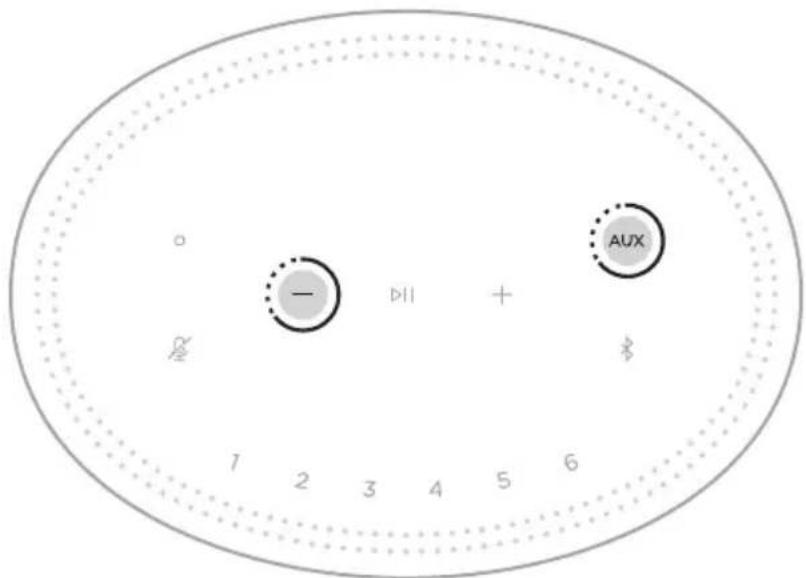
y
gall lal 1 g clll s
(16 a) Bose Music